N8N Workflows Catalog
Discover ready-to-use automation workflows to optimize your processes.
Subscribe to our newsletter
Get the latest updates and new workflows delivered to your inbox.
By subscribing, you agree to receive updates. You can unsubscribe at any time.
n8n Cloud
$20/month : Unlimited workflows
Bright Data
THE #1 IN WEB SCRAPING
Hostinger
Self-hosted n8n
Apify
#1 hub for scraping, AI & automation
Latest Workflows
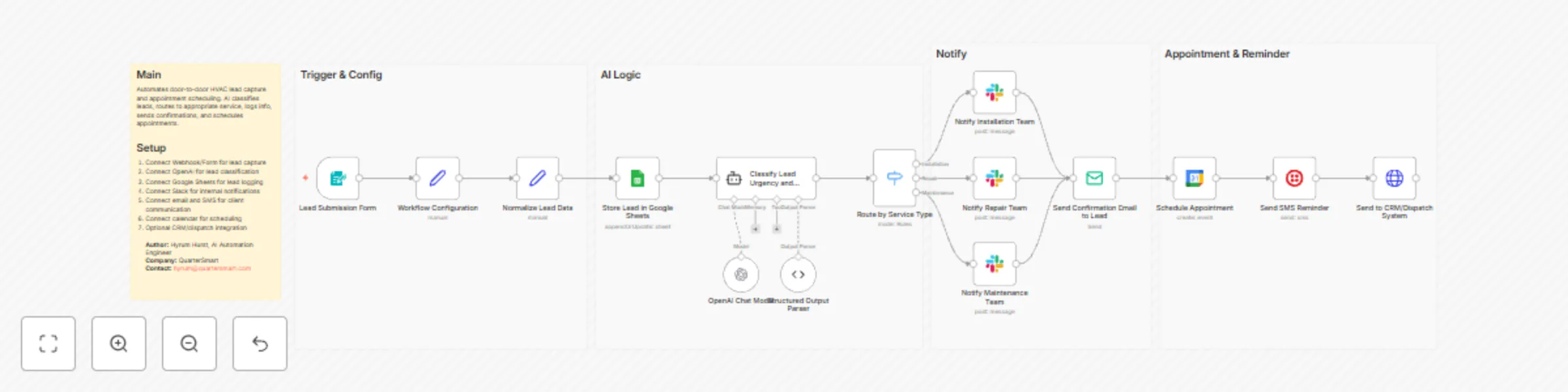
Capture and schedule HVAC leads with OpenAI, Google Sheets, Slack and SMS
## Who this workflow is for Door-to-door HVAC companies seeking automated lead capture and appointment scheduling. ## What this workflow does AI classifies incoming leads, routes them by service type, logs lead info in Google Sheets, notifies team via Slack, sends confirmations, schedules appointments, and optionally sends SMS reminders. ## How the workflow works 1. Lead submission triggers workflow 2. AI classifies lead 3. Route lead based on service type 4. Log in Google Sheets 5. Notify team via Slack 6. Send confirmation email 7. Schedule appointment in calendar 8. Send SMS reminder (optional) 9. Optional CRM/dispatch integration **Author:** Hyrum Hurst, AI Automation Engineer **Company:** QuarterSmart **Contact:** [email protected]

Send Stripe invoice reminders with GPT-4.1-mini, Google Sheets and Slack
## Who this workflow is for Accounting and bookkeeping firms needing automated invoice creation and payment reminders. ## What this workflow does AI generates personalized emails for overdue invoices, logs invoice info in Google Sheets, notifies accountants via Slack, creates PDF invoices, and schedules follow-ups. ## How the workflow works 1. Invoice creation triggers workflow 2. AI drafts personalized email 3. Routes based on payment status 4. Logs invoice info in Google Sheets 5. Sends Slack notifications to accountant 6. Sends email to client 7. Generates PDF invoice 8. Schedules follow-up events 9. Optional CRM/accounting tool integration **Author:** Hyrum Hurst, AI Automation Engineer **Company:** QuarterSmart **Contact:** [email protected]
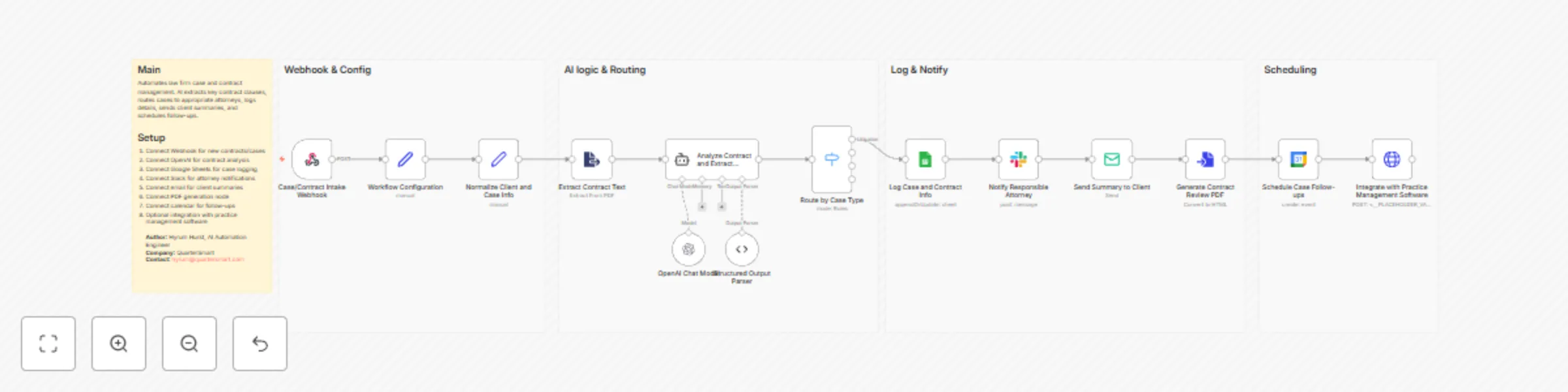
Analyze legal contracts with GPT-4.1 and manage cases in Google Sheets and Slack
## Who this workflow is for Law firms in corporate, litigation, or family law needing streamlined case and contract management. ## What this workflow does Automatically analyzes contracts using AI, extracts key clauses, logs cases in Google Sheets, routes cases to attorneys, sends client summaries, generates PDFs, and schedules follow-ups. ## How the workflow works 1. Webhook triggers on new case or contract 2. AI analyzes contract 3. Case routed by type 4. Logs case info in Google Sheets 5. Notifies attorney via Slack 6. Sends client email summary 7. Generates PDF report 8. Schedules follow-up events 9. Optional integration with practice management software **Author:** Hyrum Hurst, AI Automation Engineer **Company:** QuarterSmart **Contact:** [email protected]
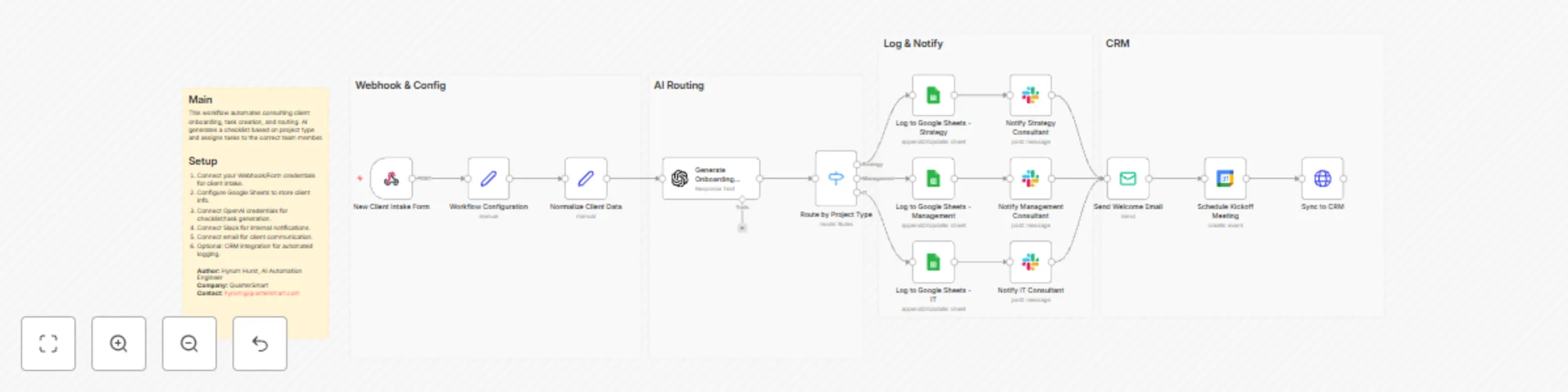
Create consulting client onboarding tasks with GPT-4o-mini, Google Sheets and Slack
## Who this workflow is for Consulting firms in strategy, management, or IT who want to automate client onboarding and internal task assignment. ## What this workflow does Automatically creates onboarding tasks and checklists using AI, routes them to the right consultant, logs client info in Google Sheets, and sends client welcome emails. Internal teams get Slack notifications, and kickoff meetings can be scheduled automatically. ## How the workflow works 1. New client intake triggers workflow 2. AI generates onboarding checklist 3. Tasks routed based on project type 4. Client info logged in Google Sheets 5. Slack notifications sent to consultants 6. Optional PDF of onboarding sent to client 7. Email confirmation delivered to client 8. Optional CRM integration ## Setup Instructions - Connect Webhook/Form for intake - Connect Google Sheets - Connect OpenAI - Connect Slack and email - Configure optional CRM integration **Author:** Hyrum Hurst, AI Automation Engineer **Company:** QuarterSmart **Contact:** [email protected]

Forecast and report multi-channel tax liabilities with OpenAI, Gmail, Sheets and Airtable
## How It Works This workflow automates tax compliance by aggregating multi-channel revenue data, calculating jurisdiction-specific tax obligations, detecting anomalies, and generating submission-ready reports for tax authorities. Designed for finance teams, tax professionals, and e-commerce operations, it solves the challenge of manually reconciling transactions across multiple sales channels, applying complex tax rules, and preparing compliant filings under tight deadlines. The system triggers monthly or on-demand, fetching revenue data from e-commerce platforms, payment processors, and accounting systems. Transaction records flow through validation layers that merge historical context, classify revenue streams, and calculate tax obligations using jurisdiction-specific rules engines. AI models detect anomalies in tax calculations, identify unusual deduction patterns, and flag potential audit risks. The workflow routes revenue data by tax jurisdiction, applies progressive tax brackets, and generates formatted reports matching authority specifications. Critical anomalies trigger immediate alerts to tax teams via Gmail, while finalized reports store in Google Sheets and Airtable for audit trails. This eliminates 80% of manual tax preparation work, ensures multi-jurisdiction compliance, and reduces filing errors. ## Setup Steps 1. Configure e-commerce API credentials for transaction access 2. Set up payment processor integrations (Stripe, PayPal) for revenue reconciliation 3. Add accounting system credentials (QuickBooks, Xero) for financial data 4. Configure OpenAI API key for anomaly detection and tax analysis 5. Set Gmail OAuth credentials for tax team alert notifications 6. Link Google Sheets for report storage and audit trail documentation 7. Connect Airtable workspace for structured tax record management ## Prerequisites Active e-commerce platform accounts with API access. Payment processor credentials. ## Use Cases Automated monthly sales tax calculations for multi-state e-commerce. ## Customization Modify tax calculation rules for specific jurisdiction requirements. ## Benefits Reduces tax preparation time by 80% through end-to-end automation.

Coordinate patient care and alerts with EHR/FHIR, GPT-4, Twilio, Gmail and Slack
## How It Works This workflow automates end-to-end patient care coordination by monitoring appointment schedules, clinical events, and care milestones while orchestrating personalized communications across multiple channels. Designed for healthcare operations teams, care coordinators, and patient engagement specialists, it solves the challenge of manual patient follow-up, missed appointments, and fragmented communication across care teams. The system triggers on scheduled intervals and real-time clinical events, ingesting data from EHR systems, appointment schedulers, and lab result feeds. Patient records flow through validation and risk stratification layers using AI models that identify high-risk patients, predict no-show probability, and recommend intervention timing. The workflow applies clinical protocols for appointment reminders, medication adherence checks, and post-discharge follow-ups. Critical cases automatically route to care coordinators via Slack alerts, while routine communications deploy via SMS, email, and patient portal notifications. All interactions log to secure databases for compliance documentation. This eliminates manual outreach coordination, reduces no-shows by 40%, and ensures HIPAA-compliant patient engagement at scale. ## Setup Steps 1. Configure EHR/FHIR API credentialsfor patient data access 2. Set up webhook endpoints for real-time clinical event notifications 3. Add OpenAI API key for patient risk stratification and communication personalization 4. Configure Twilio credentials for SMS and voice call delivery 5. Set Gmail OAuth or SMTP credentials for email appointment reminders 6. Connect Slack workspace and define care coordination alert channels ## Prerequisites Active EHR system with FHIR API access or HL7 integration capability. ## Use Cases Automated appointment reminder campaigns reducing no-shows. ## Customization Modify risk scoring models for specialty-specific patient populations. ## Benefits Reduces patient no-show rates by 40% through timely, personalized reminders.
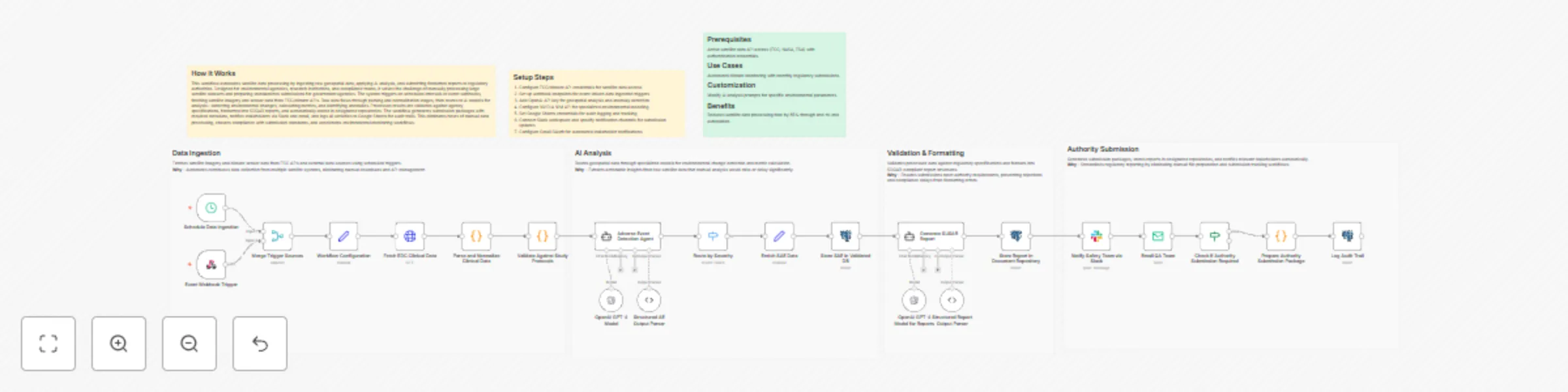
Automate satellite data analysis and regulatory reporting with GPT-4 and Slack
## How It Works This workflow automates satellite data processing by ingesting raw geospatial data, applying AI analysis, and submitting formatted reports to regulatory authorities. Designed for environmental agencies, research institutions, and compliance teams, it solves the challenge of manually processing large satellite datasets and preparing standardized submissions for government agencies. The system triggers on scheduled intervals or event webhooks, fetching satellite imagery and sensor data from ECC/climate APIs. Raw data flows through parsing and normalization stages, then routes to AI models for analysis—detecting environmental changes, calculating metrics, and identifying anomalies. Processed results are validated against agency specifications, formatted into SDQAR reports, and automatically stored in designated repositories. The workflow generates submission packages with required metadata, notifies stakeholders via Slack and email, and logs all activities to Google Sheets for audit trails. This eliminates hours of manual data processing, ensures compliance with submission standards, and accelerates environmental monitoring workflows. ## Setup Steps 1. Configure ECC/climate API credentials for satellite data access 2. Set up webhook endpoints for event-driven data ingestion triggers 3. Add OpenAI API key for geospatial analysis and anomaly detection 4. Configure NVIDIA NIM API for specialized environmental modeling 5. Set Google Sheets credentials for audit logging and tracking 6. Connect Slack workspace and specify notification channels for submission updates 7. Configure Gmail OAuth for automated stakeholder notifications ## Prerequisites Active satellite data API access (ECC, NASA, ESA) with authentication credentials. ## Use Cases Automated climate monitoring with monthly regulatory submissions. ## Customization Modify AI analysis prompts for specific environmental parameters. ## Benefits Reduces satellite data processing time by 85% through end-to-end automation.
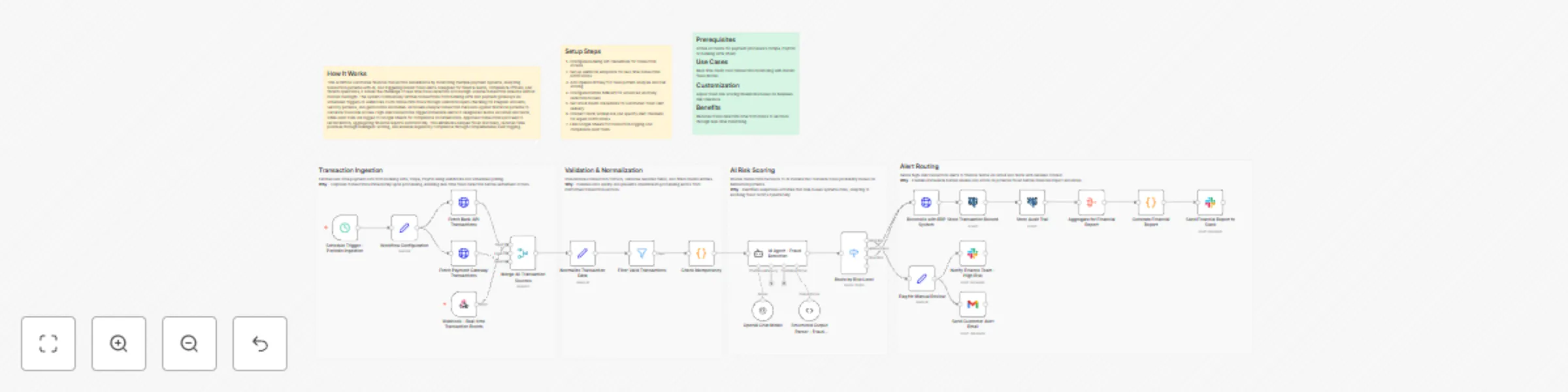
Detect multi-source transaction fraud and reconcile finances with OpenAI, Nvidia NIM, Gmail, Slack and Google Sheets
## How It Works This workflow automates financial transaction surveillance by monitoring multiple payment systems, analyzing transaction patterns with AI, and triggering instant fraud alerts. Designed for finance teams, compliance officers, and fintech operations, it solves the challenge of real-time fraud detection across high-volume transaction streams without manual oversight. The system continuously fetches transactions from banking APIs and payment gateways via scheduled triggers or webhooks. Each transaction flows through validation layers checking for irregular amounts, velocity patterns, and geolocation anomalies. AI models analyze transaction metadata against historical patterns to calculate fraud risk scores. High-risk transactions trigger immediate alerts to designated teams via Gmail and Slack, while audit trails are logged to Google Sheets for compliance documentation. Approved transactions proceed to reconciliation, aggregating financial reports automatically. This eliminates delayed fraud discovery, reduces false positives through intelligent scoring, and ensures regulatory compliance through comprehensive audit logging. ## Setup Steps 1. Configure banking API credentials for transaction access 2. Set up webhook endpoints for real-time transaction notifications 3. Add OpenAI API key for fraud pattern analysis and risk scoring 4. Configure NVIDIA NIM API for advanced anomaly detection models 5. Set Gmail OAuth credentials for automated fraud alert delivery 6. Connect Slack workspace and specify alert channels for urgent notifications 7. Link Google Sheets for transaction logging and compliance audit trails ## Prerequisites Active accounts for payment processors (Stripe, PayPal) or banking APIs (Plaid) ## Use Cases Real-time credit card transaction monitoring with instant fraud blocks ## Customization Adjust fraud risk scoring thresholds based on business risk tolerance ## Benefits Reduces fraud detection time from hours to seconds through real-time monitoring.

Grade and deliver multi-course assignment feedback with GPT-4o, Google Drive, Slack, and Gmail
## How It Works This workflow automates business intelligence reporting by aggregating data from multiple sources, processing it through AI models, and delivering formatted dashboards via email. Designed for business analysts, operations managers, and executive teams, it solves the challenge of manually compiling metrics from disparate systems into coherent reports. The system triggers on schedule or webhook, extracting data from Google Sheets, databases, and APIs. Raw data flows through transformation nodes that calculate KPIs, generate trend analyses, and create visualizations. AI models (OpenAI) provide natural language insights and anomaly detection. Results populate multiple dashboard templates—executive summary, departmental metrics, and detailed analytics—each tailored to specific stakeholder needs. Formatted reports are automatically distributed via Gmail with embedded charts and actionable recommendations. This eliminates hours of manual data gathering, reduces reporting errors, and ensures stakeholders receive timely, consistent insights. ## Setup Steps 1. Configure Google Sheets credentials and specify source spreadsheet IDs 2. Set up database connections (PostgreSQL, MySQL) with read-only access 3. Add OpenAI API key for GPT-4 analytics and narrative generation 4. Set Gmail OAuth credentials for automated email delivery 5. Define recipient lists for each dashboard type (executive, departmental, detailed) 6. Customize dashboard templates with company branding and preferred KPIs ## Prerequisites Active Google Workspace account with Sheets and Gmail access. ## Use Cases Automated weekly executive dashboards with YoY comparisons. ## Customization Modify dashboard templates to match corporate branding standards. ## Benefits Reduces report preparation time by 80% through full automation.

Draft and manage academic research papers with GPT-4 and Pinecone
## How It Works This workflow automates academic research processing by routing queries through specialized AI models while maintaining contextual memory. Designed for researchers, faculty, and graduate students, it solves the challenge of managing multiple AI models for different research tasks while preserving conversation context across sessions. The system accepts research queries via webhook, stores them in vector databases for semantic search, and intelligently routes requests to appropriate AI models (OpenAI, Anthropic Claude, or NVIDIA NIM). Results are consolidated, formatted, and delivered via email with full citation tracking. The workflow maintains conversation history using Pinecone vector storage, enabling follow-up queries that reference previous interactions. This eliminates manual model switching, context loss, and repetitive credential management—streamlining research workflows from literature review to hypothesis generation. ## Setup Steps 1. Configure Pinecone credentials 2. Add OpenAI API key for GPT-4 access and embeddings 3. Set up Anthropic Claude API credentials for advanced reasoning 4. Configure NVIDIA NIM API key for specialized academic models 5. Connect Google Sheets for query logging and result tracking 6. Set Gmail OAuth credentials for automated result delivery 7. Configure webhook URL for query submission endpoint ## Prerequisites Active accounts and API keys for Pinecone, OpenAI ## Use Cases Literature review automation with semantic paper discovery. ## Customization Modify AI model selection logic for domain-specific optimization. ## Benefits Reduces research processing time by 60% through automated routing.

Generate VEED AI talking head videos from sheet rows with OpenAI or ElevenLabs
A production-ready n8n workflow that generates AI avatar videos from images and text using **VEED Fabric 1.0**, with flexible multi-platform publishing capabilities. ## Key Capabilities ### Unlimited Scale - **Process any number of videos**: Sequential processing ensures each video is fully generated and published before moving to the next - **Batch processing**: Add multiple video requests to Google Sheet and let the workflow process them automatically - **No context mixing**: Each video maintains its own configuration throughout the entire pipeline ### Flexible Publishing - **Per-video platform selection**: Each video can target different platforms (e.g., Video 1 → Instagram+YouTube, Video 2 → Telegram only) - **Optional publishing**: Leave PLATFORMS column empty to generate videos without publishing (videos saved to Drive) - **Supported platforms**: Instagram Reels, YouTube/Shorts, Facebook, Telegram, Threads - **Platform-specific formatting**: Automatic optimization for each platform's requirements ### Smart Processing - **Two TTS providers**: Choose OpenAI or ElevenLabs per video - **Configurable quality**: Select resolution (480p/720p) and aspect ratio (9:16, 16:9, 1:1) per video - **Approval workflow**: Review videos before publishing with email approve/reject buttons - **Error handling**: Automatic error detection with detailed email notifications ### Status Tracking - **Real-time status updates**: Google Sheet updates as workflow progresses (new → processing → published) - **Detailed results**: Per-platform success/failure tracking with post URLs - **Email reports**: Comprehensive publishing reports with links to all posted content ## How It Works 1. **Input**: Add rows to Google Sheet with video details 2. **TTS**: Generate speech using OpenAI or ElevenLabs 3. **Video**: VEED Fabric 1.0 creates talking head video 4. **Approval**: Email with video preview and approve/reject buttons 5. **Publish**: Sequential publishing to selected platforms 6. **Report**: Status update in sheet + email with results ## Requirements - Fal.ai API Key (for VEED) - Google OAuth (Sheets, Drive, Gmail) - TTS: OpenAI or ElevenLabs API Key - Social Media credentials (optional, only for platforms you use) - Telegram Bot Token (optional, only for Telegram) **Node:** n8n-nodes-veed **Author:** VEED.io

Translate 🎙️and upload dubbed YouTube videos 📺 using ElevenLabs AI Dubbing
This workflow automates the end-to-end process of **video dubbing** using **ElevenLabs**, storage on Google Drive, and publishing on **Youtube**. This workflow is ideal for creators, agencies, and media teams that need to **TRANSLATE process** and publish large volumes of video content consistently. For this workflow, I started from my [Italian YouTube Short](https://iframe.mediadelivery.net/play/580928/c445daec-e3fe-4019-b035-58ac3bf386dd), and by applying the same workflow, the result was this [English version](https://iframe.mediadelivery.net/play/580928/2179db44-e7e2-43e6-82a1-13b12e18ba8b). --- ### Key Advantages #### 1. ✅ Full Automation of Video Localization The entire process—from video download to AI dubbing and publishing—is automated, eliminating manual steps and reducing human error. #### 2. ✅ Fast Multilingual Content Scaling With AI-powered dubbing, the same video can be quickly localized into different languages, enabling global audience expansion. #### 3. ✅ Efficient Time Management The workflow intelligently waits for the dubbing process to finish using dynamic timing, avoiding unnecessary retries or failures. #### 4. ✅ Centralized Content Distribution A single workflow handles storage, social posting, and YouTube uploads, simplifying content operations across platforms. #### 5. ✅ Reduced Operational Costs Automating dubbing and publishing significantly lowers costs compared to manual voiceovers, video editing, and uploads. #### 6. ✅ Easy Customization & Reusability Parameters like video URL, language, title, and platform can be easily changed, making the workflow reusable for different projects or clients. --- ### **How It Works** 1. The workflow begins with a manual trigger that sets input parameters: a video URL and the target language for dubbing (e.g., `en` for English). 2. The video is fetched from the provided URL via an HTTP request. 3. The video file is sent to the **ElevenLabs Dubbing API**, which initiates audio dubbing in the specified target language. 4. The workflow then waits for a calculated duration (video length + 120 seconds) to allow the dubbing process to complete. 5. After the wait, it checks the dubbing status using the `dubbing_id` and retrieves the final dubbed audio file. 6. The dubbed video is then processed in parallel: - Uploaded to **Google Drive** in a designated folder. - Uploaded to **Postiz** for social media management. - Uploaded via **Upload-Post.com API** for YouTube publishing. 7. Finally, the workflow triggers a **Postiz** node to schedule or publish the content to YouTube with the prepared metadata. --- ### **Set Up Steps** 1. **Configure Input Parameters** In the *Set params* node, define: - `video_url`: Direct URL to the source video. - `target_audio`: Language code (e.g., `en`, `es`, `fr`) for dubbing. 2. **Set Up Credentials** Ensure the following credentials are configured in n8n: - **[ElevenLabs API](https://try.elevenlabs.io/ahkbf00hocnu)** (for dubbing) - **Google Drive OAuth2** (for file upload) - **[Postiz API](https://affiliate.postiz.com/n3witalia)** (for social media scheduling) - **[Upload-Post.com API](https://www.upload-post.com/?linkId=lp_144414&sourceId=n3witalia&tenantId=upload-post-app)** (for YouTube upload) 3. **Adjust Wait Time** Modify the *Wait* node if needed: `expected_duration_sec + 120` ensures enough time for dubbing. Adjust based on video length. 4. **Customize Upload Destinations** Update folder IDs (Google Drive) and platform settings (Upload-Post.com) as needed. 5. **Set Post Content** In the *Youtube Postiz* and *Youtube Upload-Post* nodes, replace `YOUR_CONTENT` and `YOUR_USERNAME` with actual titles, descriptions, and channel details. 6. **Activate and Test** Activate the workflow in n8n, click *Execute workflow*, and monitor execution for errors. Ensure all API keys and permissions are valid. --- 👉 [Subscribe to my new **YouTube channel**](https://youtube.com/@n3witalia). Here I’ll share videos and Shorts with practical tutorials and **FREE templates for n8n**. [](https://youtube.com/@n3witalia) --- ### **Need help customizing?** [Contact me](mailto:[email protected]) for consulting and support or add me on [Linkedin](https://www.linkedin.com/in/davideboizza/).

Sync and enrich HubSpot leads from Google Sheets and Telegram with Gemini and Lusha
This workflow automates lead ingestion from Google Sheets and Telegram, leveraging Gemini AI and Lusha for intelligent matching and deep data enrichment. By normalizing incoming data into a standard structure, it uses custom fuzzy logic to identify existing HubSpot records—preventing duplicates and ensuring your CRM stays clean with validated contact and company details. **Key Features:** **Agnostic Intake:** Seamlessly processes leads from structured Google Sheets or raw Telegram messages parsed by Gemini AI. **Intelligent Matching:** Custom JS engine performs two-tier matching (hard & fuzzy) to save Lusha credits and keep CRM data integrity. **Deep Enrichment:** Automatically triggers Lusha API to find missing emails and update firmographic data like revenue and industry. **Automated Sync:** Closes the loop by notifying the team on Telegram and updating the spreadsheet status once a lead is processed. **Setup Instructions:** 1. Connect your HubSpot, Lusha, Gemini, Google Sheets, and Telegram credentials. 2. Input your Spreadsheet ID in the 'Trigger' and 'Acknowledge' nodes. 3. Adjust the similarity threshold in the 'Switch Logic' node (default 80) based on your data needs.

Create a daily AI & automation content digest from YouTube, Reddit, X and Perplexity with OpenAI and Airtable
What It Does This workflow automates the creation of a daily AI and automation content digest by aggregating trending content from four sources: YouTube (n8n-related videos with AI-generated transcript summaries), Reddit (rising posts from r/n8n), X/Twitter (tweets about n8n, AI automation, AI agents, and Claude via Apify scraping), and Perplexity AI (top 3 trending AI news stories). The collected data is analyzed using OpenAI models to extract key insights, stored in Airtable for archival, and then compiled into a beautifully formatted HTML email report that includes TL;DR highlights, content summaries, trending topics, and AI-generated content ideas—delivered straight to your inbox via Gmail. --- Setup Guide Prerequisites You will need accounts and API credentials for the following services: ┌──────────────────┬───────────────────────────────────────────────┐ │ Service │ Purpose │ ├──────────────────┼───────────────────────────────────────────────┤ │ YouTube Data API │ Fetch video metadata and search results │ ├──────────────────┼───────────────────────────────────────────────┤ │ Apify │ Scrape YouTube transcripts and X/Twitter data │ ├──────────────────┼───────────────────────────────────────────────┤ │ Reddit API │ Pull trending posts from subreddits │ ├──────────────────┼───────────────────────────────────────────────┤ │ Perplexity AI │ Get real-time AI news summaries │ ├──────────────────┼───────────────────────────────────────────────┤ │ OpenAI │ Content analysis and summarization │ ├──────────────────┼───────────────────────────────────────────────┤ │ OpenRouter │ Report generation (GPT-4.1) │ ├──────────────────┼───────────────────────────────────────────────┤ │ Airtable │ Store collected content │ ├──────────────────┼───────────────────────────────────────────────┤ │ Gmail │ Send the daily report │ └──────────────────┴───────────────────────────────────────────────┘ Step-by-Step Setup 1. Import the workflow into your n8n instance 2. Configure YouTube credentials: - Set up YouTube OAuth2 credentials - Replace YOURAPIKEY in the "Get Video Data" HTTP Request node with your YouTube Data API key 3. Configure Apify credentials: - In the "Get Transcripts" and "Scrape X" HTTP Request nodes, replace YOURAPIKEY in the Authorization header with your Apify API token 4. Configure Reddit credentials: - Set up Reddit OAuth2 credentials (see note below) 5. Configure AI service credentials: - Add your Perplexity API credentials - Add your OpenAI API credentials - Add your OpenRouter API credentials 6. Configure Airtable: - Create a base called "AI Content Hub" with three tables: YouTube Videos, Reddit Posts, and Tweets - Update the Airtable nodes with your base and table IDs 7. Configure Gmail: - Set up Gmail OAuth2 credentials - Replace YOUREMAIL in the Gmail node with your recipient email address 8. Customize search terms (optional): - Modify the YouTube search query in "Get Videos" node - Adjust the subreddit in "n8n Trending" node - Update Twitter search terms in "Scrape X" node Important Note: Reddit API Access The Reddit node requires OAuth2 authentication. If you do not already have a Reddit developer account, you will need to submit a request for API access: 1. Go to https://www.reddit.com/prefs/apps 2. Click "create another app..." at the bottom 3. Select "script" as the application type 4. Fill in the required fields (name, redirect URI as http://localhost) 5. Important: Reddit now requires additional approval for API access. Visit https://www.reddit.com/wiki/api to review their API terms and submit an access request if prompted 6. Once approved, use your client ID and client secret to configure the Reddit OAuth2 credentials in n8n API approval can take 1-3 business days depending on your use case. --- Recommended Schedule Set up a Schedule Trigger to run this workflow daily (e.g., 7:00 AM) for a fresh content digest each morning.

Create and schedule LinkedIn posts from Google Sheets with Gemini and DALL·E
## Overview This n8n automation is a complete LinkedIn Content Engine that turns simple topic ideas into fully written, visual, and scheduled posts. It features a "Human-in-the-Loop" design, meaning AI handles the heavy lifting of writing and image creation, but nothing goes live until you manually approve it in Google Sheets. ## How It Works The system runs two separate workflows in parallel: ### 1. The "Creator" Workflow **Input:** Detects when you add a new topic to your "Content Calendar" Google Sheet. **Brand Alignment:** Pulls your specific "Brand Voice" guidelines from a separate tab to ensure the AI sounds like you. **Creation:** Uses Gemini Flash 1.5 to write the post and DALL-E 3 to generate a matching professional image. **Drafting:** Uploads the image to ImgBB and saves the full draft back to your sheet with a status of "Draft." ### 2. The "Publisher" Workflow **Daily Scan:** Wakes up every morning to check your Content Calendar. **Verification:** Looks for posts that match two criteria: * Date Scheduled matches today's date. * Status is marked as "Approved" (by you). **Publishing:** If both match, it automatically uploads the text and image to LinkedIn and updates the sheet status to "Posted." **Tools Used:** n8n, Google Sheets, OpenRouter (Gemini / OpenAI), ImgBB. ## Connect & Learn More **YouTube Channel:** **[Simon Scrapes](https://www.youtube.com/@simonscrapes)** – More tutorials on AI & Automation. **Community:** **[Skool Community](https://www.skool.com/scrapes/about)** – Master AI & Automation with us. **Full Video Tutorial:** [Watch the step-by-step build here](https://youtu.be/eiIRSUhPgOI?si=lgZTrPZPMqWF4uqz&t=4276)

Scrape Trustpilot reviews 📊 with ScrapegraphAI and OpenAI Reputation analysis
This workflow automates the **collection, analysis, and reporting of Trustpilot reviews** for a specific company, transforming unstructured customer feedback into **structured insights and actionable intelligence**. --- ### Key Advantages #### 1. ✅ End-to-End Automation The entire process—from scraping reviews to delivering a polished management report—is fully automated, eliminating manual data collection and analysis . #### 2. ✅ Structured Insights from Unstructured Data The workflow transforms raw, unstructured review text into structured fields and standardized sentiment categories, making analysis reliable and repeatable. #### 3. ✅ Company-Level Reputation Intelligence Instead of focusing on individual products, the analysis evaluates the **overall brand, service quality, customer experience, and operational performance**, which is critical for leadership and strategic teams. #### 4. ✅ Action-Oriented Outputs The AI-generated report goes beyond summaries by: * Identifying reputational risks * Highlighting improvement opportunities * Proposing concrete actions with priorities, effort estimates, and KPIs #### 5. ✅ Visual & Executive-Friendly Reporting Automatic sentiment charts and structured executive summaries make insights immediately understandable for non-technical stakeholders. #### 6. ✅ Scalable and Configurable * Easily adaptable to different companies or review volumes * Page limits and batching protect against rate limits and excessive API usage #### 7. ✅ Cross-Team Value The output is tailored for multiple internal teams: * Management * Marketing * Customer Support * Operations * Product & UX --- ### Ideal Use Cases * Brand reputation monitoring * Voice-of-the-customer programs * Executive reporting * Customer experience optimization * Competitive benchmarking (by reusing the workflow across brands) --- ### **How It Works** This workflow automates the complete process of scraping Trustpilot reviews, extracting structured data, analyzing sentiment, and generating comprehensive reports. The workflow follows this sequence: 1. **Trigger & Configuration**: The workflow starts with a manual trigger, allowing users to set the target company URL and the number of review pages to scrape. 2. **Review Scraping**: An HTTP request node fetches review pages from Trustpilot with pagination support, extracting review links from the HTML content. 3. **Review Processing**: The workflow processes individual review pages in batches (limited to 5 reviews per execution for efficiency). Each review page is converted to clean markdown using ScrapegraphAI. 4. **Data Extraction**: An information extractor using OpenAI's GPT-4.1-mini model parses the markdown to extract structured review data including author, rating, date, title, text, review count, and country. 5. **Sentiment Analysis**: Another OpenAI model performs sentiment classification on each review text, categorizing it as Positive, Neutral, or Negative. 6. **Data Aggregation**: Processed reviews are collected and compiled into a structured dataset. 7. **Analytics & Visualization**: - A pie chart is generated showing sentiment distribution - A comprehensive reputation analysis report is created using an AI agent that evaluates company-level insights, recurring themes, and provides actionable recommendations 8. **Reporting & Delivery**: The analysis is converted to HTML format and sent via email, providing stakeholders with immediate insights into customer feedback and company reputation. ## **Set Up Steps** To configure and run this workflow: 1. **Credential Setup**: - Configure OpenAI API credentials for the chat models and information extraction - Set up ScrapegraphAI credentials for webpage-to-markdown conversion - Configure Gmail OAuth2 credentials for email notifications 2. **Company Configuration**: - In the "Set Parameters" node, update `company_id` to the target Trustpilot company URL - Adjust `max_page` to control how many review pages to scrape 3. **Review Processing Limits**: - The "Limit" node restricts processing to 5 reviews per execution to manage API costs and processing time - Adjust this value based on your needs and OpenAI usage limits 4. **Email Configuration**: - Update the "Send a message" node with the recipient email address - Customize the email subject and content as needed 5. **Analysis Customization**: - Modify the prompt in the "Company Reputation Analyst" node to tailor the report format - Adjust sentiment analysis categories if different classification is needed 6. **Execution**: - Click "Test workflow" to execute the manual trigger - Monitor execution in the n8n editor to ensure all API calls succeed - Check the configured email inbox for the generated report **Note**: Be mindful of API rate limits and costs associated with OpenAI and ScrapegraphAI services when processing large numbers of reviews. The workflow includes a 5-second delay between paginated requests to comply with Trustpilot's terms of service. --- 👉 [Subscribe to my new **YouTube channel**](https://youtube.com/@n3witalia). Here I’ll share videos and Shorts with practical tutorials and **FREE templates for n8n**. [](https://youtube.com/@n3witalia) --- ### **Need help customizing?** [Contact me](mailto:[email protected]) for consulting and support or add me on [Linkedin](https://www.linkedin.com/in/davideboizza/).
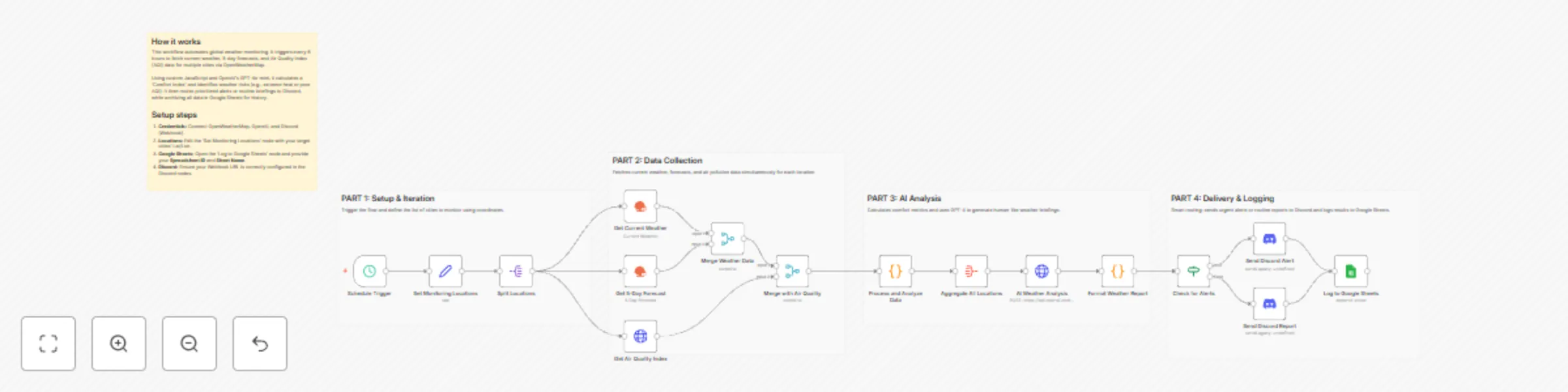
Monitor multi-city weather with OpenWeatherMap, GPT-4o-mini, and Discord
## Weather Monitoring Across Multiple Cities with OpenWeatherMap, GPT-4o-mini, and Discord This workflow provides an automated, intelligent solution for global weather monitoring. It goes beyond simple data fetching by calculating a custom "Comfort Index" and using AI to provide human-like briefings and activity recommendations. Whether you are managing remote teams or planning travel, this template centralizes complex environmental data into actionable insights. ## Who’s it for - **Remote Team Leads:** Keep an eye on environmental conditions for team members across different time zones. - **Frequent Travelers & Event Planners:** Monitor weather risks and comfort levels for multiple destinations simultaneously. - **Smart Home/Life Enthusiasts:** Receive daily morning briefings on air quality and weather alerts directly in Discord. ## How it works 1. **Schedule Trigger:** The workflow runs every 6 hours (customizable) to ensure data is up to date. 2. **Data Collection:** It loops through a list of cities, fetching current weather, 5-day forecasts, and Air Quality Index (AQI) data via the **OpenWeatherMap node** and **HTTP Request node**. 3. **Smart Processing:** A **Code node** calculates a "Comfort Index" (based on temperature and humidity) and flags specific alerts (e.g., extreme heat, high winds, or poor AQI). 4. **AI Analysis:** The **OpenAI node** (using GPT-4o-mini) analyzes the aggregated data to compare cities and recommend the best location for outdoor activities. 5. **Conditional Routing:** An **If node** checks for active weather alerts. Urgent alerts are routed to a specific Discord notification, while routine briefings are sent normally. 6. **Archiving:** All processed data is appended to **Google Sheets** for historical tracking and future analysis. ## How to set up 1. **Credentials:** Connect your OpenWeatherMap, OpenAI, Discord (Webhook), and Google Sheets accounts. 2. **Locations:** Open the **'Set Monitoring Locations'** node and edit the JSON array with the cities, latitudes, and longitudes you wish to track. 3. **Google Sheets:** Configure the **'Log to Google Sheets'** node with your specific Spreadsheet ID and Sheet Name. 4. **Discord:** Ensure your Webhook URL is correctly pasted into the **Discord nodes**. ## Requirements - **OpenWeatherMap API Key** (Free tier is sufficient). - **OpenAI API Key** (Configured for GPT-4o-mini). - **Discord Webhook URL**. - **Google Sheet** with headers ready for logging. ## How to customize - **Adjust Alert Thresholds:** Modify the logic in the 'Process and Analyze Data' Code node to change what triggers a "High Wind" or "Extreme Heat" alert. - **Refine AI Persona:** Edit the System Prompt in the 'AI Weather Analysis' node to change the tone or focus of the weather briefing. - **Change Frequency:** Adjust the Schedule Trigger to run once a day or every hour depending on your needs.
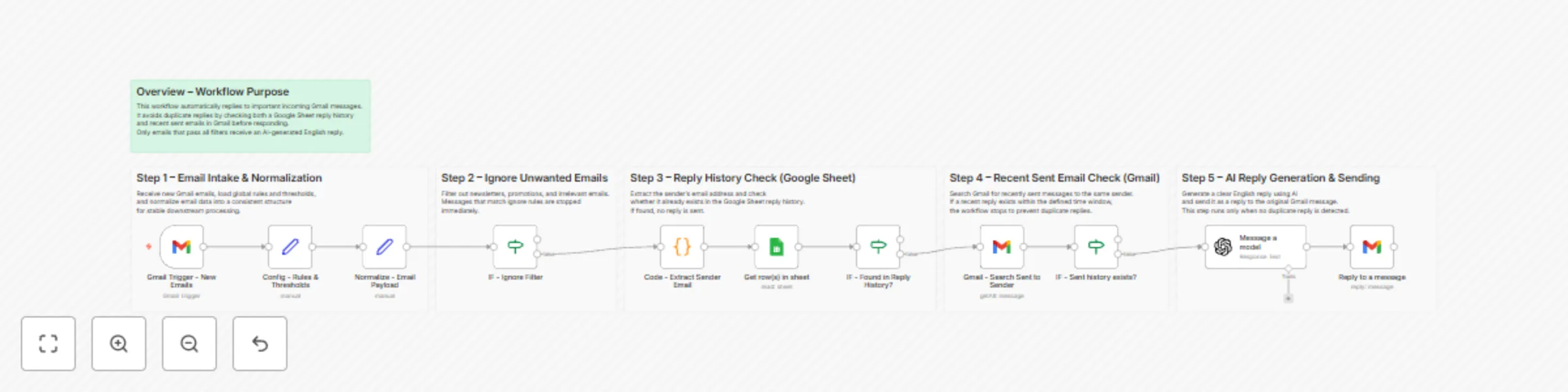
Send AI-generated Gmail auto replies with GPT-4o-mini and Google Sheets
## Overview This workflow automatically replies to important incoming Gmail messages using AI, while preventing duplicate or unnecessary replies. It applies multiple safety checks (filters, Google Sheets history, and Gmail sent history) to ensure replies are sent only when appropriate. This template is designed for creators, freelancers, and teams who want a reliable and maintainable AI-powered email auto-reply system. --- ## How it works 1. New Gmail messages are received and normalized into a consistent structure. 2. Unwanted emails (newsletters, promotions, no-reply senders) are filtered out. 3. The sender’s email is checked against a Google Sheets reply history. 4. Gmail is searched to confirm no recent reply was already sent. 5. If no duplicate is found, an AI-generated English reply is created and sent. --- ## Setup steps 1. Connect your Gmail account. 2. Connect a Google Sheet for reply history tracking. 3. Review the ignore rules and thresholds in the config node. 4. Customize the AI prompt if needed. 5. Activate the workflow. Estimated setup time: 5–10 minutes. --- ## Notes - Sticky notes inside the workflow explain each processing step in detail. - No hardcoded API keys are used. - The workflow is intentionally linear for clarity and easy maintenance.

Qualify and email literary agents with GPT‑4.1, Gmail and Google Sheets
## Inspiration & Notes This workflow was born out of a very real problem. While writing a book, I found the process of discovering suitable literary agents and managing outreach to be manual, and surprisingly difficult to scale. Researching agents, checking submission rules, personalizing emails, tracking submissions, and staying organized quickly became a full-time job on its own. So instead of doing it manually, I automated it. I built this entire workflow in **3 days** — and the goal of publishing it is to show that you can do the same. With the right structure and intent, complex sales and marketing workflows don’t have to take months to build. --- ## Contact & Collaboration If you have questions, business inquiries, or would like help setting up automation workflows, feel free to reach out: 📩 **[email protected]** I genuinely enjoy designing workflows and automation systems, especially when they support meaningful projects. I work primarily from interest and impact rather than purely financial motivation. Whether I take on a project for **FREE** or paid for the following reasons: - I **LOVE** setting up workflows and automation. - I work for **meaningfulness**, not for money. - **I may do the work for free**, depending on how meaningful the project is. If the problem statement matters, the motivation follows. - **It also depends on the value I bring to the table** -- If I can contribute significant value through system design, I’m more inclined to get involved. If you’re building something thoughtful and need help automating it, I’m always happy to have a conversation. Enjoy~! --- # 0. Overview Automates the end-to-end literary agent outreach pipeline, from data ingestion and eligibility filtering to deep agent research, personalized email generation, submission tracking, and analytics. ## Architecture The system is organized into four logical domains: The system is modular and is divided into four domains: --> Data Engineering --> Marketing & Research --> Sales (Outreach) --> Data Analysis Each domain operates independently and passes structured data downstream. --- ## 1. Data Engineering **Purpose:** Ingest and normalize agent data from multiple sources into a single source of truth. **Inputs** - Google BigQuery - Azure Blob Storage - AWS S3 - Google Sheets - (Optional) HTTP sources **Key Steps** - Scheduled ingestion trigger - Merge and normalize heterogeneous data formats (CSV, tables) - Deduplication and validation - AI-assisted enrichment for missing metadata - Append-only writes to a central Google Sheet **Output** - Clean, normalized agent records ready for eligibility evaluation --- ## 2. Marketing & Research **Purpose:** Decide *who* to contact and *how* to personalize outreach. ### Eligibility Evaluation An AI agent evaluates each record against strict rules: - Email submissions enabled - Not QueryTracker-only or QueryManager-only - Genre fit (e.g. Memoir, Spiritual, Self-help, Psychology, Relationships, Family) **Outputs** - `send_email` (boolean) - `reason` (auditable explanation) ### Deep Research For eligible agents only: - Public research from agency sites, interviews, Manuscript Wish List, and LinkedIn (if public) - Extracts: - Professional background - Editorial interests - Genres represented - Notable clients/books (if publicly listed) - Public statements - Source-backed personalization angles **Strict Rule:** All claims must be explicitly cited; no inference or hallucination is allowed. --- ## 3. Sales (Outreach) **Purpose:** Execute personalized email outreach and maintain clean submission tracking. **Steps** - AI generates agent-specific email copy - Copy is normalized for tone and clarity - Email is sent (e.g. Gmail) - Submission metadata is logged: - `Submission Completed` - `Submission Timestamp` - Channel used **Result** - Consistent, traceable outreach with CRM-style hygiene --- ## 4. Data Analysis **Purpose:** Measure pipeline health and outreach effectiveness. **Features** - Append-only decision and submission logs - QuickChart visualizations for fast validation (e.g. TRUE vs FALSE completion rates) - Optional integration with: - Power BI - Google Analytics 4 **Supports** - Completion rate analysis - Funnel tracking - Source/platform performance - Decision auditing --- ## Design Principles - **Separation of concerns** (ingestion ≠ decision ≠ outreach ≠ analytics) - **AI with hard guardrails** (strict schemas, source-only facts) - **Append-only logging** (analytics-safe, debuggable) - **Modular & extensible** (plug-and-play data sources) - **Human-readable + machine-usable outputs** --- ## Constraints & Notes - Only public, professional information is used - No private or speculative data - HTTP scraping avoided unless necessary - Power BI Embedded is not required - Workflow designed and implemented end-to-end in ~3 days --- ## Use Cases ### Marketing - Audience discovery - Agent segmentation - Personalization at scale - Campaign readiness - Funnel automation ### Sales - Lead qualification - Deduplication - Outreach execution - Status tracking - Pipeline hygiene --- ## Tech Stack - **Automation:** n8n - **AI:** OpenAI (GPT) - **Scripting:** JavaScript - **Data Stores:** Google Sheets - **Email:** Gmail - **Visualization:** QuickChart - **BI (optional):** Power BI, Google Analytics 4 - **Cloud Sources:** AWS S3, Azure Blob, BigQuery --- ## Status This workflow is production-ready, modular, and designed for extension into other sales or marketing domains beyond literary outreach. ---

Send automated payment reminders for Xero invoices via Outlook email
## Who's this for Small business owners, finance teams, accountants, and bookkeepers who use Xero for invoicing and want to improve cash flow by automating payment reminders. If you're spending time manually following up on unpaid invoices or struggling with late payments, this workflow eliminates the manual effort and ensures consistent, timely communication with customers while maintaining a complete audit trail. ## What it does This workflow automatically monitors all invoices in your Xero account and sends friendly payment reminders to customers when invoices are approaching their due date. It runs daily at noon, checks every invoice, calculates how many days until payment is due, sends personalized email reminders for invoices due within 7 days, and logs each reminder activity back into Xero's invoice history. The automation ensures no invoice slips through the cracks, reduces the administrative burden of accounts receivable management, and maintains professional customer relationships through polite, timely reminders—all while keeping your Xero records up to date with reminder tracking. ## How it works The workflow executes automatically every day at 12 PM and follows this process: - Triggers the daily check using the Schedule Trigger node - Fetches all invoices from your Xero account using the Xero API integration - Filters out invoices that are already marked as "PAID" to avoid sending unnecessary reminders - Calculates the number of days remaining until each unpaid invoice is due using a JavaScript code node - Identifies invoices that are due within the next 7 days (customizable threshold) - Sends personalized email reminders to customers via Microsoft Outlook, including invoice number, due date, and amount - Logs the reminder activity back into Xero's invoice history with the date sent and days until due - Creates a complete audit trail in Xero showing when reminders were sent for each invoice The workflow only sends reminders for invoices meeting the criteria, so customers aren't bombarded with unnecessary emails. The Xero history logging ensures your team can see at a glance which customers have been reminded and when, preventing duplicate reminders and providing accountability. ## Requirements - Xero account with API access enabled (available to all Xero users at no additional cost) - Microsoft Outlook or Office 365 account for sending email reminders - Valid email addresses configured for all customers in your Xero contact records - n8n instance (self-hosted or cloud) with credentials configured for: - Xero OAuth2 connection (used twice: once for fetching invoices, once for logging history) - Microsoft Outlook OAuth2 connection ## Setup instructions **1. Enable Xero API access** Ensure your Xero account has API access enabled. This is available by default for all Xero accounts. You'll need administrator access to create the API connection. **2. Configure n8n credentials** In your n8n instance, set up OAuth2 credentials for: - **Xero:** Follow n8n's Xero credential documentation to authorize access to your Xero organization. Make sure the credentials have permission to both read invoices and write to invoice history. - **Microsoft Outlook:** Set up OAuth2 connection to allow n8n to send emails on your behalf **3. Assign credentials to nodes** Open the workflow and assign your configured credentials to these nodes: - "Fetch All Xero Invoices" → Select your Xero credential - "Send Email Reminder to Customer" → Select your Microsoft Outlook credential - "Log Reminder in Xero History" → Select your Xero credential (same as above) **4. Customize the email template** Edit the "Send Email Reminder to Customer" node to personalize the message: - Update the sender name and signature - Add your company branding or logo - Include payment instructions or online payment links - Adjust the tone to match your customer communication style - Add any legal disclaimers or terms if required - Customize the subject line if needed **5. Adjust the reminder threshold (optional)** By default, reminders are sent for invoices due within 7 days. To change this: - Open the "Calculate Days Until Due" code node - Find the line: `isDueSoon: diffDays <= 7 && diffDays >= 0` - Change `7` to your preferred number of days (e.g., `14` for two weeks notice) **6. Test the workflow** Before enabling the daily schedule: - Use the manual trigger to test with your actual Xero data - Verify that invoices are fetched correctly - Check that the date calculations are accurate - Send a test email to yourself to review the message format - Confirm the reminder is logged in Xero's invoice history - Verify only qualifying invoices trigger reminders **7. Activate the workflow** Once testing is complete, activate the workflow. It will run automatically every day at noon (or your customized schedule time).

Track monthly OpenAI token usage with Google Sheets and Gmail reports
**Who's this for** Finance teams, AI developers, product managers, and business owners who need to monitor and control OpenAI API costs across different models and projects. If you're using GPT-4, GPT-3.5, or other OpenAI models and want to track spending patterns, identify cost optimization opportunities, and generate stakeholder reports, this workflow is for you. **What it does** This workflow automatically tracks your OpenAI token usage on a monthly basis, breaks down costs by model and date, stores the data in Google Sheets with automatic cost calculations, and emails PDF reports to stakeholders. It transforms raw API usage data into actionable insights, helping you understand which models are driving costs, identify usage trends over time, and maintain budget accountability. The workflow runs completely hands-free once configured, generating comprehensive monthly reports without manual intervention. **How it works** The workflow executes automatically on the 5th of each month and follows these steps: Creates a new Google Sheet from your template with the naming format "Token_Tracking_[Month]_[Year]" Fetches the previous month's OpenAI usage data via the OpenAI Admin API Transforms raw API responses into a clean daily breakdown showing usage by model Appends the data to Google Sheets with columns for date, model, input tokens, and output tokens Your Google Sheets formulas automatically calculate costs based on OpenAI's pricing for each model Exports the completed report as both PDF and Excel formats Emails the PDF report to designated stakeholders with a summary message Archives the Excel file to Google Drive for long-term recordkeeping and historical analysis **Requirements** OpenAI account with Admin API access (required to access organization usage endpoints) Google Sheets template pre-configured with cost calculation formulas Google Drive for report storage and archiving Gmail account for sending email notifications n8n instance (self-hosted or cloud) with the following credentials configured: OpenAI API credentials Google Sheets OAuth2 Google Drive OAuth2 Gmail OAuth2 **Setup instructions** 1. Create your Google Sheets template Set up a Google Sheet with these columns: - Date - Model - Token Usage In - Token Usage Out - Token Cost Input (formula: =C2 * [price per 1M input tokens] / 1000000) - Token Cost Output (formula: =D2 * [price per 1M output tokens] / 1000000) - Total Cost USD (formula: =E2 + F2) - Total Cost AUD (optional, formula: =G2 * [exchange rate]) (workflow contains a template) Include pricing formulas based on OpenAI's current pricing. Add summary calculations at the bottom to total costs by model. **2. Configure n8n credentials** In your n8n instance, set up credentials for: OpenAI API (you'll need admin access to your organization) Google Sheets (OAuth2 connection) Google Drive (OAuth2 connection) Gmail (OAuth2 connection) **3. Update workflow placeholders** Replace the following placeholders in the workflow: your-api-key-id: Your OpenAI API key ID (find this in your OpenAI dashboard) your-template-file-id: The ID of your Google Sheets template your-archive-folder-id: The Google Drive folder ID where reports should be archived [email protected]: The email address that should receive monthly reports **4. Assign credentials to nodes** Open each node that requires credentials and select the appropriate credential from your configured options: "Fetch OpenAI Usage Data" → OpenAI API credential "Append Data to Google Sheet" → Google Sheets credential "Create Monthly Report from Template" → Google Drive credential "Export Sheet as Excel" → Google Drive credential "Export Sheet as PDF for Email" → Google Drive credential "Archive Report to Drive" → Google Drive credential "Email Report to Stakeholder" → Gmail credential **5. Test the workflow** Before enabling the schedule, manually execute the workflow to ensure: The template copies successfully OpenAI data fetches correctly Data appends to the sheet properly PDF and Excel exports work Email sends successfully File archives to the correct folder **6. Enable the schedule** Once testing is complete, activate the workflow. It will run automatically on the 5th of each month.
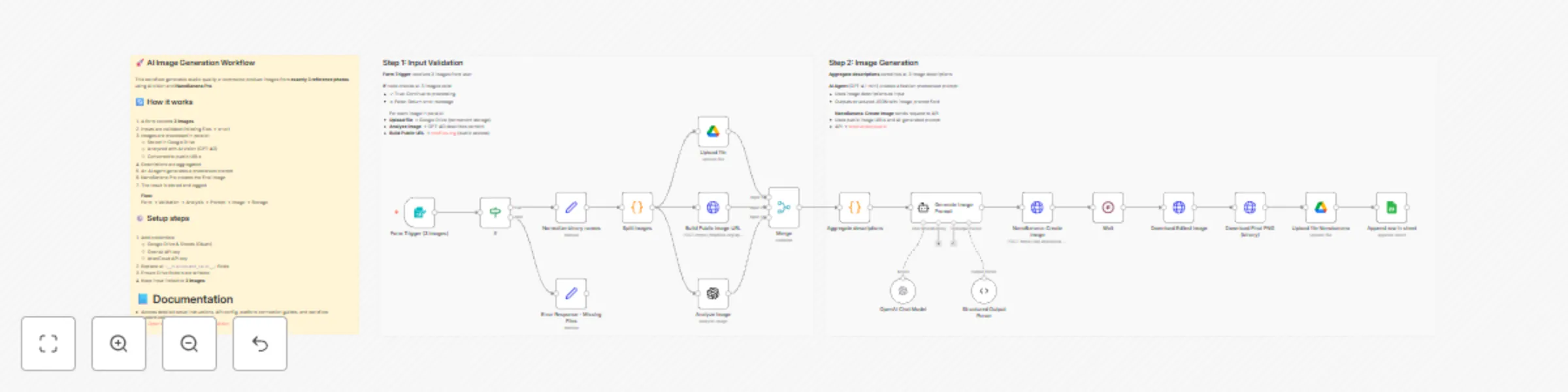
Generate scalable e-commerce product images with GPT-4 and NanoBanana Pro
## 🚀 AI Image Generation Workflow – Scalable E-commerce Product Images This workflow automates the creation of high-quality, AI-generated product images using **NanoBanana Pro**. It analyzes multiple reference images, generates a professional photoshoot-style prompt, creates a new image, and stores the final result with a public URL for reuse. 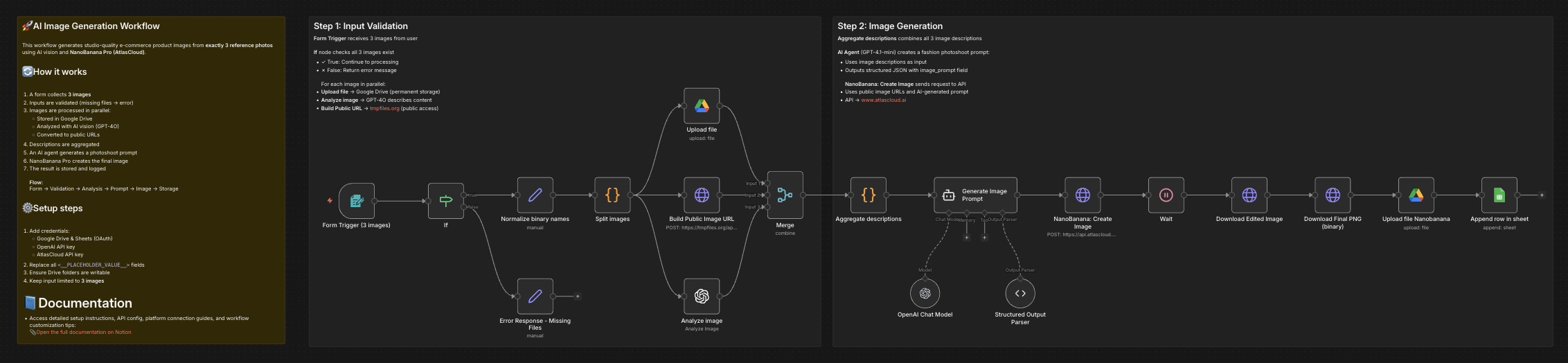 --- 📄 **Documentation**: [Notion Guide](https://automatisation.notion.site/Create-scalable-e-commerce-product-images-from-photos-using-NanoBanana-Pro-2e33d6550fd9808e8891f7d606b49df7?source=copy_link) ## 👤 Who is this for? This workflow is designed for: - E-commerce store owners - Digital marketers and growth teams - Creative agencies - Automation builders using n8n - Anyone who wants to generate scalable, consistent product images from existing photos No advanced coding skills are required. --- ## ❓ What problem does this workflow solve? / Use case Creating professional product images at scale is expensive, slow, and inconsistent. This workflow solves: - Manual photoshoot costs - Inconsistent visual branding - Time wasted on prompt writing - Difficulty generating AI-ready public image URLs - Repetitive image upload and storage steps **Typical use case:** Transform 3 reference photos (model + product) into a studio-quality fashion image automatically. --- ## ⚙️ What this workflow does 1. Collects **exactly 3 images** via a form upload 2. Validates inputs to ensure all required images are present 3. Splits images into individual processing paths 4. Uploads original images to Google Drive (permanent storage) 5. Generates public, crawlable image URLs 6. Analyzes each image using AI vision (GPT-4O) 7. Aggregates image descriptions into a structured context 8. Generates a professional photoshoot prompt using an AI agent 9. Creates a new image via NanoBanana Pro 10. Polls the API until the image generation is completed 11. Downloads the final image as a binary file 12. Uploads the final image to Google Drive 13. Logs results (images + descriptions) into Google Sheets --- ## 🛠️ Setup ### Required credentials - Google Drive (OAuth) - Google Sheets (OAuth) - OpenAI API key - AtlasCloud API key ### Required configuration 1. Replace all `<__PLACEHOLDER_VALUE__>` fields: - Google Drive folder IDs - Google Sheets document ID and sheet name - AtlasCloud API key 2. Ensure Google Drive folders have write permissions 3. Confirm tmpfiles.org is reachable from your environment ### Important notes - The workflow expects **exactly 3 images** - The final image is downloaded as binary before upload - Public URLs are normalized to `https://tmpfiles.org/dl/...` for maximum AI compatibility ### 🎥 [Watch This Tutorial](https://youtu.be/EVIvyyoNrQE)  --- ### 👋 Need help or want to customize this? 📩 Contact: [LinkedIn](https://www.linkedin.com/in/dr-firas/) 📺 YouTube: [@DRFIRASS](https://www.youtube.com/@DRFIRASS) 🚀 Workshops: [Mes Ateliers n8n](https://hotm.art/formation-n8n) ### Need help customizing? Contact me for consulting and support : [Linkedin](https://www.linkedin.com/in/dr-firas/) / [Youtube](https://www.youtube.com/channel/UCriIQI8uaoEro5FEnOpeidQ) / [🚀 Mes Ateliers n8n ](https://hotm.art/formation-n8n)

Evaluate AI workflows using Google Sheets, Gemini, Claude, GPT, and Perplexity
This template and YouTube video goes over 5 different implementations of evaluations within n8n. - Categorization - Correctness - Tools used - String similarity - Helpfulness You’ll learn when to use each type, how to set up test datasets in Google Sheets or data tables, and how to track your results over time. I also explain best practices like only changing one variable at a time, documenting your prompts and model settings, and building proper training datasets with enough examples to confidently validate your workflow. YouTube Video: https://www.youtube.com/watch?v=-4LXYOhQ-Z0 Thank you for downloading our free n8n Evaluations template. If you enjoyed the template + tutorial please subscribe to the YouTube channel. We are uploading weekly content on AI/n8n Connect With Us Check out the links down below. If you need help with this template, want 1:1 coaching, or have a n8n project you want to build, reach out at [email protected] Free Skool AI/n8n Group: https://www.skool.com/data-and-ai LinkedIn: https://www.linkedin.com/in/ryan-p-nolan/ Twitter/X:https://x.com/RyanMattDS Website: https://ryanandmattdatascience.com/
Extract ICP-targeted LinkedIn leads from post comments using Apify
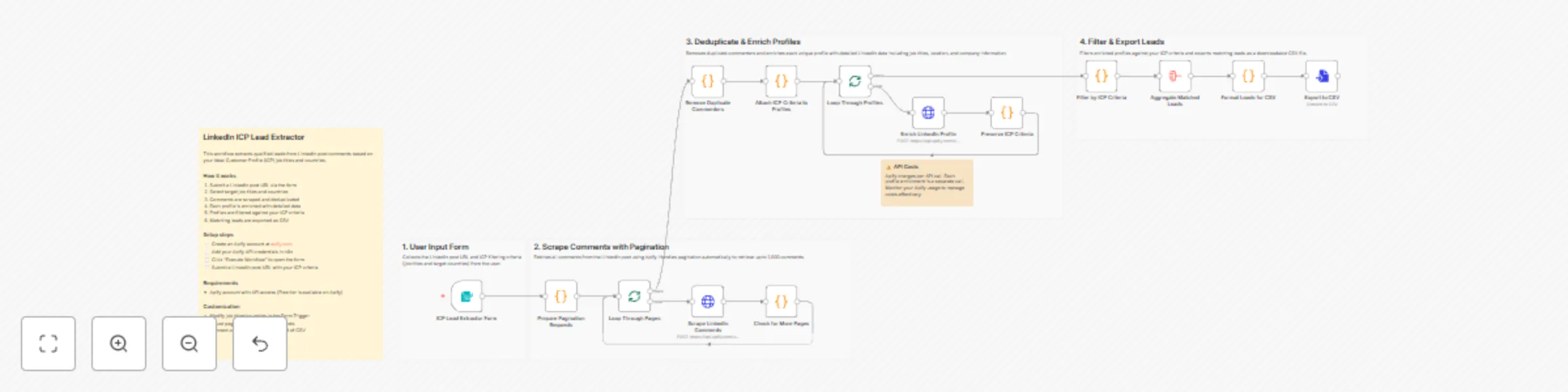
This workflow automates the process of extracting and qualifying leads from LinkedIn post comments based on your Ideal Customer Profile (ICP) criteria. It turns LinkedIn engagement into a structured, downloadable list of qualified leads—without manual review. --- ## Who’s this for * Sales and business development teams generating outbound lead lists * Marketing teams running LinkedIn engagement campaigns * Recruiters sourcing candidates with specific job titles * Operators who want to convert LinkedIn comments into actionable data --- ## What problem does this solve Manually reviewing LinkedIn post comments to identify relevant prospects is slow, repetitive, and error-prone. This workflow automates the entire process—from scraping comments to enriching profiles and filtering by ICP—saving hours of manual work and ensuring consistent results. --- ## What this workflow does 1. Collects a LinkedIn post URL and ICP criteria via a form 2. Scrapes post comments using Apify (supports up to 1,000 comments) 3. Deduplicates commenters and enriches profiles with LinkedIn data 4. Filters profiles by selected job titles and countries 5. Exports matched leads as a downloadable CSV file --- ## How to set up 1. Create an Apify account and generate an API key 2. Add your Apify credentials in n8n (**Settings → Credentials → Apify API**) 3. Execute the workflow and submit a LinkedIn post URL and ICP criteria --- ## Requirements * Apify account with API access - Apify offers a free tier with $5 in monthly credits, which is enough to test this workflow on smaller LinkedIn posts --- ## How to customize the workflow * Update job titles and target countries in the Form Trigger * Increase pagination limits to support larger posts * Replace CSV export with a CRM, Google Sheets, or database integration