Internal Wiki Workflows
Create an AI Telegram bot using Google Drive, Qdrant, and OpenAI GPT-4.1
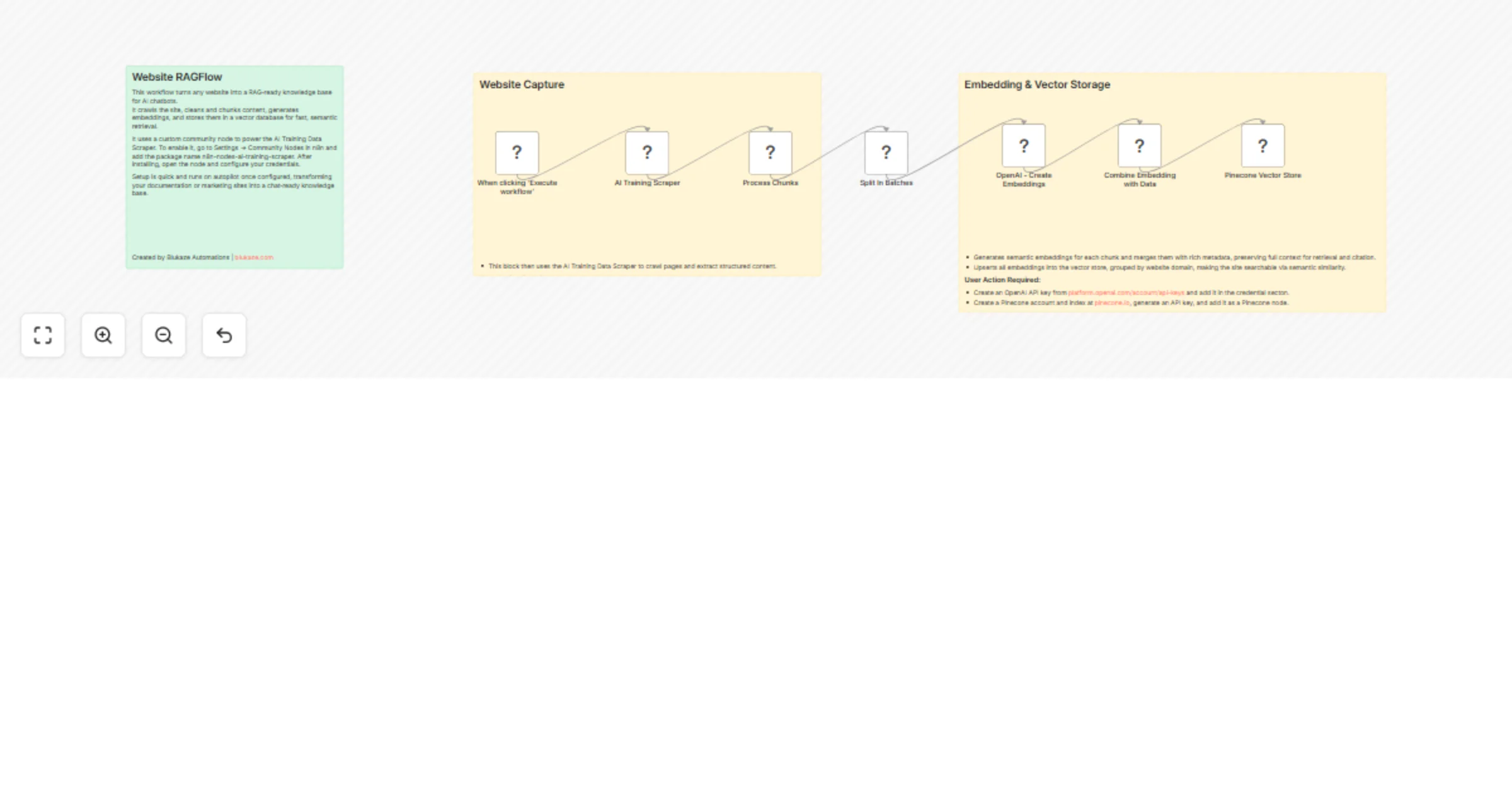
### How it works This workflow creates an intelligent Telegram bot with a knowledge base powered by Qdrant vector database. The bot automatically processes documents uploaded to Google Drive, stores them as embeddings, and uses this knowledge to answer questions in Telegram. It consists of two independent flows: **document processing** (Google Drive → Qdrant) and **chat interaction** (Telegram → AI Agent → Telegram). ### Step-by-step **Document Processing Flow:** * **New File Trigger:** The workflow starts when the **New File Trigger** node detects a new file created in the specified Google Drive folder (polling every 15 minutes). * **Download File:** The **Download File** (Google Drive) node downloads the detected file from Google Drive. * **Text Splitting:** The **Split Text into Chunks** node splits the document text into chunks of 3000 characters with 300 character overlap for optimal embedding. * **Load Document Data:** The **Load Document Data** node processes the binary file data and prepares it for vectorization. * **OpenAI Embeddings:** The **OpenAI Embeddings** node generates vector embeddings for each text chunk. * **Insert into Qdrant:** The **Insert into Qdrant** node stores the embeddings in the Qdrant vector database collection. * **Move to Processed Folder:** After successful processing, the **Move to Processed Folder** (Google Drive) node moves the file to a "Qdrant Ready" folder to keep files organized. **Telegram Chat Flow:** * **Telegram Message Trigger:** The **Telegram Message Trigger** node receives new messages from the Telegram bot. * **Filter Authorized User:** The **Filter Authorized User** node checks if the message is from an authorized chat ID (26899549) to restrict bot access. * **AI Agent Processing:** The **AI Agent** receives the user's message text and processes it using the fine-tuned GPT-4.1 model with access to the Qdrant knowledge base tool. * **Qdrant Knowledge Base:** The **Qdrant Knowledge Base** node retrieves relevant information from the vector database to provide context for the AI agent's responses. * **Conversation Memory:** The **Conversation Memory** node maintains conversation history per chat ID, allowing the bot to remember context. * **Send Response to Telegram:** The **Send Response to Telegram** node sends the AI-generated response back to the user in Telegram. ### Set up steps Estimated set up time: 15 minutes 1. **Google Drive Setup:** * Add your Google Drive OAuth2 credentials to the **New File Trigger**, **Download File**, and **Move to Processed Folder** nodes. * Create two folders in your Google Drive: one for incoming files and one for processed files. * Copy the folder IDs from the URLs and update them in the **New File Trigger** (folderToWatch) and **Move to Processed Folder** (folderId) nodes. 2. **Qdrant Setup:** * Add your Qdrant API credentials to the **Insert into Qdrant** and **Qdrant Knowledge Base** nodes. * Create a collection in your Qdrant instance (e.g., "Test-youtube-adept-ecom"). * Update the collection name in both Qdrant nodes. 3. **OpenAI Setup:** * Add your OpenAI API credentials to the **OpenAI Chat Model** and **OpenAI Embeddings** nodes. * (Optional) Replace the fine-tuned model ID in **OpenAI Chat Model** with your own model or use a standard model like `gpt-4-turbo`. 4. **Telegram Setup:** * Create a Telegram bot via [@BotFather](https://t.me/botfather) and obtain the bot token. * Add your Telegram bot credentials to the **Telegram Message Trigger** and **Send Response to Telegram** nodes. * Update the authorized chat ID in the **Filter Authorized User** node (replace `26899549` with your Telegram user ID). 5. **Customize System Prompt (Optional):** * Modify the system message in the **AI Agent** node to customize your bot's personality and behavior. * The current prompt is configured for an n8n automation expert creating social media content. 6. **Activate the Workflow:** * Toggle "Active" in the top-right to enable both the Google Drive trigger and Telegram trigger. * Upload a document to your Google Drive folder to test the document processing flow. * Send a message to your Telegram bot to test the chat interaction flow.
Control AI agent tool access with Port RBAC and Slack mentions
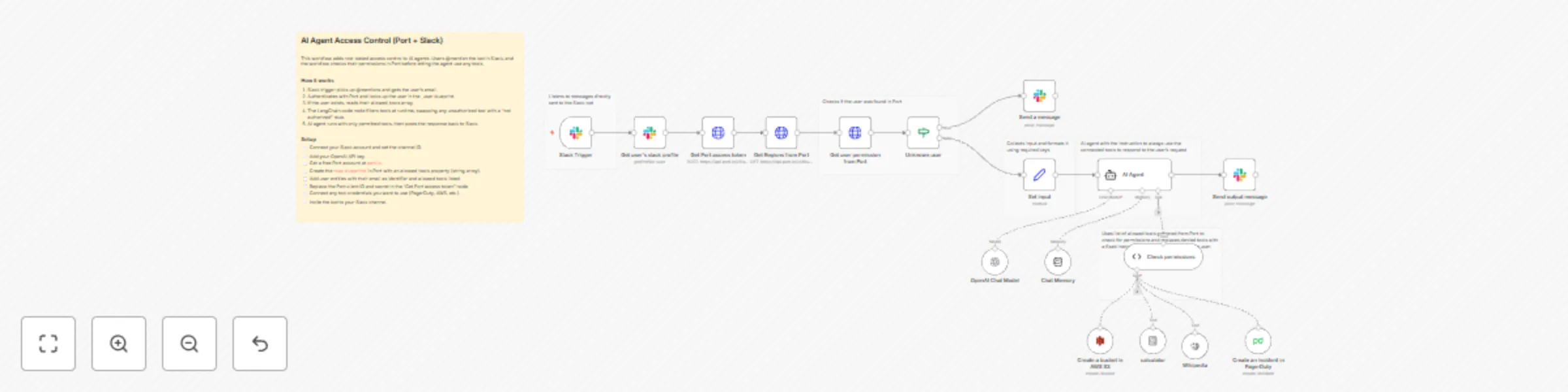
## RBAC for AI agents with n8n and Port This workflow implements role-based access control for AI agent tools using Port as the single source of truth for permissions. Different users get access to different tools based on their roles, without needing a separate permission database. For example, developers might have access to PagerDuty and AWS S3, while support staff only gets Wikipedia and a calculator. The workflow checks each user's permissions in Port before letting the agent use any tools. For the full guide with blueprint setup and detailed configuration, see [RBAC for AI Agents with n8n and Port](https://docs.port.io/guides/all/implement-rbac-for-ai-agents-with-n8n-and-port/) in the Port documentation. ## How it works The n8n workflow orchestrates the following steps: - Slack trigger — Listens for @mentions and extracts the user ID from the message. - Get user profile — Fetches the user's Slack profile to get their email address. - Port authentication — Requests an access token from the Port API using client credentials. - Permission lookup — Queries Port for the user entity (by email) and reads their allowed_tools array. - Unknown user check — If the user doesn't exist in Port, sends an error message and stops. - Permission filtering — The "Check permissions" node compares each connected tool against allowed_tools and replaces unauthorized ones with a stub that returns "You are not authorized to use this tool." - AI agent — Runs with only permitted tools, using GPT-4 and chat memory. - Response — Posts the agent output back to the Slack channel. ## Setup - [ ] Connect your Slack account and set the channel ID in the trigger node - [ ] Add your OpenAI API key - [ ] Register for free on [Port.io](https://www.port.io) - [ ] Create the rbacUser blueprint in Port (see [full guide](https://docs.port.io/guides/all/implement-rbac-for-ai-agents-with-n8n-and-port/) for blueprint setup) - [ ] Add user entities using email as the identifier - [ ] Replace YOUR_PORT_CLIENT_ID and YOUR_PORT_CLIENT_SECRET in the "Get Port access token" node - [ ] Connect credentials for any tools you want to use (PagerDuty, AWS, etc.) - [ ] Update the channel ID in the Slack nodes - [ ] Invite the bot to your Slack channel - [ ] You should be good to go! ## Prerequisites - You have a Port account and have completed the onboarding process. - You have a working n8n instance (self-hosted) with LangChain nodes available. - Slack workspace with bot permissions to receive mentions and post messages. - OpenAI API key for the LangChain agent. - Port client ID and secret for API authentication. - (Optional) PagerDuty, AWS, or other service credentials for tools you want to control. ⚠️ This template is intended for Self-Hosted instances only.
Create AI FAQ articles from Slack threads into Notion and Zendesk
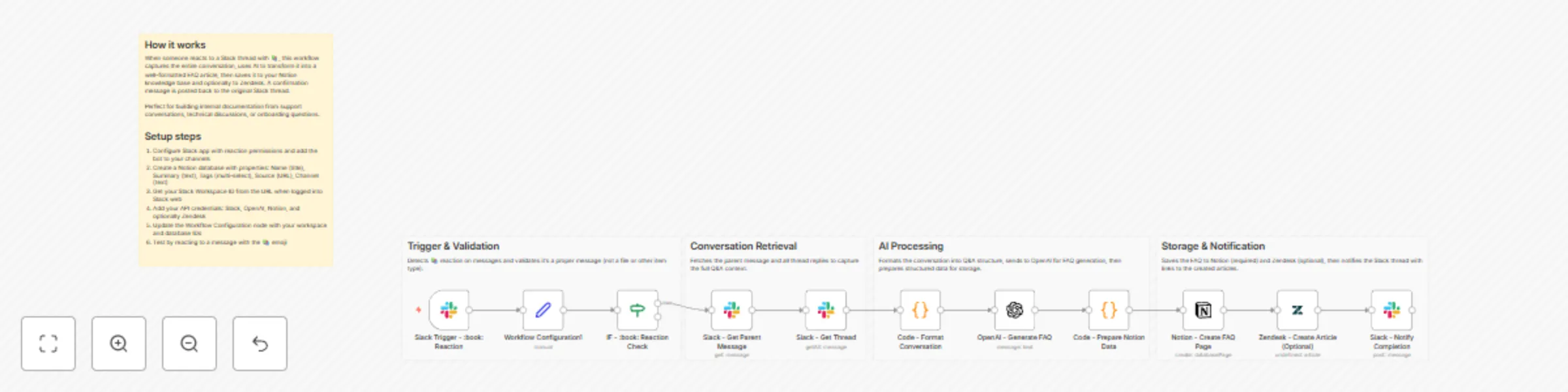
# Create FAQ articles from Slack threads to Notion and Zendesk This workflow helps you capture "tribal knowledge" shared in Slack conversations and automatically converts it into structured documentation. By simply adding a specific reaction (default: 📚) to a message, the workflow aggregates the thread, uses AI to summarize it into a Q&A format, and publishes it to your knowledge base (Notion and Zendesk). ## Who is this for? - **Customer Support Teams** who want to turn internal troubleshooting discussions into public help articles. - **Knowledge Managers** looking to reduce the friction of documentation. - **Development Teams** wanting to archive technical decisions made in Slack threads. ## What it does 1. **Trigger:** Watches for a specific emoji reaction (📚 `:book:`) on a Slack message. 2. **Data Collection:** Fetches the parent message and all replies in the thread to get the full context. 3. **AI Processing:** Uses **OpenAI** to analyze the conversation, summarize the solution, and format it into a clear Question & Answer structure. 4. **Publishing:** - Creates a new page in a **Notion** database with tags and summaries. - (Optional) Drafts a new article in **Zendesk**. 5. **Notification:** Replies to the original Slack thread with links to the newly created documentation. ## Requirements - **n8n** (Self-hosted or Cloud) - **Slack** workspace (with an App installed that has permissions to read channels and reactions). - **OpenAI** API Key. - **Notion** account with an Integration Token. - **Zendesk** account (optional, can be removed if not needed). ## How to set up 1. **Configure Credentials:** Set up authentication for Slack, OpenAI, Notion, and Zendesk in n8n. 2. **Setup Notion:** Create a database in Notion with the following properties: - `Name` (Title) - `Summary` (Text/Rich Text) - `Tags` (Multi-select) - `Source` (URL) - `Channel` (Select or Text) 3. **Update Configuration Node:** Open the **Workflow Configuration1** node (Set node) and replace the placeholder values: - `slackWorkspaceId`: Your Slack Workspace ID (e.g., T01234567). - `notionDatabaseId`: The ID of your Notion database. - `zendeskSectionId`: (Optional) The ID of the section where articles should be created. 4. **Slack App Scopes:** Ensure your Slack App has the following scopes: `reactions:read`, `channels:history`, `groups:history`, `chat:write`. ## How to customize - **Change the Trigger:** If you prefer a different emoji (e.g., 📝 or 💡), update the "Right Value" in the **IF - :book: Reaction Check** node. - **Modify the Prompt:** Edit the **OpenAI** node to change how the AI formats the answer (e.g., ask it to be more technical or more casual). - **Remove Zendesk:** If you don't use Zendesk, simply delete the **Zendesk** node and remove the reference to it in the final **Slack - Notify Completion** node.
Chat with Gemini AI through local CLI via SSH
This workflow allows you to integrate the Google Gemini CLI into your n8n AI Agents. It is designed for self-hosted n8n instances and enables you to chat with the Gemini CLI running on your local machine or server via SSH. This is powerful for users who want to utilize the free tier of Gemini via Google's CLI tools or need the AI to interact with local files on the host server. ## How it works * **AI Agent**: The main workflow uses a LangChain AI Agent with a custom tool. * **Custom Tool**: When the agent needs to answer, it calls a sub-workflow ("Gemini CLI Worker"). * **SSH Execution**: The sub-workflow connects to your host machine via SSH, executes the `gemini` command with your prompt, and returns the CLI's standard output to the chat. ## Set up steps 1. **Prerequisites**: You must have [Node.js](https://nodejs.org/) (v20+) and the `gemini-chat-cli` installed on your host machine. 2. **Split the Workflows**: * Copy the bottom section (Sub-workflow). * Paste it into a new workflow, name it "Gemini CLI Worker", and **Save** it. * Note the ID of this new workflow. 3. **Configure the Main Workflow**: * Open the **Call 'Gemini CLI'** node. * In the "Workflow ID" field, select the "Gemini CLI Worker" workflow you just saved. 4. **Configure SSH**: * Open the **Execute a command** node in the sub-workflow. * Configure your SSH credentials (IP, Username, Password/Key) to allow n8n to connect to the host where Gemini CLI is installed.
Automate Document Q&A with Multi-Agent RAG Orchestration using Contextual AI & Gemini
## PROBLEM Managing multiple RAG AI agents can be complex when each has its own purpose and vector database. - Manually tracking agents and deciding which one to query wastes time. - LLMs often struggle to determine which agent best fits a user’s request. ### This workflow enables automated multi-agent orchestration, dynamically selecting and querying the correct agent using Contextual AI Query Tool and Gemini 2.5 Flash. ## How it works - A **form trigger** allows users to create new agents by specifying a name, description, datastore, and uploading files. - A new agent is created with the provided information and files are ingested in the datastore - We get the status of file ingestion every 30 seconds until the ingestion process is complete - When users send queries, the **Agent Orchestrator** identifies the most relevant agent to generate grounded, context-aware responses. **Note:** The document ingestion process is asynchronous and may take a few minutes before your agent has the document fully available in the datastore for querying. ## How to set up - Create a free [Contextual AI account](https://app.contextual.ai/) and obtain your `CONTEXTUALAI_API_KEY`. - Add `CONTEXTUALAI_API_KEY` as an **environment variable** in n8n. - For the baseline model, we have used Gemini 2.5 Flash Model, you can find your Gemini API key[ here](https://ai.google.dev/gemini-api/docs/api-key) ## How to customize the workflow - Replace the **Form Trigger** with a **Webhook Trigger** or manual input to integrate with custom systems. - Swap **Gemini 2.5 Flash** with another LLM provider - Update the wait time as per user requirement - Modify the system prompt to fine-tune how the orchestration logic selects and queries agents. - You can check out this [Contextual AI API reference](https://docs.contextual.ai/api-reference/agents/create-agent) for more details on agent creation and usage. - If you have feedback or need support, please email **[email protected]**.
Build a RAG agent with n8n, Qdrant & OpenAI
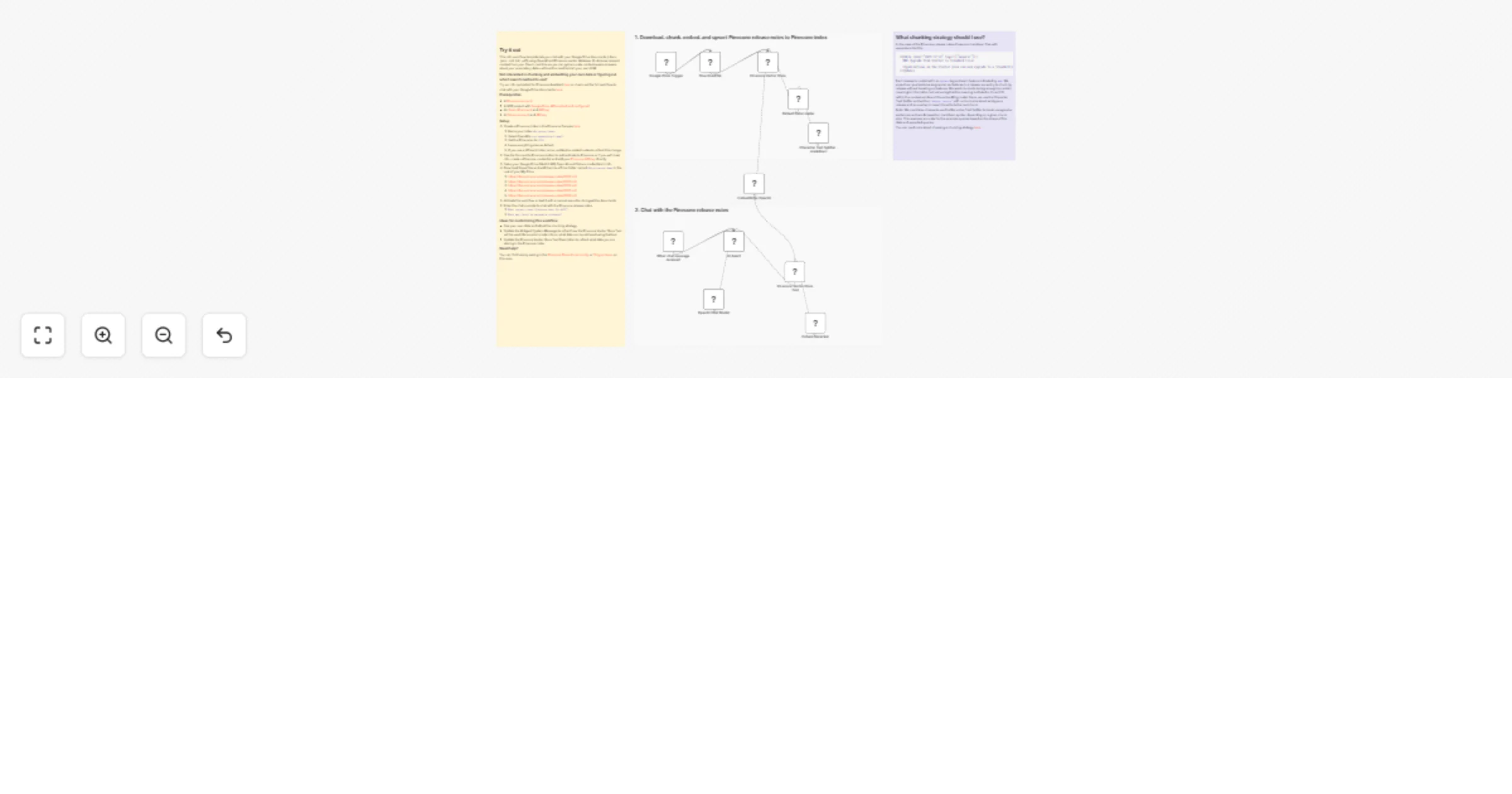
This template helps you to create an intelligent document assistant that can answer questions from uploaded files. It shows a complete single-vector RAG (Retrieval-Augmented Generation) system that automatically processes documents, lets you chat with it in natural language and provides accurate, source-cited responses. The workflow consists of two parts: **the data loading pipeline** and **RAG AI Agent** that answers your questions based on the uploaded documents. To test tis workflow, you can use the following example files in a shared [Google Drive folder](https://drive.google.com/drive/u/2/folders/1BevhU5qdgNDFbK4D9oAYGeK0Dt5sEaxQ). 💡 Find more information on creating RAG AI agents in n8n [on the official page](https://n8n.io/rag/). ## 🔗Example files The template uses the following example files in the Google Docs format: 1. German Data Protection law: Bundesdatenschutzgesetz (BDSG) 2. Computer Security Incident Handling Guide (NIST.SP.800-61r2) 3. Berkshire Hathaway letter to shareholders from 2024 ## 🚀How to get started 1. Copy or import the template to your n8n instance. 2. Create your **Google Drive credentials** via the Google Cloud Console and add them to the trigger node "Detect New Files". A detailed walk-through can be found in the n8n [docs](https://docs.n8n.io/integrations/builtin/credentials/google/oauth-single-service/). 3. Create a [Qdrant API](https://qdrant.tech/) key and add it to the "Insert into Vector Store" node credentials. The API key will be displayed after you have logged into Qdrant and created a Cluster. 4. Create or activate your [OpenAI API](https://platform.openai.com/api-keys) key. ## 1️⃣ Import your data and store it in a vector database ✅ Upload files to Google Drive. **IMPORTANT**: This template supports files in Google Docs format. New files will be downloaded in HTML format and converted to Markdown. This preserves the overall document structure and improves the quality of responses. - Open the shared Google Drive folder - Create a new folder on your Google Drive - Activate the workflow - Copy the files from the shared folder to your new folder The webhook will catch the added files and you will see the execution in your "Executions" tab. ***Note**: If the webhook doesn’t see the files you copied, try adding them to your Google Drive folder from the opened shared files via the **Move to** feature.* ✅ Chunk, embed, and store your data with a connected OpenAI embedding model and Qdrant vector store. A Qdrant collection – vector storage for your data – will be created automatically after the n8n webhook has caught your data from Google Drive. You can name your collection in the "Insert into Vector Store" node. ## 2️⃣ Add retrieval capabilities and chat with your data ✅ Select the database with imported data in the “Search Documents” sub-node of an AI Agent. ✅ Start a chat with your agent via the chat interface: it will retrieve data from the vector store and provide a response. ❓You can ask the following questions based on the example files to test this workflow: - What are the main steps in incident handling? - What does Warren Buffett say about mistakes at Berkshire? - What are the requirements for processing personal data? - Do any documents mention data breach notification? ## 🌟Adapt the workflow to your own use case - **Knowledge management** - Query company docs, policies, and procedures - **Research assistance** - Search through academic papers and reports - **Customer support** - Build agents that reference product documentation - **Legal/compliance** - Query contracts, regulations, and legal documents - **Personal productivity** - Chat with your notes, articles, and saved content The workflow automatically detects new files, processes them into searchable vector chunks, and maintains conversation context. Just drop files in your Google Drive folder and start asking questions. 💻 📞[Get in touch with me](https://www.linkedin.com/in/yulia-dmitrievna-1112361b5/) if you want to customise this workflow or have any questions.
Build enterprise RAG system with Google Gemini file search & retell AI voice
# 🧠 Enterprise RAG System with Google Gemini File Search + Retell AI Voice Agent Build a complete **enterprise-grade RAG pipeline** using Google Gemini’s brand-new **File Search API**, combined with a powerful **Retell AI voice agent (JARVIS)** as the conversational front end. This workflow is designed for **AI automation agencies, SMBs, enterprise teams, and internal AI copilots.** --- ## 📌 Who Is This For? - Enterprise teams building internal search copilots - AI automation agencies delivering RAG products to clients - SMBs wanting automated knowledge lookup - Anyone needing a **production-ready, zero-Pinecone RAG workflow** --- ## 🚧 Problem This Solves Traditional RAG requires: - Vector DB setup - Embedding jobs - Chunking pipelines - Custom search APIs **Gemini File Search eliminates all of this** — you simply create a store and upload files. Indexing, chunking, embeddings = fully automated. This workflow turns that into a **plug-and-play enterprise template.** --- ## 🧩 What This Workflow Does (High-Level) ### 1️⃣ Create a Gemini File Search Store - Calls `fileSearchStores` API - Creates a persistent embedding store - Automatically saved to Google Sheets for future retrieval ### 2️⃣ Auto-Upload Documents from Google Drive When a new file is added: - Download → Start resumable upload → Upload actual bytes - Gemini auto-indexes the document for retrieval ### 3️⃣ Chat-Based Retrieval (Chat Trigger) User question → Gemini File Search → Short, precise answer returned. ### 4️⃣ Voice Search (Retell AI Agent) Your Gemini RAG can now be searched **by voice**. --- ## 🎙️ Retell AI (JARVIS) Voice Agent – Integration Steps ### 🔧 Step 1 — Paste This Prompt Into Retell AI You are JARVIS, an advanced AI assistant designed to help user with their daily tasks. Always call the user “Sir”. You remember the user's name and important details to improve the experience. Whenever the user asks for information that requires external lookup: Make a short, witty remark related to their request. Immediately call the n8n tool — do NOT repeat the question back. Be concise, professional, and efficient. n8n tool call: Use this tool for all knowledge-based or RAG lookups. It sends the user’s query to the n8n workflow. JSON Schema: { "type": "object", "properties": { "query": { "type": "string", "description": "The user’s full request for JARVIS to process." } }, "required": ["query"] } --- ### 🔧 Step 2 — Add This URL to Retell (YOUR WEBHOOK) Paste the webhook URL from your **Respond to Webhook** node: https://YOUR-N8N-URL/webhook/Gemini ← replace with your actual webhook ID This is the endpoint Retell calls every time the user speaks. --- ### 🔧 Step 3 — End-to-End Flow 1. User speaks to JARVIS 2. Retell sends `query` → n8n 3. n8n forwards query to Gemini using File Search 4. Gemini returns answer 5. Retell speaks the response out loud You now have a **voice-powered enterprise RAG agent**. --- ## 📦 Requirements - Google Gemini File Search API access - Google Drive folder for document uploads - Retell AI agent - n8n instance - (Optional) Google Sheets for storing store IDs --- ## 📝 Estimated Setup Time ⏱️ **25–30 minutes** (end-to-end) --- ## 👨💻 Template Author **Sandeep Patharkar** Founder – FastTrackAI AI Automation Architect | Enterprise Workflow Designer 🔗 Website: https://fasttrackaimastery.com 🔗 LinkedIn: https://www.linkedin.com/in/sandeeppatharkar/ 🔗 Skool Community: https://www.skool.com/aic-plus 🔗 YouTube: https://www.youtube.com/@FastTrackAIMastery --- ## 🏁 Summary This template gives you a **full enterprise RAG infrastructure**: - Automatic document indexing - Gemini File Search retrieval - Chat + Voice interfaces - Zero-vector-database setup - Seamless Retell AI integration - Fully production-ready Perfect for creating internal AI copilots, employee knowledge assistants, client-facing search apps, and enterprise RAG systems.
Simple scheduling and internal document query bot with Telegram
Template Overview This workflow demonstrates how to build a simple Telegram bot that can schedule events, check service prices, and query company documents using AI integrated with MCP and RAG. It’s designed to show how n8n can connect conversational interfaces with internal tools in a clear and scalable way. Key Concepts (explained simply): MCP (Multi‑Channel Processing): A framework that lets the AI agent connect to external services (like Google Calendar, Docs, Sheets) through MCP Clients and Servers. Think of it as the “bridge” between the bot and your tools. RAG (Retrieval‑Augmented Generation): A method where the AI retrieves information from documents before generating a response. This ensures answers are accurate and based on your actual data, not just the AI’s memory. ⚙️ Setup Instructions (step‑by‑step) Create a Telegram Bot Use BotFather to generate a bot and get the API token. Configure Google Services Make sure you have access to Google Calendar, Docs, and Sheets. Connect them via MCP Server so the agent can call these tools. Set up Redis Memory Create an Upstash Redis account. Configure it in the workflow to store conversation history. Import the Template into n8n Load the workflow and update credentials (Telegram, Google, Redis). Test the Bot Send a message like “Schedule laptop maintenance tomorrow” and check if it creates an event in Google Calendar. 🛠 Troubleshooting Section Bot not responding? Verify your Telegram API token is correct. Google services not working? Check that your MCP Server is running and properly connected to Calendar, Docs, and Sheets. Conversation context lost? Ensure Redis memory is configured and accessible. Wrong date/time? Confirm that relative dates (“tomorrow”, “next week”) are being converted into ISO format correctly. Customization Examples This template is flexible and can be adapted to different scenarios. Here are some ideas: Change the communication channel Replace the Telegram Trigger with WhatsApp, Slack, or a Webhook to fit your preferred platform. Expand document sources Connect additional Google Docs or Sheets, or integrate with other storage (e.g., Notion, Confluence, or internal databases) to broaden the bot’s knowledge base. Add new services Extend the workflow to handle more requests, such as booking meeting rooms, checking inventory, or creating support tickets. Personalize responses Customize the AI Agent’s tone and style to match your company’s branding (formal, friendly, or technical). Segment agents by role Create specialized agents (e.g., one for scheduling, one for pricing, one for troubleshooting) to keep the workflow modular and scalable. Integrate external APIs Connect to services like Google Calendar, CRM systems, or helpdesk platforms to automate more complex tasks.
Build a RAG system by uploading PDFs to the Google Gemini File Search Store
This workflow implements a **Retrieval-Augmented Generation (RAG)** system using **Google Gemini's File Search API**. It allows users to upload files to a dedicated search store and then ask questions about their content in a chat interface. The system automatically retrieves relevant information from the uploaded files to provide accurate, context-aware answers. --- ### **Key Advantages** **1. ✅ Seamless Integration of File Upload + AI Context** The workflow automates the entire lifecycle: * Upload file * Index file * Retrieve content for AI chat Everything happens inside one n8n automation, without manual actions. **2. ✅ Automatic Retrieval for Every User Query** The AI agent is instructed to always query the Search Store. This ensures: * More accurate answers * Context-aware responses * Ability to reference the exact content the user has uploaded Perfect for knowledge bases, documentation Q&A, internal tools, and support. **3. ✅ Reusable Search Store for Multiple Sessions** Once created, the Search Store can be reused: * Multiple files can be imported * Many queries can leverage the same indexed data A sustainable foundation for scalable RAG operations. **4. ✅ Visual and Modular Workflow Design** Thanks to n8n’s node-based flow: * Each step is clearly separated * Easy to debug * Easy to expand (e.g., adding authentication, connecting to a database, notifications, etc.) **5. ✅ Supports Both Form Submission and Chat Messages** The workflow is built with two entry points: * A form for uploading files * A chat-triggered entry point for RAG conversations Meaning the system can be embedded in multiple user interfaces. **6. ✅ Compliant and Efficient Interaction With Gemini APIs** Your workflow respects the structure of Gemini’s File Search API: * `/fileSearchStores` (create store) * `upload` endpoint * `importFile` endpoint * `generateContent` with file search tools This ensures compatibility and future expandability. **7. ✅ Memory-Aware Conversations** With the **Memory Buffer** node, the chat session preserves context across messages—providing a more natural and sophisticated conversational experience. --- ### **How it Works** #### **STEP 1 - Create a new Search Store** Triggered manually via the *“Execute workflow”* node, this step sends a request to the Gemini API to create a **FileSearch Store**, which acts as a private vector index for your documents. * The store name is then saved using a *Set* node. * This store will later be used for file import and retrieval. #### **STEP 2 - Upload and import a file into the Search Store** When the form is submitted (through the *Form Trigger*), the workflow: 1. **Accepts a file upload** via the form. 2. **Uploads the file** to Gemini using the `/upload` endpoint. 3. **Imports the uploaded file into the Search Store**, making it searchable. This step ensures content is stored, chunked, and indexed so the AI model can retrieve relevant sections later. #### **STEP 3 - RAG-enabled Chat with Google Gemini** When a chat message is received: * The workflow loads the Search Store identifier. * A *LangChain Agent* is used along with the **Google Gemini Chat Model**. * The model is configured to **always use the SearchStore tool**, so every user query is enriched by a search inside the indexed files. * The system retrieves relevant chunks from your documents and uses them as context for generating more accurate responses. This creates a fully functioning **RAG chatbot** powered by Gemini. --- ### **Set up Steps** Before activating this workflow, you must complete the following configuration: 1. **Google Gemini API Credentials:** Ensure you have a valid Google AI Studio API key. This key must be entered in all HTTP Request nodes (`Create Store`, `Upload File`, `Import to Store`, and `SearchStore`). 2. **Configure the Search Store:** * Manually trigger the "Create Store" node once via the "Execute Workflow" button. This will call the Gemini API to create a new File Search Store and return its resource name (e.g., `fileSearchStores/my-store-12345`). * Copy this resource name and update the **"Get Store"** and **"Get Store1"** Set nodes. Replace the placeholder value `fileSearchStores/my-store-XXX` in both nodes with the actual name of your newly created store. 3. **Deploy Triggers:** For production use, you should activate the workflow. This will generate public URLs for the **"On form submission"** node (for file uploads) and the **"When chat message received"** node (for the chat interface). These URLs can be embedded in your applications (e.g., a website or dashboard). Once these steps are complete, the workflow is ready. Users can start uploading files via the form and then ask questions about them in the chat. --- ### **Need help customizing?** [Contact me](mailto:[email protected]) for consulting and support or add me on [Linkedin](https://www.linkedin.com/in/davideboizza/).
AI prompt hub (Notion + ChatGPT): auto-find the right prompt with embeddings
## Overview Build your own **AI Prompt Hub** inside n8n. This template lets ChatGPT automatically **search your saved prompts in Notion using semantic embeddings** from HuggingFace. Each time a user sends a message, the workflow finds the most relevant prompt based on meaning - not keywords. Perfect for developers who maintain dozens of prompts and want ChatGPT to pick the right one automatically. ## Key Features - 🔍 **Semantic Prompt Search** - Finds the best prompt using HuggingFace embeddings - 🧠 **AI Agent Integration** - ChatGPT automatically calls the prompt-search workflow - 📚 **Notion Prompt Database** - Store unlimited prompts with auto-generated embeddings - ⚡ **Automatic Embedding Sync** - Regenerates vectors when prompts change This template is ideal for: - AI automations - Prompt engineering - DevOps and backend engineers who reuse prompts - Teams managing large prompt libraries ## How it works 1. The user sends any message to the ChatGPT interface 2. The n8n AI Agent calls a sub-workflow that performs **semantic search** in Notion 3. HuggingFace converts both the message and saved prompts into vector embeddings 4. The workflow returns the most similar prompt, which ChatGPT can use automatically ## Setup Instructions (15–20 minutes) 1. Import this template into your n8n instance 2. Set credentials for **Notion**, **OpenAI**, and **HuggingFace** 3. Create a Notion database with: - `Prompt` (Text) - `Embeddings` (Text) - `Checksum` (Text) 4. Paste your Notion database ID in: - “Get All Prompts” - “On Page Update” - “On Page Create” - “Get All Prompts for Search” 5. Enable the workflow and open the URL from “When chat message received” to start chatting 6. Type any request - the system will search for a matching prompt automatically ## Documentation & Demo Full documentation and examples: https://github.com/YahorDubrouski/ai-planner/blob/main/documentation/prompt-hub/README.md
Build an internet search chatbot with Firecrawl API
## Internet Search Chat with Firecrawl ### How it works 1. A user sends a query via the chat widget and the Chat Trigger captures the message. 2. The chat flow posts the query to the backend webhook (HTTP Request) which forwards it to the search service. 3. The webhook calls Firecrawl to run the web search and returns raw results. 4. A formatter converts the raw results into concise Markdown blocks and separators. 5. The chat node sends the formatted search summary back to the user. 6. Optional: an admin can manually trigger a credits check to review Firecrawl usage. ### Setup - [ ] Add Firecrawl API credentials in n8n. - [ ] Update the webhook URL in the "Define constants" node to your n8n instance URL. - [ ] Configure and enable the Chat Trigger (make it public and set initial messages). - [ ] Ensure the webhook node path matches the constant and is reachable from the chat node. - [ ] Test the chat by sending a sample query and verify the formatted search results. - [ ] (Optional) Run the manual "Check credits" trigger to monitor Firecrawl account usage.
Create free Slack Pro alternative with AI summaries & Google Drive archiving
## Description 💸💬 Slack Pro is powerful — but the price hurts, especially for growing teams. This workflow is designed as a **low-cost alternative solution** that provides some Slack Pro functions (**searchable history + AI summaries**) while you stay on the **free Slack plan (or minimal paid seats)**. What is the advantage? - 🧠 **AI Slack assistant on demand** – @mention the bot in any channel to get clear summaries of recent discussions (“yesterday”, “last 7 days”, “this week”, etc.). - 🗄️ **External message history** – recent messages are routinely saved into Google Drive, so important conversations live outside Slack’s 90-day / 10k-message limit. - 💰 **Cost-efficient setup** – rely on Slack free plan + a little Google Drive storage + low-cost AI API, instead of paying Slack Pro ($8.75 USD per user / month). - 📚 **Business value** – you keep the benefits you wanted from Slack Pro (memory, context, easy catch-up) while avoiding a big monthly bill. --- ## 🧠 Upgrade your Slack for free with AI chat summaries & history archiving ### **👥 Who’s it for** - 💰 **Teams stuck on Slack Free because Pro is too expensive** (e.g. founders, small teams) - Want longer history and better context, but can’t justify per-seat upgrades. - Need “Pro-like” benefits (search, memory, recap) in a **budget-friendly way**. ### **⚙️ How it works** - 📝 **Slack stays as your main chat tool**: People talk in channels the way they already do. - 🤖 **You add a bot powered by this workflow**: When someone @mentions it with something like (*@SlackHistoryBot summarize this week*). - 📆 **On a schedule (e.g. monthly), it backs up channels**: Walks through channels the bot can access and saves recent messages (e.g. last 30 days) as a CSV file into Google Drive. ### **🛠️ How to set up** 1. **🔑 Connect credentials (once)** - **Slack (Bot / App)**: [recommend other tutorial video](https://www.youtube.com/watch?v=3q2unQEvjcQ) - Create and configure a bot. - Create a credential. - Invite the bot to channels you want to cover. - **Google Drive** - Connect a Google account for storage. - Create a folder like `Slack History (Archived)` in Drive and select it in the workflow. - **AI Provider (e.g. DeepSeek)** - Grab any LLM API key. - Plug it into the AI node so summaries use that model. 2. **🚀 Quick Start** - Import the JSON workflow. - Attach your credentials. - Save and activate the workflow. - Try a real-world test: - In a test channel, have a short conversation. - Then try `@(your bot name) summarize today`. - Check that archives appear: - Manually trigger the “archive” part from your automation tool. - You should see files named after your channels and time period in Google Drive. ## 🧰 **How to Customize the Workflow** 1. **Limit where it runs** - Only invite the bot to “high value” channels (projects, clients, leadership). - This keeps both AI and storage usage under control. 2. **Adjust archive frequency** ⏰ - Monthly is usually enough; weekly only for critical channels. - Less frequent archives = fewer operations = lower cost. 1. **Customize the summary style (system prompt) **📃 - What language to use (e.g. Chinese by default, or English, or both). - How to structure the summary (topics, bullets, separators). - What to focus on (projects, decisions, tasks, risks, etc.). ### 📩 Help & customize other slack function **Contact:** [email protected]
AI-powered company documents Q&A assistant with Google Drive and GPT-4 mini
# Company Knowledge Base Assistant ## Who's it for This workflow is designed for companies looking to onboard new employees and interns efficiently. It's perfect for HR teams, team leaders, and organizations that want to provide instant access to company knowledge without manual intervention. Whether you're a startup or an established company, this assistant helps your team find answers quickly from your existing documentation. ## What it does This AI-powered chatbot automatically learns from your company documents stored in Google Drive and provides accurate, contextual answers to employee questions. The system continuously monitors a designated Drive folder, processes new documents, and makes them instantly searchable through a conversational interface. Key features: - Automatic document ingestion from Google Drive - Intelligent search across all company documents - Conversational interface with memory - Source citation for answers - Real-time updates when new documents are added ## How it works The workflow has two main components: **Document Processing Pipeline**: Monitors your Google Drive folder every minute for new files. When a document is added, it's automatically downloaded, split into searchable chunks, converted into vector embeddings, and stored in an in-memory knowledge base. **Chat Interface**: Users send questions via webhook, the AI agent searches the knowledge base for relevant information, maintains conversation history for context, and returns accurate answers with source citations. ## Requirements - Google Drive account with OAuth2 credentials - Google Service Account for document downloads - OpenAI API key for embeddings and chat model - Designated Google Drive folder for company documents ## Setup Instructions 1. **Configure Google Drive**: - Set up Google Drive OAuth2 credentials in the "Watch Company Docs Folder" node - Set up Google Service Account credentials in the "Fetch New Document" node - Select your company documents folder in the trigger node 2. **Configure OpenAI**: - Add your OpenAI API key to both embedding nodes - The workflow uses GPT-4 Mini for cost-effective responses 3. **Upload Your Documents**: - Add company handbooks, policies, procedures, and FAQs to the designated Drive folder - Documents will be automatically processed within minutes 4. **Test the Chat Interface**: - The webhook endpoint accepts POST requests with this format: ```json { "data": "Your question here", "session_id": "unique-user-id" } ``` 5. **Integrate with Your Tools**: - Connect the webhook to Slack, Teams, or your internal chat platform - Each user gets their own conversation history via session_id ## How to customize - **Change check frequency**: Adjust polling interval in "Watch Company Docs Folder" from every minute to hourly or daily - **Adjust chunk size**: Modify the "Split into Searchable Chunks" node to change how documents are segmented - **Increase context**: Change `topK` parameter in "Search Company Documents" to retrieve more relevant sections - **Extend memory**: Adjust `contextWindowLength` in "Conversation History" to remember more previous messages - **Switch AI model**: Replace GPT-4 Mini with GPT-4 or other models based on your accuracy needs - **Add filters**: Modify the system prompt to focus on specific departments or document types - **Custom responses**: Update the system message in "Company Knowledge Assistant" to match your company's tone ## Tips for best results - Use clear, descriptive file names for documents in Drive - Organize documents by department or topic in subfolders - Include FAQ documents with common questions and answers - Regularly update outdated documents to maintain accuracy - Monitor the assistant's responses and refine the system prompt as needed ---
Chat with GitHub issues using OpenAI and Redis vector search
# Chat with Your GitHub Issues Using AI 🤖 Ever wanted to just *ask* your repository what's going on instead of scrolling through endless issue lists? This workflow lets you do exactly that. ## What Does It Do? Turn any GitHub repo into a conversational knowledge base. Ask questions in plain English, get smart answers powered by AI and vector search. * **"Show me recent authentication bugs"** → AI finds and explains them * **"What issues are blocking the release?"** → Instant context-aware answers * **"Are there any similar problems to #247?"** → Semantic search finds connections you'd miss ## The Magic ✨ 1. **Slurp up issues** from your GitHub repo (with all the metadata goodness) 2. **Vectorize everything** using OpenAI embeddings and store in Redis 3. **Chat naturally** with an AI agent that searches your issue database 4. **Get smart answers** with full conversation memory ## Quick Start **You'll need:** - OpenAI API key (for the AI brain) - Redis 8.x (for vector search magic) - GitHub repo URL (optional: API token for speed) **Get it running:** 1. Drop in your credentials 2. Point it at your repo (edit the `owner` and `repository` params) 3. Run the ingestion flow once to populate the database 4. Start chatting! ## Tinker Away 🔧 This is your playground. Here are some ideas: - **Swap the data source**: Jira tickets? Linear issues? Notion docs? Go wild. - **Change the AI model**: Try different GPT models or even local LLMs - **Add custom filters**: Filter by labels, assignees, or whatever matters to you - **Tune the search**: Adjust how many results come back, tweak relevance scores - **Make it public**: Share the chat interface with your team or users - **Auto-update**: Hook it up to webhooks for real-time issue indexing Built with n8n, Redis, and OpenAI. No vendor lock-in, fully hackable, 100% yours to customize.
Generate PII-safe Helpdocs from Crisp Support chats with GPT-4.1-mini
# Turn Crisp chats into Helpdocs Automatically create help articles from resolved Crisp chats. This n8n workflow listens for chat events, formats Q&A pairs, and uses an LLM to generate a PII‑safe helpdoc saved to a Data Table. --- ## Highlights * 🧩 **Trigger:** Crisp Webhook when a chat is marked resolved. * 🗂️ **Store:** Each message saved in a Data Table (`crisp`). * 🧠 **Generate:** LLM turns Q&A into draft helpdoc. * 💾 **Save:** Draft stored in another Data Table (`crisphelp`) for review. --- ## How it works 1. **Webhook** receives `message:send`, `message:received`, and `state:resolved` events from Crisp. 2. **Data Table** stores messages by `session_id`. 3. On `state:resolved`, workflow fetches the full chat thread. 4. **Code** node formats messages into `Q:` and `A:` pairs. 5. **LLM** (OpenAI `gpt-4.1-mini`) creates a redacted helpdoc. 6. **Data Table** `crisphelp` saves the generated doc with `publish = false`. ---  --- ## Requirements * Crisp workspace with webhook access (Settings → Advanced → Webhooks) * n8n instance with Data Tables and OpenAI credentials --- ## Customize * Swap the model in the LLM node. * Add a Slack or Email node after `store-doc` to alert reviewers. * Extend prompt rules to strengthen PII redaction. --- ## Tips * Ensure Crisp webhook URL is public. * Check IF condition: `{{$json.body.data.content.namespace}} == "state:resolved"`. * Use the `publish` flag to control auto‑publishing. --- **Category:** AI • Automation • Customer Support
Build a RAG system for PDF documents with Google Drive, Unstructured, and OpenAI
This template monitors a Google Drive folder, converts PDF documents into clean text chunks with Unstructured, generates OpenAI embeddings, and upserts vectors into Pinecone. It’s a practical, production-ready starting point for Retrieval-Augmented Generation (RAG) that you can plug into a chatbot, semantic search, or internal knowledge tools. ## How it works 1) Google Drive Trigger detects new files in a selected folder and downloads them. 2) The files are sent to Unstructured where they are split into smaller pieces (chunks). 3) The chunks are prepared to be sent to OpenAI where they are converted into vectors (embeddings). 4) The embeddings are recombined with their original data and the payload is prepared for upsert into the Pinecone index. ## Set up steps 1) In Pinecone, create an index with 1536 dimensions and configure it for `text-embedding-3-small`. 2) Copy the host url and paste it on the 'Pinecone Upsert' node. It should look something like this: https://{your-index-name}.pinecone.io/vectors/upsert. 3) Add Google Drive, OpenAI and Pinecone credentials in n8n. 4) Point the trigger to your ingest folder (you can use [this article](https://drive.google.com/file/d/1dLlFEYfwecVJA2bwH9tWzG_K9bdesKVM/view) for demo). 5) Click the 'Open chat' button and enter the following: _Which Git provider do the authors use?_
Create a searchable YouTube educator directory with smart keyword matching
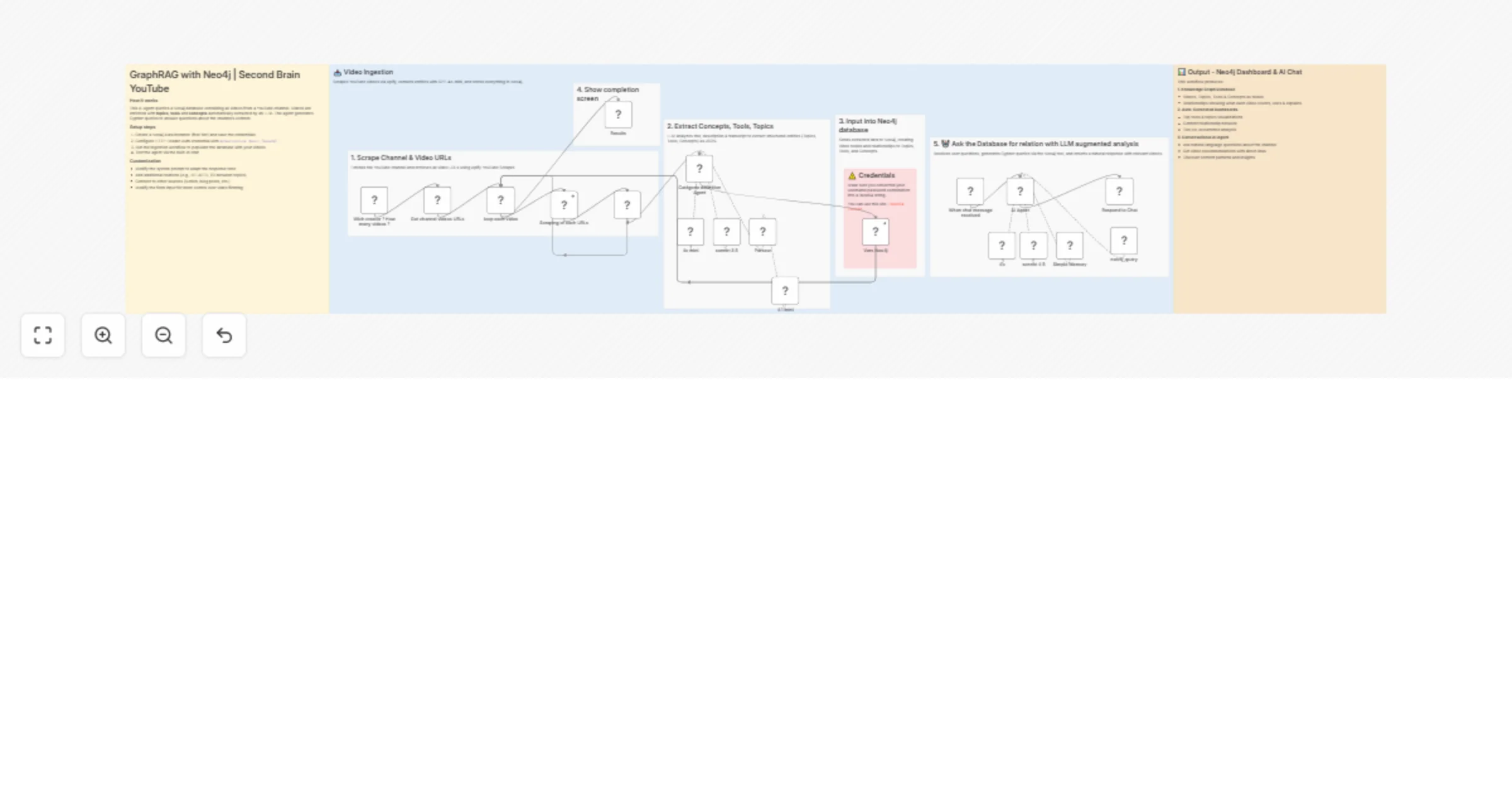
# 🎓 n8n Learning Hub — AI-Powered YouTube Educator Directory ## 📋 Overview This workflow demonstrates how to use **n8n Data Tables** to create a searchable database of educational YouTube content. Users can search for videos by topic (e.g., "voice", "scraping", "lead gen") and receive formatted recommendations from top n8n educators. ### What This Workflow Does: - **Receives search queries** via webhook (e.g., topic: "voice agents") - **Processes keywords** using JavaScript to normalize search terms - **Queries a Data Table** to find matching educational videos - **Returns formatted results** with video titles, educators, difficulty levels, and links - **Populates the database** with a one-time setup workflow --- ## 🎯 Key Features ✅ **Data Tables Introduction** - Learn how to store and query structured data ✅ **Webhook Integration** - Accept external requests and return JSON responses ✅ **Keyword Processing** - Simple text normalization and keyword matching ✅ **Batch Operations** - Use Split in Batches to populate tables efficiently ✅ **Frontend Ready** - Easy to connect with Lovable, Replit, or custom UIs --- ## 🛠️ Setup Guide ### Step 1: Import the Workflow 1. Copy the workflow JSON 2. In n8n, go to **Workflows** → **Import from File** or **Import from URL** 3. Paste the JSON and click **Import** ### Step 2: Create the Data Table The workflow uses a Data Table called `n8n_Educator_Videos` with these columns: - **Educator** (text) - Creator name - **video_title** (text) - Video title - **Difficulty** (text) - Beginner/Intermediate/Advanced - **YouTubeLink** (text) - Full YouTube URL - **Description** (text) - Video summary for search matching **To create it:** 1. Go to **Data Tables** in your n8n instance 2. Click **+ Create Data Table** 3. Name it `n8n_Educator_Videos` 4. Add the 5 columns listed above ### Step 3: Populate the Database 1. Click on the **"When clicking 'Execute workflow'"** node (bottom branch) 2. Click **Execute Node** to run the setup 3. This will insert all 9 educational videos into your Data Table ### Step 4: Activate the Webhook 1. Click on the **Webhook** node (top branch) 2. Copy the **Production URL** (looks like: `https://your-n8n.app.n8n.cloud/webhook/1799531d-...`) 3. Click **Activate** on the workflow 4. Test it with a POST request: ```bash curl -X POST https://your-n8n.app.n8n.cloud/webhook/YOUR-WEBHOOK-ID \ -H "Content-Type: application/json" \ -d '{"topic": "voice"}' ``` --- ## 🔍 How the Search Works ### Keyword Processing Logic The JavaScript node normalizes search queries: - **"voice", "audio", "talk"** → Matches voice agent tutorials - **"lead", "lead gen"** → Matches lead generation content - **"scrape", "data", "scraping"** → Matches web scraping tutorials The Data Table query uses **LIKE** matching on the Description field, so partial matches work great. ### Example Queries: ```json {"topic": "voice"} // Returns Eleven Labs Voice Agent {"topic": "scraping"} // Returns 2 scraping tutorials {"topic": "avatar"} // Returns social media AI avatar videos {"topic": "advanced"} // Returns all advanced-level content ``` --- ## 🎨 Building a Frontend with Lovable or Replit ### Option 1: Lovable (lovable.dev) Lovable is an AI-powered frontend builder perfect for quick prototypes. **Prompt for Lovable:** ``` Create a modern search interface for an n8n YouTube learning hub: - Title: "🎓 n8n Learning Hub" - Search bar with placeholder "Search for topics: voice, scraping, RAG..." - Submit button that POSTs to webhook: [YOUR_WEBHOOK_URL] - Display results as cards showing: * 🎥 Video Title (bold) * 👤 Educator name * 🧩 Difficulty badge (color-coded) * 🔗 YouTube link button * 📝 Description Design: Dark mode, modern glassmorphism style, responsive grid layout ``` **Implementation Steps:** 1. Go to lovable.dev and start a new project 2. Paste the prompt above 3. Replace `[YOUR_WEBHOOK_URL]` with your actual webhook 4. Export the code or deploy directly ### Option 2: Replit (replit.com) Use Replit's HTML/CSS/JS template for more control. **HTML Structure:** ```html <!DOCTYPE html> <html> <head> <title>n8n Learning Hub</title> <style> body { font-family: Arial; max-width: 900px; margin: 50px auto; } #search { padding: 10px; width: 70%; font-size: 16px; } button { padding: 10px 20px; font-size: 16px; } .video-card { border: 1px solid #ddd; padding: 20px; margin: 20px 0; } </style> </head> <body> <h1>🎓 n8n Learning Hub</h1> <input id="search" placeholder="Search: voice, scraping, RAG..." /> <button onclick="searchVideos()">Search</button> <div></div> <script> async function searchVideos() { const topic = document.getElementById('search').value; const response = await fetch('YOUR_WEBHOOK_URL', { method: 'POST', headers: {'Content-Type': 'application/json'}, body: JSON.stringify({topic}) }); const data = await response.json(); document.getElementById('results').innerHTML = data.Message || 'No results'; } </script> </body> </html> ``` ### Option 3: Base44 (No-Code Tool) If using Base44 or similar no-code tools: 1. Create a **Form** with a text input (name: `topic`) 2. Add a **Submit Action** → HTTP Request 3. Set Method: POST, URL: Your webhook 4. Map form data: `{"topic": "{{topic}}"}` 5. Display response in a **Text Block** using `{{response.Message}}` --- ## 📊 Understanding Data Tables ### Why Data Tables? - **Persistent Storage** - Data survives workflow restarts - **Queryable** - Use conditions (equals, like, greater than) to filter - **Scalable** - Handle thousands of records efficiently - **No External DB** - Everything stays within n8n ### Common Operations: 1. **Insert Row** - Add new records (used in the setup branch) 2. **Get Row(s)** - Query with filters (used in the search branch) 3. **Update Row** - Modify existing records by ID 4. **Delete Row** - Remove records ### Best Practices: - Use descriptive column names - Include a searchable text field (like Description) - Keep data normalized (avoid duplicate entries) - Use the "Split in Batches" node for bulk operations --- ## 🚀 Extending This Workflow ### Ideas to Try: 1. **Add More Educators** - Expand the video database 2. **Category Filtering** - Add a `Category` column (Automation, AI, Scraping) 3. **Difficulty Sorting** - Let users filter by skill level 4. **Vote System** - Add upvote/downvote columns 5. **Analytics** - Track which topics are searched most 6. **Admin Panel** - Build a form to add new videos via webhook ### Advanced Features: - **AI-Powered Search** - Use OpenAI embeddings for semantic search - **Thumbnail Scraping** - Fetch YouTube thumbnails via API - **Auto-Updates** - Periodically check for new videos from educators - **Personalization** - Track user preferences in a separate table --- ## 🐛 Troubleshooting **Problem:** Webhook returns empty results **Solution:** Check that the Description field contains searchable keywords **Problem:** Database is empty **Solution:** Run the "When clicking 'Execute workflow'" branch to populate data **Problem:** Frontend not connecting **Solution:** Verify webhook is activated and URL is correct (use Test mode first) **Problem:** Search too broad/narrow **Solution:** Adjust the keyword logic in "Load Video DB" node --- ## 📚 Learning Resources Want to learn more about the concepts in this workflow? - **Data Tables:** [n8n Data Tables Documentation](https://docs.n8n.io) - **Webhooks:** [Webhook Node Guide](https://docs.n8n.io/integrations/builtin/core-nodes/n8n-nodes-base.webhook/) - **JavaScript in n8n:** "Every N8N JavaScript Function Explained" (see database) --- ## 🎓 What You Learned By completing this workflow, you now understand: ✅ How to create and populate Data Tables ✅ How to query tables with conditional filters ✅ How to build webhook-based APIs in n8n ✅ How to process and normalize user input ✅ How to format data for frontend consumption ✅ How to connect n8n with external UIs --- **Happy Learning!** 🚀 Built with ❤️ using n8n Data Tables
Classify developer questions with GPT-4o from Slack to Notion & Airtable
## 📘 Description: This workflow automates the Developer Q&A Classification and Documentation process using Slack, Azure OpenAI GPT-4o, Notion, Airtable, and Google Sheets. Whenever a new message is posted in a specific Slack channel, the workflow automatically: - Captures and validates the message data - Uses GPT-4o (Azure OpenAI) to check if the question matches any existing internal FAQs - Logs answered questions into Notion as new FAQ entries - Sends unanswered ones to Airtable for human follow-up - Records any workflow or API errors into Google Sheets This ensures that every developer query is instantly categorized, documented, and tracked, turning daily Slack discussions into a continuously improving knowledge base. ## ⚙️ What This Workflow Does (Step-by-Step) 🟢 Slack Channel Trigger – Developer Q&A Triggers the workflow whenever a new message is posted in a specific Slack channel. Captures message text, user ID, timestamp, and channel info. 🧩 Validate Slack Message Payload (IF Node) Ensures the incoming message payload contains valid user and text data. ✅ True Path → Continues to extract and process the message ❌ False Path → Logs error to Google Sheets 💻 Extract Question Metadata (JavaScript) Cleans and structures the Slack message into a standardized JSON format — removing unnecessary characters and preparing a clean “question object” for AI processing. 🧠 Classify Developer Question (AI) (Powered by Azure OpenAI GPT-4o) Uses GPT-4o to semantically compare the question with an internal FAQ dataset. If a match is found → Marks as answered and generates a canonical response If not → Flags it as unanswered 🧾 Parse AI JSON Output (Code Node) Converts GPT-4o’s text output into structured JSON so that workflow logic can reference fields like status, answer_quality, and canonical_answer. ⚖️ Check If Question Was Answered (IF Node) If status == "answered", the question is routed to Notion for documentation; otherwise, it’s logged in Airtable for review. 📘 Save Answered Question to Notion FAQ Creates a new Notion page under the “FAQ” database containing the question, AI’s canonical answer, and answer quality rating — automatically building a self-updating internal FAQ. 📋 Log Unanswered Question to Airtable Adds unresolved or new questions into Airtable for manual review by the developer support team. These records later feed back into the FAQ training loop. 🚨 Log Workflow Errors to Google Sheets Any missing payloads, parsing errors, or failed integrations are logged in Google Sheets (error log sheet) for transparent tracking and debugging. ## 🧩 Prerequisites: - Slack API credentials (for message trigger) - Azure OpenAI GPT-4o API credentials - Notion API connection (for FAQ database) - Airtable API credentials (for unresolved questions) - Google Sheets OAuth connection (for error logging) ## 💡 Key Benefits: ✅ Automates Slack Q&A classification ✅ Builds and updates internal FAQs with zero manual input ✅ Ensures all developer queries are tracked ✅ Reduces redundant questions in Slack ✅ Maintains transparency with error logs ## 👥 Perfect For: - Engineering or support teams using Slack for developer communication - Organizations maintaining internal FAQs in Notion - Teams wanting to automatically capture and reuse knowledge from real developer interactions
Local document question answering with Ollama AI, Agentic RAG & PGVector
## 🚀 n8n Local AI Agentic RAG Template **Author:** [Jadai kongolo](https://www.instagram.com/jadai_ai_automation/) ## What is this? This template provides an entirely local implementation of an **Agentic RAG (Retrieval Augmented Generation)** system in n8n that can be extended easily for your specific use case and knowledge base. Unlike standard RAG which only performs simple lookups, this agent can reason about your knowledge base, self-improve retrieval, and dynamically switch between different tools based on the specific question. ## Why Agentic RAG? Standard RAG has significant limitations: - Poor analysis of numerical/tabular data - Missing context due to document chunking - Inability to connect information across documents - No dynamic tool selection based on question type ## What makes this template powerful: - **Intelligent tool selection**: Switches between RAG lookups, SQL queries, or full document retrieval based on the question - **Complete document context**: Accesses entire documents when needed instead of just chunks - **Accurate numerical analysis**: Uses SQL for precise calculations on spreadsheet/tabular data - **Cross-document insights**: Connects information across your entire knowledge base - **Multi-file processing**: Handles multiple documents in a single workflow loop - **Efficient storage**: Uses JSONB in Supabase to store tabular data without creating new tables for each CSV ## Getting Started 1. Run the table creation nodes first to set up your database tables in Supabase 2. Upload your documents to the folder on your computer that is mounted to /data/shared in the n8n container. This folder by default is the "shared" folder in the local AI package. 3. The agent will process them automatically (chunking text, storing tabular data in Supabase) 4. Start asking questions that leverage the agent's multiple reasoning approaches ## Customization This template provides a solid foundation that you can extend by: - Tuning the system prompt for your specific use case - Adding document metadata like summaries - Implementing more advanced RAG techniques - Optimizing for larger knowledge bases --- The non-local ("cloud") version of this Agentic RAG agent can be [found here](https://kongolo.gumroad.com/l/anxwv).
Document RAG & chat agent: Google Drive to Qdrant with Mistral OCR
# **Knowledge RAG & AI Chat Agent: Google Drive to Qdrant** ## **Description** This workflow transforms a Google Drive folder into an intelligent, searchable knowledge base and provides a chat agent to query it. It’s composed of two distinct flows: - An **ingestion pipeline** to process documents. - A **live chat agent** that uses **RAG (Retrieval-Augmented Generation)** and optional **web search** to answer user questions. This system fully automates the creation of a “Chat with your docs” solution and enhances it with external web-searching capabilities. --- ## **Quick Implementation Steps** 1. Import the workflow JSON into your **n8n** instance. 2. Set up credentials for **Google Drive**, **Mistral AI**, **OpenAI**, and **Qdrant**. 3. Open the **Web Search** node and add your **Tavily AI API key** to the Authorization header. 4. In the **Google Drive (List Files)** node, set the Folder ID you want to ingest. 5. Run the workflow manually once to populate your **Qdrant database (Flow 1)**. 6. Activate the workflow to enable the **chat trigger (Flow 2)**. 7. Copy the **public webhook URL** from the *When chat message received* node and open it in a new tab to start chatting. --- ## **What It Does** The workflow is divided into two primary functions: ### **1. Knowledge Base Ingestion (Manual Trigger)** This flow populates your vector database. - **Scans Google Drive:** Lists all files from a specified folder. - **Processes Files Individually:** Downloads each file. - **Extracts Text via OCR:** Uses **Mistral AI OCR API** for text extraction from PDFs, images, etc. - **Generates Smart Metadata:** A Mistral LLM assigns metadata like `document_type`, `project`, and `assigned_to`. - **Chunks & Embeds:** Text is cleaned, chunked, and embedded via **OpenAI’s text-embedding-3-small** model. - **Stores in Qdrant:** Text chunks, embeddings, and metadata are stored in a Qdrant collection (`docaiauto`). ### **2. AI Chat Agent (Chat Trigger)** This flow powers the conversational interface. - **Handles User Queries:** Triggered when a user sends a chat message. - **Internal RAG Retrieval:** Searches **Qdrant Vector Store** first for answers. - **Web Search Fallback:** If unavailable internally, the agent offers to perform a **Tavily AI web search**. - **Contextual Responses:** Combines internal and external info for comprehensive answers. --- ## **Who's It For** Ideal for: - Teams building internal AI knowledge bases from Google Drive. - Developers creating **AI-powered support**, **research**, or **onboarding** bots. - Organizations implementing **RAG pipelines**. - Anyone making **unstructured Google Drive documents searchable** via chat. --- ## **Requirements** - **n8n instance** (self-hosted or cloud). - **Google Drive Credentials** (to list and download files). - **Mistral AI API Key** (for OCR & metadata extraction). - **OpenAI API Key** (for embeddings and chat LLM). - **Qdrant instance** (cloud or self-hosted). - **Tavily AI API Key** (for web search). --- ## **How It Works** The workflow runs two independent flows in parallel: ### **Flow 1: Ingestion Pipeline (Manual Trigger)** 1. **List Files:** Fetch files from Google Drive using the Folder ID. 2. **Loop & Download:** Each file is processed one by one. 3. **OCR Processing:** - Upload file to Mistral - Retrieve signed URL - Extract text using **Mistral DOC OCR** 4. **Metadata Extraction:** Analyze text using a **Mistral LLM**. 5. **Text Cleaning & Chunking:** Split into 1000-character chunks. 6. **Embeddings Creation:** Use **OpenAI embeddings**. 7. **Vector Insertion:** Push chunks + metadata into **Qdrant**. ### **Flow 2: AI Chat Agent (Chat Trigger)** 1. **Chat Trigger:** Starts when a chat message is received. 2. **AI Agent:** Uses OpenAI + Simple Memory to process context. 3. **RAG Retrieval:** Queries Qdrant for related data. 4. **Decision Logic:** - Found → Form answer. - Not found → Ask if user wants web search. 5. **Web Search:** Performs Tavily web lookup. 6. **Final Response:** Synthesizes internal + external info. --- ## **How To Set Up** ### **1. Import the Workflow** Upload the provided JSON into your **n8n** instance. ### **2. Configure Credentials** Create and assign: - **Google Drive** → Google Drive nodes - **Mistral AI** → Upload, Signed URL, DOC OCR, Cloud Chat Model - **OpenAI** → Embeddings + Chat Model nodes - **Qdrant** → Vector Store nodes ### **3. Add Tavily API Key** - Open **Web Search node → Parameters → Headers** - Add your key under **Authorization** (e.g., `tvly-xxxx`). ### **4. Node Configuration** - **Google Drive (List Files):** Set Folder ID. - **Qdrant Nodes:** Ensure same collection name (`docaiauto`). ### **5. Run Ingestion (Flow 1)** Click **Test workflow** to populate Qdrant with your Drive documents. ### **6. Activate Chat (Flow 2)** Toggle the workflow ON to enable real-time chat. ### **7. Test** Open the webhook URL and start chatting! --- ## **How To Customize** - **Change LLMs:** Swap models in OpenAI or Mistral nodes (e.g., GPT-4o, Claude 3). - **Modify Prompts:** Edit the system message in `ai chat agent` to alter tone or logic. - **Chunking Strategy:** Adjust `chunkSize` and `chunkOverlap` in the Code node. - **Different Sources:** Replace Google Drive with AWS S3, Local Folder, etc. - **Automate Updates:** Add a **Cron** node for scheduled ingestion. - **Validation:** Add post-processing steps after metadata extraction. - **Expand Tools:** Add more functional nodes like Google Calendar or Calculator. --- ## **Use Case Examples** - **Internal HR Bot:** Answer HR-related queries from stored policy docs. - **Tech Support Assistant:** Retrieve troubleshooting steps for products. - **Research Assistant:** Summarize and compare market reports. - **Project Management Bot:** Query document ownership or project status. --- ## **Troubleshooting Guide** | **Issue** | **Possible Solution** | |------------|------------------------| | Chat agent doesn’t respond | Check OpenAI API key and model availability (e.g., `gpt-4.1-mini`). | | Known documents not found | Ensure ingestion flow ran and both Qdrant nodes use same collection name. | | OCR node fails | Verify Mistral API key and input file integrity. | | Web search not triggered | Re-check Tavily API key in Web Search node headers. | | Incorrect metadata | Tune Information Extractor prompt or use a stronger Mistral model. | --- ### **Need Help or More Workflows?** Want to customize this workflow for your business or integrate it with your existing tools? Our team at **Digital Biz Tech** can tailor it precisely to your use case from automation logic to AI-powered enhancements. We can help you set it up for free — from connecting credentials to deploying it live. Contact: [[email protected]](mailto:[email protected]) Website: [https://www.digitalbiz.tech](https://www.digitalbiz.tech) LinkedIn: [https://www.linkedin.com/company/digital-biz-tech/](https://www.linkedin.com/company/digital-biz-tech/) You can also DM us on LinkedIn for any help. ---
Create a code assistant that learns from your GitHub repository using OpenAI
# AI Agent for GitHub AI Agent to learn directly from your **GitHub repository**. It automatically syncs source files, converts them into vectorized knowledge ## How It Works Provide your **GitHub repository** — the workflow will automatically **pull your source files** and **update the knowledge base (vectorstore)** for the AI Agent. This allows the AI Agent to answer questions directly based on your repository’s content. --- ## How to Use 1. **Commit** your files to your GitHub repository. 2. **Trigger** the `Sync Data` workflow. 3. **Ask** questions to the AI Agent — it will respond using your repository knowledge. --- ## Requirements - A valid **GitHub account** - An **existing repository** with accessible content --- ## Customization Options - Customize the **prompt** for specific or detailed tasks - Replace or connect to your own **vector database provider**
Slack auto translator (JA ⇄ EN) with GPT-4o-mini
## 🧠 How it works This workflow enables automatic translation in Slack using **n8n** and **OpenAI**. When a user types `/trans` followed by text, n8n detects the language and replies with the translated version via Slack. ## ⚙️ Features - Detects the input language automatically - Translates between **Japanese ↔ English** using **GPT-4o-mini** (temperature 0.2 for stability) - Sends a quick “Translating...” acknowledgement to avoid Slack’s 3s timeout - Posts the translated text back to Slack (public or private selectable) - Supports overrides like `en: こんにちは` or `ja: hello` ## 💡 Perfect for - Global teams communicating in Japanese and English - Developers learning how to connect **Slack + OpenAI + n8n** ## 🧩 Notes Use sticky notes inside the workflow for setup details. Duplicate and modify it to support mentions, group messages, or other language pairs.
RAG-powered document chat with Google Drive, OpenAI, and Pinecone Assistant
## Try it out This n8n workflow template lets you chat with your Google Drive documents (.docx, .json, .md, .txt, .pdf) using OpenAI and Pinecone Assistant. It retrieves relevant context from your files in real time so you can get accurate, context-aware answers about your proprietary data—without the need to train your own LLM. ### What is Pinecone Assistant? [Pinecone Assistant](https://docs.pinecone.io/guides/assistant/overview) allows you to build production-grade chat and agent-based applications quickly. It abstracts the complexities of implementing retrieval-augmented (RAG) systems by managing the chunking, embedding, storage, query planning, vector search, model orchestration, reranking for you. ### Prerequisites * A [Pinecone account](https://app.pinecone.io/) and [API key](https://app.pinecone.io/organizations/-/projects/-/keys) * A GCP project with [Google Drive API enabled and configured](https://docs.n8n.io/integrations/builtin/credentials/google/oauth-single-service/) * Note: When setting up the OAuth consent screen, skip steps 8-10 if running on localhost * An [Open AI account](https://auth.openai.com/create-account) and [API key](https://platform.openai.com/settings/organization/api-keys) ### Setup 1. Create a Pinecone Assistant in the Pinecone Console [here](https://app.pinecone.io/organizations/-/projects/-/assistant) 1. Name your Assistant `n8n-assistant` and create it in the `United States` region 2. If you use a different name or region, update the related nodes to reflect these changes 3. No need to configure a Chat model or Assistant instructions 2. Setup your Google Drive OAuth2 API credential in n8n 1. In the File added node -> Credential to connect with, select Create new credential 2. Set the Client ID and Client Secret from the values generated in the prerequisites 3. Set the OAuth Redirect URL from the n8n credential in the Google Cloud Console ([instructions](https://docs.n8n.io/integrations/builtin/credentials/google/oauth-single-service/#create-your-google-oauth-client-credentials)) 4. Name this credential `Google Drive account` so that other nodes reference it 3. Setup Pinecone API key credential in n8n 1. In the Upload file to assistant node -> PineconeApi section, select Create new credential 2. Paste in your Pinecone API key in the API Key field 4. Setup Pinecone MCP Bearer auth credential in n8n 1. In the Pinecone Assistant node -> Credential for Bearer Auth section, select Create new credential 2. Set the Bearer Token field to your Pinecone API key used in the previous step 5. Setup the Open AI credential in n8n 1. In the OpenAI Chat Model node -> Credential to connect with, select Create new credential 2. Set the API Key field to your OpenAI API key 6. Add your files to a Drive folder named `n8n-pinecone-demo` in the root of your My Drive 1. If you use a different folder name, you'll need to update the Google Drive triggers to reflect that change 7. Activate the workflow or test it with a manual execution to ingest the documents 8. Chat with your docs! ### Ideas for customizing this workflow - Customize the System Message on the AI Agent node to your use case to indicate what kind of knowledge is stored in Pinecone Assistant - Change the top_k value of results returned from Assistant by adding "and should set a top_k of 3" to the System Message to help manage token consumption - Configure the Context Window Length in the Conversation Memory node - Swap out the Conversation Memory node for one that is more persistent - Make the [chat node publicly available](https://docs.n8n.io/integrations/builtin/core-nodes/n8n-nodes-langchain.chattrigger/#make-chat-publicly-available) or [create your own chat interface](https://docs.n8n.io/integrations/builtin/core-nodes/n8n-nodes-langchain.chattrigger/#mode) that calls the chat webhook URL. ### Need help? You can find help by asking in the [Pinecone Discord community](https://discord.gg/tJ8V62S3sH), asking on the [Pinecone Forum](https://community.pinecone.io/), or [filing an issue](https://github.com/pinecone-io/n8n-templates/issues/new/choose) on this repo.
Build a knowledge base chatbot with Jotform, RAG Supabase, Together AI & Gemini
Youtube Video: [https://youtu.be/dEtV7OYuMFQ?si=fOAlZWz4aDuFFovH](https://youtu.be/dEtV7OYuMFQ?si=fOAlZWz4aDuFFovH) # Workflow Pre-requisites ### **Step 1: Supabase Setup** First, replace the keys in the "Save the embedding in DB" & "Search Embeddings" nodes with your new Supabase keys. After that, run the following code snippets in your Supabase SQL editor: 1. Create the table to store chunks and embeddings: ```sql CREATE TABLE public."RAG" ( id bigserial PRIMARY KEY, chunk text NULL, embeddings vector(1024) NULL ) TABLESPACE pg_default; ``` 2. Create a function to match embeddings: ```sql DROP FUNCTION IF EXISTS public.matchembeddings1(integer, vector); CREATE OR REPLACE FUNCTION public.matchembeddings1( match_count integer, query_embedding vector ) RETURNS TABLE ( chunk text, similarity float ) LANGUAGE plpgsql AS $$ BEGIN RETURN QUERY SELECT R.chunk, 1 - (R.embeddings <=> query_embedding) AS similarity FROM public."RAG" AS R ORDER BY R.embeddings <=> query_embedding LIMIT match_count; END; $$; ``` ### **Step 2: Create Jotform with these fields** 1. Your full name 2. email address 3. Upload PDF Document [field where you upload the knowledgebase in PDF] ### **Step 3: Get Together AI API Key** Get a Together AI API key and paste it into the "Embedding Uploaded document" node and the "Embed User Message" node. ### Here is a detailed, node-by-node explanation of the n8n workflow, which is divided into two main parts. *** ### Part 1: Ingesting Knowledge from a PDF This first sequence of nodes runs when you submit a PDF through a Jotform. Its purpose is to read the document, process its content, and save it in a specialized database for the AI to use later. 1. **`JotForm Trigger`** * **Type:** Trigger * **What it does:** This node starts the entire workflow. It's configured to listen for new submissions on a **specific Jotform**. When someone uploads a file and submits the form, this node activates and passes the submission data to the next step. 2. **`Grab New knowledgebase`** * **Type:** HTTP Request * **What it does:** The initial trigger from Jotform only contains basic information. This node makes a follow-up call to the Jotform API using the `submissionID` to get the complete details of that submission, including the specific link to the uploaded file. 3. **`Grab the uploaded knowledgebase file link`** * **Type:** HTTP Request * **What it does:** Using the file link obtained from the previous node, this step downloads the actual PDF file. It's set to receive the response as a file, not as text. 4. **`Extract Text from PDF File`** * **Type:** Extract From File * **What it does:** This utility node takes the binary PDF file downloaded in the previous step and extracts all the readable text content from it. The output is a single block of plain text. 5. **`Splitting into Chunks`** * **Type:** Code * **What it does:** This node runs a small JavaScript snippet. It takes the large block of text from the PDF and chops it into smaller, more manageable pieces, or **"chunks,"** each of a **predefined length**. This is critical because AI models work more effectively with smaller, focused pieces of text. 6. **`Embedding Uploaded document`** * **Type:** HTTP Request * **What it does:** This is a key AI step. It sends each individual text chunk to an embeddings API. A **specified AI model** converts the semantic meaning of the chunk into a numerical list called an **embedding** or vector. This vector is like a mathematical fingerprint of the text's meaning. 7. **`Save the embedding in DB`** * **Type:** Supabase * **What it does:** This node connects to your Supabase database. For every chunk, it creates a new row in a **specified table** and stores two important pieces of information: the original text chunk and its corresponding numerical embedding (its "fingerprint") from the previous step. *** ### Part 2: Answering Questions via Chat This second sequence starts when a user sends a message. It uses the knowledge stored in the database to find relevant information and generate an intelligent answer. 1. **`When chat message received`** * **Type:** Chat Trigger * **What it does:** This node starts the second part of the workflow. It listens for any incoming message from a user in a connected chat application. 2. **`Embend User Message`** * **Type:** HTTP Request * **What it does:** This node takes the user's question and sends it to the *exact same* embeddings API and model used in Part 1. This converts the question's meaning into the same kind of numerical vector or "fingerprint." 3. **`Search Embeddings`** * **Type:** HTTP Request * **What it does:** This is the "retrieval" step. It calls a **custom database function** in Supabase. It sends the question's embedding to this function and asks it to search the knowledge base table to find a **specified number of top text chunks** whose embeddings are mathematically most similar to the question's embedding. 4. **`Aggregate`** * **Type:** Aggregate * **What it does:** The search from the previous step returns multiple separate items. This utility node simply bundles those items into a single, combined piece of data. This makes it easier to feed all the context into the final AI model at once. 5. **`AI Agent` & `Google Gemini Chat Model`** * **Type:** LangChain Agent & AI Model * **What it does:** This is the "generation" step where the final answer is created. * The **`AI Agent`** node is given a detailed set of instructions (a prompt). * The prompt tells the **`Google Gemini Chat Model`** to act as a professional support agent. * Crucially, it provides the AI with the user's original question and the **aggregated text chunks** from the `Aggregate` node as its **only source of truth**. * It then instructs the AI to formulate an answer based *only* on that provided context, format it for a **specific chat style**, and to say "I don't know" if the answer cannot be found in the chunks. This prevents the AI from making things up.