Lead Generation Workflows
538 workflows found
Workflow preview: Capture and schedule HVAC leads with OpenAI, Google Sheets, Slack and SMS
Free advanced

Capture and schedule HVAC leads with OpenAI, Google Sheets, Slack and SMS

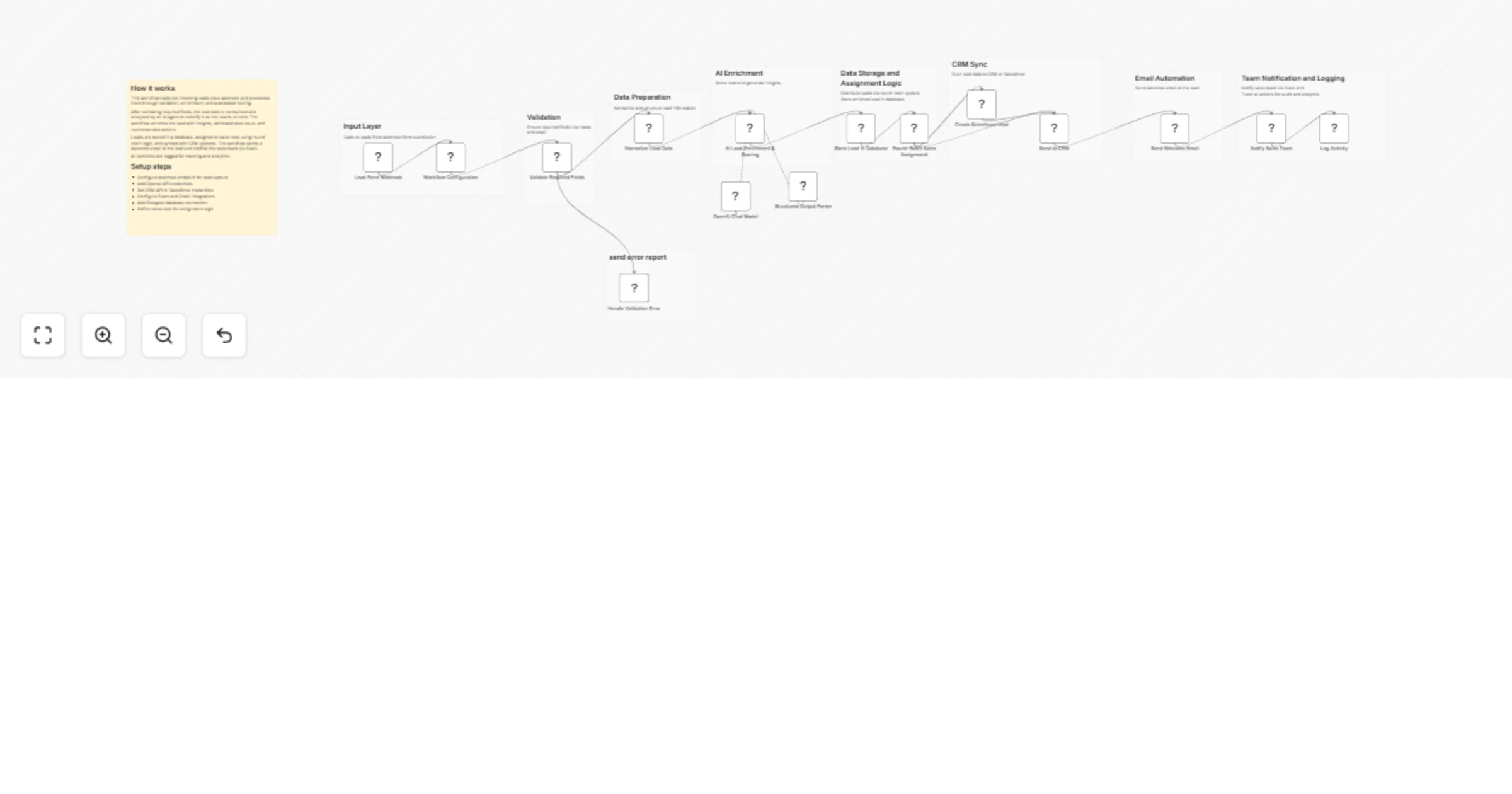
## Who this workflow is for Door-to-door HVAC companies seeking automated lead capture and appointment scheduling. ## What this workflow does AI classifies incoming leads, routes them by service type, logs lead info in Google Sheets, notifies team via Slack, sends confirmations, schedules appointments, and optionally sends SMS reminders. ## How the workflow works 1. Lead submission triggers workflow 2. AI classifies lead 3. Route lead based on service type 4. Log in Google Sheets 5. Notify team via Slack 6. Send confirmation email 7. Schedule appointment in calendar 8. Send SMS reminder (optional) 9. Optional CRM/dispatch integration **Author:** Hyrum Hurst, AI Automation Engineer **Company:** QuarterSmart **Contact:** [email protected]

H
Hyrum Hurst
Lead Generation
16 Jan 2026
0
0
Workflow preview: Sync and enrich HubSpot leads from Google Sheets and Telegram with Gemini and Lusha
Free advanced

Sync and enrich HubSpot leads from Google Sheets and Telegram with Gemini and Lusha

This workflow automates lead ingestion from Google Sheets and Telegram, leveraging Gemini AI and Lusha for intelligent matching and deep data enrichment. By normalizing incoming data into a standard structure, it uses custom fuzzy logic to identify existing HubSpot records—preventing duplicates and ensuring your CRM stays clean with validated contact and company details. **Key Features:** **Agnostic Intake:** Seamlessly processes leads from structured Google Sheets or raw Telegram messages parsed by Gemini AI. **Intelligent Matching:** Custom JS engine performs two-tier matching (hard & fuzzy) to save Lusha credits and keep CRM data integrity. **Deep Enrichment:** Automatically triggers Lusha API to find missing emails and update firmographic data like revenue and industry. **Automated Sync:** Closes the loop by notifying the team on Telegram and updating the spreadsheet status once a lead is processed. **Setup Instructions:** 1. Connect your HubSpot, Lusha, Gemini, Google Sheets, and Telegram credentials. 2. Input your Spreadsheet ID in the 'Trigger' and 'Acknowledge' nodes. 3. Adjust the similarity threshold in the 'Switch Logic' node (default 80) based on your data needs.

D
Danny
Lead Generation
14 Jan 2026
0
0
Workflow preview: Qualify and email literary agents with GPT‑4.1, Gmail and Google Sheets
Free advanced

Qualify and email literary agents with GPT‑4.1, Gmail and Google Sheets

## Inspiration & Notes This workflow was born out of a very real problem. While writing a book, I found the process of discovering suitable literary agents and managing outreach to be manual, and surprisingly difficult to scale. Researching agents, checking submission rules, personalizing emails, tracking submissions, and staying organized quickly became a full-time job on its own. So instead of doing it manually, I automated it. I built this entire workflow in **3 days** — and the goal of publishing it is to show that you can do the same. With the right structure and intent, complex sales and marketing workflows don’t have to take months to build. --- ## Contact & Collaboration If you have questions, business inquiries, or would like help setting up automation workflows, feel free to reach out: 📩 **[email protected]** I genuinely enjoy designing workflows and automation systems, especially when they support meaningful projects. I work primarily from interest and impact rather than purely financial motivation. Whether I take on a project for **FREE** or paid for the following reasons: - I **LOVE** setting up workflows and automation. - I work for **meaningfulness**, not for money. - **I may do the work for free**, depending on how meaningful the project is. If the problem statement matters, the motivation follows. - **It also depends on the value I bring to the table** -- If I can contribute significant value through system design, I’m more inclined to get involved. If you’re building something thoughtful and need help automating it, I’m always happy to have a conversation. Enjoy~! --- # 0. Overview Automates the end-to-end literary agent outreach pipeline, from data ingestion and eligibility filtering to deep agent research, personalized email generation, submission tracking, and analytics. ## Architecture The system is organized into four logical domains: The system is modular and is divided into four domains: --> Data Engineering --> Marketing & Research --> Sales (Outreach) --> Data Analysis Each domain operates independently and passes structured data downstream. --- ## 1. Data Engineering **Purpose:** Ingest and normalize agent data from multiple sources into a single source of truth. **Inputs** - Google BigQuery - Azure Blob Storage - AWS S3 - Google Sheets - (Optional) HTTP sources **Key Steps** - Scheduled ingestion trigger - Merge and normalize heterogeneous data formats (CSV, tables) - Deduplication and validation - AI-assisted enrichment for missing metadata - Append-only writes to a central Google Sheet **Output** - Clean, normalized agent records ready for eligibility evaluation --- ## 2. Marketing & Research **Purpose:** Decide *who* to contact and *how* to personalize outreach. ### Eligibility Evaluation An AI agent evaluates each record against strict rules: - Email submissions enabled - Not QueryTracker-only or QueryManager-only - Genre fit (e.g. Memoir, Spiritual, Self-help, Psychology, Relationships, Family) **Outputs** - `send_email` (boolean) - `reason` (auditable explanation) ### Deep Research For eligible agents only: - Public research from agency sites, interviews, Manuscript Wish List, and LinkedIn (if public) - Extracts: - Professional background - Editorial interests - Genres represented - Notable clients/books (if publicly listed) - Public statements - Source-backed personalization angles **Strict Rule:** All claims must be explicitly cited; no inference or hallucination is allowed. --- ## 3. Sales (Outreach) **Purpose:** Execute personalized email outreach and maintain clean submission tracking. **Steps** - AI generates agent-specific email copy - Copy is normalized for tone and clarity - Email is sent (e.g. Gmail) - Submission metadata is logged: - `Submission Completed` - `Submission Timestamp` - Channel used **Result** - Consistent, traceable outreach with CRM-style hygiene --- ## 4. Data Analysis **Purpose:** Measure pipeline health and outreach effectiveness. **Features** - Append-only decision and submission logs - QuickChart visualizations for fast validation (e.g. TRUE vs FALSE completion rates) - Optional integration with: - Power BI - Google Analytics 4 **Supports** - Completion rate analysis - Funnel tracking - Source/platform performance - Decision auditing --- ## Design Principles - **Separation of concerns** (ingestion ≠ decision ≠ outreach ≠ analytics) - **AI with hard guardrails** (strict schemas, source-only facts) - **Append-only logging** (analytics-safe, debuggable) - **Modular & extensible** (plug-and-play data sources) - **Human-readable + machine-usable outputs** --- ## Constraints & Notes - Only public, professional information is used - No private or speculative data - HTTP scraping avoided unless necessary - Power BI Embedded is not required - Workflow designed and implemented end-to-end in ~3 days --- ## Use Cases ### Marketing - Audience discovery - Agent segmentation - Personalization at scale - Campaign readiness - Funnel automation ### Sales - Lead qualification - Deduplication - Outreach execution - Status tracking - Pipeline hygiene --- ## Tech Stack - **Automation:** n8n - **AI:** OpenAI (GPT) - **Scripting:** JavaScript - **Data Stores:** Google Sheets - **Email:** Gmail - **Visualization:** QuickChart - **BI (optional):** Power BI, Google Analytics 4 - **Cloud Sources:** AWS S3, Azure Blob, BigQuery --- ## Status This workflow is production-ready, modular, and designed for extension into other sales or marketing domains beyond literary outreach. ---

m
malcolm
Lead Generation
12 Jan 2026
0
0
Workflow preview: Extract ICP-targeted LinkedIn leads from post comments using Apify
Free advanced

Extract ICP-targeted LinkedIn leads from post comments using Apify

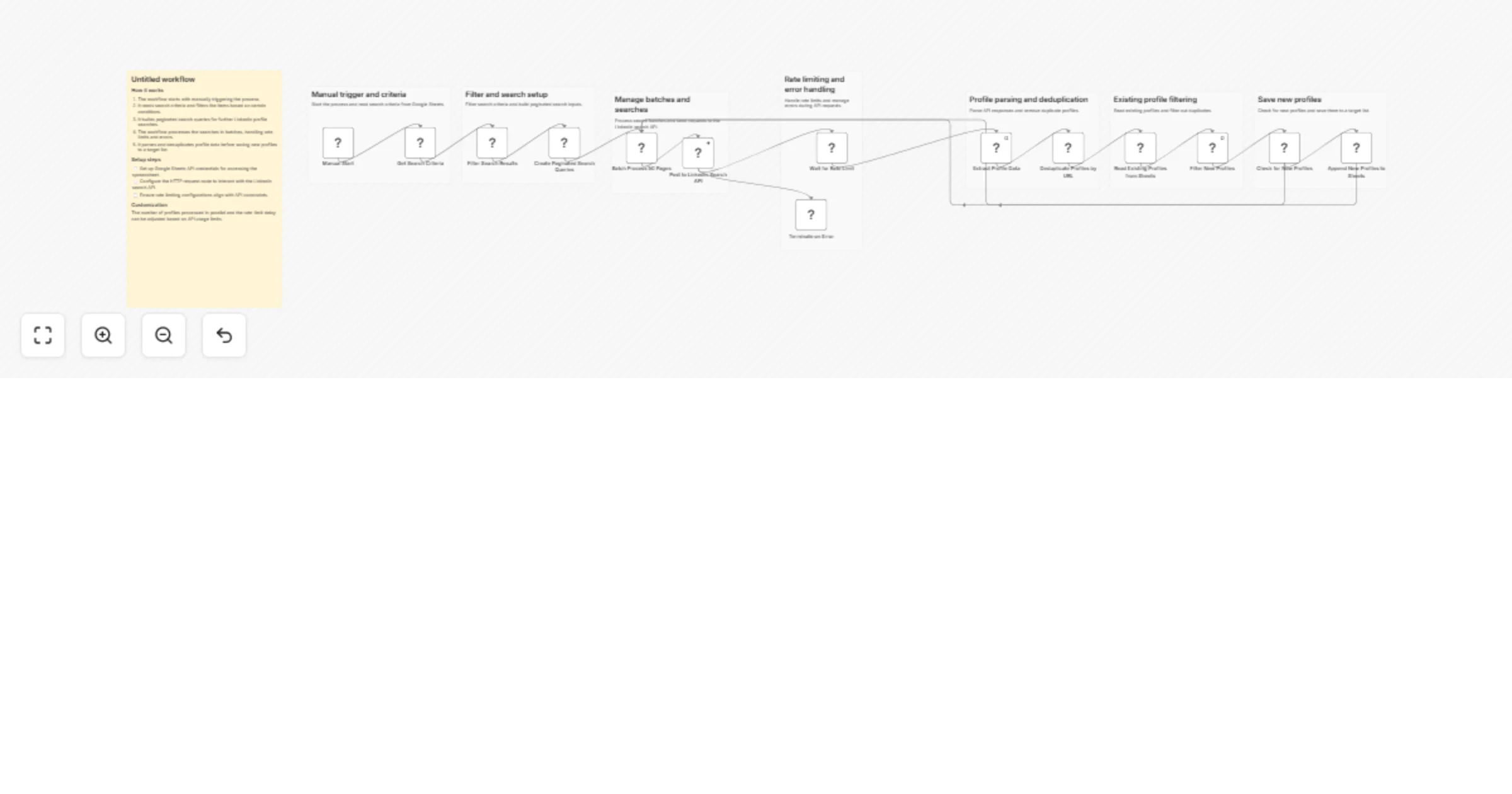
This workflow automates the process of extracting and qualifying leads from LinkedIn post comments based on your Ideal Customer Profile (ICP) criteria. It turns LinkedIn engagement into a structured, downloadable list of qualified leads—without manual review. --- ## Who’s this for * Sales and business development teams generating outbound lead lists * Marketing teams running LinkedIn engagement campaigns * Recruiters sourcing candidates with specific job titles * Operators who want to convert LinkedIn comments into actionable data --- ## What problem does this solve Manually reviewing LinkedIn post comments to identify relevant prospects is slow, repetitive, and error-prone. This workflow automates the entire process—from scraping comments to enriching profiles and filtering by ICP—saving hours of manual work and ensuring consistent results. --- ## What this workflow does 1. Collects a LinkedIn post URL and ICP criteria via a form 2. Scrapes post comments using Apify (supports up to 1,000 comments) 3. Deduplicates commenters and enriches profiles with LinkedIn data 4. Filters profiles by selected job titles and countries 5. Exports matched leads as a downloadable CSV file --- ## How to set up 1. Create an Apify account and generate an API key 2. Add your Apify credentials in n8n (**Settings → Credentials → Apify API**) 3. Execute the workflow and submit a LinkedIn post URL and ICP criteria --- ## Requirements * Apify account with API access - Apify offers a free tier with $5 in monthly credits, which is enough to test this workflow on smaller LinkedIn posts --- ## How to customize the workflow * Update job titles and target countries in the Form Trigger * Increase pagination limits to support larger posts * Replace CSV export with a CRM, Google Sheets, or database integration

K
Kidlat
Lead Generation
12 Jan 2026
58
0
Workflow preview: Score event RSVPs with GPT-4o-mini and sync leads to HubSpot with Slack alerts
Free advanced

Score event RSVPs with GPT-4o-mini and sync leads to HubSpot with Slack alerts

🚀 **Auto-qualify event RSVPs into sales-ready leads** ✅ Form → AI scoring (0-100) → HubSpot CRM ✅ Slack alerts: "Director @ Acme = 87/100 → Book call" ✅ High-fit leads auto-assigned, nurture path for rest *Perfect for conferences, webinars, meetups* Free CRM tier, 100% configurable EventTech, LeadQualification, RevOps, eventregistration, events, lead scoring, rsvp, conferences, webinars, crm, hubspot, ai qualification

M
Milo Bravo
Lead Generation
10 Jan 2026
0
0
Workflow preview: Identify buying-intent leads on Twitter and Instagram with Slack and Notion CRM
Free advanced

Identify buying-intent leads on Twitter and Instagram with Slack and Notion CRM

## 📘 Description This workflow enables on-demand social lead discovery using a chat-based interface. When a user submits a lead discovery query, the workflow searches Twitter and Instagram for posts where people are actively asking for tools, recommendations, or help solving real problems. An AI agent filters out spam and promotions, extracts only genuine buying-intent posts, and classifies each lead as Low, Medium, or High intent. Qualified leads are converted into two outputs: a human-readable Slack summary for quick review and a structured, CRM-ready Notion record for tracking and follow-ups. Short-term conversation memory is maintained to improve relevance across follow-up queries. Built-in error handling ensures failures are reported immediately. ⚠️ Deployment Disclaimer This template can only be used on self-hosted n8n installations. It relies on external MCP tools and custom AI orchestration not supported on n8n Cloud. ## ⚙️ What This Workflow Does (Step-by-Step) 💬 Receive User Lead Discovery Query (Chat Trigger) Accepts a natural-language lead discovery request from a user. 🧠 Maintain Short-Term Conversation Context Keeps recent query context to improve follow-up accuracy. 🔎 Discover Buying-Intent Leads from Social Platforms (AI) Searches Twitter and Instagram for posts indicating real buying or problem-solving intent and extracts structured lead data. 🌐 External Social Search & Enrichment (MCP Tool) Fetches relevant social posts from external platforms. 🧠 AI Lead Qualification Classifies intent (Low / Medium / High), summarizes the problem, and filters noise. 🧩 Generate Slack & Notion Lead Insight Summary (AI) Creates a concise Slack summary and a clean, structured Notion record. 📣 Send Lead Discovery Summary to Slack Delivers a skimmable summary for immediate team visibility. 🗂 Store Lead Discovery Insight in Notion CRM Logs search query, themes, and overall intent for tracking. 🚨 Error Handler → Email Alert Sends an alert if the workflow fails at any step. ## 🧩 Prerequisites • Self-hosted n8n instance • Azure OpenAI API credentials • MCP bearer authentication for social search • Slack API credentials • Notion API credentials 🛠 Setup Instructions Deploy the workflow on a self-hosted n8n instance Connect Azure OpenAI, MCP, Slack, and Notion credentials Enable the chat trigger Test with a sample lead discovery query 🛠 Customization Tips • Adjust intent classification rules in the AI prompt • Modify output fields to match your CRM schema • Extend discovery to additional platforms via MCP tools ## 💡 Key Benefits ✔ On-demand social lead discovery via chat ✔ Filters only real buying-intent signals ✔ Produces Slack-ready summaries and CRM-ready records ✔ Maintains context across follow-up queries ✔ Eliminates manual social media scanning ## 👥 Perfect For - Sales teams - Growth teams - Founders - Agencies sourcing leads from social platforms

R
Rahul Joshi
Lead Generation
9 Jan 2026
38
0
Workflow preview: Build a prospecting list with LeadIQ and save it to Airtable CRM
Free advanced

Build a prospecting list with LeadIQ and save it to Airtable CRM

## **Who this is for** B2B companies, including: - Founders - Marketing and sales professionals - Recruiters involved in people search and B2B outreach With this workflow: - No more manual list building - No time spent researching what each company does - No manual CRM work — all found data is saved to a spreadsheet automatically ## **What it does** This workflow helps you quickly **build a list of prospects for outreach** using the **LeadIQ** provider. It collects: - Full name - LinkedIn profile - Company website and description - Emails (when available in the LeadIQ database) You can start contacting people via LinkedIn manually right away. You simply **provide a natural language prompt**, for example: *“Founder at a software engineering firm, 11–50 employees, based in New York, using AI technologies.”* The embedded AI agent transforms your input into a GraphQL query, which is then used to pull leads from the database. 📹 Video walkthrough: [Click Here](https://vimeo.com/1151100805) **Benefits:** - LeadIQ is an affordable database, with a cost per lead of approximately $0.03–$0.05 USD, depending on your plan and volume - No credit card or paid plan is required to start using the LeadIQ API — just sign up and access the API - The API includes 50 free credits, which is enough to test the workflow - The workflow enriches company details from the open web (company description, HQ address) - No need to manually configure filters — use a simple natural language prompt - All data is saved automatically to Airtable CRM (using their standard CRM template from the template library) ⚠️ **Important:** This workflow is not ideal if email addresses are the only data you need, as LeadIQ does not always provide emails. It works best when you need: - A curated list of people based on specific criteria - Their LinkedIn profiles - Automated saving of leads to a database You can later enrich email data using other paid databases by pulling records from Airtable. ## How to customize the workflow 1. Sign up for **LeadIQ**: https://leadiq.com - Obtain the API string called “**Secret Base64 API key**” 2. Add the API key to all **HTTP** nodes: - Method: POST - URL: https://api.leadiq.com/graphql - Enable “**Send Headers**” and add: ``` Authorization: Basic <your API string here> Content-Type: application/json ``` 3. Sign up for Airtable - Find the template: *Left panel → Templates & apps → Marketing → “Sales CRM”* 4. In Airtable, generate an API key: - Builder Hub → Developers → Personal access token - Add your Sales CRM database to the token scope 5. Set the correct base and sheet in all Airtable nodes 6. Use the Code node called “Manage number of leads” to control how many records are pulled from the database - Default value: 1 (to save LeadIQ credits) - To change it, edit: ``` input.limit = 1; ``` Replace 1 with the desired number of leads 7. Launch the workflow using the “Open Chat” trigger node - Enter a prompt containing the criteria below **Prompt structure:** 📌 **Contact-level criteria (optional)** - **Job titles**: “Founder” - **Roles**: “Entrepreneurship”, “Business Development”, “Information Technology”, “Legal”, “Accounting”, etc. - **Seniority**: Executive, VP, Director, Manager, Senior Individual Contributor, Other - **Location (city and country only)**: “New York, United States” 📌 **Company-level criteria (optional)** - **Employee count range**: “1–10”, “50–200”, or terms like “small startup”, “SMB”, “mid-market”, “enterprise” - **Industry**: “Business Consulting and Services”, “IT Services and IT Consulting”, etc. - **Technologies**: “AI”, “HubSpot” (may not always work if the database has limited overlap) - **Revenue range (in millions USD)**: “0–1M”, “1–10M”, etc. (availability may vary) The workflow includes **two AI agents** that map your natural language input to the closest existing database filters, so you can write prompts in your own words. ## Email enrichment note The lower part of the workflow (“**Enrichment: Search Data & Email**”) attempts to pull emails from the LeadIQ database for existing leads. Not every lead has an email available, so this step is **optional and limited**. ## Workflow updates I will continue to add new functionality and improve this workflow, including: - Additional enrichment sources - New lead databases - Email sending infrastructure The latest version will always be available on my [Patreon](https://www.patreon.com/growspireagency)

G
GrowSpire Agency
Lead Generation
8 Jan 2026
0
0
Workflow preview: Qualify webhook leads with GPT-4o-mini and create Asana tasks automatically
Free advanced

Qualify webhook leads with GPT-4o-mini and create Asana tasks automatically

## 📊 Description Automate your inbound lead qualification pipeline by enriching raw lead data, scoring it with AI, and instantly creating follow-up tasks for your sales team. 🎯🤖 This workflow receives new leads via webhook, enriches them using RocketReach to fetch verified emails and contact details, applies confidence-based filtering, and uses GPT-4o-mini to score each lead based on seniority, company fit, and data quality. High-quality leads automatically generate Asana tasks and Slack notifications, while low-quality leads are safely filtered out — ensuring your team focuses only on the best opportunities. 🚀📋 ## 🔁 What This Template Does 1️⃣ Receives inbound lead data via webhook (name, company, job title, LinkedIn URL). 🌐 2️⃣ Normalizes incoming data into a clean, structured format. 🧾 3️⃣ Enriches lead profiles using RocketReach to fetch emails and phone numbers. 📇 4️⃣ Calculates email confidence scores based on quality grades (A–D). 📊 5️⃣ Filters out low-confidence leads automatically. 🚫 6️⃣ Uses AI (GPT-4o-mini) to score qualified leads from 1–10. 🤖 7️⃣ Assigns priority levels (High / Medium / Low) with reasoning. 🧠 8️⃣ Creates an Asana task for leads scoring above the threshold. ✅ 9️⃣ Sends Slack notifications for both qualified and disqualified leads. 💬 🔟 Returns a structured webhook response with scoring results. 🔁 1️⃣1️⃣ Sends Gmail alerts automatically if any workflow error occurs. 🚨 ## ⭐ Key Benefits ✅ Eliminates manual lead enrichment and qualification ✅ Uses verified contact data from RocketReach ✅ AI scoring ensures consistent, unbiased lead evaluation ✅ Automatically routes high-quality leads to sales via Asana ✅ Keeps teams informed with real-time Slack notifications ✅ Prevents sales effort from being wasted on low-quality leads ## 🧩 Features - Webhook-based inbound lead intake - RocketReach profile enrichment - Email confidence scoring logic - AI lead scoring with strict JSON output - Configurable quality and score thresholds - Automatic Asana task creation - Slack alerts for qualified and disqualified leads - Gmail-based error handling Frontend-ready webhook responses ## 🔐 Requirements - RocketReach API key - OpenAI API key (GPT-4o-mini recommended) - Asana OAuth2 credentials - Slack API credentials - Gmail OAuth2 credentials (for error alerts) - Webhook client sending lead details (first_name, last_name, company, job_title, linkedin_url) ## 🎯 Target Audience - B2B sales teams handling inbound leads - Revenue operations (RevOps) teams - SaaS companies optimizing lead qualification - Lead generation agencies - Automation teams building AI-driven sales pipelines

R
Rahul Joshi
Lead Generation
5 Jan 2026
10
0
Workflow preview: Capture website leads to HubSpot or Google Sheets with Slack follow-up
Free advanced

Capture website leads to HubSpot or Google Sheets with Slack follow-up

#### This n8n template demonstrates how to capture website leads via a webhook, validate the data, optionally enrich it, store it in your CRM (HubSpot) or a simple Google Sheet, and instantly notify your team via email and Slack. This is ideal for agencies, freelancers, SaaS founders, and small sales teams who want every lead recorded and followed up automatically within seconds. #### Good to know - The workflow supports two storage options: HubSpot or Google Sheets (choose one branch). - Enrichment (Clearbit/Hunter) is optional and can be disabled with a single toggle/IF branch. - Consider adding anti-spam (honeypot/captcha) if your form gets abused. #### How it works 1. **Webhook receives the lead** Your website form sends a POST request to the Webhook URL with lead fields (name, email, message, etc.). 2. **Validation & normalization** The workflow trims and normalizes fields (like lowercasing email) and checks required fields. If invalid, it returns a ```400 response code``` immediately. 3. **Optional enrichment (Clearbit/Hunter)** If enrichment is enabled, the workflow calls an enrichment API and merges results into the lead object (industry, company size, domain, etc.). If enrichment fails, the workflow continues (doesn’t block lead capture). 4. **Save lead to CRM (Choose one)** - **HubSpot branch**: find contact by email → create or update the contact record - **Google Sheets branch**: lookup row by email → update if found → otherwise append a new row 5. **Instant notifications** Posts a Slack message to a channel, optionally including a CRM/Sheet link 6. **Success response to the website** Returns a ```200 response``` ```{ ok: true }``` so your website can show a “Thanks!” message. --- #### How to use? 1. Import the workflow into n8n. 2. Configure the Webhook node and copy the production URL into your website form submit action. 3. Choose your storage path: - Enable HubSpot nodes OR - Enable Google Sheets nodes 4. Add credentials: - Slack credential - (Optional) HubSpot / Google Sheets - (Optional) Clearbit/Hunter keys in the HTTP Request node 5. Send a test lead from your website and confirm: - Lead saved correctly - Email received - Slack notification posted - Website receives a 200 response --- #### Requirements 1. An n8n instance (cloud or self-hosted) 2. One of: - HubSpot account (for CRM storage), or - Google account + Google Sheets (for spreadsheet storage) 3. Slack workspace + Slack credentials 4. Optional: Clearbit/Hunter account for enrichment

M
Mohammad Abubakar
Lead Generation
1 Jan 2026
30
0
Workflow preview: Scrape physician profiles from BrowserAct into Google Sheets and notify Slack
Free intermediate

Scrape physician profiles from BrowserAct into Google Sheets and notify Slack

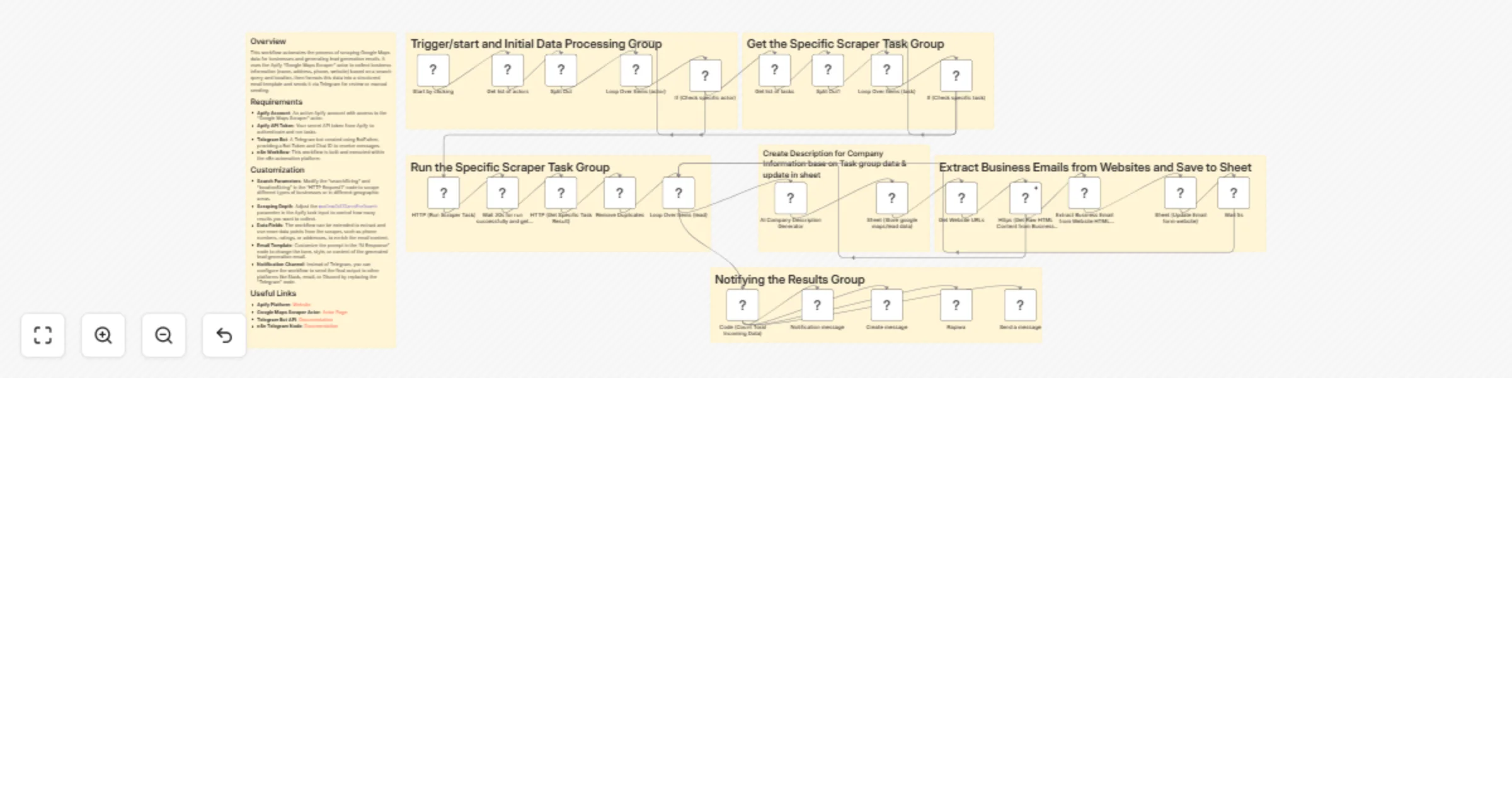
# Scrape physician profiles from BrowserAct to Google Sheets This workflow automates the process of building a targeted database of healthcare providers by scraping physician details for a specific location and syncing them to your records. It leverages BrowserAct to extract data from healthcare directories and ensures your database stays clean by preventing duplicate entries. ## Target Audience Medical recruiters, pharmaceutical sales representatives, lead generation specialists, and healthcare data analysts. ## How it works 1. **Define Location**: The workflow starts by setting the target `Location` and `State` in a Set node. 2. **Scrape Data**: A **BrowserAct** node executes a task (using the "Physician Profile Enricher" template) to search a healthcare directory (e.g., Healow) for doctors matching the criteria. 3. **Parse JSON**: A **Code** node takes the raw string output from the scraper and parses it into individual JSON objects. 4. **Update Database**: The workflow uses a **Google Sheets** node to append new records or update existing ones based on the physician's name, preventing duplicates. 5. **Notify Team**: A **Slack** node sends a message to a specific channel to confirm the batch job has finished successfully. ## How to set up 1. **Configure Credentials**: Connect your **BrowserAct**, **Google Sheets**, and **Slack** accounts in n8n. 2. **Prepare BrowserAct**: Ensure the **Physician Profile Enricher** template is saved in your BrowserAct account. 3. **Setup Google Sheet**: Create a new Google Sheet with the required headers (listed below). 4. **Select Spreadsheet**: Open the **Google Sheets** node and select your newly created file and sheet. 5. **Set Variables**: Open the **Define Location** node and input your target `Location` (City) and `State`. 6. **Configure Notification**: Open the **Slack** node and select the channel where you want to receive alerts. ## Google Sheet Headers To use this workflow, create a Google Sheet with the following headers: * Name * Specialty * Address ## Requirements * **BrowserAct** account with the **Physician Profile Enricher** template. * **Google Sheets** account. * **Slack** account. ## How to customize the workflow 1. **Change the Data Source**: Modify the BrowserAct template to scrape a different directory (e.g., Zocdoc or WebMD) and update the Google Sheet columns accordingly. 2. **Switch Notifications**: Replace the Slack node with a **Microsoft Teams**, **Discord**, or **Email** node to suit your team's communication preferences. 3. **Enrich Data**: Add an **AI Agent** node after the Code node to format addresses or research the specific clinics listed. ## Need Help? * [How to Find Your BrowserAct API Key & Workflow ID](https://docs.browseract.com) * [How to Connect n8n to BrowserAct](https://www.youtube.com/watch?v=RoYMdJaRdcQ) * [How to Use & Customize BrowserAct Templates](https://www.youtube.com/watch?v=CPZHFUASncY) --- ### Workflow Guidance and Showcase Video * #### [Automate Medical Lead Gen: Scrape Healow to Google Sheets & Slack](https://www.youtube.com/watch?v=DZ_Jq_b2-Ww)

M
Madame AI Team | Kai
Lead Generation
1 Jan 2026
138
0
Workflow preview: Enrich contacts with Wiza and sync results to Airtable and HubSpot
Free intermediate

Enrich contacts with Wiza and sync results to Airtable and HubSpot

## What it does Receives contact details via form, routes to appropriate Wiza API endpoints (email, phone, LinkedIn, or all), enriches data with verification, calculates quality scores (0-100), and stores results in both Airtable and HubSpot. ## Who's it for Sales teams, recruiters, and marketing ops professionals who need to transform minimal contact info into complete, verified profiles at scale. ## Requirements - n8n (self-hosted or cloud) - Wiza API Key (with Email/Phone/LinkedIn Finder access) - Airtable API Key (optional) - HubSpot API Key (optional) ## How to set up 1. Import workflow JSON into n8n 2. Configure Wiza, Airtable, and HubSpot credentials 3. Set up Airtable base with required columns (Full Name, Email, Phone, LinkedIn, Data Quality Score) 4. Activate workflow and share the form URL ## How to customize - Adjust quality scoring weights in the Code node - Add custom fields to the form trigger - Modify Airtable/HubSpot field mappings - Change deduplication logic for emails

M
Mezie
Lead Generation
1 Jan 2026
3
0
Workflow preview: Add LinkedIn post commenters to HubSpot CRM with Apify enrichment
Free intermediate

Add LinkedIn post commenters to HubSpot CRM with Apify enrichment

# Add LinkedIn Post Commenters to HubSpot CRM ## Who's it for This workflow is built for content creators, sales professionals, founders, and marketers who post regularly on LinkedIn and want to convert engaged commenters into CRM leads automatically. Perfect for anyone who gets decent engagement on their posts but struggles to manually capture and follow up with everyone who comments. If you're running thought leadership campaigns, generating inbound interest through content, or simply want to build relationships with people who engage with your posts, this automation captures every commenter and enriches them with full professional data before syncing to your CRM. ## How it works The workflow automatically captures LinkedIn post commenters and adds them to HubSpot CRM with enriched professional data. **The process flow:** 1. Submit a LinkedIn post URL via a simple form trigger 2. ConnectSafely.ai fetches all comments from the specified post 3. Splits commenters into individual records for processing 4. Loops through each commenter one at a time 5. Apify actor enriches each profile with complete LinkedIn data (email, company, title, location) 6. Email validation filters contacts - only those with valid emails proceed 7. HubSpot integration creates or updates contacts with full enriched information 8. Loop continues until all commenters are processed --- Watch the complete step-by-step implementation guide: [![LinkedIn Post Commenters to HubSpot CRM Tutorial](https://img.youtube.com/vi/hzYsKUDVffo/maxresdefault.jpg)](https://www.youtube.com/watch?v=hzYsKUDVffo) --- ## Setup steps ### Step 1: Install the ConnectSafely Community Node This workflow requires the ConnectSafely community node, which is only available on self-hosted n8n instances. 1. In n8n, go to **Settings** → **Community Nodes** 2. Click **Install a community node** 3. Enter: `n8n-nodes-connectsafely-ai` 4. Click **Install** 5. Restart n8n if prompted **Note:** Community nodes are not available on n8n Cloud. You'll need a self-hosted instance. ### Step 2: Configure ConnectSafely.ai API Credentials #### Obtain API Key 1. Create an account at [ConnectSafely.ai](https://connectsafely.ai) 2. Connect your LinkedIn account in the dashboard 3. Navigate to **Settings** → **API Keys** 4. Generate a new API key #### Add Credential in n8n 1. Go to **Credentials** in n8n 2. Click **Add Credential** → Search for **ConnectSafely API** 3. Paste your API key 4. Save the credential #### Connect to the Node 1. Open the **🔍 Fetch All Comments** node 2. Select your ConnectSafely API credential ### Step 3: Configure Apify Integration #### Get Apify API Key 1. Sign up at [Apify.com](https://apify.com) 2. Go to **Settings** → **Integrations** → **API** 3. Copy your API token #### Add Apify Credential in n8n 1. Go to **Credentials** → **Add Credential** → **Apify API** 2. Paste your Apify API token 3. Save the credential #### Configure the Apify Node 1. Open the **Run an Actor and get dataset** node 2. Select your Apify credential 3. The actor URL is pre-configured to use the LinkedIn enrichment actor: `https://console.apify.com/actors/UMdANQyqx3b2JVuxg` ### Step 4: Configure HubSpot Integration #### Create HubSpot App Token 1. Go to HubSpot **Settings** → **Integrations** → **Private Apps** 2. Click **Create a private app** 3. Name it "n8n LinkedIn Commenters Sync" 4. Under **Scopes**, enable: - `crm.objects.contacts.read` - `crm.objects.contacts.write` 5. Click **Create app** and copy the access token #### Add HubSpot Credential in n8n 1. Go to **Credentials** → **Add Credential** → **HubSpot App Token** 2. Paste your access token 3. Save the credential #### Connect to HubSpot Node 1. Open the **Create or update a contact** node 2. Select your HubSpot App Token credential ### Step 5: Test the Workflow 1. Click **Test Workflow** to get the form URL 2. Open the form URL in your browser 3. Paste a LinkedIn post URL that has comments 4. Submit the form 5. Verify: - Comments are fetched correctly - Enrichment returns full profile data - Contacts with emails are created in HubSpot - Contacts without emails are skipped gracefully --- ## Customization ### Additional HubSpot Fields The **Create or update a contact** node maps these fields by default: - First Name - Last Name - Email - Job Title - Company Name - City - Country - Street Address To add more fields: 1. Open the **Create or update a contact** node 2. Click **Add Field** under Additional Fields 3. Map Apify output fields to HubSpot properties Available Apify fields include: - `06_Linkedin_url` - LinkedIn profile URL - `07_Title` - Current job title - `08_Summary` - Profile summary - `16_Company_name` - Current company - `17_Company_industry` - Industry ### Add Lead Source Tracking To track that these contacts came from LinkedIn comments: 1. Open the **Create or update a contact** node 2. Add a custom field: `leadSource` = `LinkedIn Post Comment` 3. Optionally add the post URL as a note ### Filter by Comment Quality Want to skip low-effort comments like "Great post!" or emoji-only responses? 1. Add an **IF** node after **📤 Split Comments Array** 2. Filter based on comment text length or content 3. Only process comments with meaningful engagement ### Different CRM Integration To use a different CRM instead of HubSpot: 1. Delete the **Create or update a contact** node 2. Add your CRM node (Salesforce, Pipedrive, Zoho, etc.) 3. Map the enriched fields to your CRM's contact properties 4. Connect it to the "Check if Contact is eligible" true output ### Add Slack Notifications Get notified when high-value commenters are captured: 1. Add a Slack node after **Create or update a contact** 2. Filter for specific job titles (VP, Director, CEO, etc.) 3. Send a message to your sales channel with commenter details --- ## Use Cases - **Content-Led Sales**: Automatically capture decision-makers who engage with your thought leadership posts - **Event Promotion**: Sync everyone who comments on event announcements to your follow-up list - **Product Launches**: Build a list of interested prospects from launch announcement engagement - **Recruiting**: Capture professionals who engage with hiring posts or company culture content - **Community Building**: Track engaged community members across multiple posts over time --- ## Troubleshooting ### Common Issues & Solutions **Issue**: ConnectSafely node not appearing in n8n - **Solution**: Restart n8n after installing the community node. If still missing, verify the installation in Settings → Community Nodes. **Issue**: "Comments not loading" or empty results - **Solution**: Ensure the post URL is the full URL from LinkedIn (e.g., `https://www.linkedin.com/posts/username_activity-1234567890/`), not a shortened version. Also verify the post actually has comments. **Issue**: Apify enrichment returning empty results - **Solution**: Verify the LinkedIn URL format from the commenter profile is correct. Check your Apify actor is running properly and hasn't hit rate limits. **Issue**: HubSpot contact not created - **Solution**: Check that your HubSpot App Token has `crm.objects.contacts.write` scope enabled. Verify the email field is mapping correctly. **Issue**: Duplicate contacts in HubSpot - **Solution**: HubSpot uses email as the unique identifier. The node is configured to "Create or Update" so duplicates should be updated, not created. **Issue**: Rate limit errors from Apify - **Solution**: The loop processes one commenter at a time, but you can add a **Wait** node inside the loop with 2-5 second delays if needed. **Issue**: Missing email addresses for most commenters - **Solution**: This is normal - enrichment typically finds emails for 60-70% of profiles. Consider adding LinkedIn URL as a fallback identifier in your CRM. --- ## Costs & Considerations | Service | Cost | |---------|------| | ConnectSafely.ai | Free trial available, then subscription | | Apify Enrichment | ~$1 per 1,000 records | | HubSpot | Free tier works, or existing subscription | | n8n | Free (self-hosted required for community nodes) | **Estimated cost per post with 50 commenters**: ~$0.05 for Apify enrichment --- ## Documentation & Resources ### Official Documentation - **ConnectSafely.ai Docs**: [https://connectsafely.ai/docs](https://connectsafely.ai/docs) - **Apify LinkedIn Actors**: [https://apify.com/store](https://apify.com/store) - **HubSpot API**: [https://developers.hubspot.com](https://developers.hubspot.com) ### Support Channels - **Email Support**: [[email protected]](mailto:[email protected]) - **Documentation**: [https://connectsafely.ai/docs](https://connectsafely.ai/docs) - **Custom Workflows**: [Contact us for custom automation](https://connectsafely.ai/contact) --- ## Connect With Us Stay updated with the latest automation tips and LinkedIn strategies: - **LinkedIn**: [linkedin.com/company/connectsafelyai](https://www.linkedin.com/company/connectsafelyai) - **YouTube**: [youtube.com/@ConnectSafelyAI-v2x](https://www.youtube.com/@ConnectSafelyAI-v2x) - **Instagram**: [instagram.com/connectsafely.ai](https://www.instagram.com/connectsafely.ai/) - **Facebook**: [facebook.com/connectsafelyai](https://www.facebook.com/people/ConnectSafelyAI/61582550884724/) - **X (Twitter)**: [x.com/AiConnectsafely](https://x.com/AiConnectsafely) - **Bluesky**: [connectsafelyai.bsky.social](https://bsky.app/profile/connectsafelyai.bsky.social) - **Mastodon**: [mastodon.social/@connectsafely](https://mastodon.social/@connectsafely) --- ## Need Custom Workflows? Looking to build sophisticated LinkedIn automation workflows tailored to your business needs? **[Contact our team](https://connectsafely.ai/contact)** for custom automation development, strategy consulting, and enterprise solutions. We specialize in: - Multi-channel engagement workflows - AI-powered personalization at scale - Lead scoring and qualification automation - CRM integration and data synchronization - Custom reporting and analytics pipelines

C
ConnectSafely
Lead Generation
31 Dec 2025
2
0
Workflow preview: Sync LinkedIn profile visitors into HubSpot CRM leads with ConnectSafely.ai and Apify
Free intermediate

Sync LinkedIn profile visitors into HubSpot CRM leads with ConnectSafely.ai and Apify

# Sync LinkedIn Profile Visitors to HubSpot CRM ## Who's it for This workflow is built for sales professionals, recruiters, founders, and marketers who want to automatically capture LinkedIn profile visitors and convert them into actionable CRM leads. Perfect for anyone tired of manually checking who viewed their profile, copying data one by one, and losing warm leads because they never made it into your pipeline. If you're running outbound sales, recruiting talent, building partnerships, or simply want to know who's checking you out on LinkedIn, this automation captures every visitor and enriches them with full professional data before syncing to your CRM. ## How it works The workflow automatically syncs your LinkedIn profile visitors to HubSpot CRM with enriched professional data. **The process flow:** 1. Scheduled trigger runs weekly (or manually) to fetch recent visitors 2. ConnectSafely.ai API retrieves all profile visitors from the past 7 days 3. Splits visitors into individual records for processing 4. Apify actor enriches each visitor with complete LinkedIn profile data (email, company, title, location) 5. Email validation filters contacts - only those with valid emails proceed 6. HubSpot integration creates or updates contacts with full enriched information 7. Loop continues until all visitors are processed --- ## Setup steps ### Step 1: Configure ConnectSafely.ai API Credentials #### Obtain API Key 1. Log into [ConnectSafely.ai Dashboard](https://connectsafely.ai/dashboard) 2. Navigate to **Settings** → **API Keys** 3. Generate a new API key #### Add Bearer Auth Credential in n8n 1. Go to **Credentials** in n8n 2. Click **Add Credential** → **Header Auth** or **HTTP Bearer Auth** 3. Name it "ConnectSafely.ai API" 4. Paste your ConnectSafely.ai API key 5. Save the credential This credential is used by the "Fetch Profile Visitors" HTTP Request node. ### Step 2: Configure Apify Integration #### Get Apify API Key 1. Sign up at [Apify.com](https://apify.com) 2. Go to **Settings** → **Integrations** → **API** 3. Copy your API token #### Find the LinkedIn Enrichment Actor 1. Go to [Apify Store](https://apify.com/store) 2. Search for "LinkedIn Profile Scraper" or use actor ID: `UMdANQyqx3b2JVuxg` 3. Copy the actor URL #### Add Apify Credential in n8n 1. Go to **Credentials** → **Add Credential** → **Apify API** 2. Paste your Apify API token 3. Save the credential #### Configure the Apify Node 1. Open the **Enrich LinkedIn Profile** node 2. Select your Apify credential 3. Update the Actor ID URL with your chosen LinkedIn scraper actor ### Step 3: Configure HubSpot Integration #### Create HubSpot App Token 1. Go to HubSpot **Settings** → **Integrations** → **Private Apps** 2. Click **Create a private app** 3. Name it "n8n LinkedIn Sync" 4. Under **Scopes**, enable: - `crm.objects.contacts.read` - `crm.objects.contacts.write` 5. Click **Create app** and copy the access token #### Add HubSpot Credential in n8n 1. Go to **Credentials** → **Add Credential** → **HubSpot App Token** 2. Paste your access token 3. Save the credential #### Connect to HubSpot Node 1. Open the **Create HubSpot Contact** node 2. Select your HubSpot App Token credential ### Step 4: Configure the Schedule 1. Open the **Run Weekly** node 2. Adjust the schedule based on your needs: - Default: Every week - High traffic profiles: Every day - Low traffic: Every 2 weeks ### Step 5: Test the Workflow 1. Click the **Test Manually** node 2. Click **Test Workflow** 3. Verify: - Profile visitors are fetched correctly - Enrichment returns full profile data - Contacts with emails are created in HubSpot - Contacts without emails are skipped gracefully --- ## Customization ### Time Range Adjustment Edit the JSON body in the **Fetch Profile Visitors** node to change the lookback period: ```json {"timeRange":"past_7_days","start":0,"fetchAll":true} ``` Options: - `past_7_days` - Last week's visitors (default) - `past_30_days` - Last month's visitors - `past_90_days` - Last quarter's visitors ### Additional HubSpot Fields The **Create HubSpot Contact** node maps these fields by default: - First Name - Last Name - Email - Job Title - Company Name - City - Country - Street Address - LinkedIn URL - Lead Status (set to "NEW") To add more fields: 1. Open the **Create HubSpot Contact** node 2. Click **Add Field** under Additional Fields 3. Map Apify output fields to HubSpot properties ### Different CRM Integration To use a different CRM instead of HubSpot: 1. Delete the **Create HubSpot Contact** node 2. Add your CRM node (Salesforce, Pipedrive, Zoho, etc.) 3. Map the enriched fields to your CRM's contact properties 4. Connect it to the "Has Valid Email" true output ### Add Slack Notifications Want to get notified when high-value visitors are captured? 1. Add a Slack node after **Create HubSpot Contact** 2. Filter for specific job titles or companies 3. Send a message to your sales channel --- ## Use Cases - **Sales Prospecting**: Automatically capture decision-makers who are researching you before outreach - **Recruiting**: Build a passive candidate pipeline from people checking out your profile - **Founder Networking**: Know when investors, partners, or potential hires are interested - **Account-Based Marketing**: Track when target account contacts view your profile - **Event Follow-up**: Capture visitors who checked you out after conferences or webinars --- ## Troubleshooting ### Common Issues & Solutions **Issue**: No visitors returned from API - **Solution**: Ensure your LinkedIn account is connected in ConnectSafely.ai dashboard and has had recent profile views **Issue**: Apify enrichment returning empty results - **Solution**: Verify the LinkedIn URL format is correct (should be full URL like `https://www.linkedin.com/in/username`). Check your Apify actor is running properly. **Issue**: "Profile not found" errors - **Solution**: Some LinkedIn profiles may be private or have restricted visibility. These will be skipped automatically. **Issue**: HubSpot contact not created - **Solution**: Check that your HubSpot App Token has `crm.objects.contacts.write` scope enabled **Issue**: Duplicate contacts in HubSpot - **Solution**: HubSpot uses email as the unique identifier. The node is configured to "Create or Update" so duplicates should be updated, not created. Verify the email field is mapping correctly. **Issue**: Rate limit errors from Apify - **Solution**: Add a Wait node after the loop with 2-5 second delays between enrichment calls **Issue**: Missing email addresses for most visitors - **Solution**: This is normal - enrichment typically finds emails for 60-70% of profiles. Consider adding LinkedIn URL as a fallback identifier in your CRM. --- ## Costs & Considerations | Service | Cost | |---------|------| | ConnectSafely.ai | Free trial available, then subscription | | Apify Enrichment | ~$1 per 1,000 records | | HubSpot | Free tier works, or existing subscription | | n8n | Free (self-hosted) or cloud pricing | **Estimated monthly cost for 200 visitors/month**: ~$0.20 for Apify enrichment --- ## Documentation & Resources ### Official Documentation - **ConnectSafely.ai Docs**: [https://connectsafely.ai/docs](https://connectsafely.ai/docs) - **Apify LinkedIn Actors**: [https://apify.com/store](https://apify.com/store) - **HubSpot API**: [https://developers.hubspot.com](https://developers.hubspot.com) ### Support Channels - **Email Support**: [[email protected]](mailto:[email protected]) - **Documentation**: [https://connectsafely.ai/docs](https://connectsafely.ai/docs) --- ## Connect With Us Stay updated with the latest automation tips and LinkedIn strategies: - **LinkedIn**: [linkedin.com/company/connectsafelyai](https://www.linkedin.com/company/connectsafelyai) - **YouTube**: [youtube.com/@ConnectSafelyAI-v2x](https://www.youtube.com/@ConnectSafelyAI-v2x) - **Instagram**: [instagram.com/connectsafely.ai](https://www.instagram.com/connectsafely.ai/) - **X (Twitter)**: [x.com/AiConnectsafely](https://x.com/AiConnectsafely) --- ## Need Custom Workflows? Looking to build sophisticated LinkedIn automation workflows tailored to your business needs? **[Contact our team](https://connectsafely.ai/contact)** for custom automation development, strategy consulting, and enterprise solutions. We specialize in: - Multi-channel engagement workflows - AI-powered personalization at scale - Lead scoring and qualification automation - CRM integration and data synchronization - Custom reporting and analytics pipelines

C
ConnectSafely
Lead Generation
31 Dec 2025
53
0
Workflow preview: Find similar B2B companies to your best customers with Google Sheets and CompanyEnrich
Free intermediate

Find similar B2B companies to your best customers with Google Sheets and CompanyEnrich

This workflow allows you to automatically expand your B2B target lists by discovering companies similar to your existing leads. Instead of manually searching for competitors or lookalikes, you can input a list of domains into Google Sheets and let the CompanyEnrich API generate high-quality lookalike suggestions along with similarity scores. ## Who is this for? This template is ideal for **GTM Engineers**, **Sales Teams**, and **Growth Hackers** who want to enrich their lead databases and find new prospecting opportunities based on their current ideal customer profile (ICP). ## What it does 1. **Reads Source:** It pulls a list of company domains from a specified Google Sheet. 2. **Enriches:** It sends each domain to the CompanyEnrich API to find similar companies (competitors/lookalikes). 3. **Processes:** It merges the new data with your original list and formats the JSON response. 4. **Saves:** It appends the results (Similar Company Name, Domain, and Similarity Score) back into a new tab in your Google Sheet. ## Requirements * **Google Sheets:** A spreadsheet with a column named `Domain` containing the websites you want to analyze. * **CompanyEnrich API Key:** You need an API key from [CompanyEnrich](https://companyenrich.com). * **n8n Credentials:** Connected Google Sheets account. ## How to set up 1. **Prepare Sheet:** Create a Google Sheet with two tabs. In the first tab, create a column header named `Domain` and add your target websites. Leave the second tab empty for results. 2. **Configure Nodes:** Open the "Read Source List" and "Write Results" nodes to select your spreadsheet file and the respective tabs. 3. **Add API Key:** Open the "Fetch Similar Companies" node. In the **Header Parameters** section, replace `YOUR_API_TOKEN` with your actual API key (keep the `Bearer ` prefix). ## How to customize * **Filter by Score:** You can add an "If" node after the API call to filter out results with a low similarity score. * **Change Destination:** Instead of Google Sheets, you can easily swap the final node to write results to Airtable, Notion, or your CRM (HubSpot/Pipedrive).

C
CompanyEnrich
Lead Generation
30 Dec 2025
11
0
Workflow preview: Export LinkedIn search results to Google Sheets using ConnectSafely.ai API
Free intermediate

Export LinkedIn search results to Google Sheets using ConnectSafely.ai API

## Who's it for This workflow is built for sales professionals, recruiters, founders, and growth marketers who need to build targeted prospect lists from LinkedIn without risking their accounts. Perfect for anyone who wants to find decision-makers, build lead lists, or research target audiences at scale. If you're running outbound campaigns, building ABM lists, sourcing candidates, or doing competitive research, this automation handles LinkedIn searches and exports results directly to your Google Sheet—no browser cookies, no session hijacking, no ban risk. ## How it works The workflow automates LinkedIn people searches by leveraging ConnectSafely.ai's compliant API, then exports structured results to Google Sheets or JSON files. **The process flow:** 1. Define your search parameters (keywords, location, job title, result limit) 2. Execute the search via ConnectSafely.ai API 3. Process and normalize the response data 4. Export to Google Sheets for CRM import or further automation 5. Optionally save as JSON file for data backup or processing No LinkedIn cookies required. No browser automation. Platform-compliant searches that won't get your account restricted. **Watch the complete step-by-step implementation guide:** [LinkedIn Search Export Automation Tutorial](https://www.youtube.com/watch?v=N4kZ3YiLh2Q) --- ## Setup steps ### Step 1: Get Your ConnectSafely.ai API Credentials **Obtain API Key:** 1. Log into [ConnectSafely.ai Dashboard](https://connectsafely.ai/dashboard) 2. Navigate to **Settings → API Keys** 3. Generate a new API key 4. Copy your API key (you'll need this in the next step) **Add Bearer Auth Credential in n8n:** 1. Go to **Credentials** in n8n 2. Click **Add Credential → HTTP Bearer Auth** 3. Paste your ConnectSafely.ai API key 4. Save the credential --- ### Step 2: Configure Search Parameters Open the **Set Search Parameters** node and customize your search: | Parameter | Description | Example | |-----------|-------------|---------| | keywords | Search terms for profiles | `CEO SaaS`, `Marketing Director` | | location | Geographic filter | `United States`, `San Francisco Bay Area` | | title | Job title filter | `Head of Growth`, `VP Sales` | | limit | Maximum results to return | `100` (max varies by plan) | **Pro Tips:** - Use specific keywords for better targeting - Combine title + keywords for precision (e.g., keywords: "B2B" + title: "VP Sales") - Start with smaller limits (25-50) for testing --- ### Step 3: Configure Google Sheets Integration **3.1 Connect Google Sheets Account** 1. Go to **Credentials → Add Credential → Google Sheets OAuth2** 2. Follow the OAuth flow to connect your Google account 3. Grant access to Google Sheets **3.2 Prepare Your Google Sheet** Create a new Google Sheet with the following columns (the workflow will auto-populate these): | Column Name | Description | |-------------|-------------| | profileUrl | LinkedIn profile URL | | fullName | Contact's full name | | firstName | First name | | lastName | Last name | | headline | LinkedIn headline/tagline | | currentPosition | Current job title | | company | Company name (extracted from headline) | | location | Geographic location | | connectionDegree | 1st, 2nd, or 3rd degree connection | | isPremium | LinkedIn Premium member (true/false) | | isOpenToWork | Open to work badge (true/false) | | profilePicture | Profile image URL | | extractedAt | Timestamp of extraction | **3.3 Configure the Export Node** 1. Open the **Export to Google Sheets** node 2. Select your Google Sheets credential 3. Enter your Document ID (from the sheet URL) 4. Select the Sheet Name 5. The column mapping is pre-configured for auto-mapping --- ### Step 4: Test the Workflow 1. Click the **Manual Trigger** node 2. Click **Test Workflow** 3. Verify: - Search executes successfully - Results appear in the Format Results output - Data exports to your Google Sheet - JSON file is generated (optional) --- ## Customization ### Search Parameter Combinations **Sales Prospecting:** ``` keywords: "B2B SaaS" location: "United States" title: "VP of Sales" limit: 100 ``` **Recruiting:** ``` keywords: "Python Machine Learning" location: "San Francisco Bay Area" title: "Senior Engineer" limit: 50 ``` **Founder Networking:** ``` keywords: "Seed Series A" location: "New York City" title: "Founder CEO" limit: 100 ``` ### Extending the Workflow **Add to CRM:** Connect the Format Results output to HubSpot, Salesforce, or Pipedrive nodes **Enrich Data:** Add a loop to fetch full profile details for each result using the `/linkedin/profile` endpoint **Chain with Outreach:** Connect to the [LinkedIn Connection Request Workflow](https://connectsafely.ai/templates) to automatically send personalized invites to your search results **Schedule Searches:** Replace Manual Trigger with a Schedule Trigger to run daily/weekly searches --- ## Output Data Format Each result includes: ```json { "profileUrl": "https://www.linkedin.com/in/johndoe", "profileId": "johndoe", "profileUrn": "urn:li:member:123456789", "fullName": "John Doe", "firstName": "John", "lastName": "Doe", "headline": "VP of Sales at TechCorp | B2B SaaS", "currentPosition": "VP of Sales", "company": "TechCorp", "location": "San Francisco, California", "connectionDegree": "2nd", "isPremium": true, "isOpenToWork": false, "profilePicture": "https://media.licdn.com/...", "extractedAt": "2024-01-15T10:30:00.000Z" } ``` --- ## Use Cases **Sales Prospecting:** Build targeted lead lists of decision-makers at companies matching your ICP **Recruiting & Talent Sourcing:** Find passive candidates with specific skills and experience levels **Market Research:** Analyze competitor employee profiles and organizational structures **Event Planning:** Build invite lists for webinars, conferences, or virtual events **Partnership Development:** Identify potential partners and integration opportunities **Investor Research:** Find founders and executives at companies in specific stages/verticals --- ## Troubleshooting ### Common Issues & Solutions **Issue:** "No results found" error - **Solution:** Broaden your search parameters; try removing one filter at a time **Issue:** Empty company field in results - **Solution:** Company is extracted from headline; some profiles may not include company in their headline format **Issue:** API authentication errors - **Solution:** Verify your ConnectSafely.ai API key is valid and has proper permissions; check Bearer Auth credential format **Issue:** Google Sheets not updating - **Solution:** Confirm OAuth credentials are valid; check that the sheet has write permissions **Issue:** Fewer results than expected - **Solution:** LinkedIn limits search results; try more specific parameters or upgrade your ConnectSafely.ai plan **Issue:** Rate limit errors - **Solution:** Add delay between multiple searches; check your API plan limits --- ## Documentation & Resources ### Official Documentation - **ConnectSafely.ai Docs:** [https://connectsafely.ai/docs](https://connectsafely.ai/docs) - **API Reference:** Available in ConnectSafely.ai dashboard - **n8n HTTP Request Node:** [https://docs.n8n.io/nodes/n8n-nodes-base.httpRequest](https://docs.n8n.io/nodes/n8n-nodes-base.httpRequest) ### Support Channels - **Email Support:** [email protected] - **Documentation:** [https://connectsafely.ai/docs](https://connectsafely.ai/docs) - **Custom Workflows:** Contact us for custom automation --- ## Connect With Us Stay updated with the latest automation tips, LinkedIn strategies, and platform updates: - **LinkedIn:** [linkedin.com/company/connectsafelyai](https://linkedin.com/company/connectsafelyai) - **YouTube:** [youtube.com/@ConnectSafelyAI-v2x](https://youtube.com/@ConnectSafelyAI-v2x) - **Instagram:** [instagram.com/connectsafely.ai](https://instagram.com/connectsafely.ai) - **Facebook:** [facebook.com/connectsafelyai](https://www.facebook.com/people/ConnectSafelyAI/61582550884724/) - **X (Twitter):** [x.com/AiConnectsafely](https://x.com/AiConnectsafely) - **Bluesky:** [connectsafelyai.bsky.social](https://connectsafelyai.bsky.social) - **Mastodon:** [mastodon.social/@connectsafely](https://mastodon.social/@connectsafely) --- ## Need Custom Workflows? Looking to build sophisticated LinkedIn automation workflows tailored to your business needs? **Contact our team** for custom automation development, strategy consulting, and enterprise solutions. We specialize in: - Multi-channel prospecting workflows - AI-powered lead scoring and qualification - CRM integration and data synchronization - Custom search and enrichment pipelines - Bulk outreach automation with personalization

C
ConnectSafely
Lead Generation
30 Dec 2025
38
0
Workflow preview: Turn closed-won HubSpot deals into lookalike prospects with CompanyEnrich
Free intermediate

Turn closed-won HubSpot deals into lookalike prospects with CompanyEnrich

This n8n template automates turning your Closed-Won HubSpot deals into lookalike prospects using the CompanyEnrich Similar Companies API. Instead of manually guessing who looks like your best customers, this workflow takes your top-performing companies from HubSpot, finds highly similar companies and pushes the results into a Google Sheet ready for outreach or further enrichment. It’s ideal for GTM, sales, and growth teams who want to scale what already works. ## Good to know - This workflow uses company domains as seeds for lookalike generation. Make sure your HubSpot company records have valid domains. - Lookalike results are query-based, meaning the same company can appear in different runs if it matches the input at that moment. - The Google Sheet uses the domain column to avoid duplicates when appending or updating rows. - Credit usage depends on the number of similar companies returned by the CompanyEnrich API. ## How it works 1. The Schedule Trigger runs the workflow on a defined interval (weekly by default). 2. HubSpot companies are fetched using the HubSpot Get Companies node. 3. A custom filter selects the top-performing companies (based on revenue percentile). 4. Company domains are extracted and passed into the CompanyEnrich Similar Companies API. 5. Similar companies are returned and split into individual rows. 6. The enriched company data is cleaned and normalized. 7. Results are appended or updated in a connected Google Sheet. ## How to use - Connect your HubSpot app with company read access. - Add your CompanyEnrich API key to the HTTP Request node. - Connect your Google Sheets account and select a sheet with a domain column. - Adjust the schedule or top-percentage filter if needed. - Activate the workflow and let it run automatically. ## Requirements - HubSpot app (Company read access) - CompanyEnrich API key - Google Sheets account - n8n instance with HTTP and HubSpot nodes enabled ## Customising this workflow - Change the Top_Percent value to control how many of your best customers are used as seeds. - Modify the schedule interval to run daily, weekly, or on demand. - Extend the workflow to push results into a CRM, enrichment pipeline, or outbound tool. - Add additional filters (industry, location, employee size) before writing to Sheets.

C
CompanyEnrich
Lead Generation
28 Dec 2025
25
0
Workflow preview: Automate B2B sales research & email personalization with Sona and GPT-4
Free advanced

Automate B2B sales research & email personalization with Sona and GPT-4

# Sona-Powered AI Sales Research & Personalized Email Automation ## 🎯 Overview Automatically research B2B leads and generate personalized outreach emails by reading prospects from Google Sheets, enriching with company data from Sona Enrich, analyzing insights with AI, and creating custom emails — so you can scale personalized outreach to target accounts. You'll be able to automatically enrich company data for target accounts, use AI to identify pain points and opportunities, generate personalized email copy, and sync everything back to your sheet with ready-to-send Gmail compose links. ## ✨ What This Workflow Does 1. **Smart Lead Processing** - Reads leads from Google Sheets and filters unprocessed contacts 2. **Deep Company Intelligence** - Enriches each lead using Sona's API (industry, tech stack, revenue, employee count, social profiles) 3. **AI-Powered Research** - GPT-4 analyzes company data to identify pain points, growth opportunities, and personalization hooks 4. **Email Generation** - Creates 120-150 word personalized emails with curiosity-driven subject lines 5. **Automated Sync** - Updates Google Sheets with research insights and one-click Gmail compose links ## 🔥 Key Features - **Structured AI Output** - Consistent, high-quality research and copy generation - **Zero Manual Work** - Processes 20-50 leads per hour completely hands-free - **Email Generation - Creates 120-150 word personalized emails with curiosity-driven subject lines - **Gmail Integration** - Pre-filled send links for instant outreach - **Progress Tracking** - Real-time status updates in Google Sheets ## 💼 Perfect For - Sales teams doing cold outreach - SDRs needing personalized emails at scale - Agencies managing client prospecting - Founders building their pipeline ## 📋 What You'll Need ### 1. Sona API Key - Get yours at [sonalabs.com](https://sonalabs.com) - Provides company data enrichment - Add to HTTP Request node header: `x-api-key: YOUR_KEY` ### 2. OpenAI API Key - Get from [platform.openai.com](https://platform.openai.com) - Uses GPT-4.1-mini for research and email generation - Add credentials in n8n ### 3. Google Sheets Setup Create a spreadsheet with these columns: - **Input columns:** `Website Domain`, `Company Name`, `Contact Name`, `Email`, `Industry` - **Status column:** `Research Status` (leave empty for new leads) - **Auto-populated:** `Pain Points`, `Key Insight`, `Email Subject`, `Email Body`, `Send Email Link`, `Generated Date`, `Sent Status` ### 4. Google Sheets API - Enable in Google Cloud Console - Set up OAuth2 with spreadsheets permission - Add your spreadsheet ID to workflow nodes ## 🚀 Setup Instructions 1. **Import workflow** into n8n 2. **Add credentials:** - Sona API key (HTTP Request node) - OpenAI API credentials - Google Sheets OAuth2 3. **Update spreadsheet ID** in all Google Sheets nodes 4. **Customize AI prompts** (optional) to match your offering 5. **Test with 2-3 leads** before running full list 6. **Execute workflow** - it processes leads automatically in batches ## 📊 Expected Output Each processed lead gets: - **Pain points** (3-5 identified challenges) - **Growth opportunities** (2-3 actionable insights) - **Personalization hooks** (3-4 talking points) - **Email subject line** (max 8 words, curiosity-driven) - **Email body** (120-150 words, consultative tone) - **Gmail compose link** (one-click to send) - **Fit score** (High/Medium/Low) **Processing time:** 30-60 seconds per lead ## 🎓 How It Works ### Step 1: Data Input & Filtering Reads all leads from Google Sheets and filters out already-processed leads (those with a value in "Research Status" column). ### Step 2: Company Data Enrichment - Updates status to "Pending" in Google Sheets - Searches Sona database using domain or email - 5-tier smart matching algorithm finds best company match - Retrieves firmographic data and technology stack ### Step 3: AI Company Research GPT-4.1-mini analyzes company data to generate: - Specific pain points based on industry, size, tech stack - Growth opportunities and market positioning - Personalization hooks from company description - Recommended outreach tone and CTA - One-liner insight for email opening ### Step 4: Personalized Email Generation AI crafts cold email following best practices: - Curiosity-driven subject line (max 8 words) - Opens with personalization hook showing research - References ONE specific pain point - Focuses on tangible outcomes (not product features) - Natural CTA without being pushy - Professional but conversational tone ### Step 5: Data Output & Loop - Formats all data for Google Sheets - Creates Gmail compose link with pre-filled content - Updates sheet with complete results - Sets status to "Completed" - Waits 2 seconds, then processes next lead ## ⚡ Pro Tips - **Start small:** Test with 5-10 leads to validate personalization quality - **Review first emails:** Adjust AI prompts if tone needs calibration - **Clean your data:** Better input domains = better Sona matches - **Monitor fit scores:** Focus manual review on High/Medium fits - **Use status column:** Easily re-run workflow for new leads only - **Connect CRM:** Use webhooks to push data to Salesforce/HubSpot ## 🎯 Use Cases ### Sales Team Automation Process 100+ leads overnight with personalized research and emails ready by morning. ### Agency Client Work Deliver custom prospecting campaigns with unique emails for each client's target accounts. ### Founder Outreach Build pipeline systematically with AI-researched, personalized emails at scale. ### SDR Productivity Give SDRs pre-researched talking points and draft emails to speed up their workflow 10x. ## 📈 Expected Results - **Email personalization:** 10x better than templates - **Time saved:** 5-10 minutes per lead → 30 seconds automated - **Response rates:** 2-3x higher with AI-researched insights - **Scalability:** Process 50-100 leads per day hands-free ## 🔧 Customization Options - **Change AI model:** Swap GPT-4.1-mini for GPT-4 or other models - **Adjust email length:** Modify prompt to generate shorter/longer emails - **Add more enrichment:** Chain additional API calls (Clearbit, Apollo, etc.) - **Multi-language:** Update prompts for outreach in other languages - **Custom tone:** Adjust system prompts for industry-specific voice - **Webhook triggers:** Replace manual trigger with scheduled runs or form submissions ## 🐛 Troubleshooting **No Sona data found?** - Verify API key is correct - Check domain format (remove http://, trailing slashes) - Fallback uses first search result if no exact match **AI output not formatted correctly?** - Structured Output Parser ensures valid JSON - Check OpenAI API key and model availability **Google Sheets not updating?** - Verify OAuth2 credentials are connected - Check spreadsheet ID matches your sheet - Ensure column names match exactly (case-sensitive) **Rate limits?** - Sona: 3 second delay between requests (built-in) - OpenAI: Adjust batch size or add longer waits - Google Sheets: No limit for standard usage ## 📝 Template Information - **Category:** Sales & Marketing - **Difficulty:** Intermediate - **Setup Time:** 5-10 minutes - **Run Time:** 30-60 seconds per lead - **Cost:** Pay-per-use (Sona API + OpenAI tokens) - **Updated:** December 2025

S
Sona Labs
Lead Generation
27 Dec 2025
149
0
Workflow preview: Automate company data enrichment with HubSpot, Sona & Google Sheets
Free advanced

Automate company data enrichment with HubSpot, Sona & Google Sheets

Automatically enrich company records with comprehensive firmographic data by pulling domains from Google Sheets, setting up custom HubSpot fields, enriching through Sona API, and syncing complete profiles to HubSpot CRM with custom property mapping. Import company domains from a Google Sheet, configure custom HubSpot fields for Sona data, automatically enrich domains with detailed firmographic intelligence, and create fully populated company records in HubSpot—so you can build rich prospect databases without manual research. ## **How it works** **Step 1: Get Company List** - Reads company domains from your Google Sheet - Aggregates all domains into a single array - Prepares data for batch processing **Step 2: Setup HubSpot Fields** - Creates custom Sona fields in HubSpot CRM - Defines all enrichment data fields needed - Ensures proper field mapping for incoming data **Step 3: Prepare for Processing** - Converts aggregated domains into individual items - Sets data for batch loop processing - Readies each company for enrichment **Step 4: Enrich & Sync to HubSpot** - Loops through each company domain - Calls Sona API for enrichment data - Creates company in HubSpot with standard fields - Formats and updates custom Sona properties - Combines firmographics + tech data in one profile - Includes 2-second wait between operations for rate limiting ## **What you'll get** The workflow enriches each company record with: - **Firmographic Data**: Company size, employee count, revenue estimates, headquarters location, and founding year - **Contact Information**: Phone numbers, social media profiles, and timezone details - **Business Intelligence**: Company descriptions and industry positioning - **Custom HubSpot Properties**: All Sona data mapped to dedicated custom fields - **Organized CRM Records**: All data automatically synced to HubSpot for immediate use - **Domain Tracking**: Companies linked to their websites for future reference ## **Why use this** - **Eliminate manual research**: Save 10-15 minutes per company by automating firmographic lookups - **Build rich databases**: Transform basic domain lists into comprehensive company profiles - **Custom field management**: Automatically creates and populates HubSpot custom properties - **Improve targeting**: Segment and prioritize accounts based on size, location, and other firmographics - **Keep data current**: Run scheduled enrichments to maintain up-to-date company information - **Scale your prospecting**: Process hundreds of companies in minutes instead of days - **Better lead qualification**: Make informed decisions with complete company intelligence - **Streamlined workflow**: One-click enrichment from spreadsheet to CRM with custom field setup ## **Setup instructions** Before you start, you'll need: 1. **Google Sheets** with a column named `website_Domain` containing company domains (e.g., example.com) 2. **HubSpot Account & App Token** - Get an app token by creating a legacy app: - Go to HubSpot Settings → Integrations → Legacy Apps - Click Create Legacy App - Select Private (for one account) - In the scopes section, enable the following permissions: - `crm.schemas.companies.write` - `crm.objects.companies.write` - `crm.schemas.companies.read` - `crm.objects.companies.read` - Click Create - Copy the access token from the Auth tab 3. **Sona API Key** (for company enrichment) - Sign up at [https://app.sonalabs.com](https://app.sonalabs.com/) - Free tier available for testing ## **Configuration steps:** 1. **Prepare your data**: Create a Google Sheet with a "website_Domain" column and add 2-3 test companies (e.g., example.com, anthropic.com) 2. **Connect Google Sheets**: In the "Get Company List from Sheet" node, authenticate with Google and select your spreadsheet and sheet name 3. **Configure HubSpot field creation**: In the "Create Custom HubSpot Fields" node (Step 2), authenticate with your HubSpot access token and review the custom Sona fields that will be created 4. **Add Sona credentials**: In the "Sona Enrich" node, authenticate with your Sona API key 5. **Connect HubSpot for company creation**: In the "Create HubSpot Company" and "Update Company with AI Data" nodes, authenticate using your HubSpot access token 6. **Test with sample data**: Run the workflow with 2-3 test companies and verify: - Custom fields are created in HubSpot - Company records appear correctly in HubSpot - All firmographic data is populated in custom properties 7. **Add error handling**: Configure notifications for failed enrichments or API errors (optional but recommended) 8. **Scale and automate**: Process your full company list, then optionally add a Schedule Trigger for automatic daily or weekly enrichment to keep your CRM data fresh

S
Sona Labs
Lead Generation
27 Dec 2025
43
0
Workflow preview: Score Upwork jobs and generate proposals with Apify, GPT-4o, Google Sheets and Telegram
Free advanced

Score Upwork jobs and generate proposals with Apify, GPT-4o, Google Sheets and Telegram

## How it works 1. **Schedule Trigger** runs every 6 hours (customizable) 2. **Apify Scraper** fetches Upwork jobs matching your criteria 3. **Deduplication** filters out jobs you've already seen 4. **AI Scoring** (GPT-4) evaluates fit, client quality, budget (0-100 score) 5. **Filter** keeps only jobs scoring 60+ 6. **Proposal Generator** creates personalized proposals 7. **Google Sheets** logs all results 8. **Telegram** sends summary notification ## Setup steps **Time:** ~15 minutes 1. Create Google Sheet with "Job ID" column 2. Get Apify account + Upwork scraper actor 3. Get OpenAI API key 4. Set environment variables: - `GOOGLE_SHEETS_DOC_ID` - `APIFY_ACTOR_ID` - `TELEGRAM_CHAT_ID` 5. Create credentials: Google Sheets, Apify (Header Auth), OpenAI, Telegram 6. Connect credentials to workflow nodes ## Who is this for? - Freelancers actively applying to Upwork jobs - Agencies monitoring multiple job categories - Consultants prioritizing high-quality leads ## Estimated costs - **Per run:** $0.50-3.00 (Apify + OpenAI) - **Monthly (4x/day):** $50-200

N
Nitin Garg
Lead Generation
26 Dec 2025
66
0
Workflow preview: Capture and score multi-channel leads with GPT-4, Gmail and Google Sheets
Free advanced

Capture and score multi-channel leads with GPT-4, Gmail and Google Sheets

Complete AI-powered sales system Automates lead capture, qualification, and follow-up from multiple channels. AI INTELLIGENCE: Automatic GPT-4 analysis Detects: sentiment, urgency, intent, budget signals Identifies pain points and interests Generates personalized responses LEAD SCORING ENGINE: Score 0-100 based on 10+ variables: Channel (Referral +30, LinkedIn +25, WhatsApp +20, Web Form +15, Email +10) Positive sentiment (+15) High urgency (+25) Purchase intent (+30) High budget (+20) Decision maker (+20) Engagement (+5 per interaction, max 25) MULTI-CHANNEL INPUT: Gmail (incoming emails) Webhook for web forms Webhook for WhatsApp/Telegram All normalized to unified format SMART ROUTER - 5 FLOWS: Schedule Demo: Hot lead with Calendly CTA Send Info: Informative response Create Task: Slack notification for call Nurturing: Cold lead, value-driven email Disqualify: Invalid lead AUTO CRM: Detects new vs existing leads Stores last 10 interactions history Updates score and stage automatically Complete interaction log HOT LEAD ALERTS (Score 70+): Instant Slack notification with lead data, company, score, stage, intent, urgency, pain points, and AI summary. AUTO-NURTURING (Daily 10AM): Filters leads with score 20-60 No contact in 3+ days AI personalized follow-up emails Max 10 per day WEEKLY REPORT (Monday 9AM): Total and new leads Active hot leads count Average score Distribution by stage and channel SETUP: Google Sheets with 3 tabs: Leads, Interactions, Tasks OpenAI API Key Gmail connected Slack channels: #sales, #errors IDEAL FOR: B2B Startups Digital agencies Consulting firms SaaS companies Any business with multi-channel leads Replaces HubSpot, Pipedrive, Close.io - 100% customizable, no monthly fees.

M
Manu
Lead Generation
24 Dec 2025
0
0
Workflow preview: Enrich company data in Google Sheets with CompanyEnrich
Free intermediate

Enrich company data in Google Sheets with CompanyEnrich

This workflow automates enriching company profiles by taking a domain name from a Google Sheet, fetching firmographic data via the CompanyEnrich API, and updating the sheet with the results. ## Who is this for? * **Sales Teams:** To enrich lead lists with better data * **Marketing Professionals:** To segment potential accounts based on industry or location * **Recruiters:** To gather background information on target companies * **Data Analysts:** To rapidly clean and populate missing firmographic datasets ## What it does 1. The workflow pulls rows from a specified Google Sheet 2. It checks a "Status" column to ensure it only processes rows that haven't been completed yet (skips rows marked "Done"). 3. Using the company `Domain` column, it queries the CompanyEnrich API 4. A custom code node flattens the JSON response and automatically matches the API data to the columns currently existing in your Google Sheet 5. It writes the enriched data back to the row and marks the status as "Done" ## Requirements * A Google account with access to Sheets. * You will need an API key from [CompanyEnrich](https://companyenrich.com/). ## How to set up 1. **Prepare your Google Sheet:** Create a sheet with the following mandatory headers: `Domain`, `Status`, and `Last Updated`. 2. **Add Data Columns:** Add headers for the data you want to fetch (e.g., `revenue`, `employees`, `location_city_name`, `socials_linkedin_url`). 3. **Configure Credentials:** Connect your Google Sheets account in the "Get row(s)" and "Update row" nodes. 4. **Select the Sheet:** Update the `Document` and `Sheet Name` in both Google Sheets nodes to point to your specific file. 5. **Add API Key:** Open the "Fetch Company Data" node and replace the placeholder in the `Authorization` header with your actual API Key (format: `Bearer YOUR_API_KEY`). ## How to customize * **Fetch Specific Data:** Because of the dynamic Javascript logic, you do not need to edit the workflow to get different data. Simply add a new column header to your Google Sheet that matches the API field name (e.g., adding a column named `industries` will automatically fetch and fill that data). * **Adjust Throttling:** If you have a large dataset, you may need to adjust the "SplitInBatches" node to process fewer items at once to avoid API rate limits.

C
CompanyEnrich
Lead Generation
23 Dec 2025
9
0
Workflow preview: Automate B2B lead generation using Google Places API & SendGrid with dashboard
Free advanced

Automate B2B lead generation using Google Places API & SendGrid with dashboard

This n8n workflow automates the entire lead generation pipeline from discovery to outreach: **1. Location Grid Generation and Management** - Generates precise lat/lng grid points covering major US cities (New York, Texas, New Jersey, Atlanta, Miami) - Uses 1.5km radius searches for optimal coverage - Tracks searched locations to prevent duplicates - Processes 50 points per day (customizable based on API quota) **2. Automated Lead Discovery** - Daily scheduled searches using Google Places Nearby API - Extracts business details: name, address, rating, status, place ID - Fetches additional data via Google Places Details API (phone, website, hours) - Smart filtering to focus only on businesses with websites **3. Contact Information Extraction** - Scrapes business websites to find email addresses - Advanced email filtering removes fake/placeholder emails - Deduplicates by domain to ensure quality leads - Tracks all discovered emails per business **4. Intelligent Cold Email Outreach** - Two alternating email templates for variety and testing - Personalized with business name, industry, and first name - Rate-limited sending (30-second delays) to avoid spam flags - Automated via SendGrid integration - Marks sent emails in the database **5. Real-Time Lead Dashboard** - Webhook-powered reporting endpoint - Displays all discovered leads with full details - Filters out fake/invalid emails automatically - Clean, accessible data format for analysis **What You Get:** 1. Automated daily lead collection from Google Places 2. Email extraction from business websites 3. Personalized cold email campaigns with A/B testing 4. Lead tracking database in Google Sheets 5. Real-time reporting dashboard via webhook 6. Complete deduplication to maintain data quality **Setup Requirements:** - Google Cloud Platform account (for Places API key) - SendGrid account (for email sending) - Google Sheets (2 templates provided) - Basic n8n knowledge for configuration **Included Templates:** - Location Grid Google Sheet - Tracks searched coordinates - Leads Database Google Sheet - Stores all discovered leads - Dashboard Webpage - Real-time lead reporting interface **Customizable Features:** - Target locations (currently covers 5 major US cities) - Daily batch size (default: 50 searches/day) - Email templates and personalization - Search radius (default: 1.5km) - Industry filters and targeting **Perfect For:** - Marketing agencies building client lead lists - B2B sales teams prospecting locally - Service providers finding new customers - Anyone needing automated local business outreach **Need help setting this up or want custom modifications?** 📧 Connect with me on LinkedIn: [Gilbert Onyebuchi](https://www.linkedin.com/in/gilbert-onyebuchi/) 🌐 View live dashboard demo: [Click here](https://sites.google.com/view/template-n8n/test-products/lead-gen-report)

G
Gilbert Onyebuchi
Lead Generation
19 Dec 2025
18
0
Workflow preview: Automate product Hunt lead generation with Apify and Google Sheets
Free advanced

Automate product Hunt lead generation with Apify and Google Sheets

# Product Hunt Scraper - Automated Lead Generation Workflow ![Product Hunt Scraper Workflow](https://articles.emp0.com/wp-content/uploads/2025/12/product-hunt-scraper-n8n-workflow-1.png) ## Turn Product Hunt Launches Into Qualified Leads and Reach out Automatically **Stop manually searching Product Hunt for potential customers.** This n8n workflow automatically scrapes the latest products from Product Hunt every day, enriches them with contact details, and delivers organized lead lists straight to your Google Sheets. ### What You Get This powerful automation workflow delivers: - **Daily Lead Generation**: Automatically scrapes top 50 Product Hunt products every day at 9 AM - **Weekly Top Performers**: Every Monday, captures the top 100 products from the previous week (configurable) - **Rich Contact Data**: Extracts emails, Twitter handles, LinkedIn profiles, Discord usernames, phone numbers, and more - **Organized Google Sheets**: All leads exported to a structured spreadsheet with product details, maker info, and contact data - **Automated Outreach**: Optional email system to reach out to makers with personalized messages - **Fresh Leads Daily**: Never miss a new product launch or potential customer ![Google Sheets Output](https://articles.emp0.com/wp-content/uploads/2025/12/product-hunt-scraper-gsheet-output.png) --- ## Why This Workflow Is a Game Changer ### For Sales & Business Development Teams - **Build a targeted prospect list** of innovative companies launching new products - **Reach decision makers directly** with founder emails and social profiles - **Beat your competition** to newly launched products looking for partnerships or tools - **Scale your outreach** without hiring additional SDRs ### For SaaS Founders & Indie Hackers - **Find integration partners** by identifying products that complement yours - **Discover competitors** and track their launches in real time - **Connect with fellow makers** for collaboration opportunities - **Source beta testers** from engaged Product Hunt communities ### For Marketing & PR Agencies - **Identify potential clients** who just launched and need marketing support - **Build media lists** of active founders for outreach campaigns - **Track industry trends** and emerging products in your niche - **Automate lead qualification** by capturing product categories and descriptions ### For Investors & VCs - **Monitor emerging startups** launching on Product Hunt - **Track portfolio company launches** and engagement - **Discover investment opportunities** in specific categories - **Build deal flow** with minimal manual research --- ## Key Features ### Intelligent Data Extraction ![Product Hunt Scraper Results](https://articles.emp0.com/wp-content/uploads/2025/12/product-hunt-scraper-product-hunt-results.png) The workflow captures comprehensive product data: - Product name, description, and tagline - Product categories and launch date - Upvotes and engagement metrics - Maker information with social profiles - Website URLs and demo links - Banner images and screenshots ### Multi Channel Contact Discovery ![Contact Scraper Results](https://articles.emp0.com/wp-content/uploads/2025/12/product-hunt-scraper-contact-scraper-results.png) Advanced contact enrichment pulls: - **Primary email addresses** (founder emails, sales, feedback, hello) - **Secondary email addresses** for CC'ing multiple contacts - **Social media profiles**: Twitter, LinkedIn, Discord, Facebook, Instagram - **Communication channels**: YouTube, TikTok, Telegram, WhatsApp, Reddit - **Phone numbers** (when publicly available) - **Company domains** for additional research ### Automated Daily Operations - **Set and forget scheduling**: Runs automatically every morning at 9 AM - **Smart deduplication**: Removes duplicate entries to keep your data clean - **Error handling**: Continues processing even if individual products fail - **Webhook driven architecture**: Efficiently processes results as they're ready - **Batch processing**: Handles large datasets without overwhelming your system - **Gmail integration**: Professional email sending via Gmail API for better deliverability ### Automated Outreach System ![Email Outreach Template](https://articles.emp0.com/wp-content/uploads/2025/12/product-hunt-scraper-email-blast.png) The workflow includes a sophisticated Gmail powered email system that: - **Sends personalized outreach emails** to product makers with their product details - **CCs secondary email addresses** for better reach - **Professional HTML email templates** that are customizable to your brand - **Better deliverability** through Gmail API (not SMTP) - **Tracks delivery and engagement** through Gmail - **Free to use** - 500 emails/day (personal Gmail) or 2,000/day (Workspace) **Email Template Features:** - Dynamic product name and details - Reference to Product Hunt launch - Personalized value proposition - Clear call to action - Unsubscribe link for compliance - Your branding and contact info --- ## What's Included When you purchase this workflow, you get: - **Complete n8n workflow JSON file** ready to import - **Detailed technical setup guide** with step by step instructions - **Pre configured Apify actors** for Product Hunt scraping and contact enrichment - **Email templates** for outreach campaigns --- ## Real Results ### Cost Effective Lead Generation ![Apify Cost Breakdown](https://articles.emp0.com/wp-content/uploads/2025/12/product-hunt-scraper-apify-cost.png) Run this workflow for approximately **$65 to $95/month** and generate: - **1,900+ leads per month** (50 products/day × 30 days + weekly top 100) - **Cost per lead: ~$0.03 to 0.05** which is far cheaper than any lead database - **Fresh, verified contacts** that aren't available in purchased lists - **Zero manual work** after initial setup **Sign up for Apify**: Use our [affiliate link](https://www.apify.com/?fpr=99h7ds) or referral code **99h7ds** --- ## Technical Highlights - Built on **n8n** - the powerful open source automation platform - Uses **Apify** actors for reliable scraping at scale - **Google Sheets integration** for easy data access and sharing - **Gmail API integration** for professional email outreach - **Webhook based architecture** for real time processing - **Smart batching** to stay within API rate limits - **Modular design** making it easily customize which data points to collect - **Error recovery** built into every step - **Active testing data** pinned for easier debugging --- ## Requirements To run this workflow, you'll need: - [n8n instance](https://n8n.partnerlinks.io/emp0) (cloud or self hosted on [Railway](https://railway.com/deploy/Hx5aTY?referralCode=jay) or [Hostinger](https://www.hostinger.com/vps/n8n-hosting?REFERRALCODE=jayemp0)) - [Apify account](https://www.apify.com/?fpr=99h7ds) (use referral code: **99h7ds** - free tier available, paid recommended) - Google account (for Sheets, Drive and Email integration) Detailed setup instructions are provided in the [Technical Setup guide](https://github.com/Jharilela/n8n-workflows/blob/main/Product%20Hunt%20Lead%20Generator/Technical%20Setup.md). --- ## Comparison: DIY vs This Workflow | Task | Manual Process | With This Workflow | |------|---------------|-------------------| | Find daily products | 30 mins/day checking Product Hunt | Automatic | | Extract contact info | 5 mins per product × 50 = 4+ hours | Automatic | | Organize in spreadsheet | 30 mins/day | Automatic | | Send outreach emails | 3 mins per email × 50 = 2.5 hours | Automatic | | **Total time saved** | **7+ hours/day** | **0 hours** | | **Monthly cost** | Your time + assistant salary | **~$50/month** | --- ## Customization Options This workflow is fully customizable: - **Adjust scraping schedule**: Change from daily to twice daily or weekly - **Filter by category**: Only scrape products in specific categories (AI, Developer Tools, etc.) - **Modify top N products**: Increase/decrease the number of products scraped - **Custom email templates**: Edit the outreach message to match your brand - **Add email verification**: Integrate ZeroBounce or similar services - **Connect to your CRM**: Pipe leads directly to Salesforce, HubSpot, or Pipedrive - **Slack/Discord notifications**: Get alerted when new leads are found --- ## Support & Updates - **Lifetime updates**: Get all future improvements and bug fixes - **Email support**: Questions? We're here to help with setup, [Email Us](mailto:[email protected]) - **Community access**: Join our [Skool community](https://www.skool.com/aia-ai-automation-2762) with other users sharing tips and customizations - **Documentation**: Comprehensive guides covering every feature --- ## Get Started Today **Stop losing leads to competitors.** Start automatically capturing fresh Product Hunt leads every single day. → **[Purchase Workflow](https://0emp0.gumroad.com/l/product-hunt-lead-generator)** - One time payment, lifetime access → **[View Technical Setup Guide](https://github.com/Jharilela/n8n-workflows/blob/main/Product%20Hunt%20Lead%20Generator/Technical%20Setup.md)** - See what's involved → **[Join Community](https://www.skool.com/aia-ai-automation-2762)** - Connect with other users --- ## Frequently Asked Questions **Q: Do I need coding skills?** A: No! The workflow is pre built and ready to import. Basic n8n familiarity is helpful but not required. **Q: What are the ongoing costs?** A: Approximately $65 to $95/month total ($40-60 for [Apify](https://www.apify.com/?fpr=99h7ds) scraping services + $20 for [n8n cloud](https://n8n.partnerlinks.io/emp0), or $0 if you self host on [Railway](https://railway.com/deploy/Hx5aTY?referralCode=jay) or [Hostinger](https://www.hostinger.com/vps/n8n-hosting?REFERRALCODE=jayemp0)). **Q: Is this legal?** A: Yesm all data is publicly available on Product Hunt and product websites. Follow ethical outreach practices. **Q: Can I scrape more/fewer products?** A: Absolutely! The workflow is fully customizable. Adjust the "topNProducts" parameter in the config. **Q: What if emails bounce or accounts get banned?** A: The guide includes best practices for email deliverability and warnings about sending volume limits. **Q: Can I use this for specific product categories?** A: Yes! You can filter by category in the Apify scraper configuration. **Q: Does this work with Gmail?** A: Yes! The workflow now uses Gmail API by default for better deliverability and tracking. You can customize it for other providers by using the SMTP node --- **Ready to automate your lead generation?** Get the Product Hunt Scraper workflow today and start building your pipeline on autopilot.

J
Jay Emp0
Lead Generation
19 Dec 2025
13
0
Workflow preview: Automate company data enrichment with HubSpot, Sona, OpenAI & Google Sheets
Free advanced

Automate company data enrichment with HubSpot, Sona, OpenAI & Google Sheets

## Automatically identify ICP matches by enriching basic company records with Sona Enrich data—combining web scraping, AI analysis, and the structured attributes that define your ideal customer. Import company domains from a Google Sheet, automatically analyze their websites with AI, enrich them with firmographic data via Sona Enrich, and sync the results to HubSpot—so you can quickly discover and target your ideal customers. ## How it works **Step 1: Data Input & Web Scraping** - Reads company domains from your Google Sheet - Scrapes each website's content via HTTP requests - Extracts and cleans HTML content - Removes navigation, footers, and noise **Step 2: AI Analysis** - Sends cleaned content to OpenAI Chat Model - Extracts structured company intelligence (industry, positioning, features, personas) - Captures and analyzes pricing, pros/cons, and value propositions - Aggregates all AI results into standardized format - Advanced users: You can modify the data that's generated and then add custom fields to HubSpot **Step 3: HubSpot Preparation** - Creates custom fields in HubSpot CRM - Prepares AI-extracted data for import - Splits aggregated data into individual company records - Ready for batch processing **Step 4: Enrich & Sync to HubSpot** - Loops through each company one by one - Enriches with the Sona API (firmographics, revenue, employees, funding, and more) - Creates company record in HubSpot - Formats and populates all custom fields - Combines AI insights + Sona data in one complete profile ## What you'll get The workflow enriches each company record with: - **Web-Scraped Intelligence**: Business descriptions, features, and positioning directly from their website - **AI-Analyzed Insights**: Value propositions, target personas, pricing models, and competitive advantages interpreted by AI - **Firmographic Data**: Company size, employee count, revenue estimates, headquarters location, and more via Sona Enrich - **Technographic Data**: Technology stack, platforms, and tools the company uses - **Industry Classification**: Precise industry categorization and market type (B2B/B2C) - **Funding & Growth**: Investment rounds, funding status, and growth indicators - **Custom HubSpot Properties**: All data automatically mapped and synced to your CRM for immediate use ## Why use this - **Complete intelligence gathering**: Combines three powerful data sources (web scraping, AI, and Sona enrichment) for maximum insight depth - **Personalize at scale**: Leverage actual company intelligence to craft relevant, informed outreach that resonates - **Intelligent segmentation**: Build precise account lists by industry, tech stack, business model, or company size - **Accelerate research**: Eliminate hours of manual company investigation—save 15-30 minutes per prospect - **Improve conversion**: Engage prospects with context-rich conversations that demonstrate deep understanding - **Enhanced lead scoring**: Build sophisticated scoring models with comprehensive firmographic and technographic signals - **Automated updates**: Keep HubSpot records current with scheduled enrichment runs (daily/weekly) ## Setup instructions **Before you start, you'll need:** - Google Sheet with company websites (column named "Website Domain") - OpenAI API key for AI analysis ([sign up here](https://platform.openai.com/)) - Sona API credentials ([get access here](https://platform.sonalabs.com/onboardingv2)) - Get an app token from HubSpot by creating a legacy app: 1. Go to HubSpot **Settings** > **Integrations** > **Legacy Apps** 2. Click **Create Legacy App** 3. Select **Private** (for one account) 4. In the scopes section, enable the following permissions: - `crm.schemas.companies.write` - `crm.objects.companies.write` - `crm.schemas.companies.read` 5. Click **Create** 6. Copy the access token from the **Auth** tab - n8n cloud or self-hosted instance **Configuration steps:** 1. **Prepare your data**: Create a Google Sheet with a "Website Domain" column and add 2-3 test companies (e.g., example.com) 2. **Connect Google Sheets**: In the "Get row(s) in sheet" node, authenticate and select your spreadsheet and sheet name 3. **Configure web scraping**: Update the HTTP Request node with your preferred scraping method or data source URL 4. **Set up AI Agent**: Add your OpenAI API key and customize the extraction prompt to define which company fields you want (industry, personas, features, etc.) 5. **Create HubSpot custom fields**: Review the "Create Custom HubSpot Fields" node and adjust property names to match your CRM structure 6. **Add Sona credentials**: In the "Sona Enrich" node within the loop, authenticate with your Sona API key 7. **Connect HubSpot**: Authenticate in both "Create a Company" nodes using your HubSpot API key or OAuth2 8. **Map enriched data**: In the "Format Custom Properties" node, configure how Sona and AI data maps to your HubSpot fields 9. **Test with sample data**: Run the workflow with 2-3 test companies and verify records appear correctly in HubSpot with all custom properties populated 10. **Add error handling**: Configure notifications for failed enrichments or API errors (optional but recommended) 11. **Scale and automate**: Process your full company list, then optionally add a Schedule Trigger for automatic daily or weekly enrichment

S
Sona Labs
Lead Generation
19 Dec 2025
24
0