SecOps Workflows

160 workflows found
Workflow preview: Detect multi-source transaction fraud and reconcile finances with OpenAI, Nvidia NIM, Gmail, Slack and Google Sheets
Free advanced

Detect multi-source transaction fraud and reconcile finances with OpenAI, Nvidia NIM, Gmail, Slack and Google Sheets

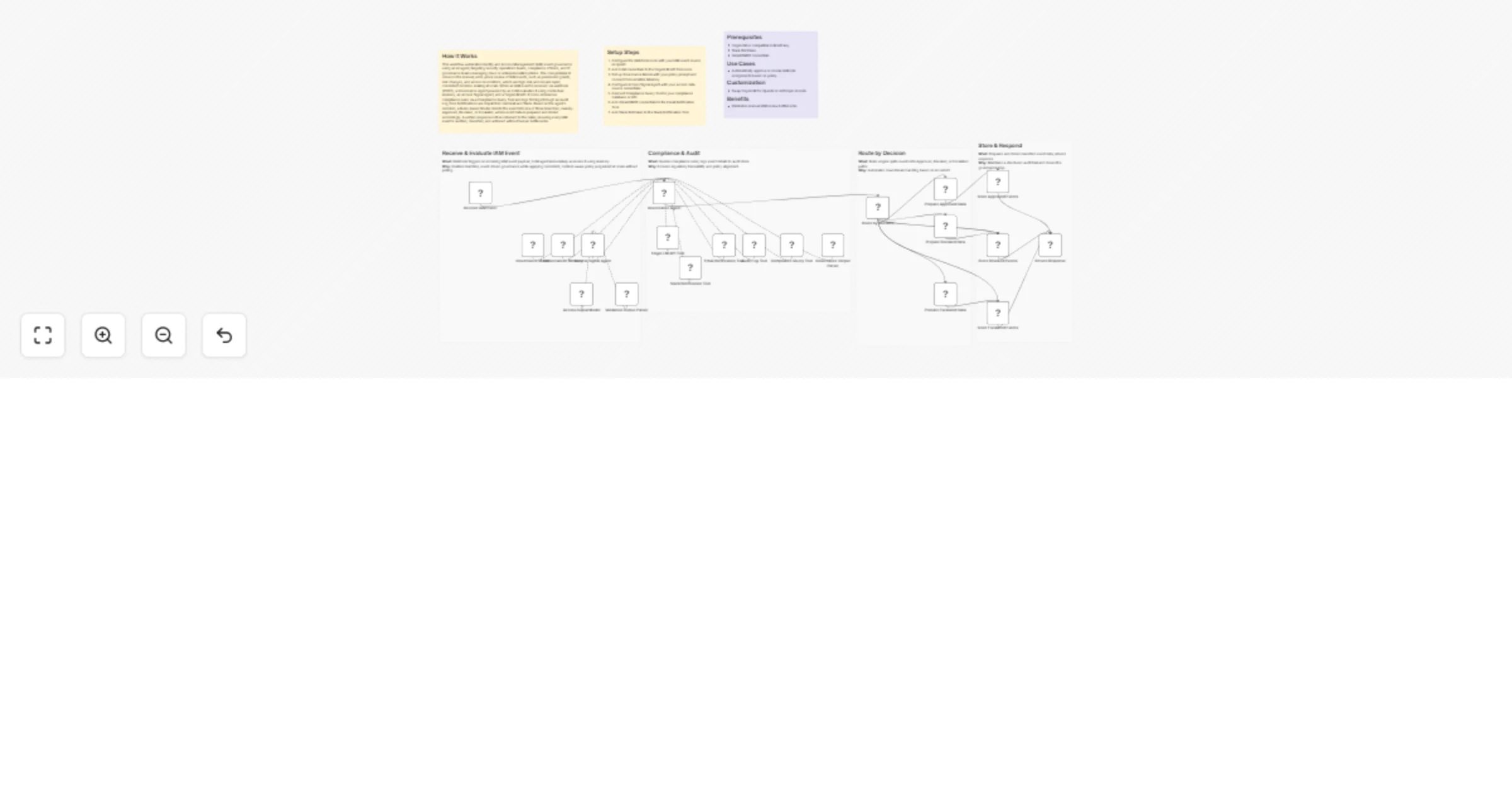
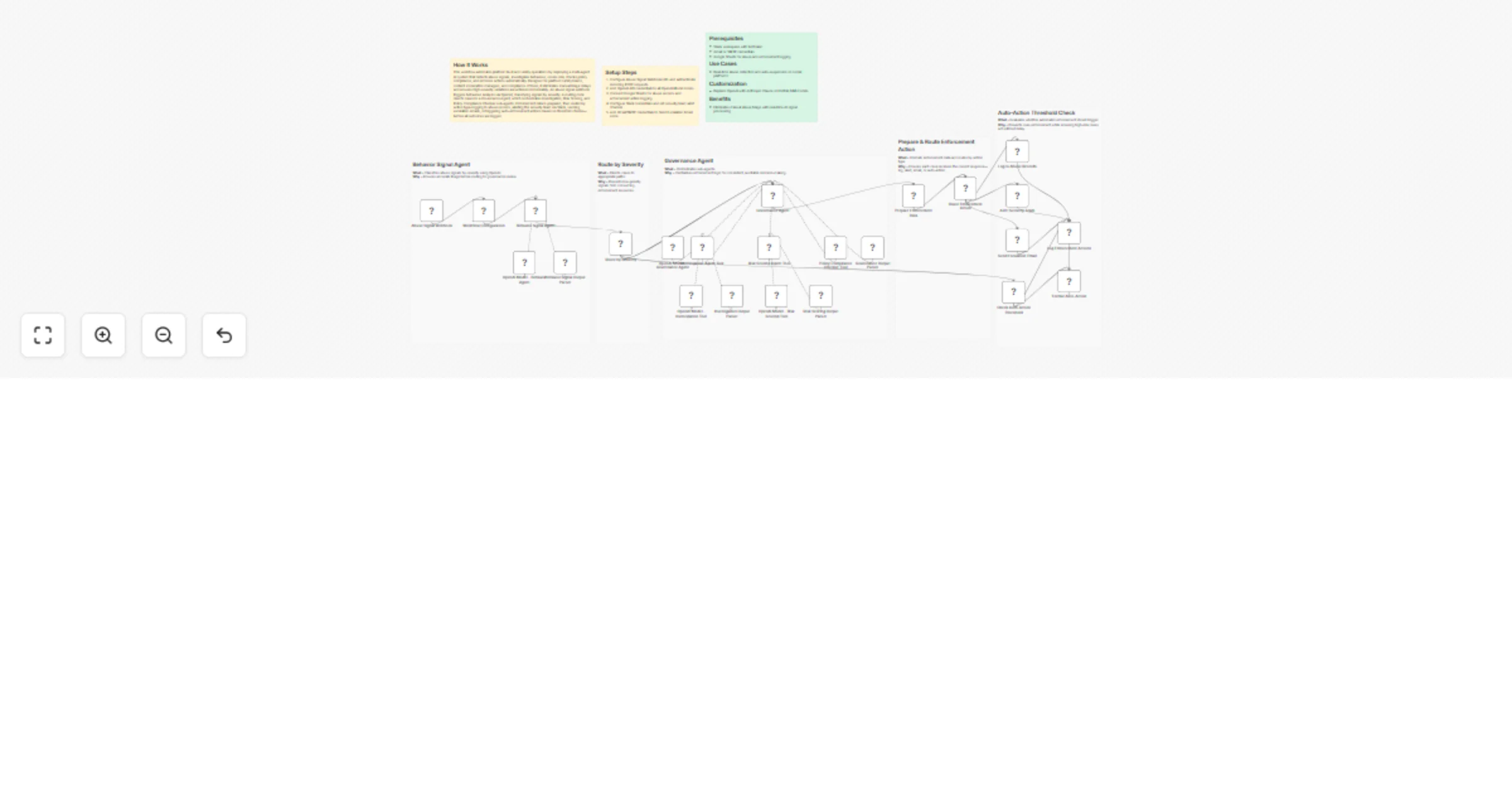
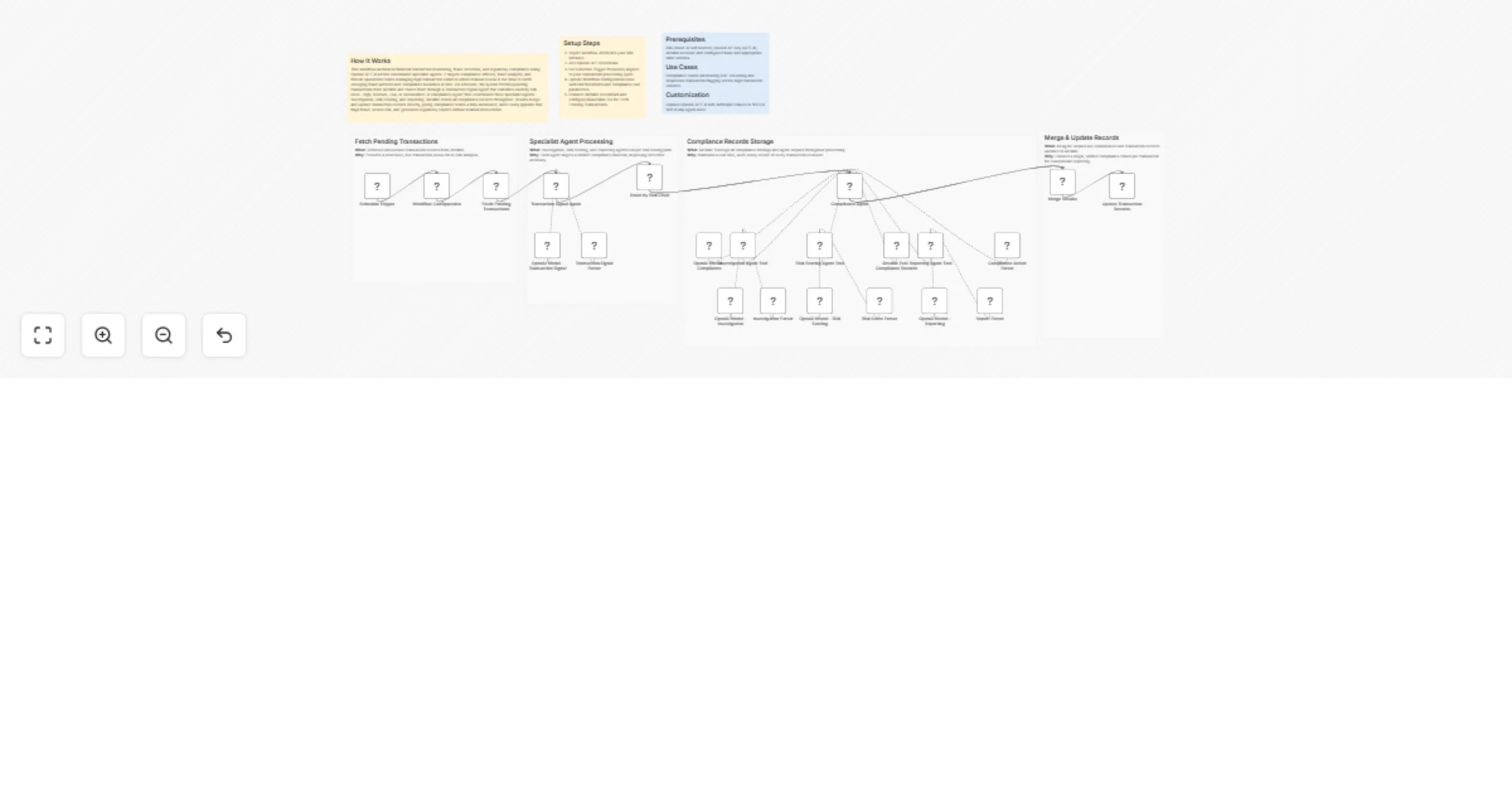
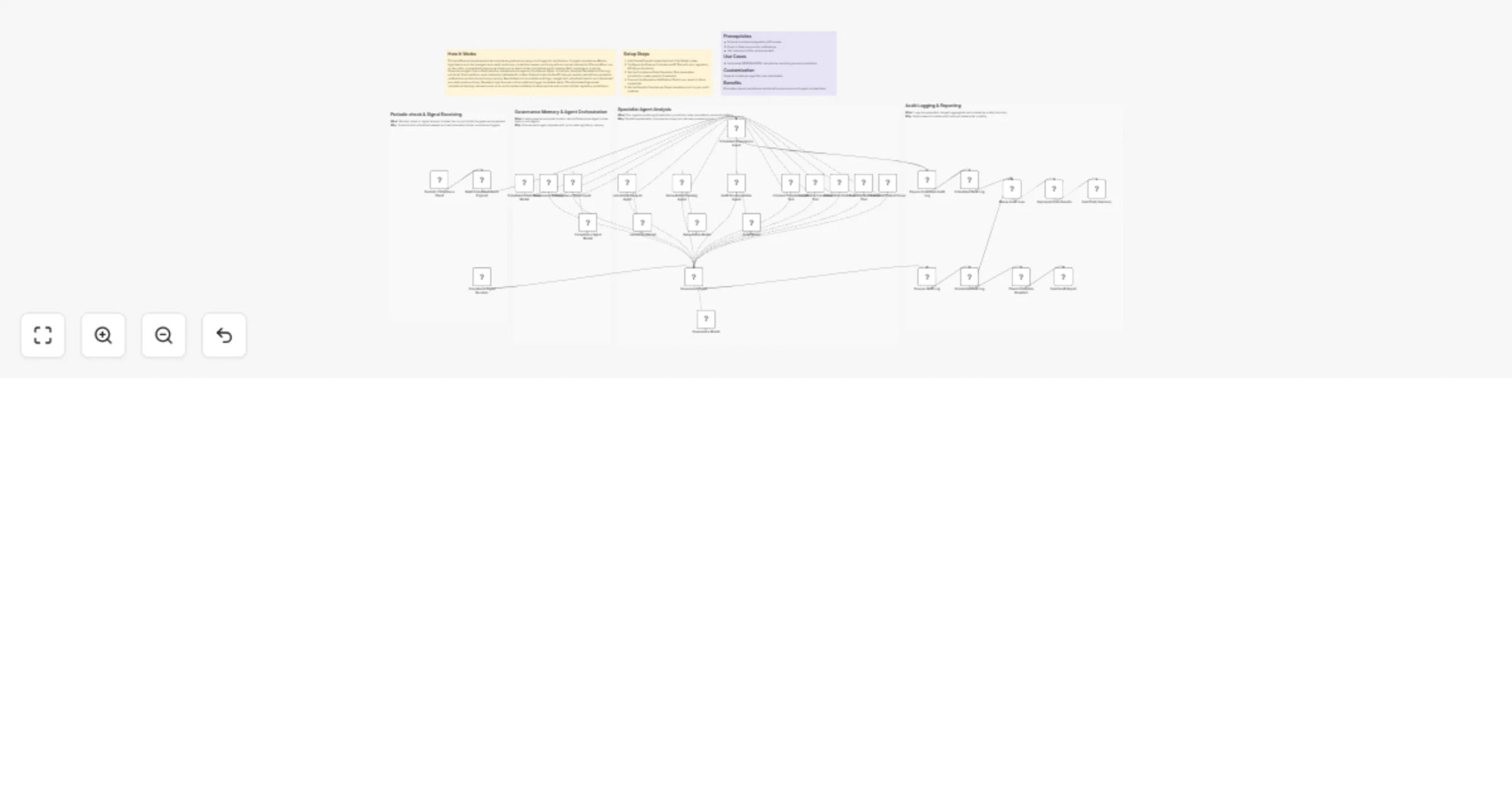
## How It Works This workflow automates financial transaction surveillance by monitoring multiple payment systems, analyzing transaction patterns with AI, and triggering instant fraud alerts. Designed for finance teams, compliance officers, and fintech operations, it solves the challenge of real-time fraud detection across high-volume transaction streams without manual oversight. The system continuously fetches transactions from banking APIs and payment gateways via scheduled triggers or webhooks. Each transaction flows through validation layers checking for irregular amounts, velocity patterns, and geolocation anomalies. AI models analyze transaction metadata against historical patterns to calculate fraud risk scores. High-risk transactions trigger immediate alerts to designated teams via Gmail and Slack, while audit trails are logged to Google Sheets for compliance documentation. Approved transactions proceed to reconciliation, aggregating financial reports automatically. This eliminates delayed fraud discovery, reduces false positives through intelligent scoring, and ensures regulatory compliance through comprehensive audit logging. ## Setup Steps 1. Configure banking API credentials for transaction access 2. Set up webhook endpoints for real-time transaction notifications 3. Add OpenAI API key for fraud pattern analysis and risk scoring 4. Configure NVIDIA NIM API for advanced anomaly detection models 5. Set Gmail OAuth credentials for automated fraud alert delivery 6. Connect Slack workspace and specify alert channels for urgent notifications 7. Link Google Sheets for transaction logging and compliance audit trails ## Prerequisites Active accounts for payment processors (Stripe, PayPal) or banking APIs (Plaid) ## Use Cases Real-time credit card transaction monitoring with instant fraud blocks ## Customization Adjust fraud risk scoring thresholds based on business risk tolerance ## Benefits Reduces fraud detection time from hours to seconds through real-time monitoring.

C
Cheng Siong Chin
SecOps
15 Jan 2026
0
0
Workflow preview: Monitor SSL certificate expiry with Google Sheets and SMTP email alerts
Free advanced

Monitor SSL certificate expiry with Google Sheets and SMTP email alerts

## Who is this for? DevOps engineers, sysadmins, and website owners who manage multiple domains and need proactive SSL certificate expiration monitoring without manual checks. ## What it does Automatically monitors SSL certificates across multiple domains, tracks expiration status in a Google Sheet dashboard, and sends beautifully formatted HTML email alerts before certificates expire. **✅ No API rate limits** — Uses direct OpenSSL commands, so you can scan unlimited domains with zero API costs or restrictions. ## How it works - Triggers on schedule (every 3 days at 10AM) - Reads domain list from your Google Sheet - Checks each domain's SSL certificate using OpenSSL commands - Parses expiration dates, issuer info, and calculates days remaining - Updates Google Sheet with current status for all domains - Sends styled email alerts only when certificates are expiring soon ## Set up steps - Connect your Google Sheets OAuth2 credentials - Create a Google Sheet with these columns: **Domain**, **Expiry Date**, **Days Left**, **Status**, **Issuer**, **Last Checked** (the workflow matches on the Domain column to update results) - Add your domains to scan in the **Domain** column - Update the Sheet ID in the **Read Domain List from Google Sheets** and **Update Google Sheet with Results** nodes - Connect SMTP credentials in the **Send Alert Email via SMTP** node - Optionally adjust `ALERT_THRESHOLD_DAYS` in two nodes: **Prepare Domain List and Set Threshold** and **Parse SSL Results and Identify Expiring Certs** (default: 20 days) Setup time: ~10 minutes

M
M Ayoub
SecOps
10 Jan 2026
1
0
Workflow preview: Monitor GitHub repo access and push events with GitHub and Slack alerts
Free advanced

Monitor GitHub repo access and push events with GitHub and Slack alerts

## Monitor GitHub Repositories for Unauthorized Actions ### How it works: This workflow monitors GitHub for high-risk activities to ensure that only authorized users can modify the repository. It periodically polls GitHub for events such as PushEvent, MemberEvent, and PublicEvent. For each event, the workflow extracts the username of actor and looks it up in the it_whitelist data table to determine the user’s role. A Switch node then routes the event to the appropriate validation logic. • Member & Public events: Only users with the admin role are allowed. Any non-admin action such as adding a repository member or changing a private repository to public triggers an alert. • Push events: The user must exist in the whitelist. If no role is found, the user is treated as unknown and flagged. All unauthorized actions are reported to Slack, including the event type, actor name, and repository details. ### Setup steps: Credentials: Connect your GitHub Personal Access Token and Slack Bot Token. Create a Data Table named it_whitelist with columns github_username and role. Add your GitHub username with the role admin to prevent self-alerts. Accordingly, add other developers and members in your organization with appropriate roles to white list them. Switch Configuration: Use the expression {{ $item.json.type }} in 'Rules' mode to route events. Logic: Configure the PushEvent IF node to flag users whose role is empty or missing. Configure the Member and Public IF nodes to flag users whose role is not admin. ![image.png](fileId:3885)

R
RamS
SecOps
1 Jan 2026
3
0
Workflow preview: Audit Confluence space permissions and public links for compliance
Free advanced

Audit Confluence space permissions and public links for compliance

## Audit permissions in Confluence to ensure compliance This workflow scans selected **Confluence spaces** for **public exposure risks**, helping teams identify unintended access and potential data leakage. ### What it does - Detects public exposure risks in Confluence spaces, including: - **Anonymous access permissions** at space level - Whether **public links are enabled** - Pages with **active or blocked public links** - Uses **Confluence REST API v2** together with the **Atlassian GraphQL API**. - Produces a consolidated per-space report containing: - Anonymous access permissions - Public link status - Pages with public links (title, status, URL, enabled-by user) - Ideal for **security audits**, **compliance reviews**, and **data leakage prevention**. ### How it works - The workflow starts via a **Manual Trigger**. - A **Set Variables** node defines: - `atlassianDomain` - `spaceKeys` (comma-separated) - **Get Spaces (v2)** retrieves matching spaces and splits them into individual items. - For each space, three **GraphQL queries** run in parallel: - Retrieve **anonymous access permissions** - Check **public link feature status** at space level - Fetch **pages with public links** (ON / BLOCKED) - Results from all three queries are merged and normalized into a single per-space report. ### Setup - Configure the **Set Variables** node: - `atlassianDomain` → your Confluence base URL - `spaceKeys` → comma-separated list (e.g. `ENG, HR`) - Create an **HTTP Basic Auth** credential for Atlassian: - Email + API token - Assign it to all HTTP and GraphQL nodes - Ensure the credential has permission to: - Read spaces - Read space permissions - Access GraphQL endpoints - Execute the workflow manually to generate the report. ### Notes - Uses the **Atlassian GraphQL API**, which exposes permission and public-link data not fully available via REST. - Pages with blocked public links are included for visibility. - The GraphQL page query fetches up to **250 pages per space**.

A
Alexander Schnabl
SecOps
28 Dec 2025
7
0
Workflow preview: Monitor SSL certificates for brand-impersonating domains with crt.sh, Urlscan.io and Slack
Free intermediate

Monitor SSL certificates for brand-impersonating domains with crt.sh, Urlscan.io and Slack

## Phishing Lookout (Typosquatting) and Brand Domain Monitor This workflow monitors SSL certificate logs to find and scan new domains that might be impersonating your brand. ## Background In modern cybersecurity, Brand Impersonation (or "Typosquatting") is quite common in phishing attacks. Attackers register domains that look nearly identical to a trusted brand—such as .input-n8n.io, n8n.i0, etc. instead of the legitimate— to deceive users into revealing sensitive credentials or downloading malware. ## How it works Monitor: Checks crt.sh every hour for new SSL certificates matching your brand keywords. Process: Uses a Split Out node to handle multi-domain certificates and a Filter node to ignore your own legitimate domains bringing only most recent certificates. Scan: Automatically sends suspicious domains to Urlscan.io for a headless browser scan and screenshot. Loop & Triage: Implements a 30-second Wait to allow the scan in loop to finish before fetching results. Alert: Sends a Slack message with the domain name, report link, and an image of the supposedly suspicious site trying to mimic your site login page, etc. alerting potentially a phishing case. ## Setup Steps Credentials: Connect your Urlscan.io API key and Slack bot token. Configuration: Update the "Poll crt.sh" node. In URL https://crt.sh/?q=%.testdomain.com&output=json, use your specific brand name (e.g., %.yourbrand.com or .yourdomain.com instead of .testdomain.com). Whitelist: Add your real domains to the myDomains list in the Filter & Deduplicate code node to prevent false alerts. Alternatively, you may also NOT opt to include your own domain for testing purposes to check how the Workflow behaves and outputs. In such case, obviously, your domain and sub-domains also are highlighted as Suspicious (as received in Slack Alerts) Looping: Ensure the Alert Slack node output is connected back to the Split In Batches input to process all found domains. ![Phishing alert workflow image.png](fileId:3844)

R
RamS
SecOps
27 Dec 2025
76
0
Workflow preview: Verify property ownership with blockchain, GPT-4 fraud detection, and compliance tracking
Free advanced

Verify property ownership with blockchain, GPT-4 fraud detection, and compliance tracking

## How It Works This workflow automates property registration verification, fraud detection, and blockchain-based compliance tracking by systematically assessing fraud risk, validating transactions, ensuring data immutability through cryptographic hashing, and recording property records on the blockchain. It ingests property registration data, applies GPT-4–driven fraud analysis with risk scoring, and verifies transaction legitimacy against regulatory and contractual criteria. The system generates cryptographic hashes for property and lease records, validates compliance requirements using AI-based analysis, queries the blockchain for verification, logs transactions on-chain, stores audit records in structured sheets, and securely archives all supporting documentation. Designed for real estate firms, legal practices, and property management companies, it enables transparent verification, fraud mitigation, and tamper-resistant compliance tracking across the property lifecycle. ## Setup Steps 1. Configure property data source and set up OpenAI GPT-4 for fraud detection and compliance. 2. Connect blockchain network credentials and configure hash generation parameters. 3. Set up Google Sheets for audit logging and configure blockchain verification queries. 4. Define fraud risk thresholds, compliance criteria, and transaction validation rules. ## Prerequisites Property registration data source; OpenAI API key; blockchain network access ## Use Cases Real estate firms automating fraud checks on property transactions; ## Customization Adjust fraud detection criteria and risk thresholds, modify blockchain network selection. ## Benefits Eliminates manual fraud detection, prevents title fraud and forgery

C
Cheng Siong Chin
SecOps
22 Dec 2025
32
0
Workflow preview: Automated APK security scanning & PDF reporting with MobSF, AI & Google Drive
Free advanced

Automated APK security scanning & PDF reporting with MobSF, AI & Google Drive

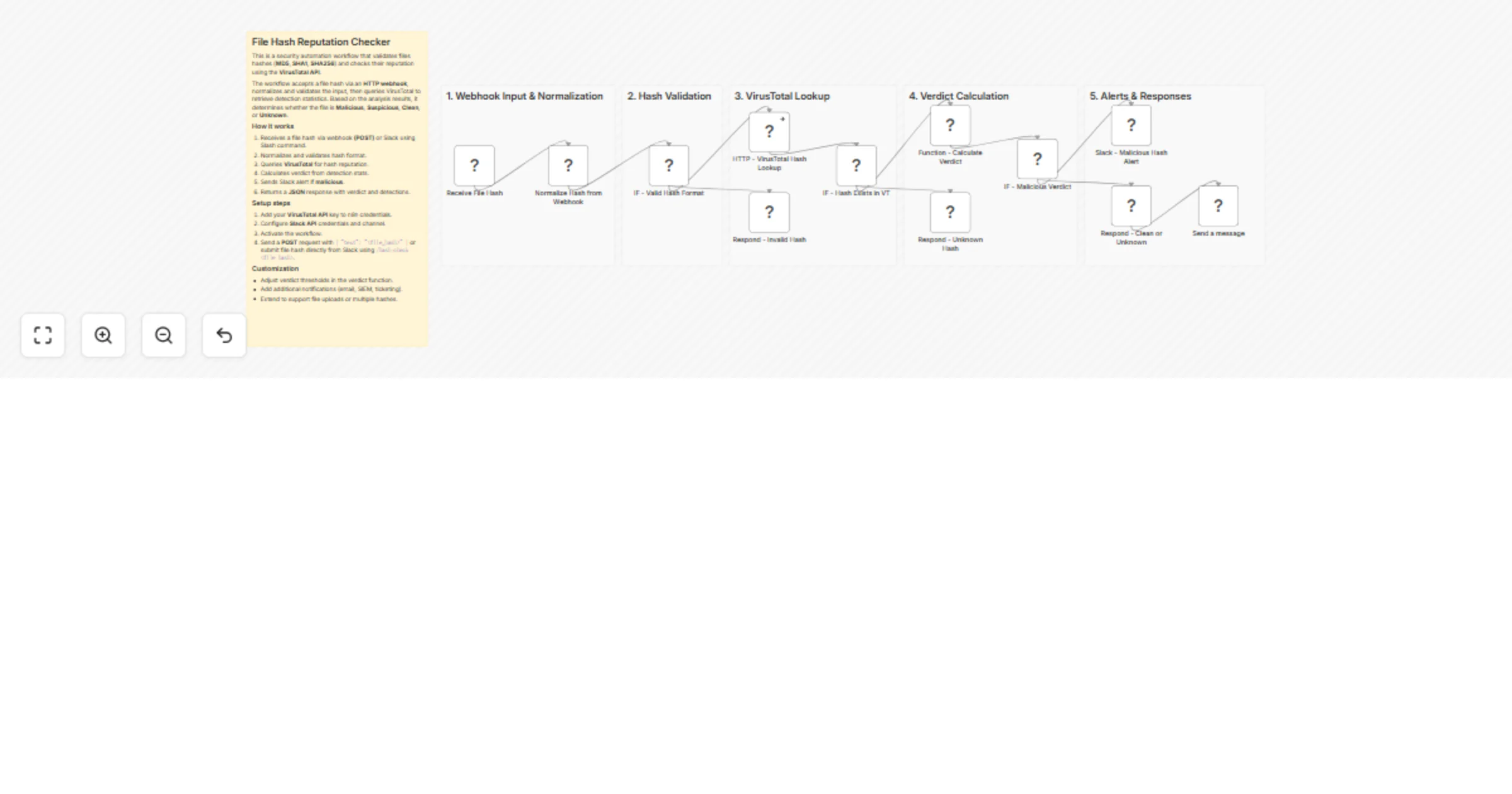
# APK Security Scanner & PDF Report Generator This workflow automatically analyzes any newly uploaded APK file and produces a clean, professional PDF security report. When an APK appears in Google Drive, the workflow downloads it, sends it to MobSF for security scanning, summarizes the results, generates an HTML report using AI, converts it into a PDF via PDF.co and finally saves the PDF back to Google Drive. ### Quick Start: Fastest Way to Use This Workflow 1. Set up a Google Drive folder for uploading APKs. 2. Install MobSF using Docker and copy your API key. 3. Add credentials for Google Drive, MobSF, OpenAI and PDF.co in n8n. 4. Import the workflow JSON. 5. Update node credentials. 6. Upload an APK to the watched folder and let the automation run. ## What It Does This workflow provides a complete automated pipeline for analyzing Android APK files. It removes the manual process of scanning apps, extracting security insights, formatting reports and distributing results. Each step is designed to streamline application security checks for development teams, QA engineers and product managers. Once the workflow detects a new APK in Google Drive, it passes the file to MobSF for a detailed static analysis. The workflow extracts the results, transforms them into a clear and well-structured HTML report using AI and then converts the report into a PDF. This ensures the end-user receives a polished audit-ready security document with zero manual involvement. ## Who’s It For This workflow is ideal for: - Mobile development teams performing security checks on apps. - QA and testing teams validating APK builds before release. - DevSecOps engineers needing automated, repeatable security audits. - Software companies generating compliance and audit documentation. - Agencies reviewing client apps for vulnerabilities. ## Requirements to Use This Workflow - An n8n instance (self-hosted or cloud) - A Google Drive account with a folder for APK uploads - Docker installed to run MobSF locally - MobSF API key - OpenAI API key - PDF.co API key - Basic understanding of n8n nodes and credentials setup ## How It Works & Setup Instructions ### Step 1 — Prepare Google Drive Create a folder specifically for APK uploads. Configure the *Watch APK Uploads (Google Drive)* node to monitor this folder for new files. ### Step 2 — Install and Run MobSF Using Docker Install Docker and run: ```bash docker run -it --rm -p 8000:8000 \ -v $(pwd)/mobsf:/home/mobsf/.MobSF \ opensecurity/mobile-security-framework-mobsf ```` Open MobSF at `http://localhost:8000` and copy your API key. ### Step 3 — Add Credentials in n8n Add credentials for: * Google Drive * MobSF (API key in headers) * OpenAI * PDF.co ### Step 4 — Configure Malware Scanning * **Upload APK to Analyzer (MobSF Upload API)** sends the file. * **Start Security Scan (MobSF Scan API)** triggers the vulnerability scan. ### Step 5 — Summarize & Generate HTML Report * **Summarize MobSF Report (JS Code)** extracts key vulnerabilities. * **Generate HTML Report (GPT Model)** formats them in a structured report. * **Clean HTML Output (JS Code)** removes escaped characters. ### Step 6 — Convert HTML to PDF Use **Generate PDF (PDF.co API)** to convert the HTML to PDF. ### Step 7 — Save Final Report Download using **Download Generated PDF**, then upload via **Upload PDF to Google Drive**. ## How To Customize Nodes * **Google Drive Trigger:** Change the folder ID to watch a different upload directory. * **MobSF API Nodes:** Update URLs if MobSF runs on another port or server. * **AI Report Generator:** Modify prompt instructions to change the writing style or report template. * **PDF Generation:** Edit margins, page size, or output filename in the PDF.co node. * **Save Location:** Change Google Drive folder where the final PDF is stored. ## Add-Ons You can extend this workflow with: * **Slack or Email Notifications** when a report is ready * **Automatic naming conventions** (e.g., report-{{date}}-{{app_name}}.pdf) * **Saving reports into Airtable or Notion** * **Multi-file batch scanning** * **VirusTotal scan integration** before generating the PDF ## Use Case Examples * Automated security scanning for every new build generated by CI/CD. * Pre-release vulnerability checks for client-delivered APKs. * Compliance documentation generation for internal security audits. * Bulk scanning of legacy APKs for modernization projects. * Creating professional PDF security reports for customers. (Many more use cases can be built using the same workflow foundation.) ## Troubleshooting Guide | Issue | Possible Cause | Solution | | ----------------------- | -------------------------- | ---------------------------------------------------------- | | MobSF API call fails | Wrong API key or URL | Check MobSF is running and API key is correct. | | PDF not generated | Invalid HTML or PDF.co key | Validate HTML output and verify PDF.co credentials. | | Workflow not triggering | Wrong Google Drive folder | Reconfigure Drive Trigger node with the correct folder ID. | | APK upload fails | File not in binary mode | Ensure HTTP Upload node is using “Binary Data” correctly. | | Scan returns empty data | MobSF not fully started | Wait for full MobSF startup logs before scanning. | ## Need Help? If you need assistance setting up this workflow, customizing it or adding advanced features such as Slack alerts, CI/CD integration or bulk scanning, our n8n workflow development team at **WeblineIndia** can help. We specialize in building secure, scalable, automation-driven workflows on n8n for businesses of all sizes. *Contact us anytime for support or to build custom workflow automation solutions.*

W
WeblineIndia
SecOps
22 Dec 2025
25
0
Workflow preview: AI-powered security analysis for n8n with Google Gemini and n8n audit API
Free intermediate

AI-powered security analysis for n8n with Google Gemini and n8n audit API

# Generate a security audit report from an n8n instance to a web form This workflow provides a deep-dive security assessment of an n8n instance using the native Audit API and AI analysis. ## Who’s it for * This template is for n8n administrators and DevSecOps engineers who need to maintain a high security standard across their automation infrastructure. * It is particularly useful for teams managing self-hosted instances with multiple users. ## How it works * The workflow triggers via an n8n Form where you provide your instance URL and API key. * It calls the official n8n Audit API to scan for five categories of risk: instance settings, credentials, database (SQL injection), nodes, and filesystem access. * A Code node parses this data, which is then analyzed by Google Gemini to create a prioritized remediation plan. ## Requirements * n8n version v1.0 or higher. * A Google Gemini API Key. * An n8n API Key with 'Audit' scope permissions. ## How to set up 1. Create a Google Gemini API credential in n8n. 2. Ensure your n8n API key has the correct scopes. 3. Execute the workflow and enter your credentials into the trigger form. ## How to customize the workflow * You can easily swap the Google Gemini node for OpenAI or Anthropic. * You can also add a 'Send Email' or 'Slack' node at the end to automatically route the report to your security channel instead of just viewing it in the browser.

H
Hatem Gifaeeri
SecOps
20 Dec 2025
86
0
Workflow preview: Intelligent real-time financial fraud detection and risk scoring engine
Free advanced

Intelligent real-time financial fraud detection and risk scoring engine

## How It Works Automates fraud risk detection for financial transactions by analyzing real-time webhook events through AI-powered scoring. Target audience: fintech companies, payment processors, and banking teams preventing fraud losses. Problem solved: manual fraud checks are reactive and slow; automated detection catches suspicious transactions instantly. Workflow receives transactions via webhook, configures processing parameters, runs OpenAI GPT-4 fraud analysis, calculates risk scores, branches on risk level, holds high-risk transactions, alerts fraud teams, logs incidents, and documents evidence for compliance investigations. ## Setup Steps 1. Configure webhook endpoint for transaction ingestion. 2. Set OpenAI API key and fraud detection prompts. 3. Connect Google Sheets for incident logging. 4. Enable email alerts to fraud team distribution list. 5. Map risk thresholds (high/low). ## Prerequisites OpenAI API key, webhook-capable transaction source, Gmail for alerts, Google Sheets access, incident tracking database. ## Use Cases Payment processors detecting card fraud, fintech platforms catching account takeovers ## Customization Adjust risk thresholds and scoring logic. Add phone/SMS alerts for urgency. ## Benefits Detects fraud within seconds, reduces financial losses by up to 90%

C
Cheng Siong Chin
SecOps
16 Dec 2025
86
0
Workflow preview: Automate vulnerability triage from Snyk with Jira, Slack & Airtable integration
Free advanced

Automate vulnerability triage from Snyk with Jira, Slack & Airtable integration

# Snyk Vulnerability Automation Workflow with Webhook, Jira, Slack & Airtable This workflow receives vulnerability data(e.g., Snyk, Dependabot or any security scanner) from Snyk through a webhook, standardizes and validates the payload, checks Jira for duplicates using a unique vulnerability key, and either updates an existing Jira issue or creates a new one. It also sends real-time alerts to Slack and stores every new vulnerability in Airtable for reporting and auditing. The workflow ensures fast triage, prevents duplicate Jira tickets and centralizes all data for easy tracking. ### Quick Start – Implementation Steps 1. Add the n8n Webhook URL to Snyk. 2. Configure Jira, Slack and Airtable credentials in n8n. 3. Adjust severity rules or Jira fields if required. 4. Activate the workflow — vulnerability triage becomes fully automated. ## What It Does This workflow automates how your team processes vulnerabilities reported by Snyk. When a new vulnerability arrives, the system first normalizes the payload into a clean, consistent format. It then validates required fields such as the vulnerability ID, CVSS score, title and URL. If anything is missing, the workflow instantly sends a Slack alert so the team can review. If the payload is valid, the workflow assigns a severity level and generates a unique “vulnerability key.” This key is used to search Jira for existing issues. If a match is found, the workflow updates the existing Jira ticket and notifies the team. If no match exists, the workflow creates a brand-new Jira issue, sends a Slack alert and also writes the data into Airtable for centralized tracking and analytics. This ensures accurate documentation, avoids duplicates and gives teams visibility through both Jira and Airtable. ## Who’s It For This workflow is ideal for: * DevOps and platform engineering teams * Security engineers * QA and development teams * Companies using Snyk for vulnerability scanning * Teams needing automated Jira creation and Airtable reporting ## Requirements to Use This Workflow To fully use this workflow, you need: * An **n8n instance** (cloud or self-hosted) * A **Snyk webhook** configured to send vulnerability notifications * A **Jira Software Cloud** account * A **Slack workspace** with bot permissions * An **Airtable base** and personal access token * Basic understanding of JSON fields ## How It Works 1. **Receive Vulnerability** – Snyk posts data to an n8n webhook. 2. **Normalize Payload** – Converts inconsistent Snyk formats into a standard structure. 3. **Validate Required Fields** – Missing fields trigger a Slack alert. 4. **Assign Severity** – CVSS score is mapped to Low/Medium/High/Critical. 5. **Generate Vulnerability Key** – Used for deduplication (e.g., vuln-SNYK-12345). 6. **Check Jira for Matches** – Searches by label to detect duplicates. 7. **Duplicate Handling** – Updates existing Jira issue and sends Slack notification. 8. **Create New Issue** – If no duplicate exists, creates a new Jira ticket. 9. **Store in Airtable** – Adds a new vulnerability row for reporting and history. 10. **Slack Alerts** – Notifies the team of new or updated vulnerabilities. ## Setup Steps 1. Import the workflow JSON file into n8n. 2. Configure credentials: * Jira * Slack * Airtable 3. Add the generated webhook URL inside your Snyk project settings. 4. Update Jira project ID, issue type, or description fields as needed. 5. Map Airtable fields (Title, CVSS, Severity, URL, Key, etc.). 6. Update Slack channel IDs. 7. Activate the workflow. ## How To Customize Nodes ### Customize Severity Rules Modify the node that maps CVSS score ranges: * Change thresholds * Add custom severity levels * Map severity to Jira priority ### Customize Jira Fields Inside the _Create or Update Jira Issue_ nodes, you can modify: * Project ID * Issue type * Labels * Description template * Assigned user ### Customize Slack Messages Adjust Slack text blocks to: * Change formatting * Add emojis or styling * Mention specific users or teams * Send different messages based on severity ### Customize Airtable Storage Update the Airtable node to: * Add new columns * Save timestamps * Link vulnerabilities to other Airtable tables * Store more metadata for reporting ## Add-Ons (Optional Enhancements) You can extend this workflow with: * Auto-close Jira tickets when Snyk marks vulnerabilities as “fixed”. * Severity-based Slack routing (e.g., Critical → #security-alerts). * Email notifications for high-risk vulnerabilities. * Google Sheets or Notion logging for long-term tracking. * Weekly summary report generated using OpenAI. * Mapping vulnerabilities to microservices or repositories. * Automated dashboards using Airtable Interfaces. ## Use Case Examples 1. **Automatic Vulnerability Triage** – Instantly logs new Snyk findings into Jira. 2. **Duplicate Prevention** – Ensures every vulnerability is tracked only once. 3. **Slack Alerts** – Real-time notifications for new or updated issues. 4. **Airtable Reporting** – Creates a central, filterable database for analysis. 5. **Security Team Automation** – Reduces manual reviews and saves time. ## Troubleshooting Guide | Issue | Possible Cause | Solution | |-----------------------------|--------------------------------------------------|--------------------------------------------------------| | Slack alert not sent | Wrong API credentials or channel ID | Re-check Slack configuration | | Jira issue not created | Incorrect project ID / issue type | Update Jira node details | | Duplicate detection not working | Vulnerability key or label mismatch | Confirm key generation and JQL settings | | Airtable row not added | Wrong base or field mapping | Reconfigure Airtable node | | Webhook not triggered | Snyk not pointing to correct URL | Re-add the n8n webhook in Snyk | | Severity not correct | CVSS parsing error | Check normalization and mapping node | ## Need Help? If you need help setting up this workflow, customizing the logic, integrating new nodes or adding advanced reporting, feel free to reach out to our [n8n automation development](https://www.weblineindia.com/n8n-automation/) team at **WeblineIndia**. We can help automate with advanced security processes, build dashboards, integrate additional tools or expand the workflow as per your business needs.

W
WeblineIndia
SecOps
15 Dec 2025
69
0
Workflow preview: Discord server anti-impersonation / scammer tracker with data tables
Free advanced

Discord server anti-impersonation / scammer tracker with data tables

# Discord Member Change Tracker This n8n template demonstrates how to automatically monitor and track username and nickname changes across your Discord server members. Perfect for community moderation, security monitoring, and maintaining accountability in large servers! ## Use cases are many Try tracking suspicious account behavior, maintaining audit logs for member identity changes, or monitoring impersonation attempts in your community! ## Good to know * This workflow runs hourly by default - adjust the schedule trigger based on your server size and needs * Discord API rate limits apply - large servers (1000+ members) may need longer intervals between checks * Admin notifications are sent to a designated channel - ensure your bot has proper permissions * The workflow maintains two separate databases: one for current member data and one for change history * Protected usernames and admin roles can be configured to prevent false alerts ## How it works * The Schedule Trigger initiates the workflow every hour to check for member changes * Configuration Settings node stores your Discord server ID, admin channel ID, and protected user lists * We'll fetch all server members using the Discord API, including their roles, nicknames, and user information * The Edit Fields node extracts only the relevant data (user ID, username, nickname, roles) for processing * Loop Over Items processes each member individually to compare against stored records * If userID does not exist checks the main database - new members are added automatically * The Switch node evaluates whether username or nickname has changed by comparing current data with stored records * For first-time changes, a Discord message is sent to the admin channel and the change is logged in the tracking database * If the user has changed their identity before, the workflow checks if this specific change is already recorded * The aggregate all necessary data node compiles both old and new information for detailed comparison * Multiple conditional branches determine exactly what changed (both fields, username only, nickname only, or neither) * Database updates append new changes to existing records, creating a comma-separated history of all identity modifications * Error handling catches edge cases where triggers fire but no actual changes occurred ## How to use * Replace the Schedule Trigger with a Webhook or Manual Trigger for testing before enabling hourly automation * Customize the admin notification messages in the Discord nodes to match your server's tone and formatting preferences * Adjust the protected usernames list to exclude staff members or bots from change tracking * Consider adding filtering logic to ignore members with specific roles (like "Verified" or "Trusted") * Scale the workflow for larger servers by increasing the batch size in Loop Over Items or adding rate limit delays ## Requirements * Discord OAuth2 credentials for authenticating API requests * Two n8n Data Tables: one for main member records ("main member records") and one for tracking changes ("user member changes") * Discord bot permissions: Read Messages/View Channels, Send Messages in the admin channel, and Read Message History * Server admin access to configure the Discord server ID and admin channel ID ## Data Table Setup ### Main Database Table: "zft member list" Create a data table with these columns: * **userID** (string) - Discord user ID (unique identifier) * **userName** (string) - Current Discord username * **nickname** (string) - Current server nickname (null if not set) * **role_or_roles** (string) - Comma-separated list of role IDs * **isAdmin** (string) - Flag for admin status (optional) * **unusual_dm_activity_until** (string) - Timestamp for DM activity monitoring (optional) ### Change Tracking Table: "user member changes" Create a data table with these columns: * **user_id** (string) - Discord user ID (links to main database) * **user_init_username** (string) - Original username when first change detected * **user_init_nickname** (string) - Original nickname when first change detected * **user_new_username** (string) - Comma-separated history of all username changes * **user_new_nickname** (string) - Comma-separated history of all nickname changes **Important:** After creating your tables, update all Data Table node configurations with your actual table IDs. You can find these IDs in the n8n Data Table URLs. ## Customising this workflow * Add email or Slack notifications alongside Discord messages for critical identity changes * Implement a threshold system that flags users who change their identity more than X times per month * Create a dashboard artifact that visualizes change frequency and patterns across your server * Try a popular use-case such as automatically assigning a "Name Changed" role to flagged users for manual review * Extend the workflow to compare profile pictures or account creation dates for additional security monitoring * Add webhook integration to sync change logs with external security tools or moderation dashboards ## Questions? If you have questions or need help with this workflow, feel free to reach out: * [email protected] * [email protected]

C
Cj Elijah Garay
SecOps
15 Dec 2025
44
0
Workflow preview: Monitor compliance with GPT-4 analysis of system logs and generate audit reports
Free advanced

Monitor compliance with GPT-4 analysis of system logs and generate audit reports

## How It Works This solution centralizes communication data from Slack, Microsoft Teams, Gmail, and GitHub into a unified AI-powered analysis and documentation workflow for teams managing distributed knowledge. Manual aggregation across multiple tools is time-consuming and leads to information silos that obscure key decisions and context. By automating secure data collection and normalization, the workflow enables AI models to analyze conversations, extract decisions, action items, and key themes, and convert these insights into continuously updated documentation such as design notes and knowledge base articles. This improves visibility, preserves organizational knowledge, and supports more effective collaboration and decision-making. ## Setup Steps * **Connect credentials:** Slack App API, Microsoft Teams credentials, Gmail OAuth, GitHub Personal Access Token, Anthropic API key * **Configure monitoring parameters:** Specify channels, repositories, and email labels to track * **Set schedule triggers: ## Prerequisites Slack workspace admin, Teams account, Gmail account, GitHub repository access, Anthropic API subscription, Notion workspace, n8n self-hosted or cloud instance. ## Use Cases Marketing teams aggregating customer feedback across channels; Documentation teams collecting technical updates; ## Customization Modify source integrations by adding/removing trigger nodes. Adjust AI prompts in Anthropic node for different analysis types. ## Benefits Saves 5+ hours weekly on manual data collection. Ensures no communication missed across platforms.

C
Cheng Siong Chin
SecOps
14 Dec 2025
79
0
Workflow preview: Orchestrate security vulnerability remediation with Port, OpenAI, Jira and Slack
Free advanced

Orchestrate security vulnerability remediation with Port, OpenAI, Jira and Slack

Complete security workflow from vulnerability detection to automated remediation, with severity-based routing and full organizational context from Port's catalog. This template provides end-to-end lifecycle management including automatic Jira ticket creation with appropriate priority, AI-powered remediation planning, and Claude Code-triggered fixes for critical vulnerabilities. The full guide is available [here](https://docs.port.io/guides/all/remediate-vulnerability-with-n8n-and-port/). ## How it works The n8n workflow orchestrates the following steps: - **Webhook trigger**: Receives vulnerability alerts from security scanners (Snyk, Wiz, SonarQube, etc.) via POST request. - **Port context enrichment**: Uses Port's n8n node to query your software catalog for service metadata, ownership, environment, SLA requirements, and dependencies related to the vulnerability. - **AI remediation planning**: OpenAI analyzes the vulnerability with Port context and generates a remediation plan, determining if automated fixing is possible. - **Severity-based routing**: Routes vulnerabilities through different paths based on severity level: - **Critical**: Jira ticket (Highest priority) → Check if auto-fixable → Trigger Claude Code fix → Slack alert with fix status - **High**: Jira ticket (High priority) → Slack notification to team channel - **Medium/Low**: Jira ticket only for tracking - **Jira integration**: Creates tickets with full context including vulnerability details, affected service information from Port, and AI-generated remediation steps. - **Claude Code remediation**: For auto-fixable critical vulnerabilities, triggers Claude Code via Port action to create a pull request with the security patch, referencing the Jira ticket. - **Slack notifications**: Sends contextual alerts to the appropriate team channel (retrieved from Port) with Jira ticket reference and remediation status. ## Prerequisites - You have a Port account and have completed the onboarding process. - Services and repositories are cataloged in Port with ownership information. - Your security scanner (Snyk, Wiz, SonarQube) can send webhooks. - You have a working n8n instance (Cloud or self-hosted) with Port's n8n custom node installed. - Jira Cloud account with appropriate project permissions. - Slack workspace with bot permissions to post messages. - OpenAI API key for remediation planning. ## Setup - Register for free on [Port.io](https://www.port.io) if you haven't already. - Create the Context Retriever Agent in Port following the [guide](https://docs.port.io/guides/all/remediate-vulnerability-with-n8n-and-port/). - Import the workflow and configure credentials (Port, Jira, Slack, OpenAI, Bearer Auth). - Select your Jira project in each Jira node (Critical, High, Medium/Low). - Update `default-organization/repository` with your default repository for Claude Code fixes. - Point your security scanner webhook to the workflow URL. - Test with a sample vulnerability payload. ⚠️ This template is intended for Self-Hosted instances only.

P
Port IO
SecOps
12 Dec 2025
5
0
Workflow preview: Track software security patents with ScrapeGraphAI, Notion, and Pushover alerts
Free advanced

Track software security patents with ScrapeGraphAI, Notion, and Pushover alerts

# Software Vulnerability Tracker with Pushover and Notion ![Workflow Preview Image](https://via.placeholder.com/800x400/007ACC/FFFFFF?text=Software+Vulnerability+Tracker+with+Pushover+and+Notion+Workflow+Preview) **⚠️ COMMUNITY TEMPLATE DISCLAIMER: This is a community-contributed template that uses ScrapeGraphAI (a community node). Please ensure you have the ScrapeGraphAI community node installed in your n8n instance before using this template.** This workflow automatically scans multiple patent databases on a weekly schedule, filters new filings relevant to selected technology domains, saves the findings to Notion, and pushes instant alerts to your mobile device via Pushover. It is ideal for R&D teams and patent attorneys who need up-to-date insights on emerging technology trends and competitor activity. ## Pre-conditions/Requirements ### Prerequisites - An n8n instance (self-hosted or n8n cloud) - ScrapeGraphAI community node installed - Active Notion account with an integration created - Pushover account (user key & application token) - List of technology keywords / CPC codes to monitor ### Required Credentials - **ScrapeGraphAI API Key** – Enables web scraping of patent portals - **Notion Credential** – Internal Integration Token with database write access - **Pushover Credential** – App Token + User Key for push notifications ### Additional Setup Requirements | Service | Needed Item | Where to obtain | |---------|-------------|-----------------| | USPTO, EPO, WIPO, etc. | Public URLs for search endpoints | Free/public | | Notion | Database with properties: `Title`, `Abstract`, `URL`, `Date` | Create in Notion | | Keyword List | Text file or environment variable `PATENT_KEYWORDS` | Define yourself | ## How it works This workflow automatically scans multiple patent databases on a weekly schedule, filters new filings relevant to selected technology domains, saves the findings to Notion, and pushes instant alerts to your mobile device via Pushover. It is ideal for R&D teams and patent attorneys who need up-to-date insights on emerging technology trends and competitor activity. ## Key Steps: - **Schedule Trigger**: Fires every week (default Monday 08:00 UTC). - **Code (Prepare Queries)**: Builds search URLs for each keyword and data source. - **SplitInBatches**: Processes one query at a time to respect rate limits. - **ScrapeGraphAI**: Scrapes patent titles, abstracts, links, and publication dates. - **Code (Normalize & Deduplicate)**: Cleans data, converts dates, and removes already-logged patents. - **IF Node**: Checks whether new patents were found. - **Notion Node**: Inserts new patent entries into the specified database. - **Pushover Node**: Sends a concise alert summarizing the new filings. - **Sticky Notes**: Document configuration tips inside the workflow. ## Set up steps **Setup Time: 10-15 minutes** 1. **Install ScrapeGraphAI**: In n8n, go to “Settings → Community Nodes” and install `@n8n-nodes/scrapegraphai`. 2. **Add Credentials**: - ScrapeGraphAI: paste your API key. - Notion: add the internal integration token and select your database. - Pushover: provide your App Token and User Key. 3. **Configure Keywords**: Open the first Code node and edit the `keywords` array (e.g., `["quantum computing", "Li-ion battery", "5G antenna"]`). 4. **Point to Data Sources**: In the same Code node, adjust the `sources` array if you want to add/remove patent portals. 5. **Set Notion Database Mapping**: In the Notion node, map properties (`Name`, `Abstract`, `Link`, `Date`) to incoming JSON fields. 6. **Adjust Schedule** (optional): Double-click the Schedule Trigger and change the CRON expression to your preferred interval. 7. **Test Run**: Execute the workflow manually. Confirm that the Notion page is populated and a Pushover notification arrives. 8. **Activate**: Switch the workflow to “Active” to enable automatic weekly execution. ## Node Descriptions ### Core Workflow Nodes: - **Schedule Trigger** – Defines the weekly execution time. - **Code (Build Search URLs)** – Dynamically constructs patent search URLs. - **SplitInBatches** – Sequentially feeds each query to the scraper. - **ScrapeGraphAI** – Extracts patent metadata from HTML pages. - **Code (Normalize Data)** – Formats dates, adds UUIDs, and checks for duplicates. - **IF** – Determines whether new patents exist before proceeding. - **Notion** – Writes new patent records to your Notion database. - **Pushover** – Sends real-time mobile/desktop notifications. ### Data Flow: 1. **Schedule Trigger** → **Code (Build Search URLs)** → **SplitInBatches** → **ScrapeGraphAI** → **Code (Normalize Data)** → **IF** → **Notion** & **Pushover** ## Customization Examples ### Change Notification Message ```javascript // Inside the Pushover node "Message" field return { message: `📜 ${items[0].json.count} new patent(s) detected in ${new Date().toDateString()}`, title: '🆕 Patent Alert', url: items[0].json.firstPatentUrl, url_title: 'Open first patent' }; ``` ### Add Slack Notification Instead of Pushover ```javascript // Replace the Pushover node with a Slack node { text: `*${$json.count}* new patents published:\n${$json.list.join('\n')}`, channel: '#patent-updates' } ``` ## Data Output Format The workflow outputs structured JSON data: ```json { "title": "Quantum Computing Device", "abstract": "A novel qubit architecture that ...", "url": "https://patents.example.com/US20240012345A1", "publicationDate": "2024-06-01", "source": "USPTO", "keywordsMatched": ["quantum computing"] } ``` ## Troubleshooting ### Common Issues 1. **No data returned** – Verify that search URLs are still valid and the ScrapeGraphAI selector matches the current page structure. 2. **Duplicate entries in Notion** – Ensure the “Normalize Data” code correctly checks for existing URLs or IDs before insert. ### Performance Tips - Limit the number of keywords or schedule the workflow during off-peak hours to reduce API throttling. - Enable caching inside ScrapeGraphAI (if available) to minimize repeated requests. **Pro Tips:** - Use environment variables (e.g., `{{ $env.PATENT_KEYWORDS }}`) to manage keyword lists without editing nodes. - Chain an additional “HTTP Request → ML Model” step to auto-classify patents by CPC codes. - Create a Notion view filtered by `publicationDate is within past 30 days` for quick scanning.

v
vinci-king-01
SecOps
10 Dec 2025
40
0
Workflow preview: Monitor Zoho CRM changes & alert on suspicious activity with Google Sheets
Free advanced

Monitor Zoho CRM changes & alert on suspicious activity with Google Sheets

# 📄 **Zoho CRM Change Tracking & Automated Suspicious Activity Alerts Workflow** This n8n workflow automatically monitors selected Zoho CRM modules for record changes, identifies suspicious modification patterns, logs all activity into a Google Sheet, generates an audit JSON file for each record and sends immediate email alerts for suspicious events. It runs incrementally using a time window so only recent changes are processed, keeping monitoring continuous and accurate. ### ⚡ Quick Start — “Implement in 5 Steps” 1. Import the workflow JSON into n8n. 2. **Connect credentials:** Zoho CRM OAuth2, Gmail OAuth2, Google Sheets. 3. Update Google Sheet ID + recipient email if needed. 4. Review modules being monitored (`Leads`, `Contacts`, `Accounts`, `Deals`). 5. **Activate the workflow** — n8n begins tracking CRM changes instantly. ## What It Does This workflow acts as an automated security and audit layer for Zoho CRM. It fetches updated records from selected CRM modules within a calculated time window, extracts critical change details, and enriches them with timestamps, ownership, field change counts, and metadata. Based on defined rules, it identifies unusual or high-risk patterns such as deletions, ownership updates, email modifications or bulk field changes. Every record that is processed is output in two ways: * **Structured logging** into a Google Sheet (appended or updated). * **Binary JSON audit file** generated for robust audit storage. When suspicious patterns are detected, the workflow immediately generates a rich HTML email alert to your security team, ensuring fast response. The `lastRun` value is maintained to avoid duplicate processing. ## Who’s It For This workflow is ideal for: * **CRM Administrators** needing automated monitoring. * **Security Teams** tracking unauthorized modifications. * **Data Compliance Officers** requiring audit trails. * **Organizations with high CRM usage**, especially sales operations. * **Teams looking to automate change logs without manual review.** ## Prerequisites To run this workflow successfully, ensure you have: * **n8n instance** (cloud or self-hosted). * **Zoho CRM OAuth2 credentials** with access to modules & search APIs. * **Google Sheets OAuth2 credentials** + an existing sheet. * **Gmail OAuth2 credentials** for sending alerts. * **Correct timezone settings** in your CRM & workflow environment. * Ability to edit function nodes if you need deeper customization. ## How to Use & Setup ### Step 1 — Import Workflow Upload the provided JSON file inside n8n. ### Step 2 — Connect Credentials Configure nodes: * `Zoho List Modules` → Zoho OAuth2 * `Zoho Search (module)` → Zoho OAuth2 * `Append or update row in sheet` → Google Sheets * `Email Security Team` → Gmail OAuth2 ### Step 3 — Setup Google Sheet Your sheet should contain at least these columns: * Timestamp * Record Id * Module * Field Changes Count * Is Suspicious * Company Name * Email * User Name Update the sheet ID in the node if needed. ### Step 4 — Validate Modules List By default, the workflow monitors: * Leads * Contacts * Accounts * Deals This is defined in two nodes: `Modules list (from API)` and `Filter unsupported modules`. ### Step 5 — Activate Workflow Once activated, it calculates a time window using: * The last successful run (`lastRun`) * Current timestamp * A polling range of 5 minutes Only changes within this window are processed. ## How To Customize Nodes ### 1. Compute Time Window * Modify polling time via `pollMinutes = 5` if desired. * The node stores `lastRun` so it never processes duplicate events. ### 2. Modules list (from API) Update the `requiredModule` array to include or remove CRM modules. ### 3. Suspicious Logic (as implemented) In **Detect Unusual Patterns**, a record is flagged suspicious if: - The event contains **"delete"** - Changed fields include: - **owner**, **assigned_to**, **owner_id** - **email**, **contact_email** - **role**, **is_admin**, **profile** - More than **10 fields** were modified in one update - Reasons are stored in `suspicious_reasons` - A boolean flag `suspicious = true/false` These rules can be modified directly inside the function code. ### 4. Email Template Edit subject, HTML body, or recipients in the `Email Security Team` (Gmail) node. ### 5. Google Sheets Mapping Column mapping can be modified or extended directly in the `Append or update row` node. ## Add-Ons (Optional Enhancements) These Add-Ons align *strictly* with the workflow’s existing structure: ### ✔ Add more Zoho CRM modules Expand `requiredModule` arrays in two function nodes. ### ✔ Adjust suspicious detection rules Customize keywords, field names, or thresholds in `Detect Unusual Patterns`. ### ✔ Add more fields to the Google Sheet Extend mapping in the Google Sheets node. ### ✔ Change alert recipients or message style Modify the Gmail node’s HTML and toList fields. ### ✔ Increase audit retention by storing JSON files Forward binary audits to Drive, Dropbox, or S3 using an additional node. ## Use Case Examples This workflow can support several practical business scenarios: - Unauthorized Access Monitoring Detects if users modify sensitive fields like email, owner, or permissions. - Mass Data Manipulation Alerts Spot bulk changes where more than 10 fields were modified at once. - Sales Pipeline Integrity Checks Track Deal or Lead ownership changes that may affect reporting accuracy. - Contact Data Security Email changes in Contacts or Leads are flagged immediately. - Audit Log Maintenance Creates JSON audit files + logs in Google Sheets for compliance. There can be many more use cases depending on your CRM setup and security policies. ## Troubleshooting Guide | Issue | Possible Cause | Solution | | ---------------------------------- | -------------------------------------- | ------------------------------------------------------ | | No data being captured | Zoho OAuth issue or wrong modules list | Reconnect OAuth & verify module API names | | Suspicious emails not sent | Gmail OAuth not connected | Re-authenticate Gmail credentials | | Duplicate rows in Google Sheet | Matching column misconfigured | Check “Record Id” mapping in Google Sheet node | | Workflow processes too few records | Time window too small | Increase `pollMinutes` in `Compute from/to` | | Missing fields in Google Sheet | Mapping not defined | Extend mapping under Sheets → Columns | | Audit file not generated | Binary property overwritten | Ensure no node clears binary data before file creation | | Workflow doesn’t resume continuity | `lastRun` not updating | Check `Update lastRun` node execution path | ## Need Help? If you need assistance customizing: * Suspicious logic * Module lists * Google Sheet structure * Email templates * Or building more advanced CRM security automations The **n8n Team** at WeblineIndia can help extend, optimize or deploy this workflow professionally. Feel free to reach out for setup, enhancements or complete automation solutions.

W
WeblineIndia
SecOps
4 Dec 2025
51
0
Workflow preview: Automated failed login detection with Jira tasks, Slack alerts & Notion logging
Free advanced

Automated failed login detection with Jira tasks, Slack alerts & Notion logging

# Automated Failed Login Detection with Jira Security Tasks, Slack Notifications *Webhook: Failed Login Attempts → Jira Security Case → Slack Warnings* --- This n8n workflow monitors failed login attempts from any application, normalizes incoming data, detects repeated attempts within a configurable time window and automatically: * Sends detailed alerts to Slack, * Creates Jira security tasks (single or grouped based on repetition), * Logs all failed login attempts into a Notion database. It ensures fast, structured and automated responses to potential account compromise or brute-force attempts while maintaining persistent records. ### Quick Implementation Steps 1. Import this JSON workflow into n8n. 2. Connect your application to the failed-login webhook endpoint. 3. Add Jira Cloud API credentials. 4. Add Slack API credentials. 5. Add Notion API credentials and configure the database for storing login attempts. 6. Enable the workflow — done! ## What It Does 1. **Receives Failed Login Data** * Accepts POST requests containing failed login information. * Normalizes the data, ensuring consistent fields: username, ip, timestamp and error. 2. **Validates Input** * Checks for missing username or IP. * Sends a Slack alert if any required field is missing. 3. **Detects Multiple Attempts** * Uses a sliding time window (default: 5 minutes) to detect multiple failed login attempts from the same username + IP. * Single attempts → standard Jira task + Slack notification. * Multiple attempts → grouped Jira task + detailed Slack notification. 4. **Logs Attempts in Notion** * Records all failed login events into a Notion database with fields: Username, IP, Total Attempts, Attempt List, Attempt Type. 5. **Formats Slack Alerts** * Single attempt → lightweight notification. * Multiple attempts → summary including timestamps, errors, total attempts, and Jira ticket link. ## Who’s It For This workflow is ideal for: * Security teams monitoring authentication logs. * DevOps/SRE teams maintaining infrastructure access logs. * SaaS platform teams with high login traffic. * Organizations aiming to automate breach detection. * Teams using Jira + Slack + Notion + n8n for incident workflows. ## Requirements * n8n (Self-Hosted or Cloud). * Your application must POST failed login data to the webhook. * Jira Software Cloud credentials (Email, API Token, Domain). * Slack Bot Token with message-posting permissions. * Notion API credentials with access to a database. * Basic understanding of your login event sources. ## How It Works 1. **Webhook Trigger**: Workflow starts when a failed-login event is sent to the failed-login webhook. 2. **Normalization**: * Converts single objects or arrays into a uniform format. * Ensures username, IP, timestamp and error are present. * Prepares a logMessage for Slack and Jira nodes. 3. **Validation**: * IF node checks whether username and IP exist. * If missing → Slack alert for missing information. 4. **Multiple Attempt Detection**: * Function node detects repeated login attempts within a 5-minute sliding window. * Flags attempts as multiple: true or false. 5. **Branching**: * **Multiple attempts** → build summary, create Jira ticket, format Slack message, store in Notion. * **Single attempts** → create Jira ticket, format Slack message, store in Notion. 6. **Slack Alerts**: * Single attempt → concise message * Multiple attempts → detailed summary with timestamps and Jira ticket link 7. **Notion Logging**: * Stores username, IP, total attempts, attempt list, attempt type in a dedicated database for recordkeeping. ## How To Set Up 1. **Import Workflow** → _Workflows → Import from File_ in n8n. 2. **Webhook Setup** → copy the URL from Faield Login Trigger node and integrate with your application. 3. **Jira Credentials** → connect your Jira account to both Jira nodes and configure project/issue type. 4. **Slack Credentials** → connect your Slack Bot and select the alert channel. 5. **Notion Credentials** → connect your Notion account and select the database for storing login attempts. 6. **Test the Workflow** → send sample events: missing fields, single attempts, multiple attempts. 7. **Enable Workflow** → turn on workflow once testing passes. ## Logic Overview | Step Node | Description | |---------------------------------|-----------------------------------------------| | Normalize input | Normalize Login Event — Ensures each event has required fields and prepares a logMessage. | | Validate fields | Check Username & IP present — IF node → alerts Slack if data is incomplete. | | Detect repeats | Detect Multiple Attempts — Finds multiple attempts within a 5-minute window; sets multiple flag. | | Multiple attempts | IF - Multiple Attempts + Build Multi-Attempt Summary — Prepares grouped summary for Slack & Jira. | | Single attempt | Create Ticket - Single Attempt — Creates Jira task & Slack alert for one-off events. | | Multiple attempt ticket | Create Ticket - Multiple Attempts — Creates detailed Jira task. | | Slack alert formatting | Format Fields For Single/Multiple Attempt — Prepares structured message for Slack. | | Slack alert delivery | Slack Alert - Single/Multiple Attempts — Posts alert in selected Slack channel. | | Notion logging | Login Attempts Data Store in DB — Stores structured attempt data in Notion database. | ## Customization Options * **Webhook Node** → adjust endpoint path for your application. * **Normalization Function** → add fields such as device, OS, location or user-agent. * **Multiple Attempt Logic** → change the sliding window duration or repetition threshold. * **Jira Nodes** → modify issue type, labels or project. * **Slack Nodes** → adjust markdown formatting, channel routing or severity-based channels. * **Notion Node** → add or modify database fields to store additional context. **Optional Enhancements:** * Geo-IP lookup for country/city info. * Automatic IP blocking via firewall or WAF. * User notification for suspicious login attempts. * Database logging in MySQL/Postgres/MongoDB. * Threat intelligence enrichment (e.g., AbuseIPDB). ## Use Case Examples 1. Detect brute-force attacks targeting user accounts. 2. Identify credential stuffing across multiple users. 3. Monitor admin portal access failures with Jira task creation. 4. Alert security teams instantly when login attempts originate from unusual locations. 5. Centralize failed login monitoring across multiple applications with Notion logging. ## Troubleshooting Guide | Issue | Possible Cause | Solution | |-------------------------------|---------------------------------------------------|-------------------------------------------------------------| | Workflow not receiving data | Webhook misconfigured | Verify webhook URL & POST payload format | | Jira ticket creation fails | Invalid credentials or insufficient permissions | Update Jira API token and project access | | Slack alert not sent | Incorrect channel ID or missing bot scopes | Fix Slack credentials and permissions | | Multiple attempts not detected| Sliding window logic misaligned | Adjust Detect Multiple Attempts node code | | Notion logging fails | Incorrect database ID or missing credentials | Update Notion node credentials and database configuration | | Errors in normalization | Payload format mismatch | Update Normalize Login Event function code | ## Need Help? If you need help setting up, customizing or extending this workflow, WeblineIndia can assist with full n8n development, workflow automation, security event processing and custom integrations.

W
WeblineIndia
SecOps
25 Nov 2025
79
0
Workflow preview: Generate security vulnerability reports with Google Dorks, SerpAPI and PDF4me
Free advanced

Generate security vulnerability reports with Google Dorks, SerpAPI and PDF4me

## Google Dorks with SerpAPI How it Works: - Accepts a domain from a web form - Generates a list of Google dorks targeting that domain - Scrapes Google search results for each dork using SerpAPI - Filters out junk links (Google internal, non-http) - Formats valid results as a markdown report - Converts the report to PDF using PDF4me - Emails the report to your inbox with Gmail ---- # How To Use: **Step 1.** Double Click the SerpAPI node and configure the API key **Step 2.** Double Click each PDF4me node and configure the API key **Step 3.** (Optional) Double Click and configure your OAuth credentials and gmail settings on the Gmail node. **Step 4.** Click 'Execute Workflow' and wait for your report to be generated.

S
Sean Birmingham
SecOps
25 Nov 2025
200
0
Workflow preview: n8n enterprise AI security firewall — guardrails for secure agents
Free advanced

n8n enterprise AI security firewall — guardrails for secure agents

# 🛡️ n8n Guardrails: Risk Ranking This workflow provides a complete testing rig for evaluating text against **seven essential AI guardrails** used in production systems. It helps you detect jailbreak attempts, PII exposure, NSFW content, secret key leaks, malicious URLs, topical misalignment, and keyword violations. Use the included **Google Sheet or CSV** to batch-test multiple inputs instantly. --- ## ## How It Works (Internal Workflow Overview) ### **1. Load Input Rows** The workflow reads each test entry (Guardrail_Type + Input_Text) from a Google Sheet or CSV. ### **2. Route to the Correct Guardrail** A Switch node sends the text to the appropriate guardrail: - Jailbreak - PII - Secret Keys - NSFW - URLs - Topical Alignment - Keywords ### **3. AI Guardrail Evaluation** Each guardrail uses **Google Gemini** to return: - Pass / Fail - Confidence score - Reasoning - Extracted PII, URLs, or entities (when relevant) ### **4. Optional Sanitization Layer** Three sanitizers demonstrate how to *clean* unsafe text: - PII Sanitization - Secret Key Sanitization - URL Sanitization ### **5. Review Results** Each guardrail node outputs clean JSON, making debugging fast and transparent. --- ## ## How to Set Up ### **1. Load the Test Dataset** Use either: - The included CSV file - The linked Google Sheet Update only: - **Document ID** - **Sheet name** --- ### **2. Add Google Sheets Credentials** Create an OAuth2 credential → paste the Google JSON → connect your account. --- ### **3. Add Google Gemini Credential** Go to **Credentials → Google Gemini (PaLM API)** → Paste your API key → attach it to all Guardrail nodes. --- ### **4. Review Sticky Notes** They visually explain: - What each guardrail checks - Why the check is important - Risk scoring and impact --- ### **5. Run the Workflow** Click **Execute Workflow** and inspect: - Each guardrail node’s output - The full execution data --- ## ## Requirements - n8n (latest version recommended) - Google Gemini API key - Google Sheets API access - Test dataset: *n8n Guardrails test data.csv* --- ## ## Test Data Included The included dataset allows instant testing: - Jailbreak prompts - PII samples - API key leaks - NSFW text - Malicious URL examples - Off-topic content - Keyword triggers --- ## ## Template Metadata **Template Author:** Sandeep Patharkar **Category:** AI Safety / Agent Security **Difficulty:** Intermediate **Estimated Setup Time:** 10–15 minutes **Tags:** Guardrails, AI Agents, Safety, Enterprise --- ## ## Connect With Me **Author:** Sandeep Patharkar** 🔗 **LinkedIn:** https://www.linkedin.com/in/sandeeppatharkar 🏠 **Skool AIC+:** https://www.skool.com/aic-plus

S
Sandeep Patharkar | www.FastTrackAiMastery.com
SecOps
20 Nov 2025
73
0
Workflow preview: Network vulnerability scanner with NMAP and automated CVE reporting
Free advanced

Network vulnerability scanner with NMAP and automated CVE reporting

# Network Vulnerability Scanner (used NMAP as engine) with Automated CVE Report ## Workflow Overview This n8n workflow provides comprehensive network vulnerability scanning with automated CVE enrichment and professional report generation. It performs Nmap scans, queries the National Vulnerability Database (NVD) for CVE information, generates detailed HTML/PDF reports, and distributes them via Telegram and email. ### Key Features - **Automated Network Scanning**: Full Nmap service and version detection scan - **CVE Enrichment**: Automatic vulnerability lookup using NVD API - **CVSS Scoring**: Vulnerability severity assessment with CVSS v3.1/v3.0 scores - **Professional Reporting**: HTML reports with detailed findings and recommendations - **PDF Generation**: Password-protected PDF reports using Prince XML - **Multi-Channel Distribution**: Telegram and email delivery - **Multiple Triggers**: Webhook API, web form, manual execution, scheduled scans - **Rate Limiting**: Respects NVD API rate limits - **Comprehensive Data**: Service detection, CPE matching, CVE details with references ### Use Cases - Regular security audits of network infrastructure - Compliance scanning for vulnerability management - Penetration testing reconnaissance phase - Asset inventory with vulnerability context - Continuous security monitoring - Vulnerability assessment reporting for management - DevSecOps integration for infrastructure testing --- ## Setup Instructions ### Prerequisites Before setting up this workflow, ensure you have: #### System Requirements - n8n instance (self-hosted) with command execution capability - Alpine Linux base image (or compatible Linux distribution) - Minimum 2 GB RAM (4 GB recommended for large scans) - 2 GB free disk space for dependencies - Network access to scan targets - Internet connectivity for NVD API #### Required Knowledge - Basic networking concepts (IP addresses, ports, protocols) - Understanding of CVE/CVSS vulnerability scoring - Nmap scanning basics #### External Services - Telegram Bot (optional, for Telegram notifications) - Email server / SMTP credentials (optional, for email reports) - NVD API access (public, no API key required but rate-limited) ### Step 1: Understanding the Workflow Components #### Core Dependencies **Nmap**: Network scanner - Purpose: Port scanning, service detection, version identification - Usage: Performs TCP SYN scan with service/version detection **nmap-helper**: JSON conversion tool - Repository: https://github.com/net-shaper/nmap-helper - Purpose: Converts Nmap XML output to JSON format **Prince XML**: HTML to PDF converter - Website: https://www.princexml.com - Version: 16.1 (Alpine 3.20) - Purpose: Generates professional PDF reports from HTML - Features: Password protection, print-optimized formatting **NVD API**: Vulnerability database - Endpoint: https://services.nvd.nist.gov/rest/json/cves/2.0 - Purpose: CVE information, CVSS scores, vulnerability descriptions - Rate Limit: Public API allows limited requests per minute - Documentation: https://nvd.nist.gov/developers ### Step 2: Telegram Bot Configuration (Optional) If you want to receive reports via Telegram: #### Create Telegram Bot 1. Open Telegram and search for **@BotFather** 2. Start a chat and send `/newbot` 3. Follow prompts: - **Bot name**: Network Scanner Bot (or your choice) - **Username**: network_scanner_bot (must end with 'bot') 4. BotFather will provide: - **Bot token**: `123456789:ABCdefGHIjklMNOpqrsTUVwxyz` (save this) - Bot URL: `https://t.me/your_bot_username` #### Get Your Chat ID 1. Start a chat with your new bot 2. Send any message to the bot 3. Visit: `https://api.telegram.org/bot&lt;YOUR_BOT_TOKEN&gt;/getUpdates` 4. Find your chat ID in the response 5. Save this chat ID (e.g., `123456789`) #### Alternative: Group Chat ID For sending to a group: 1. Add bot to your group 2. Send a message in the group 3. Check getUpdates URL 4. Group chat IDs are negative: `-1001234567890` #### Add Credentials to n8n 1. Navigate to **Credentials** in n8n 2. Click **Add Credential** 3. Select **Telegram API** 4. Fill in: - **Access Token**: Your bot token from BotFather 5. Click **Save** 6. Test connection if available ### Step 3: Email Configuration (Optional) If you want to receive reports via email: #### Add SMTP Credentials to n8n 1. Navigate to **Credentials** in n8n 2. Click **Add Credential** 3. Select **SMTP** 4. Fill in: - **Host**: SMTP server address (e.g., `smtp.gmail.com`) - **Port**: SMTP port (587 for TLS, 465 for SSL, 25 for unencrypted) - **User**: Your email username - **Password**: Your email password or app password - **Secure**: Enable for TLS/SSL 5. Click **Save** **Gmail Users:** 1. Enable 2-factor authentication 2. Generate app-specific password: https://myaccount.google.com/apppasswords 3. Use app password in n8n credential ### Step 4: Import and Configure Workflow #### Configure Basic Parameters **Locate "1. Set Parameters" Node:** 1. Click the node to open settings 2. Default configuration: - `network`: Input from webhook/form/manual trigger - `timestamp`: Auto-generated (format: yyyyMMdd_HHmmss) - `report_password`: `Almafa123456` (change this!) **Change Report Password:** 1. Edit `report_password` assignment 2. Set strong password: 12+ characters, mixed case, numbers, symbols 3. This password will protect the PDF report 4. Save changes ### Step 5: Configure Notification Endpoints #### Telegram Configuration **Locate "14/a. Send Report in Telegram" Node:** 1. Open node settings 2. Update fields: - **Chat ID**: Replace `-123456789012` with your actual chat ID - **Credentials**: Select your Telegram credential 3. Save changes **Message customization:** - Current: Sends PDF as document attachment - Automatic filename: `vulnerability_report_&lt;timestamp&gt;.pdf` - No caption by default (add if needed) #### Email Configuration **Locate "14/b. Send Report in Email with SMTP" Node:** 1. Open node settings 2. Update fields: - **From Email**: `[email protected]` → Your sender email - **To Email**: `[email protected]` → Your recipient email - **Subject**: Customize if needed (default includes network target) - **Text**: Email body message - **Credentials**: Select your SMTP credential 3. Save changes **Multiple Recipients:** Change `toEmail` field to comma-separated list: ``` [email protected], [email protected], [email protected] ``` **Add CC/BCC:** In node options, add: - `cc`: Carbon copy recipients - `bcc`: Blind carbon copy recipients ### Step 6: Configure Triggers The workflow supports 4 trigger methods: #### Trigger 1: Webhook API (Production) **Locate "Webhook" Node:** - Path: `/vuln-scan` - Method: POST - Response: Immediate acknowledgment "Process started!" - Async: Scan runs in background #### Trigger 2: Web Form (User-Friendly) **Locate "On form submission" Node:** - Path: `/webhook-test/form/target` - Method: GET (form display), POST (form submit) - Form Title: "Add scan parameters" - Field: `network` (required) **Form URL:** ``` https://your-n8n-domain.com/webhook-test/form/target ``` Users can: 1. Open form URL in browser 2. Enter target network/IP 3. Click submit 4. Receive confirmation #### Trigger 3: Manual Execution (Testing) **Locate "Manual Trigger" Node:** - Click to activate - Opens workflow with "Pre-Set-Target" node - Default target: `scanme.nmap.org` (Nmap's official test server) **To change default target:** 1. Open "Pre-Set-Target" node 2. Edit `network` value 3. Enter your test target 4. Save changes #### Trigger 4: Scheduled Scans (Automated) **Locate "Schedule Trigger" Node:** - Default: Daily at 1:00 AM - Uses "Pre-Set-Target" for network **To change schedule:** 1. Open node settings 2. Modify trigger time: - **Hour**: 1 (1 AM) - **Minute**: 0 - **Day of week**: All days (or select specific days) 3. Save changes **Schedule Examples:** - Every day at 3 AM: Hour: 3, Minute: 0 - Weekly on Monday at 2 AM: Hour: 2, Day: Monday - Twice daily (8 AM, 8 PM): Create two Schedule Trigger nodes ### Step 7: Test the Workflow #### Recommended Test Target Use Nmap's official test server for initial testing: - **Target**: `scanme.nmap.org` - **Purpose**: Official Nmap testing server - **Safe**: Designed for scanning practice - **Permissions**: Public permission to scan **Important:** Never scan targets without permission. Unauthorized scanning is illegal. #### Manual Test Execution 1. Open workflow in n8n editor 2. Click **Manual Trigger** node to select it 3. Click **Execute Workflow** button 4. Workflow will start with `scanme.nmap.org` as target #### Monitor Execution Watch nodes turn green as they complete: 1. **Need to Add Helper?**: Checks if nmap-helper installed 2. **Add NMAP-HELPER**: Installs helper (if needed, ~2-3 minutes) 3. **Optional Params Setter**: Sets scan parameters 4. **2. Execute Nmap Scan**: Runs scan (5-30 minutes depending on target) 5. **3. Parse NMAP JSON to Services**: Extracts services (~1 second) 6. **5. CVE Enrichment Loop**: Queries NVD API (1 second per service) 7. **8-10. Report Generation**: Creates HTML/PDF reports (~5-10 seconds) 8. **12. Convert to PDF**: Generates password-protected PDF (~10 seconds) 9. **14a/14b. Distribution**: Sends reports #### Check Outputs Click nodes to view outputs: - **3. Parse NMAP JSON**: View discovered services - **5. CVE Enrichment**: See vulnerabilities found - **8. Prepare Report Structure**: Check statistics - **13. Read Report PDF**: Download report to verify #### Verify Distribution **Telegram:** - Open Telegram chat with your bot - Check for PDF document - Download and open with password **Email:** - Check inbox for report email - Verify subject line includes target network - Download PDF attachment - Open with password --- ## How to Use ### Understanding the Scan Process ### Initiating Scans #### Method 1: Webhook API Use curl or any HTTP client and add "network" parameter in a POST request. **Response:** ``` Process started! ``` Scan runs asynchronously. You'll receive results via configured channels (Telegram/Email). #### Method 2: Web Form 1. Open form URL in browser: ``` https://your-n8n.com/webhook-test/form/target ``` 2. Fill in form: - **network**: Enter target (IP, range, domain) 3. Click **Submit** 4. Receive confirmation 5. Wait for report delivery **Advantages:** - No command line needed - User-friendly interface - Input validation - Good for non-technical users #### Method 3: Manual Execution For testing or one-off scans: 1. Open workflow in n8n 2. Edit "Pre-Set-Target" node: - Change `network` value to your target 3. Click **Manual Trigger** node 4. Click **Execute Workflow** 5. Monitor progress in real-time **Advantages:** - See execution in real-time - Debug issues immediately - Test configuration changes - View intermediate outputs #### Method 4: Scheduled Scans For regular, automated security audits: 1. Configure "Schedule Trigger" node with desired time 2. Configure "Pre-Set-Target" node with default target 3. Activate workflow 4. Scans run automatically on schedule **Advantages:** - Automated security monitoring - Regular compliance scans - No manual intervention needed - Consistent scheduling ### Scan Targets Explained #### Supported Target Formats **Single IP Address:** ``` 192.168.1.100 10.0.0.50 ``` **CIDR Notation (Subnet):** ``` 192.168.1.0/24 # Scans 192.168.1.0-255 (254 hosts) 10.0.0.0/16 # Scans 10.0.0.0-255.255 (65534 hosts) 172.16.0.0/12 # Scans entire 172.16-31.x.x range ``` **IP Range:** ``` 192.168.1.1-50 # Scans 192.168.1.1 to 192.168.1.50 10.0.0.1-10.0.0.100 # Scans across range ``` **Multiple Targets:** ``` 192.168.1.1,192.168.1.2,192.168.1.3 ``` **Hostname/Domain:** ``` scanme.nmap.org example.com server.local ``` #### Choosing Appropriate Targets **Development/Testing:** - Use `scanme.nmap.org` (official test target) - Use your own isolated lab network - Never scan public internet without permission **Internal Networks:** - Use CIDR notation for entire subnets - Scan DMZ networks separately from internal - Consider network segmentation in scan design ### Understanding Report Contents #### Report Structure The generated report includes: **1. Executive Summary:** - Total hosts discovered - Total services identified - Total vulnerabilities found - Severity breakdown (Critical, High, Medium, Low, Info) - Scan date and time - Target network **2. Overall Statistics:** - Visual dashboard with key metrics - Severity distribution chart - Quick risk assessment **3. Detailed Findings by Host:** For each discovered host: - IP address - Hostname (if resolved) - List of open ports and services - Service details: - Port number and protocol - Service name (e.g., http, ssh, mysql) - Product (e.g., Apache, OpenSSH, MySQL) - Version (e.g., 2.4.41, 8.2p1, 5.7.33) - CPE identifier **4. Vulnerability Details:** For each vulnerable service: - **CVE ID**: Unique vulnerability identifier (e.g., CVE-2021-44228) - **Severity**: CRITICAL / HIGH / MEDIUM / LOW / INFO - **CVSS Score**: Numerical score (0.0-10.0) - **Published Date**: When vulnerability was disclosed - **Description**: Detailed vulnerability explanation - **References**: Links to advisories, patches, exploits **5. Recommendations:** - Immediate actions (patch critical/high severity) - Long-term improvements (security processes) - Best practices #### Vulnerability Severity Levels **CRITICAL (CVSS 9.0-10.0):** - Color: Red - Characteristics: Remote code execution, full system compromise - Action: Immediate patching required - Examples: Log4Shell, EternalBlue, Heartbleed **HIGH (CVSS 7.0-8.9):** - Color: Orange - Characteristics: Significant security impact, data exposure - Action: Patch within days - Examples: SQL injection, privilege escalation, authentication bypass **MEDIUM (CVSS 4.0-6.9):** - Color: Yellow - Characteristics: Moderate security impact - Action: Patch within weeks - Examples: Information disclosure, denial of service, XSS **LOW (CVSS 0.1-3.9):** - Color: Green - Characteristics: Minor security impact - Action: Patch during regular maintenance - Examples: Path disclosure, weak ciphers, verbose error messages **INFO (CVSS 0.0):** - Color: Blue - Characteristics: No vulnerability found or informational - Action: No action required, awareness only - Examples: Service version detected, no known CVEs #### Understanding CPE **CPE (Common Platform Enumeration):** - Standard naming scheme for IT products - Used for CVE lookup in NVD database **Workflow CPE Handling:** - Nmap detects service and version - Nmap provides CPE (if in database) - Workflow uses CPE to query NVD API - NVD returns CVEs associated with that CPE - Special case: nginx vendor fixed from `igor_sysoev` to `nginx` ### Working with Reports #### Accessing HTML Report **Location:** ``` /tmp/vulnerability_report_&lt;timestamp&gt;.html ``` **Viewing:** - Open in web browser directly from n8n - Click "11. Read Report for Output" node - Download HTML file - Open locally in any browser **Advantages:** - Interactive (clickable links) - Searchable text - Easy to edit/customize - Smaller file size #### Accessing PDF Report **Location:** ``` /tmp/vulnerability_report_&lt;timestamp&gt;.pdf ``` **Password:** - Default: `Almafa123456` (configured in "1. Set Parameters") - Change in workflow before production use - Required to open PDF **Opening PDF:** 1. Receive PDF via Telegram or Email 2. Open with PDF reader (Adobe, Foxit, Browser) 3. Enter password when prompted 4. View, print, or share **Advantages:** - Professional appearance - Print-optimized formatting - Password protection - Portable (works anywhere) - Preserves formatting #### Report Customization **Change Report Title:** 1. Open "8. Prepare Report Structure" node 2. Find `metadata` object 3. Edit `title` and `subtitle` fields **Customize Styling:** 1. Open "9. Generate HTML Report" node 2. Modify CSS in `&lt;style&gt;` section 3. Change colors, fonts, layout **Add Company Logo:** 1. Edit HTML generation code 2. Add `<img>` tag in header section 3. Include base64-encoded logo or URL **Modify Recommendations:** 1. Open "9. Generate HTML Report" node 2. Find `<h2>Recommendations</h2>` section 3. Edit recommendation text ### Scanning Ethics and Legality 1. **Authorization is Mandatory:** - Never scan networks without explicit written permission - Unauthorized scanning is illegal in most jurisdictions - Can result in criminal charges and civil liability 2. **Scope Definition:** - Document approved scan scope - Exclude out-of-scope systems - Maintain scan authorization documents 3. **Notification:** - Inform network administrators before scans - Provide scan window and source IPs - Have emergency contact procedures 4. **Safe Targets for Testing:** - `scanme.nmap.org`: Official Nmap test server - Your own isolated lab network - Cloud instances you own - Explicitly authorized environments ### Compliance Considerations **PCI DSS:** - Quarterly internal vulnerability scans required - Scan all system components - Re-scan after significant changes - Document scan results **HIPAA:** - Regular vulnerability assessments required - Risk analysis and management - Document remediation efforts **ISO 27001:** - Vulnerability management process - Regular technical vulnerability scans - Document procedures **NIST Cybersecurity Framework:** - Identify vulnerabilities (DE.CM-8) - Maintain inventory - Implement vulnerability management --- ## License and Credits **Workflow:** - Created for n8n workflow automation - Free for personal and commercial use - Modify and distribute as needed - No warranty provided **Dependencies:** - **Nmap**: GPL v2 - https://nmap.org - **nmap-helper**: Open source - https://github.com/net-shaper/nmap-helper - **Prince XML**: Commercial license required for production use - https://www.princexml.com - **NVD API**: Public API by NIST - https://nvd.nist.gov **Third-Party Services:** - Telegram Bot API: https://core.telegram.org/bots/api - SMTP: Standard email protocol --- ## Support For Nmap issues: - Documentation: https://nmap.org/book/ - Community: https://seclists.org/nmap-dev/ For NVD API issues: - Status page: https://nvd.nist.gov - Contact: https://nvd.nist.gov/general/contact For Prince XML issues: - Documentation: https://www.princexml.com/doc/ - Support: https://www.princexml.com/doc/help/ --- ## Workflow Metadata - **External Dependencies**: Nmap, nmap-helper, Prince XML, NVD API - **License**: Open for modification and commercial use --- ## Security Disclaimer This workflow is provided for legitimate security testing and vulnerability assessment purposes only. Users are solely responsible for ensuring they have proper authorization before scanning any network or system. Unauthorized network scanning is illegal and unethical. The authors assume no liability for misuse of this workflow or any damages resulting from its use. Always obtain written permission before conducting security assessments.

V
Vigh Sandor
SecOps
19 Nov 2025
1295
0
Workflow preview: Audit Website Security Headers with AI Remediation and Google Sheets Reporting
Free advanced

Audit Website Security Headers with AI Remediation and Google Sheets Reporting

# What It Is An automated workflow for auditing website security headers and generating comprehensive security reports. The workflow consists of three main phases: 1. Perform Security Scan 2. Save Results in Table 3. Email Report --- ## Perform Security Scan This phase analyzes a website's security headers and generates a security grade. ### Form Input A form trigger collects user inputs: - Site: The website URL to audit (e.g., example.com) - Report Recipient: Email address to receive the security report ### URL List & Fetch Headers - Prepares the URL for analysis and timestamps the audit - Sends an HTTP HEAD request to retrieve security headers - Timeout set to 10 seconds for reliable results ### Parse Headers & Security Scorer - Extracts and normalizes HTTP headers for analysis - Evaluates 7 critical security headers: - Strict-Transport-Security (HSTS) - HTTPS enforcement - Content-Security-Policy (CSP) - XSS protection - X-Frame-Options - Clickjacking prevention - X-Content-Type-Options - MIME sniffing protection - Referrer-Policy - Information leakage control - Permissions-Policy - Feature access control - Cache-Control - Authentication page caching ### Grade Calculator - Calculates security score (0-70 points) and assigns letter grade (A-F) - Identifies missing headers and configuration issues - Flags critical security vulnerabilities --- ## Save Results in Table This phase exports audit results to a structured Google Sheets database. ### Format Report - Structures audit data for spreadsheet export - Creates checkmark/X indicators for header presence - Summarizes issues and security recommendations ### Export to Sheets - Appends results to Google Sheets for tracking trends - Includes timestamp, URL, grade, scores, and detailed findings - Supports historical analysis and compliance reporting --- ## Email Report This phase generates AI-powered remediation instructions and sends detailed security reports. ### AI Remediation Agent - Uses AI to create copy-paste instructions for non-technical users - Generates platform-specific implementation guidance - Provides step-by-step remediation for AI code editors (GitHub Copilot, Cursor, etc.) ### Email Formatting & Delivery - Creates visually rich HTML email reports with: - Security grade and score breakdown - Missing headers analysis - Configuration warnings - AI-generated remediation instructions - Implementation checklist - Sends comprehensive report via Gmail --- # Setup To run this workflow, configure the following credentials in n8n: ### OpenRouter - Generate an API key from your OpenRouter account for AI remediation features ### Google Sheets - Uses OAuth 2.0 authentication - Create a spreadsheet for audit results storage - Update the spreadsheet ID in 'Export to Sheets' node ### Gmail OAuth2 - Configure Gmail credentials for automated report delivery - Authenticate with your Google account

A
Ari Nakos
SecOps
19 Nov 2025
29
0
Workflow preview: Web security scanner for OWASP compliance with Markdown reports
Free advanced

Web security scanner for OWASP compliance with Markdown reports

**How the n8n OWASP Scanner Works & How to Set It Up** **How It Works (Simple Flow):** - **1. Input**: Enter target URL + endpoint (e.g., `https://example.com`, `/login`) - **2. Scan**: This workflow executes 5 parallel HTTP tests (Headers, Cookies, CORS, HTTPS, Methods) - **3. Analyze**: Pure JS logic checks OWASP ASVS (Application Security Verification Standard) rules (no external tools) - **4. Merge**: Combines all findings into one Markdown report - **5. Output**: Auto-generates + downloads `scan-2025-11-16_210900.md`** (example filename) - **6. Email:** (Optional) Forward the report to an email address using Gmail. --- **Setup in 3 Steps (2 Minutes)** 1. **Import Workflow** - Copy the full JSON (from "Export Final Workflow") - In n8n → **Workflows** → **Import from JSON** → Paste → Import 2. **(Optional) Connect your Gmail credentials** - In the last node to auto-email the report 3. **Click Execute the workflow** - Enter a URL in the new window, then click 'submit'. *You can alternatively download or receive the Markdown report directly from the Markdown to File node* --- *(Supports any HTTP/HTTPS endpoint. Works in n8n Cloud or self-hosted.)*

S
Sean Birmingham
SecOps
17 Nov 2025
563
0
Workflow preview: IP threat intelligence report generator with VirusTotal, OpenAI and Google Docs
Free intermediate

IP threat intelligence report generator with VirusTotal, OpenAI and Google Docs

Cybersec IP Intelligence Gatherer --- This project utilizes the VirusTotal node and Geolocation node to thoroughly gather data on a provided IP address. From there a LLM AI assistant will assess the gathered data and create a report that will then be uploaded to Google Docs. ___ This workflow is perfect for: - Cybersecurity Analysis - Security Audits - Penetration Testing - Ethical Hacking --- 1. Configure Virus Total Node Credentials **Double click** to edit and enter your VirusTotal credentials. This node will assess the target IP's reputation. 2. Configure OpenAI Node Credentials **Double click** to edit and enter your OpenAI credentials. 3. Configure Google OAuth credentials **Double click** to edit and configure this node with your Google credentials and Sheet Settings. 5. Click the orange **'Execute Workflow'** button. 6. Enter an IP address and click 'submit' to generate a report.

S
Sean Birmingham
SecOps
15 Nov 2025
295
0
Workflow preview: Scan single URLs for security vulnerabilities with GPT-4 (JS, PHP, Python)
Free advanced

Scan single URLs for security vulnerabilities with GPT-4 (JS, PHP, Python)

## Overview This **workflow** automates static security analysis for **JavaScript, PHP, and Python** codebases. It’s designed for **bug bounty hunters** and **security researchers** who need fast, structured, and AI-assisted vulnerability detection across multiple sources. --- ## Features - 🤖 **AI-Powered Analysis**: - Specialized agents for each language: - **AI JavaScript Expert** - **AI PHP Expert** - **AI Python Expert** - Each agent detects **only exploitable vulnerabilities** (AST + regex heuristics). - Returns strict JSON with: ```json { "results": [ { "url": "file or URL", "code": "lines + snippet", "severity": "medium|high|critical", "vuln": "vulnerability type" } ] } ``` - 🧩 **Post-Processing**: - Cleans, formats, and validates JSON results. - Generates **HTML tables** with clear styling for quick visualization. --- ## Output - ✅ JSON vulnerability reports per file. - 📊 HTML table summaries grouped by language and severity. --- ## Usage 1. Import the workflow into **n8n**. 2. Configure credentials: - OpenAI API key - GitHub API Key - Google Drive API Key 3. Run via the provided **webhook form**. 4. Select analysis mode and input target. 5. View structured vulnerability reports directly in n8n or Google Drive. --- ## Notes - Performs **static analysis only** (no code execution). - Detects **exploitable findings only**; ignores low-impact issues. ---

J
Javier Rieiro
SecOps
14 Nov 2025
565
0
Workflow preview: Automate external attack surface mapping with Shodan API and DNS lookups
Free advanced

Automate external attack surface mapping with Shodan API and DNS lookups

The **Bug Bounty Target Recon** n8n workflow is a powerful automation tool for security professionals and ethical hackers. It efficiently automates the time-consuming process of external attack surface mapping. By taking a domain, the workflow performs DNS Lookups to identify all associated IP addresses, and then utilizes the Shodan API to query: - Detailed service banners - Open ports - Technologies - Known vulnerabilities This system delivers crucial, organized OSINT data, saving the user hours of manual scripting and reconnaissance, and providing a clear, actionable map of a target's exposed infrastructure.

S
Sean Birmingham
SecOps
12 Nov 2025
305
0