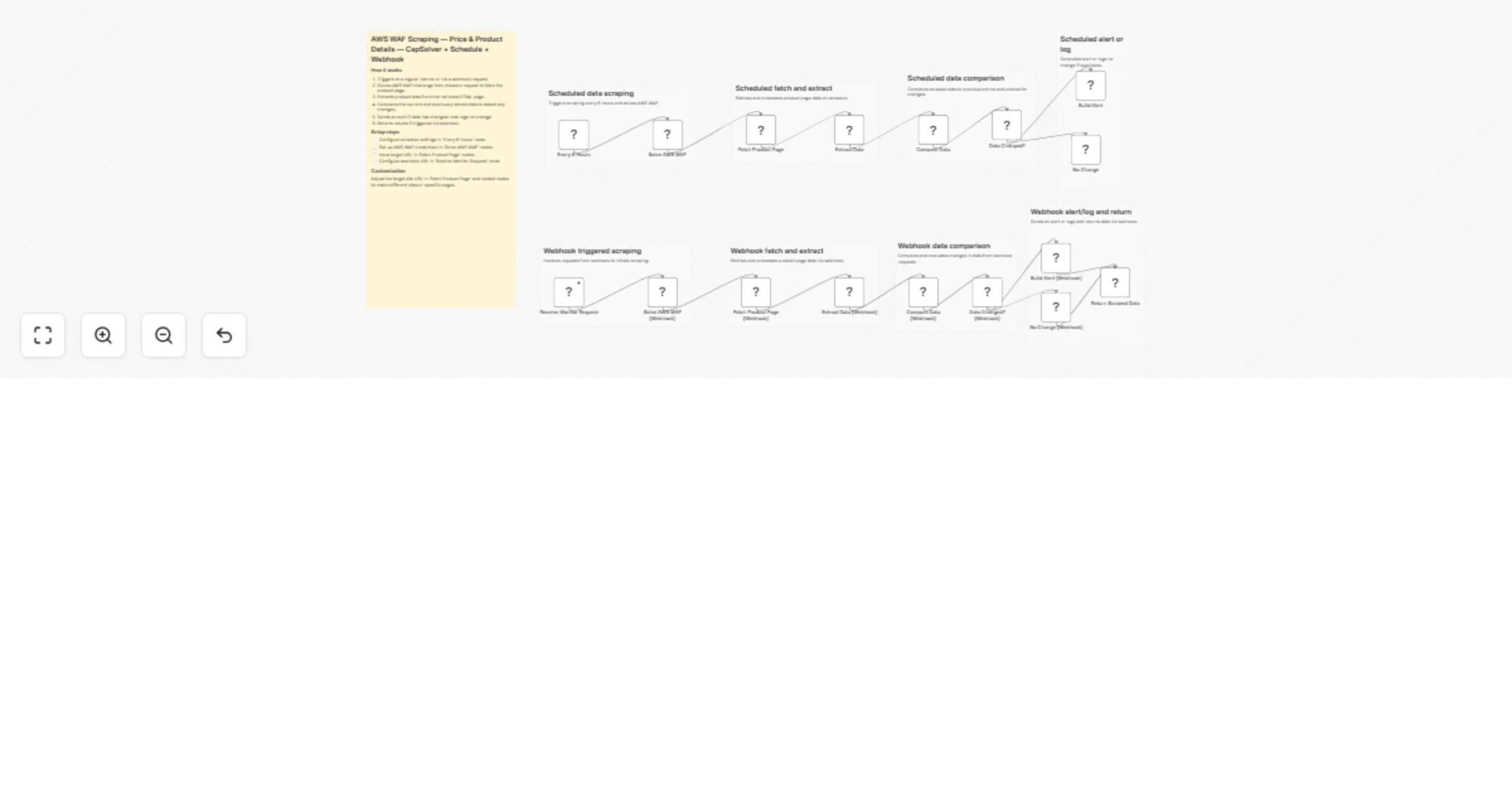
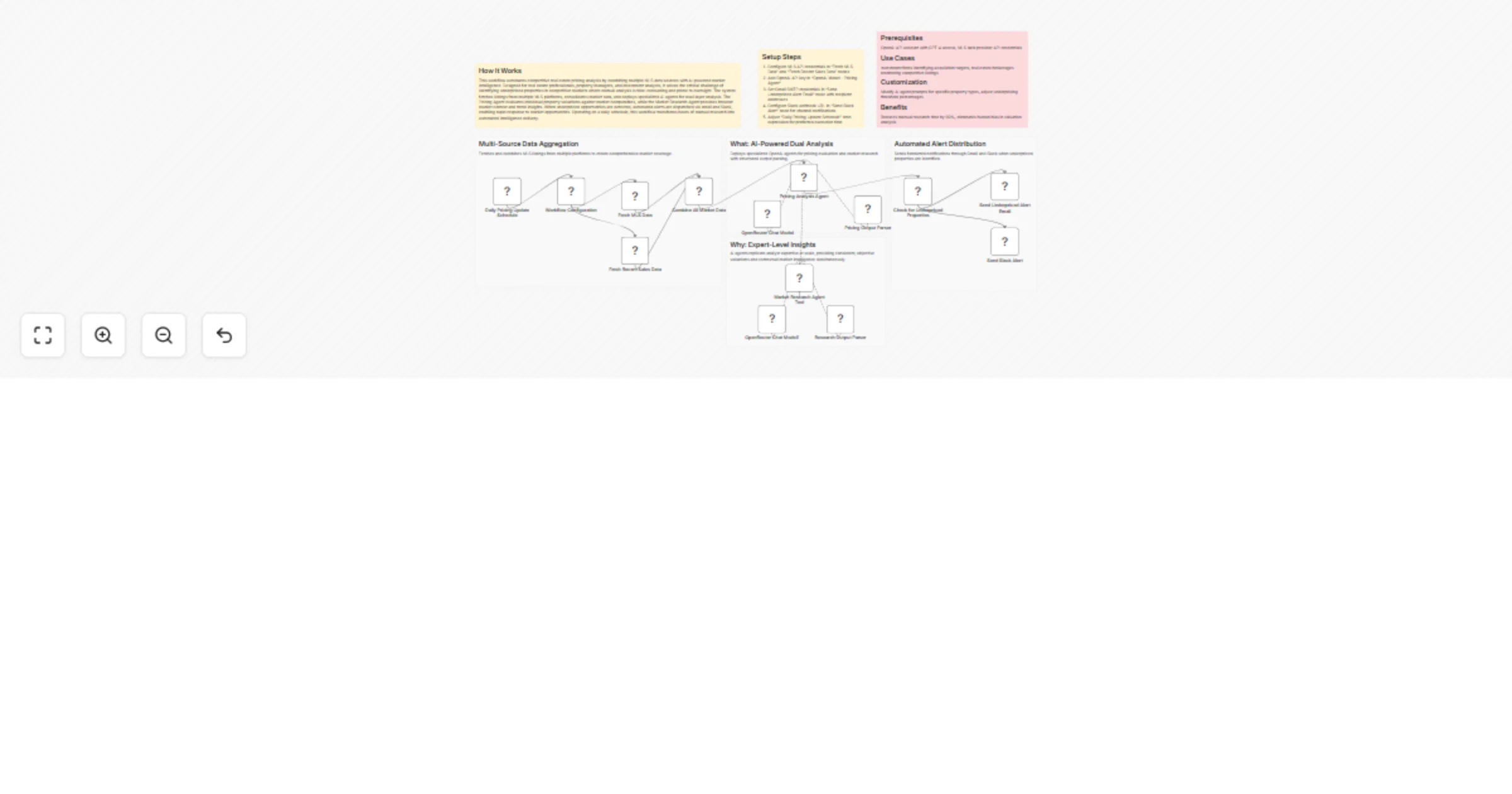
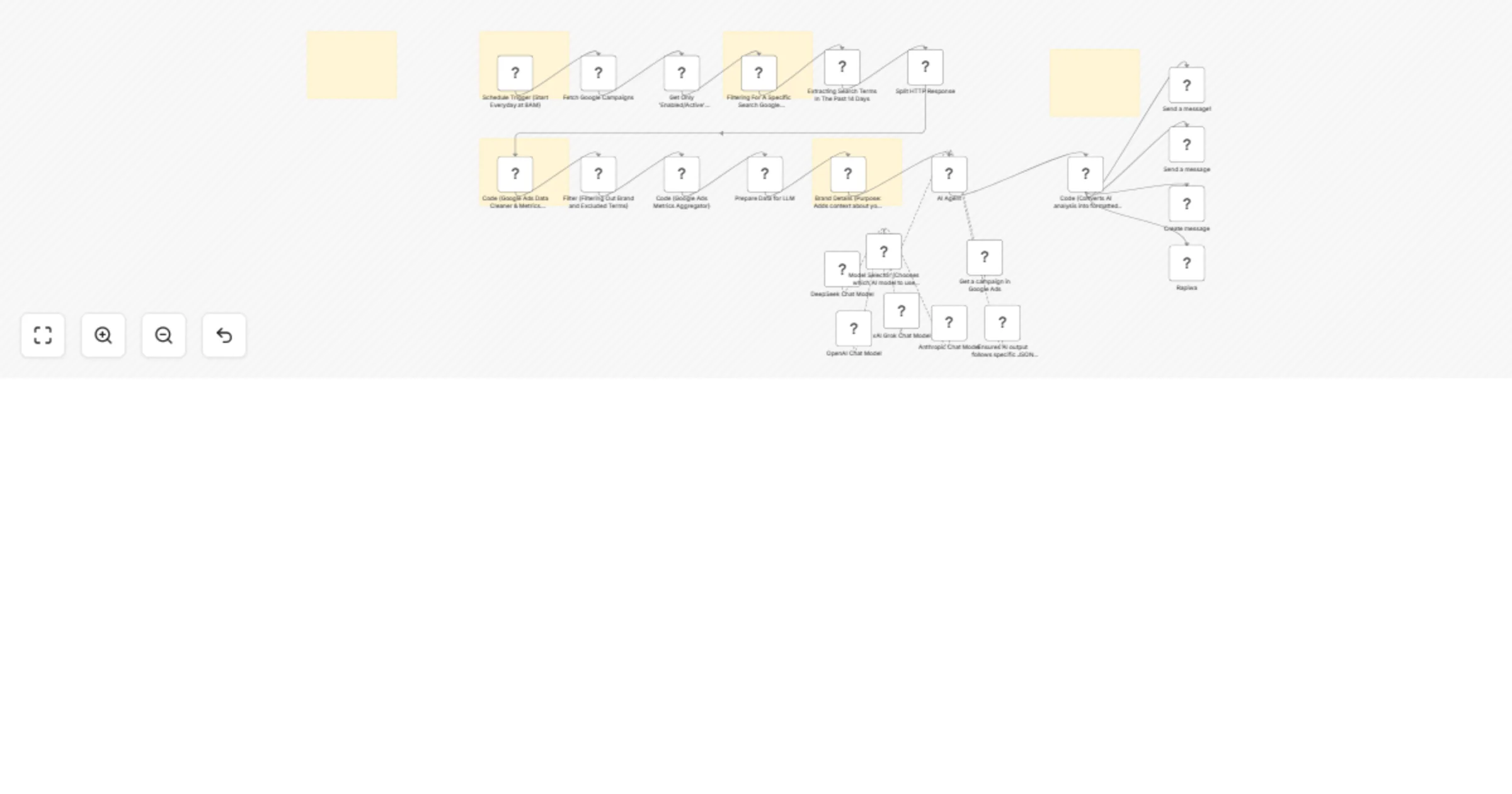
Market Research Workflows
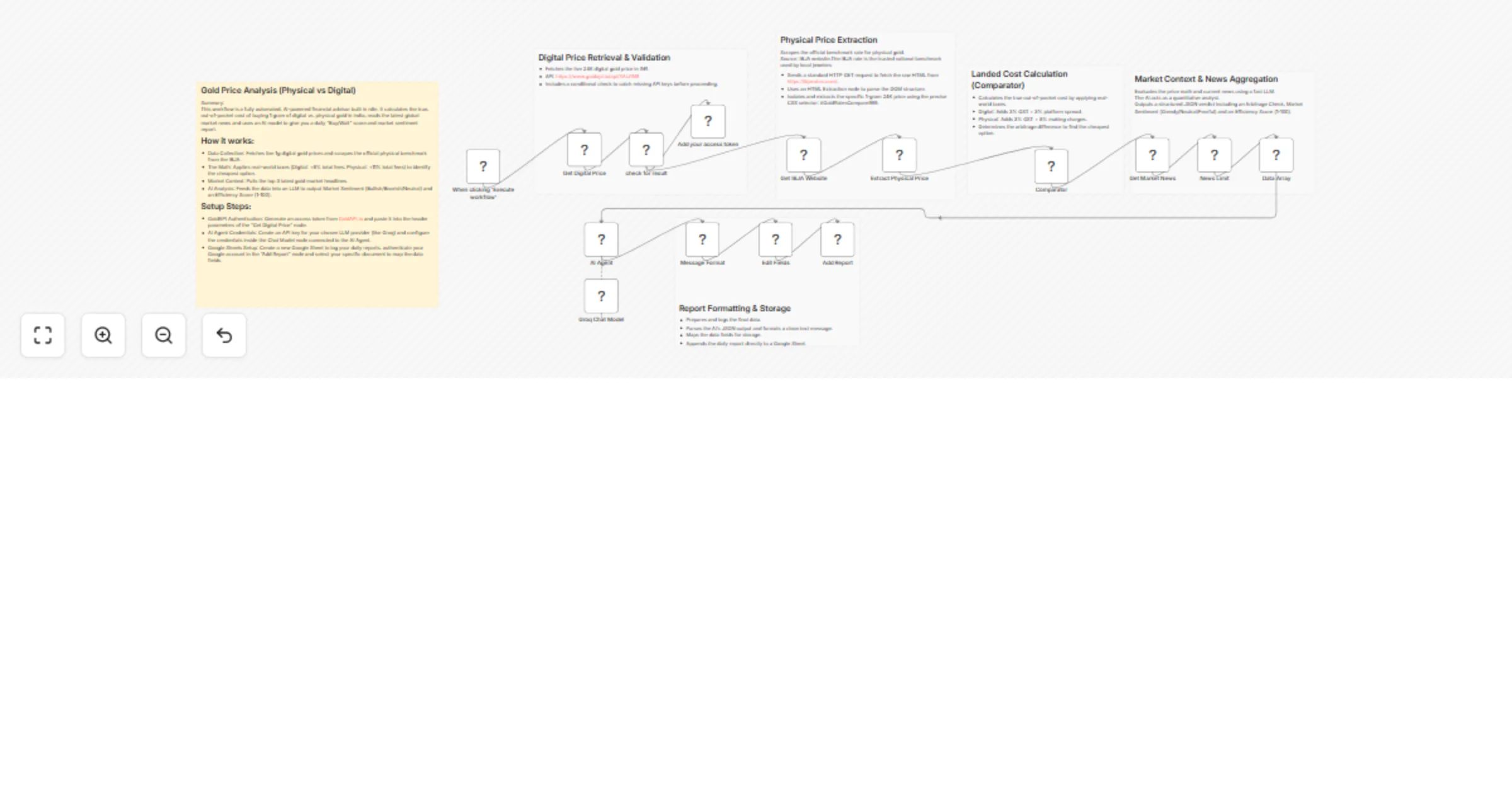
Draft and manage academic research papers with GPT-4 and Pinecone
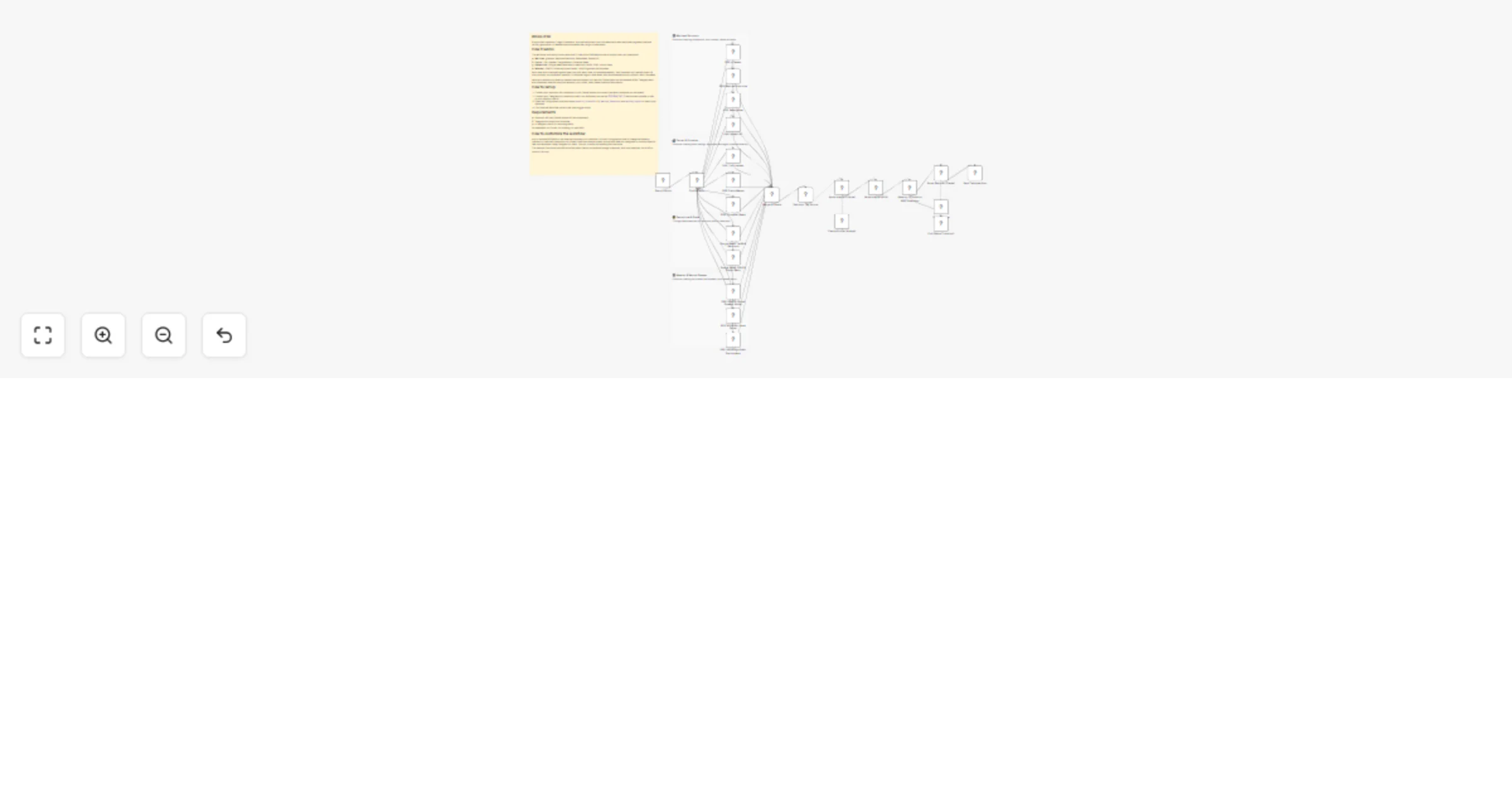
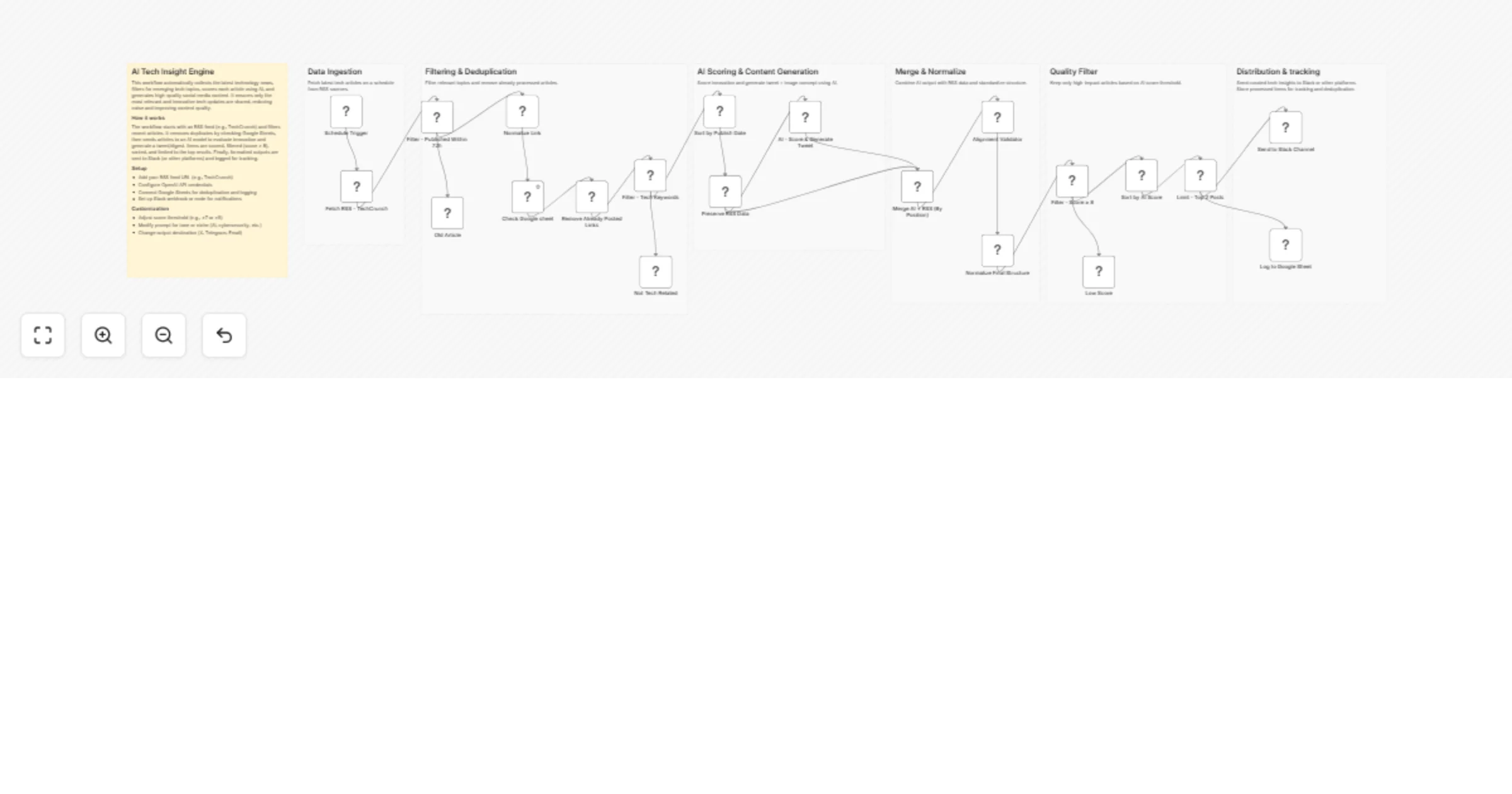
## How It Works This workflow automates academic research processing by routing queries through specialized AI models while maintaining contextual memory. Designed for researchers, faculty, and graduate students, it solves the challenge of managing multiple AI models for different research tasks while preserving conversation context across sessions. The system accepts research queries via webhook, stores them in vector databases for semantic search, and intelligently routes requests to appropriate AI models (OpenAI, Anthropic Claude, or NVIDIA NIM). Results are consolidated, formatted, and delivered via email with full citation tracking. The workflow maintains conversation history using Pinecone vector storage, enabling follow-up queries that reference previous interactions. This eliminates manual model switching, context loss, and repetitive credential management—streamlining research workflows from literature review to hypothesis generation. ## Setup Steps 1. Configure Pinecone credentials 2. Add OpenAI API key for GPT-4 access and embeddings 3. Set up Anthropic Claude API credentials for advanced reasoning 4. Configure NVIDIA NIM API key for specialized academic models 5. Connect Google Sheets for query logging and result tracking 6. Set Gmail OAuth credentials for automated result delivery 7. Configure webhook URL for query submission endpoint ## Prerequisites Active accounts and API keys for Pinecone, OpenAI ## Use Cases Literature review automation with semantic paper discovery. ## Customization Modify AI model selection logic for domain-specific optimization. ## Benefits Reduces research processing time by 60% through automated routing.
Scrape Trustpilot reviews 📊 with ScrapegraphAI and OpenAI Reputation analysis
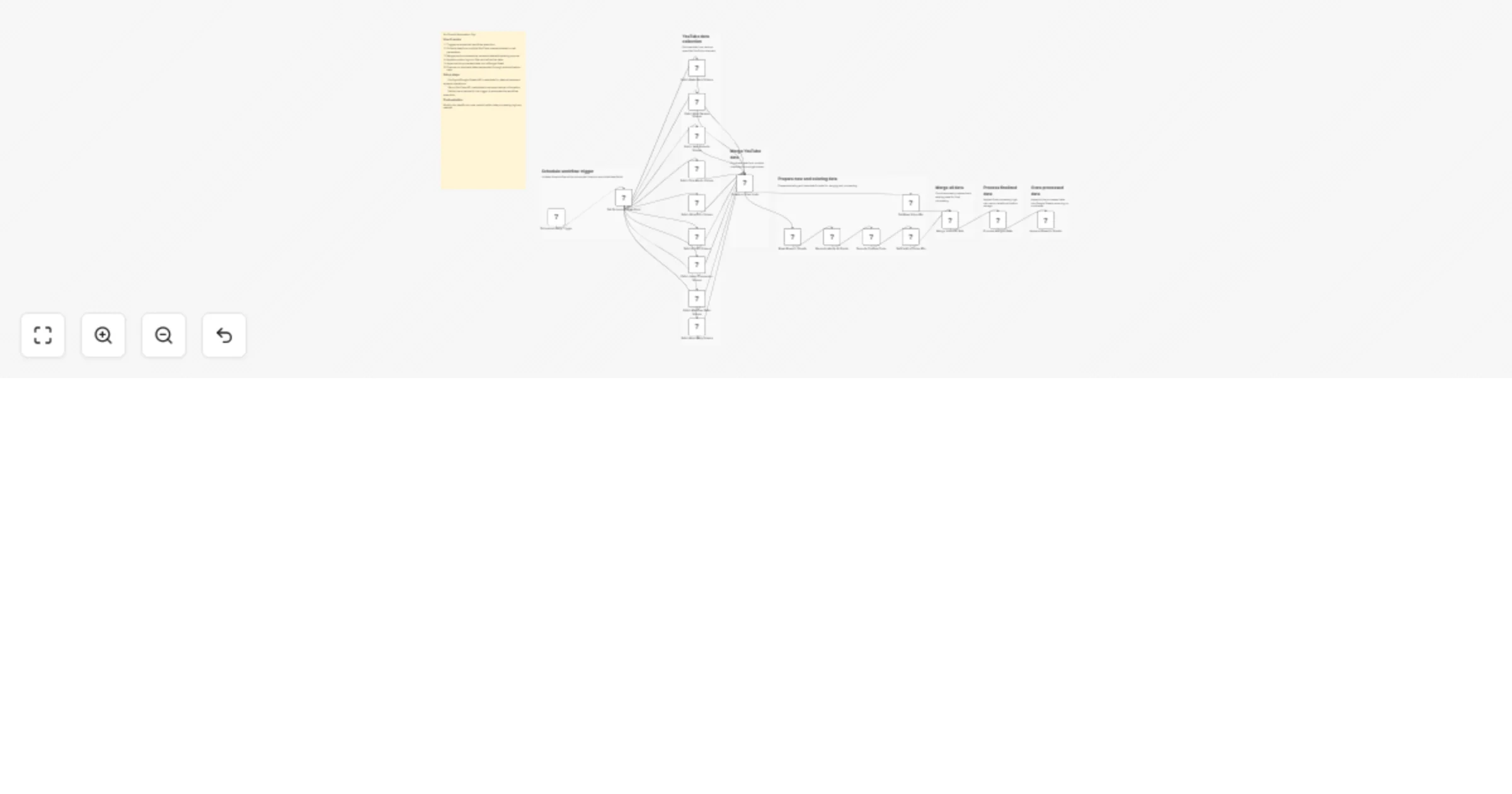
This workflow automates the **collection, analysis, and reporting of Trustpilot reviews** for a specific company, transforming unstructured customer feedback into **structured insights and actionable intelligence**. --- ### Key Advantages #### 1. ✅ End-to-End Automation The entire process—from scraping reviews to delivering a polished management report—is fully automated, eliminating manual data collection and analysis . #### 2. ✅ Structured Insights from Unstructured Data The workflow transforms raw, unstructured review text into structured fields and standardized sentiment categories, making analysis reliable and repeatable. #### 3. ✅ Company-Level Reputation Intelligence Instead of focusing on individual products, the analysis evaluates the **overall brand, service quality, customer experience, and operational performance**, which is critical for leadership and strategic teams. #### 4. ✅ Action-Oriented Outputs The AI-generated report goes beyond summaries by: * Identifying reputational risks * Highlighting improvement opportunities * Proposing concrete actions with priorities, effort estimates, and KPIs #### 5. ✅ Visual & Executive-Friendly Reporting Automatic sentiment charts and structured executive summaries make insights immediately understandable for non-technical stakeholders. #### 6. ✅ Scalable and Configurable * Easily adaptable to different companies or review volumes * Page limits and batching protect against rate limits and excessive API usage #### 7. ✅ Cross-Team Value The output is tailored for multiple internal teams: * Management * Marketing * Customer Support * Operations * Product & UX --- ### Ideal Use Cases * Brand reputation monitoring * Voice-of-the-customer programs * Executive reporting * Customer experience optimization * Competitive benchmarking (by reusing the workflow across brands) --- ### **How It Works** This workflow automates the complete process of scraping Trustpilot reviews, extracting structured data, analyzing sentiment, and generating comprehensive reports. The workflow follows this sequence: 1. **Trigger & Configuration**: The workflow starts with a manual trigger, allowing users to set the target company URL and the number of review pages to scrape. 2. **Review Scraping**: An HTTP request node fetches review pages from Trustpilot with pagination support, extracting review links from the HTML content. 3. **Review Processing**: The workflow processes individual review pages in batches (limited to 5 reviews per execution for efficiency). Each review page is converted to clean markdown using ScrapegraphAI. 4. **Data Extraction**: An information extractor using OpenAI's GPT-4.1-mini model parses the markdown to extract structured review data including author, rating, date, title, text, review count, and country. 5. **Sentiment Analysis**: Another OpenAI model performs sentiment classification on each review text, categorizing it as Positive, Neutral, or Negative. 6. **Data Aggregation**: Processed reviews are collected and compiled into a structured dataset. 7. **Analytics & Visualization**: - A pie chart is generated showing sentiment distribution - A comprehensive reputation analysis report is created using an AI agent that evaluates company-level insights, recurring themes, and provides actionable recommendations 8. **Reporting & Delivery**: The analysis is converted to HTML format and sent via email, providing stakeholders with immediate insights into customer feedback and company reputation. ## **Set Up Steps** To configure and run this workflow: 1. **Credential Setup**: - Configure OpenAI API credentials for the chat models and information extraction - Set up ScrapegraphAI credentials for webpage-to-markdown conversion - Configure Gmail OAuth2 credentials for email notifications 2. **Company Configuration**: - In the "Set Parameters" node, update `company_id` to the target Trustpilot company URL - Adjust `max_page` to control how many review pages to scrape 3. **Review Processing Limits**: - The "Limit" node restricts processing to 5 reviews per execution to manage API costs and processing time - Adjust this value based on your needs and OpenAI usage limits 4. **Email Configuration**: - Update the "Send a message" node with the recipient email address - Customize the email subject and content as needed 5. **Analysis Customization**: - Modify the prompt in the "Company Reputation Analyst" node to tailor the report format - Adjust sentiment analysis categories if different classification is needed 6. **Execution**: - Click "Test workflow" to execute the manual trigger - Monitor execution in the n8n editor to ensure all API calls succeed - Check the configured email inbox for the generated report **Note**: Be mindful of API rate limits and costs associated with OpenAI and ScrapegraphAI services when processing large numbers of reviews. The workflow includes a 5-second delay between paginated requests to comply with Trustpilot's terms of service. --- 👉 [Subscribe to my new **YouTube channel**](https://youtube.com/@n3witalia). Here I’ll share videos and Shorts with practical tutorials and **FREE templates for n8n**. [](https://youtube.com/@n3witalia) --- ### **Need help customizing?** [Contact me](mailto:[email protected]) for consulting and support or add me on [Linkedin](https://www.linkedin.com/in/davideboizza/).
Monitor multi-city weather with OpenWeatherMap, GPT-4o-mini, and Discord
## Weather Monitoring Across Multiple Cities with OpenWeatherMap, GPT-4o-mini, and Discord This workflow provides an automated, intelligent solution for global weather monitoring. It goes beyond simple data fetching by calculating a custom "Comfort Index" and using AI to provide human-like briefings and activity recommendations. Whether you are managing remote teams or planning travel, this template centralizes complex environmental data into actionable insights. ## Who’s it for - **Remote Team Leads:** Keep an eye on environmental conditions for team members across different time zones. - **Frequent Travelers & Event Planners:** Monitor weather risks and comfort levels for multiple destinations simultaneously. - **Smart Home/Life Enthusiasts:** Receive daily morning briefings on air quality and weather alerts directly in Discord. ## How it works 1. **Schedule Trigger:** The workflow runs every 6 hours (customizable) to ensure data is up to date. 2. **Data Collection:** It loops through a list of cities, fetching current weather, 5-day forecasts, and Air Quality Index (AQI) data via the **OpenWeatherMap node** and **HTTP Request node**. 3. **Smart Processing:** A **Code node** calculates a "Comfort Index" (based on temperature and humidity) and flags specific alerts (e.g., extreme heat, high winds, or poor AQI). 4. **AI Analysis:** The **OpenAI node** (using GPT-4o-mini) analyzes the aggregated data to compare cities and recommend the best location for outdoor activities. 5. **Conditional Routing:** An **If node** checks for active weather alerts. Urgent alerts are routed to a specific Discord notification, while routine briefings are sent normally. 6. **Archiving:** All processed data is appended to **Google Sheets** for historical tracking and future analysis. ## How to set up 1. **Credentials:** Connect your OpenWeatherMap, OpenAI, Discord (Webhook), and Google Sheets accounts. 2. **Locations:** Open the **'Set Monitoring Locations'** node and edit the JSON array with the cities, latitudes, and longitudes you wish to track. 3. **Google Sheets:** Configure the **'Log to Google Sheets'** node with your specific Spreadsheet ID and Sheet Name. 4. **Discord:** Ensure your Webhook URL is correctly pasted into the **Discord nodes**. ## Requirements - **OpenWeatherMap API Key** (Free tier is sufficient). - **OpenAI API Key** (Configured for GPT-4o-mini). - **Discord Webhook URL**. - **Google Sheet** with headers ready for logging. ## How to customize - **Adjust Alert Thresholds:** Modify the logic in the 'Process and Analyze Data' Code node to change what triggers a "High Wind" or "Extreme Heat" alert. - **Refine AI Persona:** Edit the System Prompt in the 'AI Weather Analysis' node to change the tone or focus of the weather briefing. - **Change Frequency:** Adjust the Schedule Trigger to run once a day or every hour depending on your needs.
Analyze post-event survey feedback from Google Forms with GPT-4o, Slack and Google Docs
## 🎉 AI Event Feedback Analyzer → Instant Slack Alerts + Google Docs Reports **Turn raw Google Forms into actionable insights**—AI extracts sentiment, themes, testimonials → posts Slack digests + builds running Doc report. Perfect for conferences, webinars, workshops. ### 🎯 Use Cases - Event planners tracking NPS + improvements live - Webinar hosts surfacing testimonials automatically - Conference organizers sharing #event-feedback in Slack - Marketing teams building case studies from attendee quotes ### 🔧 How It Works 📝 Webhook catches Google Form → Typeform submissions 🧠 AI analyzes: Sentiment 😍/😞, Likes, Improvements, Testimonial quote 💬 Posts Slack #event-feedback: "4/5 ⭐ Marketing Pro: 'Loved networking' → Add more breaks" 📄 Appends Google Doc: "{{EventName}} Feedback Log" with bullets + aggregates 🔄 Optional: Manual aggregate last 50 → "Avg 4.2⭐ Top 3 actions: ..." text ### ⚙️ Setup (3 min) ✅ Google Forms → Sheets (auto) ✅ Slack #channel + OpenAI key ✅ Google Docs (variable ID) ✅ No hardcodes—plug & play **💰 Impact**: 30% faster feedback loops → 15% better next events. **Keywords**: event survey analysis, Google Forms AI, post-event feedback automation, Slack NPS alerts, conference testimonial generator
WooCommerce 🛒 Product Review Sentiment Analysis and AI Report 🤖 for Improvement
This workflow automates the **end-to-end analysis of WooCommerce product reviews**, transforming raw customer feedback into **actionable product and customer-care insights**, and delivering them in a structured, visual, and shareable format. This workflow analyzes product review sentiment from WooCommerce using AI. It starts by retrieving reviews for a specified product via the WooCommerce. Each review then undergoes sentiment analysis using LangChain's Sentiment Analysis. The workflow aggregates sentiment data, creates a pie chart visualization via QuickChart, and compiles a comprehensive report using an AI Agent. The report includes executive summaries, quantitative data, qualitative analysis, product diagnostics, and operational recommendations. Finally, the **AI-generated report** is converted to HTML and emailed to a designated recipient for review by customer and product teams. --- ### Key Advantages #### 1. ✅ Full Automation of Review Analysis Eliminates manual work by automating data collection, sentiment analysis, reporting, visualization, and delivery in a single workflow. #### 2. ✅ Scalable and Reliable Batch processing ensures the workflow can handle **dozens or hundreds of reviews** without performance issues. #### 3. ✅ Action-Oriented Insights (Not Just Sentiment) Instead of stopping at sentiment scores, the workflow produces: * Root-cause hypotheses * Concrete improvement actions * Prioritized recommendations (P0 / P1 / P2) * Measurable KPIs #### 4. ✅ Combines Quantitative and Qualitative Analysis Merges hard metrics (averages, distributions, outliers) with qualitative insights (themes, risks, opportunities), giving a **360° view of customer feedback**. #### 5. ✅ Visual + Narrative Output Stakeholders receive both: * **Visual sentiment charts** for quick understanding * **Structured written reports** for strategic decision-making #### 6. ✅ Ready for Product & Customer Care Teams The output format is tailored for non-technical teams: * Clear language * Masked personal data (GDPR-friendly) * Immediate usability in meetings, emails, or documentation #### 7. ✅ Easily Extensible The workflow can be extended to: * Run on a schedule * Analyze multiple products * Store results in a database or CRM * Trigger alerts for negative sentiment spikes #### Ideal Use Cases * Continuous monitoring of product sentiment * Supporting product roadmap decisions * Identifying customer pain points early * Improving customer support response strategies * Reporting customer voice to stakeholders automatically --- ### How it works 1. **Manual Trigger & Configuration** The workflow starts manually and sets the target **WooCommerce product ID** and **store URL**. 2. **Data Retrieval from WooCommerce** * Fetches **all reviews** for the selected product via the WooCommerce REST API. * Retrieves **product details** (name, description, categories) to enrich the analysis context. 3. **Batch Processing of Reviews** Reviews are processed in batches to ensure scalability and reliability, even with a large number of reviews. 4. **AI-Powered Sentiment Analysis** * Each review is analyzed using an OpenAI-based sentiment analysis model. * For every review, the workflow extracts: * Sentiment category (Positive / Negative / Neutral) * Strength (intensity) * Confidence (reliability of the classification) 5. **Data Normalization & Aggregation** * Review text is cleaned and structured. * Sentiment data is aggregated to compute overall distributions and metrics. 6. **Visual Sentiment Distribution** * A pie chart is dynamically generated via QuickChart to visually represent sentiment distribution. 7. **Advanced AI Insight Generation** A specialized AI agent (“Product Insights Analyst”) transforms the raw and aggregated data into a **professional, structured report**, including: * Executive summary * Quantitative statistics * Qualitative themes * Product diagnosis * Operational recommendations * Product backlog ideas * Next steps 8. **HTML Conversion & Delivery** * The report is converted into clean HTML. * The final output is automatically sent via **email** to stakeholders (e.g. product or customer care teams). --- ### Set up steps 1. **Configure credentials**: - Set up WooCommerce API credentials in the HTTP Request node. - Add OpenAI API credentials for both sentiment analysis and reporting. - Configure Gmail OAuth2 credentials for sending the final email report. 2. **Set parameters**: - In the "Product ID" node, replace `PRODUCT_ID` and `YOUR_WEBSITE` with actual product ID and WooCommerce site URL. - Update the recipient email address in the "Send a message" node. 3. **Optional adjustments**: - Modify the pie chart design in the "QuichChart" node if needed. - Adjust the report structure or language in the "Product Insights Analyst" system prompt. 4. **Run the workflow**: - Click "Execute workflow" on the manual trigger to start the process. - Monitor execution in n8n to ensure all nodes process correctly. Once configured, the workflow will automatically analyze product reviews, generate insights, and deliver a formatted report via email. --- 👉 [Subscribe to my new **YouTube channel**](https://youtube.com/@n3witalia). Here I’ll share videos and Shorts with practical tutorials and **FREE templates for n8n**. [](https://youtube.com/@n3witalia) --- ### **Need help customizing?** [Contact me](mailto:[email protected]) for consulting and support or add me on [Linkedin](https://www.linkedin.com/in/davideboizza/).
Analyze market demand using GPT-4o, XPOZ MCP, Notion and email reports
## 📘 Description This workflow performs automated market demand research for a defined niche on a scheduled basis and converts raw public discussions into actionable business insights. It continuously scans search engines and social platforms to identify real customer pain points, unmet needs, buying or switching intent, and dissatisfaction with existing tools or solutions. An AI market research agent analyzes public conversations to filter out noise and extract only high-signal demand indicators. These insights are then transformed into two outputs: a concise Notion-ready research summary for internal knowledge tracking and a professional, customer-ready email that communicates key findings in clear, business-friendly language. Built-in validation and error handling ensure reliability and traceability. This workflow replaces repetitive manual market research with a consistent, insight-driven intelligence pipeline that supports founders, marketers, and growth teams. ⚠️ Deployment Disclaimer This template is intended for self-hosted n8n instances only. It relies on external MCP-based social intelligence tools and advanced AI agents not supported on n8n Cloud. ## ⚙️ What This Workflow Does (Step-by-Step) ⏰ Scheduled Market Research Trigger Runs automatically on a defined schedule. 🧾 Inject Niche, Query, and Research Context Sets the niche, keywords, and analyst notes to guide research focus. 🔎 Analyze Public Discussions for Market Demand (AI) Scans public search and social platforms to identify real demand signals, pain points, and buying intent. 📡 Public Search & Social Intelligence (MCP Tool) Fetches relevant public discussions for analysis. 🧠 Convert Market Signals into Structured Insights (AI) Transforms raw findings into a Notion-ready summary and a customer-friendly email. 🧹 Parse & Validate AI Output Ensures structured JSON output for safe downstream use. 📘 Save Market Research Insight to Notion Stores summarized insights for long-term research and tracking. 📧 Send Market Insight Email to Stakeholder Delivers a concise, value-focused email highlighting key findings. 🚨 Workflow Error Handler → Email Alert Sends detailed error notifications if any step fails. ## 🧩 Prerequisites • Self-hosted n8n instance • OpenAI API credentials • MCP (Xpoz) public search & social intelligence credentials • Notion API access • Gmail OAuth credentials ## 💡 Key Benefits ✔ Automates recurring market research ✔ Identifies real demand and buying intent signals ✔ Produces clean Notion documentation automatically ✔ Generates customer-ready insight emails ✔ Eliminates manual scanning of forums and social media ✔ Built-in error alerts for reliability ## 👥 Perfect For - Startup founders validating ideas - Growth and marketing teams - Product strategy teams - Market research and competitive intelligence teams
Create a founder digest and leads from Hacker News with GPT-4o and Gmail
 ## 📊 Description Automate daily founder intelligence from Hacker News without manual monitoring. This workflow scans Hacker News discussions (Show HN, launches, AI, startups, SaaS), filters out noise and non-discussion pages, and extracts only high-signal threads. AI then converts these discussions into a concise, founder-ready daily digest highlighting key trends, why they matter, and practical actions. The digest is delivered via email, while structured insights are logged to Google Sheets for long-term tracking and analysis. ## ⚠️ Deployment Disclaimer This template is designed for self-hosted n8n installations only. It relies on external MCP tools and custom AI orchestration that are not supported on n8n Cloud. ## 🔄 What This Template Does 1️⃣ Runs automatically on a daily schedule ⏰ 2️⃣ Searches Hacker News discussions via Google using SerpAPI 🔍 3️⃣ Extracts titles, summaries, links, and metadata from results 📄 4️⃣ Filters out guidelines, index pages, and non-discussion links 🚫 5️⃣ Aggregates valid discussion threads into a single dataset 📦 6️⃣ Uses AI to identify key trends, problems, and founder-relevant signals 🧠 7️⃣ Generates a concise daily founder digest (trend, why it matters, actions) ✍️ 8️⃣ Sends the digest automatically via email 📧 9️⃣ Cleans and normalizes insights for storage 🧹 🔟 Appends structured founder intelligence to Google Sheets for tracking 📊 ## ✅ Key Benefits ✅ Eliminates manual Hacker News scanning ✅ Surfaces only high-signal, founder-relevant discussions ✅ Converts raw discussions into clear, actionable insights ✅ Delivers a daily, skimmable founder digest automatically ✅ Builds a historical intelligence log in Google Sheets ✅ Creates a repeatable founder research workflow ## ⚙️ Features - Daily scheduled execution - Hacker News discovery via Google Search (SerpAPI) - Noise filtering with custom JavaScript logic - AI-powered trend and insight extraction - Founder-focused digest generation - Email delivery via Gmail - Insight archiving in Google Sheets ## 🔑 Requirements - SerpAPI account - Azure OpenAI credentials - Gmail account connected to n8n - Google Sheets account - Self-hosted n8n instance ## 🎯 Target Audience - Startup founders tracking early signals - Product and growth leaders monitoring trends - VCs and analysts scouting emerging tools - Teams needing automated market and founder intelligence
Optimize multi-property rents and analytics with GPT-4o and Google Sheets
## How It Works This workflow automates comprehensive real estate investment analysis by orchestrating specialized AI agents to evaluate property data, market trends, and financial metrics. Designed for real estate investors, portfolio managers, and property analysts managing multiple properties or evaluating acquisition opportunities, it eliminates the manual research and analysis that typically requires days of work across multiple data sources. The system aggregates data from real estate APIs, market databases, and local statistics, then deploys specialized agents: performance analysis evaluates ROI and cash flow, recommendation engines identify optimal properties, market analysis assesses location trends, sentiment analysis mines reviews and local feedback, and workflow tools calculate financial projections. An orchestrator coordinates these agents to generate consolidated investment reports with property rankings, risk assessments, and portfolio recommendations. Results populate Google Sheets dashboards and trigger email notifications, transforming weeks of analysis into automated insights delivered in hours. ## Setup Steps 1. Configure real estate API credentials (Zillow/Realtor.com) 2. Add market data API keys for local statistics and demographics 3. Input NVIDIA API keys for all OpenAI Model nodes 4. Set OpenAI API key in Team Collaboration Agent/Orchestrator 5. Configure Calculator Tool parameters for financial projections 6. Connect Google Sheets and specify portfolio tracking spreadsheet ID 7. Set up Gmail credentials and specify recipient addresses for reports ## Prerequisites NVIDIA API access, OpenAI API key, real estate data API subscriptions ## Use Cases Multi-property portfolio analysis, acquisition opportunity screening. ## Customization Adjust investment criteria thresholds, add custom financial metrics ## Benefits Reduces analysis time by 90%, evaluates unlimited properties simultaneously
Analyze brand visibility in AI SERPs with SE Ranking and OpenAI GPT-4.1 mini
This workflow automates brand intelligence analysis across AI-powered search results by combining **SE Ranking’s AI Search data** with structured processing in n8n. It retrieves real AI-generated prompts, answers, and cited sources where a brand appears, then normalizes and consolidates this data into a clean, structured format. The workflow eliminates manual review of AI SERPs and makes it easy to understand how AI search engines describe, reference, and position a brand. ## Who this is for This workflow is designed for: * **SEO strategists and growth marketers** analyzing brand visibility in AI-powered search engines * **Content strategists** identifying how brands are represented in AI answers * **Competitive intelligence teams** tracking brand mentions and narratives * **Agencies and consultants** building AI SERP reports for clients * **Product and brand managers** monitoring AI-driven brand perception ## What problem is this workflow solving? Traditional SEO tools focus on rankings and keywords but do not capture how AI search engines talk about brands. Key challenges this workflow addresses: * No visibility into **AI-generated prompts and answers** mentioning a brand * Difficulty extracting **linked sources and references** from AI SERPs * Manual effort required to normalize and structure AI search responses * Lack of export-ready datasets for reporting or downstream automation ## 3. What this workflow does At a high level, this workflow: * Accepts a **brand name and AI search parameters** * Fetches **real AI search prompts, answers, and citations** from SE Ranking * Extracts and normalizes: * Prompts with answers * Supporting reference links * Raw AI SERP JSON * Merges all outputs into a **unified structured dataset** * Exports the final result as **structured JSON** ready for analysis, reporting, or storage This enables brand-level AI SERP intelligence in a repeatable and automated way ## Setup ### Prerequisites * n8n (self-hosted or cloud) * Active **SE Ranking API** access * HTTP Header authentication configured in n8n * Local or server file system access for JSON export ### Setup Steps If you are new to SE Ranking, please signup on [seranking.com](https://seranking.com/?ga=4848914&source=link) 1. **Configure Credentials** * SE Ranking using HTTP Header Authentication. Please make sure to set the header authentication as below. The value should contain a Token followed by a space with the SE Ranking API Key.  2. **Set Input Parameters** * Brand name * AI engine (e.g., Perplexity) * Source/region * Sorting preferences * Result limits 3. **Configure Output** * Update file path in the “Write File to Disk” node * Ensure write permissions are available 4. **Execute Workflow** * Click *Execute Workflow* * Generated brand intelligence is saved as structured JSON ## How to customize this workflow You can easily adapt this workflow to your needs: * **Change Brand Focus** * Modify the brand input to analyze competitors or product names * **Switch AI Engines** * Compare brand narratives across different AI search engines * **Add AI Enrichment** * Insert OpenAI or Gemini nodes to summarize brand sentiment or themes * **Classification & Tagging** * Categorize prompts into awareness, comparison, pricing, reviews, etc. * **Replace File Export** * Send results to: * Databases * Google Sheets * Dashboards * Webhooks or APIs * **Scale for Monitoring** * Schedule runs to track brand perception changes over time ## Summary This workflow delivers true AI SERP brand intelligence by combining SE Ranking’s AI Search data with structured extraction and automation in n8n. It transforms opaque AI-generated brand mentions into actionable, exportable insights, enabling SEO, content, and brand teams to stay ahead in the era of AI-first search.
Generate AI search–driven FAQ insights for SEO with SE Ranking and OpenAI GPT-4.1-mini
This workflow automates the discovery and structuring of FAQs from real AI search behavior using SE Ranking and OpenAI. It fetches domain-specific AI search prompts and answers, then extracts relevant questions, responses, and source links. Each question is enriched with AI-based intent classification and confidence scoring, and the final output is aggregated into a structured JSON format ready for SEO analysis, content planning, documentation, or knowledge base generation. ## Who this is for This workflow is designed for: * SEO professionals and content strategists building FAQ-driven content * Growth and digital marketing teams optimizing for AI Search and SERP intent * Content writers and editors looking for data-backed FAQ ideas * SEO automation engineers using n8n for research workflows * Agencies producing scalable FAQ and topical authority content ## What problem this workflow is solving Modern SEO increasingly depends on AI search prompts, user intent, and FAQ coverage, but manually: * Discovering real AI search questions * Grouping questions by intent * Identifying content gaps * Structuring FAQs for SEO is slow, repetitive, and inconsistent. This workflow solves that by automatically extracting, classifying, and structuring AI-driven FAQ intelligence directly from SE Ranking’s AI Search data. ## What this workflow does This workflow automates end-to-end FAQ intelligence generation: * Fetches real AI search prompts for a target domain using **SE Ranking** * Extracts: * Questions * Answers * Reference links * Applies **zero-shot AI classification** using OpenAI GPT-4.1-mini * Assigns: * Intent category (HOW_TO, DEFINITION, PRICING, etc.) * Confidence score * Aggregates all data into a structured FAQ dataset * Exports the final result as structured JSON for SEO, publishing, or automation ## Setup If you are new to SE Ranking, please signup on [seranking.com](https://seranking.com/?ga=4848914&source=link) ### Prerequisites * **n8n (Self-Hosted or Cloud)** * **SE Ranking API access** * **OpenAI API key (GPT-4.1-mini)** ### Configuration Steps 1. **Configure Credentials** * SE Ranking using HTTP Header Authentication. Please make sure to set the header authentication as below. The value should contain a Token followed by a space with the SE Ranking API Key.  * Add **OpenAI API** credentials 2. **Update Input Parameters** In the **Set the Input Fields** node: * Target domain * Search engine type (AI mode) * Region/source * Include / exclude keyword filters * Result limits and sorting 3. **Verify Output Destination** * Confirm the file path in the **Write File to Disk** node * Or replace it with DB, CMS, or webhook output 4. **Execute Workflow** * Click **Execute Workflow** * Structured FAQ intelligence is generated automatically ## How to customize this workflow You can easily adapt this workflow to your needs: * **Change Intent Taxonomy** Update categories in the AI zero-shot classifier schema * **Refine SEO Focus** Modify keyword include/exclude rules for niche targeting * **Adjust Confidence Thresholds** Filter low-confidence questions before export * **Swap Output Destination** Replace file export with: * CMS publishing * Notion * Google Sheets * Vector DB for RAG * **Automate Execution** * Add a Cron node for weekly or monthly FAQ updates ## Summary This n8n workflow transforms AI search prompts into structured, intent-classified FAQ intelligence using SE Ranking and OpenAI GPT-4.1-mini. It enables teams to build high-impact SEO FAQs, content hubs, and AI-ready knowledge bases automatically, consistently, and at scale.
Monitor viral Reddit posts and send GPT-4o-mini summaries to Telegram
## Who's it for This workflow is perfect for: - Content creators who need to stay on top of trending topics - Marketers tracking industry discussions and competitor mentions - Community managers monitoring relevant subreddits - Researchers gathering trending content in specific niches - Anyone who wants curated Reddit updates without manual browsing ## What it does This automated workflow: - Monitors multiple subreddits for viral posts daily - Filters posts based on engagement metrics (upvotes and recency) - Generates concise AI summaries of trending content - Delivers formatted updates directly to your Telegram chat - Runs completely hands-free once configured ## How it works **Step 1: Configuration & Scheduling** - Triggers daily at 8 AM (customizable) - Loads your configured subreddit niches and Telegram settings **Step 2: Data Collection** - Loops through each subreddit in your niche list - Fetches the 50 newest posts from each subreddit - Extracts key data: title, URL, upvotes, timestamp, subreddit name **Step 3: Smart Filtering** - Applies viral post criteria: - Posts with 500+ upvotes, OR - Posts with 70+ upvotes created within the last 24 hours - Ensures only high-engagement content passes through **Step 4: AI Summarization** - Aggregates all filtered posts into a single batch - Sends to GPT-4o-mini for analysis - Generates concise 100-200 word summaries - Formats output for Telegram markdown **Step 5: Delivery** - Sends all summaries to your Telegram chat - Includes post links and engagement metrics - Delivers in a clean, readable format ## Setup steps **1. Configure Reddit credentials** - Connect your Reddit OAuth2 API credentials in the "Get Reddit Viral Posts" node - Ensure you have API access enabled on your Reddit account **2. Configure Telegram credentials** - Add your Telegram bot token in the "Send to Telegram" node - Get your chat ID by messaging your bot and checking updates **3. Customize your niches** - Open the "Workflow Configuration" node - Edit the niches array with your target subreddits - Default niches: technology, programming, science, gaming **4. Set your Telegram chat ID** - Replace the default chat ID (7917193308) in "Workflow Configuration" - Use your personal chat ID or group chat ID **5. Adjust the schedule (optional)** - Modify the "Daily 8 AM Trigger" to your preferred time - Change frequency if you want multiple updates per day **6. Test before activating** - Run the workflow manually using the "Test workflow" button - Verify summaries arrive in Telegram correctly - Check that filtering logic works as expected ## Requirements **Required credentials:** - Reddit OAuth2 API access (free) - Telegram bot token (free via @BotFather) - OpenAI API key for GPT-4o-mini (paid) **Platform requirements:** - n8n instance (self-hosted or n8n Cloud) - Active internet connection - Sufficient API rate limits for your usage **Technical knowledge:** - Basic understanding of n8n workflows - Ability to generate API credentials - Familiarity with Telegram bots (helpful but not required) ## How to customize **Adjust subreddit monitoring:** - Add or remove subreddits in the niches array - Format: `["subreddit1", "subreddit2", "subreddit3"]` - Example: `["machinelearning", "datascience", "artificial"]` **Modify viral post criteria:** - Edit the "Filter" node conditions - Change upvote thresholds (default: 500+ or 70+ within 24h) - Adjust time window for recency checks **Customize AI summaries:** - Update the system prompt in "AI Summarizer" node - Change summary length (default: 100-200 words) - Modify tone, style, or focus areas - Switch to different OpenAI models if needed **Change scheduling:** - Modify trigger time in "Daily 8 AM Trigger" - Options: hourly, twice daily, weekly, custom cron - Consider API rate limits when increasing frequency **Adjust data collection:** - Change the limit parameter in "Get Reddit Viral Posts" - Default: 50 posts per subreddit - Higher limits = more comprehensive but slower execution **Enhance filtering logic:** - Add additional criteria (comments count, awards, etc.) - Create category-specific thresholds - Filter by post type (text, link, image) **Format Telegram output:** - Modify parse_mode in "Send to Telegram" node - Options: Markdown, HTML, or plain text - Customize message structure and styling
Monitor competitor ad activity via Telegram with BrowserAct and Gemini
# Monitor competitor ad activity via Telegram using BrowserAct & Gemini Turn your Telegram bot into a covert marketing intelligence tool. This workflow allows you to send a company name to a bot, which then scrapes active ad campaigns, analyzes the strategy using AI, and delivers a strategic verdict directly to your chat. ## Target Audience Digital marketers, dropshippers, e-commerce business owners, and ad agencies looking to track competitor activity without manual searching. ## How it works 1. **Receive Command**: The workflow starts when you send a message to your Telegram bot (e.g., "Check ads for Nike" or "Spy on Higgsfield"). 2. **Extract Brand**: An **AI Agent** (using Google Gemini) processes the natural language text to extract the specific company or brand name. 3. **Scrape Ad Data**: A **BrowserAct** node executes a background task (using the "Competitor Ad Activity Monitor" template) to search ad libraries (like Facebook or Google) for active campaigns. 4. **Analyze Strategy**: A second **AI Agent** acts as a "Senior Marketing Analyst." It reviews the scraped data to count active ads, identify key hooks, and determine if the competitor is scaling or inactive. 5. **Deliver Report**: The bot sends a formatted HTML scorecard to **Telegram**, including the ad count, best ad copy, and a strategic verdict (e.g., "ADVERTISE NOW" or "WAIT"). ## How to set up 1. **Configure Credentials**: Connect your **Telegram**, **BrowserAct**, and **Google Gemini** accounts in n8n. 2. **Prepare BrowserAct**: Ensure the **Competitor Ad Activity Monitor** template is saved in your BrowserAct account. 3. **Configure Telegram**: Ensure your bot is created via BotFather and the API token is added to the Telegram credentials. 4. **Activate**: Turn on the workflow. 5. **Test**: Send a company name to your bot to generate a report. ## Requirements * **BrowserAct** account with the **Competitor Ad Activity Monitor** template. * **Telegram** account (Bot Token). * **Google Gemini** account. ## How to customize the workflow 1. **Adjust Analysis Logic**: Modify the system prompt in the **Generate response** agent to change how the "Verdict" is calculated (e.g., prioritize video ads over image ads). 2. **Add More Sources**: Update the BrowserAct template to scrape TikTok Creative Center or LinkedIn Ads. 3. **Change Output**: Replace the Telegram output with a **Slack** or **Discord** node to send reports to a team channel. ## Need Help? * [How to Find Your BrowserAct API Key & Workflow ID](https://www.youtube.com/watch?v=pDjoZWEsZlE) * [How to Connect n8n to BrowserAct](https://www.youtube.com/watch?v=RoYMdJaRdcQ) * [How to Use & Customize BrowserAct Templates](https://www.youtube.com/watch?v=CPZHFUASncY) --- ### Workflow Guidance and Showcase Video * #### [Automated Ad Intelligence: How to Outsmart Your Competitors (n8n + BrowserAct)](https://youtu.be/ZV8ERteG_04)
Track AI search rankings from Perplexity via BrowserAct to Google Sheets and Slack
# Track AI search rankings from Perplexity to Google Sheets and Slack This workflow automates Generative Engine Optimization (GEO) tracking by monitoring how your company appears in AI search results. It generates strategic queries, simulates searches on AI engines like Perplexity via BrowserAct, logs the responses for historical tracking, and delivers a graded performance report to Slack. ## Target Audience SEO specialists, brand managers, marketing directors, and growth teams focusing on AI visibility and reputation management. ## How it works 1. **Initialize Tracking**: The workflow runs on a schedule, creates a new dated tab in your **Google Sheet**, and fetches your company details (Name and Category). 2. **Generate Strategy**: An **AI Agent** (using OpenRouter/Gemini) generates three specific search queries: * *Discovery*: Broad category search (e.g., "Best CRM for startups"). * *Comparison*: Direct competitor face-off (e.g., "Pipedrive vs Salesforce"). * *Validation*: Specific fact-checking (e.g., "Is Pipedrive good for visual pipelines?"). 3. **Simulate Searches**: **BrowserAct** executes these queries on an AI answer engine (like Perplexity) to capture the real-time AI response. 4. **Log Data**: The workflow loops through the results and saves the raw AI answers to the daily **Google Sheet**. 5. **Analyze & Report**: A second **AI Agent** reviews the saved data, grades the visibility (Green/Yellow/Red), and sends a summarized "GEO Scorecard" to **Slack**. ## How to set up 1. **Configure Credentials**: Connect your **Google Sheets**, **Slack**, **BrowserAct**, and **OpenRouter** accounts in n8n. 2. **Prepare BrowserAct**: Ensure the **GEO Results & Rank Tracking** template is saved in your BrowserAct account. 3. **Setup Google Sheet**: Create a Google Sheet with a tab named `Main Sheet`. Add headers: `Company name` and `Worknig category`. Fill in row 2 with your details. 4. **Select Spreadsheet**: Open the **Create sheet**, **add headers**, **Get Company data**, **Retrieve Stored Data**, and **Store Extracted Data** nodes to select your specific spreadsheet. 5. **Configure Notification**: Open the **Send Message to Team on Slack** node and select your target Slack channel. ## Google Sheet Headers **Tab 1: Main Sheet** (Input) * Company name * Working Category **Tab 2+: [Date]** (Generated automatically by the workflow) * Search * Result ## Requirements * **BrowserAct** account with the **GEO Results & Rank Tracking** template. * **Google Sheets** account. * **Slack** account. * **OpenRouter** account (or compatible LLM credentials). ## How to customize the workflow 1. **Change the AI Engine**: Modify the **BrowserAct** template to search on ChatGPT or Google Gemini instead of Perplexity. 2. **Adjust Grading Logic**: Update the system prompt in the **Company data analyzer** node to change how the AI scores the results (e.g., focus more on sentiment than ranking). 3. **Expand Reporting**: Add an **Email** node to send a weekly summary of the Google Sheet data to stakeholders. ## Need Help? * [How to Find Your BrowserAct API Key & Workflow ID](https://www.youtube.com/watch?v=pDjoZWEsZlE) * [How to Connect n8n to BrowserAct](https://www.youtube.com/watch?v=RoYMdJaRdcQ) * [How to Use & Customize BrowserAct Templates](https://www.youtube.com/watch?v=CPZHFUASncY) --- ### Workflow Guidance and Showcase Video * #### [Master GEO: Track Your AI Search Rankings with n8n & Perplexity 🌍](https://youtu.be/intc38qZ-68)
Track new box office releases with BrowserAct, Google Sheets, OpenRouter and Telegram
# Track new box office releases from BrowserAct to Google Sheets & Telegram This workflow acts as an automated movie tracker that monitors box office data, filters out movies you have already seen or tracked, and sends formatted updates to your Telegram. It leverages BrowserAct for scraping and an AI Agent to deduplicate entries against your database and format the content for delivery. ## Target Audience Movie enthusiasts, cinema news channel administrators, and data analysts tracking entertainment trends. ## How it works 1. **Fetch Data**: The workflow runs on a schedule (e.g., every 15 minutes) to fetch the latest movie data using **BrowserAct**. 2. **Load Context**: It retrieves your existing movie history from **Google Sheets** to identify which titles are already tracked. 3. **AI Processing**: An **AI Agent** (powered by OpenRouter) compares the new list against the existing database to remove duplicates. It then formats the valid new entries, extracting stats like "Opening Weekend" and generating an HTML-formatted Telegram post. 4. **Update Database**: The workflow appends the new movie details (Budget, Cast, Links) to **Google Sheets**. 5. **Notify**: It sends the pre-formatted HTML message directly to your **Telegram** chat. ## How to set up 1. **Configure Credentials**: Connect your **BrowserAct**, **Google Sheets**, **OpenRouter**, and **Telegram** accounts in n8n. 2. **Prepare BrowserAct**: Ensure the **Box Office Trifecta** template is saved in your BrowserAct account. 3. **Setup Google Sheet**: Create a new Google Sheet with the required headers (listed below). 4. **Select Spreadsheet**: Open the **Get row(s) in sheet** and **Append row in sheet** nodes to select your specific spreadsheet. 5. **Configure Notification**: Open the **Send a text message** node and enter your Telegram Chat ID (e.g., `@channelname` or a numeric ID). ## Google Sheet Headers To use this workflow, create a Google Sheet with the following headers: * Name * Budget * Opening_Weekend * Gross_Worldwide * Cast * Link * Summary ## Requirements * **BrowserAct** account with the **Box Office Trifecta** template. * **Google Sheets** account. * **OpenRouter** account (or credentials for a compatible LLM like Gemini or Claude). * **Telegram** Bot Token. ## How to customize the workflow 1. **Adjust Filtering Logic**: Modify the system prompt in the **Scriptwriter** node to change how movies are filtered (e.g., only track movies with a budget over $100M). 2. **Change Output Channel**: Replace the Telegram node with a **Discord** or **Slack** node if you prefer those platforms. 3. **Enrich Data**: Add an **HTTP Request** node to fetch the movie poster image and send it as a photo message instead of just text. ## Need Help? * [How to Find Your BrowserAct API Key & Workflow ID](https://www.youtube.com/watch?v=pDjoZWEsZlE) * [How to Connect n8n to BrowserAct](https://www.youtube.com/watch?v=RoYMdJaRdcQ) * [How to Use & Customize BrowserAct Templates](https://www.youtube.com/watch?v=CPZHFUASncY) --- ### Workflow Guidance and Showcase Video * #### [Automated Box Office Movie Channel: n8n, IMDb & Telegram 🎬](https://youtu.be/OFuBm6epqdY)
Create curated industry trend reports from Medium to Google Docs with Claude via OpenRouter and BrowserAct
# Create curated industry trend reports from Medium to Google Docs This workflow automates the process of market research by generating high-quality, curated digests of Medium articles for specific topics. It scrapes recent content, uses AI to filter out spam and duplicates, categorizes the stories into readable buckets, and compiles everything into a formatted Google Doc report. ## Target Audience Content marketers, market researchers, product managers, and investors looking to track industry trends without reading through noise. ## How it works 1. **Schedule**: The workflow runs on a defined schedule (e.g., daily or weekly) via the **Schedule Trigger**. 2. **Define Source**: A **Set** node defines the specific Medium tag URL to track (e.g., `/tag/artificial-intelligence`). 3. **Scrape Content**: **BrowserAct** visits the target Medium page and scrapes the latest article titles, authors, and summaries. 4. **Analyze & Filter**: An **AI Agent** (powered by Claude via OpenRouter) analyzes the raw feed. It removes duplicates, filters out spam/clickbait, and categorizes high-quality stories into buckets (e.g., "Must Reads," "Engineering," "Wealth"). 5. **Create Report**: A **Google Docs** node creates a new document using the digest title generated by the AI. 6. **Build Document**: The workflow loops through the analyzed items, appending headers and body text to the Google Doc section by section. 7. **Notify Team**: A **Slack** node sends a message to your chosen channel confirming the report is ready. ## How to set up 1. **Configure Credentials**: Connect your **BrowserAct**, **Google Docs**, **Slack**, and **OpenRouter** accounts in n8n. 2. **Prepare BrowserAct**: Ensure the **Automated Industry Trend Scraper & Outline Creator** template is saved in your BrowserAct account. 3. **Set Target Topic**: Open the **Target Page** node and replace the `Target_Medium_Link` with the Medium tag archive you wish to track (e.g., `https://medium.com/tag/bitcoin/archive`). 4. **Configure Notification**: Open the **Send a message** node (Slack) and select the channel where you want to receive alerts. 5. **Activate**: Turn the workflow on. ## Requirements * **BrowserAct** account with the **Automated Industry Trend Scraper & Outline Creator** template. * **Google Docs** account. * **Slack** account. * **OpenRouter** account (or any compatible LLM credentials). ## How to customize the workflow 1. **Adjust the AI Persona**: Modify the system prompt in the **Analyzer & Script writer** node to change the categorization buckets (e.g., change "Engineering" to "Marketing Strategies"). 2. **Change the Output Destination**: Replace the Google Docs nodes with **Notion** or **Airtable** nodes if you prefer a database format over a document. 3. **Add Email Delivery**: Add a **Gmail** or **Outlook** node at the end to email the finished Google Doc link directly to stakeholders. ## Need Help? * [How to Find Your BrowserAct API Key & Workflow ID](https://www.youtube.com/watch?v=pDjoZWEsZlE) * [How to Connect n8n to BrowserAct](https://www.youtube.com/watch?v=RoYMdJaRdcQ) * [How to Use & Customize BrowserAct Templates](https://www.youtube.com/watch?v=CPZHFUASncY) --- ### Workflow Guidance and Showcase Video * #### [Stop Writing Outlines! Use This AI Trend Scraper (BrowserAct + n8n + Gemini)](https://youtu.be/XUpmdpucNzg)
Summarize SE Ranking AI search visibility using OpenAI GPT-4.1-mini
This workflow automates AI-powered search insights by combining SE Ranking AI Search data with OpenAI summarization. It starts with a manual trigger and fetches the time-series AI visibility data via the SE Ranking API. The response is summarized using OpenAI to produce both detailed and concise insights. The workflow enriches the original metrics with these AI-generated summaries and exports the final structured JSON to disk, making it ready for reporting, analytics, or further automation. ## Who this is for This workflow is designed for: * **SEO professionals & growth marketers** tracking AI search visibility * **Content strategists** analyzing how brands appear in AI-powered search results * **Data & automation engineers** building SEO intelligence pipelines * **Agencies** producing automated search performance reports for clients ## What problem is this workflow solving? SE Ranking’s AI Search API provides rich but highly technical time-series data. While powerful, this data: * Is difficult to interpret quickly * Requires manual analysis to extract insights * Is not presentation-ready for reports or stakeholders This workflow solves that by automatically transforming raw AI search metrics into clear, structured summaries, saving time and reducing analysis friction. ## What this workflow does At a high level, the workflow: 1. Accepts input parameters such as target domain, AI engine, and region 2. Fetches AI search visibility time-series data from SE Ranking 3. Uses **OpenAI GPT-4.1-mini** to generate: * A comprehensive summary * A concise abstract summary 4. Enriches the original dataset with AI-generated insights 5. Exports the final structured JSON to disk for: * Reporting * Dashboards * Further automation or analytics ## Setup ### Prerequisites * **n8n (self-hosted or cloud)** * **SE Ranking API access** * **OpenAI API key** ### Setup Steps If you are new to SE Ranking, please signup on [seranking.com](https://seranking.com/?ga=4848914&source=link) 1. Import the workflow JSON into n8n 2. Configure credentials: * **SE Ranking** using HTTP Header Authentication. Please make sure to set the header authentication as below. The value should contain a Token followed by a space with the SE Ranking API Key.  * **OpenAI** for GPT-4.1-mini 3. Open **Set the Input Fields** and update: * `target_site` (e.g., your domain) * `engine` (e.g., ai-overview) * `source` (e.g., us, uk, in) 4. Verify the file path in **Write File to Disk** 5. Click **Execute Workflow** ## How to customize this workflow to your needs You can easily extend or tailor this workflow: * **Change analysis scope** * Update domain, region, or AI engine * **Modify AI outputs** * Adjust prompts or output schema for insights like trends, risks, or recommendations * **Replace storage** * Send output to: * Google Sheets * Databases * S3 / cloud storage * Webhooks or BI tools * **Automate monitoring** * Add a Cron trigger to run daily, weekly, or monthly ## Summary This workflow turns raw SE Ranking AI Search data into clear, executive-ready insights using OpenAI GPT-4.1-mini. By combining automated data collection with AI summarization, it enables faster decision-making, better reporting, and scalable SEO intelligence without manual analysis.
Send weekly Google Ads performance reports with GPT-5.1 and Gmail
Automatically analyzes your Google Ads performance every Monday and sends a comprehensive report to your inbox with AI-powered insights, week-over-week comparisons, and prioritized recommendations to optimize your campaigns. ## **How it works** **Step 1: Schedule Weekly Analysis** - Triggers automatically every Monday at midnight - Can be customized to your preferred schedule - Initiates the entire data collection and analysis process **Step 2: Collect Performance Data** - Fetches last 7 days of Google Ads data via API - Retrieves previous 7 days of data (days 8-14) for comparison - Extracts key metrics including impressions, clicks, cost, conversions, CTR, and CPA - Calculates and summarizes performance for each week - Identifies top performers, problem campaigns, and efficiency trends - Merges data to create comprehensive week-over-week comparison **Step 3: AI-Powered Analysis** - Aggregates all performance data into a single view - Sends data to AI Analyst powered by GPT-5.1 - AI analyzes trends, identifies insights, and spots anomalies - Diagnoses root causes of performance changes - Generates actionable, prioritized recommendations based on business impact - Calculates efficiency metrics and budget optimization opportunities **Step 4: Deliver Insights Report** - Formats analysis into a professional HTML report - Emails comprehensive insights directly to your inbox - Includes executive summary, week-over-week comparison tables, and color-coded metrics - Provides high/medium/low priority action items - Ready for immediate action and strategy adjustments ## **What you'll get** The workflow delivers a comprehensive weekly analysis with: - **Performance Metrics**: Impressions, clicks, CTR, conversions, cost, CPA, and efficiency trends - **Week-over-Week Comparison**: Side-by-side analysis with percentage changes and visual indicators - **Top Performers Analysis**: Detailed breakdown of your best-performing campaigns - **Issues & Performance Risks**: Identification of campaigns with high spend but zero conversions, declining CTR, or rising CPA - **AI-Generated Insights**: Intelligent pattern recognition and trend analysis with root cause diagnosis - **Actionable Recommendations**: Prioritized action items (high/medium/low) with expected impact and risk levels - **Budget Efficiency Analysis**: Spend allocation recommendations and wasted spend identification - **Campaign Intelligence**: Clear understanding of what's working and what needs attention - **Data Confidence Assessment**: Commentary on sample size adequacy and metric reliability - **Automated Delivery**: Weekly HTML report sent directly to your email without manual effort ## **Why use this** - **Save time on reporting**: Eliminate 2-3 hours of manual weekly analysis and report creation - **Never miss insights**: AI catches trends and patterns humans might overlook - **Consistent monitoring**: Automated weekly reviews ensure you stay on top of performance - **Data-driven decisions**: Make strategic adjustments based on comprehensive analysis with clear priorities - **Early problem detection**: Spot performance issues and wasted spend before they impact your budget - **Optimize continuously**: Regular insights enable ongoing campaign refinement - **Focus on strategy**: Spend less time analyzing data, more time implementing improvements - **Scalable intelligence**: Works whether you manage 1 campaign or 100 - **Executive-ready reports**: Professional HTML format suitable for sharing with stakeholders ## **Setup instructions** Before you start, you'll need: 1. **Google Ads Account & API Access** - Go to your Google Ads account at [https://ads.google.com](https://ads.google.com/) - Find your Customer ID (XXX-XXX-XXXX format in top-right corner) - Get a Developer Token from Google Ads API Center - Enable API access for your account 2. **OpenAI API Key** (for GPT-5.1 AI analysis) - Sign up at [https://platform.openai.com](https://platform.openai.com/) - Navigate to API keys section and create a new key - Ensure you have access to GPT-5.1 model 3. **Gmail Account** (for receiving reports) - OAuth2 authentication will be used - No app password needed ## **Configuration steps:** 1. **Replace Google Ads Customer ID**: - Open both "Get Last Week Data" and "Get Previous Week Data" HTTP Request nodes - In the URL field, replace `[Customer ID]` with your actual Customer ID (format: XXX-XXX-XXXX) 2. **Add Developer Token**: - In both HTTP Request nodes, add your Google Ads Developer Token to the header parameters 3. **Connect Google Ads OAuth2**: - In both HTTP Request nodes, authenticate with your Google Ads credentials - Select your ad account 4. **Connect OpenAI credentials**: - In the "OpenAI Chat Model" node, add your OpenAI API key - Verify GPT-5.1 model is selected 5. **Configure email delivery**: - In the "Email Report to User" node, connect your Gmail OAuth2 credentials - Update the recipient email address (default: [email protected]) - Customize subject line if desired 6. **Set your schedule** (optional): - In the "Weekly Trigger" node, configure your preferred day and time - Default is Monday at midnight 7. **Test the workflow**: - Click "Execute Workflow" to run manually - Verify data pulls correctly from Google Ads - Check that AI analysis provides meaningful insights - Confirm email report arrives formatted correctly 8. **Customize analysis focus** (optional): - Open the "AI Analyst" node - Adjust the prompt to prioritize specific metrics or goals for your business - Modify thresholds for "problem campaigns" in the calculation nodes 9. **Activate automation**: - Enable the workflow to run automatically every Monday - Monitor the first few reports to ensure accuracy --- **Note:** The workflow analyzes the last 7 days vs. the previous 7 days, giving you rolling two-week comparisons every Monday. Adjust the date ranges in the HTTP Request nodes if you need different time periods.
Monitor brand reputation and detect crises with GPT-4, Slack and Gmail
## How It Works This workflow automates brand reputation monitoring by analyzing sentiment across news, social media, reviews, and forums using AI-powered trend detection. Designed for PR teams, brand managers, marketing directors, and crisis communication specialists requiring real-time awareness of reputation threats before they escalate.The template solves the challenge of manually tracking brand mentions across fragmented channels—news outlets, Twitter, Instagram, review sites, Reddit, industry forums—then identifying emerging crises hidden in sentiment shifts and volume spikes.Scheduled execution triggers four parallel HTTP nodes fetching data from news APIs, social media monitoring services, review aggregators, and forum discussion platforms. Merge node combines all sources, then normalization ensures consistent data structure. OpenAI GPT-4 with structured output parsing performs sophisticated sentiment analysis and trend detection, identifying sudden negative sentiment surges, coordinated criticism patterns, and viral complaint escalation. ## Setup Steps 1. Configure HTTP nodes with API credentials for news monitoring service 2. Add OpenAI API key to Chat Model node for sentiment and trend analysis 3. Connect Slack workspace and specify crisis response team channel 4. Integrate Gmail account with PR leadership distribution list 5. Set up Google Sheets connection and create monitoring dashboard ## Prerequisites OpenAI API key, news monitoring API access ## Use Cases Consumer brands monitoring product launch reception and identifying quality issues early ## Customization Modify AI prompts for industry-specific crisis indicators ## Benefits Reduces crisis detection time from hours to minutes enabling damage control before viral spread
Analyze real estate submarket opportunities with GPT-4, MLS, Gmail and Slack
## How It Works This workflow automates end-to-end real estate investment analysis by aggregating data from multiple sources and applying AI-driven evaluation. It is designed for real estate investors, analysts, and portfolio managers seeking data-backed decisions without manual research overhead. The solution addresses the time-consuming challenge of collecting and analyzing fragmented real estate data—such as MLS listings, public records, demographic trends, and macroeconomic indicators—and transforms it into actionable insights using AI. Data is collected in parallel across four streams: MLS property data, public records, demographic information, and macroeconomic signals. These streams are consolidated into a unified dataset and processed by OpenAI GPT-4, using calculator tools and structured output parsing for quantitative analysis. ## Setup Steps 1. Configure HTTP nodes with your MLS API, public records service 2. Add OpenAI API key in Chat Model node credentials 3. Connect Gmail account for acquisition team notifications 4. Integrate Slack workspace and specify investor notification channel 5. Set schedule trigger frequency in Schedule node for desired analysis cadence ## Prerequisites OpenAI API key, MLS data service access, public records API credentials ## Use Cases Real estate investment firms screening multiple markets simultaneously ## Customization Modify AI prompts to adjust investment criteria priorities, add custom financial metrics ## Benefits Reduces investment analysis time from hours to minutes, eliminates manual data aggregation errors
Monitor customer risk and AI feedback using PostgreSQL, Gmail and Discord
## How it works This workflow monitors customer health by combining payment behavior, complaint signals, and AI-driven feedback analysis. It runs on daily and weekly schedules to evaluate risk levels, escalate high-risk customers, and generate structured product insights. High-risk cases are notified instantly, while detailed feedback and audit logs are stored for long-term analysis. ## Step-by-step - **Step 1: Triggers & mode selection** - **Daily Risk Check Trigger** – Starts the workflow on a daily schedule. - **Weekly schedule1** – Triggers the workflow for weekly summary runs. - **Edit Fields3** – Sets flags for daily execution. - **Edit Fields2** – Sets flags for weekly execution. - **Switch1** – Routes execution based on daily or weekly mode. - **Step 2: Risk evaluation & escalation** - **Fetch Customer Risk Data** – Pulls customer, payment, product, and complaint data from PostgreSQL. - **Is High Risk Customer?** – Evaluates payment status and complaint count. - **Prepare Escalation Summary For Low Risk User** – Assigns low-risk status and no-action details. - **Prepare Escalation Summary For High Risk User** – Assigns high-risk status and escalation actions. - **Merge Risk Result** – Combines low-risk and high-risk customer records. - **Send a message4** – Sends the customer risk summary via Gmail. - **Send a message5** – Sends the same risk summary to Discord. - **Code in JavaScript3** – Appends notification status and timestamps. - **Append or update row in sheet3** – Logs risk evaluations and notification status in Google Sheets. - **Step 3: AI feedback & reporting** - **Get row(s) in sheet1** – Fetches customer records for feedback analysis. - **Loop Over Items1** – Processes customers one by one. - **Prompt For Model1** – Builds a structured prompt for product feedback analysis. - **HTTP Request1** – Sends data to the AI model for insight generation. - **Code in JavaScript** – Merges AI feedback with original customer data. - **Append or update row in sheet** – Stores AI-generated feedback in Google Sheets. - **Wait1** – Controls execution pacing between records. - **Merge1** – Prepares consolidated feedback data. - **Send a message1** – Emails the final AI-powered feedback report. ## Why use this? - Detect customer churn risk early using payment and complaint signals - Automatically escalate high-risk customers without manual monitoring - Convert raw customer issues into executive-ready product insights - Keep a complete audit trail of risk, feedback, and notifications - Align support, product, and leadership teams with shared visibility
Track Udemy course discounts with Airtop, Google Sheets and Telegram alerts
## ✅ What problem does this workflow solve? Online course prices—especially on platforms like Udemy—change frequently and often include **time-limited discounts**. Manually checking prices, coupon availability, and offer expiration is tedious and unreliable. This workflow automates **browser-based price tracking** using **Airtop**, detects **high-discount deals**, logs them in Google Sheets, and instantly notifies you on **Telegram**—all without scraping hacks or brittle scripts. --- ## ⚙️ What does this workflow do? * Automates real browser interactions using **Airtop** * Searches Udemy for specific course topics * Extracts live course pricing and offer data * Detects discounts of **50% or more** * Logs deal details in Google Sheets * Sends real-time Telegram alerts before offers expire --- ## 🧠 How It Works – Step by Step ### 1. ⏱ Schedule Trigger The workflow runs automatically at a fixed interval (hourly or daily). --- ### 2. 🌐 Create Browser Session (Airtop) * Starts a new Airtop browser session * Opens Udemy search results for a specific keyword (e.g., `n8n`) --- ### 3. 🔍 Scrape Course Data Using Airtop’s extraction capabilities, the workflow collects: * Course title * Instructor name * Current price * Original price (if available) * Rating * Offer expiration time * Course URL --- ### 4. 🔁 Loop Through Courses Each course is processed individually to: * Check if an offer exists * Skip non-discounted courses --- ### 5. 🧮 Calculate Discount Percentage * Extracts numeric price values * Computes discount percentage * Filters courses with **≥ 50% discount** --- ### 6. 📊 Log Deals in Google Sheets For qualifying deals, the workflow appends: * Course title * Instructor * Original & discounted price * Discount percentage * Rating * Offer time left * Course URL This creates a **persistent deal history** for tracking and analysis. --- ### 7. 📣 Telegram Notification When a high-discount deal is found, a formatted Telegram alert is sent including: * Course name * Instructor * Discount amount * Price comparison * Rating * Direct course link * Offer expiration info --- ### 8. 🧹 Cleanup * Closes the Airtop browser window * Terminates the session to conserve resources --- ## 🧩 Integrations Used * **Airtop** – No-code browser automation * **n8n** – Workflow orchestration * **Google Sheets** – Deal tracking & logging * **Telegram Bot API** – Instant deal alerts --- ## 👤 Who is this for? This workflow is perfect for: * 🎓 Learners hunting course deals * 🧠 Knowledge seekers tracking Udemy discounts * 🤖 Automation enthusiasts exploring browser automation * 📉 Price monitoring use cases beyond e-learning
Monitor hotel competitor rates and answer WhatsApp Q&A using OpenAI GPT-4.1
## How It Works ***Top Branch Workflow A*** **1. The Market Intelligence:** - **Patrols the Market:** Runs hourly to scrape competitor rates for future days. - **Gathers Intel:** If prices spike, it instantly checks event announcements to see if a major event is driving demand. - **Crunches Numbers:** Calculates the exact price gap and filters out noise. **2. The Revenue Manager:** - **Sets Strategy:** The AI Agent reviews the price gaps, competitor moves, and event signals. - **Reports:** Writes a strategic Executive Summary and sends it to your WhatsApp. ***Bottom Branch Workflow B*** **3. The Consultant:** - **Recall:** When you ask a question via WhatsApp, the bot retrieves the saved analysis, historical rates, and event schedule. - **Answer:** It acts as an on-demand analyst, conducting further analysis to give an informed answer to questions ## Setup Steps **1. Config:** Add your hotel + competitor hotels (IDs/names) in the Config node. **2. Monitor Window:** Set how far ahead you want to monitor (e.g., daysAhead = 30) in the Config node. **3. Sensitivity:** Set how sensitive alerts should be (e.g., alert only if competitor moves > 10%) in the Significant Competitor Change node. **4. Connect Credentials:** - Amadeus (to fetch hotel prices) - WhatsApp (to send alerts) - Postgres/SQL (to store price snapshots, history, summary) - OpenAI (for the AI Agents) **5. Event Source:** Update the Fetch VCC nodes to scrape your local convention center or event site. **6. Run a test:** Trigger Workflow A manually and confirm you receive a WhatsApp alert. Reply to that WhatsApp message to test Workflow B (Q&A). ## Use Cases & Benefits **For Revenue Managers:** Automate the "rate shop" routine and catch competitor moves without opening a spreadsheet. **For Sales & Marketing Teams:** Go beyond raw data. Pairing "what changed" with "why changed" instantly. **For Hotel Leadership:** Perfect for GMs and division leaders who need instant, decision-ready alerts via WhatsApp. ⚡ ***Zero-Touch Efficiency:*** Eliminates hours of manual searching by automating rate checks 3x daily. 🧠 ***Contextual Intelligence:*** Tracks price AND explains why it moved by cross-referencing local events. 🤖 ***Actionable Strategy:*** AI doesn't just report numbers; it recommends specific pricing tactics. 📉 ***Long-Term Vision:*** Builds a permanent database of rate history, enabling the AI to answer complex trend questions over time. ## 📬 Want to Customize This? [[email protected]]([email protected])
Run AI-powered market research with Groq, OpenAI, Documentero and Gmail
## Description This n8n template demonstrates how to build an AI-powered Market Research Assistant using a multi-agent workflow. It helps you get a 360-degree view of a product idea or research topic by analysing: * Customer insights and pain points * Market size and macro/micro-economic trends * Competitive landscape and alternatives The workflow mirrors how product managers and strategy teams conduct discovery — by breaking down research into parallel workstreams and then synthesizing insights into a single narrative. ## How it works 1. Planner Agent The main agent receives your research topic as input and defines: * Research objective * Key areas of focus (Customer, Market, Competition) * Assumptions and constraints 2. Parallel Research Agents Based on the planner’s output, three specialist agents run in parallel: * Customer Insights Agent Researches public sources such as articles and forums to infer customer behaviour, pain points, and existing tools. * Market Scan Agent Analyses macro-economic and micro-economic trends, estimates TAM/SAM/SOM, and highlights key risks and assumptions. * Competitor Insights Agent Identifies existing competitors and substitutes and summarises how they are positioned in the market. 3. Synthesis Agent The outputs from all research agents are consolidated and analysed by a synthesis agent, which produces a market discovery memo. 4. Final Output The discovery memo is generated as a document and sent to your email. ## How to use * Trigger the workflow via the chat message node. * Provide your research topic or product idea, along with optional context such as target market. * The workflow runs automatically and delivers a structured discovery memo to your inbox. ## Setup Steps * API credentials for: * Groq or OpenAI (LLM) * Documentero (document generation) * A configured Documentero template * Gmail OAuth or email credentials for delivery of memo
Aggregate commercial property listings with ScrapeGraphAI, Baserow and Teams
# Property Listing Aggregator with Microsoft Teams and Baserow **⚠️ COMMUNITY TEMPLATE DISCLAIMER: This is a community-contributed template that uses ScrapeGraphAI (a community node). Please ensure you have the ScrapeGraphAI community node installed in your n8n instance before using this template.** This workflow automatically aggregates commercial real-estate listings from multiple broker and marketplace websites, stores the fresh data in Baserow, and pushes weekly availability alerts to Microsoft Teams. Ideal for business owners searching for new retail or office space, it runs on a timetable, scrapes property details, de-duplicates existing entries, and notifies your team of only the newest opportunities. ## Pre-conditions/Requirements ### Prerequisites - An n8n instance (self-hosted or n8n.cloud) - ScrapeGraphAI community node installed - A Baserow workspace & table prepared to store property data - A Microsoft Teams channel with an incoming webhook URL - List of target real-estate URLs (CSV, JSON, or hard-coded array) ### Required Credentials - **ScrapeGraphAI API Key** – Enables headless scraping of listing pages - **Baserow Personal API Token** – Grants create/read access to your property table - **Microsoft Teams Webhook URL** – Allows posting messages to your channel ### Baserow Table Schema | Column Name | Type | Notes | |-------------|---------|--------------------------------| | `listing_id`| Text | Unique ID or URL slug (primary)| | `title` | Text | Listing headline | | `price` | Number | Monthly or annual rent | | `sq_ft` | Number | Size in square feet | | `location` | Text | City / neighborhood | | `url` | URL | Original listing link | | `scraped` | Date | Timestamp of last scrape | ## How it works This workflow automatically aggregates commercial real-estate listings from multiple broker and marketplace websites, stores the fresh data in Baserow, and pushes weekly availability alerts to Microsoft Teams. Ideal for business owners searching for new retail or office space, it runs on a timetable, scrapes property details, de-duplicates existing entries, and notifies your team of only the newest opportunities. ## Key Steps: - **Schedule Trigger**: Fires every week (or on demand) to start the aggregation cycle. - **Load URL List (Code node)**: Returns an array of listing or search-result URLs to be scraped. - **Split In Batches**: Processes URLs in manageable groups to avoid rate-limits. - **ScrapeGraphAI**: Extracts title, price, size, and location from each page. - **Merge**: Reassembles batches into a single dataset. - **IF Node**: Checks each listing against Baserow to detect new vs. existing entries. - **Baserow**: Inserts only brand-new listings into the table. - **Set Node**: Formats a concise Teams message with key details. - **Microsoft Teams**: Sends the alert to your designated channel. ## Set up steps **Setup Time: 15-20 minutes** 1. **Install ScrapeGraphAI node**: In n8n, go to “Settings → Community Nodes”, search for “@n8n-nodes/scrapegraphai” and install. 2. **Create Baserow table**: Follow the schema above. Copy your Personal API Token from Baserow profile settings. 3. **Generate Teams webhook**: In Microsoft Teams, open channel → “Connectors” → “Incoming Webhook”, name it, and copy the URL. 4. **Open the workflow** in n8n and set the following credentials: - ScrapeGraphAI API Key - Baserow token (Baserow node) - Teams webhook (Microsoft Teams node) 5. **Define target URLs**: Edit the “Load URL List” Code node and add your marketplace or broker URLs. 6. **Adjust schedule**: Double-click the “Schedule Trigger” and set the cron expression (default: weekly Monday 08:00). 7. **Test-run** the workflow manually to verify scraping and data insertion. 8. **Activate** the workflow once results look correct. ## Node Descriptions ### Core Workflow Nodes: - **stickyNote** – Provides inline documentation and reminders inside the canvas. - **Schedule Trigger** – Triggers the workflow on a weekly cron schedule. - **Code** – Holds an array of URLs and can implement dynamic logic (e.g., API calls to get URLs). - **SplitInBatches** – Splits URL list into configurable batch sizes (default: 5) to stay polite. - **ScrapeGraphAI** – Scrapes each URL and returns structured JSON for price, size, etc. - **Merge** – Combines batch outputs back into one array. - **IF** – Performs existence check against Baserow’s `listing_id` to prevent duplicates. - **Baserow** – Writes new records or updates existing ones. - **Set** – Builds a human-readable message string for Teams. - **Microsoft Teams** – Posts the summary into your channel. ### Data Flow: 1. Schedule Trigger → Code → Split In Batches → ScrapeGraphAI → Merge → IF → Baserow 2. IF (new listings) → Set → Microsoft Teams ## Customization Examples ### Add additional data points (e.g., number of parking spaces) ```javascript // In ScrapeGraphAI "Selectors" field { "title": ".listing-title", "price": ".price", "sq_ft": ".size", "parking": ".parking span" // new selector } ``` ### Change Teams message formatting ```javascript // In Set node return items.map(item => { const l = item.json; item.json = { text: `🏢 *${l.title}* — ${l.price} USD\n📍 ${l.location} | ${l.sq_ft} ft²\n🔗 <${l.url}|View Listing>` }; return item; }); ``` ## Data Output Format The workflow outputs structured JSON data: ```json { "listing_id": "12345-main-street-suite-200", "title": "Downtown Office Space – Suite 200", "price": 4500, "sq_ft": 2300, "location": "Austin, TX", "url": "https://broker.com/listings/12345", "scraped": "2024-05-01T08:00:00.000Z" } ``` ## Troubleshooting ### Common Issues 1. **ScrapeGraphAI returns empty fields** – Update CSS selectors or switch to XPath; run in headless:true mode. 2. **Duplicate records still appear** – Ensure `listing_id` is truly unique (use URL slug) and that the IF node compares correctly. 3. **Teams message not delivered** – Verify webhook URL and that the Teams connector is enabled for the channel. ### Performance Tips - Reduce batch size if websites block rapid requests. - Cache previous URLs to skip unchanged search-result pages. **Pro Tips:** - Rotate proxies in ScrapeGraphAI for larger scraping volumes. - Use environment variables for credentials to simplify migrations. - Add a second Schedule Trigger for daily “hot deal” checks by duplicating the workflow and narrowing the URL list.