Ticket Management Workflows
Send AI-generated Gmail auto replies with GPT-4o-mini and Google Sheets
## Overview This workflow automatically replies to important incoming Gmail messages using AI, while preventing duplicate or unnecessary replies. It applies multiple safety checks (filters, Google Sheets history, and Gmail sent history) to ensure replies are sent only when appropriate. This template is designed for creators, freelancers, and teams who want a reliable and maintainable AI-powered email auto-reply system. --- ## How it works 1. New Gmail messages are received and normalized into a consistent structure. 2. Unwanted emails (newsletters, promotions, no-reply senders) are filtered out. 3. The sender’s email is checked against a Google Sheets reply history. 4. Gmail is searched to confirm no recent reply was already sent. 5. If no duplicate is found, an AI-generated English reply is created and sent. --- ## Setup steps 1. Connect your Gmail account. 2. Connect a Google Sheet for reply history tracking. 3. Review the ignore rules and thresholds in the config node. 4. Customize the AI prompt if needed. 5. Activate the workflow. Estimated setup time: 5–10 minutes. --- ## Notes - Sticky notes inside the workflow explain each processing step in detail. - No hardcoded API keys are used. - The workflow is intentionally linear for clarity and easy maintenance.
Generate and post Google Play review replies with Anthropic Claude and Google Drive
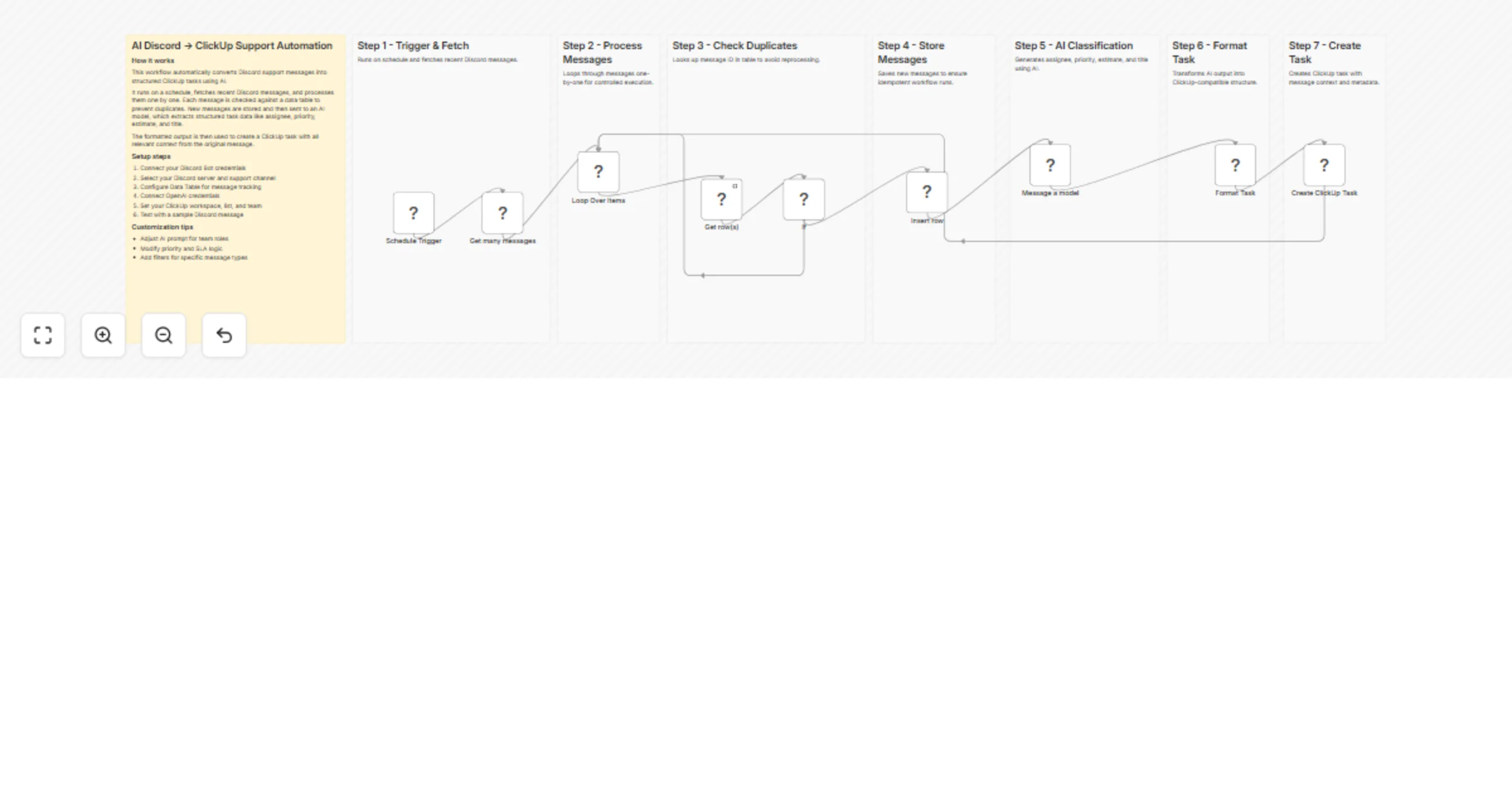
## Generate responses for Google Play Store reviews using Anthropic Claude, Google Drive and Google Play Store API This workflow empowers app developers and community management teams by automating the generation and posting of responses to user reviews on the Google Play Store. Designed to streamline the engagement process, it drastically reduces the manual workload on community managers by integrating AI-driven responses with necessary human oversight. By leveraging n8n's workflow automation capabilities, this solution eliminates the need for costly third-party platforms like AppFollow or Appbot, making it a cost-effective and efficient alternative. **Pre-requisites** * Google Drive & Google Sheets access: To store and manage review spreadsheets. * Google Play Developer Account / Service account: To fetch and respond to app reviews. * LLM credentials (e.g., Anthropic): Required for generating responses. ### Workflow steps **1. Initialise and trigger workflow:** The process begins daily at 10 AM through a scheduled trigger. **2. Fetch application data:** Utilizes a data table (Google Play apps) to retrieve a list of applications with their bundle_id and name, essential for identifying review sources. **3. Collect Google Play Reviews:** Retrieves previous day's reviews from the Google Play Store based on app data. Stores the reviews in Google Sheets for further processing. **4. Generate AI Responses:** AI model generates initial responses based on review content. Responses are structured and stored along with reviews within a Google Spreadsheet located in a Google Drive folder called *ToReview*. **5. Human Review & Modification:** Community managers review and refine AI-generated responses. Reviewed spreadsheets are moved to the *ToSubmit* Google Drive folder by the editor. **6. Post Verified Responses:** Workflow triggers again at 5 PM to access reviewed spreadsheets in *ToSubmit* folder. It posts the human-verified responses back to the respective reviews on the Google Play Store. Logs are maintained, recording each response's success or failure. **7. Archive processed spreadsheets:** After posting the responses, workflow moves the processed files from *ToSubmit* to a different folder called *Archived*
Analyze customer feedback and send AI-written replies with GPT-4 and Gmail
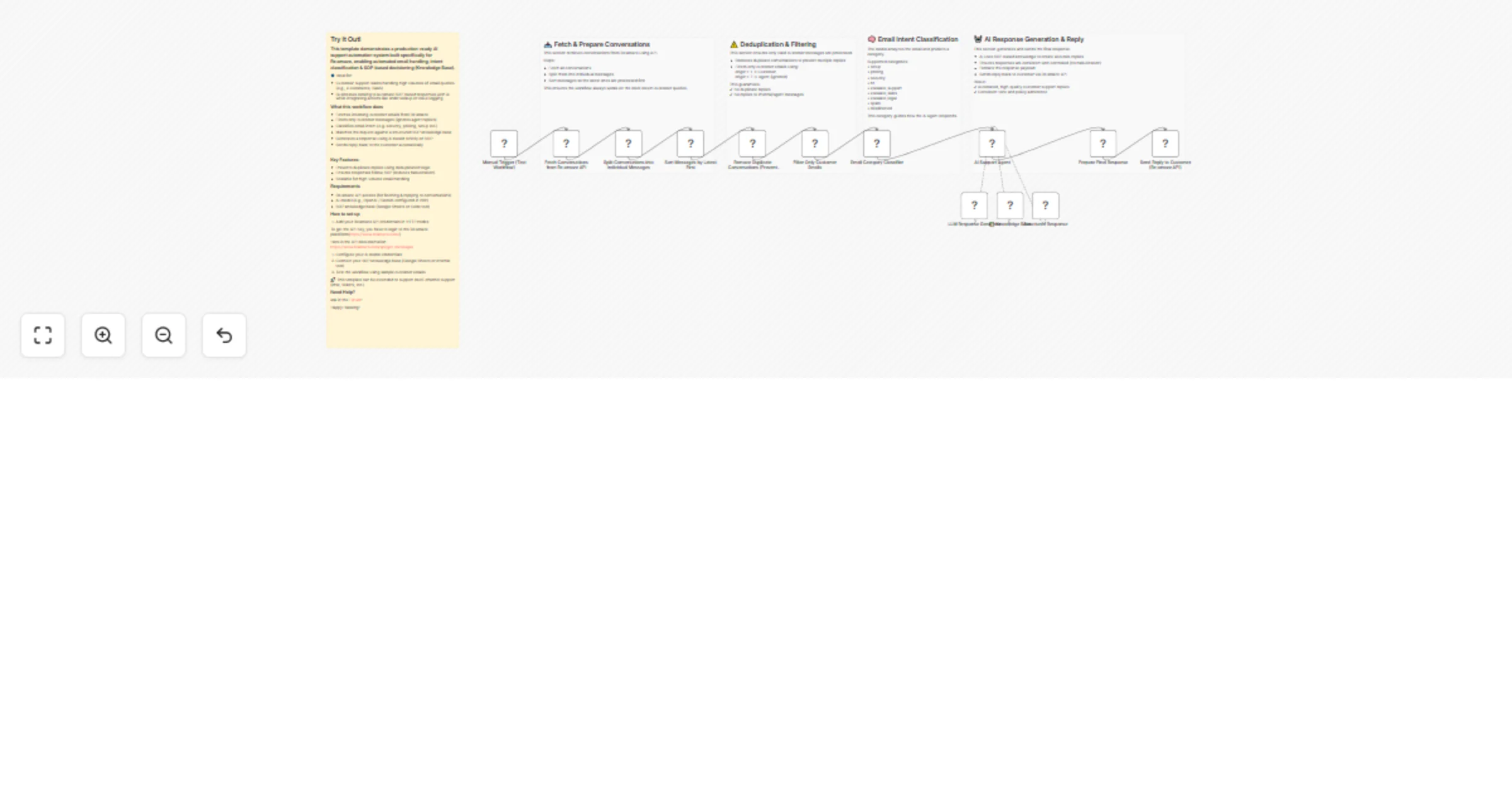
## How It Works This workflow automates customer feedback processing by analyzing sentiment, identifying key issues, generating personalized responses, and escalating critical cases to support teams when required. Designed for customer success managers, support teams, and product managers, it enables scalable feedback handling without compromising response quality or urgency. The workflow eliminates manual triage and response drafting by normalizing incoming feedback, performing sentiment and topic analysis, generating context-aware AI responses, validating tone and intent, escalating high-risk or negative feedback, logging all interactions for traceability, and delivering automated replies via email. ## Setup Steps 1. Configure webhook trigger URL for feedback form integration or email parsing 2. Add OpenAI API key for sentiment analysis and response generation 3. Connect Anthropic Claude API for alternative response generation and validation 4. Set up Google Sheets integration for feedback logging and analytics tracking 5. Configure Gmail OAuth2 credentials for automated customer response delivery 6. Integrate support ticket system (Zendesk, Freshdesk) for escalation routing ## Prerequisites OpenAI API key, Anthropic Claude API key (optional), Google Workspace account (Sheets, Gmail) ## Use Cases Product feedback management, customer support automation ## Customization Adjust sentiment scoring thresholds per industry standards, modify response templates ## Benefits Responds to feedback 95% faster, maintains consistent response quality across all interactions
Triage tenant complaints with GPT-4.1, Slack, email and Google Sheets
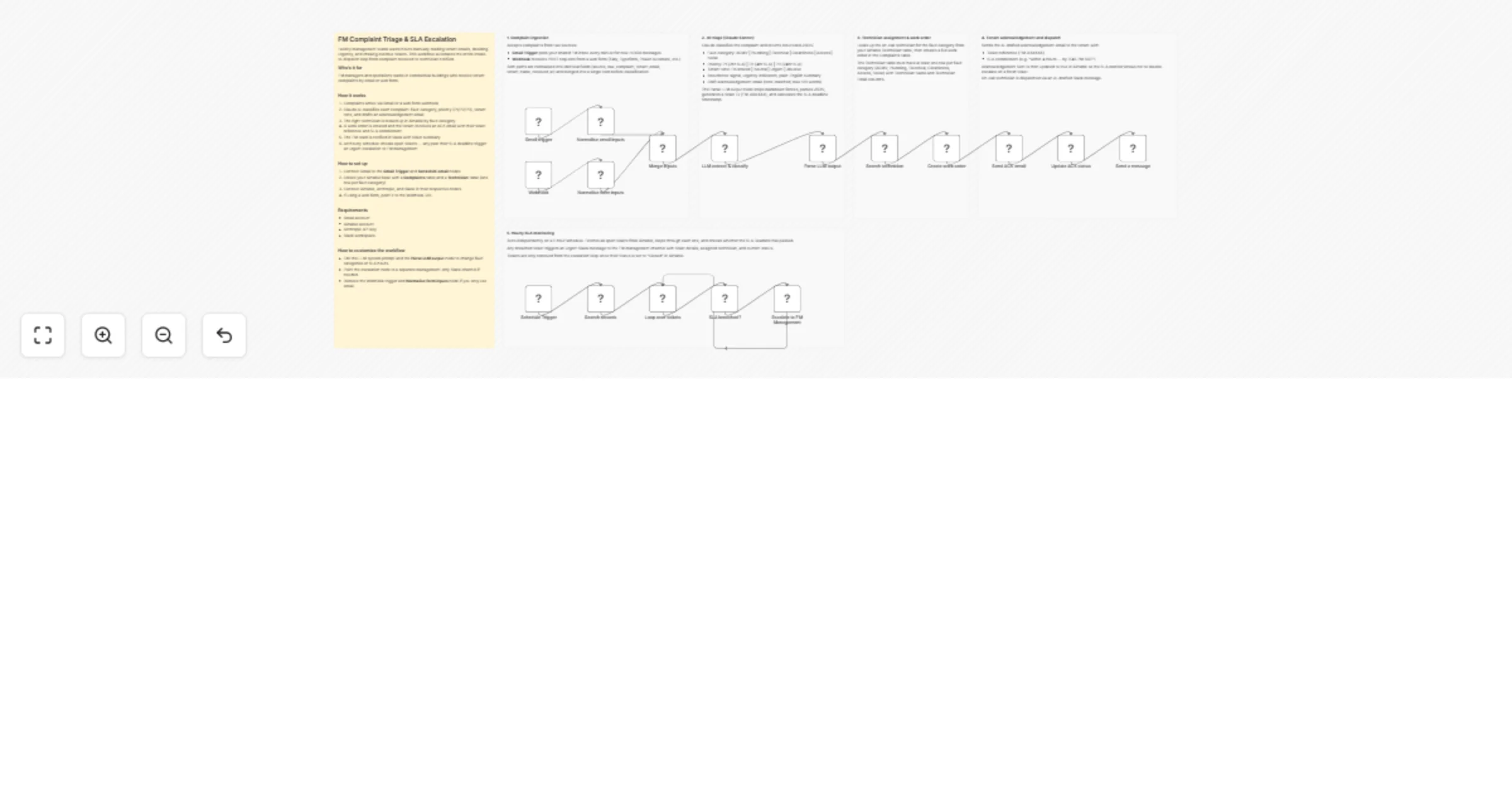
## Who this is for Property management teams handling multiple properties with high tenant complaint volumes who want AI-assisted triage. ## What this workflow does Automatically classifies tenant complaints by urgency and type, escalates high-priority complaints, schedules medium-priority follow-ups, acknowledges low-priority complaints, and logs all activity for reporting. ## How it works 1. Tenant submits a complaint through the portal. 2. AI classifies complaint urgency and type. 3. High-priority complaints trigger Slack notifications and follow-up tasks. 4. Tenant receives an AI-personalized acknowledgment email. 5. Google Sheets logs each complaint with details. ## How to set up Connect your form, Slack, Email, Google Sheets, and AI credentials. Customize AI prompts for your tenant complaint categories and test routing. ## Requirements - n8n (cloud or self-hosted) - AI node access - Slack and Email credentials - Google Sheets ## How to customize Adjust complaint types, escalation rules, notification channels, or AI follow-up prompts. Built by QuarterSmart. Created by Hyrum Hurst.
Send return pickup reminders via WhatsApp & voice calls using Google Sheets
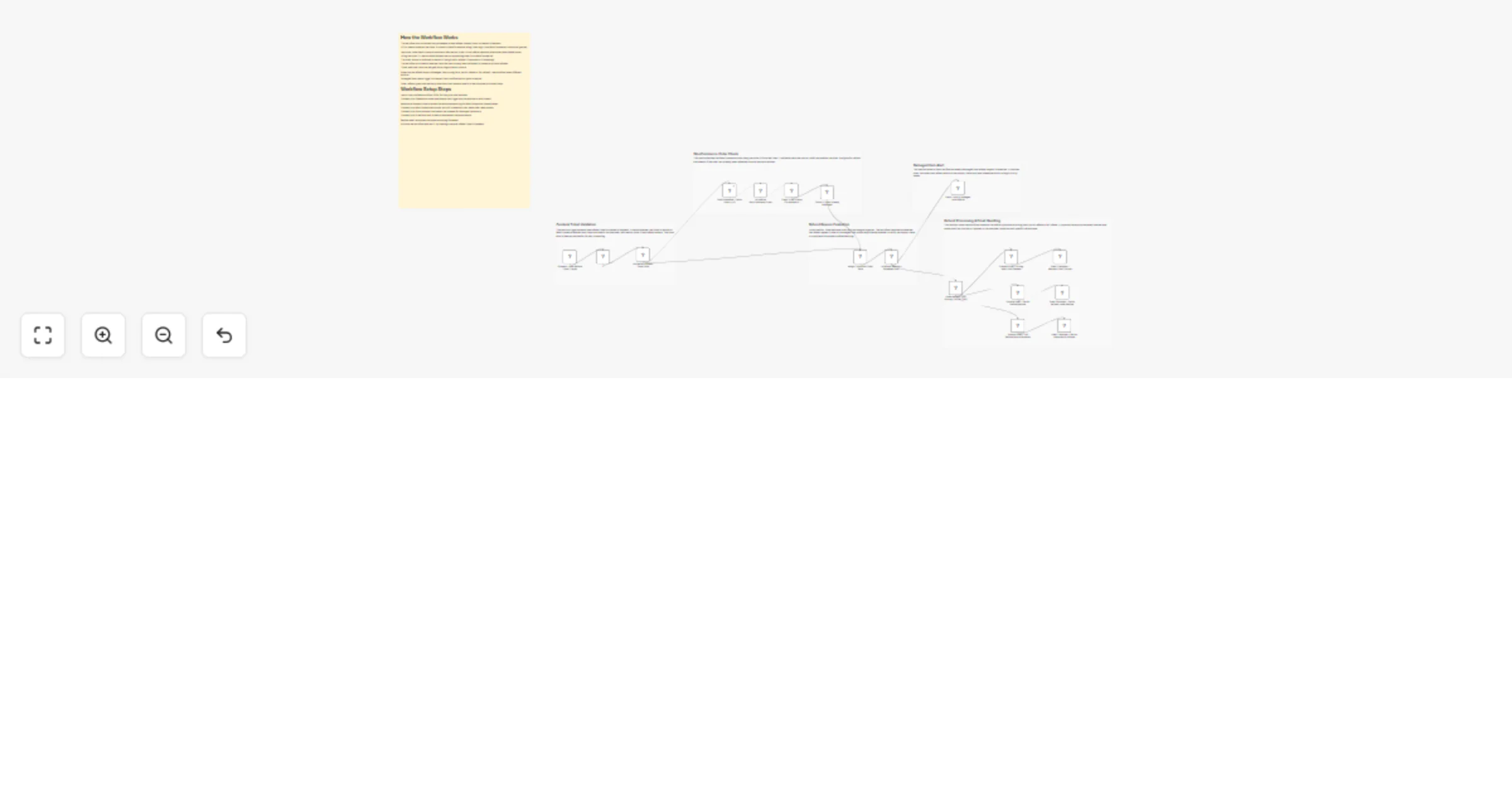
## ✅ What problem does this workflow solve? Missed return pickups create logistics delays, extra follow-ups, and unhappy customers for e-commerce teams. This workflow automates **return pickup reminders**, ensuring customers are notified **on the day of pickup** via **WhatsApp messages and automated voice calls**, without any manual effort. --- ## ⚙️ What does this workflow do? - Runs automatically on a daily schedule. - Reads return pickup data from **Google Sheets**. - Identifies customers with: - 📅 Pickup date = **today** - ⏳ Status = **Pending** - Sends **personalized WhatsApp reminders**. - Places **automated voice call reminders** when required. - Updates reminder status in Google Sheets for clear tracking. --- ## 🧠 How It Works – Step by Step ### 1. ⏰ Scheduled Trigger The workflow starts at a fixed time every day (e.g., 9–10 AM) using a **Schedule Trigger**. ### 2. 📄 Read Pickup Data from Google Sheets It fetches rows from Google Sheets where: - **Pickup Date** = today - **Status** = Pending This ensures only relevant pickups are processed. ### 3. 🔁 Loop Through Pickups Each matching row is processed individually to send customer-specific reminders. ### 4. ✍️ Generate Personalized Messages Using a **Code node**, the workflow creates: - 📲 A WhatsApp text message - 📞 A voice message script Messages include: - Customer name - Product name - Pickup address - Return reason - Pickup timing reminder ### 5. 📲 Send WhatsApp Reminder A personalized WhatsApp message is sent via **Twilio**, reminding the customer to keep the package ready. ### 6. 📞 Place Voice Call Reminder If required, the workflow places an automated **voice call** using Twilio and reads out a clear pickup reminder using text-to-speech. ### 7. ✅ Update Pickup Status Once notifications are sent: - The workflow updates the **Status** column to **“Reminder Sent”** - Ensures the same pickup is not notified again --- ## 📊 Sample Google Sheet Columns | Order ID | Customer Name | Phone Number | Product | Pickup Date | Address | Return Reason | Status | |--------|----------------|--------------|---------|-------------|---------|---------------|--------| --- ## 🔧 Integrations Used - **Google Sheets** – Pickup data source and tracking - **Twilio WhatsApp API** – Message delivery - **Twilio Voice API** – Automated call reminders - **n8n Schedule + Logic Nodes** – Automation orchestration --- ## 👤 Who can use this? Perfect for: - 🛒 **E-commerce brands** - 📦 **Reverse logistics teams** - 🚚 **Delivery & pickup operations** - 🧑💼 **Customer support teams** It also works well for **service visits, deliveries, appointments, and field operations**. --- ## 💡 Key Benefits - ✅ Fewer missed pickups - ✅ Improved customer compliance - ✅ Reduced manual follow-ups - ✅ Clear tracking in Google Sheets - ✅ Scalable and fully automated --- ## 🚀 Ready to Use? Just connect: - ✅ Google Sheets with pickup data - ✅ Twilio credentials (WhatsApp + Voice) - ✅ Schedule trigger time
Triage product UAT feedback with OpenAI, Jira, Slack, Notion and Google Sheets
## Description Automatically triage Product UAT feedback using AI, route it to the right tools and teams, and close the feedback loop with testers, all in one workflow. This workflow analyzes raw UAT feedback, classifies it (critical bug, feature request, UX improvement, or noise), validates AI confidence, escalates when human review is needed, and synchronizes everything across Jira, Slack, Notion, Google Sheets, and email. ## Context Product teams often receive unstructured UAT feedback from multiple sources (forms, Slack, internal tools), making triage slow, inconsistent, and error-prone. This workflow ensures: - Faster bug detection - Consistent categorization - Zero feedback lost - Clear accountability between Product, Engineering, and Design - It combines AI automation with human-in-the-loop control, making it safe for real production environments. ## Who is this for? - Product Managers running UAT or beta programs - Project Managers coordinating QA and release validation - Product Ops / PMO teams - Engineering teams who want faster, cleaner bug escalation - Any team managing high-volume UAT feedback - Perfect for teams that want speed without sacrificing control. ## Requirements - Webhook trigger (form, internal tool, Slack integration, etc.) - OpenAI account (for AI triage) - Jira (bug tracking) - Slack (team notifications) - Notion (product roadmap / UX backlog) - Google Sheets (UAT feedback log) - Gmail (tester & manual review notifications) ## How it works  - Trigger The workflow starts when UAT feedback is submitted via a webhook (form, Slack, or internal tool). - Normalize & Clean Incoming data is normalized into a consistent structure (tester, build, page, message) and cleaned to be AI-ready. - AI Triage An AI model analyzes the feedback and returns: - Type (Critical Bug, Feature Request, UX Improvement, Noise) - Severity & sentiment - Summary and suggested title - Confidence score - Quality Control If the AI output is unreliable (low confidence or parsing error), the feedback is automatically routed to manual review via email and Slack. - Routing & Actions - If confidence is sufficient: - Critical Bugs → Jira issue + Engineering Slack alert - Feature Requests → Notion roadmap - UX Improvements → Design / UX tracking - Noise → Archived but traceable - Closed Loop The tester is notified via Slack or email, and the workflow responds to the original webhook with a structured status payload. ## What you get - One unified UAT triage system - Faster bug escalation - Clean product and UX backlogs - Full traceability of every feedback - Automatic tester communication - Safe AI usage with human fallback ## About me : I’m Yassin a Product Manager Scaling tech products with a data-driven mindset. 📬 Feel free to connect with me on [Linkedin](https://www.linkedin.com/in/yassin-zehar)
Automate Zoom attendance follow-ups with recordings & Google Sheets tracking
Workflow Overview Zoom Attendance Evaluator with Follow-up is an n8n automation workflow that automatically evaluates Zoom meeting attendance and sends follow-up emails to no-shows and early leavers with recordings and materials. Who's it for * Companies and organizations that regularly host online seminars and webinars * Educational institutions conducting online classes * Anyone looking to streamline participant attendance management and follow-up processes How it works 1. Scheduled execution: Runs automatically every hour 2. Fetch meeting data: Retrieves recent Zoom meetings and participant information 3. Evaluate attendance: Automatically classifies participants into four categories: * No-show: 0 minutes attended * Early-leaver: Less than 50% attendance * Partial attendance: 50-80% attendance * Full attendance: Over 80% attendance 4. Automatic follow-up: Sends automated emails with recording links and materials to no-shows and early leavers 5. Record keeping: Logs all follow-ups to Google Sheets for tracking Requirements * Zoom account: OAuth2 authentication setup required * SMTP email server: Configuration needed (Gmail, SendGrid, etc.) * Google Drive: For storing handout materials * Google Sheets: For attendance logging * Credentials for each service configured in n8n How to customize the workflow * Adjust attendance thresholds: Modify the 50% and 80% values in the "Evaluate Attendance" node code * Change execution frequency: Configure the time interval in the "Schedule Trigger" node * Customize email template: Edit subject and body in the "Prepare Email Data" node * Next session registration link: Replace the placeholder URL in the code with your actual registration link This workflow completely automates post-meeting follow-up tasks, helping improve participant engagement and reduce manual work.
Moderate Facebook comments with AI and send reports to Slack & Telegram
# Facebook Page Comment Moderation Scoreboard → Team Report This workflow automatically monitors Facebook Page comments, analyzes them using AI for intent, toxicity & spam, stores moderation results in a database and sends a clear summary report to Slack and Telegram. This workflow runs every few hours to fetch Facebook Page comments and analyze them using OpenAI. Each comment is classified as positive, neutral or negative, checked for toxicity, spam & abusive language and then stored in Supabase. A simple moderation summary is sent to Slack and Telegram. You receive: * Automated Facebook comment moderation * AI-based intent, toxicity, and spam detection * Database logging of all moderated comments * Clean Slack & Telegram summary reports Ideal for teams that want visibility into comment quality without manually reviewing every message. ### Quick Start – Implementation Steps 1. Import the workflow JSON into n8n. 2. Add your **Facebook Page access token** to the HTTP Request node. 3. Connect your **OpenAI API key** for comment analysis. 4. Configure your **Supabase** table for storing moderation data. 5. Connect **Slack and Telegram** credentials and choose target channels. 6. Activate the workflow — moderation runs automatically. ## What It Does This workflow automates Facebook comment moderation by: 1. Running on a scheduled interval (every 6 hours). 2. Fetching recent comments from a Facebook Page. 3. Preparing each comment for AI processing. 4. Sending comments to OpenAI for moderation analysis. 5. Extracting structured moderation data: * Comment intent * Toxicity score * Spam detection * Abusive language detection 6. Flagging risky comments based on defined rules. 7. Storing moderation results in Supabase. 8. Generating a summary report. 9. Sending the report to Slack and Telegram. This ensures consistent, repeatable moderation with no manual effort. ## Who’s It For -------------------- This workflow is ideal for: * Social media teams * Community managers * Marketing teams * Customer support teams * Moderation and trust & safety teams * Businesses managing high-volume Facebook Pages * Anyone wanting AI-assisted comment moderation ## Requirements to Use This Workflow To run this workflow, you need: * **n8n instance** (cloud or self-hosted) * **Facebook Page access token** * **OpenAI API key** * **Supabase project and table** * **Slack workspace** with API access * **Telegram bot** and chat ID * Basic understanding of APIs and JSON (helpful but not required) ## How It Works 1. **Scheduled Trigger** – Workflow starts automatically every 6 hours. 2. **Fetch Comments** – Facebook Page comments are retrieved. 3. **Prepare Data** – Comments are formatted for processing. 4. **AI Moderation** – OpenAI analyzes each comment. 5. **Normalize Results** – AI output is cleaned and standardized. 6. **Store Data** – Moderation results are saved in Supabase. 7. **Aggregate Stats** – Summary statistics are calculated. 8. **Send Alerts** – Reports are sent to Slack and Telegram. ## Setup Steps 1. Import the workflow JSON into n8n. 2. Open the **Fetch Facebook Page Comments** node and add: * Page ID * Access token 3. Connect your **OpenAI account** in the AI moderation node. 4. Create a Supabase table and map fields correctly. 5. Connect **Slack** and select a reporting channel. 6. Connect **Telegram** and set the chat ID. 7. Activate the workflow. ## How To Customize Nodes ### Customize Flagging Rules Update the normalization logic to: * Change toxicity thresholds * Flag only spam or abusive comments * Add custom moderation rules ### Customize Storage You can extend Supabase fields to include: * Language * AI confidence score * Reviewer notes * Resolution status ### Customize Notifications Slack and Telegram messages can include: * Emojis * Mentions (@channel) * Links to Facebook comments * Severity labels ## Add-Ons (Optional Enhancements) You can extend this workflow to: * Auto-hide or delete toxic comments * Reply automatically to positive comments * Detect language and region * Generate daily or weekly moderation reports * Build dashboards using Supabase or BI tools * Add escalation alerts for high-risk comments * Track trends over time ## Use Case Examples ### 1. Community Moderation Automatically identify harmful or spam comments. ### 2. Brand Reputation Monitoring Spot negative sentiment early and respond faster. ### 3. Support Oversight Detect complaints or frustration in comments. ### 4. Marketing Insights Measure positive vs negative engagement. ### 5. Compliance & Auditing Keep historical moderation logs in a database. ## Troubleshooting Guide | Issue | Possible Cause | Solution | |-----|---------------|----------| | No comments fetched | Invalid Facebook token | Refresh token & permissions | | AI output invalid | Prompt formatting issue | Use strict JSON prompt | | Data not saved | Supabase mapping mismatch | Verify table fields | | Slack message missing | Channel or credential error | Recheck Slack config | | Telegram alert fails | Wrong chat ID | Confirm bot permissions | | Workflow not running | Trigger disabled | Enable Cron node | ## Need Help? If you need help customizing, scaling or extending this workflow — such as advanced moderation logic, dashboards, auto-actions or production hardening, then our [n8n workflow development](https://www.weblineindia.com/n8n-automation/) team at WeblineIndia can assist with expert automation solutions.
AI-powered webinar feedback replies with GPT-4, Google Sheets, and Gmail
## How it works This workflow captures webinar feedback through a webhook and normalizes the submitted data for processing. It stores raw feedback in Google Sheets, uses an AI model to understand sentiment and intent, and generates a personalized response. A professional HTML thank-you email is sent automatically to each attendee. All replies and delivery details are logged back into the spreadsheet for tracking. ## Step-by-step - **Receive webinar feedback** - **Feedback Webhook** – Accepts feedback submissions from a webinar form in real time. - **ID Generation** – Creates a human-readable, unique feedback ID for tracking. - **Normalize Feedback** – Cleans and standardizes incoming fields like name, email, rating, and comments. - **Store and enrich feedback** - **Store Partial** – Saves the raw feedback data into Google Sheets. - **Common Resources** – Attaches shared webinar resources such as recordings and slides. - **Analyze feedback with AI** - **Message a model** – Evaluates sentiment, engagement level, and intent using an AI model. - **Parse AI Response** – Extracts structured insights like segment, reply text, and next steps. - **Generate and send follow-up** - **Merge** – Combines feedback data, AI response, and resources. - **Build Email HTML** – Creates a clean, professional HTML email tailored to each attendee. - **Send AI Thank You Email** – Sends the personalized follow-up via Gmail. - **Log final outcome** - **Store Feedback** – Updates Google Sheets with the sent email content, timestamp, and status. ## Why use this? - Save time by automating webinar feedback follow-ups end to end. - Ensure every attendee receives a thoughtful, personalized response. - Maintain a complete feedback and communication log in one place. - Improve engagement without sounding promotional or generic. - Scale post-webinar communication without manual effort.
AI-powered ticket triage with multi-model classification & knowledge base
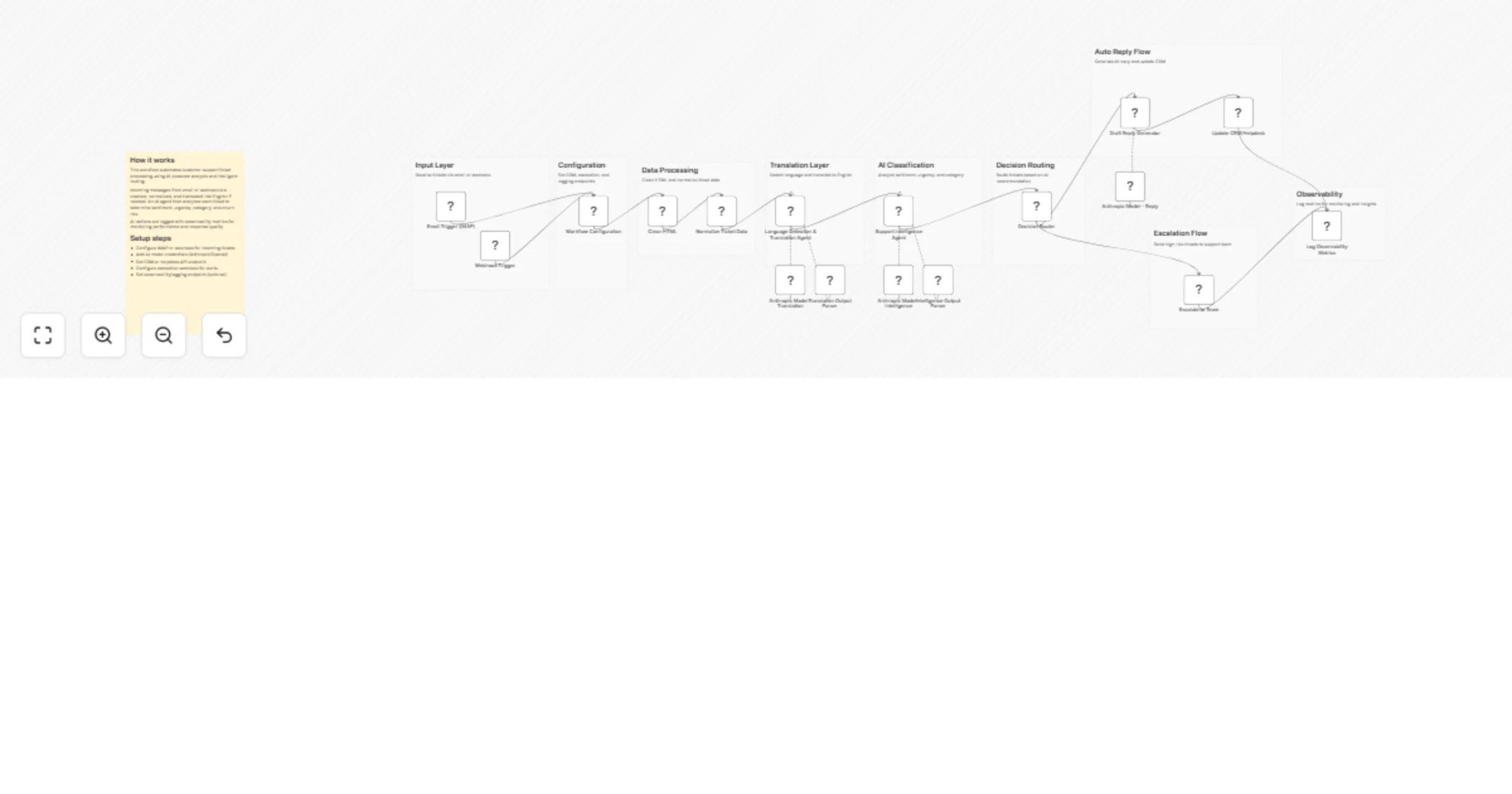
## How It Works This workflow automates enterprise ticket management by combining AI-powered classification with knowledge base retrieval. It receives support tickets via webhook, routes them through multiple AI models (OpenAI ChatGPT, NVIDIA's text classification APIs, and embeddings-based search) to determine optimal resolution strategies. The system generates contextual diagnostic logs, formats responses, updates ticket systems, notifies engineers when escalation is needed, and seamlessly integrates with knowledge bases for continuous learning. It solves the critical problem of manual ticket sorting and delayed responses by automating intelligent triage, reducing resolution time, and ensuring consistent quality across support operations. Target audience includes support operations teams, technical support managers, and enterprises managing high-volume ticket queues seeking to improve efficiency and SLA compliance. ## Setup Steps 1. Configure the OpenAI API key in credentials. 2. Add NVIDIA API credentials for embedding and classification models. 3. Set up Google Sheets for knowledge base storage and retrieval. 4. Connect your ticketing system (Jira, Zendesk, or webhook) for incoming tickets. 5. Link a notification service (Gmail or Slack) for engineer alerts. 6. Map custom fields to your ticket system schema. ## Prerequisites OpenAI API account with GPT access. NVIDIA API credentials (Embeddings & Classification). Google Sheets for KB management. Ticketing system with webhook capability. ## Use Cases SaaS support teams triaging 100+ daily tickets, reducing manual sorting by 80%. Technical support escalating complex issues intelligently while documenting solutions. ## Customization Swap OpenAI models for Claude or Anthropic APIs. Replace Google Sheets with database systems (PostgreSQL, Airtable). ## Benefits Reduces manual ticket sorting by 70-80%, freeing support staff for complex issues. Decreases average resolution time through intelligent routing.
Auto-draft professional email replies with Gmail, AI, and Slack
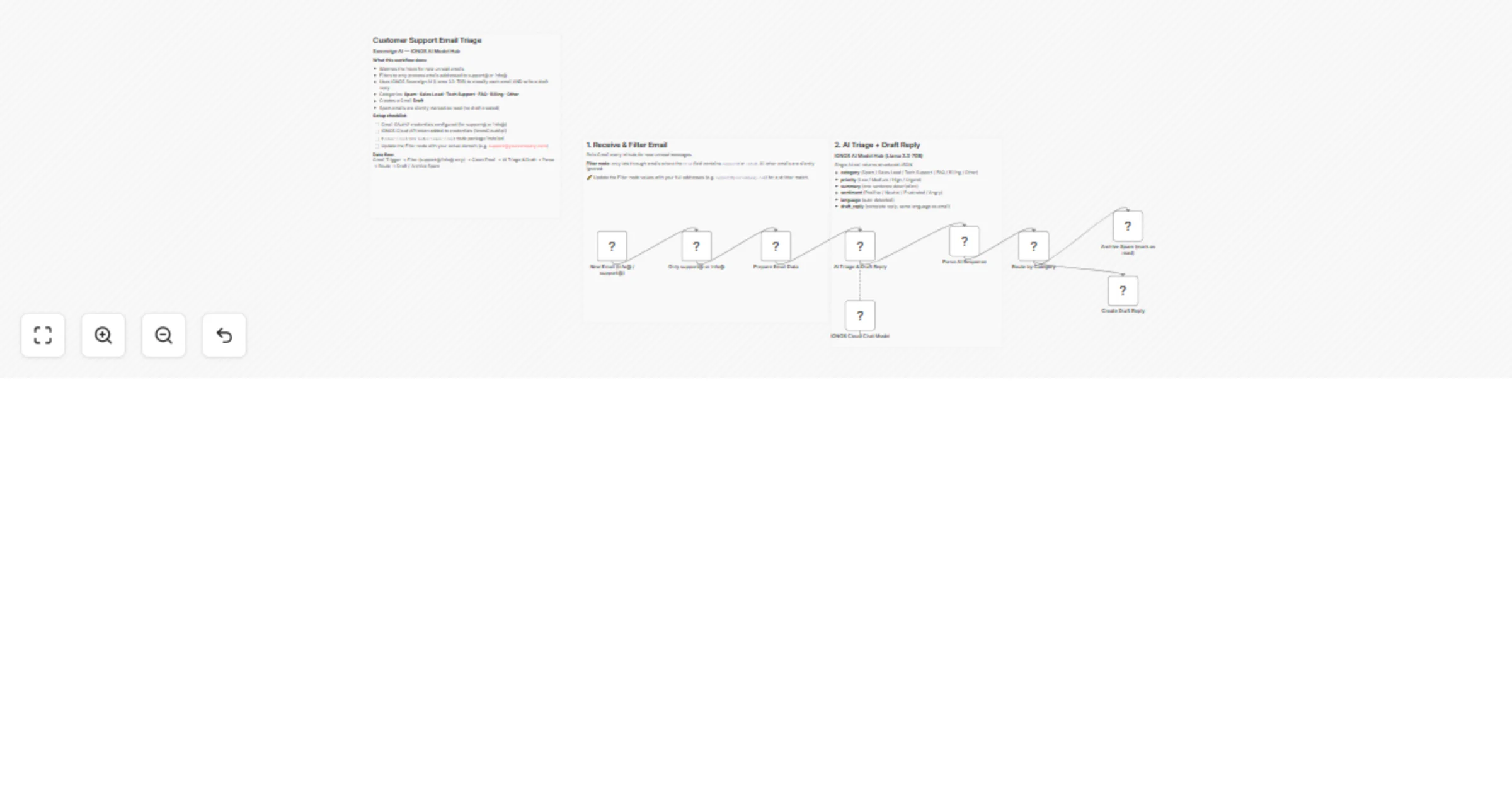
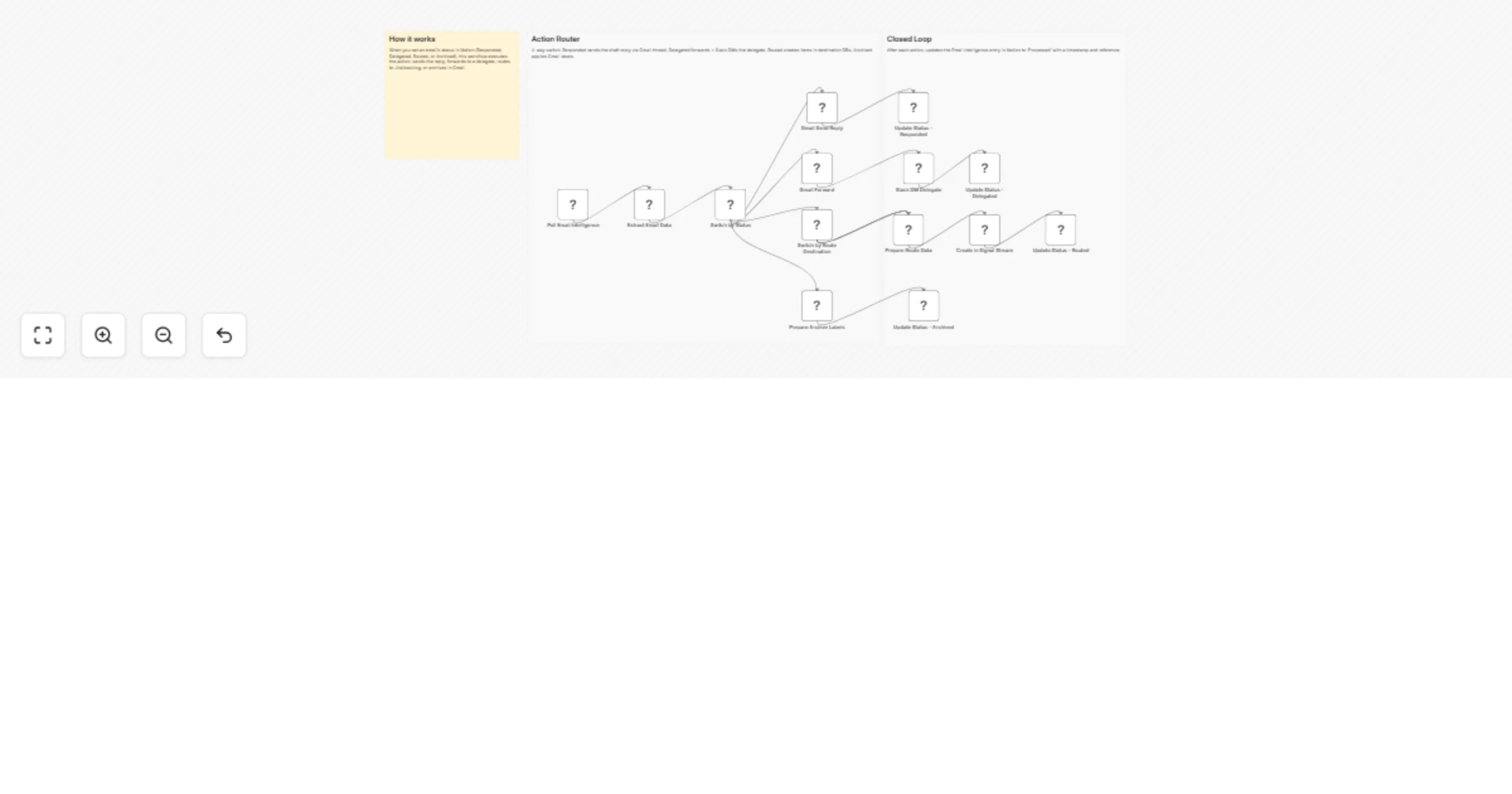
## What this workflow does This workflow monitors your Gmail inbox for new, unreplied emails and automatically generates a professional reply draft using AI. Instead of sending the email automatically, the draft is sent to Slack so a human can review and decide whether to send it. This makes it ideal for teams that want to save time on email replies while keeping full control over outgoing communication. --- ## How it works 1. Checks Gmail on a schedule for new, unreplied emails 2. Limits the number of emails processed per run to avoid overload 3. Extracts the email body and sends it to an AI model 4. Generates a polite, professional reply draft 5. Sends the draft to a Slack channel for review 6. Adds a Gmail label to prevent duplicate processing --- ## Setup time ~10–15 minutes --- ## Who this is for - Customer support teams - Freelancers and consultants - Small businesses handling frequent email inquiries - Anyone who wants AI-assisted email replies with human approval --- ## Requirements - Gmail account - Slack workspace - OpenAI (or compatible AI) credentials
Automated Gmail classification and labeling with GPT-4, Sheets and Slack alerts
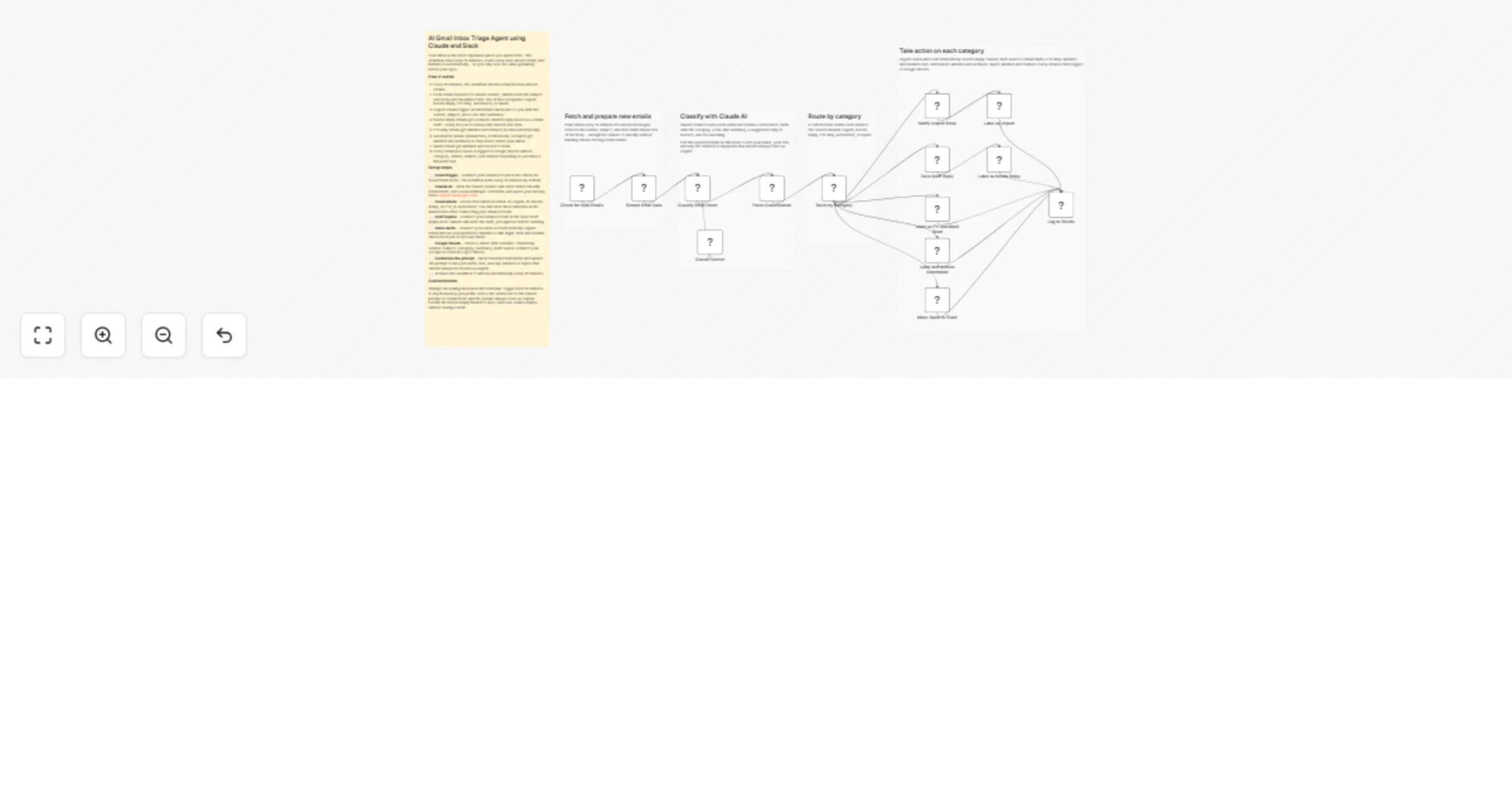
## This n8n template automates email labeling using AI-enhanced classification and intelligent routing Gmail users report spending significant time manually sorting email, so this tool helps alleviate that burden. ## How it works - Gmail Trigger monitors unread emails every 2 minutes - Once an email arrives, the content is extracted with HTML cleaning - AI Agent (the node is set for Chat GPT-4) is used for classification & entity extraction - A Structured Output Parser parses the email to JSON - A 9-way category routing system categorizes the email (Inquiry, Support, Newsletter, Marketing, Personal, Urgent, Spam, Invoice, Meeting) - Gmail auto-labeling is used for each category - Google Sheets is used for logging (the main log that includes all emails and an error log which are emails that cannot be classified) - Slack alerts are generated for high-priority/urgent emails - Error handling is done with separate error logging in Google Sheets ## How to use - Set up credentials for Google Gmail, LLM (ChatGPT, Gemini, etc.), Google Sheets, and Slack - Modify the categories as needed per user preference ## Requirements - Gmail - Any LLM like ChatGPT or Google Gemini - Google Drive with Google Sheets is optional for logging and error handling - Slack is optional for high-priority messages
Auto-resolve Jira tickets with GitHub Copilot using Port Context
## Auto-resolve Jira tickets with coding agents Coding agents can significantly speed up development, but crucial engineering context often gets lost in the process. This guide demonstrates how to use Port as a context lake in n8n workflows to automatically generate GitHub issues from Jira tickets with rich organizational context, ensuring that important information is preserved when assigning them to GitHub Copilot and linking pull requests back to Jira. This setup helps establish a seamless ticket-to-PR workflow, bridging the gap between Jira and GitHub while leveraging Port's comprehensive software catalog as a source of truth. ## How it works The n8n workflow orchestrates the following steps: - Jira trigger — The workflow listens for Jira issue updates via webhook. - Condition check — Verifies that the issue status is "In Progress" and has the required label (e.g., "product_approved") without the "copilot_assigned" label. - Port context extraction — Uses Port's n8n node to query your software catalog for relevant context about services, repositories, teams, dependencies, and documentation related to the Jira issue. - Parse response — Retrieves the AI-generated GitHub issue title and body from Port. - Create GitHub issue — Creates a new GitHub issue with the enriched context from Port. - Assign to Copilot — Adds a comment to the GitHub issue instructing Copilot to take ownership. - Add issue link to Jira ticket — Adds a comment to the Jira ticket with the GitHub issue URL, providing clear traceability. - Mark ticket as assigned — Updates the Jira ticket to add the "copilot_assigned" label, preventing duplicate processing. ## Setup - [ ] Connect your Jira Cloud account and enable issue_updated events - [ ] Register for free on [Port.io](https://www.port.io) - [ ] Connect your Port.io account and add the API key - [ ] Connect your GitHub account and select the target repository - [ ] Ensure a Copilot bot or @copilot user has access to the repository - [ ] Confirm the workflow webhook or Jira trigger URL is active - [ ] Test by moving a `product_approved` ticket to `In Progress`. - [ ] You should be good to go! ## Prerequisites - You have a Port account and have completed the onboarding process. - Port's GitHub app is installed in your account. - Port's Jira integration is installed in your account. - You have a working n8n instance (Cloud or self-hosted) with Port's n8n custom node installed. - Your GitHub organization has GitHub Copilot enabled, so Copilot can be automatically assigned to any issues created through this guide. ⚠️ This template is intended for Self-Hosted instances only.
Poll multiple Gmail accounts with unified data table storage & Discord notifications
 This template lets you poll multiple Gmail accounts from a single workflow using n8n’s credential-aware execution. Instead of creating separate workflows for every inbox, this setup loops through all accounts stored in your data table and runs Gmail operations dynamically using the correct OAuth2 credential. It’s built for cases like *cold-email systems, multi-client mail monitoring*, or anything that needs centralized polling and logging. ## ### What It Does 1. Pulls all email account records from the cold_email_accounts table. 2. For every account, the workflow: 3. Runs the Gmail “Get Many Messages” node for that account using "Run Node With Credentials X" community node. 4. Messages are reformatted into a clean JSON object (from, subject, preview text, body, labels, attachments, etc.). 5. Saved into the All Emails table using an upsert (avoids duplicates). 6. Sends a Discord notification like “15 new emails arrived”. ## ### How to Set It Up 1. Create Gmail OAuth2 credentials in n8n, one for each email account you want to poll. 2. Add those credentials into a Data Table named cold_email_accounts with columns: cred_id credentials_name email last_polled (datetime) 3. Import this workflow template into n8n. 4. Update: DataTable references (if your names/IDs differ) Discord channel/server IDs Any domain filters inside the Gmail search query 5. Activate the workflow and it will automatically: Poll each Gmail inbox every hour Save all new emails Notify you on Discord Keep everything synced via last_polled.
AI-powered bug triage system with OpenAI, Jira and Slack alerts
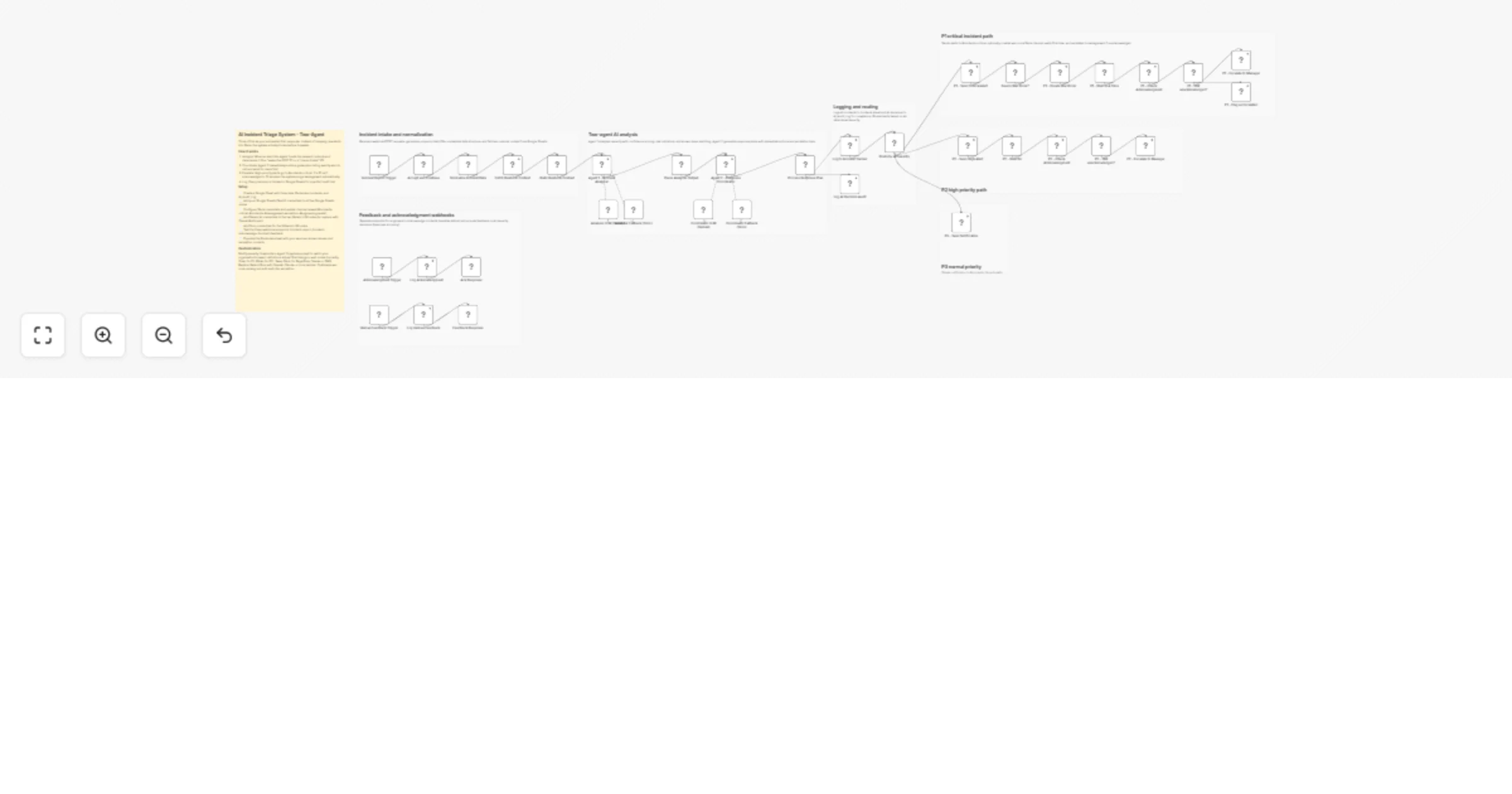
# Webhook → OpenAI → Jira “Bug Suspicion” → Slack QA Escalation This workflow ingests bug reports via a webhook, uses OpenAI to triage and tag them, creates a Jira Bug in project `APP` with AI-driven labels and alerts QA in Slack. Import the JSON, add OpenAI + Jira + Slack credentials, set the webhook path, choose your Slack channels and activate. ### Quick Start – Implement in 60 Seconds 1. Import the JSON into n8n. 2. Add credentials to **AI Bug Analysis** (OpenAI), **Create Jira** nodes and both **Slack Alert** nodes. 3. Set webhook path `advanced-bug-triage`; test with a POST body containing `priority`, `summary` and `category`. 4. Adjust Slack channels `qa-alerts-high` and `qa-general` if needed. 5. Activate and verify a test POST flows through Jira and Slack. That’s it. Jira issue gets created and Slack gets notified instantly. ## What It Does The workflow acts as an AI-assisted bug triage bridge. A webhook receives incoming bug suspicions, which are then analyzed by OpenAI to determine priority and category. Based on the AI output, the flow routes to the appropriate Jira creation path and applies standardized labels for consistent reporting. After creating the Jira Bug in project `APP`, the workflow escalates to Slack: high-priority items go to `qa-alerts-high`, while normal items go to `qa-general`. The result is a fast, low-friction path from external bug signals to actionable Jira issues with immediate QA visibility. ## Who’s It For - QA teams wanting automated Jira escalation. - Developers integrating external systems with Jira. - Product teams capturing automated “bug suspicion” signals. - Monitoring or Sentry-like pipelines. - Companies wanting lightweight reporting without building custom infrastructure. ## Pre-Requisites - n8n (cloud or self-hosted). - Jira account with permission to create Bug issues. - Jira project key: APP (or customize). - OpenAI credentials (for **AI Bug Analysis**) - Slack Workspace + Bot token. - Ability to send POST request to n8n Webhook endpoint. ## How It Works & Setup Instructions - **Webhook Trigger** (`advanced-bug-triage`): Accepts POST payloads (e.g., summary, description, priority, category). - **AI Bug Analysis** (OpenAI): Analyzes the payload for sentiment/priority/category (configure your prompt/fields as needed). - **Priority Switch**: Routes items to the correct Jira creation path (High/Medium/Low). - **Create Jira (High/Medium/Low)**: Creates Bug issues in project `APP`, labeling with `ai-triaged` and the AI-detected category. - **Slack Alert (High / Normal)**: Notifies QA with the Jira key; high priority goes to `qa-alerts-high`, others to `qa-general`. ### Step 1: Configure Webhook Node - Method: POST - Path: `bug-suspicion` - Endpoint example: ``` https://YOUR-N8N-URL/webhook/bug-suspicion ``` ### Step 2: Add OpenAI Credentials - Open **OpenAI** node - Select credentials - Modify the prompts as needed ### Step 3: Add Jira Credentials - Open **Create Jira Bug** node - Select credentials - Ensure access to project `APP` - Ensure permission to create `Bug` issue type ### Step 4: Add Slack Credentials - Open **Slack QA Escalation** node - Choose Slack Bot credentials - Set QA channel - Slack message uses: ``` Issue is created in jira for this key <ISSUE-KEY> ``` ### Step 5: Test Webhook ```json { "title": "Login button unresponsive" } ``` ### Step 6: Activate Workflow Enable **Active** toggle. ## How to Customize Nodes ### Webhook Trigger - Add API keys, tokens or Basic Auth - Add JSON validation ### Jira Node You may add: ```json "additionalFields": { "labels": "bug-suspicion,auto-detected", "description": "={{$json["details"]}}" } ``` ### Slack Node Customize formatting, attachments, mentions or channels. ### AI Node for Bug Analysis Tune the prompt, map input fields or adjust model parameters for stricter/looser triage. ### Priority Switch Modify routing thresholds, add more branches or change default fallback. ## Add-ons (Optional Enhancements) - Email alerts. - Severity scoring using AI. - Push bug data to Notion or Google Sheets. - Add screenshots/logs. - Multi-channel notifications. - Auto-assign Jira issues based on category or component. - Add a fallback email notification for high-priority tickets. - Push payloads to a data store (e.g., Sheets/DB) for analytics. - Add a secondary Slack DM to on-call for P1. - Enrich tickets with logs/links/screenshots from the payload. ## Use Case Examples 1. Automated QA test failures → Jira + Slack. 2. Monitoring system detects abnormal activity. 3. Browser extension for internal bug reporting. 4. CI/CD pipeline error → instant QA alert. 5. External scripts or tools triggering bug reports. 6. Monitoring alerts auto-create Jira bugs with AI-prioritized severity and Slack escalation. 7. Customer support form pushes suspected bugs directly into Jira with category labels. 8. QA automation failures stream into Jira with priority-based Slack alerts. 9. SRE on-call receives P1 Slack alerts while lower priorities route to the general QA channel. 10. Product beta feedback is categorized by AI and logged as Jira bugs for triage. ## Troubleshooting Guide | Issue | Cause | Solution | |-------|--------|-----------| | Webhook not receiving data | Wrong URL/method | Use POST + correct path | | Jira issue not created | Wrong credentials/project | Verify Jira credentials + APP project | | Slack message not sent | Bot not allowed in channel | Invite bot to channel | | Jira fields empty | Missing JSON field | Ensure payload includes `"title"` | | Slack shows undefined | Jira response changed | Add Debug node to inspect output | | Workflow not running | Not activated | Turn ON "Active" | ## Need Help? If you want help customizing this workflow or building similar [n8n workflow automations](https://www.weblineindia.com/n8n-automation/), the WeblineIndia team can assist with: - Jira integrations - Slack automation - API-based bug pipelines - DevOps automation - AI-driven severity scoring - And so much more. Reach out anytime for implementation or enhancements.
Post-surgery patient triage & follow-up system with Gemini AI, Telegram & Google Suite
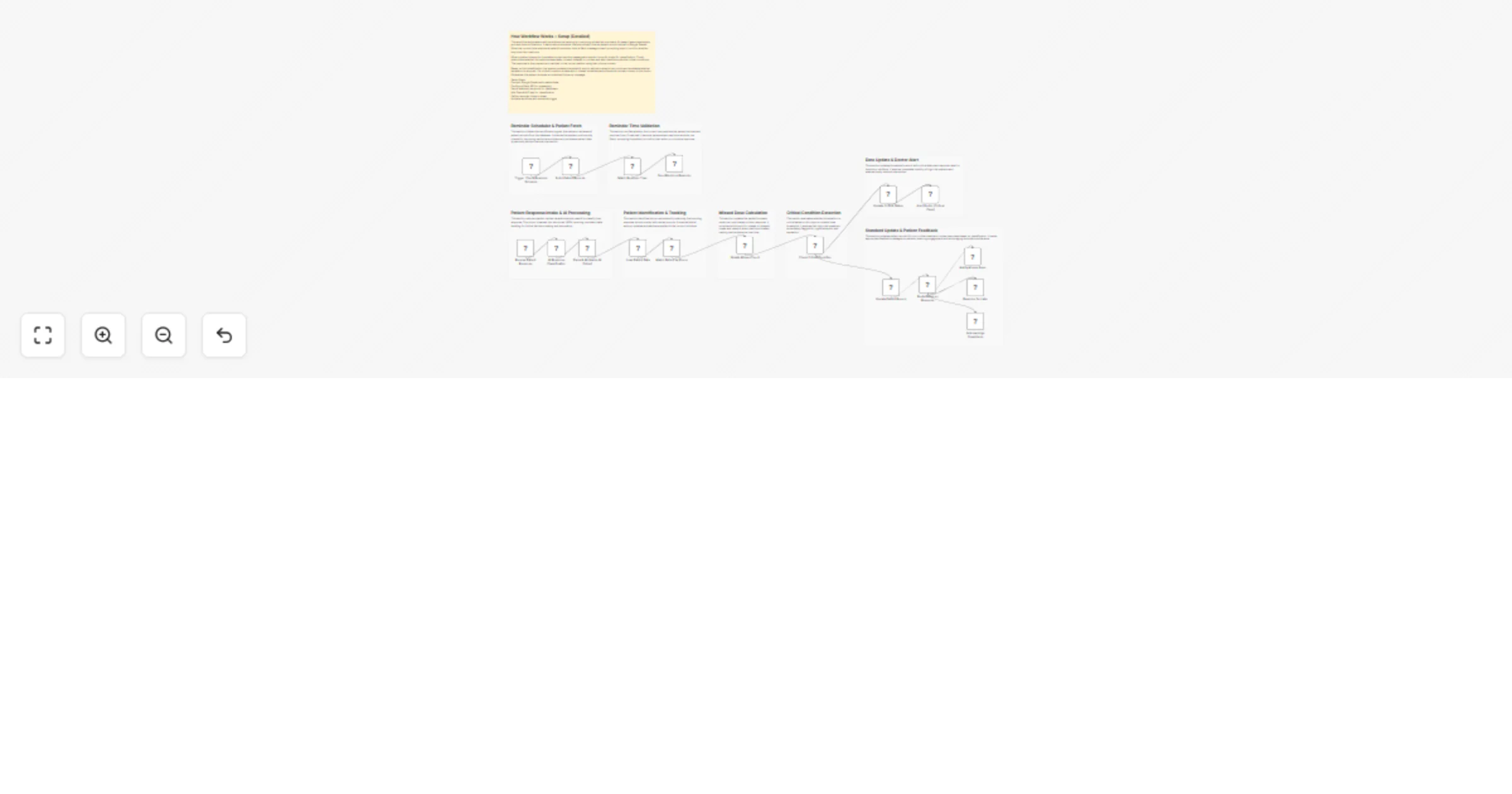
## Who’s it for This template is for clinics, hospitals, care teams, and telemedicine providers who need a structured, automated system for post-surgery follow-up. It helps reduce manual workload while ensuring every patient gets timely check-ins and appropriate triage. ## What it does / How it works This workflow automates daily recovery monitoring using Google Sheets and Telegram. It sends scheduled check-in messages to all patients within their follow-up window. When a patient replies, the message is: - Captured by Telegram Trigger - Cleaned and structured - Summarized by an AI agent - Classified into **low**, **moderate**, or **high** intensity Based on the intensity level: - **Low:** Sends a supportive, non-urgent response - **Moderate:** Sends guidance + schedules a follow-up event in Google Calendar - **High:** Sends an alert email to the doctor via Gmail All logic runs automatically. ## Requirements - Google Sheets OAuth2 credentials - Gmail OAuth2 credentials - Google Calendar OAuth2 credentials - Telegram Bot credentials - Gemini API credentials - A Google Sheet with patient name, surgery type, follow-up duration, and doctor email ## How to set up 1. Connect all required credentials inside n8n. 2. Replace the Google Sheet ID with your own patient sheet. 3. Adjust column mappings if your sheet structure differs. 4. Test by sending a Telegram message to your bot. 5. Enable the Schedule Trigger to begin automated daily follow-ups. ## How to customize the workflow - Modify AI prompts inside the AI Agent nodes - Adjust triage logic for intensity levels - Change follow-up intervals in the Schedule Trigger - Add additional notification channels (SMS, Slack, CRM logging)
Manage contact form submissions with Google Sheets, Slack alerts & Gmail replies
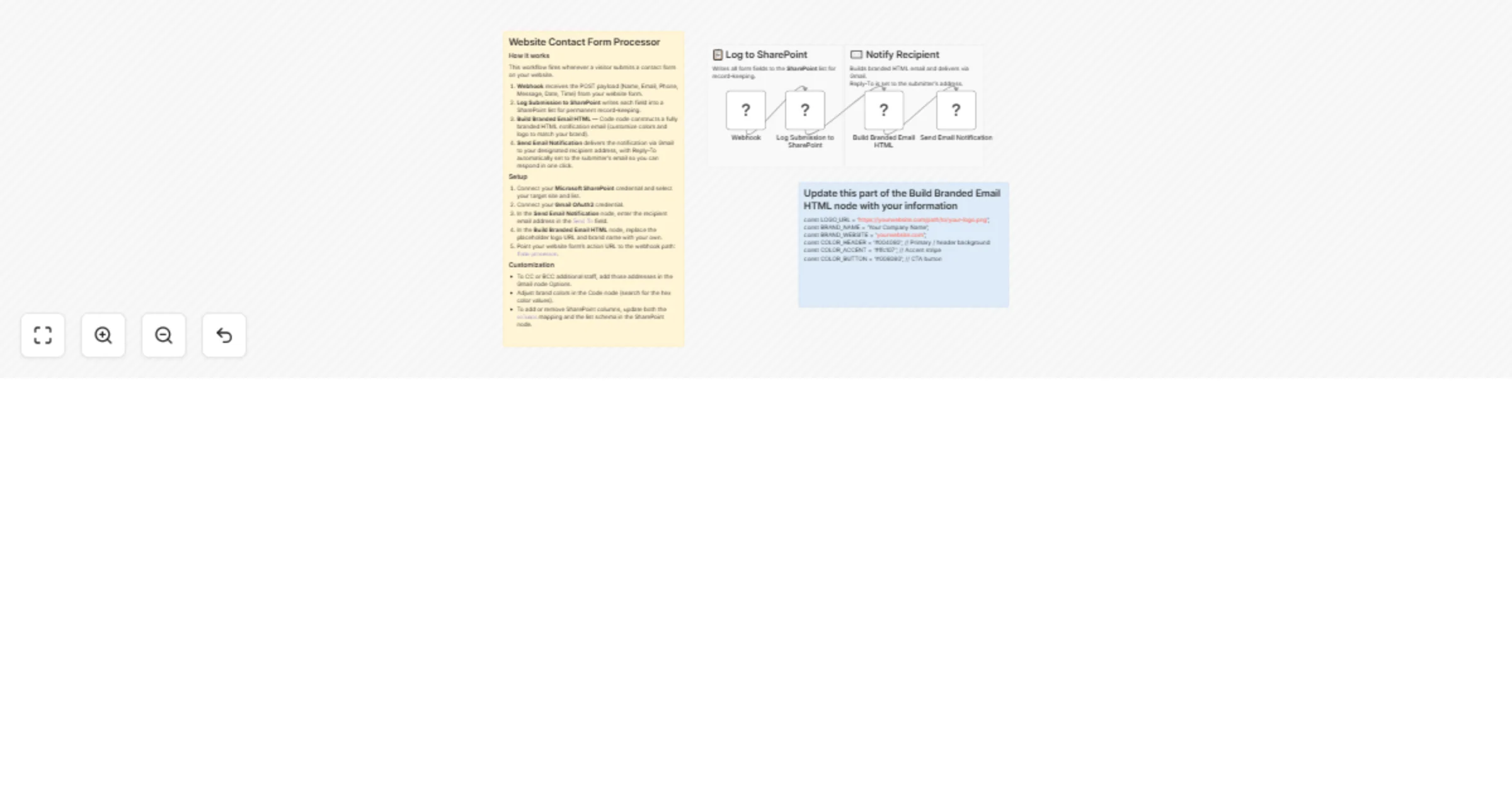
## How it works This workflow is triggered when the contact form is submitted. It automatically saves the inquiry details to Google Sheets and sends a notification to Slack. You can then review the inquiry and reply directly from Slack using the `Contact` button. ## How to use * Open the `Gmail` node and set up the Credential. * Open the `Google Sheets` node and set up the Credential. * Open the `Slack` node and set up the Credential to allow sending messages. * You can create a new Slack App [here](https://api.slack.com/apps). * Open the `ContactWebhook` node and configure Basic Auth. * Open the `Config` node and update the `contactWebhookUrl` parameter to match the Production URL from the `ContactWebhook` node. ## Customizing this workflow * You can customize the Slack notification message in the `Config` node. * You can modify the reply email body in the `Gmail` node. * We recommend including a scheduling link (e.g., to book a meeting).
AI-powered customer feedback routing with Gmail, Slack, Pipedrive, Zendesk & Notion
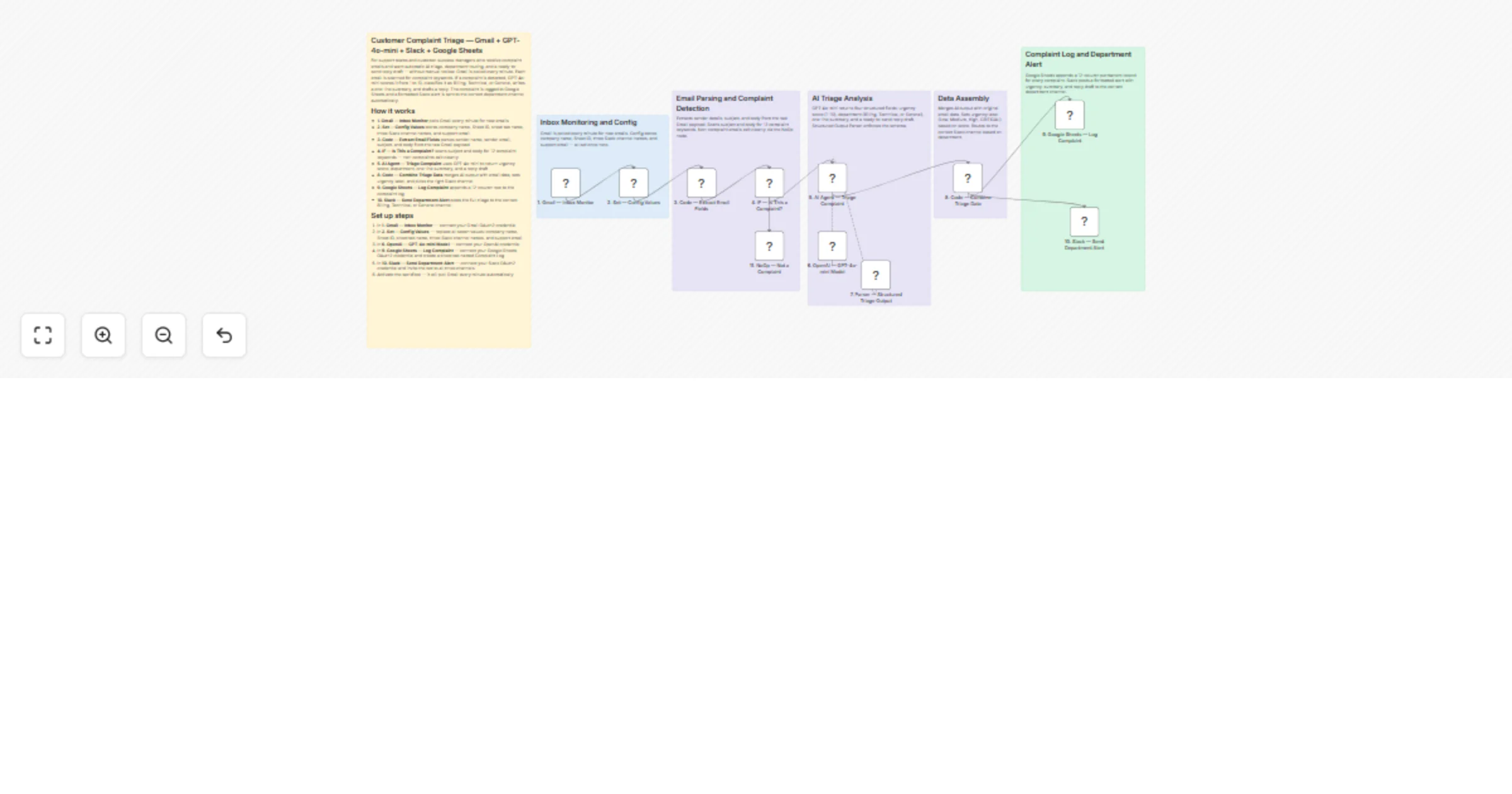
## **Who’s it for** This workflow is built for B2B SaaS and CX teams that are drowning in unstructured customer feedback across tools. It’s ideal for Customer Success, Product and Support leaders who want a light “voice of customer engine” without rebuilding their stack: Gmail for interactions, Slack for conversations, Pipedrive for notes and Zendesk for tickets, plus Notion for follow-up tasks. ## **How it works / What it does** The workflow runs on a schedule or manual trigger and first sets the CSM’s email address. It then uses an AI “Data agent” to pull recent customer signals from multiple sources: Gmail messages, Slack messages, Pipedrive notes and Zendesk tickets. A “Signals agent” compresses each piece of feedback into a concise, neutral summary, which is then grouped by topic via a “Clustering agent”. Each cluster gets a label, count and examples. Finally, an “Action agent” routes clusters based on their label: - Create Zendesk tickets for product/performance issues - Post to a dedicated Slack channel for billing / contract topics - Create Notion tasks for sales-related feedback - Send targeted Gmail messages to the CSM for high-risk or engagement-related items ## **How to set up** 1. Import the workflow into n8n. 2. Connect credentials for Gmail, Slack, Pipedrive, Zendesk, Notion and OpenAI. 3. Update the CSM email in the “Set CSM email” node. 4. Adjust date filters, send-to addresses and Slack channel IDs as needed. 5. Enable the schedule trigger for weekly or daily digests. ## **Requirements** - Active accounts & credentials for: Gmail, Slack, Pipedrive, Zendesk and Notion - OpenAI (or compatible) API key for the LLM node - At least one Slack channel for posting feedback (e.g. #billing-feedback) ## **How to customize the workflow** - Change the time window or filters (sender, channel, query) for each data source. - Edit the clustering and routing prompts to match your own categories and teams. - Add new destinations (e.g. Jira, HubSpot) by connecting more tools to the Action agent. - Modify thresholds (e.g. minimum count) before a cluster triggers an action. - Localize labels and email copy to your team’s language and tone.
Xano Support Ticket Router (AI + Xano Node Integration)
This template demonstrates how to combine **n8n**, **OpenAI agents**, and the new **Xano Node** to build an intelligent support-ticket routing system — without writing a single API call. Start your Xano journey with the downloadable snippet [here!](https://www.xano.com/snippet/SABJTqr-) When a ticket arrives, the workflow: 1. **Receives the ticket** via Webhook 2. **Classifies the issue** using an n8n Agent with an OpenAI model 3. **Searches Xano** to check whether the user already exists 4. **Creates or updates records** using the native Xano Node (no headers or manual HTTP setup) 5. **Triggers backend logic in Xano**, where escalation rules and agent workflows process the ticket 6. **Returns a structured response** to n8n for further routing (Slack, CRM, inbox, etc.) This template highlights how Xano can act as your backend intelligence layer while n8n orchestrates everything else — making it easy to automate support operations, apply escalation policies, and unify your data across tools. Use this as a foundation to build more advanced automation: customer enrichment, billing checks, account risk detection, SLA enforcement, and more. Happy building! 🚀
Organize school emails with AI, Google Calendar and Drive auto-triage system
**Overview** This workflow automatically reads school-related emails from Gmail, uses AI to understand what each email is about, and then organizes everything into Google Drive and Google Calendar. It classifies messages into schedules, “what to bring” lists, general notices, and contact information, creates calendar events when needed, saves text files in Drive, and sends you a daily reminder email about tomorrow’s important events. Email Auto-Triage and Organizat… Email Auto-Triage and Organization Hub **Who this is for** Parents or caregivers who get lots of school emails and want everything organized automatically Busy families who often forget dates, deadlines, or 持ち物 (things to bring) Anyone who wants school communication stored in a structured, searchable way in Drive and Calendar **How it works** Trigger: Gmail watch for new emails A Gmail Trigger node watches your inbox and starts the workflow whenever a new email arrives. It then loads the full message content (subject, body, metadata). Email Auto-Triage and Organizat… AI classification and extraction The email text is sent to an AI model, which returns a structured JSON object with: category: “Schedule”, “What to Bring”, “Notice”, or “Contacts” eventTitle, eventDescription, eventDate (ISO format) itemsToBring, contacts, subject, id, and hasAttachments This turns messy school emails into clean structured data. Email Auto-Triage and Organizat… Routing by category A Switch node routes each email based on its category and whether it has attachments: Schedule / What to Bring → create a calendar event and also save a notice file Notice → save a notice file only Any email with attachments → send to the attachment branch for optional photo storage Email Auto-Triage and Organizat… Save notices to Google Drive For all categorized emails, the workflow creates a text file in Google Drive containing: Title, date, category, items to bring, and a short description of the event or notice. Email Auto-Triage and Organizat… Create calendar events For “Schedule” and “What to Bring” emails, the workflow builds a summary and description (including 持ち物) and creates a Google Calendar event. If no end time is given, it defaults to one hour after the start. Email Auto-Triage and Organizat… Save photo attachments (optional) If the email has image attachments, the workflow: Downloads the attachments from Gmail Filters to only image files Saves the photos in a specified Google Drive folder, using the original file name Email Auto-Triage and Organizat… Extract and archive contact information The workflow also pulls out the sender’s contact info (From), links it to the email subject and timestamp, and saves it as a separate contact text file in Google Drive for easy reference. Email Auto-Triage and Organizat… Daily reminder for tomorrow’s events Every morning at a set time, a Schedule Trigger runs: It fetches all events from Google Calendar for “tomorrow” Filters down to events whose description includes “持ち物” Sends you an email summarizing tomorrow’s events and what you need to bring, so you can prepare in advance. Email Auto-Triage and Organizat… **How to set up** Connect your Gmail, Google Calendar, and Google Drive credentials in the respective nodes. In the Workflow Configuration node, set: photosFolderId – Drive folder for saved photos noticesFolderId – Drive folder for notice text files contactsFolderId – Drive folder for contact text files reminderEmail – email address that will receive the daily reminder Make sure the Gmail Trigger is pointing to the correct mailbox and is set to poll as often as you like. Confirm that the Google Calendar node uses the calendar where you want school events to appear. Turn the workflow on and test it with a few real school emails (schedules, what to bring, general notices). Email Auto-Triage and Organizat… **Customization ideas** Adjust the AI prompt in Extract Email Info to better match your school’s typical email style or to add more categories. Change the logic for calendar events (all-day events, different default times, or additional fields like location). Modify file naming patterns or folder structure in Google Drive (e.g., separate folders per child, per school year, or per class). Add logging to Google Sheets for a timeline view of all school communication. Forward or mirror important events/notices to other tools such as Slack, Notion, or a family LINE group.
Smart Gmail auto-labeler with Gemini AI & sender history
# n8n Gmail AI Auto-Labeler > An intelligent **n8n workflow** that automatically classifies and labels Gmail emails using **Google Gemini AI**, keeping your inbox organized with zero manual effort. This workflow uses AI-powered classification to analyze email content, learn from sender patterns, and automatically apply appropriate labels while archiving processed emails. --- ## How It Works 1. **Trigger**: The workflow runs automatically every minute to check for new unread emails (or manually for bulk processing). 2. **Check for Existing Labels**: Before processing, it verifies if the email already has an AI-assigned label to avoid duplicate processing. 3. **AI Classification**: If unlabeled, the AI agent analyzes the email using: * **Sender History Tool** - Fetches up to 10 previous emails from the same sender to identify patterns * **80% Majority Rule** - If 80%+ of sender's past emails have the same label, strongly prefers that category * **Label Examples Tool** - When uncertain, compares the email with existing examples from suspected categories 4. **Smart Decision**: The AI returns a structured JSON response: ```json { "label": "Category Name" } ``` Or `"None"` if no category fits. 5. **Apply & Archive**: * **Label Applied** → The workflow adds the appropriate Gmail label to the thread. * **Auto-Archive** → Removes the email from INBOX (archives it) to maintain zero-inbox. 6. **Loop**: Processes the next email in the batch, ensuring all new emails are classified. --- ## Requirements * **Gmail OAuth2 Credentials** - Connected Gmail account with API access. * **Google Gemini API Key** - [Get it here](https://ai.google.dev/) * Free tier: 15 requests/minute * **Gmail Labels** - Must be created in Gmail exactly as listed: * Meetings * Income * Inquiries * Notify / Verify * Expenses * Orders / Deliveries * Trash Likely --- ## How to Use 1. **Import the Workflow**: * Copy the provided JSON file. * In your n8n instance → click **Import Workflow** → select the JSON file. 2. **Create Gmail Labels**: * Open Gmail → Settings → Labels → Create new labels. * Use the exact names listed above (case-sensitive). 3. **Get Your Label IDs**: * In the workflow, click **"When clicking 'Execute workflow'"** manual trigger. * Execute the **"Get Labels Info"** node only. * Copy each label's ID (format: `Label_1234567890123456789`). 4. **Update Code Nodes with Your Label IDs**: **Node 1: "Check Label Existence"** ```javascript const labelMap = { "Label_YOUR_ID_HERE": "Meetings", "Label_YOUR_ID_HERE": "Inquiries", "Label_YOUR_ID_HERE": "Notify / Verify", "Label_YOUR_ID_HERE": "Expenses", "Label_YOUR_ID_HERE": "Orders / Deliveries", "Label_YOUR_ID_HERE": "Trash Likely" }; ``` **Node 2: "Convert Label to Label ID"** ```javascript const labelToId = { "Meetings": "Label_YOUR_ID_HERE", "Inquiries": "Label_YOUR_ID_HERE", "Notify / Verify": "Label_YOUR_ID_HERE", "Expenses": "Label_YOUR_ID_HERE", "Orders / Deliveries": "Label_YOUR_ID_HERE", "Trash Likely": "Label_YOUR_ID_HERE" }; ``` 5. **Set Up Credentials**: * **Gmail OAuth2** → Authorize your Gmail account in n8n. * **Google Gemini API** → Add your API key in n8n credentials. 6. **Test the Workflow**: * Send yourself test emails with clear content (e.g., invoice, meeting invite). * Use the manual trigger to process them. * Verify labels are applied correctly. 7. **Activate for Auto Mode**: * Toggle the workflow to **Active**. * New unread emails will be processed automatically every minute. --- ## Notes * **Dual Execution Modes**: * **Auto Mode** - Gmail Trigger polls inbox every minute for unread emails (real-time processing). * **Manual Mode** - Use the manual trigger to bulk process existing emails (adjust limit in "Get many messages" node). * **AI Learning from Patterns**: * The workflow applies an **80% majority rule** - if 80% or more of a sender's historical emails share the same label, the AI strongly prefers that category for new emails from that sender. * This creates intelligent sender-based routing over time. * **Skip Already Labeled Emails**: * The "Check Label Existence" node prevents re-processing emails that already have an AI-assigned label. * Ensures efficient execution and avoids duplicate work. * **Structured AI Output**: * Uses a **Structured Output Parser** to ensure the AI always returns valid JSON: `{ "label": "Category" }`. * If uncertain, returns `{ "label": "None" }` and the email stays in inbox. * **Background Archiving**: * After labeling, emails are automatically removed from INBOX (archived). * Maintains a zero-inbox workflow while preserving emails under their labels. * **Rate Limits**: * Google Gemini free tier: 15 requests/minute. * Adjust polling frequency if hitting limits. --- ## Example Behavior * **Minute 1**: New invoice email arrives → AI fetches sender history → 85% were labeled "Expenses" → applies "Expenses" label → archives email. * **Minute 2**: Meeting invite arrives → No sender history → AI analyzes content (Zoom link, time) → applies "Meetings" label → archives email. * **Minute 3**: Promotional email arrives → AI compares with "Trash Likely" examples → applies label → archives email. * **Minute 4**: Already-labeled email detected → skipped silently. --- ## Label Categories | Label | Description | |-------|-------------| | **Meetings** | Calendar invites, Zoom/Meet links, appointments, scheduled events | | **Expenses** | Bills, invoices, receipts, payment reminders, subscription renewals | | **Income** | Payments received, payouts, deposits, earnings notifications | | **Notify / Verify** | Verification codes, login alerts, 2FA codes, account notifications | | **Orders / Deliveries** | Order confirmations, shipping updates, tracking numbers, deliveries | | **Inquiries** | Business outreach, sales proposals, partnerships, cold emails | | **Trash Likely** | Spam, newsletters, promotions, marketing blasts, ads | > If no category fits clearly, the email returns `"None"` and remains in the inbox. --- ## Customization * **Change Polling Frequency**: Edit the "Gmail Trigger" node → `pollTimes` → `mode` (e.g., `every5Minutes`). * **Adjust Email Limit**: Modify `limit: 10` in "Get many messages" node for manual bulk processing. * **Add Custom Labels**: Create in Gmail → Get ID → Update both Code nodes + AI system prompt. * **Modify 80% Rule**: Edit the AI agent's system message to adjust the majority threshold. * **Increase Tool Limits**: Change `limit: 10` in Gmail tool nodes to fetch more historical data. --- **Author:** Muhammad Anas Farooq
Automate Google My Business responses with Gemini AI and Google Sheets tracking
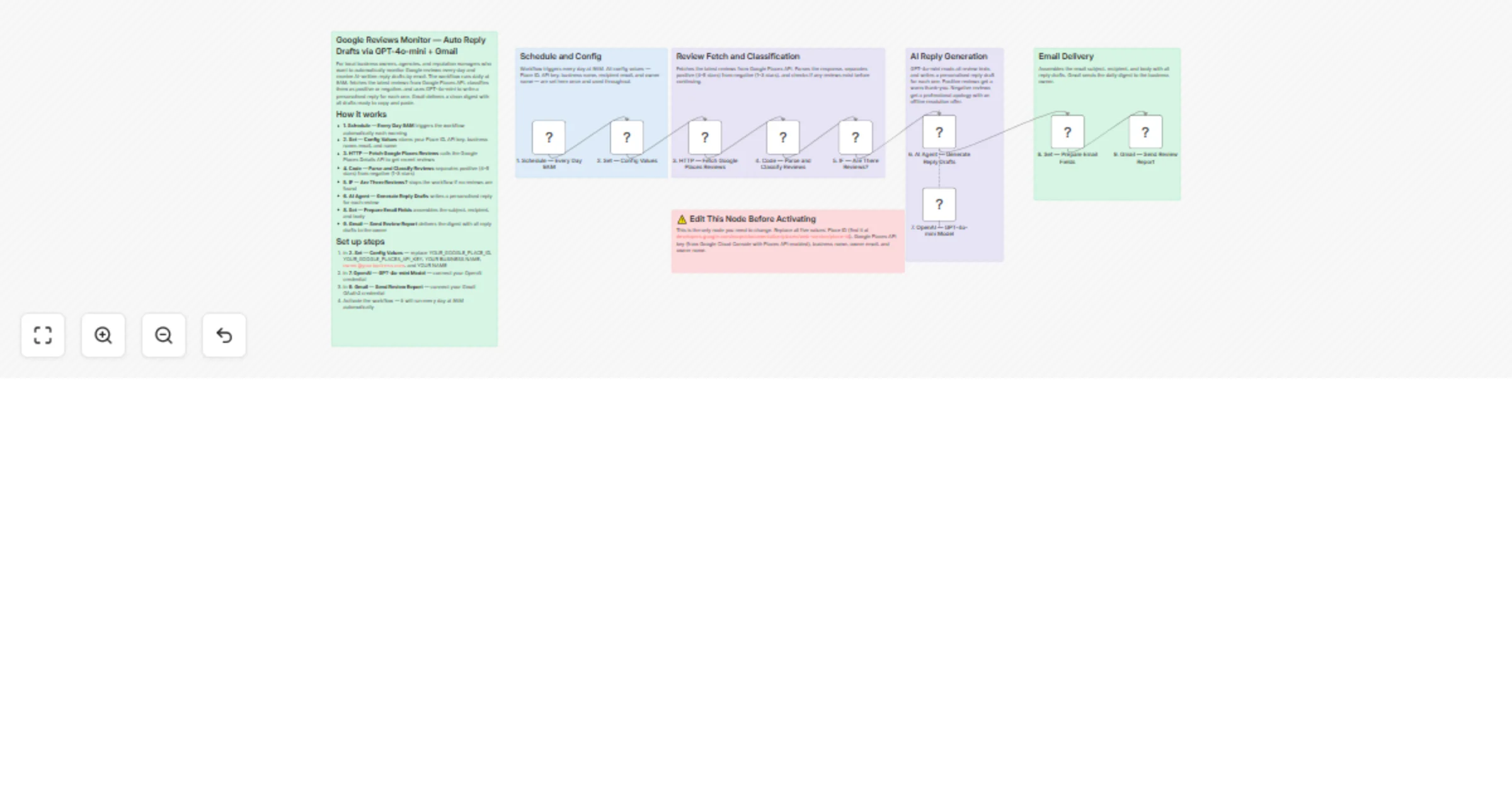
# Purpose & Audience This workflow is designed for digital marketing agencies, local business owners, and reputation management professionals who need to respond to Google My Business reviews promptly and professionally across multiple business locations. **Perfect for:** - Agencies managing 2-50+ client locations - Multi-location business owners - Reputation management teams - Marketing professionals seeking automation **Problems it solves:** - Manual review monitoring is time-consuming - Inconsistent response quality and tone - Delayed responses hurt local SEO rankings - Difficult to scale across multiple locations ## What It Does This automated system monitors your Google My Business locations every 30 minutes and: - ✅ Fetches new reviews from multiple GMB locations automatically - ✅ Generates personalized AI replies using Google Gemini, matching your brand voice and tone - ✅ Posts responses directly to GMB without manual intervention - ✅ Logs everything to organized Google Sheets for tracking and reporting - ✅ Handles multiple businesses with separate processing pipelines - ✅ Prevents duplicate replies by filtering already-responded reviews ## Key Features: - Customizable reply tone per business (professional, friendly, casual, etc.) - Business-specific context for more relevant responses - Automatic execution tracking and audit logs - Scalable architecture for unlimited locations - No duplicate replies - smart filtering system ## How It Works **High-Level Flow:** 1. **Trigger**: Workflow runs automatically every 30 minutes 2. **Configuration**: Reads business settings from a Google Sheet (location IDs, tone, context) 3. **Route**: Directs each business to its dedicated processing branch 4. **Fetch**: Retrieves all reviews from Google My Business 5. **Filter**: Identifies reviews without replies 6. **Generate**: Uses AI to create personalized responses matching your brand tone 7. **Post**: Publishes replies to Google My Business 8. **Track**: Logs all activity to Google Sheets with timestamps **Smart Features:** - Parallel processing for multiple businesses - Context-aware AI that understands your business - Automatic logging for compliance and reporting - Graceful handling when no new reviews exist ## How to Setup **Prerequisites** Before setting up this workflow, you'll need: 1. n8n Instance (Cloud or self-hosted) 2. Google Gemini API Key (Free tier available at ai.google.dev) 3. Google OAuth Credentials for: Google Sheets API, Google Business Profile API ## Setup Instructions 📘 Complete step-by-step setup tutorial included with the json file. The comprehensive setup guide covers: - Creating and configuring your Google Sheets - Connecting Google My Business API - Setting up Google Gemini integration - Configuring business-specific settings - Testing and troubleshooting - Adding additional business locations - Customizing AI reply prompts Simply follow the included setup tutorial video for easy configuration. Average setup time: 20 minutes.
Classify and auto-reply to Gmail with OpenAI, Google Sheets RAG and Telegram
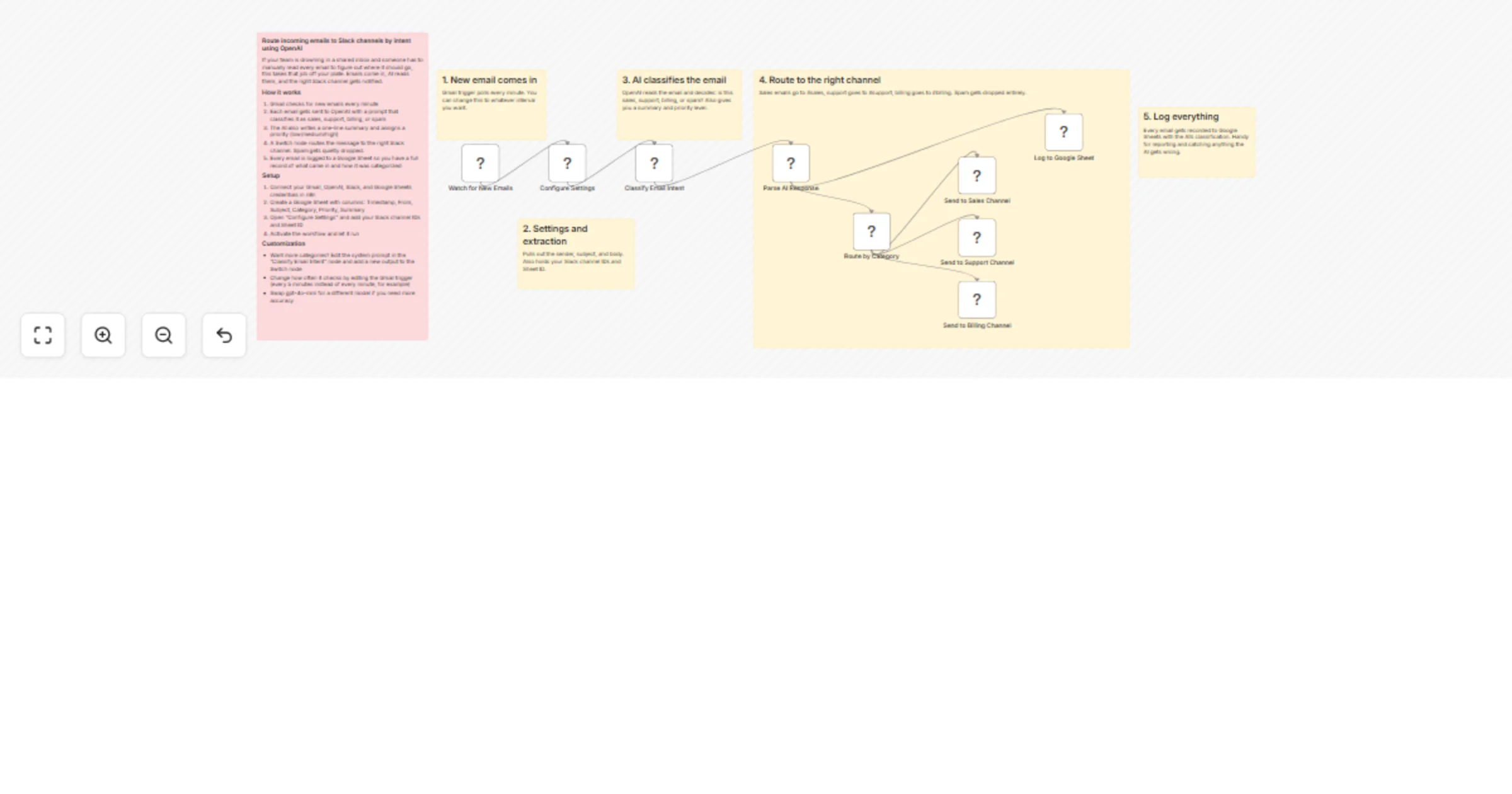
# 📨 Gmail Classifier —Classify emails using AI and automate responses This workflow delivers a complete, enterprise-grade Gmail automation system designed for high-volume teams. It classifies incoming emails, applies labels, generates AI-powered responses, and routes messages to the right department. It also includes optional demo email generation and an inbox cleanup utility so teams can test the workflow instantly. ## 🚀 What This Workflow Does - Classifies Gmail messages into **High Priority**, **Customer Support**, **Promotions**, or **Finance/Billing** - Generates AI-written replies or drafts based on category - Applies Gmail labels automatically - Uses RAG from Google Sheets for Support queries - Sends real-time internal notifications (Telegram) - Includes tools to generate & delete test emails for repeatable QA ## 🏢 Who This Is For Teams that want **reliable, automated inbox management**: - Customer Support - Sales - Billing & Finance - Operations - Solo founders who need executive inbox automation - AI-powered enterprise workflows using Gmail ## 🧩 Internal Workflow Overview 1. **Gmail Trigger** pulls unread emails from the inbox 2. **Email Classifier Agent** (OpenAI) cleans + classifies the email 3. **Switch Node** routes to the correct workflow lane 4. Labels are added → AI responders generate the message → internal teams get notified 5. Optional: Demo email generator + inbox cleanup for testing ## 🛠️ How to Set Up 1. Add credentials: - Gmail OAuth2 - OpenAI / Gemini - Google Sheets OAuth2 2. Copy the demo sheet: **https://docs.google.com/spreadsheets/d/1A959skQt0a7RbdsD0IGaCbPxMv4a-HjmQL4hwB9TcXc/edit?usp=sharing** 3. Update the Google Sheets nodes with your Document ID + Sheet Name 4. Enable **Gmail Trigger** (UNREAD filter recommended) 5. Use “Send Demo Emails” → test end-to-end behavior 6. Run the Gmail Classifier workflow live ## 📦 Requirements - Gmail API access - OpenAI/Gemini API key - Google Sheets OAuth (for RAG/lookup) - n8n (latest recommended version) ## 🎯 Ideal Enterprise Use Cases - Automated customer support with AI-written replies - High-priority routing for executives - Finance & billing summarization for operations - Filtering promotions/marketing noise from shared inboxes - AI-augmented helpdesk workflows ## 🧪 Test Data Included Use the Demo Sheet tabs: - **Sample_Emails** → pre-written emails for every category - **Demo_Emails** → rows sent as live test emails Copy → paste → run. ## 🔖 Tags Gmail, AI, Inbox Automation, Support Automation, Enterprise, Email Classification, OpenAI, RAG, Google Sheets --- **Template Author:** Sandeep Patharkar LinkedIn: https://www.linkedin.com/in/sandeeppatharkar Skool: https://www.skool.com/aic-plus
Automate email triage & meeting scheduling with Gmail, GPT-4 & Google Calendar
This workflow acts as your personal inbox assistant. It automatically filters, classifies, and responds to incoming emails using AI, saving you from manually sorting through leads or inquiries 24/7. ## 👥 Who’s it for * **Freelancers & Consultants** handling their own sales pipeline. * **Sales Professionals** who need to book meetings instantly. * **Small Business Owners** who want to automate customer support or lead triage. * **Agencies** managing inbound inquiries for multiple clients. ## ⚙️ How it works This workflow monitors your Gmail inbox and processes emails in three main stages: 1. **Filtering:** It first checks if the sender is on your "Whitelist" (a Google Sheet). It also ignores automated calendar replies (like "Accepted" or "Declined" notifications) to prevent loops. 2. **AI Analysis:** OpenAI (GPT-4) reads the email body to understand the sender's intent. 3. **Action:** Based on the intent, it takes one of three paths: * **Schedule Meeting:** If the lead wants to meet, it creates a Google Calendar event, sends a confirmation email with the link, and notifies you on Telegram. * **Auto Reply:** If the lead declines or isn't interested, it sends a polite, context-aware "thank you" email. * **Needs Review:** If the email is unclear, it waits (configurable delay) and sends a gentle follow-up email to re-engage them. ## 📋 Requirements * **n8n** (Self-hosted or Cloud) * **Gmail Account** (Connected via OAuth2) * **Google Sheets** (For the whitelist) * **Google Calendar** (For booking meetings) * **OpenAI API Key** (GPT-4o-mini or similar model) * **Telegram** (Optional, for notifications) ## 🛠️ How to set up 1. **Prepare the Whitelist:** Create a Google Sheet with three columns: `email`, `first_name`, and `company`. Add the email addresses you want the bot to respond to. 2. **Configure Credentials:** Connect your Google (Gmail, Sheets, Calendar) and OpenAI accounts in the workflow credentials settings. 3. **Link the Sheet:** In the **"Get row(s) in sheet"** node, select your whitelist spreadsheet. 4. **Set the Model:** Check the **"Message a model"** nodes to ensure your OpenAI model (e.g., `gpt-4o-mini`) is selected. 5. **Telegram (Optional):** If you want notifications, create a bot with @BotFather and add your Chat ID/Credentials. If not, you can disable/remove the Telegram nodes. ## 🎨 How to customize the workflow * **Adjust the Delay:** The **"Wait"** node is currently set to *minutes* for testing. Change this to *3 Days* (or your preferred duration) for a real-world scenario. * **Brand Your Emails:** Open the **Code** nodes (e.g., "Personalize AI Reply"). You will see HTML code inside. Update the `senderName`, `senderEmail`, and footer text to match your brand identity. * **Refine AI Prompts:** You can modify the system prompt in the **"Message a model"** node to change the AI's tone (e.g., make it more formal or casual). --- ## 🧑💻 Creator Information **Developed by:** Adem Tasin 🌐 **Website:** [ademtasin.com](https://www.ademtasin.com/) 💼 **LinkedIn:** [Adem Tasin](https://www.linkedin.com/in/adem-tasin/)