🌱

Beginner Workflows

Perfect for those new to n8n. Simple workflows with basic nodes and straightforward logic.
487 workflows found
Workflow preview: Automate user creation & access group assignment in Curseduca
Free beginner

Automate user creation & access group assignment in Curseduca

# 📘 Curseduca – User Creation & Access Group Assignment ## How it works This workflow automates the process of creating a new user in **[Curseduca](Curseduca)** and granting them access to a specific access group. It works in two main steps: 1. **Webhook** – Captures user details (name, email, and group information). 2. **HTTP Request** – Sends the data to the Curseduca API, creating the user, assigning them to the correct access group, and sending an email notification. --- ## Setup steps 1. **Deploy the workflow** - Copy the webhook URL generated by n8n. - Send a `POST` request with the required fields: - `name` - `email` - `groupId` 2. **Configure API access** - Add your **API Key** and **Bearer token** in the HTTP Request node headers (repla[Curseduca](https://curseduca.com)ce placeholders). - Replace `<GroupId>` in the body with the correct group ID. 3. **Notifications** - By default, the workflow will trigger an **email notification** to the user once their account is created. --- ## Example use cases - **Landing pages**: Automatically register leads who sign up on a product landing page and grant them immediate access to a course, training, or bundle. - **Product bundles**: Offer multiple products or services together and instantly give access to the correct group after purchase. - **Chatbot integration**: Connect tools like **Manychat** to capture name and email via chatbot conversations and create the user directly in Curseduca. --- # 📘 Curseduca – Criação de Usuário e Liberação de Grupo de Acesso ## Como funciona Este fluxo de trabalho automatiza o processo de criação de um novo usuário no **Curseduca** e a liberação de acesso a um grupo específico. Ele funciona em duas etapas principais: 1. **Webhook** – Captura os dados do usuário (nome, e-mail e informações de grupo). 2. **HTTP Request** – Envia os dados para a API do Curseduca, criando o usuário, atribuindo-o ao grupo correto e disparando uma notificação por e-mail. --- ## Passos de configuração 1. **Publicar o workflow** - Copie a URL do webhook gerada pelo n8n. - Envie uma requisição `POST` com os campos obrigatórios: - `name` - `email` - `groupId` 2. **Configurar o acesso à API** - Adicione sua **API Key** e **Bearer token** nos headers do nó HTTP Request (substitua os placeholders). - Substitua `<GroupId>` no corpo da requisição pelo ID correto do grupo. 3. **Notificações** - Por padrão, o fluxo dispara uma **notificação por e-mail** para o usuário assim que a conta é criada. --- ## Casos de uso - **Landing pages**: Registre automaticamente leads que se inscrevem em uma landing page de produto e libere acesso imediato a um curso, treinamento ou pacote. - **Pacotes de produtos**: Ofereça múltiplos produtos ou serviços em conjunto e conceda acesso instantâneo ao grupo correto após a compra. - **Integração com chatbots**: Conecte ferramentas como o **Manychat** para capturar nome e e-mail em conversas e criar o usuário diretamente no Curseduca.

c
curseduca.com
HR
3 Sep 2025
88
0
Workflow preview: 🎙️ Convert voice notes to X posts with Google Drive and AssemblyAI
Free beginner

🎙️ Convert voice notes to X posts with Google Drive and AssemblyAI

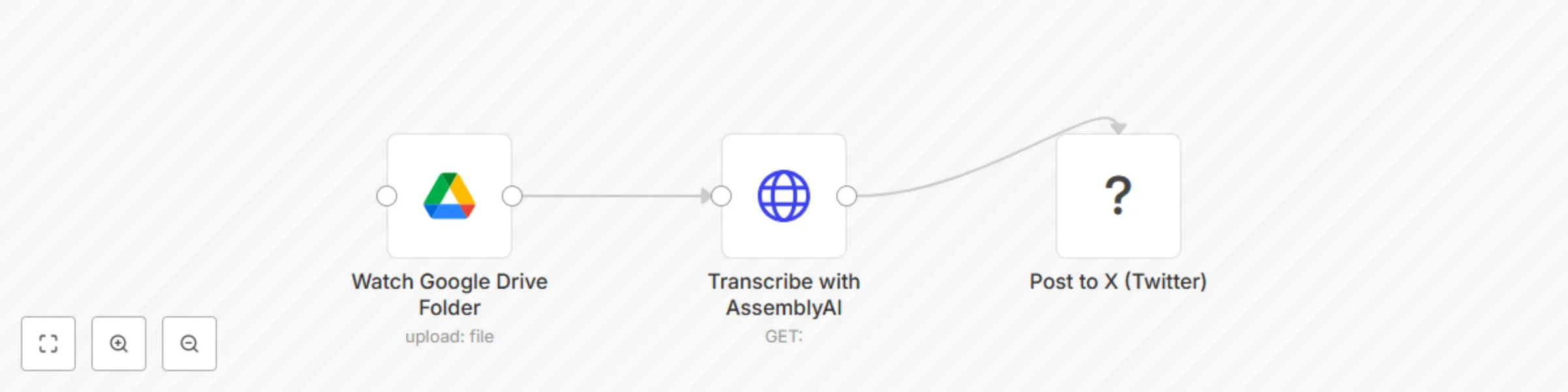
## 🎙️ Voice Note to Tweet: Turn Audio Ideas into X Posts with n8n A **lean, 3-node automation** that turns voice memos into tweets — so creators can capture ideas on the go and publish fast, without typing. Capture inspiration the moment it strikes — even when you’re not at your desk. This 3-node workflow lets **content creators, coaches, and solopreneurs** turn voice memos into **X (Twitter) posts** automatically. Just record a voice note, upload it to a Google Drive folder, and n8n will: ## 🛠️ Step-by-Step Setup Instructions ### 1. **Prepare Google Drive Folder** - Create a folder: `Voice Notes to Tweet` - Enable **Google Drive API** in your n8n credentials - Share the folder with your automation account (if needed) ### 2. **Set Up AssemblyAI (or Whisper)** - Sign up at [assemblyai.com](https://www.assemblyai.com/) - Get your API key - In n8n, add a credential for **HTTP Request** or use a dedicated node > 🔁 Alternative: Use OpenAI’s Whisper API if preferred ### 3. **Connect X (Twitter) Account** - Use n8n’s **X (Twitter) node** - Authenticate with your app key, secret, access token - Ensure **write permissions** ### 4. **Deploy the Workflow** - Import the JSON below - Replace placeholder credentials: - `{{GOOGLE_DRIVE_FOLDER_ID}}` - `{{ASSEMBLYAI_API_KEY}}` - `{{TWITTER_CREDENTIAL}}` - Activate the workflow Now, every time you upload a `.m4a`, `.mp3`, or `.wav` file to your folder — it becomes a tweet. --- ## 🔄 Workflow Explanation 1. **Watch Google Drive** → Triggers when a new voice note is added 2. **Transcribe Audio** → Sends file to AssemblyAI for speech-to-text 3. **Post to X (Twitter)** → Publishes the transcript as a tweet Optional: Add a **Slack approval step** if you don’t want auto-posting. --- ## 📦 Pre-Conditions - ✅ **n8n account** with access to HTTP and X nodes - ✅ **Google Drive API enabled** - ✅ **AssemblyAI or Whisper API key** - ✅ **X (Twitter) Developer Account** with app credentials - ✅ Internet-accessible audio files (hosted in Drive) > ⚠️ Note: X API v2 requires OAuth 2.0 and app approval. --- ## 🎨 Customization Guidance | Enhancement | How | |-----------|-----| | **Add Approval Step** | Insert Slack/Telegram node to approve before posting | | **Trim Long Transcripts** | Use Function node to limit to 280 chars | | **Add Hashtags** | Append `#VoiceToTweet #ContentCreatorTips` | | **Save to Archive** | After posting, move file to “Processed” folder | | **Support iOS Voice Memos** | Auto-convert `.m4a` → compatible format | --- ## 🌐 Who It’s For - **Coaches** who record insights on walks - **Solopreneurs** building personal brands - **Content creators** who hate writing from scratch - **Thought leaders** capturing ideas in motion ### ✅ Final Notes for Submission - All nodes have **sticky notes** explaining purpose - Uses **standard APIs** with documented credentials - Solves a **real creator pain point** - No fluff, no “magic” — just **practical automation**

S
Shelly-Ann Davy
Social Media
3 Sep 2025
26
0
Workflow preview: Auto-create Airtable CRM records for Zoom attendees
Free beginner

Auto-create Airtable CRM records for Zoom attendees

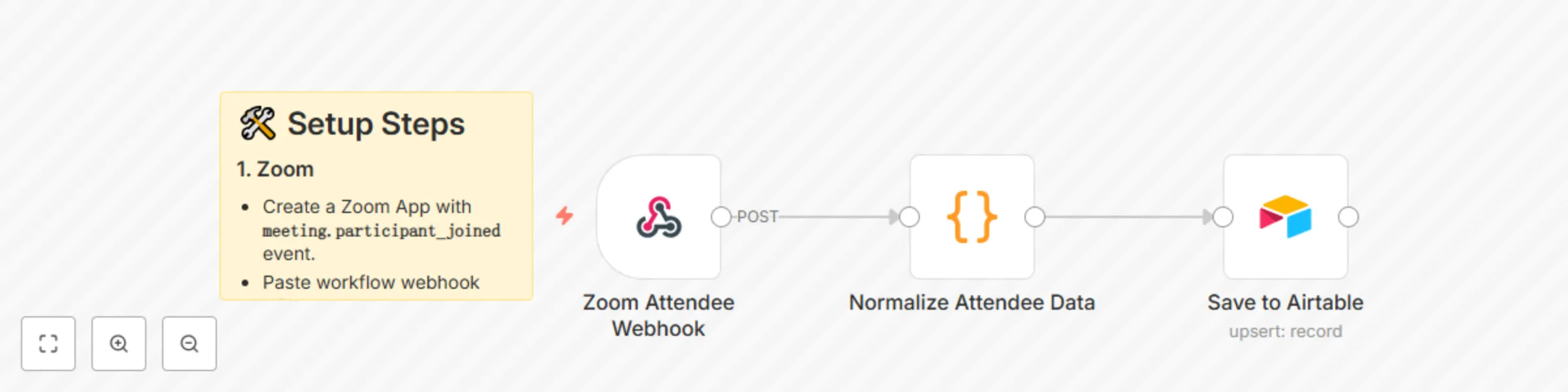
# 🗂️ Auto-Create Airtable CRM Records for Zoom Attendees This workflow automatically logs every Zoom meeting attendee into an Airtable CRM — capturing their details for sales follow-up, reporting, or onboarding. --- ## ⚙️ How It Works 1. **Zoom Webhook** → Captures participant join event. 2. **Normalize Data** → Extracts attendee name, email, join/leave times. 3. **Airtable** → Saves/updates record with meeting + contact info. --- ## 🛠️ Setup Steps ### 1. Zoom - Create a Zoom App with **`meeting.participant_joined`** event. - Paste workflow webhook URL. ### 2. Airtable - Create a base called **CRM**. - Table: **Attendees**. - Columns: - Meeting ID - Topic - Name - Email - Join Time - Leave Time - Duration - Tag ### 3. n8n - Replace `YOUR_AIRTABLE_BASE_ID` + `YOUR_AIRTABLE_TABLE_ID` in the workflow. - Connect Airtable API key. --- ## 📊 Example Airtable Row | Meeting ID | Topic | Name | Email | Join Time | Duration | Tag | |------------|--------------|----------|--------------------|----------------------|----------|----------| | 999-123-456 | Sales Demo | Sarah L. | [email protected] | 2025-08-30T10:02:00Z | 45 min | New Lead | --- ⚡ With this workflow, every Zoom attendee becomes a structured CRM record automatically.

D
David Olusola
CRM
30 Aug 2025
153
0
Workflow preview: Auto-save Instagram leads to Google Sheets
Free beginner

Auto-save Instagram leads to Google Sheets

# 🚀 Auto-Save Instagram Leads to Google Sheets This workflow automatically captures leads submitted through an Instagram Form and saves the data directly to a Google Sheet. It ensures that every new lead is instantly logged, creating a centralized database for your marketing and sales teams. --- ## ⚙️ How It Works 1. **Receive Lead Data** The workflow starts with an **Instagram Lead Webhook** that listens for new lead submissions from your Instagram account's lead form. 2. **Normalize Data** A **Code node** processes the raw data received from Instagram. This node normalizes the lead information, such as name, email, and phone number, into a consistent format. It also adds a **"Source"** field to identify the lead as coming from Instagram and timestamps the entry. 3. **Save to Google Sheets** Finally, the **Save to Google Sheets node** takes the normalized data and appends it as a new row in your designated Google Sheet. It uses the email field to check for existing entries and can either append a new row or update an existing one, preventing duplicate data. --- ## 🛠️ Setup Steps ### 1. Create Google Sheet - Create a new Google Sheet with the following headers in the first row (A1): ### 2. Get Sheet ID - Find your **Sheet ID** in the URL of your Google Sheet. - It's the long string of characters between `/d/` and `/edit`. - Example: - Replace `YOUR_GOOGLE_SHEET_ID` in the **Save to Google Sheets** node with your actual ID. ### 3. Connect Instagram Form - Copy the **Webhook URL** from the "Instagram Lead Webhook" node. - In your Instagram lead form settings, paste this URL as the webhook destination. - Ensure your form fields are mapped correctly (e.g., **name, email, phone, message**). --- ✅ Once configured, every Instagram lead will instantly appear in your Google Sheet — organized, timestamped, and ready for follow-up.

D
David Olusola
Lead Generation
29 Aug 2025
475
0
Workflow preview: Generate and email PDF invoices from Tally Forms with Google Docs
Free beginner

Generate and email PDF invoices from Tally Forms with Google Docs

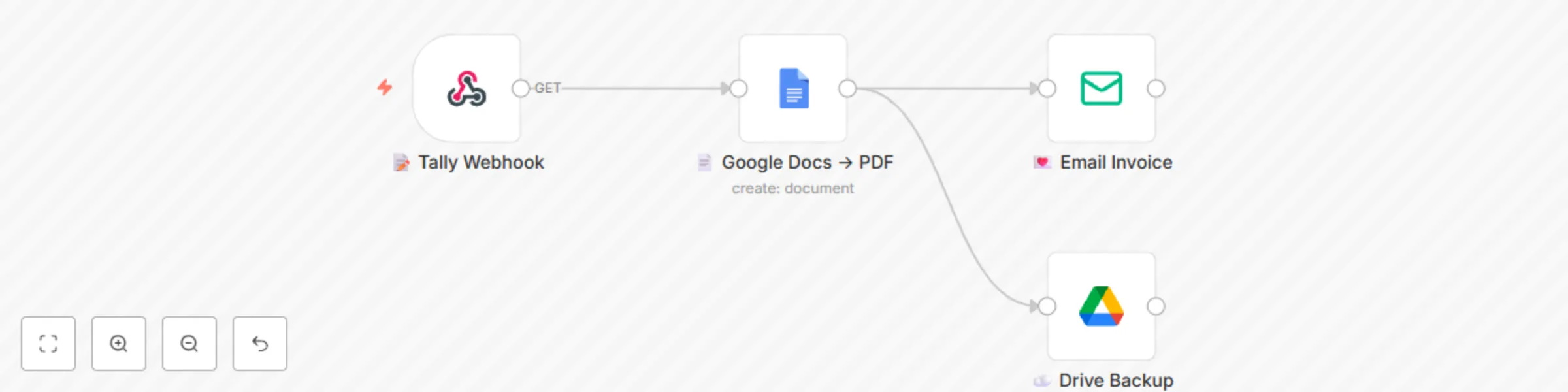
**Stop copy-pasting invoice details!** This gentle workflow turns a simple **Tally form** into a beautiful **PDF invoice** and delivers it to your client before you finish your latte ☕.** **Perfect for Etsy sellers, coaches, freelancers and side-hustlers who want soft-tech automation that feels like magic, not middleware.** **How it works** 1️⃣ You (or your VA) fill a 4-question Tally form: client name, email, amount, due date. 2️⃣ n8n instantly merges the data into a Google Docs template you pre-design (logo, colours, your vibe). 3️⃣ PDF is generated & emailed with a warm, on-brand note. 4️⃣ Optional: same PDF is auto-saved to a “2024-Invoices” Google Drive folder for painless bookkeeping 📁. Zero code, zero Zapier, zero monthly fees—just pure calm productivity. **Bonus:** template includes placeholder variables so you can add discount lines, PO numbers or custom thank-you messages in seconds. **Grab it, swap in your own Tally & Gmail credentials, and watch your invoicing shrink from 15 minutes to 15 seconds. Your future self (and your accountant) will send you heart emojis 💌.** 🗂️ **Tally form schema (share with buyers)** Question 1: Client Name (Short text) Question 2: Client Email (Email) Question 3: Amount (Number) Question 4: Due Date (Date) Question 5: Invoice Number (Short text, auto-increment or manual) **Webhook URL: copy from the “📝 Tally Webhook” node after import.**

S
Shelly-Ann Davy
Invoice Processing
28 Aug 2025
87
0
Workflow preview: Send daily Mailchimp subscriber reports to Slack
Free beginner

Send daily Mailchimp subscriber reports to Slack

## What this workflow does This workflow sends a **daily Slack report** with the current number of subscribers in your Mailchimp list. It’s a simple way to keep your marketing or growth team informed without logging into Mailchimp. ## How it works 1. **Cron Trigger** starts the workflow once per day (default: 09:00). 2. **Mailchimp node** retrieves the total number of subscribers for a specific list. 3. **Slack node** posts a formatted message with the subscriber count into your chosen Slack channel. ## Pre-conditions / Requirements - A Mailchimp account with API access enabled. - At least one Mailchimp audience list created (you’ll need the List ID). - A Slack workspace with permission to post to your chosen channel. - n8n connected to both Mailchimp and Slack via credentials. ## Setup 1. **Cron Trigger** - Default is set to 09:00 AM daily. Adjust the time or frequency as needed. 2. **Mailchimp: Get Subscribers** - Connect your Mailchimp account in n8n credentials. - Replace `{{MAILCHIMP_LIST_ID}}` with the List ID of the audience you want to monitor. - To find the List ID: Log into Mailchimp → Audience → All contacts → Settings → Audience name and defaults. 3. **Slack: Send Summary** - Connect your Slack account in n8n credentials. - Replace `{{SLACK_CHANNEL}}` with the name of the channel where the summary should appear (e.g., `#marketing`). - The message template can be customized, e.g., include emojis, or additional Mailchimp stats. ## Customization Options - **Multiple lists:** Duplicate the Mailchimp node for different audience lists and send combined stats. - **Formatting:** Add more details like new subscribers in the last 24h by comparing with previous runs (using Google Sheets or a database). - **Notifications:** Instead of Slack, send the update to email or Microsoft Teams by swapping the output node. ## Benefits - **Automation:** Removes the need for manual Mailchimp checks. - **Visibility:** Keeps the whole team updated on subscriber growth in real time. - **Motivation:** Celebrate growth milestones directly in team channels. ## Use Cases - Daily subscriber growth tracking for newsletters. - Sharing metrics with leadership without giving Mailchimp access. - Monitoring the effectiveness of campaigns in near real time.

Z
Ziad Adel
Market Research
20 Aug 2025
134
0
Workflow preview: Automated LinkedIn posts with AI-generated content using OpenAI GPT
Free beginner

Automated LinkedIn posts with AI-generated content using OpenAI GPT

# LinkedIn Auto-Post Agent for n8n 🚀 **Automate your LinkedIn presence with AI-powered content generation** This n8n workflow automatically generates and publishes engaging LinkedIn posts using OpenAI's GPT models. Perfect for professionals and businesses who want to maintain an active LinkedIn presence without manual effort. ## ✨ Features - **🤖 AI-Powered Content**: Generate professional LinkedIn posts using OpenAI GPT-3.5-turbo or GPT-4 - **⏰ Automated Scheduling**: Post content automatically on weekdays at 9 AM (customizable) - **🎯 Manual Trigger**: Generate and post content on-demand - **🔒 Secure**: All credentials stored securely in n8n's encrypted credential system - **📊 Error Handling**: Built-in retry logic and error notifications - **🎨 Customizable**: Easily modify prompts, scheduling, and content parameters ## 🏗️ Architecture This workflow uses a streamlined 3-node architecture: ``` Schedule/Manual Trigger → OpenAI Content Generation → LinkedIn Post ``` ### Node Details 1. **Schedule Trigger**: Automatically triggers the workflow (default: weekdays at 9 AM) 2. **Manual Trigger**: Allows on-demand content generation 3. **OpenAI Content Generation**: Creates LinkedIn-optimized content using AI 4. **LinkedIn Post**: Publishes the generated content to LinkedIn ## 📋 Prerequisites - n8n instance (self-hosted or cloud) - OpenAI API account and API key - LinkedIn account with API access - Basic familiarity with n8n workflows ## 🚀 Quick Start ### 1. Import the Workflow 1. Download the `linkedin-auto-post-agent.json` file 2. In your n8n instance, go to **Workflows** → **Import from File** 3. Select the downloaded JSON file 4. Click **Import** ### 2. Set Up Credentials #### OpenAI API Credentials 1. Go to **Credentials** in your n8n instance 2. Click **Create New Credential** 3. Select **OpenAI** 4. Enter your OpenAI API key 5. Name it "OpenAI API" and save #### LinkedIn OAuth2 Credentials 1. Create a LinkedIn App at [LinkedIn Developer Portal](https://developer.linkedin.com/) 2. Configure OAuth 2.0 settings: - **Redirect URL**: `https://your-n8n-instance.com/rest/oauth2-credential/callback` - **Scopes**: `r_liteprofile`, `w_member_social` 3. In n8n, create new **LinkedIn OAuth2** credentials 4. Enter your LinkedIn App's Client ID and Client Secret 5. Complete the OAuth authorization flow ### 3. Configure the Workflow 1. Open the imported workflow 2. Click on the **OpenAI Content Generation** node 3. Select your OpenAI credentials 4. Customize the content prompt if desired 5. Click on the **LinkedIn Post** node 6. Select your LinkedIn OAuth2 credentials 7. Save the workflow ### 4. Test the Workflow 1. Click the **Manual Trigger** node 2. Click **Execute Node** to test content generation 3. Verify the generated content in the LinkedIn node output 4. Check your LinkedIn profile to confirm the post was published ### 5. Activate Automated Posting 1. Click the **Active** toggle in the top-right corner 2. The workflow will now run automatically based on the schedule ## ⚙️ Configuration Options ### Scheduling The default schedule posts content on weekdays at 9 AM. To modify: 1. Click the **Schedule Trigger** node 2. Modify the **Cron Expression**: `0 9 * * 1-5` - `0 9 * * 1-5`: Weekdays at 9 AM - `0 12 * * *`: Daily at noon - `0 9 * * 1,3,5`: Monday, Wednesday, Friday at 9 AM ### Content Customization Modify the OpenAI prompt to change content style: 1. Click the **OpenAI Content Generation** node 2. Edit the **System Message** to adjust tone and style 3. Modify the **User Message** to change topic focus #### Example Prompts **Professional Development Focus**: ``` Create a LinkedIn post about professional growth, skill development, or career advancement. Keep it under 280 characters and include 2-3 relevant hashtags. ``` **Industry Insights**: ``` Generate a LinkedIn post sharing an industry insight or trend in technology. Make it thought-provoking and include relevant hashtags. ``` **Motivational Content**: ``` Write an inspiring LinkedIn post about overcoming challenges or achieving goals. Keep it positive and engaging with appropriate hashtags. ``` ### Model Selection Choose between OpenAI models based on your needs: - **gpt-3.5-turbo**: Cost-effective, good quality - **gpt-4**: Higher quality, more expensive - **gpt-4-turbo**: Latest model with improved performance ## 🔧 Advanced Configuration ### Error Handling The workflow includes built-in error handling: - **Retry Logic**: 3 attempts with 1-second delays - **Continue on Fail**: Workflow continues even if individual nodes fail - **Error Notifications**: Optional email/Slack notifications on failures ### Content Review Workflow (Optional) To add manual content review before posting: 1. Add a **Wait** node between OpenAI and LinkedIn nodes 2. Configure webhook trigger for approval 3. Add conditional logic based on approval status ### Rate Limiting To respect API limits: - OpenAI: 3 requests per minute (default) - LinkedIn: 100 posts per day per user - Adjust scheduling frequency accordingly ## 📊 Monitoring and Analytics ### Execution History 1. Go to **Executions** in your n8n instance 2. Filter by workflow name to see all runs 3. Click on individual executions to see detailed logs ### Key Metrics to Monitor - **Success Rate**: Percentage of successful executions - **Content Quality**: Review generated posts periodically - **API Usage**: Monitor OpenAI token consumption - **LinkedIn Engagement**: Track post performance on LinkedIn ## 🛠️ Troubleshooting ### Common Issues **OpenAI Node Fails** - Verify API key is correct and has sufficient credits - Check if you've exceeded rate limits - Ensure the model name is spelled correctly **LinkedIn Node Fails** - Verify OAuth2 credentials are properly configured - Check if LinkedIn app has required permissions - Ensure the content doesn't violate LinkedIn's posting policies **Workflow Doesn't Trigger** - Confirm the workflow is marked as "Active" - Verify the cron expression syntax - Check n8n's timezone settings ### Debug Mode 1. Enable **Save Manual Executions** in workflow settings 2. Run the workflow manually to see detailed execution data 3. Check each node's input/output data ## 🔒 Security Best Practices - Store all API keys in n8n's encrypted credential system - Regularly rotate API keys (monthly recommended) - Use environment variables for sensitive configuration - Enable execution logging for audit trails - Monitor for unusual API usage patterns ## 📈 Optimization Tips ### Content Quality - Review and refine prompts based on output quality - A/B test different prompt variations - Monitor LinkedIn engagement metrics - Adjust posting frequency based on audience response ### Cost Optimization - Use gpt-3.5-turbo for cost-effective content generation - Set appropriate token limits (200 tokens recommended) - Monitor OpenAI usage in your dashboard ### Performance - Keep workflows simple with minimal nodes - Use appropriate retry settings - Monitor execution times and optimize if needed ## 🤝 Contributing We welcome contributions to improve this workflow: 1. Fork the repository 2. Create a feature branch 3. Make your improvements 4. Submit a pull request ## 📄 License This project is licensed under the MIT License - see the LICENSE file for details. ## 🆘 Support If you encounter issues or have questions: 1. Check the troubleshooting section above 2. Review n8n's official documentation 3. Join the n8n community forum 4. Create an issue in this repository ## 🔗 Useful Links - [n8n Documentation](https://docs.n8n.io/) - [OpenAI API Documentation](https://platform.openai.com/docs) - [LinkedIn API Documentation](https://docs.microsoft.com/en-us/linkedin/) - [n8n Community Forum](https://community.n8n.io/) --- **Happy Automating! 🚀** *This workflow helps you maintain a consistent LinkedIn presence while focusing on what matters most - your business and professional growth.*

W
Wevanta Infotech
Multimodal AI
18 Aug 2025
1163
0
Workflow preview: Automate JotForm submissions via HTTP without API keys
Free beginner

Automate JotForm submissions via HTTP without API keys

This guide explains how to send form data from **n8n** to a **JotForm** form submission endpoint using the **HTTP Request** node. It avoids the need for API keys and works with standard `multipart/form-data`. --- ## 📌 Overview With this workflow, you can automatically submit data from any source (Google Sheets, databases, webhooks, etc.) directly into JotForm. ✅ Useful for: * Pushing information into a form without manual entry. * Avoiding API authentication. * Syncing external data into JotForm. --- ## 🛠 Requirements * A [JotForm account](https://www.jotform.com/signup/). * An existing [JotForm form](https://www.jotform.com/myforms/). * Access to the form’s **direct link**. * Basic understanding of JotForm’s **field naming convention**. --- ## ⚙️ Setup Instructions ### 1. Get the JotForm Submission URL 1. Open your form in JotForm. 2. Go to **Publish → Quick Share → Copy Link**. Example form URL: [sample form](https://form.jotform.com/252217969519065) 3. Convert it into a submission endpoint by replacing `form` with `submit`: Example: [submit url](https://submit.jotform.com/submit/252217969519065) --- ### 2. Identify Field Names Each JotForm field has a unique identifier like `q3_name[first]` or `q4_email`. Steps to find them: * Right-click a field in your [published form](https://www.jotform.com/help/401-how-to-find-field-ids-and-names/) → choose **Inspect**. * Locate the `name` attribute in the `<input>` tag. * Copy those values into the HTTP Request node in n8n. **Example mappings:** * First Name → `q3_name[first]` * Last Name → `q3_name[last]` * Email → `q4_email` --- ### 3. Configure HTTP Request Node in n8n * **Method:** `POST` * **URL:** Your JotForm submission URL (from Step 1). * **Content Type:** `multipart/form-data` * **Body Parameters:** Add field names and values. **Example Body Parameters:** ```json { "q3_name[first]": "John", "q3_name[last]": "Doe", "q4_email": "[email protected]" } ``` --- ### 4. Test the Workflow 1. Trigger the workflow (manually or with a trigger node). 2. Submit test data. 3. Check **JotForm → Submissions** to confirm the entry appears. --- ## 🚀 Use Cases * Automating lead capture from CRMs or websites into JotForm. * Syncing data from Google Sheets, Airtable, or databases. * Eliminating manual data entry when collecting responses. --- ## 🎛 Customization Tips * Replace placeholder values (`John`, `Doe`, `[email protected]`) with dynamic values. * Add more fields by following the same naming convention. * Use n8n expressions (`{{$json.fieldName}}`) to pass values dynamically.

m
moosa
Lead Generation
16 Aug 2025
244
0
Workflow preview: Parse & analyze research papers with PDF vector, GPT-4 and database storage
Free beginner

Parse & analyze research papers with PDF vector, GPT-4 and database storage

## Automated Research Paper Analysis Pipeline This workflow automatically analyzes research papers by: - Parsing PDF documents into clean Markdown format - Extracting key information using AI analysis - Generating concise summaries and insights - Storing results in a database for future reference Perfect for researchers, students, and academics who need to quickly understand the key points of multiple research papers. ### How it works: 1. **Trigger**: Manual trigger or webhook with PDF URL 2. **PDF Vector**: Parses the PDF document with LLM enhancement 3. **OpenAI**: Analyzes the parsed content to extract key findings, methodology, and conclusions 4. **Database**: Stores the analysis results 5. **Output**: Returns structured analysis data ### Setup: - Configure PDF Vector credentials - Set up OpenAI API key - Connect your preferred database (PostgreSQL, MySQL, etc.)

P
PDF Vector
Document Extraction
14 Aug 2025
839
0
Workflow preview: Weekly competitor Facebook ads intelligence report with Airtop and Gmail
Free beginner

Weekly competitor Facebook ads intelligence report with Airtop and Gmail

README # Monitor Competitor Facebook Ads with Airtop ## Use Case Monitor a competitor’s active Facebook ads and get a weekly HTML intelligence brief by email — saving time on manual research and helping you spot messaging, offers, and creative trends quickly. ## What This Automation Does * Runs weekly on a set schedule. * Uses **Airtop** to visit the competitor’s Facebook Ad Library page and extract up to 30 active ads. * Summarizes each ad with key points: message, topic, CTA, duration active, language, target audience. * Sends the compiled HTML report via Gmail. ## How It Works 1. **Schedule Trigger** – Fires once a week at the configured time. 2. **Airtop Extraction** – Loads the Ad Library URL and runs a prompt to extract and format the ads into HTML. 3. **Email Delivery** – Sends the HTML report to your specified recipient using Gmail. ## Setup Requirements 1. **Airtop API Key** — [Generate here](https://portal.airtop.ai/api-keys). 2. **Airtop Credential in n8n** — Add your API key under “Airtop” in n8n. 3. **Gmail OAuth2 Credential** — Connect the Gmail account to send reports. 4. **Competitor’s Ad Library URL** — Replace the default `view_all_page_id` in the workflow with your target. ## Next Steps * Duplicate the Airtop step for multiple competitors. * Enrich reports by visiting ad landing pages for deeper analysis. * Send outputs to Slack or archive in a shared workspace. [Read about ways to monitor your competitors ads here](https://www.airtop.ai/automations/competitor-facebook-ads-intelligence-agent-n8n)

A
Airtop
Market Research
12 Aug 2025
784
0
Workflow preview: Clean and log IoT sensor data to InfluxDB (Webhook | Function | HTTP)
Free beginner

Clean and log IoT sensor data to InfluxDB (Webhook | Function | HTTP)

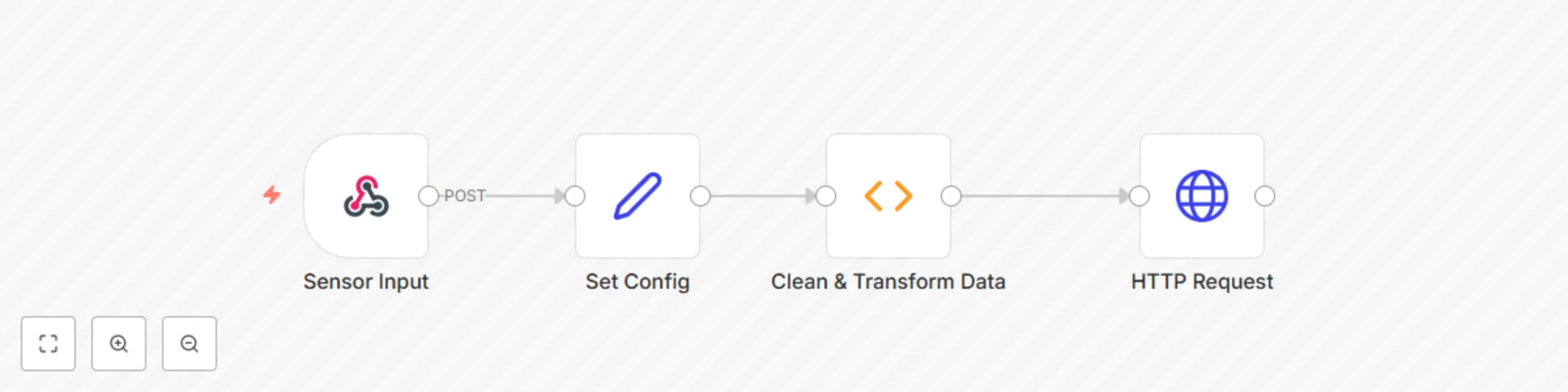
# 🌡 IoT Sensor Data Cleaner + InfluxDB Logger (n8n | Webhook | Function | InfluxDB) This workflow accepts raw sensor data from IoT devices via webhook, applies basic cleaning and transformation logic, and writes the cleaned data to an InfluxDB instance for time-series tracking. Perfect for renewable energy sites, smart farms and environmental monitoring setups using dashboards like Grafana or Chronograf. ## ⚡ Quick Implementation Steps 1. Import the workflow JSON into your n8n instance. 2. Edit the **Set Config** node to include your InfluxDB credentials and measurement name. 3. Use the webhook URL (`/webhook/sensor-data`) in your IoT device or form to send sensor data. 4. Start monitoring your data directly in InfluxDB! ## 🎯 Who’s It For - IoT developers and integrators. - Renewable energy and environmental monitoring teams. - Data engineers working with time-series data. - Smart agriculture and utility automation platforms. ## 🛠 Requirements | Tool | Purpose | |------|---------| | n8n Instance | For automation | | InfluxDB (v1 or v2) | To store time-series sensor data | | IoT Device or Platform | To POST sensor data | | Function Node | To filter and transform data | ## 🧠 What It Does - Accepts JSON-formatted sensor data via HTTP POST. - Validates the data (removes invalid or noisy readings). - Applies transformation (rounding, timestamp formatting). - Pushes the cleaned data to InfluxDB for real-time visualization. ## 🧩 Workflow Components - **Webhook Node:** Exposes an HTTP endpoint to receive sensor data. - **Function Node:** Filters out-of-range values, formats timestamp, rounds data. - **Set Node:** Stores configurable values like InfluxDB host, user/pass, and measurement name. - **InfluxDB Node:** Writes valid records into the specified database bucket. ## 🔧 How To Set Up – Step-by-Step 1. **Import Workflow:** - Upload the provided `.json` file into your n8n workspace. 2. **Edit Configuration Node:** - Update InfluxDB connection info in the `Set Config` node: - `influxDbHost`, `influxDbDatabase`, `influxDbUsername`, `influxDbPassword` - `measurement`: What you want to name the data set (e.g., `sensor_readings`) 3. **Send Data to Webhook:** - Webhook URL: `https://your-n8n/webhook/sensor-data` - Example payload: ```json { "temperature": 78.3, "humidity": 44.2, "voltage": 395.7, "timestamp": "2024-06-01T12:00:00Z" } ``` 4. **View in InfluxDB:** - Log in to your InfluxDB/Grafana dashboard and query the new measurement. ## ✨ How To Customize | Customization | Method | |---------------|--------| | Add more fields (e.g., wind_speed) | Update the Function & InfluxDB nodes | | Add field/unit conversion | Use math in the Function node | | Send email alerts on anomalies | Add IF → Email branch after Function node | | Store in parallel in Google Sheets | Add Google Sheets node for hybrid logging | ## ➕ Add‑ons (Advanced) | Add-on | Description | |--------|-------------| | 📊 Grafana Integration | Real-time charts using InfluxDB | | 📧 Email on Faulty Data | Notify if voltage < 0 or temperature too high | | 🧠 AI Filtering | Add OpenAI or TensorFlow for anomaly detection | | 🗃 Dual Logging | Save data to both InfluxDB and BigQuery/Sheets | ## 📈 Use Case Examples 1. Remote solar inverter sends temperature and voltage via webhook. 2. Environmental sensor hub logs humidity and air quality data every minute. 3. Smart greenhouse logs climate control sensor metrics. 4. Edge IoT devices periodically report health and diagnostics remotely. ## 🧯 Troubleshooting Guide | Issue | Cause | Solution | |-------|-------|----------| | No data logged in InfluxDB | Invalid credentials or DB name | Recheck InfluxDB values in config | | Webhook not triggered | Wrong method or endpoint | Confirm it is a POST to `/webhook/sensor-data` | | Data gets filtered | Readings outside valid range | Check logic in Function node | | Data not appearing in dashboard | Influx write format error | Inspect InfluxDB log and field names | ## 📞 Need Assistance? Need help integrating this workflow into your energy monitoring system or need InfluxDB dashboards built for you? 👉 Contact WeblineIndia | Experts in workflow automation and time-series analytics.

W
WeblineIndia
Engineering
11 Aug 2025
314
0
Workflow preview: Automate SEO title & description updates for WordPress with Yoast SEO API
Free beginner

Automate SEO title & description updates for WordPress with Yoast SEO API

This workflow automates the update of Yoast SEO metadata for a specific post or product on a WordPress or WooCommerce site. It sends a `POST` request to a custom API endpoint exposed by the **Yoast SEO API Manager** plugin, allowing for programmatic changes to the SEO title and meta description. [Bulk version available here.](https://inforeole.gumroad.com/l/yoast-bulk-optimizer) ## Prerequisites * A WordPress site with administrator access. * The **Yoast SEO** plugin installed and activated. * The **Yoast SEO API Manager** companion plugin installed and activated to expose the required API endpoint. * WordPress credentials configured within your n8n instance. ## Setup Steps 1. **Configure the Settings Node**: In the `Settings` node, replace the value of the `wordpress URL` variable with the full URL of your WordPress site (e.g., `https://your-domain.com/`). 2. **Set Credentials**: In the `HTTP Request - Update Yoast Meta` node, select your pre-configured WordPress credentials from the **Credential for WordPress API** dropdown menu. 3. **Define Target and Content**: In the same `HTTP Request` node, navigate to the **Body Parameters** section and update the following values: * `post_id`: The ID of the WordPress post or WooCommerce product you wish to update. * `yoast_title`: The new SEO title. * `yoast_description`: The new meta description. ## How It Works 1. **Manual Trigger**: The workflow is initiated manually. This can be replaced by any trigger node for full automation. 2. **Settings Node**: This node defines the base URL of the target WordPress instance. This centralizes the configuration, making it easier to manage. 3. **HTTP Request Node**: This is the core component. It constructs and sends a `POST` request to the `/wp-json/yoast-api/v1/update-meta` endpoint. The request body contains the `post_id` and the new metadata, and it authenticates using the selected n8n WordPress credentials. ## Customization Guide * **Dynamic Inputs**: To update posts dynamically, replace the static values in the `HTTP Request` node with n8n expressions. For example, you can use data from a Google Sheets node by setting the `post_id` value to an expression like `{{ $json.column_name }}`. * **Update Additional Fields**: The underlying API may support updating other Yoast fields. Consult the **Yoast SEO API Manager** plugin's documentation to identify other available parameters (e.g., `yoast_canonical_url`) and add them to the **Body Parameters** section of the `HTTP Request` node. * **Change the Trigger**: Replace the `When clicking ‘Test workflow’` node with any other trigger node to fit your use case, such as: * **Schedule**: To run the update on a recurring basis. * **Webhook**: To trigger the update from an external service. * **Google Sheets**: To trigger the workflow whenever a row is added or updated in a specific sheet. *** ### **Yoast SEO API Manager Plugin for WordPress** ```language // ATTENTION: Replace the line below with <?php - This is necessary due to display constraints in web interfaces. <?php /** * Plugin Name: Yoast SEO API Manager v1.2 * Description: Manages the update of Yoast metadata (SEO Title, Meta Description) via a dedicated REST API endpoint. * Version: 1.2 * Author: Phil - https://inforeole.fr (Adapted by Expert n8n) */ if ( ! defined( 'ABSPATH' ) ) { exit; // Exit if accessed directly. } class Yoast_API_Manager { public function __construct() { add_action('rest_api_init', [$this, 'register_api_routes']); } /** * Registers the REST API route to update Yoast meta fields. */ public function register_api_routes() { register_rest_route( 'yoast-api/v1', '/update-meta', [ 'methods' => 'POST', 'callback' => [$this, 'update_yoast_meta'], 'permission_callback' => [$this, 'check_route_permission'], 'args' => [ 'post_id' => [ 'required' => true, 'validate_callback' => function( $param ) { $post = get_post( (int) $param ); if ( ! $post ) { return false; } $allowed_post_types = class_exists('WooCommerce') ? ['post', 'product'] : ['post']; return in_array($post->post_type, $allowed_post_types, true); }, 'sanitize_callback' => 'absint', ], 'yoast_title' => [ 'type' => 'string', 'sanitize_callback' => 'sanitize_text_field', ], 'yoast_description' => [ 'type' => 'string', 'sanitize_callback' => 'sanitize_text_field', ], ], ] ); } /** * Updates the Yoast meta fields for a specific post. * * @param WP_REST_Request $request The REST API request instance. * @return WP_REST_Response|WP_Error Response object on success, or WP_Error on failure. */ public function update_yoast_meta( WP_REST_Request $request ) { $post_id = $request->get_param('post_id'); if ( ! current_user_can('edit_post', $post_id) ) { return new WP_Error( 'rest_forbidden', 'You do not have permission to edit this post.', ['status' => 403] ); } // Map API parameters to Yoast database meta keys $fields_map = [ 'yoast_title' => '_yoast_wpseo_title', 'yoast_description' => '_yoast_wpseo_metadesc', ]; $results = []; $updated = false; foreach ( $fields_map as $param_name => $meta_key ) { if ( $request->has_param( $param_name ) ) { $value = $request->get_param( $param_name ); update_post_meta( $post_id, $meta_key, $value ); $results[$param_name] = 'updated'; $updated = true; } } if ( ! $updated ) { return new WP_Error( 'no_fields_provided', 'No Yoast fields were provided for update.', ['status' => 400] ); } return new WP_REST_Response( $results, 200 ); } /** * Checks if the current user has permission to access the REST API route. * * @return bool */ public function check_route_permission() { return current_user_can( 'edit_posts' ); } } new Yoast_API_Manager(); ``` [Bulk version available here](https://inforeole.gumroad.com/l/yoast-bulk-optimizer) : this bulk version, provided with a dedicated WordPress plugin, allows you to generate and bulk-update meta titles and descriptions for multiple articles simultaneously using artificial intelligence. It automates the entire process, from article selection to the final update in Yoast, offering considerable time savings. . --- [Phil | Inforeole](https://inforeole.fr) | [Linkedin](https://www.linkedin.com/in/philippe-eveilleau-inforeole/) 🇫🇷 Contactez nous pour automatiser vos processus

p
phil
Content Creation
8 Aug 2025
830
0
Workflow preview: Send automated appointment reminders via SMS with Twilio webhook
Free beginner

Send automated appointment reminders via SMS with Twilio webhook

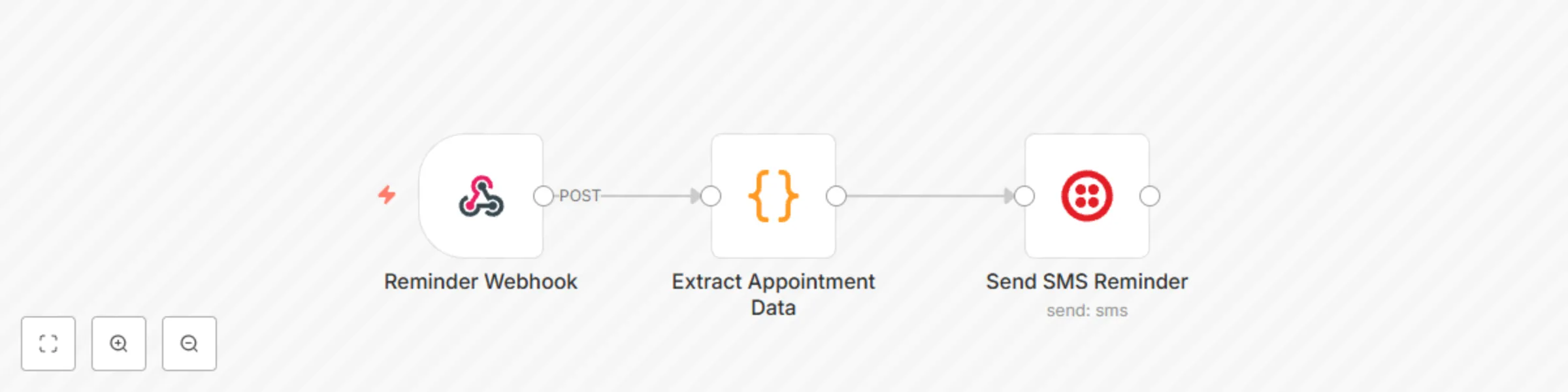
## How It Works The workflow is an automated appointment reminder system built on n8n. Here is a step-by-step breakdown of its process: ### Reminder Webhook This node acts as the entry point for the workflow. It's a unique URL that waits for data to be sent to it from an external application, such as a booking or scheduling platform. When a new appointment is created in that system, it sends a JSON payload to this webhook. ### Extract Appointment Data This is a **Code** node that processes the incoming data. It's a critical step that: - Extracts the customer's name, phone number, appointment time, and service from the webhook's JSON payload. - Includes validation to ensure a phone number is present, throwing an error if it's missing. - Formats the raw appointment time into a human-readable string for the SMS message. ### Send SMS Reminder This node uses your Twilio credentials to send an SMS message. It dynamically constructs the message using the data extracted in the previous step. The message is personalized with the customer's name and includes the formatted appointment details. --- ## Setup Instructions 1. **Import the Workflow** Copy the JSON code from the Canvas and import it into your n8n instance. 2. **Connect Your Twilio Account** Click on the "Send SMS Reminder" node. In the "Credentials" section, you will need to either select your existing Twilio account or add new credentials by providing your Account SID and Auth Token from your Twilio console. 3. **Find the Webhook URL** Click on the "Reminder Webhook" node. The unique URL for this workflow will be displayed. Copy this URL. 4. **Configure Your Booking System** Go to your booking or scheduling platform (e.g., Calendly, Acuity). In the settings or integrations section, find where you can add a new webhook. Paste the URL you copied from n8n here. You'll need to map the data fields from your booking system (like customer name, phone, etc.) to match the expected format shown in the comments of the "Extract Appointment Data" node. --- Once these steps are complete, your workflow will be ready to automatically send SMS reminders whenever a new appointment is created.

D
David Olusola
Support Chatbot
3 Aug 2025
658
0
Workflow preview: Automatic workflow error notifications via Gmail
Free beginner

Automatic workflow error notifications via Gmail

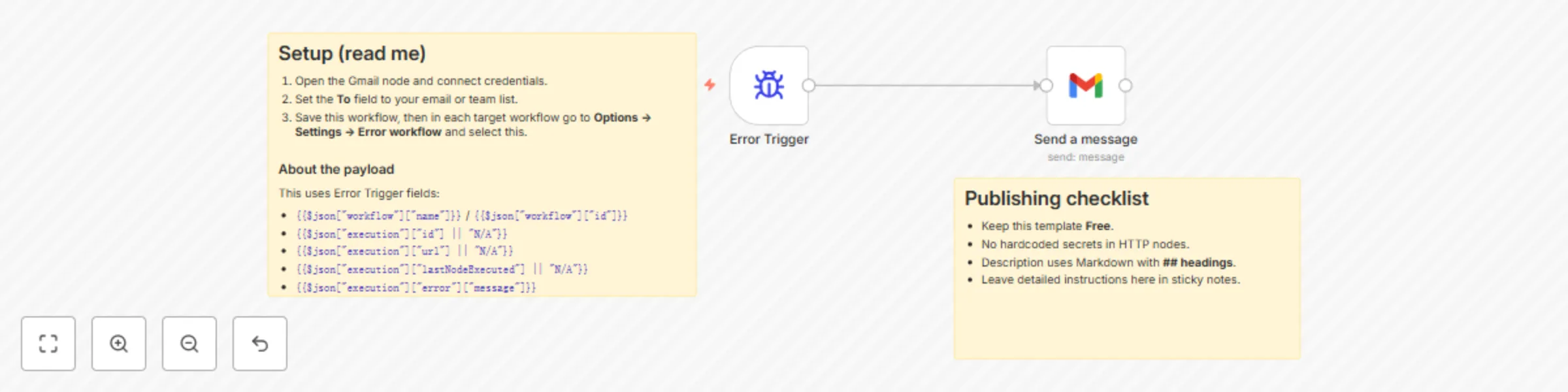
## What this template does Sends you an email (via Gmail) whenever any workflow that references this one **fails**. The message includes the workflow name/ID, execution URL, last node executed, and the error message. ## Why it’s useful Centralizes error notifications so you notice failures immediately and can jump straight to the failed execution. ## Prerequisites - A Gmail account connected through n8n’s **Gmail** node credentials. - This workflow set as the **Error Workflow** inside the workflows you want to monitor. ## How it works 1. **Error Trigger** starts this workflow whenever a linked workflow fails. 2. **Gmail (Send → Message)** composes and sends an email using details from the Error Trigger. ## Notes - Error workflows **don’t need to be activated** to work. - You can’t test them by running manually—errors must occur in an **automatically** run workflow (cron, webhook, etc.).

C
Calistus Christian
DevOps
3 Aug 2025
437
0
Workflow preview: Home Assistant event triggering with AppDaemon Webhooks
Free beginner

Home Assistant event triggering with AppDaemon Webhooks

## Summary This is a minimal template that focuses on how to integrate n8n and Home Assistant for event-based triggering from Home Assistant using the AppDaemon addon to call a webhook node. ## Problem Solved: There is no Home Assistant trigger node in n8n. You can poll the Home Assistant API on a schedule. A more efficient work around is to use the AppDaemon addon to create a listener app within Home Assistant. When the listener detects the event, it is subscribed to. An AppDaemon app is initiated that calls a N8N webhook passing the the event data to the workflow. AppDaemon runs python code. The template contains a sticky note. Within the sticky note there is a code example (repeated below) for a AppDeamon app, the code contains annotated instructions on configuration. ## Steps: ## Install the AppDaemon Add-on A. Open Home Assistant. In your Home Assistant UI, go to Settings - Add-ons (or Supervisor - Add-on Store, depending on your version). B. Search and Install. In the Add-on Store, search for "AppDaemon 4". Click on the result and then the Install button to start the installation. C. Start the Add-on. Once installed, open the AppDaemon 4 add-on page. Click Start to launch AppDaemon. (Optional but recommended) Enable Start on boot and Watchdog options to make sure AppDaemon starts automatically and restarts if it crashes. D. Verify Installation. Check the logs in the AppDaemon add-on page to ensure it’s running without issues. No need to set access tokens or Home Assistant URL manually; the add-on is pre-configured to connect with your Home Assistant. E. Configure AppDaemon. After installation, a directory named appdaemon will appear inside your Home Assistant config directory (/config/appdaemon/). Inside, you’ll find a file called appdaemon.yaml. For most uses, the default configuration is fine, but you can customize it as needed. ## Create the AppDaemon App. F. Prepare Your Apps Directory. Inside /config/appdaemon/, locate or create an apps folder. Path: /config/appdaemon/apps/. G. Create a Python App Inside the apps folder, create a new Python file (example: n8n_WebHook.py). Open the file in an editor and paste the example code into the file. ``` python import appdaemon.plugins.hass.hassapi as hass import requests import json class EventTon8nWebhook(hass.Hass): """ AppDaemon app that listens for Home Assistant events and forwards them to n8n webhook """ # # def initialize(self): """ Initialize the event listener and configure webhook settings """ # EDIT: Replace 'your_event_name' with the actual event you want to listen for # Common HA events: 'state_changed', 'call_service', 'automation_triggered', etc. self.target_event = self.args.get('target_event', 'your_event_name') # EDIT: Set your n8n webhook URL in apps.yaml or replace the default here self.webhook_url = self.args.get('webhook_url', 'n8n_webhook_url') # EDIT: Optional - set timeout for webhook requests (seconds) self.webhook_timeout = self.args.get('webhook_timeout', 10) # EDIT: Optional - enable/disable SSL verification self.verify_ssl = self.args.get('verify_ssl', True) # Set up the event listener self.listen_event(self.event_handler, self.target_event) self.log(f"Event listener initialized for event: {self.target_event}") self.log(f"Webhook URL configured: {self.webhook_url}") # # def event_handler(self, event_name, data, kwargs): """ Handle the triggered event and forward to n8n webhook Args: event_name (str): Name of the triggered event data (dict): Event data from Home Assistant kwargs (dict): Additional keyword arguments from the event """ try: # Prepare payload for n8n webhook payload = { 'event_name': event_name, 'event_data': data, 'event_kwargs': kwargs, 'timestamp': self.datetime().isoformat(), 'source': 'home_assistant_appdaemon' } self.log(f"Received event '{event_name}' - forwarding to n8n") self.log(f"Event data: {data}") # Send to n8n webhook self.send_to_n8n(payload) except Exception as e: self.log(f"Error handling event {event_name}: {str(e)}", level="ERROR") # # def send_to_n8n(self, payload): """ Send payload to n8n webhook Args:payload (dict): Data to send to n8n """ try: headers = { 'Content-Type': 'application/json', #EDIT assume header authentication parameter and value below need to match what is set in the credential used in the node. 'CredName': 'credValue', #set to what you set up as a credential for the webhook node } response = requests.post( self.webhook_url, json=payload, headers=headers, timeout=self.webhook_timeout, verify=self.verify_ssl ) response.raise_for_status() self.log(f"Successfully sent event to n8n webhook. Status: {response.status_code}") # EDIT: Optional - log response from n8n for debugging if response.text: self.log(f"n8n response: {response.text}") except requests.exceptions.Timeout: self.log(f"Timeout sending to n8n webhook after {self.webhook_timeout}s", level="ERROR") except requests.exceptions.RequestException as e: self.log(f"Error sending to n8n webhook: {str(e)}", level="ERROR") except Exception as e: self.log(f"Unexpected error sending to n8n: {str(e)}", level="ERROR") ``` H. Register Your App In the same apps folder, locate or create a file named apps.yaml. Add an entry to register your app: ```yaml EventTon8nWebhook: module: n8n_WebHook class: EventTon8nWebhook ``` Module should match your Python filename (without the .py). class matches the class name inside your Python file, i.e. *EventTon8nWebHook* I. Reload AppDaemon In Home Assistant, return to the AppDaemon 4 add-on page and click Restart. Watch the logs; you should see a log entry from your app confirming it is initialised running. ## Set Up n8n J. In your workflow create a webhook trigger node as the first node, or use the template as your starting point. Ensure the webhook URL (production or test) is correctly copied to the python code. If you are using authentication this needs a credential creating for the webhook. The example uses header auth. Naturally this should match what is in the code. For security likely better to put the credentials in a *"secrets.yaml"* file rather than hard code like this demo. Execute the workflow or activate if using the production webhook. Either wait for an event in Home Assistant or one can be manually triggered from the developer settings page, event tab. K. Finally develop your workflow to process the received event per your use case. See the Home Assistant docs on events for details of the event types you can subscribe to: [Home Assistant Events](https://www.home-assistant.io/docs/configuration/events/)

A
Adrian Kendall
Personal Productivity
30 Jul 2025
135
0
Workflow preview: Publish HTML content with GitHub Gist and HTML preview
Free beginner

Publish HTML content with GitHub Gist and HTML preview

## 📌 Who’s it for This subworkflow is designed for **developers, AI engineers, or automation builders who generate dynamic HTML content in their workflows** (e.g. reports, dashboards, emails) and want a simple way to host and share it via a clean URL, without spinning up infrastructure or uploading to a CMS. It’s **especially useful when combined with AI agents that generate HTML** content as part of a larger automated pipeline. ## ⚙️ What it does This subworkflow: 1. Accepts raw HTML content as input. 2. Creates a new **GitHub Gist** with that content. 3. Returns the shareable Gist URL, which can then be sent via Slack, Telegram, email, etc. The result is a lightweight, fast, and free way to publish AI-generated HTML (such as reports, articles, or formatted data outputs) to the web. ## 🛠️ How to set it up 1. Add this subworkflow to any parent workflow where HTML is generated. 2. Pass in a string of valid HTML via the `html` input parameter. 3. Configure the GitHub credentials in the HTTP node using an [access token](https://docs.github.com/en/authentication/keeping-your-account-and-data-secure/creating-a-personal-access-token) with `gist` scope. ## ✅ Requirements - GitHub account and personal access token with `gist` permissions ## 🔧 How to customize - Change the filename (`report.html`) if your use case needs a different format or extension. - Add metadata to the Gist (e.g., description, tags).

O
Open Paws
File Management
30 Jul 2025
145
0
Workflow preview: Display YouTube subscriber count on Ulanzi AWTRIX Smart Clock
Free beginner

Display YouTube subscriber count on Ulanzi AWTRIX Smart Clock

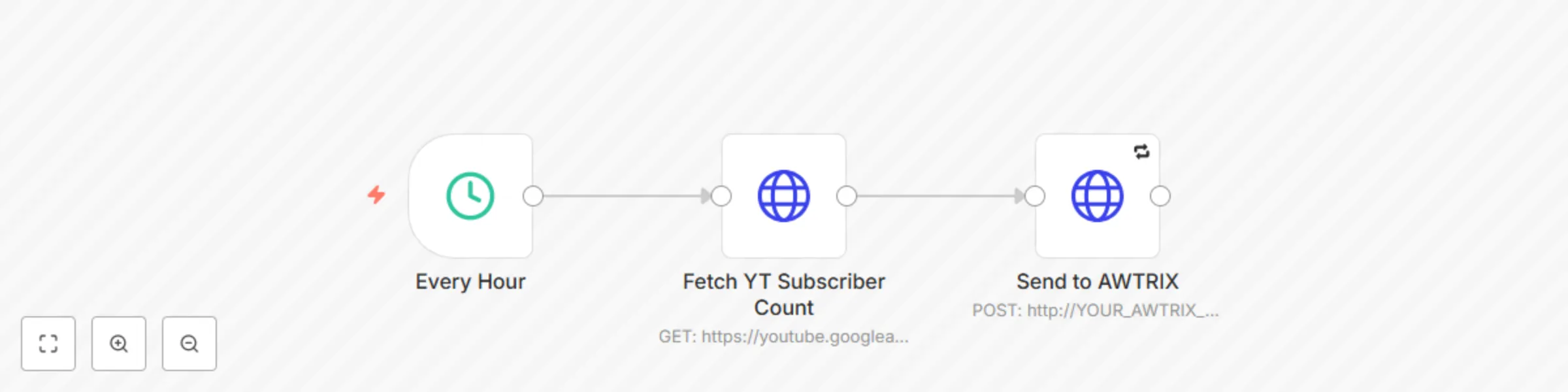
## Overview: This n8n workflow fetches the subscriber count of a specific YouTube channel using the YouTube Data API and displays the compacted count on an AWTRIX 3 / Ulanzi Smart Clock via its local HTTP API. 💡 You can run this every hour (or adjust the schedule), and it pushes a custom notification with a YouTube-style icon to your AWTRIX screen. ## 🔧 Setup Instructions: ### 1. 🧩 Requirements - A working AWTRIX 3 (e.g., Ulanzi Smart Clock) on the same local network. - A valid YouTube Data API v3 key. - A channel ID for the YouTube channel you want to track. - Upload a YouTube-style icon to your AWTRIX before running this flow: - Go to AWTRIX Icon Gallery - Search for a YouTube icon or upload your own - Get the corresponding icon ID (e.g., 26963) ### 2. 🧠 How It Works - Triggers every hour - Makes a GET request to YouTube API to fetch subscriberCount - Formats the number using compact notation (e.g., 1.2M) - Sends a POST request to AWTRIX at your specified local IP with the count and icon ### 3. 🔧 Required Replacements: Replace the following placeholder values in the HTTP Request nodes: **Placeholder** - Replace With **YOUR_YOUTUBE_CHANNEL_ID** - Your YouTube channel ID **YOUR_YOUTUBE_API_KEY** - Your API key from Google Developer Console **YOUR_AWTRIX_IP** - Your AWTRIX local IP address (e.g., 192.168.1.108) **YOUR_ICON_ID** - Icon ID from AWTRIX Icon Gallery (e.g., 26963)

F
Faisal F Rafat
Market Research
29 Jul 2025
255
0
Workflow preview: Analyze any video and generate text summaries with Google Gemini 2.5 Pro
Free beginner

Analyze any video and generate text summaries with Google Gemini 2.5 Pro

*This workflow contains community nodes that are only compatible with the self-hosted version of n8n.* ## Analyze Any Video and Get a Text Summary with Google Gemini This workflow uses the NEW native Google Gemini node in n8n to analyze videos and generate detailed text summaries. Just upload a video, and Gemini will describe the scenes, objects, and actions frame by frame. ### Who Is This For? * **Content Creators & Marketers** Quickly generate summaries, shot lists, or descriptions for video content. * **Video Editors** Get a fast overview of footage without manual review. * **Developers & n8n Beginners** Learn how to use multimodal AI in n8n with a simple setup. * **AI Enthusiasts** Explore the new capabilities of the Gemini Pro model. ### How It Works * **Upload** Triggered via a form where you upload a video file. * **Analyze** The video is sent to the Gemini 2.5 Pro model for analysis. * **Describe** Gemini returns a detailed text summary of what it sees in the video. ### Setup Instructions **1. Add Credentials** Connect your Google AI (Gemini) credentials in n8n. **2. Activate Workflow** Save and activate the workflow. **3. Upload Video** Open the Form Trigger URL, upload a video, and submit the form. ### Requirements * An n8n instance (Cloud or Self-Hosted) * A Google AI (Gemini) account ### Customization Ideas * **Translate the Summary** Add another LLM node to translate the analysis. * **Create Social Media Posts** Use the output to generate Twitter or LinkedIn content. * **Store the Output** Save the summary to Google Sheets or Airtable. * **Automate with Cloud Storage** Replace the Form Trigger with a Google Drive or Dropbox trigger to process videos automatically.

F
Fahmi Fahreza
Content Creation
28 Jul 2025
2726
0
Workflow preview: Schedule daily email reminders from Google Sheets with Gmail
Free beginner

Schedule daily email reminders from Google Sheets with Gmail

## Intro This template is for **teams, individuals, or businesses** who want to automatically send **daily email reminders** (e.g., updates, status alerts, follow‑ups) using **n8n + Gmail**. ## How it works 1. **Cron Trigger** fires every day at your specified time. 2. **Google Sheets** node reads all rows from your sheet. 3. **If** node filters rows matching your condition (e.g., `Status = "Pending"`). 4. **Send a message (Gmail)** sends a customized email to each filtered row. ## Required Google Sheet Structure | Column Name | Type | Example | Notes | |-------------|--------|--------------------------|------------------------------------| | Email | string | [email protected] | Recipient email address | | Status | string | Pending | Filter criterion | | Subject | string | Daily Status Update | Email subject (supports variables) | | Body | string | “Please update your task”| Email body (text or HTML) | ## Detailed Setup Steps 1. **Google Sheets** - Build your sheet with the columns above. - In n8n → Credentials, add **Google Sheets API** (avoid sensitive names). 2. **Gmail** - In n8n → Credentials → Gmail (OAuth2 or SMTP), connect your account. - Do not include your real email in the credential name. 3. **Import & Configure** - Export the workflow JSON (three‑dot menu → Export). - Paste it under **Template Code** in the Creator form. - In each node, select your **Google Sheets** and **Gmail** credentials. 4. **Sticky Notes** - On the If node: _“Defines which rows to email.”_ - On the Gmail node: _“Sends the email.”_ ## Customization Guidance - **Adjust schedule**: change the Cron expression in **Cron Trigger**. - **Modify filter**: edit the condition in the **If** node. - **Customize email**: use expressions like `{{$node["Get row(s) in sheet"].json["Subject"]}}`. ## Troubleshooting - Verify the Google Sheet is shared with the connected service account. - Check your Cron timezone and expression. - Ensure Gmail credentials are valid and not rate‑limited. ## Security & Best Practices - **Remove** any real email addresses and sheet IDs. - **Use** n8n Credentials or environment variables—never hard‑code secrets. - **Add** sticky notes for any complex logic.

Y
Yar Malik (Asfandyar)
Project Management
24 Jul 2025
623
0
Workflow preview: Real-time error monitoring with WhatsApp alerts & multi-language setup
Free beginner

Real-time error monitoring with WhatsApp alerts & multi-language setup

> ⚠️ Multi-language WhatsApp Error Notifier **Get instant WhatsApp alerts** when any workflow fails — perfect for mobile-first monitoring and fast incident response. ✅ No coding required ✅ Works with any workflow via *Error Workflow* ✅ Step-by-step setup instructions included in: - 🇬🇧 English - 🇪🇸 Español - 🇩🇪 Deutsch - 🇫🇷 Français - 🇷🇺 Русский --- ## 📦 What This Template Does This template sends real-time WhatsApp notifications when a workflow fails. It uses the **WhatsApp Business Cloud API** to deliver a preformatted error message directly to your phone. The message includes: - Workflow name - Error message - Last executed node Example message: Error on WorkFlow: {{ $json.workflow.name }} Message: {{ $json.execution.error.message }} lastNodeExecuted: {{ $json.execution.lastNodeExecuted }} --- ## ⚙️ Prerequisites Before using this template, make sure you have: - A verified Facebook Business account - Access to WhatsApp Business Cloud API - A sender phone number (registered in Meta) - An access token (used as credentials in n8n) - A pre-approved message template (or be within the 24h session window) [More info from Meta Docs →](https://developers.facebook.com/docs/whatsapp) --- ## 🚀 How to Use 1. Open the template and insert your WhatsApp credentials 2. Enter your target phone number (e.g. your own) in international format 3. Customize the message body if needed 4. **Save the workflow but do not activate it** 5. In any other workflow → open **Settings** → set this as your **Error Workflow** --- ## 🌐 Multi-language Setup Guide Included This template includes full setup instructions with screenshots and message formatting help in: - 🇬🇧 English - 🇪🇸 Español - 🇩🇪 Deutsch - 🇫🇷 Français - 🇷🇺 Русский Choose your language inside the embedded sticky note in the workflow.

V
Vadym Nahornyi
DevOps
24 Jul 2025
195
0
Workflow preview: Workflow error notifications to Slack with multilingual setup guide
Free beginner

Workflow error notifications to Slack with multilingual setup guide

> ⚠️ **Multi-language Slack Error Notifier** **Track errors like a pro** — this prebuilt Slack alert flow notifies you instantly when any workflow fails. ✅ No coding needed ✅ Works with any workflow via *Error Workflow* setting ✅ Step-by-step setup guides in: - 🇬🇧 English - 🇪🇸 Español - 🇩🇪 Deutsch - 🇫🇷 Français - 🇷🇺 Русский Just plug it in, follow the quick setup, and never miss a failure again.

V
Vadym Nahornyi
DevOps
23 Jul 2025
187
0
Workflow preview: BIN code lookup with apilayer API
Free beginner

BIN code lookup with apilayer API

This workflow is designed to validate and fetch information about a card using the BIN code. It utilizes apilayer's BIN Check API and provides details like the card brand, type, issuing bank, and country. Prerequisites: - An apilayer account - API Key for the BIN Check API --- Steps in n8n: Step 1: Manual Trigger - Node Type: Manual Trigger - Purpose: Starts the workflow manually Step 2: Set BIN Code and API Key - Node Type: Set - Fields to set: - bin_code: A sample BIN like JH4KA7560RC003647 - apikey: Your apilayer API key Step 3: HTTP Request - Node Type: HTTP Request - Method: GET - URL: https://api.apilayer.com/bincheck/{{ $json.bin_code }} - Headers: - Name: apiKey - Value: {{ $json.apikey }} (Optional) Step 4: Handle the Output - Add nodes to store, parse, or visualize the API response. --- Expected Output: The response from apilayer contains detailed information about the provided BIN: - Card scheme (e.g., VISA, MasterCard) - Type (credit, debit, prepaid) - Issuing bank - Country of issuance --- Example Use Case: Use this to build a fraud prevention microservice, pre-validate card data before sending to payment gateways, or enrich card-related logs.

S
Sarfaraz Muhammad Sajib
Engineering
23 Jul 2025
55
0
Workflow preview: Get blockchain insights from chat using GPT-4 and Nansen MCP
Free beginner

Get blockchain insights from chat using GPT-4 and Nansen MCP

*This workflow contains community nodes that are only compatible with the self-hosted version of n8n.* ## How it works This workflow listens for an incoming chat message and routes it to an **AI Agent**. The agent is powered by your preferred **Chat Model** (such as OpenAI or Anthropic) and extended with the **Nansen MCP** tool, which enables it to retrieve onchain wallet data, token movements, and address-level insights in real time. The Nansen MCP tool uses **HTTP Streamable** transport and requires API Key authentication via **Header Auth**. Read the Documentation: [https://docs.nansen.ai/nansen-mcp/overview](https://docs.nansen.ai/nansen-mcp/overview) ## Set up steps 1. **Get your Nansen MCP API key** - Visit: [https://app.nansen.ai/account?tab=api](https://app.nansen.ai/account?tab=api) - Generate and copy your personal API key. 2. **Create a credential for authentication** - From the homepage, click the **dropdown next to "Create Workflow" → "Create Credential"**. - Select `Header Auth` as the method. - Set the **Header Name** to: `NANSEN-API-KEY` - Paste your API key into the **Value** field. - Save the credential (e.g., `Nansen MCP Credentials`). 3. **Configure the Nansen MCP tool** - **Endpoint**: `https://mcp.nansen.ai/ra/mcp/` - **Server Transport**: `HTTP Streamable` - **Authentication**: `Header Auth` - **Credential**: Select `Nansen MCP Credentials` - **Tools to Include**: Leave as `All` (or restrict as needed) 4. **Configure the AI Agent** - Connect your preferred **Chat Model** (e.g., OpenAI, Anthropic) to the `Chat Model` input. - Connect the **Nansen MCP** tool to the `Tool` input. - *(Optional)* Add a `Memory` block to preserve conversational context. 5. **Set up the chat trigger** - Use the **"When chat message received"** node to start the flow when a message is received. 6. **Test your setup** Try sending prompts like: - `What tokens are being swapped by 0xabc...123?` - `Get recent wallet activity for this address.` - `Show top holders of token XYZ.`

N
Nansen
Crypto Trading
23 Jul 2025
652
0
Workflow preview: Validate email addresses with APILayer API
Free beginner

Validate email addresses with APILayer API

## 📧 Email Validation Workflow Using APILayer API This **n8n workflow** enables users to validate email addresses in real time using the [APILayer Email Verification API](https://apilayer.com/). It's particularly useful for preventing invalid email submissions during lead generation, user registration, or newsletter sign-ups, ultimately improving data quality and reducing bounce rates. --- ## ⚙️ Step-by-Step Setup Instructions 1. **Trigger the Workflow Manually:** - The workflow starts with the `Manual Trigger` node, allowing you to test it on demand from the n8n editor. 2. **Set Required Fields:** - The `Set Email & Access Key` node allows you to enter: - `email`: The target email address to validate. - `access_key`: Your personal API key from [apilayer.net](https://apilayer.com/). 3. **Make the API Call:** - The `HTTP Request` node dynamically constructs the URL: ```bash https://apilayer.net/api/check?access_key={{ $json.access_key }}&email={{ $json.email }} ``` - It sends a GET request to the APILayer endpoint and returns a detailed response about the email's validity. 4. *(Optional)*: You can add additional nodes to filter, store, or react to the results depending on your needs. --- ## 🔧 How to Customize - Replace the **manual trigger** with a webhook or schedule trigger to automate validations. - Dynamically map the `email` and `access_key` values from previous nodes or external data sources. - Add conditional logic to **filter out invalid emails**, log them into a database, or send alerts via Slack or Email. --- ## 💡 Use Case & Benefits Email validation is crucial in maintaining a clean and functional mailing list. This workflow is especially valuable in: - Sign-up forms where real-time email checks prevent fake or disposable emails. - CRM systems to ensure user-entered emails are valid before saving them. - Marketing pipelines to **minimize email bounce rates** and increase campaign deliverability. Using APILayer’s trusted validation service, you can verify whether an email exists, check if it’s a role-based address (like `info@` or `support@`), and identify disposable email services—all with a simple workflow. --- **Keywords**: email validation, n8n workflow, APILayer API, verify email, real-time email check, clean email list, reduce bounce rate, data accuracy, API integration, no-code automation

S
Sarfaraz Muhammad Sajib
Lead Generation
21 Jul 2025
283
0