AI Workflows
Human in the loop email response system (AI + IMAP)
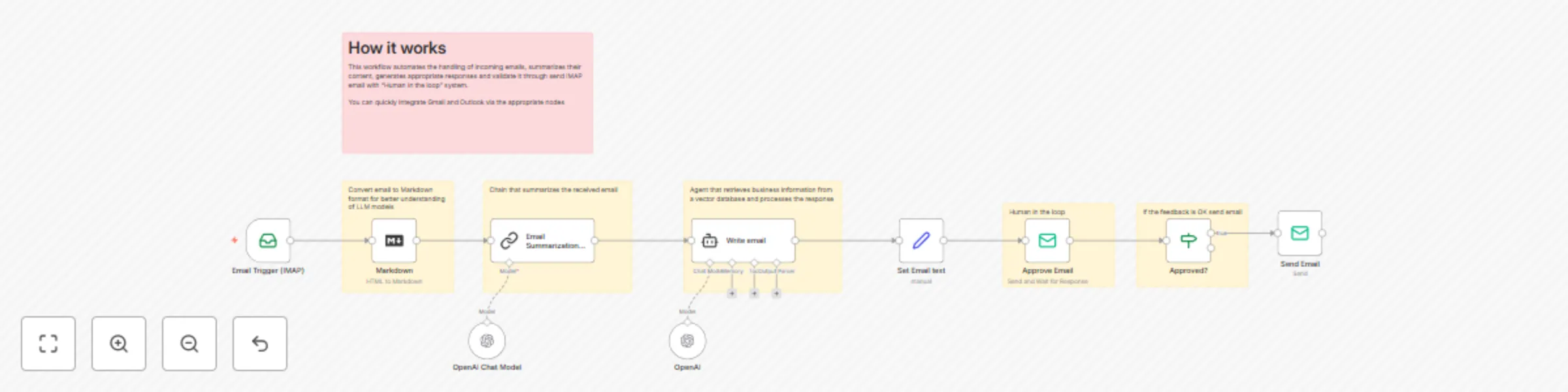
How it works This workflow automates the process of handling incoming emails by: 1. Receiving emails via IMAP. 2. Converting the email to Markdown for better AI understanding. 3. Summarizing the email using an AI model. 4. Drafting a professional reply with AI, based on the summary. 5. Requesting human approval for the AI-generated response. 6. Sending the approved reply back to the original sender. --- Set up steps Estimated time: 10–20 minutes (excluding credential setup) What you’ll need: - IMAP credentials for your email inbox - SMTP credentials for sending emails - OpenAI (or compatible) API key for AI steps Setup outline: 1. Add your IMAP and SMTP credentials to the workflow. 2. Connect your OpenAI (or compatible) account for AI summarization and reply generation. 3. Deploy the workflow in n8n and activate it. 4. Test by sending an email to your connected inbox. Note: Detailed configuration tips and explanations are included as sticky notes inside the workflow for each step.
LinkedIn post agent
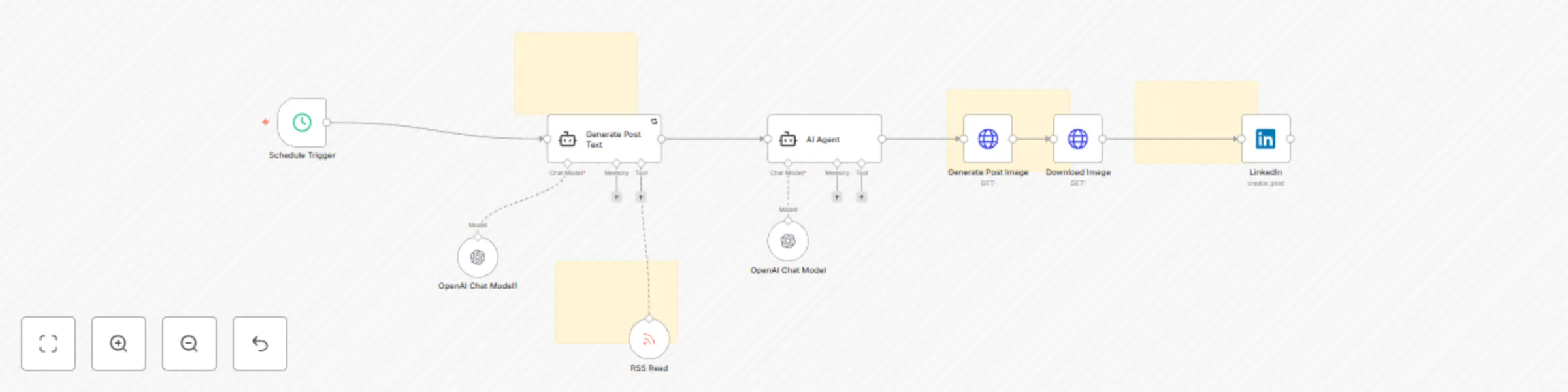
# LinkedIn Post Generator - Automated Marketing Content Workflow This workflow creates and publishes professional LinkedIn posts automatically on a schedule, complete with AI-generated images. Here's how it works: ## How It Works 1. Generates professional marketing posts focused on Generative AI and enterprise solutions (update prompt for your desired content) 2. Creates matching images that represent the post's themes visually 3. Publishes directly to LinkedIn on a scheduled basis 4. Incorporates RSS feeds for up-to-date content inspiration ## Setup Steps (Estimated time: 15-20 minutes) 1. **API Credentials**: Connect your OpenAI API key for text and image generation 2. **LinkedIn Authentication**: Add your LinkedIn credentials to enable posting 3. **RSS Configuration**: Add relevant industry RSS feed URLs for content inspiration 4. **Schedule**: Set your preferred posting frequency in the Schedule Trigger node The workflow uses GPT-4o and GPT-4o Mini to create professionally-toned content that positions you as a thought leader in marketing and AI implementation. The generated content follows specific formatting guidelines to maximize engagement on LinkedIn. Each post is carefully crafted to be 100-150 words with strategic paragraph breaks, ending with relevant hashtags. The matching images are designed to be clean, minimalistic, and aligned with the post's theme without any distracting text elements.
Multi-functional Discord bot: Llama AI, image generation & knowledge base
Multi-functional Discord Bot with Llama AI, Image Generation, and Knowledge Base Integration 🤖🎨🧠 ## Overview 🔍 This workflow creates a Discord bot that can: Monitor Discord messages from specific users 👀 Process different media types (images, audio, text) 🔎 Analyze images using AI 🖼️ Transcribe audio files 🎤 Generate responses using Llama AI 🦙 Create images from text prompts using Gemini AI 🎨 ## Prerequisites ✅ n8n automation platform 💻 API keys for Discord, Groq, Google/Gemini, and SerpAPI 🔑 Ollama setup for Llama language model 🧠 Main Workflow Components 🛠️ 1. Message Monitoring System 📨 Set up a Discord receiver to monitor messages in your server 💬 Add a filter to only process messages from specific users 🔍 Create a wait timer to control how often the bot checks for new messages ⏱️ 2. Media Type Detection 🔄 Create a system that detects what kind of content was shared: Audio files (by checking for waveform data) 🎵 Images (by checking content type) 🖼️ Text (default if no media detected) 💬 Add special detection for image creation commands 🎭 3. Image Processing 🖼️ Fetch the image from Discord 📥 Convert the image to a format the AI can understand 🔄 Send the image to Groq for analysis 🔍 Return the AI's description back to Discord 📤 4. Audio Processing 🎵 Fetch the audio file from Discord 📥 Send it to Groq's audio transcription service 🎤 Process the transcribed text with the AI assistant 🧠 Return the response to Discord 📤 5. Text Processing 💬 Send the text to an AI agent powered by Llama 🦙 Connect the agent to memory to maintain conversation context 🧠 Add knowledge tools like Wikipedia and search capabilities 🔍 Return the AI's response to Discord, with optional text-to-speech 🔊 6. Image Generation 🎨 Process the user's image creation request ✏️ Use an AI agent to refine the prompt for better results ✨ Send the enhanced prompt to Gemini for image generation 🖌️ Extract the generated image and post it to Discord 📤 Connecting the Components 🔗 Set up routing between components based on content type 🔀 Ensure all processes loop back to the message monitoring system ♻️ Add wait timers between operations to avoid rate limits ⏱️ Testing Tips 🐛 Test each type of content separately 🧪 Verify API connections and authentication 🔐 Check if responses are appropriate and timely ⏰ Optimization Suggestions ⚡ Adjust wait times based on your usage patterns ⏱️ Add more specific filters for message detection 🔍 Consider implementing caching for frequent requests 💾 Monitor performance and adjust as needed 📈 This Discord bot combines multiple AI services into a seamless experience, allowing users to interact with various AI capabilities through simple Discord messages. The modular design makes it easy to expand or modify specific features as needed! 🚀
Google Drive to Pinecone vector storage workflow
# Document Chat Bot with Automated RAG System This workflow creates a conversational assistant that can answer questions based on your Google Drive documents. It automatically processes various file types and uses Retrieval-Augmented Generation (RAG) to provide accurate answers based on your document content. ## How It Works 1. **Monitors Google Drive for New Documents**: Automatically detects when files are created or updated in designated folders 2. **Processes Multiple File Types**: Handles PDFs, Excel spreadsheets, and Google Docs 3. **Builds a Knowledge Base**: Converts documents into searchable vector embeddings stored in Supabase 4. **Provides Chat Interface**: Users can ask questions about their documents through a web interface 5. **Retrieves Relevant Information**: Uses advanced RAG techniques to find and present the most relevant information ## Setup Steps (Estimated time: 25-30 minutes) 1. **API Credentials**: Connect your OpenAI API key for text processing and embeddings 2. **Google Drive Integration**: Set up Google Drive triggers to monitor specific folders 3. **Supabase Configuration**: Configure Supabase vector database for document storage 4. **Chat Interface Setup**: Deploy the web-based chat interface using the provided webhook The workflow automatically chunks documents into manageable segments, generates embeddings, and stores them in a vector database for efficient retrieval. When users ask questions, the system finds the most relevant document sections and uses them to generate accurate, contextual responses.
Generate stock market investment reports from FinancialDatasets.ai with AI
# 🚀 **Perfect if you are...** - 💰 **Beginner Investor** – Learn the market faster with AI-powered insights guiding your decisions. - 📈 **Retail Trader** – Optimize your trading strategy with in-depth analysis typically reserved for professionals. - 🏦 **Hedge Fund & Institutional Trader** – Automate high-level market analysis using advanced AI models. - 🤖 **Automation Enthusiast** – Get hands-on with **n8n** and build an automated stock research tool. --- # ❔ **What It Does:** ✅ **AI-Driven Investment Reports** – Our system analyzes **30,000+ tickers** with historical data spanning **30+ years**. It provides **fundamental, technical, and sentiment analysis** in a structured, easy-to-read report. ✅ **Your Personal Hedge Fund on Your PC** – AI-powered advisors analyze **earnings reports, insider trades, stock prices, financial metrics, and news**, delivering precise, data-driven recommendations tailored to you. ✅ **Real Advisors, Real Insights** – Our system replicates the thought processes of **investing legends** like Warren Buffett, Charlie Munger, Cathie Wood, and Ben Graham, offering multiple expert-style perspectives on every stock decision. ✅ **Ultra Low Cost** – Running this workflow costs **less than $0.30 per report** (*AI model costs not included*). That’s cheaper than a cup of coffee, yet it provides insights worth thousands of dollars. --- # 🛠️ **Initial Setup** - Visit [FinancialDatasets.ai](FinancialDatasets.ai) and retrieve your API key. - Locate the **HTTPS Nodes** (🌐) and insert your API key under the header **X-API-KEY** in each one. - In the **Gmail node**, ensure you set up the email where you want to receive your reports. - Test your workflow by typing the name of a company or the stock ticker in the chat. Your report should arrive within 10 minutes. --- # 🧪 **Customize It!** - To modify the **workflow triggers**, change the trigger type and **update the message that the Ticker Extractor receives** in this part of the prompt: `"Based on this message, =={{ $json.chatInput }}== "` *This prevents any disruptions in the workflow.* - To **change the report destination**, update the node type. You can send reports to **Telegram, Slack, or other platforms** instead of Gmail. - Each **advisor's personality** is configured through its system message—feel free to tweak it to suit your needs. - You can **create new agents** by duplicating an existing one and assigning it a different personality. **Remember to reference the new agent in the linked nodes** to ensure seamless integration. ---- ⚠️ **Important Note:** This workflow requires an **API key from [FinancialDatasets.ai](FinancialDatasets.ai)** to access stock market data.
Seo keyword analysis and filter
**Use case** This workflow is designed for e-commerce brands and content teams who: - Need to scale SEO content production without sacrificing quality - Want to eliminate manual keyword filtering (saves 10+ hours/week) - Aim to dominate niche search terms (e.g., "vegan leather crossbody bags") **What this workflow does** Automates the end-to-end process from keyword discovery to publish-ready articles: - Keyword Harvesting: Pulls 1,000+ keywords/day from SEMrush/Ahrefs - Smart Filtering:Blocks competitor brands (e.g., "Zara alternatives") - Detects irrelevant demographics ("kids", "petite") - AI Content Generation:Flags non-compliant colors (non-black/white terms) - Multi-Channel Output: Formats content for blogs, product descriptions, and email campaigns **setup** - Add Google,SEMrush and OpenAI credentials - Set the rules excel of google drive - Test workflow by testing workflow - Review generated opportunity report in Google Sheets **How to adjust this template** - Change scenario: Replace the rules and define different target
Social Media Content Automation workflow
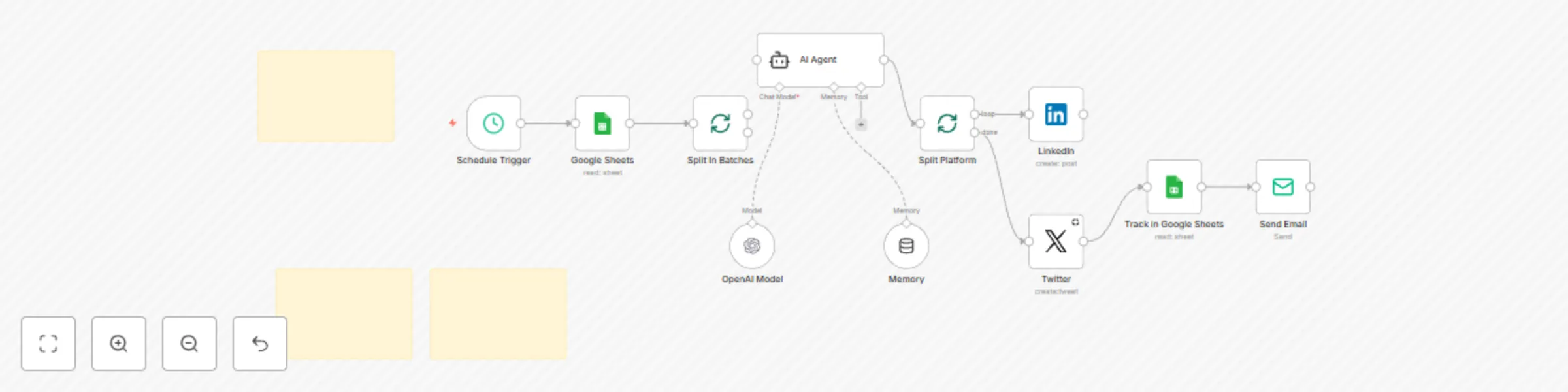
## Transform Your Social Media Strategy with AI-Powered Content Generation! ### Stop spending hours crafting social media posts. This automated workflow uses AI to generate professional, platform-specific content and publishes it across your social channels on schedule. ## What This Workflow Does? This workflow creates a complete social media publishing system, incorporarint automated actions such as: - Content Planning: Pull post ideas from a Google Sheet on schedule - AI Content Creation: Generate tailored content for each platform using OpenAI - Multi-Platform Publishing: Post to LinkedIn and Twitter with proper formatting - Content Tracking: Log all scheduled posts in a Google Sheet - Notification System: Get email confirmations when content is scheduled ## Perfect For: Marketing teams looking to scale content creation Social media managers handling multiple accounts Small businesses without dedicated social media staff Content creators needing consistent publishing schedules ## Setup Instructions: Required Accounts Before setting up the workflow, make sure you have: - OpenAI API Key: For AI-powered content generation - Google Account: To access Google Sheets for content ideas and tracking - LinkedIn Account: With developer access for publishing - Twitter/X Account: With developer access for publishing - Email Account: For sending notifications
Book ghostwriting & research AI agent
**How it Works:** 1. **Trigger:** The workflow is triggered by a webhook, initiated by an Airtable automation. This automation sends the Book or Chapter record ID and the desired action (e.g., "Generate Book Details," "Generate Chapters," "Generate Chapter Research," "Generate Chapter Content"). 2. **Action Routing:** A "Switch" node directs the workflow based on the `action` query parameter received from the webhook. This determines which part of the book creation process will be executed. 3. **Data Retrieval:** The workflow fetches the relevant book or chapter data from Airtable using the provided `recordId`. 4. **AI Processing:** * **Book Details Generation:** If the action is "Generate Book Details," an AI Agent (powered by a Large Language Model (LLM) like Google Gemini and the Perplexity search tool) researches the book idea. It focuses on crafting a compelling book description, identifying the target audience, and conducting general book research to maximize bestseller potential. The research brief is then saved back to Airtable. * **Chapter Generation:** If the action is "Generate Chapters," an LLM generates 7-10 chapter titles and descriptions based on the book idea and previous research. A structured output parser ensures the chapter data is in the correct format. The chapters are then split into individual items and saved as separate records in the "Chapter" table in Airtable, linked to the main book record. * **Chapter Research Generation:** If the action is "Generate Chapter Research," another AI Agent conducts in-depth research on a specific chapter, using the Perplexity search tool multiple times. It focuses on finding stories, case studies, historical events, and expert perspectives to make the chapter engaging and credible. The research is saved back to the "Chapter" record in Airtable. * **Chapter Content Generation:** If the action is "Generate Chapter Content," an LLM writes the full content of the chapter, using the research gathered in the previous step, the overall book research, and the chapter description. The generated content is saved back to the "Chapter" record in Airtable. 5. **Airtable Updates:** In each of the AI processing steps, the workflow updates the corresponding Airtable record (either "Book" or "Chapter") with the generated results (research, chapter details, or content) and sets the "Action" field back to "Idle." **Set Up Steps:**  1. **Airtable Setup (Estimated time: 10-15 minutes):** * Copy the Airtable base blueprint: [https://airtable.com/appfkz4KUlKvOjtbp/shra78TlDfqLRdSfT](https://airtable.com/appfkz4KUlKvOjtbp/shra78TlDfqLRdSfT). This will create the "Book" and "Chapter" tables with the necessary fields. * In the "Book" table, create three Airtable Automations: * **Trigger:** When a record matches conditions -> `Action` is `Generate Book Details` * **Action:** Run a script. Use the following script: ```javascript let autoRoute = input.config(); await fetch(autoRoute.webhookUrl + "?recordId=" + autoRoute.recordId + "&action=" + autoRoute.action); ``` * In the script action's configuration, add three "Input variables": * `webhookUrl` (map it to your n8n webhook URL, obtained in the next step) * `recordId` (map it to the Airtable record ID) * `action` (map it to `Action`) * Repeat this process to create two more automations in the "Book" table, identical except triggered when `Action` is `Generate Chapters`, respectively. * In the "Chapter" table, create two Airtable Automations: * **Trigger:** When a record matches conditions -> `Action` is `Generate Chapter Research` * **Action:** Run a script (use the same script as above, with the same input variables). * Create a second automation, identical except triggered when `Action` is `Generate Chapter Content`. 2. **n8n Setup (Estimated time: 15-20 minutes):** * Import the provided JSON workflow into n8n. * **Webhook Node:** * Copy the "Test URL" from the Webhook node. This is the `webhookUrl` you'll use in the Airtable automations. *Important: Once you've tested and are ready to go live, switch to the "Production URL."* * **Airtable Nodes:** * Configure *all* Airtable nodes (there are eight). You'll need to connect your Airtable account using OAuth 2. Select the correct Base ("Book Agency \[v1] Cobuild" or whatever you named it) and Table ("Book" or "Chapter") for each node. The field mappings are already defined in the template, but double-check them. * **LLM Nodes (Google Gemini & OpenAI):** * Connect your Google Gemini and OpenAI accounts to the respective LLM nodes. You'll need API keys for both. You may also configure different LLM Models. * **Perplexity Nodes** * Connect your Perplexity AI API to the Perplexity nodes. You'll need API keys for that. * **Activate** the workflow. 3. **Testing (Estimated Time: 5-10 minutes):** * Go to your Airtable "Book" table. Create a New Record. * Fill in the "Idea" field with a book concept. * Change the "Action" field to "Generate Book Details". * The Airtable automation should trigger, sending a request to your n8n webhook. * Monitor the n8n execution log to see the workflow in action. * Check the Airtable record to see if the "Research" field is populated. * Repeat the testing for `Generate Chapters`, `Generate Chapter Research` and `Generate Chapter Content`.
An AI agent to create faceless YouTube videos
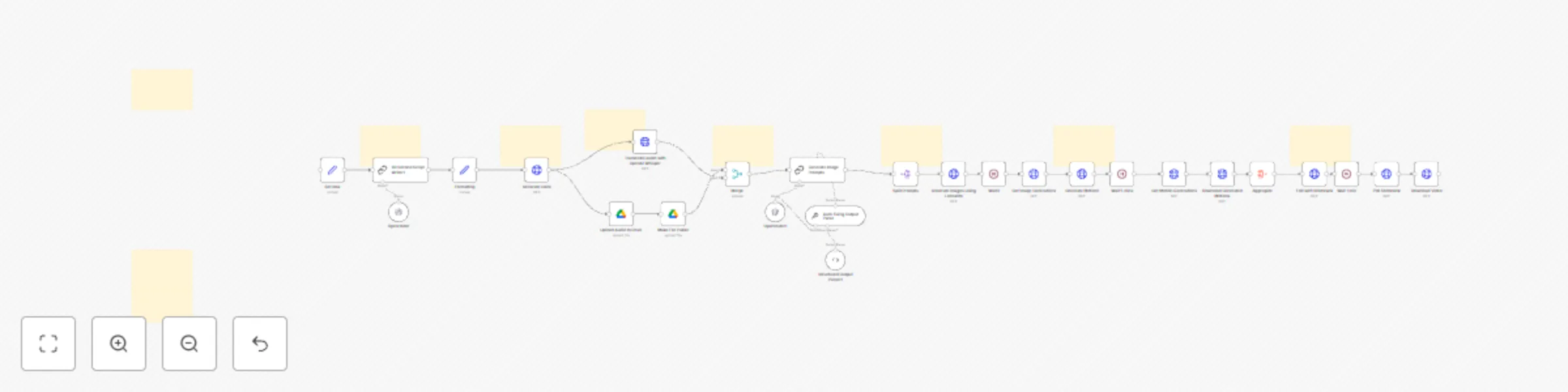
## Runthrough [Video runthrough](https://www.youtube.com/watch?v=i3-MQQ0Z3Ow) ## Use Case Create YouTube videos without on-camera presence: - You want to generate passive content - You need scalable video production - You want to automate content creation - You need consistent video output ## What this Workflow Does The workflow automates video production: - Generates audio narration - Creates complementary stock imagery and turns static images into motion - Syncs audio and visual elements - Produces ready-to-upload YouTube content ## Setup - Configure text-to-speech audio generation - Set up AI image generation service - Connect Shotstack API for video composition - Define content parameters and themes ## How to Adjust it to Your Needs - Modify audio generation parameters - Customize image styles - Adjust video composition ## Tools (requires API access & some are paid for tools) - Elevenlabs for audio generation - Leonardo for image generation and motion images (can be swapped out) - Shotstack for syncing image to video - OpenAI Whisper for transcription ## Cost of production Around $0.80 per video at time of writing
LINE BOT - Google Sheets file lookup with AI agent
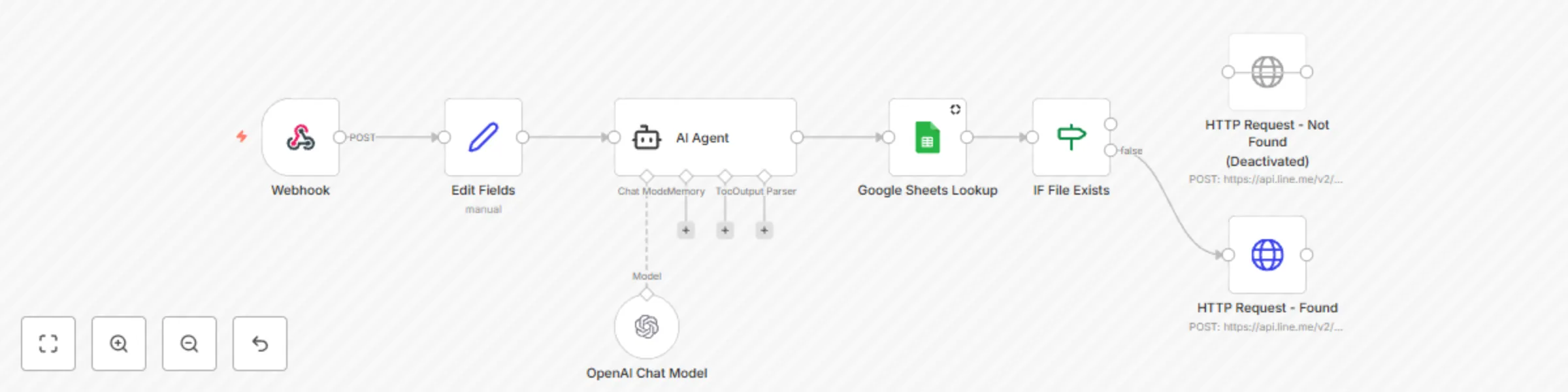
This workflow integrates LINE BOT, AI Agent (GPT), Google Sheets, and Google Drive to enable users to search for file URLs using natural language. The AI Agent extracts the filename from the message, searches for the file in Google Sheets, and returns the corresponding Google Drive URL via LINE BOT. - Supports natural language queries (e.g., "Find file 1.pdf for me") - AI-powered filename extraction - Google Sheets Lookup for file URLs - Auto-response via LINE BOT  ## How to Use This Template **1. Download & Import** - Copy and save the Template Code as a .json file. - Go to n8n Editor → Click Import → Upload the file. **2. Update Required Fields** - Replace YOUR_GOOGLE_SHEET_ID with your actual Google Sheet ID. - Replace YOUR_LINE_ACCESS_TOKEN with your LINE BOT Channel Access Token. **3. Activate & Test** - Click Execute Workflow to test manually. - Set Webhook URL in LINE Developer Console. ## Features of This Template - Supports Natural Language Queries (e.g., “Find file 1.pdf for me”) - AI-powered filename extraction using OpenAI (GPT-4/3.5) - Real-time file lookup in Google Sheets - Automatic LINE BOT Response - Fully Automated Workflow
Automate Telegram chat responses using Google Gemini
# Automate Telegram Chat Responses Using Google Gemini ***By [WeblineIndia](https://n8n.io/creators/weblineindia/)*** --- ## ⚡ TL;DR (Quick Steps) 1. **Create a Telegram bot** using [@BotFather](https://t.me/BotFather) and copy the API Token. 2. **Obtain Google Gemini API Key** via Google Cloud. 3. **Set up the n8n workflow**: - Trigger: Telegram message received. - AI Model: Google Gemini generates response. - Output: AI reply sent back to user via Telegram. 4. **Customize the system prompt**, model, or message handling to suit your use case. --- ## 🧠 Description This n8n workflow enables seamless automation of real-time chat replies in **Telegram** by integrating with **Google Gemini's Chat Model**. Every time a user sends a message to your Telegram bot, the workflow routes it through the Gemini AI, which analyzes and crafts a professional response. This reply is then automatically delivered back to the user. The setup acts as a lightweight but powerful chatbot system — ideal for businesses, customer service, or even personal productivity bots. You can easily modify its tone, intelligence level, or logging mechanisms to cater to specific domains such as sales, tech support, or general Q&A. --- ## 🎯 Purpose of the Workflow The primary goal of this workflow is to **automate intelligent, context-aware chat responses in Telegram** using a robust AI model. It eliminates manual reply handling, enhances user engagement, and ensures 24/7 interaction capabilities — all through a no-code or low-code setup using n8n. --- ## 🛠️ Steps to Configure and Use ### ✅ Pre-Conditions / Requirements - **Telegram Bot Token**: Get it from [@BotFather](https://t.me/BotFather). - **Google Gemini API Key**: Available via Google Cloud PaLM/Gemini API access. - **n8n Instance**: Hosted or local instance with required nodes installed (`Telegram`, `Basic LLM Chain`, and `Google Gemini` support). --- ### 🔧 Setup Instructions #### Step 1: Telegram Trigger – Listen for Incoming Messages - Add **Telegram Trigger** node. - Select **Trigger On: Message**. - Authenticate using your **Telegram Bot Token**. - This will capture incoming messages from any user interacting with your bot. #### Step 2: Google Gemini AI – Generate a Smart Reply - Add the **Basic LLM Chain** node. - Connect the input message (`{{$json.message.text}}`) from the Telegram Trigger. - System Prompt: > "You are an AI assistant. Reply to the following user message professionally:" - Choose **Google Gemini Chat Model** (`models/gemini-1.5-pro`). - Connect this node to receive the text input and pass it to Gemini for processing. #### Step 3: Telegram Reply – Send the AI Response - Add a **Telegram** node (Operation: Send Message). - Set **Chat ID** dynamically from the Telegram Trigger node. - Input the generated message from the Gemini output. - Enable **Parse Mode** as `HTML` for rich formatting. #### Final Step: Link All Nodes - `Receive Telegram Message` → `Generate AI Response` → `Send Telegram Reply`. > Tip: Test the workflow by sending a message to your Telegram bot and ensure you receive an AI-generated reply. --- ## 🧩 Customization Guidance - ✏️ **Modify the AI tone** by updating the system prompt. - 🤖 **Use other AI models** (e.g., OpenAI GPT-4o). - 🔍 **Add filters** to respond differently based on specific keywords. - 📊 **Extend the workflow** to store chats in Google Sheets, Airtable, or databases for audit or analytics. - 🌐 **Multi-language support**: Add translation layers before and after AI processing. --- ## 🛠️ Troubleshooting Guide - **No message received?** Check if your Telegram bot is active and webhook is working. - **AI not responding?** Validate your Google Gemini API key and usage quota. - **Wrong replies?** Refine the system prompt or validate message routing. - **Formatting issues?** Ensure Parse Mode is correctly set to `HTML`. --- ## 💡 Use Case Examples - **Customer Service Chatbot** for product queries. - **Educational Bots** for answering user questions on a topic. - **Mental Health Companion** that gives supportive replies. - **Event-based Announcers** or automatic responders during off-hours. > And many more! This workflow can be easily extended to support advanced use cases with just a few additional nodes. --- ## 👨💻 About the Creator This workflow is developed by **WeblineIndia**, a trusted provider of AI development services and process automation solutions. If you're looking to build or customize intelligent workflows like this, we invite you to [get in touch with our team](https://www.weblineindia.com/contact-us.html). We also offer specialized [Python development](https://www.weblineindia.com/python-development.html) and [AI developer hiring services](https://www.weblineindia.com/hire-ai-developers.html) to supercharge your automation needs.
AI chatbot for website with conditional execution for cost efficiency
# AI Chatbot with Conditional Execution for Cost Efficiency ## Description This **n8n workflow** implements an **AI-powered chatbot** that **only runs when a chat is initiated on a website**. By introducing a conditional step, the workflow ensures that **AI tokens are not consumed unnecessarily**, making it a cost-efficient and resource-optimized solution. The chatbot, named **Sophia**, serves as an **interactive assistant for SyncBricks**. It helps users with **guest posting services, YouTube review videos, IT consultancy, and online courses** while collecting user details step by step. The chatbot ensures that inquiries are properly logged and confirmed before proceeding to AI-driven responses. This template is ideal for **businesses, service providers, and content creators** who want to **optimize AI token usage** while delivering **personalized, interactive engagement** with their users. ## Features 1. **Conditional Execution** – The AI chatbot **only activates when a chat is initiated**, avoiding unnecessary API calls. 2. **AI-Powered Conversations** – Uses **Google Gemini AI** to generate human-like responses. 3. **Step-by-Step Data Collection** – Ensures **structured user input**, requesting **name, email, and request type** sequentially. 4. **Memory Buffer for Context Awareness** – Maintains conversation context using a **window buffer memory** system. 5. **Multiple Service Offerings** – Supports inquiries related to: - **Guest Posting Services** - **YouTube Review Videos** - **Online Courses on Udemy** - **IT Consultancy Services** 6. **Automated Confirmation Messages** – After collecting user details, sends a **confirmation message** summarizing the request. ## How It Works 1. **Chat Message Trigger** - The workflow starts **only when a chat message is received** from the website. - This ensures **no AI token is consumed unless a user initiates a chat**. 2. **Condition Check: Is Chat Input Provided?** - The workflow checks if **chat input is non-empty**. - If the chat input is empty, **the workflow stops**, ensuring **no unnecessary API usage**. - If a message is detected, **the chatbot continues** processing. 3. **AI-Powered Chat Response** - The chatbot, **Sophia**, generates **personalized responses** using **Google Gemini AI**. - AI ensures **structured conversation flow** by collecting: - **User’s Full Name** - **Email ID** - **Request Type** 4. **Memory Buffer for Context Retention** - A **Window Buffer Memory** system **stores chat history** and **retrieves previous responses** to ensure **context-aware conversations**. 5. **Response Optimization** - **Checks memory** to avoid **asking the same question twice**. - If details are already provided, **Sophia moves directly to processing the request**. 6. **Confirmation & User Engagement** - After collecting the required details, Sophia **summarizes the request** as follows: - *"Got it [Name], your request is [Request Type]. I will be sending the details to your email ID: [Email]. Hold on while I send confirmation."* 7. **Final Confirmation Message** - Ensures the **user receives a proper acknowledgment** of their inquiry. ## Prerequisites Before using this workflow, make sure you have: 1. **n8n Instance** (Cloud or Self-Hosted) 2. **Google Gemini API Key** (For AI-generated responses) 3. **Webhook Integration** (To trigger the chatbot from your website) ## Use Cases 1. **Businesses & Enterprises** – AI-powered lead qualification for services. 2. **Bloggers & Content Creators** – Automated **guest post** inquiry handling. 3. **YouTube Influencers & Educators** – AI chatbot to promote courses and review services. 4. **Marketing Agencies** – Lead generation chatbot **without excessive AI token consumption**. 5. **E-Commerce & Consulting Services** – AI-driven **personalized customer engagement**. ## Nodes Used in This Workflow 1. **Chat Trigger (Webhook)** – Initiates only when a user sends a chat message. 2. **Conditional Check (If Node)** – Ensures AI is **only used when a chat is initiated**. 3. **AI Agent (Google Gemini AI)** – Generates **intelligent chatbot responses**. 4. **Memory Buffer (Context Retention)** – Stores user inputs for **context-aware conversations**. ## Important ### [Start with n8n](https://www.udemy.com/course/mastering-n8n-ai-agents-api-automation-webhooks-no-code/?referralCode=0309FD70BE2D72630C09) ### [Learn n8n with Amjid ](https://www.udemy.com/course/mastering-n8n-ai-agents-api-automation-webhooks-no-code/?referralCode=0309FD70BE2D72630C09) ### [Get n8n Book](https://lms.syncbricks.com/books/n8n/) ### [What is Proxmox](https://www.udemy.com/course/proxmox-virtualization-environment-complete-training/?referralCode=8E7EAFD11C2389F89C11) ## Creator Information **Developed by:** Amjid Ali **Website:** [SyncBricks](https://syncbricks.com) **Email:** [[email protected]](mailto:[email protected]) **LinkedIn:** [Amjid Ali](https://linkedin.com/in/amjidali) **YouTube:** [SyncBricks](https://youtube.com/@syncbricks) ## Support & Contributions If you find this workflow helpful, consider **supporting my work**: [Donate via PayPal](http://paypal.me/pmptraining) For **full courses on n8n**, visit: [Course by Amjid](https://www.udemy.com/course/mastering-n8n-ai-agents-api-automation-webhooks-no-code/?referralCode=0309FD70BE2D72630C09) ## Final Thoughts This **n8n workflow** ensures **optimal AI token usage** while **engaging users with an intelligent chatbot**. By integrating **conditional execution**, it **prevents unnecessary API calls**, making it **cost-effective and efficient** for businesses looking to automate chat-based customer interactions. Let me know if you need **any modifications**!
AI-powered reasoning and response workflow
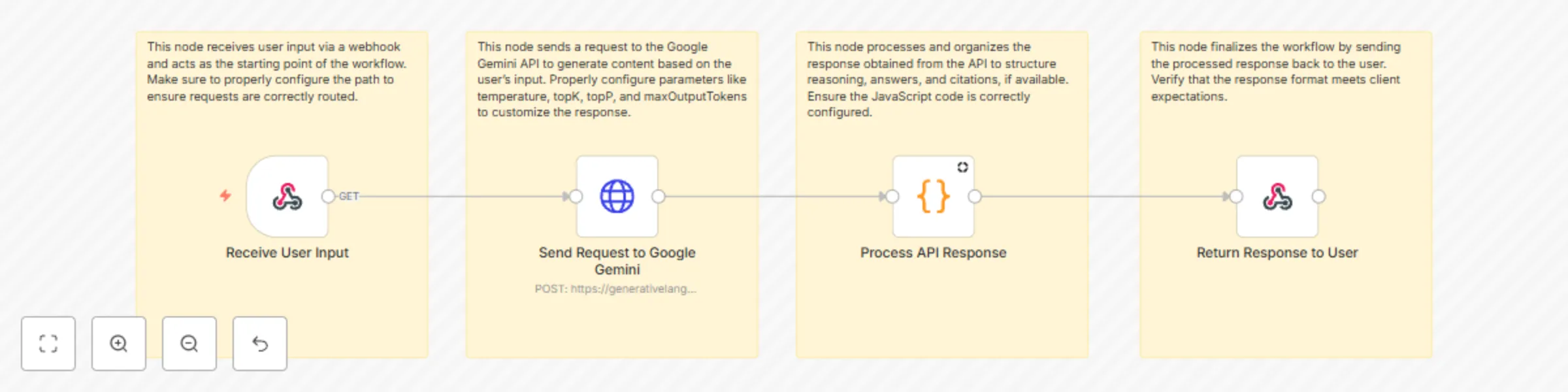
#### Overview: This workflow is designed to handle user inputs via a webhook, process the inputs with the Google Gemini API (specifically the **gemini-2.0-flash-thinking-exp-1219** model), and return a structured response to the user. The response includes three key elements: reasoning, the final answer, and citation URLs (if applicable). This workflow provides a robust solution for integrating AI reasoning into your processes. This workflow can be utilized as a tool for AI-based agents, intelligent email drafting systems, or as a standalone intelligent automation solution. --- #### Setup: 1. **Webhook Configuration:** - Ensure the webhook node is properly set up to accept GET requests with an `input` parameter. - Verify that the webhook path matches your application requirements. - Test the webhook using tools like Postman to ensure proper data formatting. 2. **Google Gemini API Credentials:** - Set up your Google Gemini API account credentials in the HTTP Request node. - Ensure API access and permissions are valid. 3. **Parameter Adjustments:** - Customize the `temperature`, `topK`, `topP`, and `maxOutputTokens` parameters to fit your use case. --- #### Customization: 1. **Input Parameters:** - Modify the webhook path or parameters based on the data your application will send. 2. **Response Formatting:** - Adjust the JavaScript code in the "Process API Response" node to fit your desired output structure. 3. **Output Expectations:** - Test the response returned by the "Return Response to User" node to ensure it meets your application requirements. --- #### Workflow Steps: 1. **Receive User Input:** - **Node Type:** Webhook - **Purpose:** Captures a GET request containing a user-provided `input` parameter. Acts as the starting point for the workflow. 2. **Send Request to Google Gemini:** - **Node Type:** HTTP Request - **Purpose:** Sends the received `input` to the Gemini-2.0-flash-thinking-exp-1219 model for processing. The API configuration includes parameters for customizing the response. 3. **Process API Response:** - **Node Type:** Code Node - **Purpose:** Extracts reasoning, the final answer, and citation URLs from the API response. Organizes the output for further use. 4. **Return Response to User:** - **Node Type:** Respond to Webhook - **Purpose:** Sends the processed and structured response back to the user via the webhook. Ensures the response format meets expectations. --- #### Expected Outcomes: - **Input Handling:** Successfully captures user input via a webhook. - **AI Processing:** Generates a structured response using the **Gemini-2.0-flash-thinking-exp-1219** model, including reasoning, answers, and citations (if available). - **Output Delivery:** Returns a user-friendly response formatted to your specifications. --- #### Notes: - The workflow is inactive by default. - Each node is annotated with a Sticky Note to clarify its purpose. - Ensure all API credentials are correctly configured before execution. - Use this workflow to save time, improve accuracy, and automate repetitive tasks efficiently. --- #### Tags: - Automation - Google Gemini - AI Agents - Intelligent Automation - Content Generation - Workflow Integration