Invoice Processing Workflows
182 workflows found
Workflow preview: Send Stripe invoice reminders with GPT-4.1-mini, Google Sheets and Slack
Free advanced

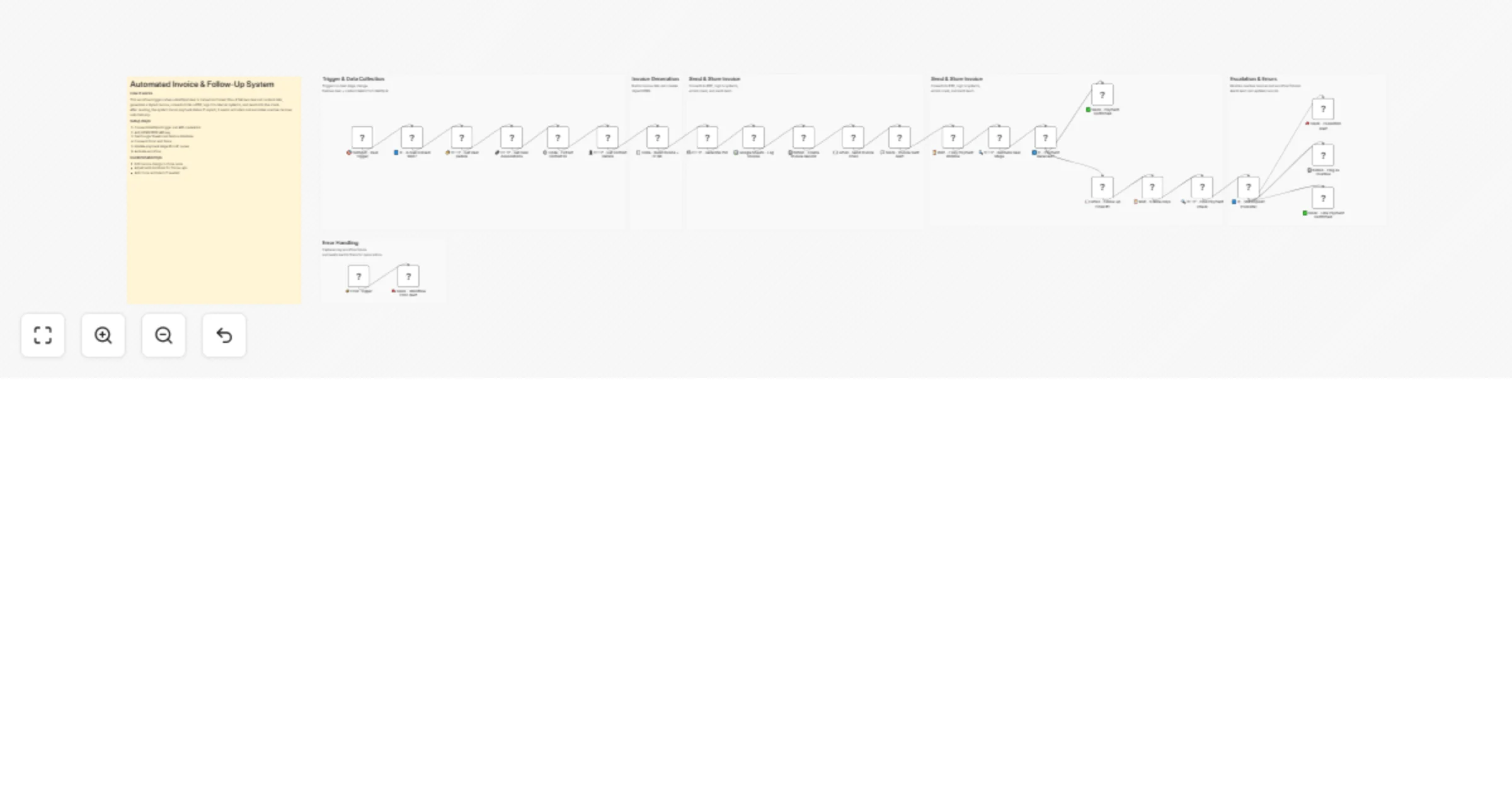
Send Stripe invoice reminders with GPT-4.1-mini, Google Sheets and Slack

## Who this workflow is for Accounting and bookkeeping firms needing automated invoice creation and payment reminders. ## What this workflow does AI generates personalized emails for overdue invoices, logs invoice info in Google Sheets, notifies accountants via Slack, creates PDF invoices, and schedules follow-ups. ## How the workflow works 1. Invoice creation triggers workflow 2. AI drafts personalized email 3. Routes based on payment status 4. Logs invoice info in Google Sheets 5. Sends Slack notifications to accountant 6. Sends email to client 7. Generates PDF invoice 8. Schedules follow-up events 9. Optional CRM/accounting tool integration **Author:** Hyrum Hurst, AI Automation Engineer **Company:** QuarterSmart **Contact:** [email protected]

H
Hyrum Hurst
Invoice Processing
16 Jan 2026
0
0
Workflow preview: Send automated payment reminders for Xero invoices via Outlook email
Free intermediate

Send automated payment reminders for Xero invoices via Outlook email

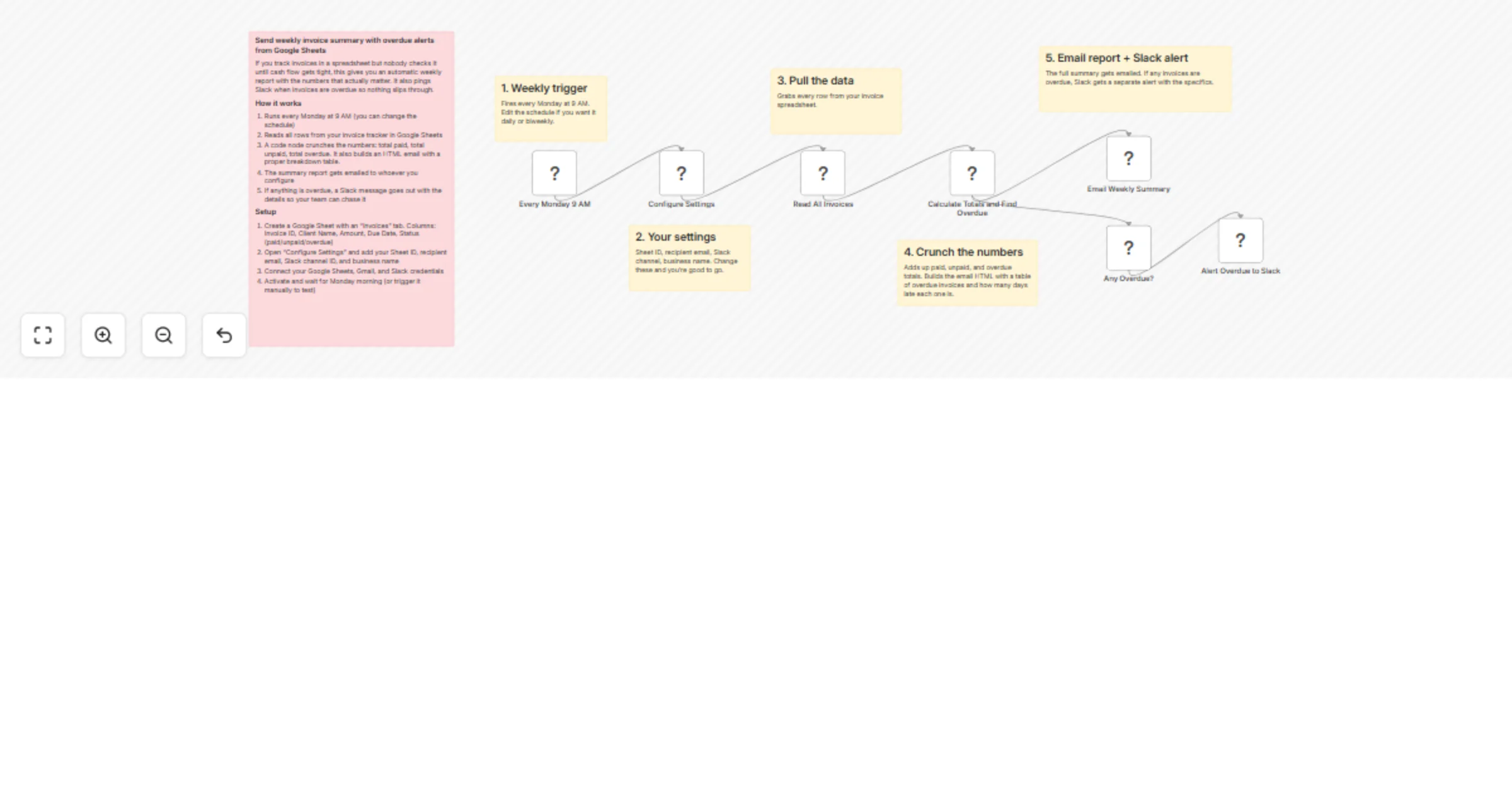
## Who's this for Small business owners, finance teams, accountants, and bookkeepers who use Xero for invoicing and want to improve cash flow by automating payment reminders. If you're spending time manually following up on unpaid invoices or struggling with late payments, this workflow eliminates the manual effort and ensures consistent, timely communication with customers while maintaining a complete audit trail. ## What it does This workflow automatically monitors all invoices in your Xero account and sends friendly payment reminders to customers when invoices are approaching their due date. It runs daily at noon, checks every invoice, calculates how many days until payment is due, sends personalized email reminders for invoices due within 7 days, and logs each reminder activity back into Xero's invoice history. The automation ensures no invoice slips through the cracks, reduces the administrative burden of accounts receivable management, and maintains professional customer relationships through polite, timely reminders—all while keeping your Xero records up to date with reminder tracking. ## How it works The workflow executes automatically every day at 12 PM and follows this process: - Triggers the daily check using the Schedule Trigger node - Fetches all invoices from your Xero account using the Xero API integration - Filters out invoices that are already marked as "PAID" to avoid sending unnecessary reminders - Calculates the number of days remaining until each unpaid invoice is due using a JavaScript code node - Identifies invoices that are due within the next 7 days (customizable threshold) - Sends personalized email reminders to customers via Microsoft Outlook, including invoice number, due date, and amount - Logs the reminder activity back into Xero's invoice history with the date sent and days until due - Creates a complete audit trail in Xero showing when reminders were sent for each invoice The workflow only sends reminders for invoices meeting the criteria, so customers aren't bombarded with unnecessary emails. The Xero history logging ensures your team can see at a glance which customers have been reminded and when, preventing duplicate reminders and providing accountability. ## Requirements - Xero account with API access enabled (available to all Xero users at no additional cost) - Microsoft Outlook or Office 365 account for sending email reminders - Valid email addresses configured for all customers in your Xero contact records - n8n instance (self-hosted or cloud) with credentials configured for: - Xero OAuth2 connection (used twice: once for fetching invoices, once for logging history) - Microsoft Outlook OAuth2 connection ## Setup instructions **1. Enable Xero API access** Ensure your Xero account has API access enabled. This is available by default for all Xero accounts. You'll need administrator access to create the API connection. **2. Configure n8n credentials** In your n8n instance, set up OAuth2 credentials for: - **Xero:** Follow n8n's Xero credential documentation to authorize access to your Xero organization. Make sure the credentials have permission to both read invoices and write to invoice history. - **Microsoft Outlook:** Set up OAuth2 connection to allow n8n to send emails on your behalf **3. Assign credentials to nodes** Open the workflow and assign your configured credentials to these nodes: - "Fetch All Xero Invoices" → Select your Xero credential - "Send Email Reminder to Customer" → Select your Microsoft Outlook credential - "Log Reminder in Xero History" → Select your Xero credential (same as above) **4. Customize the email template** Edit the "Send Email Reminder to Customer" node to personalize the message: - Update the sender name and signature - Add your company branding or logo - Include payment instructions or online payment links - Adjust the tone to match your customer communication style - Add any legal disclaimers or terms if required - Customize the subject line if needed **5. Adjust the reminder threshold (optional)** By default, reminders are sent for invoices due within 7 days. To change this: - Open the "Calculate Days Until Due" code node - Find the line: `isDueSoon: diffDays <= 7 && diffDays >= 0` - Change `7` to your preferred number of days (e.g., `14` for two weeks notice) **6. Test the workflow** Before enabling the daily schedule: - Use the manual trigger to test with your actual Xero data - Verify that invoices are fetched correctly - Check that the date calculations are accurate - Send a test email to yourself to review the message format - Confirm the reminder is logged in Xero's invoice history - Verify only qualifying invoices trigger reminders **7. Activate the workflow** Once testing is complete, activate the workflow. It will run automatically every day at noon (or your customized schedule time).

P
Patrick Campbell
Invoice Processing
12 Jan 2026
0
0
Workflow preview: Post bank statement transactions to QuickBooks Online using OpenRouter AI
Free advanced

Post bank statement transactions to QuickBooks Online using OpenRouter AI

## ✅ What problem does this workflow solve? Manually entering bank statements into QuickBooks is one of the most time-consuming and error-prone accounting tasks. Accountants often spend hours converting PDF bank statements into individual income and expense entries—risking missed transactions, incorrect categorization, and inconsistencies. This workflow **fully automates the end-to-end process**: from uploading a (even password-protected) bank statement PDF to creating **accurate Sales Receipts and Expenses directly inside QuickBooks**, using AI and n8n. --- ## ⚙️ What does this workflow do? - Accepts bank statement PDFs via a secure web form - Decrypts and extracts text from password-protected PDFs - Uses AI to extract **structured transactions** from raw statement text - Validates AI output against a strict JSON schema - Processes each transaction individually for reliability - Automatically routes transactions based on type: - **Credits → Income (Sales Receipts)** - **Debits → Expenses** - Intelligently creates missing QuickBooks entities: - Customers - Vendors - Items - Expense categories - Posts transactions directly into QuickBooks - Eliminates manual accounting entry completely --- ## 🧠 How It Works – End-to-End Flow ### 1️⃣ Secure Bank Statement Upload A user uploads a bank statement PDF (normal or password-protected) using an **n8n Form Trigger**. ### 2️⃣ PDF Decryption & Text Extraction The workflow: - Unlocks the PDF (if password-protected) - Extracts the full statement text using the **Extract PDF Text** node ### 3️⃣ AI-Powered Transaction Extraction An **AI Agent** reads the raw bank statement text and extracts every transaction with high precision: - Transaction type (credit / debit) - Date (YYYY-MM-DD)` - Amount - Description - Reference number - Payee / counterparty ### 4️⃣ Strict JSON Validation AI output is validated using a **Structured Output Parser** to ensure: - No malformed data - Schema-safe transactions - Reliable downstream processing ### 5️⃣ Transaction Processing Loop Each transaction is processed individually using batching and loop control to guarantee accuracy. ### 6️⃣ Smart Routing: Credit vs Debit A switch node routes transactions automatically: - **Credits** → Income flow - **Debits** → Expense flow --- ## 💰 Credit Path – Income Automation For every **credit transaction**: - Checks if a matching QuickBooks item exists - Creates missing service items automatically - Finds or creates the customer - Builds a **Sales Receipt payload** - Posts the transaction into QuickBooks as income --- ## 💸 Debit Path – Expense Automation For every **debit transaction**: - Searches for the vendor by payee name - Creates the vendor if missing - Loads expense categories from the Chart of Accounts - Auto-maps transactions to the correct category using keyword logic - Builds a **Purchase (Expense) payload** - Posts the expense into QuickBooks --- ## 🧠 Built-In QuickBooks Intelligence This workflow intelligently handles: - Duplicate prevention - Missing customer/vendor creation - Automatic item mapping - Category resolution using transaction descriptions - Consistent accounting structure across all entries --- ## 📊 Results & Benefits ✅ Zero manual bank statement entry ✅ Works with password-protected PDFs ✅ Handles both income and expenses automatically ✅ Creates clean, structured QuickBooks records ✅ Saves **dozens of accounting hours every month** ✅ Reduces human error and reconciliation issues --- ## 🔧 Setup Requirements 1. Connect your **QuickBooks Online** account (Sandbox or Production) 2. Add **OpenRouter / AI model credentials** for transaction extraction 3. Update the PDF password (if required) in the extraction node 4. Replace `company_id` in QuickBooks API endpoints 5. Verify QuickBooks account IDs (bank, income, expense) 6. Test with a sample bank statement PDF --- ## 👤 Who is this for? This workflow is ideal for: - 📒 Accountants & bookkeeping firms - 🏢 Businesses managing frequent bank statements - 💼 Finance teams using QuickBooks Online - 🤖 Automation-first accounting systems

I
InfyOm Technologies
Invoice Processing
1 Jan 2026
40
0
Workflow preview: Send Stripe expired charge recovery reminders with OpenAI
Free intermediate

Send Stripe expired charge recovery reminders with OpenAI

## Stripe Invoice Reminder Workflow ### Who’s this for Businesses using Stripe subscriptions or one-time payments who want to automatically follow up with customers after a failed payment. ### What this workflow does - Detects expired or failed charges in Stripe - Drafts AI-generated payment reminders for customers - Creates a new Stripe invoice for the failed payment - Optionally sends reminders via Email or Slack ### How it works 1. Stripe trigger listens for expired charges 2. Set node normalizes customer and payment information 3. OpenAI node drafts a friendly payment reminder 4. Stripe node creates a new invoice 5. Optional Email/Slack node sends the reminder ### How to set up - Connect Stripe account and enable 'charge.expired' events - Connect OpenAI API credentials - Configure Email or Slack notifications if desired - Optional: Customize AI prompt for company tone ### Requirements - n8n account with Stripe integration - OpenAI API key - Optional Email/Slack integration ### How to customize - Change AI prompt to fit brand voice - Include dynamic invoice details or subscription links - Add internal alerts for accounting teams - Modify email templates or Slack messages

H
Hyrum Hurst
Invoice Processing
31 Dec 2025
32
0
Workflow preview: Extract & organize email invoices with Gmail, Drive & OpenAI GPT
Free advanced

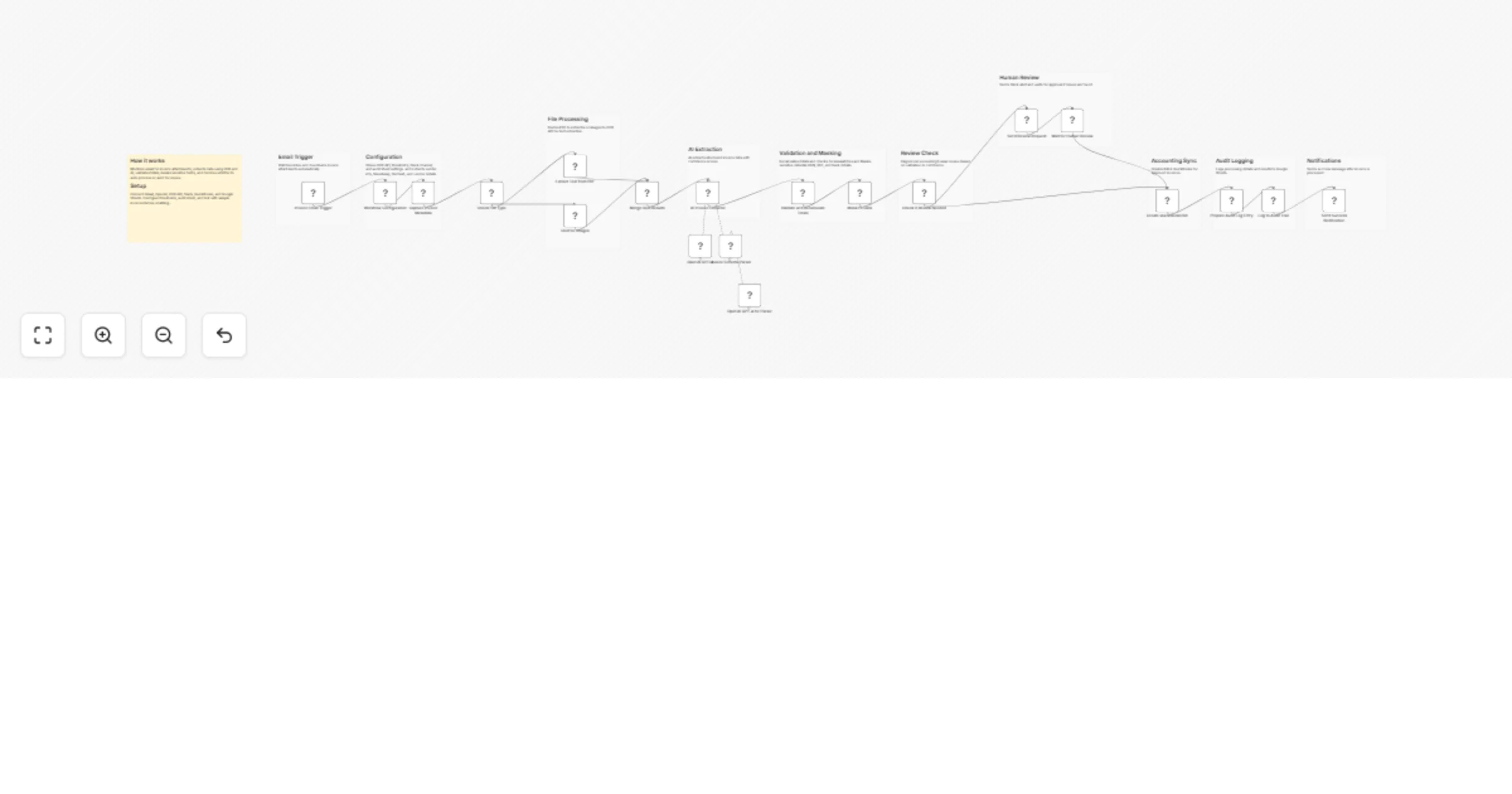
Extract & organize email invoices with Gmail, Drive & OpenAI GPT

## Who’s it for This template is for founders, finance teams, and solo operators who receive lots of invoices by email and want them captured automatically in a single, searchable source of truth. If you’re tired of hunting through your inbox for invoice PDFs or “that one receipt from three months ago,” this is for you. ## What it does / How it works The workflow polls your Gmail inbox on a schedule and fetches new messages including their attachments. A JavaScript Code node restructures all attachments, and a PDF extraction node reads any attached PDFs. An AI “Invoice Recognition Agent” then analyzes the email body and attachments to decide whether the email actually contains an invoice. If not, the workflow stops. If it is an invoice, a second AI “Invoice Data Extractor” pulls structured fields such as `date_email`, `date_invoice`, `invoice_nr`, `description`, `provider`, `net_amount`, `vat`, `gross_amount`, `label` (saas/hardware/other), and `currency`. Depending on whether the invoice is in an attachment or directly in the email text, the workflow either: - uploads the invoice file to Google Drive, or - document a direct link to the mail, then appends/updates a row in Google Sheets with all invoice parameters plus a Drive link, and finally marks the Gmail message as read. ## How to set up 1. Add and authenticate: - Gmail credentials - Google Sheets credentials - Google Drive credentials - OpenAI (or compatible) credentials for the AI nodes 2. Create or select a Google Sheet with the expected columns (date_email, date_invoice, invoice_nr, description, provider, net_amount, vat, gross_amount, label, currency, link). 3. Create or select a Google Drive folder where invoices/docs should be stored. 4. Adjust the Gmail Trigger filters (labels, search query, polling interval) to match the mailbox you want to process. 5. Update node credentials and resource IDs (Sheet, Drive folder) via the node UIs, not hardcoded in HTTP nodes. ## Requirements - n8n instance (cloud or self-hosted) - Gmail account with OAuth2 setup - Google Drive and Google Sheets access - OpenAI (or compatible) API key configured in n8n - Sufficient permissions to read emails, read/write Drive files, and edit the target Sheet ## How to customize the workflow - **Change invoice categories**: Extend the `label` enum (e.g., add “services”, “subscriptions”) in the extraction schema and adjust any downstream logic. - **Refine invoice detection**: Tweak the AI prompts to be more or less strict about what counts as an invoice or receipt. - **Add notifications**: After updating the Sheet, send a Slack/Teams message or email summary for high-value invoices. - **Filter by sender or subject**: Narrow the Gmail Trigger to specific vendors, labels, or keywords. - **Extend the data model**: Add fields (e.g., cost center, project code) to the extractor prompt and Sheet mapping to fit your bookkeeping setup.

F
Feras Dabour
Invoice Processing
26 Dec 2025
246
0
Workflow preview: Invoice management system with Gmail reminders, Google Sheets, and Slack escalations
Free advanced

Invoice management system with Gmail reminders, Google Sheets, and Slack escalations

## Who is this for? This template is designed for freelancers, small businesses, and finance teams who need automated invoice management with intelligent payment follow-ups. Perfect for service providers, agencies, or any business that needs to track receivables and reduce late payments. ## What this workflow does This workflow provides complete invoice lifecycle management with two main flows: **Invoice Generation Flow:** - Receives order data via webhook with line items - Splits line items using Split Out node for individual processing - Calculates subtotals, tax, and totals - Aggregates results and saves to Google Sheets - Sends professional invoice email with payment link **Payment Reminder Flow:** - Runs daily via Schedule Trigger to check for overdue invoices - Loops through unpaid invoices using Split In Batches - Routes to appropriate reminder level using Switch node (5 levels) - Sends escalating reminders: friendly → second notice → urgent → final → collections - Notifies internal team via Slack for collections handoff ## Setup 1. Create a Google Sheet with columns: Invoice ID, Client, Email, Subtotal, Tax, Total, Due Date, Status, Created, Last Reminder 2. Connect Google Sheets and Gmail credentials 3. Configure Slack for collections escalation notifications 4. Set up the webhook URL in your order management system ## Requirements - Google Sheets (invoice database) - Gmail account (invoice and reminder emails) - Slack workspace (collections notifications) ## How to customize - Adjust overdue day thresholds in the Code node - Add SMS reminders via Twilio for urgent notices - Modify email templates for your brand - Connect to accounting software for automatic reconciliation

飯盛 正幹
Invoice Processing
25 Dec 2025
58
0
Workflow preview: Automate tax deduction processing with GPT-4 receipt analysis and Gmail reporting
Free advanced

Automate tax deduction processing with GPT-4 receipt analysis and Gmail reporting

## How It Works This workflow automates monthly tax processing by ingesting expense receipts alongside revenue data, extracting structured deduction details using GPT-4, and accurately matching expenses to their corresponding revenue periods. It retrieves receipts with built-in type validation, parses deduction information through OpenAI structured output extraction, and consolidates revenue records into a unified dataset. The system then intelligently aligns expenses with revenue timelines, calculates eligible deductions, and generates well-formatted tax reports that are automatically sent to designated agents via Gmail. Designed for accountants, tax professionals, and finance teams, it enables automated expense categorization and optimized deduction calculations. ## Setup Steps 1. Configure receipt storage source and OpenAI Chat Model API key. 2. Connect Gmail for report delivery and set up tax agent email. 3. Define expense categories, revenue periods, and deduction rules. 4. Schedule monthly trigger and test extraction ## Prerequisites Expense receipt repository; OpenAI API key; Gmail account; revenue data source ## Use Cases Accountants automating receipt processing for multiple clients; ## Customization Adjust extraction prompts for industry-specific expenses, modify deduction rules ## Benefits Eliminates manual receipt review, reduces categorization errors

C
Cheng Siong Chin
Invoice Processing
22 Dec 2025
21
0
Workflow preview: Automate purchase bill processing with AI OCR & QuickBooks integration
Free advanced

Automate purchase bill processing with AI OCR & QuickBooks integration

## ✅ What problem does this workflow solve? Accounting teams spend **hours manually entering purchase bills** into accounting systems—copying vendor details, creating items, checking duplicates, and reconciling totals. This workflow removes that manual effort entirely. With **OCR + AI + QuickBooks integration**, this automation converts uploaded purchase bills into **fully reconciled QuickBooks bills**—accurately, consistently, and without human intervention. --- ## ⚙️ What does this workflow do? - Accepts **multiple purchase bills** in a single upload - Extracts structured invoice data using OCR + AI - Automatically syncs vendors and items with **:contentReference[oaicite:0]{index=0}** - Creates missing vendors or items when needed - Generates clean, validated bills inside QuickBooks - Prevents duplicate vendors or line items --- ## 🧠 How It Works – Step-by-Step ### 1. 📤 Upload Purchase Bills - Users upload **one or multiple PDF bills** using an n8n form - Each bill is automatically split and processed individually ### 2. 🔍 OCR & Invoice Data Extraction - The workflow extracts text from each PDF - An AI extraction engine powered by :contentReference[oaicite:2]{index=2} identifies: - Invoice number & dates - Vendor details - Line items (name, quantity, price, amount) - Subtotal, tax, and total ### 3. 🔄 Item & Vendor Reconciliation (QuickBooks) - Fetches **existing items** from QuickBooks - If an item does not exist: - Automatically creates it - Checks if the vendor exists: - Creates a new vendor if missing - Ensures **zero duplicates** in QuickBooks ### 4. 🧾 Bill Payload Creation - Builds a clean QuickBooks-compatible bill payload - Maps: - Items - Vendor - Dates - Taxes - Totals - Handles edge cases like missing quantities or unit prices ### 5. 💰 Bill Creation in QuickBooks - Creates a finalized bill inside QuickBooks - Each bill is immediately ready for reconciliation and reporting --- ## 🛠 Tools & Integrations Used - **n8n Form Trigger** – Bill upload - **PDF Extractor** – Text extraction - **AI Invoice Parser** – Structured data extraction - **QuickBooks API** – Vendor, item, and bill creation - **OpenAI / OpenRouter** – Intelligent field mapping --- ## 💡 Key Benefits - ⏱ Eliminates hours of manual bill entry - 🧠 Intelligent OCR with structured extraction - 🚫 No duplicate vendors or items - ⚡ Instant QuickBooks synchronization - 📊 Accurate accounting data every time --- ## 👤 Who can use this? Perfect for: - 🧾 **Accounting teams** - 🏢 **Finance departments** - 📈 **SMBs using QuickBooks** - 🚀 **SaaS platforms automating bookkeeping** If you're processing large volumes of purchase bills, this workflow turns **documents into structured accounting data—automatically**.

I
InfyOm Technologies
Invoice Processing
22 Dec 2025
94
0
Workflow preview: Send automated invoice payment reminders with Gmail, Google Sheets and Twilio
Free advanced

Send automated invoice payment reminders with Gmail, Google Sheets and Twilio

This workflow streamlines accounts receivable management by automatically monitoring invoices in Google Sheets and sending scheduled payment reminders. It is designed for businesses using Gmail and Google Sheets that need a scalable alternative to complex accounting software. **How it works** 1. **Watches for invoices:** Triggers daily or via form submission to check for new entries. 2. **First Follow-up (Day 7):** Checks payment status one week after the invoice date. If unpaid, it sends a friendly email (and optional SMS). 3. **Second Follow-up (Day 9):** Re-checks status and sends a firmer reminder if funds are still not received. 4. **Final Notice (Day 12):** Sends a final urgent reminder before closing the cycle. 5. **Smart Stopping:** The workflow checks the 'Payment Status' column before every single message to ensure clients who have already paid are never disturbed. **Setup time:** About 20 minutes. **Prerequisites:** A Google Sheet with columns for Date, Email, and Payment Status.

N
Neal Mcleod
Invoice Processing
18 Dec 2025
41
0
Workflow preview: Automate invoice processing with GPT-4o classification and XML export to accounting
Free advanced

Automate invoice processing with GPT-4o classification and XML export to accounting

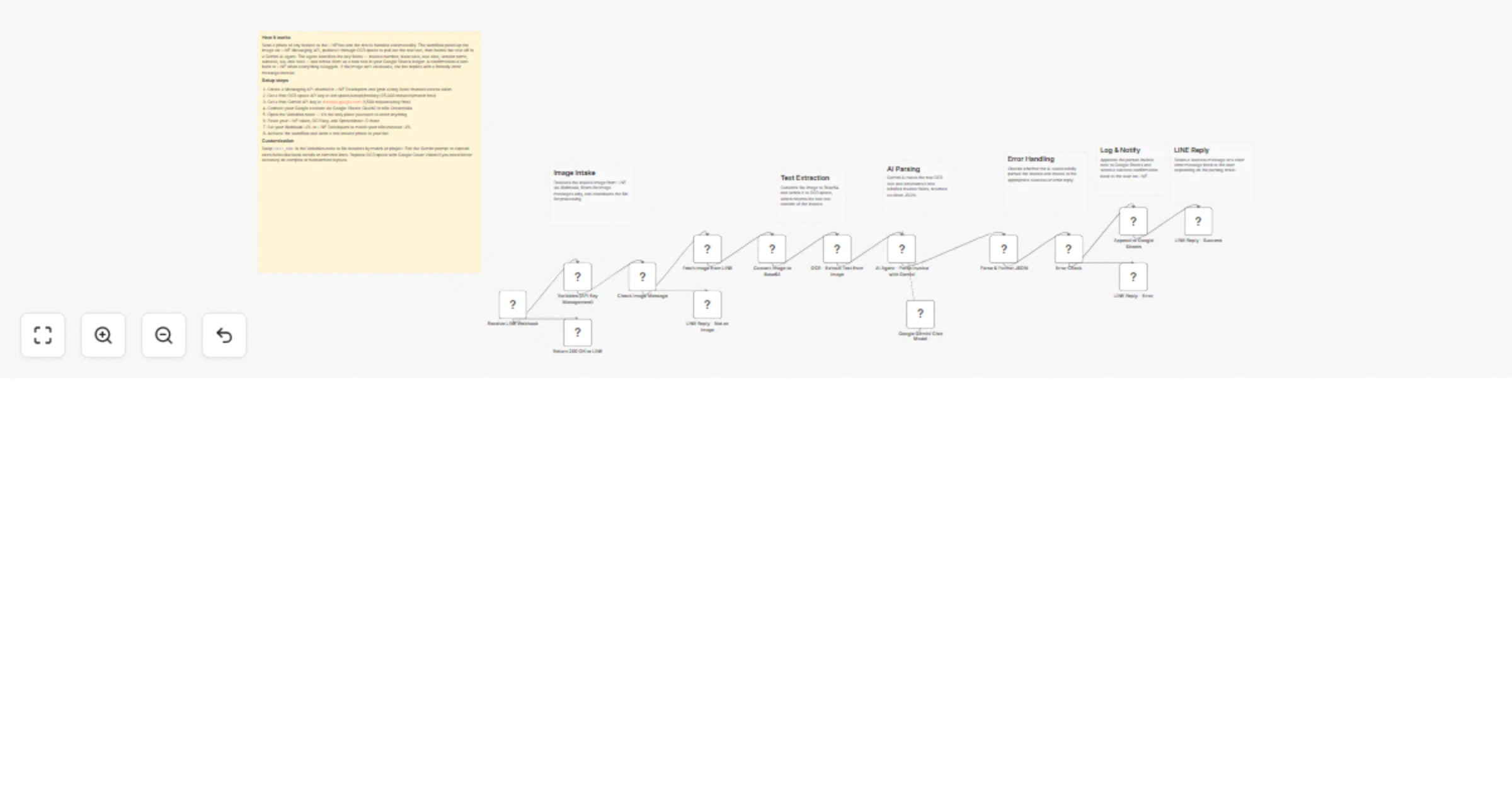
# Intelligent Invoice Processing with AI Classification and XML Export ## Summary Automated invoice processing pipeline that extracts data from PDF invoices, uses AI Agent for intelligent expense categorization, generates XML for accounting systems, and routes high-value invoices for approval. ## Detailed Description A comprehensive accounts payable automation workflow that monitors for new PDF invoices, extracts text content, uses AI to classify expenses and detect anomalies, converts to XML format for accounting system integration, and implements approval workflows for high-value or unusual invoices. ### Key Features - **PDF Text Extraction**: Extract from File node parses invoice PDFs automatically - **AI-Powered Classification**: AI Agent categorizes expenses, suggests GL codes, detects anomalies - **XML Export**: Convert structured data to accounting-compatible XML format - **Approval Workflow**: Route invoices over $5,000 or low confidence for human review - **Multi-Trigger Support**: Google Drive monitoring or manual webhook upload - **Comprehensive Logging**: Archive all processed invoices to Google Sheets ### Use Cases - Accounts payable automation - Expense report processing - Vendor invoice management - Financial document digitization - Audit trail generation ### Required Credentials - Google Drive OAuth (for PDF source folder) - OpenAI API key - Slack Bot Token - Gmail OAuth - Google Sheets OAuth ### Node Count: 24 (19 functional + 5 sticky notes) ### Unique Aspects - Uses **Extract from File** node for PDF text extraction (rarely used) - Uses **XML** node for JSON to XML conversion (very rare) - Uses **AI Agent** node for intelligent classification - Uses **Google Drive Trigger** for file monitoring - Implements **approval workflow** with conditional routing - **Webhook response** mode for API integration ### Workflow Architecture ``` [Google Drive Trigger] [Manual Webhook] | | +----------+-----------+ | v [Filter PDF Files] | v [Download Invoice PDF] | v [Extract PDF Text] | v [Parse Invoice Data] (Code) | v [AI Invoice Classifier] <-- [OpenAI Chat Model] | v [Parse AI Classification] | v [Convert to XML] | v [Format XML Output] | v [Needs Approval?] (If) / \ Yes (>$5000) No (Auto) | | [Email Approval] [Slack Notify] | | +------+-------+ | v [Archive to Google Sheets] | v [Respond to Webhook] ``` ### Configuration Guide 1. **Google Drive**: Set folder ID to monitor in Drive Trigger node 2. **Approval Threshold**: Default $5,000, adjust in "Needs Approval?" node 3. **Email Recipients**: Configure [email protected] 4. **Slack Channel**: Set #finance-notifications for updates 5. **GL Codes**: AI suggests codes; customize in AI prompt if needed 6. **Google Sheets**: Configure document for invoice archive

T
TOMOMITSU ASANO
Invoice Processing
18 Dec 2025
249
0
Workflow preview: Automate cross-border tax compliance with Google Sheets, PostgreSQL and Slack alerts
Free advanced

Automate cross-border tax compliance with Google Sheets, PostgreSQL and Slack alerts

## How It Works This workflow automates the complete end-to-end processing of daily revenue transactions for finance and accounting teams. It systematically retrieves, validates, and standardizes transaction data from multiple sources, computes applicable tax obligations, identifies anomalies, and generates regulatory compliance reports. Designed primarily for accountants and financial analysts, it significantly reduces manual workload, improves the accuracy of tax calculations, and automates submission to relevant authorities. Transaction data flows through integrated sources, undergoes validation and AI-driven tax assessment, and ultimately produces well-formatted reports ready for secure archiving or automated email distribution. ## Setup Steps 1. Connect Google Sheets/SQL for transactions 2. Configure tax rules in workflow 3. Set Gmail/Drive for report delivery 4. Activate schedule for daily execution ## Prerequisites Accounts and API credentials for Google Sheets, Gmail, Drive; access to transaction database; tax rule configuration. ## Use Cases Daily financial reconciliation, automated tax calculation, anomaly detection in revenue streams. ## Customization Adjust connectors, validation rules, and tax logic to match local regulations or additional data sources. ## Benefits Reduces manual effort, improves accuracy, ensures timely compliance, and enables proactive anomaly detection.

C
Cheng Siong Chin
Invoice Processing
18 Dec 2025
17
0
Workflow preview: GPT 4.1-mini automated proposal to payment lifecycle management
Free advanced

GPT 4.1-mini automated proposal to payment lifecycle management

## How It Works This workflow automates end-to-end contract and invoice management using AI intelligence. It processes proposals through intelligent contract generation, approval workflows, and automated invoicing. OpenAI analyzes proposal content while the system routes approvals intelligently. Upon approval, contracts are generated, invoices created, and notifications sent. The workflow also monitors payment status, generates financial forecasts, and manages follow-up tasks, eliminating manual contract generation delays and approval bottlenecks while ensuring accurate financial record-keeping. ## Setup Steps 1. Configure OpenAI API credentials in n8n credentials manager. 2. Connect Google Sheets account for invoice and forecast storage. 3. Set up Gmail for approval notifications and client communications. 4. Input Stripe/payment processor credentials for payment tracking. 5. Map proposal form inputs to workflow start node. ## Prerequisites OpenAI API key, Google Sheets account, Gmail account, Stripe/payment processor access ## Use Cases Multi-stage approval workflows, SaaS contract management, professional services invoicing ## Customization Modify approval logic in conditional nodes, replace OpenAI with Anthropic API ## Benefits Reduces contract processing time by 80%, eliminates approval delays, prevents invoicing errors

C
Cheng Siong Chin
Invoice Processing
16 Dec 2025
48
0
Workflow preview: Mistral OCR, GPT-4o-mini, and Google Sheets integration for enhanced data processing
Free advanced

Mistral OCR, GPT-4o-mini, and Google Sheets integration for enhanced data processing

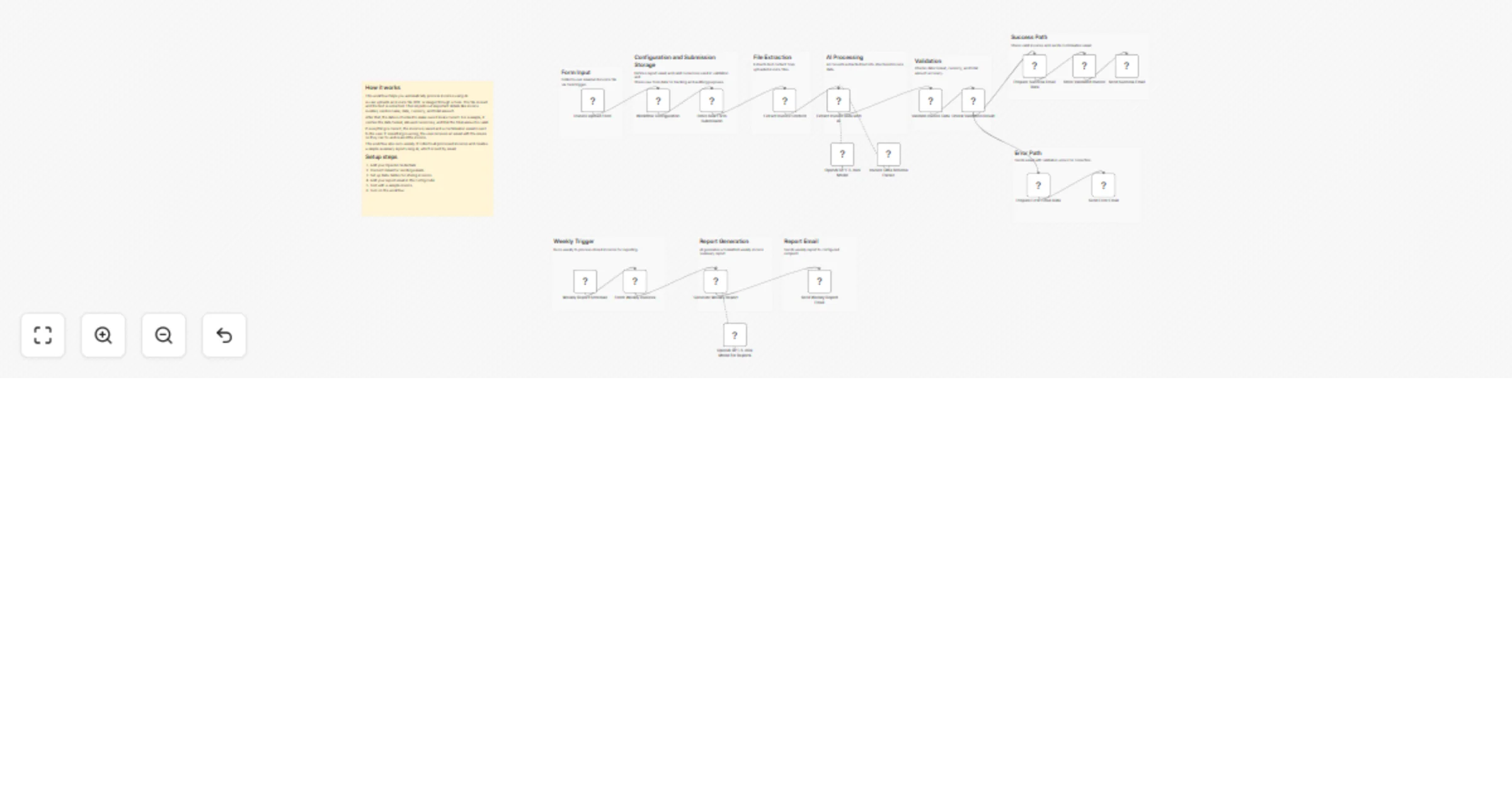
Process multiple invoices automatically using Mistral's dedicated OCR model—at approximately $0.002 per page. Upload batches of PDF, PNG, or JPG invoices through a simple form, extract structured financial data with AI, validate results with confidence scoring, and save everything to Google Sheets. ## What this workflow does 1. Accepts multiple invoice uploads via n8n Form Trigger 2. Processes files in batch with rate limiting 3. Converts each file to base64 and sends to Mistral OCR API 4. Extracts 9 standard fields using GPT-4o-mini Information Extractor 5. Validates data and assigns confidence scores (high/medium/low) 6. Saves all results to Google Sheets with status tracking ## Fields extracted Invoice Number, Date, Vendor Name, Tax ID, Subtotal, Tax Rate, Tax Amount, Total Amount, Currency ## Use cases - Accountants processing client invoices in bulk - Small businesses digitizing paper receipts - Bookkeepers automating repetitive data entry - Finance teams building searchable invoice databases ## Setup requirements - Mistral API Key (console.mistral.ai) — HTTP Header Auth credential - OpenAI API Key (platform.openai.com) - Google Sheets OAuth connection - Google Sheet with 15 columns (template in workflow notes)

A
Antonio Gasso
Invoice Processing
13 Dec 2025
78
0
Workflow preview: Automate invoice processing & stock management with AI, Gmail, Sheets & Slack
Free advanced

Automate invoice processing & stock management with AI, Gmail, Sheets & Slack

## ✅ What problem does this workflow solve? Order processing often involves manual invoice reading, stock checking, and back-and-forth communication between procurement and operations teams. This workflow automates the **entire procurement decision flow** — from reading incoming order emails to extracting structured data, checking stock, and creating either a purchase requisition or a work order automatically. --- ## 💡 Main Use Cases - 📥 Auto-extract order and invoice details from incoming emails - 📦 Validate stock availability before processing orders - 📝 Auto-create **Purchase Requisitions** when stock is insufficient - 🛠 Auto-create **Work Orders** when stock is available - 📧 Notify procurement or operations via email & Slack - 📊 Log every action in Google Sheets for tracking and audit --- ## 🧠 How It Works – Step-by-Step ### 1. 📧 Gmail Trigger The workflow begins when a new email arrives at a specific email address. The invoice file is automatically downloaded for processing. --- ### 2. 📑 Extract Invoice Record The attached invoice is processed using OCR or a document extraction tool. Raw details such as: - Order ID - Item code - Quantity - Customer information are extracted for further processing. --- ### 3. 🤖 AI-Powered Data Structuring OpenAI structures the extracted fields into a clean and consistent format: - `order_id` - `item_code` - `quantity` - `customer_name` This ensures all data is normalised before stock validation. --- ### 4. 📦 Stock Check The workflow checks inventory data stored in **Google Sheets**. It compares: - Required quantity - Current stock If stock is **insufficient**, it triggers the purchase requisition path. If stock is **available**, it initiates the work order path. --- ### 5. 🔀 Conditional Flow #### **If stock is insufficient:** - Creates a **Purchase Requisition** record in Google Sheets - Sends an **email notification** to the procurement team for approval #### **If stock is sufficient:** - Creates a **Work Order** entry in Google Sheets - Sends a **Slack summary message** to the operations team This ensures teams are notified instantly, and work continues without delays. --- ## 📊 Logging & Reporting Every step — extracted data, PR created, WO created, notifications sent — is logged in Google Sheets. This provides a full audit trail for procurement and operations teams. --- ## 👤 Who can use this? Ideal for: - Procurement teams - Operations departments - Manufacturing & warehouse units - Businesses processing high-volume emailed orders - Any team needing structured, automated order workflows --- ## 🚀 Benefits - ⏱ Faster order processing - 🧠 Fewer manual errors from invoice reading - 📦 Smarter procurement decisions based on real stock - 🔁 Automated communication loops - 📊 Transparent audit logs for every order ---

I
InfyOm Technologies
Invoice Processing
11 Dec 2025
125
0
Workflow preview: Handle failed payment renewals with AI analysis, Jira tickets and Slack alerts
Free advanced

Handle failed payment renewals with AI analysis, Jira tickets and Slack alerts

# Webhook from Payment Provider → Jira Finance Ticket → Slack Invoice Follow-up Automation This workflow automates failed subscription renewal processing by validating webhook data, using AI to analyze urgency and churn risk, creating a Jira Finance Task and notifying the finance team via Slack. If required fields are missing, it sends an error alert for manual review instead. ### ⚡ Quick Implementation Steps (Start Using in 60 Seconds) 1. Import workflow JSON into n8n. 2. Add Jira & Slack credentials. 3. Configure webhook URL `/payment-failed-renewal` in payment provider. 4. Test with: ```json { "customerId": "C-101", "customerEmail": "[email protected]", "subscriptionId": "S-500", "amount": 39.99 } ``` 5. Activate workflow. ## What It Does This automation connects your payment system with your financial operations. When a subscription renewal fails, the payment provider sends a webhook. The workflow validates the fields, uses OpenAI to analyze the payment failure reason (determining urgency & churn risk), routes high-value failures to high priority, creates a Jira task with an AI-drafted recovery email and alerts the finance team on Slack. If required data is missing, the workflow prevents incomplete Jira tickets by routing the event to an error handler and sending a detailed Slack alert listing all missing fields and full payload for manual inspection. ## Who’s It For - Finance & billing departments - SaaS companies with recurring billing - Teams using Jira for billing operations - Slack-based financial support teams - Companies wanting automated revenue recovery workflows ## Requirements to Use This Workflow - n8n instance - OpenAI API Key (or compatible LLM credential) - Jira Software account with permissions for FIN project - Slack bot token with channel posting rights - Payment provider that supports POST JSON webhooks - Webhook configured to: `https://YOUR-N8N-URL/webhook/payment-failed-renewal` ## How It Works & How To Set Up ### Step-by-Step Flow 1. Webhook receives payment failure payload. 2. Validation node checks required fields: - `customerId` - `customerEmail` - `subscriptionId` - `amount` 3. **AI Analysis**: OpenAI analyzes failure reason, sets urgency, and drafts email. 4. **Logic**: Switch node routes High Value (>$500) to 'High' priority. 5. Jira Finance Task created (with AI draft). 6. Slack message sent (with Churn Risk score). ### Setup Steps #### Step 1 — Webhook Setup - Method: POST - Path: `payment-failed-renewal` #### Step 2 — Jira Setup - Select Jira credentials in **Create Jira Finance Ticket** node. - Ensure: - Project: FIN - Issue type: Task #### Step 3 — Slack Setup - Add Slack credentials to both Slack nodes. - Select finance alert channel. #### Step 4 — OpenAI Setup - Add OpenAI credentials in the **AI Analysis** node. #### Step 5 — Test ```json { "customerId": "CUST-001", "customerEmail": "[email protected]", "subscriptionId": "SUB-1001", "amount": 19.99 } ``` #### Step 6 — Activate Enable the workflow. ## How To Customize Nodes ### Webhook - Add Basic Auth - Add token-based security - Add JSON schema validation ### Validate Payload Enhance with: - Email format validation - Numeric validation for amount - Auto-fallback values ### Jira Node Customize: - Ticket summary structure - Labels (`billing-recovery`, `urgent`, etc.) - Add custom fields - Change issue type or project ### Slack Nodes Enhance: - Mentions: `@finance-team` - Threads instead of channel posts - Rich blocks, buttons, or attachments ## Add-ons (Optional Enhancements) - Automated email to customer for payment recovery - Retry count–based escalation (e.g., retry ≥ 3 → escalate to manager) - Log data to Airtable / Google Sheets - Sync events into CRM (HubSpot, Salesforce, Zoho) - Notify Sales for high-value customer failures ## Use Case Examples 1. Stripe renewal payment fails → Create Jira task → Slack finance alert. 2. Chargebee retry attempts exhausted → Notify billing team immediately. 3. Declined credit card → Jira ticket with failure reason. 4. Razorpay/PayPal renewal failure → Automated follow-up. 5. Webhook missing data → Slack error alert ensures nothing is silently ignored. ## Troubleshooting Guide | Issue | Possible Cause | Solution | |-------|----------------|----------| | Webhook not triggering | Wrong URL / method | Use POST + correct endpoint | | Jira ticket missing | No permissions or invalid payload | Check Jira permissions + required fields | | Slack shows undefined values | Missing fields in payload | Confirm payload structure | | Error alert triggered incorrectly | Field names mismatch | Match exact names: customerId, customerEmail, subscriptionId, amount | | Payment provider not sending events | Firewall/CDN blocking | Whitelist the n8n webhook URL | | Workflow silent | Not activated | Turn workflow ON | ## Need Help? If you want help customizing this workflow or extending it into a complete revenue recovery automation suite: [WeblineIndia](https://www.weblineindia.com/) can support you with: - Jira & Slack automation pipelines - Payment provider webhook integrations - Finance workflow optimization - AI-based billing insights - End‑to‑end automation solutions Reach out anytime for expert implementation or enhancements.

W
WeblineIndia
Invoice Processing
8 Dec 2025
16
0
Workflow preview: WhatsApp receipt OCR & AI data extraction with Twilio, LlamaParse & Gemini
Free advanced

WhatsApp receipt OCR & AI data extraction with Twilio, LlamaParse & Gemini

# WhatsApp Receipt OCR & Data Extraction Suite **Categories:** Accounting Automation • OCR Processing • AI Data Extraction • Business Tools This workflow transforms WhatsApp into a fully automated receipt-processing system using advanced OCR, multi-model AI parsing, and structured data storage. By combining LlamaParse, Claude (OpenRouter), Gemini, Google Sheets, and Twilio, it eliminates manual data entry and delivers instant, reliable receipt digitization for any business. --- ## What This Workflow Does When a user sends a receipt photo or PDF via WhatsApp, the automation: 1. **Receives the file through Twilio WhatsApp** 2. **Uploads and parses it with LlamaParse (high-res OCR + invoice preset)** 3. **Extracts structured data using Claude + Gemini + a strict JSON parser** 4. **Cleans and normalizes the data (dates, ABN, vendor, tax logic)** 5. **Uploads the receipt to Google Drive** 6. **Logs the extracted fields into a Google Sheet** 7. **Replies to the user on WhatsApp with the extracted details** 8. **Asks for confirmation via quick-reply buttons** 9. **Updates the Google Sheet based on user validation** The result is a fast, scalable, human-free system for converting raw receipt photos into clean, structured accounting data. --- ## Key Benefits - **No friction for users:** receipts are submitted simply by sending a WhatsApp message. - **High-accuracy OCR:** LlamaParse extracts text, tables, totals, vendors, tax, and ABN with impressive reliability. - **Enterprise-grade data validation:** complex logic ensures the correct interpretation of GST, included taxes, or unidentified tax amounts. - **Multi-model extraction:** Claude and Gemini both analyse the OCR output for more reliable result. We have one primary LLM and a secondary one. - **Hands-off accounting:** every receipt becomes a standardized row in Google Sheets. - **Two-way WhatsApp communication:** users can confirm or reject extracted data instantly. - **Scalable architecture:** perfect for businesses handling dozens or thousands of receipts monthly. --- ## How It Works (Technical Overview) ### 1. **Twilio → Webhook Trigger** The workflow starts when a WhatsApp message containing a media file hits your Twilio webhook. ### 2. **Initial Google Sheets Logging** The MessageSid is appended to your tracking sheet to ensure every receipt is traceable. ### 3. **LlamaParse OCR** The file is sent to LlamaParse with the invoice preset, high-resolution OCR, and table extraction enabled. The workflow checks job completion before moving further. ### 4. **LLM Data Extraction** The OCR markdown is analyzed using: - Claude Sonnet 4.5 (via OpenRouter) - Gemini 2.5 Pro - A strict structured JSON output parser - Custom JS cleanup logic The system extracts: - Vendor - Cost - Tax (with multi-rule Australian GST logic) - Currency - Date (parsed + normalized) - ABN (validated and digit-normalized) ### 5. **Google Drive Integration** The uploaded receipt is stored, shared, and linked back to the record in Sheets. ### 6. **Google Sheets Update** Fields are appended/updated following a clean schema: - Vendor - Cost - Tax - Date - Currency - ABN - Public drive link - Status (Confirmed / Not confirmed) ### 7. **User Response Flow** The user receives a summary of extracted data via WhatsApp. Buttons allow them to approve or reject accuracy. The Google Sheet updates accordingly. --- ## Target Audience This workflow is ideal for: - Accounting & bookkeeping firms - Outsourced finance departments - Small businesses tracking expenses - Field workers submitting receipts - Automation agencies offering DFY systems - CFOs wanting real-time expense visibility --- ## Use Cases - Expense reconciliation - Automated bookkeeping - Receipt digitization & compliance - Real-time employee expense submission - Multi-client automation at accounting agencies --- ## Required Integrations - **Twilio WhatsApp** (Business API number + webhook) - **LlamaParse API** - **OpenRouter (Claude Sonnet)** - **Google Gemini API** - **Google Drive** - **Google Sheets** --- ## Setup Instructions (High-Level) 1. Import the n8n workflow. 2. Connect your Twilio WhatsApp account. 3. Add API credentials for: - LlamaParse - OpenRouter - Google Gemini - Google Drive - Google Sheets 4. Create your target Google Sheet. 5. Configure your WhatsApp webhook URL in Twilio. 6. Test with a sample receipt. --- ## Why This System Works - Users send receipts using a tool they already use daily (WhatsApp). - LlamaParse provides state-of-the-art OCR for low-quality receipts. - Using **multiple LLMs** drastically increases accuracy for vendor, ABN, and tax extraction. - Advanced normalization logic ensures data is clean and accounting-ready. - Google Sheets enables reliable storage, reporting, and future integrations. - End-to-end automation replaces hours of manual work with instant processing. --- ## Watch My Complete Build Process Want to see exactly how I built this entire AI design system from scratch? I walk through the complete development process on my [YouTube channel](https://www.youtube.com/@gabriela_macovei)

G
Gabriela Macovei
Invoice Processing
28 Nov 2025
99
0
Workflow preview: Automate timesheet to invoice conversion with OpenAI, Gmail & Google Workspace
Free advanced

Automate timesheet to invoice conversion with OpenAI, Gmail & Google Workspace

This workflow converts emailed timesheets into structured invoice rows in Google Sheets and stores them in the correct Google Drive folder structure. It: - Listens to Gmail for timesheet attachments - Runs OCR and AI parsing - Looks up Customer and PO data from a Google Sheet - Organizes files in Client → Employee → Year folders - Reuses an existing invoice sheet or creates a new one and writes the invoice row --- ## Quick Implementation Steps 1. Import the workflow JSON into your n8n instance. 2. Set up credentials for: - Gmail - Google Drive - Google Sheets - OpenAI 3. Check the OCR HTTP node: - Default URL: `https://universal-file-to-text-extractor.vercel.app/extract` 4. Configure "Get Customer Info From PO Sheet" with: - Spreadsheet ID - Correct sheet and column names 5. Confirm Gmail Trigger filter: - `has:attachment (filename:timesheet OR subject:timesheet)` and unread only 6. Ensure your Client Invoices root folder exists in Google Drive. 7. Test once with a sample timesheet email. 8. Activate the workflow. --- ## What It Does - Reads unread Gmail messages with timesheet attachments. - Splits and processes each attachment separately. - Sends files to OCR and converts them to text. - Uses OpenAI to extract: - Employee Name - Client Name - Week Start and End Dates - Total Billable Hours - Current Year - Looks up Customer and PO data from a Google Sheet: - Account Number - PO Number - Item Name - Folder Name - Invoice range - Due Date offset - Builds or finds: - Client folder - Employee folder - Year folder - Either: - Appends to an existing sheet for that employee and period, or - Creates a new sheet, sets timezone, moves it into the right folder, and adds the invoice row --- ## Who Is It For - Agencies and consultancies billing from emailed timesheets - Finance or ops teams managing many clients and employees in Google Workspace - Service providers that keep one sheet per employee per period - Anyone who wants to stop manually reading timesheets and filling invoice sheets --- ## Requirements - n8n instance - Gmail account with timesheet emails - Google Drive and Google Sheets - OpenAI API key - OCR API endpoint (or the default one) - Customer POs Google Sheet with: - Email - Customer Account Number - PO Number - Item - Folder Name - Invoice range - Due Date Calculation --- ## How It Works ### 1. Email Intake and Loop - Gmail Trigger - Polls every minute - Filter: unread + has attachment + timesheet in file name or subject - Split Binary Attachments - Creates one item per attachment - Loop: Process Each Attachment - Handles each timesheet file in sequence ### 2. OCR and AI Parsing - Extract Text from Attachment - Sends binary file to OCR endpoint - Returns plain text - Extract Timesheet Data (OpenAI) - Reads the text and outputs strict JSON with: - Employee Name - Client Name - Week Starting Date - Week Ending Date - Total Working Hours - Set Timesheet JSON Fields - Normalizes and stores: - Employee Name - Total Billable hours - Week Start Date and Week End Date - Client Name - Current Year ### 3. Customer and PO Lookup - Get Customer Info From PO Sheet - Looks up sender email - Pulls: - Customer Account Number - PO Number - Item - Folder Name - Invoice range - Due Date Calculation ### 4. Drive Folder Discovery - Search: Client Invoices Folder - Finds the main invoices root folder - Search or create: - Client folder using Client Name - Employee folder using Folder Name from PO sheet - Search: Year Folder - Looks for folder matching Current Year - If Year Folder does not exist: - Create Year Folder or Create Current Year Folder - Set: Invoice Range - Stores invoice range and Year Folder id ### 5. File Naming and Sheet Search - Set: File Name from Start and End Based Date Range - Builds: - File Name (Start Date Based) - File Name (End Date Based) - Handles weekly and 15 days invoice logic - Search: File By Start Date Name - Search: File By End Date Name - Merge: Combine Folder Search Results - Merges both search results - If: Invoice Range is 15 Days - Uses custom 2 week window for file naming - Set Invoice Date and Due Date Days - Invoice Date from week end - Due Date from week end plus offset ### 6. Reuse vs Create Sheet - If: File Already Exists - If found - Go to Append: Final Row to Existing Sheet - If not found - Go to Sheets: Create Sheet #### New Sheet Path - Sheets: Create Sheet - Creates new spreadsheet with generated name - HTTP Request (create sheet) - Sets spreadsheet timezone to America/New_York - Drive: Move Sheet To Final Folder - Moves spreadsheet into the Year Folder - Set: Empty Row Structure - Prepares JSON structure for invoice row - Sheets: Append Row1 - Writes the first invoice row - Set: Spreadsheet (ID and Name) - Stores id and name - Append: Final Row to Existing Sheet - Ensures row is appended with full mapping #### Existing Sheet Path - Set: Spreadsheet (ID and Name) - Uses found spreadsheet - Append: Final Row to Existing Sheet - Appends new row with: - Customer Account Number - Invoice Date - Due Date - PO Number - Item and columns - Total billable hours as Quantity - Description with week period --- ## How To Set Up ### 1. Import and Credentials - Import JSON in n8n - Set credentials for: - Gmail Trigger - Google Drive nodes - Google Sheets nodes - OpenAI node - OCR HTTP node if needed ### 2. Customer POs Sheet - In Get Customer Info From PO Sheet: - Set Spreadsheet ID - Confirm column names - Make sure each employee email row has: - Customer Account Number - PO Number - Item - Folder Name - Invoice range - Due Date Calculation ### 3. Drive and Gmail - Confirm Client Invoices root folder exists - Confirm Gmail Trigger: - Query string - Poll schedule ### 4. Test - Send a sample timesheet email - Run the workflow once manually - Check: - Folder structure - Created or reused sheet - Invoice row content ### 5. Activate - Turn workflow ON once tests are successful. --- ## How To Customize - Swap the OpenAI model in Extract Timesheet Data. - Change prompt to extract extra fields such as project, cost center, or approval status. - Replace OCR endpoint with another service if needed. - Change folder naming rules in Set and Create folder nodes. - Adjust file naming rules for different billing periods. - Add validation steps to handle: - Missing name - Zero hours - Invalid dates - Extend the PO sheet and invoice sheet with: - Hourly rate - Currency - Tax codes --- ## Use Case Examples - Weekly consulting invoices from signed timesheets. - Contractor billing for staffing agencies. - Internal cross charging between departments using timesheet reports. - Creating a clean, auditable history of timesheets and related invoice lines. --- ## Troubleshooting Guide | Issue | Possible Solution | |-------|-------------------| | No rows are created | Check Gmail Trigger is active and the filter matches the email. Confirm email is unread and has attachments. | | OCR returns empty or error | Check OCR URL, status code, and supported file types. Log the response body. | | Wrong or missing dates or hours | Review OpenAI prompt and a sample output. Ensure JSON keys in Set Timesheet JSON Fields match the AI output. | | Folders not found or created | Confirm the Client Invoices root exists and that Client Name and Folder Name text matches what the workflow expects. | | Files in wrong year folder | Check Current Year extraction and Year Folder search logic. | | Duplicate sheets for same period | Check file naming code and Drive search nodes for exact match on names. | | Due Date incorrect | Confirm Due Date Calculation in PO sheet and date math formats in Set and append nodes. | --- ### **Need Help or More Workflows?** Want to customize this workflow for your business or integrate it with your existing tools? Our team at **Digital Biz Tech** can tailor it precisely to your use case from automation logic to AI-powered enhancements. We can help you set it up for free — from connecting credentials to deploying it live. Contact: [[email protected]](mailto:[email protected]) Website: [https://www.digitalbiz.tech](https://www.digitalbiz.tech) LinkedIn: [https://www.linkedin.com/company/digital-biz-tech/](https://www.linkedin.com/company/digital-biz-tech/) You can also DM us on LinkedIn for any help. ---

D
DIGITAL BIZ TECH
Invoice Processing
28 Nov 2025
49
0
Workflow preview: Financial document extraction from Gmail to Google Sheets
Free advanced

Financial document extraction from Gmail to Google Sheets

## Overview Manual financial reconciliation is tedious and prone to error. This workflow functions as an AI Financial Controller, automatically monitoring your inbox for invoices, receipts, and bills, extracting the data using OCR, and syncing it to Google Sheets for approval. Unlike simple scrapers, this workflow uses a "Guardrail" AI agent to filter out non-financial emails (like newsletters) before they are processed, ensuring only actual transactions are recorded. ## Who is it for? * **Finance Teams:** To automate the collection of vendor invoices. * **Freelancers:** To track expenses and receipts for tax season. * **Operations Managers:** To monitor budget spend and categorize costs automatically. ## How it works 1. **Ingest:** The workflow watches a specific Gmail label (e.g., "INBOX") for new emails. 2. **Guardrail:** A Gemini-powered AI agent analyzes the email text to determine if it is a valid financial transaction. If not, the workflow stops. 3. **Extraction (OCR):** * **If an attachment exists:** An AI Agent (GPT-4o) extracts data from the PDF. * **If no attachment:** An AI Agent extracts data directly from the email body. 4. **Validation:** Code nodes check for missing fields or invalid amounts. 5. **Business Logic:** The system automatically assigns General Ledger (GL) categories (e.g., "Uber" -> "Travel") and sets approval statuses based on amount thresholds. 6. **Sync:** Validated data is logged to Google Sheets, and a confirmation email is sent. Errors are logged to a separate error sheet. ## How to set up 1. **Google Sheets:** Copy [this Google Sheet template](https://docs.google.com/spreadsheets/d/1IaovDHswLKbcQdEyfw-2JSYHOVX1pLNcTIYlJQzxYGU/copy) to your drive. It contains the necessary tabs (Invoices, Error Logs, Success Metrics). 2. **Configure Workflow:** * Open the node named **"Configuration: User Settings"**. * Paste your Google Sheet ID (found in the URL of your new sheet). * Enter the Admin Email address where you want to receive error notifications. 3. **Credentials:** * Connect your **Gmail** account. * Connect your **Google Sheets** account. * Connect your **OpenAI** (for OCR) and **Google Gemini/PaLM** (for Guardrails) accounts. ## Requirements * n8n version 1.0 or higher. * Gmail account. * OpenAI API Key. * Google Gemini (PaLM) API Key.

G
Gtaras
Invoice Processing
27 Nov 2025
1110
0
Workflow preview: Automate assignee payroll calculations with Dart, Gemini AI, and Google Sheets
Free intermediate

Automate assignee payroll calculations with Dart, Gemini AI, and Google Sheets

## Task-based Assignee billing via Time Tracking This workflow automates billing by scanning a target Dartboard on schedule, aggregating time logs from completed tasks, cross‑referencing assignee rates in Google Sheets, calculating total pay, and updating the sheet with final billable hours and amounts. ### Who's it for Individuals, agencies, companies, and project managers automating payroll or client invoicing from task data. ### How to setup - Link your [Dart](https://help.dartai.com/en/articles/12313191-n8n-integration) and Google accounts. - Replace the dummy ID in the **List tasks** node with your actual target Dartboard ID. - Set your preferred run frequency (e.g., Weekly). - Create a Google Sheet with these exact headers: `Name`, `HourlyRate`, `TotalHours`, `TotalPay`, `DateCalculated`. - Connect the Sheet nodes to your file. Pre-fill `Name` (matching Dart Assignees exactly) and `HourlyRate` in your Google Spreadsheet. - Optional: Add a last header column in the sheet as a Status header to track if the bill is paid or pending. ### Customizing the workflow - Choose your AI model for your AI time tracking and assignee scanner - Use your own google sheet account and target spreadsheet document

D
Dart
Invoice Processing
27 Nov 2025
43
0
Workflow preview: Extract and process invoices with GPT-4, Google Drive, and Google Sheets
Free advanced

Extract and process invoices with GPT-4, Google Drive, and Google Sheets

![Bildschirmfoto 20251208 um 19.25.48.heic](fileId:3572) This template is a fully automated AI invoice processing workflow for n8n. It watches a Google Drive folder for new invoice PDFs, extracts all key information using an AI Agent, assigns the correct booking account, saves the renamed invoice in the right Drive folder, and updates your Google Sheets booking list. A perfect starter template if you want to build your own AI-powered accounting automation. ## What this workflow does - Monitors a Google Drive folder for new invoice PDFs. - Downloads and extracts invoice text from the uploaded PDF. - Uses an AI Agent (OpenAI + Structured Output Parser) to extract: - invoice date - vendor - currency - total amount - invoice number - booking text - booking account - matching Google Drive folder ID - Automatically renames the PDF to a clean, consistent format (e.g. 250912 Vendor.pdf). - Saves the invoice into the correct accounting folder in Google Drive. - Updates your booking list in Google Sheets with all extracted fields. - Moves the processed invoice to an output folder to avoid duplicates. Everything runs hands-free after setup. ## Key features - 🧠 AI Invoice Reading using OpenAI + LangChain - 📑 Structured Output Parser guarantees clean, validated fields - 📁 Automated Google Drive File Routing - 📊 Google Sheets logging for accounting records - 🔄 File movement logic to keep input/output folders organized - ⚙️ Chart of Accounts integration from your Google Sheet - 🟦 Works out of the box with Invoice Agent – Folder Structure Setup (recommended) ## Typical use cases - Automated accounting workflows - Pre-processing invoices before importing into ERP or sevDesk - AI-powered invoice extraction for small businesses or freelancers - Structured archiving of invoices for tax and audit requirements - Fully automated Google Drive invoice inbox ## How to use this template 1. Connect your Google Drive & Sheets credentials in all relevant nodes. 2. Select your: • Input folder (where invoices are uploaded) • Output folder (where processed invoices go) • Folder structure sheet + booking accounts sheet 3. Upload any invoice PDF into the input folder. 4. The workflow starts automatically and processes the invoice end-to-end. ⸻ ## Requirements • Google Drive OAuth2 • Google Sheets OAuth2 • OpenAI API key • A Google Sheet containing your chart of accounts • A prepared folder structure (use the “Google Drive Structure Setup” template)

W
Wolfgang Renner
Invoice Processing
21 Nov 2025
201
0
Workflow preview: Track expenses from receipt photos with AI, Google Sheets & Slack reports
Free advanced

Track expenses from receipt photos with AI, Google Sheets & Slack reports

## Who’s it for This template is for individuals or households who want to: - Easily digitize and track their spending from physical receipts. - Automate budget management and financial reporting. - Get quick insights into their spending habits on a daily and monthly basis. - Stay informed about their remaining budget through Slack notifications. ## What it does This workflow automates your household budget tracking in several steps: 1. **Receipt Photo Upload**: You upload a photo of your receipt to a webhook. 2. **Parse Receipt**: An AI agent extracts the date, store name, purchased items, and total amount from the receipt text. 3. **Add to Budget Sheet**: The extracted data is then appended to your designated Google Sheet. 4. **Daily Budget Report**: After each receipt entry, the workflow calculates your current month's spending, remaining budget, and sends a summary to Slack. 5. **Monthly Budget Report**: Once a day (triggered by a cron job), it reads all budget data for the current month from Google Sheets, performs an analysis (total spending, daily average, top stores, items, and spending days), and sends a comprehensive report to Slack. ## How to set up ### Requirements - **n8n Account**: Self-hosted or Cloud. - **Google Sheets**: A Google Sheet set up with columns for "Date", "Store", "Items", and "Amount". - **Slack Workspace**: A Slack channel where you want to receive budget updates. - **OpenRouter Account**: An API key for OpenRouter to use their chat models. ### Steps 1. **Google Sheets Setup**: * Create a new Google Sheet (or use an existing one) and name it "Household Budget". * In the first sheet (e.g., "Sheet1"), set up the following headers in the first row: "Date", "Store", "Items", "Amount". * Share the Google Sheet with the service account email associated with your n8n Google Sheets credentials, granting "Editor" access. * In the 'Add to Budget Sheet' and 'Get Budget Sheet (Daily)' nodes, select your Google Sheet and the appropriate sheet name. 2. **OpenRouter Credentials**: * Sign up or log in to OpenRouter (https://openrouter.ai/). * Generate an API key. * In n8n, create a new "OpenRouter" credential using your API key. Apply this credential to the 'OpenRouter Chat Model1', 'OpenRouter Chat Model2', and 'OpenRouter Chat Model' nodes. 3. **Slack Credentials**: * In n8n, create a new "Slack" credential. Follow the instructions to connect your Slack workspace. * In the 'Send a message' and 'Send monthly report' nodes, select the Slack channel where you want to receive messages. * Make sure the Slack app has permission to post to the selected channels. 4. **Webhook URLs**: * After activating the workflow, the 'Receipt Photo Upload' node will generate a webhook URL. Copy this URL. You will use this URL to send receipt text (e.g., from a mobile app that scans text). 5. **Monthly Budget Adjustment**: * In the 'Code in JavaScript2' node, locate the line `const budget = 30000;` and change `30000` to your desired monthly budget in JPY. ## How to customize the workflow ### Daily Report Trigger The 'Daily Report Trigger' node is set to run once a day. You can modify its schedule to trigger more or less frequently by adjusting its cron settings. ### AI Model You can change the AI models used in the 'OpenRouter Chat Model' nodes to any other large language model supported by n8n, such as OpenAI, Anthropic, or custom hosted models, by updating the credentials and model names. ### Output Formatting The Slack messages generated by the 'Report Budget' and 'Monthly Report' nodes can be customized by editing the `systemMessage` and `text` parameters in those nodes to change the tone, content, or language of the reports. ### Additional Integrations You can extend this workflow by adding more nodes: - Integrate with other accounting software. - Send notifications to different platforms (e.g., email, Discord, Telegram). - Add sentiment analysis to your spending habits. - Categorize expenses automatically based on items or stores using another AI node.

t
takuma
Invoice Processing
18 Nov 2025
233
0
Workflow preview: Automatic email invoice archiving & data extraction with Gmail, Drive & AI
Free advanced

Automatic email invoice archiving & data extraction with Gmail, Drive & AI

# Automated Invoice Archiving Automatically fetch, store, and extract key information from invoices received via email from your ISP or utility provider (electricity, gas, telecom, water, etc.).The workflow saves the invoices to Google Drive (or optionally to your personal FTP/SFTP server) and logs all invoice details into Google Sheets via AI-powered extraction. ![Asset1.png](fileId:3405) Read: [Full setup Guide](https://paoloronco.it/n8n-template-automated-invoice-archiving/) ### How it works 1. **Scheduled Trigger**Runs the workflow at a selected interval (e.g., every hour). You can freely adjust the timing. 2. **Gmail – Fetch Messages**Reads your Gmail inbox and retrieves only messages coming from your ISP/utility provider’s email address, filtering for messages with PDF attachments. 3. **Gmail – Download Invoice** Fetches the full email content and downloads the attached invoice (PDF). 4. **Google Drive – Upload File** Uploads the invoice into a specific Google Drive folder of your choice. 5. **(Optional) Upload to FTP/SFTP** Sends a copy of the invoice to your personal server via secure FTP/SFTP. 6. **AI Extraction Pipeline** * **Extract PDF Text** – converts the PDF into text (OCR not required if text-based). * **AI Agent (OpenRouter)** – understands the invoice content and extracts structured fields (invoice number, date, provider name, total amount, tax info, line items, etc.) * **Code Node** – sanitizes and parses the JSON from the AI model. 7. **Google Sheets – Append Invoice Data**Adds a new row to your Google Sheet with all parsed invoice fields. 8. **(Optional) Cleanup**Automatically deletes:– the Gmail message– the temporary file in Google Drive(Useful when you only want your FTP or Sheets copy.) ### Parameters to configure | Parameter | Description | Recommended configuration | | --- | --- | --- | | **Gmail Credentials** | OAuth2 credentials needed to read and delete emails. | Create OAuth credentials on Google Cloud → enable Gmail API → paste Client ID & Secret into n8n → “Connect OAuth2”. | | **Sender Email Filter** | Email address your provider uses to send invoices. | Example: `[email protected]`, `[email protected]`, `[email protected]` | | **Google Drive Folder** | Destination folder for saving invoices. | Copy the folder ID from the Drive URL and paste it into `folderId`. | | **Google Drive Credentials** | OAuth2 connection for file uploads/deletions. | Same Google Cloud project → enable Drive API → OAuth connect in n8n. | | **FTP/SFTP Server (optional)** | Upload invoices to your private server. | Host / IP · Port · Username · Password or SSH Key · Destination path (e.g. `/home/user/invoices/`). | | **AI Model (OpenRouter)** | Large-language model used to parse invoice text. | Example: `gpt-4.1`, `llama-3.1`, or any preferred OpenRouter model. | | **Google Sheets Document** | Destination spreadsheet for structured data. | Create a Sheet → add columns (Vendor, Invoice Number, Date, Amount, Service Type, etc.) → insert `documentId` & sheet name. | | **Sheets Credentials (Service Account)** | Used for writing into Google Sheets. | Create Service Account → download JSON → add to n8n → share the Sheet with the Service Account email. | | **Trigger Interval** | How often the workflow checks for new invoices. | Every hour · every 30 minutes · daily at set ti | ## Node-by-node breakdown ### **1. Schedule Trigger** Runs at the interval you choose (default: hourly).Start → triggers entire workflow. * * * ### **2. Gmail – Get Many Messages** Filters inbox items using: * **Sender email** (your ISP/utility address) * **Has attachment** * **Unread or recent messages** Downloads metadata + attachment references. * * * ### **3. Filter – Contains Attachment** Ensures only messages with binary attachments continue. * * * ### **4. Gmail – Get Invoice** Downloads: * Full email JSON * The invoice PDF (binary data) * * * ### **5. Google Drive – Upload File** Uploads invoice PDF with a dynamic filename: `{{ $json.from.value[0].name }}-{{ $json.date }}.pdf` Requires: * Google Drive OAuth2 credentials * Folder ID (destination directory) * * * ### **6. HTTP Request – Download File** Retrieves the raw PDF file from Google Drive for further processing. * * * ### **7. (Optional) FTP/SFTP Upload** Uploads the PDF to your server using: * Host / IP * Port (default 22) * Username * Password or private key * Destination path Filename is sanitized to ensure Unix compatibility. * * * ### **8. (Optional) Delete Temporary File** Deletes the Google Drive file if you don’t want duplicates. * * * ### **9. (Optional) Delete Gmail Message** Removes the original email once processed (optional inbox cleanup). * * * ### **10. Extract from File (PDF → Text)** Reads the PDF and extracts raw text for AI processing. * * * ### **11. OpenRouter Chat Model** LLM backend for the AI agent. Provides: * invoice parsing * field extraction * structured reasoning * * * ### **12. AI Agent – Extract Invoice Fields** The agent is instructed to return **strict JSON only**, containing keys such as: * `vendor_name` * `invoice_number` * `invoice_date` * `total_amount` * `tax_details` * `line_items[]` * `po_number` * `po_date` Works for most standard PDF invoices. * * * ### **13. Code – Clean & Parse JSON** Sanitizes the AI output: * Removes markdown fences * Extracts valid JSON * Parses into a clean JS object If the AI output is malformed, debugging info is returned. * * * ### **14. Google Sheets – Append Data** Appends the extracted fields into a structured row.Example mappings: * **Vendor** → `{{ $json.vendor_name }}` * **Invoice Number** → `{{ $json.invoice_number }}` * **Date** → `{{ $json.invoice_date }}` * **Amount** → `{{ $json.total_amount }}` * **Service Type** → `{{ $json.line_items[0].description }}` * * * ## 💡 Tips & best practices * Add multiple sender filters if you have **more than one utility provider**. * Ensure invoices are **text-based PDFs** for best extraction results. * Use Google Drive as a reliable long-term archive, or keep only FTP if you prefer local storage. * Create charts in Google Sheets for tracking: * Monthly utility cost trends * Year-over-year comparison * Consumption spikes (if included in invoices) * * * ## ⚠️ Important notes * Utility invoices contain **personal and financial data**. Keep your FTP/SFTP server secure. * Google APIs require proper OAuth2 or Service Account setup; misconfiguration may cause permission errors. * This workflow is for **personal automation**, not a replacement for official fiscal archiving. * AI extraction quality depends on invoice formatting and the model you choose.

P
Paolo Ronco
Invoice Processing
17 Nov 2025
293
0
Workflow preview: Automate travel expense extraction with OCR, Mistral AI and Supabase
Free advanced

Automate travel expense extraction with OCR, Mistral AI and Supabase

# Travel Reimbursement - OCR & Expense Extraction Workflow ## Overview This is a lightweight n8n workflow that accepts chat input and uploaded receipts, runs OCR, stores parsed results in Supabase, and uses an AI agent to extract structured travel expense data and compute totals. Designed for zero retention operation and fast integration. --- ## Workflow Structure - **Frontend:** Chat UI trigger that accepts text and file uploads. - **Preprocessing:** Binary normalization + per-file OCR request. - **Storage:** Store OCR-parsed blocks in Supabase `temp_table`. - **Core AI:** Travel reimbursement agent that extracts fields, infers missing values, and calculates totals using the Calculator tool. - **Output:** Agent responds to the chat with a concise expense summary and breakdowns. --- ## Chat Trigger (Frontend) - **Trigger node:** `When chat message received` - `public: true`, `allowFileUploads: true`, sessionId used to tie uploads to the chat session. - Custom CSS + initial messages configured for user experience. ## Binary Presence Check - **Node:** `CHECK IF BINARY FILE IS PRESENT OR NOT` (IF) - Checks whether incoming payload contains `files`. - If files present -> route to `Split Out` -> `NORMALIZE binary file` -> `OCR (ANY OCR API)` -> `STORE OCR OUTPUT` -> `Merge`. - If no files -> route directly to `Merge` -> `Travel reimbursement agent`. ## Binary Normalization - **Node:** `Split Out` and `NORMALIZE binary file` (Code) - `Split Out` extracts binary entries into a `data` field. - `NORMALIZE binary file` picks the first binary key and rewrites payload to `binary.data` for consistent downstream shape. ## OCR - **Node:** `OCR (ANY OCR API )` (HTTP Request) - Sends multipart/form-data to OCR endpoint, expects JSONL or JSON with `blocks`. - Body includes `mode=single`, `output_type=jsonl`, `include_images=false`. ## Store OCR Output - **Node:** `STORE OCR OUTPUT` (Supabase) - Upserts into `temp_table` with `session_id`, parsed `blocks`, and `file_name`. - Used by agent to fetch previously uploaded receipts for same session. ## Memory & Tooling - **Nodes:** `Simple Memory` and `Simple Memory1` (memoryBufferWindow) - Keep last 10 messages for session context. - **Node:** `Calculator1` (toolCalculator) - Used by agent to sum multiple charges, handle currency arithmetic and totals. ## Travel Reimbursement Agent (Core) - **Node:** `Travel reimbursement agent` (LangChain agent) - **Model:** `Mistral Cloud Chat Model` (mistral-medium-latest) - **Behavior:** - Parse OCR `blocks` and non-file chat input. - Extract required fields: `vendor_name`, `category`, `invoice_date`, `checkin_date`, `checkout_date`, `time`, `currency`, `total_amount`, `notes`, `estimated`. - When fields are missing, infer logically and mark `estimated: true`. - Use Calculator tool to sum totals across multiple receipts. - Fetch stored OCR entries from Supabase when user asks for session summaries. - Always attempt extraction; never reply with "unclear" or ask for a reupload unless user requests audit-grade precision. - **Final output:** Clean expense table and Grand Total formatted for chat. ## Data Flow Summary 1. User sends chat message plus or minus file. 2. IF file present -> Split Out -> Normalize -> OCR -> Store OCR output -> Merge with chat payload. 3. Travel reimbursement agent consumes merged item, extracts fields, uses Calculator tool for sums, and replies with a formatted expense summary. --- ## Integrations Used | Service | Purpose | Credential | |---------|---------|-----------| | Mistral Cloud | LLM for agent | `Mistral account ` | | Supabase | Store parsed OCR blocks and session data | `Supabase account ` | | OCR API | Text extraction from images/PDFs | Configurable HTTP endpoint | | n8n Core | Flow control, parsing, editing | Native | --- ## Agent System Prompt Summary > You are a Travel Expense Extraction and Calculation AI. Extract vendor, dates, currency, category, and total amounts from uploaded receipts, invoices, hotel bills, PDFs, and images. Infer values when necessary and mark them as estimated. When asked, fetch session entries from Supabase and compute totals using the Calculator tool. Respond in a concise business professional format with a category wise breakdown and a Grand Total. Never reply "unclear" or ask for a reupload unless explicitly asked. Required final response format example: --- ## Key Features - Zero retention friendly design: OCR output stored only to `temp_table` per session. - Robust extraction with inference when OCR quality is imperfect. - Session aware: agent retrieves stored receipts for consolidated totals. - Calculator integration for accurate numeric sums and currency handling. - Configurable OCR endpoint so you can swap providers without changing logic. --- ## Setup Checklist 1. Add Mistral Cloud and Supabase credentials. 2. Configure OCR endpoint to accept multipart uploads and return `blocks`. 3. Create `temp_table` schema with `session_id`, `file`, `file_name`. 4. Test with single receipts, multipage PDFs, and mixed uploads. 5. Validate agent responses and Calculator totals. --- ## Summary A practical n8n workflow for travel expense automation: accept receipts, run OCR, store parsed data per session, extract structured fields via an AI agent, compute totals, and return clean expense summaries in chat. Built for reliability and easy integration. --- ### Need Help or More Workflows? We can integrate this into your environment, tune the agent prompt, or adapt it for different OCR providers. We can help you set it up for free — from connecting credentials to deploying it live. Contact: [[email protected]](mailto:[email protected]) Website: [https://www.digitalbiz.tech](https://www.digitalbiz.tech) LinkedIn: [https://www.linkedin.com/company/digital-biz-tech/](https://www.linkedin.com/company/digital-biz-tech/) You can also DM us on LinkedIn for any help.

D
DIGITAL BIZ TECH
Invoice Processing
17 Nov 2025
151
0
Workflow preview: GPT-4.1-mini Powered Invoice Processing from Gmail to Google Sheets with Slack
Free advanced

GPT-4.1-mini Powered Invoice Processing from Gmail to Google Sheets with Slack

AI-Powered Invoice Processing from Gmail to Google Sheets with Slack Approval This workflow completely automates your invoice processing pipeline. It triggers when a new invoice email arrives in Gmail, uses AI to extract key data from the PDF attachment, logs it in a Google Sheet, and sends a request to Slack with simple links for one-click approval or rejection. Who's it for? This template is perfect for small business owners, finance teams, freelancers, and anyone looking to eliminate the manual work of processing invoices. It saves hours of data entry, reduces human error, and streamlines the approval process. How it works Trigger: The workflow starts when an email with a specific subject (e.g., "Invoice") arrives in Gmail. Extraction: It automatically downloads the first PDF attachment from the email and extracts all its text content. AI Processing: The extracted text is sent to an AI model, which intelligently identifies and pulls out key details: invoice number, issue date, company name, total amount, and due date. Logging: This structured data is appended as a new row in your Google Sheet. The status is automatically set to "pending". The full, raw text from the PDF is also saved for easy verification. Approval Request: A formatted message is sent to a designated Slack channel. This message includes the key invoice details and two unique links: one to approve and one to reject the invoice. Handle Response: When a user clicks either the "Approve" or "Reject" link, the corresponding Webhook in the workflow is triggered. Update Sheet: The workflow finds the correct row in the Google Sheet using the invoice number and updates its status to "approved" or "rejected". Confirmation: A final confirmation message is sent to the Slack channel, closing the loop and informing the team of the action taken. How to set up Credentials: Add your credentials for Gmail, OpenAI, Google Sheets, and Slack in the designated nodes. Gmail Trigger: In the "1. New Invoice Email Received" node, change the search query q from "incoice" to the keyword you use for invoice emails (e.g., "invoice"). Google Sheets: In the three Google Sheets nodes ("6. Log Invoice...", "9a. Update Status to Approved", and "9b. Update Status to Rejected"), enter your Google Sheet ID and the name of the sheet. Slack: In the three Slack nodes ("7. Send Approval Request...", "10a. Send Approval Confirmation", and "10b. Send Rejection Confirmation"), enter your Slack Channel ID. Webhook URLs: First, activate the workflow using the toggle in the top-right corner. Open the "Webhook (Approve)" node, go to the Production URL tab, and copy the URL. Paste this URL into the "7. Send Approval Request to Slack" node, replacing the https://YOUR_WEBHOOK_BASE_URL/webhook/approval part of the approval link. Repeat this process for the "Webhook (Reject)" node and the rejection link. Activate Workflow: Ensure the workflow is active for the Webhooks to work continuously. How to customize AI Prompt: You can modify the prompt in the "5. Extract Invoice Data with AI" node to extract different or additional fields to match your specific invoice formats. Slack Messages: Feel free to customize the text in all three Slack nodes to better fit your team's tone and communication style.

k
koichi nagino
Invoice Processing
16 Nov 2025
65
0