Scrape verified decision-maker emails from Google with GPT-4.1 and Apify
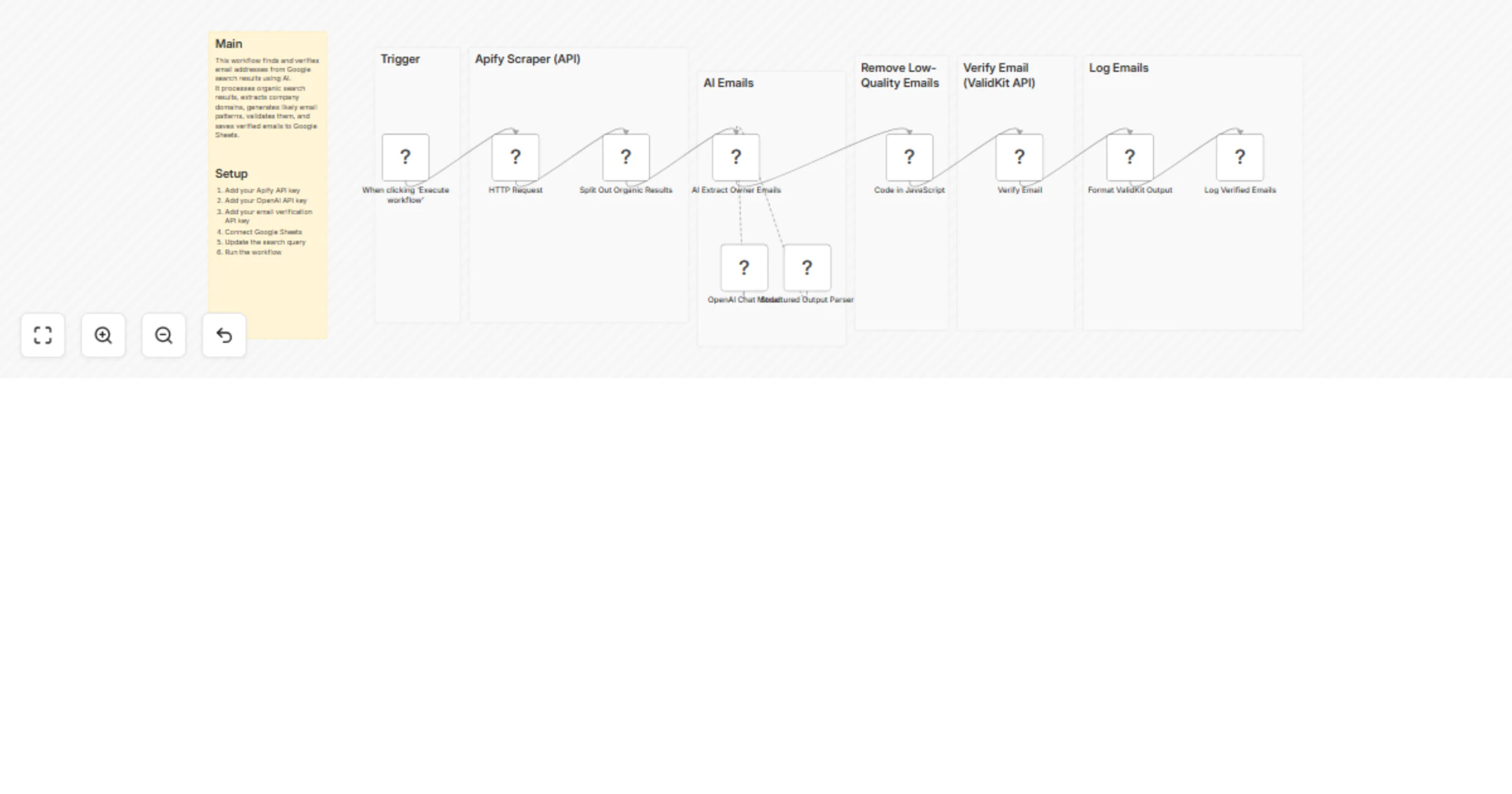
Workflow preview


 Early Deal
DISCOUNT 20%

Overview
Description
This workflow automatically discovers decision-maker email addresses from Google search results using AI.
Starting from a search query, it scrapes organic Google results, extracts company domains, infers likely decision-makers, generates realistic executive email patterns, validates deliverability, and stores only verified emails in Google Sheets.
The workflow is designed to reduce manual research while producing structured, outbound-ready contact data that can be reused across sales, partnerships, recruiting, and research workflows.
How it works
Trigger The workflow starts manually or via a webhook with a Google search query.
Google Search Scraping An Apify node collects organic Google search results for the query.
Result Processing Each result is processed individually to extract the company name and website domain.
Decision-Maker Inference An AI model analyzes the company context and identifies likely decision-makers (for example founders, executives, partners, or directors).
Email Pattern Generation AI generates realistic executive email address candidates based on the company domain.
Inbox Filtering Generic role-based inboxes (such as info@, support@, or sales@) are removed.
Email Validation An email validation API checks deliverability and filters out invalid addresses.
Data Structuring Results are normalized into structured fields for consistent storage.
Storage Verified emails and company details are logged in Google Sheets.
Set up steps
- Apify
- Create an Apify account
- Generate an API token
- Select a Google Search scraping actor
- OpenAI
- Create an OpenAI account
- Generate an API key
- Email validation service
- Create an account with your preferred email validation provider
- Generate an API key
- Google Sheets
- Create a spreadsheet for storing results
- Configure Google Sheets credentials in n8n
- Configure the workflow
- Update the search query input
- Add API keys to the relevant nodes
- Select the target Google Sheet
- Run the workflow
- Execute the workflow manually or via webhook
Output
Each processed result produces:
- Company name
- Website domain
- Decision-maker email address
- Email validation status
- Source search query
Requirements
- Apify account
- OpenAI API key
- Email validation API key
- Google Sheets credentials
Author
Hyrum Hurst AI Automation Engineer at QuarterSmart 📧 [email protected]