Screen and score CV candidates with Mistral OCR and Gemini
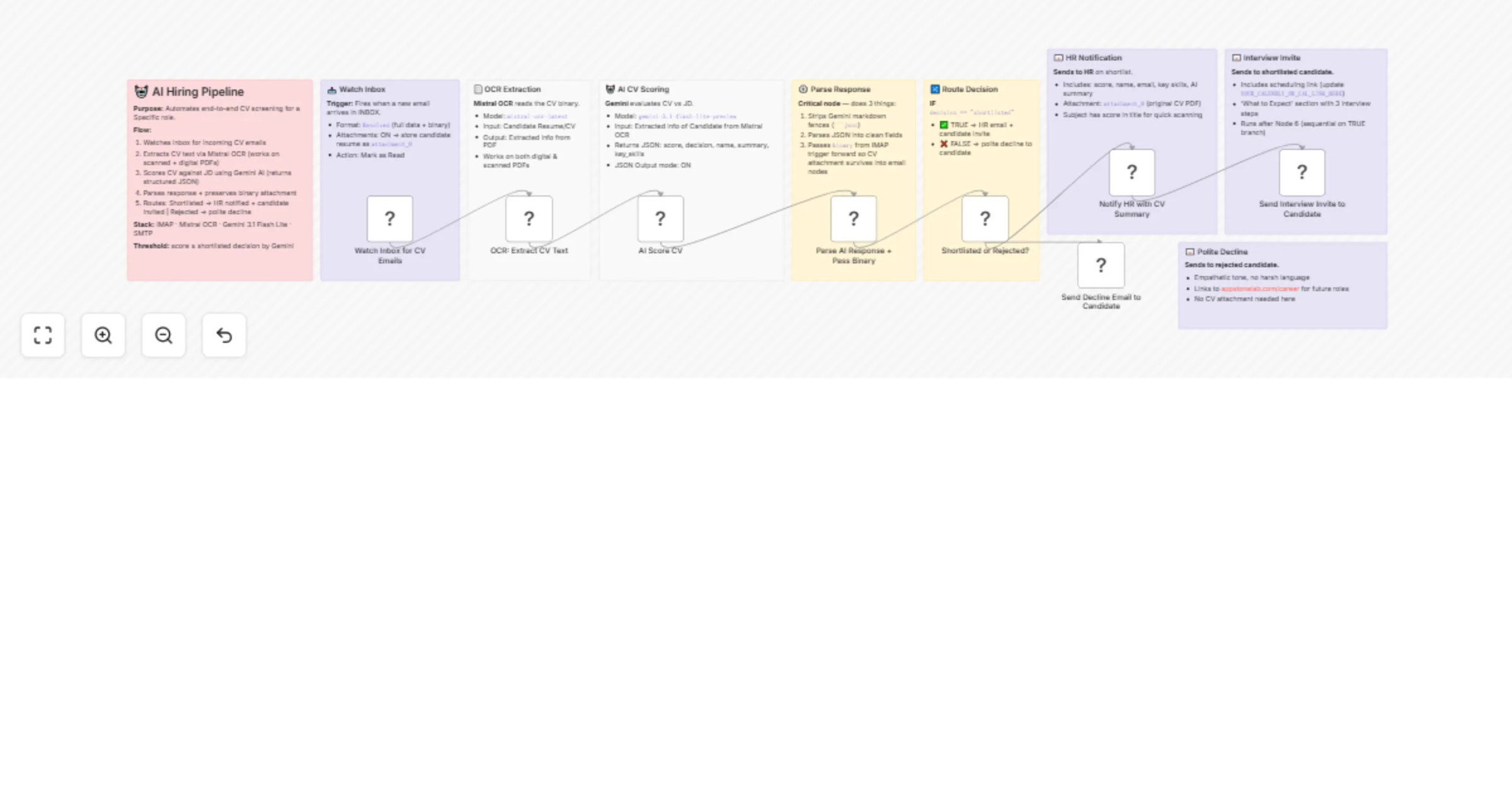
Workflow preview


 Early Deal
DISCOUNT 20%

Overview
AI-Powered Hiring Pipeline: Auto-Screen CVs, Score Candidates & Send Interview Invites
Stop manually reading every CV. This workflow watches your inbox, extracts CV text using Mistral OCR, scores every candidate against your job description using Google Gemini AI, and automatically routes them - shortlisted candidates get a professional interview invite, rejected ones get a polite decline, and HR receives a full AI summary with the CV attached. All hands-free.
Who Is This For?
- HR teams and recruiters at startups or growing companies who receive a high volume of CV emails
- Technical hiring managers who want AI-assisted pre-screening before spending time on interviews
- Solo founders who are hiring but don't have a dedicated recruiter
- No-code automation builders looking for a production-ready hiring automation template
What Problem Does This Solve?
Manually reviewing CVs is time-consuming, inconsistent, and expensive. This workflow eliminates the bottleneck by automatically:
- Extracting CV text from PDF attachments (including scanned documents) via Mistral OCR
- Evaluating every candidate against your specific job description using Gemini AI
- Routing candidates and sending the right email to the right person - instantly
You focus on interviewing. The pipeline handles everything else.
Key Features
- 📥 Email-triggered → fires automatically when a CV arrives in your inbox, no manual steps
- 📄 Mistral OCR → works on both digitally-created and scanned/image-based PDF CVs
- 🤖 Gemini AI scoring → returns a 0–100 score, shortlist/reject decision, candidate summary, and key skills
- 🔀 Smart routing → shortlisted and rejected candidates are handled differently in the same workflow
- 📧 3 beautiful HTML email templates → HR notification (with CV attached), interview invite, and polite decline
- ⚙️ Binary passthrough → original CV PDF is preserved and forwarded to HR's email as an attachment
- 📋 Sticky note documentation → every node is documented inside the workflow canvas
How It Works (Step-by-Step)
- 📥 Watch Inbox → IMAP trigger fires when a new email arrives with a CV attachment
- 📄 OCR Extraction → Mistral's
mistral-ocr-latestmodel reads the CV and outputs clean structured text - 🤖 AI Scoring → Google Gemini evaluates the CV against your job description and returns a structured JSON with score, decision, candidate name, 3–4 sentence summary, and top 5 skills
- ⚙️ Parse & Route → a Code node cleans Gemini's response, extracts candidate email from the IMAP
fromfield, and passes the binary CV forward - 🔀 IF Decision → routes
shortlistedcandidates to the true branch andrejectedto the false branch - 📧 HR Email → HR receives a branded email with the AI score, candidate summary, key skills, and the original CV attached
- 📧 Interview Invite → shortlisted candidate receives a professional invitation with a scheduling link and "What to Expect" section
- 📧 Polite Decline → rejected candidate receives a warm, empathetic decline with a link to your careers page
🛠️ Setup Instructions
Step 1 - Credentials Required
You need to set up 4 credentials in n8n:
| Credential | Node Used | Where to Get It |
|---|---|---|
| IMAP account | Email Trigger | Your email provider settings (Gmail: use App Password) |
| Mistral Cloud API | OCR Extraction | Mistral AI Studio → API Keys |
| Google Gemini (PaLM) API | AI Scoring | Google AI Studio → Get API Key |
| SMTP account | All 3 email nodes | Your email provider SMTP settings |
> 💡 Gmail users: Enable 2FA and generate an App Password for both IMAP and SMTP. Use imap.gmail.com:993 and smtp.gmail.com:587.
Step 2 - Update Email Addresses
In all 3 Send Email nodes, replace the placeholder emails:
fromEmail→ your sending address (e.g.[email protected])toEmailin the HR node → your HR team's inbox- The candidate email fields are already dynamic (
{{ $json.candidate_email }})
Step 3 - Add Your Job Description
Open the 🤖 AI Score CV (Gemini) node and replace the JOB DESCRIPTION: section in the prompt with your actual role requirements. The current template uses an AI Engineer JD from AppStoneLab as a working example.
Step 4 - Add Your Interview Scheduling Link
In the 📧 Send Interview Invite to Candidate node, find YOUR_CALENDLY_OR_CAL_LINK_HERE in the HTML and replace it with your actual booking link (Calendly, Cal.com, TidyCal, etc.).
How to Customize for Your Use Case
| What to Change | Where | Example |
|---|---|---|
| Job description | Gemini node prompt | Swap in your own role requirements |
| Scoring threshold | IF node condition | Change "shortlisted" to score-based logic e.g. score >= 70 |
| Company name & branding | All 3 HTML email templates | Replace "AppStoneLab Technologies" with your company |
| Careers page URL | Decline email HTML | Replace appstonelab.com/career with your URL |
| AI model | Gemini node | Switch to gemini-3-flash-preview or gemini-3.1-pro-preview for different speed/quality |
| Watched mailbox | IMAP trigger | Change INBOX to a dedicated folder like INBOX.careers |
| Interview questions | Invite email HTML | Add/edit the "What to Expect" section steps |
API Keys — Quick Links
- Mistral AI → Mistral AI Studio - Free tier includes OCR. Pricing: $1 per 1,000 pages for
mistral-ocr-latest - Google Gemini → Google AI Studio - Free tier available.
gemini-3-flash-previewis fast and cheap for production - Gmail App Password → Google App Passwords
- n8n IMAP docs → docs.n8n.io/integrations/core-nodes/n8n-nodes-base.emailimap
- n8n SMTP docs → docs.n8n.io/integrations/core-nodes/n8n-nodes-base.sendemail
Important Notes
- The IMAP Format field must be set to
Resolved(not Simple) - this is required for binary attachment data to flow correctly through the workflow - The Code node carries the binary CV attachment forward from the IMAP trigger to the HR email node. If you add new nodes between them, make sure binary passthrough is preserved
- Mistral OCR works on both text-based and scanned/image PDFs, making it more reliable than n8n's built-in
Extract from Filenode - The workflow uses the
from.value[0].addresspath to extract the candidate's email from the IMAP trigger output - this is the correct path for theResolvedformat
💬 Questions or Issues?
Drop a comment on this template or reach out on the n8n community forum. Happy to help you adapt this for your specific hiring use case.