A

AppStoneLab Technologies LLP

4
Workflows

Workflows by AppStoneLab Technologies LLP
Workflow preview: Automate WooCommerce customer support with Gemini & GPT via Telegram & Gmail
Free advanced

Automate WooCommerce customer support with Gemini & GPT via Telegram & Gmail

## 🤖 AI Support Bot for WooCommerce with Gemini & GPT (Telegram & Gmail) Managing customer support across multiple platforms like email and chat can be a huge time sink. Answering the same questions about order status repeatedly takes your focus away from growing your business. This workflow solves that problem by deploying a 24/7 conversational AI agent to act as your first line of support for your WooCommerce store. This AI-powered bot can handle customer inquiries from both **Telegram** and **Gmail**, understand conversational follow-ups, and use a tool to fetch live order data directly from your WooCommerce store. It's designed to be reliable, with a primary/fallback AI model setup, and robust enough to prevent the common pitfalls of email automation like infinite reply loops. ### How It Works ⚙️ The workflow operates in a clear, logical sequence: 1. **📢 Multi-Channel Ingestion:** The workflow starts when it receives a message from one of two sources: * **Telegram:** An instant webhook trigger fires for every new message. * **Gmail:** A polling trigger checks your inbox every minute for new, unread emails. 2. **💎 Data Normalization:** All incoming requests are merged and processed by a `Set` node. This crucial step transforms the platform-specific data into a universal format that the rest of the workflow can understand (e.g., `platform`, `sender_id`, `query_text`). 3. **🧠 AI Processing:** The standardized query is sent to a **LangChain Agent**. This agent is the "brain" of the operation. It uses **Conversational Memory** to understand the context of the conversation (like when a user provides an order ID in a follow-up message). 4. **🛠️ Tool Usage:** Based on its prompt, the AI Agent determines if it has enough information to use its one available tool: **Get an order in WooCommerce**. If a valid Order ID is present, it calls the tool to fetch live order details. 5. **📮 Response & Routing:** The agent formulates a natural language response. A `Switch` node then inspects the `platform` field and routes the response to the correct channel. 6. **✅ Cleanup:** For the Gmail path, two final actions occur in parallel: the reply is sent, and the original incoming email is marked as 'Read'. This is a critical step to prevent the workflow from re-triggering on the same email in an infinite loop. ### Nodes Used 🔗 This workflow uses a combination of standard nodes and AI nodes to achieve its goal: * [**Telegram Trigger**](https://docs.n8n.io/nodes/n8n-nodes-base.telegramTrigger/): To receive messages from Telegram in real-time. * [**Gmail Trigger**](https://www.google.com/search?q=https://docs.n8n.io/nodes/n8n-nodes-base.gmailTrigger/): To poll for new unread emails. * [**Merge**](https://docs.n8n.io/nodes/n8n-nodes-base.merge/): To combine inputs from multiple triggers. * [**Set**](https://docs.n8n.io/nodes/n8n-nodes-base.set/): To normalize data into a consistent format. * [**LangChain Agent**](https://docs.n8n.io/advanced-ai/langchain/langchain-n8n/): The core AI "brain" that orchestrates the logic, memory, and tools. * [**Google Gemini**](https://docs.n8n.io/integrations/builtin/cluster-nodes/sub-nodes/n8n-nodes-langchain.lmchatgooglegemini/) & [**OpenAI**](https://docs.n8n.io/integrations/builtin/cluster-nodes/sub-nodes/n8n-nodes-langchain.lmchatopenai/): Used as the primary and fallback language models for the agent. * [**WooCommerce Tool**](https://docs.n8n.io/integrations/builtin/app-nodes/n8n-nodes-base.woocommerce/): The tool the AI agent uses to fetch order data. * [**Switch**](https://docs.n8n.io/nodes/n8n-nodes-base.switch/): To route the final reply to the correct platform. * [**Telegram**](https://docs.n8n.io/nodes/n8n-nodes-base.telegram/): To send the final response to Telegram. * [**Gmail**](https://docs.n8n.io/nodes/n8n-nodes-base.gmail/): To reply to emails and mark them as read. ### Prerequisites 🔑 To use this workflow, you will need: * An active n8n instance (self-hosted or cloud). * A **Telegram Bot** account and its API token. * A **Gmail** account with OAuth2 credentials configured in n8n. * A **WooCommerce** store with API credentials (Consumer Key and Secret). * An **OpenAI** API key. * A **Google AI (Gemini)** API key. ### Usage 🚀 Follow these steps to set up the workflow: 1. **Download the Workflow:** Import the workflow JSON file into your n8n instance. 2. **Configure Credentials:** * **Telegram:** Select your Telegram API credentials in the `Fetch user query` and `Send Telegram Response` nodes. * **Gmail:** Select your Gmail OAuth2 credentials in the `Fetch support mail`, `Send Response via Mail`, and `Mark received mail as read` nodes. * **WooCommerce:** Select your WooCommerce API credentials in the `Get an order in WooCommerce` node. * **AI Models:** Select your OpenAI and Google AI credentials in the `Fallback Model` and `Primary Model` nodes, respectively. 3. **Activate Telegram Webhook:** * Open the `Fetch user query` (Telegram Trigger) node. * Copy the **Webhook URL**. * Register this URL with your Telegram bot using the `/setWebhook` command in the BotFather chat. 4. **Customize AI Prompt (Optional):** * Open the `WooCommerce Customer support Agent1` node. * You can edit the prompt in the **Text** field to change the AI's personality, rules, or language. 5. **Activate the Workflow:** Save the workflow and toggle the "Active" switch ON. Your multi-channel AI support agent is now live\! Send a message to your Telegram bot or a new, unread email to your connected Gmail account to test it out. ### Resources 📚 * [**n8n Documentation**](https://docs.n8n.io/) * [**n8n Community Forum**](https://community.n8n.io/) * [**LangChain in n8n**](https://docs.n8n.io/advanced-ai/langchain/langchain-n8n/)

A
AppStoneLab Technologies LLP
Support Chatbot
6 Aug 2025
324
0
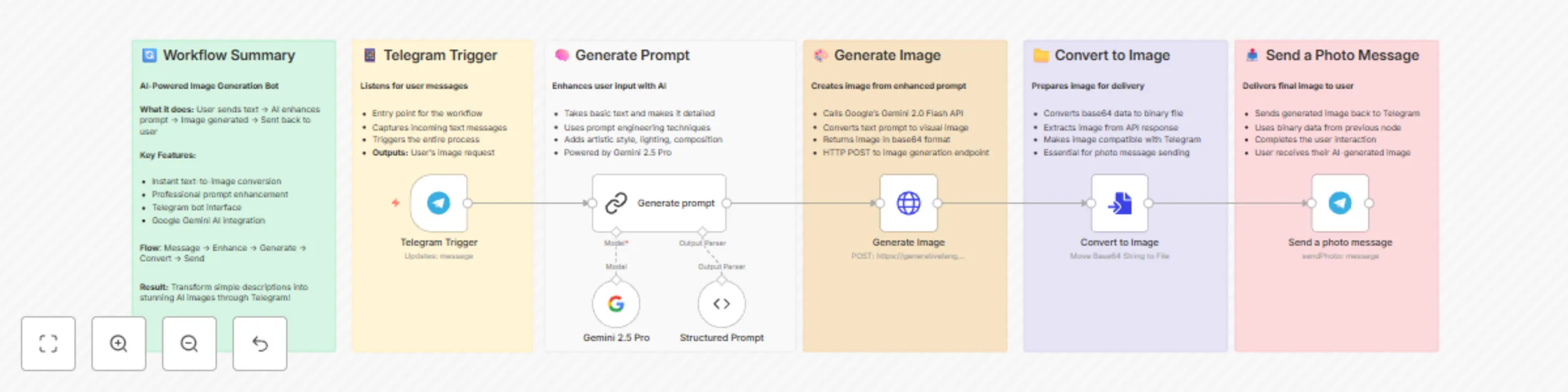
Workflow preview: Text-to-image generation with Google Gemini & enhanced prompts via Telegram Bot
Free intermediate

Text-to-image generation with Google Gemini & enhanced prompts via Telegram Bot

*This workflow contains community nodes that are only compatible with the self-hosted version of n8n.* # 🤖 AI Image Generator Telegram Bot Transform simple text descriptions into stunning AI-generated images through a Telegram bot powered by Google's Gemini 2.0 Flash image. This workflow automatically enhances user prompts with professional prompt engineering techniques and delivers high-quality images directly to your Telegram chat. ## 🎯 What This Workflow Does This automation creates an intelligent Telegram bot that: - **Receives text messages** from users describing what image they want - **Enhances prompts** using AI-powered prompt engineering to add artistic details, lighting, composition, and style specifications - **Generates images** using Google's Gemini 2.0 Flash image generation model - **Delivers results** instantly back to the user's Telegram chat ## ⚡️ Key Features - **Smart Prompt Enhancement**: Automatically transforms basic requests like "a cat on a windowsill" into detailed, professional prompts with lighting, composition, and style details - **Professional Image Quality**: Leverages Google's latest Gemini 2.0 Flash model for high-quality image generation - **Instant Delivery**: Images are generated and sent back to users within seconds - **User-Friendly**: Simple text-to-image conversion through familiar Telegram interface - **Structured Output**: Uses JSON schema to ensure consistent prompt formatting ## 🛠️ How It Works 1. **Telegram Trigger**: Listens for incoming messages from users 2. **AI Prompt Enhancement**: Uses Gemini 2.5 Flash Lite to analyze and expand user requests into detailed prompts 3. **Structured Processing**: Formats the enhanced prompt using JSON schema for consistency 4. **Image Generation**: Sends the enhanced prompt to Gemini 2.0 Flash image generation API 5. **File Conversion**: Converts the generated image data to a file format 6. **Delivery**: Sends the generated image back to the user via Telegram ## 🎭 Use Cases - **Creative Content Creation**: Generate artwork, illustrations, and visual concepts - **Social Media Content**: Create unique images for posts and stories - **Concept Visualization**: Turn ideas into visual representations - **Educational Materials**: Generate images for presentations and learning materials - **Personal Projects**: Create custom artwork for personal use ## 📋 Prerequisites Before setting up this workflow, you'll need: ### Required Accounts & APIs: - **Telegram Bot Token**: Create a bot via [@BotFather](https://t.me/botfather) - **Google AI Studio Account**: Access to [Gemini API](https://aistudio.google.com/apikey) services ### Required Credentials: - Telegram Bot API credentials - Google Gemini API key with access to: - Gemini 2.5 Pro (for prompt enhancement) - Gemini 2.0 Flash Preview (for image generation) ## 🚀 Setup Instructions 1. **Import the Workflow**: Copy the workflow JSON into your n8n instance 2. **Configure Telegram Bot**: - Create a new bot using [@BotFather](https://t.me/botfather) - Add your bot token to the Telegram credentials in n8n 3. **Set Up Google Gemini API**: - Create API key from [Google AI Studio](https://aistudio.google.com/apikey) and add to n8n credentials 4. **Activate the Workflow**: Enable the workflow to start receiving messages ## 💡 Customization Options - **Prompt Templates**: Modify the prompt enhancement instructions for different artistic styles - **Image Parameters**: Adjust generation settings for different image formats and qualities - **Response Formats**: Customize how images are delivered (with captions, multiple formats, etc.) ## 📊 Example Interaction **User Input**: "Generate a beautiful image of a dragon from game of thrones" **Enhanced Prompt**: "A majestic, formidable dragon, reminiscent of those from Game of Thrones, perched atop a jagged, snow-capped mountain peak. The dragon is depicted with immense, leathery wings unfurled, scales glinting with iridescent blues and deep charcoals under the harsh, cold light. Its eyes glow with an inner, fiery amber. The scene is captured with a dramatic, low-angle wide shot, emphasizing the dragon's sheer scale against a turbulent, stormy sky filled with dark, bruised clouds and streaks of lightning. The atmosphere is oppressive and foreboding, with biting wind and swirling snow creating a sense of raw power and danger. The color palette is dominated by icy blues, stark greys, deep blacks, and the contrasting fiery glow of the dragon's eyes and perhaps a hint of internal fire. Rendered in a hyperrealistic, cinematic digital art style, with exceptional attention to detail on the scales, musculature, and the texture of the rocky environment. Lighting is dramatic and high-contrast, with sharp highlights on the dragon's form and deep, impenetrable shadows. Quality specifications include ultra-high detail, 8K resolution, photorealistic rendering, and an epic, awe-inspiring mood, evoking the grandeur and terror of powerful fantasy creatures." **Result**: <a href="https://ibb.co/hJpRqHZL"><img src="https://i.ibb.co/W4SWTFPG/file.png" alt="file" /></a> ## 🔧 Technical Details - **AI Models**: Google Gemini 2.5 Pro (prompt enhancement) + Gemini 2.0 Flash Preview (image generation) - **Messaging**: Telegram Bot API - **Output Format**: High-quality images in standard formats - **Processing Time**: Typically 10-15 seconds per image for Gemini 2.5 Flash and 25-30 seconds Gemini for 2.5 Pro

A
AppStoneLab Technologies LLP
Content Creation
8 Jul 2025
3725
0
Workflow preview: Festival social media automation with Gemini AI for X/Twitter & Facebook
Free advanced

Festival social media automation with Gemini AI for X/Twitter & Facebook

# 🎉 Festival Social Media Automation with Gemini AI for X/Twitter & Facebook Transform your festival marketing with this comprehensive automation workflow that creates and posts culturally authentic social media content across multiple platforms daily. ## ⚙️ What this workflow does This workflow automatically: - **Fetches festival data** from Google Sheets based on today's date - **Generates AI-powered prompts** for both image creation and social media content - **Creates stunning festival images** using Google Gemini 2.0 Flash Preview - **Produces platform-specific content** optimized for X (Twitter) and Facebook - **Posts automatically** with proper image attachments and error handling ## ✨ Key Features ### 🎯 **Intelligent Content Generation** - AI-powered prompt generation tailored to each festival's cultural context - Platform-specific content optimization (character limits, hashtag strategies) - Culturally sensitive and authentic messaging ### 🎨 **Visual Content Creation** - Automated image generation using Google Gemini 2.0 Flash Preview - Festival-themed graphics with vibrant, culturally appropriate designs - Optimized for social media engagement ### 📲 **Multi-Platform Publishing** - Simultaneous posting to X (Twitter) and Facebook - Platform-specific formatting and optimization - Built-in error handling and backup posting methods ### ⏰ **Fully Automated** - Daily execution at 8:00 AM - Date-based festival data retrieval - Zero manual intervention required ## 📱 Apps and Integrations - **Google Sheets** - Festival calendar and data storage - **Google Gemini 2.0 Flash Preview** - AI content and image generation - **X (Twitter)** - Social media posting - **Facebook Graph API** - Facebook page posting - **Schedule Trigger** - Daily automation ## 🛠️🕊️ Setup Instructions ### 1. 📊 Google Sheets Configuration 1. Create a Google Sheets document with columns: `Date`, `Name of the Festival`, `Description` 2. Format dates as DD/MM/YYYY 3. Connect your Google Sheets credential in n8n ### 2. 🤖 Google Gemini API Setup 1. Obtain a Google AI Studio API key from [Google AI Studio](https://aistudio.google.com/apikey) 2. Configure the Google Gemini credential in n8n 3. Ensure you have access to Gemini 2.0 Flash Preview ### 3. 🕊️X (Twitter) Credentials Setup **Important:** Due to X API limitations, you'll need TWO separate OAuth2 credentials: [X API](https://developer.x.com/) #### For Image Upload (Generic OAuth2): 1. Create a new OAuth2 credential with these settings: - Grant Type: `PKCE` - Authorization URL: `https://x.com/i/oauth2/authorize` - Access Token URL: `https://api.x.com/2/oauth2/token` - Scope: `media.write offline.access tweet.read users.read` - **Note:** Cannot combine `media.write` with `tweet.write` in the same credential #### For Tweet Posting (X OAuth2): 1. Use the predefined X OAuth2 credential 2. Configure with scopes: `tweet.write offline.access tweet.read users.read` ### 4. 📘Facebook Graph API Setup 1. Create a Facebook App and get your access token from [Meta for Developers](https://developers.facebook.com/tools/explorer/) 2. Configure the Facebook Graph API credential 3. Update the node with your Facebook page ID ## 🎬 How to Use 1. **Populate your Google Sheets** with festival data for upcoming dates 2. **Activate the workflow** - it will run automatically daily at 8:00 AM 3. **Monitor the execution** - check logs for successful posts or any errors 4. **Customize content** by modifying the prompt generation logic if needed ## 🔄 Workflow Components ### 🔗 Data Flow 1. **Daily Trigger** → **Get Today's Date** → **Fetch Festival Data** 2. **Generate AI Prompts** → **Create Image & Content** 3. **Process Media** → **Merge Data** → **Post to Platforms** ### 🛡️ Error Handling - Backup HTTP posting method for X if primary method fails - Continue execution even if individual platform posting fails - Comprehensive error logging for troubleshooting ## 🎨 Customization Options ### ✍️ Content Personalization - Modify the prompt generation logic for different content styles - Adjust platform-specific character limits and hashtag strategies - Customize image generation prompts for different visual styles ### 🌐 Platform Extension - Add Instagram, LinkedIn, or other social media platforms - Implement additional content formats (Stories, Reels, etc.) - Create platform-specific posting schedules ### 📊 Data Sources - Connect to different data sources (Airtable, Notion, CMS) - Add support for multiple festival categories - Implement content approval workflows ## 💡 Best Practices ### 📝 Content Quality - Regularly review and update your festival database - Monitor AI-generated content for cultural sensitivity - Test different prompt styles for optimal engagement ### 🔑 API Management - Monitor API usage limits for all connected services - Implement rate limiting for high-volume posting - Set up alerts for credential expiration ### ⏰ Scheduling - Consider time zones for optimal posting times - Implement staggered posting across platforms - Add weekend/holiday scheduling logic ## 🔧 Troubleshooting ### ⚠️ Common Issues - **Image upload fails**: Check OAuth2 credentials and API limits - **Content generation errors**: Verify Gemini API key and model availability - **Date matching issues**: Ensure date format consistency in Google Sheets ### ⚡️ Performance Tips - Optimize image generation prompts for faster processing - Use structured output parsing for consistent results - Implement content caching for repeated festivals ## 🎯 Use Cases - **Cultural Organizations** - Automate festival announcements and celebrations - **Event Management Companies** - Scale social media presence across multiple events - **Tourism Boards** - Promote local festivals and cultural events - **Marketing Agencies** - Manage multiple client festival campaigns - **Community Organizations** - Engage audiences with regular cultural content ## ⭐️ Benefits - **Time Savings** - Eliminate manual social media posting - **Consistency** - Maintain regular posting schedule - **Cultural Authenticity** - AI-generated content respects cultural context - **Multi-Platform Reach** - Simultaneous posting increases visibility - **Scalability** - Handle unlimited festivals with zero additional effort This workflow transforms festival marketing from a time-consuming manual process into a fully automated, culturally intelligent system that engages audiences across multiple platforms while maintaining authenticity and relevance.

A
AppStoneLab Technologies LLP
Social Media
8 Jul 2025
1037
0
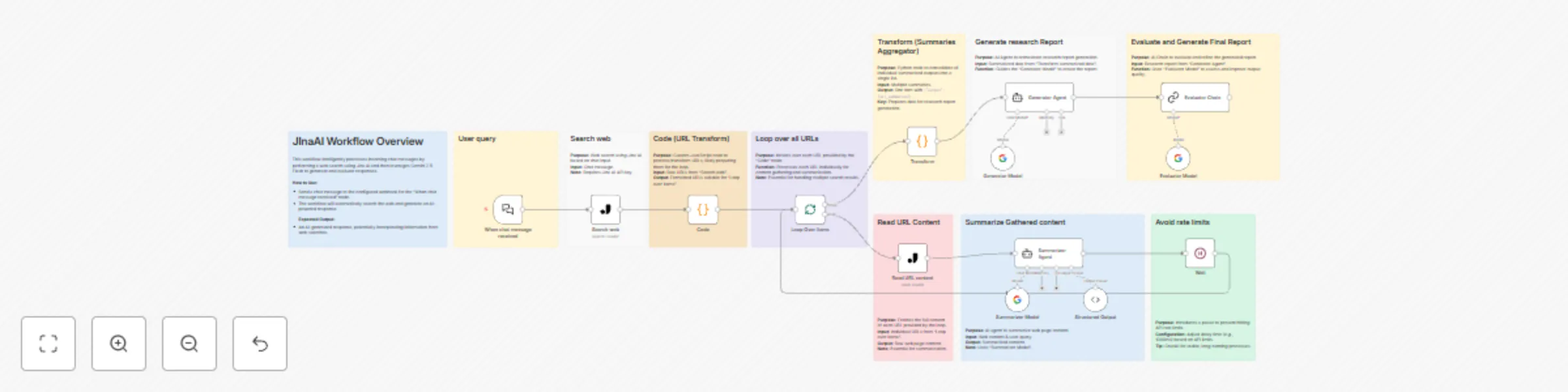
Workflow preview: Create comprehensive research reports with Jina AI & Gemini 2.5 Flash
Free advanced

Create comprehensive research reports with Jina AI & Gemini 2.5 Flash

## Automated AI Research Assistant: From Query to Polished Report with Jina & Gemini Turn a single research question into a comprehensive, multi-source report with proper citations. This workflow automates the entire research process by leveraging the web-crawling power of Jina AI and the advanced reasoning capabilities of Google's Gemini models. Simply input your query, and this AI-powered assembly line will search the web, scrape relevant sources, summarize the content, draft a structured research paper, and finally, evaluate and polish the report for accuracy and formatting. ### ✨ Key Features * **🔎 Dynamic Web Search**: Kicks off by searching the web with Jina AI based on your initial query. * **📚 Multi-Source Content Scraping**: Automatically reads and extracts content from the top 10 search results. * **🧠 AI-Powered Summarization**: Uses a Gemini agent to intelligently summarize each webpage, retaining the core information. * **✍️ Automated Report Generation**: A specialized "Generator Agent" synthesizes the summarized data into a structured research paper, complete with an executive summary, introduction, discussion, and conclusion. * **✅ Citation & Quality Verification**: A final "Evaluator Agent" meticulously checks the generated report for citation accuracy, logical flow, and markdown formatting, delivering a polished final document. * **📈Rate-Limit Ready**: Includes a configurable `Wait` node to ensure stable execution when dealing with multiple API calls. ### 📝 What This Workflow Does This workflow is designed to be your personal research assistant. It addresses the time-consuming process of gathering, reading, and synthesizing information from multiple online sources. Instead of spending hours manually searching, reading, and citing, you can delegate the entire task to this workflow and receive a well-structured and cited report as the final output. It's perfect for students, researchers, content creators, and analysts who need to quickly compile information on any given topic. ### ⚙️ How It Works (Step-by-Step) 1. **Initiate with a Query**: The workflow starts when you send your research question or topic to the `Chat Trigger` node. 2. **Search the Web**: The user's query is passed to the `Jina AI` node, which performs a web search and returns the top 10 most relevant URLs. 3. **Scrape, Summarize, Repeat**: The workflow then loops through each URL: * **Read Content**: The `Jina AI` node scrapes the full text content from the URL. * **Summarize**: A `Summarizer Agent` powered by Google Gemini reads the scraped content and the original user query, then generates a concise summary. * **Wait**: A one-second pause helps to avoid hitting API rate limits before processing the next URL. 4. **Aggregate the Knowledge**: Once the loop is complete, a `Code` node gathers all 10 individual summaries into a single, neatly structured list. 5. **Draft the Research Report**: This aggregated data is fed to the `Generator Agent`. Following a detailed prompt, this Gemini-powered agent writes a full research report, structuring it with headings and adding inline citations for every piece of information it uses. 6. **Evaluate and Finalize**: The generated draft is passed to the final `Evaluator Chain`. This agent acts as a quality control supervisor. It verifies that all claims are correctly cited, refines the content for clarity and academic tone, and polishes the markdown formatting to produce the final, ready-to-use report. ### 🚀 How to Use This Workflow 1. **Credentials**: Click on **Use template**, then configure your credentials for the following nodes: * **Jina AI**: You will need a Jina AI API key for the `Search web` and `Read URL content` nodes. Get your key from here: [JinaAI API Key](https://jina.ai/) * **Google Gemini**: You will need a Google Gemini API key for the `Summarizer Model`, `Generator Model`, and `Evaluator Model` nodes. Get your key from here: [Gemini API Key](https://aistudio.google.com/apikey) 2. **Activate Workflow**: Make sure the workflow is active in your n8n instance. 3. **Start Research**: Send a chat message with your research topic to the webhook URL provided in the `When chat message received` node. 4. **Get Your Report**: Check the output of the final node, `Evaluator Chain`, to find your completed and polished research report. ### Nodes Used * `Chat Trigger` * `Jina AI` * `Code` (Python) * `Split in Batches` (Looping) * `Wait` * `AI Agent` * `Basic LLM Chain` * `Google Gemini Chat Model`

A
AppStoneLab Technologies LLP
Content Creation
30 Jun 2025
1357
0