Qualify lead lists and find professional emails with OpenAI and Google Sheets
Workflow preview


 Early Deal
DISCOUNT 20%

Overview
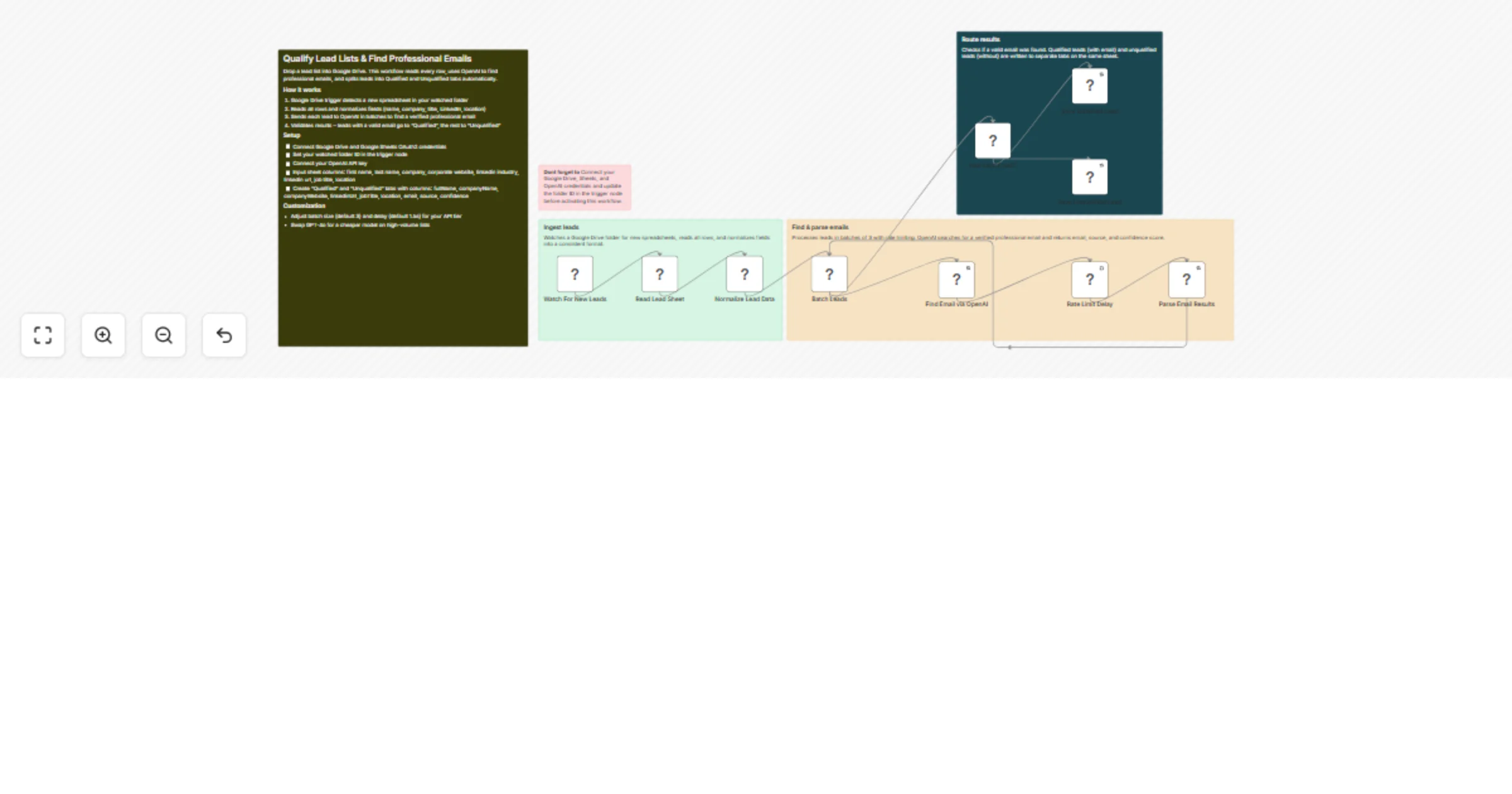
Qualify Lead Lists And Find Professional Emails With OpenAI and Google Sheets
Drop a lead list into Google Drive. This workflow reads it, finds professional emails using OpenAI, and splits leads into Qualified and Unqualified sheets fully automated.
How It Works
Watch For New Leads Google Drive trigger monitors a folder. When a new spreadsheet lands, the workflow fires.
Read Lead Sheet Pulls every row from the new spreadsheet.
Normalize Lead Data Standardizes fields: full name, company, website, LinkedIn URL, industry, job title, and location.
Find Email via OpenAI Each lead is sent to GPT-4o to find a verified professional email. Returns the email, source, and confidence score (high / medium / low).
Rate-Limited Batching Leads process in batches of 3 with a 1.5s delay to respect API rate limits.
Has Valid Email? If a valid email was found (contains @), the lead goes to the Qualified sheet. Otherwise it goes to Unqualified -- both written back to the same spreadsheet.
Setup
- Google Drive / Sheets -- Connect your Google OAuth2 credentials. Update the folder ID in the trigger node.
- OpenAI -- Connect your OpenAI API credential to the Find Email via OpenAI node.
- Input Sheet -- Needs columns: first name, last name, company, corporate website, linkedin industry, linkedin url, job title, location
- Output Tabs -- Create two tabs named Qualified and Unqualified with columns: fullName, companyName, companyWebsite, linkedinUrl, jobTitle, location, email, source, confidence
Use Cases
- Qualify exported Apollo / LinkedIn Sales Nav lead lists before outreach
- Enrich scraped conference attendee lists with verified emails
- Pre-qualify inbound lead dumps before loading into your CRM or sequencer
Built by Devon Toh