DIGITAL BIZ TECH
Workflows by DIGITAL BIZ TECH
Automate timesheet to invoice conversion with OpenAI, Gmail & Google Workspace
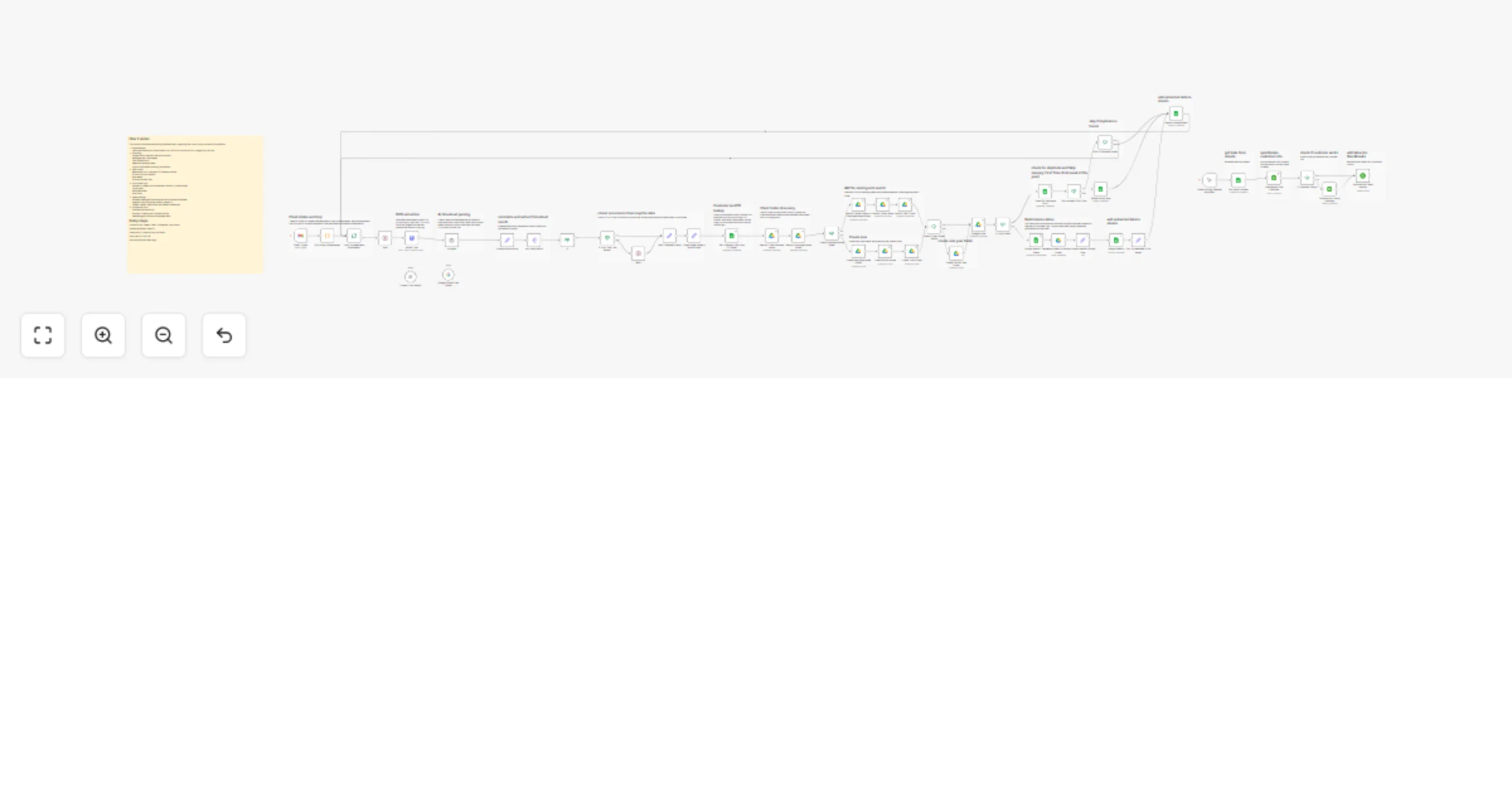
This workflow converts emailed timesheets into structured invoice rows in Google Sheets and stores them in the correct Google Drive folder structure. It: - Listens to Gmail for timesheet attachments - Runs OCR and AI parsing - Looks up Customer and PO data from a Google Sheet - Organizes files in Client → Employee → Year folders - Reuses an existing invoice sheet or creates a new one and writes the invoice row --- ## Quick Implementation Steps 1. Import the workflow JSON into your n8n instance. 2. Set up credentials for: - Gmail - Google Drive - Google Sheets - OpenAI 3. Check the OCR HTTP node: - Default URL: `https://universal-file-to-text-extractor.vercel.app/extract` 4. Configure "Get Customer Info From PO Sheet" with: - Spreadsheet ID - Correct sheet and column names 5. Confirm Gmail Trigger filter: - `has:attachment (filename:timesheet OR subject:timesheet)` and unread only 6. Ensure your Client Invoices root folder exists in Google Drive. 7. Test once with a sample timesheet email. 8. Activate the workflow. --- ## What It Does - Reads unread Gmail messages with timesheet attachments. - Splits and processes each attachment separately. - Sends files to OCR and converts them to text. - Uses OpenAI to extract: - Employee Name - Client Name - Week Start and End Dates - Total Billable Hours - Current Year - Looks up Customer and PO data from a Google Sheet: - Account Number - PO Number - Item Name - Folder Name - Invoice range - Due Date offset - Builds or finds: - Client folder - Employee folder - Year folder - Either: - Appends to an existing sheet for that employee and period, or - Creates a new sheet, sets timezone, moves it into the right folder, and adds the invoice row --- ## Who Is It For - Agencies and consultancies billing from emailed timesheets - Finance or ops teams managing many clients and employees in Google Workspace - Service providers that keep one sheet per employee per period - Anyone who wants to stop manually reading timesheets and filling invoice sheets --- ## Requirements - n8n instance - Gmail account with timesheet emails - Google Drive and Google Sheets - OpenAI API key - OCR API endpoint (or the default one) - Customer POs Google Sheet with: - Email - Customer Account Number - PO Number - Item - Folder Name - Invoice range - Due Date Calculation --- ## How It Works ### 1. Email Intake and Loop - Gmail Trigger - Polls every minute - Filter: unread + has attachment + timesheet in file name or subject - Split Binary Attachments - Creates one item per attachment - Loop: Process Each Attachment - Handles each timesheet file in sequence ### 2. OCR and AI Parsing - Extract Text from Attachment - Sends binary file to OCR endpoint - Returns plain text - Extract Timesheet Data (OpenAI) - Reads the text and outputs strict JSON with: - Employee Name - Client Name - Week Starting Date - Week Ending Date - Total Working Hours - Set Timesheet JSON Fields - Normalizes and stores: - Employee Name - Total Billable hours - Week Start Date and Week End Date - Client Name - Current Year ### 3. Customer and PO Lookup - Get Customer Info From PO Sheet - Looks up sender email - Pulls: - Customer Account Number - PO Number - Item - Folder Name - Invoice range - Due Date Calculation ### 4. Drive Folder Discovery - Search: Client Invoices Folder - Finds the main invoices root folder - Search or create: - Client folder using Client Name - Employee folder using Folder Name from PO sheet - Search: Year Folder - Looks for folder matching Current Year - If Year Folder does not exist: - Create Year Folder or Create Current Year Folder - Set: Invoice Range - Stores invoice range and Year Folder id ### 5. File Naming and Sheet Search - Set: File Name from Start and End Based Date Range - Builds: - File Name (Start Date Based) - File Name (End Date Based) - Handles weekly and 15 days invoice logic - Search: File By Start Date Name - Search: File By End Date Name - Merge: Combine Folder Search Results - Merges both search results - If: Invoice Range is 15 Days - Uses custom 2 week window for file naming - Set Invoice Date and Due Date Days - Invoice Date from week end - Due Date from week end plus offset ### 6. Reuse vs Create Sheet - If: File Already Exists - If found - Go to Append: Final Row to Existing Sheet - If not found - Go to Sheets: Create Sheet #### New Sheet Path - Sheets: Create Sheet - Creates new spreadsheet with generated name - HTTP Request (create sheet) - Sets spreadsheet timezone to America/New_York - Drive: Move Sheet To Final Folder - Moves spreadsheet into the Year Folder - Set: Empty Row Structure - Prepares JSON structure for invoice row - Sheets: Append Row1 - Writes the first invoice row - Set: Spreadsheet (ID and Name) - Stores id and name - Append: Final Row to Existing Sheet - Ensures row is appended with full mapping #### Existing Sheet Path - Set: Spreadsheet (ID and Name) - Uses found spreadsheet - Append: Final Row to Existing Sheet - Appends new row with: - Customer Account Number - Invoice Date - Due Date - PO Number - Item and columns - Total billable hours as Quantity - Description with week period --- ## How To Set Up ### 1. Import and Credentials - Import JSON in n8n - Set credentials for: - Gmail Trigger - Google Drive nodes - Google Sheets nodes - OpenAI node - OCR HTTP node if needed ### 2. Customer POs Sheet - In Get Customer Info From PO Sheet: - Set Spreadsheet ID - Confirm column names - Make sure each employee email row has: - Customer Account Number - PO Number - Item - Folder Name - Invoice range - Due Date Calculation ### 3. Drive and Gmail - Confirm Client Invoices root folder exists - Confirm Gmail Trigger: - Query string - Poll schedule ### 4. Test - Send a sample timesheet email - Run the workflow once manually - Check: - Folder structure - Created or reused sheet - Invoice row content ### 5. Activate - Turn workflow ON once tests are successful. --- ## How To Customize - Swap the OpenAI model in Extract Timesheet Data. - Change prompt to extract extra fields such as project, cost center, or approval status. - Replace OCR endpoint with another service if needed. - Change folder naming rules in Set and Create folder nodes. - Adjust file naming rules for different billing periods. - Add validation steps to handle: - Missing name - Zero hours - Invalid dates - Extend the PO sheet and invoice sheet with: - Hourly rate - Currency - Tax codes --- ## Use Case Examples - Weekly consulting invoices from signed timesheets. - Contractor billing for staffing agencies. - Internal cross charging between departments using timesheet reports. - Creating a clean, auditable history of timesheets and related invoice lines. --- ## Troubleshooting Guide | Issue | Possible Solution | |-------|-------------------| | No rows are created | Check Gmail Trigger is active and the filter matches the email. Confirm email is unread and has attachments. | | OCR returns empty or error | Check OCR URL, status code, and supported file types. Log the response body. | | Wrong or missing dates or hours | Review OpenAI prompt and a sample output. Ensure JSON keys in Set Timesheet JSON Fields match the AI output. | | Folders not found or created | Confirm the Client Invoices root exists and that Client Name and Folder Name text matches what the workflow expects. | | Files in wrong year folder | Check Current Year extraction and Year Folder search logic. | | Duplicate sheets for same period | Check file naming code and Drive search nodes for exact match on names. | | Due Date incorrect | Confirm Due Date Calculation in PO sheet and date math formats in Set and append nodes. | --- ### **Need Help or More Workflows?** Want to customize this workflow for your business or integrate it with your existing tools? Our team at **Digital Biz Tech** can tailor it precisely to your use case from automation logic to AI-powered enhancements. We can help you set it up for free — from connecting credentials to deploying it live. Contact: [[email protected]](mailto:[email protected]) Website: [https://www.digitalbiz.tech](https://www.digitalbiz.tech) LinkedIn: [https://www.linkedin.com/company/digital-biz-tech/](https://www.linkedin.com/company/digital-biz-tech/) You can also DM us on LinkedIn for any help. ---
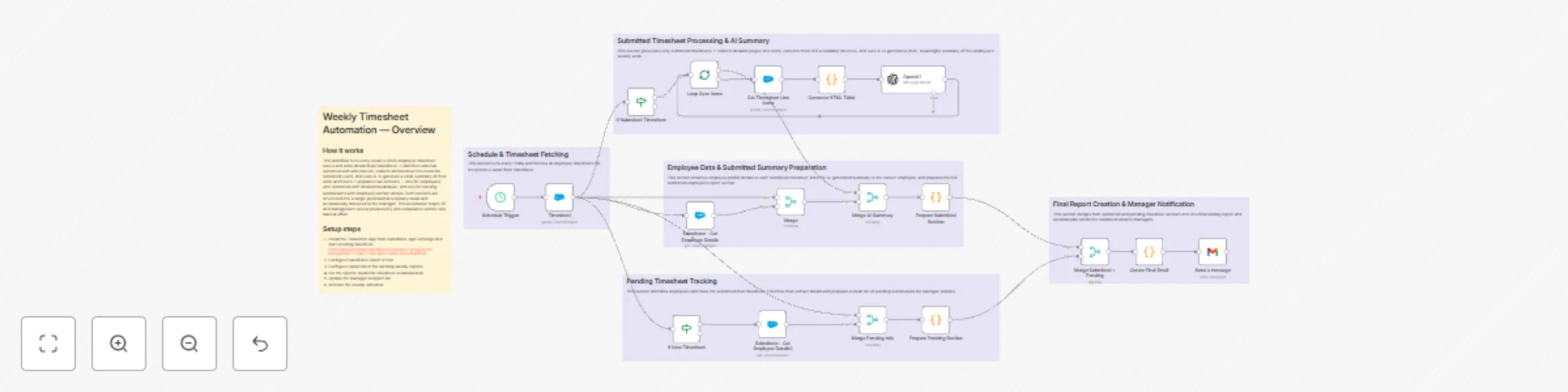
Automate weekly timesheet reporting with Salesforce, OpenAI and Gmail
# Weekly Timesheet Report + Pending Submissions Workflow ## Overview This workflow automates the entire weekly timesheet reporting cycle by integrating Salesforce, OpenAI, Gmail, and n8n. It retrieves employee timesheets for the previous week, identifies which were submitted or not, summarizes all line-item activities using OpenAI, and delivers a consolidated, manager-ready summary that mirrors the final email output. The workflow eliminates manual checking, reduces repeated follow-ups, and ensures leadership receives an accurate, structured, and consistent weekly report. --- ## Workflow Structure ### **Data Source: Salesforce DBT Timesheet App** This workflow requires the **Digital Biz Tech – Simple Timesheet** managed package to be installed in Salesforce. **Install the Timesheet App:** [https://appexchange.salesforce.com/appxListingDetail?listingId=a077704c-2e99-4653-8bde-d32e1fafd8c6](https://appexchange.salesforce.com/appxListingDetail?listingId=a077704c-2e99-4653-8bde-d32e1fafd8c6) **The workflow retrieves:** - `dbt__Timesheet__c` — weekly timesheet records - `dbt__Timesheet_Line_Item__c` — project and activity entries - `dbt__Employee__c` — employee reference and metadata - Billable, non-billable, and absence hour details - Attendance information These combined objects form the complete dataset used for both submitted and pending sections. ### **Trigger** Weekly **n8n Schedule Trigger** — runs once every week. ### **Submitted Path** Retrieve submitted timesheets → Fetch line items → Convert to HTML → OpenAI summary → Merge with employee details. ### **Pending Path** Identify “New” timesheets → Fetch employee details → Generate pending submission list. ### **Final Output** Merge both paths → Build formatted report → Gmail sends weekly email to managers. --- ## Detailed Node-by-Node Explanation ### **1. Schedule Trigger** Runs weekly without manual intervention and targets the previous full week. ### **2. Timesheet – Salesforce GetAll** Fetches all `dbt__Timesheet__c` records matching: **Timesheet for <week-start> to <week-end>** Extracted fields include: - Employee reference - Status - Billable, non-billable, absence hours - Total hours - Reporting period Feeds both processing paths. --- # Processing Path A — Submitted Timesheets ### **3. Filter Submitted** Filters timesheets where `dbt__Status__c == "Submitted"`. ### **4. Loop Through Each Submitted Record** Each employee’s timesheet is processed individually. ### **5. Retrieve Line Items** Fetches all `dbt__Timesheet_Line_Item__c` entries: - Project / Client - Activity - Duration - Work description - Billable category ### **6. Convert Line Items to HTML (Code Node)** Transforms line items into well-structured HTML tables for clean LLM input. ### **7. OpenAI — Weekly Activity Summary** OpenAI receives the HTML + Employee ID and returns a **4-point activity summary** avoiding: - Hours - Dates - Repeated or irrelevant metadata ### **8. Fetch Employee Details** Retrieves employee name, email, and additional fields if needed. ### **9. Merge Employee + Summary** Combines: - Timesheet data - Employee details - OpenAI summary Creates a unified object. ### **10. Prepare Submitted Section (Code Node)** Produces the formatted block used in the final email: ``` Employee: Name Period: Start → End Status: Submitted Total Hours: ... Timesheet Line Items Breakdown: - summary point - summary point - summary point - summary point ``` --- # Processing Path B — Not Submitted Timesheets ### **11. Identify Not Submitted** Timesheets still in `dbt__Status__c == "New"` are flagged. ### **12. Retrieve Employee Information** Fetches employee name and email. ### **13. Merge Pending Information** Maps each missing submission with its reporting period. ### **14. Prepare Pending Reporting Block** Creates formatted pending entries: ``` TIMESHEET NOT SUBMITTED Employee Name Email: [email protected] ``` --- # Final Assembly & Report Delivery ### **15. Merge Submitted + Pending Sections** Combines all processed data. ### **16. Create Final Email (Code Node)** Builds: - Subject - HTML body - Section headers - Manager recipient group Matches the final email layout. ### **17. Send Email via Gmail** Automatically delivers the weekly summary to managers via Gmail OAuth. No manual involvement required. --- ## What Managers Receive Each Week ``` 👤 Employee: Name 📅 Period: Start Date → End Date 📌 Status: Submitted 🕒 Total Hours: XX hrs - Billable: XX hrs - Non-Billable: XX hrs - Absence: XX hrs Weekly Requirement Met: ✔️ / ❌ 📂 Timesheet Line Items Breakdown: • Summary point 1 • Summary point 2 • Summary point 3 • Summary point 4 ========================================================== 🟥 TIMESHEET NOT SUBMITTED 🟥 Employee Name 📧 Email: [email protected] ``` --- ## Data Flow Summary ``` Salesforce → Filter Submitted / Not Submitted ↳ Submitted → Line Items → HTML → OpenAI Summary → Merge ↳ Not Submitted → Employee Lookup → Merge → Code Node formats unified report → Gmail sends professional weekly summary ``` --- ## Technologies & Integrations | System | Purpose | Authentication | |------------|----------------------------------|----------------| | Salesforce | Timesheets, Employees, Timesheet Line Items | Salesforce OAuth | | OpenAI | Weekly activity summarization | API Key | | Gmail | Automated email delivery | Gmail OAuth | | n8n | Workflow automation & scheduling | Native | --- ## Agent System Prompt Summary > You are an AI assistant that extracts and summarizes weekly timesheet line items. Produce a clean, structured summary of work done for each employee. Focus only on project activities, tasks, accomplishments, and notable positives or negatives. Follow a strict JSON-only output format with four short points and no extra text or symbols. --- ## Key Features - AI-driven extraction: Converts raw line items into clean weekly summaries. - Strict formatting: Always returns controlled 4-point JSON summaries. - Error-tolerant: Works even when timesheet entries are incomplete or messy. - Seamless integration: Works smoothly with Salesforce, n8n, Gmail, or OpenAI. --- ## Setup Checklist 1. Install DBT Timesheet App from Salesforce AppExchange 2. Configure Salesforce OAuth 3. Configure Gmail OAuth 4. Set OpenAI model for summarization 5. Update manager recipient list 6. Activate the weekly schedule --- ## Summary This unified workflow delivers a complete, automated weekly reporting system that: - Eliminates manual timesheet checking - Identifies missing submissions instantly - Generates high-quality AI summaries - Improves visibility into employee productivity - Ensures accurate billable/non-billable tracking - Automates end-to-end weekly reporting --- ## Need Help or More Workflows? We can integrate this into your environment, tune the agent prompt, or extend it for more automation. We can also help you set it up for free — from connecting credentials to deployment. Contact: [[email protected]](mailto:[email protected]) Website: [https://www.digitalbiz.tech](https://www.digitalbiz.tech) LinkedIn: [https://www.linkedin.com/company/digital-biz-tech/](https://www.linkedin.com/company/digital-biz-tech/) You can also DM us on LinkedIn for any help.
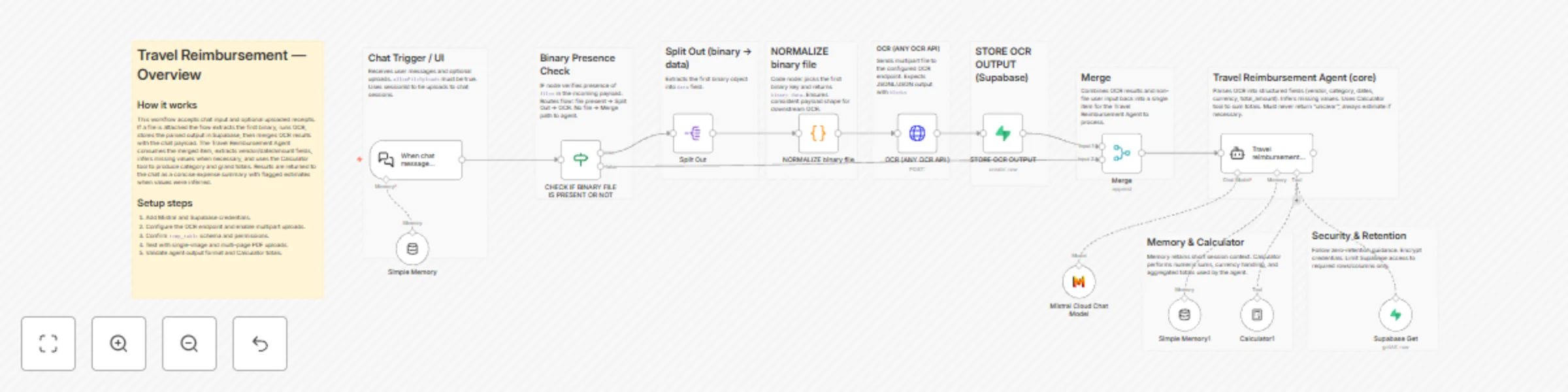
Automate travel expense extraction with OCR, Mistral AI and Supabase
# Travel Reimbursement - OCR & Expense Extraction Workflow ## Overview This is a lightweight n8n workflow that accepts chat input and uploaded receipts, runs OCR, stores parsed results in Supabase, and uses an AI agent to extract structured travel expense data and compute totals. Designed for zero retention operation and fast integration. --- ## Workflow Structure - **Frontend:** Chat UI trigger that accepts text and file uploads. - **Preprocessing:** Binary normalization + per-file OCR request. - **Storage:** Store OCR-parsed blocks in Supabase `temp_table`. - **Core AI:** Travel reimbursement agent that extracts fields, infers missing values, and calculates totals using the Calculator tool. - **Output:** Agent responds to the chat with a concise expense summary and breakdowns. --- ## Chat Trigger (Frontend) - **Trigger node:** `When chat message received` - `public: true`, `allowFileUploads: true`, sessionId used to tie uploads to the chat session. - Custom CSS + initial messages configured for user experience. ## Binary Presence Check - **Node:** `CHECK IF BINARY FILE IS PRESENT OR NOT` (IF) - Checks whether incoming payload contains `files`. - If files present -> route to `Split Out` -> `NORMALIZE binary file` -> `OCR (ANY OCR API)` -> `STORE OCR OUTPUT` -> `Merge`. - If no files -> route directly to `Merge` -> `Travel reimbursement agent`. ## Binary Normalization - **Node:** `Split Out` and `NORMALIZE binary file` (Code) - `Split Out` extracts binary entries into a `data` field. - `NORMALIZE binary file` picks the first binary key and rewrites payload to `binary.data` for consistent downstream shape. ## OCR - **Node:** `OCR (ANY OCR API )` (HTTP Request) - Sends multipart/form-data to OCR endpoint, expects JSONL or JSON with `blocks`. - Body includes `mode=single`, `output_type=jsonl`, `include_images=false`. ## Store OCR Output - **Node:** `STORE OCR OUTPUT` (Supabase) - Upserts into `temp_table` with `session_id`, parsed `blocks`, and `file_name`. - Used by agent to fetch previously uploaded receipts for same session. ## Memory & Tooling - **Nodes:** `Simple Memory` and `Simple Memory1` (memoryBufferWindow) - Keep last 10 messages for session context. - **Node:** `Calculator1` (toolCalculator) - Used by agent to sum multiple charges, handle currency arithmetic and totals. ## Travel Reimbursement Agent (Core) - **Node:** `Travel reimbursement agent` (LangChain agent) - **Model:** `Mistral Cloud Chat Model` (mistral-medium-latest) - **Behavior:** - Parse OCR `blocks` and non-file chat input. - Extract required fields: `vendor_name`, `category`, `invoice_date`, `checkin_date`, `checkout_date`, `time`, `currency`, `total_amount`, `notes`, `estimated`. - When fields are missing, infer logically and mark `estimated: true`. - Use Calculator tool to sum totals across multiple receipts. - Fetch stored OCR entries from Supabase when user asks for session summaries. - Always attempt extraction; never reply with "unclear" or ask for a reupload unless user requests audit-grade precision. - **Final output:** Clean expense table and Grand Total formatted for chat. ## Data Flow Summary 1. User sends chat message plus or minus file. 2. IF file present -> Split Out -> Normalize -> OCR -> Store OCR output -> Merge with chat payload. 3. Travel reimbursement agent consumes merged item, extracts fields, uses Calculator tool for sums, and replies with a formatted expense summary. --- ## Integrations Used | Service | Purpose | Credential | |---------|---------|-----------| | Mistral Cloud | LLM for agent | `Mistral account ` | | Supabase | Store parsed OCR blocks and session data | `Supabase account ` | | OCR API | Text extraction from images/PDFs | Configurable HTTP endpoint | | n8n Core | Flow control, parsing, editing | Native | --- ## Agent System Prompt Summary > You are a Travel Expense Extraction and Calculation AI. Extract vendor, dates, currency, category, and total amounts from uploaded receipts, invoices, hotel bills, PDFs, and images. Infer values when necessary and mark them as estimated. When asked, fetch session entries from Supabase and compute totals using the Calculator tool. Respond in a concise business professional format with a category wise breakdown and a Grand Total. Never reply "unclear" or ask for a reupload unless explicitly asked. Required final response format example: --- ## Key Features - Zero retention friendly design: OCR output stored only to `temp_table` per session. - Robust extraction with inference when OCR quality is imperfect. - Session aware: agent retrieves stored receipts for consolidated totals. - Calculator integration for accurate numeric sums and currency handling. - Configurable OCR endpoint so you can swap providers without changing logic. --- ## Setup Checklist 1. Add Mistral Cloud and Supabase credentials. 2. Configure OCR endpoint to accept multipart uploads and return `blocks`. 3. Create `temp_table` schema with `session_id`, `file`, `file_name`. 4. Test with single receipts, multipage PDFs, and mixed uploads. 5. Validate agent responses and Calculator totals. --- ## Summary A practical n8n workflow for travel expense automation: accept receipts, run OCR, store parsed data per session, extract structured fields via an AI agent, compute totals, and return clean expense summaries in chat. Built for reliability and easy integration. --- ### Need Help or More Workflows? We can integrate this into your environment, tune the agent prompt, or adapt it for different OCR providers. We can help you set it up for free — from connecting credentials to deploying it live. Contact: [[email protected]](mailto:[email protected]) Website: [https://www.digitalbiz.tech](https://www.digitalbiz.tech) LinkedIn: [https://www.linkedin.com/company/digital-biz-tech/](https://www.linkedin.com/company/digital-biz-tech/) You can also DM us on LinkedIn for any help.
Generate LinkedIn carousel images from text with Mistral AI & S3 Storage
# AI Carousel Caption & Template Editor Workflow ## Overview This workflow is a caption-only carousel text generator built in n8n. It turns any raw LinkedIn post or text input into 3 short, slide-ready title + subtext captions and renders those captions onto image templates. Output is a single aggregated response with markdown image embeds and download links. --- ## Workflow Structure - **Input:** Chat UI trigger accepts text and optional template selection. - **Core AI:** Agent cleans input and returns structured JSON with 3 caption pairs. - **Template Rendering:** Edit Image nodes render title and subtext on chosen templates. - **Storage:** Rendered images uploaded to S3. - **Aggregate Output:** Aggregate node builds final markdown response with embeds and download links. --- ## Chat Trigger (Frontend) - **Trigger:** `When chat message received` - UI accepts plain text post. - `allowFileUploads` optional for template images. - SessionId preserved for context. ## AI Agent (Core) - **Node name:** `AI Agent` - **Model:** `Mistral Cloud Chat Model` (mistral-small-latest) - **Behavior:** - Clean input (remove stray formatting like `\n` and `**` but keep emojis). - Produce exactly one JSON object with fields: `postclean`, `title1`, `subtext1`, `title2`, `subtext2`, `title3`, `subtext3`. - Titles must be short (max 5 words). Subtext 1 or 2 short sentences, max 7 words per line if possible. - Agent must return valid JSON to be parsed by the Structured Output Parser. ## Structured Output Parser - **Node name:** `Structured Output Parser` - Validates agent JSON and prevents downstream errors. If parsing fails, stop and surface error. ## Normalize Title Nodes - **Nodes:** `normalize title,name 1`, `normalize title,name 2`, `normalize title,name 3` (and optional 4) - Map parsed output into node fields: `title`, `subtext`, `safeName` (safe filename for exports). ## Template Images - **Source:** Google Drive template PNGs (download via `Google Drive` nodes) or provided upload. - Keep templates high resolution and consistent aspect ratio. ## Edit Image Nodes (Render Captions) - **Nodes:** `Edit Image 1`, `Edit Image2`, `Edit Image3`, `Edit Image3` (or `Edit Image3`/`Edit Image4` as available) - MultiStep operations render: - Title text (font, size, position) - Subtext (font, size, position) - This is where caption text is added to the template. ## Upload to S3 - **Nodes:** `S3` - Upload rendered images to `bucketname` using `safeName` filenames. Confirm public access or use signed URLs. ## Get S3 URLs and Aggregate - **Nodes:** `get s3 url image 1`, `get s3 url image 2`, `get s3 url image 3`, `get s3 url image 4` - **Merge + Aggregate:** `Merge1` and `Aggregate` collect image items. - **Output Format:** `output format` builds a single markdown message: - Inline image embeds `` - Download links per image. --- ## Integrations Used | Service | Purpose | Credential | |---------|---------|-----------| | Mistral Cloud | AI agent model | `Mistral account` | | Google Drive | Template image storage | `Google Drive account ` | | S3 | Store rendered images and serve links | `Supabase account ` | | n8n Core | Flow control, parsing, image editing | Native | --- ## Agent System Prompt Summary > You are a data formatter and banner caption creator. Clean the user input (remove stray newlines and markup but keep emojis). Return a single JSON object with `postclean`, `title1/subtext1`, `title2/subtext2`, `title3/subtext3`. Titles must be short (max 5 words). Subtext should be 1 to 2 short sentences, useful and value adding. Respond only with JSON. --- ## Key Features - Caption only output: 3 short slide-ready caption pairs. - Structured JSON output enforced by a parser for reliability. - Renders captions onto image templates using Edit Image nodes. - Uploads images to S3 and returns markdown embeds plus download links. - Template editable: swap Google Drive background templates or upload your own. - Zero guess formatting: agent must produce parseable JSON to avoid downstream failures. --- ## Summary A compact n8n workflow that converts raw LinkedIn text into a caption-only carousel with rendered images. It enforces tight caption rules, validates AI JSON, places captions on templates, uploads images, and returns a single ready-to-post markdown payload. --- ### Need Help or More Workflows? We can wire this into your account, replace templates, or customize fonts, positions, and export options. We can help you set it up for free — from connecting credentials to deploying it live. Contact: [[email protected]](mailto:[email protected]) Website: [https://www.digitalbiz.tech](https://www.digitalbiz.tech) LinkedIn: [https://www.linkedin.com/company/digital-biz-tech/](https://www.linkedin.com/company/digital-biz-tech/) You can also DM us on LinkedIn for any help.
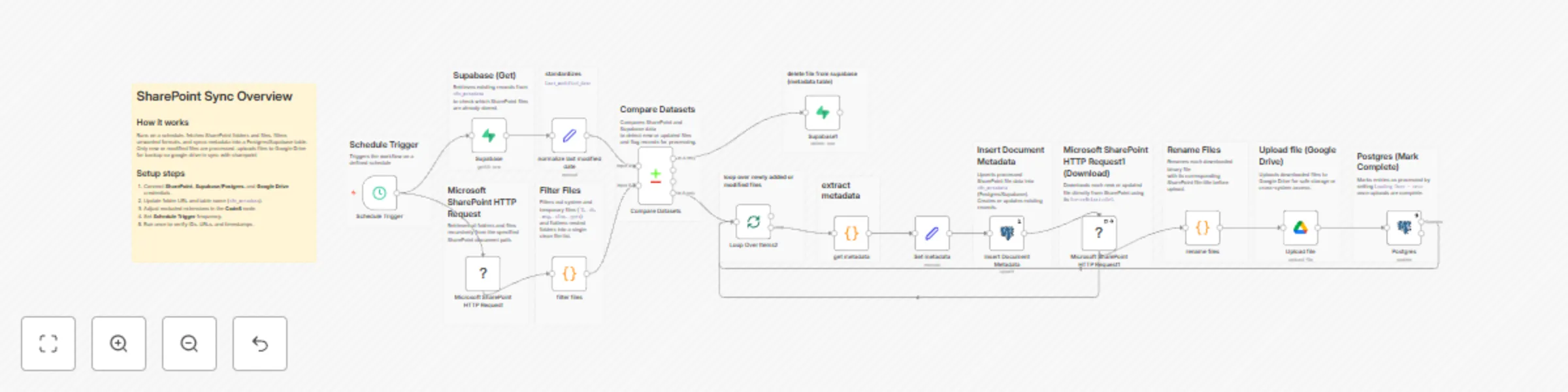
Automated document sync between SharePoint and Google Drive with Supabase
# SharePoint → Supabase → Google Drive Sync Workflow ## Overview This workflow is a **multi-system document synchronization pipeline** built in **n8n**, designed to automatically sync and back up files between **Microsoft SharePoint**, **Supabase/Postgres**, and **Google Drive**. It runs on a **scheduled trigger**, compares SharePoint file metadata against your Supabase table, **downloads new or updated files**, **uploads them to Google Drive**, and marks records as completed — keeping your databases and storage systems perfectly in sync. --- ## Workflow Structure - **Data Source:** SharePoint REST API for recursive folder and file discovery. - **Processing Layer:** n8n logic for filtering, comparison, and metadata normalization. - **Destination Systems:** Supabase/Postgres for metadata, Google Drive for file backup. --- ## SharePoint Sync Flow (Frontend Flow) - **Trigger:** `Schedule Trigger` Runs at fixed intervals (customizable) to start synchronization. - **Fetch Files:** `Microsoft SharePoint HTTP Request` Recursively retrieves folders and files using SharePoint’s REST API: `/GetFolderByServerRelativeUrl(...)?$expand=Files,Folders,Folders/Files,Folders/Folders/Folders/Files` - **Filter Files:** `filter files` A **Code node** that flattens nested folders and filters unwanted file types: - Excludes system or temporary files (`~$`) - Excludes extensions: `.db`, `.msg`, `.xlsx`, `.xlsm`, `.pptx` - **Normalize Metadata:** `normalize last modified date` Ensures consistent `Last_modified_date` format for accurate comparison. - **Fetch Existing Records:** `Supabase (Get)` Retrieves current entries from `n8n_metadata` to compare against SharePoint files. - **Compare Datasets:** `Compare Datasets` Detects **new or modified** files based on `UniqueId`, `Last_modified_date`, and `Exists`. Routes only changed entries forward for processing. --- ## File Processing Engine (Backend Flow) - **Loop:** `Loop Over Items2` Iterates through each new or updated file detected. - **Build Metadata:** `get metadata` and `Set metadata` Constructs final metadata fields: - `file_id`, `file_title`, `file_url`, `file_type`, `foldername`, `last_modified_date` Generates `fileUrl` using `UniqueId` and `ServerRelativeUrl` if missing. - **Upsert Metadata:** `Insert Document Metadata` Inserts or updates file records in Supabase/Postgres (`n8n_metadata` table). Operation: `upsert` with `id` as the primary matching key. - **Download File:** `Microsoft SharePoint HTTP Request1` Fetches the binary file directly from SharePoint using its `ServerRelativeUrl`. - **Rename File:** `rename files` Renames each downloaded binary file to its original `file_title` before upload. - **Upload File:** `Upload file` Uploads the renamed file to **Google Drive** (`My Drive` → `root` folder). - **Mark Complete:** `Postgres` Updates the Supabase/Postgres record setting `Loading Done = true`. - **Optional Cleanup:** `Supabase1` Deletes obsolete or invalid metadata entries when required. --- ## Integrations Used | Service | Purpose | Credential | |----------|----------|-------------| | **Microsoft SharePoint** | File retrieval and download | `microsoftSharePointOAuth2Api` | | **Supabase / Postgres** | Metadata storage and synchronization | `Supabase account 6 ayan` | | **Google Drive** | File backup and redundancy | `Google Drive account 6 rn dbt` | | **n8n Core** | Flow control, dataset comparison, batch looping | Native | --- ## System Prompt Summary > “You are a SharePoint document synchronization workflow. Fetch all files, compare them to database entries, and only process new or modified files. Download files, rename correctly, upload to Google Drive, and mark as completed in Supabase.” Workflow rule summary: > “Maintain data integrity, prevent duplicates, handle retries gracefully, and continue on errors. Skip excluded file types and ensure reliable backups between all connected systems.” --- ## Key Features - Scheduled automatic sync across SharePoint, Supabase, and Google Drive - Intelligent comparison to detect only new or modified files - Idempotent upsert for consistent metadata updates - Configurable file exclusion filters - Safe rename + upload pipeline for clean backups - Error-tolerant and fully automated operation --- ## Summary > A reliable, **SharePoint-to-Google Drive synchronization workflow** built with **n8n**, integrating **Supabase/Postgres** for metadata management. It automates file fetching, filtering, downloading, uploading, and marking as completed — ensuring your data stays mirrored across platforms. Perfect for enterprises managing **document automation**, **backup systems**, or **cross-cloud data synchronization**. --- #### Need Help or More Workflows? Want to customize this workflow for your organization? Our team at Digital Biz Tech can extend it for enterprise-scale document automation, RAGs and social media automation. We can help you set it up for free — from connecting credentials to deploying it live. Contact: [[email protected]](mailto:[email protected]) Website: [https://www.digitalbiz.tech](https://www.digitalbiz.tech) LinkedIn: [https://www.linkedin.com/company/digital-biz-tech/](https://www.linkedin.com/company/digital-biz-tech/) You can also DM us on LinkedIn for any help. ---
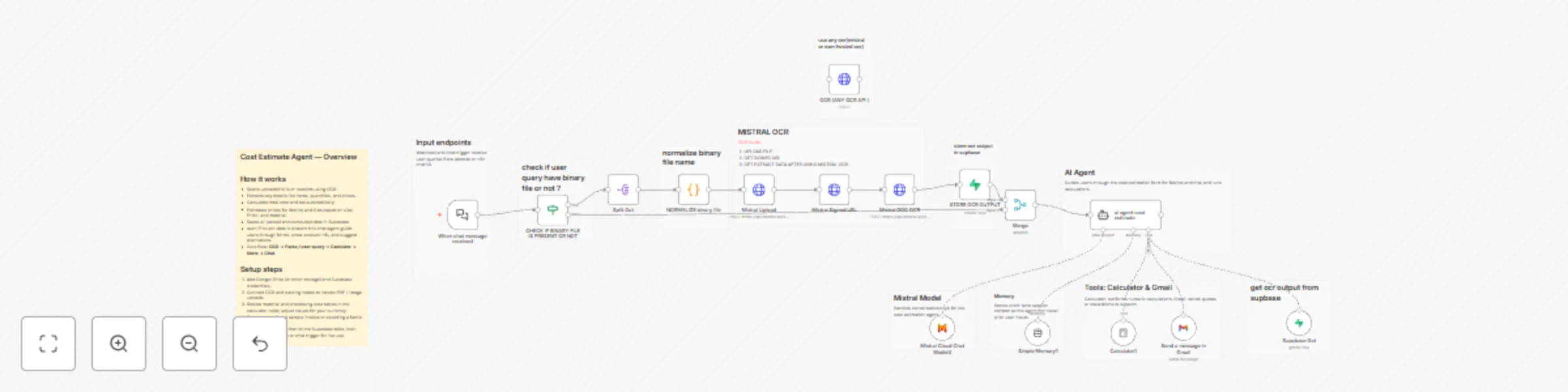
Build a cost estimation chatbot with Mistral AI, OCR & Supabase
# AI Cost Estimation Chatbot (Conversational Dual-Agent + OCR Workflow) ## Overview This workflow introduces a **conversational AI Cost Estimation Chatbot** with built-in **OCR document analysis** and **interactive form guidance**. It helps users and teams handle **pricing, measurement, and product configuration** for multiple categories such as **fabrics** and **tiles** — whether data comes from an uploaded invoice, a stored RFQ, or live user input. The system blends **Mistral AI’s reasoning** with **n8n’s native tools** — **OCR Extract**, **Calculator**, **Supabase**, and **Gmail** — to deliver clear, step-by-step cost calculations. It automatically retrieves or parses OCR data, confirms details conversationally, performs unit conversions, and returns accurate estimates in real time. Escalation and recordkeeping are handled via Gmail and Supabase. --- ## Chatbot Flow **Trigger:** Chat message (from n8n Chat UI) or Webhook (from a live site). **Model:** Mistral Cloud Chat Model (`mistral-medium-latest`) **Memory:** Simple Memory (Buffer Window, 15-message history) **Tools:** - **OCR Extract:** Reads and converts invoices, receipts, and RFQs into structured data. - **Supabase:** Stores and retrieves OCR data for re-use in future calculations. - **Calculator:** Performs all material, area, and cost computations. - **Gmail:** Escalates customer queries or sends quote summaries. - **Agent:** `ai agent cost estimate` **Workflow Behavior:** - Retrieves or parses OCR data, confirms and completes missing details interactively. - Guides users step-by-step through product setup (Fabric or Tile). - Calculates costs transparently using MATERIAL_COSTS and PROCESSING_COSTS. - Handles GSM ↔ sqm, area, and weight conversions automatically. - Escalates support or order confirmations via Gmail when requested. --- ## Integrations Used | Service | Purpose | |----------|----------| | ** Chat** | User-facing chatbot interface | | **OCR Extract** | Processes uploaded documents or receipts | | **Supabase** | Stores and retrieves OCR / quote data | | **Mistral AI** | Chat model and reasoning engine | | **Calculator** | Handles all numeric and cost calculations | | **Gmail** | Sends escalations or quote summaries | --- ## Agent System Prompt Summary > “You are an AI cost estimation assistant for a brand. > Retrieve or parse OCR data from Supabase, confirm details with the user, and calculate costs transparently. > Use the Calculator for all numeric logic based on MATERIAL_COSTS and PROCESSING_COSTS. > Handle GSM-to-sqm and other conversions automatically. > If support or follow-up is needed, send a message through Gmail. > Always guide the user conversationally, confirm assumptions, and explain every step clearly.” --- ## Key Features input: Chat Interface Conversational guidance even when OCR data doesnt exist OCR + Supabase integration for document reuse Interactive cost estimator for fabrics and tiles Transparent calculations and unit conversions Gmail integration for escalation or order confirmation Modular design for scaling to other product types --- ## Summary A powerful **AI + OCR conversational cost estimation assistant** that retrieves or parses order data, guides users through setup, and calculates costs transparently. It combines **intelligence (Mistral)**, **precision (Calculator)**, and **automation (OCR + Supabase + Gmail)** to create a complete, human-like quotation system — perfect for **brands, manufacturers, and B2B platforms**. --- We can help you set it up for free — from connecting credentials to deploying it live. Contact: [[email protected]](mailto:[email protected]) Website: [https://www.digitalbiz.tech](https://www.digitalbiz.tech) LinkedIn: [https://www.linkedin.com/company/digital-biz-tech/](https://www.linkedin.com/company/digital-biz-tech/) You can also DM us on LinkedIn for any help.
Build a product catalog chatbot with Mistral AI, Google Drive & Supabase RAG
# AI Product Catalog Chatbot with Google Drive Ingestion & Supabase RAG ## Overview This workflow builds a **dual-system** that connects **automated document ingestion** with a **live product catalog chatbot** powered by **Mistral AI** and **Supabase**. It includes: - **Ingestion Pipeline:** Automatically fetches JSON files from Google Drive, processes their content, and stores vector embeddings in Supabase. - **Chatbot:** An AI agent that queries the Supabase vector store (RAG) to answer user questions about the product catalog. It uses **Mistral AI** for chat intelligence and embeddings, and **Supabase** for vector storage and semantic product search. --- ## Chatbot Flow - **Trigger:** `When chat message received` or `Webhook` (from live website) - **Model:** `Mistral Cloud Chat Model (mistral-medium-latest)` - **Memory:** `Simple Memory (Buffer Window)` — keeps last 15 messages for conversational context - **Vector Search Tool:** `Supabase Vector Store` - **Embeddings:** `Mistral Cloud` - **Agent:** `product catalog agent` - Responds to user queries using the `products` table in Supabase. - Searches vectors for relevant items and returns structured product details (name, specs, images, and links). - Maintains chat session history for natural follow-up questions. --- ## Document → Knowledge Base Pipeline Triggered manually (`Execute workflow`) to populate or refresh the Supabase vector store. ### Steps 1. **Google Drive (List Files)** → Fetch all files from the configured Google Drive folder. 2. **Loop Over Items** → For each file: - **Google Drive (Get File)** → Download the JSON document. - **Extract from File** → Parse and read raw JSON content. - **Map Data into Fields (`Set` node)** → Clean and normalize JSON keys (e.g., `page_title`, `comprehensive_summary`, `key_topics`). - **Convert Data into Chunks (`Code` node)** → Merge text fields like `summary` and `markdown`. → Split content into overlapping 2,000-character chunks. → Add metadata such as `title`, `URL`, and `chunk index`. - **Embeddings (Mistral Cloud)** → Generate vector embeddings for each text chunk. - **Insert into Supabase Vectorstore** → Save chunks + embeddings into the `website_mark` table. - **Wait** → Pause for 30 seconds before the next file to respect rate limits. --- ## Integrations Used | Service | Purpose | Credential | |----------|----------|------------| | **Google Drive** | File source for catalog JSON documents | `Google Drive account dbt` | | **Mistral AI** | Chat model & embeddings | `Mistral Cloud account dbt` | | **Supabase** | Vector storage & RAG search | `Supabase DB account dbt` | | **Webhook / Chat** | User-facing interface for chatbot | `Website or Webhook` | --- ## Sample JSON Data Format (for Ingestion) The ingestion pipeline expects structured JSON product files, which can include different categories such as **Apparel** or **Tools**. ### Apparel Example (T-Shirts) ```json [ { "Name": "Classic Crewneck T-Shirt", "Item Number": "A-TSH-NVY-M", "Image URL": "https://www.example.com/images/tshirt-navy.jpg", "Image Markdown": "", "Size Chart URL": "https://www.example.com/charts/tshirt-sizing", "Materials": "100% Pima Cotton", "Color": "Navy Blue", "Size": "M", "Fit": "Regular Fit", "Collection": "Core Essentials" } ] ``` ### Tools Example (Drill Bits) ```json [ { "Name": "Titanium Drill Bit, 1/4\"", "Item Number": "T-DB-TIN-250", "Image URL": "https://www.example.com/images/drill-bit-1-4.jpg", "Image Markdown": "", "Spec Sheet URL": "https://www.example.com/specs/T-DB-TIN-250", "Materials": "HSS with Titanium Coating", "Type": "Twist Drill Bit", "Size (in)": "1/4", "Shank Type": "Hex", "Application": "Metal, Wood, Plastic" } ] ``` --- ## Agent System Prompt Summary > “You are an AI product catalog assistant. Use only the Supabase vector database as your knowledge base. Provide accurate, structured responses with clear formatting — including product names, attributes, and URLs. If data is unavailable, reply politely: *‘I couldn’t find that product in the catalog.’*” --- ## Key Features - Automated JSON ingestion from Google Drive → Supabase - Intelligent text chunking and metadata mapping - Dual-workflow architecture (Ingestion + Chatbot) - Live conversational product search via RAG - Supports both **embedded chat** and **webhook** channels --- ## Summary > A powerful end-to-end workflow that transforms your product data into a **searchable, AI-ready knowledge base**, enabling real-time product Q&A through a **Mistral-powered chatbot**. Perfect for eCommerce teams, distributors, or B2B companies managing large product catalogs. --- ### **Need Help or More Workflows?** Want to customize this workflow for your business or integrate it with your tools? Our team at **Digital Biz Tech** can tailor it precisely to your use case — from automation pipelines to AI-powered product discovery. 💡 We can help you set it up for free — from connecting credentials to deploying it live. Contact: [[email protected]](mailto:[email protected]) Website: [https://www.digitalbiz.tech](https://www.digitalbiz.tech) LinkedIn: [https://www.linkedin.com/company/digital-biz-tech/](https://www.linkedin.com/company/digital-biz-tech/) You can also DM us on LinkedIn for any help. ---
Generate LinkedIn posts with Mistral AI using 7 dynamic content templates
# AI-Powered LinkedIn Post Generator Workflow ## Overview This workflow is a **two-part intelligent content creation system** built in **n8n**, designed to generate professional and on-brand **LinkedIn posts**. It combines a conversational **frontend agent** that interacts naturally with users and a **backend post generation engine** powered by structured templates and **Mistral Cloud AI models**. --- ## Workflow Structure - **Frontend:** Conversational “LinkedIn Agent” that guides the user. - **Backend:** “Post Generator” engine that produces final, high-quality content using dynamic templates. --- ## LinkedIn Agent (Frontend Flow) - **Trigger:** `When chat message received` Starts the workflow whenever a user sends a message to the chatbot or embedded interface. - **Agent:** `LinkedIn Agent` - Welcomes the user and lists **7 available post templates**: 1. Educational 2. Promotional 3. Discussion 4. Case Study & Testimonial 5. News 6. Personal 7. General - Prompts the user to select a **template number**. - Asks for a **topic** after the user’s choice. - Sends both `template number` and `topic` to the backend using a **Tool** call. - **Memory:** `Simple Memory1` Stores the last 10 messages to maintain conversational context. - **LLM Model:** `Mistral Cloud Chat Model1` Used for reasoning, conversational responses, and user guidance. - **Tool Used:** `template` Invokes another trigger in the same workflow: `When Executed by Another Workflow`. Passes the user’s chosen template and topic to the backend. --- ## Post Generation Engine (Backend Flow) - **Trigger:** `When Executed by Another Workflow` Receives payload from the `template` tool (template ID + topic). - **Router Node:** `Switch between templates` - Directs flow to the correct post template logic based on user’s choice (1–7). - Example: - `1 → Knowledge & Educational` - `2 → Promotion` - `3 → Discussion` - `4 → Case Study & Testimonial` - etc. - **Prompt Template Nodes:** Each `Set` node defines a **large, structured prompt** containing: - Specific tone, audience, and purpose rules - Example hooks and CTAs - Layout and line formatting instructions - “FORBIDDEN PHRASES” list (e.g., no “game-changer”, “revolutionary”) - **Expert Writer Agent:** `post generator` - A specialized agent node that receives the selected prompt template. - Generates the final LinkedIn post text using strict formatting and tone rules. - **Model:** `Mistral Cloud Chat Model` - **Output:** The generated post text is sent back to the `template` tool and displayed to the user in chat. --- ## Integrations Used | Service | Purpose | Credential | |----------|----------|-------------| | **Mistral Cloud** | LLM & post generation | `Mistral Cloud account dbt` | | **n8n Agent Framework** | Multi-agent orchestration | Native | | **Chat UI / Webhook** | Frontend interaction | `Custom embedded UI or webhook trigger` | --- ## Agent System Prompt Summary > “You are an intelligent LinkedIn assistant that helps users craft posts. List available templates, guide them to select one, and collect a topic. Then use the provided `template` tool to request the backend writer to generate a final post.” Backend writer’s system prompt: > “You are an expert LinkedIn marketing leader. Generate structured, professional posts for AI/automation topics. Avoid hype, buzzwords, and clichés. Keep sentences short, tone confident, and use strong openers.” --- ## Key Features - Dual-agent architecture (Frontend Assistant + Backend Writer) - 7 dynamic content templates for flexibility - Conversational chat interface for ease of use - Strict brand tone enforcement with style run Fully automated generation and return of final post in chat --- ## Summary > A modular, agent-based n8n workflow for **automated LinkedIn post creation**, featuring conversational input, structured templates, and AI-generated output powered by **Mistral Cloud**. Perfect for content teams, social media managers, and AI automation startups. --- ### **Need Help or More Workflows?** Want to customize this workflow for your business. Our team at **Digital Biz Tech** can tailor it precisely to your use case — from automation logic to AI-powered content engines. We can help you set it up for free — from connecting credentials to deploying it live. Contact: [[email protected]](mailto:[email protected]) Website: [https://www.digitalbiz.tech](https://www.digitalbiz.tech) LinkedIn: [https://www.linkedin.com/company/digital-biz-tech/](https://www.linkedin.com/company/digital-biz-tech/) You can also DM us on LinkedIn for any help. ---
Website chatbot with Google Drive knowledge base using GPT-4 and Mistral AI
# AI-Powered Website Chatbot with Google Drive Knowledge Base ## Overview This workflow combines **website chatbot intelligence** with **automated document ingestion and vectorization** — enabling live Q&A from both **chat input** and **processed Google Drive files**. It uses **Mistral AI** for OCR + embeddings, and **Qdrant** for vector search. --- ## Chatbot Flow - **Trigger:** `When chat message received` or `webhook` based upon deployed chatbot - **Model:** `OpenAI gpt-4.1-mini` - **Memory:** `Simple Memory (Buffer Window)` - **Vector Search Tool:** `Qdrant Vector Store ` - **Embeddings:** `Mistral Cloud` - **Agent:** `website chat agent` - Responds based on `chatdbtai` Supabase content - Enforces brand tone and informative documents. - Integratration with both: - **Embedded chat** UI - **Webhook** --- ## Document → Knowledge Base Pipeline Triggered manually to keep vector store up-to-date. ### Steps 1. **Google Drive (brand folder)** → Fetch files from folder `Website kb (ID: 1o3DK9Ceka5Lqb8irvFSfEeB8SVGG_OL7)` 2. **Loop Over Items** → For each file: - `Set metadata` - `Download file` - `Upload to Mistral` for OCR - `Get Signed URL` - `Run OCR extraction` (`mistral-ocr-latest`) 3. **If OCR success** → Pass to chunking pipeline Else → skip and continue 4. **Chunking Logic (`Code` node)** - Splits document into 1,000-character JSON chunks - Adds metadata (source, char positions, file ID) 5. **Default Data Loader + Text Splitter** → Prepares chunks for embedding 6. **Embeddings (Mistral Cloud)** → Generates embeddings for text chunks 7. **Qdrant Vector Store (Insert mode)** → Saves embeddings into `docragtestkb` collection 8. **Wait** → Optional delay between batches --- ## Integrations Used | Service | Purpose | Credential | |----------|----------|------------| | **Google Drive** | File source | `Google Drive account 6 rn dbt` | | **Mistral Cloud** | OCR + embeddings | `Mistral Cloud account 2 dbt rn` | | **Qdrant** | Vector storage | `QdrantApi account` | | **OpenAI** | Chat model | `OpenAi account 8 dbt digi` | --- ## Agent System Prompt Summary > “You are the official AI assistant for this website. Use `chatdbtai` only as your knowledge source. Respond conversationally, list offerings clearly, link blogs, and say ‘I couldn’t find that on this site’ if no match.” --- ## Key Features - ✅ Automated OCR + chunking → vectorization - ✅ Persistent memory for chat sessions - ✅ Multi-channel (Webhook + Embedded Chat) - ✅ Fully brand-guided, structured responses - ✅ Live data retrieval from Qdrant vector store --- ## Summary > A unified workflow that turns brand files + web content into a **knowledge base** that powers a intelligent chatbot — capable of responding to visitors in real time, powered by **Mistral**, **OpenAI**, and **Qdrant**. --- ### **Need Help or More Workflows?** Want to customize this workflow for your business or integrate it with your existing tools? Our team at **Digital Biz Tech** can tailor it precisely to your use case from automation logic to AI-powered enhancements. 💡 We can help you set it up for free — from connecting credentials to deploying it live. Contact: [[email protected]](mailto:[email protected]) Website: [https://www.digitalbiz.tech](https://www.digitalbiz.tech) LinkedIn: [https://www.linkedin.com/company/digital-biz-tech/](https://www.linkedin.com/company/digital-biz-tech/) You can also DM us on LinkedIn for any help. ---
Ai website scraper & company intelligence
# AI Website Scraper & Company Intelligence ## **Description** This workflow automates the process of transforming any website URL into a **structured, intelligent company profile**. It's triggered by a form, allowing a user to submit a website and choose between a **"basic"** or **"deep"** scrape. The workflow extracts key information (mission, services, contacts, SEO keywords), stores it in a structured **Supabase** database, and archives a full JSON backup to **Google Drive**. It also features a secondary AI agent that automatically finds and saves competitors for each company, building a rich, interconnected database of company intelligence. --- ## **Quick Implementation Steps** 1. **Import the Workflow:** Import the provided JSON file into your **n8n instance**. 2. **Install Custom Community Node:** You must install the community node from: [https://www.npmjs.com/package/n8n-nodes-crawl-and-scrape](https://www.npmjs.com/package/n8n-nodes-crawl-and-scrape) **FIRECRAWL N8N Documentation** [https://docs.firecrawl.dev/developer-guides/workflow-automation/n8n](https://docs.firecrawl.dev/developer-guides/workflow-automation/n8n) 3. **Install Additional Nodes:** `n8n-nodes-crawl-and-scrape` and `n8n-nodes-mcp` fire crawl mcp . 4. **Set up Credentials:** Create credentials in n8n for **FIRE CRAWL API**,**Supabase**, **Mistral AI**, and **Google Drive**. 5. **Configure API Key (CRITICAL):** - Open the **Web Search tool node**. - Go to **Parameters → Headers** and replace the hardcoded **Tavily AI API key** with your own. 6. **Configure Supabase Nodes:** - Assign your Supabase credential to all Supabase nodes. - Ensure table names (e.g., `companies`, `competitors`) match your schema. 7. **Configure Google Drive Nodes:** - Assign your Google Drive credential to the `Google Drive2` and `save to Google Drive1` nodes. - Select the correct **Folder ID**. 8. **Activate Workflow:** Turn on the workflow and open the **Webhook URL** in the “On form submission” node to access the form. --- ## **What It Does** ### **Form Trigger** Captures user input: “Website URL” and “Scraping Type” (basic or deep). ### **Scraping Router** A **Switch node** routes the flow: - **Deep Scraping →** AI-based MCP Firecrawler agent. - **Basic Scraping →** Crawlee node. ### **Deep Scraping (Firecrawl AI Agent)** - Uses **Firecrawl** and **Tavily Web Search**. - Extracts a detailed JSON profile: mission, services, contacts, SEO keywords, etc. ### **Basic Scraping (Crawlee)** - Uses `Crawl and Scrape` node to collect raw text. - A **Mistral-based AI extractor** structures the data into JSON. ### **Data Storage** - Stores structured data in Supabase tables (`companies`, `company_basicprofiles`). - Archives a full JSON backup to **Google Drive**. ### **Automated Competitor Analysis** - Runs after a deep scrape. - Uses Tavily web search to find competitors (e.g., from **Crunchbase**). - Saves competitor data to Supabase, linked by `company_id`. --- ## **Who's It For** - **Sales & Marketing Teams:** Enrich leads with deep company info. - **Market Researchers:** Build structured, searchable company databases. - **B2B Data Providers:** Automate company intelligence collection. - **Developers:** Use as a base for RAG or enrichment pipelines. --- ## **Requirements** - **n8n instance** (self-hosted or cloud) - **Supabase Account:** With tables like `companies`, `competitors`, `social_links`, etc. - **Mistral AI API Key** - **Google Drive Credentials** - **Tavily AI API Key** - *(Optional)* **Custom Nodes:** - `n8n-nodes-crawl-and-scrape` --- ## **How It Works** ### **Flow Summary** 1. **Form Trigger:** Captures “Website URL” and “Scraping Type”. 2. **Switch Node:** - `deep` → MCP Firecrawler (AI Agent). - `basic` → Crawl and Scrape node. 3. **Scraping & Extraction:** - Deep path: Firecrawler → JSON structure. - Basic path: Crawlee → Mistral extractor → JSON. 4. **Storage:** - Save JSON to Supabase. - Archive in Google Drive. 5. **Competitor Analysis (Deep Only):** - Finds competitors via Tavily. - Saves to Supabase `competitors` table. 6. **End:** Finishes with a `No Operation` node. --- ## **How To Set Up** 1. Import workflow JSON. 2. Install community nodes (especially `n8n-nodes-crawl-and-scrape` from npm). 3. Configure credentials (Supabase, Mistral AI, Google Drive). 4. Add your **Tavily API key**. 5. Connect Supabase and Drive nodes properly. 6. Fix disconnected “basic” path if needed. 7. Activate workflow. 8. Test via the webhook form URL. --- ## **How To Customize** - **Change LLMs:** Swap Mistral for OpenAI or Claude. - **Edit Scraper Prompts:** Modify system prompts in AI agent nodes. - **Change Extraction Schema:** Update JSON Schema in extractor nodes. - **Fix Relational Tables:** Add `Items` node before Supabase inserts for arrays (social links, keywords). - **Enhance Automation:** Add email/slack notifications, or replace form trigger with a Google Sheets trigger. --- ## **Add-ons** - **Automated Trigger:** Run on new sheet rows. - **Notifications:** Email or Slack alerts after completion. - **RAG Integration:** Use the Supabase database as a chatbot knowledge source. --- ## **Use Case Examples** - **Sales Lead Enrichment:** Instantly get company + competitor data from a URL. - **Market Research:** Collect and compare companies in a niche. - **B2B Database Creation:** Build a proprietary company dataset. --- ## WORKFLOW IMAGE  --- ## **Troubleshooting Guide** | Issue | Possible Cause | Solution | |-------|----------------|-----------| | **Form Trigger 404** | Workflow not active | Activate the workflow | | **Web Search Tool fails** | Missing Tavily API key | Replace the placeholder key | | **FIRECRAWLER / find competitor fails** | Missing MCP node | Install `n8n-nodes-mcp` | | **Basic scrape does nothing** | Switch node path disconnected | Reconnect “basic” output | | **Supabase node error** | Wrong table/column names | Match schema exactly | --- ### **Need Help or More Workflows?** Want to customize this workflow for your business or integrate it with your existing tools? Our team at **Digital Biz Tech** can tailor it precisely to your use case from automation logic to AI-powered enhancements. **Contact:** [[email protected]](mailto:[email protected]) **For more such offerings, visit us:** [https://www.digitalbiz.tech](https://www.digitalbiz.tech) ---
Document RAG & chat agent: Google Drive to Qdrant with Mistral OCR
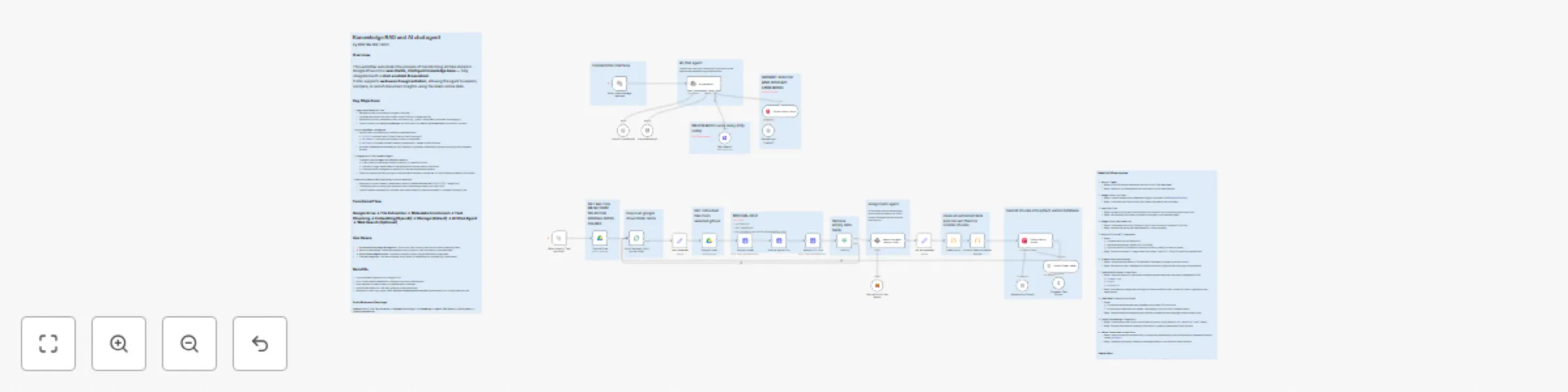
# **Knowledge RAG & AI Chat Agent: Google Drive to Qdrant** ## **Description** This workflow transforms a Google Drive folder into an intelligent, searchable knowledge base and provides a chat agent to query it. It’s composed of two distinct flows: - An **ingestion pipeline** to process documents. - A **live chat agent** that uses **RAG (Retrieval-Augmented Generation)** and optional **web search** to answer user questions. This system fully automates the creation of a “Chat with your docs” solution and enhances it with external web-searching capabilities. --- ## **Quick Implementation Steps** 1. Import the workflow JSON into your **n8n** instance. 2. Set up credentials for **Google Drive**, **Mistral AI**, **OpenAI**, and **Qdrant**. 3. Open the **Web Search** node and add your **Tavily AI API key** to the Authorization header. 4. In the **Google Drive (List Files)** node, set the Folder ID you want to ingest. 5. Run the workflow manually once to populate your **Qdrant database (Flow 1)**. 6. Activate the workflow to enable the **chat trigger (Flow 2)**. 7. Copy the **public webhook URL** from the *When chat message received* node and open it in a new tab to start chatting. --- ## **What It Does** The workflow is divided into two primary functions: ### **1. Knowledge Base Ingestion (Manual Trigger)** This flow populates your vector database. - **Scans Google Drive:** Lists all files from a specified folder. - **Processes Files Individually:** Downloads each file. - **Extracts Text via OCR:** Uses **Mistral AI OCR API** for text extraction from PDFs, images, etc. - **Generates Smart Metadata:** A Mistral LLM assigns metadata like `document_type`, `project`, and `assigned_to`. - **Chunks & Embeds:** Text is cleaned, chunked, and embedded via **OpenAI’s text-embedding-3-small** model. - **Stores in Qdrant:** Text chunks, embeddings, and metadata are stored in a Qdrant collection (`docaiauto`). ### **2. AI Chat Agent (Chat Trigger)** This flow powers the conversational interface. - **Handles User Queries:** Triggered when a user sends a chat message. - **Internal RAG Retrieval:** Searches **Qdrant Vector Store** first for answers. - **Web Search Fallback:** If unavailable internally, the agent offers to perform a **Tavily AI web search**. - **Contextual Responses:** Combines internal and external info for comprehensive answers. --- ## **Who's It For** Ideal for: - Teams building internal AI knowledge bases from Google Drive. - Developers creating **AI-powered support**, **research**, or **onboarding** bots. - Organizations implementing **RAG pipelines**. - Anyone making **unstructured Google Drive documents searchable** via chat. --- ## **Requirements** - **n8n instance** (self-hosted or cloud). - **Google Drive Credentials** (to list and download files). - **Mistral AI API Key** (for OCR & metadata extraction). - **OpenAI API Key** (for embeddings and chat LLM). - **Qdrant instance** (cloud or self-hosted). - **Tavily AI API Key** (for web search). --- ## **How It Works** The workflow runs two independent flows in parallel: ### **Flow 1: Ingestion Pipeline (Manual Trigger)** 1. **List Files:** Fetch files from Google Drive using the Folder ID. 2. **Loop & Download:** Each file is processed one by one. 3. **OCR Processing:** - Upload file to Mistral - Retrieve signed URL - Extract text using **Mistral DOC OCR** 4. **Metadata Extraction:** Analyze text using a **Mistral LLM**. 5. **Text Cleaning & Chunking:** Split into 1000-character chunks. 6. **Embeddings Creation:** Use **OpenAI embeddings**. 7. **Vector Insertion:** Push chunks + metadata into **Qdrant**. ### **Flow 2: AI Chat Agent (Chat Trigger)** 1. **Chat Trigger:** Starts when a chat message is received. 2. **AI Agent:** Uses OpenAI + Simple Memory to process context. 3. **RAG Retrieval:** Queries Qdrant for related data. 4. **Decision Logic:** - Found → Form answer. - Not found → Ask if user wants web search. 5. **Web Search:** Performs Tavily web lookup. 6. **Final Response:** Synthesizes internal + external info. --- ## **How To Set Up** ### **1. Import the Workflow** Upload the provided JSON into your **n8n** instance. ### **2. Configure Credentials** Create and assign: - **Google Drive** → Google Drive nodes - **Mistral AI** → Upload, Signed URL, DOC OCR, Cloud Chat Model - **OpenAI** → Embeddings + Chat Model nodes - **Qdrant** → Vector Store nodes ### **3. Add Tavily API Key** - Open **Web Search node → Parameters → Headers** - Add your key under **Authorization** (e.g., `tvly-xxxx`). ### **4. Node Configuration** - **Google Drive (List Files):** Set Folder ID. - **Qdrant Nodes:** Ensure same collection name (`docaiauto`). ### **5. Run Ingestion (Flow 1)** Click **Test workflow** to populate Qdrant with your Drive documents. ### **6. Activate Chat (Flow 2)** Toggle the workflow ON to enable real-time chat. ### **7. Test** Open the webhook URL and start chatting! --- ## **How To Customize** - **Change LLMs:** Swap models in OpenAI or Mistral nodes (e.g., GPT-4o, Claude 3). - **Modify Prompts:** Edit the system message in `ai chat agent` to alter tone or logic. - **Chunking Strategy:** Adjust `chunkSize` and `chunkOverlap` in the Code node. - **Different Sources:** Replace Google Drive with AWS S3, Local Folder, etc. - **Automate Updates:** Add a **Cron** node for scheduled ingestion. - **Validation:** Add post-processing steps after metadata extraction. - **Expand Tools:** Add more functional nodes like Google Calendar or Calculator. --- ## **Use Case Examples** - **Internal HR Bot:** Answer HR-related queries from stored policy docs. - **Tech Support Assistant:** Retrieve troubleshooting steps for products. - **Research Assistant:** Summarize and compare market reports. - **Project Management Bot:** Query document ownership or project status. --- ## **Troubleshooting Guide** | **Issue** | **Possible Solution** | |------------|------------------------| | Chat agent doesn’t respond | Check OpenAI API key and model availability (e.g., `gpt-4.1-mini`). | | Known documents not found | Ensure ingestion flow ran and both Qdrant nodes use same collection name. | | OCR node fails | Verify Mistral API key and input file integrity. | | Web search not triggered | Re-check Tavily API key in Web Search node headers. | | Incorrect metadata | Tune Information Extractor prompt or use a stronger Mistral model. | --- ### **Need Help or More Workflows?** Want to customize this workflow for your business or integrate it with your existing tools? Our team at **Digital Biz Tech** can tailor it precisely to your use case from automation logic to AI-powered enhancements. We can help you set it up for free — from connecting credentials to deploying it live. Contact: [[email protected]](mailto:[email protected]) Website: [https://www.digitalbiz.tech](https://www.digitalbiz.tech) LinkedIn: [https://www.linkedin.com/company/digital-biz-tech/](https://www.linkedin.com/company/digital-biz-tech/) You can also DM us on LinkedIn for any help. ---