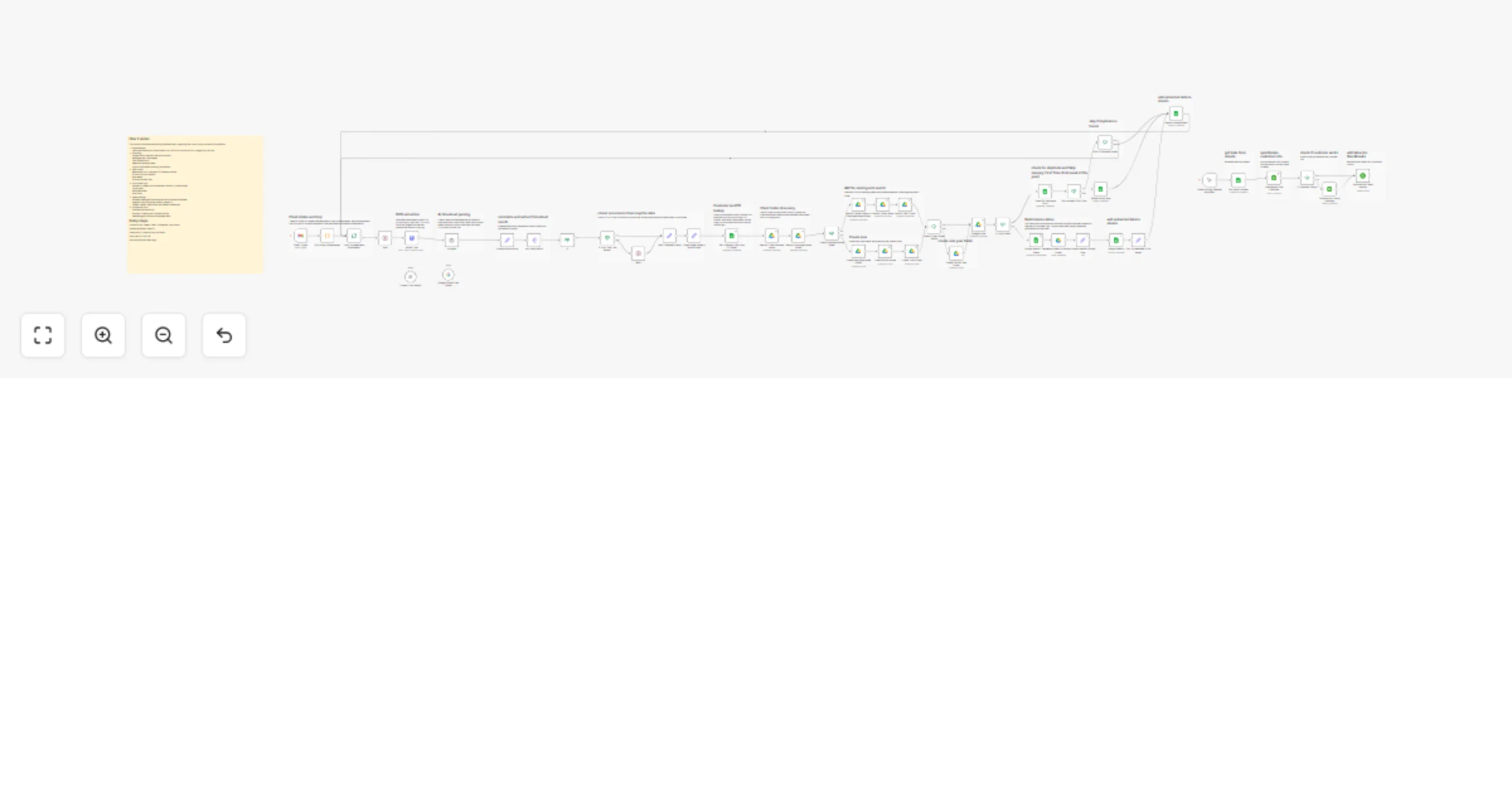
Convert emailed timesheets into QuickBooks invoices with OCR, AI, Gmail and Sheets

Workflow preview

Workflow preview
100%
Convert emailed timesheets into QuickBooks invoices with OCR, AI, Gmail and Sheets preview
Open on n8n.io

1. Workflow Overview

AI Powered Timesheet → Invoice Automation (Gmail + OCR + AI + Google Sheets + QuickBooks) Note: This workflow uses sticky notes extensively to document each logical section of the automation. ...

Best for

  • Invoice Processing automation workflows
  • AI Summarization automation workflows
  • advanced n8n builders looking for reusable templates

Tools used

n8n-nodes-base.quickbooks, n8n-nodes-base.if, n8n-nodes-base.manualtrigger, n8n-nodes-base.googlesheets, n8n-nodes-base.set, n8n-nodes-base.code, n8n-nodes-base.splitinbatches, n8n-nodes-base.wait

Source and attribution

This workflow is cataloged by N8N Workflows and links back to its original n8n.io source page by DIGITAL BIZ TECH.

Original n8n.io source

1.1 Workflow description

Title
Convert emailed timesheets into QuickBooks invoices with OCR, AI, Gmail and Sheets
Workflow name
Convert emailed timesheets into QuickBooks invoices with OCR, AI, Gmail and Sheets

AI-Powered Timesheet → Invoice Automation (Gmail + OCR + AI + Google Sheets + QuickBooks)

> Note: This workflow uses sticky notes extensively to document each logical section of the automation. Sticky notes are mandatory and already included to explain OCR, AI parsing, folder logic, duplicate handling, and QuickBooks steps.

This workflow automates the full lifecycle of timesheet-based invoicing — from emailed timesheets to structured Google Sheets records and finalized invoices in QuickBooks Online.

It is designed for real-world billing scenarios, including split weeks across months, zero-hour months, duplicate prevention, and first-week-of-year edge cases.


What This Workflow Does

  • Listens to Gmail for timesheet emails with attachments
  • Splits and processes each attachment independently
  • Extracts text using OCR (no hardcoded API keys)
  • Uses AI to parse month-wise billable hours
  • Correctly splits weeks spanning multiple months
  • Looks up Customer and PO details from Google Sheets
  • Organizes files in Client → Employee → Year folders in Google Drive
  • Reuses existing invoice sheets or creates new ones
  • Prevents duplicate invoice rows
  • Automatically finds or creates customers in QuickBooks
  • Creates invoices in QuickBooks using validated data

High-Level Workflow Stages

  1. Gmail Intake and Attachment Loop
  2. OCR Text Extraction
  3. AI-Based Timesheet Parsing
  4. Month Normalization and Validation
  5. Customer & PO Lookup
  6. Drive Folder Discovery and Creation
  7. Invoice Sheet Reuse or Creation
  8. Duplicate and Edge-Case Handling
  9. Append Invoice Rows to Google Sheets
  10. Create / Update Customers in QuickBooks
  11. Create Invoices in QuickBooks

Each of these stages is clearly documented with sticky notes inside the workflow canvas.


Quick Setup Instructions

  1. Import the workflow JSON into your n8n instance
  2. Configure credentials for:
  • Gmail
  • Google Drive
  • Google Sheets
  • OpenAI or Google Gemini
  • QuickBooks Online
  1. Verify the OCR HTTP node:
  • Default URL: https://universal-file-to-text-extractor.vercel.app/extract
  • No hardcoded API keys are used
  1. Configure Get Customer Info From PO Sheet:
  • Spreadsheet ID
  • Sheet name and column mappings
  1. Ensure the Client Invoices root folder exists in Google Drive
  2. Send a test timesheet email
  3. Execute the workflow once manually
  4. Activate the workflow

Who This Workflow Is For

  • Agencies and consultancies billing from emailed timesheets
  • Finance and operations teams using Google Workspace + QuickBooks
  • Staffing firms with monthly or bi-weekly contractor billing
  • Teams that want a fully auditable, zero-manual invoice process

Requirements

  • n8n instance
  • Gmail account receiving timesheet emails
  • Google Drive and Google Sheets
  • OpenAI or Google Gemini API
  • OCR API endpoint (configurable)
  • QuickBooks Online account
  • Customer PO Google Sheet containing:
  • Email
  • Customer Name
  • Company Name
  • Customer Account Number
  • PO Number
  • Item
  • Folder Name
  • Invoice range
  • Due Date Calculation

How It Works (Detailed)

1. Email Intake and Attachment Loop

  • Gmail Trigger polls for timesheet emails
  • Attachments are split so each file is processed independently
  • Sticky notes explain the intake and loop logic

2. OCR Extraction

  • Each attachment is sent to the OCR API
  • PDFs and images are converted to plain text
  • OCR logic is documented via sticky notes

3. AI Timesheet Parsing (Month-Wise)

  • AI extracts data only from BILLABLE HOURS sections
  • Outputs strict JSON:
  • Employee Name
  • Client Name
  • Month
  • Year
  • Week Start Date
  • Week End Date
  • Total Billable Hours

Special handling included:

  • Split weeks across months
  • Zero-hour months still included
  • No guessed or inferred dates

4. Month Normalization and Validation

  • AI output is normalized into a month array
  • Each month is processed independently
  • Invalid or zero-hour entries are skipped

5. Customer and PO Lookup

  • Sender email is matched in the PO sheet
  • Retrieved values drive:
  • Folder structure
  • Invoice logic
  • Due date calculation

6. Google Drive Folder Structure

The workflow enforces a strict hierarchy:

Client Invoices └── Client └── Employee └── Year

Missing folders are created automatically.


7. Invoice Sheet Naming and Search

  • Sheet names are generated using:
  • Employee Name
  • Month
  • Year
  • Existing sheets are reused when found
  • Supports monthly and 15-day billing cycles

8. Duplicate Prevention and Edge Cases

  • Duplicate invoice rows are detected and skipped
  • January first-week edge case is handled explicitly
  • Safe re-runs are supported

9. Google Sheets Invoice Rows

Each appended row includes:

  • Customer Account Number
  • Invoice Date
  • Due Date
  • PO Number
  • Item Name
  • Quantity (Total Hours)
  • Period description

10. QuickBooks Integration

  • Searches for existing customers in QuickBooks
  • Creates customers automatically if missing
  • Creates invoices using:
  • Customer reference
  • Item
  • Quantity
  • Invoice date
  • Due date

All QuickBooks logic is documented with sticky notes.


How To Customize

  • Swap AI model (OpenAI ↔ Gemini)
  • Extend prompts to extract:
  • Project
  • Cost center
  • Approval status
  • Add tax codes, currency, or unit pricing
  • Modify folder naming rules
  • Insert approval steps before invoice creation

Common Use Cases

  • Monthly contractor invoicing
  • Agency billing across multiple clients
  • Finance automation with audit-ready records
  • Eliminating manual timesheet-to-invoice work

Troubleshooting

Issue Likely Cause
No invoices created Gmail filter mismatch or email already read
OCR output empty Unsupported file or OCR endpoint issue
Wrong month split Review AI prompt and month logic
Duplicate rows Duplicate detection conditions
Invoice missing in QuickBooks Customer or item configuration issue

Notes on Community Guidelines

  • Sticky notes are used throughout the workflow
  • No hardcoded API keys are present
  • Markdown is used (no HTML tags)
  • This workflow is original and not copied

Need Help or Customization?

Digital Biz Tech can help tailor this workflow to your business.

We offer free setup support, including credential configuration and deployment.

Contact: [email protected] Website: https://www.digitalbiz.tech LinkedIn: https://www.linkedin.com/company/digital-biz-tech/ You can also DM us on LinkedIn for any help.

You can also DM us on LinkedIn.

1.2 Logical Blocks

This catalog entry is organized from the workflow JSON. The node-level section below shows the executable blocks available for review before importing the template.

2. Block-by-Block Analysis

Block 1 - QuickBooks Find Customer

Type / Role
n8n-nodes-base.quickbooks - quickbooks
Config choices
Version 1

Block 2 - If Customer Exists?

Type / Role
n8n-nodes-base.if - if
Config choices
Version 1

Block 3 - QuickBooks Create Customer

Type / Role
n8n-nodes-base.quickbooks - quickbooks
Config choices
Version 1

Block 4 - QuickBooks Create Invoice

Type / Role
n8n-nodes-base.quickbooks - quickbooks
Config choices
Version 1

Block 5 - When clicking ‘Execute workflow’

Type / Role
n8n-nodes-base.manualTrigger - manualTrigger
Config choices
Version 1

Block 6 - Get row(s) in sheet

Type / Role
n8n-nodes-base.googleSheets - googleSheets
Config choices
Version 4.7

Block 7 - Google Sheets2

Type / Role
n8n-nodes-base.googleSheets - googleSheets
Config choices
Version 4.5

Block 8 - Set: Spreadsheet (ID & Name)

Type / Role
n8n-nodes-base.set - set
Config choices
Version 3.4

Block 9 - Split Binary Attachments

Type / Role
n8n-nodes-base.code - code
Config choices
Version 2

Block 10 - Loop: Process Each Attachment

Type / Role
n8n-nodes-base.splitInBatches - splitInBatches
Config choices
Version 3

Block 11 - Wait1

Type / Role
n8n-nodes-base.wait - wait
Config choices
Version 1.1

Block 12 - Split Each Month

Type / Role
n8n-nodes-base.splitOut - splitOut
Config choices
Version 1

Block 13 - Map Timesheet Fields

Type / Role
n8n-nodes-base.set - set
Config choices
Version 3.4

Block 14 - Check for Duplicate Entry

Type / Role
n8n-nodes-base.googleSheets - googleSheets
Config choices
Version 4.5

Block 15 - Skip If Duplicate Found

Type / Role
n8n-nodes-base.if - if
Config choices
Version 2.2

Block 16 - Create Sheet Name + Invoice Date

Type / Role
n8n-nodes-base.set - set
Config choices
Version 3.4

Block 17 - Google Sheets: Create Sheet

Type / Role
n8n-nodes-base.googleSheets - googleSheets
Config choices
Version 4.5

Block 18 - Move Sheet to Invoice Folder

Type / Role
n8n-nodes-base.googleDrive - googleDrive
Config choices
Version 3

Block 19 - Prepare Default Invoice Row

Type / Role
n8n-nodes-base.set - set
Config choices
Version 3.4

Block 20 - If- File is Exist

Type / Role
n8n-nodes-base.if - if
Config choices
Version 2.2

Block 21 - If1

Type / Role
n8n-nodes-base.if - if
Config choices
Version 2.2

Block 22 - Search: Client Invoices Folder

Type / Role
n8n-nodes-base.googleDrive - googleDrive
Config choices
Version 3

Block 23 - Search: Employee Name Folder

Type / Role
n8n-nodes-base.googleDrive - googleDrive
Config choices
Version 3

Block 24 - Check Employee Name Folder

Type / Role
n8n-nodes-base.if - if
Config choices
Version 2.2

Showing the first 24 of 65 workflow blocks. Download the JSON for the full node graph.

3. Summary Table

Workflow Convert emailed timesheets into QuickBooks invoices with OCR, AI, Gmail and Sheets
Complexity advanced
Nodes 65
Categories Invoice Processing, AI Summarization
Author DIGITAL BIZ TECH
Published 29 Jan 2026

4. Reproducing the Workflow from Scratch

  1. 1. Download the workflow JSON

    Use the JSON export at /data/workflows/13092/13092.json as the source template for this automation.

  2. 2. Import the template into n8n

    Open n8n, import the downloaded JSON, and review each node before activating the workflow.

  3. 3. Configure credentials and variables

    Replace placeholder credentials, API keys, webhook URLs, account IDs, and environment-specific values with your own settings.

  4. 4. Test with sample data

    Run the workflow manually or in a staging workspace, inspect node output, and confirm downstream systems receive the expected data.

  5. 5. Activate and monitor

    Enable the workflow only after testing, then monitor executions, errors, and rate limits during the first production runs.

5. General Notes & Resources

Review imported nodes carefully before activation. This catalog entry is intended to help you inspect the workflow structure, understand required services, and find related templates faster.

Node names, credentials, schedules, webhook paths, and external service limits may need adjustment for your workspace.

Frequently asked questions

What does Convert emailed timesheets into QuickBooks invoices with OCR, AI, Gmail and Sheets do?

AI Powered Timesheet → Invoice Automation (Gmail + OCR + AI + Google Sheets + QuickBooks) Note: This workflow uses sticky notes extensively to document each logical section of the automation. ...

What do I need before importing this workflow?

Review the workflow JSON, configure any required credentials in n8n, and test the automation in a safe workspace before using it in production.

Can I customize this workflow?

Yes. Use the block-by-block analysis and the downloadable JSON to inspect each node, then adjust credentials, prompts, schedules, filters, or destinations for your Invoice Processing, AI Summarization use case.