A

Artem Boiko

9
Workflows

Workflows by Artem Boiko

Workflow preview: ETL: Extract and Parse Revit Model Data to Structured Excel
Free intermediate

ETL: Extract and Parse Revit Model Data to Structured Excel

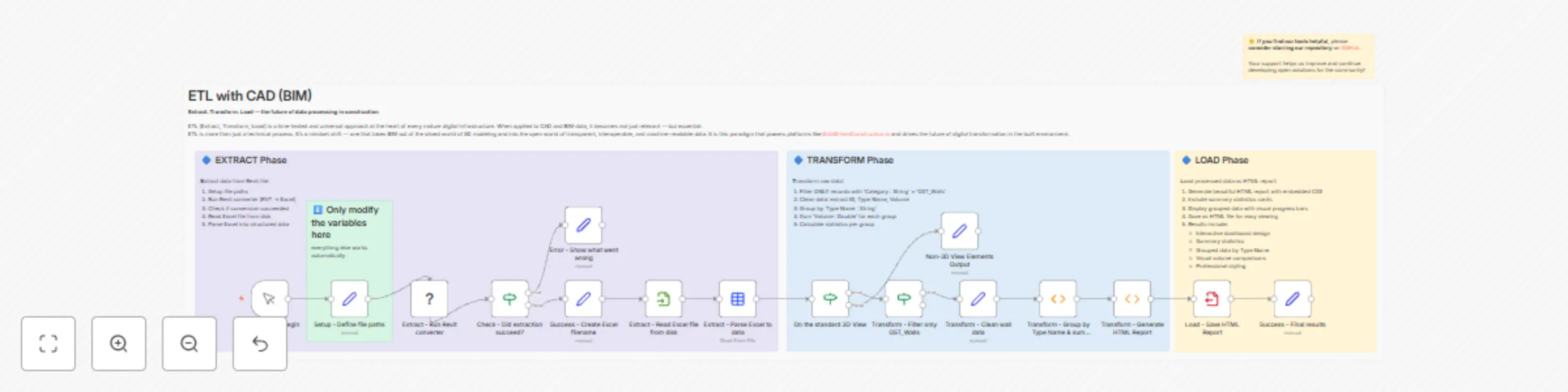
Convert a **Revit model** to **Excel** and parse it into structured items ready for downstream ETL. This minimal template runs a local `RvtExporter.exe`, checks success, derives the expected `*_rvt.xlsx` filename, reads it from disk, and parses it to data items in n8n. ## What it does 1. **Setup**: define `path_to_revit_converter` and `revit_file`. 2. **Run converter**: execute `RvtExporter.exe "<converter>" "<revit_file>"` (writes `*_rvt.xlsx` next to the RVT). 3. **Check success**: branch on converter error output. 4. **Read Excel**: compute `<revit_file> → *_rvt.xlsx` and read it from disk. 5. **Parse**: convert the workbook into structured items (rows → items). ## Prerequisites - **Windows** host (local executable and filesystem paths). - DDC Revit toolkit installed: `C:\\DDC_Converter_Revit\\datadrivenlibs\\RvtExporter.exe`. - A local `.rvt` you can read; the converter will write `*_rvt.xlsx` next to it. ## How to use 1. **Import** this JSON into n8n. 2. Open **“Setup – Define file paths”** and set: - `path_to_revit_converter`: `C:\\DDC_Converter_Revit\\datadrivenlibs\\RvtExporter.exe` - `revit_file`: e.g., `C:\\Sample_Projects\\your_project.rvt` 3. Run **Manual Trigger**. 4. On success, the flow will read `*_rvt.xlsx` and emit parsed items. ## Outputs - On disk: `<YourProject>_rvt.xlsx` (created by the converter). - In n8n: parsed rows as items, ready for **Transform**/**Load** phases. ## Notes & tips - If your converter writes the Excel to a **different folder/file name**, update the “**Success – Create Excel filename**” node to point to the actual path. - Ensure write permissions in the project folder and avoid non-ASCII characters in paths when possible. - This template is purposefully minimal (Extract-only). Chain it with your own **Transform**/**Load** steps. ## Categories Data Extraction · Files & Storage · ETL · CAD/BIM ## Tags `cad-bim`, `revit`, `ifc`, `dwg`, `extract`, `xlsx`, `etl` ## Author [DataDrivenConstruction.io ](https://DataDrivenConstruction.io ) [[email protected]](mailto:[email protected]) ## Consulting and Training We work with leading construction, engineering, consulting agencies and technology firms around the world to help them implement open data principles, automate CAD/BIM processing and build robust ETL pipelines. If you would like to test this solution with your own data, or are interested in adapting the workflow to real project tasks, feel free to contact us. **Docs & Issues:** [Full Readme on GitHub](https://github.com/datadrivenconstruction/cad2data-Revit-IFC-DWG-DGN-pipeline-with-conversion-validation-qto)

A
Artem Boiko
Engineering
20 Aug 2025
547
0
Workflow preview: Calculate Embodied Carbon (CO2) for Revit/IFC Models using AI Classification
Free advanced

Calculate Embodied Carbon (CO2) for Revit/IFC Models using AI Classification

Estimate **embodied carbon (CO2e)** for grouped BIM/CAD elements. The workflow accepts an existing **XLSX** (grouped element data) or, if missing, can trigger a local **RvtExporter.exe** to generate one. It detects category fields, filters out non-building elements, infers **aggregation rules** with AI, computes **CO2** using densities & emission factors, and exports a **multi-sheet Excel** plus a clean **HTML** report. ## What it does - **Reads or builds XLSX** (from your model via `RvtExporter.exe` when needed). - **Finds category/volumetric fields**; separates building vs. annotation elements. - Uses AI to **infer aggregation rules** (sum/mean/first) per header. - **Groups** rows by your `group_by` field and aggregates totals. - Prepares **enhanced prompts** and calls your LLM to classify materials and estimate CO2 (A1-A3 minimum). - **Computes project totals** and generates a **multi-sheet XLSX** + **HTML** report with charts and hotspots. ## Prerequisites - **LLM credentials** for one provider (e.g., OpenAI, Anthropic, Gemini, Grok/OpenRouter). Enable one chat node and connect credentials. - **Windows host** only if you want to auto-extract from `.rvt/.ifc` via `RvtExporter.exe`. If you already have an XLSX, Windows is **not required**. - Optional: mapping/classifier files (XLSX/CSV/PDF) to improve material classification. ## How to use 1. **Import** this JSON into n8n. 2. Open the **Setup/Parameters** node(s) and set: - `project_file` — path to your `.rvt/.ifc` **or** to an existing grouped `*_rvt.xlsx` - `path_to_converter` — `C:\\DDC_Converter_Revit\\datadrivenlibs\\RvtExporter.exe` (optional) - `group_by` — e.g., `Type Name` / `Category` / `IfcType` - `sheet_name` — default `Summary` (if reading from XLSX) 3. **Enable one LLM node** and attach credentials; keep others disabled. 4. **Execute** (Manual Trigger). The workflow detects/builds the XLSX, analyzes, classifies, estimates CO2, then writes **Excel** and opens the **HTML** report. ## Outputs - **Excel** (`CO2_Analysis_Report_YYYY-MM-DD.xlsx`, ~8 sheets): Executive Summary, All Elements, Material Summary, Category Analysis, Impact Analysis, Top 20 Hotspots, Data Quality, Recommendations. - **HTML**: executive report with key KPIs and charts. - Per-group fields include: *Material (EU/DE/US), Quantity & Unit, Density, Mass, CO2 Factor, Total CO2 (kg/tonnes), CO2 %, Confidence, Assumptions*. ## Notes & tips - Input quantities (volumes/areas) are **already aggregated per group** — do **not** multiply by element count. - Use `-no-collada` upstream if you only need XLSX in extraction. - Prefer ASCII-safe paths and ensure write permissions to output folder. ## Categories Data Extraction · Files & Storage · ETL · CAD/BIM · Carbon/ESG ## Tags `cad-bim`, `co2`, `carbon`, `embodied-carbon`, `lca`, `revit`, `ifc`, `xlsx`, `html-report`, `llm` ## Author [DataDrivenConstruction.io ](https://DataDrivenConstruction.io ) [[email protected]](mailto:[email protected]) ## Consulting and Training We work with leading construction, engineering, consulting agencies and technology firms around the world to help them implement open data principles, automate CAD/BIM processing and build robust ETL pipelines. If you would like to test this solution with your own data, or are interested in adapting the workflow to real project tasks, feel free to contact us. **Docs & Issues:** [Full Readme on GitHub](https://github.com/datadrivenconstruction/cad2data-Revit-IFC-DWG-DGN-pipeline-with-conversion-validation-qto)

A
Artem Boiko
AI Summarization
20 Aug 2025
325
0
Workflow preview: Estimate Construction Costs from Revit/IFC Models with GPT-4 and Claude
Free advanced

Estimate Construction Costs from Revit/IFC Models with GPT-4 and Claude

Estimate **material price** and **total cost** for grouped BIM/CAD elements using an **LLM-driven** analysis. The workflow accepts an existing **XLSX** (from your model) or, if missing, can trigger a local **RvtExporter.exe** to generate one. It enriches each element group with quantities, pricing, confidence, and produces a **multi-sheet Excel** report plus a polished **HTML executive report**. ## What it does - **Reads grouped element data** (from XLSX or extracted via `RvtExporter.exe`). - Builds **enhanced prompts** with clear rules (volumes/areas are already aggregated per group). - Calls your selected **LLM** (OpenAI/Anthropic/etc.) to identify materials, pick the pricing unit, and estimate **price per unit** and **total cost**. - **Parses AI output**, adds per-group KPIs (cost %, rank), and aggregates **project totals** (by material, by category). - Exports a **multi-sheet XLSX** and an **HTML executive report** (charts, KPIs, top groups). ## Prerequisites - **LLM credentials** for your chosen provider (e.g., OpenAI, Anthropic). Enable exactly one chat node and connect credentials. - **Windows host** only if you want to auto-extract from `.rvt/.ifc` via `RvtExporter.exe`. If you already have an XLSX, Windows is **not required**. - Optional: Internet access on the LLM side for price lookups (model/tooling dependent). ## How to use 1. **Import** this JSON into n8n. 2. Open the **Setup** node(s) and set: - `project_file` — path to your `.rvt/.ifc` or to an existing grouped `*_rvt.xlsx` - `path_to_converter` — `C:\\DDC_Converter_Revit\\datadrivenlibs\\RvtExporter.exe` (optional) - `country` — used to guide price sources/standards (e.g., `Germany`) 3. In the canvas, **enable one LLM node** (e.g., OpenAI or Anthropic) and connect credentials; keep others disabled. 4. **Execute workflow** (Manual Trigger). It will detect/build the XLSX, run analysis, then write the **Excel** and open the **HTML** report. ## Outputs - **Excel**: `Price_Estimation_Report_YYYY-MM-DD.xlsx` with sheets: - `Summary`, `Detailed Elements`, `Material Summary`, `Top 10 Groups` - **HTML**: executive report with charts (project totals, top materials, top groups). - Per-group fields include: *Material (EU/DE/US), Quantity & Unit, Price per Unit (EUR), Total Cost (EUR), Assumptions, Confidence*. ## Notes & tips - Quantities in the input are **already aggregated per group** — do **not** multiply by element count. - If you prefer XLSX-only extraction, run your converter with a `-no-collada` flag upstream. - Keep ASCII-safe paths and ensure write permissions to the output folder. ## Categories Data Extraction · Files & Storage · ETL · CAD/BIM · Cost Estimation ## Tags `cad-bim`, `price-estimation`, `cost`, `revit`, `ifc`, `xlsx`, `html-report`, `llm`, `materials`, `qto` ## Author [DataDrivenConstruction.io ](https://DataDrivenConstruction.io ) [[email protected]](mailto:[email protected]) ## Consulting and Training We work with leading construction, engineering, consulting agencies and technology firms around the world to help them implement open data principles, automate CAD/BIM processing and build robust ETL pipelines. If you would like to test this solution with your own data, or are interested in adapting the workflow to real project tasks, feel free to contact us. **Docs & Issues:** [Full Readme on GitHub](https://github.com/datadrivenconstruction/cad2data-Revit-IFC-DWG-DGN-pipeline-with-conversion-validation-qto)

A
Artem Boiko
AI Summarization
20 Aug 2025
912
0
Workflow preview: Batch Convert CAD/BIM Files to XLSX/DAE with Validation and Reporting
Free advanced

Batch Convert CAD/BIM Files to XLSX/DAE with Validation and Reporting

# CAD2DATA: Batch Converter (Revit/IFC/DWG/DGN → XLSX/DAE) Batch-convert CAD/BIM files to analysis-ready **XLSX** and optional **DAE** with automatic verification and a clean HTML report. Runs locally via `RvtExporter.exe` and PowerShell on Windows. Supports configurable export modes — **basic (~309 categories)**, **standard (~724)**, and **complete (~1209)** — plus optional outputs such as **bounding boxes**, **Revit schedules**, and **PDF drawings**. ## What it does - Scans a **source folder** (optionally including subfolders) for `.rvt`, `.ifc`, `.dwg`, or `.dgn`. - For each file, runs: `RvtExporter.exe [input] [output.xlsx] [output.dae] [options]`. - Verifies outputs (existence + size) and aggregates results. - Generates a **summary HTML report** and opens it automatically on completion. ## Converter options - **Export modes:** `basic` | `standard` | `complete` | `custom` - **Flags:** `bbox` (BoundingBox to XLSX), `schedule` (Revit schedules), `sheets2pdf` (Sheets → PDF) - **Disable:** `-no-xlsx`, `-no-collada` - **Custom files:** `[<output file>]` and `[<category file>]` (used with `custom`) **Examples** - `basic bbox` — minimal export + BoundingBox - `complete schedule sheets2pdf` — full export + schedules + PDFs - `standard -no-collada` — XLSX only (skip DAE) ## Prerequisites - **Windows** host (PowerShell + local executable). - DDC Revit toolkit installed: `C:\DDC_Converter_Revit\datadrivenlibs\RvtExporter.exe` - Read access to the source folder and write access to the output folder. ## How to use 1. **Import** this JSON workflow into n8n. 2. Open **Set Configuration Parameters** and set: - `converter_path`: `C:\DDC_Converter_Revit\datadrivenlibs\RvtExporter.exe` - `source_folder`: folder with your projects - `output_folder`: folder for results - `include_subfolders`: `true` / `false` - `file_extension`: `.rvt` | `.ifc` | `.dwg` | `.dgn` - `options`: see **Converter options** 3. Run **Manual Trigger**. 4. The workflow discovers files → runs conversions → verifies outputs → writes and opens the HTML report. ## Outputs - `*_ext.xlsx` — tabular data per input file. - `*_ext.dae` — lightweight 3D (if not disabled with `-no-collada`). - `CAD_Conversion_Report_YYYY-MM-DD_HH-MM-SS.html` — summary with: - success rate and progress - per-file and total processing time - input/output sizes and file paths ## Notes & tips - Uses PowerShell `Get-ChildItem` for discovery and `cmd /c start` to open the report. - With `-no-collada`, success/verification is XLSX-only (DAE is skipped). - Prefer ASCII paths and ensure write permissions in the output folder. ## Categories Data Extraction · Files & Storage · ETL · CAD/BIM ## Tags `cad-bim`, `revit`, `ifc`, `dwg`, `dgn`, `converter`, `batch`, `xlsx`, `dae`, `qto` ## Author DataDrivenConstruction.io ## Author [DataDrivenConstruction.io ](https://DataDrivenConstruction.io ) [[email protected]](mailto:[email protected]) ## Consulting and Training We work with leading construction, engineering, consulting agencies and technology firms around the world to help them implement open data principles, automate CAD/BIM processing and build robust ETL pipelines. If you would like to test this solution with your own data, or are interested in adapting the workflow to real project tasks, feel free to contact us. **Docs & Issues:** [Full Readme on GitHub](https://github.com/datadrivenconstruction/cad2data-Revit-IFC-DWG-DGN-pipeline-with-conversion-validation-qto)

A
Artem Boiko
Document Extraction
20 Aug 2025
331
0
Workflow preview: Convert Revit Projects to Database with Drawings & Specifications using DDC
Free intermediate

Convert Revit Projects to Database with Drawings & Specifications using DDC

Turn a **.rvt** project into open, analysis-ready data (XLSX + optional DAE/PDF) using the **RvtExporter.exe** from the DDC Revit toolkit. This n8n template provides a **Form UI** to set paths and flags, then runs the exporter with safe defaults. Converts CAD/BIM files with customizable export modes (basic: 309 categories, standard: 724 categories, complete: all 1209 categories) and optional outputs like bounding box, Revit schedules, or PDF drawings. ## What it does - Launches `RvtExporter.exe` with your chosen **Revit file** and **export mode** - Optional feature flags: **bbox**, **schedule**, **sheets2pdf**, **-no-xlsx**, **-no-collada** - (Optional) Output folder auto-generates `*_rvt.xlsx` and `*_rvt.dae` names ## Prerequisites - Windows host (the exporter is a Windows executable) - DDC Revit toolkit installed (path like: `C:\\DDC_Converter_Revit\\datadrivenlibs\\RvtExporter.exe`) - A local `.rvt` file you can read ## How to use 1. **Import** this json workflow into n8n. 2. Open the **Form UI** trigger (ensure pop-ups are allowed). 3. Fill in: - **Path to Revit Converter**: `C:\\DDC_Converter_Revit\\datadrivenlibs\\RvtExporter.exe` - **Revit File Path**: e.g. `C:\\Sample_Projects\\your_project.rvt` - **Export Mode**: `basic | standard | complete | custom` - **Conversion Options**: multi-select flags (optional) - **(optional) output_folder**: e.g. `C:\\DDC_Output` 4. Click **Submit** → the workflow runs **Run Revit Exporter**. ## Consulting and Training We work with leading construction, engineering, consulting agencies and technology firms around the world to help them implement open data principles, automate CAD/BIM processing and build robust ETL pipelines. If you would like to test this solution with your own data, or are interested in adapting the workflow to real project tasks, feel free to contact us. ## Author [DataDrivenConstruction.io ](https://DataDrivenConstruction.io ) [[email protected]](mailto:[email protected]) **Docs & Issues:** [Full Readme on GitHub](https://github.com/datadrivenconstruction/cad2data-Revit-IFC-DWG-DGN-pipeline-with-conversion-validation-qto)

A
Artem Boiko
Engineering
20 Aug 2025
296
0
Workflow preview: Manage construction projects with tasks, photo reports, Telegram & Google Sheets
Free advanced

Manage construction projects with tasks, photo reports, Telegram & Google Sheets

## How it works This template helps project managers collect task updates and photo reports from field workers via Telegram and stores everything in a Google Sheet. It enables daily project reporting without paper or back-office overhead. High-level flow: Workers receive daily tasks via Telegram They respond with photo reports Bot auto-saves replies (photos + status) to a Google Sheet The system tracks task completion, adds timestamps, and maintains report history ## Set up steps 🕒 Estimated setup time: 15–30 min You’ll need: A Telegram bot (via BotFather) A connected Google Sheet (with specific column headers) A set of preconfigured tasks 👉 Detailed setup instructions and required table structure are documented in sticky notes inside the workflow. ## Consulting and Training We work with leading construction, engineering, consulting agencies and technology firms around the world to help them implement open data principles, automate CAD/BIM processing and build robust ETL pipelines. If you would like to test this solution with your own data, or are interested in adapting the workflow to real project tasks, feel free to contact us. **Docs & Issues:** [Full Readme on GitHub](https://github.com/datadrivenconstruction/cad2data-Revit-IFC-DWG-DGN-pipeline-with-conversion-validation-qto)

A
Artem Boiko
Project Management
30 Jul 2025
2705
0
Workflow preview: Generate interactive quantity reports from Revit and IFC projects to HTML
Free advanced

Generate interactive quantity reports from Revit and IFC projects to HTML

## Revit to HTML Quantity Takeoff Generator Automates extraction of wall quantities from Revit models and creates a professional interactive HTML report. ### Key Features - Automated wall quantity analysis - Calculates volumes by wall type ("Type Name") - Generates interactive HTML QTO report - Includes summary statistics: total elements, total and average volumes - Provides detailed breakdown by element type ### How it works 1. Upload a Revit file as input 2. Workflow extracts wall quantities and types 3. Creates and saves a ready-to-share HTML dashboard with QTO data --- - No API keys required - Runs offline - Output is a professional, ready-to-use HTML report ## Consulting and Training We work with leading construction, engineering, consulting agencies and technology firms around the world to help them implement open data principles, automate CAD/BIM processing and build robust ETL pipelines. If you would like to test this solution with your own data, or are interested in adapting the workflow to real project tasks, feel free to contact us. ## Author [DataDrivenConstruction.io ](https://DataDrivenConstruction.io ) [[email protected]](mailto:[email protected]) **Docs & Issues:** [Full Readme on GitHub](https://github.com/datadrivenconstruction/cad2data-Revit-IFC-DWG-DGN-pipeline-with-conversion-validation-qto)

A
Artem Boiko
Engineering
11 Jul 2025
570
0
Workflow preview: Validate CAD and BIM files against Excel standards (Revit, IFC, AutoCAD, DGN)
Free advanced

Validate CAD and BIM files against Excel standards (Revit, IFC, AutoCAD, DGN)

*This workflow contains community nodes that are only compatible with the self-hosted version of n8n.* ## CAD-BIM Multi-Format Validation Pipeline This workflow enables automated validation of CAD and BIM files in multiple formats (Revit, IFC, DWG, DGN) for compliance with project standards and requirements. ### Key Features - Converts Revit, IFC, DWG, and DGN models into open data tables - Runs automated validation checks on model naming, structure, attributes, and completeness - Generates error reports and QTO (Quantity Take-Off) tables for all processed files ### How it works 1. Upload one or more project files in Revit (.rvt), IFC (.ifc), DWG, or DGN formats 2. The pipeline automatically processes each file and validates against configurable rules in Excel form 3. Error summaries and QTO tables are generated 4. All outputs are available for download as Excel - **Converter Path:** Make sure the converter executable (e.g. `RvtExporter.exe`) is placed in `DDC Exporter\datadrivenlibs\`. Specify the full path in the workflow settings if required. - **Troubleshooting:** - If conversion fails, double-check the path to the executable. - Only supported formats can be processed (see GitHub Readme). - Review logs in `/output` for error details. - **Docs & Issues:** [Full Readme on GitHub](https://github.com/datadrivenconstruction/cad2data-Revit-IFC-DWG-DGN-pipeline-with-conversion-validation-qto) ## Consulting and Training We work with leading construction, engineering, consulting agencies and technology firms around the world to help them implement open data principles, automate CAD/BIM processing and build robust ETL pipelines. If you would like to test this solution with your own data, or are interested in adapting the workflow to real project tasks, feel free to contact us. ## Author [DataDrivenConstruction.io ](https://DataDrivenConstruction.io ) [[email protected]](mailto:[email protected]) **Docs & Issues:** [Full Readme on GitHub](https://github.com/datadrivenconstruction/cad2data-Revit-IFC-DWG-DGN-pipeline-with-conversion-validation-qto)

A
Artem Boiko
Engineering
11 Jul 2025
805
0
Workflow preview: Convert CAD & BIM (Revit, IFC, AutoCAD) in dataBase (DataFrame)
Free intermediate

Convert CAD & BIM (Revit, IFC, AutoCAD) in dataBase (DataFrame)

A minimal workflow to convert a **Revit/IFC/DWG** project into analysis-ready **XLSX** (and optional **DAE**) with a single run. Set two variables, execute, and the converter does the rest. ## What it does - **Inputs:** `path_to_converter` and `path_project_file` (RVT/IFC/DWG). - **Runs:** `RvtExporter.exe "<converter>" "<project_file>"`. - **Outputs:** writes `<ProjectName>_rvt.xlsx` (and `*_rvt.dae` if enabled by your converter). ## Prerequisites - **Windows** host (local executable + filesystem). - DDC Revit toolkit installed: `C:\\DDC_Converter_Revit\\datadrivenlibs\\RvtExporter.exe`. - A local project file you can read. ## How to use 1. **Import** this JSON into n8n. 2. Open **“Set path to file and converter”** and set: - `path_to_converter`: `C:\\DDC_Converter_Revit\\datadrivenlibs\\RvtExporter.exe` - `path_project_file`: e.g., `C:\\Sample_Projects\\your_project.rvt` 3. Run **Manual Trigger** → the command node executes the converter. ## Notes & tips - Ensure the path points to the executable inside **`datadrivenlibs`**. - Use ASCII-safe paths; ensure write permissions next to the project file. - This is intentionally **simple**: chain it with your own **Parse/Transform/Load** steps as needed. ## Categories Data Extraction · Files & Storage · ETL · CAD/BIM ## Tags `cad-bim`, `revit`, `ifc`, `dwg`, `converter`, `xlsx`, `dae` ## Author [DataDrivenConstruction.io ](https://DataDrivenConstruction.io ) [[email protected]](mailto:[email protected]) ## Consulting and Training We work with leading construction, engineering, consulting agencies and technology firms around the world to help them implement open data principles, automate CAD/BIM processing and build robust ETL pipelines. If you would like to test this solution with your own data, or are interested in adapting the workflow to real project tasks, feel free to contact us. **Docs & Issues:** [Full Readme on GitHub](https://github.com/datadrivenconstruction/cad2data-Revit-IFC-DWG-DGN-pipeline-with-conversion-validation-qto)

A
Artem Boiko
Engineering
11 Jul 2025
530
0