Block 1 - When clicking 'Execute workflow'
- Type / Role
- n8n-nodes-base.manualTrigger - manualTrigger
- Config choices
- Version 1
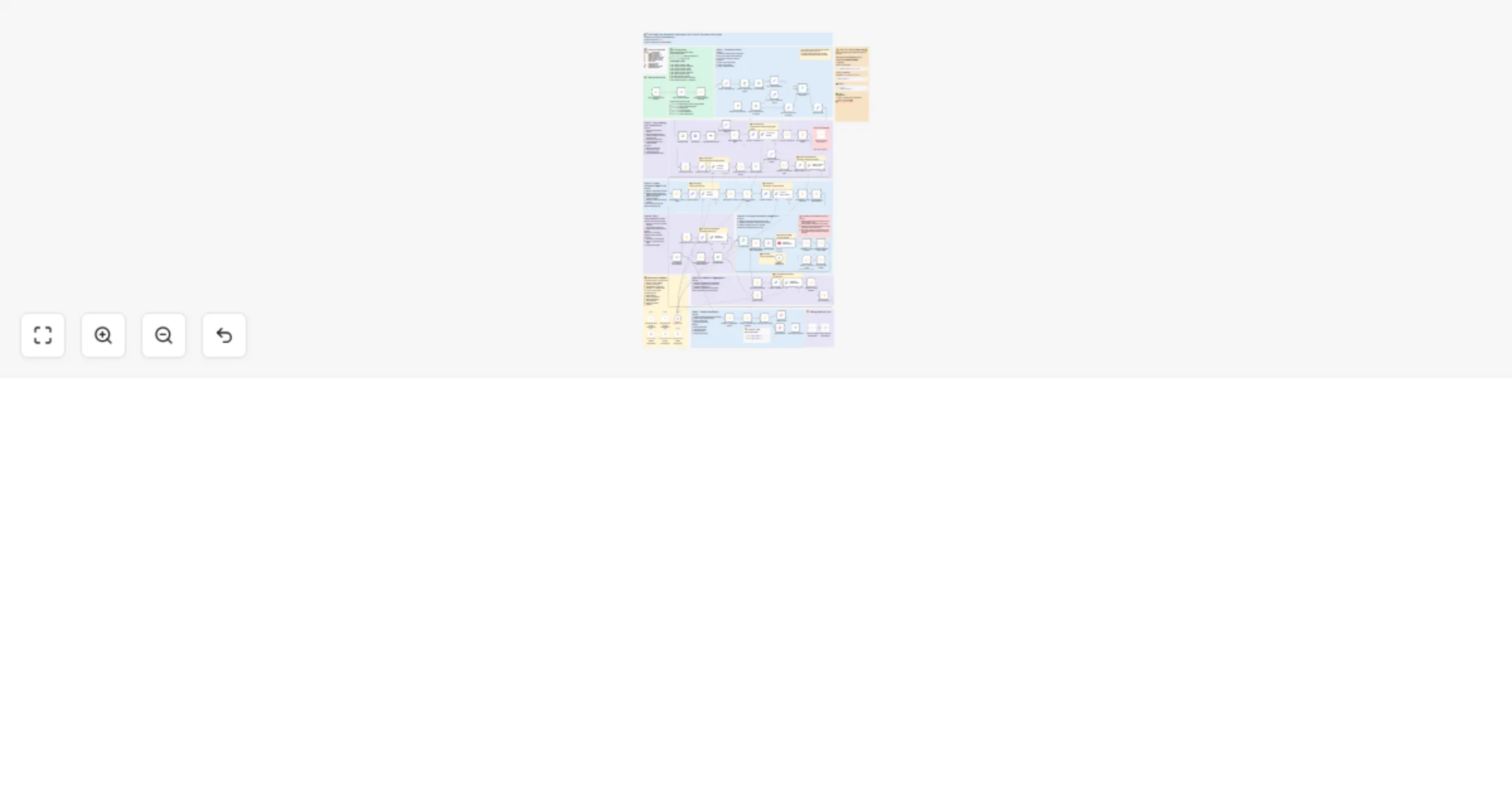


 Early Deal
A professional BIM to cost pipeline that extracts data from Revit models (2015–2026), classifies elements with AI, decomposes them into construction works, and generates detailed cost estimates usi...
n8n-nodes-base.manualtrigger, n8n-nodes-base.set, n8n-nodes-base.code, n8n-nodes-base.if, n8n-nodes-base.stickynote, n8n-nodes-base.readbinaryfile, n8n-nodes-base.spreadsheetfile, n8n-nodes-base.executecommand
This workflow is cataloged by N8N Workflows and links back to its original n8n.io source page by Artem Boiko.
Original n8n.io sourceA professional BIM-to-cost pipeline that extracts data from Revit models (2015–2026), classifies elements with AI, decomposes them into construction works, and generates detailed cost estimates using the open-source DDC CWICR database. Produces HTML reports and Excel exports with full resource breakdown.
┌─────────────────────────────────────────────────────────────────────────────┐
│ REVIT MODEL (.rvt) │
│ Revit 2015–2026 supported │
└─────────────────────────────────────────────────────────────────────────────┘
 ↓
┌─────────────────────────────────────────────────────────────────────────────┐
│ BLOCK 1: CONVERSION │
│ RvtExporter.exe → Excel with BIM element schedules │
└─────────────────────────────────────────────────────────────────────────────┘
 ↓
┌─────────────────────────────────────────────────────────────────────────────┐
│ BLOCK 2: DATA LOADING & CLASSIFICATION │
│ • Filter 3D View elements only │
│ • AI analyzes headers → aggregation rules (sum/mean/last) │
│ • AI classifies building vs non-building elements │
│ • Hard exclude: Grids, Levels, Annotations, Views, etc. │
└─────────────────────────────────────────────────────────────────────────────┘
 ↓
┌─────────────────────────────────────────────────────────────────────────────┐
│ BLOCK 3: PROJECT ANALYSIS (Stages 0–3) │
│ STAGE 0: Collect filtered BIM data │
│ STAGE 1: AI detects project type │
│ STAGE 2: AI generates construction phases │
│ STAGE 3: AI assigns element types to phases │
└─────────────────────────────────────────────────────────────────────────────┘
 ↓
┌─────────────────────────────────────────────────────────────────────────────┐
│ BLOCK 4: WORK DECOMPOSITION (Stage 4) │
│ Loop through each BIM type: │
│ • AI decomposes type into work items │
│ • Example: Window → Demolition, Installation, Sealing, Hardware │
│ • Prepares search queries for pricing │
└─────────────────────────────────────────────────────────────────────────────┘
 ↓
┌─────────────────────────────────────────────────────────────────────────────┐
│ BLOCK 5: PRICING & CALCULATION (Stages 5–7) │
│ STAGE 5: Vector search in Qdrant (text-embedding-3-large, 3072 dim) │
│ STAGE 6: Map BIM units → Rate units (m2 → 100 m2) │
│ STAGE 7: Calculate costs (Qty × Unit Price) │
└─────────────────────────────────────────────────────────────────────────────┘
 ↓
┌─────────────────────────────────────────────────────────────────────────────┐
│ BLOCK 6: VALIDATION & AGGREGATION │
│ STAGE 7.5: AI validates work completeness │
│ STAGE 8: Aggregate costs by phases │
└─────────────────────────────────────────────────────────────────────────────┘
 ↓
┌─────────────────────────────────────────────────────────────────────────────┐
│ BLOCK 7: REPORT GENERATION (Stage 9) │
│ • Professional HTML report with expandable rows │
│ • Excel-compatible XLS file │
│ • Auto-opens in browser │
└─────────────────────────────────────────────────────────────────────────────┘
| Stage | Name | Description |
|---|---|---|
| 0 | Collect | Gather filtered BIM data |
| 1 | Project Type | AI detects Residential/Commercial/Industrial |
| 2 | Phases | AI generates construction phases |
| 3 | Assignment | AI assigns element types to phases |
| 4 | Decomposition | AI breaks types into work items |
| 5 | Vector Search | Query Qdrant for pricing rates |
| 6 | Unit Mapping | Convert BIM units to rate units |
| 7 | Calculation | Compute costs (Qty × Price) |
| 7.5 | Validation | AI checks completeness, finds gaps |
| 8 | Aggregation | Sum costs by phases |
| 9 | Reports | Generate HTML + XLS outputs |
| Component | Requirement |
|---|---|
| n8n | v1.30+ with Execute Command node |
| Revit Exporter | RvtExporter.exe (provided separately) |
| OpenAI API | For embeddings + LLM tasks |
| Qdrant | Vector DB with DDC CWICR collections |
| DDC CWICR Data | GitHub |
| Windows | For Revit converter execution |
In Setup - Define file paths node:
{
 "path_to_converter": "C:\\path\\to\\RvtExporter.exe",
 "project_file": "C:\\path\\to\\your_project.rvt",
 "group_by": "Type Name",
 "language_code": "DE"
}
| Code | Language | City | Currency |
|---|---|---|---|
| AR | Arabic | Dubai | AED |
| ZH | Chinese | Shanghai | CNY |
| DE | German | Berlin | EUR |
| EN | English | Toronto | CAD |
| ES | Spanish | Barcelona | EUR |
| FR | French | Paris | EUR |
| HI | Hindi | Mumbai | INR |
| PT | Portuguese | São Paulo | BRL |
| RU | Russian | St. Petersburg | RUB |
Connect your preferred LLM in the model nodes:
| Provider | Model | Notes |
|---|---|---|
| OpenAI | GPT-4o | Default, recommended |
| Anthropic | Claude Opus 4 | High quality |
| Gemini 2.5 Pro | Good for large contexts | |
| xAI | Grok 4 | Fast inference |
| DeepSeek | DeepSeek Chat | Cost-effective |
| OpenRouter | Various | Multi-model access |
Ensure DDC CWICR collections are loaded:
DE_BERLIN_workitems_costs_resources_EMBEDDINGS_3072_DDC_CWICR
ENG_TORONTO_workitems_costs_resources_EMBEDDINGS_3072_DDC_CWICR
RU_STPETERSBURG_workitems_costs_resources_EMBEDDINGS_3072_DDC_CWICR
...
Set up OpenAI API credential for:
| Feature | Description |
|---|---|
| 🏗️ Revit Integration | Direct extraction from .rvt files (2015–2026) |
| 🤖 Multi-LLM Support | OpenAI, Claude, Gemini, Grok, DeepSeek |
| 🔍 Smart Classification | AI separates building from non-building elements |
| 📊 Work Decomposition | Breaks BIM types into detailed work items |
| 🎯 Vector Search | Semantic matching via Qdrant + OpenAI embeddings |
| 🧮 Unit Mapping | Automatic conversion (m2 → 100 m2, pcs → sets) |
| ✅ AI Validation | Checks for missing works and duplications |
| 📈 Phase Aggregation | Costs grouped by construction phases |
| 📄 HTML Report | Professional report with quality indicators |
| 📑 Excel Export | XLS file with formulas and links |
| 🌍 9 Languages | Full localization + regional pricing |
The pipeline automatically excludes non-physical elements:
Input: Residential building Revit model (45 element types)
Processing:
Output Files:
project_2024-12-08.html → Professional HTML report
project_2024-12-08.xls → Excel with full breakdown
HTML Report Features:
📊 Cost Estimate: Residential Building
├── 📁 Phase 1: Foundations
│ ├── Foundation walls — 125.5 m3 — €12,450
│ ├── Concrete footings — 45.2 m3 — €8,340
│ └── Waterproofing — 280 m2 — €4,200
├── 📁 Phase 2: Structure
│ ├── Concrete columns — 18 pcs — €9,720
│ ├── Floor slabs — 450 m2 — €67,500
│ └── Stairs — 3 flights — €8,100
├── 📁 Phase 3: Envelope
│ ├── Exterior walls — 680 m2 — €95,200
│ ├── Windows — 42 pcs — €25,200
│ └── Roof system — 225 m2 — €33,750
└── 💰 TOTAL: €485,240
AI · Data Transformation · Document Ops · Files & Storage
bim, revit, cost-estimation, 5d-bim, 4d-bim, qdrant, vector-search, openai, construction, quantity-takeoff, html-report, multilingual
DataDrivenConstruction.io https://DataDrivenConstruction.io [email protected]
We help AEC firms implement:
Contact us to adapt this pipeline to your Revit templates and regional pricing.
⭐ Star us on GitHub! github.com/datadrivenconstruction/DDC-CWICR
This catalog entry is organized from the workflow JSON. The node-level section below shows the executable blocks available for review before importing the template.
Showing the first 24 of 106 workflow blocks. Download the JSON for the full node graph.
| Workflow | Estimate 4D/5D construction costs from Revit BIM models with DDC CWICR |
|---|---|
| Complexity | advanced |
| Nodes | 106 |
| Categories | Document Extraction, AI RAG |
| Author | Artem Boiko |
| Published | 26 Dec 2025 |
Use the JSON export at /data/workflows/12177/12177.json as the source template for this automation.
Open n8n, import the downloaded JSON, and review each node before activating the workflow.
Replace placeholder credentials, API keys, webhook URLs, account IDs, and environment-specific values with your own settings.
Run the workflow manually or in a staging workspace, inspect node output, and confirm downstream systems receive the expected data.
Enable the workflow only after testing, then monitor executions, errors, and rate limits during the first production runs.
Review imported nodes carefully before activation. This catalog entry is intended to help you inspect the workflow structure, understand required services, and find related templates faster.
Node names, credentials, schedules, webhook paths, and external service limits may need adjustment for your workspace.
A professional BIM to cost pipeline that extracts data from Revit models (2015–2026), classifies elements with AI, decomposes them into construction works, and generates detailed cost estimates usi...
Review the workflow JSON, configure any required credentials in n8n, and test the automation in a safe workspace before using it in production.
Yes. Use the block-by-block analysis and the downloadable JSON to inspect each node, then adjust credentials, prompts, schedules, filters, or destinations for your Document Extraction, AI RAG use case.