Validate email lists weekly with Google Sheets, VerifiEmail and Gmail reports
Workflow preview


 Early Deal
DISCOUNT 20%

Important notice
This workflow is provided as-is. Please review and test before using in production.
Overview
Email List Hygiene - Automated Weekly Validator
Overview
Validates email lists through automated checks, categorizes results as Valid/Invalid/Risky, updates Google Sheets in real-time, and delivers HTML reports. Runs every Friday at 5 PM via cron scheduling.
Workflow Architecture
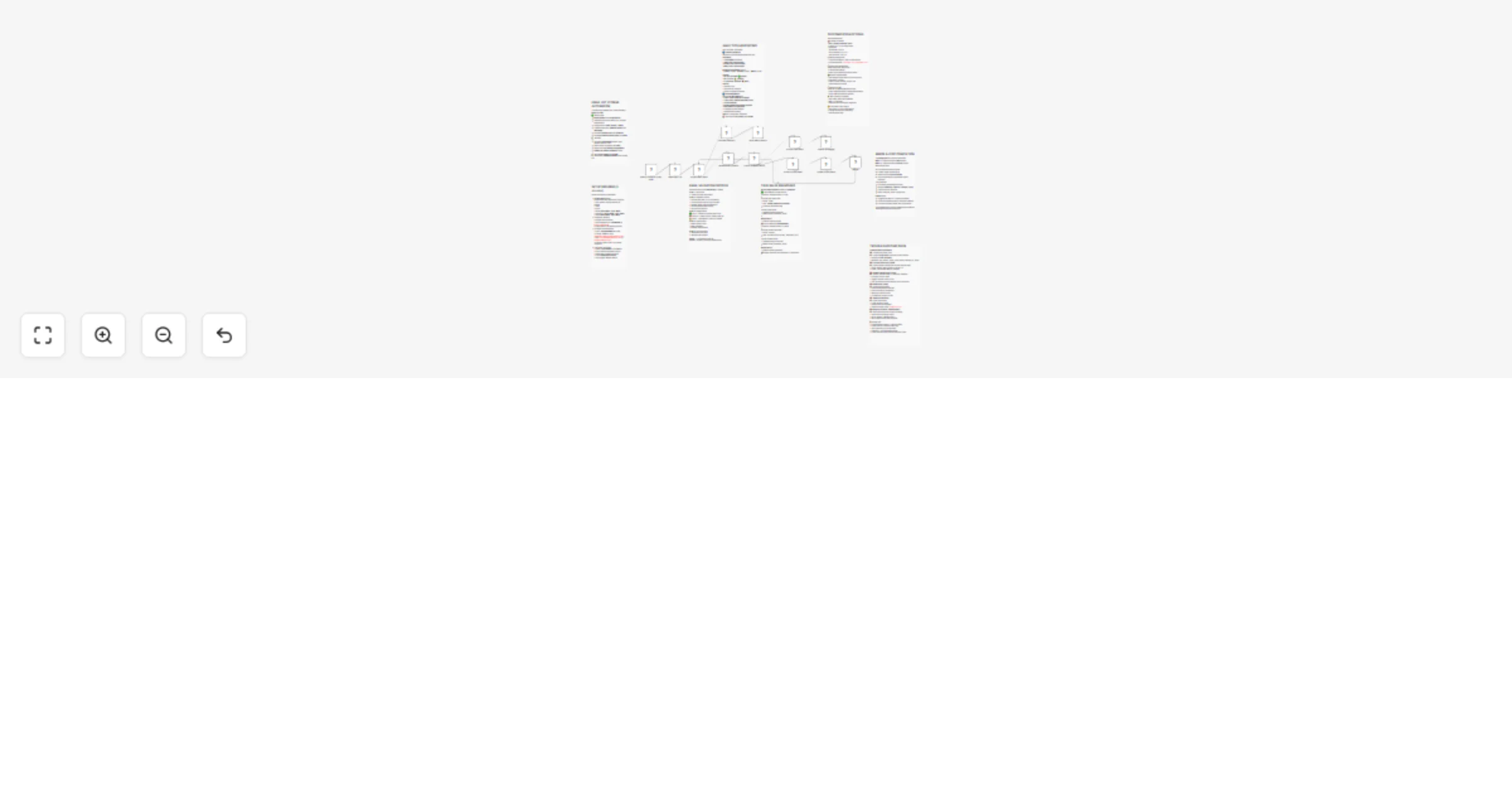
Schedule Trigger → Read Google Sheets → Loop (Process Each Email)
    → Validate API → IF Branch (Valid/Invalid)
    → Update Google Sheets → Merge → Loop Back
    → Calculate Statistics → Send Email Report
Loop Mechanism
- Split in Batches processes one email at a time
- Each email: validate → branch → update sheet → merge → continue
- Loop accumulates all results internally
- "Done" output triggers statistics calculation after all emails processed
Health Score Formula
Score = (Valid% × 100) - (Invalid% × 20) - (Risky% × 10)
Bounded: 0-100
Ranges:
- 80-100: Excellent (green)
- 60-79: Good (orange)
- 0-59: Needs Attention (red)
Prerequisites
Required:
- Google account with Sheets access
- Email validation API (VerifiEmail)
- n8n v1.0+
Google Sheet Structure
| Column | Type | Filled By |
|---|---|---|
| row_number | Number | Auto-generated |
| name | Text | You |
| Text | You | |
| status | Text | Workflow |
| checked_at | Text | Workflow |
| notes | Text | Workflow |
Only populate first three columns.
Setup
1. Import Template
Import JSON file to n8n via Workflows → Add workflow → Import from File
2. Configure Credentials
Google Sheets OAuth2 (used by 3 nodes):
- Create credential via any Google Sheets node
- Grant spreadsheet permissions
- Apply same credential to all Google Sheets nodes
Validation API:
- Get API key from https://verifi.email
- Add credential to "Validate Email Address" node
Gmail OAuth2:
- Add credential to "Send Weekly Report" node
- Grant email sending permissions
3. Connect Google Sheet
In all three Google Sheets nodes:
- Select your spreadsheet from Document dropdown
- Select sheet tab
- Verify "Column to Match On" = row_number (for Update nodes)
4. Set Email Recipient
In "Send Weekly Report" node:
- Change "Send To" from placeholder to your email
- Optional: Add CC/BCC for multiple recipients
5. Test
- Add 3-5 test emails (mix of valid/invalid)
- Click "Execute Workflow"
- Verify sheet updates and email arrives
6. Activate
Toggle "Active" switch. Workflow runs automatically every Friday at 5 PM.
Customization
Change Schedule: Edit "Weekly Schedule" node cron expression:
- Daily 9 AM:
0 9 * * * - Monday 5 PM:
0 17 * * 1 - First of month:
0 9 1 * *
Email Design: Edit HTML in "Send Weekly Report" message field. Modify colors (search hex codes), text, or add branding.
Archive Invalid Emails: Add Google Sheets Append node after "Update Invalid Status" → create "Invalid_Archive" tab → append email, name, reason, date
Slack Notifications: Add Slack node after email report → configure channel → use summary text from statistics
Rate Limiting: Add Wait node (1-2 seconds) after validation for large lists to prevent API throttling
Troubleshooting
"Column not found":
Verify exact column names in sheet: row_number, name, email, status, checked_at, notes (case-sensitive)
Only processes 1 email: Check Google Sheets node Range field is empty or set to include all rows. Verify "Use Header Row" enabled.
Wrong statistics: Enable "Execute Once" in Calculate Statistics node settings (gear icon)
Email not arriving: Check spam/promotions folder, verify Gmail credential authorized, confirm recipient address correct
API errors: Verify API key valid, check quota not exceeded, test with simple email like [email protected]
Merge node error: Confirm both Update nodes connect to Merge inputs (top and bottom). Check both branches execute successfully.
Validation Checks
Each email undergoes:
- RFC 5322 format compliance
- MX record existence (domain has mail servers)
- SMTP verification (mailbox exists)
- Disposable email service detection
- Catch-all domain detection
Categories:
- Valid: All checks passed
- Invalid: Critical checks failed
- Risky: Disposable or catch-all domain
Support
Check execution logs in n8n Executions tab for errors. Use "Execute Node" on individual nodes to isolate issues. Visit n8n community forum for additional help.
Tags
email-validation marketing-automation data-cleaning google-sheets scheduled-workflow deliverability list-hygiene