Block 1 - Calculate Statistics
- Type / Role
- n8n-nodes-base.code - code
- Config choices
- Version 2


 Early Deal
This workflow is provided as-is. Please review and test before using in production.
Email List Hygiene Automated Weekly Validator Overview Validates email lists through automated checks, categorizes results as Valid/Invalid/Risky, updates Google Sheets in real time, and delivers H...
n8n-nodes-base.code, n8n-nodes-base.scheduletrigger, n8n-nodes-base.googlesheets, n8n-nodes-base.splitinbatches, n8n-nodes-verifiemail.verifiemail, n8n-nodes-base.if, n8n-nodes-base.gmail, n8n-nodes-base.merge
This workflow is cataloged by N8N Workflows and links back to its original n8n.io source page by Jitesh Dugar.
Original n8n.io sourceValidates email lists through automated checks, categorizes results as Valid/Invalid/Risky, updates Google Sheets in real-time, and delivers HTML reports. Runs every Friday at 5 PM via cron scheduling.
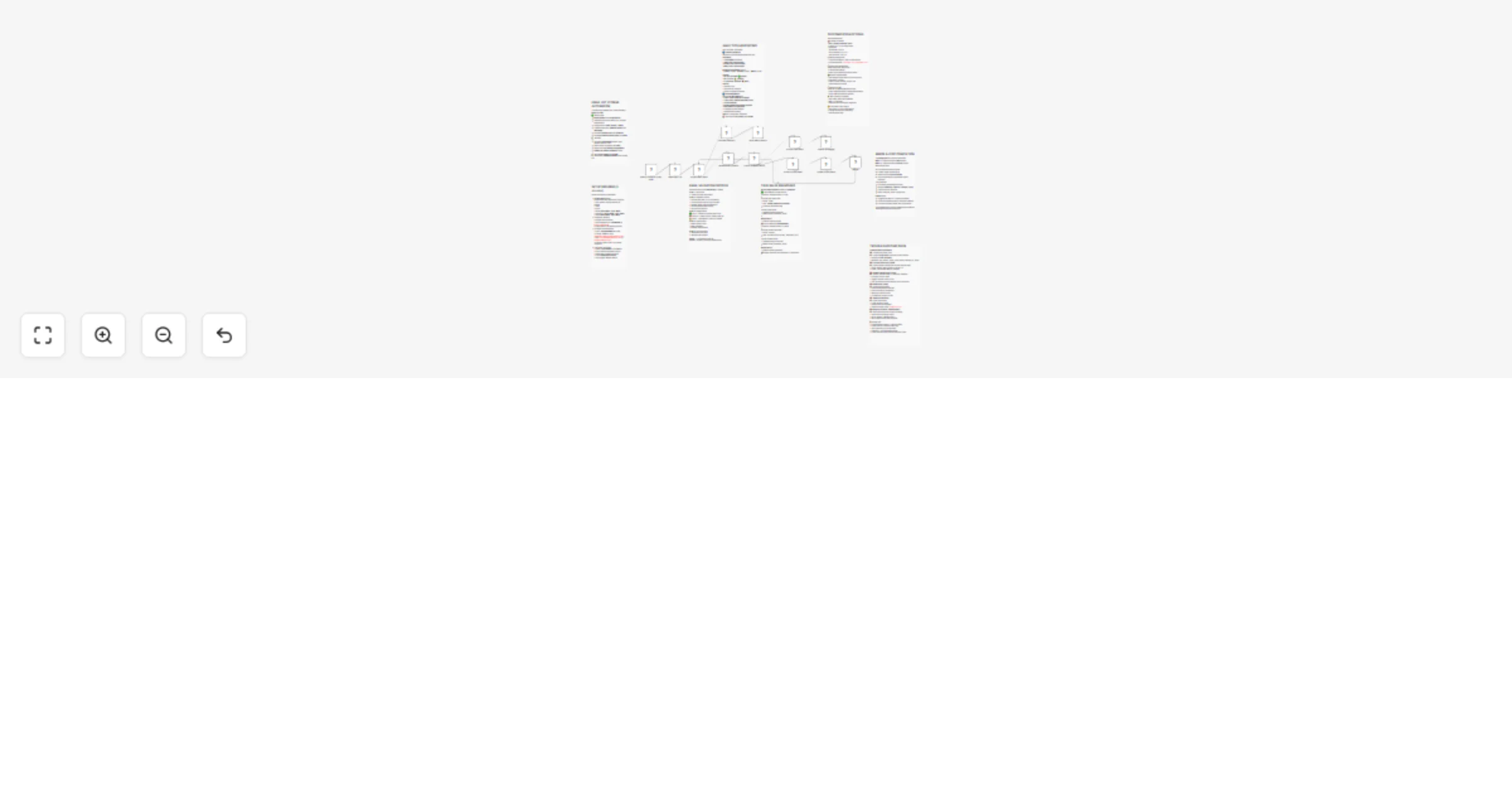
Schedule Trigger → Read Google Sheets → Loop (Process Each Email)
    → Validate API → IF Branch (Valid/Invalid)
    → Update Google Sheets → Merge → Loop Back
    → Calculate Statistics → Send Email Report
Score = (Valid% × 100) - (Invalid% × 20) - (Risky% × 10)
Bounded: 0-100
Ranges:
Required:
| Column | Type | Filled By |
|---|---|---|
| row_number | Number | Auto-generated |
| name | Text | You |
| Text | You | |
| status | Text | Workflow |
| checked_at | Text | Workflow |
| notes | Text | Workflow |
Only populate first three columns.
Import JSON file to n8n via Workflows → Add workflow → Import from File
Google Sheets OAuth2 (used by 3 nodes):
Validation API:
Gmail OAuth2:
In all three Google Sheets nodes:
In "Send Weekly Report" node:
Toggle "Active" switch. Workflow runs automatically every Friday at 5 PM.
Change Schedule: Edit "Weekly Schedule" node cron expression:
0 9 * * *0 17 * * 10 9 1 * *Email Design: Edit HTML in "Send Weekly Report" message field. Modify colors (search hex codes), text, or add branding.
Archive Invalid Emails: Add Google Sheets Append node after "Update Invalid Status" → create "Invalid_Archive" tab → append email, name, reason, date
Slack Notifications: Add Slack node after email report → configure channel → use summary text from statistics
Rate Limiting: Add Wait node (1-2 seconds) after validation for large lists to prevent API throttling
"Column not found":
Verify exact column names in sheet: row_number, name, email, status, checked_at, notes (case-sensitive)
Only processes 1 email: Check Google Sheets node Range field is empty or set to include all rows. Verify "Use Header Row" enabled.
Wrong statistics: Enable "Execute Once" in Calculate Statistics node settings (gear icon)
Email not arriving: Check spam/promotions folder, verify Gmail credential authorized, confirm recipient address correct
API errors: Verify API key valid, check quota not exceeded, test with simple email like [email protected]
Merge node error: Confirm both Update nodes connect to Merge inputs (top and bottom). Check both branches execute successfully.
Each email undergoes:
Categories:
Check execution logs in n8n Executions tab for errors. Use "Execute Node" on individual nodes to isolate issues. Visit n8n community forum for additional help.
email-validation marketing-automation data-cleaning google-sheets scheduled-workflow deliverability list-hygiene
This catalog entry is organized from the workflow JSON. The node-level section below shows the executable blocks available for review before importing the template.
| Workflow | Validate email lists weekly with Google Sheets, VerifiEmail and Gmail reports |
|---|---|
| Complexity | advanced |
| Nodes | 20 |
| Categories | Lead Nurturing, AI Summarization |
| Author | Jitesh Dugar |
| Published | 03 Oct 2025 |
Use the JSON export at /data/workflows/9252/9252.json as the source template for this automation.
Open n8n, import the downloaded JSON, and review each node before activating the workflow.
Replace placeholder credentials, API keys, webhook URLs, account IDs, and environment-specific values with your own settings.
Run the workflow manually or in a staging workspace, inspect node output, and confirm downstream systems receive the expected data.
Enable the workflow only after testing, then monitor executions, errors, and rate limits during the first production runs.
Review imported nodes carefully before activation. This catalog entry is intended to help you inspect the workflow structure, understand required services, and find related templates faster.
Node names, credentials, schedules, webhook paths, and external service limits may need adjustment for your workspace.
Email List Hygiene Automated Weekly Validator Overview Validates email lists through automated checks, categorizes results as Valid/Invalid/Risky, updates Google Sheets in real time, and delivers H...
Review the workflow JSON, configure any required credentials in n8n, and test the automation in a safe workspace before using it in production.
Yes. Use the block-by-block analysis and the downloadable JSON to inspect each node, then adjust credentials, prompts, schedules, filters, or destinations for your Lead Nurturing, AI Summarization use case.