Block 1 - Sticky Note — Overview
- Type / Role
- n8n-nodes-base.stickyNote - stickyNote
- Config choices
- Version 1


 Early Deal
Receive WhatsApp messages via Whapi, generate AI replies with a local Ollama model, log conversations in Google Sheets, and auto capture leads — all without touching a cloud LLM. This n8n template ...
n8n-nodes-base.stickynote, n8n-nodes-base.webhook, n8n-nodes-base.code, n8n-nodes-base.if, n8n-nodes-base.googlesheets, @n8n/n8n-nodes-langchain.chainllm, @n8n/n8n-nodes-langchain.lmchatollama, n8n-nodes-base.httprequest
This workflow is cataloged by N8N Workflows and links back to its original n8n.io source page by Ali HAIDER.
Original n8n.io sourceReceive WhatsApp messages via Whapi, generate AI replies with a local Ollama model, log conversations in Google Sheets, and auto-capture leads — all without touching a cloud LLM.
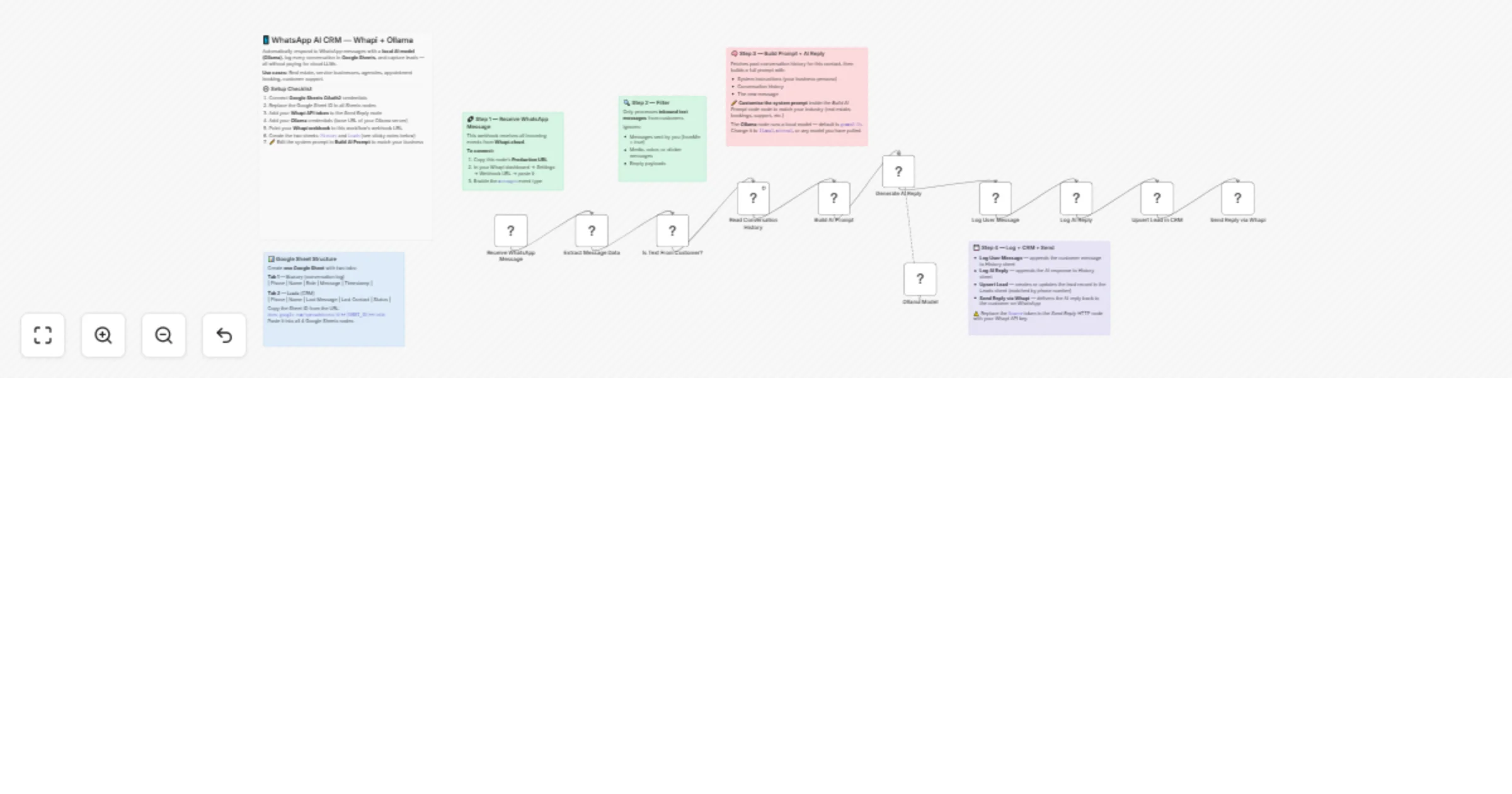
This n8n template builds a fully automated WhatsApp AI CRM using Whapi.cloud for messaging and Ollama for 100% local AI inference — no OpenAI costs, no data leaving your server.
A Webhook node receives inbound WhatsApp messages from Whapi.cloud. A Code node extracts the sender's phone, name, message text, and filters out outbound/non-text messages. An IF node ensures only real inbound text messages from customers are processed. Google Sheets is used to fetch that customer's full conversation history, enabling memory across sessions. A Code node builds a full prompt — system instructions + conversation history + new message — passed to the AI model. Ollama (via LangChain LLM Chain node) generates a contextual reply using a local model (default: gemma3:1b). The user message and AI reply are each appended to Google Sheets as conversation history logs. A separate Google Sheets upsert captures or updates the lead record with phone and name. The AI reply is sent back to the customer via Whapi's HTTP API.
Set up a Whapi.cloud account and connect a WhatsApp number. Point the webhook to your n8n webhook URL. Create a Google Sheet with a History tab (columns: Phone, Name, Role, Message, Timestamp) and a Leads tab (columns: Phone, Name, CreatedAt). Add your Google Sheets credentials and replace YOUR_GOOGLE_SHEET_ID in the relevant nodes. Run Ollama locally or on your server. Pull the model: ollama pull gemma3:1b. Update the model name in the Ollama node if using a different model. Customise the system prompt inside the Build AI Prompt node to match your business (real estate, support, bookings, etc.). Activate the workflow and send a WhatsApp message to test.
Whapi.cloud account (WhatsApp Business API) Ollama running locally or on a self-hosted server Google Sheets (with OAuth2 credentials connected in n8n)
Switch AI models: Swap gemma3:1b for any Ollama-supported model like llama3, mistral, or phi3 depending on your hardware. Change the industry: Edit the system prompt in Build AI Prompt to serve any business — bookings, customer support, sales qualification, etc. Upgrade the CRM: Replace Google Sheets with Airtable, Notion, or a real CRM (HubSpot, Pipedrive) by swapping out the Sheets nodes. Add handoff logic: Insert a condition to escalate to a human agent if the message contains keywords like "speak to someone" or "human". Multi-language: The system prompt already instructs the AI to reply in the customer's language — no extra setup needed.
It's designed for service businesses (real estate, consultants, agencies) that want to respond to inbound WhatsApp leads instantly, log conversations, and build a simple CRM — all from a single workflow.
This catalog entry is organized from the workflow JSON. The node-level section below shows the executable blocks available for review before importing the template.
| Workflow | Automate WhatsApp lead capture and replies with Whapi, Ollama and Sheets |
|---|---|
| Complexity | advanced |
| Nodes | 17 |
| Categories | Lead Nurturing, AI Chatbot |
| Author | Ali HAIDER |
| Published | 14 Apr 2026 |
Use the JSON export at /data/workflows/15044/15044.json as the source template for this automation.
Open n8n, import the downloaded JSON, and review each node before activating the workflow.
Replace placeholder credentials, API keys, webhook URLs, account IDs, and environment-specific values with your own settings.
Run the workflow manually or in a staging workspace, inspect node output, and confirm downstream systems receive the expected data.
Enable the workflow only after testing, then monitor executions, errors, and rate limits during the first production runs.
Review imported nodes carefully before activation. This catalog entry is intended to help you inspect the workflow structure, understand required services, and find related templates faster.
Node names, credentials, schedules, webhook paths, and external service limits may need adjustment for your workspace.
Receive WhatsApp messages via Whapi, generate AI replies with a local Ollama model, log conversations in Google Sheets, and auto capture leads — all without touching a cloud LLM. This n8n template ...
Review the workflow JSON, configure any required credentials in n8n, and test the automation in a safe workspace before using it in production.
Yes. Use the block-by-block analysis and the downloadable JSON to inspect each node, then adjust credentials, prompts, schedules, filters, or destinations for your Lead Nurturing, AI Chatbot use case.