Transform resumes into AI-generated personal video intros with HeyGen & GPT

Workflow preview

Workflow preview
100%
Transform resumes into AI-generated personal video intros with HeyGen & GPT preview
Open on n8n.io

Important notice

This workflow is provided as-is. Please review and test before using in production.

1. Workflow Overview

What problem does this workflow solve? Sending a plain PDF resume doesn’t stand out anymore. This workflow allows candidates to convert their resume and photo into a personalized video resume . R...

Best for

  • HR automation workflows
  • Multimodal AI automation workflows
  • advanced n8n builders looking for reusable templates

Tools used

@n8n/n8n-nodes-langchain.lmchatopenai, n8n-nodes-base.httprequest, n8n-nodes-base.extractfromfile, @n8n/n8n-nodes-langchain.informationextractor, n8n-nodes-base.merge, n8n-nodes-base.switch, n8n-nodes-base.wait, @n8n/n8n-nodes-langchain.openai

Source and attribution

This workflow is cataloged by N8N Workflows and links back to its original n8n.io source page by InfyOm Technologies.

Original n8n.io source

1.1 Workflow description

Title
Transform resumes into AI-generated personal video intros with HeyGen & GPT
Workflow name
Transform resumes into AI-generated personal video intros with HeyGen & GPT

✅ What problem does this workflow solve?

Sending a plain PDF resume doesn’t stand out anymore. This workflow allows candidates to convert their resume and photo into a personalized video resume. Recruiters get a more engaging first impression, while candidates showcase their profile in a modern, impactful way.


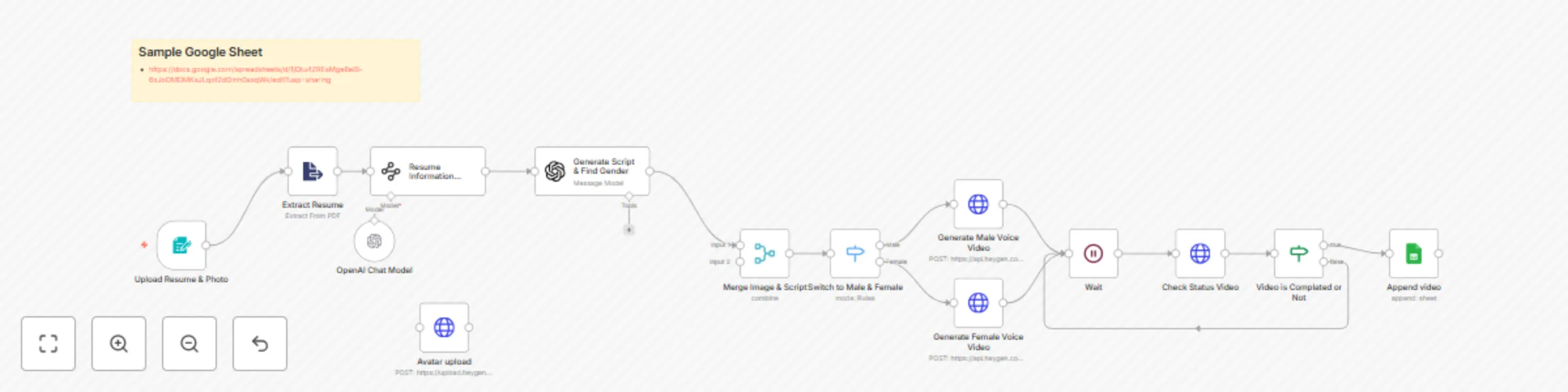
⚙️ What does this workflow do?

  1. Presents a form for uploading:
    • 📄 Resume (PDF)
    • 🖼 Photo (headshot)
  2. Extracts key details from the resume (education, experience, skills).
  3. Detects gender from the photo to choose a suitable voice/avatar.
  4. Generates a script (spoken resume summary) based on the extracted information.
  5. Uploads the photo to HeyGen to create an avatar.
  6. Requests video generation on HeyGen:
    • Uses the avatar photo
    • Uses gender-specific settings
    • Uses the generated script as narration
  7. Monitors video generation status until completion.
  8. Stores the final video URL in a Google Sheet for easy access and tracking.

🔧 Setup Instructions

Google Services

  • Connect Google Sheets to n8n to store records with:
    • Candidate name
    • Resume link
    • Video link

HeyGen Setup

  • Get an API key from HeyGen.
  • Configure:
    • Avatar upload endpoint (image upload)
    • Video generation endpoint (image ID + script)

Form Setup

  • Use the n8n Form Trigger to allow candidates to upload:
    • Resume (PDF)
    • Photo (JPEG/PNG)

🧠 How it Works – Step-by-Step

1. Candidate Submission

A candidate fills out a form and uploads:

  • Resume (PDF)
  • Photo

2. Extract Resume Data

  • The resume PDF is processed using OCR/AI to extract:
    • Name
    • Experience
    • Skills
    • Education highlights

3. Gender Detection

  • The uploaded photo is analyzed to detect gender (used for voice/avatar selection).

4. Script Generation

  • Based on the extracted resume info, a concise, natural script is generated automatically.

5. Avatar Upload & Video Creation

  • The photo is uploaded to HeyGen to create a custom avatar.
  • A video generation request is made using:
    • The script
    • The avatar (image ID)
    • A matching voice for the detected gender

6. Video Status Monitoring

  • The workflow polls HeyGen’s API until the video is ready.

7. Save Final Video URL

  • Once complete, the video link is added to a Google Sheet alongside the candidate’s details.

👤 Who can use this?

This workflow is ideal for:

  • 🧑‍🎓 Students and job seekers looking to stand out
  • 🧑‍💼 Recruitment agencies offering modern resume services
  • 🏢 HR teams wanting engaging candidate submissions
  • 🎥 Portfolio builders for professionals

🚀 Impact

Instead of a static PDF, you can now send a dynamic video resume that captures attention, adds personality, and makes a lasting impression.

1.2 Logical Blocks

This catalog entry is organized from the workflow JSON. The node-level section below shows the executable blocks available for review before importing the template.

2. Block-by-Block Analysis

Block 1 - OpenAI Chat Model

Type / Role
@n8n/n8n-nodes-langchain.lmChatOpenAi - lmChatOpenAi
Config choices
Version 1.2

Block 2 - Avatar upload

Type / Role
n8n-nodes-base.httpRequest - httpRequest
Config choices
Version 4.2

Block 3 - Extract Resume

Type / Role
n8n-nodes-base.extractFromFile - extractFromFile
Config choices
Version 1

Block 4 - Resume Information Extractor

Type / Role
@n8n/n8n-nodes-langchain.informationExtractor - informationExtractor
Config choices
Version 1

Block 5 - Merge Image & Script

Type / Role
n8n-nodes-base.merge - merge
Config choices
Version 3.1

Block 6 - Switch to Male & Female

Type / Role
n8n-nodes-base.switch - switch
Config choices
Version 3.2

Block 7 - Generate Male Voice Video

Type / Role
n8n-nodes-base.httpRequest - httpRequest
Config choices
Version 4.2

Block 8 - Generate Female Voice Video

Type / Role
n8n-nodes-base.httpRequest - httpRequest
Config choices
Version 4.2

Block 9 - Wait

Type / Role
n8n-nodes-base.wait - wait
Config choices
Version 1.1

Block 10 - Check Status Video

Type / Role
n8n-nodes-base.httpRequest - httpRequest
Config choices
Version 4.2

Block 11 - Generate Script & Find Gender

Type / Role
@n8n/n8n-nodes-langchain.openAi - openAi
Config choices
Version 1.8

Block 12 - Append video

Type / Role
n8n-nodes-base.googleSheets - googleSheets
Config choices
Version 4.5

Block 13 - Upload Resume & Photo

Type / Role
n8n-nodes-base.formTrigger - formTrigger
Config choices
Version 2.2

Block 14 - Video is Complated or Not

Type / Role
n8n-nodes-base.if - if
Config choices
Version 2.2

Block 15 - Sticky Note

Type / Role
n8n-nodes-base.stickyNote - stickyNote
Config choices
Version 1

3. Summary Table

Workflow Transform resumes into AI-generated personal video intros with HeyGen & GPT
Complexity advanced
Nodes 15
Categories HR, Multimodal AI
Author InfyOm Technologies
Published 29 Jul 2025

4. Reproducing the Workflow from Scratch

  1. 1. Download the workflow JSON

    Use the JSON export at /data/workflows/6608/6608.json as the source template for this automation.

  2. 2. Import the template into n8n

    Open n8n, import the downloaded JSON, and review each node before activating the workflow.

  3. 3. Configure credentials and variables

    Replace placeholder credentials, API keys, webhook URLs, account IDs, and environment-specific values with your own settings.

  4. 4. Test with sample data

    Run the workflow manually or in a staging workspace, inspect node output, and confirm downstream systems receive the expected data.

  5. 5. Activate and monitor

    Enable the workflow only after testing, then monitor executions, errors, and rate limits during the first production runs.

5. General Notes & Resources

Review imported nodes carefully before activation. This catalog entry is intended to help you inspect the workflow structure, understand required services, and find related templates faster.

Node names, credentials, schedules, webhook paths, and external service limits may need adjustment for your workspace.

Frequently asked questions

What does Transform resumes into AI-generated personal video intros with HeyGen & GPT do?

What problem does this workflow solve? Sending a plain PDF resume doesn’t stand out anymore. This workflow allows candidates to convert their resume and photo into a personalized video resume . R...

What do I need before importing this workflow?

Review the workflow JSON, configure any required credentials in n8n, and test the automation in a safe workspace before using it in production.

Can I customize this workflow?

Yes. Use the block-by-block analysis and the downloadable JSON to inspect each node, then adjust credentials, prompts, schedules, filters, or destinations for your HR, Multimodal AI use case.