InfyOm Technologies
Workflows by InfyOm Technologies
Evaluate OMR answer sheets with Gemini vision AI and Google Sheets
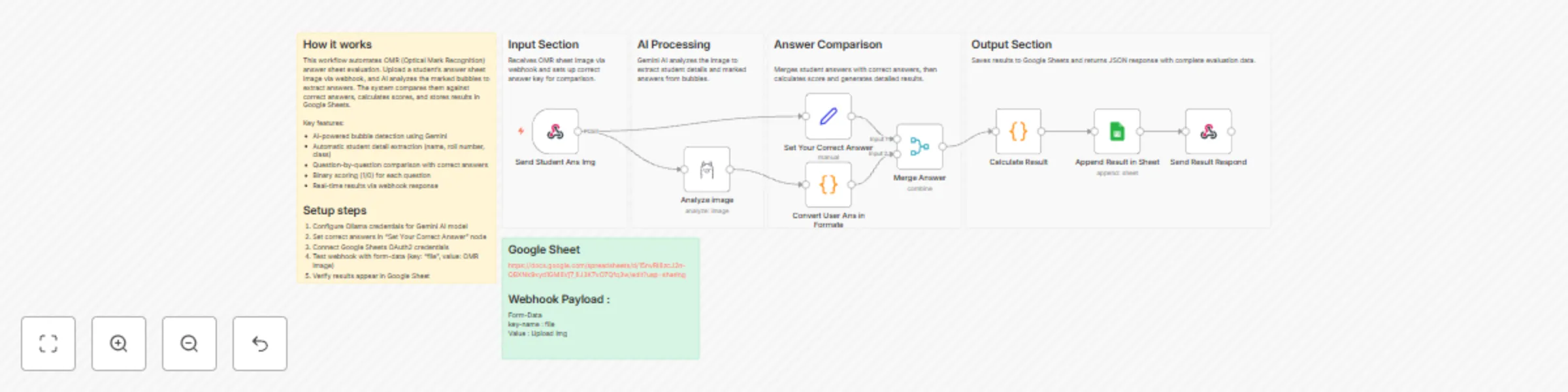
## ✅ What problem does this workflow solve? Manual checking of OMR (Optical Mark Recognition) answer sheets is time-consuming, error-prone, and difficult to scale—especially for schools, coaching institutes, and exam centers. This workflow automates **OMR evaluation end-to-end** using AI, from reading a scanned answer sheet image to calculating scores and storing structured results in Google Sheets. --- ## ⚙️ What does this workflow do? 1. Accepts a **scanned OMR answer sheet image** via webhook. 2. Uses **AI vision** to extract only the marked answers from the sheet. 3. Extracts basic **student details** (Name, Roll Number, Class). 4. Compares extracted answers with a predefined **answer key**. 5. Calculates: - Total questions - Correct answers - Incorrect answers - Score percentage 6. Generates **question-wise binary results** (1 = correct, 0 = incorrect). 7. Stores the complete result in **Google Sheets**. 8. Returns a structured **JSON response** to the calling system. --- ## 🧠 How It Works – Step by Step ### 1. 📥 Webhook Trigger (Student OMR Upload) - A client uploads the OMR image via a `POST` request. - Image is received as `form-data` (`key: file`). ### 2. 👁️ AI-Based OMR Image Analysis - An AI vision model analyzes the image. - Strict rules ensure: - Only answer bubbles are considered - Multiple markings → darkest option is selected - Unmarked questions are skipped - No guessing or hallucination - Output includes: - Student details - Question–answer pairs ### 3. 🔄 Answer Formatting - Raw AI output is converted into a clean, structured format: - `1:A, 2:B, 3:C, ...` - Student metadata is preserved separately. ### 4. 🧮 Answer Key Setup - Correct answers are defined inside the workflow (editable anytime). - Supports any number of questions. ### 5. 📊 Result Calculation - User answers are compared with the answer key. - Generates: - Correct / Incorrect counts - Percentage score - Detailed per-question result - Binary output (`Q.1 = 1 / 0`) for analytics ### 6. 📄 Google Sheets Logging - Results are appended to a Google Sheet with columns such as: - Student Name - Roll No - Class - Correct - Incorrect - Score Percentage - Q.1 → Q.n (binary values) ### 7. 📤 API Response - Workflow responds with a JSON payload containing: - Student details - Full evaluation summary - Per-question analysis --- ## 📂 Sample Google Sheet Output | Student Name | Roll No | Class | Correct | Incorrect | Score % | Q.1 | Q.2 | Q.3 | ... | |-------------|--------|-------|---------|-----------|---------|-----|-----|-----|-----| | Rahul Shah | 1023 | 10-A | 16 | 4 | 80% | 1 | 0 | 1 | ... | --- ## 🛠 Integrations Used - 🤖 **AI Vision Model** – for accurate OMR detection - ⚙️ **n8n Webhook** – to accept image uploads - 🧠 **Custom Code Nodes** – for parsing and evaluation logic - 📊 **Google Sheets** – for persistent result storage --- ## 👤 Who can use this? This workflow is ideal for: - 🏫 **Schools & Colleges** - 📚 **Coaching Institutes** - 🧪 **Online Exam Platforms** - 🧑💻 **EdTech Developers** - 📝 **Mock Test Providers** If you need fast, reliable, and scalable OMR checking without expensive hardware—this workflow delivers. --- ## 🚀 Benefits - ⏱ Saves hours of manual checking - 🎯 Eliminates human error - 📊 Produces analytics-ready data - 🔄 Easy to update answer keys - 🌐 API-ready for integration with any system --- ## 📦 Ready to Deploy? Just configure: - ✅ AI model credentials - ✅ Google Sheets access - ✅ Your correct answer key …and start evaluating OMR sheets automatically at scale.
Post bank statement transactions to QuickBooks Online using OpenRouter AI
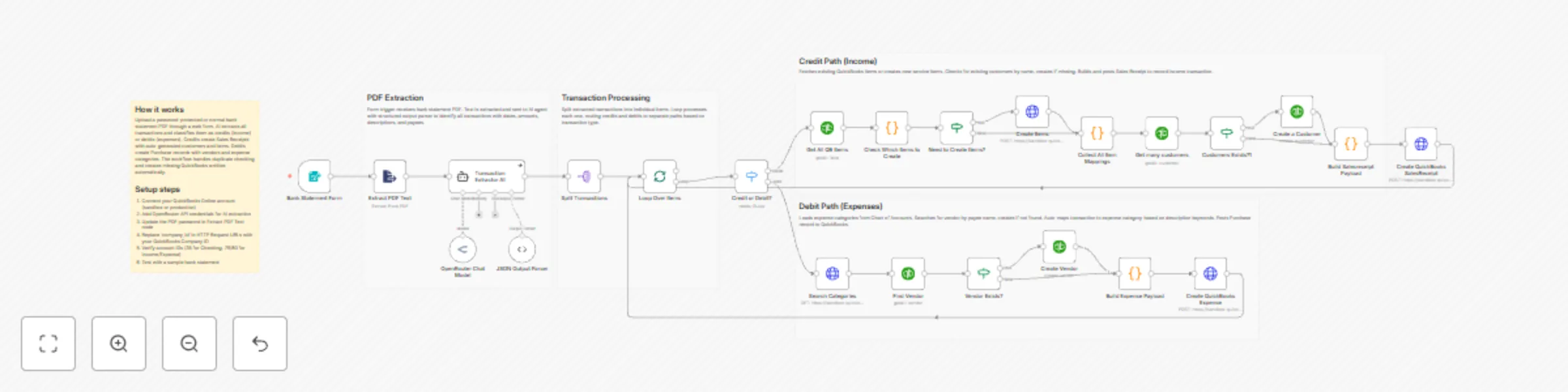
## ✅ What problem does this workflow solve? Manually entering bank statements into QuickBooks is one of the most time-consuming and error-prone accounting tasks. Accountants often spend hours converting PDF bank statements into individual income and expense entries—risking missed transactions, incorrect categorization, and inconsistencies. This workflow **fully automates the end-to-end process**: from uploading a (even password-protected) bank statement PDF to creating **accurate Sales Receipts and Expenses directly inside QuickBooks**, using AI and n8n. --- ## ⚙️ What does this workflow do? - Accepts bank statement PDFs via a secure web form - Decrypts and extracts text from password-protected PDFs - Uses AI to extract **structured transactions** from raw statement text - Validates AI output against a strict JSON schema - Processes each transaction individually for reliability - Automatically routes transactions based on type: - **Credits → Income (Sales Receipts)** - **Debits → Expenses** - Intelligently creates missing QuickBooks entities: - Customers - Vendors - Items - Expense categories - Posts transactions directly into QuickBooks - Eliminates manual accounting entry completely --- ## 🧠 How It Works – End-to-End Flow ### 1️⃣ Secure Bank Statement Upload A user uploads a bank statement PDF (normal or password-protected) using an **n8n Form Trigger**. ### 2️⃣ PDF Decryption & Text Extraction The workflow: - Unlocks the PDF (if password-protected) - Extracts the full statement text using the **Extract PDF Text** node ### 3️⃣ AI-Powered Transaction Extraction An **AI Agent** reads the raw bank statement text and extracts every transaction with high precision: - Transaction type (credit / debit) - Date (YYYY-MM-DD)` - Amount - Description - Reference number - Payee / counterparty ### 4️⃣ Strict JSON Validation AI output is validated using a **Structured Output Parser** to ensure: - No malformed data - Schema-safe transactions - Reliable downstream processing ### 5️⃣ Transaction Processing Loop Each transaction is processed individually using batching and loop control to guarantee accuracy. ### 6️⃣ Smart Routing: Credit vs Debit A switch node routes transactions automatically: - **Credits** → Income flow - **Debits** → Expense flow --- ## 💰 Credit Path – Income Automation For every **credit transaction**: - Checks if a matching QuickBooks item exists - Creates missing service items automatically - Finds or creates the customer - Builds a **Sales Receipt payload** - Posts the transaction into QuickBooks as income --- ## 💸 Debit Path – Expense Automation For every **debit transaction**: - Searches for the vendor by payee name - Creates the vendor if missing - Loads expense categories from the Chart of Accounts - Auto-maps transactions to the correct category using keyword logic - Builds a **Purchase (Expense) payload** - Posts the expense into QuickBooks --- ## 🧠 Built-In QuickBooks Intelligence This workflow intelligently handles: - Duplicate prevention - Missing customer/vendor creation - Automatic item mapping - Category resolution using transaction descriptions - Consistent accounting structure across all entries --- ## 📊 Results & Benefits ✅ Zero manual bank statement entry ✅ Works with password-protected PDFs ✅ Handles both income and expenses automatically ✅ Creates clean, structured QuickBooks records ✅ Saves **dozens of accounting hours every month** ✅ Reduces human error and reconciliation issues --- ## 🔧 Setup Requirements 1. Connect your **QuickBooks Online** account (Sandbox or Production) 2. Add **OpenRouter / AI model credentials** for transaction extraction 3. Update the PDF password (if required) in the extraction node 4. Replace `company_id` in QuickBooks API endpoints 5. Verify QuickBooks account IDs (bank, income, expense) 6. Test with a sample bank statement PDF --- ## 👤 Who is this for? This workflow is ideal for: - 📒 Accountants & bookkeeping firms - 🏢 Businesses managing frequent bank statements - 💼 Finance teams using QuickBooks Online - 🤖 Automation-first accounting systems
Track Udemy course discounts with Airtop, Google Sheets and Telegram alerts
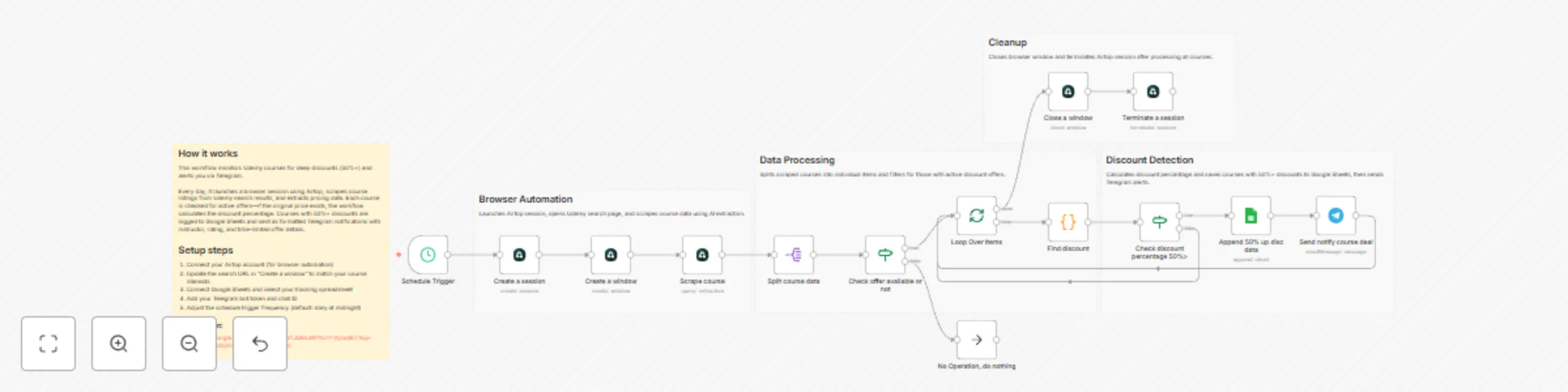
## ✅ What problem does this workflow solve? Online course prices—especially on platforms like Udemy—change frequently and often include **time-limited discounts**. Manually checking prices, coupon availability, and offer expiration is tedious and unreliable. This workflow automates **browser-based price tracking** using **Airtop**, detects **high-discount deals**, logs them in Google Sheets, and instantly notifies you on **Telegram**—all without scraping hacks or brittle scripts. --- ## ⚙️ What does this workflow do? * Automates real browser interactions using **Airtop** * Searches Udemy for specific course topics * Extracts live course pricing and offer data * Detects discounts of **50% or more** * Logs deal details in Google Sheets * Sends real-time Telegram alerts before offers expire --- ## 🧠 How It Works – Step by Step ### 1. ⏱ Schedule Trigger The workflow runs automatically at a fixed interval (hourly or daily). --- ### 2. 🌐 Create Browser Session (Airtop) * Starts a new Airtop browser session * Opens Udemy search results for a specific keyword (e.g., `n8n`) --- ### 3. 🔍 Scrape Course Data Using Airtop’s extraction capabilities, the workflow collects: * Course title * Instructor name * Current price * Original price (if available) * Rating * Offer expiration time * Course URL --- ### 4. 🔁 Loop Through Courses Each course is processed individually to: * Check if an offer exists * Skip non-discounted courses --- ### 5. 🧮 Calculate Discount Percentage * Extracts numeric price values * Computes discount percentage * Filters courses with **≥ 50% discount** --- ### 6. 📊 Log Deals in Google Sheets For qualifying deals, the workflow appends: * Course title * Instructor * Original & discounted price * Discount percentage * Rating * Offer time left * Course URL This creates a **persistent deal history** for tracking and analysis. --- ### 7. 📣 Telegram Notification When a high-discount deal is found, a formatted Telegram alert is sent including: * Course name * Instructor * Discount amount * Price comparison * Rating * Direct course link * Offer expiration info --- ### 8. 🧹 Cleanup * Closes the Airtop browser window * Terminates the session to conserve resources --- ## 🧩 Integrations Used * **Airtop** – No-code browser automation * **n8n** – Workflow orchestration * **Google Sheets** – Deal tracking & logging * **Telegram Bot API** – Instant deal alerts --- ## 👤 Who is this for? This workflow is perfect for: * 🎓 Learners hunting course deals * 🧠 Knowledge seekers tracking Udemy discounts * 🤖 Automation enthusiasts exploring browser automation * 📉 Price monitoring use cases beyond e-learning
Send return pickup reminders via WhatsApp & voice calls using Google Sheets
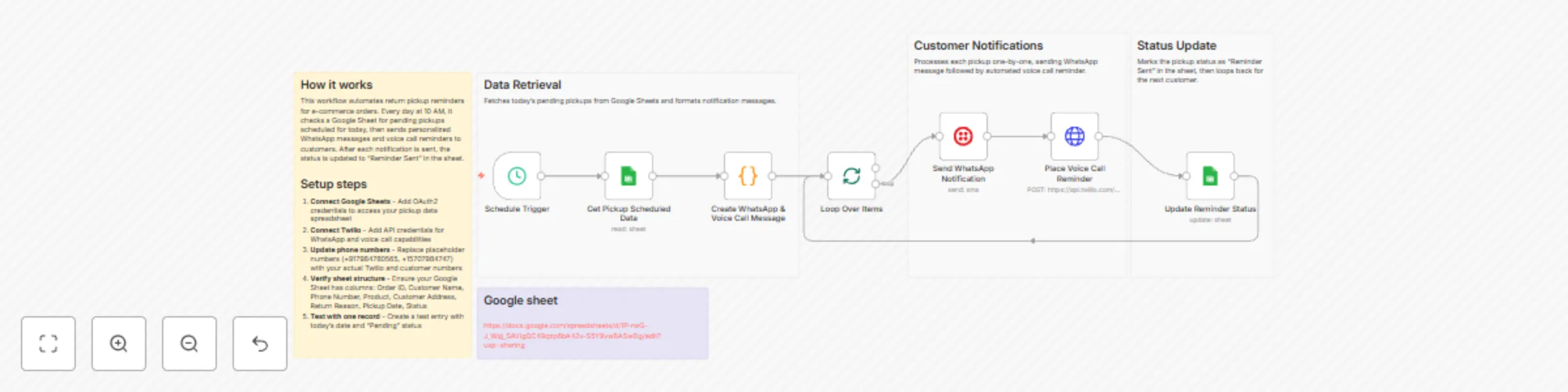
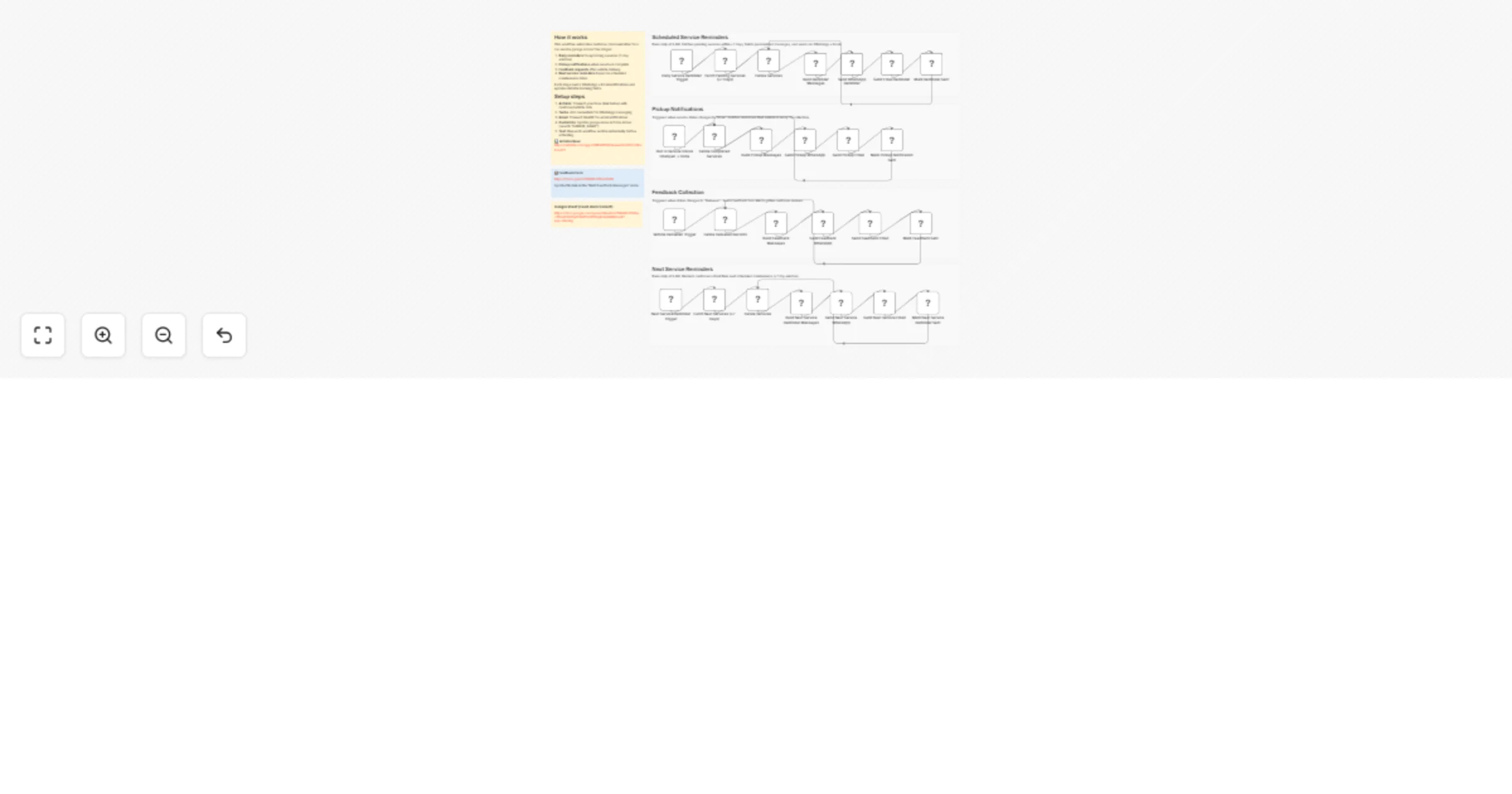
## ✅ What problem does this workflow solve? Missed return pickups create logistics delays, extra follow-ups, and unhappy customers for e-commerce teams. This workflow automates **return pickup reminders**, ensuring customers are notified **on the day of pickup** via **WhatsApp messages and automated voice calls**, without any manual effort. --- ## ⚙️ What does this workflow do? - Runs automatically on a daily schedule. - Reads return pickup data from **Google Sheets**. - Identifies customers with: - 📅 Pickup date = **today** - ⏳ Status = **Pending** - Sends **personalized WhatsApp reminders**. - Places **automated voice call reminders** when required. - Updates reminder status in Google Sheets for clear tracking. --- ## 🧠 How It Works – Step by Step ### 1. ⏰ Scheduled Trigger The workflow starts at a fixed time every day (e.g., 9–10 AM) using a **Schedule Trigger**. ### 2. 📄 Read Pickup Data from Google Sheets It fetches rows from Google Sheets where: - **Pickup Date** = today - **Status** = Pending This ensures only relevant pickups are processed. ### 3. 🔁 Loop Through Pickups Each matching row is processed individually to send customer-specific reminders. ### 4. ✍️ Generate Personalized Messages Using a **Code node**, the workflow creates: - 📲 A WhatsApp text message - 📞 A voice message script Messages include: - Customer name - Product name - Pickup address - Return reason - Pickup timing reminder ### 5. 📲 Send WhatsApp Reminder A personalized WhatsApp message is sent via **Twilio**, reminding the customer to keep the package ready. ### 6. 📞 Place Voice Call Reminder If required, the workflow places an automated **voice call** using Twilio and reads out a clear pickup reminder using text-to-speech. ### 7. ✅ Update Pickup Status Once notifications are sent: - The workflow updates the **Status** column to **“Reminder Sent”** - Ensures the same pickup is not notified again --- ## 📊 Sample Google Sheet Columns | Order ID | Customer Name | Phone Number | Product | Pickup Date | Address | Return Reason | Status | |--------|----------------|--------------|---------|-------------|---------|---------------|--------| --- ## 🔧 Integrations Used - **Google Sheets** – Pickup data source and tracking - **Twilio WhatsApp API** – Message delivery - **Twilio Voice API** – Automated call reminders - **n8n Schedule + Logic Nodes** – Automation orchestration --- ## 👤 Who can use this? Perfect for: - 🛒 **E-commerce brands** - 📦 **Reverse logistics teams** - 🚚 **Delivery & pickup operations** - 🧑💼 **Customer support teams** It also works well for **service visits, deliveries, appointments, and field operations**. --- ## 💡 Key Benefits - ✅ Fewer missed pickups - ✅ Improved customer compliance - ✅ Reduced manual follow-ups - ✅ Clear tracking in Google Sheets - ✅ Scalable and fully automated --- ## 🚀 Ready to Use? Just connect: - ✅ Google Sheets with pickup data - ✅ Twilio credentials (WhatsApp + Voice) - ✅ Schedule trigger time
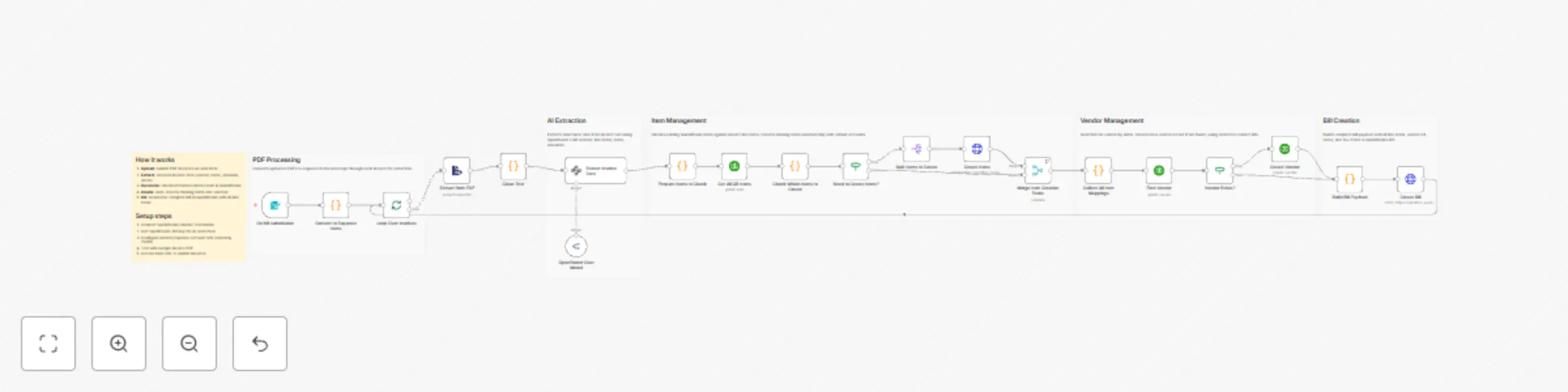
Automate purchase bill processing with AI OCR & QuickBooks integration
## ✅ What problem does this workflow solve? Accounting teams spend **hours manually entering purchase bills** into accounting systems—copying vendor details, creating items, checking duplicates, and reconciling totals. This workflow removes that manual effort entirely. With **OCR + AI + QuickBooks integration**, this automation converts uploaded purchase bills into **fully reconciled QuickBooks bills**—accurately, consistently, and without human intervention. --- ## ⚙️ What does this workflow do? - Accepts **multiple purchase bills** in a single upload - Extracts structured invoice data using OCR + AI - Automatically syncs vendors and items with **:contentReference[oaicite:0]{index=0}** - Creates missing vendors or items when needed - Generates clean, validated bills inside QuickBooks - Prevents duplicate vendors or line items --- ## 🧠 How It Works – Step-by-Step ### 1. 📤 Upload Purchase Bills - Users upload **one or multiple PDF bills** using an n8n form - Each bill is automatically split and processed individually ### 2. 🔍 OCR & Invoice Data Extraction - The workflow extracts text from each PDF - An AI extraction engine powered by :contentReference[oaicite:2]{index=2} identifies: - Invoice number & dates - Vendor details - Line items (name, quantity, price, amount) - Subtotal, tax, and total ### 3. 🔄 Item & Vendor Reconciliation (QuickBooks) - Fetches **existing items** from QuickBooks - If an item does not exist: - Automatically creates it - Checks if the vendor exists: - Creates a new vendor if missing - Ensures **zero duplicates** in QuickBooks ### 4. 🧾 Bill Payload Creation - Builds a clean QuickBooks-compatible bill payload - Maps: - Items - Vendor - Dates - Taxes - Totals - Handles edge cases like missing quantities or unit prices ### 5. 💰 Bill Creation in QuickBooks - Creates a finalized bill inside QuickBooks - Each bill is immediately ready for reconciliation and reporting --- ## 🛠 Tools & Integrations Used - **n8n Form Trigger** – Bill upload - **PDF Extractor** – Text extraction - **AI Invoice Parser** – Structured data extraction - **QuickBooks API** – Vendor, item, and bill creation - **OpenAI / OpenRouter** – Intelligent field mapping --- ## 💡 Key Benefits - ⏱ Eliminates hours of manual bill entry - 🧠 Intelligent OCR with structured extraction - 🚫 No duplicate vendors or items - ⚡ Instant QuickBooks synchronization - 📊 Accurate accounting data every time --- ## 👤 Who can use this? Perfect for: - 🧾 **Accounting teams** - 🏢 **Finance departments** - 📈 **SMBs using QuickBooks** - 🚀 **SaaS platforms automating bookkeeping** If you're processing large volumes of purchase bills, this workflow turns **documents into structured accounting data—automatically**.
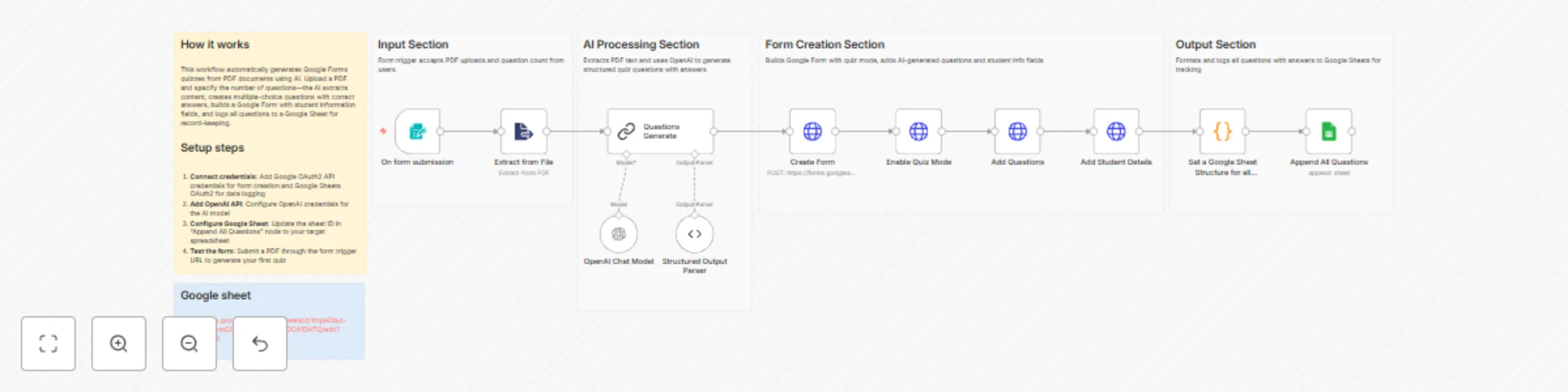
Automate AI-powered quiz generation from PDFs with Google Forms
## ✅ What problem does this workflow solve? Teachers, coaches, and educators spend **hours manually creating quizzes** from study notes and PDFs. This workflow eliminates that effort by using **AI to convert PDF study material into fully functional quizzes**, complete with scoring, student tracking, and Google Form integration — all automatically. --- ## ⚙️ What does this workflow do? - Accepts study material as a **PDF upload** - Extracts educational content from the document - Uses AI to generate **high-quality MCQ questions** - Automatically creates a **Google Quiz Form** - Saves all questions and correct answers for teacher reference - Enables **instant scoring and response tracking** for students --- ## 🧠 How It Works – Step-by-Step ### 1. 📄 Upload Study Material (PDF) - Teachers upload a PDF via an **n8n Form Trigger** - They specify how many quiz questions they want ### 2. 📚 PDF Parsing & AI Question Generation - The workflow extracts text from the PDF - An **AI Teacher Agent** powered by :contentReference[oaicite:1]{index=1}: - Identifies key learning concepts - Generates **multiple-choice questions** - Ensures: - 4 options per question - One correct answer - Clear and student-friendly language ### 3. 📝 Quiz Creation (Google Forms) - A new **Google Form** is created automatically - Quiz mode is enabled with: - Point values - Correct/incorrect feedback - Option shuffling - Student detail fields (Name, Email, ID, Class) are added ### 4. 📊 Teacher Reference & Record Keeping - All generated questions are logged in **Google Sheets** - Stored data includes: - Question text - All options - Correct answers - Quiz URL ### 5. 🎓 Student Submission & Scoring - Students take the quiz via Google Forms - Scores are calculated automatically - Teachers receive all responses in the connected Google Sheet --- ## 🛠 Tools & Integrations Used - **n8n Form Trigger** – File upload & inputs - **PDF Parser** – Extracts text from documents - **OpenAI Chat Model** – AI question generation - **Google Forms API** – Quiz creation & scoring - **Google Sheets** – Question storage & response tracking --- ## 💡 Key Benefits - ⏱ Saves hours of manual quiz creation - 📚 Ensures pedagogically sound questions - 📊 Automatic grading & analytics - 🧠 Consistent difficulty & coverage - 🔁 Easily reusable for different subjects --- ## 👤 Who can use this? Perfect for: - 🧑🏫 **Teachers & Professors** - 🏫 **Coaching centers** - 🎓 **EdTech & LMS platforms** - 🚀 **SaaS founders building quiz tools** If you want to transform static PDFs into **interactive, AI-generated assessments**, this workflow is built for you.
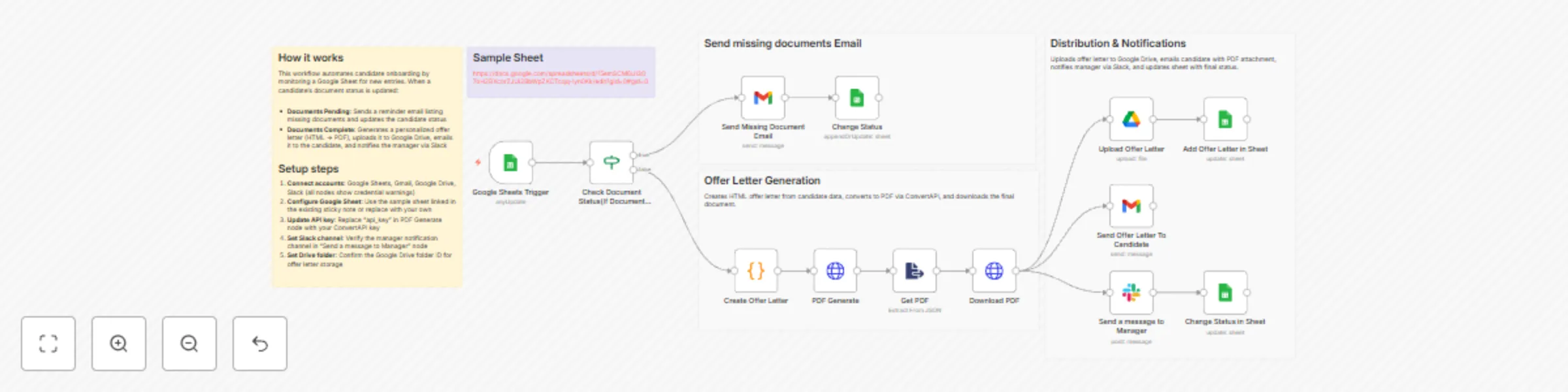
Automate offer letters & notifications with Google Sheets, Gmail & Slack
## ✅ What problem does this workflow solve? Hiring teams often struggle with document follow-ups, offer letter generation, and stakeholder communication. Manual checks, email back-and-forth, and missing files slow down hiring and create chaos during onboarding. This workflow automates the **entire offer letter lifecycle**-from document validation to offer delivery-so HR teams can move faster with zero manual chasing. --- ## ⚙️ What does this workflow do? - Monitors candidate records in Google Sheets. - Detects pending onboarding documents automatically. - Sends reminder emails for missing documents. - Generates professional offer letters (HTML → PDF). - Emails offer letters to candidates automatically. - Notifies hiring managers on Slack. - Stores offer letters securely in Google Drive. - Tracks onboarding status and document links in Google Sheets. --- ## 💡 Main Use Cases - Automate offer letter creation and delivery. - Eliminate manual follow-ups for missing documents. - Keep hiring managers informed in real time. - Maintain a clean onboarding audit trail. - Improve candidate experience with faster responses. --- ## 🧠 How It Works – Step by Step ### 1. Candidate Data Trigger The workflow monitors Google Sheets for candidate records containing: - Name, email, phone - Profession and offered salary - Document submission status --- ### 2. Pending Document Check If **documents are pending**: - A reminder email is sent to the candidate listing missing documents. - Candidate status is updated to **Documents_Pending**. - Workflow stops until documents are submitted. --- ### 3. Offer Letter Generation If **no documents are pending**: - A customized offer letter is generated dynamically using candidate data. - The offer letter is converted from HTML to a professional PDF. - The PDF is prepared for distribution and storage. --- ### 4. Notifications & Delivery - Offer letter PDF is emailed to the candidate. - Hiring manager receives a Slack notification about the new joining. --- ### 5. Storage & Status Tracking - Offer letter PDF is uploaded to Google Drive. - Google Sheets is updated with: - Offer letter link - Candidate status set to **Offer_Sent** - Creates a complete onboarding audit trail. --- ## 🗂 Integrations Used - **Google Sheets** – Candidate tracking and onboarding status - **Gmail** – Candidate communication and reminders - **Slack** – Hiring manager notifications - **Google Drive** – Secure offer letter storage - **ConvertAPI** – HTML to PDF generation - **n8n Code Nodes** – Dynamic offer letter creation --- ## 👤 Who can use this? This workflow is ideal for: - 🏢 HR teams - 🚀 Startups and growing companies - 🧑💼 Recruitment agencies - 📋 Operations teams handling onboarding If your hiring process involves repetitive checks and emails, this automation saves **hours per hire**. --- ## 🚀 Benefits - ✅ Zero manual document chasing - ✅ Consistent, branded offer letters - ✅ Faster hiring cycles - ✅ Centralized document storage - ✅ Clear onboarding visibility
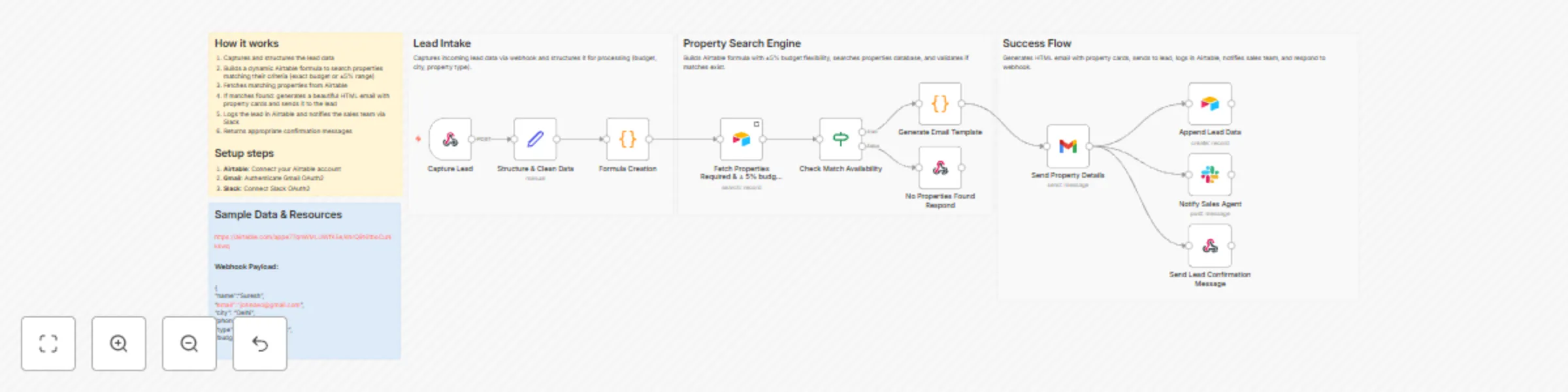
Real estate property matching & lead management with Airtable, Gmail and Slack
## ✅ What problem does this workflow solve? Real estate leads move fast. Manually matching buyer requirements with available properties, sending details, updating CRM records, and notifying sales teams often causes delays and missed opportunities. This workflow automates **property discovery, lead management, and team notifications**, ensuring buyers get instant results and sales teams can follow up immediately. --- ## ⚙️ What does this workflow do? - Captures buyer property requirements from a website form. - Cleans and standardizes search data automatically. - Matches buyer criteria with relevant properties from Airtable. - Emails matched properties to the buyer instantly. - Stores lead details in Airtable for CRM tracking. - Notifies the sales team on Slack in real time. --- ## 💡 Main Use Cases - Automatically match buyer requirements with properties in Airtable. - Send personalised property listings to buyers via email. - Store and track every lead centrally for sales follow-up. - Notify agents instantly to improve response speed. - Increase conversions with faster, automated engagement. --- ## 🧠 How It Works – Step by Step ### 1. Website Form Submission A buyer submits a property inquiry form with: - Location / City - Property type (Apartment, Villa, Commercial, etc.) - Budget - Contact details The workflow is triggered instantly via webhook. --- ### 2. Data Cleaning & Standardization Submitted inputs are cleaned and structured: - Budget is normalised - City and property type are standardised - Data is prepared for property matching --- ### 3. Property Matching (Airtable) - A dynamic matching formula is generated. - Airtable is searched for relevant properties. - Matching includes a **±5% budget tolerance** for flexibility. --- ### 4. Send Matched Properties to Buyer - A rich, formatted email is generated automatically. - Includes property images, price, location, features, and a “View More Details” link. - Email is sent instantly to the buyer. --- ### 5. Lead Storage in Airtable - Buyer details and preferences are stored in the **Buyers** table. - Lead status is set to **New** for CRM tracking and follow-up. --- ### 6. Sales Team Notification - A Slack message is sent to the sales channel with: - Buyer details - Contact information - City and preferred property type - Agents can respond immediately to maximize conversion. --- ## 🗂 Integrations Used - **Webhook** – Capture property inquiry submissions - **Airtable** – Property database and lead CRM - **Gmail** – Email delivery to buyers - **Slack** – Real-time sales team alerts - **n8n Code Nodes** – Dynamic matching logic and email generation --- ## 👤 Who can use this? This workflow is ideal for: - 🏢 Real estate agencies - 🏘 Property brokers - 📈 Sales-driven real estate teams - 🚀 PropTech startups If your team wants faster lead response and smarter property matching, this automation delivers both. --- ## 🚀 Benefits - ✅ No manual property searching - ✅ Faster response times - ✅ Centralised lead tracking - ✅ Real-time sales alerts - ✅ Better buyer experience
Validate shipments & generate freight documents with GPT-4o, Google Sheets & Drive
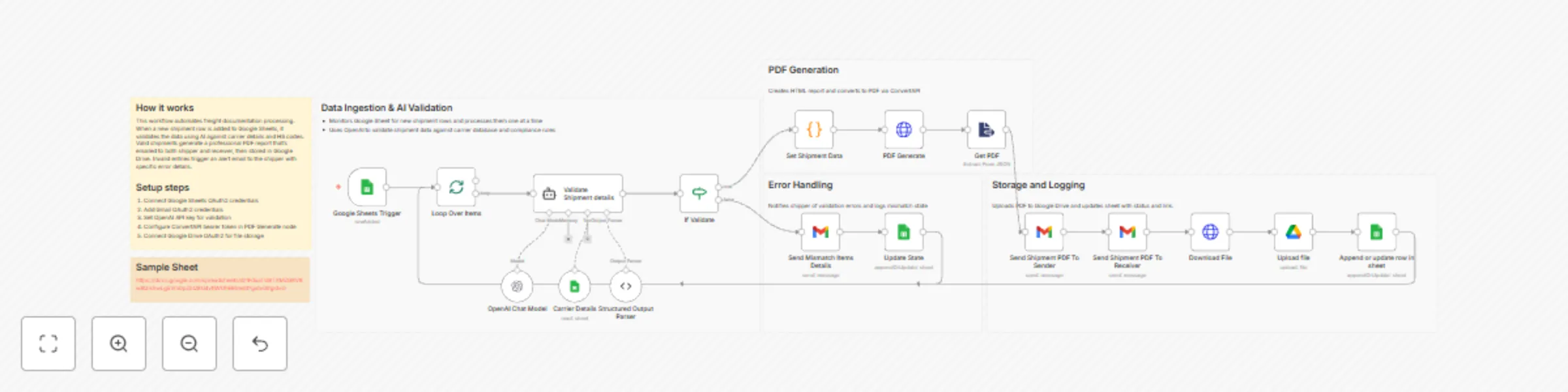
## ✅ What problem does this workflow solve? Logistics teams spend hours manually validating shipment data, checking compliance, generating freight documents, and emailing stakeholders. Errors in HSN codes, weights, or carrier details can lead to shipment delays, penalties, and rework. This workflow **automates the entire shipment validation and documentation process** using AI, ensuring compliance, reducing errors, and generating professional freight documents automatically. --- ## ⚙️ What does this workflow do? * Validates shipment details using AI before documentation. * Detects mismatches in HSN codes, weights, ports, and carrier data. * Automatically notifies shippers when issues are found. * Generates compliant freight documents in PDF format. * Emails shipment PDFs to both sender and receiver. * Stores documents securely in Google Drive. * Tracks shipment status and document links in Google Sheets. --- ## 💡 Main Use Cases * Automate freight document generation for export/import shipments. * Perform AI-based compliance checks on shipment data. * Instantly flag and notify incorrect or missing shipment details. * Maintain a centralized audit trail of shipment documents. * Reduce manual validation effort and paperwork. --- ## 🧠 How It Works – Step-by-Step ### 1. Google Sheets Trigger The workflow starts when **new shipment data** is added to a shared Google Sheet. Each row represents a shipment with details like: * Shipment ID * Shipper & Receiver information * Carrier details * Ports * Goods description * Quantity, weight, and HSN codes --- ### 2. AI-Powered Shipment Validation An **AI agent (OpenAI)** validates each shipment against defined rules: * Valid HSN codes for goods * Export/import compliance * Quantity vs. weight consistency * Carrier name matched against an active carrier reference list * Proper formatting of ports and addresses The AI returns a structured result: * `valid: true/false` * `reason`: Explanation of the first detected issue --- ### 3. Mismatch Handling (If Validation Fails) If the shipment is **invalid**: * An email is sent to the shipper with detailed mismatch information. * The shipment status is updated in Google Sheets as **Mismatch_Details**. * No documents are generated until corrections are made. --- ### 4. Freight Document Generation (If Validation Passes) If the shipment is **valid**: * A dynamic HTML shipment report is created. * The HTML is converted into a professional **PDF** using ConvertAPI. * The PDF includes: * Shipment summary * Goods information * Quantity, weight, and HSN details --- ### 5. Email Distribution The generated shipment PDF is automatically emailed to: * 📤 The Shipper * 📥 The Receiver Each email includes shipment reference details and a download link. --- ### 6. Storage & Tracking * The shipment PDF is uploaded to a dedicated **Google Drive** folder. * Google Sheets is updated with: * Shipment status (`shipment_pdf_dispatch`) * Google Drive document link * This creates a complete audit trail for compliance and tracking. --- ## 🗂 Integrations Used * **Google Sheets** – Shipment input, status tracking, carrier reference data * **OpenAI** – AI-based shipment validation and compliance checks * **ConvertAPI** – HTML-to-PDF freight document generation * **Gmail** – Automated email notifications * **Google Drive** – Secure document storage --- ## 👤 Who can use this? This workflow is ideal for: * 🚢 Freight forwarders * 📦 Logistics & supply chain teams * 🏢 Export-import companies * 📑 Compliance and documentation teams If your shipping process involves repetitive checks, document creation, and manual emails—this automation can save **hours per shipment**. --- ## 🚀 Benefits * ✅ Automated compliance validation * ✅ Reduced shipment errors and delays * ✅ Faster document turnaround * ✅ Centralized storage and tracking * ✅ Audit-ready logistics process
Automate inventory management with Google Sheets & Gmail
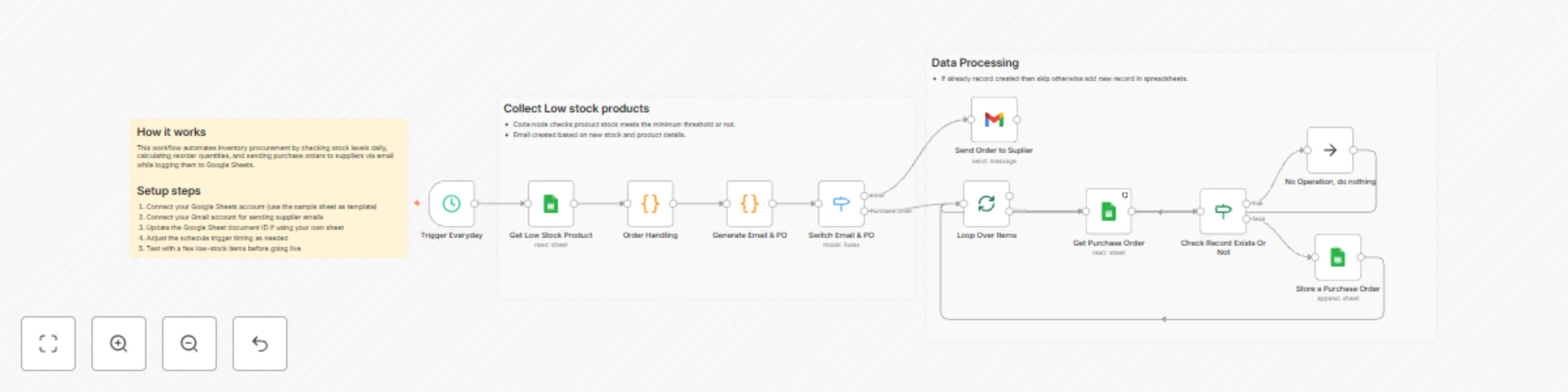
## ✅ What problem does this workflow solve? Managing inventory manually requires constant monitoring, manual purchase order creation, and back-and-forth communication with suppliers. This workflow automates the **entire inventory replenishment cycle** — from detecting low-stock items to generating purchase orders and emailing suppliers automatically. It ensures accurate stock levels, reduces manual work, and prevents stockouts. --- ## 💡 Main Use Cases - 🔍 Identify low-stock items automatically based on thresholds - 📊 Perform scheduled daily inventory checks - 🧾 Auto-generate purchase orders for items that need replenishment - ✉️ Email purchase orders directly to suppliers - 📄 Update Google Sheets with order and inventory tracking information --- ## 🧠 How It Works – Step-by-Step ### 1. ⏰ Scheduled Trigger The workflow runs automatically every day (or any chosen interval) to begin inventory checks without manual involvement. --- ### 2. 📉 Get Low-Stock Items Reads your Google Sheets inventory file to identify items where **current stock < minimum stock threshold**. --- ### 3. 🧮 Process Each Low-Stock Item For every item below the # Header 1threshold: - Calculates the required order quantity - Generates purchase order details, including - SKU / Item Name - Quantity Needed - Supplier Email - Stock Levels --- ### 4. 🔀 Conditional Flow For each low-stock item: #### **Purchase Order Actions** - Creates a purchase order email using the generated details - Sends the PO automatically to the supplier via Gmail - Logs the PO entry in Google Sheets with: - Item Details - Order Quantity - Supplier - Timestamp - Status (“PO Sent”) --- ### 5. 📢 Notifications Sends purchase order emails directly to suppliers. (Optional) Internal notifications (Slack/email) can be added for procurement visibility. --- ## 📊 Logging & Reporting All actions — PO creation, stock levels, supplier emails — are written back to Google Sheets for complete auditability and reporting. --- ## 👤 Who can use this? Perfect for: - Retail & eCommerce businesses - Warehouse teams - Procurement & purchasing departments - Manufacturing operations - Any business managing physical inventory --- ## 🚀 Benefits - ⏱ Automated stock monitoring - 📦 Prevents stockouts - ✉️ Eliminates manual PO creation - 📚 Creates a complete audit trail - 🧠 Smart, rule-based reorder logic ---
Automate invoice processing & stock management with AI, Gmail, Sheets & Slack
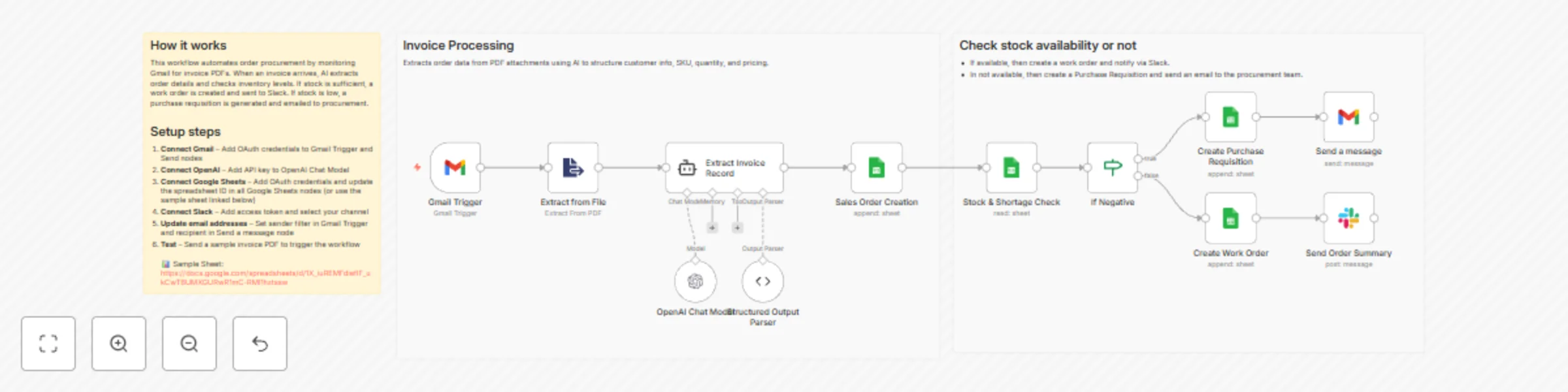
## ✅ What problem does this workflow solve? Order processing often involves manual invoice reading, stock checking, and back-and-forth communication between procurement and operations teams. This workflow automates the **entire procurement decision flow** — from reading incoming order emails to extracting structured data, checking stock, and creating either a purchase requisition or a work order automatically. --- ## 💡 Main Use Cases - 📥 Auto-extract order and invoice details from incoming emails - 📦 Validate stock availability before processing orders - 📝 Auto-create **Purchase Requisitions** when stock is insufficient - 🛠 Auto-create **Work Orders** when stock is available - 📧 Notify procurement or operations via email & Slack - 📊 Log every action in Google Sheets for tracking and audit --- ## 🧠 How It Works – Step-by-Step ### 1. 📧 Gmail Trigger The workflow begins when a new email arrives at a specific email address. The invoice file is automatically downloaded for processing. --- ### 2. 📑 Extract Invoice Record The attached invoice is processed using OCR or a document extraction tool. Raw details such as: - Order ID - Item code - Quantity - Customer information are extracted for further processing. --- ### 3. 🤖 AI-Powered Data Structuring OpenAI structures the extracted fields into a clean and consistent format: - `order_id` - `item_code` - `quantity` - `customer_name` This ensures all data is normalised before stock validation. --- ### 4. 📦 Stock Check The workflow checks inventory data stored in **Google Sheets**. It compares: - Required quantity - Current stock If stock is **insufficient**, it triggers the purchase requisition path. If stock is **available**, it initiates the work order path. --- ### 5. 🔀 Conditional Flow #### **If stock is insufficient:** - Creates a **Purchase Requisition** record in Google Sheets - Sends an **email notification** to the procurement team for approval #### **If stock is sufficient:** - Creates a **Work Order** entry in Google Sheets - Sends a **Slack summary message** to the operations team This ensures teams are notified instantly, and work continues without delays. --- ## 📊 Logging & Reporting Every step — extracted data, PR created, WO created, notifications sent — is logged in Google Sheets. This provides a full audit trail for procurement and operations teams. --- ## 👤 Who can use this? Ideal for: - Procurement teams - Operations departments - Manufacturing & warehouse units - Businesses processing high-volume emailed orders - Any team needing structured, automated order workflows --- ## 🚀 Benefits - ⏱ Faster order processing - 🧠 Fewer manual errors from invoice reading - 📦 Smarter procurement decisions based on real stock - 🔁 Automated communication loops - 📊 Transparent audit logs for every order ---
Automate social media content creation & publishing with AI & human approval flow
## ✅ What problem does this workflow solve? Managing content for multiple social media platforms manually is time-consuming and error-prone. This workflow automates **content creation**, **image generation**, **approval flows**, and **publishing** for LinkedIn, Twitter (X), and Instagram using AI—while still keeping human oversight in place. --- ## 💡 Main Use Cases - 📝 Automatically generate AI-powered social media content and images. - 🧠 Create platform-specific posts for **LinkedIn**, **Twitter (X)**, and **Instagram**. - ✅ Route each post through **human approvals**—first for prompt, then for final content. - 📤 Publish approved posts to all platforms seamlessly. - 📊 Maintain an audit trail with all steps logged in Google Sheets. --- ## 🧠 How It Works – Step-by-Step ### 1. ✍️ Topic Input - A new **topic and description** is added to a **Google Sheet**. - A **scheduled trigger** starts the automation at regular intervals (daily, weekly, etc.). ### 2. 🧠 AI-Powered Prompt Generation - AI generates **tailored prompts** for each platform: - LinkedIn - Twitter (X) - Instagram - Prompts are logged in the sheet and paused for **human approval**. ### 3. 🖼️ Content + Image Creation (Post Drafts) - Once approved, the workflow: - Uses AI to write full post captions - Generates platform-specific images (via DALL·E, Stable Diffusion, or other AI image tools) - Draft content is stored in Google Sheets. ### 4. 🧑💻 Final Content Approval - Posts pause again for final **manual approval**. - If approved → move to publishing. - If rejected → status updated in the sheet, post is skipped. ### 5. 📤 Auto-Publishing to Social Platforms - Approved content is published automatically: - ✅ **LinkedIn** – via LinkedIn API - 🐦 **Twitter (X)** – post text + media via Twitter API - 📸 **Instagram** – via Meta Graph API (image + caption) ### 6. 📊 Logging & Reporting - Google Sheets is updated with: - Final post text - Approval timestamps - Post URLs - Status (Posted / Rejected) --- ## 🔧 Tools & Integrations Used - **OpenAI / GPT-4** – for prompt and content generation - **AI Image Generator** – DALL·E, Replicate, etc. - **Google Sheets** – as the central control + approval hub - **LinkedIn API** - **Twitter API (X)** - **Instagram Graph API** - **n8n Scheduler, If Nodes, and Pauses** – to handle flow control & approvals --- ## 👤 Who can use this? This is perfect for: - 📢 **Marketing teams** - 🧑💼 **Solo founders managing content** - 🧠 **Agencies offering social media management** - ⚙️ **Ops teams building internal automation** Whether you're managing 3 posts a week or 30, this system keeps your **content AI-powered and human-approved**—on autopilot. --- ## 🛠 Customization Ideas - Add Slack or email alerts for approval stages - Pull trending topics using a news API or Twitter Trends - Add a weekly content summary report sent via email - Expand to Facebook, Threads, or Pinterest --- ## 🚀 Ready to Launch? Just configure: - ✅ Google Sheet with topic list & approval columns - ✅ API credentials for LinkedIn, Twitter, and Instagram - ✅ OpenAI and image generation API keys …and your **fully automated, human-approved social content engine** is ready to go!
Ai-powered salon appointment booking system with WhatsApp and Google Sheets
## ✅ What problem does this workflow solve? Salon staff often spend hours juggling appointment calls, managing bookings manually, and keeping track of customer preferences. This workflow automates your **entire salon appointment system** via WhatsApp, delivering a **personalized and human-like booking experience** using AI, memory, and Google Sheets. --- ## 💡 Main Use Cases - 💁♀️ Offer **personalized stylist recommendations** by remembering customer preferences and past visits. - 📅 Provide **real-time availability** and salon opening hour information. - 📝 **Book and update appointments** directly from customer chat. - 🔁 Simplify appointment changes by recalling previous booking details. - 🧠 Enable **context-aware, memory-driven conversations** across multiple interactions. --- ## 🧠 How It Works – Step-by-Step ### 1. 📲 Chat Message Trigger The workflow is triggered whenever a customer sends a message to your WhatsApp salon assistant. ### 2. 🧠 Memory Buffer for Context Management The assistant uses a **Memory Buffer** to: - Recognize returning customers - Avoid repeating questions - Maintain conversation flow across multiple sessions This enables a **seamless and intelligent dialogue** with each customer. ### 3. 💇 Stylist & Service Lookup When the customer asks for stylist suggestions, available time slots, or services: - Extracts request details using AI - Queries a **Google Sheet** containing: - Stylist availability - Service types - Salon opening hours - Returns **personalized recommendations** based on preferences and availability ### 4. ✅ Appointment Booking - Collects all necessary info: - Date, time, selected service, stylist, contact info - Stores the appointment in **Google Sheets** - Sends a **confirmation message** to the customer in WhatsApp ### 5. 🔄 Modify or Cancel Bookings - Customers can update or cancel appointments - Bot **matches records by phone number** - Modifies or deletes the appointment in the sheet accordingly --- ## 🧩 Integrations Used - **WhatsApp Integration** (via Twilio, Meta API, or other connector) - **OpenAI/GPT Model** for natural conversation flow and extraction - **Google Sheets** as a simple and effective appointment database - **Memory Buffer** for ongoing context across chats --- ## 👤 Who can use this? Perfect for: - 💇♀️ **Salons and barbershops** - 💅 **Spas and beauty centers** - 🧖♀️ **Wellness studios** - 🛠 Developers building vertical AI assistants for SMBs If you're looking to modernize your booking process and impress customers with an AI-powered, memory-enabled WhatsApp bot—this workflow delivers. --- ## 🚀 Benefits - ⏰ Save time for your staff - 🧠 Offer truly personalized experiences - 📲 Book appointments 24/7 via WhatsApp - 📋 Keep all records organized in Google Sheets - 🧘 Reduce human error and double bookings --- ## 📦 Ready to Launch? Just configure: - ✅ Your WhatsApp number + webhook integration - ✅ Google Sheet with stylist and service data - ✅ OpenAI key for AI-powered conversation - ✅ Memory Buffer to enable smart replies And your salon will be ready to offer **automated, intelligent booking**—right from a simple WhatsApp chat.
Automate call center sentiment analysis with GPT-4o-mini and Google Sheets
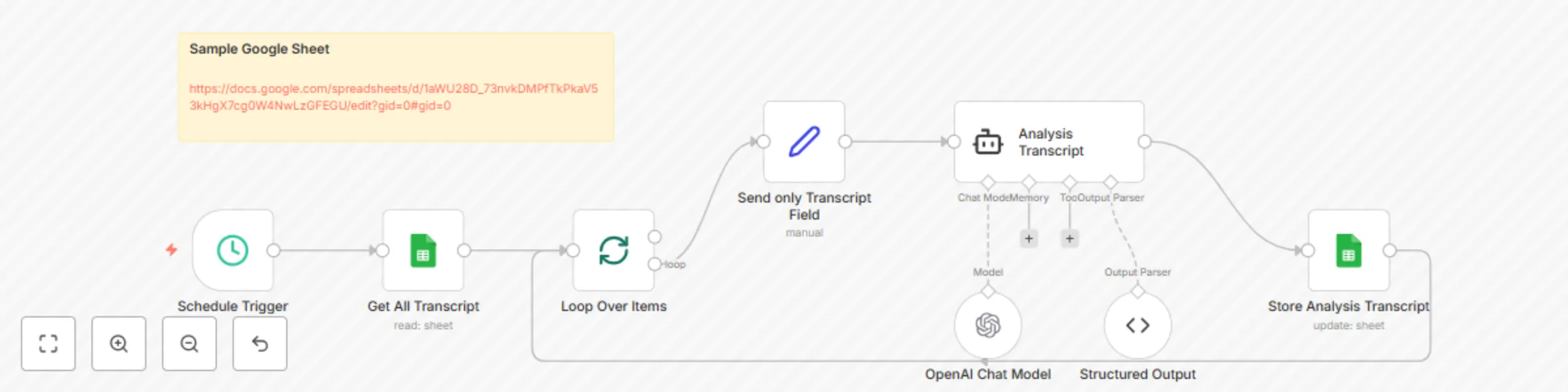
## ✅ What problem does this workflow solve? Call centers often record conversations for quality control and training, but reviewing every transcript manually is tedious and inefficient. This workflow automates sentiment analysis for each call, providing structured feedback across multiple key categories, so managers can focus on improving performance and training. --- ## ⚙️ What does this workflow do? 1. Accepts a **Google Sheet** containing: - Call transcript - Agent name - Customer name 2. Analyzes each call transcript across multiple sentiment dimensions: - 👋 **Greeting Sentiment** - 🧑💼 **Agent Friendliness** - ❓ **Problem-Solving Sentiment** - 🙂 **Customer Sentiment** - 👋 **Closing Sentiment** - ✅ **Issue Resolved (Yes/No)** 3. Add Conversation Topics discussed in a call 4. Calculates an **overall call rating** based on combined analysis. 5. Updates the Google Sheet with: - Individual sentiment scores - Issue resolution status - Final call rating --- ## 🔧 Setup Instructions ### 📄 Google Sheets - Prepare a sheet with the following columns: - Transcript - Agent Name - Customer Name The workflow will append results in new columns automatically: - Greeting Sentiment - Closing Sentiment - Agent Friendliness - Problem Solving - Customer Sentiment - Issue Resolved - Overall Call Rating (out of 5 or 10) ### 🧠 OpenAI Setup - Connect OpenAI API to perform NLP-based sentiment classification. - For each transcript, use structured prompts to analyze individual components. --- ## 🧠 How it Works – Step-by-Step 1. **Sheet Scan** – The workflow reads rows from the provided Google Sheet. 2. **Loop Through Calls** – For each transcript, it: - Sends prompts to OpenAI to analyze: - Greeting tone (friendly/neutral/rude) - Problem-solving quality (clear/confusing/helpful) - Closing sentiment - Agent attitude - Customer satisfaction - Whether the issue was resolved - Calculates a **composite rating** from all factors. 3. **Update Sheet** – All analyzed data is written back into the Google Sheet. --- ## 📊 Example Output [https://docs.google.com/spreadsheets/d/1aWU28D_73nvkDMPfTkPkaV53kHgX7cg0W4NwLzGFEGU/edit?gid=0#gid=0](https://docs.google.com/spreadsheets/d/1aWU28D_73nvkDMPfTkPkaV53kHgX7cg0W4NwLzGFEGU/edit?gid=0#gid=0) --- ## 👤 Who can use this? This workflow is ideal for: - ☎️ **Call Centers** - 🎧 **Customer Support Teams** - 🧠 **Training & QA Departments** - 🏢 **BPOs or Support Vendors** If you want deeper insight into every customer interaction, this workflow delivers **quantified, actionable sentiment metrics** automatically. --- ## 🛠 Customization Ideas - 📅 Add scheduled runs (daily/weekly) to auto-analyze new calls. - 📝 Export flagged or low-rated calls into a review dashboard. - 🧩 Integrate with Slack or email to send alerts for low-score calls. - 🗂 Filter by agent, category, or score to track performance trends. --- ## 🚀 Ready to Use? Just connect: - ✅ Google Sheets (with transcript data) - ✅ OpenAI API …and this workflow will automatically turn your raw call transcripts into **actionable sentiment insights**.
Build a personalized shopping assistant with Zep Memory, GPT-4 and Google Sheets
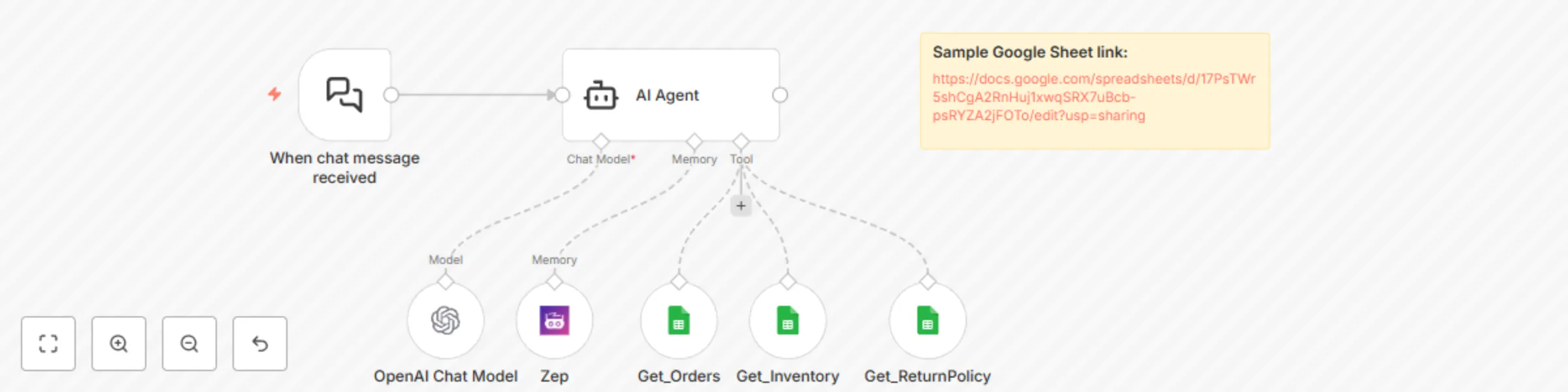
## ✅ What problem does this workflow solve? Most e-commerce chatbots are transactional; they answer one question at a time and forget your context right after. This workflow changes that. It introduces a **smart, memory-enabled shopping assistant** that remembers user preferences, past orders, and previous queries to offer **deeply personalized, natural conversations**. --- ## ⚙️ What does this workflow do? 1. Accepts real-time chat messages from users. 2. Uses **Zep Memory** to store and recall personalized context. 3. Integrates with: - 🛒 Product Inventory - 📦 Order History - 📜 Return Policy 4. Answers complex queries based on historical context. 5. Provides: - Personalized product recommendations - Context-aware order lookups - Seamless return processing - Policy discussions with minimal user input --- ## 🧠 Why Context & Memory Matter Traditional bots: - ❌ Forget what the user said 2 messages ago - ❌ Ask repetitive questions (name, order ID, etc.) - ❌ Can’t personalize beyond basic filters With **Zep-powered memory**, your bot: - ✅ Remembers preferences (e.g., favorite categories, past questions) - ✅ Builds persistent context across sessions - ✅ Gives dynamic, user-specific replies (e.g., "You ordered this last week…") - ✅ Offers a **frictionless support experience** --- ## 🔧 Setup Instructions ### 🧠 Zep Memory Setup - Create a Zep instance and connect it via the **Zep Memory node**. - It will automatically store user conversations and summarize facts. ### 💬 Chat Trigger - Use the **"When chat message received"** trigger to initiate the conversation workflow. ### 🤖 AI Agent Configuration - Connect: - **Chat Model** → OpenAI GPT-4 or GPT-3.5 - **Memory** → Zep - **Tools**: - `Get_Orders` – Fetch user order history from Google Sheets - `Get_Inventory` – Recommend products based on stock and preferences - `Get_ReturnPolicy` – Answer policy-related questions ### 📄 Google Sheets - Store orders, inventory, and return policies in structured sheets. - Use `read` access nodes to fetch data dynamically during conversations. --- ## 🧠 How it Works – Step-by-Step 1. **Chat Trigger** – User sends a message. 2. **AI Agent (w/ Zep Memory)**: - Reads past interactions to build context. - Pulls memory facts (e.g., "User prefers men's sneakers"). 3. **Uses External Tools**: - Looks up orders, return policies, or available products. 4. **Generates Personalized Response** using OpenAI. 5. **Reply Sent Back** to the user through chat. --- ## 🧩 What the Bot Can Do - 🛍 Suggest products based on past browsing or purchase behavior. - 📦 Check order status and history without requiring the user to provide order IDs. - 📃 Explain return policies in detail, adapting answers based on context. - 🤖 Engage in more human-like conversations across multiple sessions. --- ## 👤 Who can use this? This is ideal for: - 🛒 **E-commerce store owners** - 🤖 **Product-focused AI startups** - 📦 **Customer service teams** - 🧠 **Developers building intelligent commerce bots** If you're building a chatbot that goes beyond canned responses, this **memory-first shopping assistant** is the upgrade you need. --- ## 🛠 Customization Ideas - Connect with Shopify, WooCommerce, or Notion instead of Google Sheets. - Add payment processing or shipping tracking integrations. - Customize the memory expiration or fact-summarization rules in Zep. - Integrate with voice AI to make it work as a phone-based shopping assistant. --- ## 🚀 Ready to Launch? Just connect: - ✅ OpenAI Chat Model - ✅ Zep Memory Engine - ✅ Your Product/Order/Policy Sheets And you’re ready to deliver **truly personalized shopping conversations**.
Transform resumes into AI-generated personal video intros with HeyGen & GPT
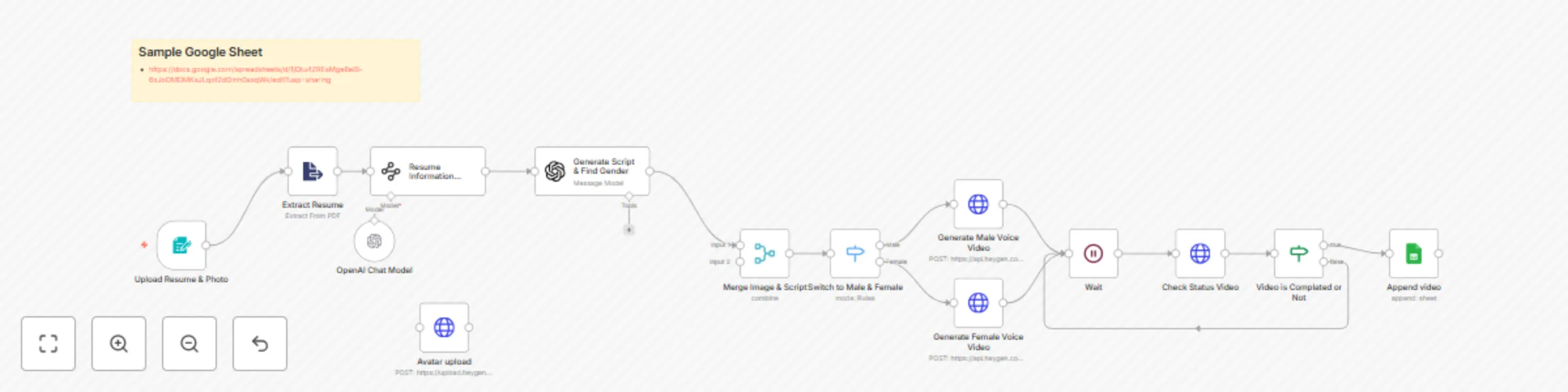
## ✅ What problem does this workflow solve? Sending a plain PDF resume doesn’t stand out anymore. This workflow allows candidates to **convert their resume and photo into a personalized video resume**. Recruiters get a more engaging first impression, while candidates showcase their profile in a modern, impactful way. --- ## ⚙️ What does this workflow do? 1. Presents a form for uploading: - 📄 Resume (PDF) - 🖼 Photo (headshot) 2. Extracts key details from the resume (education, experience, skills). 3. Detects gender from the photo to choose a suitable voice/avatar. 4. Generates a **script** (spoken resume summary) based on the extracted information. 5. Uploads the photo to **HeyGen** to create an avatar. 6. Requests **video generation** on HeyGen: - Uses the avatar photo - Uses gender-specific settings - Uses the generated script as narration 7. Monitors video generation status until completion. 8. Stores the final **video URL** in a Google Sheet for easy access and tracking. --- ## 🔧 Setup Instructions ### Google Services - Connect **Google Sheets** to n8n to store records with: - Candidate name - Resume link - Video link ### HeyGen Setup - Get an API key from [HeyGen](https://www.heygen.com). - Configure: - **Avatar upload endpoint** (image upload) - **Video generation endpoint** (image ID + script) ### Form Setup - Use the **n8n Form Trigger** to allow candidates to upload: - Resume (PDF) - Photo (JPEG/PNG) --- ## 🧠 How it Works – Step-by-Step ### 1. Candidate Submission A candidate fills out a form and uploads: - Resume (PDF) - Photo ### 2. Extract Resume Data - The resume PDF is processed using OCR/AI to extract: - Name - Experience - Skills - Education highlights ### 3. Gender Detection - The uploaded photo is analyzed to detect gender (used for voice/avatar selection). ### 4. Script Generation - Based on the extracted resume info, a concise, natural **script** is generated automatically. ### 5. Avatar Upload & Video Creation - The photo is uploaded to **HeyGen** to create a custom avatar. - A video generation request is made using: - The script - The avatar (image ID) - A matching voice for the detected gender ### 6. Video Status Monitoring - The workflow polls HeyGen’s API until the video is ready. ### 7. Save Final Video URL - Once complete, the **video link** is added to a Google Sheet alongside the candidate’s details. --- ## 👤 Who can use this? This workflow is ideal for: - 🧑🎓 **Students and job seekers** looking to stand out - 🧑💼 **Recruitment agencies** offering modern resume services - 🏢 **HR teams** wanting engaging candidate submissions - 🎥 **Portfolio builders** for professionals --- ## 🚀 Impact Instead of a static PDF, you can now send a **dynamic video resume** that captures attention, adds personality, and makes a lasting impression.
Build website Q&A chatbot with RAG, OpenAI GPT-4o-mini and Supabase Vector DB
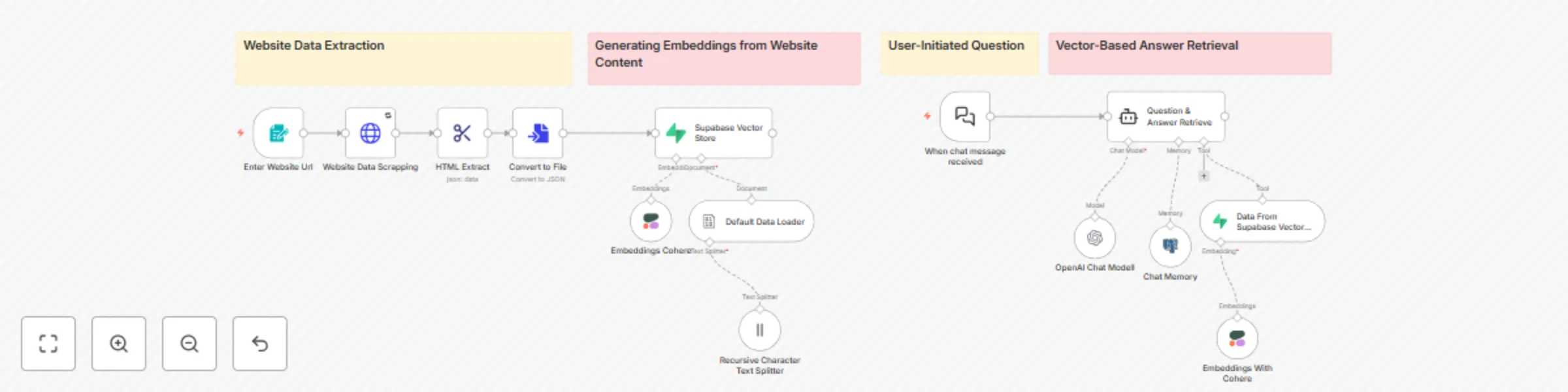
## ✅ What problem does this workflow solve? Many websites lack a smart, searchable interface. Visitors often leave due to unanswered questions. This workflow transforms any website into a **Retrieval-Augmented Generation (RAG)** chatbot—automatically extracting content, creating embeddings, and enabling real-time, context-aware chat on your own site. --- ## ⚙️ What does this workflow do? 1. Accepts a website URL through a form trigger. 2. Fetches and cleans website content. 3. Parses content into smaller sections. 4. Generates vector embeddings using OpenAI (or your embedding model). 5. Stores embeddings and metadata in **Supabase’s vector database**. 6. When a user asks a question: - Searches Supabase for relevant chunks via similarity search. - Retrieves matching content as context. - Sends context + question to OpenAI to generate an accurate answer. 7. Returns the AI-generated response to the user in the chat interface. --- ## 🔧 Setup Instructions ### 🖥️ Website Form Trigger - Use a **Form / HTTP Trigger** to submit website URLs for indexing. ### 📥 Content Extraction & Chunking - Use HTTP nodes to fetch HTML. - Clean and parse it (e.g., remove scripts, ads). - Use a **Function node** to split into manageable text chunks. ### 🧠 Embedding Generation - Call OpenAI (or Cohere) to generate embeddings for each chunk. - Insert vectors and metadata into Supabase via its **API or n8n Supabase node**. ### 💬 User Query Handling - Use a **Chat Trigger** (webhook/UI) to receive user questions. - Convert the question into an embedding. - Query Supabase with similarity search (e.g., `match_documents` RPC). - Retrieve top-matching chunks and feed them into OpenAI with the user question. - Return the reply to the user. ### 🛠 AI & Database Setup - **OpenAI API key** for embedding and chat. - A **Supabase project** with: - `vector` extension enabled - Tables for document chunks and embeddings - A similarity search function like `match_documents` ## 💬 How to Embed the Chat Widget on Your Website You can add the chatbot interface to your website with a simple JavaScript snippet. ### Steps: 1. Open the "When chat message received" node 2. Copy Chat URL 3. Make sure, "Make Chat Publicly Available "Toggle is enabled 4. Make sure the mode is "Embedded Chat" 5. Follow the instructions given on this package [here](https://www.npmjs.com/package/@n8n/chat#a-cdn-embed). --- ## 🧠 How it Works 1. **Submit URL** → Form Trigger 2. **Fetch Website Content** → HTTP Request 3. **Clean & Chunk Content** → Function Node 4. **Make Embeddings** (OpenAI/Cohere) 5. **Store in Supabase** → embeddings + metadata 6. **User Chat** → Chat Trigger 7. **Search for Similar Content** → Supabase similarity match 8. **Generate Answer** → OpenAI completion w/ context 9. **Send Reply** → Chat interface returns answer --- ## 🗂 Why Supabase? Supabase offers a scalable Postgres-based vector database with extensions like `pgvector`, making it easy to: - Store vector data alongside metadata - Run ANN (Approximate Nearest Neighbor) similarity searches - Integrate seamlessly with n8n and your chatbot UI :contentReference[oaicite:1]{index=1} --- ## 👤 Who can use this? - 📝 **Documentation websites** - 👩💼 **Support portals** - 🏢 **Product/Landing pages** - 🛠 **Internal knowledge bases** Perfect for anyone who wants a **smart, website-specific chatbot** without building an entire AI stack from scratch. --- ## 🚀 Ready to Deploy? Plug in your: - ✅ OpenAI API Key - ✅ Supabase project credentials - ✅ Chat UI or webhook endpoint … and launch your **AI-powered, website-specific RAG chatbot** in minutes!
Automate Twitter sentiment analysis with OpenAI, Google Sheets, and Slack alerts
## ✅ What problem does this workflow solve? Tracking what people say about your brand on Twitter can be overwhelming, especially when important mentions slip through the cracks. This workflow automates the process: it scrapes Twitter mentions, analyzes sentiment using OpenAI, logs everything in a Google Sheet, and sends real-time Slack alerts for **negative tweets**. No manual monitoring needed. --- ## ⚙️ What does this workflow do? 1. Runs on a schedule to monitor Twitter mentions or hashtags. 2. Uses **Apify** to scrape tweets based on brand keywords. 3. Filters out tweets already processed (avoids duplicates). 4. Performs **sentiment analysis** with OpenAI (Positive, Neutral, Negative). 5. Logs tweet content, sentiment, and reply (if any) in a Google Sheet. 6. Sends an instant **Slack notification** for negative tweets. 7. Generates thank-you replies for positive tweets and logs them. --- ## 🔧 Setup Instructions ### 🗓 Schedule Trigger - Use the Cron node to schedule checks (e.g., every hour, daily). ### 🐦 Apify Twitter Scraper Setup - Sign up on [Apify](https://apify.com/) - Generate your **Apify API Token** and use it in the HTTP node to run the actor and get tweet results. ### 🤖 OpenAI Sentiment Analysis - Get your API key from [OpenAI](https://platform.openai.com) ### 📄 Google Sheet Configuration Prepare a Google Sheet with this [sample format](https://docs.google.com/spreadsheets/d/1sOxYQtX-O6p35FCNSRsovKEHL4w4GsfF-ylMVcwpb_E/edit?gid=1040262065#gid=1040262065). Connect it using the Google Sheets node in n8n. ### 💬 Slack Notifications - Connect your Slack workspace via the Slack node. - Set up the channel where negative tweets should be sent as alerts. --- ## 🧠 How it Works ### 1. Scheduled Run Triggered at a fixed interval using the Schedule (Cron) node. ### 2. Scrape Mentions from Twitter - The Apify actor runs and collects recent tweets mentioning your brand or using your hashtag. - Links to the tweets are extracted. ### 3. Filter Previously Seen Tweets - Each tweet is checked against the Google Sheet. - If already present, it’s skipped to avoid duplicate analysis. ### 4. Analyze Sentiment with OpenAI - For new tweets, sentiment is classified into: - ✅ Positive - ⚪ Neutral - ❌ Negative ### 5. Store Results in Google Sheet - The tweet link, content, and sentiment are stored in a row. - If sentiment is **positive**, a thank-you reply is also generated and saved. ### 6. Notify Slack for Negative Tweets - When a tweet is tagged **Negative**, a Slack message is sent to the designated channel with the tweet link. --- ## 👤 Who can use this? This workflow is ideal for: - 📢 **Social Media Teams** - 🧠 **PR and Brand Managers** - 🧑💻 **Solo Founders** - 🏢 **Startups & SaaS Companies** Stay ahead of your brand's reputation—**automatically**. --- ## 🛠 Customization Ideas - 🎯 Add filters for specific campaign hashtags. - 📬 Send weekly summary reports via email. - 📥 Auto-open support tickets for negative mentions. - 🗣 Expand sentiment categories with more detailed tagging. --- ## 🚀 Ready to get started? Just plug in: - 🔑 Your Apify API Token - 🔑 Your OpenAI API Key - 📄 Your Google Sheet - 💬 Your Slack Channel Then deploy the workflow, and let it monitor Twitter for you!
Automated workflow backups from self-hosted n8n to Google Drive with version history
## ✅ What problem does this workflow solve? If you're using a **self-hosted n8n** instance, there's no built-in version history or undo for your workflows. If a workflow is accidentally modified or deleted, there's no way to roll back. This backup workflow solves that problem by automatically syncing your workflows to **Google Drive**, giving you version control and peace of mind. --- ## ⚙️ What does this workflow do? - ⏱ Runs on a set schedule (e.g., daily or every 12 hours). - 🔍 Fetches all workflows from your self-hosted n8n instance. - 🧠 Detects changes to avoid duplicate backups. - 📁 Creates a dedicated folder for each workflow in Google Drive. - 💾 Uploads new or updated workflow files in JSON format. - 🗃️ Keeps backup history organized by date. - 🔄 Allows for easy restore by importing backed-up JSON into n8n. --- ## 🔧 Setup Instructions ### 1. Google Drive Setup - Connect your Google Drive account using the **Google Drive node** in n8n. - Choose or create a root folder (e.g., `n8n-workflow-backups`) where backups will be stored. ### 2. n8n API Credentials - Generate a **Personal Access Token** from your self-hosted n8n instance: - Go to **Settings → API** in your n8n dashboard. - Copy the token and use it in the HTTP Request node headers as: ``` Authorization: Bearer <your_token> ``` ### 3. Schedule the Workflow - Use the **Cron node** to schedule this workflow to run at your desired frequency (e.g., once a day or every 12 hours). --- ## 🧠 How it Works ### Step-by-Step Flow: 1. **Scheduled Trigger** - The workflow begins on a timed schedule using the Cron node. 2. **Fetch All Workflows** - Uses the n8n API (`/workflows`) to retrieve a list of all existing workflows. 3. **Loop Through Workflows** - For each workflow: - A **folder is created** in Google Drive using the workflow name. - The workflow’s last updated timestamp is checked against Google Drive backups. 4. **Smart Change Detection** - If the workflow has changed since the last backup: - A new `.json` file is uploaded to the corresponding folder. - The file is named with the last updated date of the workflow (`YYYY-MM-DD-HH-mm-ss.json`) to maintain a versioned history. - If no change is detected, the workflow is skipped. --- ## 🗂 Google Drive Folder Organization Backups are neatly organized by workflow and version: ``` /n8n-workflow-backups/ ├── google-drive-backup-KqhdMBHIyAaE7p7v/ │ ├── 2025-07-15-13-03-32.json │ ├── 2025-07-14-03-08-12.json ├── resume-video-avatar-KqhdMBHIyAaE8p8vr/ │ ├── 2025-07-15-23-05-52.json ``` Each folder is named after the workflow's name+id and contains timestamped versions. --- ## 🔧 Customization Options - 📅 **Change Backup Frequency** Adjust the Cron node to run backups daily, weekly, or even hourly based on your needs. - 📤 **Use a Different Storage Provider** You can swap out Google Drive for Dropbox, S3, or another cloud provider with minimal changes. - 🧪 **Add Workflow Filtering** Only back up workflows that are **active** or match specific tags by filtering results from the n8n API. --- ## ♻️ How to Restore a Workflow from Backup 1. Go to the Google Drive backup folder for the workflow you want to restore. 2. Download the desired `.json` file (based on the date). 3. Open your self-hosted n8n instance. 4. Click **Import Workflow** from the sidebar menu. 5. Upload the JSON file to restore the workflow. > You can choose to overwrite an existing workflow or import it as a new one. --- ## 👤 Who can use this? This template is ideal for: - 🧑💻 Developers running **self-hosted n8n** - 🏢 Teams managing large workflow libraries - 🔐 Anyone needing workflow versioning, rollback, or disaster recovery - 💾 Productivity enthusiasts looking for **automated backups** --- ## 📣 Tip Consider enabling version history in Google Drive so you get **even more fine-grained backup recovery options** on top of what this workflow provides! --- ## 🚀 Ready to use? Just plug in your **n8n token**, connect **Google Drive**, and schedule your backups. Your workflows are now protected!
Voice-based appointment booking system with ElevenLabs AI and Cal.com
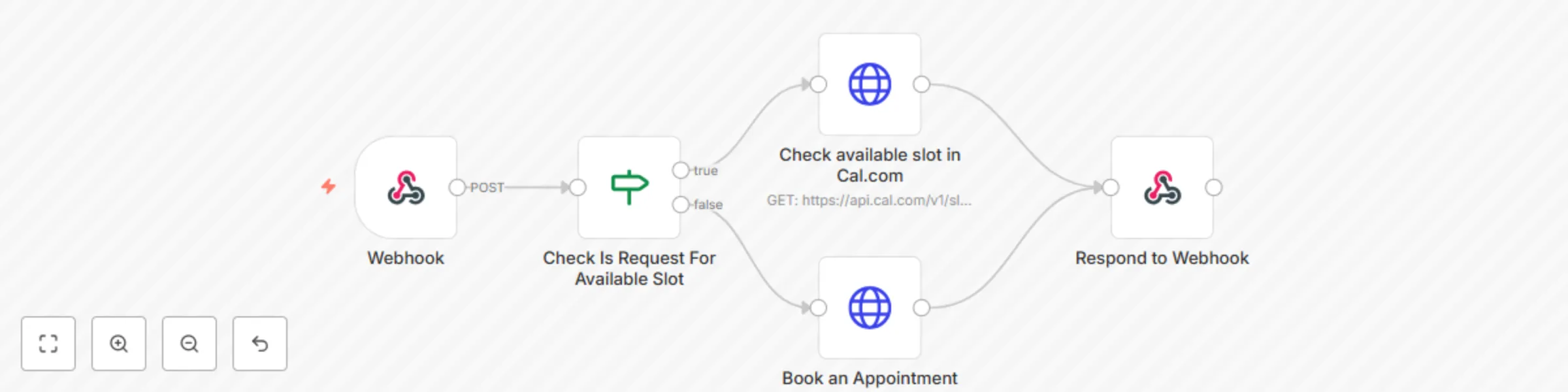
## ✅ What problem does this workflow solve? Tired of the back-and-forth involved in scheduling meetings? This workflow lets you offer a seamless, voice-based appointment booking experience. It automatically checks your **Cal.com** availability and either books a meeting or helps the caller choose another time—powered by **ElevenLabs** for a human-like voice interaction. --- ## ⚙️ What does this workflow do? 1. Receives an inbound voice call (e.g., from a website or IVR system). 2. Uses ElevenLabs to drive the voice interaction with natural, AI-generated speech. 3. Checks real-time availability from your Cal.com calendar. 4. Books a meeting if a slot is available. 5. If not, asks the user to suggest a new time and checks availability again. 6. Confirms the appointment with a verbal response and optional email or SMS. --- ## 🔧 Setup ### 🧠 ElevenLabs Custom Tools Setup Add two tools in Custom Tools in ElevenLabs with the following details. 1. **Name:** bookSlot **Description:** Use this tool when the user confirms their slot and appointment. When you have the proper name and email of theirs. **POST:** {n8n_webhook_url} 2. **Name:** checkAvailableSlot **Description:** Use this slot to check Available slots in our calendar. **POST:** {n8n_webhook_url} ### 🗣 ElevenLabs Prompt Configuration #### First Message: Thanks for calling InfyOm Technologies. How can I help you? #### Use the following System Prompt: ``` ## 1. Personality You are a clear, helpful, and respectful assistant focused solely on **booking appointments** for clients. - **Identity**: A virtual appointment scheduler. - **Core Traits**: Polite, efficient, conversational, respectful. - **Role**: Guide users through choosing a time, checking availability, and finalizing the booking. ## 2. Tone Your tone is polite, professional, and engaging—friendly enough to feel human, but focused enough to stay on task. - Use conversational cues like “Okay,” “Got it,” “Sounds good,” etc. - Maintain a warm but efficient pace. - Speak clearly and respectfully at all times. Ensure the conversation is on both topics. ## 3. Goal Your task is to **book an appointment** for the client. ### Step-by-step Conversation Flow 1. **Greeting & Purpose** - Greet politely and state the purpose. - Example: “Hi! I’m here to help you book an appointment.” 2. **Request Preferred Time** - Ask: “Can you please tell me your preferred time slot for the appointment?” - Understand the user's date, and if it is not clear, then ask for the full date with month and year. 3. **Check Availability** - Use the `checkAvailableSlot` tool with the user’s preferred time. - If the slot **is available**: - Confirm with the user: “That slot is available. Should I go ahead and book it for you?” - If the user agrees, → Use `bookSlot`. - If the slot **is not available**: - Say: “It looks like that time isn’t available... Would you like to look for the same time on the next day?” 4. **Handle Next-Day Option** - If the user agrees, check availability for the same time on the next day using `checkAvailableSlot`. - If available, → confirm and use `bookSlot`. - If not, → politely inform and ask for a different time. 5. **Close the Call** - Confirm the booking if done. - Example: “Great! Your appointment is booked. Thank you and have a wonderful day!” ## 4. Guardrails - **Do not** discuss anything unrelated to appointment booking. - If the user asks for something outside your scope: - Say: “I’m only here to help with appointment bookings. For other questions, please contact our support team.” - Never speculate about unavailable data or functions. - Never ask for a date format from the User, like Say date in Day Month and Year format. If you can't understand the user's date, then say Please speak the full date. ## 5. Tools You can use the following tools to help book appointments: - `checkAvailableSlot`: Use this to check if the user’s requested time is open. - `bookSlot`: Use this to confirm the appointment after the user agrees. ## End call - Always says Thanks for reaching out to us. Have a nice day. ``` ### 📅 Cal.com API Setup - Go to cal.com and generate an API Key. - Create new Cal API credentials in n8n. - Set this API Key in the credentials. --- ## 🧠 How it Works ### ☎️ 1. Incoming Call An inbound call is received by the system, and the user begins the conversation with your voice AI agent. ### 🧏 2. Voice Interaction via ElevenLabs The caller is greeted and asked for their preferred appointment time. All conversations are powered by **natural AI speech** from ElevenLabs. ### 🗓 3. Availability Check (Cal.com) The requested time is validated against your **Cal.com** availability: - ✅ If available, the appointment is booked instantly. - ❌ If unavailable, the agent informs the caller and asks for another time. ### 🔁 4. Retry Loop (If Slot Unavailable) If the initial slot is unavailable: - The agent asks for a new preferred time. - The process repeats until a valid slot is found or a fallback message is delivered. ### ✅ 5. Appointment Confirmation Once booked, the AI confirms the appointment verbally. You may also configure it to send: - 📧 Email confirmations - 📱 SMS reminders (optional) --- ## 👤 Who can use it? This is perfect for: - 🧑⚕️ **Clinics or Therapists** - 🧑💼 **Consultants & Coaches** - 🏢 **Sales Teams** - 🧠 **AI-first SaaS Tools** If your business relies on scheduled meetings and you'd like to automate bookings using a **conversational voice experience**, this is your go-to no-code solution. ---
3D Product Video Generator from 2D Image for E-Commerce Stores
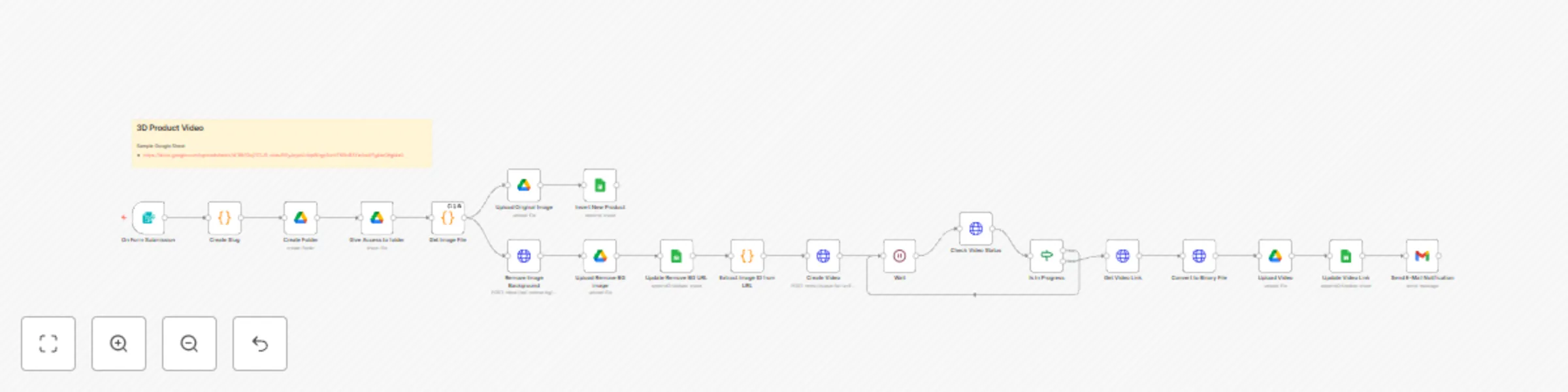
## ✅ What problem does this workflow solve? Shopify and E-Commerce store owners often struggle to create engaging 3D videos from static product images. This workflow automates that entire process—from image upload to video delivery—so store owners can get professional-looking 3D videos without any manual editing or follow-up.  --- ## ⚙️ What does this workflow do? 1. Accepts a 2D product image and name via a public n8n form. 2. Generates a unique slug and folder in Google Drive for the product. 3. Uploads the original image to Google Drive and logs data in a spreadsheet. 4. Removes the background from the image using remove.bg API. 5. Uploads the cleaned image to Google Drive and updates the spreadsheet. 6. Creates a 3D product video using the cleaned image via the Fal.ai API. 7. Periodically checks the video creation status. 8. Once completed, download the video, upload it to Google Drive, and log the link. 9. Notifies the store owner via email with the video download link. --- ## 🔧 Setup ### 🟢 Google Services - **Google Drive**: Create and connect a folder where all product assets will be stored. - **Google Spreadsheet**: A spreadsheet to log the product name, original image link, cleaned image link, and final video URL. - **Gmail**: Connect Gmail to send the final notification email to the store owner. ### 🔑 API Keys Required - **Remove.bg**: Get an API key from [remove.bg](https://www.remove.bg/api). - **Fal.ai**: Sign up at [fal.ai](https://fal.ai/) and obtain your API key to use the image-to-video generation service. --- ## 🧠 How it Works ### 📝 1. Product Form Submission A store owner submits the product name and 2D image via a public n8n form. ### 🗂 2. Organize in Google Drive - A unique slug is generated for the product. - A new folder is created inside Google Drive using that slug. - The original image is uploaded into the folder. ### 📊 3. Record in a Spreadsheet - The product name and original image URL are stored in a Google Sheet. ### 🧹 4. Background Removal - The uploaded image is processed through **remove.bg API** to eliminate noisy or cluttered backgrounds. - The cleaned image is uploaded back into the product’s Drive folder. - The cleaned image link is updated in the spreadsheet. ### 🎥 5. Create 3D Video (via Fal.ai) - The cleaned image is passed to the **Fal.ai** video generation API. - The workflow periodically checks the status until the video is ready. ### ☁️ 6. Store Final Video - Once the video is ready, the file is downloaded. - The final video is uploaded into the same Google Drive folder. - Its link is saved in the spreadsheet next to the respective product entry. ### 📧 7. Notify the Store Owner An automated email is sent to the store owner with the video link, letting them know it's ready for use—no waiting, no manual follow-up needed. --- ## 👤 Who can use it? This workflow is ideal for: - 🛍 **Shopify Sellers** - 🧺 **E-commerce Store Owners** - 📸 **Product Photographers** - 🎬 **Marketing Teams** - 🤖 **Automation Enthusiasts** If you want to automate 3D product video creation using AI—this is the no-code workflow you’ve been waiting for!
Multiple websites monitoring with notifications including phone calls
## ✅ What problem does this workflow solve? Automatically monitor multiple websites every 5 minutes, log downtime, notify your team instantly via multiple channels, and track uptime/downtime in a Google Sheet—without relying on expensive monitoring tools. --- ## ⚙️ What does this workflow do? 1. Triggers every 5 minutes to monitor website health. 2. Fetches a list of website URLs from a Google Sheet. 3. Checks the status of each website one by one. 4. Sends instant alerts if a website is **down** (Email, Slack, Telegram, Voice Call). 5. Logs downtime events in Google Sheets. 6. Tracks when websites are back **up** and updates the log. 7. Sends recovery notifications when a site is live again (Email, Slack, Telegram). --- ## 🔧 Setup ### 📄 Google Sheets Setup - Sheet 1: List of website URLs to monitor. - Sheet 2: Log to store uptime/downtime records. Sample Format: [https://docs.google.com/spreadsheets/d/1_VVpkIvpYQigw5q0KmPXUAC2aV2rk1nRQLQZ7YK2KwY/edit?usp=sharing](https://docs.google.com/spreadsheets/d/1_VVpkIvpYQigw5q0KmPXUAC2aV2rk1nRQLQZ7YK2KwY/edit?usp=sharing) ### ✉️ Gmail, Slack & Telegram Setup - Connect Gmail, Slack, and Telegram to n8n. - Configure each service with proper credentials or OAuth. ### 📞 Vapi (Voice Call) Setup - Create a Vapi account. - Generate an API key. - Configure API Parameters (`vapi_api_key`, `assistant_id`, `number`, `phone_number_id`) on VAPI Node. - Insert the First Message specified in the Workflow. --- ## 🧠 How it Works ### ⏱ 1. Scheduled Monitoring A **Schedule Trigger** runs the workflow every 5 minutes. It reads the list of URLs from the Google Sheet and loops through each one. ### 🌍 2. Website Health Check Each website is pinged to check if it’s online. ### 🔴 3. If Website is Down: - It verifies if a downtime record already exists. - If not, it: - Adds a new row in the Google Sheet with the timestamp. - Sends notifications via: - 📧 **Email** - 💬 **Slack** - 📲 **Telegram** - 📞 **Voice Call via Vapi** ### 🟢 4. If Website is Back Up: - It fetches the matching downtime record. - Updates the sheet with: - ✅ Uptime timestamp - ⏱ Total downtime duration - Sends recovery notifications via: - 📧 **Email** - 💬 **Slack** - 📲 **Telegram** (No phone call is made for uptime.) --- ## 👤 Who can use it? This is perfect for: - 🚀 **Startups** - 👨💻 **Freelance Developers** - 🛠 **SaaS Product Owners** - 🖥 **IT/DevOps Teams** If you're looking to replace tools like **UptimeRobot**, **Pingdom**, or **StatusCake**, this no-code solution gives you full control, customization, and cost-efficiency. ---
Website lead capture with Apollo.io enrichment, HubSpot storage & Gmail notifications
## What problem does this workflow solve? Capture leads from your website, enrich them via Apollo, store them in HubSpot, send a personalized thank-you email, and notify your team—all automatically. ## What does this workflow do? 1. Capture leads from website forms automatically. 2. Send a personalized thank-you email to each new lead. 3. Enrich lead data using Apollo for deeper insights. 4. Create or update a contact/lead in HubSpot CRM. 5. Notify the internal team via email about the new lead. ## Setup ### Gmail Setup Create Gmail Credentials by creating a project in Google Cloud Console. ### Hubspot Setup Create Hubspot Credentials with App Token. ## How it Works: This workflow automates your lead capture, enrichment, and follow-up process to ensure no opportunity is missed. Here's how it works: ### 1. Website Form Submission A visitor submits a lead form on your website. Lead details like name, email, company, and message are captured instantly. ### 2. Personalized Thank-You Email A customized thank-you email is automatically sent to the lead, building trust and confirming receipt of their inquiry. ### 3. Apollo Lead Enrichment The captured data is enriched using Apollo to fetch additional information like job title, LinkedIn profile, and other details. This helps you better understand and qualify your leads. ### 4. Create Lead in HubSpot The enriched lead information is pushed into HubSpot as a new contact or lead. Duplicate checks ensure that there are no repeat entries. ### 5. Internal Notification An email notification with enriched lead details is sent to your team. Your team can follow up immediately with a complete profile. ## Who can use it? This workflow can be used by any website owner with a "Get In Touch" or "Contact Us" button.