Tracking cold email engagement metrics using Smartlead and Google Sheets
Workflow preview


 Early Deal
DISCOUNT 20%

Important notice
This workflow is provided as-is. Please review and test before using in production.
Overview
Workflow: Track Email Campaign Engagement Analytics with Smartlead and Google Sheets
Automatically fetch lead-level email engagement analytics (opens, clicks, replies, unsubscribes, bounces) from Smartlead and update them in Google Sheets.
Use this to keep a single, always-fresh source of truth for campaign performance and sequence effectiveness.
Summary
Pull Smartlead campaign analytics on a schedule and write them to a Google Sheet (append or update).
Works with pagination, avoids duplicates via a stable key, and is ready for dashboards, pivots, or BI tools.
What This Workflow Does
- Collects campaign stats from Smartlead (per-lead, per-sequence).
- Handles pagination safely (offset/limit).
- Writes to Google Sheets using appendOrUpdate with a matching column to prevent duplicates.
- Can run on a schedule for near real-time analytics.
Node Structure Overview
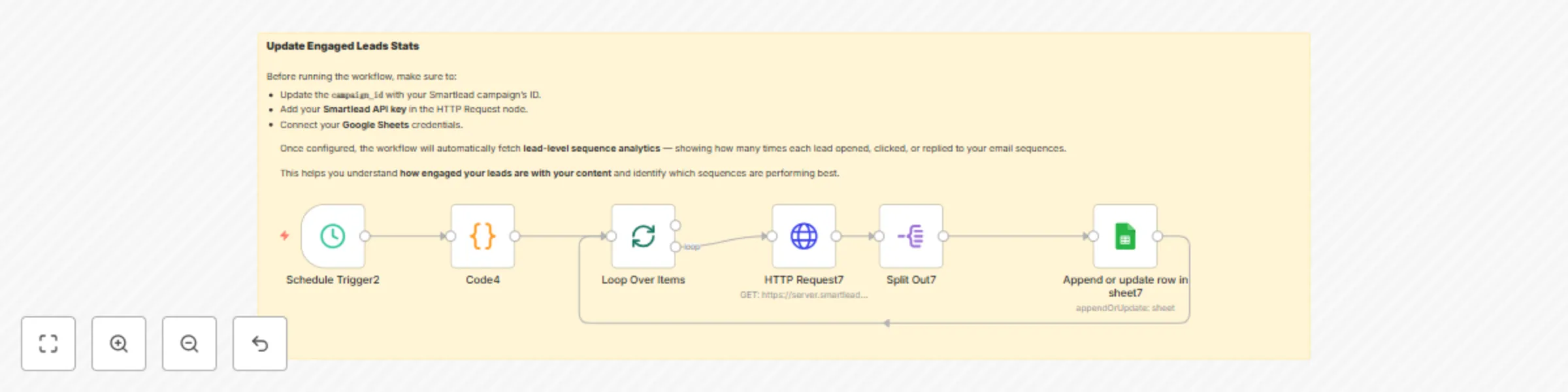
| Step | Node | Purpose |
|---|---|---|
| 1️⃣ | Schedule Trigger | Starts the workflow on a cadence (e.g., hourly) |
| 2️⃣ | Code (Pagination Generator) | Emits {offset, limit} pairs (e.g., 0..9900, step 100) |
| 3️⃣ | Split in Batches | Sends each pagination pair to the API sequentially |
| 4️⃣ | HTTP Request (Smartlead) | GET /campaigns/{campaign_id}/statistics with offset/limit |
| 5️⃣ | Split Out | Turns the API data[] array into one item per lead record |
| 6️⃣ | Google Sheets (appendOrUpdate) | Upserts rows by stats_id into EngagedLeads tab |
| 7️⃣ | Loop Back | Continues until all batches have been processed |
Step-by-Step Setup
Prerequisites
- Smartlead account + API key with access to campaign statistics.
- Google account + Google Sheets OAuth connected in n8n.
Create the Google Sheet
- Spreadsheet name: Email Analytics (can be anything).
- Tab name: EngagedLeads.
- Add these exact headers (first row):
lead_name, lead_email, lead_category,
sequence_number, stats_id,
email_subject, sent_time, open_time, click_time, reply_time,
open_count, click_count, is_unsubscribed, is_bounced
Configure the Schedule Trigger
- Choose a frequency (e.g., every 2 hours).
- If you’re testing, set a single run or a short cadence.
Configure the Code Node (Pagination)
- Emit N items like:
{ "offset": 0, "limit": 100 } { "offset": 100, "limit": 100 } ... - 100 is a good default
limit. For up to 10,000 records, generate 100 offsets.
- Emit N items like:
Configure the Smartlead API Node
- Method: GET
- URL:
https://server.smartlead.ai/api/v1/campaigns/{campaign_id}/statistics - Query parameters:
api_key=<YOUR_SMARTLEAD_API_KEY>offset={{ $json.offset }}limit={{ $json.limit }}
- Map response to JSON.
Split Out the Response
- Use a Split Out (or similar) to iterate over
data[]so each lead record is one item.
- Use a Split Out (or similar) to iterate over
Google Sheets Node (Append or Update)
- Operation: appendOrUpdate.
- Document: Your Email Analytics sheet.
- Sheet/Tab: EngagedLeads.
- Matching Column:
stats_id. - Map fields from Smartlead response to sheet columns:
lead_name← lead name (or composed from first/last if provided)lead_email← emaillead_category← category/type if availablesequence_number← sequence step numberstats_id← stable identifier (e.g., Smartleadstats_idor message id)email_subject← subjectsent_time,open_time,click_time,reply_time← timestampsopen_count,click_count← integersis_unsubscribed,is_bounced← booleans
- If the same
stats_idarrives again, the row is updated, not appended.
Test and Activate
- Run once manually to verify API and sheet mapping.
- Check the sheet for new/updated rows.
- Activate the workflow to run automatically.
Smartlead API Reference (Used by This Workflow)
- Endpoint GET https://server.smartlead.ai/api/v1/campaigns/{campaign_id}/statistics
- Required query parameters
api_key(string)offset(number)limit(number)- Typical response (trimmed example)
{
  "data": [
    {
      "lead_name": "Jane Doe",
      "lead_email": "[email protected]",
      "sequence_number": 2,
      "stats_id": "15b6ff3a-...-b2b9f343c2e1",
      "email_subject": "Quick intro",
      "sent_time": "2025-10-08T10:18:55.496Z",
      "open_time": "2025-10-08T10:20:10.000Z",
      "click_time": null,
      "reply_time": null,
      "open_count": 1,
      "click_count": 0,
      "is_unsubscribed": false,
      "is_bounced": false
    }
  ],
  "total": 1234
}
Google Sheets Structure (Recommended)
Spreadsheet: Email Analytics
Tab: EngagedLeads
Columns:lead_name, lead_email, lead_category,
sequence_number, stats_id,
email_subject, sent_time, open_time, click_time, reply_time,
open_count, click_count, is_unsubscribed, is_bounced
Matching Column: stats_id (prevents duplicates and allows updates)
Customization Tips
Multiple Campaigns
Duplicate the workflow and set a different{campaign_id}and/or write results to a separate tab in your Google Sheet.Batch Size
Increase or decrease thelimitvalue (e.g.,200) in your Code node if you want fewer or more API calls.Filtering
Add a Code or IF node to skip rows whereis_bounced = trueoris_unsubscribed = true.Dashboards
Create a new tab named Dashboard in Google Sheets and visualize your data using built-in charts or connect it to Looker Studio for advanced visualization.Enrichment
Join this dataset with your CRM data (e.g., HubSpot or Salesforce) usinglead_emailas a key to gain deeper customer insights.
Security and Publishing Notes
Do not hardcode your Smartlead API key in the workflow export.
Use n8n credentials or environment variables instead.When sharing the template publicly, replace sensitive values with placeholders like:
<YOUR_SMARTLEAD_API_KEY>and<YOUR_GOOGLE_SHEET_ID>.Keep your Google Sheet private unless you intentionally want to share it publicly.
Troubleshooting
No rows in Sheets
Verify that the API response includesdata[], confirm that the Split Out node is configured correctly, and check field mappings.Duplicates
Ensure the Google Sheets node has its matching column set tostats_id.Rate Limits
Increase the schedule interval, add a short Wait node between batches, or reduce thelimitsize.Mapping Errors
Ensure that column names in Sheets exactly match your field mappings — they are case-sensitive.Timezone Differences
Smartlead timestamps are in UTC. Convert them downstream if your local timezone is different.
Example Use Case
Run this workflow hourly to maintain a live, company-wide Email Engagement Sheet.
- Sales teams can monitor replies and active leads.
- Marketing teams can track open and click rates by sequence.
- Operations can export monthly summaries — no Smartlead login required.
Tags
Smartlead EmailMarketing Automation GoogleSheets Analytics CRM MarketingOps