Block 1 - Schedule Trigger2
- Type / Role
- n8n-nodes-base.scheduleTrigger - scheduleTrigger
- Config choices
- Version 1.2


 Early Deal
This workflow is provided as-is. Please review and test before using in production.
Workflow: Track Email Campaign Engagement Analytics with Smartlead and Google Sheets Automatically fetch lead level email engagement analytics (opens, clicks, replies, unsubscribes, bounces) from S...
n8n-nodes-base.scheduletrigger, n8n-nodes-base.httprequest, n8n-nodes-base.googlesheets, n8n-nodes-base.splitout, n8n-nodes-base.stickynote, n8n-nodes-base.splitinbatches, n8n-nodes-base.code
This workflow is cataloged by N8N Workflows and links back to its original n8n.io source page by Rahi Uppal.
Original n8n.io sourceAutomatically fetch lead-level email engagement analytics (opens, clicks, replies, unsubscribes, bounces) from Smartlead and update them in Google Sheets.
Use this to keep a single, always-fresh source of truth for campaign performance and sequence effectiveness.
Pull Smartlead campaign analytics on a schedule and write them to a Google Sheet (append or update).
Works with pagination, avoids duplicates via a stable key, and is ready for dashboards, pivots, or BI tools.
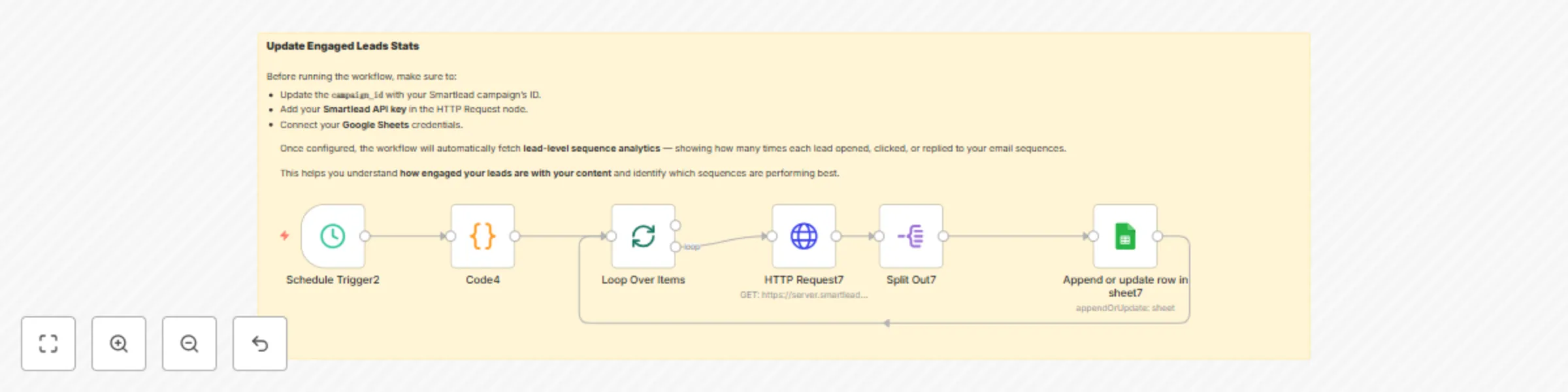
| Step | Node | Purpose |
|---|---|---|
| 1️⃣ | Schedule Trigger | Starts the workflow on a cadence (e.g., hourly) |
| 2️⃣ | Code (Pagination Generator) | Emits {offset, limit} pairs (e.g., 0..9900, step 100) |
| 3️⃣ | Split in Batches | Sends each pagination pair to the API sequentially |
| 4️⃣ | HTTP Request (Smartlead) | GET /campaigns/{campaign_id}/statistics with offset/limit |
| 5️⃣ | Split Out | Turns the API data[] array into one item per lead record |
| 6️⃣ | Google Sheets (appendOrUpdate) | Upserts rows by stats_id into EngagedLeads tab |
| 7️⃣ | Loop Back | Continues until all batches have been processed |
Prerequisites
Create the Google Sheet
lead_name, lead_email, lead_category,
sequence_number, stats_id,
email_subject, sent_time, open_time, click_time, reply_time,
open_count, click_count, is_unsubscribed, is_bounced
Configure the Schedule Trigger
Configure the Code Node (Pagination)
{ "offset": 0, "limit": 100 }
{ "offset": 100, "limit": 100 }
...
limit. For up to 10,000 records, generate 100 offsets.Configure the Smartlead API Node
https://server.smartlead.ai/api/v1/campaigns/{campaign_id}/statistics
api_key = <YOUR_SMARTLEAD_API_KEY>offset = {{ $json.offset }}limit = {{ $json.limit }}Split Out the Response
data[] so each lead record is one item.Google Sheets Node (Append or Update)
stats_id.lead_name ← lead name (or composed from first/last if provided)lead_email ← emaillead_category ← category/type if availablesequence_number ← sequence step numberstats_id ← stable identifier (e.g., Smartlead stats_id or message id)email_subject ← subjectsent_time, open_time, click_time, reply_time ← timestampsopen_count, click_count ← integersis_unsubscribed, is_bounced ← booleansstats_id arrives again, the row is updated, not appended.Test and Activate
api_key (string)offset (number)limit (number){
"data": [
{
"lead_name": "Jane Doe",
"lead_email": "[email protected]",
"sequence_number": 2,
"stats_id": "15b6ff3a-...-b2b9f343c2e1",
"email_subject": "Quick intro",
"sent_time": "2025-10-08T10:18:55.496Z",
"open_time": "2025-10-08T10:20:10.000Z",
"click_time": null,
"reply_time": null,
"open_count": 1,
"click_count": 0,
"is_unsubscribed": false,
"is_bounced": false
}
],
"total": 1234
}
Spreadsheet: Email Analytics
Tab: EngagedLeads
Columns:lead_name, lead_email, lead_category,
sequence_number, stats_id,
email_subject, sent_time, open_time, click_time, reply_time,
open_count, click_count, is_unsubscribed, is_bounced
Matching Column: stats_id (prevents duplicates and allows updates)
Multiple Campaigns
Duplicate the workflow and set a different {campaign_id} and/or write results to a separate tab in your Google Sheet.
Batch Size
Increase or decrease the limit value (e.g., 200) in your Code node if you want fewer or more API calls.
Filtering
Add a Code or IF node to skip rows where is_bounced = true or is_unsubscribed = true.
Dashboards
Create a new tab named Dashboard in Google Sheets and visualize your data using built-in charts or connect it to Looker Studio for advanced visualization.
Enrichment
Join this dataset with your CRM data (e.g., HubSpot or Salesforce) using lead_email as a key to gain deeper customer insights.
Do not hardcode your Smartlead API key in the workflow export.
Use n8n credentials or environment variables instead.
When sharing the template publicly, replace sensitive values with placeholders like:<YOUR_SMARTLEAD_API_KEY> and <YOUR_GOOGLE_SHEET_ID>.
Keep your Google Sheet private unless you intentionally want to share it publicly.
No rows in Sheets
Verify that the API response includes data[], confirm that the Split Out node is configured correctly, and check field mappings.
Duplicates
Ensure the Google Sheets node has its matching column set to stats_id.
Rate Limits
Increase the schedule interval, add a short Wait node between batches, or reduce the limit size.
Mapping Errors
Ensure that column names in Sheets exactly match your field mappings — they are case-sensitive.
Timezone Differences
Smartlead timestamps are in UTC. Convert them downstream if your local timezone is different.
Run this workflow hourly to maintain a live, company-wide Email Engagement Sheet.
Smartlead EmailMarketing Automation GoogleSheets Analytics CRM MarketingOps
This catalog entry is organized from the workflow JSON. The node-level section below shows the executable blocks available for review before importing the template.
| Workflow | Tracking cold email engagement metrics using Smartlead and Google Sheets |
|---|---|
| Complexity | intermediate |
| Nodes | 7 |
| Categories | Social Media |
| Author | Rahi Uppal |
| Published | 21 Aug 2025 |
Use the JSON export at /data/workflows/7710/7710.json as the source template for this automation.
Open n8n, import the downloaded JSON, and review each node before activating the workflow.
Replace placeholder credentials, API keys, webhook URLs, account IDs, and environment-specific values with your own settings.
Run the workflow manually or in a staging workspace, inspect node output, and confirm downstream systems receive the expected data.
Enable the workflow only after testing, then monitor executions, errors, and rate limits during the first production runs.
Review imported nodes carefully before activation. This catalog entry is intended to help you inspect the workflow structure, understand required services, and find related templates faster.
Node names, credentials, schedules, webhook paths, and external service limits may need adjustment for your workspace.
Workflow: Track Email Campaign Engagement Analytics with Smartlead and Google Sheets Automatically fetch lead level email engagement analytics (opens, clicks, replies, unsubscribes, bounces) from S...
Review the workflow JSON, configure any required credentials in n8n, and test the automation in a safe workspace before using it in production.
Yes. Use the block-by-block analysis and the downloadable JSON to inspect each node, then adjust credentials, prompts, schedules, filters, or destinations for your Social Media use case.