Track employee attendance with analytics, email reports & Slack alerts using Google Sheets
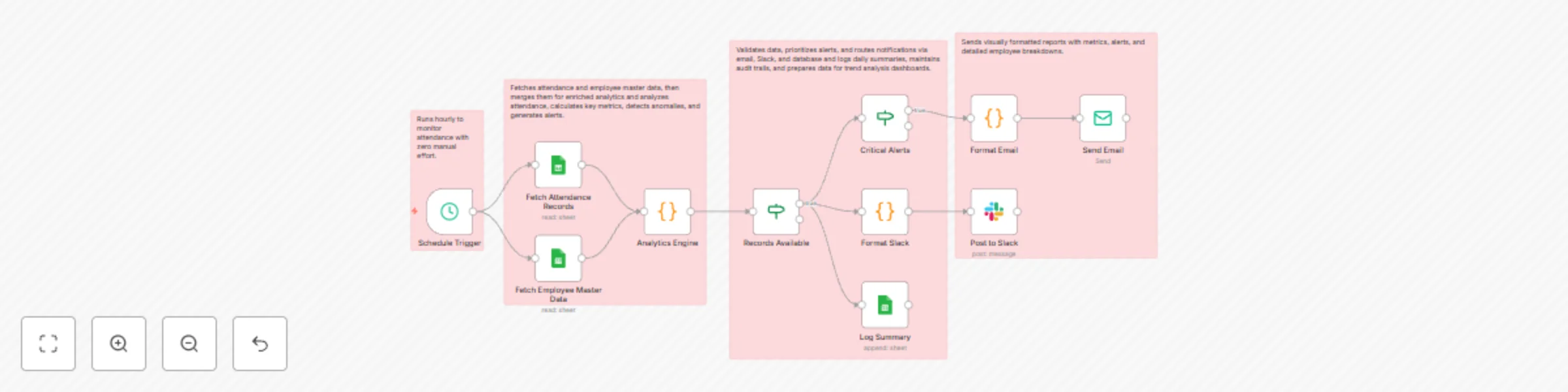
Workflow preview


 Early Deal
DISCOUNT 20%

Important notice
This workflow is provided as-is. Please review and test before using in production.
Overview
Transform your attendance management with this enterprise-grade automated workflow featuring AI-powered analytics, multi-dimensional insights, and intelligent alerting. Running hourly, it integrates multiple data sources (attendance logs + employee master data), performs sophisticated statistical analysis, detects anomalies, generates department-specific insights, and delivers beautiful HTML reports via email and Slack. Get real-time visibility into attendance patterns, punctuality trends, and actionable alerts for HR, management, and department heads. 📊🎯✨
Good to Know
- Intelligent Scheduling: Runs hourly but only sends management alerts when critical thresholds are breached
- Multi-Source Integration: Combines attendance logs with employee master data for enriched context
- Smart Analytics: Calculates attendance rate, punctuality rate, absenteeism rate, and department-wise metrics
- Conditional Routing: Management emails are triggered only for high-priority alerts (no email fatigue!)
- Production-Ready: Includes error handling, data validation, and comprehensive logging
- Scalable Design: Handles multiple departments, shifts, and employee types efficiently
How It Works
- Automated Trigger – Runs hourly to monitor attendance with zero manual effort.
- Dual Data Ingestion – Fetches attendance and employee master data, then merges them for enriched analytics.
- Advanced Analytics Engine – Analyzes attendance, calculates key metrics, detects anomalies, and generates alerts.
- Smart Conditional Routing – Validates data, prioritizes alerts, and routes notifications via email, Slack, and database.
- Rich Email Reports – Sends visually formatted reports with metrics, alerts, and detailed employee breakdowns.
- Slack Block Kit Integration – Delivers structured, real-time attendance alerts with visual indicators to team channels.
- Data Persistence & Logging – Logs daily summaries, maintains audit trails, and prepares data for trend analysis dashboards.
How to Use
Basic Setup
- Import the Workflow: Copy JSON → n8n → Import from File
- Configure Credentials: Add Google Sheets, SMTP, and Slack credentials
- Update Spreadsheet IDs: Replace all placeholder sheet IDs with your actual Google Sheet IDs
- Set Email Addresses: Update sender and recipient email addresses
- Configure Slack Channel: Replace channel ID with your team's attendance channel
- Test: Execute workflow manually to verify connections
- Activate: Turn on the Schedule Trigger for hourly execution
Advanced Configuration
- Adjust Alert Thresholds: Modify the 10% (late) and 15% (absent) thresholds in Analytics Engine
- Customize Email Design: Edit HTML in Format Email node for brand alignment
- Add More Channels: Extend with Microsoft Teams, Discord, or SMS notifications
- Enhance Analytics: Add shift-specific analysis, contractor vs. full-time breakdowns
- Integrate BI Tools: Enable Power BI push dataset for real-time dashboards
Requirements
Google Sheets Setup
Sheet 1: AttendanceLogs
| Column | Type | Description | Example |
|---|---|---|---|
| EmployeeID | Text | Unique employee identifier | EMP001 |
| EmployeeName | Text | Full name | John Doe |
| Date | Date | Attendance date (YYYY-MM-DD) | 2025-01-15 |
| Status | Text | Present/Absent/Late/Leave/WFH/Half-Day | Present |
| CheckInTime | Time | Arrival time (HH:MM) | 09:15 |
| CheckOutTime | Time | Departure time (HH:MM) | 18:00 |
| Notes | Text | Optional comments | Doctor appointment |
Sheet 2: Employees (Master Data)
| Column | Type | Description | Example |
|---|---|---|---|
| EmployeeID | Text | Unique identifier (matches AttendanceLogs) | EMP001 |
| EmployeeName | Text | Full name | John Doe |
| Department | Text | Department name | Engineering |
| Manager | Text | Reporting manager name | Jane Smith |
| Shift | Text | Day/Night/Evening | Day |
| Work email address | [email protected] | ||
| ContractType | Text | Full-Time/Part-Time/Contract | Full-Time |
Sheet 3: DailySummary (Auto-populated by workflow)
| Column | Type | Description |
|---|---|---|
| Date | Date | Report date |
| Hour | Number | Hour of day (0-23) |
| Present | Number | Present count |
| Absent | Number | Absent count |
| Late | Number | Late count |
| AttendanceRate | Number | Attendance percentage |
Credentials Needed
Google Sheets OAuth2 API
- Enable Google Sheets API in Google Cloud Console
- Create service account credentials
- Share all 3 sheets with service account email
SMTP Email Account
- Gmail: Enable "App Passwords" in Google Account settings
- Or use company SMTP server details
- Requires: Host, Port (587), Username, Password
Slack Bot Token
- Create Slack App at api.slack.com/apps
- Enable permissions:
chat:write,chat:write.public - Install app to workspace
- Copy Bot User OAuth Token (starts with
xoxb-) - Invite bot to target channel
Placeholder Values to Replace
| Placeholder | Where to Find | Example |
|---|---|---|
YOUR_ATTENDANCE_SPREADSHEET_ID |
Google Sheets URL | 1BxiMVs0XRA5nFMdKvBdBZjgmUUqptlbs74OgvE2upms |
YOUR_EMPLOYEE_SPREADSHEET_ID |
Google Sheets URL | 1BxiMVs0XRA5nFMdKvBdBZjgmUUqptlbs74OgvE2upms |
YOUR_SUMMARY_SPREADSHEET_ID |
Google Sheets URL | 1BxiMVs0XRA5nFMdKvBdBZjgmUUqptlbs74OgvE2upms |
C12345678 |
Slack → Right-click channel → Copy link → Extract ID | C05XXXXXXXX |
[email protected] |
Your HR email | [email protected] |
[email protected] |
Management distribution list | [email protected] |
Customizing This Workflow
Modify Alert Thresholds
In the Analytics Engine node, find these lines:
const lateThreshold = metrics.totalEmployees * 0.1; // Change 0.1 to 0.15 for 15%
const absentThreshold = metrics.totalEmployees * 0.15; // Change to 0.20 for 20%
Add New Status Types
In the Analytics Engine node, add to the switch statement:
case 'Remote':
  statusCount.remote++;
  break;
Customize Email Template
In the Format Email node, modify the emailHtml variable:
- Change gradient colors in the header div
- Add company logo:
<img src="https://yourcompany.com/logo.png" /> - Adjust grid columns:
grid-template-columns: repeat(5, 1fr);
Add SMS Notifications
- Add Twilio or Vonage node after "Critical Alerts"
- Send to on-call manager for high-severity alerts
- Use message:
🚨 ${data.absent} employees absent today. Review required.
Multi-Location Support
Modify Analytics Engine to group by Location field:
const locationMetrics = {};
todayRecords.forEach(record => {
  const location = employee.location;
  if (!locationMetrics[location]) {
    locationMetrics[location] = { present: 0, absent: 0, late: 0 };
  }
  // ... aggregate by location
});
Shift-Specific Analysis
Add logic to compare check-in times against shift schedules:
const shiftTimes = {
  'Day': '09:00',
  'Night': '21:00',
  'Evening': '14:00'
};
const expectedTime = shiftTimes[employee.shift];
Integration with HR Systems
Add HTTP Request node to push data to:
- Workday: POST attendance records via REST API
- BambooHR: Update employee time-off balances
- ADP: Sync payroll-related attendance data
- SAP SuccessFactors: Update time management module
Advanced Analytics
Add Python or R nodes for:
- Predictive Analytics: ML models to predict absence patterns
- Sentiment Analysis: Correlate attendance with employee surveys
- Seasonality Detection: Identify patterns (Monday blues, pre-holiday trends)
- Correlation Analysis: Link attendance with project deadlines, weather, events
Dashboard Integration
Export data to visualization platforms:
- Power BI: Use HTTP Request node to push to streaming dataset
- Tableau: Write to database (PostgreSQL, MySQL) via Execute Query node
- Grafana: Store in InfluxDB time-series database
- Custom Dashboard: Build React app that reads from DailySummary sheet
Troubleshooting
Common Issues
"Could not find node"
- Ensure all data sources are fetched before Analytics Engine runs
- Check node names match exactly in
$('Node Name').all()syntax
"No records found"
- Verify Date column format is
YYYY-MM-DDin Google Sheets - Check timezone settings in Schedule Trigger vs. Sheet locale
- Confirm EmployeeID values match between AttendanceLogs and Employees sheets
"Email not sending"
- Verify SMTP credentials are correct
- Check if "Critical Alerts?" condition is being met
- Test email node independently with static data
"Slack message failed"
- Ensure bot is invited to the target channel
- Verify channel ID format (starts with C, not # symbol)
- Check bot has
chat:writepermission scope
Performance Optimization
- Large Datasets (>1000 employees): Add pagination in Google Sheets fetch
- Multiple Departments: Run parallel branches for each department
- Historical Analysis: Schedule separate weekly/monthly summary workflows
- Reduce API Calls: Cache employee master data in workflow static data
Security Best Practices
- ✅ Use service account credentials (not personal OAuth)
- ✅ Restrict sheet access to service account only
- ✅ Store credentials in n8n credential store (encrypted)
- ✅ Enable 2FA on all integrated accounts
- ✅ Audit logs regularly for unauthorized access
- ✅ Use HTTPS for all external API calls
Discover more workflows – Get in touch with us