Sync YouTube channel videos to Google Sheets for content database
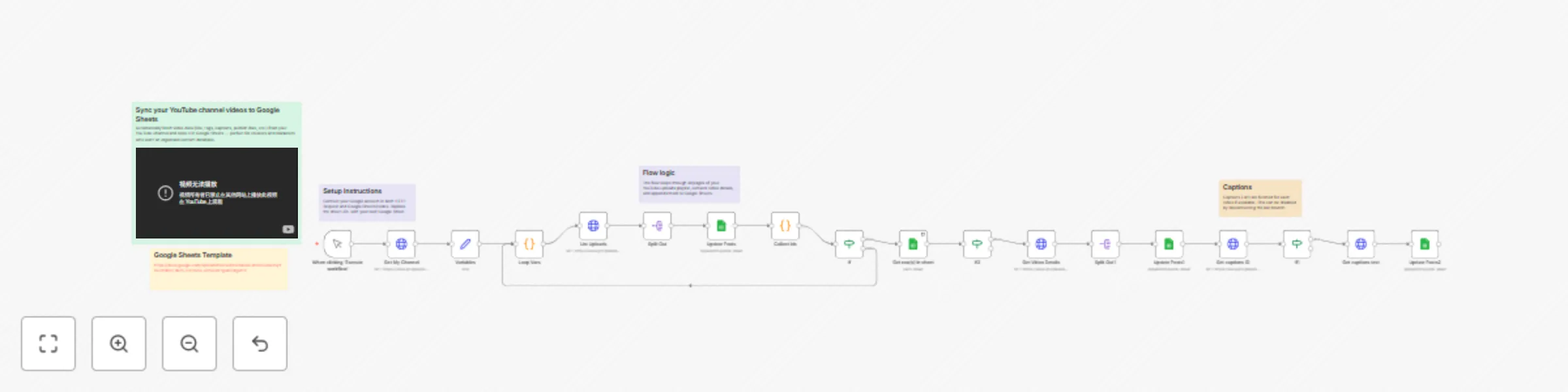
Workflow preview

$20/month : Unlimited workflows
2500 executions/month

THE #1 IN WEB SCRAPING
Scrape any website without limits
HOSTINGER  Early Deal
DISCOUNT 20% Try free
Early DealDISCOUNT 20%
Self-hosted n8n
Unlimited workflows - from $4.99/mo

#1 hub for scraping, AI & automation
6000+ actors - $5 credits/mo
Important notice
This workflow is provided as-is. Please review and test before using in production.
Overview
📊 YouTube Personal Channel Videos → Google Sheets
Automatically sync your YouTube videos (title, description, tags, publish date, captions, etc.) into Google Sheets — perfect for creators and marketers who want a clean content database for analysis or reporting.
🚀 What this workflow does
- ✅ Connects to your personal YouTube channel via Google OAuth
- 🔁 Fetches all uploaded videos automatically (with pagination)
- 🏷 Extracts metadata: title, description, tags, privacy status, upload status, thumbnail, etc.
- 🧾 Retrieves captions (SRT format) if available
- 📈 Writes or updates data in your Google Sheets document
- ⚙️ Can be run manually or scheduled via Cron
🧩 Nodes used
- Manual Trigger — to start manually or connect with Cron
- HTTP Request (YouTube API v3) — fetches channel, uploads, and captions
- Code Nodes — manage pagination and collect IDs
- SplitOut — iterates through video lists
- Google Sheets (appendOrUpdate) — stores data neatly
- If Conditions — control data flow and prevent empty responses
⚙️ Setup guide
Connect your Google Account
- Used for both YouTube API and Google Sheets.
- Make sure the credentials are set up in Google OAuth2 API and Google Sheets OAuth2 API nodes.
Create a Google Sheet
- Add a tab named
Videos. - Add these columns:
youtube_id | title | description | tags | privacyStatus | uploadStatus | thumbnail | captions - You can also include
categoryId,maxres, orpublishedif you’d like.
- Add a tab named
Replace the sample Sheet ID
- In each Google Sheets node, open the “Spreadsheet” field and choose your own document.
- Make sure the sheet name matches the tab name (
Videos).
Run the workflow
- Execute it manually first to pull your latest uploads.
- Optionally add a Cron Trigger node for daily sync (e.g., once per day).
Check your Sheet
- Your data should appear instantly — with each video’s metadata and captions (if available).
🧠 Notes & tips
- ⚙️ The flow loops through all pages of your upload playlist automatically — no manual pagination needed.
- 🕒 The workflow uses YouTube’s “contentDetails.relatedPlaylists.uploads” to ensure you only fetch your own uploads.
- 💡 Captions fetch may fail for private videos — use “Continue on Fail” if you want the rest to continue.
- 🧮 Ideal for dashboards, reporting sheets, SEO analysis, or automation triggers.
- 💾 To improve speed, you can disable the “Captions” branch if you only need metadata.
👥 Ideal for
- 🎬 YouTube creators maintaining a video database
- 📊 Marketing teams tracking SEO performance
- 🧠 Digital professionals building analytics dashboards
- ⚙️ Automation experts using YouTube data in other workflows
💛 Credits
Created by Grigory Frolov
YouTube: @gregfrolovpersonal
More workflows and guides → ozwebexpert.com/n8n