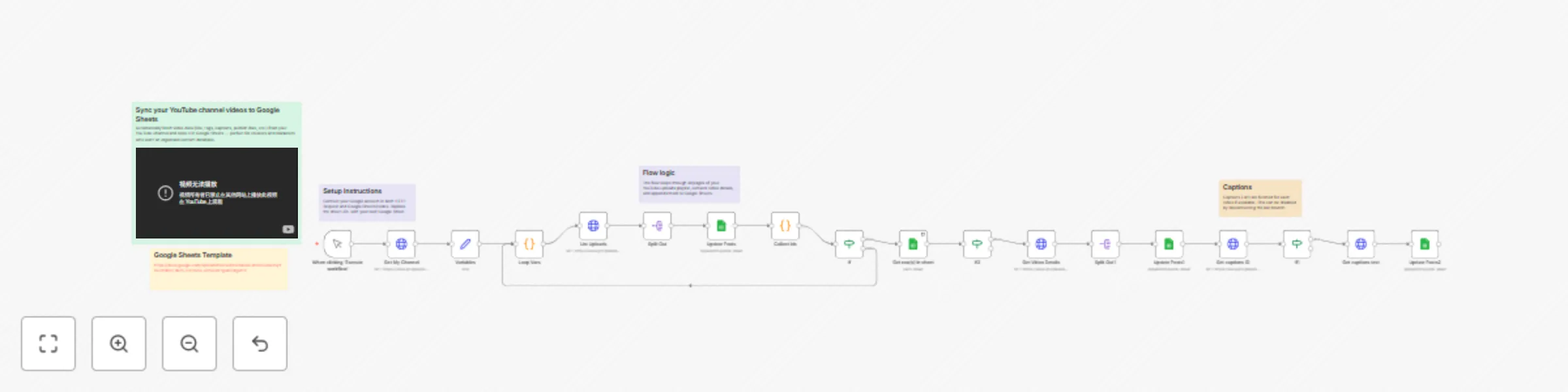
Sync YouTube channel videos to Google Sheets for content database

Workflow preview

Workflow preview
100%
Sync YouTube channel videos to Google Sheets for content database preview
Open on n8n.io

Important notice

This workflow is provided as-is. Please review and test before using in production.

1. Workflow Overview

YouTube Personal Channel Videos → Google Sheets Automatically sync your YouTube videos (title, description, tags, publish date, captions, etc.) into Google Sheets — perfect for creators and mark...

Best for

  • Market Research automation workflows
  • advanced n8n builders looking for reusable templates

Tools used

n8n-nodes-base.httprequest, n8n-nodes-base.if, n8n-nodes-base.code, n8n-nodes-base.googlesheets, n8n-nodes-base.set, n8n-nodes-base.splitout, n8n-nodes-base.stickynote, n8n-nodes-base.manualtrigger

Source and attribution

This workflow is cataloged by N8N Workflows and links back to its original n8n.io source page by Grigory Frolov.

Original n8n.io source

1.1 Workflow description

Title
Sync YouTube channel videos to Google Sheets for content database
Workflow name
Sync YouTube channel videos to Google Sheets for content database

📊 YouTube Personal Channel Videos → Google Sheets

Automatically sync your YouTube videos (title, description, tags, publish date, captions, etc.) into Google Sheets — perfect for creators and marketers who want a clean content database for analysis or reporting.


🚀 What this workflow does

  • ✅ Connects to your personal YouTube channel via Google OAuth
  • 🔁 Fetches all uploaded videos automatically (with pagination)
  • 🏷 Extracts metadata: title, description, tags, privacy status, upload status, thumbnail, etc.
  • 🧾 Retrieves captions (SRT format) if available
  • 📈 Writes or updates data in your Google Sheets document
  • ⚙️ Can be run manually or scheduled via Cron

🧩 Nodes used

  • Manual Trigger — to start manually or connect with Cron
  • HTTP Request (YouTube API v3) — fetches channel, uploads, and captions
  • Code Nodes — manage pagination and collect IDs
  • SplitOut — iterates through video lists
  • Google Sheets (appendOrUpdate) — stores data neatly
  • If Conditions — control data flow and prevent empty responses

⚙️ Setup guide

  1. Connect your Google Account

    • Used for both YouTube API and Google Sheets.
    • Make sure the credentials are set up in Google OAuth2 API and Google Sheets OAuth2 API nodes.
  2. Create a Google Sheet

    • Add a tab named Videos.
    • Add these columns:
      youtube_id | title | description | tags | privacyStatus | uploadStatus | thumbnail | captions
      
    • You can also include categoryId, maxres, or published if you’d like.
  3. Replace the sample Sheet ID

    • In each Google Sheets node, open the “Spreadsheet” field and choose your own document.
    • Make sure the sheet name matches the tab name (Videos).
  4. Run the workflow

    • Execute it manually first to pull your latest uploads.
    • Optionally add a Cron Trigger node for daily sync (e.g., once per day).
  5. Check your Sheet

    • Your data should appear instantly — with each video’s metadata and captions (if available).

🧠 Notes & tips

  • ⚙️ The flow loops through all pages of your upload playlist automatically — no manual pagination needed.
  • 🕒 The workflow uses YouTube’s “contentDetails.relatedPlaylists.uploads” to ensure you only fetch your own uploads.
  • 💡 Captions fetch may fail for private videos — use “Continue on Fail” if you want the rest to continue.
  • 🧮 Ideal for dashboards, reporting sheets, SEO analysis, or automation triggers.
  • 💾 To improve speed, you can disable the “Captions” branch if you only need metadata.

👥 Ideal for

  • 🎬 YouTube creators maintaining a video database
  • 📊 Marketing teams tracking SEO performance
  • 🧠 Digital professionals building analytics dashboards
  • ⚙️ Automation experts using YouTube data in other workflows

💛 Credits

Created by Grigory Frolov
YouTube: @gregfrolovpersonal
More workflows and guides → ozwebexpert.com/n8n

1.2 Logical Blocks

This catalog entry is organized from the workflow JSON. The node-level section below shows the executable blocks available for review before importing the template.

2. Block-by-Block Analysis

Block 1 - Get My Channel

Type / Role
n8n-nodes-base.httpRequest - httpRequest
Config choices
Version 4.2

Block 2 - List Uploads

Type / Role
n8n-nodes-base.httpRequest - httpRequest
Config choices
Version 4.2

Block 3 - If

Type / Role
n8n-nodes-base.if - if
Config choices
Version 2.2

Block 4 - Loop Vars

Type / Role
n8n-nodes-base.code - code
Config choices
Version 2

Block 5 - Update Posts

Type / Role
n8n-nodes-base.googleSheets - googleSheets
Config choices
Version 4.7

Block 6 - Variables

Type / Role
n8n-nodes-base.set - set
Config choices
Version 3.4

Block 7 - Split Out

Type / Role
n8n-nodes-base.splitOut - splitOut
Config choices
Version 1

Block 8 - Sticky Note

Type / Role
n8n-nodes-base.stickyNote - stickyNote
Config choices
Version 1

Block 9 - Get Video Details

Type / Role
n8n-nodes-base.httpRequest - httpRequest
Config choices
Version 4.2

Block 10 - Collect ids

Type / Role
n8n-nodes-base.code - code
Config choices
Version 2

Block 11 - Update Posts1

Type / Role
n8n-nodes-base.googleSheets - googleSheets
Config choices
Version 4.7

Block 12 - Split Out1

Type / Role
n8n-nodes-base.splitOut - splitOut
Config choices
Version 1

Block 13 - When clicking ‘Execute workflow’

Type / Role
n8n-nodes-base.manualTrigger - manualTrigger
Config choices
Version 1

Block 14 - Get captions text

Type / Role
n8n-nodes-base.httpRequest - httpRequest
Config choices
Version 4.2

Block 15 - Get captions ID

Type / Role
n8n-nodes-base.httpRequest - httpRequest
Config choices
Version 4.2

Block 16 - Update Posts2

Type / Role
n8n-nodes-base.googleSheets - googleSheets
Config choices
Version 4.7

Block 17 - If1

Type / Role
n8n-nodes-base.if - if
Config choices
Version 2.2

Block 18 - Get row(s) in sheet

Type / Role
n8n-nodes-base.googleSheets - googleSheets
Config choices
Version 4.7

Block 19 - If2

Type / Role
n8n-nodes-base.if - if
Config choices
Version 2.2

Block 20 - Sticky Note1

Type / Role
n8n-nodes-base.stickyNote - stickyNote
Config choices
Version 1

Block 21 - Sticky Note2

Type / Role
n8n-nodes-base.stickyNote - stickyNote
Config choices
Version 1

Block 22 - Sticky Note3

Type / Role
n8n-nodes-base.stickyNote - stickyNote
Config choices
Version 1

Block 23 - Sticky Note4

Type / Role
n8n-nodes-base.stickyNote - stickyNote
Config choices
Version 1

3. Summary Table

Workflow Sync YouTube channel videos to Google Sheets for content database
Complexity advanced
Nodes 23
Categories Market Research
Author Grigory Frolov
Published 17 Oct 2025

4. Reproducing the Workflow from Scratch

  1. 1. Download the workflow JSON

    Use the JSON export at /data/workflows/9824/9824.json as the source template for this automation.

  2. 2. Import the template into n8n

    Open n8n, import the downloaded JSON, and review each node before activating the workflow.

  3. 3. Configure credentials and variables

    Replace placeholder credentials, API keys, webhook URLs, account IDs, and environment-specific values with your own settings.

  4. 4. Test with sample data

    Run the workflow manually or in a staging workspace, inspect node output, and confirm downstream systems receive the expected data.

  5. 5. Activate and monitor

    Enable the workflow only after testing, then monitor executions, errors, and rate limits during the first production runs.

5. General Notes & Resources

Review imported nodes carefully before activation. This catalog entry is intended to help you inspect the workflow structure, understand required services, and find related templates faster.

Node names, credentials, schedules, webhook paths, and external service limits may need adjustment for your workspace.

Frequently asked questions

What does Sync YouTube channel videos to Google Sheets for content database do?

YouTube Personal Channel Videos → Google Sheets Automatically sync your YouTube videos (title, description, tags, publish date, captions, etc.) into Google Sheets — perfect for creators and mark...

What do I need before importing this workflow?

Review the workflow JSON, configure any required credentials in n8n, and test the automation in a safe workspace before using it in production.

Can I customize this workflow?

Yes. Use the block-by-block analysis and the downloadable JSON to inspect each node, then adjust credentials, prompts, schedules, filters, or destinations for your Market Research use case.