Submit iOS meeting notes to Obsidian using local AI transcription
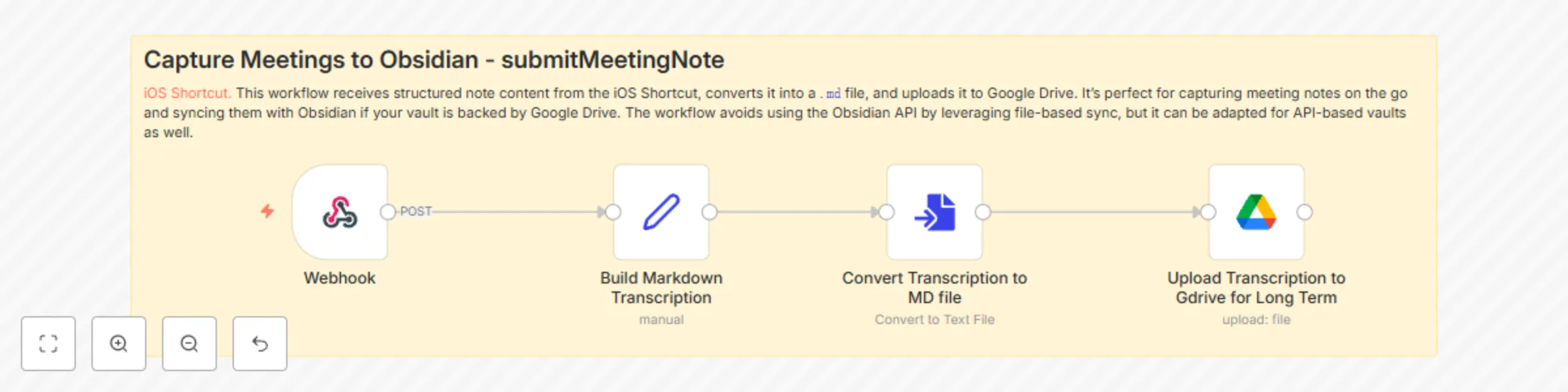
Workflow preview

$20/month : Unlimited workflows
2500 executions/month

THE #1 IN WEB SCRAPING
Scrape any website without limits
HOSTINGER  Early Deal
DISCOUNT 20% Try free
Early DealDISCOUNT 20%
Self-hosted n8n
Unlimited workflows - from $4.99/mo

#1 hub for scraping, AI & automation
6000+ actors - $5 credits/mo
Important notice
This workflow is provided as-is. Please review and test before using in production.
Overview
This workflow enables seamless, privacy-first capture of meeting notes from your iPhone. It pairs with an iOS Shortcut that leverages Apple’s on-device transcription from the Voice Memos app and optionally passes the output to ChatGPT or a local AI model for summarization.
Who it's for
- Anyone who wants fast, secure note capture on iOS
- Professionals (e.g., lawyers, therapists) who require on-device processing for privacy
- Obsidian users who want to sync mobile notes via Google Drive
What it does
- You record a voice memo in the iOS Voice Memos app.
- The Shortcut transcribes it locally (no API or cloud involved).
- Optionally, a summarization step is done via ChatGPT or a replaceable local model.
- The data is sent to an n8n webhook, where it’s converted into a
.mdfile. - The Markdown file is uploaded to a Google Drive folder synced with your Obsidian vault.
Key Benefits
- 🧠 Keeps your meeting notes private — no cloud APIs required
- 🗃️ Easily searchable in Obsidian as structured Markdown files
- 🛠️ Fully local if you swap out ChatGPT for a local model (can be less stable)
Limitations
- Transcriptions longer than ~1 hour may fail or produce unstable results.
- Some setup required to replace ChatGPT with a local model in the Shortcut.
Setup
- Install and configure the iOS Shortcut
- Replace the ChatGPT step in the Shortcut if you need full local-only processing
- Point the webhook in the Shortcut to your n8n instance
- Make sure your Obsidian vault is synced with the Google Drive folder used in the workflow
- Update any of the prompts in the iOS shortcut to ensure its personalized.
> ⚡ Pro Tip: Use a Set node early on to clearly define the filename, title, and text so it's easier to modify this for other note types (e.g., journals, therapy sessions, etc.)