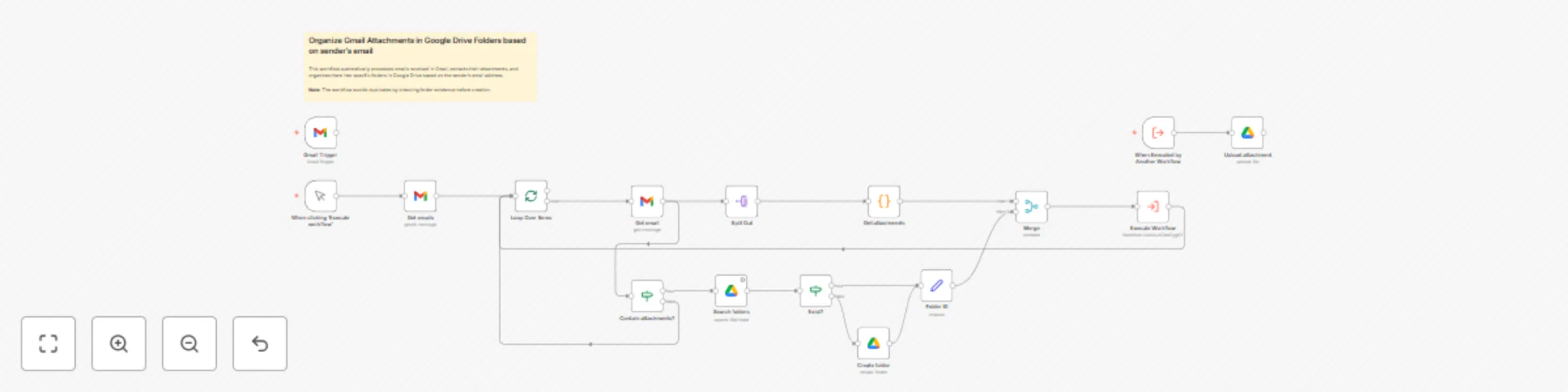
Organize Gmail attachments in Google Drive folders based on sender’s email

Workflow preview

Workflow preview
100%
Organize Gmail attachments in Google Drive folders based on sender’s email preview
Open on n8n.io

Important notice

This workflow is provided as-is. Please review and test before using in production.

1. Workflow Overview

This workflow automatically processes emails received in Gmail, extracts their attachments , and organizes them into specific folders in Google Drive based on the sender's email address . Note...

Best for

  • File Management automation workflows
  • advanced n8n builders looking for reusable templates

Tools used

n8n-nodes-base.gmailtrigger, n8n-nodes-base.manualtrigger, n8n-nodes-base.splitinbatches, n8n-nodes-base.splitout, n8n-nodes-base.merge, n8n-nodes-base.googledrive, n8n-nodes-base.executeworkflowtrigger, n8n-nodes-base.executeworkflow

Source and attribution

This workflow is cataloged by N8N Workflows and links back to its original n8n.io source page by Davide.

Original n8n.io source

1.1 Workflow description

Title
Organize Gmail attachments in Google Drive folders based on sender’s email
Workflow name
Organize Gmail attachments in Google Drive folders based on sender’s email

📩🤖 This workflow automatically processes emails received in Gmail, extracts their attachments, and organizes them into specific folders in Google Drive based on the sender's email address.

Note: The workflow avoids duplicates by checking folder existence before creation.


Benefits:

  • Automated Organization: No need to manually sort or download email attachments.
  • 📁 Sender-based Categorization: Files are stored in clearly labeled folders per sender, improving traceability and reducing clutter.
  • Time-saving: Reduces repetitive administrative tasks by automating the workflow end-to-end.
  • 🔁 Modular and Scalable: Can be easily extended or reused with other services (e.g., Dropbox, S3) or integrated into larger document workflows.
  • 🔐 Secure Cloud Storage: Attachments are safely backed up in Google Drive, minimizing the risk of data loss from email.

How It Works

  1. Trigger:
    • The workflow can be triggered manually ("When clicking ‘Execute workflow’) or automatically (via Gmail Trigger polling emails every minute).
  2. Email Processing:
    • Fetches emails (with attachments) from Gmail within a date range (default: July 6–9, 2025).
    • For each email, checks if it contains attachments (via IF node).
  3. Folder Management:
    • Searches Google Drive for a folder named after the sender’s email address (under parent folder "Email Attachments").
    • Creates the folder if it doesn’t exist.
  4. Attachment Handling:
    • Splits out binary attachments, extracts filenames, and uploads each file to the sender’s dedicated folder in Google Drive.
  5. Sub-Workflow Execution:
    • Uses Execute Workflow to modularize the upload process (reusable for other workflows).

Set Up Steps

  1. Google Services:
    • Connect Gmail and Google Drive nodes to your accounts via OAuth2.
    • Ensure the parent folder "Email Attachments" (ID: 1EitwWVd5rKZTlvOreB4R-6xxxxxx) exists in Google Drive.
  2. Adjust Date Range:
    • Modify receivedAfter/receivedBefore in the Get emails node to target specific emails.
  3. Test:
    • Run manually to verify folder creation and attachment uploads.
  4. Activate Automation:
    • Enable the Gmail Trigger for real-time processing (currently active: false).

Need help customizing?

Contact me for consulting and support or add me on Linkedin.

1.2 Logical Blocks

This catalog entry is organized from the workflow JSON. The node-level section below shows the executable blocks available for review before importing the template.

2. Block-by-Block Analysis

Block 1 - Gmail Trigger

Type / Role
n8n-nodes-base.gmailTrigger - gmailTrigger
Config choices
Version 1.2

Block 2 - When clicking ‘Execute workflow’

Type / Role
n8n-nodes-base.manualTrigger - manualTrigger
Config choices
Version 1

Block 3 - Loop Over Items

Type / Role
n8n-nodes-base.splitInBatches - splitInBatches
Config choices
Version 3

Block 4 - Split Out

Type / Role
n8n-nodes-base.splitOut - splitOut
Config choices
Version 1

Block 5 - Merge

Type / Role
n8n-nodes-base.merge - merge
Config choices
Version 3.2

Block 6 - Create folder

Type / Role
n8n-nodes-base.googleDrive - googleDrive
Config choices
Version 3

Block 7 - When Executed by Another Workflow

Type / Role
n8n-nodes-base.executeWorkflowTrigger - executeWorkflowTrigger
Config choices
Version 1.1

Block 8 - Execute Workflow

Type / Role
n8n-nodes-base.executeWorkflow - executeWorkflow
Config choices
Version 1.2

Block 9 - Get emails

Type / Role
n8n-nodes-base.gmail - gmail
Config choices
Version 2.1

Block 10 - Get email

Type / Role
n8n-nodes-base.gmail - gmail
Config choices
Version 2.1

Block 11 - Contain attachments?

Type / Role
n8n-nodes-base.if - if
Config choices
Version 2.2

Block 12 - Search folders

Type / Role
n8n-nodes-base.googleDrive - googleDrive
Config choices
Version 3

Block 13 - Exist?

Type / Role
n8n-nodes-base.if - if
Config choices
Version 2.2

Block 14 - Folder ID

Type / Role
n8n-nodes-base.set - set
Config choices
Version 3.4

Block 15 - Get attachments

Type / Role
n8n-nodes-base.code - code
Config choices
Version 2

Block 16 - Upload attachment

Type / Role
n8n-nodes-base.googleDrive - googleDrive
Config choices
Version 3

Block 17 - Sticky Note

Type / Role
n8n-nodes-base.stickyNote - stickyNote
Config choices
Version 1

3. Summary Table

Workflow Organize Gmail attachments in Google Drive folders based on sender’s email
Complexity advanced
Nodes 17
Categories File Management
Author Davide
Published 22 Jul 2025

4. Reproducing the Workflow from Scratch

  1. 1. Download the workflow JSON

    Use the JSON export at /data/workflows/6277/6277.json as the source template for this automation.

  2. 2. Import the template into n8n

    Open n8n, import the downloaded JSON, and review each node before activating the workflow.

  3. 3. Configure credentials and variables

    Replace placeholder credentials, API keys, webhook URLs, account IDs, and environment-specific values with your own settings.

  4. 4. Test with sample data

    Run the workflow manually or in a staging workspace, inspect node output, and confirm downstream systems receive the expected data.

  5. 5. Activate and monitor

    Enable the workflow only after testing, then monitor executions, errors, and rate limits during the first production runs.

5. General Notes & Resources

Review imported nodes carefully before activation. This catalog entry is intended to help you inspect the workflow structure, understand required services, and find related templates faster.

Node names, credentials, schedules, webhook paths, and external service limits may need adjustment for your workspace.

Frequently asked questions

What does Organize Gmail attachments in Google Drive folders based on sender’s email do?

This workflow automatically processes emails received in Gmail, extracts their attachments , and organizes them into specific folders in Google Drive based on the sender's email address . Note...

What do I need before importing this workflow?

Review the workflow JSON, configure any required credentials in n8n, and test the automation in a safe workspace before using it in production.

Can I customize this workflow?

Yes. Use the block-by-block analysis and the downloadable JSON to inspect each node, then adjust credentials, prompts, schedules, filters, or destinations for your File Management use case.