D

Davide

113
Workflows

Workflows by Davide

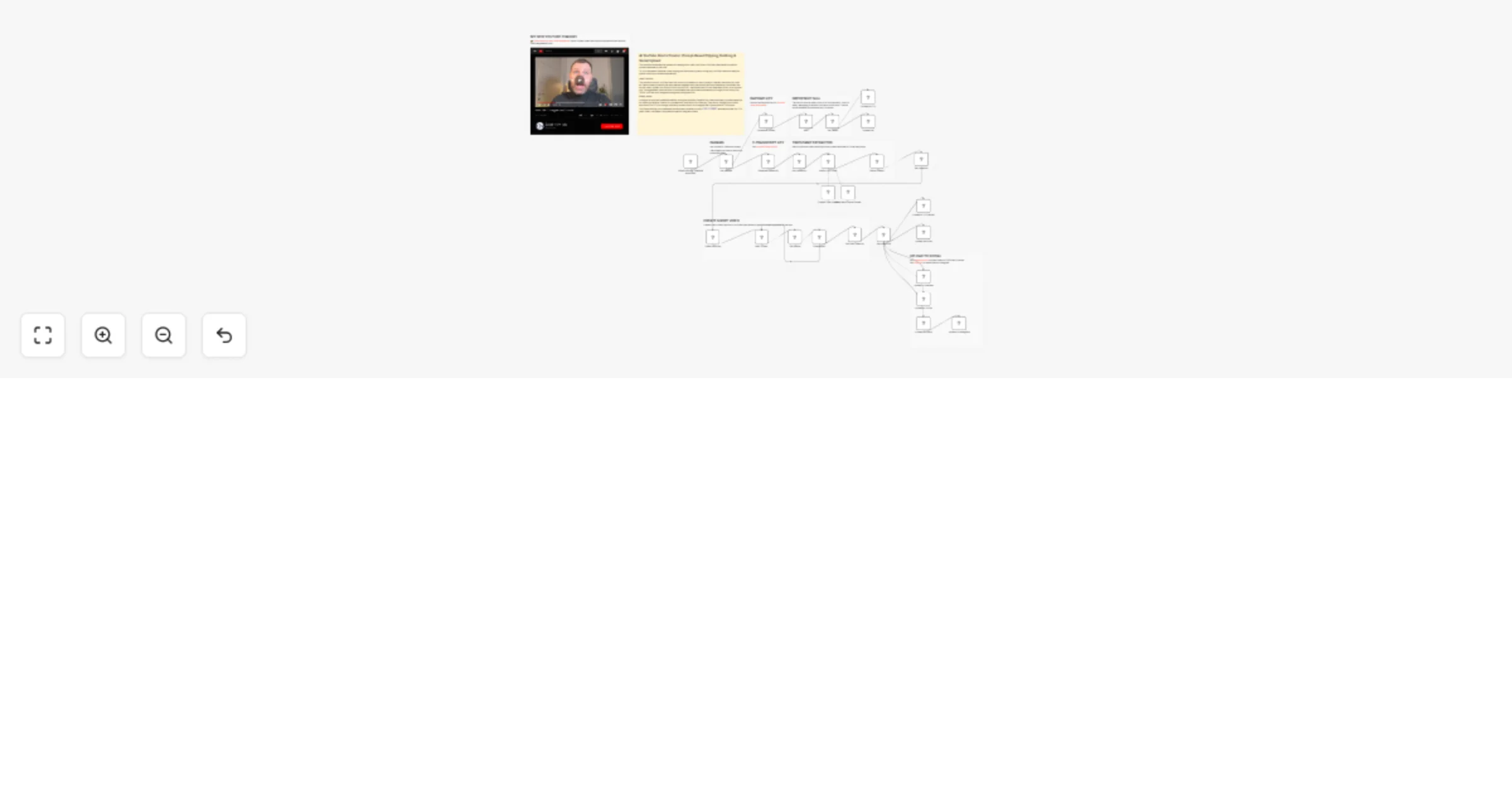
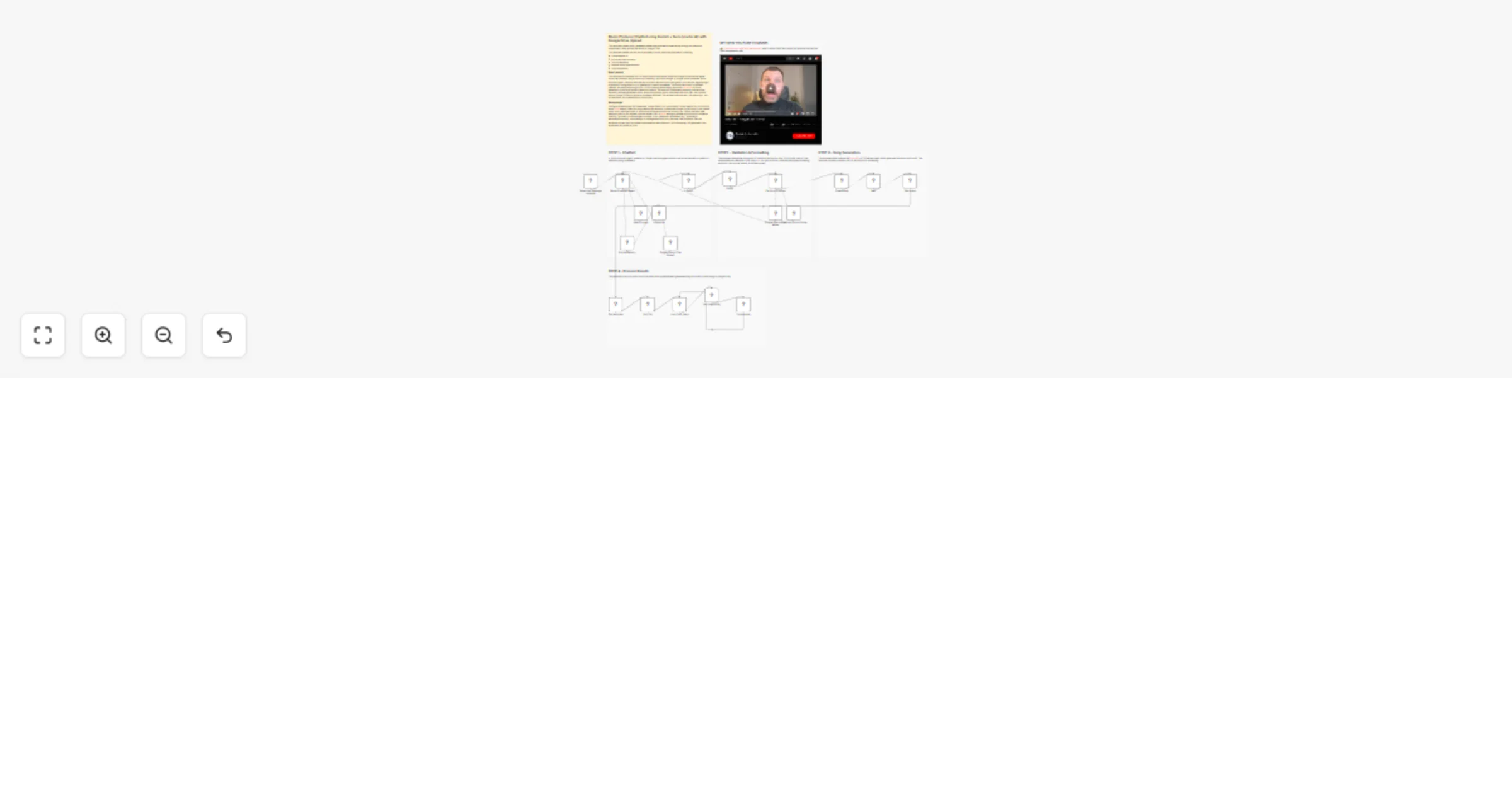
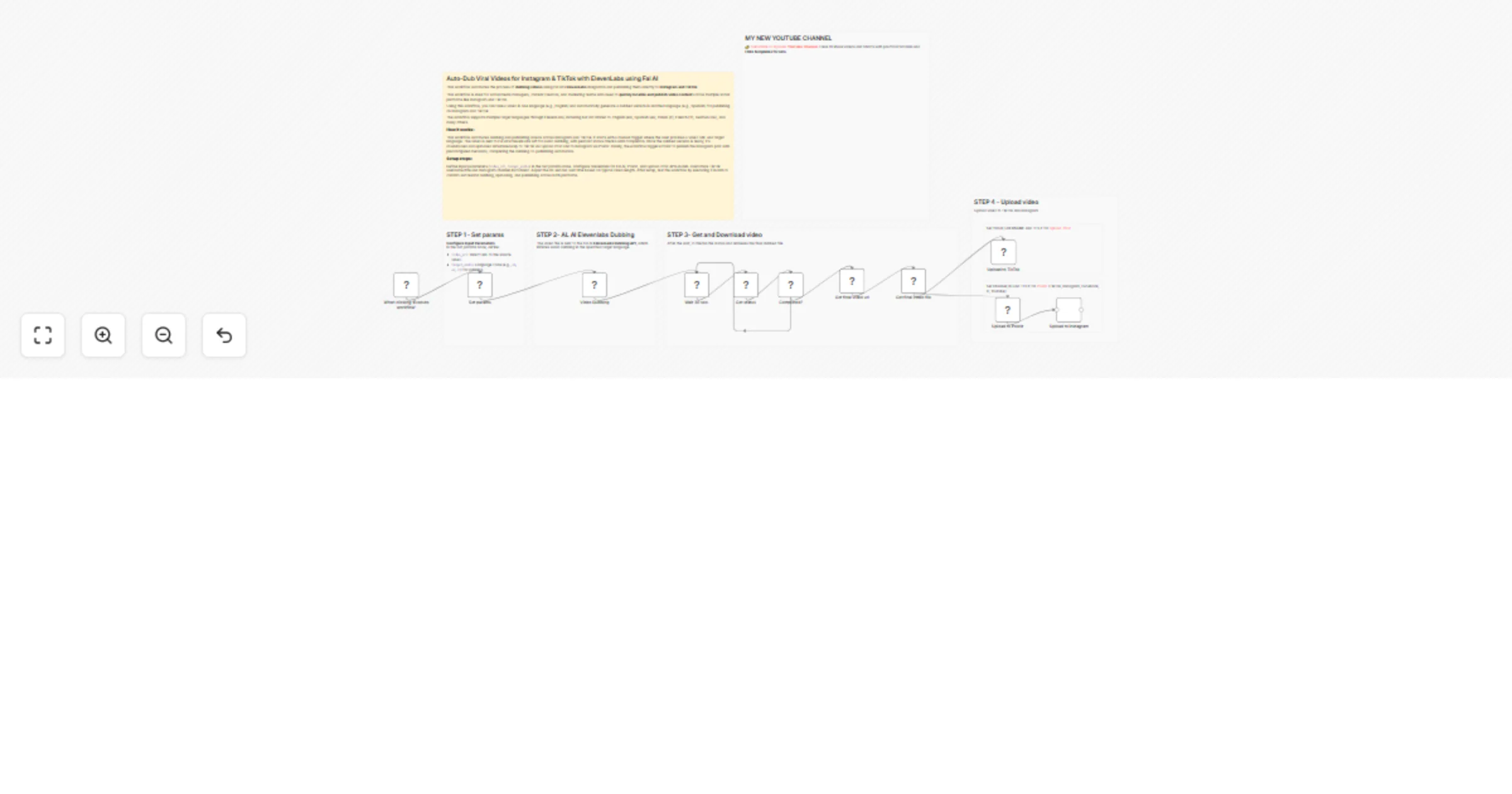
Workflow preview: Translate 🎙️and upload dubbed YouTube videos 📺 using ElevenLabs AI Dubbing
Free advanced

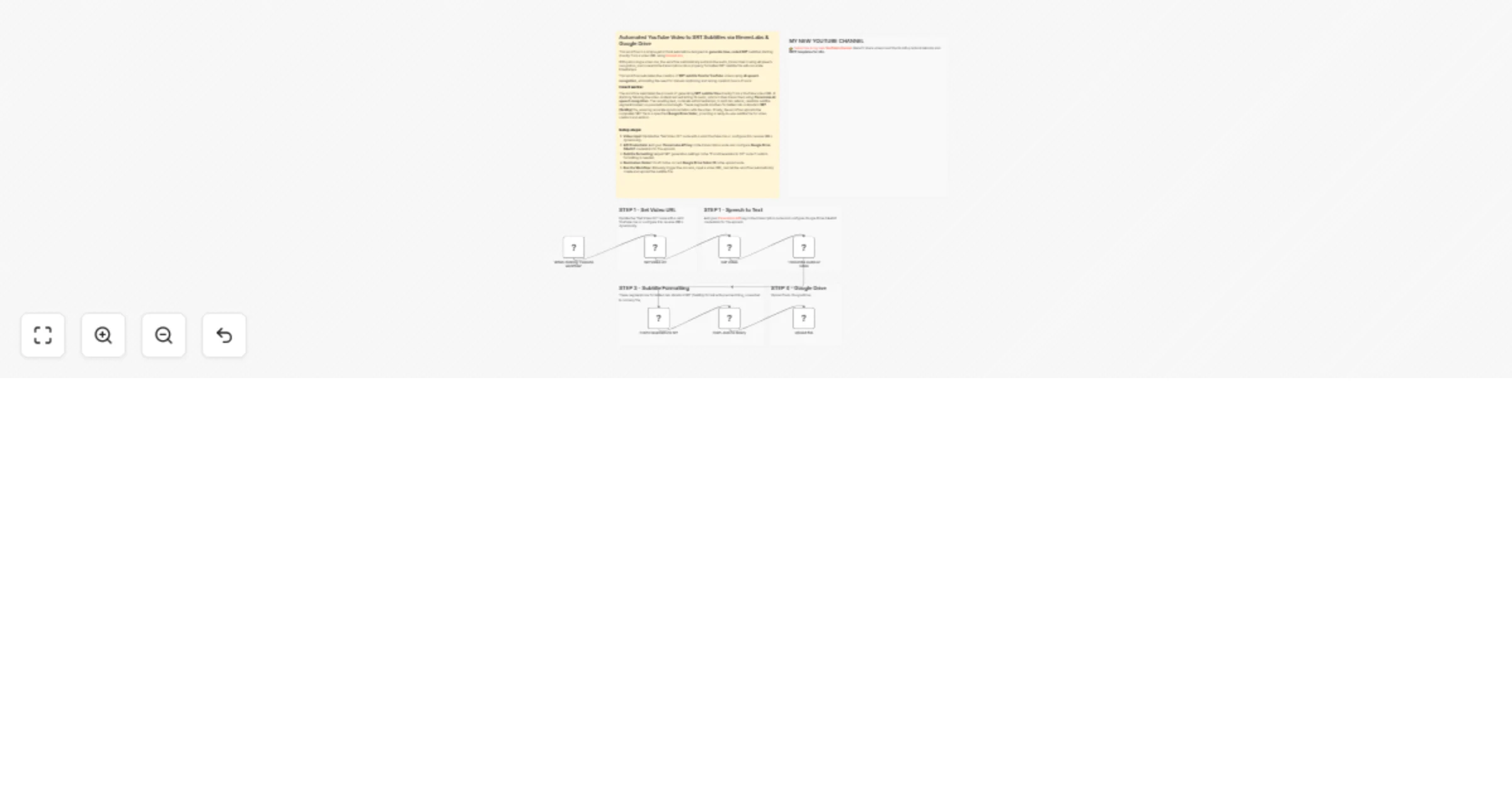
Translate 🎙️and upload dubbed YouTube videos 📺 using ElevenLabs AI Dubbing

This workflow automates the end-to-end process of **video dubbing** using **ElevenLabs**, storage on Google Drive, and publishing on **Youtube**. This workflow is ideal for creators, agencies, and media teams that need to **TRANSLATE process** and publish large volumes of video content consistently. For this workflow, I started from my [Italian YouTube Short](https://iframe.mediadelivery.net/play/580928/c445daec-e3fe-4019-b035-58ac3bf386dd), and by applying the same workflow, the result was this [English version](https://iframe.mediadelivery.net/play/580928/2179db44-e7e2-43e6-82a1-13b12e18ba8b). --- ### Key Advantages #### 1. ✅ Full Automation of Video Localization The entire process—from video download to AI dubbing and publishing—is automated, eliminating manual steps and reducing human error. #### 2. ✅ Fast Multilingual Content Scaling With AI-powered dubbing, the same video can be quickly localized into different languages, enabling global audience expansion. #### 3. ✅ Efficient Time Management The workflow intelligently waits for the dubbing process to finish using dynamic timing, avoiding unnecessary retries or failures. #### 4. ✅ Centralized Content Distribution A single workflow handles storage, social posting, and YouTube uploads, simplifying content operations across platforms. #### 5. ✅ Reduced Operational Costs Automating dubbing and publishing significantly lowers costs compared to manual voiceovers, video editing, and uploads. #### 6. ✅ Easy Customization & Reusability Parameters like video URL, language, title, and platform can be easily changed, making the workflow reusable for different projects or clients. --- ### **How It Works** 1. The workflow begins with a manual trigger that sets input parameters: a video URL and the target language for dubbing (e.g., `en` for English). 2. The video is fetched from the provided URL via an HTTP request. 3. The video file is sent to the **ElevenLabs Dubbing API**, which initiates audio dubbing in the specified target language. 4. The workflow then waits for a calculated duration (video length + 120 seconds) to allow the dubbing process to complete. 5. After the wait, it checks the dubbing status using the `dubbing_id` and retrieves the final dubbed audio file. 6. The dubbed video is then processed in parallel: - Uploaded to **Google Drive** in a designated folder. - Uploaded to **Postiz** for social media management. - Uploaded via **Upload-Post.com API** for YouTube publishing. 7. Finally, the workflow triggers a **Postiz** node to schedule or publish the content to YouTube with the prepared metadata. --- ### **Set Up Steps** 1. **Configure Input Parameters** In the *Set params* node, define: - `video_url`: Direct URL to the source video. - `target_audio`: Language code (e.g., `en`, `es`, `fr`) for dubbing. 2. **Set Up Credentials** Ensure the following credentials are configured in n8n: - **[ElevenLabs API](https://try.elevenlabs.io/ahkbf00hocnu)** (for dubbing) - **Google Drive OAuth2** (for file upload) - **[Postiz API](https://affiliate.postiz.com/n3witalia)** (for social media scheduling) - **[Upload-Post.com API](https://www.upload-post.com/?linkId=lp_144414&sourceId=n3witalia&tenantId=upload-post-app)** (for YouTube upload) 3. **Adjust Wait Time** Modify the *Wait* node if needed: `expected_duration_sec + 120` ensures enough time for dubbing. Adjust based on video length. 4. **Customize Upload Destinations** Update folder IDs (Google Drive) and platform settings (Upload-Post.com) as needed. 5. **Set Post Content** In the *Youtube Postiz* and *Youtube Upload-Post* nodes, replace `YOUR_CONTENT` and `YOUR_USERNAME` with actual titles, descriptions, and channel details. 6. **Activate and Test** Activate the workflow in n8n, click *Execute workflow*, and monitor execution for errors. Ensure all API keys and permissions are valid. --- 👉 [Subscribe to my new **YouTube channel**](https://youtube.com/@n3witalia). Here I’ll share videos and Shorts with practical tutorials and **FREE templates for n8n**. [![image](https://n3wstorage.b-cdn.net/n3witalia/youtube-n8n-cover.jpg)](https://youtube.com/@n3witalia) --- ### **Need help customizing?** [Contact me](mailto:[email protected]) for consulting and support or add me on [Linkedin](https://www.linkedin.com/in/davideboizza/).

D
Davide
Content Creation
15 Jan 2026
0
0
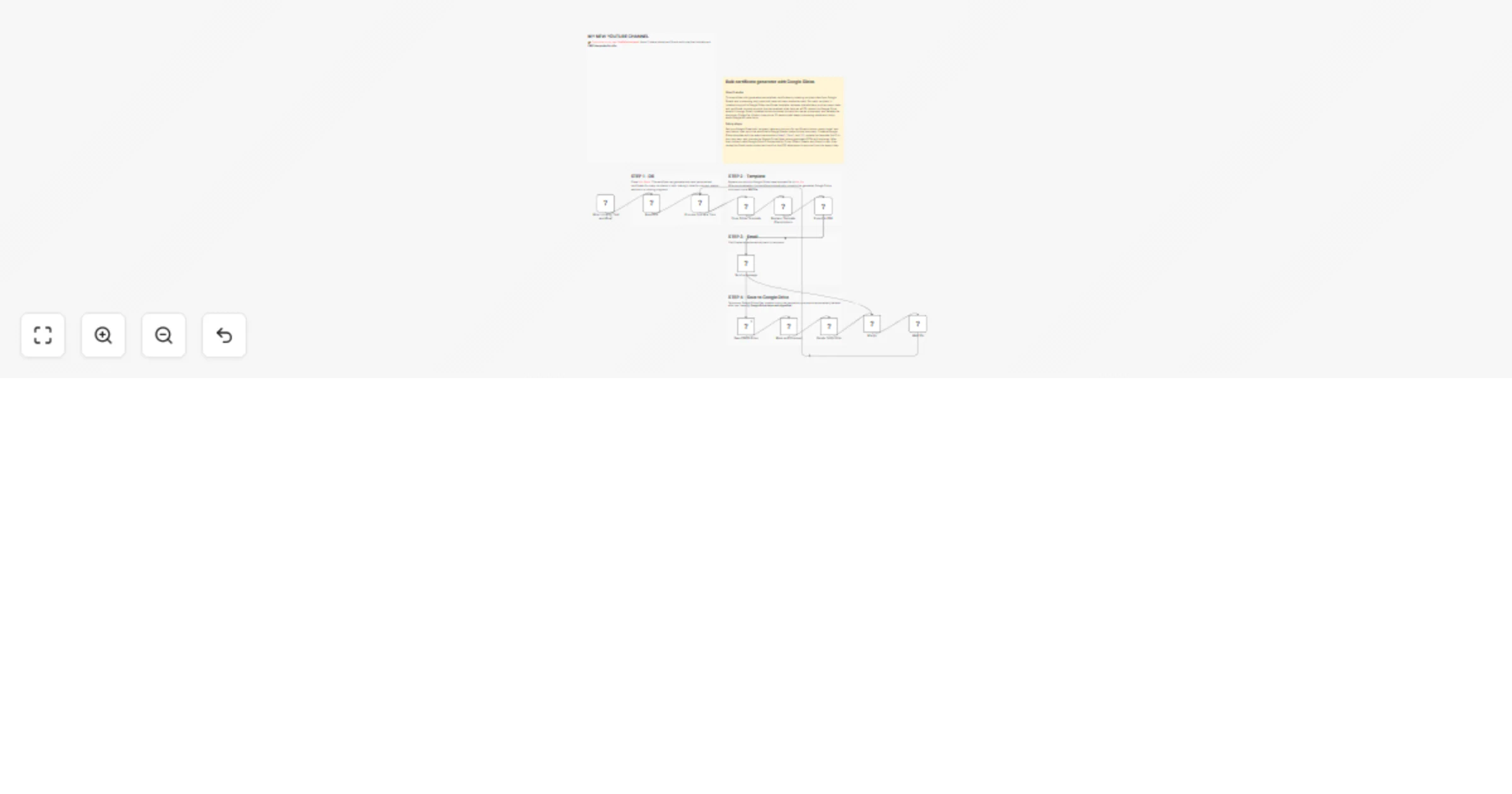
Workflow preview: Scrape Trustpilot reviews 📊 with ScrapegraphAI and OpenAI Reputation analysis
Free advanced

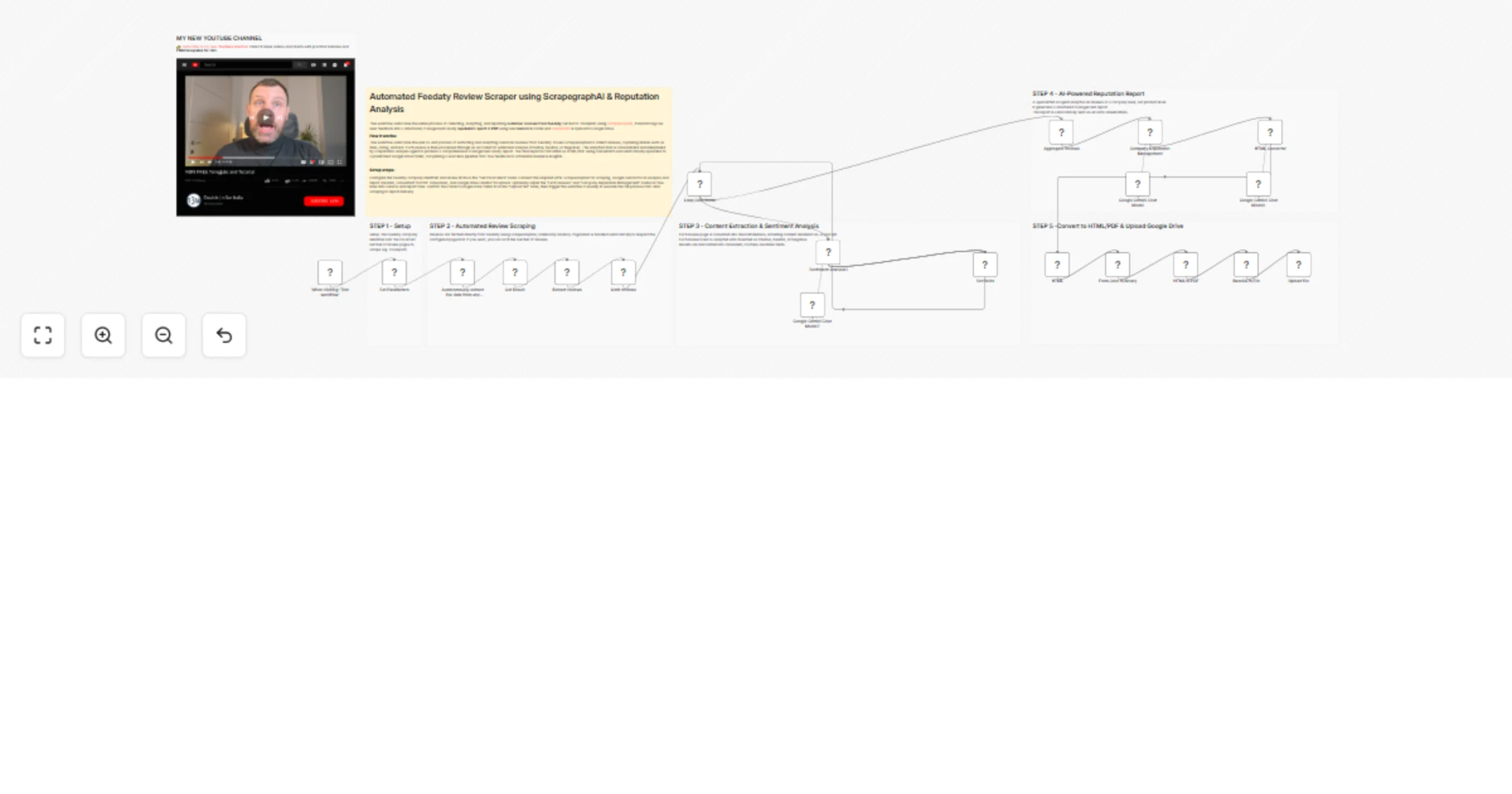
Scrape Trustpilot reviews 📊 with ScrapegraphAI and OpenAI Reputation analysis

This workflow automates the **collection, analysis, and reporting of Trustpilot reviews** for a specific company, transforming unstructured customer feedback into **structured insights and actionable intelligence**. --- ### Key Advantages #### 1. ✅ End-to-End Automation The entire process—from scraping reviews to delivering a polished management report—is fully automated, eliminating manual data collection and analysis . #### 2. ✅ Structured Insights from Unstructured Data The workflow transforms raw, unstructured review text into structured fields and standardized sentiment categories, making analysis reliable and repeatable. #### 3. ✅ Company-Level Reputation Intelligence Instead of focusing on individual products, the analysis evaluates the **overall brand, service quality, customer experience, and operational performance**, which is critical for leadership and strategic teams. #### 4. ✅ Action-Oriented Outputs The AI-generated report goes beyond summaries by: * Identifying reputational risks * Highlighting improvement opportunities * Proposing concrete actions with priorities, effort estimates, and KPIs #### 5. ✅ Visual & Executive-Friendly Reporting Automatic sentiment charts and structured executive summaries make insights immediately understandable for non-technical stakeholders. #### 6. ✅ Scalable and Configurable * Easily adaptable to different companies or review volumes * Page limits and batching protect against rate limits and excessive API usage #### 7. ✅ Cross-Team Value The output is tailored for multiple internal teams: * Management * Marketing * Customer Support * Operations * Product & UX --- ### Ideal Use Cases * Brand reputation monitoring * Voice-of-the-customer programs * Executive reporting * Customer experience optimization * Competitive benchmarking (by reusing the workflow across brands) --- ### **How It Works** This workflow automates the complete process of scraping Trustpilot reviews, extracting structured data, analyzing sentiment, and generating comprehensive reports. The workflow follows this sequence: 1. **Trigger & Configuration**: The workflow starts with a manual trigger, allowing users to set the target company URL and the number of review pages to scrape. 2. **Review Scraping**: An HTTP request node fetches review pages from Trustpilot with pagination support, extracting review links from the HTML content. 3. **Review Processing**: The workflow processes individual review pages in batches (limited to 5 reviews per execution for efficiency). Each review page is converted to clean markdown using ScrapegraphAI. 4. **Data Extraction**: An information extractor using OpenAI's GPT-4.1-mini model parses the markdown to extract structured review data including author, rating, date, title, text, review count, and country. 5. **Sentiment Analysis**: Another OpenAI model performs sentiment classification on each review text, categorizing it as Positive, Neutral, or Negative. 6. **Data Aggregation**: Processed reviews are collected and compiled into a structured dataset. 7. **Analytics & Visualization**: - A pie chart is generated showing sentiment distribution - A comprehensive reputation analysis report is created using an AI agent that evaluates company-level insights, recurring themes, and provides actionable recommendations 8. **Reporting & Delivery**: The analysis is converted to HTML format and sent via email, providing stakeholders with immediate insights into customer feedback and company reputation. ## **Set Up Steps** To configure and run this workflow: 1. **Credential Setup**: - Configure OpenAI API credentials for the chat models and information extraction - Set up ScrapegraphAI credentials for webpage-to-markdown conversion - Configure Gmail OAuth2 credentials for email notifications 2. **Company Configuration**: - In the "Set Parameters" node, update `company_id` to the target Trustpilot company URL - Adjust `max_page` to control how many review pages to scrape 3. **Review Processing Limits**: - The "Limit" node restricts processing to 5 reviews per execution to manage API costs and processing time - Adjust this value based on your needs and OpenAI usage limits 4. **Email Configuration**: - Update the "Send a message" node with the recipient email address - Customize the email subject and content as needed 5. **Analysis Customization**: - Modify the prompt in the "Company Reputation Analyst" node to tailor the report format - Adjust sentiment analysis categories if different classification is needed 6. **Execution**: - Click "Test workflow" to execute the manual trigger - Monitor execution in the n8n editor to ensure all API calls succeed - Check the configured email inbox for the generated report **Note**: Be mindful of API rate limits and costs associated with OpenAI and ScrapegraphAI services when processing large numbers of reviews. The workflow includes a 5-second delay between paginated requests to comply with Trustpilot's terms of service. --- 👉 [Subscribe to my new **YouTube channel**](https://youtube.com/@n3witalia). Here I’ll share videos and Shorts with practical tutorials and **FREE templates for n8n**. [![image](https://n3wstorage.b-cdn.net/n3witalia/youtube-n8n-cover.jpg)](https://youtube.com/@n3witalia) --- ### **Need help customizing?** [Contact me](mailto:[email protected]) for consulting and support or add me on [Linkedin](https://www.linkedin.com/in/davideboizza/).

D
Davide
Market Research
12 Jan 2026
0
0
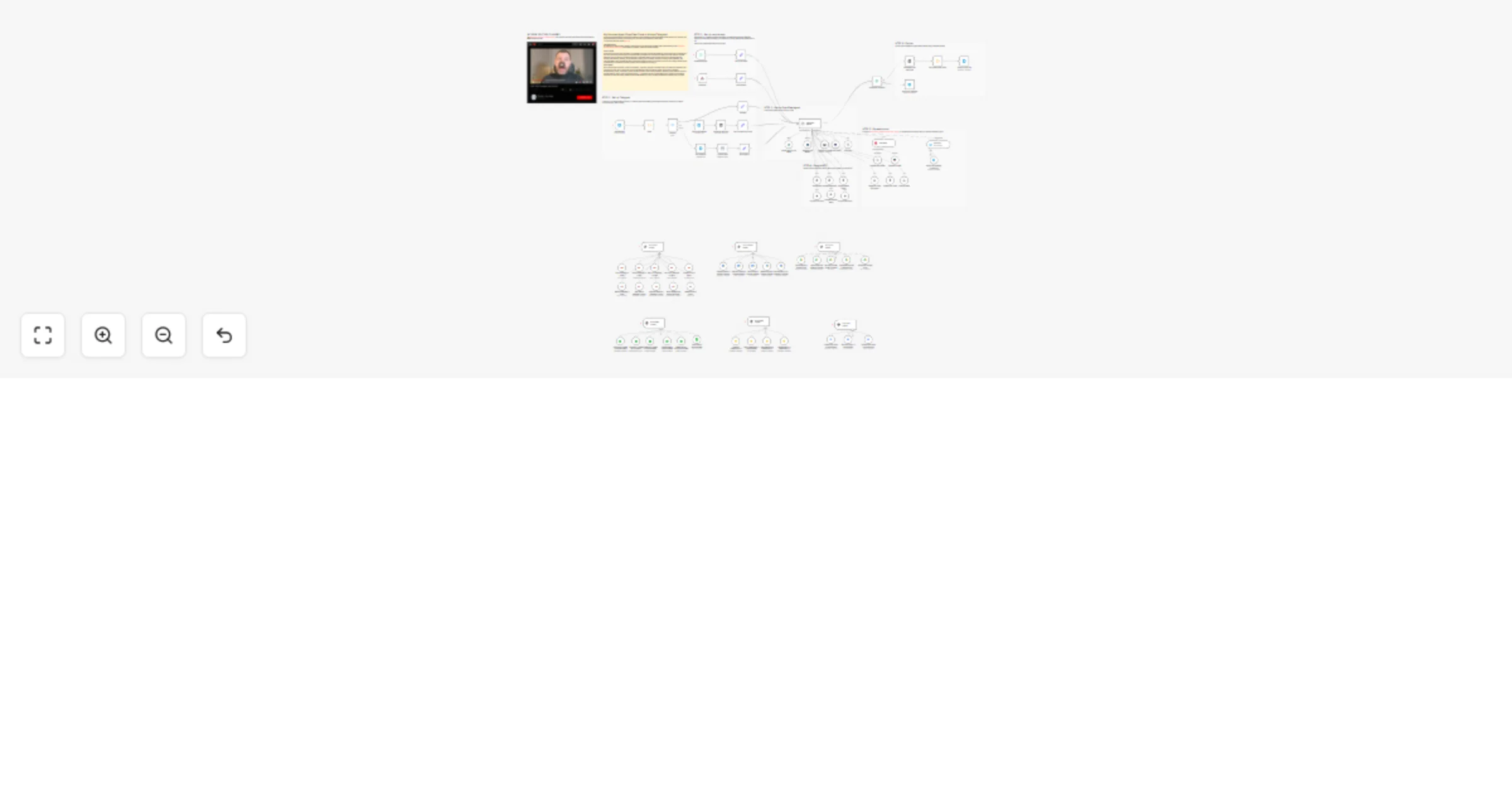
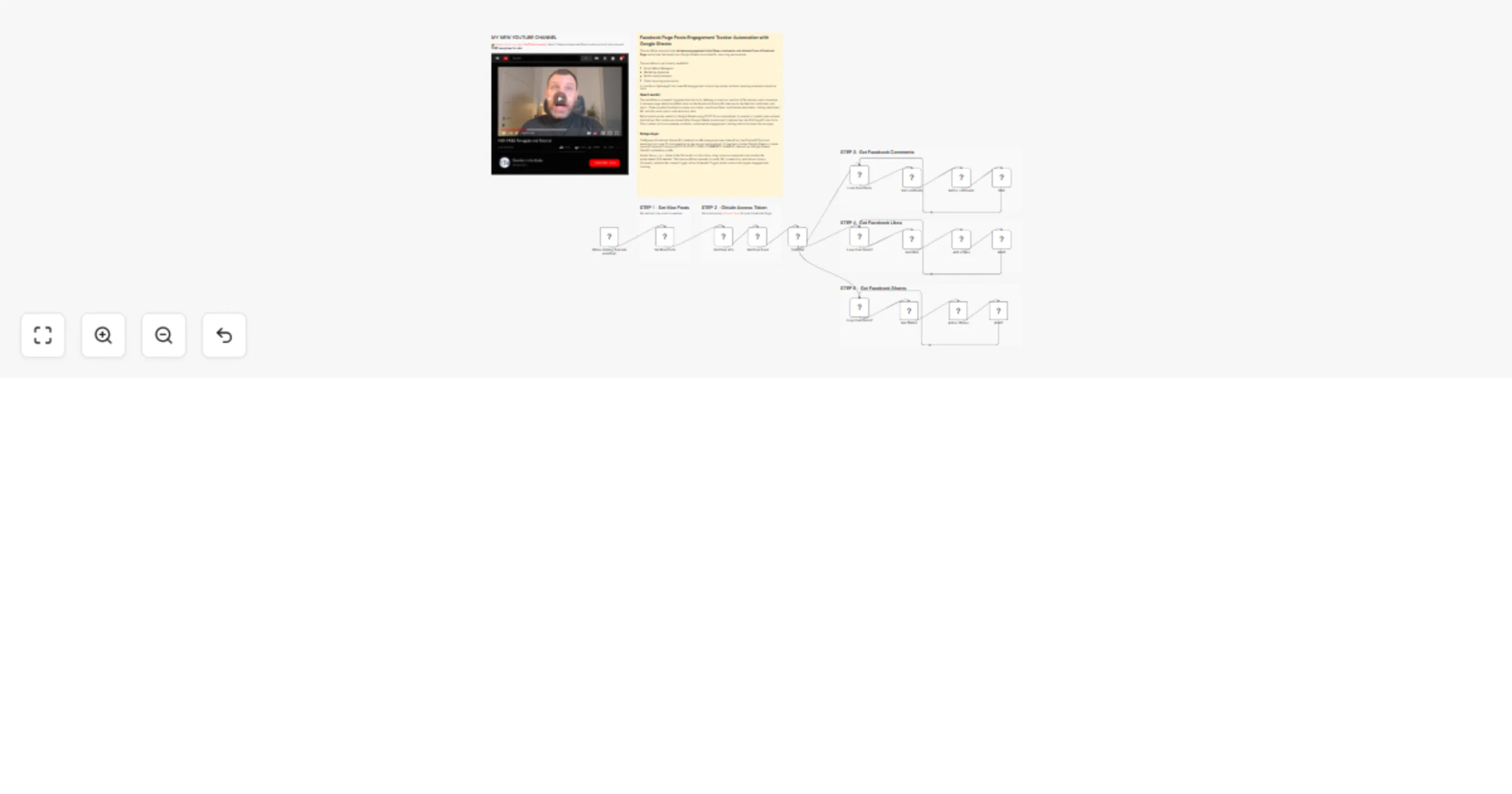
Workflow preview: WooCommerce 🛒 Product Review Sentiment Analysis and AI Report 🤖 for Improvement
Free advanced

WooCommerce 🛒 Product Review Sentiment Analysis and AI Report 🤖 for Improvement

This workflow automates the **end-to-end analysis of WooCommerce product reviews**, transforming raw customer feedback into **actionable product and customer-care insights**, and delivering them in a structured, visual, and shareable format. This workflow analyzes product review sentiment from WooCommerce using AI. It starts by retrieving reviews for a specified product via the WooCommerce. Each review then undergoes sentiment analysis using LangChain's Sentiment Analysis. The workflow aggregates sentiment data, creates a pie chart visualization via QuickChart, and compiles a comprehensive report using an AI Agent. The report includes executive summaries, quantitative data, qualitative analysis, product diagnostics, and operational recommendations. Finally, the **AI-generated report** is converted to HTML and emailed to a designated recipient for review by customer and product teams. --- ### Key Advantages #### 1. ✅ Full Automation of Review Analysis Eliminates manual work by automating data collection, sentiment analysis, reporting, visualization, and delivery in a single workflow. #### 2. ✅ Scalable and Reliable Batch processing ensures the workflow can handle **dozens or hundreds of reviews** without performance issues. #### 3. ✅ Action-Oriented Insights (Not Just Sentiment) Instead of stopping at sentiment scores, the workflow produces: * Root-cause hypotheses * Concrete improvement actions * Prioritized recommendations (P0 / P1 / P2) * Measurable KPIs #### 4. ✅ Combines Quantitative and Qualitative Analysis Merges hard metrics (averages, distributions, outliers) with qualitative insights (themes, risks, opportunities), giving a **360° view of customer feedback**. #### 5. ✅ Visual + Narrative Output Stakeholders receive both: * **Visual sentiment charts** for quick understanding * **Structured written reports** for strategic decision-making #### 6. ✅ Ready for Product & Customer Care Teams The output format is tailored for non-technical teams: * Clear language * Masked personal data (GDPR-friendly) * Immediate usability in meetings, emails, or documentation #### 7. ✅ Easily Extensible The workflow can be extended to: * Run on a schedule * Analyze multiple products * Store results in a database or CRM * Trigger alerts for negative sentiment spikes #### Ideal Use Cases * Continuous monitoring of product sentiment * Supporting product roadmap decisions * Identifying customer pain points early * Improving customer support response strategies * Reporting customer voice to stakeholders automatically --- ### How it works 1. **Manual Trigger & Configuration** The workflow starts manually and sets the target **WooCommerce product ID** and **store URL**. 2. **Data Retrieval from WooCommerce** * Fetches **all reviews** for the selected product via the WooCommerce REST API. * Retrieves **product details** (name, description, categories) to enrich the analysis context. 3. **Batch Processing of Reviews** Reviews are processed in batches to ensure scalability and reliability, even with a large number of reviews. 4. **AI-Powered Sentiment Analysis** * Each review is analyzed using an OpenAI-based sentiment analysis model. * For every review, the workflow extracts: * Sentiment category (Positive / Negative / Neutral) * Strength (intensity) * Confidence (reliability of the classification) 5. **Data Normalization & Aggregation** * Review text is cleaned and structured. * Sentiment data is aggregated to compute overall distributions and metrics. 6. **Visual Sentiment Distribution** * A pie chart is dynamically generated via QuickChart to visually represent sentiment distribution. 7. **Advanced AI Insight Generation** A specialized AI agent (“Product Insights Analyst”) transforms the raw and aggregated data into a **professional, structured report**, including: * Executive summary * Quantitative statistics * Qualitative themes * Product diagnosis * Operational recommendations * Product backlog ideas * Next steps 8. **HTML Conversion & Delivery** * The report is converted into clean HTML. * The final output is automatically sent via **email** to stakeholders (e.g. product or customer care teams). --- ### Set up steps 1. **Configure credentials**: - Set up WooCommerce API credentials in the HTTP Request node. - Add OpenAI API credentials for both sentiment analysis and reporting. - Configure Gmail OAuth2 credentials for sending the final email report. 2. **Set parameters**: - In the "Product ID" node, replace `PRODUCT_ID` and `YOUR_WEBSITE` with actual product ID and WooCommerce site URL. - Update the recipient email address in the "Send a message" node. 3. **Optional adjustments**: - Modify the pie chart design in the "QuichChart" node if needed. - Adjust the report structure or language in the "Product Insights Analyst" system prompt. 4. **Run the workflow**: - Click "Execute workflow" on the manual trigger to start the process. - Monitor execution in n8n to ensure all nodes process correctly. Once configured, the workflow will automatically analyze product reviews, generate insights, and deliver a formatted report via email. --- 👉 [Subscribe to my new **YouTube channel**](https://youtube.com/@n3witalia). Here I’ll share videos and Shorts with practical tutorials and **FREE templates for n8n**. [![image](https://n3wstorage.b-cdn.net/n3witalia/youtube-n8n-cover.jpg)](https://youtube.com/@n3witalia) --- ### **Need help customizing?** [Contact me](mailto:[email protected]) for consulting and support or add me on [Linkedin](https://www.linkedin.com/in/davideboizza/).

D
Davide
Market Research
10 Jan 2026
1
0
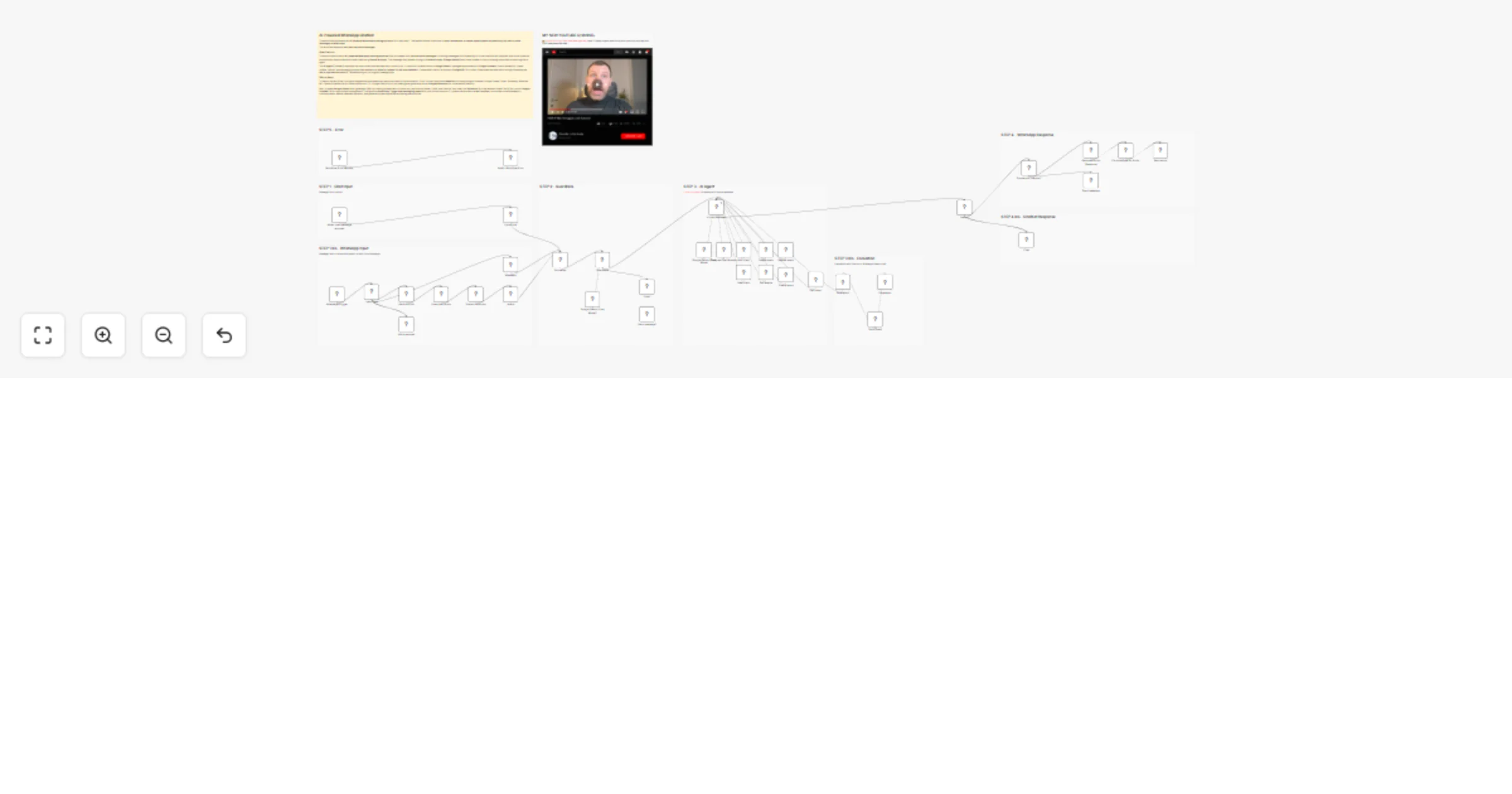
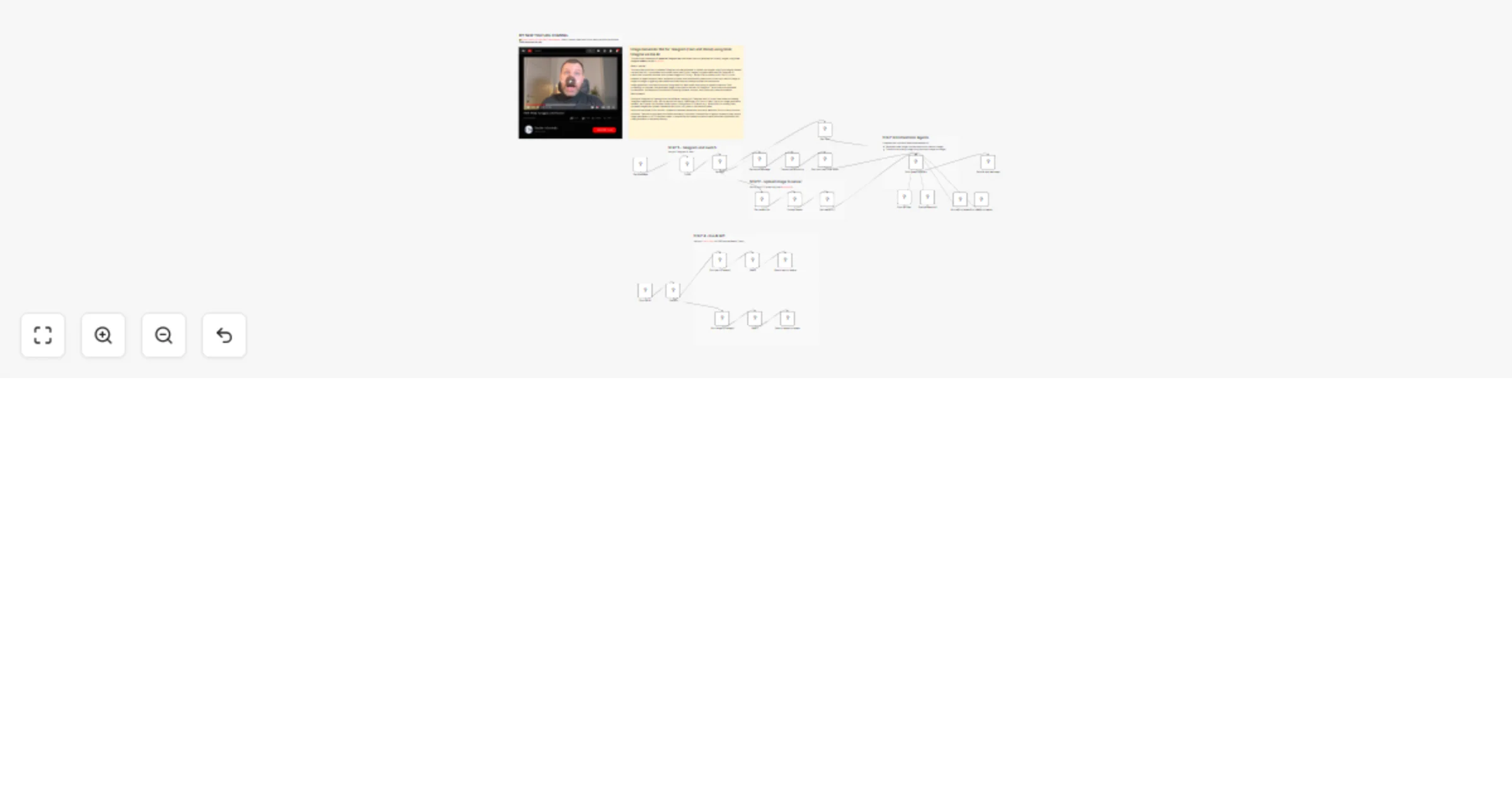
Workflow preview: Create Viral 😎 AI celebrity selfies 📸 with Nano Banana Pro & upload to Instagram
Free advanced

Create Viral 😎 AI celebrity selfies 📸 with Nano Banana Pro & upload to Instagram

This workflow automates the creation of **AI-generated viral selfie images with celebrities** using **Nano Banana Pro Edit** via [RunPod](https://get.runpod.io/n3witalia), generates engaging social media captions, and publishes the content to **Instagram** via [Postiz](https://affiliate.postiz.com/n3witalia). It starts with a form submission where the user provides an image URL, a custom prompt, and an aspect ratio. | START | RESULT | |------|--------| | ![image](https://n3wstorage.b-cdn.net/n3witalia/result3.png) | ![image](https://n3wstorage.b-cdn.net/n3witalia/result_lbj.jpeg) | --- ### Key Advantages #### 1. ✅ Full Automation, Zero Manual Effort From image generation to caption writing and publishing, the entire process is automated. This drastically reduces production time and eliminates repetitive manual tasks. #### 2. ✅ Scalable Content Creation The workflow can handle unlimited submissions, making it ideal for: * Creators * Agencies * Growth teams * SaaS products offering AI-generated content #### 3. ✅ Consistent Viral Quality By using a dedicated AI content agent with strict guidelines, every post is: * Optimized for engagement * Consistent in tone and quality * Designed to maximize comments, shares, and saves #### 4. ✅ No Technical Skills Required for End Users The form-based entry point allows anyone to generate high-quality, celebrity-style content without understanding AI, APIs, or automation. #### 5. ✅ Multi-Tool Integration in One Pipeline The workflow seamlessly connects: * AI image generation (RunPod) * AI content intelligence (Google Gemini) * Asset storage (Google Drive) * Social media distribution (Postiz) #### 6. ✅ Brand-Safe and Platform-Native Output The captions are written to feel human and authentic, avoiding: * Obvious AI language * Overuse of emojis * Mentions of AI generation This increases trust and platform compatibility. #### 7. ✅ Perfect for Growth and Monetization This workflow is ideal for: * Viral growth experiments * Personal brand scaling * Automated influencer-style content * AI-powered SaaS or lead magnets --- ### How it works The workflow then: 1. Sends the image and prompt to RunPod’s Nano Banana Pro Edit API for AI image generation. 2. Periodically checks the generation status until it is completed. 3. Once the image is ready, it is downloaded and analyzed by Google Gemini to generate a viral-ready Instagram caption and hashtags. 4. The final image is uploaded to Google Drive and to Postiz for social media publishing. 5. The caption and image are combined and scheduled for posting on Instagram through the Postiz integration. The process includes conditional logic, waiting intervals, and error handling to ensure reliable execution from input to publication. --- ### Set up steps To use this workflow in n8n: 1. **Configure credentials**: - Add [RunPod API](https://get.runpod.io/n3witalia) credentials under `httpBearerAuth` named “Runpods”. - Set up Google Gemini (PaLM) API credentials for caption generation. - Add [Postiz API](https://affiliate.postiz.com/n3witalia) credentials for social media posting. - Configure Google Drive OAuth2 credentials for image backup. 2. **Prepare nodes**: - Ensure the Form Trigger node is properly set up with the required fields: `IMAGE_URL`, `PROMPT`, and `FORMAT`. - Update the RunPod API endpoints in the “Generate selfie” and “Get status clip” nodes if needed. - Verify the Google Drive folder ID in the “Upload file” node. - Replace `XXX` in the “Upload to Social” node with a valid Postiz integration ID. 3. **Test the flow**: - Use the pinned test data in the “On form submission” node to simulate a form entry. - Activate the workflow and submit the form to trigger the process. - Monitor execution in n8n’s workflow view to ensure all nodes run successfully. --- 👉 [Subscribe to my new **YouTube channel**](https://youtube.com/@n3witalia). Here I’ll share videos and Shorts with practical tutorials and **FREE templates for n8n**. [![image](https://n3wstorage.b-cdn.net/n3witalia/youtube-n8n-cover.jpg)](https://youtube.com/@n3witalia) --- ### **Need help customizing?** [Contact me](mailto:[email protected]) for consulting and support or add me on [Linkedin](https://www.linkedin.com/in/davideboizza/).

D
Davide
Content Creation
7 Jan 2026
128
0
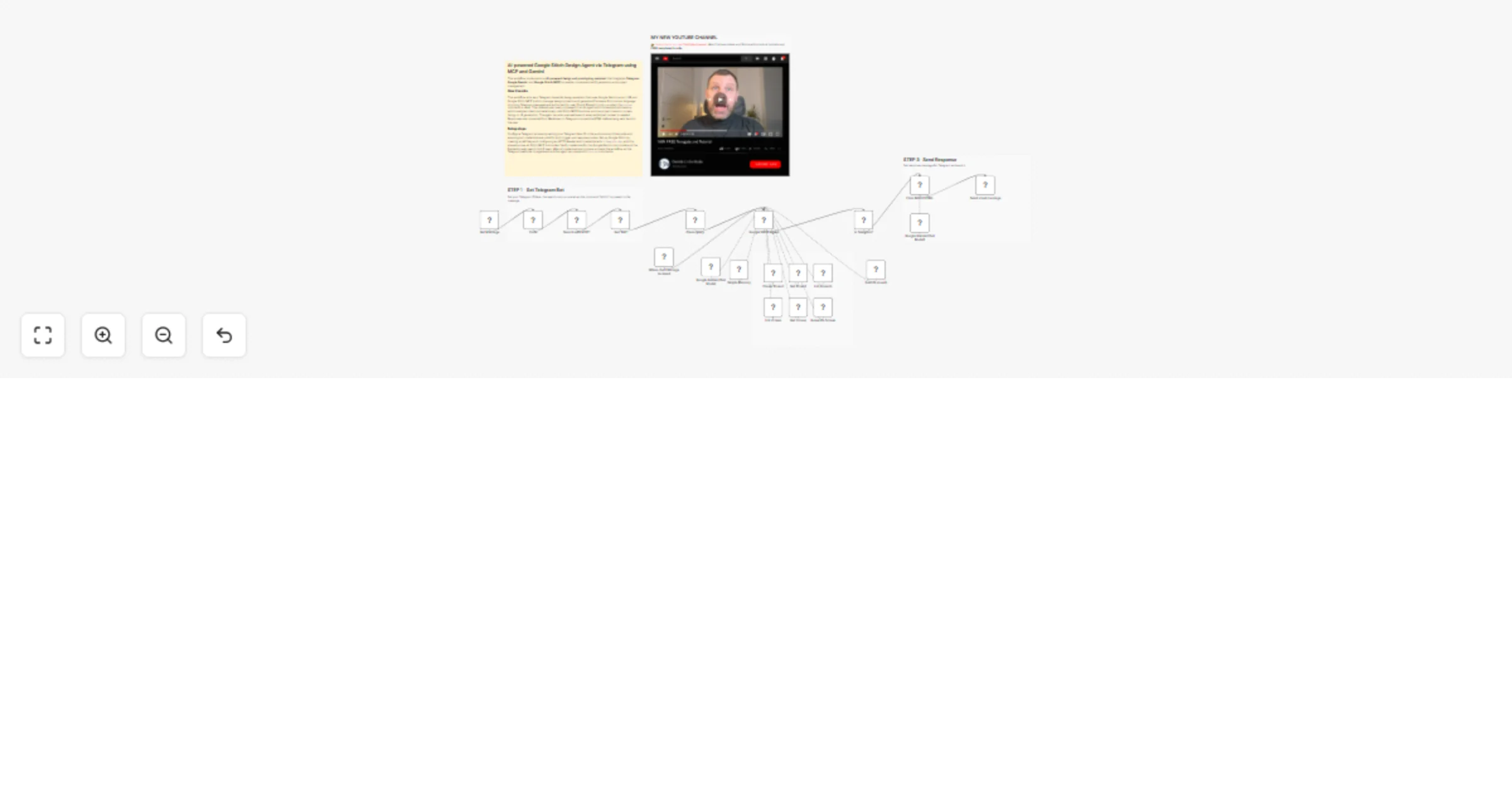
Workflow preview: Create AI Viral Selfie videos 🎬 with celebrities 😎 using Google Veo 3.1
Free advanced

Create AI Viral Selfie videos 🎬 with celebrities 😎 using Google Veo 3.1

This workflow demonstrates how to create **viral AI-generated selfie videos featuring famous characters** using a fully automated and platform-independent approach. The process is designed to replicate the kind of celebrity selfie videos that are currently going viral on social media and YouTube, where a **realistic selfie-style video** appears to show the creator together with a well-known **public figure**. Instead of relying on a proprietary or closed platform, the workflow explains how to build the entire pipeline using direct access to **Google Veo 3.1** APIs, giving full control over generation, orchestration, and distribution. --- ### Key Advantages #### 1. ✅ Fully automated video pipeline From prompt to final published video, the entire process runs without manual intervention. #### 2. ✅ Spreadsheet-driven control Non-technical users can manage video production simply by editing Google Sheets: * Add new prompts * Adjust duration * Control merge logic #### 3. ✅ Scalable and modular * Supports batch processing of many videos * Easy to extend with new AI models, platforms, or output formats #### 4. ✅ Reliable async handling * Built-in wait and status-check logic ensures robustness * Prevents failures caused by long-running AI jobs #### 5. ✅ Centralized asset management * Automatically stores video URLs and statuses * Keeps production data organized and auditable #### 6. ✅ Multi-platform ready * One generated video can be reused for: * YouTube * TikTok * Instagram * Other social channels #### 7. ✅ Cost and time efficiency * Eliminates repetitive manual video editing * Reduces production time from hours to minutes #### Ideal Use Cases * AI-generated storytelling videos * Social media content automation * Marketing video campaigns * Short-form video experiments at scale * Faceless or semi-automated content channels --- ### **How it Works** This workflow automates the generation of short video clips using AI, merges them into a final video, and optionally uploads the result to multiple platforms. 1. **Trigger & Data Fetching** The workflow starts with a manual trigger. It reads a Google Sheet containing prompts, image URLs (first and last frames), and duration settings for each video clip to be generated. 2. **Video Clip Generation** For each row in the sheet, the workflow calls the **fal.ai VEO 3.1 API** to generate a video clip based on the provided prompt, start image, end image, and duration. The clip is created asynchronously, so the workflow polls the API for status until completion. 3. **Status Polling & URL Retrieval** Once a clip is marked as `COMPLETED`, its video URL is fetched and written back to the Google Sheet in the corresponding row. 4. **Video Merging** After all clips are generated, the workflow collects the video URLs from rows marked for merging and sends them to the **fal.ai FFmpeg API** to be combined into a single video. 5. **Final Video Processing** The merged video is polled until ready, then its final URL is retrieved. The video file is downloaded via HTTP request. 6. **Upload & Distribution** The final video can be uploaded to: - Google Drive - YouTube (via [upload-post.com API](https://www.upload-post.com/?linkId=lp_144414&sourceId=n3witalia&tenantId=upload-post-app)) - [Postiz](https://affiliate.postiz.com/n3witalia) (for multi-platform social media posting) Each upload step is currently disabled and requires configuration (usernames, titles, platform settings). **WARNING** It may happen that the workflow stops at the video generation node with the following message: > *Your request is invalid or could not be processed by the service [item 0]* > *The content could not be processed because it contained material flagged by a content checker.* This occurs because images are checked both **before and after** the video generation process. If this happens, you can either use **less restrictive video models** while keeping the same workflow structure, or **change the source images** in the Google Sheets file. --- ### **Set Up Steps** 1. **Google Sheets Setup** - Prepare a Google Sheet with columns: `START`, `LAST`, `PROMPT`, `DURATION`, `VIDEO URL`, `MERGE` - Connect n8n to Google Sheets using OAuth2 credentials. 2. **Fal.ai API Configuration** - Obtain an API key from fal.ai. - Set up **HTTP Header Auth** credentials in n8n with the key. 3. **Upload Services Configuration** - **Google Drive**: Configure OAuth2 credentials and specify the target folder ID. - [**YouTube/upload-post.com**](https://www.upload-post.com/?linkId=lp_144414&sourceId=n3witalia&tenantId=upload-post-app): Enter your username and title in the respective node. - [**Postiz**](https://affiliate.postiz.com/n3witalia): Set up Postiz API credentials and configure platform channels. 4. **Enable Required Nodes** - Enable the upload nodes (`Upload Video`, `Upload to Youtube`, `Upload to Postiz`, `Upload to Social`) once credentials are configured. 5. **Adjust Polling Intervals** - Modify wait times (`Wait 30 sec.`, `Wait 60 sec.`) as needed based on video processing times. 6. **Test Execution** - Start the workflow manually via the trigger node. - Monitor execution in n8n’s editor and check the Google Sheet for updated video URLs. This workflow is designed for batch video creation and merging, ideal for content pipelines involving AI-generated media. --- 👉 [Subscribe to my new **YouTube channel**](https://youtube.com/@n3witalia). Here I’ll share videos and Shorts with practical tutorials and **FREE templates for n8n**. [![image](https://n3wstorage.b-cdn.net/n3witalia/youtube-n8n-cover.jpg)](https://youtube.com/@n3witalia) --- ### **Need help customizing?** [Contact me](mailto:[email protected]) for consulting and support or add me on [Linkedin](https://www.linkedin.com/in/davideboizza/).

D
Davide
Content Creation
7 Jan 2026
65
0
Workflow preview: Generate highly expressive audio 🎙️ using ElevenLabs v3 TTS Audio Tags
Free advanced

Generate highly expressive audio 🎙️ using ElevenLabs v3 TTS Audio Tags

This workflow is an **AI-powered text-to-speech production pipeline** designed to generate highly expressive audio using **ElevenLabs v3**. It automates the entire process from raw text input to final audio distribution and upload the mp3 file to Google Drive and an FTP space. --- ### Key Advantages #### 1. ✅ Cinematic-quality audio output By combining AI-driven emotional tagging with ElevenLabs v3, the workflow produces audio that feels **acted**, not simply read. #### 2. ✅ Fully automated pipeline From raw text to hosted audio file, everything is handled automatically: * No manual tagging * No manual uploads * No post-processing #### 3. ✅ Multi-input flexibility The workflow supports: * Manual testing * Chat-based usage * API/Webhook integrations This makes it ideal for **apps, CMSs, games, and content platforms**. #### 4. ✅ Language-agnostic The agent preserves the **original language** of the input text and applies tags accordingly, making it suitable for **international projects**. #### 5.✅ Consistent and correct tagging The use of **Context7** ensures that all audio tags follow the **official ElevenLabs v3 specifications**, reducing errors and incompatibilities. #### 6. ✅ Scalable and production-ready Automatic uploads to Drive and FTP make this workflow ready for: * Large content volumes * CDN delivery * Team collaboration #### 7.✅ Perfect for storytelling and media The workflow is especially effective for: * Horror and cinematic storytelling * Audiobooks and podcasts * Games and immersive narratives * Voiceovers with emotional depth --- ### How it Works 1. **Text Input & Processing**: The workflow accepts text input through multiple triggers - manual execution via "Set text" node, webhook POST requests, or chat message inputs. This text is passed to the Audio Tagger Agent. 2. **AI-Powered Audio Tagging**: The Audio Tagger Agent uses Claude Sonnet 4.5 to analyze the input text and intelligently insert ElevenLabs v3 audio tags. The agent follows strict rules: maintaining original meaning, adding tags for pauses, rhythm, emphasis, emotional tones, breathing, laughter, and delivery variations while keeping the output in the original language. 3. **Reference Validation**: During tagging, the agent consults the Context7 MCP tool, which provides access to the official ElevenLabs v3 audio tags guide to ensure correct and consistent tag usage. 4. **Text-to-Speech Conversion**: The tagged text is sent to ElevenLabs' v3 (alpha) model, which converts it into speech using a specific voice with customized voice settings including stability, similarity boost, style, speaker boost, and speed controls. 5. **Dual Output Distribution**: The generated audio file is simultaneously uploaded to two destinations: Google Drive (in a specified "Elevenlabs" folder) and an FTP server (BunnyCDN), ensuring the file is stored in both cloud storage platforms. --- ### Set Up Steps 1. **Prerequisite Configuration**: - Configure Anthropic API credentials for Claude Sonnet access - Set up [ElevenLabs API](https://try.elevenlabs.io/ahkbf00hocnu) credentials with access to v3 (alpha) models - Configure Google Drive OAuth2 credentials with access to the target folder - Set up FTP credentials for BunnyCDN or alternative storage - Configure Context7 MCP tool with appropriate authentication headers 2. **Workflow-Specific Setup**: - In the "Set text" node, replace "YOUR TEXT" with the default text you want to process (for manual execution) - In the "Upload to FTP" node, update the path from "/YOUR_PATH/" to your actual FTP directory structure - Verify the Google Drive folder ID points to your intended destination folder - Ensure the webhook path is correctly configured for external integrations - Adjust voice parameters in the ElevenLabs node if different voice characteristics are desired 3. **Execution Options**: - For one-time processing: Use the manual trigger and set text in the "Set text" node - For API integration: Use the webhook endpoint to receive text via POST requests - For chat-based interaction: Use the chat trigger for conversational text input --- 👉 [Subscribe to my new **YouTube channel**](https://youtube.com/@n3witalia). Here I’ll share videos and Shorts with practical tutorials and **FREE templates for n8n**. [![image](https://n3wstorage.b-cdn.net/n3witalia/youtube-n8n-cover.jpg)](https://youtube.com/@n3witalia) --- ### **Need help customizing?** [Contact me](mailto:[email protected]) for consulting and support or add me on [Linkedin](https://www.linkedin.com/in/davideboizza/).

D
Davide
Content Creation
4 Jan 2026
29
0
Workflow preview: Extend and merge UGC viral videos using Kling 2.1, then publish on social media
Free advanced

Extend and merge UGC viral videos using Kling 2.1, then publish on social media

This workflow automates the full pipeline for **extending short Viral UGC-style videos** using AI, merging them, and finally publishing the output to cloud storage or **social media platforms** (*TikTok, Instagram, Facebook, Linkedin, X, and YouTube*). It integrates multiple external APIs (Fal.ai, Runpod/Kling 2.1, Postiz, Upload-Post, Google Sheets, Google Drive) to create a smooth end-to-end video-generation system. --- ### **Key Advantages** #### **1. ✅ Full End-to-End Automation** The workflow covers the entire process: 1. Read inputs 2. Generate extended clips 3. Merge them 4. Save outputs 5. Publish on social platforms No manual intervention required after starting the workflow. #### **2. ✅ AI-Powered Video Extension (Kling 2.1 or other models like Veo 3.1 or Sora 2)** The system uses Kling 2.1 (Kling 2.1 or other models like Veo 3.1 or Sora 2) to extend short videos realistically, enabling: * Longer UGC clips * Consistent cinematic style * Smooth transitions based on extracted frames Ideal for viral social media content. #### **3. ✅ Smart Integration with Google Sheets** The spreadsheet becomes a **control panel**: * Add new videos to extend * Control merging * Automatically store URLs and results This makes the system user-friendly even for non-technical operators. #### **4. ✅ Robust Asynchronous Job Handling** Every external API includes: * Status checks * Waiting loops * Error prevention steps This ensures reliability when working with long-running AI processes. #### **5. ✅ Automatic Merging and Publishing** Once videos are generated, the workflow: * Merges them in the correct order * Uploads them to Google Drive * Posts them automatically to selected social platforms This drastically reduces time required for content production and distribution. #### **6. ✅ Highly Scalable and Customizable** Because it is built in n8n: * You can add more APIs * You can add editing steps * You can connect custom triggers (e.g., Airtable, webhooks, Shopify, etc.) * You can fully automate your video-production pipeline --- ### **How It Works** This workflow automates the process of extending and merging videos using AI-generated content, then publishing the final result to social media platforms. The process consists of five main stages: - **Data Input & Frame Extraction** The workflow starts by reading video and prompt data from a Google Sheet. It extracts the last frame from the input video using Fal.ai’s FFmpeg API. - **AI Video Generation** The extracted frame is sent to RunPod’s Kling 2.1 AI model to generate a new video clip based on the provided prompt and desired duration. - **Video Merging** Once the AI-generated clip is ready, it is merged with the original video using Fal.ai’s FFmpeg merge functionality to create a seamless extended video. - **Storage & Publishing** The final merged video is uploaded to Google Drive and simultaneously distributed to social media platforms via: - YouTube (via Upload-Post) - TikTok, Instagram, Facebook, X, and YouTube (via Postiz) - **Progress Tracking** Throughout the process, the Google Sheet is updated with the status, video URLs, and completion markers to keep track of each step. --- ### **Set Up Steps** To configure this workflow, follow these steps: 1. **Prepare the Google Sheet** - Use the provided template or clone [this sheet](https://docs.google.com/spreadsheets/d/14zlCDJFLrJIhcq7HwFGdKAHIwvjmkwP-FSTHmLTj0ow/edit). - Fill in the `START` (video URL), `PROMPT` (AI prompt), and `DURATION` (in seconds) columns. 2. **Configure Fal.ai API for Frame Extraction & Merging** - Create an account at [fal.ai](https://fal.ai/). - Obtain your API key. - In the nodes **“Extract last frame”**, **“Merge Videos”**, and related status nodes, set up **HTTP Header Authentication** with: - Name: `Authorization` - Value: `Key YOUR_API_KEY` 3. **Set Up RunPod API for AI Video Generation** - Sign up at [RunPod](https://get.runpod.io/n3witalia) and get your API key. - In the **“Generate clip”** node, configure **HTTP Bearer Authentication** with: - Value: `Bearer YOUR_RUNPOD_API_KEY` 4. **Configure Social Media Publishing** - **For YouTube**: Create a free account at [Upload-Post](https://www.upload-post.com/?linkId=lp_144414&sourceId=n3witalia&tenantId=upload-post-app) and set your `YOUR_USERNAME` and `TITLE` in the **“Upload to Youtube”** node. - **For Multi-Platform Posting**: Sign up at [Postiz](https://postiz.com/?ref=n3witalia) and configure your `Channel_ID` and `TITLE` in the **“Upload to Social”** node. 5. **Connect Google Services** - Set up Google Sheets and Google Drive OAuth2 credentials in their respective nodes to allow reading from and writing to the sheet and uploading videos to Drive. 6. **Execute the Workflow** - Once all credentials are set, trigger the workflow manually via the **“When clicking ‘Execute workflow’”** node. - The process will run autonomously, updating the sheet and publishing the final video upon completion. - --- 👉 [Subscribe to my new **YouTube channel**](https://youtube.com/@n3witalia). Here I’ll share videos and Shorts with practical tutorials and **FREE templates for n8n**. [![image](https://n3wstorage.b-cdn.net/n3witalia/youtube-n8n-cover.jpg)](https://youtube.com/@n3witalia) --- ### **Need help customizing?** [Contact me](mailto:[email protected]) for consulting and support or add me on [Linkedin](https://www.linkedin.com/in/davideboizza/).

D
Davide
Content Creation
11 Dec 2025
721
0
Workflow preview: Clone and change your voice 🤖🎙️with Elevenlabs and Telegram
Free intermediate

Clone and change your voice 🤖🎙️with Elevenlabs and Telegram

This workflow creates a voice AI assistant accessible via Telegram that leverages [ElevenLabs](https://try.elevenlabs.io/ahkbf00hocnu)* powerful voice synthesis technology. Users can either **clone their own voice** or **transform their voice** using pre-existing voice models, all through simple voice messages sent to a Telegram bot. *ONLY FOR STARTER, CREATOR, PRO PLAN This workflow allows users to: 1. **Clone their voice** by sending a voice message to a Telegram bot (creates a new voice profile on ElevenLabs) 2. **Change their voice** to a cloned voice and save the output to Google Drive --- ### For Best Results **Important Considerations for Best Results:** For optimal voice cloning via Telegram voice messages: **1. Recording Quality & Environment** - Record in a quiet room with minimal echo and background noise - Use a consistent microphone position (10-15cm from mouth) - Ensure clear audio without distortion or clipping **2. Content Selection & Variety** - Send 1 voice messages totaling 5-10 minutes of speech - Include diverse vocal sounds, tones, and natural speaking cadence - Use complete sentences rather than isolated words **3. Audio Consistency** - Maintain consistent volume, tone, and distance from microphone - Avoid interruptions, laughter, coughs, or background voices - Speak naturally without artificial effects or filters **4. Technical Preparation** - Ensure Telegram isn't overly compressing audio (use HQ recording) - Record all messages in the same session with same conditions - Include both neutral speech and varied emotional expressions --- ### **How it works** 1. **Trigger** The workflow starts with a Telegram trigger that listens for incoming messages (text, voice notes, or photos). 2. **Authorization check** A Code node checks whether the sender’s Telegram user ID matches your predefined ID. If not, the process stops. 3. **Message routing** A Switch node routes the message based on its type: - **Text** → Not processed further in this flow. - **Voice message** → Sent to the “Get audio” node to retrieve the audio file from Telegram. - **Photo** → Not processed further in this flow. 4. **Two main options** From the “Get audio” node, the workflow splits into two possible paths: - **Option 1 – Clone voice** The audio file is sent to ElevenLabs via an HTTP request to create a new cloned voice. The voice ID is returned and can be saved for later use. - **Option 2 – Voice changer** The audio is sent to ElevenLabs for speech-to-speech conversion using a pre-existing cloned voice (voice ID must be set in the node parameters). The resulting audio is saved to Google Drive. 5. **Output** - Cloned voice ID (for Option 1). - Converted audio file uploaded to Google Drive (for Option 2). --- ### **Set up steps** 1. **Telegram bot setup** - Create a bot via BotFather and obtain the API token. - Set up the Telegram Trigger node with your bot credentials. 2. **Authorization configuration** - In the “Sanitaze” Code node, replace `XXX` with your Telegram user ID to restrict access. 3. **ElevenLabs API setup** - Get an API key from ElevenLabs. - Configure the HTTP Request nodes (“Create Cloned Voice” and “Generate cloned audio”) with: - API key in the `Xi-Api-Key` header. - Appropriate endpoint URLs (including voice ID for speech-to-speech). 4. **Google Drive setup** (for Option 2) - Set up Google Drive OAuth2 credentials in n8n. - Specify the target folder ID in the “Upload file” node. 5. **Voice ID configuration** - For voice cloning: The voice name can be customized in the “Create Cloned Voice” node. - For voice changing: Replace `XXX` in the “Generate cloned audio” node URL with your ElevenLabs voice ID. 6. **Test the workflow** - Activate the workflow. - Send a voice note from your authorized Telegram account to trigger cloning or voice conversion. --- 👉 [Subscribe to my new **YouTube channel**](https://youtube.com/@n3witalia). Here I’ll share videos and Shorts with practical tutorials and **FREE templates for n8n**. [![image](https://n3wstorage.b-cdn.net/n3witalia/youtube-n8n-cover.jpg)](https://youtube.com/@n3witalia) --- ### **Need help customizing?** [Contact me](mailto:[email protected]) for consulting and support or add me on [Linkedin](https://www.linkedin.com/in/davideboizza/).

D
Davide
Content Creation
8 Dec 2025
319
0
Workflow preview: Automated AI voice cloning 🤖🎤 from YouTube videos to ElevenLabs & Google Sheets
Free intermediate

Automated AI voice cloning 🤖🎤 from YouTube videos to ElevenLabs & Google Sheets

This workflow automates the process of **creating cloned voices** in **ElevenLabs** using audio extracted from **YouTube** videos. It processes a list of video URLs from Google Sheets, converts them to audio, submits them to [ElevenLabs for voice cloning](https://try.elevenlabs.io/ahkbf00hocnu)*, and records the generated voice IDs back to the spreadsheet. *ONLY FOR STARTER, CREATOR, PRO PLAN **Important Considerations for Best Results:** For optimal voice cloning quality with ElevenLabs, carefully select your source YouTube videos: - **Duration**: Choose videos that are sufficiently long (preferably 1-5 minutes of clear speech) to provide enough audio data for accurate voice modeling. - **Audio Quality**: Select videos with high-quality audio, minimal background noise, and clear vocal recording. - **Single Speaker**: Use videos featuring only **one primary speaker**. Multiple voices in the same audio will confuse the cloning algorithm and produce poor results. - **Consistent Voice**: Ensure the speaker maintains a consistent tone and speaking style throughout the clip for the most faithful reproduction. --- ### **Key Features** #### **1. ✅ Fully Automated Voice Creation Workflow** * No manual downloading, converting, or uploading is required. * Just paste the YouTube link and voice name into the sheet—everything else happens automatically. #### **2. ✅ Seamless Audio Extraction** Using RapidAPI ensures: * High success rate in extracting audio * Support for virtually any YouTube video * Consistent output format required by ElevenLabs #### **3. ✅ Hands-Off ElevenLabs Voice Creation** The workflow handles all the steps required by the ElevenLabs API, including: * Uploading binary audio * Naming voices * Capturing and storing the resulting voice ID This is much faster than the manual method inside the ElevenLabs dashboard. #### **4. ✅ Centralized, Reusable Setup** Once the API keys are added: * The same workflow can be reused indefinitely * Users don’t need technical skills * Updating only requires editing the sheet --- ### **How it works:** 1. **Data Retrieval**: The workflow starts by fetching data from a Google Sheets spreadsheet that contains YouTube video URLs in the "YOUTUBE VIDEO" column and desired voice names in the "VOICE NAME" column. It specifically targets rows where the "ELEVENLABS VOICE ID" field is empty, ensuring only unprocessed videos are handled. 2. **Video Processing Pipeline**: - **Video ID Extraction**: Each YouTube URL is parsed to extract the unique video identifier using a regular expression. - **Audio Conversion**: The video ID is sent to the RapidAPI "YouTube MP3 2025" service, which converts the YouTube video to an audio file (M4A format). - **Audio Download**: The resulting audio file is downloaded locally for processing. 3. **Voice Creation**: The downloaded audio file is submitted to ElevenLabs API via a POST request to the `/v1/voices/add` endpoint. This creates a new voice clone based on the audio sample. The voice name is currently hardcoded as "Teresa Mannino" in the workflow but should be dynamically configured to use the value from the "VOICE NAME" spreadsheet column. 4. **Data Update**: The workflow captures the `voice_id` returned by ElevenLabs and writes it back to the corresponding row in the Google Sheets spreadsheet in the "ELEVENLABS VOICE ID" column, completing the processing cycle for that video. --- ### **Set up steps:** 1. **Prepare the Data Sheet**: Duplicate the provided Google Sheets template. Fill in the "YOUTUBE VIDEO" column with YouTube URLs and the "VOICE NAME" column with your desired names for the cloned voices. Ensure your videos meet the quality criteria mentioned above. 2. **Configure APIs**: - **RapidAPI**: Sign up for a free trial API key from the "YouTube MP3 2025" service on RapidAPI. Enter this key into the `x-rapidapi-key` header field in the "From video to audio" node. - **ElevenLabs**: Generate an API key from your ElevenLabs account. Configure the "Create voice" node's HTTP Header Authentication with the name `xi-api-key` and your ElevenLabs API key as the value. 3. **Optional Customization**: Modify the "Create voice" node to use the dynamic voice name from your spreadsheet instead of the hardcoded "Teresa Mannino" value for more flexible operation. 4. **Execute**: Run the workflow. It will automatically process each qualifying row, create voices in ElevenLabs, and populate the spreadsheet with the new Voice IDs. Monitor the workflow execution to ensure successful processing of each video. --- 👉 [Subscribe to my new **YouTube channel**](https://youtube.com/@n3witalia). Here I’ll share videos and Shorts with practical tutorials and **FREE templates for n8n**. [![image](https://n3wstorage.b-cdn.net/n3witalia/youtube-n8n-cover.jpg)](https://youtube.com/@n3witalia) --- ### **Need help customizing?** [Contact me](mailto:[email protected]) for consulting and support or add me on [Linkedin](https://www.linkedin.com/in/davideboizza/).

D
Davide
Content Creation
5 Dec 2025
1515
0
Workflow preview: Auto-send FireFlies meeting summaries via email using Gemini 2.5 Pro
Free advanced

Auto-send FireFlies meeting summaries via email using Gemini 2.5 Pro

This workflow automatically processes [Fireflies.ai](https://app.fireflies.ai/login?referralCode=01K0V2Z1QHY76ZGY9450251C99) **meeting recap emails**, extracts the meeting transcript, generates a structured summary email, and sends it to a designated recipient. --- ### **Key Advantages** * #### **1. ✅ Full Automation of Meeting Summaries** The workflow eliminates all manual steps from receiving the Fireflies email to sending a polished summary. This ensures: * No delays * No forgotten recaps * No repetitive manual tasks * #### **2. ✅ Accurate Extraction of Meeting Information** Using AI-based information extraction and custom parsing, the workflow reliably identifies: * The correct meeting link * The Fireflies meeting ID * Relevant transcript data This avoids human error and ensures consistency. * #### **3. ✅ High-Quality, AI-Generated Email Summaries** The Gemini-powered summary generator: * Produces well-structured, readable emails * Includes decisions, action items, and discussion points * Automatically crafts a professional subject line * Uses real content (no placeholders) This results in clear, usable communication for recipients. * #### **4. ✅ Robust Error-Free Data Handling** The workflow integrates custom JavaScript steps to: * Parse URLs safely * Convert AI responses into valid JSON * Ensure correct formatting before email delivery This guarantees the message is always properly structured. * #### **5. ✅ Professional Formatting** By converting Markdown to HTML, the summary: * Is visually clear * Displays well on all email clients * Enhances readability for recipients * #### **6. ✅ Easily Scalable and Adaptable** The workflow can be expanded to: * Send summaries to multiple recipients * Add storage (e.g., Google Drive) * Trigger based on additional conditions * Integrate with CRMs or project management tools --- ### **How It Works** 1. **Trigger** The workflow starts with a Gmail Trigger that checks for new emails with the subject `"Your meeting recap"` from `[email protected]` every hour. 2. **Email Processing** When a matching email is found, the workflow retrieves the full email content and extracts the meeting recap URL using an **Information Extractor** node powered by OpenAI GPT-4.1-mini. 3. **Meeting ID Extraction** A **Code Node** extracts the meeting ID from the Fireflies URL (between `::` and `?`) for use in the next step. 4. **Transcript Fetching** The meeting ID is sent to the **Fireflies Node**, which retrieves the full transcript and summary data (short summary, short overview, and full overview). 5. **AI-Powered Email Generation** The meeting summary data is passed to a **Google Gemini** node, which generates a complete meeting summary email with a subject line and body in JSON format. 6. **Data Formatting** The raw JSON output is parsed in a **Code Node**, and the email body is converted from Markdown to HTML using the **Markdown Node**. 7. **Email Delivery** Finally, the email is sent via Gmail with the AI-generated subject and HTML body. --- ### **Set Up Steps** 1. **Configure Credentials** - Set up Gmail OAuth2 credentials for email triggering and sending. - Add Fireflies.ai API credentials for fetching transcripts. - Configure OpenAI and Google Gemini API keys for AI processing. 2. **Adjust Email Filters** Update the Gmail Trigger filters (`subject` and `sender`) if Fireflies.ai uses a different sender or subject format. 3. **Customize Output Email** Modify the recipient email in the **Send email** node to the desired address. 4. **Optional: Modify AI Prompts** Adjust the system prompts in the **Information Extractor** and **Email Agent** nodes to change extraction behavior or email tone. 5. **Activate Workflow** Ensure the workflow is set to **Active** in n8n, and test it by sending a sample Fireflies recap email to your connected Gmail account. --- ### **Need help customizing?** [Contact me](mailto:[email protected]) for consulting and support or add me on [Linkedin](https://www.linkedin.com/in/davideboizza/).

D
Davide
Document Extraction
5 Dec 2025
131
0
Workflow preview: Automate 3D body model generation from images using SAM-3D & Google Sheets
Free advanced

Automate 3D body model generation from images using SAM-3D & Google Sheets

This workflow automates the process of **generating 3D human body models** (in `.glb` format) from **single image** using SAM-3D model. It operates by connecting a Google Sheet as a data source with the external AI processing API. | Start | Result| |--------|---------| | ![image](https://n3wstorage.b-cdn.net/n3witalia/golf-swing.jpg) | ![image](https://n3wstorage.b-cdn.net/n3witalia/golf-swing-result.png) | --- ### **Use Cases** #### **1. ✅ Sports Analysis & Motion Optimization** 3D models allow precise analysis of posture, angles, and technique. Possible applications: * **Golf swing analysis** Identify stance, rotation, shoulder/hip alignment, and follow-through. * **Tennis serve biomechanics** Optimize shoulder rotation, racket angle, leg push-off. * **Running gait analysis** Evaluate stride symmetry, foot strike, and body tilt. * **Cycling posture optimization** Reduce drag by analyzing torso angle and hand position. * **Swimming technique evaluations** Compare ideal vs. actual joint angles. #### **2. ✅ Fitness, Health & Physiotherapy** 3D models can visually highlight imbalances or incorrect positions. * **Posture correction assessments** Identify spinal misalignment or uneven weight distribution. * **Physical therapy progress tracking** Compare poses over time to assess recovery. * **Ergonomics and workplace safety** Evaluate whether a worker’s posture is safe during lifting or repetitive tasks. * **Home fitness coaching** Automated feedback for yoga, pilates, stretching exercises. #### **3. ✅ Fashion, Apparel & Virtual Try-On** Photorealistic body reconstruction helps generate tailored outfits or evaluate fit. * **Virtual try-on for clothing brands** Produce accurate 3D avatars to test garments digitally. * **Custom-made fashion** Use 3D measurements for bespoke tailoring patterns. * **Model pose simulation** Test clothing fit in dynamic or unusual positions (e.g., dance, athletic poses). #### **4. ✅ Gaming, Animation & Digital Content Creation** Quick 3D reconstruction reduces production time for digital humans. * **Character rigging from real people** Generate 3D avatars ready for animation. * **Motion capture alternatives** Recreate specific poses without expensive mocap systems. * **VR/AR content creation** Deploy 3D characters into immersive environments. * **Comics, illustration, and concept art** Use 3D poses as reference models to speed up drawing. #### **5. ✅ Medical, Research & Educational Applications** Human-body 3D models provide insights in scientific or practical contexts. * **Anthropometric measurements** Estimate height, limb length, body proportions from images. * **Posture and musculoskeletal studies** Analyze joint angle distribution in different poses. * **Rehabilitation robotics or exoskeleton design** Fit devices to a patient’s real body shape. * **Training materials for anatomy or movement science** Generate accurate pose examples for students. #### **6.✅ Security, Forensics & Reconstruction** When allowed ethically and legally, 3D models can support investigations. * **Reconstruction of accident scenes** Understand how a person fell, collided, or moved. * **Analysis of body posture in video frames** Useful for determining gesture patterns or mobility constraints. #### **7. ✅ Art, Photography & Creative Industries** Artists often need unusual or complex human poses. * **Pose reference creation** For painting, 3D sculpting, illustration, or storyboarding. * **Recreating dynamic action scenes** Parkour, martial arts, ballet, expressive dance. * **Virtual studio lighting tests** Apply simulated lighting to a 3D model before shooting. --- ### **How It Works** This workflow automates the process of generating 3D human body models (in `.glb` format) from single images using the FAL.AI SAM-3D service. It operates by connecting a Google Sheet as a data source with the external AI processing API. Here is the operational flow: 1. **Trigger & Data Fetch:** The workflow begins either manually (via "Test workflow") or on a schedule. It queries a designated Google Sheet to find rows where the "3D RESULT" column is empty, indicating a new image needs processing. 2. **API Request & Queuing:** For each new image, it sends the image URL to the FAL.AI SAM-3D API endpoint (`/fal-ai/sam-3/3d-body`), which queues the job and returns a unique `request_id`. 3. **Status Polling & Waiting:** The workflow enters a polling loop. It waits 60 seconds, then checks the job's status using the `request_id`. If the status is not "COMPLETED", it waits another 60 seconds and checks again. 4. **Result Retrieval & Storage:** Once the status is "COMPLETED", the workflow fetches the final result, which contains the URL of the generated 3D model file (`.glb`). This file is then downloaded via an HTTP request. 5. **Sheet Update:** Finally, the workflow updates the original Google Sheet row. It writes the URL of the generated 3D model into the "IMAGE RESULT" column for the corresponding `row_number`, thus marking the task as complete. --- ### **Set Up Steps** To configure this workflow in your n8n environment, follow these steps: 1. **Prepare the Google Sheet:** * Clone the provided Google Sheet template. * Insert the URLs of the model images you want to convert into the "IMAGE MODEL" column. * Leave the "IMAGE RESULT" column empty; it will be populated automatically. * In n8n, set up a "Google Sheets OAuth2 API" credential and connect it to the **Get new image** and **Update result** nodes. Ensure the `documentId` points to your cloned sheet. 2. **Configure the FAL.AI API Connection:** * Create an account at [fal.ai](https://fal.ai/) and obtain your API key. * In n8n, create an "HTTP Header Auth" credential. Set the **Header Name** to `Authorization` and the **Header Value** to `Key YOUR_API_KEY_HERE` (replace with your actual key). * Apply this credential to the following nodes: **Create 3D Image**, **Get status**, and **Get Url 3D image**. 3. **Verify Workflow Logic (Key Nodes):** * **Get new image:** Confirm the `filtersUI` is set to look for empty rows in the correct column (e.g., "3D RESULT" or "IMAGE RESULT"). * **Create 3D Image:** Verify the JSON body correctly references the image URL from the previous node (`{{ $json.image }}`). * **Completed? (If node):** Ensure the condition checks for the string `COMPLETED` from `{{ $json.status }}`. * **Update result:** Double-check that the column mapping correctly uses `row_number` to match the row and updates the "IMAGE RESULT" column with the GLB URL 4. **Activate & Test:** * Save the workflow. * Use the **When clicking ‘Test workflow’** node for an initial manual test with one image URL in your sheet. * Once confirmed working, you can enable the **Schedule Trigger** node for automatic, periodic execution. --- 👉 [Subscribe to my new **YouTube channel**](https://youtube.com/@n3witalia). Here I’ll share videos and Shorts with practical tutorials and **FREE templates for n8n**. [![image](https://n3wstorage.b-cdn.net/n3witalia/youtube-n8n-cover.jpg)](https://youtube.com/@n3witalia) --- ### **Need help customizing?** [Contact me](mailto:[email protected]) for consulting and support or add me on [Linkedin](https://www.linkedin.com/in/davideboizza/).

D
Davide
Content Creation
3 Dec 2025
1449
0
Workflow preview: Transform selfies into professional LinkedIn headshots with Nano Banana Pro & Telegram
Free advanced

Transform selfies into professional LinkedIn headshots with Nano Banana Pro & Telegram

This workflow automates the process of transforming user-submitted photos (also bad **selfie**) into professional **CV and LinkedIn headshots** using the **Nano Banana Pro** AI model. | From selfie | To CV/Linkedin Headshot | |:----------------:|:-----------------------------------------:| | ![image](https://n3wstorage.b-cdn.net/n3witalia/selfie.jpg) | ![image](https://n3wstorage.b-cdn.net/n3witalia/cv_top.jpg) | --- ### **Key Advantages** * #### **1. ✅ Fully Automated Professional Image Enhancement** From receiving a photo to delivering a polished LinkedIn-style headshot, the workflow requires **zero manual intervention**. * #### **2. ✅ Seamless Telegram Integration** Users can simply send a picture via Telegram—no need to log into dashboards or upload images manually. * #### **3. ✅ Secure Access Control** Only the authorized Telegram user can trigger the workflow, preventing unauthorized usage. * #### **4. ✅ Reliable API Handling with Auto-Polling** The workflow includes a robust status-checking mechanism that: * Waits for the Fal.ai model to finish * Automatically retries until the result is ready * Minimizes the chance of failures or partial results * #### **5. ✅ Flexible Input Options** You can run the workflow either: * Via Telegram * Or manually by setting the image URL if no FTP space is available This makes it usable in multiple environments. * #### **6. ✅ Dual Storage Output (Google Drive + FTP)** Processed images are automatically stored in: * **Google Drive** (organized and timestamped) * **FTP** (ideal for websites, CDN delivery, or automated systems) * #### **7. ✅ Clean and Professional Output** Thanks to detailed prompt engineering, the workflow consistently produces: * Realistic headshots * Studio-style lighting * Clean backgrounds * Professional attire adjustments Perfect for LinkedIn, CVs, or corporate profiles. * #### **8. ✅ Modular and Easy to Customize** Each step is isolated and can be modified: * Change the prompt * Replace the storage destination * Add extra validation * Modify resolution or output formats --- ### **How It Works** The workflow supports two input methods: 1. **Telegram Trigger Path**: Users can send photos via Telegram, which are then processed through FTP upload and transformed into professional headshots. 2. **Manual Trigger Path**: Users can manually trigger the workflow with an image URL, bypassing the Telegram/FTP steps for direct processing. The core process involves: - Receiving an input image (from Telegram or manual URL) - Sending the image to Fal.ai's Nano Banana Pro API with specific prompts for professional headshot transformation - Polling the API for completion status - Downloading the generated image and uploading it to both **Google Drive** and **FTP storage** - Using a conditional check to ensure processing is complete before downloading results --- ### **Set Up Steps** 1. **Authorization Setup**: - Replace in the "Sanitaze" node with your actual Telegram user ID - Configure Fal.ai API key in the "Create Image" node (Header Auth: `Authorization: Key YOURAPIKEY`) - Set up Google Drive and FTP credentials in their respective nodes 2. **Storage Configuration**: - In the "Set FTP params" node, configure: - `ftp_path`: Your server directory path (e.g., `/public_html/images/`) - `base_url`: Corresponding base URL (e.g., `https://website.com/images/`) - Configure Google Drive folder ID in the "Upload Image" node 3. **Input Method Selection**: - For Telegram usage: Ensure Telegram bot is properly configured - For manual usage: Set the image URL in the "Fix Image Url" node or use the manual trigger 4. **API Endpoints**: - Ensure all Fal.ai API endpoints are correctly configured in the HTTP Request nodes for creating images, checking status, and retrieving results 5. **File Naming**: - Generated files use timestamp-based naming: `yyyyLLddHHmmss-filename.ext` - Output format is set to PNG with 1K resolution The workflow handles the complete pipeline from image submission through AI processing to storage distribution, with proper error handling and status checking throughout. --- ### **Need help customizing?** [Contact me](mailto:[email protected]) for consulting and support or add me on [Linkedin](https://www.linkedin.com/in/davideboizza/).

D
Davide
Content Creation
3 Dec 2025
341
0
Workflow preview: Automate email tracking & generate pixel for lead nurturing with Google Sheet
Free advanced

Automate email tracking & generate pixel for lead nurturing with Google Sheet

This workflow automates the process of sending personalized lead-nurturing emails and tracking when each recipient opens the message through a custom tracking pixel. It integrates **Google Sheets**, **Gmail**, **OpenAI**, and **webhooks** to generate, deliver, and monitor engagement with your email sequence. It sends personalized emails containing a unique, invisible tracking pixel and then monitors who opens the email by detecting when the pixel is loaded, logging the activity back to a Google Sheets CRM. --- ### Key Features #### ✅ **1. Fully Automated Lead Nurturing** Once leads are added to the Google Sheet, the workflow handles everything: * Generating email content * Creating tracking pixels * Sending emails * Updating CRM fields No manual actions required. #### ✅ **2. Real-Time Email Open Tracking** Thanks to the pixel + webhook integration: * You instantly know when a lead opens an email * Data is written back to the CRM automatically * No external email marketing platforms are needed #### ✅ **3. Infinite Scalability with Zero Extra Cost** You can send emails and track performance using: * n8n (self-hosted or cloud) * Gmail * Google Sheets * AI-generated content This replicates features of expensive tools like HubSpot or Mailchimp—without their limits or pricing tiers. #### ✅ **4. Clean and Organized CRM Updates** The system keeps your CRM spreadsheet structured by automatically updating: * Send dates * Pixel IDs * Open status This ensures you always have accurate, up-to-date engagement data. #### ✅ **5. Easy to Customize and Expand** You can easily add: * Multi-step email sequences * Click tracking * Lead scoring * Zapier/Make integrations * CRM synchronization The workflow is modular, so each step can be modified or extended. --- ### **How it Works** 1. **Load Lead Data from Google Sheets** The workflow reads your CRM-like Google Sheet containing lead information (name, email, and status fields such as *EMAIL 1 SEND*, *PIXEL EMAIL 1*, etc.). This allows the system to fetch only the leads that haven’t received Email 1 yet. 2. **Generate a Unique Tracking Pixel** For each lead, the workflow creates a unique identifier (“pixel ID”). This ID is later appended to a small invisible 1×1 image—your tracking pixel. Example pixel structure used in emails: ``` <img src width="1" height="1"> ``` When the email client loads this image, n8n detects the open event via the webhook. 3. **Use AI to Generate a Personalized HTML Email** An OpenAI node creates the email body in HTML, inserting the tracking pixel directly inside the content. This ensures the email is personalized, consistent, and automatically includes the tracking mechanism. 4. **Send the Email via Gmail** The Gmail node sends the generated HTML email to the lead. After sending, the workflow updates the Google Sheet to log: * Email sent flag * Pixel ID generated * Sending date 5. **Detect Email Opens with Webhook + Pixel Image** When the recipient opens the email, their client loads the hidden pixel. That triggers your webhook, which: * Extracts the pixel ID and email address from the query parameters * Matches it with the lead in Google Sheets 6. **Update CRM When Email Is Opened** The workflow updates the CRM by marking *OPEN EMAIL 1* as “yes” for the corresponding pixel ID. This transforms your sheet into a live tracking dashboard of lead engagement. --- ### **Set up Steps** To configure this workflow, follow these steps: 1. **Prepare the CRM**: * Make a copy of the provided Google Sheet template. * In your copy, fill in the "DATE," "FIRST NAME," "LAST NAME," and "EMAIL" columns with your lead data. 2. **Configure the Workflow**: * In the "Get CRM," "Update CRM," and "Update Open email 1" nodes, update the `documentId` field to point to your new Google Sheet copy. * In the "Generate Pixel" node, locate the `webhook_url` assignment. Replace the placeholder text `https://YOUR_N8N_WEBHOOK_URL` with the actual, production webhook URL generated by the "Webhook" node in your n8n environment. **Important:** After setting this, you must activate the workflow for the webhook to be live and able to receive requests. 3. **Configure Credentials**: * Ensure the following credentials are correctly set up in your n8n instance: * **Google Sheets OAuth2 API**: For reading from and updating the CRM sheet. * **Gmail OAuth2**: For sending emails. * **OpenAI API**: For generating the email content. 4. **Test and Activate**: * Execute the workflow once manually to send test emails. Check the Google Sheet to confirm that the "EMAIL 1 SEND," "PIXEL EMAIL 1," and "EMAIL 1 DATE" columns are populated. * Open one of the sent test emails to trigger the tracking pixel. * Verify in the Google Sheet that the corresponding lead's "OPEN EMAIL 1" field is updated to "yes." * Once testing is successful, activate the workflow. --- ### **Summary** This workflow provides a powerful, low-cost automation system that: * Sends personalized AI-generated emails * Tracks email opens via a unique pixel * Logs all actions into Google Sheets * Automatically updates lead engagement data --- ### **Need help customizing?** [Contact me](mailto:[email protected]) for consulting and support or add me on [Linkedin](https://www.linkedin.com/in/davideboizza/).

D
Davide
Lead Nurturing
26 Nov 2025
649
0
Workflow preview: Automated WordPress post tagging with AI analysis and Claude Opus 4.5
Free advanced

Automated WordPress post tagging with AI analysis and Claude Opus 4.5

This workflow automates the full process of **generating, creating, and assigning optimized WordPress tags** to a specific blog post. It uses a combination of WordPress API actions, AI analysis (Claude Opus 4.5), and internal data cleaning to ensure SEO-friendly, consistent, and properly structured tags. --- ### **Key Features** #### ✅ **1. Full Tag Automation** The workflow removes the need for manual tag selection or creation. It automatically: * Reads the article content * Chooses relevant existing tags * Creates new SEO-optimized ones * Assigns them to the article This eliminates human error and saves significant editorial time. #### ✅ **2. AI-Optimized SEO** Thanks to the integrated Claude analysis, tags are: * Semantically relevant * Optimized for search intent * Designed to improve discoverability and CTR * Adapted to the specific content structure This allows for a much higher SEO quality compared to manual tagging. #### ✅ **3. Intelligent Tag Management** The system ensures: * A maximum of 4 total tags * No irrelevant or duplicate tags * Tags follow naming conventions (e.g., multi-word or acronyms) This creates a clean, consistent tag taxonomy across the WordPress site. #### ✅ **4. Automated Tag Creation in WordPress** New tags are automatically created directly in WordPress via API, ensuring: * Perfect synchronization with your CMS * No need to manually add new tags from the WordPress backend * Immediate availability for future posts #### ✅ **5. Clean and Reliable Data Handling** Custom code nodes and aggregation steps: * Merge tag arrays safely * Remove duplicates * Produce clean, valid JSON outputs This makes the workflow stable even with large or complex tag lists. #### ✅ **6. Modular and Scalable Architecture** Every step (fetching, AI analysis, creation, merge, update) is separated into independent nodes, making it easy to: * Extend the workflow (e.g., add categories, multilingual tags, taxonomy validation) * Plug in different AI models * Reuse the structure for other WordPress automations #### ✅ **7. Consistent Output Validation** The Structured Output Parser ensures: * Correct JSON schema * Safe handling of AI output * No malformed data sent to WordPress This makes the automation robust and production-ready. --- ### How it works This workflow is an intelligent, AI-powered tag suggestion and assignment system for WordPress. It automates the process of analyzing a blog post's content and assigning the most relevant tags, creating new ones if necessary. 1. **Data Retrieval & Preparation:** The workflow starts by fetching a specific WordPress article using a provided `post_id`. Simultaneously, it retrieves all existing tags from the WordPress site via the REST API. These two data streams are then merged into a single data structure. 2. **AI-Powered Tag Analysis:** The merged data (article content and existing tag list) is sent to an LLM (Claude Opus 4.5). The AI acts as an "SEO expert," analyzing the article's title, content, and excerpt. It follows a strict set of instructions to select up to 4 relevant tags from the existing list and, if needed, suggests new tag names to reach a total of 4 tags. 3. **Tag Processing & Creation:** The workflow splits the AI's output into two paths: * **Existing Tags:** The list of selected tag IDs is prepared for the final update. * **New Tags:** The list of new tag names is processed in a loop. For each new tag, the workflow sends a `POST` request to the WordPress API to create it. The newly created tag IDs are collected. 4. **Final Assignment:** The existing tag IDs and the newly created tag IDs are merged into a single list. This final list of tag IDs is then sent back to the original WordPress article via an "Update" operation, effectively tagging the post. --- ### Set up steps To configure and run this workflow, follow these steps: 1. **Provide Input Data:** In the "Set data" node, you must configure the two required assignment fields: * `post_id`: Set this to the numerical ID of the WordPress post you want to analyze and tag. * `url`: Set this to the base URL of your WordPress site (e.g., `https://yourwebsite.com/`). 2. **Configure WordPress Credentials:** Ensure that the "Wordpress" and "HTTP Request" nodes are correctly linked to a valid set of WordPress credentials within n8n. These credentials must have the necessary permissions to read and update posts, as well as create new tags. 3. **Configure Claude Opus 4.5 Credentials:** Verify that the "Claude Chat Model" nodes are linked to a valid Claude API key credential in n8n. 4. **Execute:** Once the credentials and input data are set, click "Execute Workflow" on the manual trigger node to run the process. The workflow will fetch the article, analyze it with AI, create any new tags, and update the post with the final selection of tags. --- ### **Need help customizing?** [Contact me](mailto:[email protected]) for consulting and support or add me on [Linkedin](https://www.linkedin.com/in/davideboizza/).

D
Davide
Content Creation
26 Nov 2025
255
0
Workflow preview: Build a RAG system by uploading PDFs to the Google Gemini File Search Store
Free advanced

Build a RAG system by uploading PDFs to the Google Gemini File Search Store

This workflow implements a **Retrieval-Augmented Generation (RAG)** system using **Google Gemini's File Search API**. It allows users to upload files to a dedicated search store and then ask questions about their content in a chat interface. The system automatically retrieves relevant information from the uploaded files to provide accurate, context-aware answers. --- ### **Key Advantages** **1. ✅ Seamless Integration of File Upload + AI Context** The workflow automates the entire lifecycle: * Upload file * Index file * Retrieve content for AI chat Everything happens inside one n8n automation, without manual actions. **2. ✅ Automatic Retrieval for Every User Query** The AI agent is instructed to always query the Search Store. This ensures: * More accurate answers * Context-aware responses * Ability to reference the exact content the user has uploaded Perfect for knowledge bases, documentation Q&A, internal tools, and support. **3. ✅ Reusable Search Store for Multiple Sessions** Once created, the Search Store can be reused: * Multiple files can be imported * Many queries can leverage the same indexed data A sustainable foundation for scalable RAG operations. **4. ✅ Visual and Modular Workflow Design** Thanks to n8n’s node-based flow: * Each step is clearly separated * Easy to debug * Easy to expand (e.g., adding authentication, connecting to a database, notifications, etc.) **5. ✅ Supports Both Form Submission and Chat Messages** The workflow is built with two entry points: * A form for uploading files * A chat-triggered entry point for RAG conversations Meaning the system can be embedded in multiple user interfaces. **6. ✅ Compliant and Efficient Interaction With Gemini APIs** Your workflow respects the structure of Gemini’s File Search API: * `/fileSearchStores` (create store) * `upload` endpoint * `importFile` endpoint * `generateContent` with file search tools This ensures compatibility and future expandability. **7. ✅ Memory-Aware Conversations** With the **Memory Buffer** node, the chat session preserves context across messages—providing a more natural and sophisticated conversational experience. --- ### **How it Works** #### **STEP 1 - Create a new Search Store** Triggered manually via the *“Execute workflow”* node, this step sends a request to the Gemini API to create a **FileSearch Store**, which acts as a private vector index for your documents. * The store name is then saved using a *Set* node. * This store will later be used for file import and retrieval. #### **STEP 2 - Upload and import a file into the Search Store** When the form is submitted (through the *Form Trigger*), the workflow: 1. **Accepts a file upload** via the form. 2. **Uploads the file** to Gemini using the `/upload` endpoint. 3. **Imports the uploaded file into the Search Store**, making it searchable. This step ensures content is stored, chunked, and indexed so the AI model can retrieve relevant sections later. #### **STEP 3 - RAG-enabled Chat with Google Gemini** When a chat message is received: * The workflow loads the Search Store identifier. * A *LangChain Agent* is used along with the **Google Gemini Chat Model**. * The model is configured to **always use the SearchStore tool**, so every user query is enriched by a search inside the indexed files. * The system retrieves relevant chunks from your documents and uses them as context for generating more accurate responses. This creates a fully functioning **RAG chatbot** powered by Gemini. --- ### **Set up Steps** Before activating this workflow, you must complete the following configuration: 1. **Google Gemini API Credentials:** Ensure you have a valid Google AI Studio API key. This key must be entered in all HTTP Request nodes (`Create Store`, `Upload File`, `Import to Store`, and `SearchStore`). 2. **Configure the Search Store:** * Manually trigger the "Create Store" node once via the "Execute Workflow" button. This will call the Gemini API to create a new File Search Store and return its resource name (e.g., `fileSearchStores/my-store-12345`). * Copy this resource name and update the **"Get Store"** and **"Get Store1"** Set nodes. Replace the placeholder value `fileSearchStores/my-store-XXX` in both nodes with the actual name of your newly created store. 3. **Deploy Triggers:** For production use, you should activate the workflow. This will generate public URLs for the **"On form submission"** node (for file uploads) and the **"When chat message received"** node (for the chat interface). These URLs can be embedded in your applications (e.g., a website or dashboard). Once these steps are complete, the workflow is ready. Users can start uploading files via the form and then ask questions about them in the chat. --- ### **Need help customizing?** [Contact me](mailto:[email protected]) for consulting and support or add me on [Linkedin](https://www.linkedin.com/in/davideboizza/).

D
Davide
Internal Wiki
25 Nov 2025
2280
0
Workflow preview: Automate Calendly user onboarding & offboarding with Google Sheets and human approval
Free advanced

Automate Calendly user onboarding & offboarding with Google Sheets and human approval

This workflow automates the entire **Calendly onboarding and offboarding process** for company users. It relies on form submissions, Google Sheets as a source of truth, AI-generated HR emails, man-in-the-loop approval steps, and direct API interactions with Calendly. --- ## **Key Advantages** ✅ **Full Automation of Routine HR Processes** The workflow removes the need for HR to manually add or remove Calendly users. It handles data collection, checks eligibility, interacts with Calendly’s API, and updates records automatically. ✅ **Centralized Data Management** All onboarding/offboarding data is stored and maintained in a **Google Sheet**, ensuring a single source of truth for user status and activity tracking. ✅ **Built-in Human Validation (Man-in-the-Loop)** HR receives automated approval emails and must validate each action before a Calendly account is created or removed. This ensures: * security * accuracy * compliance with internal policies ✅ **AI-Generated Professional Communication** OpenAI generates polished, consistent HTML emails for HR, improving communication quality and reducing manual writing time. ✅ **Clean Separation of Onboarding and Offboarding Paths** Both processes are independent but structured similarly, making maintenance easier and ensuring consistent logic. ✅ **Direct Integration with Calendly’s API** The workflow automatically: * creates invitations * retrieves organization membership * deletes users This eliminates manual operations inside Calendly, greatly reducing administrative workload. ✅ **Error Reduction & Traceability** Since every action is logged in the Google Sheet, HR can easily track: * when onboarding/offboarding occurred * whether approval was given * if Calendly access is active ✅ **Improved User Experience** The final screens (“Onboarding complete”, “Offboarding complete”, “Not approved”) provide immediate feedback to the requester. --- The workflow contains two parallel automation paths: ## **1. Onboarding Workflow** ### **How it works** 1. **User submits the Onboarding Form** The form collects *first name*, *last name*, and *email*. 2. **User is appended to the Google Sheet** A new record is added with date, name, email, and a placeholder for the Calendly status. 3. **AI-generated email is prepared** OpenAI generates a full HTML email notifying HR about the onboarding request. 4. **HR receives an approval request via email** Using Gmail’s “send and wait” feature, HR must approve or reject onboarding. 5. **If approved:** * The system calls Calendly’s API to **invite the user to the organization**. * The Google Sheet record is updated (`CALENDLY = on`). * The process ends with a confirmation page. 6. **If rejected:** * The workflow ends with a “Not approved” page. --- ## **2. Offboarding Workflow** ### **How it works** 1. **User submits the Offboarding Form** Only the email is required. 2. **The system checks the Google Sheet** It verifies if the email exists and if the user currently has Calendly access. 3. **If the user exists**, the workflow: * Uses AI to generate a professional offboarding request email. * Sends an approval prompt to HR. 4. **If HR approves:** * The workflow retrieves the user’s Calendly membership via API. * Deletes the user from the Calendly organization. * Updates Google Sheets (`CALENDLY = off`). * Ends with a confirmation page. 5. **If approval is denied:** * The workflow ends with a “Not approved” screen. --- Here's a description of the Calendly Onboarding and Offboarding workflow for n8n: ## How It Works This workflow automates user onboarding and offboarding processes for Calendly with human approval steps. The system operates through two parallel streams: **Onboarding Process:** - Users submit their information (first name, last name, email) through an onboarding form - Data is automatically recorded in a Google Sheets spreadsheet - An AI agent generates a professional HTML email notification for HR - The email is sent to HR with a double-approval mechanism requiring manual confirmation - If approved, the system automatically adds the user to Calendly organization via API - The spreadsheet is updated to mark the user as "on" for Calendly access - User receives a completion confirmation **Offboarding Process:** - Users submit their email through an offboarding form - The system checks Google Sheets to verify the user exists and has Calendly access - An AI agent generates an offboarding notification email for HR approval - After HR double-approval, the system retrieves the user's Calendly membership via API - The user is automatically removed from Calendly organization - The spreadsheet is updated to mark Calendly access as "off" - User receives offboarding completion confirmation ## Set Up Steps **Prerequisites:** - Google Sheets spreadsheet with columns: DATE, FIRST NAME, LAST NAME, EMAIL, CALENDLY - Calendly organization ID and API access - Gmail account for sending approval emails - OpenAI API access for email generation **Configuration Steps:** 1. **Google Sheets Setup:** - Create a spreadsheet with the required column structure - Configure Google Sheets OAuth credentials in n8n - Update the document ID in all Google Sheets nodes 2. **Calendly API Configuration:** - Replace "XXX" placeholders in HTTP Request nodes with actual Calendly API bearer tokens - Set the correct Calendly organization ID in the Set nodes - Verify API endpoints match your Calendly organization structure 3. **Email System Setup:** - Configure Gmail OAuth credentials for sending approval emails - Update recipient email address from "[email protected]" to your HR department's email - Adjust approval timeout settings as needed (currently 45 minutes) 4. **Form Configuration:** - Deploy both onboarding and offboarding forms - Test form submissions to ensure data flows correctly - Customize completion messages for both success and rejection scenarios 5. **AI Email Generation:** - Verify OpenAI API credentials are properly configured - Test email template generation for both onboarding and offboarding scenarios - Adjust system prompts if different email formatting is required 6. **Workflow Activation:** - Test both onboarding and offboarding flows end-to-end - Verify approval emails are received and functional - Confirm Google Sheets updates correctly - Activate the workflow once testing is complete --- ### **Need help customizing?** [Contact me](mailto:[email protected]) for consulting and support or add me on [Linkedin](https://www.linkedin.com/in/davideboizza/).

D
Davide
HR
20 Nov 2025
132
0
Workflow preview: Generate professional documents with Claude AI skills🤹🤖 & upload to Google Drive
Free advanced

Generate professional documents with Claude AI skills🤹🤖 & upload to Google Drive

🤹🤖 This workflow (AI Document Generator with Anthropic Agent Skills and Uploading to Google Drive) automates the process of generating, downloading, and storing professionally formatted files (PDF, DOCX, PPTX, XLSX) using the **Anthropic Claude API** and **Google Drive**. This workflow connects user prompts with the Anthropic API to generate professional documents in multiple formats, automatically retrieves and uploads them to Google Drive — providing a complete AI-powered document automation system. --- ### **Key Advantages** * **✅ Full Automation** From user input to file delivery, the entire pipeline — creation, extraction, download, and upload — runs without manual intervention. * **✅ Multi-Format Support** Handles four major business document types: * PPTX (Presentations) * PDF (Reports) * DOCX (Documents) * XLSX (Spreadsheets) * **✅ Professional Output** Each format includes tailored **Claude system prompts** with detailed formatting and design principles: * Layout structure * Typography * Visual hierarchy * Consistency and readability This ensures that every file produced follows professional standards. * **✅ Easy Customization** You can modify the prompt templates or add new **Skills** using the “Get All Skills” node. The form and switch logic make it simple to extend with additional file types or workflows. * **✅ Seamless Cloud Integration** Generated files are automatically uploaded to a **Google Drive folder**, enabling: * Centralized storage * Easy sharing and access * Automatic organization * **✅ Reusable and Scalable** This workflow can be used as a foundation for: * Automated report generation * Client deliverables * Internal documentation systems * AI-driven content creation pipelines --- ### How it Works This n8n workflow enables users to create professional documents using Anthropic's Claude AI and automatically save them to Google Drive. The process works as follows: 1. **Form Trigger**: The workflow starts with a web form where users submit a prompt and select their desired file type (PPTX, PDF, DOCX, or XLSX). 2. **Document Type Routing**: A switch node routes the request based on the selected file type to the appropriate document creation node. 3. **AI Document Generation**: Each document type has a dedicated HTTP Request node that calls Anthropic's Messages API with: - Specific system prompts tailored for each document type (PowerPoint, PDF, Word, or Excel) - The user's input prompt - Appropriate Anthropic skills (pptx, pdf, docx, xlsx) for specialized document creation - Code execution capabilities for complex formatting 4. **File ID Extraction**: Custom JavaScript code nodes extract the generated file ID from Anthropic's response using recursive search algorithms to handle nested response structures. 5. **File Download**: HTTP Request nodes download the actual file content from Anthropic's Files API using the extracted file ID. 6. **Cloud Storage**: Finally, the downloaded files are automatically uploaded to a specified Google Drive folder, organized and ready for use. --- ### Set Up Steps 1. **API Configuration**: - Set up HTTP Header authentication with Anthropic API - Add `x-api-key` header with your Anthropic API key - Configure required headers: `anthropic-version` and `anthropic-beta` 2. **Google Drive Integration**: - Connect Google Drive OAuth2 credentials - Specify the target folder ID where documents will be uploaded - Ensure proper permissions for file upload operations 3. **Custom Skills (Optional)**: - Use the "Get All Skills" node to retrieve available custom skills - Update skill_id fields in JSON bodies if using custom Anthropic skills - Modify the form dropdown to include custom skill options if needed 4. **Form Configuration**: - The form is pre-configured with prompt field and file type selection - No additional setup required for basic functionality 5. **Execution**: - Activate the workflow - Access the form trigger URL - Submit prompts and select desired output formats - Generated files will automatically appear in the specified Google Drive folder The workflow handles the entire process from AI-powered document creation to cloud storage, providing a seamless automated solution for professional document generation. --- ### **Need help customizing?** [Contact me](mailto:[email protected]) for consulting and support or add me on [Linkedin](https://www.linkedin.com/in/davideboizza/).

D
Davide
Document Extraction
20 Nov 2025
655
0
Workflow preview: Automated 🤖🎵 AI music generation with ElevenLabs, Google Sheets & Drive
Free intermediate

Automated 🤖🎵 AI music generation with ElevenLabs, Google Sheets & Drive

🤖🎵 This workflow automates the creation, storage, and cataloging of AI-generated music using the **[Eleven Music API](https://try.elevenlabs.io/ahkbf00hocnu)**, **Google Sheets**, and **Google Drive**. --- ### **Key Advantages** ✅ **Fully Automated Music Generation Pipeline** Once started, the workflow automatically: * Reads track parameters * Generates music via API * Uploads the file * Updates your spreadsheet No manual steps needed after initialization. ✅ **Centralized Track Management** A single Google Sheet acts as your **project control center**, letting you organize: * Prompts * Durations * Generated URLs This avoids losing track of files and creates a ready-to-share catalog. ✅ **Seamless Integration with Google Services** The workflow: * Reads instructions from **Google Sheets** * Saves the MP3 to **Google Drive** * Updates the same Sheet with the final link This ensures everything stays synchronized and easy to access. ✅ **Scalable and Reliable Processing** The loop-with-delay mechanism: * Processes tracks sequentially * Prevents API overload * Ensures stable execution This is especially helpful when generating multiple long tracks. ✅ **Easy Customization** Because the prompts and durations come from Google Sheets: * You can edit prompts at any time * You can add more tracks without modifying the workflow * You can clone the Sheet for different projects ✅ **Ideal for Creators and Businesses** This workflow is perfect for: * Content creators generating background music * Agencies designing custom soundtracks * Businesses needing AI-generated audio assets * Automated production pipelines --- ### How It Works The process operates as follows: - The workflow starts manually via the "Execute workflow" trigger - It retrieves a list of music track requests from a Google Sheets spreadsheet containing track titles, text prompts, and duration specifications - The system processes each track request individually through a batch loop - For each track, it sends the text prompt and duration to ElevenLabs Music API to generate studio-quality music - The generated MP3 file (in 44100 Hz, 128 kbps format) is automatically uploaded to a designated Google Drive folder - Once uploaded, the workflow updates the original Google Sheets with the direct URL to the generated music file - A 1-minute wait period between each track generation prevents API rate limiting - The process continues until all track requests in the spreadsheet have been processed --- ### Set Up Steps **Prerequisites:** - ElevenLabs paid account with Music API access enabled - Google Sheets spreadsheet with specific columns: TITLE, PROMPT, DURATION (ms), URL - Google Drive folder for storing generated music files **Configuration Steps:** 1. **ElevenLabs API Setup:** - Enable Music Generation access in your [ElevenLabs account](https://try.elevenlabs.io/ahkbf00hocnu) - Generate an API key from the ElevenLabs developer dashboard - Configure HTTP Header authentication in n8n with name "xi-api-key" and your API value 2. **Google Sheets Preparation:** - Create or clone the music tracking spreadsheet with required columns - Fill in track titles, detailed text prompts, and durations in milliseconds (10,000-300,000 ms) - Configure Google Sheets OAuth credentials in n8n - Update the document ID in the Google Sheets nodes 3. **Google Drive Configuration:** - Create a dedicated folder for music uploads - Set up Google Drive OAuth credentials in n8n - Update the folder ID in the upload node 4. **Workflow Activation:** - Ensure all API credentials are properly configured - Test with a single track entry in the spreadsheet - Verify music generation, upload, and spreadsheet update work correctly - Execute the workflow to process all pending track requests The workflow automatically names files with timestamp prefixes (song_yyyyMMdd) and handles the complete lifecycle from prompt to downloadable music file. --- ### **Need help customizing?** [Contact me](mailto:[email protected]) for consulting and support or add me on [Linkedin](https://www.linkedin.com/in/davideboizza/).

D
Davide
Content Creation
20 Nov 2025
638
0
Workflow preview: Automated daily AI news digest: scrape, categorize & save to Google Sheets
Free advanced

Automated daily AI news digest: scrape, categorize & save to Google Sheets

This workflow is designed to automatically process AI news emails, extract and summarize articles, categorize them, and store the results in a structured Google Sheet for daily tracking and insights. This automated workflow processes a daily AI newsletter from AlphaSignal, extracting individual articles, summarizing them, categorizing them, and saving the results to a Google Sheet. --- ### Key Features #### 1. ✅ **Fully Automated Daily News Pipeline** No manual work is required — the workflow runs autonomously every time a new email arrives. This eliminates repetitive human tasks such as opening, reading, and summarizing newsletters. #### 2. ✅ **Cross-AI Model Integration** It combines multiple AI systems: * **Google Gemini** and **OpenAI GPT-5 Mini** for natural language processing and categorization. * **Scrapegraph AI** for external web scraping and summarization. This multi-model approach enhances accuracy and flexibility. #### 3. ✅ **Accurate Content Structuring** The workflow transforms unstructured email text into **clean, structured JSON data**, ensuring reliability and easy export or reuse. #### 4. ✅ **Multi-Language Support** The summaries are generated **in Italian**, which is ideal for local or internal reporting, while the metadata and logic remain in English — enabling global adaptability. #### 5. ✅ **Scalable and Extensible** New newsletters, categories, or destinations (like Notion, Slack, or a database) can be added easily without changing the core logic. #### 6. ✅ **Centralized Knowledge Repository** By appending to Google Sheets, the team can: * Track daily AI developments at a glance. * Filter or visualize trends across categories. * Use the dataset for further analysis or content creation. #### 7. ✅ **Error-Resilient and Maintainable** The **JSON validation** and **loop-based design** ensure that if a single article fails, the rest continue to process smoothly. --- ### How it Works 1. **Email Trigger & Processing:** The workflow is automatically triggered when a new email arrives from `[email protected]`. It retrieves the full email content and converts its HTML body into clean Markdown format for easier parsing. 2. **Article Extraction & Scraping:** A LangChain Agent, powered by Google Gemini, analyzes the newsletter's Markdown text. Its task is to identify and split the content into individual articles. For each article it finds, it outputs a JSON object containing the title, URL, and an initial summary. Crucially, the agent uses the "Scrape" tool to visit each article's URL and generate a more accurate summary in Italian based on the full page content. 3. **Data Preparation & Categorization:** The JSON output from the previous step is validated and split into individual data items (one per article). Each article is then processed in a loop: * **Categorization:** An OpenAI model analyzes the article's title and summary, assigning it to the most relevant pre-defined category (e.g., "LLM & Foundation Models," "AI Automation & WF"). * **URL Shortening:** The article's link is sent to the CleanURI API to generate a shortened URL. 4. **Data Storage:** Finally, for each article, a new row is appended to a specified Google Sheet. The row includes the current date, the article's title, the shortened link, the Italian summary, and its assigned category. --- ### Set up Steps To implement this workflow, you need to configure the following credentials and nodes in n8n: 1. **Email Credentials:** Set up a Gmail OAuth2 credential (named "Gmail account" in the workflow) to allow n8n to access and read emails from the specified inbox. 2. **AI Model APIs:** * **Google Gemini:** Configure the "Google Gemini(PaLM)" credential with a valid API key to power the initial article extraction and scraping agent. * **OpenAI:** Configure the "OpenAi account (Eure)" credential with a valid API key to power the article categorization step. 3. **Scraping Tool:** Set up the [ScrapegraphAI account credential](https://dashboard.scrapegraphai.com/?via=n3witalia) with its required API key to enable the agent to access and scrape content from the article URLs. 4. **Google Sheets Destination:** Configure the "Google Sheets account" credential via OAuth2. You must also specify the exact Google Sheet ID and sheet name (tab) where the processed article data will be stored. 5. **Activation:** Once all credentials are tested and correctly configured, the workflow can be activated. It will then run automatically upon receiving a new newsletter from the specified sender. --- ### **Need help customizing?** [Contact me](mailto:[email protected]) for consulting and support or add me on [Linkedin](https://www.linkedin.com/in/davideboizza/).

D
Davide
Document Extraction
18 Nov 2025
205
0
Workflow preview: Voice AI chatbot with OpenAI, RAG (Qdrant) & Guardrails for WordPress
Free advanced

Voice AI chatbot with OpenAI, RAG (Qdrant) & Guardrails for WordPress

This workflow implements a **complete Voice AI Chatbot system** for **Wordress** that integrates speech recognition, guardrails for safety, retrieval-augmented generation (RAG), Qdrant vector search, and audio responses. It is designed to be connected to a **WordPress Voicebot AI plugin** through a webhook endpoint. --- ### **Key Advantages** * ✅ Complete Voice AI Pipeline** The workflow handles: * audio input * STT * intelligent processing * TTS output All within a single automated process. * ✅ **Safe and Policy-Compliant** Thanks to the **Guardrails module**, the system automatically: * detects harmful or disallowed requests * blocks them * responds safely This protects both the user and the business. * ✅ **Contextual and Memory-Based Conversations** The **Window Buffer Memory** tied to unique session IDs enables: * continuous conversation flow * natural dialogue * better understanding of context * ✅ **Company-Specific Knowledge via RAG** By integrating Qdrant as a vector store, the system can: * retrieve business documentation * give accurate and up-to-date answers * support personalized content This makes the chatbot far more powerful than a standard LLM. * ✅ **Modular and Extensible Architecture** Because everything is modular inside n8n, you can: * swap OpenAI with other models * add new tools or knowledge sources * change prompts or capabilities without redesigning the entire workflow. * ✅ **Easy WordPress Integration The workflow connects directly to a **WordPress Voicebot plugin**, meaning: * no custom backend development * simple deployment * fast integration for websites * ✅ **Automatic Indexing of Documents** The second workflow section: * fetches Google Drive files * converts them into embeddings * indexes them into Qdrant This lets you maintain your knowledge base with almost no manual work. --- ### How It Works This workflow creates a Wordpress voice-enabled AI chatbot that processes audio inputs and provides contextual responses using RAG (Retrieval-Augmented Generation) from a Qdrant vector database. The system operates as follows: 1. **Audio Processing Pipeline**: - Receives audio input via webhook and converts speech to text using OpenAI's STT (Speech-to-Text) - Applies guardrails to detect inappropriate content or jailbreak attempts using a separate GPT-4.1-mini model - Routes safe queries to the AI agent and blocks unsafe content with a default response 2. **AI Agent with Contextual Memory**: - Uses OpenAI Chat Model with window buffer memory to maintain conversation context - Equips the agent with two tools: Calculator for computations and RAG tool for business knowledge retrieval - The RAG system queries Qdrant vector store containing company documents using OpenAI embeddings 3. **Response Generation**: - Generates appropriate text responses based on query type and available knowledge - Converts approved responses to audio using OpenAI's TTS (Text-to-Speech) with "onyx" voice - Returns binary audio responses to the webhook caller --- ### Set Up Steps 1. **Vector Database Preparation**: - Create Qdrant collection via HTTP request with specified vector configuration - Clear existing collection data before adding new documents - Set up Google Drive integration to source documents from specific folders 2. **Document Processing Pipeline**: - Search and retrieve files from Google Drive folder "Test Negozio" - Process documents through recursive text splitting (500 chunk size, 50 overlap) - Generate embeddings using OpenAI and store in Qdrant vector store - Implement batch processing with 5-second delays between operations 3. **System Configuration**: - Configure webhook endpoint for receiving audio inputs - Set up multiple OpenAI accounts for different functions (STT, TTS, guardrails, main agent) - Establish Qdrant API connections for vector storage and retrieval - Implement session-based memory management using session IDs from webhook headers 4. **WordPress Integration**: - Install the provided Voicebot AI Agent WordPress plugin - Configure the plugin with the webhook URL to connect to this n8n workflow - The system is now ready to receive audio queries and respond with voice answers The workflow handles both real-time voice queries and background document processing, creating a comprehensive voice assistant solution with business-specific knowledge retrieval capabilities. --- ### **Need help customizing?** [Contact me](mailto:[email protected]) for consulting and support or add me on [Linkedin](https://www.linkedin.com/in/davideboizza/).

D
Davide
Support Chatbot
17 Nov 2025
650
0
Workflow preview: AI-powered body measurement & clothing size estimator from image with Fal.ai
Free advanced

AI-powered body measurement & clothing size estimator from image with Fal.ai

This workflow automates the process of estimating a person’s fashion size from an uploaded image using an AI model. This workflow is an automated pipeline that uses an AI model to estimate a person's body measurements and clothing size from an image URL. --- ## Key Features * **🔁 Full Automation** – From image submission to result display, the process requires no manual steps. * **⚙️ Easy Integration** – Uses n8n’s native nodes and simple HTTP requests to connect with Fal.ai’s API. * **🕒 Real-Time Processing** – Automatically waits and checks for the AI result, ensuring the user receives the output as soon as it’s ready. * **🧩 Modular Design** – Each step (submit → process → check → result) is clearly separated, making it easy to modify or extend (e.g., adding notifications or storing results in a database). * **💡 User-Friendly Interface** – The initial form and final result form make it accessible even for non-technical users. * **🔐 Secure** – Authentication to the Fal.ai API is handled through HTTP header authorization, keeping API keys protected. --- ### How it works 1. **Form Trigger:** The workflow starts with a public form where a user submits a URL of an image. 2. **AI Processing Request:** The submitted image URL is sent to the `fal.run` AI service (specifically, the "fashion-size-estimator" model) via a POST request. This initial request places the job in a queue and returns a unique `request_id`. 3. **Polling for Completion:** The AI processing is asynchronous and takes some time. The workflow enters a loop where it: * **Waits:** Pauses for 10 seconds to give the AI model time to process the request. * **Checks Status:** Uses the `request_id` to check the status of the job. * **Conditional Check:** An IF node checks if the status is "COMPLETED". * If `NO` (not completed), the loop repeats (wait, then check again). * If `YES`, the workflow exits the loop. 4. **Fetching and Displaying Results:** Once processing is complete, the workflow retrieves the final result (containing the size, height, bust, waist, and hip measurements) and automatically displays it to the user on a "thank you" page. --- ### Set up steps To make this workflow operational, you need to configure the API authentication. 1. **Obtain an API Key:** * Create an account at fal.ai * Navigate to your account settings to generate an API key. 2. **Configure Credentials in n8n:** * In your n8n instance, create a new HTTP Header Auth credential (you can name it "Fal.run API"). * Set the **Name** field to `Authorization`. * Set the **Value** field to `Key YOURAPIKEY`, replacing "YOURAPIKEY" with the actual key you obtained from fal.ai. * Ensure this credential is correctly selected in the three HTTP Request nodes: "Send image to estimator", "Get status", and "Get result". --- ### **Need help customizing?** [Contact me](mailto:[email protected]) for consulting and support or add me on [Linkedin](https://www.linkedin.com/in/davideboizza/).

D
Davide
Document Extraction
15 Nov 2025
265
0
Workflow preview: Automate Zoom 🎦 user onboarding with OAuth token management and data tables
Free advanced

Automate Zoom 🎦 user onboarding with OAuth token management and data tables

This workflow automates the management of **Zoom OAuth tokens** and the **creation of new Zoom users** through the Zoom API. This workflow automates the process of creating a new Zoom user by first ensuring a valid OAuth access token is available. It is designed to handle the fact that Zoom access tokens are short-lived (1 hour) by using a longer-lived refresh token (90 days) stored in an n8n Data Table. It includes two main phases: 1. **Token Generation & Management** * The workflow initially requests a **Zoom access token** using the OAuth 2.0 “authorization code” method. * The resulting **access token** (valid for 1 hour) and **refresh token** (valid for 90 days) are stored in an n8n **Data Table**. * When executed again, the workflow checks for the most recent token, refreshes it using the refresh token, and updates the Data Table automatically. 2. **User Creation in Zoom** * Once a valid token is retrieved, the workflow collects the user’s first name, last name, and email (set in the “Data” node). * It then generates a **secure random password** for the new user. * Using the Zoom API, it sends a POST request to create the new user, automatically triggering an invitation email from Zoom. --- ### **Key Features** 1. ✅ **Full Automation of Zoom Authentication** * Eliminates manual token handling by automatically refreshing and updating OAuth credentials. 2. ✅ **Centralized Token Storage** * Securely stores access and refresh tokens in an n8n Data Table, simplifying reuse across workflows. 3. ✅ **Error Prevention** * Ensures that expired tokens are replaced before API requests, avoiding failed Zoom operations. 4.✅ **Automatic User Provisioning** * Creates Zoom users automatically with prefilled credentials and triggers Zoom’s built-in invitation process. 5. ✅ **Scalability** * Can be easily extended to handle bulk user creation, role assignments, or integration with other systems (e.g., HR, CRM). 6. ✅ **Transparency & Modularity** * Each node is clearly labeled with “Sticky Notes” explaining every step, making maintenance and handover simple. --- ### How it works 1. **Trigger and Data Retrieval:** The workflow starts manually. It first retrieves user data (first name, last name, email) from the "Data" node. In parallel, it fetches all stored token records from a Data Table. 2. **Token Management:** The retrieved tokens are sorted and limited to get only the most recent one. This latest token (which contains the `refresh_token`) is then used in an HTTP Request to Zoom's OAuth endpoint to generate a fresh, valid `access_token`. 3. **User Creation:** The new `access_token` and `refresh_token` are saved back to the Data Table for future use. The workflow then generates a random password for the new user, merges this password with the initial user data, and finally sends a POST request to the Zoom API to create the new user. If the creation is successful, Zoom automatically sends an invitation email to the new user. --- ### Set up steps 1. **Prepare the Data Table:** * Create a new Data Table in your n8n project. * Add two columns to it: `accessToken` and `refreshToken`. 2. **Configure Zoom OAuth App:** * Create a standard OAuth app in the Zoom Marketplace (not a Server-to-Server app). * Note your Zoom `account_id`. * Encode your Zoom app's `client_id` and `client_secret` in Base64 format (as `client_id:client_secret`). * In both the "Get new token" and "Zoom First Access Token" nodes, replace the `"XXX"` in the `Authorization` header with this Base64-encoded string. 3. **Generate Initial Tokens (First Run Only):** * Manually execute the "Zoom First Access Token" node once. This node uses an authorization code to fetch the first-ever access and refresh tokens and saves them to your Data Table. The main workflow will use these stored tokens from this point forward. 4. **Configure User Data:** * In the "Data" node, set the default values for the new Zoom user by replacing the `"XXX"` placeholders for `first_name`, `last_name`, and `email`. After these setup steps, the main workflow (triggered via "When clicking 'Execute workflow'") can be run whenever you need to create a new Zoom user. It will automatically refresh the token and use the provided user data to create the account. --- ### **Need help customizing?** [Contact me](mailto:[email protected]) for consulting and support or add me on [Linkedin](https://www.linkedin.com/in/davideboizza/).

D
Davide
HR
12 Nov 2025
108
0
Workflow preview: Automate email discovery for companies with Anymail Finder, Google Sheets & Telegram alerts
Free intermediate

Automate email discovery for companies with Anymail Finder, Google Sheets & Telegram alerts

This automation **retrieves company information** from a Google Sheet, uses the Anymail Finder API to **discover email addresses associated with each company**, and then writes the results (including the email status) back into the same Google Sheet and send alert on **Telegram**. --- ### **Key Advantages** * **✅ Automated Email Discovery:** No need for manual lookups—emails are found via the Anymail Finder API in bulk. * **🔁 Seamless Google Sheets Integration:** Works directly with Google Sheets for input and output, allowing easy data management. * **🧠 Smart Filtering:** Automatically classifies emails as valid, risky, or not found for quality control. * **⚙️ Reusable & Scalable:** Can be run anytime with a manual trigger or expanded to handle thousands of records with minimal setup. * **📊 Real-Time Updates:** Results are immediately reflected in your spreadsheet, streamlining lead generation and outreach workflows. * **💸 Cost-Efficient:** Uses a free Anymail Finder trial or API key for testing and validation before scaling up. --- ### **How it Works** This automated workflow finds email addresses for a list of companies using the Anymail Finder API and updates a Google Sheets document with the results. 1. **Trigger & Data Retrieval:** The workflow starts manually. It first connects to a specified Google Sheet and retrieves a list of company leads that are marked for processing (where the "PROCESSING" column is empty). 2. **Batch Processing & API Call:** The list of leads is then split into batches (typically one item at a time) to be processed individually. For each company, the workflow sends the "Company Name" and "Website" to the Anymail Finder API to search for a relevant email address. 3. **Result Classification:** The API's response, which includes the found email and its status (e.g., `valid`, `risky`), is passed to a Switch node. This node routes the data down different paths based on the email status. 4. **Sheet Update:** Depending on the status: * **Valid/Risky Email:** The workflow updates the original Google Sheet row. It marks the "PROCESSING" column with an "x" and writes the found email address into the "EMAIL" column. * **No Email Found:** The workflow also updates the sheet, marking "PROCESSING" with an "x" and leaving the "EMAIL" column empty to indicate no email was found. 5. **Loop Completion:** After processing each item, the workflow loops back to process the next lead in the batch until all companies have been handled. --- ### **Set up Steps** To use this workflow, you need to complete the following configuration steps: 1. **Duplicate the Template Sheet:** Clone the provided Google Sheets template to your own Google Drive. This sheet contains the necessary columns ("COMPANY NAME", "WEBSITE", "EMAIL", "PROCESSING") for the workflow to function. 2. **Get an API Key:** Sign up for a free trial at Anymail Finder to obtain your personal API key. 3. **Configure Credentials in n8n:** * **Google Sheets:** In both the "Get Leads" and update nodes, set up the Google Sheets OAuth2 credential to grant n8n access to your copied spreadsheet. * **Anymail Finder:** In the "Email finder" HTTP Request node, create a new credential of type "HTTP Header Auth". Name it "Anymail Finder". In the "Name" field, enter `Authorization`. In the "Value" field, paste your Anymail Finder API key. 4. **Update Sheet ID in Nodes:** In the n8n workflow, update all Google Sheets nodes ("Get Leads", "Email found", "Email not found") with the Document ID of your *cloned* Google Sheet. The Sheet ID can be found in your sheet's URL: `https://docs.google.com/spreadsheets/d/[YOUR_SHEET_ID_HERE]/edit...`. 5. **Execute:** Once configured, add your list of companies and their websites to the sheet and run the workflow using the "Manual Trigger" node. --- ### **Need help customizing?** [Contact me](mailto:[email protected]) for consulting and support or add me on [Linkedin](https://www.linkedin.com/in/davideboizza/).

D
Davide
Lead Generation
27 Oct 2025
1230
0
Workflow preview: Generate Funny AI Videos with Sora 2 and Auto-Publish to TikTok
Free advanced

Generate Funny AI Videos with Sora 2 and Auto-Publish to TikTok

This automation creates a fully integrated pipeline to **generate AI-powered videos**, **store them**, and **publish them on TikTok** — all automatically. It connects **OpenAI Sora 2**, and **Postiz (for TikTok publishing)** to streamline content creation. --- ### **Key Benefits** ✅ **Full Automation** – From text prompt to TikTok upload, everything happens automatically with no manual intervention once set up. ✅ **Centralized Control** – Google Sheets acts as a simple dashboard to manage prompts, durations, and generated results. ✅ **AI-Powered Creativity** – Uses **OpenAI Sora 2** for realistic video generation and **GPT-5** for optimized titles. ✅ **Social Media Integration** – Seamlessly posts videos to **TikTok** via **Postiz**, ready for your audience. ✅ **Scalable & Customizable** – Can easily be extended to other platforms like YouTube, Instagram, or LinkedIn. ✅ **Time-Saving** – Eliminates repetitive steps like manual video uploads or caption writing. --- ### How it works This workflow automates the end-to-end process of generating AI videos and publishing them to TikTok. It is triggered either manually or on a recurring schedule. 1. **Trigger & Data Fetch:** The workflow starts by checking a specified Form for new entries. It looks for rows where a video has been requested (a "PROMPT" is filled) but not yet generated (the "VIDEO" column is empty). 2. **AI Video Generation:** For each new prompt found, the workflow sends a request to the **Fal.ai Sora 2** model to generate a video. It then enters a polling loop, repeatedly checking the status of the generation request every 60 seconds until the video is "COMPLETED". 3. **Post-Processing & Upload:** Once the video is ready, the workflow performs several actions in parallel: * **Fetch Video & Store:** It retrieves the final video URL, downloads the video file * **Generate Title:** It uses the **OpenAI GPT-4o-mini** model to analyze the original prompt and generate an optimized, engaging title for the video. * **Publish to TikTok:** The video file is uploaded to **Postiz**, a social media scheduling tool, which then automatically publishes it to a connected TikTok channel, using the AI-generated title as the post's caption. --- ### Set up steps To make this workflow functional, you need to complete the following configuration steps: 1. **Prepare the Google Sheet:** * Create a Form with at least "PROMPT", "DURATION", and "VIDEO" fields. 2. **Configure Fal.ai for Video Generation:** * Create an account at [Fal.ai](https://fal.ai/) and obtain your API key. * In both the **"Create Video"** and **"Get status"** HTTP Request nodes, set up the "Header Auth" credential. * Set the `Name` to `Authorization` and the `Value` to `Key YOUR_API_KEY`. 3. **Set up TikTok Publishing via Postiz:** * Create an account on [Postiz](https://postiz.com/) and connect your TikTok account to get a **Channel ID**. * Obtain your Postiz API key. * In the **"Upload Video to Postiz"** and **"TikTok" (Postiz)** nodes, configure the API credentials. * In the **"TikTok"** node, replace the placeholder `"XXX"` in the `integrationId` field with your actual TikTok Channel ID from Postiz. 4. **(Optional) Configure AI Title Generation:** * The **"Generate title"** node uses OpenAI. Ensure you have valid OpenAI API credentials configured in n8n for this node to work. --- ### **Need help customizing?** [Contact me](mailto:[email protected]) for consulting and support or add me on [Linkedin](https://www.linkedin.com/in/davideboizza/). ## Header 2

D
Davide
Content Creation
27 Oct 2025
22086
0