Monitor LinkedIn Sales Navigator messages with Gmail & Google Sheets alerts

Workflow preview

Workflow preview
100%
Monitor LinkedIn Sales Navigator messages with Gmail & Google Sheets alerts preview
Open on n8n.io

Important notice

This workflow is provided as-is. Please review and test before using in production.

1. Workflow Overview

Description Never miss a qualified LinkedIn Sales Navigator message again. This automation monitors your Gmail for LinkedIn notifications, cross references senders with your lead database in Google...

Best for

  • Lead Nurturing automation workflows
  • advanced n8n builders looking for reusable templates

Tools used

n8n-nodes-base.stickynote, n8n-nodes-base.manualtrigger, n8n-nodes-base.gmail, n8n-nodes-base.code, n8n-nodes-base.googlesheets, n8n-nodes-base.merge

Source and attribution

This workflow is cataloged by N8N Workflows and links back to its original n8n.io source page by Rahul Joshi.

Original n8n.io source

1.1 Workflow description

Title
Monitor LinkedIn Sales Navigator messages with Gmail & Google Sheets alerts
Workflow name
Monitor LinkedIn Sales Navigator messages with Gmail & Google Sheets alerts

Description

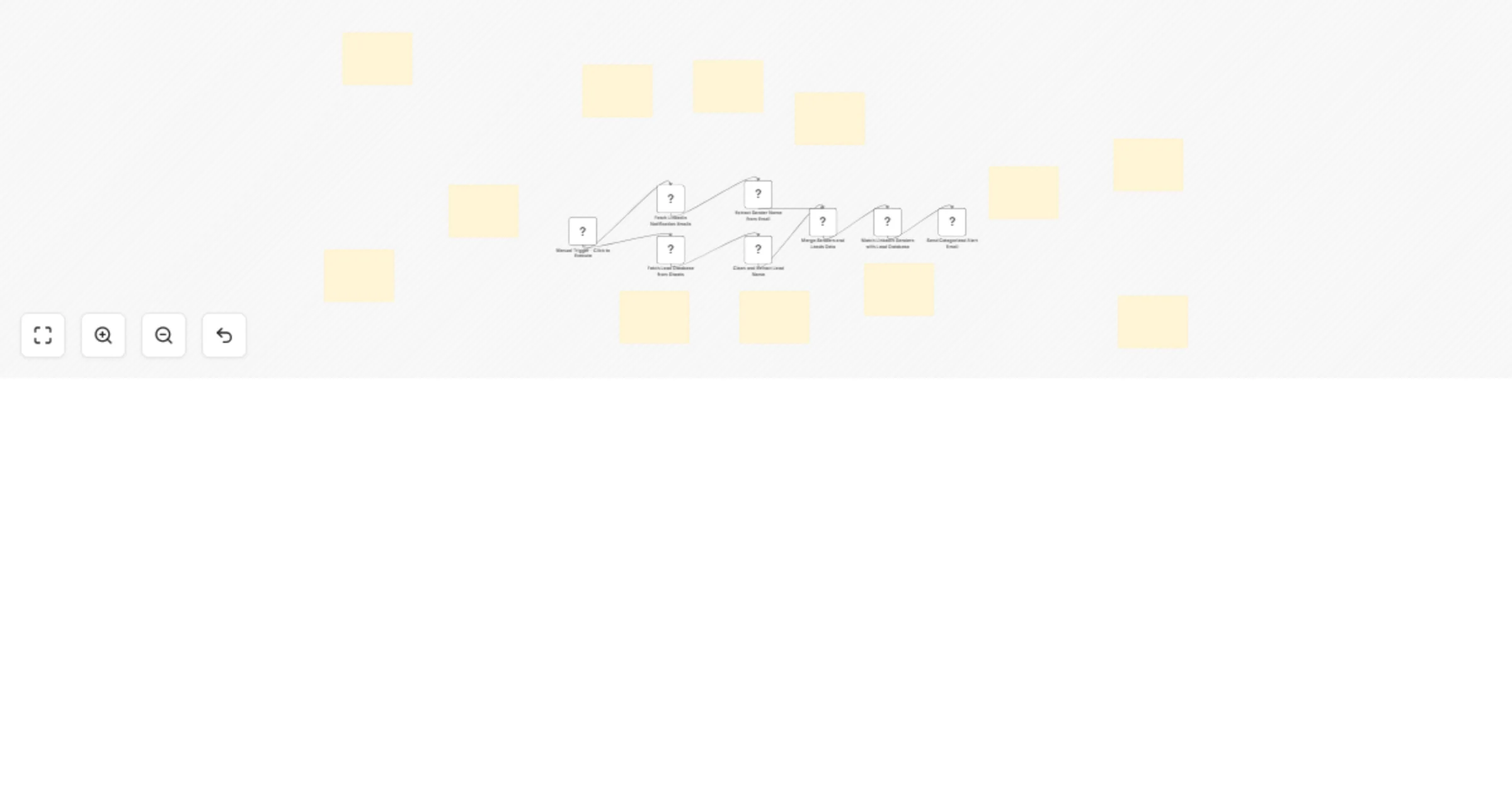
Never miss a qualified LinkedIn Sales Navigator message again. This automation monitors your Gmail for LinkedIn notifications, cross-references senders with your lead database in Google Sheets, and instantly sends you categorized email alerts. Stay on top of high-value conversations in real time. 🚀

What This Template Does

  • Monitors Gmail inbox for LinkedIn Sales Navigator notifications. 📧
  • Extracts sender names from LinkedIn email headers. 🔍
  • Fetches your lead database from Google Sheets (organized by industry or domain). 📊
  • Cleans and standardizes lead names and categories. 🧹
  • Merges LinkedIn senders with your lead database. 🔀
  • Matches senders to known leads and retrieves their categories. 🎯
  • Sends email alerts when a matched lead contacts you, showing name + category. 📬

Key Benefits

  • Respond faster with instant notifications when qualified leads send messages. ⚡
  • Prioritize outreach with industry-based categorization. ✅
  • Reduce manual inbox checking—automated 24/7 monitoring. ⏱️
  • Ensure no missed opportunities from valuable prospects. 💡
  • Scales effortlessly across industries and large lead lists. 📈

Features

  • Gmail fetch node with LinkedIn notification filter. 📥
  • Sender name extraction and cleanup for accuracy. ✂️
  • Google Sheets integration for lead database. 🔗
  • Name cleaning to remove dropdown artifacts like "Select...". 🧼
  • Data merge node combining LinkedIn senders and sheet leads. 🔄
  • Matching logic with case-insensitive comparison. 🧠
  • Gmail node for sending categorized alert emails. ✉️

Requirements

  • n8n instance (cloud or self-hosted). 🧰
  • Gmail account with LinkedIn notifications enabled. 📧
  • Google Sheet named (e.g., “Edtech”) with columns Name and Category, shared with n8n Google account. 📑
  • Gmail account credentials configured in n8n. 🔑

Target Audience

  • Sales reps working in LinkedIn Sales Navigator. 📈
  • Agencies tracking multiple industries and lead lists. 🤝
  • Founders and B2B startups who rely heavily on LinkedIn messaging. 🚀
  • Lead management teams needing structured alerts for fast responses. 🧭

Step-by-Step Setup Instructions (Concise)

  • Connect your Gmail account to n8n. 🔐
  • Update the Google Sheets node with your lead database (Document ID + sheet name). 📋
  • Test workflow with the manual trigger to fetch sample notifications. ▶️
  • Replace manual trigger with a Gmail trigger for real-time alerts. ⏱️
  • Update the recipient email in the alert node to your own address. 📧
  • Enable the workflow and let it run continuously. 🚦

Security Best Practices

  • Keep your lead database shared only with the n8n Google account. 🔒
  • Use Gmail API credentials stored securely in n8n, not hardcoded. 🛡️
  • Validate sender names before merging with leads to prevent mismatches. ✅
  • Regularly update your Google Sheet to keep categories accurate. 🗂️

1.2 Logical Blocks

This catalog entry is organized from the workflow JSON. The node-level section below shows the executable blocks available for review before importing the template.

2. Block-by-Block Analysis

Block 1 - Sticky Note - Workflow Overview

Type / Role
n8n-nodes-base.stickyNote - stickyNote
Config choices
Version 1

Block 2 - Manual Trigger - Click to Execute

Type / Role
n8n-nodes-base.manualTrigger - manualTrigger
Config choices
Version 1

Block 3 - Sticky Note - Gmail Fetching

Type / Role
n8n-nodes-base.stickyNote - stickyNote
Config choices
Version 1

Block 4 - Fetch LinkedIn Notification Emails

Type / Role
n8n-nodes-base.gmail - gmail
Config choices
Version 2.1

Block 5 - Sticky Note - Name Extraction

Type / Role
n8n-nodes-base.stickyNote - stickyNote
Config choices
Version 1

Block 6 - Extract Sender Name from Email

Type / Role
n8n-nodes-base.code - code
Config choices
Version 2

Block 7 - Sticky Note - Lead Database

Type / Role
n8n-nodes-base.stickyNote - stickyNote
Config choices
Version 1

Block 8 - Fetch Lead Database from Sheets

Type / Role
n8n-nodes-base.googleSheets - googleSheets
Config choices
Version 4.6

Block 9 - Sticky Note - Name Cleaning

Type / Role
n8n-nodes-base.stickyNote - stickyNote
Config choices
Version 1

Block 10 - Clean and Extract Lead Name

Type / Role
n8n-nodes-base.code - code
Config choices
Version 2

Block 11 - Sticky Note - Data Merging

Type / Role
n8n-nodes-base.stickyNote - stickyNote
Config choices
Version 1

Block 12 - Merge Senders and Leads Data

Type / Role
n8n-nodes-base.merge - merge
Config choices
Version 3.2

Block 13 - Sticky Note - Matching Algorithm

Type / Role
n8n-nodes-base.stickyNote - stickyNote
Config choices
Version 1

Block 14 - Match LinkedIn Senders with Lead Database

Type / Role
n8n-nodes-base.code - code
Config choices
Version 2

Block 15 - Sticky Note - Alert System

Type / Role
n8n-nodes-base.stickyNote - stickyNote
Config choices
Version 1

Block 16 - Send Categorized Alert Email

Type / Role
n8n-nodes-base.gmail - gmail
Config choices
Version 2.1

Block 17 - Sticky Note - Setup Guide

Type / Role
n8n-nodes-base.stickyNote - stickyNote
Config choices
Version 1

Block 18 - Sticky Note - Enhancement Ideas

Type / Role
n8n-nodes-base.stickyNote - stickyNote
Config choices
Version 1

Block 19 - Sticky Note - Business Benefits

Type / Role
n8n-nodes-base.stickyNote - stickyNote
Config choices
Version 1

Block 20 - Sticky Note - Troubleshooting

Type / Role
n8n-nodes-base.stickyNote - stickyNote
Config choices
Version 1

3. Summary Table

Workflow Monitor LinkedIn Sales Navigator messages with Gmail & Google Sheets alerts
Complexity advanced
Nodes 20
Categories Lead Nurturing
Author Rahul Joshi
Published 03 Oct 2025

4. Reproducing the Workflow from Scratch

  1. 1. Download the workflow JSON

    Use the JSON export at /data/workflows/9238/9238.json as the source template for this automation.

  2. 2. Import the template into n8n

    Open n8n, import the downloaded JSON, and review each node before activating the workflow.

  3. 3. Configure credentials and variables

    Replace placeholder credentials, API keys, webhook URLs, account IDs, and environment-specific values with your own settings.

  4. 4. Test with sample data

    Run the workflow manually or in a staging workspace, inspect node output, and confirm downstream systems receive the expected data.

  5. 5. Activate and monitor

    Enable the workflow only after testing, then monitor executions, errors, and rate limits during the first production runs.

5. General Notes & Resources

Review imported nodes carefully before activation. This catalog entry is intended to help you inspect the workflow structure, understand required services, and find related templates faster.

Node names, credentials, schedules, webhook paths, and external service limits may need adjustment for your workspace.

Frequently asked questions

What does Monitor LinkedIn Sales Navigator messages with Gmail & Google Sheets alerts do?

Description Never miss a qualified LinkedIn Sales Navigator message again. This automation monitors your Gmail for LinkedIn notifications, cross references senders with your lead database in Google...

What do I need before importing this workflow?

Review the workflow JSON, configure any required credentials in n8n, and test the automation in a safe workspace before using it in production.

Can I customize this workflow?

Yes. Use the block-by-block analysis and the downloadable JSON to inspect each node, then adjust credentials, prompts, schedules, filters, or destinations for your Lead Nurturing use case.