Handle e-commerce support on Telegram with Gemini and Google Sheets
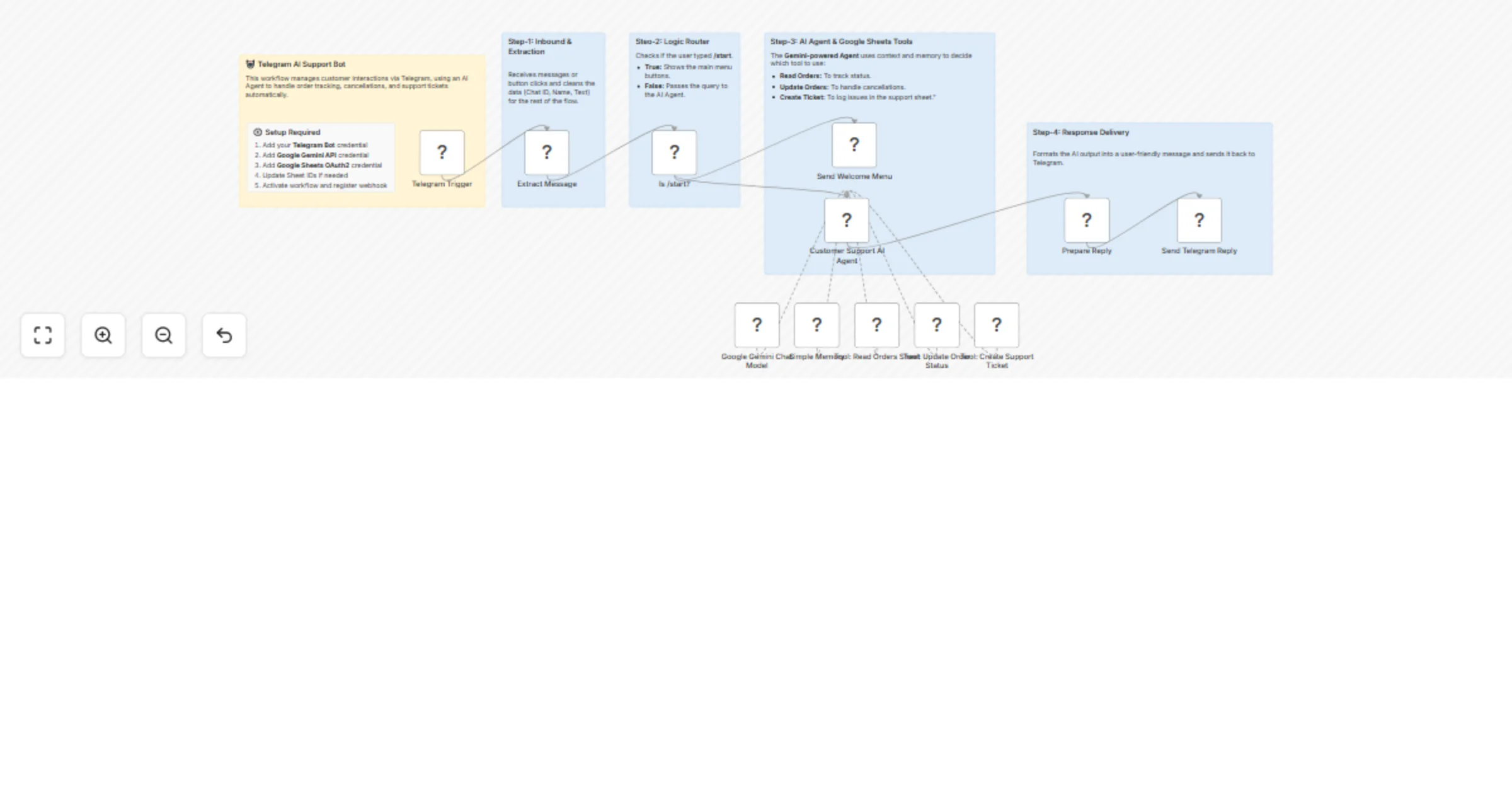
Workflow preview


 Early Deal
DISCOUNT 20%

Overview
Telegram E-Commerce Customer Support Bot with AI Agent & Google Sheets
An AI-powered Telegram bot that automates customer support for e-commerce stores — handling order tracking, order cancellations, and support ticket creation, all without human intervention.
Built with a Gemini AI Agent + Simple Memory, the bot understands natural language, remembers the conversation context per user, and reads/writes directly to your Google Sheets — no database or backend required.
How It Works
- A customer messages the Telegram bot or taps a menu button
- The AI Agent (powered by Google Gemini) reads the message and decides what to do
- Simple Memory keeps track of the full conversation per user, so the bot never forgets context mid-flow
- The agent calls one of three Google Sheets tools depending on intent:
- Read Orders Sheet — looks up order details by Order ID or email
- Update Order Status — sets an order's status to
Cancelledafter confirmation - Create Support Ticket — appends a new ticket row to the support sheet with auto-categorisation
- The response is sent back to the user via Telegram
How to Use
Step 1 — Create a Telegram Bot
Open @BotFather on Telegram, run /newbot, and copy your bot token. Add it as a Telegram credential in n8n.
Step 2 — Set Up Google Sheets
Create a Google Spreadsheet with two sheets (tabs):
Sheet 1 — Sheet1 (Orders):
| order_id | customer_name | email | product | Status | date |
Sheet 2 — Sheet1 (Support Tickets — separate spreadsheet):
| ticket_id | name | order_id | query | summary | category | status | created_at | telegram_id |
Step 3 — Add Credentials in n8n
- Telegram Bot — paste your BotFather token
- Google Sheets OAuth2 — connect your Google account
- Google Gemini (PaLM API) — add your API key from Google AI Studio
Step 4 — Update Sheet IDs
In the three Google Sheets tool nodes, replace the documentId values with your actual spreadsheet IDs (found in the Google Sheets URL).
Step 5 — Activate & Register Webhook Activate the workflow in n8n. If running locally, use ngrok to expose your n8n port over HTTPS, then register the webhook:
https://api.telegram.org/bot<YOUR_TOKEN>/setWebhook?url=https://<YOUR_NGROK_URL>/webhook/telegram-ecom-bot
Step 6 — Test
Open your bot in Telegram and send /start. You should see the welcome message with three menu buttons.
Requirements
- n8n (self-hosted or cloud)
- Telegram Bot (via BotFather — free)
- Google account with access to Google Sheets
- Google Gemini API key (free tier available at aistudio.google.com)
Customising This Workflow
- Change the LLM — swap Google Gemini for OpenAI GPT-4o or any other n8n-supported model by replacing the
Google Gemini Chat Modelnode - Add more menu options — extend the
/startwelcome node with additional inline keyboard buttons and update the system prompt to handle new intents - Add manager notifications — connect a Telegram or email node after the
Create Support Tickettool to notify your team when a new ticket is raised - Use a database instead of Sheets — replace the Google Sheets tool nodes with PostgreSQL or MySQL nodes for higher-volume production use
- Change cancellation rules — edit the system prompt to block cancellations for different statuses (e.g. block
Readyin addition toShipped) - Add order lookup by phone number — extend the orders sheet with a
phonecolumn and update the system prompt accordingly