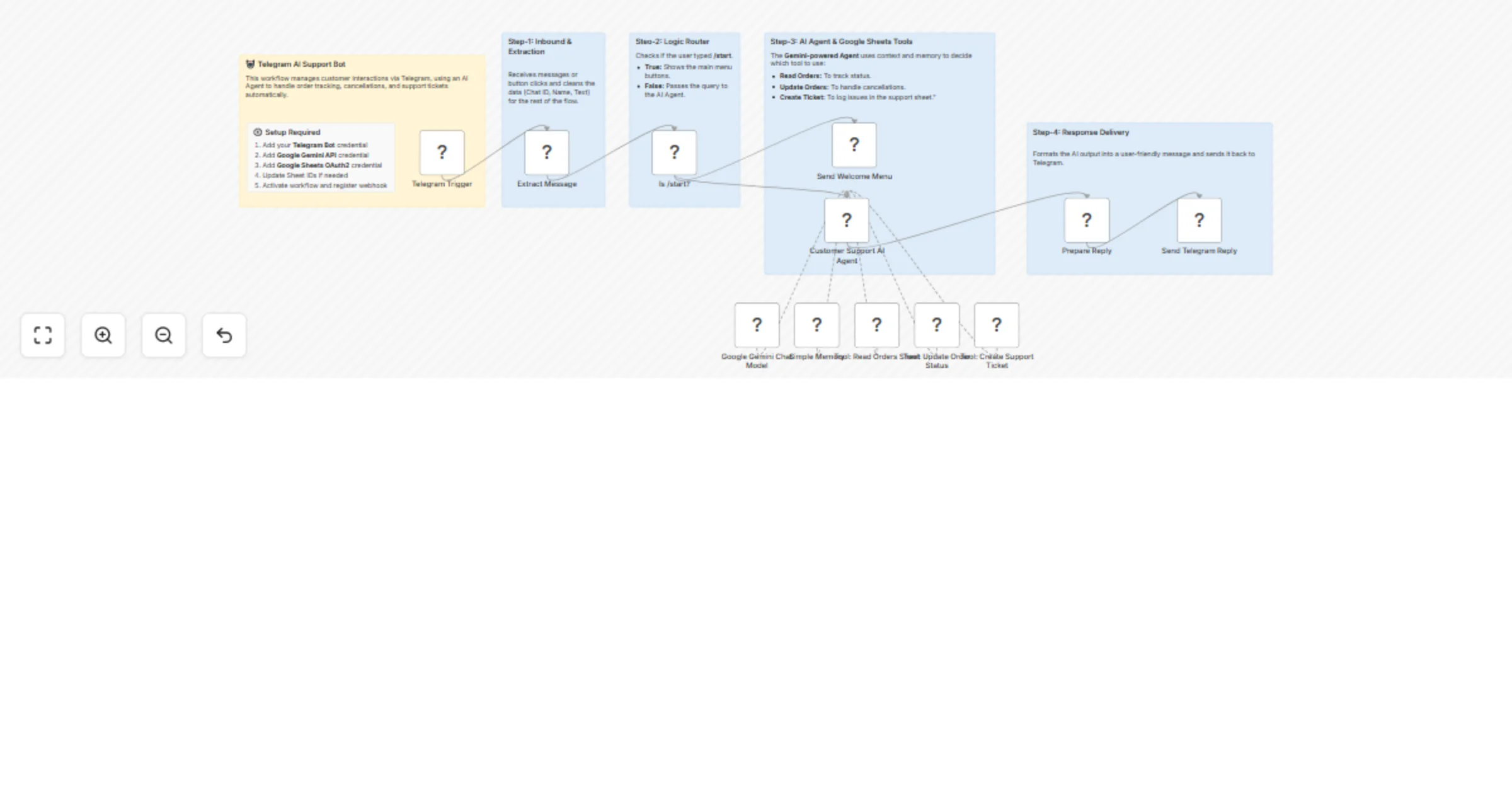
Handle e-commerce support on Telegram with Gemini and Google Sheets

Workflow preview

Workflow preview
100%
Handle e-commerce support on Telegram with Gemini and Google Sheets preview
Open on n8n.io

1. Workflow Overview

Telegram E Commerce Customer Support Bot with AI Agent & Google Sheets An AI powered Telegram bot that automates customer support for e commerce stores — handling order tracking, order cancellation...

Best for

  • Support Chatbot automation workflows
  • AI Chatbot automation workflows
  • advanced n8n builders looking for reusable templates

Tools used

n8n-nodes-base.telegramtrigger, n8n-nodes-base.code, n8n-nodes-base.if, n8n-nodes-base.telegram, @n8n/n8n-nodes-langchain.agent, @n8n/n8n-nodes-langchain.lmchatgooglegemini, @n8n/n8n-nodes-langchain.memorybufferwindow, n8n-nodes-base.googlesheetstool

Source and attribution

This workflow is cataloged by N8N Workflows and links back to its original n8n.io source page by Nirav Gajera.

Original n8n.io source

1.1 Workflow description

Title
Handle e-commerce support on Telegram with Gemini and Google Sheets
Workflow name
Handle e-commerce support on Telegram with Gemini and Google Sheets

Telegram E-Commerce Customer Support Bot with AI Agent & Google Sheets

An AI-powered Telegram bot that automates customer support for e-commerce stores — handling order tracking, order cancellations, and support ticket creation, all without human intervention.

Built with a Gemini AI Agent + Simple Memory, the bot understands natural language, remembers the conversation context per user, and reads/writes directly to your Google Sheets — no database or backend required.


How It Works

  • A customer messages the Telegram bot or taps a menu button
  • The AI Agent (powered by Google Gemini) reads the message and decides what to do
  • Simple Memory keeps track of the full conversation per user, so the bot never forgets context mid-flow
  • The agent calls one of three Google Sheets tools depending on intent:
  • Read Orders Sheet — looks up order details by Order ID or email
  • Update Order Status — sets an order's status to Cancelled after confirmation
  • Create Support Ticket — appends a new ticket row to the support sheet with auto-categorisation
  • The response is sent back to the user via Telegram

How to Use

Step 1 — Create a Telegram Bot Open @BotFather on Telegram, run /newbot, and copy your bot token. Add it as a Telegram credential in n8n.

Step 2 — Set Up Google Sheets

Create a Google Spreadsheet with two sheets (tabs):

Sheet 1 — Sheet1 (Orders): | order_id | customer_name | email | product | Status | date |

Sheet 2 — Sheet1 (Support Tickets — separate spreadsheet): | ticket_id | name | order_id | query | summary | category | status | created_at | telegram_id |

Step 3 — Add Credentials in n8n

  • Telegram Bot — paste your BotFather token
  • Google Sheets OAuth2 — connect your Google account
  • Google Gemini (PaLM API) — add your API key from Google AI Studio

Step 4 — Update Sheet IDs In the three Google Sheets tool nodes, replace the documentId values with your actual spreadsheet IDs (found in the Google Sheets URL).

Step 5 — Activate & Register Webhook Activate the workflow in n8n. If running locally, use ngrok to expose your n8n port over HTTPS, then register the webhook:

https://api.telegram.org/bot<YOUR_TOKEN>/setWebhook?url=https://<YOUR_NGROK_URL>/webhook/telegram-ecom-bot

Step 6 — Test Open your bot in Telegram and send /start. You should see the welcome message with three menu buttons.


Requirements

  • n8n (self-hosted or cloud)
  • Telegram Bot (via BotFather — free)
  • Google account with access to Google Sheets
  • Google Gemini API key (free tier available at aistudio.google.com)

Customising This Workflow

  • Change the LLM — swap Google Gemini for OpenAI GPT-4o or any other n8n-supported model by replacing the Google Gemini Chat Model node
  • Add more menu options — extend the /start welcome node with additional inline keyboard buttons and update the system prompt to handle new intents
  • Add manager notifications — connect a Telegram or email node after the Create Support Ticket tool to notify your team when a new ticket is raised
  • Use a database instead of Sheets — replace the Google Sheets tool nodes with PostgreSQL or MySQL nodes for higher-volume production use
  • Change cancellation rules — edit the system prompt to block cancellations for different statuses (e.g. block Ready in addition to Shipped)
  • Add order lookup by phone number — extend the orders sheet with a phone column and update the system prompt accordingly

1.2 Logical Blocks

This catalog entry is organized from the workflow JSON. The node-level section below shows the executable blocks available for review before importing the template.

2. Block-by-Block Analysis

Block 1 - Telegram Trigger

Type / Role
n8n-nodes-base.telegramTrigger - telegramTrigger
Config choices
Version 1.2

Block 2 - Extract Message

Type / Role
n8n-nodes-base.code - code
Config choices
Version 2

Block 3 - Is /start?

Type / Role
n8n-nodes-base.if - if
Config choices
Version 2

Block 4 - Send Welcome Menu

Type / Role
n8n-nodes-base.telegram - telegram
Config choices
Version 1.2

Block 5 - Customer Support AI Agent

Type / Role
@n8n/n8n-nodes-langchain.agent - agent
Config choices
Version 2

Block 6 - Google Gemini Chat Model

Type / Role
@n8n/n8n-nodes-langchain.lmChatGoogleGemini - lmChatGoogleGemini
Config choices
Version 1

Block 7 - Simple Memory

Type / Role
@n8n/n8n-nodes-langchain.memoryBufferWindow - memoryBufferWindow
Config choices
Version 1.3

Block 8 - Tool: Read Orders Sheet

Type / Role
n8n-nodes-base.googleSheetsTool - googleSheetsTool
Config choices
Version 4.5

Block 9 - Tool: Update Order Status

Type / Role
n8n-nodes-base.googleSheetsTool - googleSheetsTool
Config choices
Version 4.5

Block 10 - Tool: Create Support Ticket

Type / Role
n8n-nodes-base.googleSheetsTool - googleSheetsTool
Config choices
Version 4.5

Block 11 - Prepare Reply

Type / Role
n8n-nodes-base.code - code
Config choices
Version 2

Block 12 - Send Telegram Reply

Type / Role
n8n-nodes-base.telegram - telegram
Config choices
Version 1.2

Block 13 - Sticky Note

Type / Role
n8n-nodes-base.stickyNote - stickyNote
Config choices
Version 1

Block 14 - Sticky Note1

Type / Role
n8n-nodes-base.stickyNote - stickyNote
Config choices
Version 1

Block 15 - Sticky Note2

Type / Role
n8n-nodes-base.stickyNote - stickyNote
Config choices
Version 1

Block 16 - Sticky Note3

Type / Role
n8n-nodes-base.stickyNote - stickyNote
Config choices
Version 1

Block 17 - Sticky Note4

Type / Role
n8n-nodes-base.stickyNote - stickyNote
Config choices
Version 1

Block 18 - Sticky Note5

Type / Role
n8n-nodes-base.stickyNote - stickyNote
Config choices
Version 1

3. Summary Table

Workflow Handle e-commerce support on Telegram with Gemini and Google Sheets
Complexity advanced
Nodes 18
Categories Support Chatbot, AI Chatbot
Author Nirav Gajera
Published 01 Apr 2026

4. Reproducing the Workflow from Scratch

  1. 1. Download the workflow JSON

    Use the JSON export at /data/workflows/14550/14550.json as the source template for this automation.

  2. 2. Import the template into n8n

    Open n8n, import the downloaded JSON, and review each node before activating the workflow.

  3. 3. Configure credentials and variables

    Replace placeholder credentials, API keys, webhook URLs, account IDs, and environment-specific values with your own settings.

  4. 4. Test with sample data

    Run the workflow manually or in a staging workspace, inspect node output, and confirm downstream systems receive the expected data.

  5. 5. Activate and monitor

    Enable the workflow only after testing, then monitor executions, errors, and rate limits during the first production runs.

5. General Notes & Resources

Review imported nodes carefully before activation. This catalog entry is intended to help you inspect the workflow structure, understand required services, and find related templates faster.

Node names, credentials, schedules, webhook paths, and external service limits may need adjustment for your workspace.

Frequently asked questions

What does Handle e-commerce support on Telegram with Gemini and Google Sheets do?

Telegram E Commerce Customer Support Bot with AI Agent & Google Sheets An AI powered Telegram bot that automates customer support for e commerce stores — handling order tracking, order cancellation...

What do I need before importing this workflow?

Review the workflow JSON, configure any required credentials in n8n, and test the automation in a safe workspace before using it in production.

Can I customize this workflow?

Yes. Use the block-by-block analysis and the downloadable JSON to inspect each node, then adjust credentials, prompts, schedules, filters, or destinations for your Support Chatbot, AI Chatbot use case.