Block 1 - Gmail Trigger
- Type / Role
- n8n-nodes-base.gmailTrigger - gmailTrigger
- Config choices
- Version 1.2


 Early Deal
This workflow is provided as-is. Please review and test before using in production.
Gmail Attachment Backup to Google Drive — n8n Workflow This n8n workflow automatically backs up email attachments from a specific sender in Gmail to a designated folder in Google Drive. It polls...
n8n-nodes-base.gmailtrigger, n8n-nodes-base.gmail, n8n-nodes-base.noop, n8n-nodes-base.googledrive, n8n-nodes-base.code, n8n-nodes-base.stickynote
This workflow is cataloged by N8N Workflows and links back to its original n8n.io source page by Akhil Varma Gadiraju.
Original n8n.io sourceThis n8n workflow automatically backs up email attachments from a specific sender in Gmail to a designated folder in Google Drive. It polls Gmail every minute and uploads any new attachments from matching emails to the specified Google Drive folder with a timestamped filename.
Primary Purpose:
[email protected]) to Google Drive for safekeeping, audit, or processing.Ideal For:
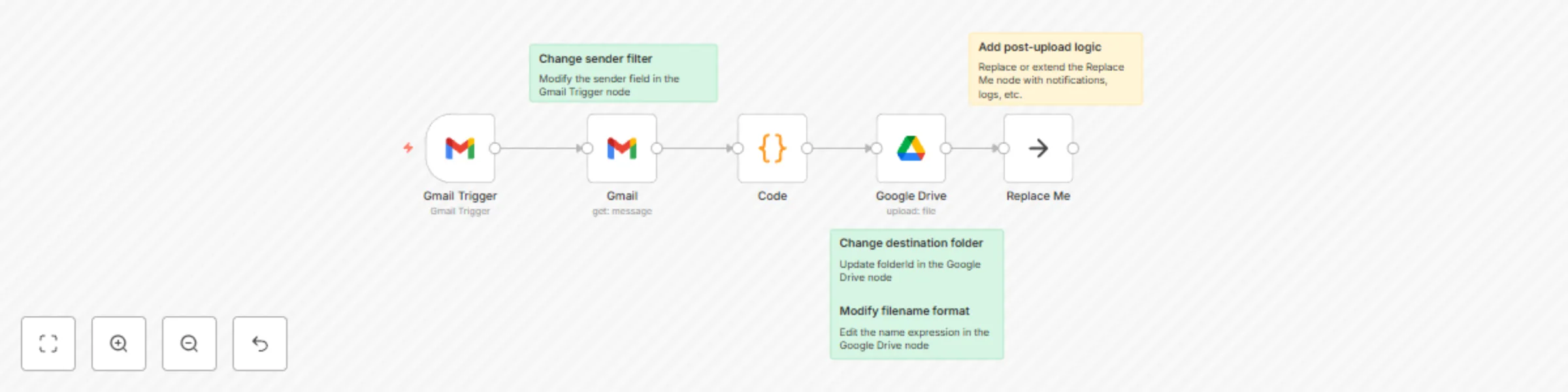
Here’s how the workflow operates:
🔔 Gmail Trigger
Polls Gmail every minute for new messages from a specific sender ([email protected]).
📩 Gmail Get Message
Retrieves the full contents (including attachments) of the matched email.
🧠 Code (JS)
Iterates over all binary attachments in the email and restructures them as individual binary items to upload separately.
📤 Google Drive
Uploads each attachment to a target Google Drive folder (DOcs) with a timestamp and unique name.
📍 Replace Me (NoOp)
Placeholder node to indicate workflow completion. You can replace this with Slack notifications, logs, or alerts.
Import the Workflow
Copy and paste the workflow JSON into your n8n editor.
Set Up Credentials
Ensure the following credentials exist and are authorized:
Configure the Folder
Update the folderId in the Google Drive node if you want to use a different target folder.
Activate the Workflow
Enable the workflow in n8n. It will start polling Gmail every minute.
| Task | How to Customize |
|---|---|
| Change sender filter | Modify the sender field in the Gmail Trigger node |
| Adjust polling frequency | Change the pollTimes configuration in the trigger node |
| Change destination folder | Update folderId in the Google Drive node |
| Modify filename format | Edit the name expression in the Google Drive node |
| Add post-upload logic | Replace or extend the Replace Me node with notifications, logs, etc. |
| Process only specific attachments | Add logic in the Code node to filter by filename or MIME type |
[MessageID]_[Timestamp]_backup_attachment
This naming convention ensures uniqueness and traceability back to the original message.
For any issues using this workflow:
This catalog entry is organized from the workflow JSON. The node-level section below shows the executable blocks available for review before importing the template.
| Workflow | Gmail attachment backup to Google Drive |
|---|---|
| Complexity | intermediate |
| Nodes | 8 |
| Categories | File Management |
| Author | Akhil Varma Gadiraju |
| Published | 20 May 2025 |
Use the JSON export at /data/workflows/4243/4243.json as the source template for this automation.
Open n8n, import the downloaded JSON, and review each node before activating the workflow.
Replace placeholder credentials, API keys, webhook URLs, account IDs, and environment-specific values with your own settings.
Run the workflow manually or in a staging workspace, inspect node output, and confirm downstream systems receive the expected data.
Enable the workflow only after testing, then monitor executions, errors, and rate limits during the first production runs.
Review imported nodes carefully before activation. This catalog entry is intended to help you inspect the workflow structure, understand required services, and find related templates faster.
Node names, credentials, schedules, webhook paths, and external service limits may need adjustment for your workspace.
Gmail Attachment Backup to Google Drive — n8n Workflow This n8n workflow automatically backs up email attachments from a specific sender in Gmail to a designated folder in Google Drive. It polls...
Review the workflow JSON, configure any required credentials in n8n, and test the automation in a safe workspace before using it in production.
Yes. Use the block-by-block analysis and the downloadable JSON to inspect each node, then adjust credentials, prompts, schedules, filters, or destinations for your File Management use case.