A

Akhil Varma Gadiraju

10
Workflows

Workflows by Akhil Varma Gadiraju

Workflow preview: AI-powered knowledge assistant using Google Sheets, OpenAI, and Supabase Vector Search
Free intermediate

AI-powered knowledge assistant using Google Sheets, OpenAI, and Supabase Vector Search

# AI-Powered GitHub Commit Reviewer ## Overview **Workflow Name**: AI-Powered GitHub Commit Reviewer **Author**: Akhil **Purpose**: This n8n workflow triggers on a GitHub push event, fetches commit diffs, formats them into HTML, runs an AI-powered code review using Groq LLM, and sends a detailed review via email. --- ## How It Works (Step-by-Step) ### 1. **GitHub Trigger** - **Node Type**: `n8n-nodes-base.githubTrigger` - **Purpose**: Initiates the workflow on GitHub push events. - **Repo**: [akhilv77/relevance](https://github.com/akhilv77/relevance) - **Output**: JSON with commit and repo details. ### 2. **Parser** - **Node Type**: `n8n-nodes-base.set` - **Purpose**: Extracts key info (repo ID, name, commit SHA, file changes). ### 3. **HTTP Request** - **Node Type**: `n8n-nodes-base.httpRequest` - **Purpose**: Fetches commit diff details using GitHub API. - **Auth**: GitHub OAuth2 API. ### 4. **Code (HTML Formatter)** - **Node Type**: `n8n-nodes-base.code` - **Purpose**: Formats commit info and diffs into styled HTML. - **Output**: HTML report of commit details. ### 5. **Groq Chat Model** - **Node Type**: `@n8n/n8n-nodes-langchain.lmChatGroq` - **Purpose**: Provides the AI model (llama-3.1-8b-instant). ### 6. **Simple Memory** - **Node Type**: `@n8n/n8n-nodes-langchain.memoryBufferWindow` - **Purpose**: Maintains memory context for AI agent. ### 7. **AI Agent** - **Node Type**: `@n8n/n8n-nodes-langchain.agent` - **Purpose**: Executes AI-based code review. - **Prompt**: Reviews for bugs, style, grammar, and security. Outputs styled HTML. ### 8. **Output Parser** - **Node Type**: `n8n-nodes-base.code` - **Purpose**: Combines commit HTML with AI review into one HTML block. ### 9. **Gmail** - **Node Type**: `n8n-nodes-base.gmail` - **Purpose**: Sends review report via email. - **Recipient**: [email protected] ### 10. **End Workflow** - **Node Type**: `n8n-nodes-base.noOp` - **Purpose**: Marks the end. --- ## Customization Tips - **GitHub Trigger**: Change repo/owner or trigger events. - **HTTP Request**: Modify endpoint to get specific data. - **AI Agent**: Update the prompt to focus on different review aspects. - **Groq Model**: Swap for other supported LLMs if needed. - **Memory**: Use dynamic session key for per-commit reviews. - **Email**: Change recipient or email styling. --- ## Error Handling Use Error Trigger nodes to handle failures in: - GitHub API requests - LLM generation - Email delivery --- ## Use Cases - Instant AI-powered feedback on code pushes. - Pre-human review suggestions. - Security and standards enforcement. - Developer onboarding assistance. --- ## Required Credentials | Credential | Used By | Notes | |-----------|---------|-------| | GitHub API (ID `PSygiwMjdjFDImYb`) | GitHub Trigger | PAT with `repo` and `admin:repo_hook` | | GitHub OAuth2 API | HTTP Request | OAuth2 token with `repo` scope | | Groq - Akhil (ID `HJl5cdJzjhf727zW`) | Groq Chat Model | API Key from GroqCloud | | Gmail OAuth2 - Akhil (ID `wqFUFuFpF5eRAp4E`) | Gmail | Gmail OAuth2 for sending email | --- ## Final Note **Made with ❤️ using n8n by Akhil.**

A
Akhil Varma Gadiraju
Engineering
29 May 2025
782
0
Workflow preview: Automated daily Outlook calendar meeting digest
Free intermediate

Automated daily Outlook calendar meeting digest

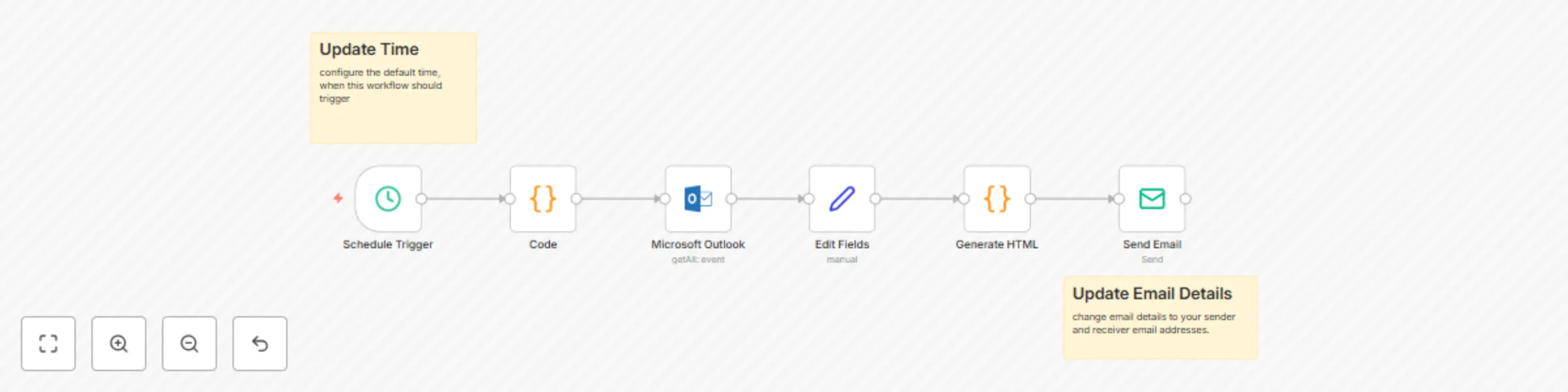
# Automated Daily Outlook Calendar Meeting Digest ## Overall Goal This workflow automatically runs at a scheduled time (daily at 8 AM by default), calculates the current day's date range, fetches all calendar events from a specified Microsoft Outlook account for that day, formats these events into a user-friendly HTML email, and then sends this digest to a designated email address. --- ## How it Works (Step-by-Step Breakdown): ### Node: **Schedule Trigger** (Schedule Trigger Node) - **Type:** `n8n-nodes-base.scheduleTrigger` - **Purpose:** Automatically starts the workflow at a predefined time. - **Configuration:** - Rule > Interval > Trigger At Hour: 8 (Triggers every day at 8:00 AM according to the n8n server's timezone) - **Output:** Triggers the workflow execution at the scheduled time. ### Node: **Code** (Code Node) - **Type:** `n8n-nodes-base.code` - **Purpose:** Dynamically calculates the start and end timestamps for "today," based on when the workflow is triggered. - **Configuration (JS Code):** - Gets the current date and time (workflow runtime). - Sets `today` to beginning of current day (00:00:00). - Sets `tomorrow` to beginning of next day (00:00:00). - Converts these to ISO string format (e.g., `2023-10-27T00:00:00Z`). - **Output:** JSON object with `today` and `tomorrow` ISO date strings. ### Node: **Microsoft Outlook** (Microsoft Outlook Node) - **Type:** `n8n-nodes-base.microsoftOutlook` - **Purpose:** Fetch calendar events from Outlook within the calculated date range. - **Configuration:** - Resource: Event - Filters (Custom): ``` start/dateTime ge '{{$json.today}}' and start/dateTime lt '{{$json.tomorrow}}' ``` (OData filter to fetch events starting on or after today and before tomorrow, i.e., all today's events.) - **Output:** List of event objects from Outlook. ### Node: **Edit Fields** (Set Node) - **Type:** `n8n-nodes-base.set` - **Purpose:** Transform and simplify the event data structure from Outlook. - **Configuration:** Maps fields from Outlook event to new field names: - `id` - `subject` - `description` (from `bodyPreview`) - `meeting_start` - `meeting_end` - `attendees` - `meeting_organizer` - `meeting_organizer_email` - `meeting_link` - **Output:** List of JSON objects with simplified meeting details. ### Node: **Generate HTML** (Code Node) - **Type:** `n8n-nodes-base.code` - **Purpose:** Generate a single HTML email body summarizing all meetings and create the email subject line. - **Configuration (JS Code):** - Processes all meeting items from "Edit Fields" node. - Defines `generateMeetingReminderEmail` function to format each meeting into an HTML "card." - Escapes HTML special characters, formats times, attendees, etc. - Concatenates all cards into a full HTML document. - Generates subject line (e.g., "🗓️ Your Meetings Today – Friday, Oct 27"). - **Output:** JSON object with: ```json { "subject": "email subject string", "html": "generated HTML content string" } ``` ### Node: **Send Email** (Email Send Node) - **Type:** `n8n-nodes-base.emailSend` - **Purpose:** Send the generated HTML digest email to the designated recipient. - **Configuration:** - From Email: `[email protected]` - To Email: `[email protected]` - Subject: `{{ $json.subject }}` (dynamic from Generate HTML node) - HTML: `{{ $json.html }}` (dynamic from Generate HTML node) - **Output:** Email sending status. --- ## Sticky Notes - **Update Time:** Near "Schedule Trigger" node; configure trigger time as needed. - **Update Email Details:** Near "Send Email" node; change sender and receiver email addresses. --- ## How to Customize It - **Schedule (Schedule Trigger node):** Modify the trigger hour, minutes, or days of week to change when the workflow runs. - **Date Range (Code node):** Adjust JS to change date range (e.g., next business day, upcoming week). - **Outlook Calendar (Microsoft Outlook node):** Specify Calendar ID or refine OData filters for event selection. - **Event Details (Edit Fields node):** Add/remove/modify event fields extracted. - **Email Appearance and Content (Generate HTML node):** Change CSS styling, meeting details, or subject line logic. - **No Meetings Scenario:** Use an "If" node after "Edit Fields" to handle no-meeting days (e.g., send "No meetings today!" email or skip email). - **Email Recipients (Send Email node):** Update "From" and "To" emails; multiple recipients separated by commas. --- ## Error Handling - Use "Error Trigger" nodes to catch and handle failures (Outlook API, SMTP errors). - Send alerts or log errors accordingly. --- ## Use Cases - **Automated Daily Personal Meeting Briefing:** Get daily email summaries of your meetings. - **Automated Team Meeting Digest:** Send daily team calendar digest emails. - **Proactive Daily Planning:** Automatically stay informed of your day’s schedule. --- ## Required Credentials Add these credentials in your n8n instance under **Credentials**: - **Microsoft Outlook (OAuth2 API):** - Used by: "Microsoft Outlook" node - Credential Name in Workflow: `Outlook` (ID: `JcYqVJwcwZIhB8oy`) - Requires OAuth2 with `Calendars.Read` permission. - **SMTP:** - Used by: "Send Email" node - Credential Name in Workflow: `SMTP account` (ID: `vCexcphurglwGBfk`) - Requires SMTP server details (host, port, username, password). Ensure these credentials are configured correctly with required permissions. Activate the workflow for scheduled execution. --- Made with ❤️ using n8n by Akhil.

A
Akhil Varma Gadiraju
Personal Productivity
27 May 2025
4242
0
Workflow preview: HubSpot contact email validation with Hunter.io
Free intermediate

HubSpot contact email validation with Hunter.io

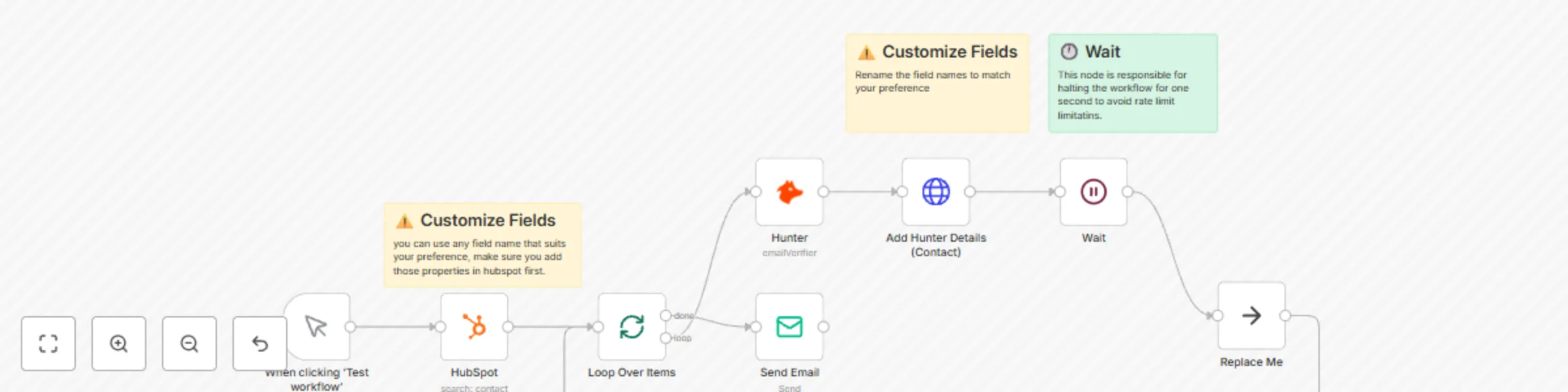
# Workflow: HubSpot Contact Email Validation with Hunter.io ## Overall Goal This workflow retrieves contacts from HubSpot that have an email address but haven't yet had their email validated by Hunter. It then iterates through each of these contacts, uses Hunter.io to verify their email, updates the contact record in HubSpot with the validation status and date, and finally sends a summary email notification upon completion. ## How it Works (Step-by-Step Breakdown) ### Node: "When clicking ‘Test workflow’" (Manual Trigger) - **Type:** n8n-nodes-base.manualTrigger - **Purpose:** Start the workflow manually via the n8n interface. - **Output:** Triggers workflow execution. ### Node: "HubSpot" (HubSpot) - **Type:** n8n-nodes-base.hubspot - **Purpose:** Fetch contacts from HubSpot. - **Configuration:** - Authentication: App Token - Operation: Search for contacts - Return All: True - Filter Groups: - Contact HAS_PROPERTY email - Contact NOT_HAS_PROPERTY hunter_email_validation_status - **Output:** List of contact objects. ### Node: "Loop Over Items" (SplitInBatches) - **Type:** n8n-nodes-base.splitInBatches - **Purpose:** Process each contact one-by-one. - **Configuration:** - Options > Reset: false - **Output:** - Output 1 to "Hunter" - Output 2 to "Send Email" ### Node: "Hunter" (Inside the loop) - **Type:** n8n-nodes-base.hunter - **Purpose:** Verify email with Hunter.io - **Configuration:** - Operation: Email Verifier - Email: `{{ $json.properties.email }}` ### Node: "Add Hunter Details (Contact)" (HTTP Request - Inside the loop) - **Type:** n8n-nodes-base.httpRequest - **Purpose:** Update HubSpot contact. - **Configuration:** - Method: PATCH - URL: `https://api.hubapi.com/crm/v3/objects/contacts/{{ $('Loop Over Items').item.json.id }}` - Headers: Content-Type: application/json - Body (JSON): ```json { "properties": { "hunter_email_validation_status": "{{ $json.status }}", "hunter_verification_date": "{{ $now.format('yyyy-MM-dd') }}" } } ``` ### Node: "Wait" (Inside the loop) - **Type:** n8n-nodes-base.wait - **Purpose:** Avoid API rate limits. - **Configuration:** Wait for 1 second. ### Node: "Replace Me" (NoOp - Inside the loop) - **Type:** n8n-nodes-base.noOp - **Purpose:** Junction node to complete the loop. ### Node: "Send Email" (After the loop completes) - **Type:** n8n-nodes-base.emailSend - **Purpose:** Send summary notification. - **Configuration:** - From Email: [email protected] - To Email: [email protected] - Subject: "Email Verification Completed for Your HubSpot Contacts" - HTML: Formatted confirmation message ## Sticky Notes - "HubSpot": Create custom properties (`hunter_email_validation_status`, `hunter_verification_date`). - "Add Hunter Details": Ensure field names match HubSpot properties. - "Wait": Prevent API rate limits. ## How to Customize It ### Trigger - Replace Manual Trigger with Schedule Trigger (Cron) for automation. - Optionally use HubSpot Trigger for new contact events. ### HubSpot Node - Create matching custom properties. - Adjust filters and returned properties as needed. ### Hunter Node - Minimal customization needed. ### HTTP Request Node - Update JSON property names if renaming in HubSpot. - Customize date format as needed. ### Wait Node - Adjust wait time to balance speed and API safety. ### Email Node - Customize email addresses, subject, and body. - Add dynamic contact count with a Set or Function node. ## Error Handling - Add Error Trigger nodes. - Use If nodes inside loop to act on certain statuses. ## Use Cases - Clean your email list. - Enrich CRM data. - Prep verified lists for campaigns. - Automate contact hygiene on a schedule. ## Required Credentials ### HubSpot App Token - Used by: HubSpot node and HTTP Request node - Create a Private App in HubSpot with required scopes. ### Hunter API - Used by: Hunter node ### SMTP - Used by: Email Send node - Configure host, port, username, and password. --- **Made with ❤️ using n8n by Akhil.**

A
Akhil Varma Gadiraju
Lead Generation
27 May 2025
526
0
Workflow preview: Form-based X/Twitter poster
Free intermediate

Form-based X/Twitter poster

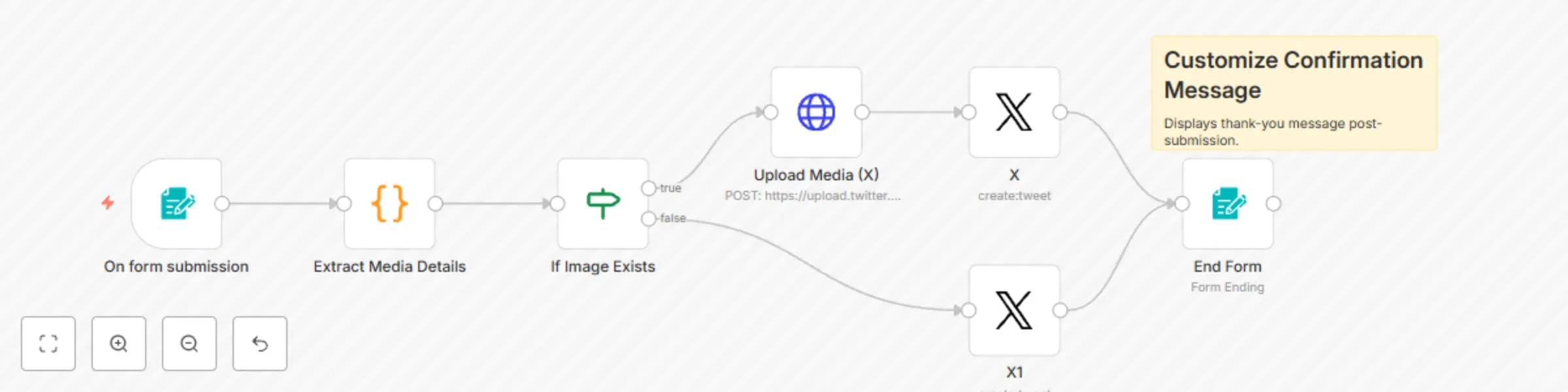
# 🚀 Form-Based X/Twitter Poster (v2) A user-friendly n8n workflow that enables users to submit tweets through a simple web form — with optional image, video, or GIF uploads — and posts them to a connected X/Twitter account. Designed for ease of use, this workflow handles both media and text-only posts, providing clear feedback upon submission. --- ## 🧭 Overview **Workflow Name:** Form-Based X/Twitter Poster (v2) **Goal:** Provide a web form for users to create tweets, upload optional media, and post directly to X/Twitter. --- ## 🛠 How It Works ### 1. **Form Submission Trigger** - **Node:** `On form submission` - **Type:** `formTrigger` - **Purpose:** Renders a web form for tweet creation. - **Fields:** - **Post Content:** Required textarea for tweet text. - **Media:** Optional file upload (.jpg, .png, .gif, .mp4, etc.). - **Button:** "Submit" - **Output:** JSON with text and binary media (if any). --- ### 2. **Extract Media Details** - **Node:** `Extract Media Details` - **Type:** `code` - **Purpose:** Extracts tweet text, checks for media, determines media type. - **Output Example:** ```json { "content": "My tweet!", "mime_type": "image/jpeg", "media_type": "IMAGE" } ``` --- ### 3. **If Media Exists** - **Node:** `If Media Exists` - **Type:** `if` - **Purpose:** Checks whether media was uploaded. - **True Path:** Media was uploaded. - **False Path:** No media uploaded. --- ### 4. **Upload Media to X/Twitter** (True path only) - **Node:** `Upload Media (X)` - **Type:** `httpRequest` - **Purpose:** Uploads media to Twitter via API v1.1. - **Media Category:** `TWEET_IMAGE` (can be customized) - **Auth:** `Twitter OAuth1 API` - **Output:** Includes `media_id_string` --- ### 5. **Post Tweet with Media** (True path) - **Node:** `X` - **Type:** `twitter` - **Purpose:** Posts tweet with uploaded media. - **Auth:** `Twitter OAuth2 API` --- ### 6. **Post Text-Only Tweet** (False path) - **Node:** `X1` - **Type:** `twitter` - **Purpose:** Posts tweet without media. - **Auth:** `Twitter OAuth2 API` --- ### 7. **Show Confirmation Message** - **Node:** `End Form` - **Type:** `form` - **Purpose:** Displays thank-you message post-submission. - **Title:** `Thank you so much for sharing your experience on X! 🖤` - **Message:** `We truly appreciate your support and are so glad we could make a positive impact. Your words mean the world to us!` --- ## 🛠 How to Customize - **Form Fields:** Change form title, labels, help texts, or file formats. - **Media Logic:** - Add logic for distinguishing GIF vs VIDEO. - Adjust media upload URL dynamically: ```js https://upload.twitter.com/1.1/media/upload.json?media_category={{ $json.media_type === 'VIDEO' ? 'TWEET_VIDEO' : ($json.media_type === 'GIF' ? 'TWEET_GIF' : 'TWEET_IMAGE') }} ``` - **Error Handling:** Add `Error Trigger` nodes to catch and manage failures gracefully. - **Tweet Text:** Customize tweet text with extra formatting or default content. - **Advanced Ideas:** - Schedule tweets - Post to multiple accounts - Add content approval steps --- ## 🔐 Required Credentials ### 1. **Twitter OAuth1 API** - **Used by:** `Upload Media (X)` - **Required for:** Media upload via v1.1 - **Credentials:** Consumer Key, Consumer Secret, Access Token, Access Token Secret - **Workflow Credential Name:** `X OAuth - Akhil` ### 2. **Twitter OAuth2 API** - **Used by:** `X`, `X1` - **Required for:** Posting tweets - **Scopes:** `tweet.read`, `tweet.write`, `users.read`, `offline.access` - **Workflow Credential Name:** `X OAuth2 - Akhil` --- ## 💡 Use Cases - **Easy Tweet Tool:** For non-technical users to share content. - **Content Approval:** Internal review system before posting. - **Announcements:** Quickly broadcast updates. - **Campaign Posting:** Streamline recurring content sharing. --- ## 🧑‍💻 Node Naming Suggestions | Old Name | Suggested Name | |--------------------|--------------------------| | If Image Exists | If Media Exists | | X | Post Tweet with Media | | X1 | Post Text-Only Tweet | --- ## ❤️ Made with love by Akhil using [n8n](https://n8n.io)

A
Akhil Varma Gadiraju
Social Media
27 May 2025
935
0
Workflow preview: Collect conference feedback with Forms and log to Excel OneDrive with Outlook notifications
Free intermediate

Collect conference feedback with Forms and log to Excel OneDrive with Outlook notifications

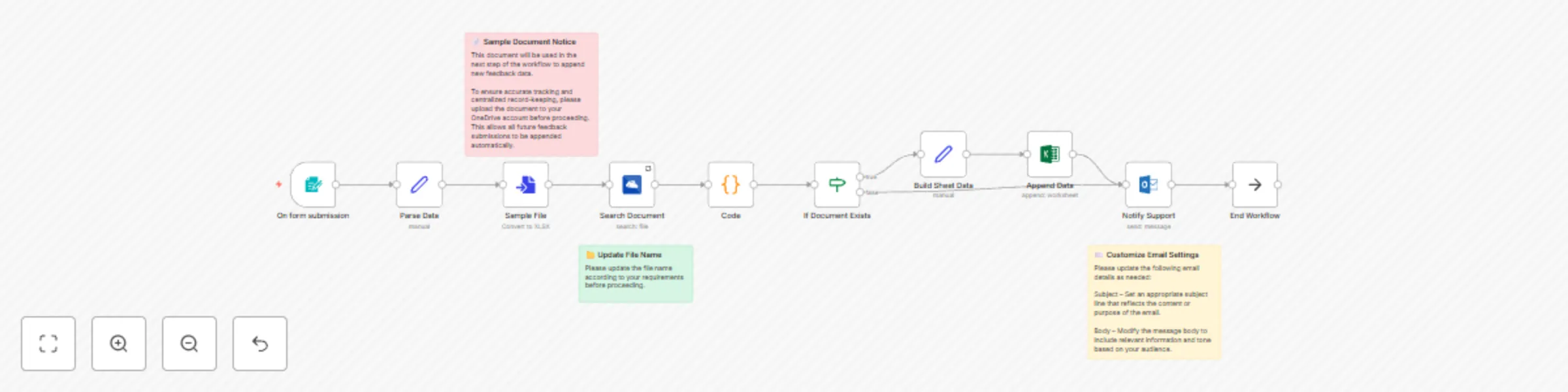
# Conference Feedback Collection and OneDrive Logging Workflow This n8n workflow is designed to collect feedback through a web form, log the responses into an Excel file stored in Microsoft OneDrive, and notify the support team via email. --- ## 🧭 Overall Goal To collect user feedback from a web form, structure the data, log it into a OneDrive Excel file, and notify support via Outlook email. --- ## 🔄 Workflow Breakdown ### 1. **Form Submission** (`On form submission`) - **Node Type**: `formTrigger` - **Purpose**: Captures user feedback via a web form. - **Form Fields**: - Full Name (Required) - Email (Required) - Company Name - Job Title - How did you hear about the conference? (Required) - Overall experience rating (Required) - Favorite sessions/speakers - Relevance to interests/work (Required) - Networking opportunities (Required) - Suggestions for improvement - Future topics/speakers - Willingness to attend again (Required) - Additional comments - Contact permission (Required) - **Access URL**: `/webhook/feedback` (or `/webhook-test/feedback` during testing) --- ### 2. **Parse Data** (`Set`) - **Purpose**: Renames form fields to `snake_case`. - **Output**: Structured JSON with renamed fields. --- ### 3. **Sample File** (`Convert to File`) - **Purpose**: Generates a file name reference for search. - **Filename**: `test-n8n-feedback-form-data.xlsx` --- ### 4. **Search Document** (`Microsoft OneDrive`) - **Purpose**: Searches OneDrive for the specified Excel file. - **Query**: `test-n8n-feedback-form-data.xlsx` --- ### 5. **Extract File ID** (`Code`) - **Purpose**: Extracts the ID of the file from the search result. - **Output**: `{ "id": "someFileId" }` or `{ "id": null }` --- ### 6. **Check File Existence** (`If`) - **Purpose**: Branch logic based on file existence. - **Condition**: If `id` exists. --- ### 7. **Build Sheet Data** (`Set`) - **Purpose**: Prepares the data to match the Excel column headers. - **Only Runs If**: File was found. --- ### 8. **Append Data to Excel** (`Microsoft Excel`) - **Purpose**: Appends the new feedback as a row. - **Workbook ID**: `{{ $('Code').item.json.id }}` - **Worksheet Name**: `Sheet1` - **Mode**: Auto-map from input fields --- ### 9. **Notify Support** (`Microsoft Outlook`) - **Purpose**: Sends a notification email with key feedback details. - **To**: `[email protected]` - **Subject**: `"New Feedback Submission Received"` - **Body**: Includes key details from submission --- ### 10. **End Workflow** (`NoOp`) - **Purpose**: Marks logical end of the workflow. --- ## 📝 Sticky Notes - ✅ **Upload Target Excel File First**: Ensure the Excel file exists in OneDrive. - 📝 **Filename Consistency**: Filename should match in "Sample File" and "Search Document" nodes. - 📧 **Customize Email Content**: Update "Notify Support" node with your desired message and recipient. --- ## 🔧 Customization Guide ### 🧾 Form Customization - Change form title, description, fields, or path. ### 🧪 Parsing Logic - Update field mappings if form labels change. ### 📁 Excel File Settings - Filename must match your actual OneDrive file. - Worksheet name and column headers must match in "Build Sheet Data". ### 📬 Email Settings - Update subject and body using variables like `{{ $('Parse Data').item.json.full_name }}`. --- ## ❗ Error Handling Tips - Adjust email content based on file presence. - Add an "Error Trigger" for advanced error management. --- ## 🔁 Alternatives and Extensions - Use Google Sheets, Airtable, or databases instead of OneDrive/Excel. - Add Slack or SMS notifications. --- ## 📌 Use Cases - Post-event Feedback - CSAT Surveys - Employee Feedback - Bug Reporting - Lead Capture - Contact Forms - Webinar Registration --- ## 🔐 Required Credentials ### 1. **Microsoft OneDrive (OAuth2)** - **Used by**: "Search Document" - **Credential Name**: Microsoft Drive account ### 2. **Microsoft Excel (OAuth2)** - **Used by**: "Append Data" - **Credential Name**: Microsoft Excel account ### 3. **Microsoft Outlook (OAuth2)** - **Used by**: "Notify Support" - **Credential Name**: Outlook 0Auth2 --- ## ❤️ Made with n8n by Akhil

A
Akhil Varma Gadiraju
Market Research
26 May 2025
1953
0
Workflow preview: N8N contact form workflow
Free intermediate

N8N contact form workflow

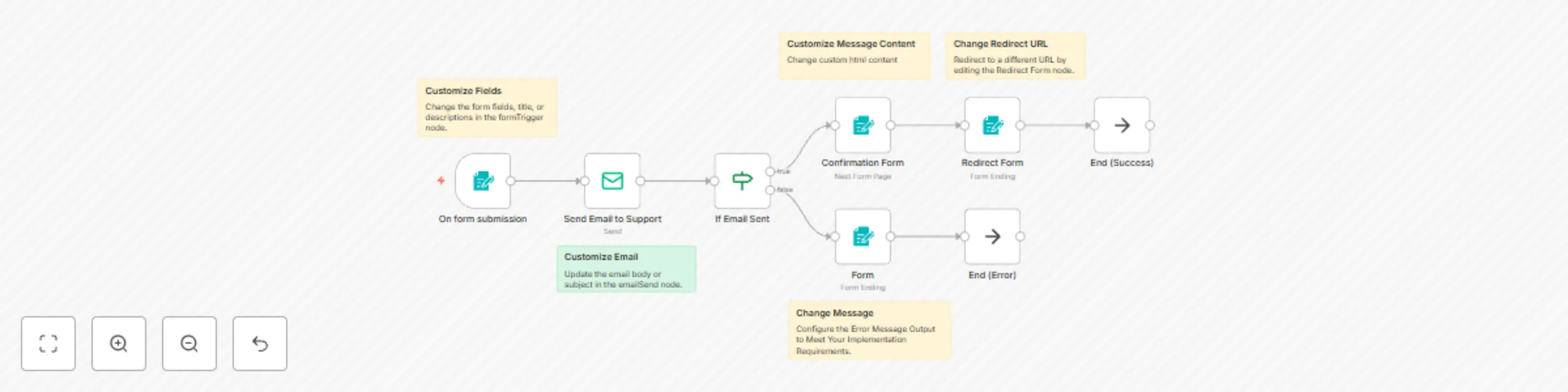
# 📬 N8N Contact Form Workflow: Capture, Notify via Email, and Redirect with Confirmation/Error Handling This n8n workflow facilitates contact form submissions through a customizable form that sends an email notification to support and redirects users based on the submission outcome. It is ideal for embedding a functional "Contact Us" form on websites with automated email notifications. --- ## ✨ Features - Collects first name, last name, email, company name, and a message - Sends formatted email notification to the support team - Displays success or error confirmation to the user - Customizable UI and form behavior - Error fallback handling with user-friendly feedback --- ## 🧩 Nodes Overview ### 1. **On form submission (Trigger)** - **Type:** `formTrigger` - Displays the contact form to users and triggers the workflow on submission. ### 2. **Send Email to Support** - **Type:** `emailSend` - Sends an HTML email to a support address with the form details. - Uses an SMTP credential for sending. ### 3. **If Email Sent** - **Type:** `if` - Checks if the email was sent successfully using the existence of `messageId`. ### 4. **Confirmation Form** - **Type:** `form` - Displays a “Thank You” HTML message after a successful submission. ### 5. **Redirect Form** - **Type:** `form` - Redirects the user to a specified URL (e.g., LinkedIn profile). ### 6. **Form (Error)** - **Type:** `form` - Displays an error message if email delivery fails. ### 7. **NoOp Nodes** - **End (Success)** and **End (Error)** to mark flow terminations cleanly. --- ## ⚙️ Customization Options - Change the form fields, title, or descriptions in the `formTrigger` node. - Update the email body or subject in the `emailSend` node. - Redirect to a different URL by editing the `Redirect Form` node. - Modify success and error UI with HTML content in the `Confirmation Form` and `Form`. --- ## 🧠 Use Cases - Website "Contact Us" form integration - Lead generation forms for businesses - Customer service inquiry collection - Feedback or support ticket system --- ## 🚀 How to Use 1. **Import** this workflow into your n8n instance. 2. **Configure SMTP credentials** for the `emailSend` node. 3. **Publish the formTrigger** endpoint (e.g., `/contact-us`) publicly or embed in your website. 4. Test submission and confirm email delivery and redirects. --- ## 🔐 Notes - Ensure SMTP credentials are correctly configured in n8n. - Make sure your n8n webhook URLs are reachable from your website or frontend. --- Made with ❤️ using n8n by Akhil.

A
Akhil Varma Gadiraju
Ticket Management
23 May 2025
3486
0
Workflow preview: Gmail attachment backup to Google Drive
Free intermediate

Gmail attachment backup to Google Drive

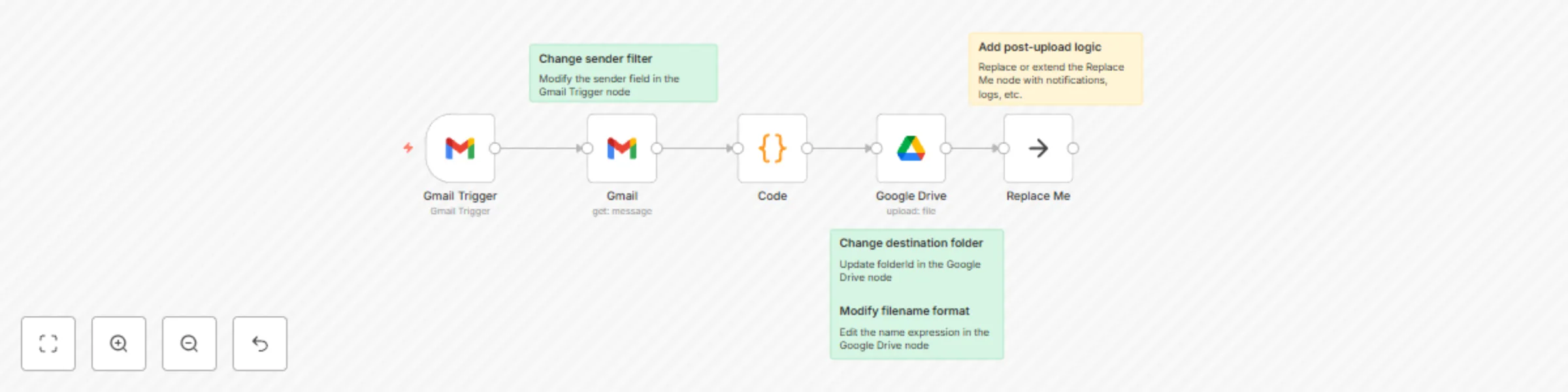
# 📥 Gmail Attachment Backup to Google Drive — n8n Workflow This n8n workflow automatically backs up email attachments from a specific sender in Gmail to a designated folder in Google Drive. It polls Gmail every minute and uploads any new attachments from matching emails to the specified Google Drive folder with a timestamped filename. --- ## 📌 Use Case **Primary Purpose**: - Automatically archive and back up attachments from a specific sender (e.g., `[email protected]`) to Google Drive for safekeeping, audit, or processing. **Ideal For**: - Automating invoice/receipt collection from a vendor - Archiving reports from a monitored email address - Creating a searchable historical log of attachments for compliance --- ## 🧭 Workflow Overview Here’s how the workflow operates: 1. **🔔 Gmail Trigger** Polls Gmail every minute for new messages from a specific sender (`[email protected]`). 2. **📩 Gmail Get Message** Retrieves the full contents (including attachments) of the matched email. 3. **🧠 Code (JS)** Iterates over all binary attachments in the email and restructures them as individual binary items to upload separately. 4. **📤 Google Drive** Uploads each attachment to a target Google Drive folder (`DOcs`) with a timestamp and unique name. 5. **📍 Replace Me (NoOp)** Placeholder node to indicate workflow completion. You can replace this with Slack notifications, logs, or alerts. --- ## 🔧 How to Use ### Prerequisites - An [n8n](https://n8n.io/) instance (self-hosted or cloud) - A connected Gmail account with OAuth2 credentials - A connected Google Drive account with OAuth2 credentials - Permissions for n8n to access your Gmail and Google Drive ### Setup Instructions 1. **Import the Workflow** Copy and paste the workflow JSON into your n8n editor. 2. **Set Up Credentials** Ensure the following credentials exist and are authorized: - `Gmail (for Gmail nodes) - `Google Drive (for Google Drive node) 3. **Configure the Folder** Update the `folderId` in the Google Drive node if you want to use a different target folder. 4. **Activate the Workflow** Enable the workflow in n8n. It will start polling Gmail every minute. --- ## ✏️ How to Customize | Task | How to Customize | |------|------------------| | Change sender filter | Modify the `sender` field in the **Gmail Trigger** node | | Adjust polling frequency | Change the `pollTimes` configuration in the trigger node | | Change destination folder | Update `folderId` in the **Google Drive** node | | Modify filename format | Edit the `name` expression in the **Google Drive** node | | Add post-upload logic | Replace or extend the **Replace Me** node with notifications, logs, etc. | | Process only specific attachments | Add logic in the **Code** node to filter by filename or MIME type | --- ## 📂 Filename Format Example ``` [MessageID]_[Timestamp]_backup_attachment ``` This naming convention ensures uniqueness and traceability back to the original message. --- ## ✅ Future Improvements - **Email subject filtering** to narrow down the match - **Slack/Email notifications** after upload - **Deduplication check** to avoid reuploading the same files - **Virus scan or file validation** before upload --- ## 💬 Support For any issues using this workflow: - Double-check your credential permissions - Review n8n logs for Gmail or Google Drive errors - Visit the [n8n community forums](https://community.n8n.io)

A
Akhil Varma Gadiraju
File Management
20 May 2025
2968
0
Workflow preview: Gmail to Google Drive email export workflow
Free intermediate

Gmail to Google Drive email export workflow

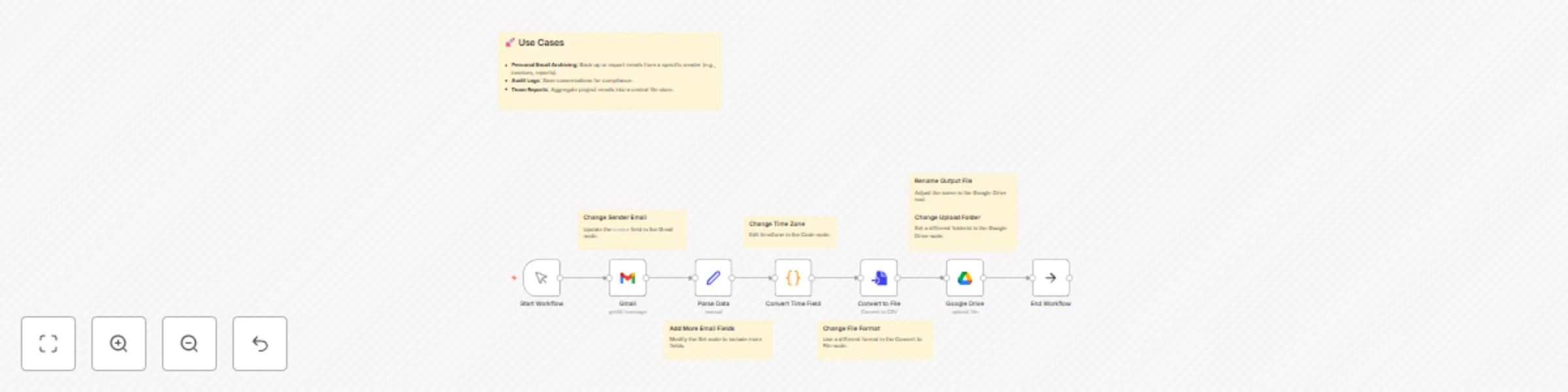
# 📬 Gmail to Google Drive Email Export Workflow (n8n) ## 🧩 Overview This n8n workflow automates the process of: 1. Retrieving all emails from a specific sender using Gmail. 2. Extracting essential fields like subject, message, and date. 3. Formatting the email date to the desired time zone (e.g., IST). 4. Exporting the parsed data as a CSV file. 5. Uploading the file to a specified folder in Google Drive. --- ## 🛠 Nodes Breakdown ### 1. **Start Workflow** (`Manual Trigger`) - **Type**: Manual Trigger - **Purpose**: Initiates the workflow manually. --- ### 2. **Gmail Node** (`Get All Emails`) - **Type**: Gmail - **Operation**: `getAll` - **Filters**: - `sender`: `[email protected]` - **Returns**: All emails from the specified sender. - **Credentials**: `Gmail OAuth2 - Akhil` --- ### 3. **Parse Data** (`Set Node`) - **Purpose**: Extracts key fields from the email JSON. - **Mapped Fields**: - `id`: Email ID - `subject`: Email subject - `message`: Email text - `time`: Email date --- ### 4. **Convert Time Field** (`Code Node`) - **Purpose**: Converts the email time (`ISO 8601`) to a human-readable format. - **Output Format**: - Local time using **Asia/Kolkata** timezone. - Format: `"Month Day, Year, Hour:Minute AM/PM"` - **Customizable**: Change the timezone as needed: ```javascript timeZone: 'Asia/Kolkata' ``` --- ### 5. **Convert to File** - **Type**: Convert to File Node - **Purpose**: Converts JSON data to a downloadable `.csv` file. - **Output File**: CSV containing `id`, `subject`, `message`, and `time`. --- ### 6. **Google Drive** - **Type**: Google Drive - **Purpose**: Uploads the generated CSV file to Google Drive. - **Drive**: My Drive - **Folder**: Root - **File Name**: Current timestamp + `_n8n_export.csv` --- ### 7. **End Workflow** (`NoOp`) - **Purpose**: Final node to explicitly end the workflow. --- ## ✅ Use Cases - **Personal Email Archiving**: Back up or export emails from a specific sender (e.g., invoices, reports). - **Audit Logs**: Save conversations for compliance. - **Team Reports**: Aggregate project emails into a central file store. --- ## 🔧 Customization Guide | Customization | How to Do It | |---------------------------|------------------------------------------------------------| | Change Sender Email | Update the `sender` field in the Gmail node. | | Filter by Date/Subject | Add filters in the Gmail node settings. | | Change Time Zone | Edit `timeZone` in the Code node. | | Add More Email Fields | Modify the `Set` node to include more fields. | | Change File Format | Use a different format in the Convert to File node. | | Rename Output File | Adjust the `name` in the Google Drive node. | | Change Upload Folder | Set a different `folderId` in the Google Drive node. | --- ## 🚀 Deployment Tips - **Schedule the Workflow**: Replace `Manual Trigger` with a `Cron` node. - **Avoid Duplicates**: Store email IDs and skip duplicates using conditional logic. - **Security**: Use environment variables for sensitive credentials. --- ## 🧪 Testing Steps 1. Manually trigger the workflow. 2. Verify email data is parsed and formatted. 3. Confirm CSV is generated correctly. 4. Ensure the file is uploaded to Google Drive. --- ## 🧰 Requirements - Connected Gmail and Google Drive OAuth2 credentials. - n8n instance (self-hosted or cloud). - Required nodes available in the n8n environment. --- > 💡 Need more features? You can add: > - Error handling > - Slack/Email notifications > - Conditional filters > - Google Sheets integration instead of Drive

A
Akhil Varma Gadiraju
File Management
20 May 2025
1655
0
Workflow preview: Bulk delete HubSpot contacts from uploaded Excel/CSV file
Free intermediate

Bulk delete HubSpot contacts from uploaded Excel/CSV file

# Bulk Contact Deletion from HubSpot via Uploaded Excel / CSV File This workflow allows you to automate the deletion of HubSpot contacts based on email addresses provided in an uploaded Excel (`.xlsx`) file. It's ideal for bulk-cleaning outdated or invalid contact data. --- ## ✅ Prerequisites Before using this workflow, ensure you have the following: - A valid **HubSpot App Token** with permissions to search and delete contacts. - An Excel (`.xlsx`) file with a column labeled `emails` containing the contact emails to be deleted. - n8n self-hosted or cloud environment with: - **Webhook** node enabled and accessible. - **HubSpot** node credentials configured. - Basic familiarity with n8n node configuration for custom adjustments (optional). --- ## 📃Sample Document ![sample_xlsx_document.png](fileId:1323) [Download](https://docs.google.com/spreadsheets/d/1PsulQO-io1VKokxeNgGA0oGc4QVYhLUJ/edit?usp=sharing&ouid=117854718738214515668&rtpof=true&sd=true) --- ## 🧠 n8n Workflow: Delete HubSpot Contacts from an Uploaded Excel File This n8n workflow allows you to upload an Excel file containing contact email addresses. It will check each one in HubSpot and delete the contact if it exists. --- ## 🔗 Workflow Overview ### 📥 1. Trigger via Webhook (POST) The workflow starts when a `.xlsx` file is uploaded via an HTTP `POST` request to the webhook. This Excel file should contain a column with contact email addresses. --- ### 📄 2. Extract Data from Excel The uploaded file is parsed, and its rows are converted into structured JSON items, making each email address available for further processing. --- ### 🧹 3. Normalize Data The data is cleaned and normalized — for example, mapping column headers (e.g., `emails`) into a standard `email` field, ensuring consistent downstream logic. --- ### 🔁 4. Loop Through Contacts Each row (contact) is processed individually using batch looping. This allows for fine-grained error handling and sequential processing. --- ### 🔎 5. Search for Contact in HubSpot For each contact, a search query is made in HubSpot based on the email address. The workflow only fetches the first result (if any). --- ### 🧪 6. Check if Contact Exists An IF condition checks whether the contact was found (i.e., if a HubSpot contact ID exists): - ✅ **Yes** → proceed to delete the contact. - ❌ **No** → skip deletion and continue to the next. --- ### 🗑️ 7. Delete Contact If a contact exists, it is deleted from HubSpot using its internal contact ID. --- ### 🛠️ 8. Optional Placeholder for Post-Processing A placeholder node named **“Replace Me”** is included for any custom logic you may want to add after the deletion step, such as: - Logging - Notifications - Writing to external storage --- ## ✅ Use Cases - Bulk delete old or bounced email addresses from HubSpot. - Clean up contacts based on external suppression lists. - Automate regular CRM hygiene processes. --- ## 💡 Suggested Enhancements - ✍️ Log results to Google Sheets or a database - 📬 Send completion report via email or Slack - 🔁 Add retry logic for temporary API failures - 🔍 Validate email format before making requests --- ## 📎 Requirements - n8n (self-hosted or cloud) - HubSpot App Token (set up in n8n credentials) - Excel file (.xlsx) with a column for `email` --- ## 📦 Files No external files are required. All logic is contained within the n8n workflow. --- ## 🚀 Getting Started 1. Deploy the workflow in n8n. 2. Copy the webhook URL and use it in your app or API client (like Postman). 3. Upload an Excel file containing contact emails via POST request. 4. Watch as it searches and deletes matches in HubSpot.

A
Akhil Varma Gadiraju
CRM
16 May 2025
325
0
Workflow preview: Automated daily backup of n8n workflows to GitLab repositories
Free advanced

Automated daily backup of n8n workflows to GitLab repositories

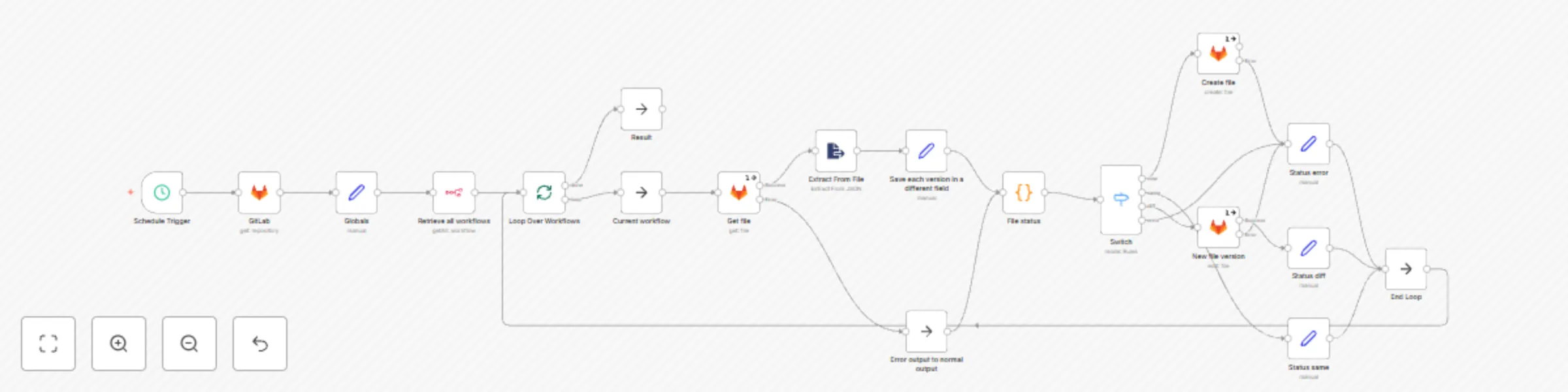
# n8n Workflow: Sync Workflows with GitLab ## How It Works This workflow ensures that your self-hosted n8n workflows are version-controlled in a GitLab repository. It compares each current workflow from n8n with its stored counterpart in GitLab. If any differences are detected, the GitLab file is updated with the latest version. ### Core Logic: 1. **Retrieve Workflows** – Fetch all workflows from the n8n REST API. 2. **Compare with GitLab** – For each workflow, fetch the corresponding file from GitLab and compare the JSON. 3. **Update if Changed** – If differences exist, commit the updated workflow to GitLab using its API. --- ## Setup Before using the workflow, ensure the following: ### Prerequisites: - **n8n**: Self-hosted instance with access to the `/rest/workflows` API. - **GitLab**: A repository where workflows will be stored, and a Personal Access Token (PAT) with `api` and `write_repository` permissions. - **n8n Nodes Required**: - HTTP Request (to call n8n and GitLab APIs) - Code or Function nodes (for diffing and formatting) - Looping (`SplitInBatches` or similar) ### Configuration: - Set environment variables or workflow credentials for: - `GITLAB_TOKEN` - `GITLAB_REPO` - `GITLAB_BRANCH` (e.g., `main`) - `GITLAB_FILE_PATH_PREFIX` (e.g., `n8n-workflows/`) --- ## How to Use 1. **Import the Workflow** into your n8n instance. 2. **Configure GitLab API Credentials**: - Set the GitLab PAT as a header in the HTTP Request node: `Private-Token: {{ $env.GITLAB_TOKEN }}` 3. **Map Workflows to GitLab Paths**: - Use the workflow name or ID to create the file path. Example: `n8n-workflows/workflow-name.json` 4. **Trigger the Workflow**: - Can be manually triggered, or scheduled to run at intervals (e.g., daily). 5. **Review Commits in GitLab**: - Each updated workflow will be committed with a message like: `"Update workflow: Sample Workflow"` --- ## Disclaimer - This workflow does **not** handle merge conflicts or manual edits made directly in GitLab. Always ensure proper coordination if multiple sources are modifying workflows. - Only structural changes are tracked. Non-functional metadata (like timestamps or IDs) may trigger false positives unless filtered. - Use at your own risk. Test in a safe environment before applying to production workflows. ---

A
Akhil Varma Gadiraju
DevOps
14 May 2025
2203
0