Generate 7-day event plans with Google Calendar, GPT-3.5 and Notion
Workflow preview


 Early Deal
DISCOUNT 20%

Important notice
This workflow is provided as-is. Please review and test before using in production.
Overview
Generate 7-Day Event Plans with Google Calendar, GPT-3.5 and Notion 🎉
Automate Your Event Planning: From Calendar Entry to Done-For-You Checklist
Stop scrambling before birthdays, anniversaries, or family gatherings. This workflow turns a simple Google Calendar event into a 7-day prep plan — complete with shopping lists, tasks, and reminders — all auto-sent to Notion and your inbox.
Perfect for:
- 👩👧 Homemakers hosting family events
- 💼 Solopreneurs planning launches or webinars
- 🎉 Anyone who wants to celebrate without the stress
The workflow:
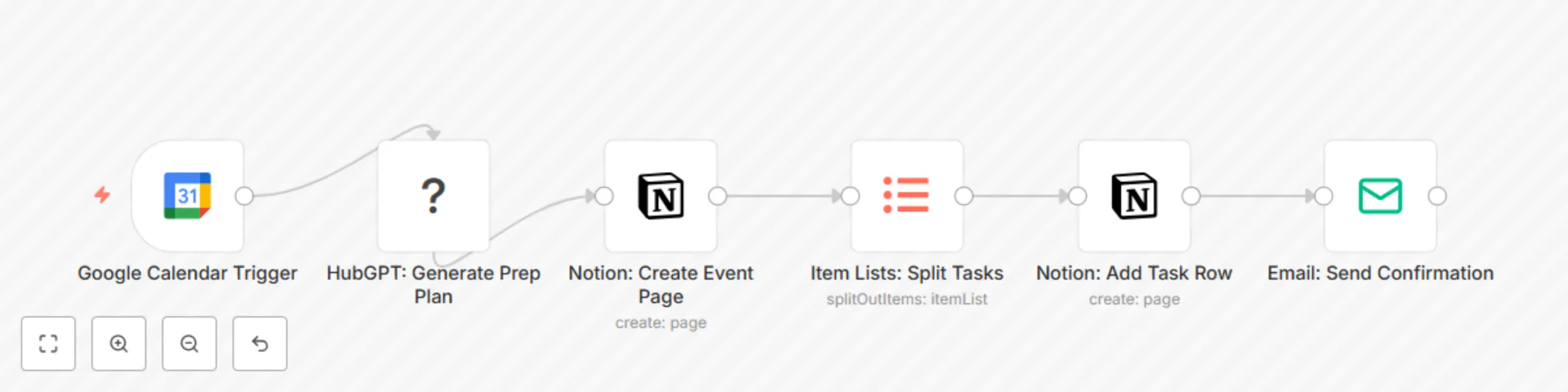
- 📅 Detects a new event in Google Calendar (e.g., “Emma’s Birthday”)
- 🤖 Uses GPT-3.5 to generate a 7-day prep plan (buy cake, send invites, decorate)
- 📝 Creates a Notion page for the event, then loops through each AI-generated task to add them as individual rows/items with due dates
- 📨 Emails you a summary + link to the Notion page
No spreadsheets. No mental load. Just set the date — and let AI handle the rest.
> 🔁 Key Detail: After the Notion page is created, the workflow uses an Item Lists node to split the AI-generated task array into individual items. Each task is then processed in a loop and appended to the Notion database as a separate row — ensuring clean, actionable checklists.
Prerequisites
Before using this workflow, ensure you have:
| Service | Purpose | Free Tier? |
|---|---|---|
| n8n | Orchestrate automation | Yes |
| Google Calendar | Trigger on new events | Yes |
| Notion | Store prep checklist | Yes |
| OpenAI | AI planning logic (GPT-3.5) | Yes (limited free tier) |
| SMTP Email | Send confirmation email | Yes (via Gmail or similar) |
🔐 Store all API keys securely in n8n’s Credentials section.
Google Calendar Setup
Your event must include:
- Title: e.g., "Emma’s Birthday"
- Date: The event date
- Description (optional): e.g., “Theme: Unicorn, Guests: 10”
💡 Tip: Use a specific keyword in the title (e.g., “🎂”) to trigger only special events.
Notion Database Requirements
Create a Notion database with these columns:
| Column Name | Type | Example |
|---|---|---|
Name |
Title | "Emma’s Birthday Prep" |
Task |
Text | "Buy cake" |
Due Date |
Date | 2025-09-10 |
Status |
Status | To Do, In Progress, Done |
Event Date |
Date | 2025-09-12 |
Notes |
Text | "Vanilla with rainbow sprinkles" |
📌 Share your Notion workspace with your n8n integration (via integration token).
Step-by-Step Setup Instructions
1. Import the Workflow
- In n8n, go to Workflows > Create from JSON
- Paste the provided JSON
- Click Import
2. Set Up Credentials
- Google Calendar: Connect via OAuth
- Notion: Add your integration token
- OpenAI: Add your API key
- Email: Set up SMTP (e.g., Gmail app password)
🔐 Never hardcode keys — use n8n’s credential system.
3. Configure the AI Prompt
In the HubGPT: Generate Prep Plan node:
You're planning "{{ $json['summary'] }}" on {{ $json['start'] }}.
Generate a 7-day prep plan with 5–7 tasks (e.g., shopping, invites, setup).
Include:
- 3 days before: Send invites
- 2 days before: Buy supplies
- 1 day before: Decorate
Return as a JSON array with 'task' and 'dueDate'.