Automate service package recommendations with Google Workspace sales pipeline tracking
Workflow preview

$20/month : Unlimited workflows
2500 executions/month

THE #1 IN WEB SCRAPING
Scrape any website without limits
HOSTINGER  Early Deal
DISCOUNT 20% Try free
Early DealDISCOUNT 20%
Self-hosted n8n
Unlimited workflows - from $4.99/mo

#1 hub for scraping, AI & automation
6000+ actors - $5 credits/mo
Important notice
This workflow is provided as-is. Please review and test before using in production.
Overview
💰 Package Recommender with Sales Pipeline Tracking
What It Does
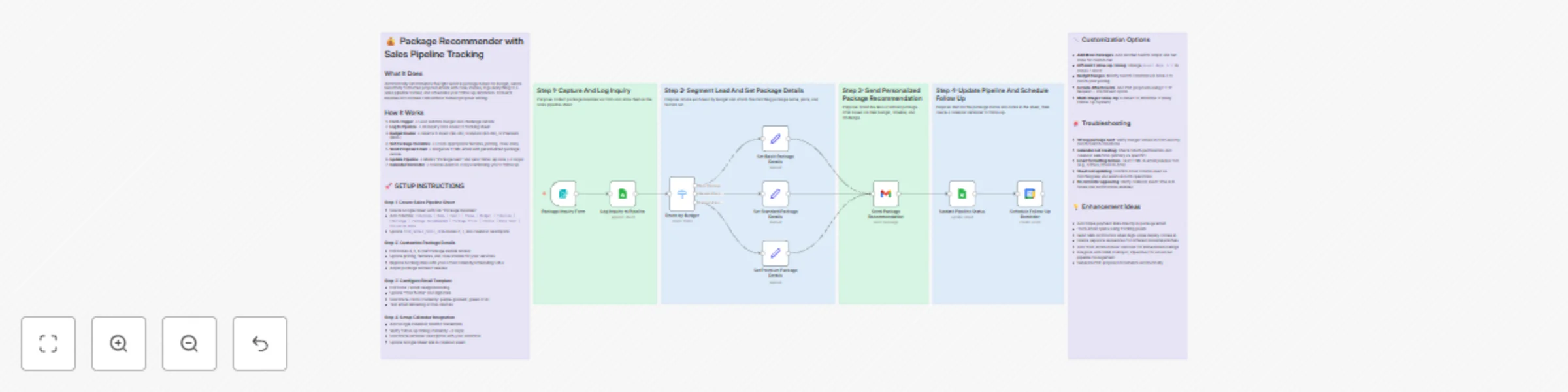
Automatically recommends the right service package based on budget, sends beautifully formatted proposal emails with case studies, logs everything to a sales pipeline tracker, and schedules your follow-up reminders. Converts inquiries into booked calls without manual proposal writing.
How It Works
- Form Trigger → Lead submits budget and challenge details
- Log to Pipeline → All inquiry data saved to tracking sheet
- Budget Router → Directs to Basic ($0-3K), Standard ($3-6K), or Premium ($6K+)
- Set Package Variables → Loads appropriate features, pricing, case study
- Send Proposal Email → Gorgeous HTML email with personalized package details
- Update Pipeline → Marks "Package Sent" and sets follow-up date (+3 days)
- Calendar Reminder → Creates event in 3 days reminding you to follow up
🚀 SETUP INSTRUCTIONS
Step 1: Create Sales Pipeline Sheet
- Create Google Sheet with tab "Package Inquiries"
- Add columns:
Timestamp | Name | Email | Phone | Budget | Timeline | Challenge | Package Recommended | Package Price | Status | Date Sent | Follow-Up Date - Update
YOUR_GOOGLE_SHEET_IDin nodes 2, 7, and calendar description
Step 2: Customize Package Details
- Edit nodes 4, 5, 6 (Set Package Details nodes)
- Update pricing, features, and case studies for your services
- Replace booking links with your actual Calendly/scheduling URLs
- Adjust package names if needed
Step 3: Configure Email Template
- Edit node 7 email design/branding
- Update "Your Name" and signature
- Customize colors (currently: purple gradient, green CTA)
- Test email rendering across devices
Step 4: Setup Calendar Integration
- Add Google Calendar OAuth2 credentials
- Verify follow-up timing (currently +3 days)
- Customize reminder description with your workflow
- Update Google Sheet link in calendar event