Automate post-interview feedback reminders using Google Sheets, Slack, and Gmail

Workflow preview

Workflow preview
100%
Automate post-interview feedback reminders using Google Sheets, Slack, and Gmail preview
Open on n8n.io

Important notice

This workflow is provided as-is. Please review and test before using in production.

1. Workflow Overview

Send Post‑Interview Feedback Nudges from Google Sheets to Slack (with Email Fallback) This n8n workflow automates the process of sending post interview feedback reminders to interviewers. It checks...

Best for

  • HR automation workflows
  • Multimodal AI automation workflows
  • intermediate n8n builders looking for reusable templates

Tools used

n8n-nodes-base.stickynote, n8n-nodes-base.scheduletrigger, n8n-nodes-base.googlesheets, n8n-nodes-base.if, n8n-nodes-base.slack, n8n-nodes-base.gmail

Source and attribution

This workflow is cataloged by N8N Workflows and links back to its original n8n.io source page by WeblineIndia.

Original n8n.io source

1.1 Workflow description

Title
Automate post-interview feedback reminders using Google Sheets, Slack, and Gmail
Workflow name
Automate post-interview feedback reminders using Google Sheets, Slack, and Gmail

Send Post‑Interview Feedback Nudges from Google Sheets to Slack (with Email Fallback)

This n8n workflow automates the process of sending post-interview feedback reminders to interviewers. It checks a Google Sheet daily for pending feedback entries and sends personalized Slack DMs or email nudges based on the availability of Slack IDs. It ensures consistent follow-ups and eliminates manual tracking.

Who’s it for

  • HR and Talent Acquisition teams
  • Recruitment coordinators
  • Engineering/Design/Product team leads conducting interviews
  • Anyone managing interview feedback collection using Google Sheets and Slack

How it works

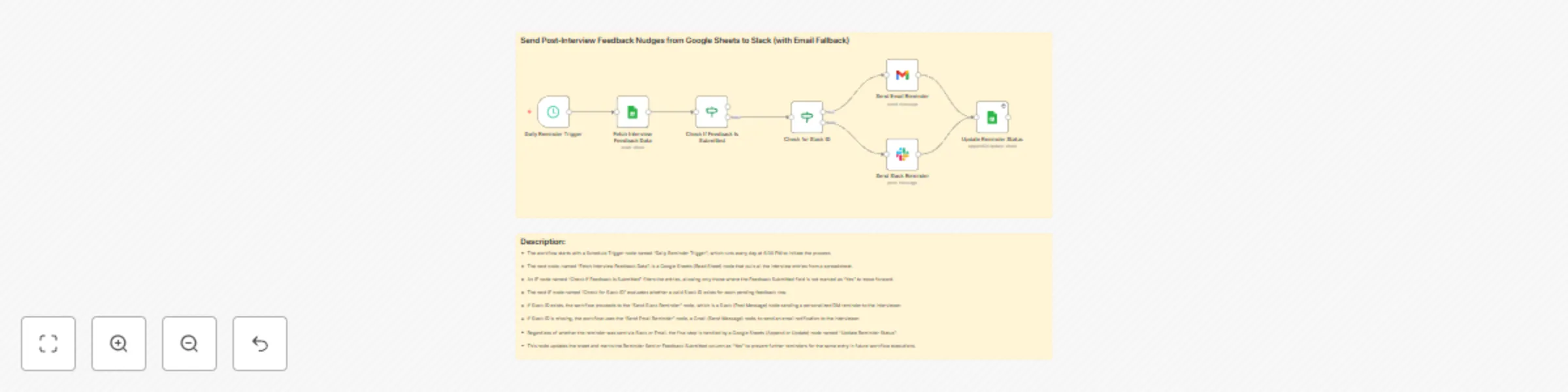
  1. Trigger: The workflow starts every day at 6:00 PM using the Schedule Trigger.
  2. Fetch Data: It reads a Google Sheet with interview entries via the Google Sheets (Read Sheet) node.
  3. Check Feedback Submission: An IF node filters entries where feedback has not been marked as “Yes.”
  4. Slack Check: Another IF node checks if a valid Slack ID is present.
    • If Slack ID exists: Sends a Slack DM reminder.
    • If Slack ID is missing: Sends a fallback reminder via email using Gmail.
  5. Update Status: Updates the sheet to mark the reminder as sent, avoiding future duplicates.

How to set up

  1. Prepare a Google Sheet with columns: candidate_email, interviewer_email, feedback_submitted, slack_id, reminder_sent.
  2. Connect your Google Sheets, Slack, and Gmail accounts in n8n.
  3. Set the Schedule Trigger to your preferred time (e.g., 6:00 PM).
  4. Map the correct columns in each node.
  5. Deploy and test the workflow.

Requirements

  • A working n8n instance.
  • Google Sheets with structured feedback data.
  • Slack workspace and bot token with DM permissions.
  • Gmail account connected to n8n for fallback reminders.
  • Interviewers listed with either Slack ID or valid email.

How to customize

  • Change the schedule (e.g., run hourly or on specific days).
  • Customize Slack or Email message templates.
  • Add conditional formatting for different interview types or roles.
  • Integrate additional columns for logging timestamps or retries.
  • Expand to MS Teams or other email providers.

Add‑ons

  • Google Sheets Timestamping: Log the exact time when reminders were sent.
  • Multi-language Reminder Support: Based on interviewer’s preferred language.
  • Feedback Form Auto-linking: Embed Google Form links dynamically in messages.
  • Notion or Airtable Integration: Extend tracking to other platforms.

Use Case Examples

  • A recruiter managing 10+ interviews daily ensures feedback is collected within 24 hours.
  • An engineering manager automates reminders for panelists to fill candidate scorecards.
  • HR teams use it during hiring surges to eliminate feedback bottlenecks.

Common Troubleshooting

Issue Possible Cause Solution
Reminders not sending Schedule Trigger not firing Check cron expression or timezone settings
Slack messages not delivered Slack ID missing or invalid Ensure Slack IDs are mapped correctly in the Sheet
Emails not sent Gmail node not authorized Reconnect Gmail credentials in n8n
Entries repeatedly reminded Sheet not updating after reminder Confirm Update node is marking reminder_sent as “Yes”
Slack bot errors Insufficient permissions Ensure bot has permission to send DMs

Need Help?

Need a hand setting this up or want to customize it further for your recruitment workflow? Just drop a message to our n8n automation team at WeblineIndia — we’re here to help streamline your hiring feedback process!

1.2 Logical Blocks

This catalog entry is organized from the workflow JSON. The node-level section below shows the executable blocks available for review before importing the template.

2. Block-by-Block Analysis

Block 1 - Sticky Note

Type / Role
n8n-nodes-base.stickyNote - stickyNote
Config choices
Version 1

Block 2 - Sticky Note1

Type / Role
n8n-nodes-base.stickyNote - stickyNote
Config choices
Version 1

Block 3 - Daily Reminder Trigger

Type / Role
n8n-nodes-base.scheduleTrigger - scheduleTrigger
Config choices
Version 1.2

Block 4 - Fetch Interview Feedback Data

Type / Role
n8n-nodes-base.googleSheets - googleSheets
Config choices
Version 4.6

Block 5 - Check If Feedback Is Submitted

Type / Role
n8n-nodes-base.if - if
Config choices
Version 2.2

Block 6 - Check for Slack ID

Type / Role
n8n-nodes-base.if - if
Config choices
Version 2.2

Block 7 - Send Slack Reminder

Type / Role
n8n-nodes-base.slack - slack
Config choices
Version 2.3

Block 8 - Send Email Reminder

Type / Role
n8n-nodes-base.gmail - gmail
Config choices
Version 2.1

Block 9 - Update Reminder Status

Type / Role
n8n-nodes-base.googleSheets - googleSheets
Config choices
Version 4.6

3. Summary Table

Workflow Automate post-interview feedback reminders using Google Sheets, Slack, and Gmail
Complexity intermediate
Nodes 9
Categories HR, Multimodal AI
Author WeblineIndia
Published 28 Aug 2025

4. Reproducing the Workflow from Scratch

  1. 1. Download the workflow JSON

    Use the JSON export at /data/workflows/7987/7987.json as the source template for this automation.

  2. 2. Import the template into n8n

    Open n8n, import the downloaded JSON, and review each node before activating the workflow.

  3. 3. Configure credentials and variables

    Replace placeholder credentials, API keys, webhook URLs, account IDs, and environment-specific values with your own settings.

  4. 4. Test with sample data

    Run the workflow manually or in a staging workspace, inspect node output, and confirm downstream systems receive the expected data.

  5. 5. Activate and monitor

    Enable the workflow only after testing, then monitor executions, errors, and rate limits during the first production runs.

5. General Notes & Resources

Review imported nodes carefully before activation. This catalog entry is intended to help you inspect the workflow structure, understand required services, and find related templates faster.

Node names, credentials, schedules, webhook paths, and external service limits may need adjustment for your workspace.

Frequently asked questions

What does Automate post-interview feedback reminders using Google Sheets, Slack, and Gmail do?

Send Post‑Interview Feedback Nudges from Google Sheets to Slack (with Email Fallback) This n8n workflow automates the process of sending post interview feedback reminders to interviewers. It checks...

What do I need before importing this workflow?

Review the workflow JSON, configure any required credentials in n8n, and test the automation in a safe workspace before using it in production.

Can I customize this workflow?

Yes. Use the block-by-block analysis and the downloadable JSON to inspect each node, then adjust credentials, prompts, schedules, filters, or destinations for your HR, Multimodal AI use case.