WeblineIndia
Workflows by WeblineIndia
Pick a daily Facebook comment contest winner with OpenAI, Airtable and Telegram
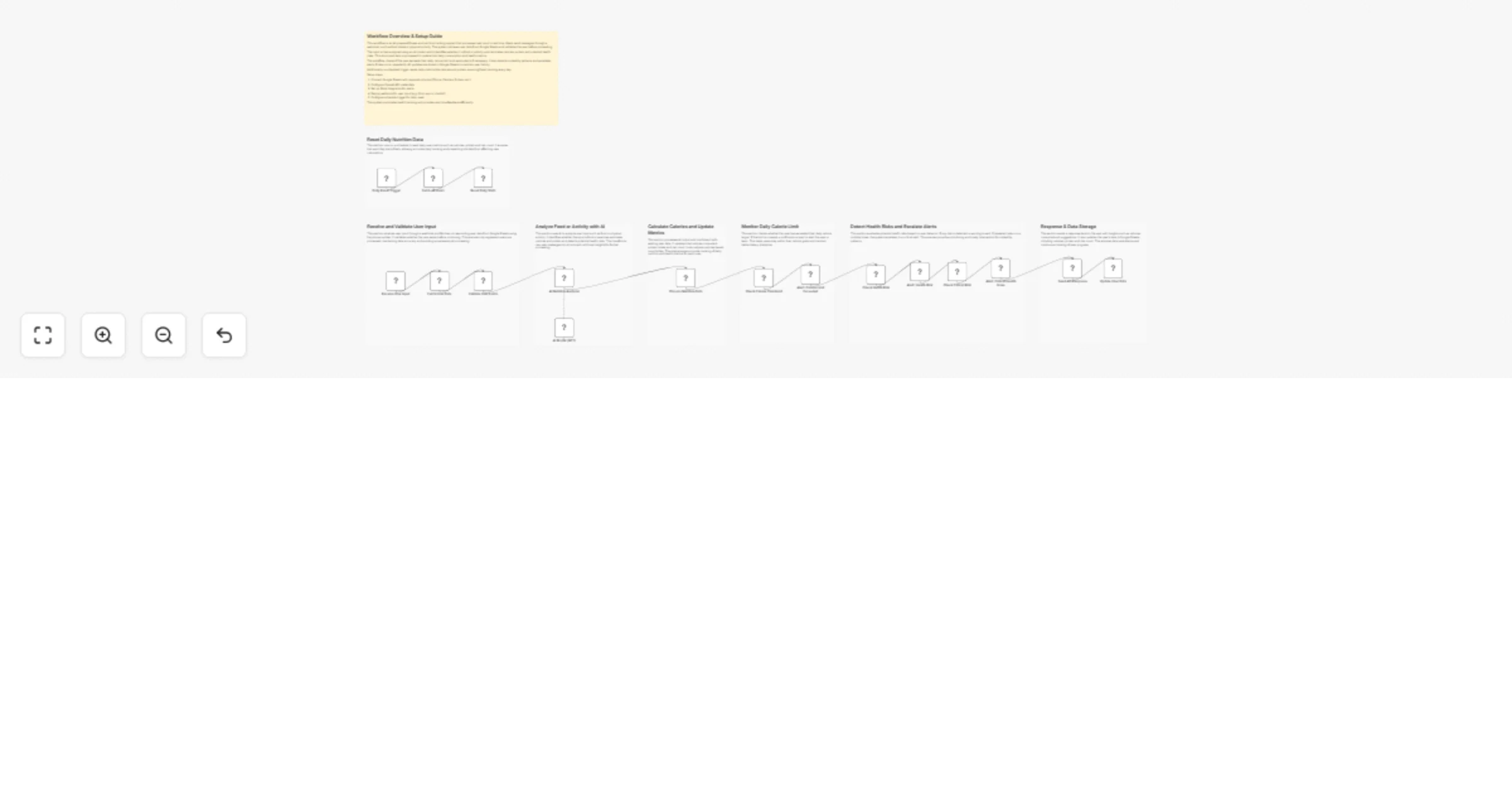
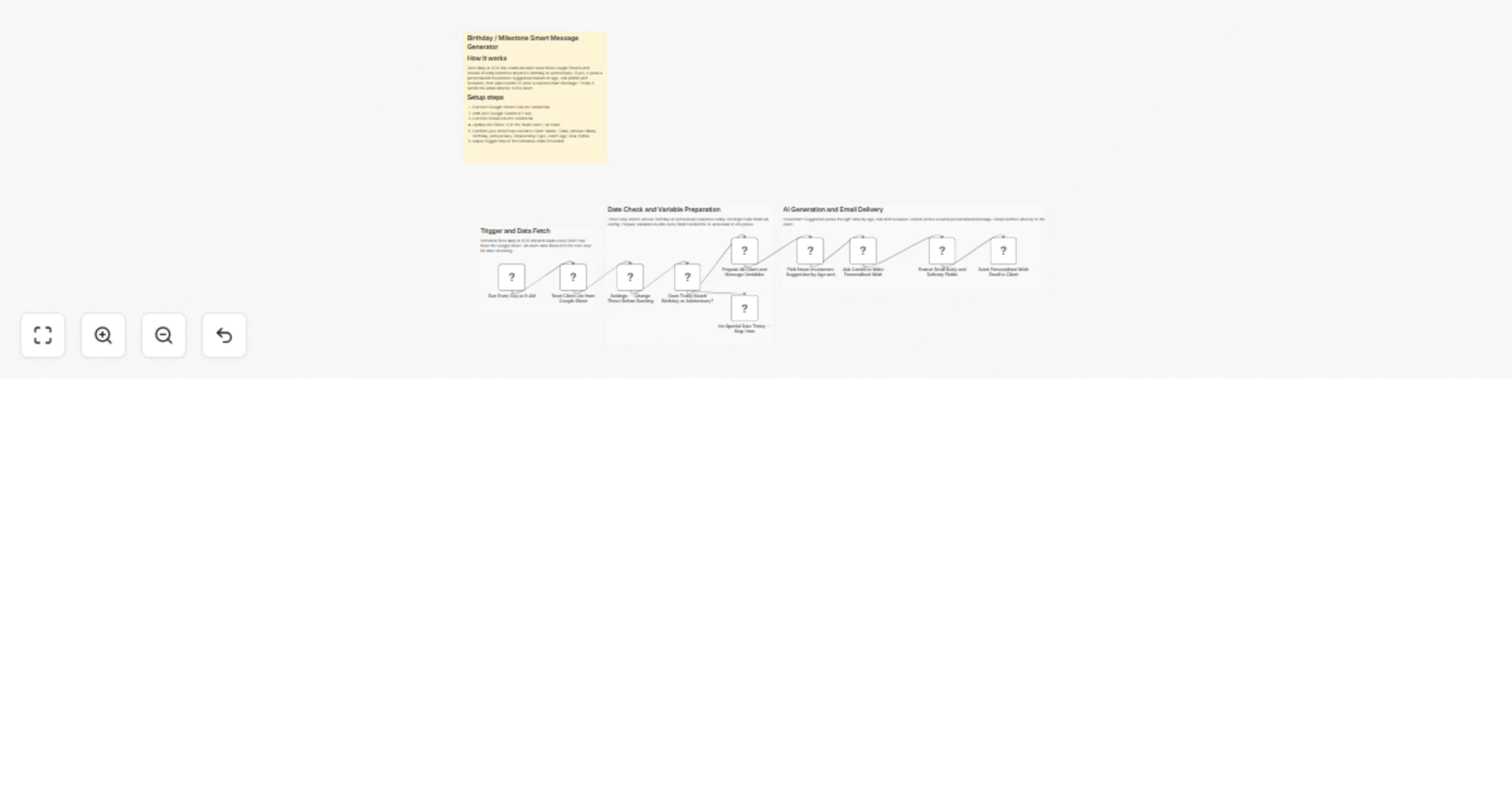
# Community Contest Tracker (FB Comments) → Sentiment Analysis → Telegram Winner Alerts + Airtable Proof This workflow automatically monitors a Facebook post, extracts comments, enforces a "past winner" blocklist, analyzes sentiment using AI to find positive entries, randomly selects a winner, stores them in Airtable and announces the result via Telegram. This workflow runs every night to manage your daily community giveaways. It fetches fresh comments from a specific Facebook post and cross-references users against a list of previous winners stored in Airtable to ensure fairness. It uses OpenAI to filter for genuinely positive sentiment (removing spam), selects a random winner, saves the record and sends a celebratory announcement to your Telegram channel. You receive: * **Daily automated comment collection** * **Fairness enforcement (Blocklist for past winners)** * **AI-powered sentiment filtering (Positive vibes only)** * **Automated winner selection & notification** Ideal for community managers and brand owners who want to run fair, high-engagement contests without manually reading hundreds of comments or tracking past winners in spreadsheets. ### Quick Start – Implementation Steps 1. Add your **Facebook Graph API Credentials** in the HTTP Request node. 2. Connect and configure your **Airtable** base (Winners Table). 3. Add your **OpenAI API Key** for sentiment analysis. 4. Connect your **Telegram Bot** credentials and set the Chat ID. 5. Update the **Post ID** in the "Get FB Comments" node. 6. Activate the workflow — daily contest automation begins instantly. ## What It Does This workflow automates the entire lifecycle of a social media contest: 1. **Daily Trigger:** Runs automatically at 9:00 PM every day. 2. **Data Ingestion:** Fetches the latest comments from Facebook and the full list of past winners from Airtable simultaneously. 3. **Pre-Processing:** * Creates a blocklist of users who won in the last 30 days. * Filters out spam, short comments (e.g., single emojis) and blocklisted users. 4. **AI Analysis:** * Uses GPT-4o-mini to analyze the text of eligible comments. * Filters specifically for "Positive" sentiment. 5. **Selection:** Randomly picks one winner from the pool of positive comments. 6. **Storage:** Saves the winner's Name, Facebook ID and Comment to Airtable. 7. **Notification:** * Sends a "Winner Announcement" to your public Telegram channel. * If any errors occur (e.g., DB save fail), logs them to Supabase and alerts the Admin. This ensures your contests are fair, spam-free and consistently managed with zero manual effort. ## Who’s It For This workflow is ideal for: * Social Media Managers * Community Moderators * Digital Marketing Agencies * Brand Owners running daily giveaways * Influencers managing high-volume comment sections * Customer Experience teams rewarding positive feedback ## To run this workflow, you will need * **n8n instance** (cloud or self-hosted) * **Facebook Developer App** (Graph API Access Token) * **Airtable Base** + Personal Access Token * **OpenAI API Key** (or compatible LLM) * **Telegram Bot Token** * **Supabase Project** (Optional, for error logging) ## How It Works 1. **Daily Trigger** – The schedule node initiates the process. 2. **Fetch Data** – Comments are pulled from FB; Winners pulled from Airtable. 3. **Code Filter** – JavaScript node removes past winners and low-quality spam. 4. **Sentiment Analysis** – AI determines if the comment is Positive, Neutral or Negative. 5. **Pick Winner** – A randomized logic block selects one "Positive" user. 6. **Record Keeping** – The winner is officially logged in your database. 7. **Broadcast** – The winner is announced to the community via Telegram. ## Setup Steps 1. Import the provided n8n JSON file. 2. Open **Get FB Comments** node → Add credentials and paste your specific `Post ID`. 3. Open **Get Past Winners** node → Link to your Airtable "Winners" table. 4. Open **OpenAI Chat Model** node → Add your API Key. 5. Open **Create a record** (Airtable) → Map the fields: * Name * Facebook ID * Date 6. Open **Send a text message** (Telegram) → Add your Chat ID (e.g., `@mychannel`). 7. Activate the workflow — done! ## How To Customize Nodes ### Customize Filtering Logic Modify the **Pre-Filter (Blocklist)** Code node: * Change the minimum character length (default is 2). * Adjust the "Blocklist" duration (e.g., allow users to win again after 7 days instead of 30). ### Customize AI Criteria Modify the **Sentiment Analysis** or **OpenAI** prompt: * Look for "Creative" or "Humorous" comments instead of just "Positive". * Filter for specific keywords related to your brand. ### Customize Notifications Replace Telegram with: * **Slack** (for internal team updates). * **Discord** (for gaming communities). * **Email** (SMTP/Gmail) to notify the marketing team. ### Customize Storage Replace Airtable with: * Google Sheets * Notion * PostgreSQL / MySQL ## Add-Ons (Optional Enhancements) You can extend this workflow to: * **Auto-Reply:** Use the Facebook API to reply to the winner's comment automatically ("Congrats! DM us to claim."). * **Image Generation:** Use OpenAI DALL-E or Bannerbear to generate a "Winner Certificate" image. * **Cross-Posting:** Automatically post the winner's name to Twitter/X or LinkedIn. * **Sentiment Report:** Create a weekly summary of overall community sentiment (Positive vs Negative ratio). * **Prize Tiering:** Assign different prizes based on the quality of the comment. ## Use Case Examples ### 1. Daily Product Giveaways Reward one user every day who comments why they love your product. ### 2. Feedback Drives Encourage users to leave constructive feedback and reward the most helpful positive comment. ### 3. Community Engagement Keep your group active by automating "Best Comment of the Day" rewards. ### 4. Brand Loyalty Programs Track "Super Fans" by counting how many times they participate (even if they don't win). ## Troubleshooting Guide | Issue | Possible Cause | Solution | | :--- | :--- | :--- | | **No comments found** | Invalid Post ID or Token | Check Facebook Graph API token and Post ID. | | **No winner selected** | No positive comments | AI found no "Positive" sentiment. Check prompt or input data. | | **Airtable Error** | Field Mismatch | Ensure column names in Airtable match exactly (Name, Facebook ID). | | **Telegram Error** | Bot Permissions | Ensure the Bot is an Admin in the channel. | | **Workflow Stuck** | API Rate Limit | Check OpenAI or Facebook API usage limits. | ## Need Help? If you need help customizing or extending this workflow, adding multi-platform support (Instagram/YouTube), integrating complex prize logic or setting up advanced dashboards, feel free to [hire n8n automation developers](https://www.weblineindia.com/hire-n8n-developers/) at **WeblineIndia**. We are happy to assist you with advanced automation solutions.
Send seasonal WooCommerce sales trend reports to Slack and Google Sheets
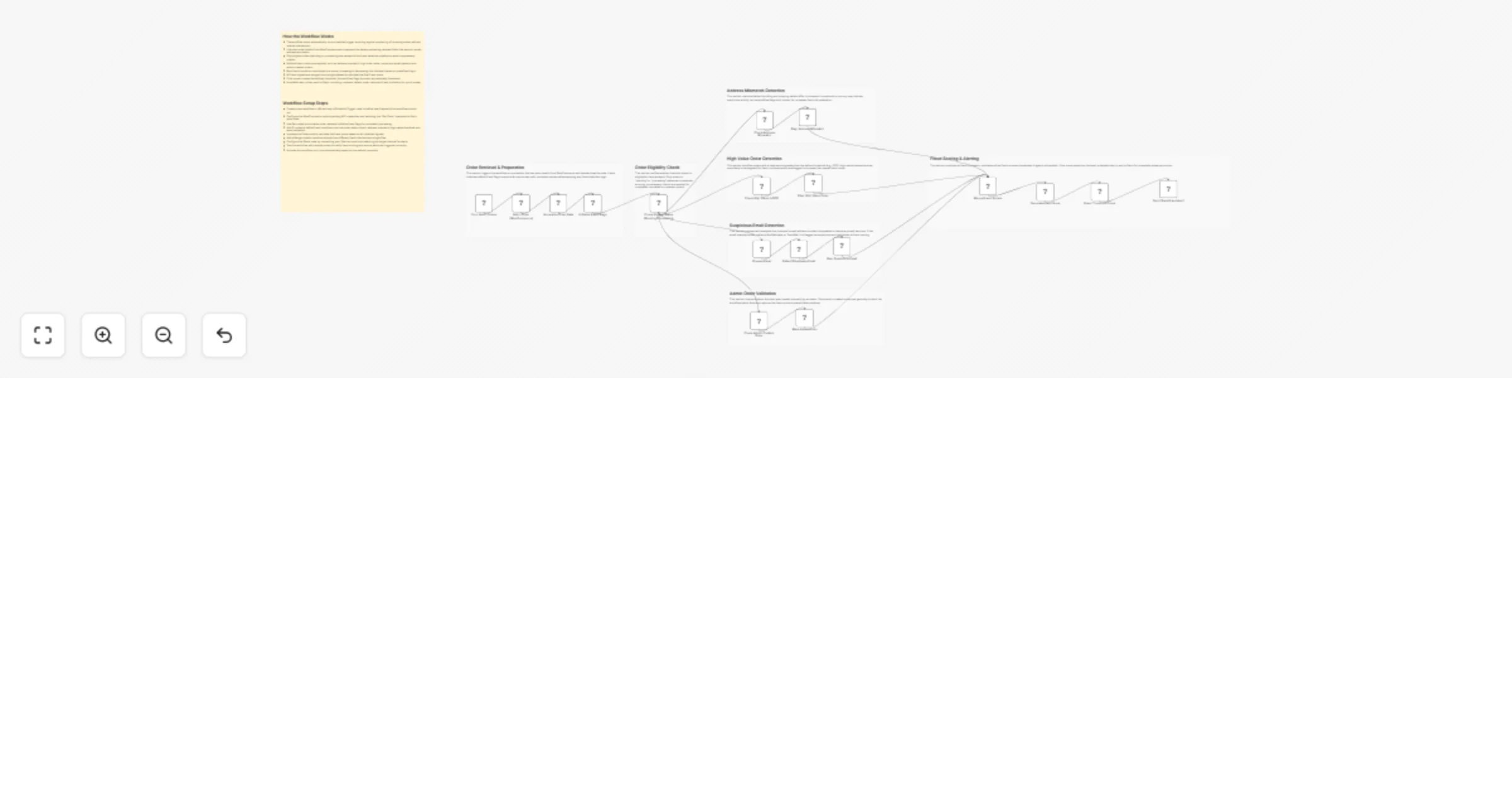
# WooCommerce Seasonal Sales Planning & Monitor → SET Pattern Compare → Slack This workflow automatically aggregates sales data, calculates performance trends (Revenue & Orders) against previous months and years, identifies the top-selling SKU and sends a strictly formatted, professional summary report to Slack. This workflow runs on a schedule (e.g., daily or weekly) to generate a snapshot of your business performance. It fetches sales data from your database or e-commerce platform, calculates growth percentages (vs. Month, vs. Year), formats the data into a clean JSON structure and sends a structured report to Slack without unnecessary clutter or emojis. You receive: * **Automated comparison of Revenue & Order counts** * **Trend analysis (Percentage change & directional trend)** * **Identification of the Top Performing SKU** * **A clean, professional Slack alert for team visibility** Ideal for management teams needing a quick, data-driven pulse check on store performance without manually running reports. ### Quick Start – Implementation Steps 1. Add your **Database or API Credentials** (e.g., Postgres, Shopify, WooCommerce) in the data fetching nodes. 2. Connect your **Slack** account credentials and select the target channel. 3. Ensure your data source provides `current`, `vsMonth` and `vsYear` metrics (or use the calculation nodes provided). 4. Review the **Slack Node** to ensure the JSON block formatting matches your preference. 5. Activate the workflow — automated reporting begins instantly. ## What It Does This workflow automates the generation of your business trend report: 1. **Trigger:** Starts automatically based on a schedule (e.g., every morning at 8 AM). 2. **Fetch Data:** Retrieves raw sales numbers for the current period, previous month and previous year. 3. **Process Trends:** Calculates the percentage difference and determines the trend direction (Increase, Flat, Decrease). 4. **Identify Top SKU:** Sorts product sales to find the highest-performing item of the period. 5. **Format Report:** Constructs a strict JSON object containing: * Revenue (Current, vs Month, vs Year) * Orders (Current, vs Month, vs Year) * Top SKU Name 6. **Send Slack Alert:** Pushes a cleanly formatted message (using Block Kit or Markdown) to your team channel. This ensures your team focuses on the numbers that matter, with zero manual effort. ## Who’s It For This workflow is ideal for: * E-commerce Store Owners * Sales & Marketing Managers * Data Analysts * Operations Teams * Executive leadership requiring daily snapshots * Teams preferring data-heavy, emoji-free reports ## Requirements to Use This Workflow To run this workflow, you need: * **n8n instance** (cloud or self-hosted) * **Data Source** (PostgreSQL, MySQL, Shopify, WooCommerce or Google Sheets) * **Slack workspace** with API permissions (Webhook or Bot Token) * Basic understanding of JSON structure for Slack Block Kit ## How It Works 1. **Scheduled Trigger** – Initiates the workflow at a specific time. 2. **Get Sales Data** – Queries your backend to get the raw numbers. 3. **Calculate Logic** – Compares current numbers vs. historical data to generate percentages. 4. **Create Report Object** – Maps the values into a standardized JSON format (e.g., `revenue.current`, `orders.vsYear`). 5. **Format Message** – Converts the JSON object into a Slack-readable text block or UI block. 6. **Send Notification** – Posts the final report to Slack. ## Setup Steps 1. Import the provided n8n JSON file. 2. Open the **Data Fetch** nodes and configure your database/API connection. 3. Ensure your query returns the necessary fields (Revenue Orders, SKU). 4. Verify the **Format Data** node is correctly mapping your variables to the JSON structure: * `{{ $json["revenue"]["current"] }}` * `{{ $json["orders"]["vsMonth"]["percent"] }}` 5. Connect **Slack API** credentials and choose your channel. 6. Run a test execution to verify the numbers appear correctly in Slack. 7. Activate the workflow — done! ## How To Customize Nodes ### Customize Report Metrics Modify the **Set/Calculation** nodes: * Add Average Order Value (AOV) * Include Customer Acquisition Cost (CAC) * Change the comparison period (e.g., vs Last Week instead of Month) ### Customize Slack Layout You can modify the JSON in the Slack node to: * Use **Block Kit** for a table-like structure (columns for Revenue/Orders) * Use **Plain Text** for a simple list view * Add or remove bold formatting (`*bold*`) * Add a "View Dashboard" button link ### Customize Data Source Replace the generic database node with: * **Shopify Node** (Get Orders) * **WooCommerce Node** (Get Sales Report) * **Stripe Node** (Get Balance Transactions) * **Google Sheets** (Read Row) ## Add-Ons (Optional Enhancements) You can extend this workflow to: * Send reports to **Email** or **Microsoft Teams** in addition to Slack. * Generate a PDF report using an HTML-to-PDF service. * Save the daily snapshot into a "History" table in Airtable/Database. * Add conditional alerts (e.g., @mention the CEO if Revenue drops by >20%). * Integrate with OpenAI to write a qualitative analysis of the trends. ## Use Case Examples ### 1. Morning Standup Report Delivers key metrics to the team channel 15 minutes before the daily meeting. ### 2. Performance Monitoring Quickly identifies if a new marketing campaign is driving order volume. ### 3. Inventory Awareness Highlights the "Top SKU" so the warehouse team knows what is moving fast. ### 4. Executive Summaries Provides leadership with a noise-free, "just the numbers" view of the business. ## Troubleshooting Guide | Issue | Possible Cause | Solution | | :--- | :--- | :--- | | **"N/A" in Trend** | No historical data found | Ensure database has data for previous month/year | | **Slack formatting broken** | Invalid JSON syntax | Check quotes and brackets in Slack node | | **Wrong Top SKU** | Sorting logic incorrect | Verify the "Sort" node is ordering by Count DESC | | **Authentication Error** | Slack token expired | Re-connect Slack credentials in n8n | | **Workflow not running** | Schedule disabled | Toggle "Active" switch to ON | ## Need Help? If you need help customizing or extending this workflow — integrating specific ERPs, creating complex visual dashboards or scaling your data reporting, feel free to contact our [n8n workflow development](https://www.weblineindia.com/n8n-automation/) experts at **WeblineIndia**. We are happy to assist you with advanced automation solutions.
Identify and notify WooCommerce VIP customers with Airtable and Slack
# WooCommerce VIP Customer Automation This workflow automatically identifies VIP customers from your WooCommerce store based on their total spending and number of completed orders. It pulls new orders on a schedule, filters valid transactions, groups customers, calculates their VIP tier, stores them into Airtable and notifies your team in Slack.It removes all manual checking and ensures your team instantly knows when a high-value customer places an order. ### Quick Start – Implementation Steps 1. Add your WooCommerce store domain and API credentials inside n8n. 2. Configure Airtable and Slack credentials. 3. Adjust VIP rules (lifetime spend or total orders) if needed. 4. Activate the workflow — it will automatically detect VIPs and alert your team. ## What It Does This workflow fully automates VIP customer detection for WooCommerce stores. Every few minutes, it retrieves new orders via WooCommerce API. It filters only processing or completed orders and extracts essential fields such as customer ID, customer name order total and timestamps. The workflow then groups orders by customer to ensure duplicate orders don’t inflate metrics. For each customer, it fetches their complete order history, calculates lifetime value, counts total paid orders and assigns a VIP tier (Platinum, Gold or Silver). Once a customer qualifies, their details are saved into Airtable for tracking. A Slack message is simultaneously sent to inform your team so they can take immediate action — such as providing priority support, follow-up messages or special offers. This system runs completely on its own and keeps customer insights up-to-date without manual checks. ## Who’s It For This workflow is ideal for: * WooCommerce store owners * Customer support teams * Marketing teams * CRM & retention specialists * eCommerce operations teams * Businesses wanting automated VIP alerts ## Requirements to Use This Workflow You will need: * A running **n8n instance** (cloud or self-hosted) * A **WooCommerce store** with API keys * A **Slack workspace** with API permissions * An **Airtable Base** to store VIP customers * Basic understanding of WooCommerce and Airtable fields ## How It Works 1. **Scheduled Trigger** – Runs every few minutes to check for new orders. 2. **Domain Setup** – Assigns the WooCommerce store domain used across API calls. 3. **Fetch Orders** – Retrieves all orders from WooCommerce. 4. **Filter Valid Orders** – Only keeps completed or processing orders. 5. **Format & Clean Data** – Extracts only key order details. 6. **Deduplicate Customers** – Only the first order per customer is processed. 7. **Fetch Order History** – Gets lifetime order history for each customer. 8. **Calculate VIP Tier** – Determines Platinum/Gold/Silver based on spend or order count. 9. **Filter VIP Only** – Removes customers who do not qualify. 10. **Save to Airtable** – Creates/updates VIP records. 11. **Notify Team on Slack** – Sends VIP alerts instantly. ## Setup Steps 1. Import this workflow JSON into n8n. 2. Enter your WooCommerce API credentials in the HTTP Request nodes. 3. Update the **wc\_domain** value in the “Set WooCommerce Domain” node. 4. Configure Airtable credentials and select your Base + Table. 5. Set your Slack channel ID inside the Slack node. 6. Adjust VIP rules inside the “Calculate VIP Tier” code node if needed. 7. Activate the workflow — it will now run automatically. ## How to Customize Nodes ### Adjust VIP Rules Edit the logic inside **Calculate VIP Tier**: * Change Platinum threshold (₹20,000 or your value) * Change Gold rule (5 orders or more) * Add new VIP tiers ### Customize Airtable Fields You can modify: * Table columns * Field naming * Additional customer details ### Customize Slack Alerts In the Slack node, change: * Message format * Channel ID * Emoji, headings or urgency indicators ## Add-Ons (Optional Enhancements) You can extend this workflow with: * Automatic email to VIP customers * Loyalty point calculation * Google Sheets export * Integration with CRM platforms * Send SMS notifications * Separate VIP tiers into dedicated Slack channels ## Use Case Examples 1. **Notify support about high-value customers** 2. **Track customers crossing spending milestones** 3. **Identify loyal customers with 5+ repeat purchases** 4. **Automatically sync VIP customers to CRM** 5. **Trigger loyalty coupon generation** ## Troubleshooting Guide | Issue | Possible Cause | Solution | |---------------------------|--------------------------------------------------|--------------------------------------------------------------| | No orders fetched | Wrong domain or API keys | Update WooCommerce credentials | | VIP not detected | Customer has low spend or low orders | Verify VIP rules in “Calculate VIP Tier” | | Airtable record not created | Incorrect table schema | Match Airtable fields with node mapping | | Slack alert missing | Wrong Slack channel ID or credentials | Re-check Slack authentication | | Guest users included | Missing customer_id filter | Ensure customer_id != 0 condition stays in place | ## Need Help? If you need assistance integrating this workflow, customizing VIP rules or adding new automations, our automation team at **WeblineIndia** is happy to help. You can also extend this system with loyalty engines, advanced analytics, multi-store support or any custom automation tailored for your eCommerce business.
Analyze mobile app build-time hotspots with Gradle, CocoaPods, Airtable, GitHub, Gmail and GPT-4.1-mini
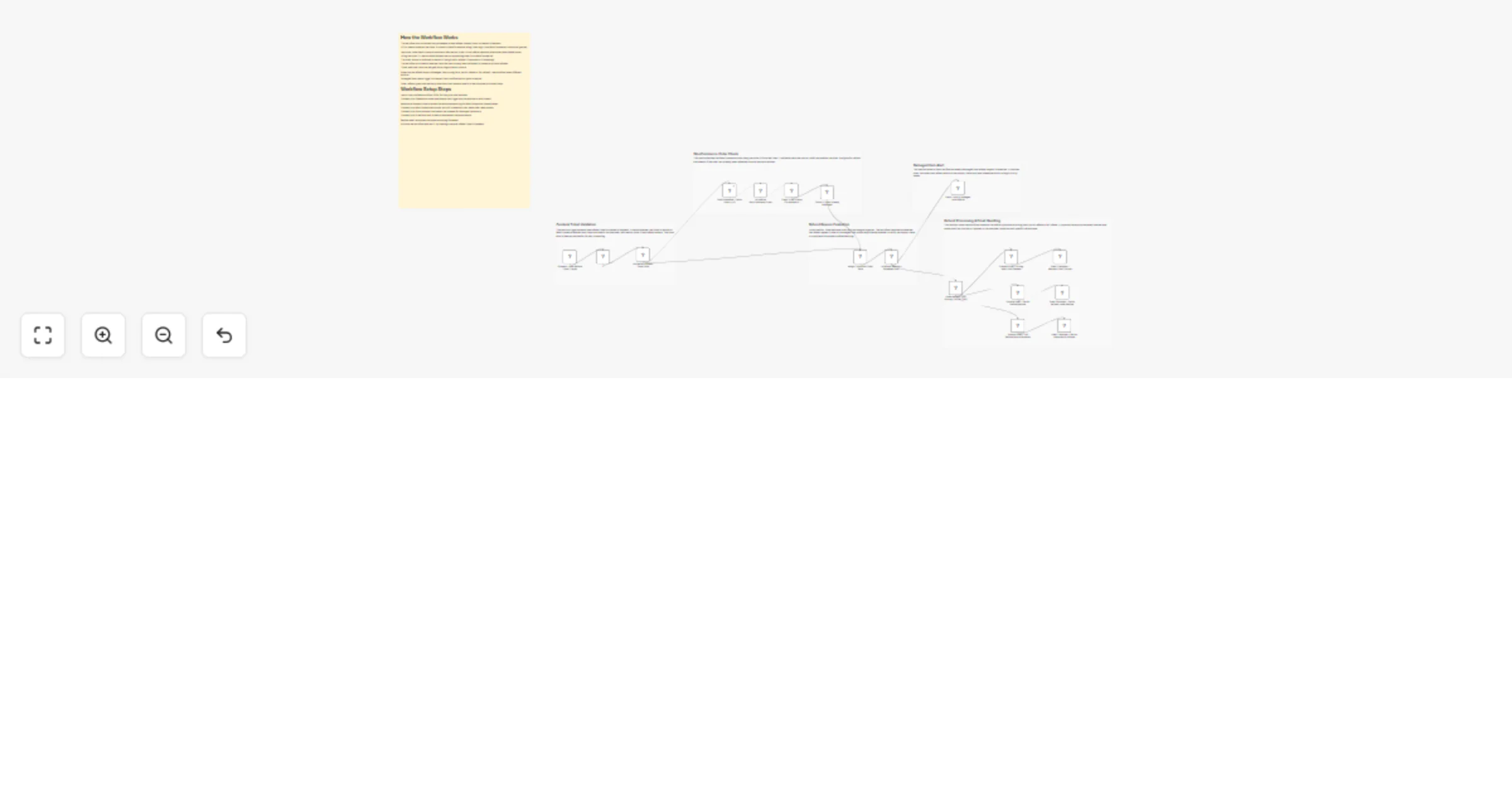
# Mobile App Build Time Hotspot Tracker - Gradle/CocoaPods Analyzer Alerting This workflow automates the monitoring and analysis of CI/CD build performance for mobile projects using Gradle and CocoaPods. It triggers upon build completion, compares metrics against historical performance stored in Airtable, and leverages AI to identify regressions. The system provides automated feedback via GitHub PR comments and email alerts for critical performance drops. ### ⚡ Quick Implementation Steps 1. Configure CI Pipeline: Set your CI job to send a POST request with build metrics to the workflow's Webhook URL. 2. Set Configuration: Adjust the regressionThreshold (default: 20%) and excludeModules in the Set Configuration node. 3. Connect Airtable: Link your credentials to the Fetch Historical Builds and Store Build Data nodes. 4. Connect GitHub & Gmail: Authenticate your GitHub and Gmail OAuth2 credentials for reporting. 5. Verify AI Model: Ensure the OpenAI Chat Model is connected to power the performance analysis. ## What It Does The workflow acts as an intelligent performance gatekeeper for development pipelines: 1. **Metric Collection:** Captures detailed task durations, build IDs, and PR context directly from CI/CD webhooks. 2. **Historical Comparison:** Automatically retrieves the last 10 builds for a specific repository to calculate average baselines. 3. **AI-Powered Diagnostics:** Uses a specialized AI agent to analyze slowdowns, identify root causes, and provide optimization recommendations. 4. **Automated Reporting:** Categorizes findings by severity (Critical, Warning, Info) and updates stakeholders through PR comments and high-priority emails. ## Who’s It For - Mobile Engineering Teams looking to prevent "death by a thousand cuts" in build time slowdowns. - DevOps/Platform Engineers who need automated auditing of build infrastructure health. - Release Managers requiring an audit trail of performance regressions across different pull requests. ## Technical Workflow Breakdown ### Entry Points (Triggers) 1. Webhook: Listens for POST requests at /webhook/build-hotspot-tracker containing build metrics and repository metadata. ### Processing & Logic 1. Set Configuration: Defines static variables like regression sensitivity and modules to ignore (e.g., test modules). 2. Historical Analysis: Aggregate nodes calculate min, max, and average build times from historical records. 3. AI Build Analyzer: An AI Agent utilizing GPT-4.1-mini to synthesize current build data with historical trends and PR context. 4. Route by Severity: A switch node that directs the workflow based on whether the AI classifies the regression as Critical, Warning, or Info. ### Output & Integrations 1. GitHub (Comment on PR): Posts a formatted markdown report including a severity badge, regressions list, and root causes. 2. Airtable (Store Build Data): Logs the build ID, total duration, and AI recommendations for long-term tracking. 3. Gmail (Notify Email): Sends immediate alerts to the team for critical regressions, including a direct link to the affected PR. ## Customization ### Adjust Sensitivity Modify the regressionThreshold in the Set Configuration node to change how aggressive the system is in flagging slowdowns (e.g., set to 10 for stricter monitoring). ### Module Filtering Update the excludeModules parameter to ignore specific tasks like linting or unit tests that may have volatile durations but do not represent core build performance. ### Analysis Detail The AI Build Analyzer prompt can be customized to focus on specific platform needs, such as focusing heavily on CocoaPods link times or Gradle configuration phases. ## Troubleshooting Guide | Issue | Possible Cause | Solution | | :-------------------------- | :----------------------------------------- | :----------------------------------------------------------------------------------------- | | **No PR Comments** | GitHub permissions or incorrect PR number. | Verify your GitHub token has write access and the CI payload includes a valid prNumber. | | **Historical Data Missing** | Airtable Filter failure. | Ensure the repository and prNumber fields in Airtable match the incoming Webhook data. | | **AI Analysis Errors** | OpenAI credits or model timeout. | Check your OpenAI API quota and verify the gpt-4.1-mini model is available in your region. | | **Emails Not Sending** | Gmail OAuth2 expired. | Re-authenticate the Gmail node in your n8n credentials settings. | ## Need Help? If you need assistance customizing this workflow, adding new features or integrating more systems (like JIRA, Slack or Google Sheets), feel free to reach out. Our [n8n automation experts](https://www.weblineindia.com/hire-n8n-developers/) at WeblineIndia are here to support you in scaling your automation journey.
Analyze and improve Zoho CRM sales cycles with GPT-4, Google Sheets and Slack
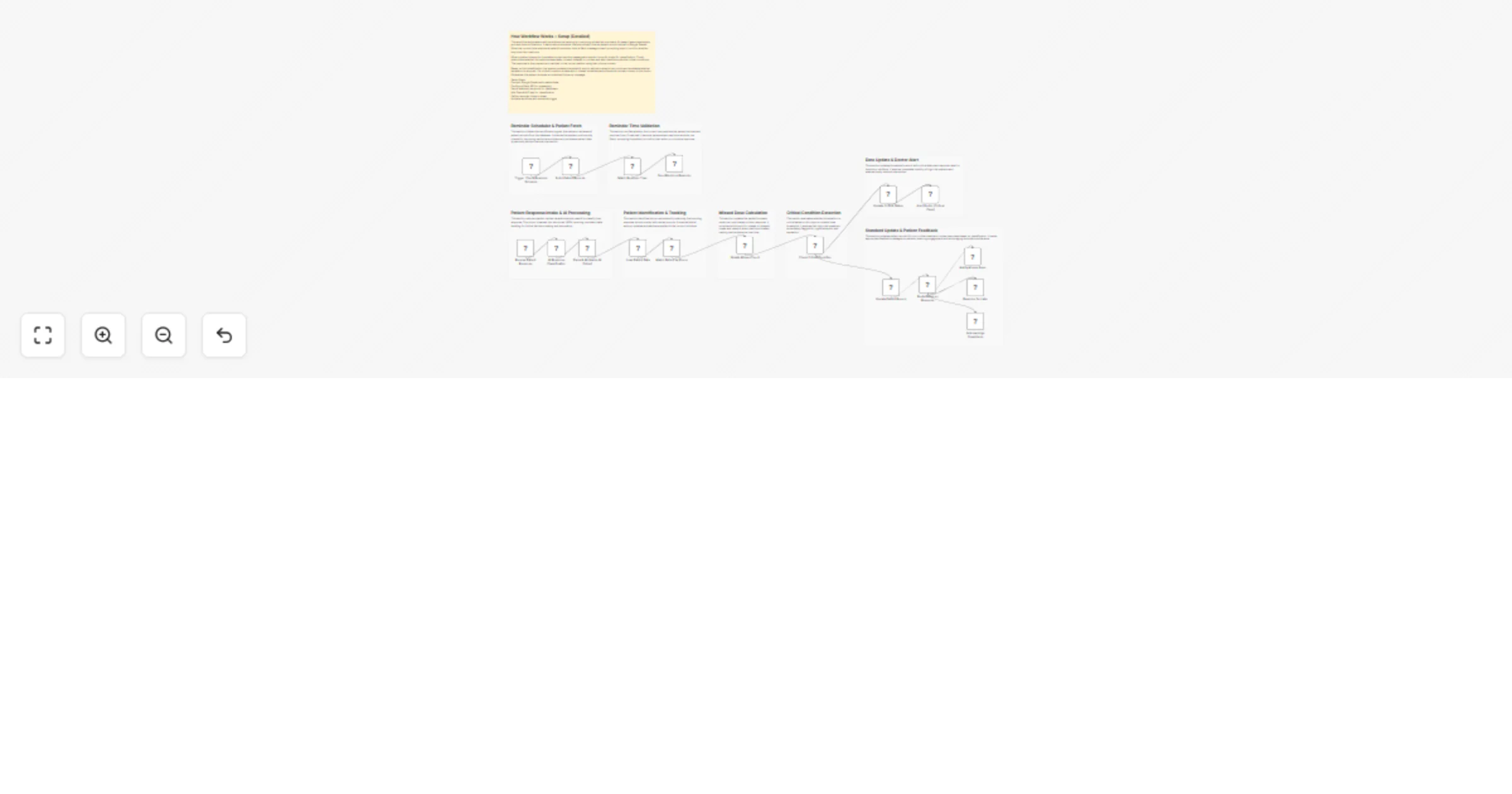
# Zoho CRM Sales Cycle Performance Analyzer & Improver This workflow automatically analyzes your Zoho CRM deal cycles with **AI-powered intelligence**, compares them against historical performance data from Google Sheets, and delivers actionable insights to Slack. It identifies bottlenecks, predicts outcomes, analyzes sentiment, generates smart recommendations, creates data visualizations, and builds a historical dataset for future intelligence—all without manual reporting. ### Quick Implementation Steps 1. **Connect Accounts**: Set up credentials for Zoho CRM, Google Sheets, Slack, and **OpenAI** in n8n. 2. **Prepare Sheet**: Create a Google Sheet with headers: `Deal_Name`, `Stage`, `Created_Time`, `Closed_Time` (or `Modified_Time`). 3. **Configure Nodes**: * **Zoho Trigger**: Ensure it pulls your deals. * **Google Sheets**: Link your "Historical Data" sheet to both the "Fetch" and "Log" nodes. * **OpenAI Nodes**: Configure your OpenAI API key for AI analysis. * **Slack**: Select your `#sales-insights` channel. 4. **Activate**: Turn on the workflow to start receiving **AI-enhanced** real-time insights on deal closure. ## What It Does This n8n workflow serves as an **AI-powered automated data analyst** for your sales team. Whenever a deal is fetched from Zoho CRM, the workflow first filters for relevance (e.g., recently closed or modified deals). It then cross-references this specific deal against your historical sales data stored in Google Sheets to calculate key performance metrics like "Days to Close" and "Stage Dwell Time." **🤖 AI-Enhanced Features:** - **Sentiment Analysis**: Analyzes deal descriptions and communications for emotional tone and risk indicators - **Predictive Analytics**: Uses historical patterns to predict win probability and expected close dates - **Smart Recommendations**: Generates AI-powered, data-driven process improvement suggestions - **Data Visualization**: Creates charts and trend analysis for performance metrics - **Performance Scoring**: Calculates comprehensive performance scores and risk levels Beyond simple calculations, the workflow applies **AI intelligence** to generate human-readable insights. It determines if a deal was faster or slower than average, identifies which stage caused delays, analyzes sentiment for risk assessment, predicts outcomes, and suggests specific process improvements based on the data. Finally, it closes the loop by broadcasting these **AI-enhanced** focused insights to a Slack channel for immediate team visibility and logging the new deal's performance back into Google Sheets. This ensures your historical dataset grows richer and more accurate with every closed deal, continuously improving the quality of future AI predictions. ## Who’s It For * **Sales Managers**: To monitor team performance and identify coaching opportunities without digging into CRM reports. * **RevOps Professionals**: To automate the collection of cycle-time data and spot process bottlenecks. * **Small Business Owners**: To get enterprise-grade sales analytics without hiring a data analyst. * **Sales Teams**: To get immediate feedback on their wins and losses, fostering a culture of continuous improvement. ## Prerequisites * **n8n Instance**: A self-hosted or cloud version of n8n. * **Zoho CRM Account**: With permission to read Deals. * **Google Account**: Access to Google Sheets. * **Slack Workspace**: Permission to post messages to channels. * **OpenAI Account**: API access for GPT-4 model integration. * **Google Sheet**: A formatted sheet to store and retrieve historical deal data. ## How to Use & Setup ### 1. Google Sheet Setup Create a new Google Sheet. In the first row, add the following headers (the workflow tries to match various case formats, but these are recommended): * `Deal_Name` * `Stage` * `Created_Time` * `Closed_Time` * `Stage_History` (Optional, for advanced dwell time analysis) ### 2. Configure Credentials In your n8n dashboard, ensure you have authenticated: * Zoho CRM * Google Sheets * Slack * **OpenAI** (for AI-powered analysis) ### 3. Node Configuration * **Zoho CRM - Deal Trigger**: This node is set to "Get All" deals. You might want to adjust this to a Trigger node that listens for "Deal Updated" or "Deal Created" events for real-time automation, or keep it as a scheduled poll. * **Filter Recent Deals (Code Node)**: Currently configured to process deals closed in the last 7 days and limit to 10 items. No changes needed unless you want to process larger batches. * **Fetch Historical Averages (Google Sheets)**: * Select your Credential. * **Resource**: Document -> Select your prepared Sheet. * **Operation**: Get Many ("GetAll" or "Read"). * **Return All**: True. * **AI Sentiment Analysis (OpenAI)**: * Select your OpenAI Credential. * **Model**: GPT-4 (recommended for best results). * Automatically analyzes deal sentiment and emotional tone. * **AI Predictive Analytics (OpenAI)**: * Uses historical data to predict outcomes and win probabilities. * Provides risk assessment and expected close dates. * **AI Smart Recommendations (OpenAI)**: * Generates intelligent, context-aware recommendations. * Prioritizes suggestions based on impact and feasibility. * **Advanced Data Visualization**: * Creates charts for cycle trends, stage distribution, and performance metrics. * Generates data for visual analysis and reporting. * **Slack Notification**: * Select your Credential. * **Channel**: Enter the name of your channel (e.g., `#sales-insights`). * Now includes **AI-enhanced insights** in the message format. * **Log to Historical Sheet (Google Sheets)**: * Select your Credential. * **Resource**: Document -> Select the *same* sheet as above. * **Operation**: Append. ### 4. Running the Workflow * **Test**: Click "Execute Workflow" manually to test with the "Zoho CRM - Deal Trigger" (conceptually acting as a manual fetch here). * **Production**: Switch the trigger to a legitimate *Schedule Trigger* (e.g., run every morning) or a *Zoho CRM Trigger* (Real-time) to automate the process. ## How To Customize Nodes ### Adjusting the Risk/Insight Logic The core intelligence lives in the **Analyze Cycle** code node. You can modify the JavaScript here to change thresholds. * **Change "Slow" Threshold**: Look for `if (totalDays > avgDays * 1.25)`. Change `1.25` to `1.5` to only flag deals that are 50% slower than average. * **custom Suggestions**: Add new `if` statements in the `// Process improvement suggestions` section to add your own coaching advice based on specific stages or owners. ### Customizing AI Prompts The AI nodes use specific prompts that can be customized: * **AI Sentiment Analysis**: Modify the prompt in the OpenAI node to focus on specific aspects (e.g., competitor mentions, pricing concerns). * **AI Predictive Analytics**: Adjust the prediction criteria or add custom factors relevant to your business. * **AI Smart Recommendations**: Customize the recommendation style or focus on specific business objectives. ### Changing the Output Format The **Slack Notification** node uses a template. You can customize the message layout by editing the `Text` field. You can use standard Slack markdown (e.g., `*bold*`, `_italics_`) and add variables from specific fields in your CRM (like "Lead Source" or "Competitor"). ### AI Model Configuration * **Model Selection**: Change from GPT-4 to GPT-3.5-turbo for faster processing (slightly less accurate). * **Temperature Adjustment**: Modify creativity level in AI responses (0.0 = deterministic, 1.0 = highly creative). * **Token Limits**: Adjust response length for more detailed or concise AI outputs. ## Add‑ons To extend the functionality of this workflow, consider adding: * **Weekly Report Email**: Add an "Email" node at the end to send a summary digest to the CEO every Friday. * **Manager Alert**: Add an `IF` node before Slack to tag the Sales Manager (`@user`) only if the `totalDays` exceeds 60 days or if AI risk level is "High". * **CRM Update**: Write the calculated "Days to Close" and **AI predictions** back into custom fields in Zoho CRM so you can report on it directly inside Zoho. * **Dashboard Integration**: Send visualization data to tools like Grafana or Power BI for real-time dashboards. * **Competitor Analysis**: Add AI node to analyze deal descriptions for competitor mentions and market trends. ## Use Case Examples ### 1. Post-Mortem on Lost Deals When a deal is marked "Closed Lost," the workflow calculates how long it sat in each stage. **AI sentiment analysis** detects negative communication patterns, and the Slack alert highlights this bottleneck, prompting a review of the negotiation strategy. ### 2. Celebrating Efficiency A deal closes in 15 days when the average is 45. The workflow identifies this anomaly, calculates it is "66% faster than average," **AI predicts high success factors**, and posts a celebratory message, asking the rep to share what worked. ### 3. Reviewing Stalled Deals By changing the trigger to look for *open* deals, you can use this logic to flag active deals that have already exceeded the average winning cycle time, signaling they are "at risk." **AI predictive analytics** provides win probability for each stalled deal. ### 4. Onboarding Usage New sales reps can see immediate feedback on their deals compared to the company historical average, helping them calibrate their pace without constant manager intervention. **AI recommendations** provide personalized coaching tips. ### 5. Product/Service Specific Analysis Duplicate the workflow and filter by "Product Type" in the Code node. Maintain separate Google Sheets for "Enterprise" vs "SMB" deal cycles to get more accurate baselines for different business lines. **AI sentiment analysis** can identify product-specific communication patterns. ### 6. AI-Enhanced Deal Scoring **NEW**: The workflow now provides AI-powered deal scoring, sentiment-based risk assessment, and predictive win probabilities, enabling sales teams to prioritize high-potential deals and focus resources effectively. ## Troubleshooting Guide | Issue | Possible Cause | Solution | | :--- | :--- | :--- | | **No insights generated** | Google Sheet is empty or headers don't match. | Ensure your Google Sheet has at least one row of valid historical data with matching headers (`Created_Time`, `Closed_Time`). | | **"Invalid Date" errors** | Date formats in Zoho or Sheets are inconsistent. | Check that your system regional settings match. The Code node expects standard date strings. | | **Slack message is empty** | `Deal_Name` or sensitive data is missing. | The "Check Valid Data" node filters out incomplete records. Ensure your test deals have a Name and timestamps. | | **Workflow times out** | Too many deals being processed. | The "Filter Recent Deals" node limits to 10 items. If you remove this limit, n8n may timeout on large datasets. Keep the batch size small. | | **Google Sheets Error** | Authentication or Sheet ID missing. | Re-authenticate your Google account and re-select the Document and Sheet from the list in the node settings. | | **AI nodes not working** | OpenAI API key missing or invalid. | Configure your OpenAI credentials in n8n settings and ensure the API key has sufficient credits. | | **AI responses too slow** | Using GPT-4 with large datasets. | Switch to GPT-3.5-turbo for faster processing, or reduce the amount of data sent to AI nodes. | | **Sentiment analysis inaccurate** | Limited deal description data. | Ensure your Zoho deals have meaningful descriptions and communication logs for better sentiment analysis. | | **Predictions seem wrong** | Insufficient historical data. | AI predictions improve with more historical data. Ensure at least 50+ historical deals for accurate predictions. | ## Need Help? Setting up custom analytics or complex logic in Code nodes can be tricky. If you need help tailoring this workflow to your specific business rules, creating advanced Add-ons or integrating with other CRMs: [**Contact WeblineIndia**](https://www.weblineindia.com/contact-us.html) We specialize in building robust business process automation solutions. Whether you need a simple tweak or a fully custom enterprise automation suite, our experts are ready to assist. Reach out to us today to unlock the full potential of your sales data!
Validate, deduplicate, and store customers via API with Supabase, Slack, Telegram, and email
# (Retail) Customer Cleanup API → Supabase and send Notification This workflow provides an API-first solution to validate, clean, deduplicate and store customer data in Supabase. It ensures consistent customer records, prevents duplicates and keeps both internal teams and customers informed through automated notifications. This workflow acts as a backend customer intake API. It validates and normalizes incoming customer data, checks for existing users in Supabase, stores new customers safely and returns clear API responses. Internal teams receive Slack and Telegram updates, while customers get an email confirmation on successful creation. You receive: * **Centralized customer data validation** * **Automatic duplicate prevention** * **Supabase-backed customer storage** * **Real-time API responses** * **Team notifications + user confirmation email** Ideal for retail, e-commerce and SaaS teams that want clean customer data without manual intervention. ### Quick Start – Implementation Steps 1. Import the provided **n8n workflow JSON**. 2. Configure **Supabase credentials** with read/write access. 3. Connect **Slack**, **Telegram** and **Gmail/SMTP** credentials. 4. Copy the **Webhook URL** and use it as your customer intake API. 5. Activate the workflow — your customer API is live. ## What It Does This workflow automates customer data intake and processing: 1. Receives customer data via a POST API call. 2. Cleans and normalizes names, email and phone numbers. 3. Validates required fields and formats using JavaScript. 4. Aggregates clear, field-specific validation errors. 5. Checks Supabase to prevent duplicate users. 6. Stores valid, new customers in Supabase. 7. Returns structured API responses (success, validation error or duplicate). 8. Sends notifications to Slack and Telegram. 9. Emails the customer after successful account creation. This ensures reliable, consistent customer records across systems. ## Who’s It For This workflow is ideal for: * Retail and e-commerce platforms * CRM and customer data teams * SaaS product teams * Backend automation teams * Marketing teams needing clean contact lists * Developers building API-driven systems ## Requirements to Use This Workflow To run this workflow, you need: * **n8n instance** (cloud or self-hosted) * **Supabase project** with a `customers` table * Supabase **service role key** * **Slack workspace** with API access * **Telegram bot** + chat ID * **Gmail or SMTP account** for user notifications ## How It Works 1. **API Request** – Client sends customer data to the webhook endpoint. 2. **Validation & Cleanup** – JavaScript validates and formats data. 3. **Validation Fail** – Returns 400 response with clear error messages. 4. **Duplicate Check** – Supabase is queried using the email address. 5. **Duplicate Found** – Returns 409 response without creating a record. 6. **Create Customer** – New customer is saved in Supabase. 7. **Success Response** – API confirms successful creation. 8. **Notifications** – Slack, Telegram and customer email are triggered. ## Setup Steps 1. Create a Supabase table with fields for customer data, validation status and errors. 2. Add Supabase credentials to n8n. 3. Import the workflow JSON into n8n. 4. Configure the Webhook node and copy the API URL. 5. Review the validation logic if custom rules are required. 6. Configure Slack, Telegram and email credentials. 7. Test using Postman for invalid, duplicate and valid requests. 8. Activate the workflow. ## How To Customize Nodes ### Customize Validation Rules Update the JavaScript validation node to add country-specific phone rules or additional fields. ### Customize Duplicate Logic Extend duplicate checks to include phone numbers or other identifiers. ### Customize Notifications Modify Slack and Telegram messages, add emojis, mentions or execution metadata. ## Add-Ons (Optional Enhancements) You can extend this workflow to: * Add API key authentication * Enable rate limiting * Log failed attempts separately * Support multi-country phone validation * Add CRM or email marketing sync * Implement soft deletes or upserts ## Use Case Examples ### 1. Customer Registration API Centralize customer creation for web and mobile apps. ### 2. Data Hygiene Automation Prevent invalid or duplicate contacts in your database. ### 3. Retail & CRM Integration Keep customer records consistent across systems. ### 4. Marketing Readiness Ensure only clean, valid contacts enter campaigns. ## Troubleshooting Guide | Issue | Possible Cause | Solution | | ----------------------- | ----------------------------- | ----------------------------------- | | Validation always fails | Incorrect payload structure | Ensure data is sent in request body | | Duplicate user created | Duplicate check misconfigured | Verify Supabase filter conditions | | No Slack alert | Invalid credentials | Reconnect Slack API | | No email sent | Gmail/SMTP not configured | Verify sender account | | API not responding | Webhook not active | Activate the workflow | ## Need Help? If you need help customizing or extending this workflow, adding authentication, scaling for high traffic, integrating CRMs or enhancing validation, the n8n automation team at **WeblineIndia** can assist you with production-ready automation and integration support. Contact us today.
Detect fake product reviews with OpenAI and send alerts to Slack via Airtable
# AI-Powered Fake Review Detection Workflow Using n8n & Airtable This workflow automates the detection of potentially fake or manipulated product reviews using n8n, Airtable, OpenAI and Slack. It fetches reviews for a given product, standardizes the data, generates a unique hash to avoid duplicates, analyzes each review using an AI model, updates the record in Airtable and alerts the moderation team if the review appears suspicious. ### Quick Implementation Steps 1. Add Airtable, OpenAI and Slack credentials to n8n. 2. Create an Airtable Base with a `reviews` table. 3. Connect the Webhook URL to your scraper or send sample JSON via Postman. 4. Test the workflow by passing product and review URLs. 5. Activate the workflow for continuous automated review screening. ## What It Does This workflow provides an automated pipeline to analyze product reviews and determine whether they may be fake or manipulated. It begins with a webhook that accepts product information and a scraper API URL. Using this information, the workflow fetches associated reviews. Each review is then expanded into separate items and normalized to maintain a consistent structure. The workflow generates a hash for deduplication, preventing multiple entries of the same review. New reviews are stored in Airtable and subsequently analyzed by OpenAI. The resulting risk score, explanation and classification are saved back into Airtable. If a review's score exceeds a predefined threshold, a structured Slack alert is sent to the moderation team. This ensures that high-risk reviews are escalated promptly while low-risk reviews are simply stored for recordkeeping. ## Who’s It For * eCommerce marketplaces monitoring review integrity * Sellers seeking automated fraud detection for product reviews * SaaS platforms that accept user-generated reviews * Trust & Safety and compliance teams * Developers looking for an automated review-quality pipeline ## Requirements * n8n (Cloud or Self-Hosted) * Airtable Personal Access Token * OpenAI API Key * Slack Bot Token or Webhook * Review Scraper API * Basic understanding of Airtable field setup ## How It Works & How To Set Up ### 1. Receive Product Data The workflow starts with the **Webhook – Receive Product Payload**, which accepts a list of products and their scraper URLs. ### 2. Extract and Process Each Product `Extract products` separates the list into individual items. `Process Each Product` ensures that each product’s reviews are processed one at a time. ### 3. Fetch and Validate Reviews `Fetch Product Reviews` calls the scraper API. `IF – Has Reviews?` determines whether any reviews were returned. ### 4. Expand and Normalize Reviews `Expand reviews[] to items` splits reviews into individual items. `Prepare Review Fields` ensures consistent review structure. ### 5. Generate Review Hash `Generate Review Hash1` produces a deterministic hash based on review text, reviewer ID, and date. ### 6. Airtable Deduplication Check `Search Records by Hash` checks whether the review already exists. `Normalize Airtable Result` cleans Airtable’s inconsistent empty output. `Is New Review?` decides if the review should be inserted or skipped. ### 7. Store New Reviews `Create Review Record` inserts new reviews into Airtable. ### 8. AI-Based Fake Review Analysis `AI Fake Review Analysis` sends relevant review fields to OpenAI. `Parse AI Response` ensures the output is valid JSON. ### 9. Update Airtable With AI Results `Update Review Record` stores the AI’s score, classification, and reasoning. ### 10. Moderation Alert `Check Suspicious Score Threshold` evaluates if the fake score exceeds a defined limit. If so, `Send Moderation Alert` posts a detailed message to Slack. ## How To Customize Nodes **Fake Score Threshold** Modify threshold in `Check Suspicious Score Threshold`. **Slack Message Format** Adjust text fields in `Send Moderation Alert`. **AI Prompt Instructions** Edit the instructions inside `AI Fake Review Analysis`. **Airtable Fields** Update mappings in both `Create Review Record` and `Update Review Record`. **Additional Checks** Insert enrichment steps before AI analysis, such as: * reviewer profile metadata * geolocation or reverse IP checks * keyword density analysis ## Add-ons * Notion integration for long-term review case tracking * Jira or Trello integration for incident management * Automated sentiment tagging * Weekly review-risk summary reports * Google Sheets backup for archived reviews * Reviewer behavior modeling (number of reviews, frequency, patterns) ## Use Case Examples 1. Detecting manipulated Amazon product reviews. 2. Flagging repetitive or bot-like reviews for Shopify stores. 3. Screening mobile app reviews for suspicious content. 4. Quality-checking user reviews on multi-vendor marketplaces. 5. Monitoring competitor-driven false negative or positive reviews. There can be many more scenarios where this workflow helps identify misleading product reviews. ## Troubleshooting Guide | Issue | Possible Cause | Solution | | ---------------------------- | ----------------------------------- | ------------------------------------------------------ | | No data after review fetch | Scraper API returned empty response | Validate scraper URL and structure | | Duplicate reviews inserted | Hash mismatch | Ensure `Generate Review Hash1` uses the correct fields | | Slack alert not triggered | Bot not added to channel | Add bot to the target Slack channel | | AI response fails to parse | Model returned non-JSON response | Strengthen "JSON only" prompt in AI analysis | | Airtable search inconsistent | Airtable returns empty objects | Rely on `Normalize Airtable Result` for correction | ## Need Help If you need assistance customizing this workflow, integrating additional systems or designing advanced review moderation solutions, our n8n workflow development team at WeblineIndia is available to help. We offer support for: * Workflow setup and scaling * Custom automation logic * AI-driven enhancements * Integration with third-party platforms * And so much more. Feel free to [contact us](https://www.weblineindia.com/contact-us.html) for guidance, implementation or to build similar automated systems tailored to your needs.
Analyze WooCommerce product reviews with GPT-4, Airtable & Slack summaries
# WooCommerce Product Reviews: Sentiment Analysis with Slack Summary This workflow automatically fetches product reviews from your WooCommerce store, analyzes the sentiment of each review using AI, stores the results in Airtable and sends a summary of positive, neutral and negative reviews to Slack. It helps teams quickly understand overall customer feedback, track product sentiment and stay updated without manually reading all reviews. ### Quick Start – Implementation Steps 1. Import the workflow JSON file into n8n. 2. Configure credentials: * WooCommerce HTTP Basic Auth (for fetching reviews) * OpenAI API (for sentiment analysis) * Airtable Personal Access Token (for storing reviews) * Slack API (for sending summary messages) 3. Adjust the Cron/Schedule Trigger node to your preferred interval (e.g., every 10 minutes). 4. Test the workflow with a few reviews to ensure AI and Slack integrations work correctly. 5. Activate the workflow after confirming functionality. ## What It Does This workflow automates sentiment analysis and team notification: * **Schedule Trigger** – Runs the workflow automatically at defined intervals. * **Set WooCommerce Domain** – Defines the WooCommerce store to fetch reviews from. * **Fetch Reviews** – Retrieves all recent product reviews using WooCommerce API credentials. * **Loop Over Items** – Processes reviews in smaller batches for efficiency. * **Message a Model** – Sends each review to OpenAI to detect sentiment (positive, neutral, negative) and generate a short summary. * **Merge & Code Nodes** – Combines original review data with AI results and ensures proper data alignment. * **If Node** – Checks sentiment for further processing. * **Create a Record (Airtable)** – Stores each review and its sentiment in Airtable. * **Code Summary Node** – Counts positive, neutral, and negative reviews to create a summary. * **Send a Message (Slack)** – Posts the sentiment summary to the team’s Slack channel for visibility. ## Who’s It For This workflow is ideal for: * E-commerce managers tracking WooCommerce product feedback * Customer support teams monitoring review sentiment * Marketing and product teams seeking automated insights * Teams using Airtable and Slack for data tracking and collaboration ## Requirements to Use This Workflow * An **n8n instance** (cloud or self-hosted) * **WooCommerce store** with API access * **OpenAI API key** for sentiment analysis * **Airtable account** with base/table configured * **Slack workspace** with API access for messaging * Basic familiarity with APIs and workflow automation ## How It Works 1. **Schedule Trigger** – Executes the workflow at the defined interval. 2. **Set WooCommerce Domain** – Configures which store to fetch reviews from. 3. **Fetch Reviews** – Retrieves all recent product reviews from WooCommerce. 4. **Loop Over Items** – Splits reviews into manageable batches. 5. **Message a Model** – Sends reviews to AI for sentiment analysis and short summary. 6. **Merge & Code Nodes** – Combines AI results with original review data and prepares it for storage and summary. 7. **If Node** – Checks review sentiment for saving or further processing. 8. **Create a Record (Airtable)** – Saves each review with sentiment and AI summary. 9. **Code Summary Node** – Counts the number of positive, neutral, and negative reviews. 10. **Send a Message (Slack)** – Sends a concise summary of review sentiment to the Slack channel. ## Setup Steps 1. Import the workflow JSON into n8n. 2. Add credentials: * WooCommerce HTTP Basic Auth * OpenAI API * Airtable Personal Access Token * Slack API 3. Configure the WooCommerce domain in the Set WooCommerce Domain node. 4. Test the workflow with sample reviews to ensure AI outputs correctly. 5. Adjust the Schedule Trigger interval as needed. 6. Activate the workflow after confirming that data flows correctly from WooCommerce → AI → Airtable → Slack. ## How To Customize Nodes ### Schedule Trigger * Adjust interval (minutes, hours, days) as needed. ### Set WooCommerce Domain * Replace with your store domain URL. ### Fetch Reviews * Update endpoint or filters if needed. * Ensure WooCommerce credentials are correct. ### Message a Model * Change AI model or prompts to adjust sentiment analysis or summary style. ### Create a Record (Airtable) * Map additional fields if needed. * Ensure the table has the necessary columns for sentiment, summary, rating, and product info. ### Send a Message (Slack) * Customize Slack message format. * Change the channel ID to send summaries to the right team. ## Optional Enhancements * Include historical review trends. * Automatically trigger notifications only for negative reviews. * Send summaries to email or other messaging apps. * Visualize sentiment trends in Airtable or external dashboards. ## Use Case Examples 1. **Automated Sentiment Tracking** – Understand customer feedback without manual reading. 2. **Team Alerts** – Notify product and support teams about negative reviews quickly. 3. **Data Storage & Reporting** – Keep historical sentiment in Airtable for trend analysis. 4. **Efficient Batch Processing** – Process large number of reviews without overloading the system. ## Troubleshooting Guide | Issue | Possible Cause | Solution | |--------------------------|--------------------------------------------------|--------------------------------------------------------------| | Reviews not fetched | Wrong WooCommerce credentials or endpoint | Check WooCommerce HTTP Basic Auth and store domain | | AI analysis fails | OpenAI API key invalid or prompt error | Verify OpenAI credentials and prompt syntax | | Slack message missing | Incorrect Slack channel or API token | Check Slack credentials and channel ID | | Airtable not storing reviews | Table or field mismatch | Verify Airtable base, table, and column mapping | ## Need Help? If you need assistance setting up the workflow, customizing AI sentiment analysis or integrating Slack summaries, feel free to contact our [n8n development team](https://www.weblineindia.com/hire-n8n-developers/) at WeblineIndia. We provide workflow automation, AI integration and reporting solutions for WooCommerce stores.
Real-time uptime alerts to Jira with smart Slack on-call routing
# Real-Time Uptime Alerts to Jira with Smart Slack On-Call Routing This workflow automatically converts uptime monitoring alerts received via webhook into Jira incident tasks and intelligently notifies an available on-call team member on Slack based on their real-time presence status. It ensures critical service outages never go unnoticed by selecting an active responder and sending a detailed direct message immediately. ### ⚡ Quick Implementation Steps 1. Import the workflow JSON into n8n. 2. Configure your **Webhook**, **Slack**, and **Jira** credentials. 3. Update the IF node to filter for `status = down` (already configured). 4. Set the Jira project and issue type as required. 5. Connect your Slack on-call channel. 6. Activate the workflow and send a test alert using Postman or your monitoring tool. ## What It Does This automation listens for incoming alerts from any uptime monitoring service. When a system or service goes down, the workflow instantly validates whether the alert is critical (status = *down*). Once validated, it automatically creates a detailed Jira Task containing all relevant service details such as timestamp, downtime duration, error code, customer impact and priority. After the Jira incident is created, the workflow retrieves a list of all members from a dedicated Slack on-call rotation channel. It checks each member’s Slack presence (active, away, offline) and uses smart selection logic to choose the best person to notify. The selected team member then receives a richly formatted direct Slack message containing all incident details and a link to the Jira ticket. This ensures the alert is not only logged properly but also reaches the right responder at the right time. ## Who’s It For This workflow is perfect for: - DevOps teams managing uptime & system reliability. - Support teams responsible for incident response. - SRE teams using Jira and Slack. - Organizations with an on-call rotation setup. - Teams wanting automated escalation for downtime alerts. ## Requirements to Use This Workflow - **n8n installed** (self-hosted or cloud) - **Slack API credentials** with permission to read user presence and send direct messages - **Jira Software Cloud** credentials allowing issue creation - **A monitoring system** capable of sending webhook alerts (e.g., UptimeRobot, Uptime Kuma, StatusCake, custom system, etc.) - Access to a Slack channel that includes your on-call rotation members ## How It Works & How to Set Up ### Step 1: Receive Alert from Uptime Monitoring Tool - The workflow starts with the **Webhook node** (`Receive Uptime Alert`). - Your monitoring tool must send a POST request with JSON payload including fields like: - `serviceName` - `status` - `timestamp` - `customerImpact` - `errorCode` - `priority` - etc. ### Step 2: Filter for Critical Status - The **IF node** (`Filter for Critical Status`) checks: - Only when the service is *down* does the workflow continue to create a Jira incident. ### Step 3: Create Jira Incident Task - The **Create New Jira Incident** node generates a Jira **Task** with: - Summary: `serviceName + timestamp` - Description: dynamic fields based on the alert payload - Set your Jira **Project** and **Issue Type** as needed. ### Step 4: Fetch Slack On-Call Channel Members - The workflow calls Slack API to retrieve all user IDs in a designated channel (e.g., `#on-call-team`). ### Step 5: Loop Through Each Member - **Split In Batches Node** loops each Slack member individually. - For each user, their Slack **presence** is fetched using: ### Step 6: Build Final Data for Each User - The **Set node** (`Collect & Set Final Data`) stores: - presence - member ID - service details - Jira ticket ID - downtime info - and more ### Step 7: Select the Best On-Call User A custom **Code node** uses presence-based logic: #### Selection Logic 1. If one or more users are **active** → randomly pick one active user. 2. If only one user is active → pick that user. 3. If **no users are active** → default to the **first** member from the channel. This ensures you always get a responder. ### Step 8: Notify Selected User - The **Slack Notify Node** sends a formatted direct message with: - service status - downtime duration - error code - customer impact - Jira ticket link - priority The selected on-call responder receives everything they need to act immediately. ## How to Customize Nodes ### Webhook Node - Change the path to something meaningful (e.g., `/uptime-alerts`). - Customize expected fields based on your monitoring tool's payload. ### IF Node - Modify status condition for: - `"critical"` - `"error"` - or multiple conditions ### Jira Node You can customize: - Issue type (Incident, Bug, Task) - Priority field mapping - Project ID - Custom fields or labels ### Slack Retrieval Node - Change the channel to your team's actual on-call rotation channel. ### Slack Message Node - Modify message formatting, tone, emojis, or add links. - Add @mentions or tags. - Include escalation instructions. ## Add-Ons (Optional Extensions) Enhance the workflow by adding: ### 1. Escalation Logic If the selected user doesn’t respond within X minutes, notify next user. ### 2. PagerDuty / OpsGenie Integration Trigger paging systems for SEV-1 incidents. ### 3. Status Page Updates Automatically update public status pages. ### 4. Auto-Resolution When service status returns to *up*, automatically: - Update Jira ticket - Notify the team - Close the incident ### 5. Logging & Analytics Store incidents in Google Sheets, Notion, or a database. ## Use Case Examples This workflow can support multiple real-world scenarios: 1. **Website Uptime Monitoring** If your main website goes down, instantly create a Jira incident and notify your on-call engineer. 2. **API Downtime Alerting** When an API endpoint fails health checks, alert active developers only. 3. **Microservices Monitoring** Each microservice alert triggers a consistent, automated incident creation and notification. 4. **Infrastructure Failure Detection** When servers, containers, or VMs become unreachable, escalate to your infrastructure team. 5. **Database Performance Degradation** If DB uptime drops or error rate spikes, create a Jira ticket and ping the database admin. And many more variations of outage, error, and performance monitoring events. ## Troubleshooting Guide | Issue | Possible Cause | Solution | |-------|----------------|----------| | Workflow not triggering | Webhook URL not updated in monitoring tool | Copy n8n webhook URL and update in monitoring source | | No Jira ticket created | Invalid Jira credentials or missing project permissions | Reauthorize Jira credentials and verify permissions | | Slack users not found | Wrong channel ID or bot not added to channel | Ensure bot is invited to the Slack channel | | Slack presence not returning | Slack app lacks presence permission (`users:read.presence`) | Update Slack API scopes and reinstall | | No user receives notification | Presence logic always returns empty list | Test Slack presence API and verify real-time presence | | Wrong user selected | Intended selection logic differs | Update the JS logic in the code node | | Jira fields not populated | Alert payload fields missing | Verify webhook payload structure and match expected fields | ## Need Help? If you need assistance setting up this workflow, customizing integrations, building escalations or extending the logic with add-ons — **WeblineIndia is here to help**. We can assist with: - Custom Slack/Jira/Monitoring automation - On-call rotation logic enhancements - Cloud deployment & workflow optimization - Any custom n8n automation - Production-grade monitoring workflows 👉 **Contact WeblineIndia for professional support, implementation and [custom workflow development](https://www.weblineindia.com/n8n-automation/).**
Monitor WooCommerce daily revenue spikes and send Slack alerts
# WooCommerce Daily Sales & Revenue Spike Monitor → Slack Alert This workflow automatically checks your WooCommerce store’s last 24 hours of revenue, top-selling products, and cancelled orders on a daily schedule. It sends Slack notifications when sales cross a defined threshold or provides a detailed status update—including cancellation impact—if the target hasn’t been met, helping teams react quickly without manual reporting. ### 🚀 Quick Implementation Steps * Set up the Schedule Trigger to run daily * Connect WooCommerce and fetch recent orders * Filter paid and cancelled orders separately * Filter both datasets to the last 24 hours * Calculate revenue, top products, and cancellation impact * Merge and format sales and cancellation data * Compare revenue with a configurable threshold * Send enriched Slack alerts with sales and cancellation insights ## What It Does This workflow serves as a **daily sales and revenue health monitoring assistant** for your WooCommerce store. * It runs automatically on a schedule and collects recent order data from WooCommerce via API. * Only paid orders (Completed / Processing) are considered for revenue calculations. * Cancelled orders are processed in a separate branch to track revenue loss. * Orders created within the last 24 hours are filtered for both paid and cancelled orders. * The workflow calculates **total revenue**, **order count**, **average order value**, and **top-selling products**. * It also calculates **cancelled order count** and **cancelled revenue** to highlight potential revenue leakage. * Sales and cancellation data are merged into a single structured object. * An **IF node** checks whether revenue exceeds a predefined threshold. * If the threshold is crossed, a **Slack Sales Spike Alert** is sent with cancellation context. * If the threshold is not reached, a **Slack Status / Pending Alert** is sent showing progress, top products, and cancellation impact—keeping the team informed without noise. ## Who’s It For * Business owners monitoring daily sales and revenue health * Sales and marketing teams tracking revenue spikes and losses * E-commerce managers using WooCommerce * Operations teams monitoring cancellations and fulfillment risks * Non-technical users who want actionable insights without dashboards ## Requirements to Use This Workflow * An active **WooCommerce store** * **WooCommerce REST API credentials** * An **n8n instance** (cloud or self-hosted) * A **Slack workspace** with incoming webhook or Slack credentials * Permission to read WooCommerce orders and post Slack messages ## How It Works & Set Up 1. **Schedule Trigger** * Configure the Schedule Trigger to run once per day at your preferred time. 2. **Fetch Orders from WooCommerce** * Use the WooCommerce node to retrieve recent orders from your store. 3. **Filter Paid Orders** * Keep only orders with status `Completed` or `Processing`. 4. **Filter Last 24 Hours Orders** * A Code node filters paid orders created within the last 24 hours. 5. **Calculate Top Products** * A Code node aggregates product quantities sold in the last 24 hours. 6. **Calculate Total Revenue** * A Code node calculates total revenue, order count, and average order value. 7. **Fetch & Process Cancelled Orders** * A separate WooCommerce branch fetches orders with status `Cancelled`. * Cancelled orders are filtered to the last 24 hours using a Code node. * A Code node calculates cancelled order count and cancelled revenue. 8. **Merge & Format Sales Data** * A Merge node combines sales metrics and cancellation metrics. * A Code node formats all results into a single JSON object for Slack. 9. **Threshold Check** * An IF node compares total revenue against a fixed threshold. 10. **Send Slack Alerts** * **TRUE path**: Sends a **Sales Spike Alert** including revenue, top products, and cancellation impact. * **FALSE path**: Sends a **Status / Pending Alert** showing current performance, top products, and cancellation insights. 11. **Activate Workflow** * Test once and activate the workflow for daily monitoring. ## How To Customize Nodes * **Threshold Value**: Update the IF node condition to match your business target * **Schedule Time**: Change the Schedule Trigger execution time * **Slack Channels**: Update Slack nodes to post in your desired channels * **Order Status Logic**: Adjust filters for paid or cancelled orders if needed * **Time Window**: Modify the 24-hour logic to 12 hours, 48 hours, or weekly * **Cancellation Sensitivity**: Add conditions to alert on high cancellation volume or revenue impact ## Add-ons (Optional Enhancements) * Add **cancellation rate (%)** and **net revenue** calculations * Trigger alerts when **cancellation revenue exceeds a defined percentage** * Store daily sales and cancellation history in **Google Sheets or a database** * Add **day-over-day or week-over-week comparisons** * Send alerts to **Microsoft Teams or Email** * Attach a **CSV report** with order and cancellation details ## Use Case Examples * Detect viral product sales quickly * Monitor flash sale performance * Identify revenue loss due to cancellations * Alert leadership on high-revenue or high-risk days * Track campaign-driven sales spikes and drop-offs * Support inventory, operations, and customer experience planning > Many more business scenarios can be addressed based on your store’s needs. ## Troubleshooting Guide | Issue | Possible Cause | Solution | | ---------------------------------- | -------------------------------- | ---------------------------------------- | | No Slack alert received | Revenue did not exceed threshold | Check threshold or test with lower value | | Workflow fails | WooCommerce API error | Verify API credentials and permissions | | Revenue or cancellation shows zero | Orders filtered out | Validate order status and date logic | | Slack message not sent | Wrong Slack credentials | Reconnect Slack node | | Orders missing | Timezone mismatch | Align WooCommerce and n8n timezone | ## Need Help? Need help setting up this workflow or customizing it further? Our [n8n workflow development](https://www.weblineindia.com/n8n-automation/) team at WeblineIndia can assist you with implementation, add-ons, performance optimization and building similar n8n automations tailored to your business needs. 👉 Contact **WeblineIndia** today to automate smarter and scale faster.
Moderate Facebook comments with AI and send reports to Slack & Telegram
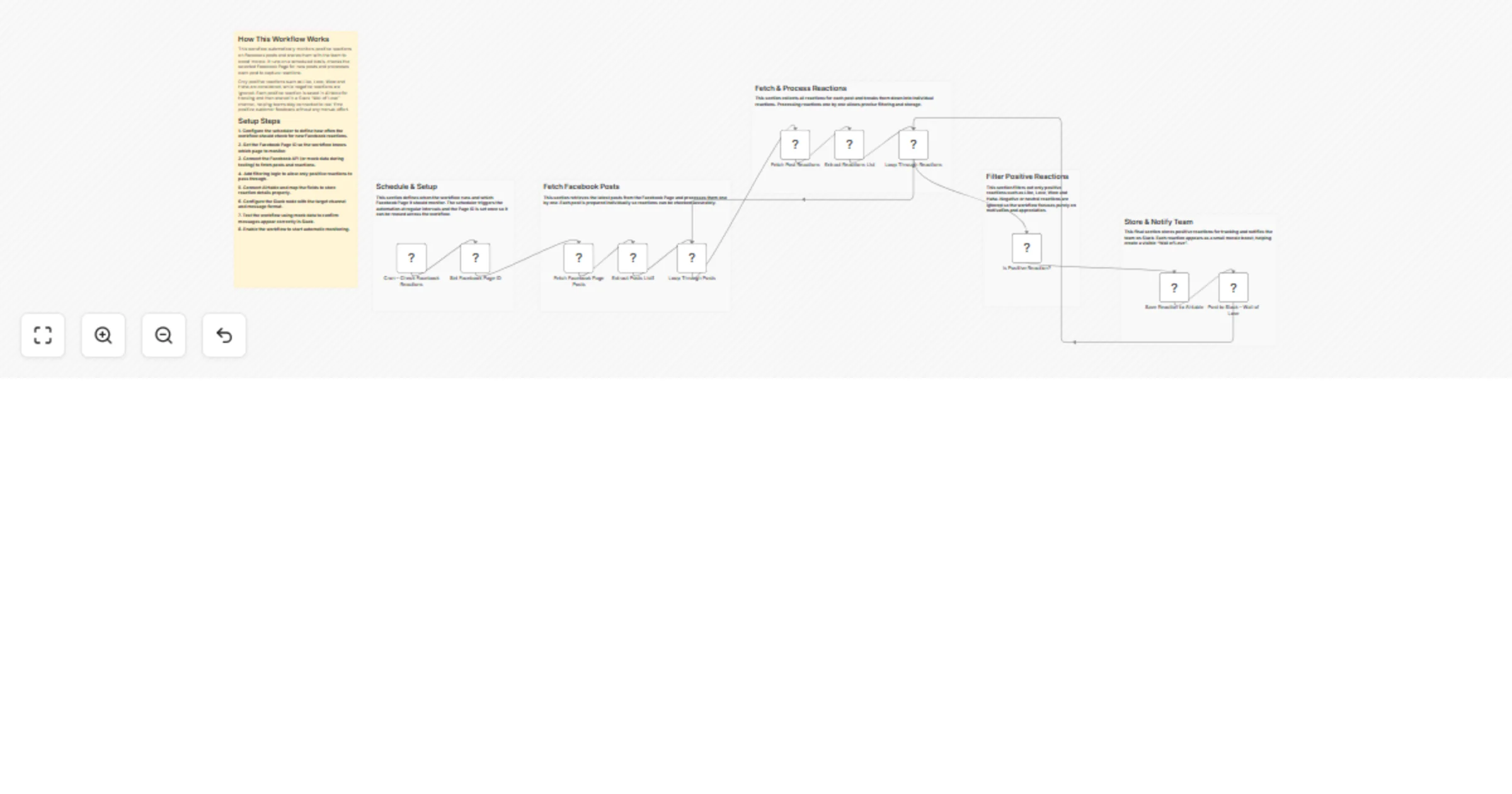
# Facebook Page Comment Moderation Scoreboard → Team Report This workflow automatically monitors Facebook Page comments, analyzes them using AI for intent, toxicity & spam, stores moderation results in a database and sends a clear summary report to Slack and Telegram. This workflow runs every few hours to fetch Facebook Page comments and analyze them using OpenAI. Each comment is classified as positive, neutral or negative, checked for toxicity, spam & abusive language and then stored in Supabase. A simple moderation summary is sent to Slack and Telegram. You receive: * Automated Facebook comment moderation * AI-based intent, toxicity, and spam detection * Database logging of all moderated comments * Clean Slack & Telegram summary reports Ideal for teams that want visibility into comment quality without manually reviewing every message. ### Quick Start – Implementation Steps 1. Import the workflow JSON into n8n. 2. Add your **Facebook Page access token** to the HTTP Request node. 3. Connect your **OpenAI API key** for comment analysis. 4. Configure your **Supabase** table for storing moderation data. 5. Connect **Slack and Telegram** credentials and choose target channels. 6. Activate the workflow — moderation runs automatically. ## What It Does This workflow automates Facebook comment moderation by: 1. Running on a scheduled interval (every 6 hours). 2. Fetching recent comments from a Facebook Page. 3. Preparing each comment for AI processing. 4. Sending comments to OpenAI for moderation analysis. 5. Extracting structured moderation data: * Comment intent * Toxicity score * Spam detection * Abusive language detection 6. Flagging risky comments based on defined rules. 7. Storing moderation results in Supabase. 8. Generating a summary report. 9. Sending the report to Slack and Telegram. This ensures consistent, repeatable moderation with no manual effort. ## Who’s It For -------------------- This workflow is ideal for: * Social media teams * Community managers * Marketing teams * Customer support teams * Moderation and trust & safety teams * Businesses managing high-volume Facebook Pages * Anyone wanting AI-assisted comment moderation ## Requirements to Use This Workflow To run this workflow, you need: * **n8n instance** (cloud or self-hosted) * **Facebook Page access token** * **OpenAI API key** * **Supabase project and table** * **Slack workspace** with API access * **Telegram bot** and chat ID * Basic understanding of APIs and JSON (helpful but not required) ## How It Works 1. **Scheduled Trigger** – Workflow starts automatically every 6 hours. 2. **Fetch Comments** – Facebook Page comments are retrieved. 3. **Prepare Data** – Comments are formatted for processing. 4. **AI Moderation** – OpenAI analyzes each comment. 5. **Normalize Results** – AI output is cleaned and standardized. 6. **Store Data** – Moderation results are saved in Supabase. 7. **Aggregate Stats** – Summary statistics are calculated. 8. **Send Alerts** – Reports are sent to Slack and Telegram. ## Setup Steps 1. Import the workflow JSON into n8n. 2. Open the **Fetch Facebook Page Comments** node and add: * Page ID * Access token 3. Connect your **OpenAI account** in the AI moderation node. 4. Create a Supabase table and map fields correctly. 5. Connect **Slack** and select a reporting channel. 6. Connect **Telegram** and set the chat ID. 7. Activate the workflow. ## How To Customize Nodes ### Customize Flagging Rules Update the normalization logic to: * Change toxicity thresholds * Flag only spam or abusive comments * Add custom moderation rules ### Customize Storage You can extend Supabase fields to include: * Language * AI confidence score * Reviewer notes * Resolution status ### Customize Notifications Slack and Telegram messages can include: * Emojis * Mentions (@channel) * Links to Facebook comments * Severity labels ## Add-Ons (Optional Enhancements) You can extend this workflow to: * Auto-hide or delete toxic comments * Reply automatically to positive comments * Detect language and region * Generate daily or weekly moderation reports * Build dashboards using Supabase or BI tools * Add escalation alerts for high-risk comments * Track trends over time ## Use Case Examples ### 1. Community Moderation Automatically identify harmful or spam comments. ### 2. Brand Reputation Monitoring Spot negative sentiment early and respond faster. ### 3. Support Oversight Detect complaints or frustration in comments. ### 4. Marketing Insights Measure positive vs negative engagement. ### 5. Compliance & Auditing Keep historical moderation logs in a database. ## Troubleshooting Guide | Issue | Possible Cause | Solution | |-----|---------------|----------| | No comments fetched | Invalid Facebook token | Refresh token & permissions | | AI output invalid | Prompt formatting issue | Use strict JSON prompt | | Data not saved | Supabase mapping mismatch | Verify table fields | | Slack message missing | Channel or credential error | Recheck Slack config | | Telegram alert fails | Wrong chat ID | Confirm bot permissions | | Workflow not running | Trigger disabled | Enable Cron node | ## Need Help? If you need help customizing, scaling or extending this workflow — such as advanced moderation logic, dashboards, auto-actions or production hardening, then our [n8n workflow development](https://www.weblineindia.com/n8n-automation/) team at WeblineIndia can assist with expert automation solutions.
Forecast Zoho CRM deals with AlphaVantage market data, GPT‑4 and Slack alerts
# Zoho CRM Deal Forecasting with External Market Factor This workflow automatically fetches active deals from Zoho CRM, retrieves real-time market signals, calculates AI-enhanced forecast metrics, evaluates deal-market alignment, stores data in a database, updates CRM, and sends a summary alert to Slack. This workflow runs weekly to help sales teams make data-driven decisions. It fetches all open deals from Zoho, calculates expected revenue using deal amount, probability, seasonal trends, and market signals. An AI node evaluates each deal’s match ratio against current market conditions. Forecasts and AI insights are stored in a database and written back into Zoho. A Slack message summarizes the key metrics for easy review. You receive: * **Weekly automated deal forecast**. * **AI-powered deal-market alignment insights**. * **Database storage for historical trends**. * **Slack summary notifications**. Ideal for sales teams wanting real-time insights into pipeline health and market alignment without manual calculations. ### Quick Start – Implementation Steps 1. Import the provided n8n workflow JSON file. 2. Add your **Zoho CRM credentials** in all relevant nodes. 3. Add your **AlphaVantage API key** in the Market Signal node. 4. Connect your **Slack** credentials and select the channel for alerts. 5. Connect your **Supabase** (or preferred database) account for storing forecasts. 6. Activate the workflow — it will run automatically on the configured weekly schedule. ## What It Does This workflow automates deal forecasting with AI-enhanced insights: 1. Fetches all active deals from Zoho CRM. 2. Retrieves real-time market data (SPY index) from AlphaVantage. 3. Combines deal and market data for forecast calculations. 4. Calculates expected revenue using: * Deal amount * Probability * Seasonal factors * Market signals 5. Sends deal data to an AI node for match ratio, confidence level, and reasoning. 6. Parses AI output and merges it with forecast data. 7. Stores forecast & AI metrics in a database (Supabase). 8. Updates Zoho CRM with adjusted forecast and AI insights. 9. Sends a summary alert to Slack including: * Deal name and stage * Amount, probability, and expected revenue * Market signal and seasonal factor * AI match ratio and confidence This ensures teams see clear, actionable sales insights every week. ## Who’s It For This workflow is ideal for: * Sales managers and CRM admins * Revenue operations teams * Forecasting analysts * Teams using Zoho CRM and Slack for pipeline management * Anyone wanting AI insights on market alignment for deals ## Requirements to Use This Workflow To run this workflow, you need: * **n8n instance** (cloud or self-hosted) * **Zoho CRM account** with API access * **AlphaVantage API key** for market data * **Slack workspace** with API permissions * **Supabase or other database** for storing forecasts * Basic understanding of deals, probabilities, and seasonal forecasting ## How It Works 1. **Weekly Trigger** – Workflow runs automatically once a week. 2. **Fetch Deals** – Retrieves all active deals from Zoho CRM. 3. **Get Market Signal** – Fetches real-time market data. 4. **Combine Deal & Market Info** – Merges deal and market datasets. 5. **Generate Forecast Metrics** – Calculates expected revenue using deal info, seasonality, and market influence. 6. **AI Deal Match Evaluator** – AI evaluates alignment of each deal with market conditions. 7. **Parse AI Output & Merge Forecast** – Parses AI response and combines with forecast data. 8. **Store Forecast in Database** – Saves forecast and AI insights to Supabase. 9. **Update Deal Forecast in Zoho** – Updates deals with adjusted forecast and AI insights. 10. **Send Forecast Summary to Slack** – Sends a clear summary with key metrics. ## Setup Steps 1. Import the workflow JSON file into n8n. 2. Add Zoho credentials for deal fetch and update nodes. 3. Add AlphaVantage API key for market signal node. 4. Configure Supabase node to store forecast data. 5. Add Slack credentials and choose a channel for notifications. 6. Test the workflow manually to ensure metrics are calculated correctly. 7. Activate the weekly trigger. ## How To Customize Nodes ### Forecast Calculation Modify **Generate Forecast Metrics** node to adjust seasonal factors or calculation logic. ### AI Match Evaluation You can tweak prompts in **Message a Model** to adjust AI scoring logic or reasoning output. ### Database Storage Supabase node can include additional fields: * Timestamp * Deal owner * Notes or comments * Additional KPIs ### Slack Alerts Customize message format, emojis, or mentions for team readability. ## Add-Ons (Optional Enhancements) * Integrate multiple market indices for more accurate forecasting. * Add multi-stage probability adjustments. * Create dashboards using stored forecast data. * Extend AI evaluation for risk scoring or priority recommendations. ## Use Case Examples ### 1. Pipeline Health Quickly see which deals are aligned with market conditions. ### 2. Forecast Accuracy Track historical vs AI-enhanced forecasts for trend analysis. ### 3. Team Notifications Slack summary alerts keep sales and leadership informed weekly. ## Troubleshooting Guide | Issue | Possible Cause | Solution | |-------|----------------|---------| | No Slack alerts | Invalid credentials | Re-check Slack API key and channel | | Forecast not updating | Zoho API error | Verify Zoho OAuth credentials | | AI node fails | Model misconfiguration | Check OpenAI API credentials & prompt format | | Data not stored | Supabase connection issue | Verify credentials and table mapping | ## Need Help? If you need assistance setting up the workflow, modifying the AI forecast logic or integrating Slack summaries our n8n workflow development team at WeblineIndia can help. We provide workflow customization, advanced forecasting and reporting solutions for Zoho CRM pipelines.
Monitor high-value USDT transfers on Ethereum with Airtable and Slack alerts
# Smart Contract Event Monitor (Web3) This workflow automatically monitors the Ethereum blockchain, extracts USDT transfer events, filters large-value transactions, stores them in Airtable and sends a clean daily summary alert to Slack. This workflow checks the latest Ethereum block every day and identifies high-value USDT transfers. It fetches on-chain logs using Alchemy, extracts sender/receiver/value details, filters transactions above a threshold, stores them in Airtable and finally sends a single clear summary alert to Slack. You receive: * Daily blockchain check (automated) * Airtable tracking of all high-value USDT transfers * A Slack alert summarizing the count + the largest transfer Ideal for teams wanting simple, automated visibility of suspicious or large crypto movements without manually scanning the blockchain. ### Quick Start – Implementation Steps 1. Add your **Alchemy Ethereum Mainnet API URL** in both HTTP nodes. 2. Connect and configure your **Airtable** base & table. 3. Connect your **Slack** credentials and set the channel for alerts. 4. Adjust the **value threshold** in the IF node (default: 1,000,000,000). 5. Activate the workflow — daily monitoring begins instantly. ## What It Does This workflow automates detection of high-value USDT transfers on Ethereum: 1. Fetches the latest block number using Alchemy. 2. Retrieves all USDT Transfer logs from that block. 3. Extracts structured data: * Sender * Receiver * Amount * Contract * Block number * Transaction hash 4. Filters only transactions above a configurable threshold. 5. Saves each high-value transaction into Airtable for record-keeping. 6. Generates a summary including: * Total number of high-value transfers * The single largest transfer 7. Sends one clean alert message to Slack. This ensures visibility of suspicious or large fund movements with no repeated alerts. ## Who’s It For This workflow is ideal for: * Crypto analytics teams * Blockchain monitoring platforms * Compliance teams tracking high-value activity * Web3 product teams * Developers needing automated USDT transfer tracking * Anyone monitoring whale movements / suspicious transactions ## Requirements to Use This Workflow To run this workflow, you need: * **n8n instance** (cloud or self-hosted) * **Alchemy API URL** (Ethereum Mainnet) * **Airtable base** + Personal Access Token * **Slack workspace** with API permissions * Basic understanding of Ethereum logs, hex values & JSON data ## How It Works 1. **Daily Check** – Workflow runs automatically at your set time. 2. **Get Latest Block Number** – Fetches newest Ethereum block from Alchemy. 3. **Fetch USDT Logs** – Queries all Transfer events (ERC-20 standard). 4. **Extract Transaction Details** – Converts hex → readable data. 5. **Filter High-Value Transactions** – Keeps only large value transfers. 6. **Save to Airtable** – Adds each transfer record to your database. 7. **Generate Summary** – Finds the largest transfer & total count. 8. **Send Slack Alert** – Notifies your team with one clean summary. ## Setup Steps 1. Import the provided n8n JSON file. 2. Open the **Get Latest Block** and **Fetch Logs** HTTP nodes → add your **Alchemy API URL**. 3. Ensure USDT contract address (already included):0xdAC17F958D2ee523a2206206994597C13D831ec7 4. Connect your **Airtable** account and map: * Contract * From Address * To Address * Value * Block Number * txHash 5. Connect **Slack API** credentials and choose your channel. 6. Change the threshold limit in the IF node if needed (default: 1B). 7. Activate the workflow — done! ## How To Customize Nodes ### Customize Value Threshold Modify the **IF** node: * Increase or decrease the minimum transfer value * Change logic to smaller or larger whale-tracking ### Customize Airtable Storage You can add fields like: * Timestamp * Token symbol * USD price (using price API) * Transaction status * Risk classification ### Customize Slack Alerts You may add: * Emojis * Mentions (@channel, @team) * Links to Etherscan * Highlighted blocks for critical transfers ### Customize Web3 Provider Replace Alchemy with: * Infura * QuickNode * Public RPC (not recommended for reliability) ## Add-Ons (Optional Enhancements) You can extend this workflow to: * Track multiple ERC-20 tokens * Process several blocks instead of just the latest * Add price conversion (USDT → USD value) * Detect transfers to suspicious wallets * Generate daily or weekly summary reports in Slack * Create a dashboard using Airtable Interfaces * Add OpenAI-based insights (large spike, suspicious pattern, etc.) ## Use Case Examples ### 1\. Whale Tracking Detect large USDT movements (>1M or >5M). ### 2\. Compliance Monitoring Log high-value transfers in Airtable for audits. ### 3\. Real-Time Alerts Slack alerts tell your team instantly about big movements. ### 4\. On-Chain Analytics Automate structured extraction of Ethereum logs. ### 5\. Exchange Monitoring Detect large inflows/outflows to known addresses. ## Troubleshooting Guide ------------------------------ | Issue | Possible Cause | Solution | |------------------------|-----------------------------------|---------------------------------------------------------| | No data in Airtable | Logs returned empty | Ensure USDT transfer events exist in that block | | Values are “zero” | Hex parsing failed | Check extract-code logic | | Slack alert not sent | Invalid credentials | Update Slack API key | | Airtable error | Wrong field names | Match Airtable column names exactly | | HTTP request fails | Wrong RPC URL | Re-check Alchemy API key | | Workflow not running | Schedule disabled | Enable "Daily Check" node | ## Need Help? If you need help customizing or extending this workflow — adding multi-token monitoring, setting up dashboards, improving alerts or scaling this for production — our [n8n workflow developers](https://www.weblineindia.com/hire-n8n-developers/) at WeblineIndia can assist you with advanced automation.
Monitor and alert stalled deals in Zoho CRM with Gemini AI and Gmail
# Zoho CRM – Deal Health Predictor with AI Scoring This n8n automation monitors open Zoho CRM Deals every week, identifies stalled opportunities, scores their health using Google Gemini AI and triggers sales intervention by emailing the deal owner and creating a high-priority task in Zoho CRM — before the deal goes cold. ### Quick Start — Implementation in 6 Steps 1. Import workflow into your n8n instance. 2. Connect Zoho OAuth2 credential in all Zoho nodes. 3. Connect Gmail OAuth2 account for outbound alerts. 4. Confirm stage names & inactivity thresholds match your CRM. 5. Test with sample deals before scheduling. 6. Activate the workflow once validated by your sales team. ## What It Does This workflow dynamically analyzes every open sales deal retrieved from Zoho CRM. It calculates key metrics per deal such as inactivity duration, stage aging and deal age to understand whether the opportunity has stalled. Only deals with significant inactivity move forward to AI scoring. Using Google Gemini, each deal receives a **Health Score (0–100)**, along with a risk level, reasons and recommended next actions. If a deal is considered “At-Risk,” the system automatically: - Sends an alert email to the assigned sales rep - Creates a **high-priority** Task in Zoho CRM linked to that deal It ensures timely sales intervention without needing manual checks. ## Who’s It For - Sales teams using **Zoho CRM** - RevOps & Sales Managers monitoring deal movement - Teams wanting **data-backed alerts** for slow-moving deals - Businesses wanting **proactive** pipeline management with AI ## Requirements | Requirement | Why | |------------|-----| | n8n instance (Self-hosted or Cloud) | Runs the workflow | | Zoho CRM OAuth2 Credentials | Fetch deals + Create tasks | | Gmail (or SMTP) credentials | Send alert emails | | Google Gemini API access | AI scoring on deals | | Deals must have Stage + Owner + Activity history | Ensures accurate scoring | ## How It Works — Setup & Configuration Steps ### Step-by-Step Setup 1. **Import** workflow into n8n 2. Enable **Zoho CRM OAuth2** credentials in: - Fetch Open Deals - Create At-Risk Task 3. Enable **Gmail OAuth2** on the email alert node 4. Validate fields from Zoho API: - `Last_Activity_Time` - `Stage` - `Owner.email` 5. Update the **deal stage list** in the Fetch URL if needed: - Example: `Qualification`, `Negotiation`, `Proposal`, etc. 6. Confirm scanning frequency in the **Weekly Trigger** 7. Run the workflow manually once → check logs + emails + tasks 8. Turn workflow **Active** ## How To Customize Nodes | Node | What You Can Customize | Example | |------|-----------------------|---------| | Weekly Trigger | Change execution frequency | Daily scan | | Fetch Deals | Include additional deal stages | Add “Value Proposition” | | Filter Stalled Deals | Adjust inactivity threshold | > 15 days instead of 30 | | AI Prompt | Add more data points | Probability to close | | Email Alert | Modify message template | Localization | | Task creation | Add reminder / follow-up info | Due date +1 day | ## Add-Ons (Optional Enhancements) You can easily extend this workflow by adding: - **Stage Change Webhook Trigger** → near real-time monitoring - **Google Sheets or Database Logging** for reporting - **Duplicate task checker** so the same deal isn’t flagged repeatedly - **Slack / Microsoft Teams alerts** - **SLA-based scoring** (pipeline aging logic) - **Manager escalation** if no response in X days ## Practical Use Cases This workflow is ideal for: 1. Sales manager auto-alert system for aging deals 2. Leaderboard tracking for untouched deals 3. Weekly CRM hygiene and rep performance tracking 4. Early detection of churn risk in B2B sales cycles 5. AI-assisted deal coaching and next-step suggestions Many more scenarios are possible based on deal movement automation. ## Troubleshooting Guide | Issue | Possible Cause | Fix / Solution | |------|----------------|----------------| | No deals processed | Stage filters too narrow | Update fetch URL stage list | | Emails not sent | Gmail credentials missing or expired | Reconnect Gmail OAuth2 | | Tasks not created | Zoho API permissions missing | Enable write permissions | | Owner email missing | CRM field not mapped correctly | Update sendTo expression | | Health score always null | Output parser mismatch | Check prompt & parser config | | Workflow runs but no alerts sent | No stalled deals or score >= threshold | Temporarily lower threshold for testing | ## Need Help? If you would like expert help customizing this workflow or implementing additional automation like stage-based triggers, dashboards or integration with Slack/Teams, our n8n automation team at **WeblineIndia** can assist you.
Automated APK security scanning & PDF reporting with MobSF, AI & Google Drive
# APK Security Scanner & PDF Report Generator This workflow automatically analyzes any newly uploaded APK file and produces a clean, professional PDF security report. When an APK appears in Google Drive, the workflow downloads it, sends it to MobSF for security scanning, summarizes the results, generates an HTML report using AI, converts it into a PDF via PDF.co and finally saves the PDF back to Google Drive. ### Quick Start: Fastest Way to Use This Workflow 1. Set up a Google Drive folder for uploading APKs. 2. Install MobSF using Docker and copy your API key. 3. Add credentials for Google Drive, MobSF, OpenAI and PDF.co in n8n. 4. Import the workflow JSON. 5. Update node credentials. 6. Upload an APK to the watched folder and let the automation run. ## What It Does This workflow provides a complete automated pipeline for analyzing Android APK files. It removes the manual process of scanning apps, extracting security insights, formatting reports and distributing results. Each step is designed to streamline application security checks for development teams, QA engineers and product managers. Once the workflow detects a new APK in Google Drive, it passes the file to MobSF for a detailed static analysis. The workflow extracts the results, transforms them into a clear and well-structured HTML report using AI and then converts the report into a PDF. This ensures the end-user receives a polished audit-ready security document with zero manual involvement. ## Who’s It For This workflow is ideal for: - Mobile development teams performing security checks on apps. - QA and testing teams validating APK builds before release. - DevSecOps engineers needing automated, repeatable security audits. - Software companies generating compliance and audit documentation. - Agencies reviewing client apps for vulnerabilities. ## Requirements to Use This Workflow - An n8n instance (self-hosted or cloud) - A Google Drive account with a folder for APK uploads - Docker installed to run MobSF locally - MobSF API key - OpenAI API key - PDF.co API key - Basic understanding of n8n nodes and credentials setup ## How It Works & Setup Instructions ### Step 1 — Prepare Google Drive Create a folder specifically for APK uploads. Configure the *Watch APK Uploads (Google Drive)* node to monitor this folder for new files. ### Step 2 — Install and Run MobSF Using Docker Install Docker and run: ```bash docker run -it --rm -p 8000:8000 \ -v $(pwd)/mobsf:/home/mobsf/.MobSF \ opensecurity/mobile-security-framework-mobsf ```` Open MobSF at `http://localhost:8000` and copy your API key. ### Step 3 — Add Credentials in n8n Add credentials for: * Google Drive * MobSF (API key in headers) * OpenAI * PDF.co ### Step 4 — Configure Malware Scanning * **Upload APK to Analyzer (MobSF Upload API)** sends the file. * **Start Security Scan (MobSF Scan API)** triggers the vulnerability scan. ### Step 5 — Summarize & Generate HTML Report * **Summarize MobSF Report (JS Code)** extracts key vulnerabilities. * **Generate HTML Report (GPT Model)** formats them in a structured report. * **Clean HTML Output (JS Code)** removes escaped characters. ### Step 6 — Convert HTML to PDF Use **Generate PDF (PDF.co API)** to convert the HTML to PDF. ### Step 7 — Save Final Report Download using **Download Generated PDF**, then upload via **Upload PDF to Google Drive**. ## How To Customize Nodes * **Google Drive Trigger:** Change the folder ID to watch a different upload directory. * **MobSF API Nodes:** Update URLs if MobSF runs on another port or server. * **AI Report Generator:** Modify prompt instructions to change the writing style or report template. * **PDF Generation:** Edit margins, page size, or output filename in the PDF.co node. * **Save Location:** Change Google Drive folder where the final PDF is stored. ## Add-Ons You can extend this workflow with: * **Slack or Email Notifications** when a report is ready * **Automatic naming conventions** (e.g., report-{{date}}-{{app_name}}.pdf) * **Saving reports into Airtable or Notion** * **Multi-file batch scanning** * **VirusTotal scan integration** before generating the PDF ## Use Case Examples * Automated security scanning for every new build generated by CI/CD. * Pre-release vulnerability checks for client-delivered APKs. * Compliance documentation generation for internal security audits. * Bulk scanning of legacy APKs for modernization projects. * Creating professional PDF security reports for customers. (Many more use cases can be built using the same workflow foundation.) ## Troubleshooting Guide | Issue | Possible Cause | Solution | | ----------------------- | -------------------------- | ---------------------------------------------------------- | | MobSF API call fails | Wrong API key or URL | Check MobSF is running and API key is correct. | | PDF not generated | Invalid HTML or PDF.co key | Validate HTML output and verify PDF.co credentials. | | Workflow not triggering | Wrong Google Drive folder | Reconfigure Drive Trigger node with the correct folder ID. | | APK upload fails | File not in binary mode | Ensure HTTP Upload node is using “Binary Data” correctly. | | Scan returns empty data | MobSF not fully started | Wait for full MobSF startup logs before scanning. | ## Need Help? If you need assistance setting up this workflow, customizing it or adding advanced features such as Slack alerts, CI/CD integration or bulk scanning, our n8n workflow development team at **WeblineIndia** can help. We specialize in building secure, scalable, automation-driven workflows on n8n for businesses of all sizes. *Contact us anytime for support or to build custom workflow automation solutions.*
Automated podcast production & publishing with OpenAI, Airtable & Buzzsprout
# Automated Podcast Generation with n8n, OpenAI & Buzzsprout This workflow automatically turns any audio file uploaded to Google Drive into a complete podcast episode. It handles transcription, content generation, blog drafting, social copy creation, thumbnail generation, Airtable record updates, Buzzsprout publishing and finally notifies your team via Slack. It is a full “audio-to-published-podcast” automation that requires no manual editing. ### ⚡ Quick Start: 10-Step Fast Implementation 1. Connect Google Drive, OpenAI, Airtable, Slack & Buzzsprout credentials. 2. Upload an audio file to the Drive folder. 3. Workflow triggers automatically. 4. Audio → Text transcription via OpenAI Whisper. 5. AI converts transcript into title, show notes, tags, publish date, etc. 6. AI generates social content & blog article. 7. AI generates YouTube thumbnail (URL saved). 8. Data saved to Airtable. 9. Episode uploaded to Buzzsprout. 10. Slack receives final “Episode Published” notification. ## What It Does This workflow automates the complete lifecycle of podcast publishing. Once an audio file is placed inside a Google Drive folder, the system takes over: it transcribes the audio, generates structured metadata, creates rich content including a blog post and multiple social media captions and produces a YouTube-ready thumbnail. Generated content is saved into Airtable, ensuring you always have a centralized database of episode metadata. The workflow then uploads the processed audio file to Buzzsprout, creating a ready-to-publish podcast entry. Finally, it sends a Slack notification summarizing the episode details. This workflow eliminates hours of manual podcast editing, writing and uploading — providing a fast, reliable and repeatable content automation pipeline. ## Who’s It For * Podcasters who want to automate production and publishing * Marketing teams managing multiple content channels * Creators who want to repurpose audio into blogs & social content * Agencies or studios producing podcasts for clients * Anyone wanting a hands-free “record → upload → publish” podcast system ## Airtable Table Structure (Required Fields) To run this workflow successfully, you must create **one Airtable table** that stores all generated podcast episode data. Below is the **exact list of fields** (with correct Airtable field types) that the workflow expects. | Field Name | Airtable Field Type | Purpose | | -------------------------- | ------------------- | --------------------------------------------------------- | | **episode_title** | Single line text | Title generated from the audio transcript | | **record_Id** | Auto number | Automatically generated unique internal record identifier | | **episode_description** | Long text | Description of the episode (AI-generated) | | **show_notes** | Long text | Detailed show notes generated from transcript | | **suggested_publish_date** | Single line text | Publish date suggested by AI | | **blog_draft_markdown** | Long text | SEO-optimized full blog draft | | **linkedin_post** | Long text | LinkedIn long-form post | | **instagram_caption** | Long text | Instagram caption + hashtags | | **twitter_thread** | Long text | Thread text (converted from array → single string) | | **tiktok_script** | Long text | Short TikTok/Shorts script | | **youtube_thumbnail_url** | URL | Thumbnail image URL generated by OpenAI | | **buzzsprout_episode_id** | Number | Episode ID returned from Buzzsprout | | **audio_url** | Single line text | Buzzsprout final audio file URL | | **published_at** | Single line text | Actual published datetime returned by Buzzsprout | | **guid** | Single line text | Unique GUID assigned by Buzzsprout | ### Notes for Users Setting Up the Table * Do **not** use array fields — arrays are converted into strings before saving. * `record_Id` is Airtable auto-number will generate it and it used for update record. * `published_at`, `audio_url`, `guid` and `buzzsprout_episode_id` are populated **after Buzzsprout upload**. * `youtube_thumbnail_url` is populated after the AI Image Generation node. ## Requirements To use this workflow, you need: * **n8n** self-hosted or cloud * **Google Drive account** (folder monitored for new audio uploads) * **OpenAI API Key** (Whisper + GPT + Image Generation) * **Airtable Base & API Key** * **Buzzsprout Podcast ID & API Token** * **Slack App / Bot Token** * Audio file in **MP3/WAV/M4A** format ## How It Works & Setup Steps ### Step 1 — Google Drive Trigger * Monitors a specific folder. * When an audio file is uploaded, the workflow starts. ### Step 2 — Transcribe Audio with OpenAI * Uses Whisper model to convert speech → text. * Returned transcript is cleaned and extracted. ### Step 3 — Extract Episode Metadata * Title * Description * Show notes * Episode tags * Suggested publish date * All parsed and structured via OpenAI. ### Step 4 — Generate Social Media Content * LinkedIn article post * Twitter/X thread * Instagram caption * TikTok short script ### Step 5 — Generate Blog Draft * Full SEO-optimized Markdown article created by OpenAI. ### Step 6 — Create YouTube Thumbnail * OpenAI Image API * 1280×720 thumbnail * URL stored in Airtable. ### Step 7 — Save Everything to Airtable * One single table * Stores episode title, description, tags, blog draft, social content, thumbnail URL, and transcript. ### Step 8 — Upload Episode to Buzzsprout * Audio file from Google Drive → uploaded via multipart/form-data * Title & description set * Response returns audio URL and episode ID * These are stored in Airtable. ### Step 9 — Slack Notification Sends message containing: * Episode Title * Buzzsprout Episode ID * Published At Date * Thumbnail URL ## How to Customize Nodes ### Google Drive Trigger Change the folder ID to monitor a different source directory. ### OpenAI Metadata Prompt Adjust tone, style, summarization level or tag generation. ### Social Content Node Modify the prompt to produce longer posts, more thread tweets or add new channels. ### Image Generation Customize thumbnail style: minimal, realistic, bold text, brand colors, etc. ### Buzzsprout Upload Node Set `episode[published_at]` to schedule future releases. ### Slack Notification Add more fields such as show notes or Airtable record links. ## Add-Ons (Optional Enhancements) You may extend the workflow with: * **Auto-post to LinkedIn, X, Instagram, TikTok** via Buffer API * **Notion page creation** for drafting content * **Automatic transcript** upload to Google Docs * **Email notification** to hosts or guests * **Auto-publish** YouTube video version (using static background + audio) ## Use Case Examples 1. **Podcast Production Automation** – Record audio, upload to Drive and get a fully published episode automatically. 2. **Content Repurposing Workflow** – Turn one audio file into several content formats instantly. 3. **Marketing Team Efficiency** – Auto-generate social posts for multiple platforms. 4. **Client Podcast Management** – Agencies can manage episodes with zero manual work. 5. **Internal Communications** – Convert internal voice memos into polished summaries and blogs. (There can be many more such use cases depending on customization.) ## Troubleshooting Guide | Issue | Possible Cause | Solution | | ------------------------------------- | ---------------------------------- | -------------------------------------------------------------------- | | Buzzsprout upload missing audio | Wrong field name or missing binary | Ensure `file` field is binary & set to correct Drive binary property | | Episode title missing in Buzzsprout | OpenAI JSON not parsed correctly | Check parse code & that `episode_title` exists | | Social content not stored in Airtable | Airtable field type mismatch | Convert arrays into strings before writing | | Thumbnail not displaying | Expired OpenAI image URL | Regenerate or store static copy in Drive | | Workflow not triggering | Wrong Drive folder ID | Update folder ID in trigger node | ## Need Help? If you need assistance customizing this workflow, adding new features or building similar automations, WeblineIndia’s [n8n automation developers](https://www.weblineindia.com/hire-n8n-developers/) can help you design, optimize and scale enterprise-grade n8n workflows. Feel free to reach out for professional support anytime.
Real-time IoT incident management with Jira & Slack technician alerts
# Webhook from IoT Devices → Jira Maintenance Ticket → Slack Factory Alert This workflow automates predictive maintenance by receiving IoT machine-failure webhooks, creating Jira maintenance tickets, checking technician availability in Slack and sending the alert to the correct Slack channel. If an active technician is available, the system notifies the designated technician channel; if not, it escalates automatically to your chosen emergency/escalation channel. ### ⚡ Quick Implementation: Start Using in 10 Seconds 1. Import the workflow JSON into n8n. 2. Add Slack API credentials (with all required scopes). 3. Add Jira Cloud credentials. 4. Select Slack channels for: * Technician alerts * Emergency/escalation alerts 5. Deploy the webhook URL to your IoT device. 6. Run a test event. ## What It Does This workflow implements a real-time predictive maintenance automation loop. An IoT device sends machine data — such as temperature, vibration and timestamps — to an n8n webhook whenever a potential failure is detected. The workflow immediately evaluates whether the values exceed a defined safety threshold. If a failure condition is detected, a Jira maintenance ticket is automatically created with all relevant machine information. The workflow then gathers all technicians from your selected Slack channel and checks each technician’s presence status in real time. A built-in decision engine chooses the first available technician. If someone is active, the workflow sends a maintenance alert to your technician channel. If no technicians are available, the workflow escalates the alert to your chosen emergency channel to avoid operational downtime. This eliminates manual monitoring, accelerates response times and ensures no incident goes unnoticed — even if the team is unavailable. ## Who’s It For This workflow is ideal for: * Manufacturing factories * Industrial automation setups * IoT monitoring systems * Warehouse operations * Maintenance & facility management teams * Companies using Jira + Slack * Organizations implementing predictive maintenance or automated escalation workflows ## Requirements to Use This Workflow You will need: * An n8n instance (Cloud or Self-hosted) * Slack App with the scopes: * `users:read` * `users:read.presence` * `channels:read` * `chat:write` * Jira Cloud credentials (email + API token) * Slack channels of your choice for: * Technician alerts * Emergency/escalation alerts * IoT device capable of POST webhook calls * Machine payload must include: * `machineId` * `temperature` * `vibration` * `timestamp` ## How It Works & How To Set Up ### 🔧 High-Level Workflow Logic 1. **IoT Webhook** receives machine data. 2. **IF Condition** checks whether values exceed safety thresholds. 3. **Jira Ticket** is created with machine details if failure detected. 4. **Slack Channel Members** are fetched from your selected technician channel. 5. **Loop Through Technicians** to check real-time presence. 6. **Code Node** determines: * first available (active) technician * or fallback mode if none available 7. **IF Condition** checks technician availability. 8. **Slack Notification** is sent to: * your chosen technician channel if someone is available * your chosen emergency/escalation channel if no one is online ### 🛠 Step-by-Step Setup Instructions 1. **Import Workflow:** `n8n → Workflows → Import from File → Select JSON`. 2. **Configure Slack:** Add required scopes (`users:read`, `users:read.presence`, `channels:read`, `chat:write`) and reconnect credentials. 3. **Select Slack Channels:** Choose any Slack channels you want for technician notifications and emergency alerts—no fixed naming is required. 4. **Configure Jira:** Add credentials, select project and issue type, and set priority mapping if needed. 5. **Deploy Webhook:** Copy the n8n webhook URL and configure your IoT device to POST machine data. 6. **Test System:** Send a test payload to ensure Jira tickets are created and Slack notifications route correctly based on technician availability. This setup allows real-time monitoring, automated ticket creation and flexible escalation — reducing manual intervention and ensuring fast maintenance response. ## How To Customize Nodes ### Webhook Node * Add security tokens * Change webhook path * Add response message ### IF Node (Threshold Logic) * Lower/raise temperature threshold * Change OR to AND * Add more conditions (humidity, RPM, pressure) ### Jira Node * Customize fields like summary, labels or assign issues based on technician availability ### Slack Presence Node * Add DND checks * Treat “away” as “available” during night shift * Combine multiple channels ### Code Node * Randomly rotate technicians * Pick technician with lowest alert count * Keep a history log ## Add-Ons * SMS fallback notifications (Twilio) * WhatsApp alerts * Telegram alerts * Notify supervisors via email * Store machine failures into Google Sheets * Push metrics into PowerBI * Auto-close Jira tickets after normalizing machine values * Create a daily maintenance report ## Use Case Examples 1. **Overheating Machine Alert** – Detect spikes and notify technician instantly. 2. **Vibration Pattern Anomaly Detection** – Trigger early maintenance before full breakdown. 3. **Multi-Shift Technician Coverage** – Automatically switch to emergency mode when no technician is online. 4. **Factory Night-Shift Automation** – Night alerts automatically escalate without manual verification. 5. **Warehouse Robotics Malfunction** – Sends instant Slack + Jira alerts when robots overheat or jam. ## Troubleshooting Guide | Issue | Possible Cause | Solution | | ----------------------------- | ----------------------------------- | -------------------------------------------- | | Webhook returns no data | Wrong endpoint or method | Use POST + correct URL | | Slack presence returns error | Missing Slack scopes | Add `users:read.presence` | | Jira ticket not created | Invalid project key or credentials | Reconfigure Jira API credentials | | All technicians show offline | Wrong channel or IDs | Ensure correct channel members | | Emergency alert not triggered | Code node returning incorrect logic | Test code with all technicians set to “away” | | Slack message fails | Wrong channel ID | Replace with correct Slack channel | ## Need Help? If you need help customizing this workflow, adding new automation features, connecting additional systems or building enterprise IoT maintenance solutions, our [n8n automation development](https://www.weblineindia.com/n8n-automation/) team at **WeblineIndia** team can help. We can assist with: * Workflow setup * Advanced alert logic * Integrating SMS / WhatsApp / Voice alerts * Custom escalation rules * Industrial IoT integration Reach out anytime for support or enhancements.
Detect WooCommerce return surges in real-time with Slack alerts & Airtable logging
# Real-Time WooCommerce Return Surge Detection with Slack Alerts & Airtable Logging This n8n workflow monitors WooCommerce refund activity to detect unusual spikes in product returns at the SKU level. It compares return volumes across rolling 24-hour windows, alerts teams in Slack when defined thresholds are exceeded and logs all detected events into Airtable for tracking and analysis. ### 🚀 Quick Start – Get This Running Fast 1. Import the workflow into n8n. 2. Connect your WooCommerce API credentials. 3. Configure Slack and Airtable credentials. 4. Set your preferred schedule interval. 5. Activate the workflow and start monitoring returns automatically. ## What It Does This workflow is designed to automatically detect abnormal return behavior in a WooCommerce store. On every scheduled run, it fetches recent orders and refunds directly from the WooCommerce REST API. Refund records are mapped back to their original orders to accurately identify affected SKUs. Using a rolling time-window comparison, the workflow calculates current versus previous return counts per SKU. It identifies significant increases—either large percentage spikes or unusually high absolute return volumes. This ensures early detection of potential product quality, packaging or fulfillment issues. When a return surge is detected, the workflow sends a structured alert to a Slack channel and stores the alert data in Airtable. This creates a searchable, historical log that supports investigations, trend analysis and operational decision-making. ## Who’s It For This workflow is ideal for: - eCommerce operations teams. - Quality assurance and product managers. - Customer support leads. - Supply chain and fulfillment teams. - Store owners running WooCommerce at scale. ## Requirements to Use This Workflow To use this workflow, you will need: - An active **WooCommerce** store with REST API access. - **WooCommerce API credentials** (Consumer Key & Secret). - An active **Slack workspace** with permission to post messages. - An **Airtable base and table** for logging alerts. - An **n8n instance** (self-hosted or cloud). ## How It Works & How To Set Up ### Workflow Execution Flow 1. **Schedule Trigger** runs the workflow at a fixed interval. 2. **Time Window** node defines current and previous 24-hour comparison windows. 3. **HTTP Orders** fetches recent WooCommerce orders. 4. **HTTP Refunds** fetches refund records. 5. **Orders_Fetch (Code)** maps refunds to parent orders and extracts SKU-level data. 6. **Refund_details (Code)** aggregates returns, compares windows, and calculates increases. 7. **IF Node** checks surge conditions: - ≥100% increase OR - ≥25 current returns 8. **Set Fields** enriches data with status, run date, and cooldown key. 9. **Slack Node** sends a formatted alert message. 10. **Code Node** normalizes Slack output into structured fields. 11. **Airtable Node** stores alert records for future reference. ### Setup Instructions - Replace `{your_woocommerce_domain}` with your actual store domain. - Verify WooCommerce API permissions allow order and refund access. - Select the correct Slack channel in the Slack node. - Ensure Airtable column names match the workflow mappings. ## How To Customize Nodes You can easily adapt this workflow by: - Changing the **schedule frequency** in the Schedule Trigger. - Adjusting **WINDOW_HOURS** in the Code nodes. - Modifying **alert thresholds** in the IF node. - Customizing the **Slack message format**. - Adding or removing **Airtable fields** for reporting needs. ## Add-ons (Optional Enhancements) This workflow can be extended with: - Email or Microsoft Teams notifications. - Jira or Linear ticket creation. - Product auto-pause for extreme return spikes. - Dashboard reporting using BI tools. - Cooldown logic to prevent repeated alerts per SKU. ## Use Case Examples Common use cases include: - Detecting defective product batches early. - Identifying packaging or shipping damage trends. - Monitoring supplier quality issues. - Supporting refund root-cause analysis. - Improving customer satisfaction metrics. There can be many more operational and analytical use cases based on your business needs. ## Troubleshooting Guide | Issue | Possible Cause | Solution | |------|---------------|----------| | No Slack alerts | Threshold not met | Lower IF condition limits | | Empty SKU values | Missing SKU in WooCommerce | Use product name or ID fallback | | No data in Airtable | Column mismatch | Verify field names and types | | API errors | Invalid credentials | Re-authorize WooCommerce API | | Duplicate alerts | Frequent schedule | Add cooldown or deduplication logic | ## Need Help? Need assistance setting this up or customizing it for your business? [WeblineIndia](https://www.weblineindia.com/) can help you implement, extend or build similar automation workflows tailored to your operational needs. Whether you want advanced alerting, deeper analytics or cross-system integrations, our team is ready to help you get the most out of n8n automation.
CI artifact completeness gate (Git push, Sentry artifact verification, commit)
# CI Artifact Completeness Gate (GitHub Push → Sentry Release Files → Artifact Validation → GitHub Commit Status Update) This workflow acts as a CI/CD *quality gate* for mobile app crash-symbolication artifacts. Whenever a new commit is pushed to GitHub, the workflow automatically checks the corresponding Sentry release and confirms whether required build artifacts (dSYM or ProGuard + mapping.txt) exist. If artifacts are complete, it updates the GitHub commit status to **success**, allowing the PR to be merged. If incomplete, the workflow fails silently (no commit status update), effectively blocking merges. ### ⚡ Quick Implementation Steps 1. Configure **GitHub Trigger** for your repo. 2. Add **Sentry API credentials**. 3. Add **GitHub API credentials**. 4. Update Sentry project URLs with your **org_slug** and **proj_slug**. 5. Ensure your build pipeline uploads artifacts to Sentry **before** the workflow runs. 6. Activate workflow. ## What It Does This workflow ensures your mobile crash-symbolication artifacts are fully present in Sentry for every release. When a new GitHub push occurs, the workflow: 1. Reads the commit SHA and repo info from the GitHub Push event. 2. Fetches the list of all releases from Sentry. 3. Locates the correct release and fetches its uploaded artifact files. 4. Runs custom validation logic: - **Success if:** - a `*.dSYM` file exists **OR**\ - both `proguard.txt` AND `mapping.txt` are present\ - **Failure if:** - neither dSYM nor both mapping artifacts exist. 5. If validated successfully, the commit receives a **success** status on GitHub → PR can be merged. This provides a strong CI gate ensuring symbolication completeness and preventing un-debuggable releases. ## Who's It For - Mobile development teams using Sentry for crash reporting. - Engineering teams enforcing strict release-quality gates. - DevOps teams wanting automated artifact validation. - CI/CD pipeline engineers integrating Sentry symbolication checks. - Teams who frequently upload dSYM or ProGuard mapping files. ## Requirements to Use This Workflow - n8n instance (cloud or self-hosted) - GitHub repository access (API credentials) - Sentry project with: - org_slug - project_slug - Auth Token with release access - Build process that uploads artifacts to Sentry releases - The release version must match the format expected by the workflow ## How It Works & How To Set Up ### Step 1: GitHub Push Trigger The **GithubPushTrigger** node listens for push events and extracts: - Commit SHA - Repository full name - Branch - Metadata No configuration required except selecting your GitHub credentials. ### Step 2: Configure Sentry Release Fetching Open **Check Sentry Artifacts Releases** and update: https://sentry.io/api/0/projects/<org_slug>/<proj_slug>/releases/ Make sure the Sentry credential is correctly selected. ### Step 3: Fetch Files for the Specific Release The next HTTP Request (**Check Sentry Artifacts Files**) uses a dynamic URL: https://sentry.io/api/0/projects/<org_slug>/<proj_slug>/releases/{{ $json.version }}/files/ Ensure your build pipeline sets `version` consistently with what Sentry receives. ### Step 4: Artifact Validation Logic The **Verify Artifacts** node runs JS logic to check: #### ✔ Condition 1 --- Valid dSYM Any file ending with `.dSYM` #### ✔ Condition 2 --- Valid Android Mapping - `proguard.txt`\ - `mapping.txt` #### ✖ Failure --- If neither set exists The Code node returns: ``` json { "status": "failure", "description": "Missing artifacts..." } ``` This stops the workflow and prevents GitHub commit-status update. ### Step 5: Extract Commit Info & Prepare Update The **Artifacts Validation and Get Repository Data** node compiles: - repo full name - commit SHA - validation status If validation failed → workflow ends here. ### Step 6: Update GitHub Commit Status The **Update Status** node hits: POST https://api.github.com/repos/<repoFullName>/statuses/<commitSHA> And sends: ``` json { "state": "success", "description": "Artifacts successfully verified." } ``` This appears as a green check on your commit/PR. ### Step 7: Activate the Workflow Turn on the workflow to start enforcing symbolication completeness for all releases. ## How To Customize Nodes ### Change Sentry Project Edit URLs in both Sentry HTTP Request nodes: - `org_slug` - `proj_slug` ### Add Additional Artifact Rules Modify JS inside **Verify Artifacts**, e.g., require: - native symbols - extra asset files - other platform artifacts ### Customize Commit Status Message Edit the request body in **Update Status**. ### Support Multiple Platforms / Multiple Releases Branch logic in: - Code nodes - Conditional checks ## Add-Ons (Optional Enhancements) - Add Slack/Teams notifications when artifacts are missing. - Auto-retry release checks after build completes. - Merge-blocking PR checks for GitHub. - Multi-platform artifact validation (iOS + Android + Unity). - Upload artifacts directly from n8n. - Store validation logs in Airtable or Google Sheets. - Add GitHub Checks API rich reporting. ## Use Case Examples 1. Block merges until symbolication artifacts are uploaded. 2. Enforce strict Sentry release completeness for every build. 3. Ensure Android mapping files always match the correct release version. 4. Automatically verify multiple release types (debug, staging, production). 5. Improve crash debugging by preventing un-symbolicated builds from shipping. ## Troubleshooting Guide | Issue | Possible Cause | Solution | |----------------------------|-----------------------------------------------|--------------------------------------------------------------------------| | Commit status never updates| Validation failed silently | Check logs from **Verify Artifacts** | | "version undefined" in URL | Sentry release list not matched | Ensure your build uploads a valid `version` | | 401 from Sentry API | Invalid/broken Sentry token | Regenerate token and update credentials | | Always failing validation | Artifact names differ (e.g., `.dsym.zip`) | Update RegEx patterns in Code node | | GitHub status API returns 404 | Missing repo permissions | Update GitHub credentials (repo status scope) | | Files array empty | Build system not uploading artifacts | Verify build → Sentry upload step | ## Need Help? If you need help customizing the artifact rules, integrating multiple platforms or automating Sentry/GitHub workflows, reach out to our [n8n automation developers](https://www.weblineindia.com/hire-n8n-developers/) at WeblineIndia. We can assist with: - Mobile CI/CD pipelines - Sentry automation - Multi-artifact validation - GitHub PR quality-gates - Advanced Code-node scripting - And so much more. Happy automating! 🚀
Automate vulnerability triage from Snyk with Jira, Slack & Airtable integration
# Snyk Vulnerability Automation Workflow with Webhook, Jira, Slack & Airtable This workflow receives vulnerability data(e.g., Snyk, Dependabot or any security scanner) from Snyk through a webhook, standardizes and validates the payload, checks Jira for duplicates using a unique vulnerability key, and either updates an existing Jira issue or creates a new one. It also sends real-time alerts to Slack and stores every new vulnerability in Airtable for reporting and auditing. The workflow ensures fast triage, prevents duplicate Jira tickets and centralizes all data for easy tracking. ### Quick Start – Implementation Steps 1. Add the n8n Webhook URL to Snyk. 2. Configure Jira, Slack and Airtable credentials in n8n. 3. Adjust severity rules or Jira fields if required. 4. Activate the workflow — vulnerability triage becomes fully automated. ## What It Does This workflow automates how your team processes vulnerabilities reported by Snyk. When a new vulnerability arrives, the system first normalizes the payload into a clean, consistent format. It then validates required fields such as the vulnerability ID, CVSS score, title and URL. If anything is missing, the workflow instantly sends a Slack alert so the team can review. If the payload is valid, the workflow assigns a severity level and generates a unique “vulnerability key.” This key is used to search Jira for existing issues. If a match is found, the workflow updates the existing Jira ticket and notifies the team. If no match exists, the workflow creates a brand-new Jira issue, sends a Slack alert and also writes the data into Airtable for centralized tracking and analytics. This ensures accurate documentation, avoids duplicates and gives teams visibility through both Jira and Airtable. ## Who’s It For This workflow is ideal for: * DevOps and platform engineering teams * Security engineers * QA and development teams * Companies using Snyk for vulnerability scanning * Teams needing automated Jira creation and Airtable reporting ## Requirements to Use This Workflow To fully use this workflow, you need: * An **n8n instance** (cloud or self-hosted) * A **Snyk webhook** configured to send vulnerability notifications * A **Jira Software Cloud** account * A **Slack workspace** with bot permissions * An **Airtable base** and personal access token * Basic understanding of JSON fields ## How It Works 1. **Receive Vulnerability** – Snyk posts data to an n8n webhook. 2. **Normalize Payload** – Converts inconsistent Snyk formats into a standard structure. 3. **Validate Required Fields** – Missing fields trigger a Slack alert. 4. **Assign Severity** – CVSS score is mapped to Low/Medium/High/Critical. 5. **Generate Vulnerability Key** – Used for deduplication (e.g., vuln-SNYK-12345). 6. **Check Jira for Matches** – Searches by label to detect duplicates. 7. **Duplicate Handling** – Updates existing Jira issue and sends Slack notification. 8. **Create New Issue** – If no duplicate exists, creates a new Jira ticket. 9. **Store in Airtable** – Adds a new vulnerability row for reporting and history. 10. **Slack Alerts** – Notifies the team of new or updated vulnerabilities. ## Setup Steps 1. Import the workflow JSON file into n8n. 2. Configure credentials: * Jira * Slack * Airtable 3. Add the generated webhook URL inside your Snyk project settings. 4. Update Jira project ID, issue type, or description fields as needed. 5. Map Airtable fields (Title, CVSS, Severity, URL, Key, etc.). 6. Update Slack channel IDs. 7. Activate the workflow. ## How To Customize Nodes ### Customize Severity Rules Modify the node that maps CVSS score ranges: * Change thresholds * Add custom severity levels * Map severity to Jira priority ### Customize Jira Fields Inside the _Create or Update Jira Issue_ nodes, you can modify: * Project ID * Issue type * Labels * Description template * Assigned user ### Customize Slack Messages Adjust Slack text blocks to: * Change formatting * Add emojis or styling * Mention specific users or teams * Send different messages based on severity ### Customize Airtable Storage Update the Airtable node to: * Add new columns * Save timestamps * Link vulnerabilities to other Airtable tables * Store more metadata for reporting ## Add-Ons (Optional Enhancements) You can extend this workflow with: * Auto-close Jira tickets when Snyk marks vulnerabilities as “fixed”. * Severity-based Slack routing (e.g., Critical → #security-alerts). * Email notifications for high-risk vulnerabilities. * Google Sheets or Notion logging for long-term tracking. * Weekly summary report generated using OpenAI. * Mapping vulnerabilities to microservices or repositories. * Automated dashboards using Airtable Interfaces. ## Use Case Examples 1. **Automatic Vulnerability Triage** – Instantly logs new Snyk findings into Jira. 2. **Duplicate Prevention** – Ensures every vulnerability is tracked only once. 3. **Slack Alerts** – Real-time notifications for new or updated issues. 4. **Airtable Reporting** – Creates a central, filterable database for analysis. 5. **Security Team Automation** – Reduces manual reviews and saves time. ## Troubleshooting Guide | Issue | Possible Cause | Solution | |-----------------------------|--------------------------------------------------|--------------------------------------------------------| | Slack alert not sent | Wrong API credentials or channel ID | Re-check Slack configuration | | Jira issue not created | Incorrect project ID / issue type | Update Jira node details | | Duplicate detection not working | Vulnerability key or label mismatch | Confirm key generation and JQL settings | | Airtable row not added | Wrong base or field mapping | Reconfigure Airtable node | | Webhook not triggered | Snyk not pointing to correct URL | Re-add the n8n webhook in Snyk | | Severity not correct | CVSS parsing error | Check normalization and mapping node | ## Need Help? If you need help setting up this workflow, customizing the logic, integrating new nodes or adding advanced reporting, feel free to reach out to our [n8n automation development](https://www.weblineindia.com/n8n-automation/) team at **WeblineIndia**. We can help automate with advanced security processes, build dashboards, integrate additional tools or expand the workflow as per your business needs.
Answer product queries via WhatsApp using OpenAI GPT-4o and PDF knowledge base
# WhatsApp AI Sales Agent using PDF Vector Store This workflow turns your WhatsApp number into an intelligent AI-powered Sales Agent that answers product queries using real data extracted from a PDF brochure. It loads a product brochure via HTTP Request, converts it into embeddings using OpenAI, stores them in an in-memory vector store and allows the AI Agent to provide factual answers to users via WhatsApp. Non-text messages are filtered and only text queries are processed. This makes the workflow ideal for building a lightweight chatbot that understands your product documentation deeply. ### Quick Start: 5-Step Fast Implementation 1. **Insert your WhatsApp credentials** in the _WhatsApp Trigger_ and _WhatsApp Send_ nodes. 2. **Add your OpenAI API Key** to all OpenAI-powered nodes. 3. **Replace the PDF URL** in the _HTTP Request_ node with your own brochure. 4. **Run the Manual Trigger once** to build the vector store. 5. **Activate the workflow** and start chatting from WhatsApp. ## What It Does This workflow converts a product brochure (PDF) into a searchable knowledgebase using LangChain vector embeddings. Incoming WhatsApp messages are processed and if the message is text, the AI Sales Agent uses OpenAI + the vector store to produce accurate, brochure-based answers. The AI responds naturally to customer queries, supports conversation memory across the session and retrieves information directly from the brochure when needed. Non-text messages are filtered out to maintain clean conversational flow. The workflow is fully modular: you can replace the PDF, modify AI prompts, plug into CRM systems or extend it into a broader sales automation pipeline. ## Who’s It For This workflow is ideal for: - Businesses wanting a **WhatsApp-based AI customer assistant**. - Sales teams needing **automated product query handling**. - Companies with **large product catalog PDFs**. - Marketers wanting a **zero-code product brochure chatbot**. - Technical teams experimenting with **LangChain + OpenAI inside n8n**. ## Requirements to Use This Workflow To run this workflow successfully, you need: - An **n8n instance** (cloud or self-hosted). - A **WhatsApp Business API** connection. - An **OpenAI API key**. - A **publicly accessible PDF brochure URL**. - Basic familiarity with n8n node configuration. Optional: - A custom vector store backend (Qdrant, Pinecone) – the template uses in-memory storage. ## How It Works & How To Set Up ### 1. Import the Workflow JSON Upload the workflow JSON provided. ### 2. Configure WhatsApp Trigger - Open **WhatsApp Trigger** - Add your WhatsApp credentials - Set the webhook correctly to match your n8n endpoint ### 3. Configure WhatsApp Response Nodes The workflow uses two WhatsApp send nodes: - **Reply To User** → Sends AI response - **Reply To User1** → Sends “unsupported message” reply Add your WhatsApp credentials to both. ### 4. Replace the PDF Brochure In **get Product Brochure (HTTP Request)**: - Update the `url` parameter with your own PDF ### 5. Run the PDF → Vector Store Setup (One-Time Only) Use the **Manual Trigger** ("When clicking ‘Test workflow’") to: - Download the PDF - Extract text - Split into chunks - Generate embeddings - Store them in **Product Catalogue** vector store > You must run this once after importing the workflow. ### 6. Set OpenAI Credentials Add your OpenAI API Key to the following nodes: - `OpenAI Chat Model` - `OpenAI Chat Model1` - `Embeddings OpenAI` - `Embeddings OpenAI1` ### 7. Review the AI Agent Prompt Inside **AI Sales Agent**, you can edit the system message to match: - Your brand - Your product types - Your tone of voice ### 8. Activate the Workflow Once activated, WhatsApp users can chat with your AI Sales Agent. ## How to Customize Nodes? Here are common customization options: ### Customize the PDF / Knowledgebase Change the URL in **get Product Brochure** or Upload your own file via other nodes. ### Customize AI Behavior Edit the **systemMessage** inside **AI Sales Agent**: - Change personality - Set product rules - Restrict/expand scope ### Change Supported Message Types Modify **Handle Message Types** switch logic to allow: - Image → OCR - Audio → Whisper - Documents → Additional processing ### Modify WhatsApp Message Templates Inside the `textBody` of response nodes. ### Extend or replace Vector Store Swap `vectorStoreInMemory` with: - Qdrant - Pinecone - Redis vector store By updating the vector store node. ## Add-Ons (Optional Enhancements) You can extend this workflow with: ### 1. Multi-language support Add OpenAI translation nodes before agent input. ### 2. CRM Integration Send user queries and chat logs into: - HubSpot - Salesforce - Zoho CRM ### 3. Product Recommendation Engine Use embeddings similarity to suggest products. ### 4. Order Placement Workflow Connect to Stripe or Shopify APIs. ### 5. Analytics Dashboard Log chats into Airtable / Postgres for analysis. ## Use Case Examples Here are some practical uses: 1. **Product Inquiry Chatbot** Customers ask about specs, pricing, or compatibility. 2. **Digital Catalog Assistant** Converts PDF brochures into interactive WhatsApp search. 3. **Sales Support Bot** Reduces load on human sales reps by handling common questions. 4. **Internal Knowledge Bot** Teams access manuals, training documents, or service guides. 5. **Event/Product Launch Assistant** Provides instant details about newly launched items. And many more similar use cases where an AI-powered WhatsApp assistant is valuable. ## Troubleshooting Guide | Issue | Possible Cause | Solution | | ------------------------------------------ | -------------------------------------- | ------------------------------------------------------------- | | WhatsApp messages not triggering workflow | Wrong webhook URL or inactive workflow | Ensure webhook is correct & activate workflow | | AI replies are empty | Missing OpenAI credentials | Add OpenAI API key to all AI nodes | | Vector store not populated | Manual trigger not executed | Run the _Test Workflow_ trigger once | | PDF extraction returns blank text | PDF is image-based | Use OCR before text splitting | | “Unsupported message type” always triggers | Message type filter misconfigured | Check conditions in _Handle Message Types_ | | AI not using brochure data | VectorStore tool not linked properly | Check connections between Embeddings → VectorStore → AI Agent | ## Need Help with Support & Extensions? If you need help setting up, customizing or extending this workflow, feel free to reach out to our n8n automation developers at WeblineIndia. We can help with - Custom WhatsApp automation workflows - AI-powered product catalog systems - Integrating CRM, ERP or eCommerce platforms - Building advanced LangChain-powered n8n automations - Deploying scalable vector stores (Qdrant/Pinecone) - And so much more.
Track and score contact engagement with Zoho CRM, PDL, News & Reddit
# Zoho CRM – Social Media Engagement Tracker This workflow automatically monitors new or updated Contacts in Zoho CRM, enriches them using People Data Labs, checks public visibility across News + Reddit, calculates an engagement score and updates Zoho CRM fields accordingly. When a Contact shows high online engagement, the workflow automatically opens a Deal and logs a note to help sales teams act quickly. ### 🚀 Quick Implementation 1. Import this workflow JSON into n8n. 2. Add Zoho OAuth2 credentials & set webhook URL. 3. Add People Data Labs API Key & GNews API Key. 4. Ensure CRM custom fields exist-`Social_Profiles`,`Engagement_Score`,`Mentions_Counts`,`Social_Status` 5. Update a Contact in Zoho → watch automation fire! ## 🔍 What It Does This automation transforms a simple Zoho CRM instance into a proactive intelligence system that detects which contacts are gaining public attention online. When a Contact is created or updated in Zoho CRM, n8n automatically retrieves verified profile data such as LinkedIn, Twitter, Facebook and GitHub using People Data Labs — eliminating manual research and spreadsheet maintenance. Next, the workflow checks whether the contact is appearing in global News platforms (via GNews) or being discussed on Reddit. It analyzes the volume and context of these public mentions to estimate how relevant, visible or influential the person may be online. Each discovered activity contributes to a calculated Engagement Score. That score and all enrichment details are written back to Zoho CRM, helping sales and marketing teams instantly identify high-potential contacts. When the score exceeds a defined threshold, the workflow even creates a Deal automatically — meaning your CRM will notify your team of hot prospects before someone else reaches them. This safeguards missed opportunities, speeds outreach and improves your entire pipeline efficiency. ## 🎯 Who’s It For - B2B sales teams & SDRs. - CRM admins improving data quality. - Marketing analysts tracking brand mentions. - Growth teams targeting public-facing prospects. - Lead scoring, enrichment & prioritization automation. ## 🧩 Requirements | Tool | Purpose | |------|---------| | n8n | Workflow automation | | Zoho CRM | Contact data and CRM updates | | PDL API Key | Social profiles enrichment | | GNews API Key | Public news mention search | | Internet Access | API communication | Zoho CRM must contain these custom Contact fields: - `Social_Profiles` - `Engagement_Score` - `Mentions_Counts` - `Social_Status` ## ⚙️ How It Works — Setup & Configuration Steps ### 1️⃣ Install and Import - Open n8n → **Import from File** - Import this workflow JSON ### 2️⃣ Configure Authentication - Assign Zoho OAuth2 credentials to all Zoho nodes - Add **PDL API Key** in header `x-api-key` - Add **GNews API Key** in query param `apikey` ### 3️⃣ Configure Zoho CRM Webhook Zoho CRM → Developer Space → Webhooks - Module: **Contacts** - URL: `https://YOUR-N8N-URL/webhook/zoho-crm-new-contact` - Method: POST - Trigger: Create + Update Test by modifying a Contact. ### 4️⃣ Validate CRM Field Mappings Ensure custom fields exist and allow updates ## 🛠 Customize Nodes | Node | Customization Options | |------|----------------------| | Engagement Scoring | Adjust weights for likes/comments/news | | IF High Engagement | Change threshold (default ≥ 200) | | Deal Creation | Customize Deal name, stage, pipeline | | Social Profiles | Add more sites: TikTok, Instagram, etc. | | Notes | Include full mention breakdown | ## ➕ Add-Ons / Optional Improvements | Feature | Benefit | |--------|---------| | Slack notifications | Real-time alerts for hot contacts | | Google Sheets logging | Trend reports across engagements | | Weekly re-scans | Detect new mentions automatically | | UTM tracking | Monitor marketing effectiveness | | AI sentiment scoring | Prioritize positive vs negative mentions | ## 💡 Use Case Examples 1. Automatic lead prioritization for outbound sales. 2. Identify influencers or public figures inside CRM. 3. Detect PR opportunities from sudden news mentions. 4. Track competitor engagement through contacts. 5. Increase CRM intelligence without manual data entry. (And many more real-world CRM automation use cases) ## 🧯 Troubleshooting Guide | Issue | Reason | Solution | |------|--------|----------| | No workflow execution | Webhook not triggered | Check Zoho webhook config | | No social profiles | Contact lacks digital footprint | Test with a known public profile | | Deal not created | Score below limit | Reduce score threshold | | HTTP 401 errors | Invalid API credentials | Re-connect Zoho / update keys | | Reddit search empty | Rate limiting or mismatch | Retry + adjust keyword logic | ## 🤝 Need Help? This workflow is built by n8n automation developers at **WeblineIndia**. We can help you: - Deploy this workflow into production, - Integrate more CRMs & intelligence providers, - Add reporting dashboards & alerts, - Build custom scoring and automation logic, - And so much more.
AI-powered bug triage system with OpenAI, Jira and Slack alerts
# Webhook → OpenAI → Jira “Bug Suspicion” → Slack QA Escalation This workflow ingests bug reports via a webhook, uses OpenAI to triage and tag them, creates a Jira Bug in project `APP` with AI-driven labels and alerts QA in Slack. Import the JSON, add OpenAI + Jira + Slack credentials, set the webhook path, choose your Slack channels and activate. ### Quick Start – Implement in 60 Seconds 1. Import the JSON into n8n. 2. Add credentials to **AI Bug Analysis** (OpenAI), **Create Jira** nodes and both **Slack Alert** nodes. 3. Set webhook path `advanced-bug-triage`; test with a POST body containing `priority`, `summary` and `category`. 4. Adjust Slack channels `qa-alerts-high` and `qa-general` if needed. 5. Activate and verify a test POST flows through Jira and Slack. That’s it. Jira issue gets created and Slack gets notified instantly. ## What It Does The workflow acts as an AI-assisted bug triage bridge. A webhook receives incoming bug suspicions, which are then analyzed by OpenAI to determine priority and category. Based on the AI output, the flow routes to the appropriate Jira creation path and applies standardized labels for consistent reporting. After creating the Jira Bug in project `APP`, the workflow escalates to Slack: high-priority items go to `qa-alerts-high`, while normal items go to `qa-general`. The result is a fast, low-friction path from external bug signals to actionable Jira issues with immediate QA visibility. ## Who’s It For - QA teams wanting automated Jira escalation. - Developers integrating external systems with Jira. - Product teams capturing automated “bug suspicion” signals. - Monitoring or Sentry-like pipelines. - Companies wanting lightweight reporting without building custom infrastructure. ## Pre-Requisites - n8n (cloud or self-hosted). - Jira account with permission to create Bug issues. - Jira project key: APP (or customize). - OpenAI credentials (for **AI Bug Analysis**) - Slack Workspace + Bot token. - Ability to send POST request to n8n Webhook endpoint. ## How It Works & Setup Instructions - **Webhook Trigger** (`advanced-bug-triage`): Accepts POST payloads (e.g., summary, description, priority, category). - **AI Bug Analysis** (OpenAI): Analyzes the payload for sentiment/priority/category (configure your prompt/fields as needed). - **Priority Switch**: Routes items to the correct Jira creation path (High/Medium/Low). - **Create Jira (High/Medium/Low)**: Creates Bug issues in project `APP`, labeling with `ai-triaged` and the AI-detected category. - **Slack Alert (High / Normal)**: Notifies QA with the Jira key; high priority goes to `qa-alerts-high`, others to `qa-general`. ### Step 1: Configure Webhook Node - Method: POST - Path: `bug-suspicion` - Endpoint example: ``` https://YOUR-N8N-URL/webhook/bug-suspicion ``` ### Step 2: Add OpenAI Credentials - Open **OpenAI** node - Select credentials - Modify the prompts as needed ### Step 3: Add Jira Credentials - Open **Create Jira Bug** node - Select credentials - Ensure access to project `APP` - Ensure permission to create `Bug` issue type ### Step 4: Add Slack Credentials - Open **Slack QA Escalation** node - Choose Slack Bot credentials - Set QA channel - Slack message uses: ``` Issue is created in jira for this key <ISSUE-KEY> ``` ### Step 5: Test Webhook ```json { "title": "Login button unresponsive" } ``` ### Step 6: Activate Workflow Enable **Active** toggle. ## How to Customize Nodes ### Webhook Trigger - Add API keys, tokens or Basic Auth - Add JSON validation ### Jira Node You may add: ```json "additionalFields": { "labels": "bug-suspicion,auto-detected", "description": "={{$json["details"]}}" } ``` ### Slack Node Customize formatting, attachments, mentions or channels. ### AI Node for Bug Analysis Tune the prompt, map input fields or adjust model parameters for stricter/looser triage. ### Priority Switch Modify routing thresholds, add more branches or change default fallback. ## Add-ons (Optional Enhancements) - Email alerts. - Severity scoring using AI. - Push bug data to Notion or Google Sheets. - Add screenshots/logs. - Multi-channel notifications. - Auto-assign Jira issues based on category or component. - Add a fallback email notification for high-priority tickets. - Push payloads to a data store (e.g., Sheets/DB) for analytics. - Add a secondary Slack DM to on-call for P1. - Enrich tickets with logs/links/screenshots from the payload. ## Use Case Examples 1. Automated QA test failures → Jira + Slack. 2. Monitoring system detects abnormal activity. 3. Browser extension for internal bug reporting. 4. CI/CD pipeline error → instant QA alert. 5. External scripts or tools triggering bug reports. 6. Monitoring alerts auto-create Jira bugs with AI-prioritized severity and Slack escalation. 7. Customer support form pushes suspected bugs directly into Jira with category labels. 8. QA automation failures stream into Jira with priority-based Slack alerts. 9. SRE on-call receives P1 Slack alerts while lower priorities route to the general QA channel. 10. Product beta feedback is categorized by AI and logged as Jira bugs for triage. ## Troubleshooting Guide | Issue | Cause | Solution | |-------|--------|-----------| | Webhook not receiving data | Wrong URL/method | Use POST + correct path | | Jira issue not created | Wrong credentials/project | Verify Jira credentials + APP project | | Slack message not sent | Bot not allowed in channel | Invite bot to channel | | Jira fields empty | Missing JSON field | Ensure payload includes `"title"` | | Slack shows undefined | Jira response changed | Add Debug node to inspect output | | Workflow not running | Not activated | Turn ON "Active" | ## Need Help? If you want help customizing this workflow or building similar [n8n workflow automations](https://www.weblineindia.com/n8n-automation/), the WeblineIndia team can assist with: - Jira integrations - Slack automation - API-based bug pipelines - DevOps automation - AI-driven severity scoring - And so much more. Reach out anytime for implementation or enhancements.
Automate medical rep visit workflow with Google Sheets, Gmail & OpenAI summaries
# MR Daily Visit Assignment, Reminder & AI Summary Reporting (Google Sheets + Gmail + OpenAI) This workflow automates the entire daily reporting cycle for field representatives. It assigns daily visits from Google Sheets, emails each MR their task details, sends reminders to those who haven't submitted updates and uses an AI agent to convert form responses into structured summaries. Finally, it sends a clear end-of-day report to the manager, reducing manual coordination and ensuring consistent reporting. ### Quick Implementation Steps 1. Connect Google Sheets credentials in all relevant nodes. 2. Update `documentId` and `sheetName (gid)` for MR Plan and Form Responses sheets. 3. Add Gmail OAuth credentials for sending emails. 4. Ensure your Google Form link is present in the MR plan sheet. 5. Add OpenAI credentials for the AI Agent and Chat Model nodes. 6. Adjust all three Schedule Trigger nodes to your preferred timings. 7. Run a complete test execution. ## What This Workflow Does This workflow handles work assignment, reminders and summary reporting for daily field activities. Every morning, it reads Google Sheets data to determine which MRs have pending assignments and sends them their visit details along with the reporting form link. In the evening, it sends reminder emails to those who have not yet completed their visit updates. At night, the workflow collects all form responses and uses the built-in AI agent to convert raw entries into structured summaries. These summaries are automatically emailed to the manager, giving a clear overview of each MR’s activity and outcomes. This workflow minimizes manual follow-up, improves reporting consistency, and ensures managers always receive timely and organized updates. ## Who’s It For - Pharma field-force teams such as Medical Representatives (MRs), ASMs and RSMs. - Organizations with daily client visits, service calls or appointment-based work. - Automation teams using Google Sheets, Gmail and AI for workflow optimization. ## Requirements to Use This Workflow - A Google Sheet containing MR visit assignments. - A Google Sheet capturing Google Form responses. - Valid Gmail OAuth credentials. - Google Sheets OAuth credentials in n8n. - OpenAI credentials for AI summarization. - A working Google Form for visit reporting. - Configured schedule triggers for morning, evening and night automation. ## How It Works & How To Set Up ### 1. Daily Visit Assignment (Morning) - A Schedule Trigger runs at the configured hour (e.g., 9 AM). - The workflow reads the MR Plan sheet and filters rows marked as `Status = Pending`. - For each pending entry: - The MR receives an email containing their doctor visit details and reporting link. - The workflow updates the row in the sheet and sets `Status = Assigned`. ### 2. Reminder Flow (Evening) - A second Schedule Trigger starts the reminder process at the configured evening time. - The workflow reads all records where `Status = Pending`. - A reminder email is sent to each MR who has not yet submitted their update. - The row is updated with `Reminder = Yes` and `Status = Assigned` (as per your sheet mapping). ### 3. Reporting and Summary (Night) - A third scheduled trigger activates at night. - The workflow reads all form responses from the "Form Responses 1" sheet. - Each response is passed to the AI Agent node, which: - Normalizes the data - Extracts key points - Creates a structured summary JSON output - The "Send Summary to Manager" node then formats these into a final daily summary email. ## How To Customize Nodes ### Google Sheets Nodes - Change filters (e.g., by date, MR, region). - Adjust column mapping directly in the node settings. - Replace `Status` logic if your sheet uses different labels. ### Gmail Nodes - Update subject, message formatting or add conditional messaging. - Add CC/BCC fields using Gmail node options. ### AI Agent Node - Modify the built-in instructions to customize: - Summary style - Bullet points - Action items - Urgency logic - Extend prompt rules based on your form structure. ### Schedule Triggers - Set specific hours (e.g., 08:45, 17:30, 23:00) based on your time zone and reporting schedules. ## Add-Ons (Optional Extensions) - Add Slack or Microsoft Teams notifications for managers. - Auto-export daily summaries to another Google Sheet or a shared folder. - Add WhatsApp/SMS reminders via Twilio or other integrations. - Push AI-generated summaries into CRM systems. - Add automatic daily backups of MR plan and responses. ## Use Case Examples 1. Pharma field-force visit planning and daily reporting. 2. Sales teams performing client visits and follow-ups. 3. Service engineers logging on-site work with daily summaries. 4. Outreach teams conducting school, hospital or community visits. 5. Real estate agents performing property visit updates. Many additional use cases are possible with slight adjustments to sheets and form fields. ## Troubleshooting Guide | Issue | Possible Cause | Solution | |------|----------------|----------| | Emails not sending | Gmail OAuth expired or not connected | Reconnect Gmail credentials in n8n | | Sheet data not loading | Wrong Sheet ID or GID | Confirm IDs directly from Google Sheets URL | | Rows not updating | Sheet column names differ from workflow mapping | Align column names exactly as defined in Google Sheets node | | AI summary missing | OpenAI credentials missing OR unexpected form structure | Check OpenAI credentials and ensure forms produce expected fields | | Summary email blank | Parsed output may not include expected fields | Inspect AI Agent output in execution logs | ## Need Help? If you would like assistance setting up, testing or extending this workflow — including adapting it to your organization, enhancing AI summaries or connecting it with external systems, our [n8n workflow development](https://www.weblineindia.com/n8n-automation/) team at WeblineIndia can help. Contact WeblineIndia for expert automation support, customizations and add-on development.