Automate event scheduling from emails with Gmail & Google Calendar keywords
Workflow preview


 Early Deal
DISCOUNT 20%

Important notice
This workflow is provided as-is. Please review and test before using in production.
Overview
This workflow contains community nodes that are only compatible with the self-hosted version of n8n.
⚙ How It Works
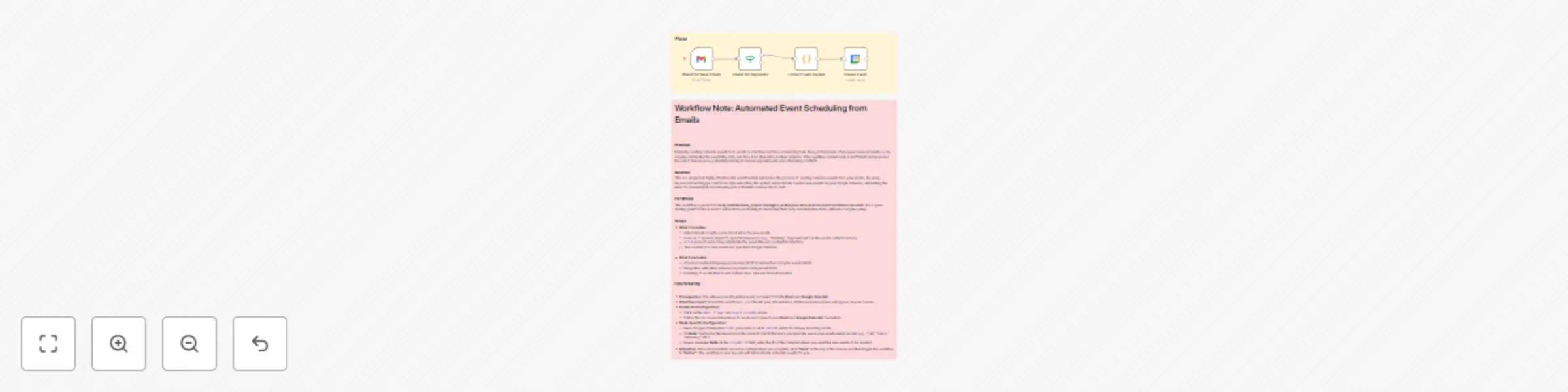
This workflow operates as an automated personal assistant for your calendar. It listens to your Gmail inbox for new emails. When an email arrives, it checks the subject and body for keywords like "Meeting" or "Appointment." If a match is found, the workflow extracts key details from the email and automatically creates a new event on your Google Calendar, eliminating the need for manual data entry.
Setup Steps
Follow these steps to get the workflow running in your n8n instance.
1. Prerequisites
You'll need a working n8n instance and access to both your Gmail and Google Calendar accounts.
2. Workflow Import
Import the workflow's JSON file into your n8n instance. All the necessary nodes will appear on your canvas.
3. Configure Credentials
- Click on the
Gmail Triggernode andGoogle Calendarnode. - You will see a red error icon indicating that credentials are not set. Click on it.
- Click "Create new credential" and follow the instructions to connect your Gmail and Google Calendar accounts.
4. Customize the If Node
This node determines which emails will trigger a calendar event.
- Click on the
Ifnode. - Review the
Value 2field under the conditions. This is where you specify the keywords that should trigger an event. - You can add more keywords by clicking "Add Condition" and using the
ORoperator (e.g., addcall,interview, ordemo).
5. Customize the Code Node
This node extracts the event details from your email. The current code is a basic example using regular expressions to find a date and time.
- Click on the
Codenode. - Review the code. You may need to adjust the regular expressions if your emails have a different format for dates and times.
- The node will output a JSON object containing the
title,date, andtimethat will be used to create your calendar event.
6. Configure the Google Calendar Node
This is the final node that creates the event.
- Click on the
Google Calendarnode. - In the
Calendar IDfield, enter the ID of the specific calendar you want the events to be created on. You can find this in your Google Calendar settings.
7. Activate the Workflow
- Once all credentials and node configurations are complete, click "Save" at the top of the canvas.
- Finally, toggle the workflow to "Active". The workflow is now live and will automatically schedule events for you.