M

Marth

52
Workflows

Workflows by Marth

Workflow preview: Automate employee recognition with Slack, Sheets, Gmail & optional GPT-4
Free advanced

Automate employee recognition with Slack, Sheets, Gmail & optional GPT-4

# Automated Employee Recognition Bot with Slack + Google Sheets + Gmail ## Description Turn employee recognition into an automated system. This workflow celebrates great work instantly it posts recognition messages on Slack, sends thank-you emails via Gmail, and updates your tracking sheet automatically. Your team feels appreciated. Your HR team saves hours. Everyone wins. --- ### ⚙️ How It Works 1. You add a new recognition in Google Sheets. 2. The bot automatically celebrates it in Slack. 3. The employee receives a thank-you email. 4. HR gets notified and the sheet updates itself. --- ## 🔧 Setup Steps #### 1️⃣ Prepare Your Google Sheet Create a sheet called **“Employee_Recognition_List”** with these columns: `Name | Department | Reason | Date | Email | Status | EmailStatus` Then add one test row — for example, your own name — to see it work. --- #### 2️⃣ Connect Your Apps Inside n8n: * **Google Sheets:** Connect your Google account so the bot can read the sheet. * **Slack:** Connect your Slack workspace to post messages in a channel (like `#general`). * **Gmail:** Connect your Gmail account so the bot can send emails automatically. --- #### 3️⃣ (Optional) Add AI Personalization If you want the messages to sound more natural, add an OpenAI node with this prompt: > “Write a short, friendly recognition message for {{name}} from {{dept}} who was recognized for {{reason}}. Keep it under 2 sentences.” This makes your Slack and email messages feel human and genuine. --- #### 4️⃣ Turn It On Once everything’s connected: * Save your workflow * Set it to **Active** * Add a new row in your Google Sheet The bot will instantly post on Slack and send a thank-you email 🎉

M
Marth
HR
27 Oct 2025
48
0
Workflow preview: Create & publish YouTube Shorts on historical what-ifs with GPT-4o & Blotato
Free advanced

Create & publish YouTube Shorts on historical what-ifs with GPT-4o & Blotato

# Workflow Description: Automated YouTube Short Viral History (Blotato + GPT-4.1) This workflow is a powerful, self-sustaining **end-to-end content automation pipeline** designed to feed your YouTube Shorts channel with consistent, high-quality, and highly engaging videos focused on **"What if history..."** scenarios. This solution completely eliminates manual intervention across the creative, production, and publishing stages. It expertly links the creative power of a **GPT-4o AI Agent** with the video rendering capabilities of the **Blotato API**, all orchestrated by **n8n**. ## **How It Works** The automation runs through a five-step, scheduled process: 1. **Trigger and Idea Generation**: The **Schedule Trigger** starts the workflow (default is 10:00 AM daily). The **AI Agent** (GPT-4o) acts as a copywriter/researcher, automatically brainstorming a random "What if history..." topic, researching relevant facts, and formulating a viral, hook-driven 60-second video script, along with a title and caption. 2. **Visual Production Request**: The formatted script is sent to the **Blotato API** via the **Create Video** node. Blotato begins rendering the text-to-video short based on the pre-set style parameters (**cinematic** style, specific voice ID, and AI models). 3. **Status Check and Wait**: The **Wait** node pauses the workflow, and the **Get Video** node continually checks the Blotato system until the video rendering status is confirmed as `done`. 4. **Media Upload**: The completed video file is uploaded to the Blotato media library using an **HTTP Request** node, preparing it for publishing. 5. **Automated Publishing**: The final **YT Post** node (another HTTP Request to the Blotato API) automatically publishes the video to your linked YouTube channel, using the video URL and the AI-generated title and short caption. ## **Set Up Steps** To activate and personalize this powerful content pipeline in n8n, follow these steps: 1. **OpenAI Credential**: Ensure your **OpenAI API** key credential is created and connected to the **Brainstorm Idea** node (Language Model). The workflow uses **GPT-4o** by default. 2. **Blotato API Key**: Obtain your **Blotato API Key**. * Open the **Prepare Video** node and manually insert your Blotato API Key into the `blotato_api_key` field. 3. **YouTube Account ID**: Find the Account ID (or Channel ID) for the YouTube channel you want to post to. * Open the **Prepare for Publish** node and manually insert your YouTube Account ID into the `youtube_id` field. 4. **Customize Video Style (Optional)**: If desired, adjust the visual aesthetic by modifying parameters in the **Prepare Video** node, such as: * `voiceId`: To change the video narrator. * `style`: To change the visual theme (e.g., from `cinematic` to `documentary`). * `text_to_image_model` and `image_to_video_model`: To change the underlying AI generation models. 5. **Activate Workflow**: Save the workflow and toggle the main switch to **Active**. The first video will be created and published on the next scheduled run.

M
Marth
Content Creation
14 Oct 2025
703
0
Workflow preview: Create and publish Instagram carousels automatically with GPT-4.1 and Blotato
Free advanced

Create and publish Instagram carousels automatically with GPT-4.1 and Blotato

# Automated Instagram Carousel Post (Blotato + GPT-4.1) This workflow is an **end-to-end solution for automating the creation and publishing of highly engaging Instagram Carousel content** on a recurring schedule. It leverages the intelligence of an **AI Agent (GPT-4.1)** for idea generation and sharp copywriting, combined with the visual rendering capabilities of **Blotato**, all orchestrated by the **n8n** automation platform. The core objective is to drastically cut content production time, enabling creators and marketing teams to consistently generate high-impact, *scroll-stopping* educational or inspirational content without manual intervention. --- ## How It Works The workflow executes in five automated phases: ### 1. Trigger and Idea Generation The workflow starts with the **Schedule Trigger** node, running at your specified time interval (e.g., daily). It takes the initial subject from the **Topic** node and feeds it to the **Topic1** AI Agent. This agent is specifically prompted to create a **short, viral hook/title** (max. 6 words) in the style of confident, tactical copywriters (like Alex Hormozi), maximizing the content's initial draw. ### 2. Content Creation and Output Structuring The viral hook is then passed to the **AI Agent Carousel Maker**. This agent uses the **GPT-4.1** model, following strict system instructions, to generate all necessary content elements in a structured JSON format: * Punchy, concise text for each Carousel slide. * A long, detailed **Instagram Caption** with explanations and a CTA. * A short final title for internal reference. ### 3. Visual Rendering (Blotato Tool) The slide text output is sent to the **Simple tweet cards monocolor (Blotato Tool)** node. Blotato acts as a graphic generation API, rendering the text onto a chosen template to create a series of Carousel images (using the 4:5 aspect ratio). This replaces the need for manual design work in tools like Canva. ### 4. Status Check and Retry Mechanism Visual rendering takes time, so the workflow pauses: * The **Wait** node holds the execution for **3 minutes**. * The **Get carousel** node retrieves the image generation status using the ID provided by the previous Blotato node. * The **If carousel ready** node checks if the status is `done`. If not, the flow is routed back to the **Wait** node, implementing a built-in simple retry mechanism until the visuals are complete. ### 5. Final Posting Once the status is confirmed as `done`, the workflow proceeds to the final step: * The **Instagram [BLOTATO]** node uses the media URLs retrieved from Blotato and the long caption from the AI Agent to automatically publish the entire Carousel post (multiple images plus text) to your linked Instagram account. --- ## Set Up Steps To successfully activate and personalize this n8n workflow, follow these steps: ### Step 1: Import and Connect Credentials 1. **Import Workflow**: Import the provided JSON file (`Automated Instagram Carousel Post with Blotato + Gpt 4.1.json`) into your n8n instance. 2. **OpenAI Credentials**: Ensure you have valid **OpenAI API** credentials connected to the **OpenAI Chat Model** node. 3. **Blotato Credentials**: Ensure your valid **Blotato API** credentials are connected to all three Blotato-related nodes (`Simple tweet cards monocolor`, `Get carousel`, and `Instagram [BLOTATO]`). ### Step 2: Configure Workflow Inputs 1. **Set Topic**: Open the **Topic** node. Change the default initial topic expression **`=Top ai tools for finance`** to any general subject matter you want your Carousels to cover. 2. **Set Schedule**: Open the **Schedule Trigger** node and configure the **`Rule`** to define how often you want the content to be created and posted (e.g., set it to run `Every Day` at a specific time). ### Step 3: Personalize Content and Visuals 1. **Customize AI Persona**: Open the **AI Agent Carousel Maker** node. Review and modify the long **`System Message`** to refine the AI's output: * Adjust the `# ROLE` and `# STYLE` sections to match your brand's voice (e.g., change the Alex Hormozi style to a more formal, academic tone if needed). * Do **not** change the structure defined in `# OUTPUT` as this JSON format is essential for downstream nodes. 2. **Personalize Visuals**: Open the **Simple tweet cards monocolor (Blotato Tool)** node. * Under **`templateInputs`**, customize fields like **`authorName`**, **`handle`**, and **`profileImage`** URLs to ensure the generated visuals are consistent with your personal or brand identity. ### Step 4: Final Posting Setup 1. **Select Instagram Account**: Open the **Instagram [BLOTATO]** node. * In the **`accountId`** parameter, use the dropdown list to select the specific Instagram account that is connected via your Blotato service. 2. **Activate**: Once all steps are complete, save the workflow and toggle the main switch to **Active** to allow the Schedule Trigger to begin running the automation.

M
Marth
Content Creation
14 Oct 2025
255
0
Workflow preview: Customer support ticket system for SMEs with Google Sheets and auto-emails
Free intermediate

Customer support ticket system for SMEs with Google Sheets and auto-emails

# How it Works This workflow automates customer support for SMEs in five simple steps: 1. **Capture requests** via a Webhook connected to a contact form. 2. **Extract the message** to make processing easier. 3. **Check categories** (e.g., refund-related requests) using an IF node. 4. **Save all tickets** to a Google Sheet for tracking. 5. **Send an acknowledgment email** back to the customer automatically. This setup ensures all customer inquiries are logged, categorized, and acknowledged without manual effort. --- # Setup Steps 1. **Webhook** * Add a Webhook node with the path `customer-support`. * Configure your contact form or system to send `name`, `email`, and `message` to this webhook. 2. **Extract Message (Set Node)** * Add a Set node. * Map the incoming `message` field to make it available for other nodes. 3. **Check Category (IF Node)** * Insert an IF node. * Example: check if the `message` contains the word “refund”. * This allows you to route refund-related requests differently if needed. 4. **Save Ticket (Google Sheets)** * Connect to Google Sheets with OAuth2 credentials. * Operation: `Append`. * Range: `Tickets!A:C`. * Map the fields `Name`, `Email`, and `Message`. 5. **Send Acknowledgement (Email Send)** * Configure the Email Send node with your SMTP credentials. * `To`: `={{$json.email}}`. * Subject: `Support Ticket Received`. * Body: personalize with `{{$json.name}}` and include the `{{$json.message}}`. --- 👉 With this workflow, SMEs can handle incoming support tickets more efficiently, maintain a simple ticket log, and improve customer satisfaction through instant acknowledgment.

M
Marth
Support Chatbot
8 Sep 2025
277
0
Workflow preview: Automate birthday discount emails for e-commerce using Google Sheets and Gmail
Free intermediate

Automate birthday discount emails for e-commerce using Google Sheets and Gmail

# ⚙ **How It Works & Setup Steps: Automated Birthday Discount** --- ## **How It Works** This workflow is a powerful yet simple automation to delight your customers on their birthdays. It runs every day on a schedule you define and automatically pulls data from your customer list on Google Sheets. The workflow then checks to see if any customer has a birthday on the current day. If a match is found, it generates a unique discount code and sends a personalized, celebratory email with the code directly to the customer. This ensures no birthday is ever missed, fostering customer loyalty and driving sales with zero manual effort. --- ## **Setup Steps** Follow these steps to get the workflow running in your n8n instance and start sending automated birthday discounts. ## **1. Prerequisites** You will need a working n8n instance and a few key accounts: * **Google Sheets:** To store your customer data, including their email address and birthday. The birthday column should be formatted as **`MM-dd`** (e.g., `08-27`). * **Gmail:** To send the personalized birthday emails to your customers. ## **2. Workflow Import** Import the provided workflow JSON into your n8n canvas. All the necessary nodes will appear on your canvas, ready for configuration. ## **3. Configure Credentials** Connect the following credentials to their respective nodes: * **Google Sheets:** Connect your Google account to the **`Get Customer Data`** node. * **Gmail:** Connect your Gmail account to the **`Send Birthday Email`** node. ## **4. Customize the Workflow** 1. **`Get Customer Data`:** * Enter the **`Spreadsheet ID`** and **`Sheet Name`** of your Google Sheet containing the customer data. 2. **`Is It Their Birthday?`:** * This node compares the customer's birthday column with the current date. Ensure `{{ $json.birthday }}` matches the exact name of your birthday column in Google Sheets. 3. **`Generate Discount Code`:** * This node is pre-configured to create a simple unique code. For an e-commerce platform (like Shopify or WooCommerce), you will need to replace this node with the specific API call to generate a valid coupon code in your system. 4. **`Send Birthday Email`:** * Enter your sender email in the **`From Email`** field. * Customize the **`Subject`** and **`Message`** with your own text and branding to make it personal. The `{{ $json.name }}` and `{{ $json.discountCode }}` expressions will automatically pull the correct customer name and generated code. ## **5. Activate the Workflow** Once all configurations are complete, click **"Save"** and then **"Active"**. The workflow is now live and will automatically run every morning to send out birthday wishes!

M
Marth
Social Media
27 Aug 2025
294
0
Workflow preview: Generate & post LinkedIn content automatically with GPT-4 & GPT image 1
Free advanced

Generate & post LinkedIn content automatically with GPT-4 & GPT image 1

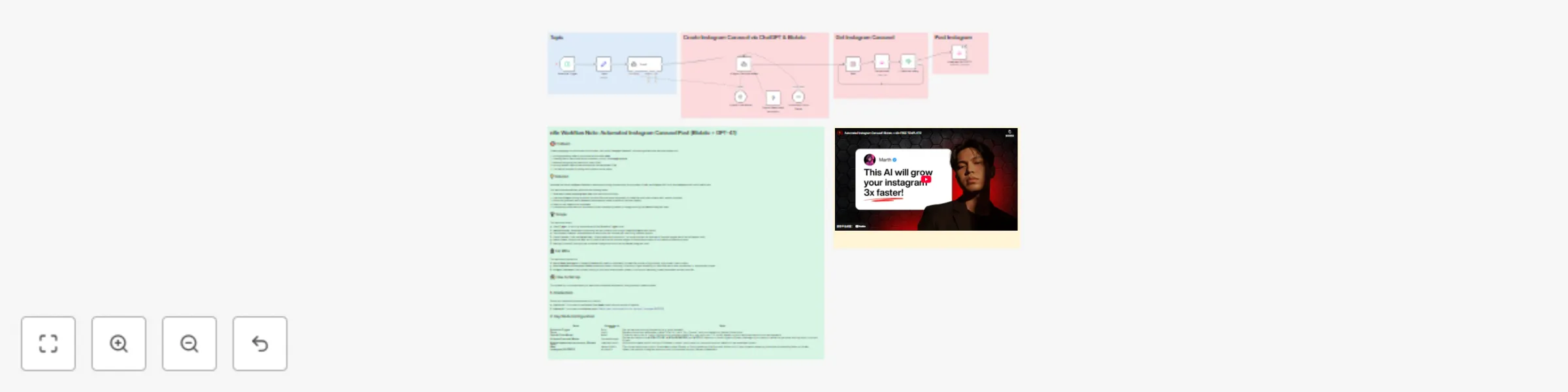
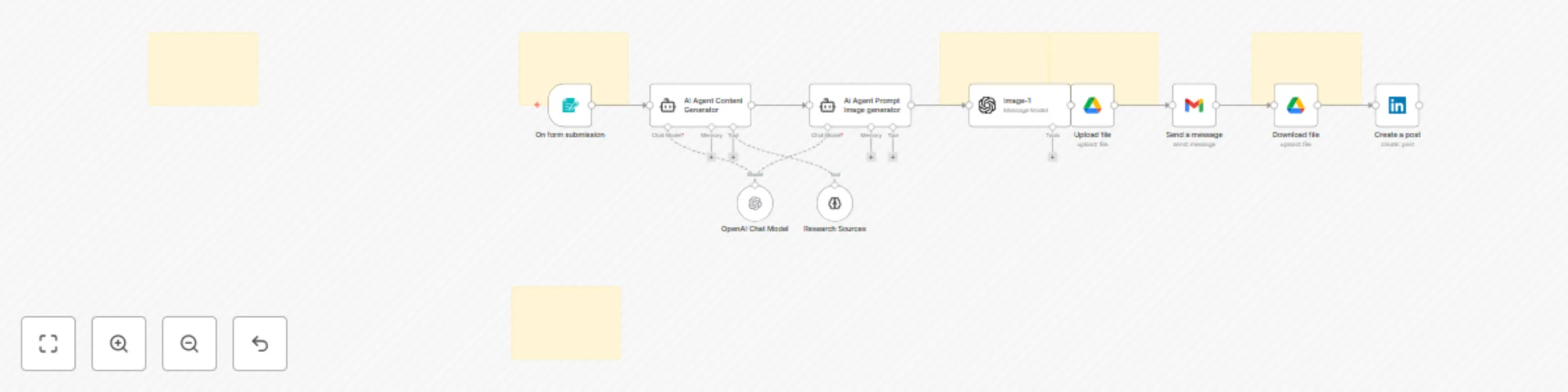
# **⚙ AI-Powered Social Media Automation for LinkedIn** --- ## **How It Works** This workflow automates the entire social media content creation and publishing process for LinkedIn. It starts with a simple form to collect a topic or idea. The workflow then uses two AI agents to automatically generate both the written content and a unique image prompt. The AI-generated image is created, uploaded, and then downloaded before the final step, where both the content and the image are posted to your LinkedIn account. --- ## **Setup Steps** Follow these steps to get the workflow running in your n8n instance. ### **1. Prerequisites** You will need a working n8n instance and accounts for the following services: * **OpenAI:** For AI content and image generation. * **Google Drive:** To temporarily store the generated image. * **Gmail:** For the file upload process. * **LinkedIn:** To publish the final post. ### **2. Workflow Import** Import the provided `.json` file into your n8n instance. All the necessary nodes will appear on your canvas. ### **3. Configure Credentials** Connect the following credentials to their respective nodes: * **OpenAI:** Connect to the `OpenAI Chat Model`, `AI Agent Content Generator`, `Ai Agent Prompt Image generator`, and `Image-1` nodes. * **Google Drive:** Connect to the `Upload file` and `Download file` nodes. * **Gmail:** Connect to the `Send a message` node. * **LinkedIn:** Connect to the `Create a post` node. ### **4. Customize the Trigger Form** 1. Click on the **`On form submission`** node. 2. Review and customize the form fields to fit your specific needs (e.g., add fields for hashtags, target audience, etc.). 3. Click **"Share Form"** to get the unique URL for your content ideas form. ### **5. Customize AI Prompts** 1. Click on the **`AI Agent Content Generator`** node. 2. Review and adjust the **`System Message`** to refine the writing style, tone, and character limits for your LinkedIn posts. 3. Similarly, open the **`Ai Agent Prompt Image generator`** node and modify the **`System Message`** to guide the AI in creating images that match your brand identity. ### **6. Configure Google Drive** 1. Click on the **`Upload file`** node. 2. Under the **`Parameters`** tab, select the specific **`Drive ID`** and **`Folder ID`** where you want to temporarily store the generated images. ### **7. Configure the LinkedIn Post** 1. Click on the **`Create a post`** node. 2. Ensure that the `Text` and `shareMediaCategory` parameters are correctly mapped to the output of the preceding nodes to use the AI-generated text and image. ### **8. Activate the Workflow** 1. Once all credentials and node configurations are complete, click **"Save"** at the top of the canvas. 2. Finally, toggle the workflow to **"Active"**. The workflow is now live and will automatically create and publish content upon every form submission.

M
Marth
Multimodal AI
25 Aug 2025
118
0
Workflow preview: Automated support ticket system with Gmail, Trello, and Slack notifications
Free intermediate

Automated support ticket system with Gmail, Trello, and Slack notifications

### **Automated Support Ticket & Customer Notification System** Let's build this workflow to streamline your customer support. Here is a detailed, node-by-node explanation of how it works and how to set it up in n8n. --- ### How It Works This workflow transforms your support inbox into a structured ticket system. When a new email arrives at your support address, the system automatically creates a new ticket (e.g., a Trello card), sends an instant confirmation email to the customer, and notifies your support team. This ensures every customer inquiry is captured, organized, and confirmed, guaranteeing no request gets missed. --- ### Setup Steps #### **1. Gmail Trigger: Watch Support Inbox** * **Node Type:** `Gmail Trigger` * **Credentials:** `YOUR_GMAIL_CREDENTIAL` * **Parameters:** * **Operation:** `Watch for New Mails` * **Folder:** `Inbox` (or a specific folder for support emails, like `Support`) * **To:** `[email protected]` * **Explanation:** This node is the starting point. It connects to your support email address and listens for new messages. As soon as a new email arrives, it triggers the rest of the workflow. #### **2. Trello: Create New Support Ticket** * **Node Type:** `Trello` * **Credentials:** `YOUR_TRELLO_CREDENTIAL` * **Parameters:** * **Operation:** `Create Card` * **Board ID:** `YOUR_SUPPORT_BOARD_ID` * **List ID:** `YOUR_INCOMING_LIST_ID` (e.g., "New Tickets") * **Name:** `New Support Request from {{ $json.from }}` * **Description:** `Subject: {{ $json.subject }} Body: {{ $json.body }}` * **Explanation:** This node takes the details from the incoming email and creates a new card on your Trello board. This turns every email into an actionable, trackable ticket for your support team. #### **3. Gmail: Send Automatic Confirmation** * **Node Type:** `Gmail` * **Credentials:** `YOUR_GMAIL_CREDENTIAL` * **Parameters:** * **Operation:** `Send` * **To:** `={{ $json.from }}` * **Subject:** `Re: {{ $json.subject }}` * **Body:** `Hi there, thanks for reaching out. We've received your request and have created a new ticket. Our team will get back to you shortly.` * **Explanation:** This node sends a quick, professional, and automated email back to the customer. This provides immediate peace of mind for the customer and confirms that their inquiry was successfully received. #### **4. Slack: Notify Support Team (Optional)** * **Node Type:** `Slack` * **Credentials:** `YOUR_SLACK_CREDENTIAL` * **Parameters:** * **Operation:** `Post Message` * **Channel:** `YOUR_SUPPORT_CHANNEL_ID` (e.g., `#support-channel`) * **Text:** `*New Support Ticket!* A new ticket from *{{ $json.from }}* has been created in Trello.` * **Explanation:** This optional but recommended node sends a real-time notification to your support team on Slack, letting them know that a new ticket is waiting for their attention. ### **Final Step: Activation** 1. After configuring the nodes and connecting all credentials, click **"Save"** at the top of the canvas. 2. Click the **"Active"** toggle in the top-right corner. The workflow is now live! 3. **Note:** You can easily swap out the `Trello` node with a `Zendesk` or `Jira` node, and the `Slack` node with a `Telegram` or `Microsoft Teams` node, depending on your team's tools.

M
Marth
Ticket Management
10 Aug 2025
498
0
Workflow preview: Capture website leads with Slack notifications, Gmail responses & sheets archiving
Free intermediate

Capture website leads with Slack notifications, Gmail responses & sheets archiving

### **Website Lead Notification System** Let's build this simple and high-value workflow. Here is a detailed, node-by-node explanation of how it works and how to set it up in n8n. --- ### **How It Works** This workflow acts as a bridge between your website's contact form and your sales team. It waits for a submission from your website via a **Webhook**. As soon as a new lead fills out the form, the workflow instantly captures their data and sends a formatted notification to your team's Slack channel. This ensures your team can respond to new leads in real time, without any delays. --- ### **Setup Steps** #### **1. Webhooks Trigger: Receive Website Form Submissions** * **Node Type:** `Webhook Trigger` * **Parameters:** * **HTTP Method:** `POST` * **Path:** `new-lead` * **Explanation:** This node is the starting point. It creates a unique URL that you will use in your website's form submission settings. When a visitor submits your form, the data is sent to this URL as a `POST` request, triggering the workflow. #### **2. Slack: Notify Sales Team** * **Node Type:** `Slack` * **Credentials:** `YOUR_SLACK_CREDENTIAL` * **Parameters:** * **Operation:** `Post Message` * **Channel:** `YOUR_SALES_CHANNEL_ID` (e.g., `#sales-leads`) * **Text:** `*New Website Lead!* - Name: {{ $json.name }} - Company: {{ $json.company }} - Email: {{ $json.email }} - Message: {{ $json.message }}` * **Explanation:** This node sends a formatted message to your designated Slack channel. The curly braces `{{ }}` contain n8n expressions that dynamically pull the data (name, company, email, etc.) from the website form submission. #### **3. Google Sheets: Archive Lead Data (Optional)** * **Node Type:** `Google Sheets` * **Credentials:** `YOUR_GOOGLE_SHEETS_CREDENTIAL` * **Parameters:** * **Operation:** `Add Row` * **Spreadsheet ID:** `YOUR_SPREADSHEET_ID` * **Sheet Name:** `Leads` * **Data:** * `Name`: `={{ $json.name }}` * `Email`: `={{ $json.email }}` * `Date`: `={{ $now }}` * **Explanation:** This is an optional but recommended step. This node automatically adds a new row to a Google Sheet, creating a clean, organized archive of all your website leads. #### **4. Gmail: Send Automatic Confirmation Email (Optional)** * **Node Type:** `Gmail` * **Credentials:** `YOUR_GMAIL_CREDENTIAL` * **Parameters:** * **Operation:** `Send` * **To:** `={{ $json.email }}` * **Subject:** `Thanks for contacting us!` * **Body:** `Hi {{ $json.name }}, thanks for reaching out. We've received your message and will get back to you shortly.` * **Explanation:** This node provides a quick and professional automated response to the new lead, confirming that their message has been received. ### **Final Step: Activation** 1. After configuring the nodes, click **"Save"** at the top of the canvas. 2. Click the **"Active"** toggle in the top-right corner. The workflow is now live and will listen for new form submissions. 3. **Remember:** You need to configure your website's form to send a `POST` request to the URL from your `Webhook Trigger` node.

M
Marth
Lead Nurturing
10 Aug 2025
231
0
Workflow preview: Automate event scheduling from emails with Gmail & Google Calendar keywords
Free intermediate

Automate event scheduling from emails with Gmail & Google Calendar keywords

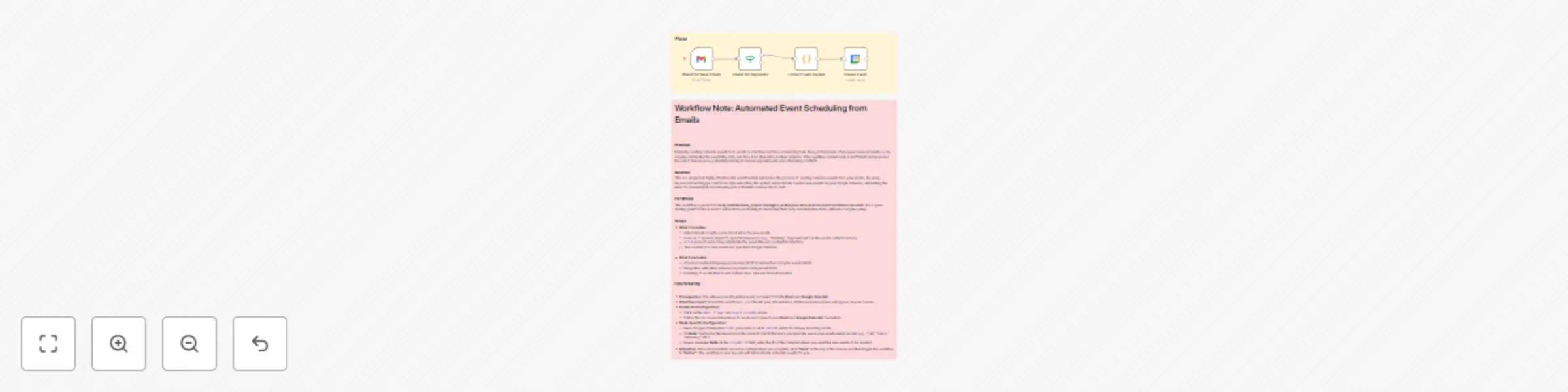
*This workflow contains community nodes that are only compatible with the self-hosted version of n8n.* # ⚙ How It Works This workflow operates as an automated personal assistant for your calendar. It listens to your Gmail inbox for new emails. When an email arrives, it checks the subject and body for keywords like "Meeting" or "Appointment." If a match is found, the workflow extracts key details from the email and automatically creates a new event on your Google Calendar, eliminating the need for manual data entry. --- # Setup Steps Follow these steps to get the workflow running in your n8n instance. ### **1. Prerequisites** You'll need a working n8n instance and access to both your **Gmail** and **Google Calendar** accounts. ### **2. Workflow Import** Import the workflow's JSON file into your n8n instance. All the necessary nodes will appear on your canvas. ### **3. Configure Credentials** 1. Click on the `Gmail Trigger` node and `Google Calendar` node. 2. You will see a red error icon indicating that credentials are not set. Click on it. 3. Click **"Create new credential"** and follow the instructions to connect your **Gmail** and **Google Calendar** accounts. ### **4. Customize the `If` Node** This node determines which emails will trigger a calendar event. 1. Click on the `If` node. 2. Review the `Value 2` field under the conditions. This is where you specify the keywords that should trigger an event. 3. You can add more keywords by clicking **"Add Condition"** and using the `OR` operator (e.g., add `call`, `interview`, or `demo`). ### **5. Customize the `Code` Node** This node extracts the event details from your email. The current code is a basic example using regular expressions to find a date and time. 1. Click on the `Code` node. 2. Review the code. You may need to adjust the regular expressions if your emails have a different format for dates and times. 3. The node will output a JSON object containing the `title`, `date`, and `time` that will be used to create your calendar event. ### **6. Configure the `Google Calendar` Node** This is the final node that creates the event. 1. Click on the `Google Calendar` node. 2. In the `Calendar ID` field, enter the ID of the specific calendar you want the events to be created on. You can find this in your Google Calendar settings. ### **7. Activate the Workflow** 1. Once all credentials and node configurations are complete, click **"Save"** at the top of the canvas. 2. Finally, toggle the workflow to **"Active"**. The workflow is now live and will automatically schedule events for you.

M
Marth
Personal Productivity
10 Aug 2025
918
0
Workflow preview: Automate contract employee lifecycle with Google Docs, DocuSign & Airtable
Free advanced

Automate contract employee lifecycle with Google Docs, DocuSign & Airtable

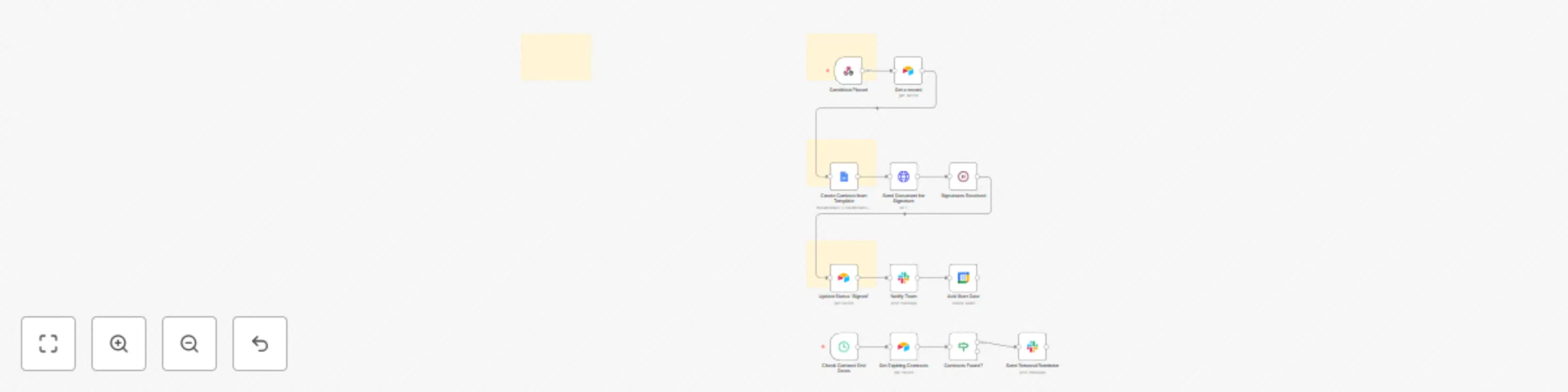
### ⚙ Automated Contract Employee Placement & Management System: Setup Guide This guide will walk you through setting up your n8n workflow. By the end, you'll have a fully automated system for managing your contract employee placements, from generating documents to sending renewal reminders. --- ### How It Works This workflow is structured in three logical phases to automate the entire contract management lifecycle: 1. **Phase 1: Placement Trigger & Data Retrieval**: The workflow begins when a new placement record is created in your CRM or database. It automatically retrieves all necessary employee and client data to prepare for contract generation. 2. **Phase 2: Contract Generation & Delivery**: The system uses a pre-made Google Docs template to generate a professional contract. It then automatically sends this document for e-signature via DocuSign to both the employee and the client. 3. **Phase 3: Post-Placement Management & Reminders**: Once the contract is signed, the workflow updates your database, notifies your team, and adds the start date to your calendar. A separate scheduled automation runs weekly to proactively check for expiring contracts and send renewal reminders. --- ### Step-by-Step Setup Guide Follow these steps to configure the workflow in your n8n instance. ### **Step 1: Prerequisites & Database Setup** Before you begin, ensure you have the following accounts and a workspace set up: * **n8n Instance:** Your self-hosted or cloud-based n8n instance. * **Airtable:** Your main database for managing placements. * **Google Docs:** A contract template saved in your Google Drive. * **DocuSign:** For handling electronic signatures. * **Slack:** For internal team notifications. * **Google Calendar:** For adding start dates to a shared team calendar. **Airtable Database Preparation:** Create an Airtable base with a `Placements` table. This table must include the following columns: * `Candidate Name` * `Candidate Email` * `Client Name` * `Client Contact Email` * `Start Date` * `End Date` * `Status` **Google Docs Template Preparation:** Create a contract template in Google Docs with placeholders in the format `{{placeholder}}` (e.g., `{{candidateName}}`, `{{clientName}}`). ### **Step 2: Workflow Import & Credential Configuration** 1. Import the workflow's `.json` file into your n8n instance. All the necessary nodes will appear on your canvas. 2. Click on any node with a red **"!"** icon (e.g., the `Airtable` or `DocuSign` node). 3. Click **"Create new credential"** and follow the instructions to connect your accounts. Repeat this for all nodes that require credentials. ### **Step 3: Node-Specific Configuration** Configure the following key nodes to match your specific setup: 1. **Webhooks Trigger**: * Click on the `Webhooks Trigger` node and copy the **Webhook URL**. * Configure your CRM or Airtable to send a `POST` request to this URL whenever a new placement is created. 2. **Airtable Nodes**: * For every `Airtable` node in the workflow, enter the correct `Base ID` and `Table Name` (`Placements`) that you created in Step 1. 3. **Google Docs Node**: * In the `Template File ID` field, enter the file ID of your Google Docs contract template. * Map the placeholders you created in your template to the dynamic data from your database (e.g., `{{candidateName}}` should be mapped to `={{ $json.candidate_name }}`). 4. **DocuSign Node**: * Enter your `Account ID` in the credentials settings. * Map the `Signer Name` and `Signer Email` fields to the data from your database. * Ensure your DocuSign envelope template is configured with anchor text (e.g., `/signature/`) that matches the anchor tags in the DocuSign node. 5. **Cron Trigger**: * The `Cron Trigger` node is set up to check for expiring contracts. You can adjust the `Interval` parameter (e.g., `Every Week`) to match your desired schedule. ### **Step 4: Activation** 1. Once all credentials and node configurations are complete, click **"Save"** at the top of the canvas. 2. Toggle the workflow to **"Active"** in the top-right corner. The workflow is now live! It will automatically handle contract generation, signatures, and reminders for every new placement.

M
Marth
HR
8 Aug 2025
145
0
Workflow preview: Automated recruitment process with Slack, DocuSign, Trello & Gmail notifications
Free advanced

Automated recruitment process with Slack, DocuSign, Trello & Gmail notifications

### How It Works & Setup Guide for the Automated Candidate Management & Feedback System This guide will walk you through setting up your n8n workflow. By the end, you'll have a fully automated system for managing your recruitment pipeline. --- ### How It Works: The Workflow Explained This workflow is designed in three logical phases to handle the entire post-interview process automatically. 1. **Phase 1: Trigger & Feedback Loop**: * The workflow **triggers** when an interview ends on your Google Calendar. * It immediately sends a **Slack message** to the interviewer with a link to the feedback form. * After a 2-hour **wait**, it checks if the feedback has been submitted. If not, it sends a **reminder**. * Once feedback is received, it logs the data in **Airtable** and uses an **If node** to determine if the candidate has passed or failed. 2. **Phase 2: Automated Communication**: * Based on the candidate's status, the workflow sends a personalized and professional email using **Gmail**. * For candidates who pass, it sends a follow-up invitation. For those who don't, it sends a polite rejection email crafted by a **Code node**. * If a candidate is in the final stage and passes, the workflow automatically generates and sends an offer letter for signature via **DocuSign**. 3. **Phase 3: Onboarding & Reporting**: * Once a candidate accepts the offer (by signing the document), the workflow is triggered to create a new task list in **Trello** for the HR team. * It sends a personalized welcome email to the new hire and a notification to the team on **Slack**. * Finally, a **Cron Trigger** runs every Friday to collect all candidate data, calculate key recruitment metrics, log them in **Google Sheets**, and send a summary report to your team on **Slack**. --- ### Step-by-Step Setup Guide Follow these steps to configure the workflow in your n8n instance. ### **Step 1: Prerequisites** Before you begin, ensure you have the following accounts and a workspace set up: * n8n * Google Calendar, Google Sheets, Gmail * Airtable * Slack * Trello * DocuSign ### **Step 2: Database & Form Preparation** 1. **Airtable:** Create a new Airtable base with two tables: * **Candidates Table**: Create columns for `Candidate Name`, `Email`, `Interviewer ID`, `Interview Date`, and `Status`. * **Feedback Table**: Create columns for `Candidate Name`, `Overall Score`, and `Comments`. 2. **Feedback Form:** Create a feedback form (e.g., using Google Forms or Typeform) that collects the candidate's name, the interviewer's name, and a score/comments. ### **Step 3: Import the Workflow** 1. In your n8n instance, click **"New"** and select **"Import from File"**. 2. Import the `.json` file you purchased. The entire workflow, with all nodes, will appear on your canvas. ### **Step 4: Configure Credentials** 1. Click on any node with a red **"!"** icon (e.g., the `Google Calendar Trigger` or `Slack` node). 2. In the right-hand panel, click **"Create new credential"**. 3. Follow the on-screen instructions to connect your accounts. 4. Repeat this process for all nodes that require credentials. ### **Step 5: Node-Specific Configuration** Now, let's configure the specific details for each node to ensure it works for your company. 1. **Google Calendar Trigger**: * Click on the node and in the `Calendar ID` field, enter the ID of the calendar you use for scheduling interviews. 2. **Airtable Nodes**: * For every Airtable node in the workflow, enter the correct `Base ID` and `Table Name` (`Candidates` or `Feedback`) that you created in Step 2. 3. **Trello Node**: * Enter the `Board ID` and the specific `List ID` where you want new onboarding tasks to be created. 4. **Gmail Nodes**: * Customize the `Subject` and `HTML Body` of the emails to match your company's tone and branding. 5. **DocuSign Node**: * Enter your `Account ID` and the `Template ID` for your offer letter. * Ensure your offer letter template includes the `anchorString` (e.g., `/s1/`) that the workflow uses to place the signature tag. 6. **Environment Variables**: * In your n8n settings, go to `Environment Variables` and add the following: * `FEEDBACK_FORM_URL`: The URL of your feedback form. * `SCHEDULING_LINK`: The URL for candidates to schedule their next interview. * `REPORTS_DASHBOARD_URL`: A link to your Google Sheets report or a separate dashboard. ### **Step 6: Final Step - Activating the Workflow** 1. Once all nodes are configured, click **"Save"** at the top of the canvas. 2. Click the **"Active"** toggle in the top right corner. The workflow is now live! 3. **Final Tip:** It's a good practice to test the system once by creating a test interview event on your calendar to ensure all steps run as expected.

M
Marth
HR
8 Aug 2025
171
0
Workflow preview: Automate passive candidate sourcing & engagement with Hunter.io, AI scoring & Gmail
Free advanced

Automate passive candidate sourcing & engagement with Hunter.io, AI scoring & Gmail

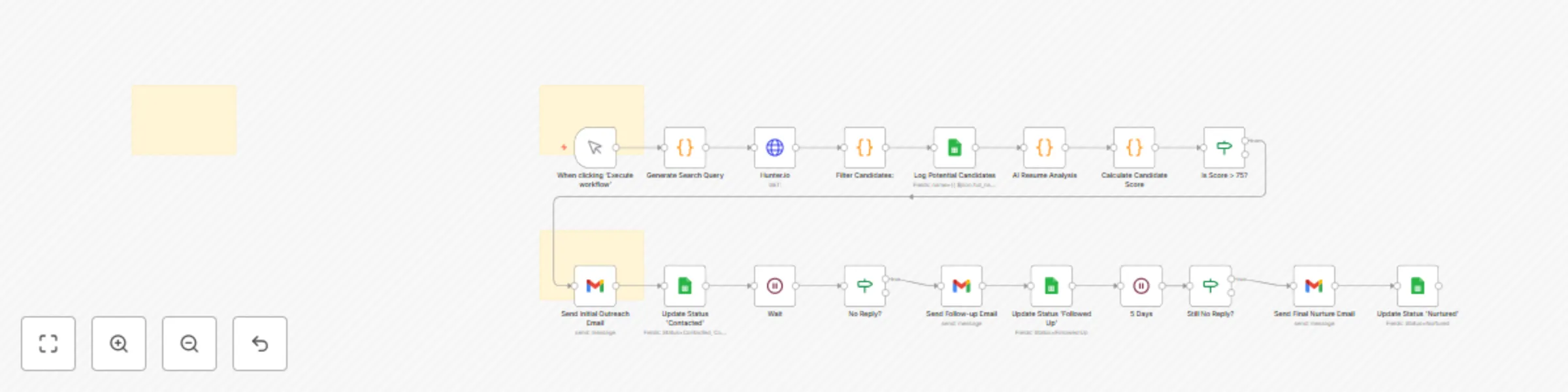
### How It Works: The AI Recruiter Engine This workflow is a powerful, two-phase system designed to automate the entire passive candidate sourcing and engagement cycle. --- #### **Phase 1: Sourcing & Enrichment** This phase is triggered manually and focuses on finding, analyzing, and scoring potential candidates. 1. **Manual Trigger:** You start the workflow manually by providing a `jobTitle` and `keywords`. 2. **Code (Generate Search Query):** This node uses your input to create a sophisticated search query for an external sourcing platform. 3. **HTTP Request (Hunter.io/Clearbit):** The workflow queries a third-party API to find public email addresses for the target companies or candidates. 4. **Code (Filter Candidates):** This node filters the raw data, keeping only candidates who match your basic criteria. 5. **Airtable/Google Sheets (Log Candidates):** All potential candidates are logged into your centralized database to serve as your simple ATS. 6. **Code (AI Analysis & Score):** This node prepares a prompt with the candidate's profile data and sends it to a generative AI model (via an `HTTP Request`). It then calculates a final score based on the AI's analysis and other criteria. 7. **If (Is Score > 75?):** This node checks if the candidate’s score meets your threshold. If so, they are passed to the next phase; otherwise, they are filtered out. #### **Phase 2: Automated Outreach & Nurturing** This phase handles the multi-step, personalized email communication with high-scoring candidates. 1. **Gmail (Send Initial Email):** The workflow sends a personalized first email using dynamic data from the candidate's profile. 2. **Airtable/Google Sheets (Update Status):** The candidate's status is updated to `Contacted` in your database. 3. **Wait:** The workflow pauses for a set period (e.g., 3 days) to allow time for a response. 4. **If (No Reply?):** This node checks the candidate's status in your database. If they haven't replied, the workflow proceeds to the next email. 5. **Gmail (Send Follow-up):** A follow-up email is sent to the candidate. This sequence repeats with a final nurture email to close the loop. --- ### How to Set Up 1. **Prepare Your Credentials & Database:** * **Database:** Create a database in **Airtable** or **Google Sheets** with columns for `Name`, `Email`, `Score`, `Status`, and any other data you want to track. * **Email:** Set up a **Gmail** or other email service credential in n8n. * **Sourcing API:** Obtain an API key for a sourcing service like Hunter.io to find public email addresses. 2. **Import the Workflow:** * Import the JSON code for the **AI Recruiter Engine** into your n8n instance. 3. **Configure the Nodes:** * **Manual Trigger:** When running the workflow, manually input the `jobTitle` and `keywords` you are sourcing for. * **HTTP Request:** Update the `URL` with your sourcing API key. * **Code Nodes:** Review and adjust the JavaScript in the `Code` nodes to match your specific job criteria and data structure. * **Airtable/Google Sheets:** Connect to your database, select the correct table, and ensure the column names in the node settings match your database. * **Gmail:** Select your email credential and customize the content of the outreach emails in each `Gmail` node. * **If:** Adjust the `finalScore` threshold in the `If` node to your desired value. 4. **Test and Activate:** * Run the workflow once manually to ensure all nodes are configured correctly and data flows as expected. * Once you are confident, the workflow is ready to be run for your sourcing campaigns.

M
Marth
HR
4 Aug 2025
81
0
Workflow preview: SSL/TLS certificate expiry monitor with Slack alert
Free intermediate

SSL/TLS certificate expiry monitor with Slack alert

### How It Works: The 5-Node Certificate Management Flow 🗓️ This workflow efficiently monitors your domains for certificate expiry. 1. **Scheduled Check (Cron Node):** This is the workflow's trigger. It's configured to run on a regular schedule, such as every Monday morning, ensuring certificate checks are automated and consistent. 2. **List Domains to Monitor (Code Node):** This node acts as a static database, storing a list of all the domains you need to track. 3. **Check Certificate Expiry (HTTP Request Node):** For each domain in your list, this node makes a request to a certificate checking API. The API returns details about the certificate, including its expiry date. 4. **Is Certificate Expiring? (If Node):** This is the core logic. It compares the expiry date from the API response with the current date. If the certificate is set to expire within a critical timeframe (e.g., less than 30 days), the workflow proceeds to the next step. 5. **Send Alert (Slack Node):** If the `If` node determines a certificate is expiring, this node sends a high-priority alert to your team's Slack channel. The message includes the domain name and the exact expiry date, providing all the necessary information for a quick response. *** ### How to Set Up Here's a step-by-step guide to get this workflow running in your n8n instance. 1. **Prepare Your Credentials & API:** * **Certificate Expiry API:** You need an API to check certificate expiry. The workflow uses a sample API, so you may need to adjust the URL and parameters. For production use, you might use a service like Certspotter or a similar tool. * **Slack Credential:** Set up a **Slack credential** in n8n and get the **Channel ID** of your security alert channel (e.g., `#security-alerts`). 2. **Import the Workflow JSON:** * Create a new workflow in n8n and choose "Import from JSON." * Paste the JSON code for the "SSL/TLS Certificate Expiry Monitor" workflow. 3. **Configure the Nodes:** * **Scheduled Check (Cron):** Set the schedule according to your preference (e.g., every Monday at 8:00 AM). * **List Domains to Monitor (Code):** Edit the `domainsToMonitor` array in the code and add all the domains you want to check. * **Check Certificate Expiry (HTTP Request):** Update the **URL** to match the certificate checking API you are using. * **Is Certificate Expiring? (If):** The logic is set to check for expiry within 30 days. You can adjust the `30` in the expression `new Date(Date.now() + 30 * 24 * 60 * 60 * 1000)` to change the warning period. * **Send Alert (Slack):** Select your **Slack credential** and enter the correct **Channel ID**. 4. **Test and Activate:** * **Manual Test:** Run the workflow manually to confirm it fetches certificate data and processes it correctly. You can test with a domain that you know is expiring soon to ensure the alert is triggered. * **Verify Output:** Check your Slack channel to confirm that alerts are formatted and sent correctly. * **Activate:** Once you're confident everything works, **activate** the workflow. n8n will now automatically monitor your domain certificates on the schedule you set.

M
Marth
SecOps
4 Aug 2025
224
0
Workflow preview: Monitor security logs for failed login attempts with Slack alerts
Free intermediate

Monitor security logs for failed login attempts with Slack alerts

### How It Works: The 5-Node Anomaly Detection Flow This workflow efficiently processes logs to detect anomalies. 1. **Scheduled Check (Cron Node):** This is the primary trigger. It schedules the workflow to run at a defined interval (e.g., every 15 minutes), ensuring logs are routinely scanned for suspicious activity. 2. **Fetch Logs (HTTP Request Node):** This node is responsible for retrieving logs from an external source. It sends a request to your log API endpoint to get a batch of the most recent logs. 3. **Count Failed Logins (Code Node):** This is the core of the detection logic. The JavaScript code filters the logs for a specific event (`"login_failure"`), counts the total, and identifies unique IPs involved. This information is then passed to the next node. 4. **Failed Logins > Threshold? (If Node):** This node serves as the final filter. It checks if the number of failed logins exceeds a threshold you set (e.g., more than 5 attempts). If it does, the workflow is routed to the notification node; if not, the workflow ends safely. 5. **Send Anomaly Alert (Slack Node):** This node sends an alert to your team if an anomaly is detected. The Slack message includes a summary of the anomaly, such as the number of failed attempts and the IPs involved, enabling a swift response. --- ### How to Set Up Implementing this essential log anomaly detector in your n8n instance is quick and straightforward. 1. **Prepare Your Credentials & API:** * **Log API:** Make sure you have an API endpoint or a way to get logs from your system (e.g., a server, CMS, or application). The logs should be in JSON format, and you'll need any necessary API keys or tokens. * **Slack Credential:** Set up a **Slack credential** in n8n and get the **Channel ID** of your security alert channel (e.g., `#security-alerts`). 2. **Import the Workflow JSON:** * Create a new workflow in n8n and choose "Import from JSON." * Paste the JSON code (which was provided in a previous response). 3. **Configure the Nodes:** * **Scheduled Check (Cron):** Set the schedule according to your preference (e.g., every 15 minutes). * **Fetch Logs (HTTP Request):** Update the **URL** and **header/authentication** to match your specific log API endpoint. * **Count Failed Logins (Code):** Verify that the JavaScript code matches your log's JSON format. You may need to adjust `log.event === 'login_failure'` if your log events use a different name. * **Failed Logins > Threshold? (If):** Adjust the threshold value (e.g., `5`) based on your risk tolerance. * **Send Anomaly Alert (Slack):** Select your **Slack credential** and enter the correct **Channel ID**. 4. **Test and Activate:** * **Manual Test:** Run the workflow manually to confirm it fetches logs and processes them correctly. You can temporarily lower the threshold to `0` to ensure the alert is triggered. * **Verify Output:** Check your Slack channel to confirm that alerts are formatted and sent correctly. * **Activate:** Once you're confident in its function, activate the workflow. n8n will now automatically monitor your logs on the schedule you set.

M
Marth
SecOps
3 Aug 2025
283
0
Workflow preview: Monitor email data breaches with HIBP API and send Slack alerts
Free intermediate

Monitor email data breaches with HIBP API and send Slack alerts

--- ## How It Works: The 5-Node Security Flow This workflow efficiently performs a scheduled data breach scan. ### 1. Scheduled Check (Cron Node) This is the workflow's trigger. It schedules the workflow to run at a specific, regular interval. * **Function:** Continuously runs on a set schedule, for example, every Monday morning. * **Process:** The **Cron** node automatically initiates the workflow, ensuring routine data breach scans are performed without manual intervention. ### 2. List Emails to Check (Code Node) This node acts as your static database, defining which email addresses to monitor for breaches. * **Function:** Stores a list of email addresses from your team or customers in a single, easy-to-update array. * **Process:** It configures the list of emails that are then processed by the subsequent nodes. This makes it simple to add or remove addresses as needed. ### 3. Query HIBP API (HTTP Request Node) This node connects to the HaveIBeenPwned (HIBP) API to check for breaches. * **Function:** Queries the HIBP API for each email address on your list. * **Process:** It sends a request to the HIBP API. The API responds with a list of data breaches that the email was found in, if any. ### 4. Is Breached? (If Node) This is the core detection logic. It checks the API response to see if any breach data was returned. * **Function:** Compares the API's response to an empty array. * **Process:** If the API response is **not empty**, it indicates a breach has been found, and the workflow is routed to the notification node. If the response is empty, the workflow ends safely. ### 5. Send High-Priority Alert (Slack Node) / End Workflow (No-Op Node) These nodes represent the final action of the workflow. * **Function:** Responds to a detected breach. * **Process:** If a breach is found, the **Slack** node sends an urgent alert to your team's security channel, notifying them of the compromised email. If no breaches are found, the **No-Op** node ends the workflow without any notification. --- ## How to Set Up Implementing this essential cybersecurity monitor in your n8n instance is quick and straightforward. ### 1. Prepare Your Credentials & API Before building the workflow, ensure all necessary accounts are set up and their credentials are ready. * **HIBP API Key:** You need to get an **API key** from haveibeenpwned.com. This key is required to access the API. * **Slack Credential:** Set up a **Slack credential** in n8n and note the **Channel ID** of your security alert channel (e.g., `#security-alerts`). ### 2. Import the Workflow JSON Get the workflow structure into your n8n instance. * **Import:** In your n8n instance, navigate to the "Workflows" section. Click the "New" or "+" icon, then select "Import from JSON." Paste the provided JSON code into the import dialog and import the workflow. ### 3. Configure the Nodes Customize the imported workflow to fit your specific monitoring needs. * **Scheduled Check (Cron):** Set the schedule according to your preference (e.g., every Monday at 8:00 AM). * **List Emails to Check (Code):** Open this node and **edit the `emailsToCheck` array**. Enter the list of company email addresses you want to monitor. * **Query HIBP API (HTTP Request):** Open this node and in the "Headers" section, add the header `hibp-api-key` with the value of your HIBP API key. * **Send High-Priority Alert (Slack):** Select your **Slack credential** and replace `YOUR_SECURITY_ALERT_CHANNEL_ID` with your actual **Channel ID**. ### 4. Test and Activate Verify that your workflow is working correctly before setting it live. * **Manual Test:** Run the workflow manually. You can test with a known breached email address (you can find examples online) to ensure the alert is triggered. * **Verify:** Check your specified Slack channel to confirm that the alert is sent with the correct information. * **Activate:** Once you're confident in its function, activate the workflow. n8n will now automatically monitor your important accounts for data breaches on the schedule you set.

M
Marth
SecOps
2 Aug 2025
243
0
Workflow preview: Monitor domains & IPs on AbuseIPDB blacklist with Slack alerts
Free intermediate

Monitor domains & IPs on AbuseIPDB blacklist with Slack alerts

### ⚙ How It Works The automated blacklist monitor is designed to be a proactive, not reactive, tool. Here is the high-level process: 1. **Scheduled Checks**: At regular intervals (e.g., every 30 minutes or every hour), a monitoring script or service sends a request to a list of predefined DNS blacklists (DNSBLs) and real-time blackhole lists (RBLs). 2. **Lookup Queries**: For each check, the system performs a lookup query for our specified domains and IP addresses against the various blacklists. It essentially asks, "Is `our-ip-address.com` on your list?" 3. **Status Evaluation**: The blacklist service responds with a status: either the asset is **clean** or it is **listed**. 4. **Alerting Mechanism**: If a **new listing** is detected, the system immediately triggers a notification. This alert contains key information like the asset that was blacklisted (domain or IP), the specific blacklist it was found on (e.g., Spamhaus), and the time of detection. 5. **Status Logging**: The status of each asset (clean or listed) is logged in a central dashboard. This allows us to track the history of an IP or domain, see when a listing occurred, and when it was resolved. --- ### Setup Steps Follow these steps to set up the automated blacklist monitor. 1. **Select a Service**: Choose a reliable blacklist monitoring service. Services like **MXToolBox**, **HetrixTools**, or **Uptime Robot** (with custom checks) are popular options. 2. **Create an Account**: Sign up and create an account for your organization on the chosen platform. 3. **Add Monitored Assets**: Navigate to the "Monitors" or "Assets" section within the service's dashboard. Add all of the following: * Your primary domain names (e.g., `yourcompany.com`). * All outbound mail server IP addresses. * Any other publicly facing IP addresses associated with your business. 4. **Configure Notification Channels**: Set up how and where you want to receive alerts. The best practice is to configure multiple channels for redundancy: * **Email**: Send alerts to a group alias like `[email protected]` or `[email protected]`. * **Chat/IM**: Integrate with a communication tool like Slack or Microsoft Teams and create a dedicated channel (e.g., `#blacklist-alerts`). * **Ticketing System**: Configure the service to automatically open a ticket in your help desk software (e.g., Jira, ServiceNow) when a new listing is found. 5. **Set Up Check Frequency**: Configure how often you want the system to perform checks. A frequency of every **15 to 30 minutes** is a good starting point for a high-priority service like email. 6. **Create a Runbook**: A runbook is a document that outlines the steps to take when an alert is received. Create and share a runbook with your team that includes: * **Confirmation**: How to verify the listing. * **Investigation**: Initial steps to find the root cause (e.g., checking mail logs for spam). * **Delisting**: How to submit a delisting request to the specific blacklist provider. 7. **Initial Testing**: Once everything is configured, perform a manual check to ensure the system is working and that all notification channels are active. You can often do this with a "test check" button within the monitoring service's dashboard.

M
Marth
SecOps
2 Aug 2025
453
0
Workflow preview: Monitor remote server file integrity with SSH and Slack alerts
Free intermediate

Monitor remote server file integrity with SSH and Slack alerts

--- ## How It Works: The 5-Node Security Flow This workflow efficiently performs a scheduled file integrity audit. ### 1. Scheduled Check (Cron Node) This is the workflow's trigger. It schedules the workflow to run at a specific, regular interval. * **Function:** Continuously runs on a set schedule, for example, daily at 3:00 AM. * **Process:** The `Cron` node automatically initiates the workflow on its schedule, ensuring consistent file integrity checks without manual intervention. ### 2. List Files & Checksums (Code Node) This node acts as your static database, defining which files to monitor and their known-good checksums. * **Function:** Stores the file paths and their verified checksums in a single, easy-to-update array. * **Process:** It configures the file paths and their valid checksums, which are then passed on to subsequent nodes for processing. ### 3. Get Remote File Checksum (SSH Node) This node connects to your remote server to get the current checksum of the file being monitored. * **Function:** Executes a command on your server via SSH. * **Process:** It runs a command like `sha256sum /path/to/file` on the server. The current checksum is then captured and passed to the next node for comparison. ### 4. Checksums Match? (If Node) This is the core detection logic. It compares the newly retrieved checksum from the server with the known-good checksum you stored. * **Function:** Compares the two checksum values. * **Process:** If the checksums **do not match**, it indicates a change in the file, and the workflow is routed to the notification node. If they do match, the workflow ends safely. ### 5. Send Alert (Slack Node) / End Workflow (No-Op Node) These nodes represent the final action of the workflow. * **Function:** Responds to a detected file change. * **Process:** If the checksums don't match, the **Slack** node sends a detailed alert with information about the modified file, the expected checksum, and the detected checksum. If the checksums match, the **No-Op** node ends the workflow without any notification. --- ## How to Set Up Implementing this essential cybersecurity monitor in your n8n instance is quick and straightforward. ### 1. Prepare Your Credentials & Server Before building the workflow, ensure all necessary accounts are set up and their credentials are ready. * **SSH Credential:** Set up an **SSH credential** in n8n with your server's hostname, port, and authentication method (e.g., private key or password). The SSH user must have permission to run `sha256sum` on the files you want to monitor. * **Slack Credential:** Set up a **Slack credential** in n8n and note the **Channel ID** of your security alert channel (e.g., `#security-alerts`). * **Get Checksums:** **This is a critical step.** Manually run the `sha256sum [file_path]` command on your server for each file you want to monitor. Copy and save the generated checksum values—these are the "known-good" checksums you will use as your reference. ### 2. Import the Workflow JSON Get the workflow structure into your n8n instance. * **Import:** In your n8n instance, navigate to the "Workflows" section. Click the "New" or "+" icon, then select "Import from JSON." Paste the provided JSON code into the import dialog and import the workflow. ### 3. Configure the Nodes Customize the imported workflow to fit your specific monitoring needs. * **Scheduled Check (Cron):** Set the schedule according to your preference (e.g., daily at 3:00 AM). * **List Files & Checksums (Code):** Open this node and **edit the `filesToCheck` array**. Enter your actual server file paths and paste the "known-good" checksums you manually obtained in step 1. * **Get Remote File Checksum (SSH):** Select your **SSH credential**. * **Send Alert (Slack):** Select your **Slack credential** and replace `YOUR_SECURITY_ALERT_CHANNEL_ID` with your actual **Channel ID**. ### 4. Test and Activate Verify that your workflow is working correctly before setting it live. * **Manual Test:** Run the workflow manually. Verify that it connects to the server and checks the files without sending an alert (assuming the files haven't changed). * **Verify:** To test the alert, manually change one of the files on your server and run the workflow again. Check your Slack channel to ensure the alert is sent correctly. * **Activate:** Once you're confident in its function, activate the workflow. n8n will now automatically audit the integrity of your critical files on the schedule you set.

M
Marth
SecOps
1 Aug 2025
287
0
Workflow preview: Monitor CISA critical vulnerability alerts with RSS feed & Slack notifications
Free intermediate

Monitor CISA critical vulnerability alerts with RSS feed & Slack notifications

--- ## How It Works: The 5-Node Monitoring Flow This concise workflow efficiently captures, filters, and delivers crucial cybersecurity-related mentions. ### 1. Monitor: Cybersecurity Keywords (X/Twitter Trigger) This is the entry point of your workflow. It actively searches X (formerly Twitter) for tweets containing the specific keywords you define. * **Function:** Continuously polls X for tweets that match your specified queries (e.g., your company name, "Log4j," "CVE-2024-XXXX," "ransomware"). * **Process:** As soon as a matching tweet is found, it triggers the workflow to begin processing that information. ### 2. Format Notification (Code Node) This node prepares the raw tweet data, transforming it into a clean, actionable message for your alerts. * **Function:** Extracts key details from the raw tweet and structures them into a clear, concise message. * **Process:** It pulls out the tweet's text, the user's handle (`@screen_name`), and the direct URL to the tweet. These pieces are then combined into a user-friendly `notificationMessage`. You can also include basic filtering logic here if needed. ### 3. Valid Mention? (If Node) This node acts as a quick filter to help reduce noise and prevent irrelevant alerts from reaching your team. * **Function:** Serves as a simple conditional check to validate the mention's relevance. * **Process:** It evaluates the `notificationMessage` against specific criteria (e.g., ensuring it doesn't contain common spam words like "bot"). If the mention passes this basic validation, the workflow continues. Otherwise, it quietly ends for that particular tweet. ### 4. Send Notification (Slack Node) This is the delivery mechanism for your alerts, ensuring your team receives instant, visible notifications. * **Function:** Delivers the formatted alert message directly to your designated communication channel. * **Process:** The `notificationMessage` is sent straight to your specified **Slack channel** (e.g., `#cyber-alerts` or `#security-ops`). ### 5. End Workflow (No-Op Node) This node simply marks the successful completion of the workflow's execution path. * **Function:** Indicates the end of the workflow's process for a given trigger. --- ## How to Set Up Implementing this simple cybersecurity monitor in your n8n instance is quick and straightforward. ### 1. Prepare Your Credentials Before building the workflow, ensure all necessary accounts are set up and their respective credentials are ready for n8n. * **X (Twitter) API:** You'll need an X (Twitter) developer account to create an application and obtain your Consumer Key/Secret and Access Token/Secret. Use these to set up your **Twitter credential** in n8n. * **Slack API:** Set up your **Slack credential** in n8n. You'll also need the **Channel ID** of the Slack channel where you want your security alerts to be posted (e.g., `#security-alerts` or `#it-ops`). ### 2. Import the Workflow JSON Get the workflow structure into your n8n instance. * **Import:** In your n8n instance, go to the "Workflows" section. Click the "New" or "+" icon, then select "Import from JSON." Paste the provided JSON code (from the previous response) into the import dialog and import the workflow. ### 3. Configure the Nodes Customize the imported workflow to fit your specific monitoring needs. * **Monitor: Cybersecurity Keywords (X/Twitter):** * Click on this node. * Select your newly created **Twitter Credential**. * **CRITICAL:** Modify the **"Query"** parameter to include your specific brand names, relevant CVEs, or general cybersecurity terms. For example: `"YourCompany" OR "CVE-2024-1234" OR "phishing alert"`. Use `OR` to combine multiple terms. * **Send Notification (Slack):** * Click on this node. * Select your **Slack Credential**. * Replace `"YOUR_SLACK_CHANNEL_ID"` with the actual **Channel ID** you noted earlier for your security alerts. * *(Optional: You can adjust the "Valid Mention?" node's condition if you find specific patterns of false positives in your search results that you want to filter out.)* ### 4. Test and Activate Verify that your workflow is working correctly before setting it live. * **Manual Test:** Click the "Test Workflow" button (usually in the top right corner of the n8n editor). This will execute the workflow once. * **Verify Output:** Check your specified Slack channel to confirm that any detected mentions are sent as notifications in the correct format. If no matching tweets are found, you won't see a notification, which is expected. * **Activate:** Once you're satisfied with the test results, toggle the "Active" switch (usually in the top right corner of the n8n editor) to `ON`. Your workflow will then automatically monitor X (Twitter) at the specified polling interval. ---

M
Marth
SecOps
31 Jul 2025
704
0
Workflow preview: Monitor cybersecurity brand mentions on X and send alerts to Slack
Free intermediate

Monitor cybersecurity brand mentions on X and send alerts to Slack

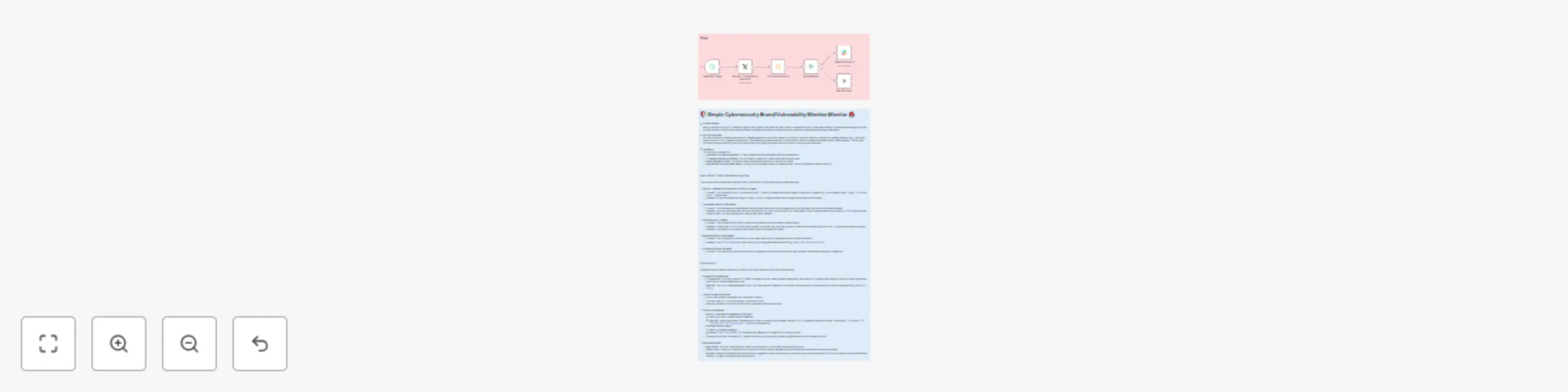
--- ## How It Works: The 5-Node Monitoring Flow This concise workflow efficiently captures, filters, and delivers crucial cybersecurity-related mentions. ### 1. Monitor: Cybersecurity Keywords (X/Twitter Trigger) This is the entry point of your workflow. It actively searches X (formerly Twitter) for tweets containing the specific keywords you define. * **Function:** Continuously polls X for tweets that match your specified queries (e.g., your company name, "Log4j," "CVE-2024-XXXX," "ransomware"). * **Process:** As soon as a matching tweet is found, it triggers the workflow to begin processing that information. ### 2. Format Notification (Code Node) This node prepares the raw tweet data, transforming it into a clean, actionable message for your alerts. * **Function:** Extracts key details from the raw tweet and structures them into a clear, concise message. * **Process:** It pulls out the tweet's text, the user's handle (`@screen_name`), and the direct URL to the tweet. These pieces are then combined into a user-friendly `notificationMessage`. You can also include basic filtering logic here if needed. ### 3. Valid Mention? (If Node) This node acts as a quick filter to help reduce noise and prevent irrelevant alerts from reaching your team. * **Function:** Serves as a simple conditional check to validate the mention's relevance. * **Process:** It evaluates the `notificationMessage` against specific criteria (e.g., ensuring it doesn't contain common spam words like "bot"). If the mention passes this basic validation, the workflow continues. Otherwise, it quietly ends for that particular tweet. ### 4. Send Notification (Slack Node) This is the delivery mechanism for your alerts, ensuring your team receives instant, visible notifications. * **Function:** Delivers the formatted alert message directly to your designated communication channel. * **Process:** The `notificationMessage` is sent straight to your specified **Slack channel** (e.g., `#cyber-alerts` or `#security-ops`). ### 5. End Workflow (No-Op Node) This node simply marks the successful completion of the workflow's execution path. * **Function:** Indicates the end of the workflow's process for a given trigger. --- ## How to Set Up Implementing this simple cybersecurity monitor in your n8n instance is quick and straightforward. ### 1. Prepare Your Credentials Before building the workflow, ensure all necessary accounts are set up and their respective credentials are ready for n8n. * **X (Twitter) API:** You'll need an X (Twitter) developer account to create an application and obtain your Consumer Key/Secret and Access Token/Secret. Use these to set up your **Twitter credential** in n8n. * **Slack API:** Set up your **Slack credential** in n8n. You'll also need the **Channel ID** of the Slack channel where you want your security alerts to be posted (e.g., `#security-alerts` or `#it-ops`). ### 2. Import the Workflow JSON Get the workflow structure into your n8n instance. * **Import:** In your n8n instance, go to the "Workflows" section. Click the "New" or "+" icon, then select "Import from JSON." Paste the provided JSON code (from the previous response) into the import dialog and import the workflow. ### 3. Configure the Nodes Customize the imported workflow to fit your specific monitoring needs. * **Monitor: Cybersecurity Keywords (X/Twitter):** * Click on this node. * Select your newly created **Twitter Credential**. * **CRITICAL:** Modify the **"Query"** parameter to include your specific brand names, relevant CVEs, or general cybersecurity terms. For example: `"YourCompany" OR "CVE-2024-1234" OR "phishing alert"`. Use `OR` to combine multiple terms. * **Send Notification (Slack):** * Click on this node. * Select your **Slack Credential**. * Replace `"YOUR_SLACK_CHANNEL_ID"` with the actual **Channel ID** you noted earlier for your security alerts. * *(Optional: You can adjust the "Valid Mention?" node's condition if you find specific patterns of false positives in your search results that you want to filter out.)* ### 4. Test and Activate Verify that your workflow is working correctly before setting it live. * **Manual Test:** Click the "Test Workflow" button (usually in the top right corner of the n8n editor). This will execute the workflow once. * **Verify Output:** Check your specified Slack channel to confirm that any detected mentions are sent as notifications in the correct format. If no matching tweets are found, you won't see a notification, which is expected. * **Activate:** Once you're satisfied with the test results, toggle the "Active" switch (usually in the top right corner of the editor) to `ON`. Your workflow will now automatically monitor X (Twitter) at the specified polling interval. ---

M
Marth
SecOps
31 Jul 2025
656
0
Workflow preview: Automated lead capture & AI-personalized audio follow-up with OpenAI & ElevenLabs
Free advanced

Automated lead capture & AI-personalized audio follow-up with OpenAI & ElevenLabs

--- ## How It Works: The Four-Part Automated Lead Flow This system meticulously guides each lead through a fully automated journey, from initial contact to a personalized follow-up and CRM integration. ### 1. Automated Lead Capture & Cleaning This is the system's entry point, designed to automatically bring new leads into your pipeline and prepare their data for processing. * **Function:** The system actively listens for new lead submissions, typically originating from web forms or other lead generation platforms, via a **Webhook**. * **Process:** As soon as lead data is received, essential information like the lead's name, email, phone number, and initial message is **extracted and cleaned**. This ensures the data is standardized and ready for the next stages, forming the foundation for all subsequent actions. ### 2. Smart AI Qualification & Personalized Audio Creation Here's where the intelligence and unique personalization of this system shine. Leads are automatically analyzed, and a custom audio message is prepared for those deemed highly promising. * **Function:** This stage adds significant value by using AI to intelligently assess incoming leads and prepares a unique, engaging communication. * **Process:** The lead's message is sent to **OpenAI** for AI-driven analysis. The AI **summarizes the inquiry** and **qualifies the lead's intent** (e.g., "High Potential," "Information Seeking," "Support Request"). If the AI identifies the lead as a **qualified prospect**, the system dynamically crafts a short, personalized text script for that specific lead, incorporating their name and the AI's summary. This script is then passed to **Eleven Labs** to generate a realistic, human-like MP3 audio message. The finished audio file is automatically uploaded to **Google Drive** for secure storage, and a shareable link is generated. ### 3. CRM Integration & Automated Initial Communication This part ensures your leads are efficiently managed within your Customer Relationship Management (CRM) system and receive an immediate, impactful, and personalized initial follow-up. * **Function:** This stage focuses on seamless data management and high-impact communication to nurture qualified leads. * **Process:** The system first queries your **CRM** to check for any duplicate leads (using HTTP Requests for broad compatibility). If it's a new lead, a contact entry is created; if a duplicate, the existing record is updated with new information. Subsequently, a **personalized follow-up email** is sent via **Gmail** to the qualified lead. This email prominently features the link to their unique audio message, making your communication stand out. Simultaneously, your sales team receives an **immediate notification on Slack**, providing key lead details, the AI qualification, and a direct link to the personalized audio message for quick context. ### 4. Comprehensive Logging & Robust Error Handling The final and crucial part of the system guarantees complete transparency, detailed record-keeping, and continuous operational reliability. * **Function:** This stage ensures all lead activities are meticulously recorded, and that any potential issues are identified and communicated promptly. * **Process:** All lead data—regardless of qualification status—is automatically logged into **Google Sheets**, creating a centralized, accessible database for tracking and analysis. Critically, the entire workflow is protected by a **Try/Catch** mechanism. If any step within the process encounters an error, the execution immediately shifts to the "Catch" branch, triggering an **immediate error notification to Slack**. This proactive alerting system allows you to rapidly identify and resolve issues, ensuring your lead pipeline remains uninterrupted and effective. --- ## Setup Steps To deploy this powerful automated lead system within your n8n instance, follow these steps meticulously: ### 1. Prepare Your Cloud Services & API Credentials Before building the workflow, ensure all necessary accounts are set up and credentials are ready for n8n. * **OpenAI:** Obtain your **API Key** from your OpenAI account. This is essential for AI qualification. * **Eleven Labs:** Secure your **API Key** from your Eleven Labs account. This powers the personalized audio generation. * **Google Drive:** You'll need a Google account. In n8n, set up a **Google Drive credential**. Crucially, create a dedicated folder in your Google Drive specifically for your personalized audio files and note its **Folder ID** (found in the URL when you open the folder in your browser). * **Google Sheets:** Set up a **Google Sheets credential** in n8n. Create a new Google Sheet (e.g., "Lead Log") with these exact column headers in the first row: `Timestamp`, `Lead Name`, `Lead Email`, `Lead Phone`, `Lead Message`, `AI Qualification`, `AI Summary`, `Is Qualified`, `Personalized Audio URL`, `CRM Status`, `Follow-up Sent`, `Status (Success/Error)`. * **Gmail / SMTP:** Configure your **Gmail credential** or a generic **Email credential** in n8n for sending out follow-up emails. * **Slack:** Set up your **Slack credential** in n8n. Identify the **Channel IDs** for both your sales team's new lead notifications (e.g., `#new-leads`) and a dedicated channel for workflow error alerts (e.g., `#n8n-errors`). * **CRM (Your Choice):** You'll need access to your CRM's API documentation. Prepare any necessary API keys, access tokens, or OAuth credentials. Be ready to configure `HTTP Request` nodes to interact with your specific CRM. ### 2. Identify Your Lead Capture Source Determine how new leads will initially enter your n8n workflow. * The most versatile and recommended method is a **Webhook**. Configure your existing website forms (e.g., WordPress forms, custom HTML forms, landing page builders) to send **HTTP POST requests** containing lead data (name, email, message, etc.) to the unique Webhook URL that n8n will provide. ### 3. Build the n8n Workflow Now, let's assemble the workflow step-by-step in your n8n instance. * **Start a New Workflow:** In n8n, create a **new, blank workflow**. * **Add & Connect Nodes:** Systematically add and connect the nodes as described in the "How It Works" section above, following the provided flow diagram. * **Configure Each Node's Parameters Meticulously:** * **Webhook:** Activate it and copy the unique URL. This is the endpoint for your lead forms. * **Set (Extract & Clean Lead Data):** Map incoming webhook fields (e.g., `$json.body.name`) to intuitive n8n variables like `leadName`. Provide fallback values like 'N/A' if a field might be empty. * **OpenAI (AI Qualification & Summary):** Select your credential. Choose a suitable model (e.g., `gpt-4o` for accuracy). Crucially, craft your system and user prompts to instruct the AI to output qualification and summary data in a **strict JSON format** (e.g., `{"summary": "...", "qualification": "...", "is_qualified": true/false}`). * **Set (Parse AI Qualification):** Use `JSON.parse($json.choices[0].message.content)` to extract values from the OpenAI's JSON response into separate n8n variables like `aiSummary`, `aiIsQualified`. * **If (Is Lead Qualified?):** Set the condition to check if `aiIsQualified` is `true`. * **Code (Craft Personalized Audio Text):** Write a small JavaScript snippet that combines variables like `leadName` and `aiSummary` into a natural-sounding sentence for the audio. * **ElevenLabs (Generate Personalized Audio):** Select your credential, input your chosen `Voice ID` (you'll find this in your Eleven Labs dashboard), and point the `Text` field to your crafted personalized audio text. * **Google Drive (Upload Personalized Audio):** Select your credential, input the specific `Folder ID` for your audio files, and ensure `Allow Anyone to Read` is set to `True` to make the link public. * **Set (Store Personalized Audio Link):** Create a new variable, e.g., `personalizedAudioUrl`, and assign it the `webViewLink` from the Google Drive node's output. * **HTTP Request (CRM Interaction - Check/Create/Update):** This is highly dependent on your specific CRM. * For checking duplicates (GET request): Configure URL (e.g., `/contacts?email=...`) and authentication based on your CRM's API. * For creating (POST request): Configure URL (e.g., `/contacts`) and the JSON body with lead fields matching your CRM's requirements. * For updating (PUT/PATCH request): Configure URL (e.g., `/contacts/{id}`) and the JSON body with fields to update. * **If (Is Lead a Duplicate?):** Configure the condition to check the response from your CRM's duplicate check (e.g., if the count of results is `> 0`). * **Merge (CRM Result):** Use `Merge By Position` to combine the paths after creating or updating CRM records. * **Gmail (Send Personalized Follow-up):** Select your credential. Set the `To` field to `{{ $json.leadEmail }}`. Craft a compelling subject line and email body, explicitly including `{{ $json.personalizedAudioUrl }}` where you want the audio link to appear. * **Slack (Notify Sales Team):** Select your credential. Set the `Chat ID` to your sales channel. Compose a clear message summarizing the lead, AI insights, and the `personalizedAudioUrl`. * **Google Sheets (Log Lead Data):** Select your credential. Input your Spreadsheet ID and Sheet Name. Map all relevant lead data variables (e.g., `leadName`, `aiQualification`, `personalizedAudioUrl`) to their corresponding column headers in your Google Sheet. * **Set (Mark Lead as Unqualified - for 'If' False branch):** In this branch, ensure variables like `aiIsQualified` are explicitly set to `false`, and `personalizedAudioUrl` is set to `N/A`, before going to the Google Sheets logger. * **Try/Catch & Error Slack:** Wrap your entire main workflow with a `Try/Catch` node (connect `Try` to your Webhook). Connect the `Catch` branch to a `Slack` node for error notifications. Configure this Slack message to provide immediate, actionable error details (e.g., `{{ $json.error.message }}`). ### 4. Test and Activate Thorough testing is crucial to ensure your automation runs flawlessly. * **Simulate a Lead:** Before activating the workflow, manually send a test lead to your n8n Webhook URL. You can use your actual website form, or tools like Postman, Insomnia, or even a simple `curl` command. * **Monitor Execution:** In n8n's workflow editor, observe the execution details for each node during the test run. Check the input and output data of every node to ensure information is flowing and being processed as expected. * **Verify External Outputs:** After a successful test run, meticulously check all external services: * Confirm the audio file is in your Google Drive folder and the generated public link works. * Verify the lead (or its update) appears correctly in your CRM with all relevant data. * Check your test lead's email inbox for the personalized follow-up email, ensuring the audio link is clickable and functional. * Confirm your sales team's Slack channel received the correct notification. * Validate that the Google Sheet log is accurate and complete, reflecting both qualified and unqualified leads. * **Activate:** Once all tests pass and you are completely confident in the workflow's operation, activate it in n8n. It will then automatically process every new lead! ---

M
Marth
Lead Nurturing
31 Jul 2025
110
0
Workflow preview: Convert blog posts to audio content with Eleven Labs & GPT-4
Free intermediate

Convert blog posts to audio content with Eleven Labs & GPT-4

--- ## How It Works: Your Automated Audio Content System This n8n workflow streamlines the entire process of turning your written articles into engaging audio, distributing them, and tracking their performance. Here's a step-by-step breakdown: 1. **New Content Detection:** The workflow starts by **monitoring your blog's RSS feed**. As soon as you publish a new article, the system automatically detects it. 2. **Text Extraction & Cleaning:** It extracts the article's title and its main content directly from the RSS feed. Basic cleaning is performed to ensure the text is ready for high-quality voice synthesis. 3. **Audio Generation with Eleven Labs:** The cleaned text is sent to **Eleven Labs**, a leading AI voice platform. Here, your article is transformed into a natural-sounding MP3 audio file using a voice of your choice. 4. **Secure Audio Storage:** The newly generated MP3 audio file is then **uploaded to your Google Drive**. This provides a reliable, secure storage solution and generates a shareable public link for easy distribution. 5. **AI-Powered Metadata Creation:** **OpenAI** steps in to generate compelling metadata for your audio. Based on your article's content, it automatically creates a catchy title, a concise description, and relevant tags or hashtags, perfect for podcast notes or social media captions. 6. **Centralized Logging:** All essential details about the generated audio—including the original article's URL, the audio file's link, and the AI-generated metadata—are **logged into a Google Sheet**. This gives you a clear, centralized record for tracking and analysis. 7. **Automated Distribution:** The workflow then proceeds to distribute your audio content. This can include **sending an email notification** (via Gmail) to your subscribers or marketing list with the audio link, or **sending an internal alert via Slack** to your team. The specific distribution channel can be configured based on your needs. 8. **Robust Error Handling:** The entire workflow is built with **Try/Catch blocks**. If any part of the process encounters an error, the system will gracefully handle it and send an immediate notification to you via Slack, ensuring you're always aware of the workflow's status. --- ## Setup Steps To get this powerful automated audio content system up and running in your n8n instance, follow these steps: 1. **Prepare Your Cloud Services & API Credentials:** * **Eleven Labs:** Create an account and obtain your **API Key**. * **OpenAI:** Get your **API Key**. * **Google Drive:** Ensure you have a Google account. In n8n, set up a **Google Drive credential**. Create a dedicated folder in your Google Drive for your audio files and note its **Folder ID** (found in the URL when you open the folder). * **Google Sheets:** Set up a **Google Sheets credential** in n8n. Create a new Google Sheet for logging with these exact column headers: `Article URL`, `Article Title`, `Audio File URL`, `Generated Audio Title`, `Generated Audio Description`, `Generated Audio Tags`, `Status`, `Timestamp`. * **Gmail / SMTP:** Set up your **Gmail credential** or a generic **Email credential** in n8n. * **Slack:** Set up your **Slack credential** in n8n. Identify the **Channel IDs** where you want to receive general updates and error alerts. 2. **Identify Your Text Content Source:** * Ensure your blog or content platform has an accessible **RSS Feed**. The content within this feed (specifically the `description` or `content` field) should be relatively clean text, as this will be directly processed for audio generation. 3. **Build the n8n Workflow:** * Open your n8n instance and create a **new, blank workflow**. * Add each node as described in the "How It Works" section and the previous detailed explanations. Connect them sequentially. * **Configure Each Node's Parameters:** * **RSS Feed:** Enter your blog's RSS feed URL. * **Set (Extract & Clean Article Data):** Use expressions to extract `title`, `link`, and clean the `description` or `content` from the RSS feed. * **ElevenLabs:** Select your **Eleven Labs credential**, specify your chosen `Voice ID` (you can find this in your Eleven Labs dashboard), and ensure the `Text` field points to your cleaned article content. * **Google Drive:** Select your **Google Drive credential** and enter the **Folder ID** you noted earlier. Ensure `Allow Anyone to Read` is set to `True`. * **OpenAI:** Select your **OpenAI credential**. Configure the "Chat Completion" node with appropriate system and user prompts to generate JSON output for `audioTitle`, `audioDescription`, and `audioTags`. * **Set (Combine All Metadata):** Use expressions to neatly collect and organize all the data from previous nodes into a single item. * **Google Sheets:** Select your **Google Sheets credential**. Enter your **Spreadsheet ID** and **Sheet Name**. Map the data from the previous "Set" node to match your Google Sheet's column headers precisely. * **If:** Set up your condition for email distribution (e.g., based on specific tags in `generatedAudioTags`). * **Gmail / Slack:** Configure the `To` address/`Chat ID` and the message content for your notifications. * **Try/Catch & Error Slack:** Connect the `Try` branch to your very first node (RSS Feed) and the `Catch` branch to the error Slack notification. Configure the error message in Slack to include relevant details. 4. **Test and Activate:** * **Manual Test:** Before activating, run the workflow manually in n8n. This lets you observe each step's execution and verify that data flows correctly between nodes. * **Verify Outputs:** After a successful test run, check your Google Drive for the uploaded audio file, open your Google Sheet to confirm the data has been logged correctly, and check your email/Slack for the notifications. * **Activate:** Once you've thoroughly tested and confirmed the workflow is functioning as intended, activate it in n8n to enable automatic execution. ---

M
Marth
Content Creation
31 Jul 2025
81
0
Workflow preview: AI-driven competitor & market intelligence with GPT 4 & Apify
Free intermediate

AI-driven competitor & market intelligence with GPT 4 & Apify

# Automated AI-Driven Competitor & Market Intelligence System * **Problem Solved:** Small and Medium-sized IT companies often struggle to stay ahead in a rapidly evolving market. Manually tracking competitor moves, pricing changes, product updates, and emerging market trends is time-consuming, inconsistent, and often too slow for agile sales strategies. This leads to missed sales opportunities, ineffective pitches, and a reactive rather than proactive market approach. * **Solution Overview:** This n8n workflow automates the continuous collection and AI-powered analysis of competitor data and market trends. By leveraging web scraping, RSS feeds, and advanced AI models, it transforms raw data into actionable insights for your sales and marketing teams. The system generates structured reports, notifies relevant stakeholders, and stores intelligence in your database, empowering your team with real-time, strategic information. * **For Whom:** This high-value workflow is perfect for: * **IT Solution Providers & SaaS Companies:** To maintain a competitive edge and tailor sales pitches based on competitor weaknesses and market opportunities. * **Sales & Marketing Leaders:** To gain comprehensive, automated market intelligence without extensive manual research. * **Product Development Teams:** To identify market gaps and validate new feature development based on competitive landscapes and customer sentiment. * **Business Strategists:** To inform strategic planning with data-driven insights into industry trends and competitive threats. ### How It Works (Scope of the Workflow) ⚙️ This system establishes a powerful, automated pipeline for market and competitor intelligence: 1. **Scheduled Data Collection:** The workflow runs automatically at predefined intervals (e.g., weekly), initiating data retrieval from various online sources. 2. **Diverse Information Gathering:** It pulls data from competitor websites (pricing, features, blogs via web scraping services), industry news and blogs (via RSS feeds), and potentially other sources. 3. **Intelligent Data Preparation:** Collected data is aggregated, cleaned, and pre-processed using custom code to ensure it's in an optimal format for AI analysis, removing noise and extracting relevant text. 4. **AI-Powered Analysis:** An advanced AI model (like OpenAI's GPT-4o) performs in-depth analysis on the cleaned data. It identifies competitor strengths, weaknesses, new offerings, pricing changes, customer sentiment from reviews, emerging market trends, and suggests specific opportunities and threats for your company. 5. **Automated Report Generation:** The AI's structured insights are automatically populated into a professional Google Docs report using a predefined template, making the intelligence easily digestible for your team. 6. **Team Notification:** Stakeholders (sales leads, marketing managers) receive automated notifications via Slack (or email), alerting them to the new report and key insights. 7. **Strategic Data Storage & Utilization:** All analyzed insights are stored in a central database (e.g., PostgreSQL). This builds a historical record for long-term trend analysis and can optionally trigger sub-workflows to generate personalized sales talking points directly relevant to ongoing deals or specific prospects. --- ### Setup Steps 🛠️ (Building the Workflow) To implement this sophisticated workflow in your n8n instance, follow these detailed steps: 1. **Prepare Your Digital Assets & Accounts:** * **Google Sheet (Optional, if using for CRM data):** For simpler CRM, create a sheet with `CompetitorName`, `LastAnalyzedDate`, `Strengths`, `Weaknesses`, `Opportunities`, `Threats`, `SalesTalkingPoints`. * **API Keys & Credentials:** * **OpenAI API Key:** Essential for the AI analysis. * **Web Scraping Service API Key:** For services like Apify, Crawlbase, or similar (e.g., Bright Data, ScraperAPI). * **Database Access:** Credentials for your PostgreSQL/MySQL database. Ensure you've created necessary tables (`competitor_profiles`, `market_trends`) with appropriate columns. * **Google Docs Credential:** To link n8n to your Google Drive for report generation. Create a template Google Doc with placeholders (e.g., `{{competitorName}}`, `{{strengths}}`). * **Slack Credential:** For sending team notifications to specific channels. * **CRM API Key (Optional):** If directly integrating with HubSpot, Salesforce, or custom CRM via API. 2. **Identify Data Sources for Intelligence:** * Compile a list of **competitor website URLs** you want to monitor (e.g., pricing pages, blog sections, news). * Identify relevant **online review platforms** (e.g., G2, Capterra) for competitor products. * Gather **RSS Feed URLs** from key industry news sources, tech blogs, and competitor's own blogs. * Define **keywords** for general market trends or competitor mentions, if using tools that provide RSS feeds (like Google Alerts). 3. **Build the n8n Workflow (10 Key Nodes):** * Start a new workflow in n8n and add the following nodes, configuring their parameters and connections carefully: 1. **Cron (`Scheduled Analysis Trigger`):** Set this to trigger daily or weekly at a specific time (e.g., `Every Week`, `At Hour: 0`, `At Minute: 0`). 2. **HTTP Request (`Fetch Competitor Web Data`):** Configure this to call your chosen web scraping service's API. Set `Method` to `POST`, `URL` to the service's API endpoint, and build the `JSON/Raw Body` with the `startUrls` (competitor websites, review sites) for scraping, including your API Key in `Authentication` (e.g., `Header Auth`). 3. **RSS Feed (`Fetch News & Blog RSS`):** Add the URLs of competitor blogs and industry news RSS feeds. 4. **Merge (`Combine Data Sources`):** Connect inputs from both `Fetch Competitor Web Data` and `Fetch News & Blog RSS`. Use `Merge By Position`. 5. **Code (`Pre-process Data for AI`):** Write JavaScript code to iterate through merged items, extract relevant text content, perform basic cleaning (e.g., HTML stripping), and limit text length for AI input. Output should be an array of objects with `content`, `title`, `url`, and `source`. 6. **OpenAI (`AI Analysis & Competitor Insights`):** Select your OpenAI credential. Set `Resource` to `Chat Completion` and `Model` to `gpt-4o`. In `Messages`, create a `System` message defining AI's role and a `User` message containing the dynamic prompt (referencing `{{ $json.map(item => ... ).join('\\n\\n') }}` for `content`, `title`, `url`, `source`) and requesting a structured JSON output for analysis. Set `Output` to `Raw Data`. 7. **Google Docs (`Generate Market Intelligence Report`):** Select your Google Docs credential. Set `Operation` to `Create document from template`. Provide your `Template Document ID` and map the `Values` from the parsed AI output (using `JSON.parse($json.choices[0].message.content).PropertyName`) to your template placeholders. 8. **Slack (`Sales & Marketing Team Notification`):** Select your Slack credential. Set `Chat ID` to your team's Slack channel ID. Compose the `Text` message, referencing the report link (`{{ $json.documentUrl }}`) and key AI insights (e.g., `{{ JSON.parse($json.choices[0].message.content).Competitor_Name }}`). 9. **PostgreSQL (`Store Insights to Database`):** Select your PostgreSQL credential. Set `Operation` to `Execute Query`. Write an `INSERT ... ON CONFLICT DO UPDATE` SQL query to store the AI insights into your `competitor_profiles` or `market_trends` table, mapping values from the parsed AI output. 10. **OpenAI (`Generate Personalized Sales Talking Points` - Optional Branch):** This node can be part of the main workflow or a separate, manually triggered workflow. Configure it similarly to the main AI node, but with a prompt tailored to generate sales talking points based on a specific sales context and the stored insights. 4. **Final Testing & Activation:** * **Run a Test:** Before going live, manually trigger the workflow from the first node. Carefully review the data at each stage to ensure correct processing and output. Verify that reports are generated, notifications are sent, and data is stored correctly. * **Activate Workflow:** Once testing is complete and successful, activate the workflow in n8n. This system will empower your IT company's sales team with invaluable, data-driven intelligence, enabling them to close more deals and stay ahead in the market.

M
Marth
Market Research
30 Jul 2025
838
0
Workflow preview: Automate social media content distribution with Google Sheets & Slack
Free intermediate

Automate social media content distribution with Google Sheets & Slack

Okay, here are the "How It Works" and "Setup Steps" for your "Automated Social Media Content Distribution System," presented clearly in Markdown. --- ### How It Works (Workflow Stages) ⚙️ This system transforms manual, repetitive tasks into a smooth, automated content distribution pipeline: 1. **Content Submission & Trigger:** * You add a new row to your designated Google Sheet with all the content details (Title, URL, Short_Description, Image_URL, Hashtags, and boolean flags for which platforms to post to). * The **Google Sheets Trigger** node immediately detects this new entry, initiating the workflow. 2. **Content Preparation:** * The **Set** node takes the raw data from your Google Sheet and formats it into a cohesive text string (`social_media_text_core`) that is suitable for posting across different social media platforms. 3. **Conditional Social Media Posting:** * A series of **If** nodes (`Check Facebook Post`, `Check Twitter Post`, `Check LinkedIn Post`) sequentially check your preferences (based on the `Post_to_Facebook`, `Post_to_Twitter`, `Post_to_LinkedIn` columns in your sheet). * If a platform is marked `TRUE`, the corresponding social media node (`Facebook`, `Twitter`, `LinkedIn`) is activated to publish your content. If `FALSE`, that platform is skipped, and the workflow moves to the next check. 4. **Status Update & Notification:** * After attempting to post to all selected platforms, the **Google Sheets (Update)** node updates the `Publication_Status` column of your original row to "Published." This prevents re-posting and provides a clear record. * Finally, the **Slack (Notification)** node sends an alert to your chosen Slack channel, confirming that the content has been successfully distributed. ### Setup Steps 🛠️ (Build It Yourself!) Follow these detailed steps to build and implement this workflow in your n8n instance: 1. **Prepare Your Google Sheet:** * Create a new Google Sheet (e.g., named "Social Media Posts"). * Set up the following **exact** column headers in the first row: `Title`, `URL`, `Short_Description`, `Image_URL`, `Hashtags`, `Post_to_Facebook`, `Post_to_Twitter`, `Post_to_LinkedIn`, `Publication_Status` * Fill in a test row with some sample data, ensuring `TRUE`/`FALSE` values for the posting flags. 2. **Gather Your API Keys & Credentials:** * **Google Sheets Credential**: You'll need an OAuth2 credential for Google Sheets in n8n to allow read/write access to your sheet. * **Facebook Credential**: An OAuth2 credential for Facebook with permissions to post to your selected Page. * **Twitter Credential**: A Twitter API credential (API Key, API Secret, Access Token, Access Token Secret) from your Twitter Developer App. * **LinkedIn Credential**: An OAuth2 credential for LinkedIn with permissions to share updates to your profile or organization page. * **Slack Credential**: A Slack API token (Bot User OAuth Token) for sending messages to your channel. 3. **Build the n8n Workflow Manually (10 Nodes):** * Start a new workflow in n8n. * Drag and drop each of the following nodes onto the canvas and connect them as described below: 1. **Google Sheets Trigger** * **Name:** `Google Sheets Trigger` * **Parameters:** * **Authentication:** Select your Google Sheets credential. * **Spreadsheet ID:** `[Copy the ID from your Google Sheet's URL]` * **Sheet Name:** `[Your Sheet Name, e.g., 'Sheet1' or 'Content']` * **Watch For:** `Rows` * **Events:** `Added` * **Connections:** Output to `Set Content Parameters`. 2. **Set** * **Name:** `Set Content Parameters` * **Parameters:** * **Values to Set:** Add a new value: * **Type:** `String` * **Name:** `social_media_text_core` * **Value:** `={{ $json.Title }} - {{ $json.Short_Description }}\nRead more: {{ $json.URL }}\n{{ $json.Hashtags }}` * **Connections:** Output to `Check Facebook Post`. 3. **If** * **Name:** `Check Facebook Post` * **Parameters:** * **Value 1:** `={{ $json.Post_to_Facebook }}` * **Operation:** `is true` * **Connections:** `True` output to `Post Facebook Message`. `False` output to `Check Twitter Post`. 4. **Facebook** * **Name:** `Post Facebook Message` * **Parameters:** * **Authentication:** Select your Facebook credential. * **Page ID:** `[YOUR_FACEBOOK_PAGE_ID]` * **Message:** `={{ $json.social_media_text_core }}` * **Link:** `={{ $json.URL }}` * **Picture:** `={{ $json.Image_URL }}` * **Options:** `Published` (checked) * **Connections:** Output to `Check Twitter Post`. 5. **If** * **Name:** `Check Twitter Post` * **Parameters:** * **Value 1:** `={{ $json.Post_to_Twitter }}` * **Operation:** `is true` * **Connections:** `True` output to `Create Tweet`. `False` output to `Check LinkedIn Post`. 6. **Twitter** * **Name:** `Create Tweet` * **Parameters:** * **Authentication:** Select your Twitter credential. * **Tweet:** `={{ $json.social_media_text_core }}` * **Image URL:** `={{ $json.Image_URL }}` * **Connections:** Output to `Check LinkedIn Post`. 7. **If** * **Name:** `Check LinkedIn Post` * **Parameters:** * **Value 1:** `={{ $json.Post_to_LinkedIn }}` * **Operation:** `is true` * **Connections:** `True` output to `Share LinkedIn Update`. `False` output to `Update Publication Status`. 8. **LinkedIn** * **Name:** `Share LinkedIn Update` * **Parameters:** * **Authentication:** Select your LinkedIn credential. * **Resource:** `Share Update` * **Type:** `Organization` or `Personal` (Choose as appropriate) * **Organization ID:** `[YOUR_LINKEDIN_ORG_ID]` (If `Organization` type selected) * **Content:** `={{ $json.social_media_text_core }}` * **Content URL:** `={{ $json.URL }}` * **Image URL:** `={{ $json.Image_URL }}` * **Connections:** Output to `Update Publication Status`. 9. **Google Sheets** * **Name:** `Update Publication Status` * **Parameters:** * **Authentication:** Select your Google Sheets credential. * **Spreadsheet ID:** `[YOUR_GOOGLE_SHEET_CONTENT_ID]` * **Sheet Name:** `[Your Sheet Name, e.g., 'Sheet1' or 'Content']` * **Operation:** `Update Row` * **Key Column:** `URL` * **Key Value:** `={{ $json.URL }}` * **Values:** Add a new value: * **Column:** `Publication_Status` * **Value:** `Published` * **Connections:** Receives connections from both `Share LinkedIn Update` and the `False` branch of `Check LinkedIn Post`. 10. **Slack** * **Name:** `Send Slack Notification` * **Parameters:** * **Authentication:** Select your Slack credential. * **Chat ID:** `[YOUR_SLACK_CHANNEL_ID]` * **Text:** `New content "{{ $json.Title }}" successfully published to social media! 🎉 Check: {{ $json.URL }}` * **Connections:** Output to `Update Publication Status`. 4. **Final Steps & Activation:** * **Test the Workflow:** Before activating, manually add a new row to your Google Sheet or use n8n's "Execute Workflow" button (if available for triggers). Observe the flow through each node to ensure it behaves as expected and posts to your social media accounts. * **Activate Workflow:** Once you are confident it's working correctly, turn the workflow "Active" in the top right corner of your n8n canvas.

M
Marth
Social Media
29 Jul 2025
285
0
Workflow preview: AI-powered recruitment system for resume screening & automated outreach with GPT-4
Free advanced

AI-powered recruitment system for resume screening & automated outreach with GPT-4

### How It Works ⚙️ Imagine your recruitment process transformed into a sleek, efficient, AI-powered assembly line for talent. That's exactly what this system creates. It automates the heavy lifting, allowing your human recruiters to focus on strategic decisions and personal connections. 1. **Candidate Arrival & Smart Parsing (The Intake Officer):** * **What happens:** A new candidate applies (via your job board, application form, or email). The system instantly captures their resume and core details. Our intelligent parser then reads the resume, extracting all the crucial information like skills, experience, and education, turning it into structured data. * **Data In:** `Resume files` (PDF/DOCX), basic `candidate contact info`. * **Output:** `Structured candidate data` (skills, experience, contact), `raw resume text`. 2. **AI-Powered Screening & Qualification (The Expert Reviewer Team):** * **What happens:** This is where the magic of AI takes over. * **AI Agent 1 (The Matchmaker):** Compares the candidate's extracted `skills` and `experience` against your specific `job description` and requirements. It provides a precise `match score` (e.g., 1-100) and highlights their strongest alignments and any potential gaps. * **AI Agent 2 (The Insight Investigator):** Dives deeper into the `raw resume text` to uncover nuances. It identifies potential `red flags` (like very short tenures) or strong indicators of `cultural fit`. * **AI Agent 3 (The Interview Question Generator):** Based on the candidate's profile and any identified gaps or areas of interest, it automatically crafts `3-5 tailored initial screening questions`. * **Data In:** `Structured candidate data`, `raw resume text`, `job description details`. * **Output:** `Match score`, `strengths/gaps`, `cultural fit notes`, `red flags`, `customized interview questions`. 3. **Automated Initial Engagement & Scheduling (The Personalized Outreach Specialist):** * **What happens:** The system evaluates the AI match score. If the candidate meets your minimum threshold, **AI Agent 4 (The Persuasion Pro)** crafts a highly `personalized email invitation` for a screening call, directly referencing their strong fit and specific strengths. This email is then automatically sent, and a `placeholder event` can even be added to your calendar. * **Data In:** `Qualified candidate data`, `AI match score`, `AI-generated email content`. * **Output:** `Personalized invitation emails sent`, `calendar event details`. 4. **Smart Follow-up & CRM Integration (The Nurturer & Notifier):** * **What happens:** The system waits for a few days for a response. If no reply is received, **AI Agent 5 (The Gentle Follow-up Generator)** creates a polite, yet persistent, `follow-up email`, ensuring promising candidates don't fall through the cracks. All candidate `status updates` (e.g., "Invited for Screening," "Follow-up Sent," "Interview Scheduled") are seamlessly logged in your central `candidate database`. Finally, your recruiters get instant `Slack notifications` for highly qualified candidates or when someone responds positively, keeping them informed and agile. * **Data In:** `Candidate status`, `AI-generated follow-up content`. * **Output:** `Follow-up emails sent`, `updated candidate status` in your database, `recruiter notifications`. ### Setup Steps 🛠️ (Detailed & Easy to Follow) Building this powerful system will give you a significant edge in talent acquisition. Follow these steps meticulously: 1. **Prepare Your Digital Recruitment Backbone:** * **Candidate Database (Google Sheets or Airtable):** * Create a dedicated spreadsheet (e.g., "Talent Pipeline") to serve as your central candidate database. * Set up comprehensive columns: `ID` (for unique tracking), `Name`, `Email`, `Phone`, `Resume URL` (if applicable), `Raw Resume Text`, `Education`, `Experience`, `Skills`, `Status` (e.g., "New," "AI Screened," "Invited," "Interview Scheduled"), `Match Score`, `Cultural Fit Notes`, `Red Flags`, `Interview Questions`, `Last Contacted`. * **Job Descriptions Database (Google Sheets or Airtable):** * Create a separate sheet (e.g., "Job Openings") to store your active job descriptions. * Include columns like `JobID`, `Title`, `Description` (full text of the job description), `Required Skills` (list key skills), `Experience Level`, `Department`. This will be the reference for AI screening. * **(Optional) Recruitment Templates (Google Docs):** * While AI generates most content, having a simple Google Doc template can be useful for any internal reports or structured notes you might want the system to generate in the future (though not strictly required for the core flow described). 2. **Gather Your Essential API Keys & Credentials:** * **OpenAI API Key**: This is the brain power for all your AI agents. Get it from your OpenAI account dashboard. * **Google Sheets Credential**: Allows n8n to read from and write to your Candidate and Job Descriptions databases. Set up an OAuth2 credential in n8n. * **Gmail Credential**: For sending personalized outreach and follow-up emails. Set up an OAuth2 credential. * **Google Calendar Credential**: (Optional but recommended) For creating placeholder interview events on your recruiters' calendars. Set up an OAuth2 credential. * **Slack Credential**: For sending internal notifications to your recruitment team (e.g., new qualified candidates, anomalies). Get a Bot Token from your Slack app settings. * **(Optional) PDF Parser API Key**: If n8n's native `PDF Read` (Node 2) isn't robust enough for varied resume formats, you might consider an external service like Affinda or Textract and their corresponding API key. You would then use an `HTTP Request` node to call their API. 3. **Build the n8n Workflow Manually:** * Start a new workflow in n8n. * Add each node one by one, according to the detailed explanation provided in our previous conversation (e.g., `Webhook`, `PDF Read`, `Function`, `OpenAI`, `Google Sheets`, `Gmail`, `If`, `Wait`, `Slack`). * **Crucially, connect the nodes** by dragging lines between their output and input ports, following the logical flow of the system. 4. **Connect Your Tools (Credentialing & Linking):** * Click on each node that connects to an external service (e.g., `OpenAI`, `Google Sheets`, `Gmail`, `Slack`, `Google Calendar`). * In the node's settings panel, you'll find an "Authentication" section. Select the specific credential you created in Step 2 from the dropdown list. This links n8n to your external accounts. 5. **Customize Workflow Nodes (The Tailoring Phase – This is Key!):** * **`Webhook` Node (Node 1):** Once you save this node, n8n will provide a unique `Webhook URL`. Copy this URL and configure your application forms (e.g., Google Forms, Typeform, your career page's backend) or job board integrations to send candidate application data (including resume file/URL) to this address via a `POST` request. * **`PDF Read` Node (Node 2):** Ensure the `Binary Property` or `PDF URL` setting correctly points to where the resume file or its URL is located in the incoming data from your `Webhook`. * **`Function` Nodes (Nodes 3, 8, 12):** Carefully review and, if necessary, *adjust the JavaScript code* inside these nodes. This code is responsible for parsing raw text, consolidating data, and preparing prompts. You might need to tweak regex patterns in Node 3 if your resumes have unique layouts. * **`Google Sheets` Nodes (Nodes 4, 5, 6, 7, 13, 18, 20, 24):** * For each of these nodes, accurately paste the `Spreadsheet ID` for your Candidate and Job Descriptions sheets. * Enter the exact `Sheet Name` (e.g., "Candidates," "Job Descriptions"). * **CRITICAL MAPPING:** In nodes that `Append` or `Update` rows, meticulously map the `Values` from previous nodes' outputs to the correct column headers in your Google Sheet (e.g., `Name` mapped to `={{ $json.parsed_candidate_name }}`). * **`OpenAI` Nodes (Nodes 9, 10, 11, 15, 22):** * **This is your AI's personality and intelligence!** Carefully review and **refine the `Prompts`** within these nodes. * For Agent 1 (Matcher), clarify what makes a "strong match" for your roles. * For Agent 2 (Cultural Fit), specify cultural values important to your company and define "red flags." * For Agent 4 (Outreach), customize the tone, call-to-action, and what strengths to highlight. * **TEST THESE PROMPTS RIGOROUSLY** with various candidate profiles and job descriptions to ensure they deliver accurate, relevant, and desired outputs. * **`If` Nodes (Nodes 14, 21):** Adjust the `match score threshold` in Node 14 (e.g., `70` for 70%) to control which candidates get automated outreach. In Node 21, confirm the `Status` values that indicate a positive response (e.g., "Interview Scheduled"). * **`Gmail` Nodes (Nodes 16, 23):** Verify the `To` email address is dynamically pulled from the candidate data (`={{ $json.candidate_email }}`). Double-check that the `Subject` and `Body` expressions correctly extract the email content generated by the AI agent. * **`Google Calendar` Node (Node 17):** Set your `Calendar ID` (typically your recruiter's calendar ID). Adjust the `Start Date/Time` and `End Date/Time` to suggest appropriate screening call durations. * **`Wait` Node (Node 19):** Configure the `Amount` and `Unit` (e.g., `3 Days`) for how long the system should wait before sending a follow-up. * **`Slack` Node (Node 25):** Enter the specific `Chat ID` (the channel ID) where you want recruitment notifications to appear (e.g., `#hiring-alerts`). 7. **Test Thoroughly & Activate!** * **Manual Trigger & Inspection:** Before going live, trigger the workflow manually several times using diverse test candidate data. Use the "Test Workflow" feature in n8n to inspect the output of *each individual node*. Check that data is flowing correctly, AI agents are producing accurate results, and emails/notifications are formatted as you expect. * **Activate:** Once you're completely confident in its performance, click the "Inactive" toggle in the top-right corner of your workflow to switch it to "Active." You've now successfully built and launched a cutting-edge, AI-powered recruitment and candidate engagement system. Get ready to transform your hiring process!

M
Marth
HR
29 Jul 2025
317
0