Block 1 - Validate AI Response
- Type / Role
- n8n-nodes-base.code - code
- Config choices
- Version 2


 Early Deal
Customer Support Triage Automation with AI, ClickUp and Google Sheets Description This workflow automates the complete customer support email triage process by intelligently classifying incoming...
n8n-nodes-base.code, n8n-nodes-base.httprequest, n8n-nodes-base.set, n8n-nodes-base.gmailtrigger, n8n-nodes-base.clickup, n8n-nodes-base.slack, n8n-nodes-base.if, n8n-nodes-base.gmail
This workflow is cataloged by N8N Workflows and links back to its original n8n.io source page by Vivekanand M.
Original n8n.io source📘 Description
This workflow automates the complete customer support email triage process by intelligently classifying incoming support emails, validating AI outputs, assigning tickets to appropriate teams, and orchestrating all downstream actions in a consistent, trackable manner. It is designed for support teams that need to instantly categorise and route high volumes of customer inquiries while maintaining quality, accountability, and fast response times.
The workflow is triggered automatically when new emails arrive in your support inbox. Incoming emails are analysed by Grok AI to determine ticket category (Bug Report, Feature Request, Billing Question, Technical Support, General Inquiry, or Marketing Email) and urgency level (Low, Medium, High, Critical). A validation layer ensures AI outputs meet quality standards with automatic corrections for invalid responses.
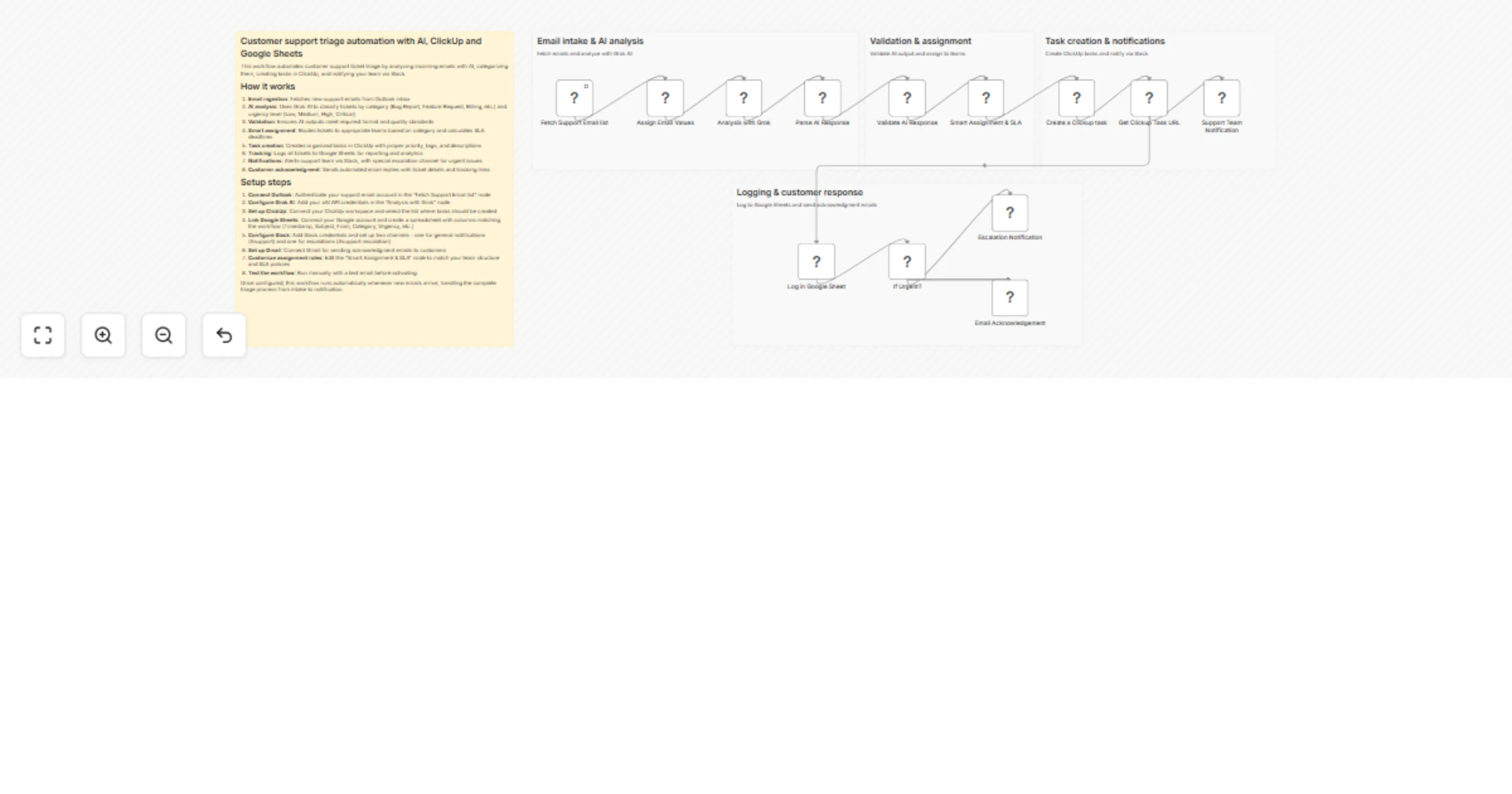
Based on the categorisation, the workflow applies intelligent routing rules to assign tickets to the right team (Engineering, Billing, Product, or Support), calculates SLA deadlines based on urgency, and detects escalation triggers like negative sentiment or churn risk keywords. For every ticket, the workflow runs parallel actions: it creates a detailed ClickUp task for team tracking, logs complete ticket information to Google Sheets for analytics, sends real-time Slack notifications to appropriate channels, and delivers a professional acknowledgement email to the customer with ticket details and tracking links.
⚙️ What This Workflow Does (Step-by-Step)
📧 Email Intake - Fetches new support emails from the Outlook inbox automatically.
📝 Assign Email Values - Normalises email data into a consistent structure for processing.
🧠 AI Analysis with Grok - Classifies tickets by category and urgency using AI reasoning.
🔍 Parse AI Response - Extracts structured data from AI output and adds metadata.
✅ Validate AI Response - Ensures outputs meet quality standards with automatic fixes for invalid categories or missing summaries.
🎯 Smart Assignment & SLA - Routes tickets to appropriate teams, calculates SLA deadlines (1 hour for Critical, 4 hours for High, 24 hours for Medium, 48 hours for Low), and flags escalation cases based on sentiment or urgency.
📋 Create ClickUp Task - Generates organised tasks with priority levels, tags, and complete ticket context.
🔗 Get ClickUp Task URL - Captures task links for tracking and reference.
📊 Log to Google Sheets - Records all ticket details in a centralised tracking spreadsheet.
💬 Team Notification (Slack) - Alerts the support team with ticket summary and ClickUp link.
🚨 Escalation Notification (Slack) - Sends urgent alerts to the escalation channel for critical or high-risk tickets.
✉️ Customer Acknowledgement (Email) - Delivers professional auto-reply with ticket details, SLA timeline, and tracking link.
🧩 Prerequisites
• Microsoft Outlook or Gmail account for support inbox • Grok API credentials (x.ai) - can be replaced with OpenAI or Claude • Google Sheets OAuth2 for ticket tracking • ClickUp API access for task management • Slack API access for team notifications • Gmail OAuth2 for customer acknowledgement emails
💡 Key Benefits
✔ Instant categorisation of all incoming support emails ✔ Intelligent team routing based on ticket type and urgency ✔ Automatic SLA deadline calculation and tracking ✔ Built-in validation prevents AI errors from reaching customers ✔ Escalation detection for negative sentiment and churn risk ✔ Complete audit trail in Google Sheets ✔ Real-time team awareness via Slack ✔ Professional customer communication with zero delay ✔ Seamless ClickUp integration for task management
👥 Perfect For
This catalog entry is organized from the workflow JSON. The node-level section below shows the executable blocks available for review before importing the template.
| Workflow | Triage customer support emails with Groq AI, ClickUp and Google Sheets |
|---|---|
| Complexity | advanced |
| Nodes | 18 |
| Categories | Ticket Management, AI Summarization |
| Author | Vivekanand M |
| Published | 10 Feb 2026 |
Use the JSON export at /data/workflows/13289/13289.json as the source template for this automation.
Open n8n, import the downloaded JSON, and review each node before activating the workflow.
Replace placeholder credentials, API keys, webhook URLs, account IDs, and environment-specific values with your own settings.
Run the workflow manually or in a staging workspace, inspect node output, and confirm downstream systems receive the expected data.
Enable the workflow only after testing, then monitor executions, errors, and rate limits during the first production runs.
Review imported nodes carefully before activation. This catalog entry is intended to help you inspect the workflow structure, understand required services, and find related templates faster.
Node names, credentials, schedules, webhook paths, and external service limits may need adjustment for your workspace.
Customer Support Triage Automation with AI, ClickUp and Google Sheets Description This workflow automates the complete customer support email triage process by intelligently classifying incoming...
Review the workflow JSON, configure any required credentials in n8n, and test the automation in a safe workspace before using it in production.
Yes. Use the block-by-block analysis and the downloadable JSON to inspect each node, then adjust credentials, prompts, schedules, filters, or destinations for your Ticket Management, AI Summarization use case.