Track and analyze Google Sheets expenses with Gemini and Gmail alerts
Workflow preview


 Early Deal
DISCOUNT 20%

Overview
Expense Leak Detector
Smart Expense Monitoring in Minutes
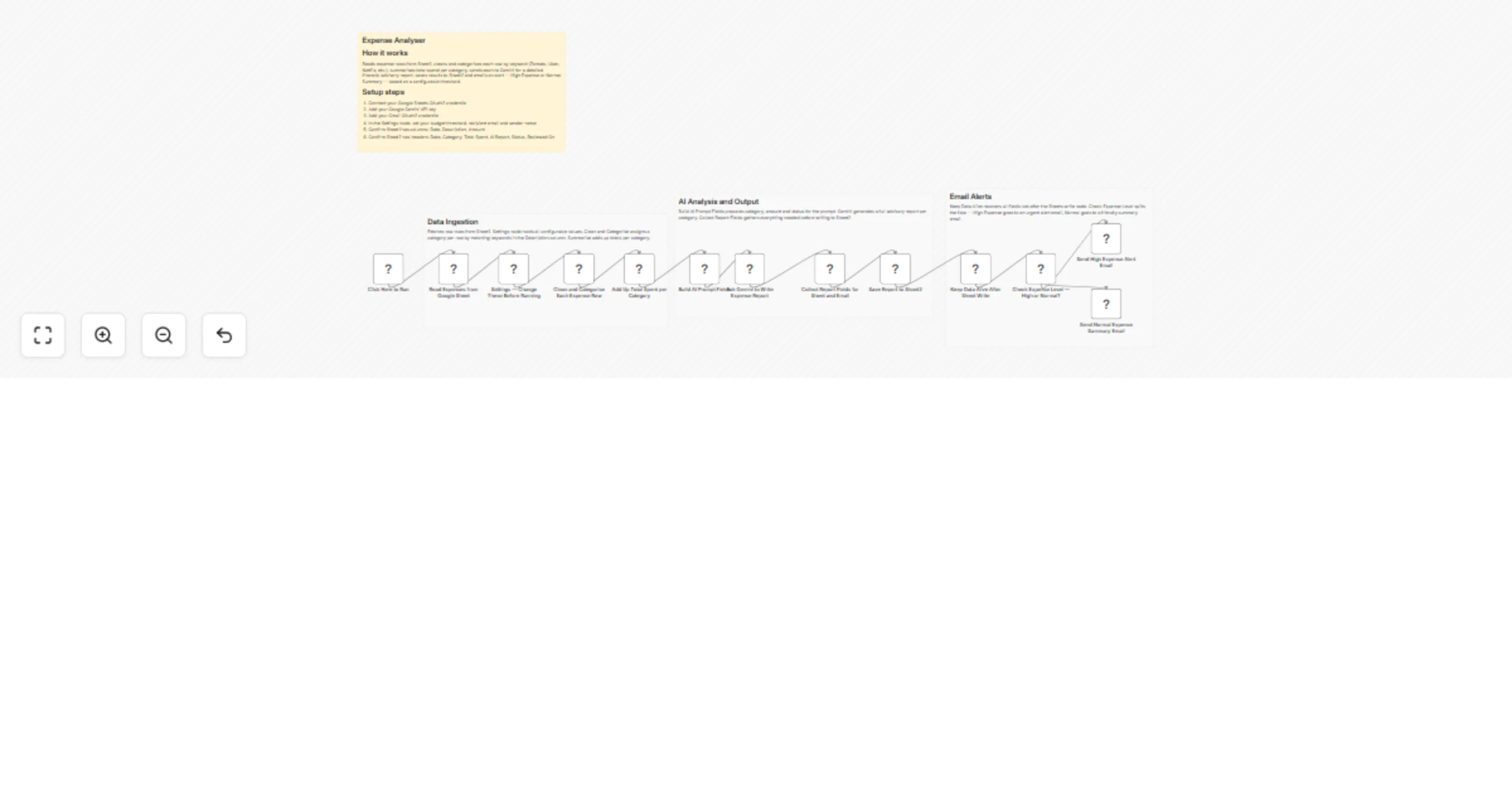
This n8n workflow reads your expenses from Google Sheets, categorizes them using predefined keywords, summarizes spending per category, generates AI-powered financial advice using Gemini, stores results in another sheet and sends email alerts for high or normal expenses.
Quick Start Guide
Import the workflow into n8n
Connect:
- Google Sheets OAuth2
- Google Gemini API
- Gmail OAuth2
- Update the Settings node:
- Budget limit
- Recipient email
- Sender name
- Ensure:
- Sheet1 →
Date, Description, Amount - Sheet2 →
Date, Category, Total Spent, AI Report, Status, Reviewed On
- Click "Execute Workflow"
What It Does
This workflow automates your expense tracking and financial analysis using a combination of Google Sheets and AI.
It begins by fetching raw expense data from a Google Sheet (Sheet1), where each row contains a date, description and amount. The workflow then processes each row by cleaning the data and assigning a category such as Food, Transport, Subscription, Shopping, Utilities, Health or Other using predefined keyword matching.
Once categorized, it aggregates total spending per category and evaluates whether the spending exceeds a defined budget limit. Based on this evaluation, it generates a detailed, personalized financial advisory report using Google Gemini AI.
Finally, the workflow stores all results in another sheet (Sheet2) and sends an email notification—either a high expense alert or a normal summary—based on the spending status.
Who’s It For
- Individuals managing personal finances
- Freelancers tracking monthly expenses
- Families monitoring household spending
- Finance enthusiasts wanting AI-driven insights
- Anyone using Google Sheets for expense tracking
Requirements
To use this workflow, you need:
- n8n (self-hosted or cloud)
- Google Sheets account
- Google Gemini API key
- Gmail account (for sending emails)
- A Google Sheet with:
- Sheet1: Expense data
- Sheet2: Output report
How To Set Up
1. Import Workflow
Import the provided JSON file into n8n
2. Connect Credentials
- Google Sheets OAuth2 → For reading and writing data
- Google Gemini API → For AI report generation
- Gmail OAuth2 → For sending emails
3. Prepare Google Sheets
Sheet1 (Input)
| Date | Description | Amount |
|---|
Sheet2 (Output)
| Date | Category | Total Spent | AI Report | Status | Reviewed On |
|---|
4. Configure Settings Node
Update the “Settings — Change These Before Running” node:
Budget Limit→ Threshold for high expense detectionSend Report To Email→ Recipient emailEmail Sender Name→ Display nameCurrency Symbol→ Example: Rs.Report Period→ Example: This Month
5. Run Workflow
- Click “Execute Workflow”
- The workflow will:
- Read expenses
- Categorize them
- Generate AI insights
- Save results
- Send email alerts
How It Works (Step-by-Step Flow)
- Manual Trigger
- Starts the workflow
- Read Expenses
- Fetches rows from Sheet1
- Settings Node
- Stores all configurable values
- Clean & Categorize
- Converts description to lowercase
- Assigns categories using hardcoded keyword logic
- Summarize
- Groups data by category
- Calculates total spend
- Build AI Fields
- Prepares structured input for Gemini
- Gemini AI
- Generates detailed financial advisory report
- Collect Data
- Formats data for storage and email
- Save to Sheet2
- Appends results
- Condition Check
- Determines if expense is high or normal
- Email Notifications
- Sends:
- High Expense Alert OR
- Normal Summary
How To Customize Nodes
1. Categorization Logic
- Modify the “Clean and Categorise Each Expense Row” node
- Add or update keyword checks for categories
2. Budget Threshold
- Change
Budget Limitin Settings node
3. AI Prompt
- Edit “Ask Gemini to Write Expense Report”
- Customize tone, format or advice style
4. Email Content
- Modify:
- Subject lines
- Email body
- Sender name
5. Currency & Region
- Update:
- Currency symbol
- Date format (if needed)
Add-Ons (Enhancements)
- Add Cron Trigger for automatic daily/monthly runs
- Integrate Slack/WhatsApp alerts
- Add dashboard visualization (Google Data Studio / Looker)
- Store reports in Notion or Airtable
- Add multi-user expense tracking
- Enable PDF report generation
Use Case Examples
- Monthly Personal Expense Review
- Automatically analyze and summarize monthly spending
- High Spending Alerts
- Get notified when a category exceeds your budget
- Subscription Cost Optimization
- Identify unnecessary recurring expenses
- Family Budget Monitoring
- Track combined household expenses
- Freelancer Expense Tracking
- Monitor business vs personal expenses
There can be many more variations of this workflow depending on your needs.
Troubleshooting Guide
| Issue | Possible Cause | Solution |
|---|---|---|
| No data fetched | Incorrect Sheet ID or tab | Verify Sheet1 configuration |
| Categories not accurate | Keyword mismatch | Update categorization logic |
| AI report not generated | Invalid Gemini API key | Reconnect API credentials |
| Emails not sent | Gmail not connected | Reauthorize Gmail OAuth |
| Sheet2 not updating | Column mismatch | Ensure correct headers |
| Always "Normal Expense" | Budget too high | Adjust Budget Limit |
| Missing email recipient | Email not set in Settings | Add recipient email |
Need Help?
If you need help setting up, customizing or extending this workflow, we’re here to support you.
Whether you want:
- Advanced automation
- Custom AI workflows
- Business process optimization
- Integration with your existing systems
Reach out to WeblineIndia for expert assistance in building powerful, scalable automation solutions tailored to your needs.