Track and analyze Google Sheets expenses with Gemini and Gmail alerts

Workflow preview

Workflow preview
100%
Track and analyze Google Sheets expenses with Gemini and Gmail alerts preview
Open on n8n.io

1. Workflow Overview

Expense Leak Detector Smart Expense Monitoring in Minutes This n8n workflow reads your expenses from Google Sheets, categorizes them using predefined keywords, summarizes spending per category, gen...

Best for

  • Document Extraction automation workflows
  • AI Summarization automation workflows
  • advanced n8n builders looking for reusable templates

Tools used

n8n-nodes-base.stickynote, n8n-nodes-base.manualtrigger, n8n-nodes-base.googlesheets, n8n-nodes-base.set, n8n-nodes-base.summarize, @n8n/n8n-nodes-langchain.googlegemini, n8n-nodes-base.if, n8n-nodes-base.gmail

Source and attribution

This workflow is cataloged by N8N Workflows and links back to its original n8n.io source page by WeblineIndia.

Original n8n.io source

1.1 Workflow description

Title
Track and analyze Google Sheets expenses with Gemini and Gmail alerts
Workflow name
Track and analyze Google Sheets expenses with Gemini and Gmail alerts

Expense Leak Detector

Smart Expense Monitoring in Minutes


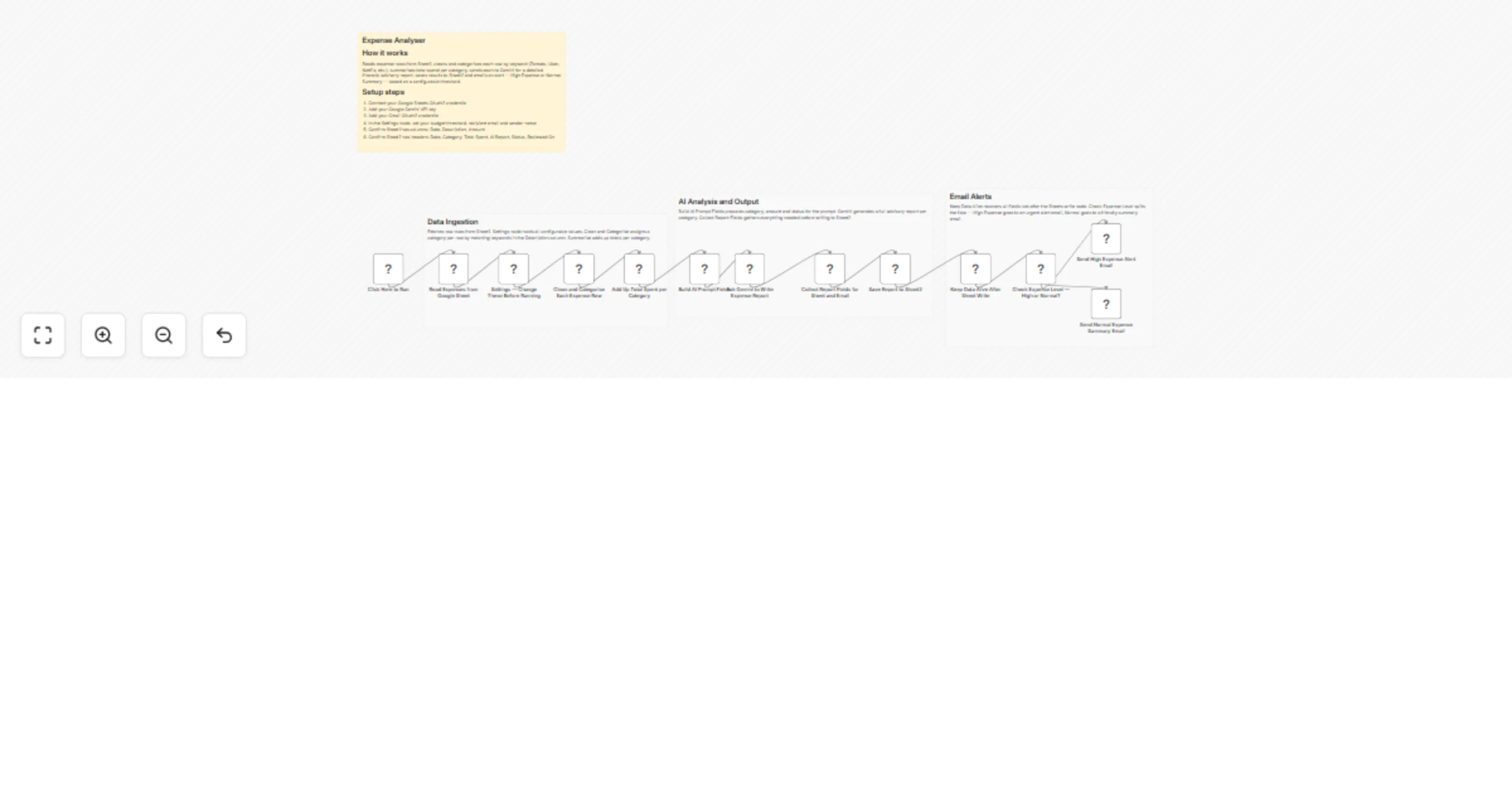
This n8n workflow reads your expenses from Google Sheets, categorizes them using predefined keywords, summarizes spending per category, generates AI-powered financial advice using Gemini, stores results in another sheet and sends email alerts for high or normal expenses.

Quick Start Guide

  1. Import the workflow into n8n

  2. Connect:

  • Google Sheets OAuth2
  • Google Gemini API
  • Gmail OAuth2
  1. Update the Settings node:
  • Budget limit
  • Recipient email
  • Sender name
  1. Ensure:
  • Sheet1 → Date, Description, Amount
  • Sheet2 → Date, Category, Total Spent, AI Report, Status, Reviewed On
  1. Click "Execute Workflow"

What It Does

This workflow automates your expense tracking and financial analysis using a combination of Google Sheets and AI.

It begins by fetching raw expense data from a Google Sheet (Sheet1), where each row contains a date, description and amount. The workflow then processes each row by cleaning the data and assigning a category such as Food, Transport, Subscription, Shopping, Utilities, Health or Other using predefined keyword matching.

Once categorized, it aggregates total spending per category and evaluates whether the spending exceeds a defined budget limit. Based on this evaluation, it generates a detailed, personalized financial advisory report using Google Gemini AI.

Finally, the workflow stores all results in another sheet (Sheet2) and sends an email notification—either a high expense alert or a normal summary—based on the spending status.

Who’s It For

  • Individuals managing personal finances
  • Freelancers tracking monthly expenses
  • Families monitoring household spending
  • Finance enthusiasts wanting AI-driven insights
  • Anyone using Google Sheets for expense tracking

Requirements

To use this workflow, you need:

  • n8n (self-hosted or cloud)
  • Google Sheets account
  • Google Gemini API key
  • Gmail account (for sending emails)
  • A Google Sheet with:
  • Sheet1: Expense data
  • Sheet2: Output report

How To Set Up

1. Import Workflow

Import the provided JSON file into n8n

2. Connect Credentials

  • Google Sheets OAuth2 → For reading and writing data
  • Google Gemini API → For AI report generation
  • Gmail OAuth2 → For sending emails

3. Prepare Google Sheets

Sheet1 (Input)
Date Description Amount
Sheet2 (Output)
Date Category Total Spent AI Report Status Reviewed On

4. Configure Settings Node

Update the “Settings — Change These Before Running” node:

  • Budget Limit → Threshold for high expense detection
  • Send Report To Email → Recipient email
  • Email Sender Name → Display name
  • Currency Symbol → Example: Rs.
  • Report Period → Example: This Month

5. Run Workflow

  • Click “Execute Workflow”
  • The workflow will:
  • Read expenses
  • Categorize them
  • Generate AI insights
  • Save results
  • Send email alerts

How It Works (Step-by-Step Flow)

  1. Manual Trigger
  • Starts the workflow
  1. Read Expenses
  • Fetches rows from Sheet1
  1. Settings Node
  • Stores all configurable values
  1. Clean & Categorize
  • Converts description to lowercase
  • Assigns categories using hardcoded keyword logic
  1. Summarize
  • Groups data by category
  • Calculates total spend
  1. Build AI Fields
  • Prepares structured input for Gemini
  1. Gemini AI
  • Generates detailed financial advisory report
  1. Collect Data
  • Formats data for storage and email
  1. Save to Sheet2
  • Appends results
  1. Condition Check
  • Determines if expense is high or normal
  1. Email Notifications
  • Sends:
  • High Expense Alert OR
  • Normal Summary

How To Customize Nodes

1. Categorization Logic

  • Modify the “Clean and Categorise Each Expense Row” node
  • Add or update keyword checks for categories

2. Budget Threshold

  • Change Budget Limit in Settings node

3. AI Prompt

  • Edit “Ask Gemini to Write Expense Report”
  • Customize tone, format or advice style

4. Email Content

  • Modify:
  • Subject lines
  • Email body
  • Sender name

5. Currency & Region

  • Update:
  • Currency symbol
  • Date format (if needed)

Add-Ons (Enhancements)

  • Add Cron Trigger for automatic daily/monthly runs
  • Integrate Slack/WhatsApp alerts
  • Add dashboard visualization (Google Data Studio / Looker)
  • Store reports in Notion or Airtable
  • Add multi-user expense tracking
  • Enable PDF report generation

Use Case Examples

  1. Monthly Personal Expense Review
  • Automatically analyze and summarize monthly spending
  1. High Spending Alerts
  • Get notified when a category exceeds your budget
  1. Subscription Cost Optimization
  • Identify unnecessary recurring expenses
  1. Family Budget Monitoring
  • Track combined household expenses
  1. Freelancer Expense Tracking
  • Monitor business vs personal expenses

There can be many more variations of this workflow depending on your needs.

Troubleshooting Guide

Issue Possible Cause Solution
No data fetched Incorrect Sheet ID or tab Verify Sheet1 configuration
Categories not accurate Keyword mismatch Update categorization logic
AI report not generated Invalid Gemini API key Reconnect API credentials
Emails not sent Gmail not connected Reauthorize Gmail OAuth
Sheet2 not updating Column mismatch Ensure correct headers
Always "Normal Expense" Budget too high Adjust Budget Limit
Missing email recipient Email not set in Settings Add recipient email

Need Help?

If you need help setting up, customizing or extending this workflow, we’re here to support you.

Whether you want:

  • Advanced automation
  • Custom AI workflows
  • Business process optimization
  • Integration with your existing systems

Reach out to WeblineIndia for expert assistance in building powerful, scalable automation solutions tailored to your needs.

1.2 Logical Blocks

This catalog entry is organized from the workflow JSON. The node-level section below shows the executable blocks available for review before importing the template.

2. Block-by-Block Analysis

Block 1 - Overview — Read This First

Type / Role
n8n-nodes-base.stickyNote - stickyNote
Config choices
Version 1

Block 2 - Group — Data Ingestion

Type / Role
n8n-nodes-base.stickyNote - stickyNote
Config choices
Version 1

Block 3 - Group — AI Analysis and Sheet Output

Type / Role
n8n-nodes-base.stickyNote - stickyNote
Config choices
Version 1

Block 4 - Group — Email Notifications

Type / Role
n8n-nodes-base.stickyNote - stickyNote
Config choices
Version 1

Block 5 - Click Here to Run

Type / Role
n8n-nodes-base.manualTrigger - manualTrigger
Config choices
Version 1

Block 6 - Read Expenses from Google Sheet

Type / Role
n8n-nodes-base.googleSheets - googleSheets
Config choices
Version 4.7

Block 7 - Settings — Change These Before Running

Type / Role
n8n-nodes-base.set - set
Config choices
Version 3.4

Block 8 - Clean and Categorise Each Expense Row

Type / Role
n8n-nodes-base.set - set
Config choices
Version 3.4

Block 9 - Add Up Total Spent per Category

Type / Role
n8n-nodes-base.summarize - summarize
Config choices
Version 1.1

Block 10 - Build AI Prompt Fields

Type / Role
n8n-nodes-base.set - set
Config choices
Version 3.4

Block 11 - Ask Gemini to Write Expense Report

Type / Role
@n8n/n8n-nodes-langchain.googleGemini - googleGemini
Config choices
Version 1.1

Block 12 - Collect Report Fields for Sheet and Email

Type / Role
n8n-nodes-base.set - set
Config choices
Version 3.4

Block 13 - Save Report to Sheet2

Type / Role
n8n-nodes-base.googleSheets - googleSheets
Config choices
Version 4.7

Block 14 - Keep Data Alive After Sheet Write

Type / Role
n8n-nodes-base.set - set
Config choices
Version 3.4

Block 15 - Check Expense Level — High or Normal?

Type / Role
n8n-nodes-base.if - if
Config choices
Version 2.2

Block 16 - Send High Expense Alert Email

Type / Role
n8n-nodes-base.gmail - gmail
Config choices
Version 2.1

Block 17 - Send Normal Expense Summary Email

Type / Role
n8n-nodes-base.gmail - gmail
Config choices
Version 2.1

3. Summary Table

Workflow Track and analyze Google Sheets expenses with Gemini and Gmail alerts
Complexity advanced
Nodes 17
Categories Document Extraction, AI Summarization
Author WeblineIndia
Published 08 Apr 2026

4. Reproducing the Workflow from Scratch

  1. 1. Download the workflow JSON

    Use the JSON export at /data/workflows/14901/14901.json as the source template for this automation.

  2. 2. Import the template into n8n

    Open n8n, import the downloaded JSON, and review each node before activating the workflow.

  3. 3. Configure credentials and variables

    Replace placeholder credentials, API keys, webhook URLs, account IDs, and environment-specific values with your own settings.

  4. 4. Test with sample data

    Run the workflow manually or in a staging workspace, inspect node output, and confirm downstream systems receive the expected data.

  5. 5. Activate and monitor

    Enable the workflow only after testing, then monitor executions, errors, and rate limits during the first production runs.

5. General Notes & Resources

Review imported nodes carefully before activation. This catalog entry is intended to help you inspect the workflow structure, understand required services, and find related templates faster.

Node names, credentials, schedules, webhook paths, and external service limits may need adjustment for your workspace.

Frequently asked questions

What does Track and analyze Google Sheets expenses with Gemini and Gmail alerts do?

Expense Leak Detector Smart Expense Monitoring in Minutes This n8n workflow reads your expenses from Google Sheets, categorizes them using predefined keywords, summarizes spending per category, gen...

What do I need before importing this workflow?

Review the workflow JSON, configure any required credentials in n8n, and test the automation in a safe workspace before using it in production.

Can I customize this workflow?

Yes. Use the block-by-block analysis and the downloadable JSON to inspect each node, then adjust credentials, prompts, schedules, filters, or destinations for your Document Extraction, AI Summarization use case.