Sync inventory updates between systems via webhook and Google Sheets logging

Workflow preview

Workflow preview
100%
Sync inventory updates between systems via webhook and Google Sheets logging preview
Open on n8n.io

1. Workflow Overview

(Retail Automation) Transfer Inventory Updates Across Systems This workflow automatically synchronizes inventory quantity updates between systems using a webhook driven approach. When an inventory ...

Best for

  • File Management automation workflows
  • intermediate n8n builders looking for reusable templates

Tools used

n8n-nodes-base.webhook, n8n-nodes-base.set, n8n-nodes-base.if, n8n-nodes-base.code, n8n-nodes-base.httprequest, n8n-nodes-base.googlesheets, n8n-nodes-base.stickynote

Source and attribution

This workflow is cataloged by N8N Workflows and links back to its original n8n.io source page by WeblineIndia.

Original n8n.io source

1.1 Workflow description

Title
Sync inventory updates between systems via webhook and Google Sheets logging
Workflow name
Sync inventory updates between systems via webhook and Google Sheets logging

(Retail Automation) Transfer Inventory Updates Across Systems

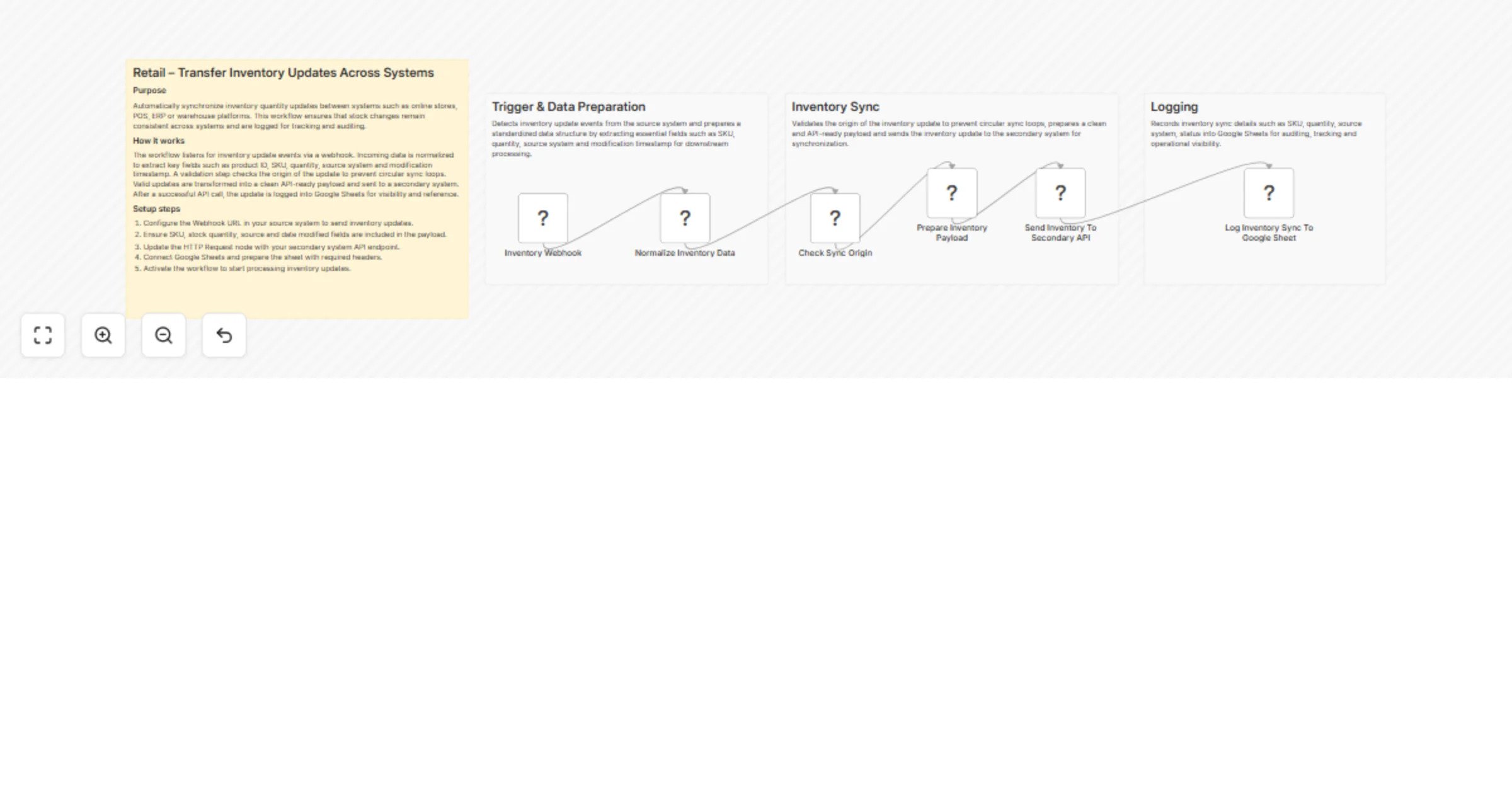
This workflow automatically synchronizes inventory quantity updates between systems using a webhook-driven approach. When an inventory update is received, the workflow validates the source, prepares a clean payload, sends the update to a secondary system via an HTTP API and logs the update into Google Sheets for tracking and auditing.

Quick Implementation Steps

  1. Import the workflow JSON into n8n.
  2. Configure the Webhook URL in your source system.
  3. Update the HTTP Request node with the secondary system API endpoint.
  4. Connect Google Sheets and select the target spreadsheet.
  5. Activate the workflow.

What It Does

This workflow listens for inventory update events sent from an external system such as an online store, POS, ERP or warehouse platform. Once an update is received, the workflow normalizes the incoming data by extracting key fields like product ID, SKU, stock quantity, source system and modification timestamp.

To avoid circular synchronization issues, the workflow validates the origin of the update and ensures that updates originating from the secondary system are not reprocessed. Valid inventory updates are then transformed into a clean, API-ready payload and sent to a secondary system using an HTTP Request node.

After the inventory update is successfully pushed to the secondary system, the workflow logs the inventory details into Google Sheets. This provides a simple audit trail for tracking inventory movements and troubleshooting sync issues.

Who’s It For

This workflow is suitable for:

  • Retail businesses managing inventory across multiple systems
  • Teams using WooCommerce, POS, ERP or warehouse tools
  • Operations teams requiring inventory audit logs
  • Developers building middleware-based inventory synchronization
  • Businesses aiming to reduce overselling and manual stock corrections

Prerequisites

To use this workflow, you need:

  • An active n8n instance (self-hosted or cloud)
  • A source system capable of sending inventory updates via webhook
  • SKU-based inventory management
  • Access to a secondary system API endpoint
  • Google Sheets account with edit permissions
  • A Google Sheet with predefined column headers

How to Use & Setup

  1. Import the workflow JSON into your n8n instance.
  2. Copy the Webhook URL from the Inventory Webhook node.
  3. Configure your source system to send inventory updates to this Webhook URL.
  4. Review the Normalize Inventory Data node to ensure required fields are mapped correctly.
  5. Verify the Check Sync Origin node to match your source system naming.
  6. Update the Send Inventory To Secondary API node with the correct API endpoint.
  7. Configure the Log Inventory Sync To Google Sheet node with your target spreadsheet.
  8. Save and activate the workflow.

Once activated, the workflow runs automatically whenever an inventory update is received.

How To Customize Nodes

  • Normalize Inventory Data
  • Add or remove inventory-related fields as needed.
  • Adjust field names to match your source system payload.
  • Check Sync Origin
  • Modify the source comparison value to prevent loops in your setup.
  • Prepare Inventory Payload
  • Change payload structure to match the secondary system API requirements.
  • Send Inventory To Secondary API
  • Add authentication headers or modify HTTP method if required.
  • Google Sheets Logging
  • Add additional columns such as execution ID or API response status.

Add-ons (Optional Enhancements)

This workflow can be extended to:

  • Add retry logic for failed API requests
  • Log failed sync attempts into a separate Google Sheet
  • Send Slack or email alerts on sync failures
  • Perform scheduled inventory reconciliation between systems
  • Support bi-directional inventory synchronization

Use Case Examples

  1. Sync inventory changes from WooCommerce to an ERP system.
  2. Push POS stock deductions to a warehouse management system.
  3. Maintain a centralized inventory audit log in Google Sheets.
  4. Prevent overselling across multiple sales channels.
  5. Monitor and troubleshoot inventory sync issues efficiently.

There can be many more use cases depending on business requirements.

Troubleshooting Guide

Issue Possible Cause Solution
Workflow not triggering Webhook URL not configured Verify Webhook URL and HTTP method
Inventory not syncing Source validation blocking flow Check source value in payload
API request failing Invalid endpoint or payload Validate API URL and request body
Google Sheet not updating Incorrect sheet configuration Verify sheet permissions and headers
Duplicate updates Missing source control Ensure sync origin logic is correct

Need Help?

If you need assistance setting up, customizing or extending this workflow or want to build similar automation workflows tailored to your business, feel free to contact n8n automation experts at WeblineIndia.

Our team can help you design, optimize and deploy robust n8n automation solutions.

1.2 Logical Blocks

This catalog entry is organized from the workflow JSON. The node-level section below shows the executable blocks available for review before importing the template.

2. Block-by-Block Analysis

Block 1 - Inventory Webhook

Type / Role
n8n-nodes-base.webhook - webhook
Config choices
Version 2.1

Block 2 - Normalize Inventory Data

Type / Role
n8n-nodes-base.set - set
Config choices
Version 3.4

Block 3 - Check Sync Origin

Type / Role
n8n-nodes-base.if - if
Config choices
Version 2.2

Block 4 - Prepare Inventory Payload

Type / Role
n8n-nodes-base.code - code
Config choices
Version 2

Block 5 - Send Inventory To Secondary API

Type / Role
n8n-nodes-base.httpRequest - httpRequest
Config choices
Version 4.3

Block 6 - Log Inventory Sync To Google Sheet

Type / Role
n8n-nodes-base.googleSheets - googleSheets
Config choices
Version 4.7

Block 7 - Inventory Sync Overview

Type / Role
n8n-nodes-base.stickyNote - stickyNote
Config choices
Version 1

Block 8 - Trigger & Data Preparation

Type / Role
n8n-nodes-base.stickyNote - stickyNote
Config choices
Version 1

Block 9 - Inventory Sync

Type / Role
n8n-nodes-base.stickyNote - stickyNote
Config choices
Version 1

Block 10 - Logging

Type / Role
n8n-nodes-base.stickyNote - stickyNote
Config choices
Version 1

3. Summary Table

Workflow Sync inventory updates between systems via webhook and Google Sheets logging
Complexity intermediate
Nodes 10
Categories File Management
Author WeblineIndia
Published 21 Jan 2026

4. Reproducing the Workflow from Scratch

  1. 1. Download the workflow JSON

    Use the JSON export at /data/workflows/12871/12871.json as the source template for this automation.

  2. 2. Import the template into n8n

    Open n8n, import the downloaded JSON, and review each node before activating the workflow.

  3. 3. Configure credentials and variables

    Replace placeholder credentials, API keys, webhook URLs, account IDs, and environment-specific values with your own settings.

  4. 4. Test with sample data

    Run the workflow manually or in a staging workspace, inspect node output, and confirm downstream systems receive the expected data.

  5. 5. Activate and monitor

    Enable the workflow only after testing, then monitor executions, errors, and rate limits during the first production runs.

5. General Notes & Resources

Review imported nodes carefully before activation. This catalog entry is intended to help you inspect the workflow structure, understand required services, and find related templates faster.

Node names, credentials, schedules, webhook paths, and external service limits may need adjustment for your workspace.

Frequently asked questions

What does Sync inventory updates between systems via webhook and Google Sheets logging do?

(Retail Automation) Transfer Inventory Updates Across Systems This workflow automatically synchronizes inventory quantity updates between systems using a webhook driven approach. When an inventory ...

What do I need before importing this workflow?

Review the workflow JSON, configure any required credentials in n8n, and test the automation in a safe workspace before using it in production.

Can I customize this workflow?

Yes. Use the block-by-block analysis and the downloadable JSON to inspect each node, then adjust credentials, prompts, schedules, filters, or destinations for your File Management use case.