Sync Facebook/Google lead ads to Google Sheets & Salesforce CRM

Workflow preview

Workflow preview
100%
Sync Facebook/Google lead ads to Google Sheets & Salesforce CRM preview
Open on n8n.io

Important notice

This workflow is provided as-is. Please review and test before using in production.

1. Workflow Overview

Stop wasting time on manual data entry and instantly engage with your new leads! This powerful and production ready n8n workflow automates the entire process of capturing leads from Facebook Lead A...

Best for

  • Lead Generation automation workflows
  • intermediate n8n builders looking for reusable templates

Tools used

n8n-nodes-base.start, n8n-nodes-base.facebookleadadstrigger, n8n-nodes-base.googlesheets, n8n-nodes-base.salesforce, n8n-nodes-base.set

Source and attribution

This workflow is cataloged by N8N Workflows and links back to its original n8n.io source page by Candra Reza.

Original n8n.io source

1.1 Workflow description

Title
Sync Facebook/Google lead ads to Google Sheets & Salesforce CRM
Workflow name
Sync Facebook/Google lead ads to Google Sheets & Salesforce CRM

Stop wasting time on manual data entry and instantly engage with your new leads! This powerful and production-ready n8n workflow automates the entire process of capturing leads from Facebook Lead Ads (or Google Ads Lead Forms), creating a backup in Google Sheets, and adding them directly into your CRM like Salesforce.

This template is designed for marketers, sales teams, and agencies who want to ensure every lead is tracked and actioned immediately, improving conversion rates and maintaining a clean, organized database.

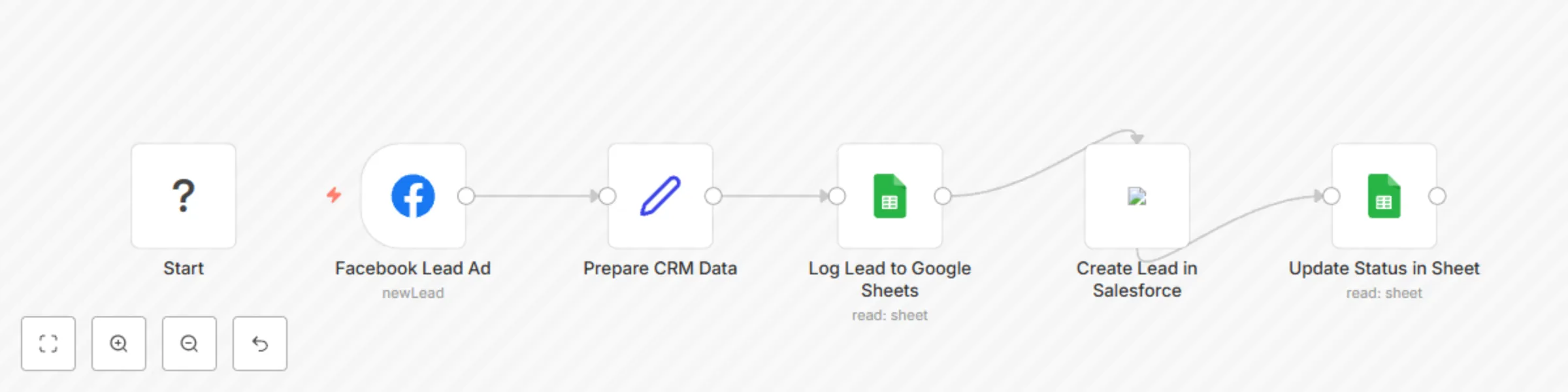
How It Works This workflow follows a logical and robust sequence:

  • Instant Trigger: The workflow instantly starts when a new lead is submitted on your connected Facebook Lead Ad form.
  • Smart Data Prep: A Set node automatically processes the incoming data, intelligently splitting the 'full_name' field into 'First Name' and 'Last Name' to ensure compatibility with standard CRM fields.
  • Reliable Backup: The lead details are immediately appended to a new row in a specified Google Sheet. This serves as a permanent, easy-to-access log of all your leads. A "Processing" status is added.
  • CRM Integration: The formatted lead data is used to create a new Lead in Salesforce. This can be easily swapped for other CRMs like HubSpot, Pipedrive, Zoho, or any custom CRM with an API.
  • Status Confirmation: After the lead is successfully created in the CRM, the workflow goes back to the Google Sheet and updates the lead's status from "Processing" to "Synced," giving you a clear, at-a-glance overview of your sync status.

Key Features

  • Multi-Platform Ready: Primarily set up for Facebook Lead Ads, but the trigger can be easily swapped with the Google Ads Lead Form Trigger node for Google-based campaigns.
  • Data Integrity: Includes a data preparation step to clean and structure information before sending it to your CRM.
  • Failsafe Logging: Google Sheets integration ensures you never lose a lead, even if there's a temporary issue with your CRM.
  • Closed-Loop Reporting: The status update feature provides clear confirmation within your spreadsheet that the automation was successful for each lead.
  • Highly Customizable: Easily adapt the workflow to handle custom fields from your lead forms and map them to any field in your CRM.

Setup Instructions

  1. Import Template: Add this workflow to your n8n canvas.
  2. Configure Trigger:
    • Select the Facebook Lead Ad node.
    • Create or select your Facebook Lead Ads API credentials.
    • Choose the correct Page and Form you want to track from the dropdown lists.
    • (Optional: To use Google Ads, delete the Facebook node and add the 'Google Ads Lead Form Trigger' node instead, then connect it to the 'Prepare CRM Data' node.)
  3. Configure Google Sheets:
    • Select the Log Lead to Google Sheets node.
    • Create or select your Google Sheets API credentials.
    • Enter your Spreadsheet ID and the Sheet Name (e.g., "Leads").
    • Ensure your sheet has the following headers: Timestamp, FullName, Email, PhoneNumber, LeadID, CRM_Status.
    • The Update Status in Sheet node will automatically use the same credentials and sheet details.
  4. Configure Your CRM:
    • Select the Create Lead in Salesforce node.
    • Create or select your Salesforce API credentials.
    • Review the mapped fields. You can add any custom fields from your form by referencing the data from the trigger node (e.g., {{$nodes["Facebook Lead Ad"].json.custom_field_name}}).
  5. Activate Workflow: Save and activate your workflow to start automating your lead management!

This automation will save you hours of administrative work, eliminate human error, and ensure your sales team can follow up with hot leads faster than ever.

1.2 Logical Blocks

This catalog entry is organized from the workflow JSON. The node-level section below shows the executable blocks available for review before importing the template.

2. Block-by-Block Analysis

Block 1 - Start

Type / Role
n8n-nodes-base.start - start
Config choices
Version 1

Block 2 - Facebook Lead Ad

Type / Role
n8n-nodes-base.facebookLeadAdsTrigger - facebookLeadAdsTrigger
Config choices
Version 1

Block 3 - Log Lead to Google Sheets

Type / Role
n8n-nodes-base.googleSheets - googleSheets
Config choices
Version 3

Block 4 - Create Lead in Salesforce

Type / Role
n8n-nodes-base.salesforce - salesforce
Config choices
Version 2

Block 5 - Prepare CRM Data

Type / Role
n8n-nodes-base.set - set
Config choices
Version 2

Block 6 - Update Status in Sheet

Type / Role
n8n-nodes-base.googleSheets - googleSheets
Config choices
Version 3

3. Summary Table

Workflow Sync Facebook/Google lead ads to Google Sheets & Salesforce CRM
Complexity intermediate
Nodes 6
Categories Lead Generation
Author Candra Reza
Published 30 Jul 2025

4. Reproducing the Workflow from Scratch

  1. 1. Download the workflow JSON

    Use the JSON export at /data/workflows/6687/6687.json as the source template for this automation.

  2. 2. Import the template into n8n

    Open n8n, import the downloaded JSON, and review each node before activating the workflow.

  3. 3. Configure credentials and variables

    Replace placeholder credentials, API keys, webhook URLs, account IDs, and environment-specific values with your own settings.

  4. 4. Test with sample data

    Run the workflow manually or in a staging workspace, inspect node output, and confirm downstream systems receive the expected data.

  5. 5. Activate and monitor

    Enable the workflow only after testing, then monitor executions, errors, and rate limits during the first production runs.

5. General Notes & Resources

Review imported nodes carefully before activation. This catalog entry is intended to help you inspect the workflow structure, understand required services, and find related templates faster.

Node names, credentials, schedules, webhook paths, and external service limits may need adjustment for your workspace.

Frequently asked questions

What does Sync Facebook/Google lead ads to Google Sheets & Salesforce CRM do?

Stop wasting time on manual data entry and instantly engage with your new leads! This powerful and production ready n8n workflow automates the entire process of capturing leads from Facebook Lead A...

What do I need before importing this workflow?

Review the workflow JSON, configure any required credentials in n8n, and test the automation in a safe workspace before using it in production.

Can I customize this workflow?

Yes. Use the block-by-block analysis and the downloadable JSON to inspect each node, then adjust credentials, prompts, schedules, filters, or destinations for your Lead Generation use case.