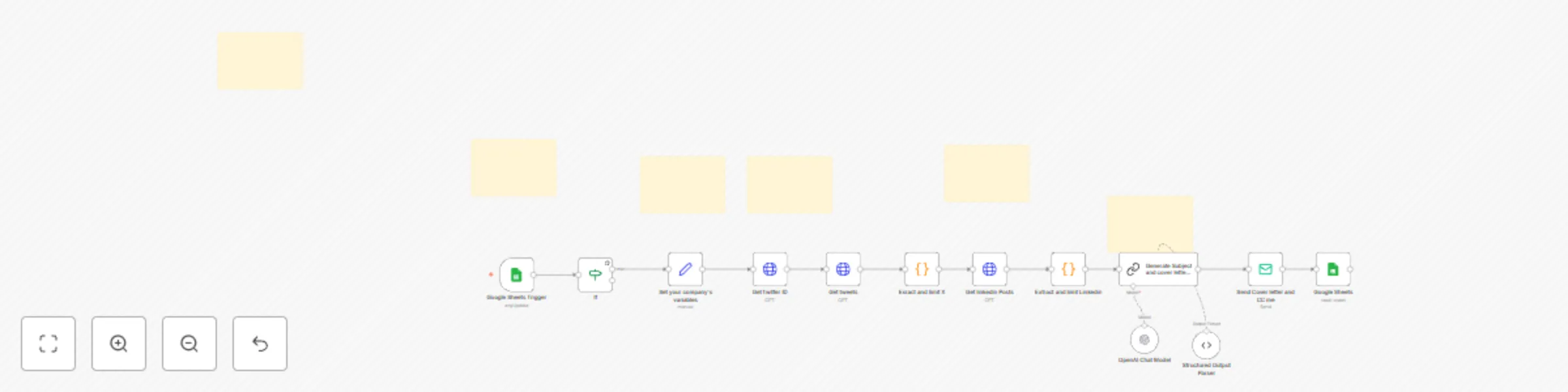
Social media analysis and automated email generation

Workflow preview

Workflow preview
100%
Social media analysis and automated email generation preview
Open on n8n.io

Important notice

This workflow is provided as-is. Please review and test before using in production.

1. Workflow Overview

Social Media Analysis and Automated Email Generation by Thomas Vie [email protected] Who is this for? This template is ideal for marketers, lead generation special...

Best for

  • Lead Nurturing automation workflows
  • Multimodal AI automation workflows
  • advanced n8n builders looking for reusable templates

Tools used

n8n-nodes-base.set, n8n-nodes-base.httprequest, n8n-nodes-base.code, @n8n/n8n-nodes-langchain.lmchatopenai, @n8n/n8n-nodes-langchain.outputparserstructured, @n8n/n8n-nodes-langchain.chainllm, n8n-nodes-base.emailsend, n8n-nodes-base.stickynote

Source and attribution

This workflow is cataloged by N8N Workflows and links back to its original n8n.io source page by PollupAI.

Original n8n.io source

1.1 Workflow description

Title
Social media analysis and automated email generation
Workflow name
Social media analysis and automated email generation

Social Media Analysis and Automated Email Generation

> by Thomas Vie [email protected]

Who is this for?

This template is ideal for marketers, lead generation specialists, and business professionals seeking to analyze social media profiles of potential leads and automate personalized email outreach efficiently.

What problem is this workflow solving?

Manually analyzing social media profiles and crafting personalized emails can be time-consuming and prone to errors. This workflow streamlines the process by integrating social media APIs with AI to generate tailored communication, saving time and increasing outreach effectiveness.

What this workflow does:

  1. Google Sheets Integration: Start with a Google Sheet containing lead information such as LinkedIn URL, Twitter handle, name, and email.
  2. Social Media Data Extraction: Automatically fetch profile and activity data from Twitter and LinkedIn using RapidAPI integrations.
  3. AI-Powered Content Generation: Use OpenAI's Chat Model to analyze the extracted data and generate personalized email subject lines and cover letters.
  4. Automated Email Dispatch: Send the generated email directly to the lead, with a copy sent to yourself for tracking purposes.
  5. Progress Tracking: Update the Google Sheet to indicate completed actions.
Setup:
  1. Google Sheets:

    • Create a sheet with the columns: LinkedIn URL, name, Twitter handle, email, and a "done" column for tracking.
    • Populate the sheet with your leads.
  2. RapidAPI Accounts:

    • Sign up for RapidAPI and subscribe to the Twitter and LinkedIn API plans.
    • Configure API authentication keys in the workflow.
  3. AI Configuration:

    • Connect OpenAI Chat Model with your API key for text generation.
  4. Email Integration:

    • Add your email credentials or service (SMTP or third-party service like Gmail) for sending automated emails.
How to customize this workflow to your needs:
  • Modify the AI Prompt: Adapt the prompt in the AI node to better align with your tone, style, or specific messaging framework.
  • Expand Data Fields: Add additional data fields in Google Sheets if you require further personalization.
  • API Limits: Adjust API configurations to fit your usage limits or upgrade to higher tiers for increased data scraping capabilities.
  • Personalize Email Templates: Tweak email formats to suit different audiences or use cases.
  • Extend Functionality: Integrate additional social media platforms or CRM tools as needed.

By implementing this workflow, you’ll save time on repetitive tasks and create more effective lead generation strategies.

1.2 Logical Blocks

This catalog entry is organized from the workflow JSON. The node-level section below shows the executable blocks available for review before importing the template.

2. Block-by-Block Analysis

Block 1 - Set your company's variables

Type / Role
n8n-nodes-base.set - set
Config choices
Version 3.4

Block 2 - Get linkedin Posts

Type / Role
n8n-nodes-base.httpRequest - httpRequest
Config choices
Version 4.2

Block 3 - Get twitter ID

Type / Role
n8n-nodes-base.httpRequest - httpRequest
Config choices
Version 4.2

Block 4 - Get tweets

Type / Role
n8n-nodes-base.httpRequest - httpRequest
Config choices
Version 4.2

Block 5 - Extract and limit Linkedin

Type / Role
n8n-nodes-base.code - code
Config choices
Version 2

Block 6 - Exract and limit X

Type / Role
n8n-nodes-base.code - code
Config choices
Version 2

Block 7 - OpenAI Chat Model

Type / Role
@n8n/n8n-nodes-langchain.lmChatOpenAi - lmChatOpenAi
Config choices
Version 1

Block 8 - Structured Output Parser

Type / Role
@n8n/n8n-nodes-langchain.outputParserStructured - outputParserStructured
Config choices
Version 1.2

Block 9 - Generate Subject and cover letter based on match

Type / Role
@n8n/n8n-nodes-langchain.chainLlm - chainLlm
Config choices
Version 1.5

Block 10 - Send Cover letter and CC me

Type / Role
n8n-nodes-base.emailSend - emailSend
Config choices
Version 2.1

Block 11 - Sticky Note

Type / Role
n8n-nodes-base.stickyNote - stickyNote
Config choices
Version 1

Block 12 - Google Sheets Trigger

Type / Role
n8n-nodes-base.googleSheetsTrigger - googleSheetsTrigger
Config choices
Version 1

Block 13 - Google Sheets

Type / Role
n8n-nodes-base.googleSheets - googleSheets
Config choices
Version 4.5

Block 14 - If

Type / Role
n8n-nodes-base.if - if
Config choices
Version 2.2

Block 15 - Sticky Note1

Type / Role
n8n-nodes-base.stickyNote - stickyNote
Config choices
Version 1

Block 16 - Sticky Note2

Type / Role
n8n-nodes-base.stickyNote - stickyNote
Config choices
Version 1

Block 17 - Sticky Note3

Type / Role
n8n-nodes-base.stickyNote - stickyNote
Config choices
Version 1

Block 18 - Sticky Note4

Type / Role
n8n-nodes-base.stickyNote - stickyNote
Config choices
Version 1

Block 19 - Sticky Note5

Type / Role
n8n-nodes-base.stickyNote - stickyNote
Config choices
Version 1

3. Summary Table

Workflow Social media analysis and automated email generation
Complexity advanced
Nodes 19
Categories Lead Nurturing, Multimodal AI
Author PollupAI
Published 30 Jan 2025

4. Reproducing the Workflow from Scratch

  1. 1. Download the workflow JSON

    Use the JSON export at /data/workflows/2823/2823.json as the source template for this automation.

  2. 2. Import the template into n8n

    Open n8n, import the downloaded JSON, and review each node before activating the workflow.

  3. 3. Configure credentials and variables

    Replace placeholder credentials, API keys, webhook URLs, account IDs, and environment-specific values with your own settings.

  4. 4. Test with sample data

    Run the workflow manually or in a staging workspace, inspect node output, and confirm downstream systems receive the expected data.

  5. 5. Activate and monitor

    Enable the workflow only after testing, then monitor executions, errors, and rate limits during the first production runs.

5. General Notes & Resources

Review imported nodes carefully before activation. This catalog entry is intended to help you inspect the workflow structure, understand required services, and find related templates faster.

Node names, credentials, schedules, webhook paths, and external service limits may need adjustment for your workspace.

Frequently asked questions

What does Social media analysis and automated email generation do?

Social Media Analysis and Automated Email Generation by Thomas Vie [email protected] Who is this for? This template is ideal for marketers, lead generation special...

What do I need before importing this workflow?

Review the workflow JSON, configure any required credentials in n8n, and test the automation in a safe workspace before using it in production.

Can I customize this workflow?

Yes. Use the block-by-block analysis and the downloadable JSON to inspect each node, then adjust credentials, prompts, schedules, filters, or destinations for your Lead Nurturing, Multimodal AI use case.