P

PollupAI

20
Workflows

Workflows by PollupAI

Workflow preview: AI-powered customer feedback routing with Gmail, Slack, Pipedrive, Zendesk & Notion
Free advanced

AI-powered customer feedback routing with Gmail, Slack, Pipedrive, Zendesk & Notion

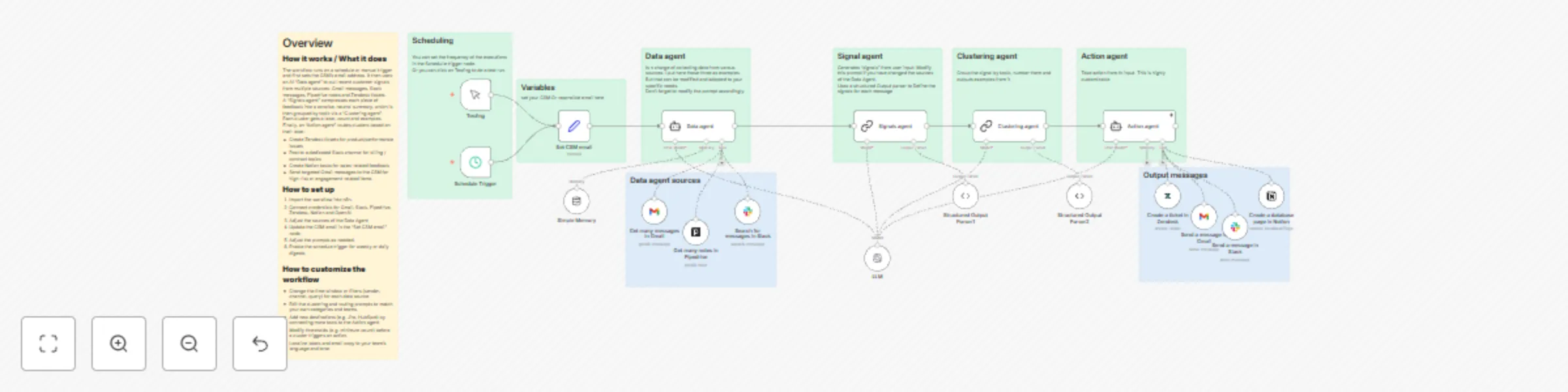
## **Who’s it for** This workflow is built for B2B SaaS and CX teams that are drowning in unstructured customer feedback across tools. It’s ideal for Customer Success, Product and Support leaders who want a light “voice of customer engine” without rebuilding their stack: Gmail for interactions, Slack for conversations, Pipedrive for notes and Zendesk for tickets, plus Notion for follow-up tasks.  ## **How it works / What it does** The workflow runs on a schedule or manual trigger and first sets the CSM’s email address. It then uses an AI “Data agent” to pull recent customer signals from multiple sources: Gmail messages, Slack messages, Pipedrive notes and Zendesk tickets. A “Signals agent” compresses each piece of feedback into a concise, neutral summary, which is then grouped by topic via a “Clustering agent”. Each cluster gets a label, count and examples. Finally, an “Action agent” routes clusters based on their label: - Create Zendesk tickets for product/performance issues - Post to a dedicated Slack channel for billing / contract topics - Create Notion tasks for sales-related feedback - Send targeted Gmail messages to the CSM for high-risk or engagement-related items ## **How to set up** 1. Import the workflow into n8n. 2. Connect credentials for Gmail, Slack, Pipedrive, Zendesk, Notion and OpenAI. 3. Update the CSM email in the “Set CSM email” node. 4. Adjust date filters, send-to addresses and Slack channel IDs as needed. 5. Enable the schedule trigger for weekly or daily digests. ## **Requirements** - Active accounts & credentials for: Gmail, Slack, Pipedrive, Zendesk and Notion - OpenAI (or compatible) API key for the LLM node - At least one Slack channel for posting feedback (e.g. #billing-feedback) ## **How to customize the workflow** - Change the time window or filters (sender, channel, query) for each data source. - Edit the clustering and routing prompts to match your own categories and teams. - Add new destinations (e.g. Jira, HubSpot) by connecting more tools to the Action agent. - Modify thresholds (e.g. minimum count) before a cluster triggers an action. - Localize labels and email copy to your team’s language and tone.

P
PollupAI
Ticket Management
9 Dec 2025
23
0
Workflow preview: Smart CSM assignment & AI welcome emails for HubSpot deal wins with Gmail
Free advanced

Smart CSM assignment & AI welcome emails for HubSpot deal wins with Gmail

## Who's it for This template is for Customer Success and Sales teams who use HubSpot. It automates the critical handoff from sales to success, ensuring every new customer gets a fast, personalized welcome. It's perfect for anyone looking to standardize their onboarding process, save time on manual tasks, and improve the new customer experience using AI. ## What it does This workflow triggers when a deal's "Is closed won" property is set to `True` in HubSpot. It assigns a Customer Success Manager (CSM) by querying an **n8n Data Table to find the 'least busy' CSM (based on a deal count)** and fetches the deal's details to find all associated contacts. It then loops to identify the "Champion" contact by checking their "Buying Role" (`hs_buying_role`). An AI agent (in the `AI: Write Welcome Email` node) generates a personalized welcome email, which is converted to HTML and sent via Gmail. Finally, the workflow updates the Champion's contact record in HubSpot and **updates the CSM's deal count in the Data Table** to keep the logic in sync. ## How to set up 1. **Create and Populate Data Table:** This template requires an n8n Data Table to manage CSM assignments. * Create a Data Table named `csm_assignments`. * Add two columns: `csm_id` (String) and `deal_count` (Number). * Add one row for each CSM with their HubSpot Owner ID and a starting `deal_count` of `0`. 2. **Link Data Table Nodes:** Open the `Get CSM List` and `Increment CSM Deal Count` nodes and select the `csm_assignments` table you just created from the **Table** dropdown. 3. **Configure Variables:** In the `Configure Template Variables` node, you must set your sender info (`company_name`, `sender_name`, and `sender_email`). 4. **Customize AI Prompt:** In the `AI: Write Welcome Email` node, update the placeholder `[Link to Your Video]` and `[Link to Your Help Doc]` links with your own URLs. 5. **Check HubSpot Property:** This workflow assumes you use the "Buying Role" (`hs_buying_role`) contact property to identify your "Champion". If you use a different property, you must update the `HubSpot: Get Contact Details` and `If Role is 'Champion'` nodes. ## Requirements * Access to **n8n Data Tables**. * **HubSpot (Developer API):** A credential for the `Trigger: Deal Is 'Closed Won'` node. * **HubSpot (OAuth2):** A credential for all other HubSpot nodes (`Get Deal Details`, `Get Contact Details`, `Assign Contact Owner`). * **AI Credentials:** (e.g., OpenAI) Credentials for the `AI Model` node (the node connected to `AI: Write Welcome Email`). * **Email Credentials:** (e.g., Gmail) Credentials for the `Gmail: Send Welcome Email` node. ## How to customize the workflow You can easily customize this workflow to send different emails based on deal properties. Add an `If` node after the `HubSpot: Get Deal Details` node to check for the deal's value, product line, or region. Based on these properties, you can route the flow to different `AI: Write Welcome Email` nodes with unique prompts. For example, you could **check the contact's 'industry' or 'company size' to send them links to different, more relevant 'Getting Started' videos and documentation.**

P
PollupAI
CRM
1 Nov 2025
106
0
Workflow preview: Predict customer churn with AI analysis of HubSpot and Google Sheets data
Free advanced

Predict customer churn with AI analysis of HubSpot and Google Sheets data

## Who it’s for Built for Customer Success and Account Management teams focused on proactive retention. This workflow helps you automatically identify at-risk customers – before they churn – by combining CRM, usage, and sentiment data into one actionable alert. ## What it does This end-to-end workflow continuously monitors customer health by consolidating data from HubSpot and Google Sheets. Here’s how it works: * Fetch deals from HubSpot. * Collect context — linked support tickets and feature usage from a Google Sheet. * Run sentiment analysis on the tickets to generate a customer health score. * Evaluate risk — an AI agent reviews deal age, sentiment score, and usage trends against predefined thresholds. * Send alerts — if churn risk is detected, it automatically sends a clear, data-driven email to the responsible team member with next-step recommendations. ## How to set it up To get started, configure your credentials and parameters in the following nodes: 1. **Credentials:** * **HubSpot:** Connect your account (`HubSpot: Get All Deals`). * **LLM Model:** Add credentials for your preferred provider (`Config: Set LLM for Agent & Chains`). * **Google Sheets:** Connect your account (`Tool: Get Feature Usage from Sheets`). * **Email:** Set up your SMTP credentials (`Email: Send Churn Alert`). 2. **Tool URLs:** * In **Tool: Calculate Sentiment Score**, enter the **Webhook URL** from the `Trigger: Receive Tickets for Scoring` node within this same workflow. * In **Tool: Get HubSpot Data**, enter the **Endpoint URL** for your MCP HubSpot data workflow. *(Note: This tool *does* call an external workflow)*. 3. **Google Sheet:** * In **Tool: Get Feature Usage from Sheets**, enter the Document ID for your own Google Sheet. 4. **Email Details:** * In **Email: Send Churn Alert**, change the `From` and `To` email addresses. ## Requirements * HubSpot account with Deals API access * LLM provider account (e.g. OpenAI) * Google Sheets tracking customer feature usage * n8n with LangChain community nodes enabled * A separate n8n workflow set up to act as an MCP endpoint for fetching HubSpot data (called by `Tool: Get HubSpot Data`). ## How to customize it Tailor this workflow to match your business logic: * **Scoring logic:** Adjust the JavaScript in the `Code: Convert Sentiment to Score` node to redefine how customer scores are calculated. * **Alert thresholds:** Update the prompt in the `AI Chain: Analyze for Churn Risk` node to fine-tune when alerts trigger (e.g. deal age, score cutoff, or usage drop). * **Data sources:** Swap HubSpot or Google Sheets for your CRM or database of choice — like Salesforce or Airtable. ✅ **Outcome:** A proactive customer health monitoring system that surfaces risks before it’s too late — keeping your team focused on prevention, not firefighting.

P
PollupAI
CRM
26 Oct 2025
1077
0
Workflow preview: AI-powered customer feedback analysis & routing for Gmail, Zendesk, Slack & Pipedrive
Free advanced

AI-powered customer feedback analysis & routing for Gmail, Zendesk, Slack & Pipedrive

## Who's it for This workflow is for Customer Success, Product, and Support teams who need to centralize and analyze unstructured customer feedback. It automates the process of identifying key themes from various communication channels, allowing you to proactively address issues, track feature requests, and understand the voice of the customer without manual effort. ## What it does This workflow uses a powerful chain of AI agents to process customer feedback from end to end. It begins by using a Data Agent to gather all recent customer interactions from multiple sources, including Gmail, Pipedrive, Zendesk, and Slack. Once the raw data is collected, a second AI Chain reads all the text and compresses it into concise, actionable "signals." A third AI Chain then takes these signals and intelligently clusters them into shared topics, assigning each a human-readable label like "Billing," "Performance," or "Feature Request." Finally, a fourth AI Agent acts as a dispatcher. It analyzes the clustered topics and follows a set of routing rules defined in its prompt to take the appropriate action. It uses its tools to automatically create a Zendesk ticket for product feedback, send a Slack message for billing issues, create a Notion page for training opportunities, or send a direct email alert for high-risk accounts. ## How to set up To get this workflow running, you will need to configure the credentials and parameters for the following nodes: 1. **Configure Credentials:** Add your credentials for the `Config: Set LLM for Agents` node and all of the Tool nodes (`Gmail`, `Pipedrive`, `Zendesk`, `Slack`, and `Notion`). 2. **Set Initial Parameters:** In the `Set: Initial Parameters` node, update the placeholder email address and the Slack channel name for billing alerts. 3. **Update Slack Search Channel:** In the `Tool: Search Slack Messages` node, set the channel you want the agent to search for feedback in. 4. **Activate Workflow:** Once configured, you can run the workflow manually to start the analysis. ## Requirements - An account with an LLM provider, such as OpenAI. - Accounts for the services you wish to connect (Gmail, Pipedrive, Zendesk, Slack, Notion). - This workflow requires n8n's Langchain community nodes to be installed on your instance. ## How to customize the workflow This workflow's logic is primarily driven by AI prompts, making it highly customizable: - **AI Prompts:** Adjust the prompts in any of the `AI Agent` or `AI Chain` nodes to change the data gathering, analysis, clustering, or routing rules to fit your business needs. - **Data Sources:** Add, remove, or swap out the "Tool" nodes in the `AI Agent: Gather Customer Feedback` section to connect to different data sources like Intercom, Salesforce, or a database. - **Triggers:** Replace the `Manual Trigger` with a `Schedule Trigger` to run the analysis automatically on a daily or weekly basis.

P
PollupAI
Ticket Management
16 Oct 2025
54
0
Workflow preview: Create workflow inventory dashboard with n8n API and Google Sheets
Free intermediate

Create workflow inventory dashboard with n8n API and Google Sheets

This workflow provides a powerful way to automatically document and maintain an inventory of all your n8n workflows in a Google Sheet. By running on a schedule or manually, it fetches details about every workflow on your instance, processes the key information, and then populates a spreadsheet. This creates a centralized, up-to-date dashboard for auditing, monitoring, and understanding your automation landscape. ## Who is this for? This workflow is ideal for n8n administrators, developers, and teams who manage multiple workflows. If you need a clear and simple way to track all your automations, their components, and their statuses without manually checking each one, this template is for you. It's particularly useful for maintaining technical documentation, auditing node usage across your instance, and quickly finding specific workflows. ## What problem is this workflow solving? As the number of workflows on an n8n instance grows, it becomes challenging to keep track of them all. Questions like "Which workflows use the HubSpot node?", "Which workflows are inactive?", or "When was this workflow last updated?" become difficult to answer. This workflow solves that problem by creating a single source of truth in a Google Sheet. It automates the process of cataloging your workflows, saving you time and ensuring your documentation is always current. ## What this workflow does 1. **Triggers Execution**: The workflow can be initiated either on a set schedule (via the **Scheduled Start** node) or manually (via the **Manual Start** node). 2. **Fetches All Workflows**: The **`Get All Workflows`** node connects to your n8n instance via the API to retrieve a complete list of your workflows and their associated data. 3. **Processes Workflows Individually**: The **`Loop Through Each Workflow`** node iterates through each retrieved workflow one by one so they can be processed individually. 4. **Extracts Key Information**: The **`Extract Workflow Details`** node uses custom code to process the data for each workflow, extracting essential details like its name, ID, tags, and a unique list of all node types it contains. 5. **Updates Google Sheet**: The **`Add/Update Row in Google Sheet`** node then takes this information and appends or updates a row in your designated spreadsheet, using the workflow ID as a unique key to prevent duplicates. 6. **Waits and Repeats**: The **`Pause to Avoid Rate Limits`** node adds a short delay to prevent issues with API limits before the loop continues to the next workflow. ## Setup 1. **Configure `Get All Workflows` Node**: * Select the `Get All Workflows` node. * In the 'Credentials' section, provide your n8n API credentials to allow the workflow to access your instance's data. 2. **Prepare Your Google Sheet**: * Create a new Google Sheet. * Set up the following headers in the first row: `id`, `title`, `link`, `tags`, `nodes`, `CreatedAt`, `UpdatedAt`, `Active`, `Archived`. 3. **Configure `Add/Update Row in Google Sheet` Node**: * Select the `Add/Update Row in Google Sheet` node. * Authenticate your Google account in the 'Credentials' section. * In the 'Document ID' field, enter the ID of your Google Sheet. You can find this in the sheet's URL (e.g., `.../spreadsheets/d/THIS_IS_THE_ID/edit`). * Select your sheet from the 'Sheet Name' dropdown. * Under 'Columns', ensure the `id` field is set as the 'Matching Columns' value. This is crucial for updating existing rows correctly. 4. **Activate the Workflow**: * Choose your preferred trigger. You can enable the `Schedule Trigger` to run the sync automatically at regular intervals. * Save and activate the workflow. ## How to customize this workflow to your needs * **Track Different Data**: You can modify the `Extract Workflow Details` node to extract other pieces of information from the workflow JSON. For example, you could parse the `settings` object or count the total number of nodes. Remember to add a corresponding column in your Google Sheet and map it in the `Google Sheets` node. * **Add Notifications**: Add a notification node (like Slack, Discord, or Email) after the `Loop Through Each Workflow` node (in the second output) to be alerted when the sync is complete or if an error occurs. * **Filter Workflows**: You can add an `IF` node after the `Loop Through Each Workflow` node to filter which workflows get added to the sheet. For instance, you could choose to only log active workflows (`{{ $('Loop Through Each Workflow').item.json.active }}` is true) or workflows containing a specific tag. * **Adjust Wait Time**: The `Pause to Avoid Rate Limits` node is set to pause between each entry. You can adjust this time or remove it entirely if you have a small number of workflows and are not concerned about hitting API rate limits.

P
PollupAI
Project Management
30 Sep 2025
712
0
Workflow preview: Automate support ticket classification & routing from HubSpot to Jira with GPT
Free advanced

Automate support ticket classification & routing from HubSpot to Jira with GPT

## **Who is this for?** This **n8n workflow template** is designed for **customer support**, **CX**, and **ops teams** that manage customer messages through HubSpot and use Jira for internal task management. It is especially useful for SaaS companies aiming to automate ticket triage, sentiment detection, and team assignment using **AI agents**. --- ## **🧩 What problem is this workflow solving?** Customer service teams often struggle with manual message classification, delayed reactions to churn signals, and inefficiencies in routing support issues to the right internal teams. This workflow uses **LLMs** and **automated profiling** to: - Detect churn risk or intent in customer messages - Summarize issues - Classify tickets into categories (e.g. fulfillment, technical, invoicing) - Automatically create **Jira tickets** based on enriched insights --- ## **🤖 What this workflow does** This AI-powered workflow processes HubSpot support tickets and routes them to Jira based on sentiment and topic. Here’s the full breakdown: 1. **Triggers**: Either manually or on a schedule (via cron). 2. **Fetch HubSpot tickets**: Retrieves new messages and their metadata. 3. **Run Orchestration Agent**: - Uses **Sentinel Agent** to detect **emotional tone**, **churn risk**, and **purchase intent**. - Calls **Profiler Agent** to enrich customer profiles from HubSpot. - Summarizes the message using OpenAI. - Classifies the ticket using a custom classifier (technical, fulfillment, etc.). 4. **Generate a Jira ticket**: - Title and description are generated using GPT. - The assignee and project are predefined. 5. **AI agents can be expanded** (e.g. add Guide or Facilitator agents). --- ## **⚙️ Setup** To use this template, you’ll need: - **HubSpot account** with OAuth2 credentials in n8n - **Jira Software Cloud account** and project ID - **OpenAI credentials** for GPT-based nodes - Optional: Create sub-workflows for additional AI agents Steps: 1. Clone the workflow in your n8n instance. 2. Replace placeholder credentials for **HubSpot**, **OpenAI**, and **Jira**. 3. Adjust Jira project/issue type IDs to match your setup. 4. Test the workflow using the **manual trigger** or **scheduled trigger** node. --- ## **🛠️ How to customize this workflow to your needs** ### **1. Edit category logic** In the **“Category Classifier”** node, modify categories and prompt structure to match your internal team structures (e.g., billing, account management, tech support). ### **2. Refine AI prompts** Customize the agent prompt definitions in: - Sentinel_agent - Profiler_agent - Orchestrator to better align with your brand tone or service goals. ### **3. Update Jira integration** You can route tickets to different projects or team leads by adjusting the **“Create an issue in Jira”** node based on classification output. ### **4. Add escalation paths** Insert Slack, email, or webhook notifications for specific risk levels or customer segments. --- This workflow empowers your team with **real-time message triage**, **automated decision-making**, and **AI-enhanced customer insight**, turning every inbound ticket into a data-driven action item. ---

P
PollupAI
AI Summarization
28 Aug 2025
264
0
Workflow preview: Automate multi-step onboarding with Google Sheets, Forms and Gmail notifications
Free advanced

Automate multi-step onboarding with Google Sheets, Forms and Gmail notifications

This **n8n workflow** enables teams to automate and standardize multi-step onboarding or messaging workflows using **Google Sheets**, **Forms**, **Gmail**, and dynamic logic powered by **Code** and **Switch** nodes. It ensures the right email is sent at the right step, tracks progress in Google Sheets, and handles errors or escalations. --- ## **🧑‍💼 Who is this for?** - HR and PeopleOps teams managing candidate or employee onboarding processes - Customer success or onboarding teams handling structured, step-based journeys - Any team using Google Sheets as a lightweight CRM or workflow tracker --- ## **🧩 What problem is this workflow solving?** Coordinating multi-step onboarding or communication flows using spreadsheets and email can quickly become error-prone. This workflow: - Dynamically detects the current step and status from a Google Sheet - Sends the right message at the right time - Updates statuses and creates next steps - Handles errors with escalation logic --- ## **⚙️ What this workflow does** 1. **Trigger via Form or Manual Execution** - Users can fill a web form or run the workflow manually. 2. **Read Google Sheets** - Retrieves step definitions and user progress from two sheets: - One for message templates - One for user step/status tracking 3. **Generate Message Table** - Uses custom JavaScript to parse and structure message templates based on step and message type (sent, completed, error). 4. **Determine User Step** - A **Switch node** checks the user’s current step and status. - Logic branches into the correct flow for message sending and verification. 5. **Send Message** - Message variables are replaced using a **Code** node. - Final message is sent via Gmail or another workflow (using Execute Workflow). 6. **Update Sheets** - Marks the step as completed or passed. - Creates the next step in the sheet with updated status. 7. **Handle Errors** - If the step fails, an error message is sent to the responsible admin. --- ## **🛠️ Setup** 1. **Connect Google Sheets and Gmail**: - Ensure credentials are configured in n8n. 2. **Prepare Sheets**: - One sheet for messages with steps/types/subjects/content. You can copy the one from [here](https://docs.google.com/spreadsheets/d/17_fUSV9zJo8Ya6ulvCOon2wjoeEmOwDFrpK1Xxa9gmw/edit?usp=sharing) - One sheet for tracking users and their current step/status. You can copy the one from [here](https://docs.google.com/spreadsheets/d/1HBLJNt8hAXNkqj6lfwQilBr9FCRxjT3j0r0Ni6cgoYA/edit?usp=sharing) 3. **Customize Webform**: - Use the provided form to capture First Name, Last Name, and Email. 4. **Connect to Your Email Templates**: - Ensure your message structure follows the expected JSON format by step and type. --- ## **✏️ How to customize this workflow to your needs** - **Add More Steps**: Expand the Switch logic and template sheet for more steps. - **Use Different Channels**: Replace Gmail with Slack, Telegram, or another messaging node. - **Change Form Fields**: Adjust the FormTrigger node to match your onboarding fields. - **Custom Error Logic**: Customize escalation emails, including admin routing or Slack alerts. - **Integrate with Databases**: Swap Google Sheets with Airtable, PostgreSQL, or Notion. --- This workflow is ideal for automating repetitive, step-based processes involving human communication. It’s modular, extensible, and powered by spreadsheet-driven logic.

P
PollupAI
HR
25 Aug 2025
658
0
Workflow preview: Automate CSAT surveys with Freshdesk & store responses in Google Sheets
Free advanced

Automate CSAT surveys with Freshdesk & store responses in Google Sheets

Never forget to send a satisfaction survey again! This workflow helps you automatically send CSAT surveys when a Freshdesk ticket is marked “Resolved” – and logs every response in Google Sheets for easy analysis, reporting, and escalation workflows. ## 💡 Built for CS and ops teams who care about real feedback This template is perfect for: - Customer Support Teams who want timely, consistent survey delivery after every resolved ticket. - Ops Leads & Admins tired of managing spreadsheets and survey tools manually. - Businesses using Freshdesk looking for a no-code feedback loop. - Automation fans who want to track, trigger, and take action — automatically. ## 🧩 What problem does it solve? Manual survey processes are slow, inconsistent, and hard to scale. This automation ensures: - Fast survey delivery when experiences are still fresh. - No duplicate emails thanks to a built-in tracking system. - Centralized feedback in a Google Sheet — no more digging through platforms. - Data you can act on, like triggering Slack alerts for poor scores. ## ⚙️ How it works ### 📨 Part 1: Auto-send the survey when a ticket is resolved 1. Trigger: Workflow runs on a schedule (or manually via “Test”). 2. Pull ticket status from Freshdesk. 3. Compare ticket status to the last known status in Google Sheets. 4. Detect resolution: If status = “Resolved” (ID 4), move forward. 5. Update the Google Sheet to track that the survey was sent. 6. Fetch the customer’s email from Freshdesk. 7. Create & send the survey email, personalized with ticket info and your brand. 8. Convert Markdown → HTML for a well-formatted email. ### 📥 Part 2: Collect responses and store in Sheets 1. Form Trigger: Customer clicks the survey link and fills in the form. 2. Capture responses (e.g. rating + comments). 3. Log feedback in a second Google Sheet for analysis. You can extend this by adding escalation steps (e.g. flagging 1–2 star ratings to managers). ## 🚀 Setup Instructions ### 🔐 Connect your tools - **Freshdesk**: Add your API credentials to the get tickets and get client nodes. - **Google Sheets**: Authenticate in the get existing tickets, update status, and save survey nodes. - **Email (SMTP)**: Add your SMTP details in the “Send Email” node, or swap in Gmail, SendGrid, etc. ### 🛠 Set your data - In the Set your data node, enter: - Your name, email, company, and position - Your survey form link (see below) ### 🔗 Get the form link - Activate the workflow (toggle it ON) - Go to the “Survey” (Form Trigger) node - Copy the Production URL - Paste it into the survey link field in the Set your data node ### 🧾 Prepare your Google Sheets #### Sheet 1: Freshdesk Tickets (status tracking) Used by: - get existing tickets - update status Create a new empty Google Sheet. Add the Spreadsheet ID + Sheet Name into the nodes. #### Sheet 2: Feedback freshdesk (survey responses) Used by: - save survey to google sheet Create a new sheet or tab. It will auto-create columns based on your survey form field labels. Add the Spreadsheet ID + Sheet Name/GID to the save node. ## 🔧 Customize the workflow ### 📝 Survey Questions - Modify them in the Survey (Form Trigger) node. - Adjust the save survey to google sheet node as needed (or use auto-map). ### 💬 Email Content - Edit the subject and message in the Create the email text (Set) node. ### 🏷 Freshdesk Status ID - If your “Resolved” status ID isn’t 4, update the second condition in the If ticket resolved node. ### 📉 Escalate poor feedback Add logic after the save survey to google sheet node: - If rating is low: - Notify Slack - Create a new internal ticket - Email a team lead ### 🔁 Schedule Trigger Adjust the Schedule Trigger node to your desired interval (e.g., hourly). ### 🔄 Use a Webhook Instead (Optional) If Freshdesk supports ticket webhook events, swap the schedule trigger for a Webhook Trigger node to send surveys instantly on ticket resolution. ## 🤖 Why Pollup AI is building this At **Pollup AI**, we help CS and support teams stop drowning in tools and manual tasks. This template is part of our growing AI agent library: plug-and-play automations that connect your tools, clean your data, and free up your time – without writing a line of code. Try this workflow and let Pollup AI handle the boring parts, so your team can focus on what customers are really saying. Learn more at [Pollup AI](pollup.ai)

P
PollupAI
Ticket Management
20 May 2025
1147
0
Workflow preview: Automate new customer onboarding with HubSpot, Google Calendar, and AI-powered Gmail
Free advanced

Automate new customer onboarding with HubSpot, Google Calendar, and AI-powered Gmail

This **n8n workflow** streamlines the onboarding process for new customers by automating personalized email communication, calendar scheduling, and contact assignment in HubSpot. It is perfect for businesses looking to ensure a smooth and personalized onboarding experience for new clients. --- ## 🧑‍💼 Who is this for? - Customer success teams who need to onboard new clients efficiently. - Sales teams who want to ensure smooth transitions from prospect to customer. - Small businesses that want to automate customer onboarding without complex systems. --- ## 🧩 What problem is this workflow solving? This workflow reduces the manual effort involved in onboarding new customers by: - Automatically sending personalized welcome emails. - Scheduling a welcome meeting using a calendar tool. - Assigning the customer to a Customer Success Manager (CSM) in HubSpot. --- ## ⚙️ What this workflow does 1. **Trigger via Webhook or HubSpot**: - The workflow can be triggered either by a webhook (direct API call) or a HubSpot trigger (e.g., when a new contact is created). 2. **HubSpot Connection**: - Retrieves the list of HubSpot owners (users with contact access). - Identifies the owner of the new contact. 3. **Calendar Management**: - Utilizes a Calendar Agent to schedule a welcome meeting with the new customer. - The Calendar Agent can create, update, or delete events as needed. 4. **Personalized Email Creation**: - Uses an AI-powered Email Writer (OpenAI) to generate a personalized welcome email. - Transforms the email text into HTML for a polished format. 5. **Email Sending via Gmail**: - Sends the personalized email to the customer using Gmail. - Sets the new contact’s owner in HubSpot for further communication tracking. --- ## 🛠️ Setup 1. Webhook Setup in n8n: - Create a new workflow and add a **Webhook** node. - Set the Webhook URL path (e.g., `/webhook-customer-onboarding`). - Make sure the workflow is active. 2. Webhook Setup in HubSpot: - Go to **HubSpot Developer Account**. - Navigate to **Settings > Integrations > Webhooks**. - Create a new webhook and set the URL as the n8n Webhook URL. - Choose **POST** as the request method. - Test the webhook to ensure it triggers the workflow in n8n. 3. Calendar Agent Configuration: - The Calendar Agent can be configured to create, update, or delete events. - Connect it to your calendar tool (Google Calendar, Outlook, etc.). - Customize the calendar event details (title, description, time). 4. Email Writer Setup: - Customize the AI prompt in the Email Writer node to match your brand’s voice. - Adjust the email text format for your specific needs. 5. Gmail Integration: - Connect your Gmail account in n8n. - Set the recipient email to the new customer’s email address. --- ## ✏️ How to customize this workflow to your needs - **Modify the AI-Powered Email**: - Adjust the email prompt for the AI model to create a different welcome message. - Change the email format or add custom variables (e.g., customer name, service details). - **Customize Calendar Settings**: - Set default time slots for welcome meetings. - Specify which calendar to use for scheduling. - **Add Additional Steps**: - Extend the workflow to automatically assign the customer to a specific HubSpot list. - Add a follow-up email or survey after the welcome meeting. --- This workflow is perfect for businesses seeking an efficient and personalized onboarding process, ensuring new customers feel welcomed and supported from day one.

P
PollupAI
CRM
9 May 2025
5137
0
Workflow preview: Sync HubSpot contacts with LinkedIn URLs, detect changes & send Gmail alerts
Free advanced

Sync HubSpot contacts with LinkedIn URLs, detect changes & send Gmail alerts

Automate CSV imports into HubSpot without the mess. Powered by n8n. Supercharged by Pollup AI. ## Who’s this for? This workflow is perfect for Ops-minded folks in Customer Success, Marketing, and Sales – especially if you’re juggling CSV lists, CRM updates, and team-wide reporting. Whether you're a CS ops lead syncing product usage, or a RevOps manager updating contact records, this will save you hours. ## 🧠 Why it matters Manually importing CSVs into HubSpot is a headache: ❌ Copy-paste errors ❌ Mismatched fields ❌ Wasted time formatting every upload This workflow does the heavy lifting for you: ✅ Pulls fields dynamically from your HubSpot instance ✅ Preps and maps CSV data in minutes ✅ Syncs with Google Sheets to keep your source of truth aligned ## 🔄 What the workflow actually does 1. **Pulls live field names from HubSpot’s API** (no guesswork) 1. **Indexes and organizes your CSV** for import 1. **Processes & transforms raw data** (optional filters, cleanup, etc.) 1. **Dynamically maps** CSV fields to HubSpot fields 1. **Executes the upload** and logs results ## ⚙️ How to get started **Prerequisites:** - HubSpot private app token - Google Sheets API credentials - Access to an n8n instance (cloud or self-hosted) **Setup in 3 steps:** - Import the JSON into your n8n - Connect your HubSpot and Sheets accounts - Upload a CSV through the built-in form — you’re live 🎉 ## ✏️ Make it yours - **Add filters** (e.g., remove duplicates, format fields) - **Add more HubSpot objects** to match your use case - **Trigger automation** via webhook, schedule, or custom input Works beautifully with other Pollup AI flows – so you can scale CS ops with less stress! ## About Pollup AI Pollup builds **hands-on automations for B2B communication teams**. This n8n workflow is one of many tools helping lean CS teams deliver high-touch outcomes at scale. Find out more at pollup.ai

P
PollupAI
CRM
7 May 2025
370
0
Workflow preview: CSV to HubSpot Uploader with Dynamic Field Mapping and Google Sheets Integration
Free advanced

CSV to HubSpot Uploader with Dynamic Field Mapping and Google Sheets Integration

## Who is this for? This n8n workflow is designed for **Customer Success Managers (CSM)**, **marketers, sales teams, and data administrators** who need to **automate the process of uploading and processing CSV data in HubSpot**. It is ideal for users who regularly import contact lists, update CRM records, or sync data between systems. ## What problem does this workflow solve? Manually uploading and processing CSV files in HubSpot can be **time-consuming and error-prone**, especially when dealing with large datasets or complex field mappings. This workflow **automates data validation, indexing, and field mapping**, reducing manual effort and ensuring data consistency. ## What this workflow does 1. **Generating** the list of the fields directly from Hubspot API 2. **Indexing**: Organizes and prepares CSV data for HubSpot import. 3. **Data Processing**: Cleanses and transforms data. 4. **Field Mapping**: Maps CSV columns to HubSpot fields dynamically. 5. **Import Execution**: Uploads processed data to HubSpot ## Setup 1. **Prerequisites**: - HubSpot API credentials (Private App token). - Google sheets credentials. - n8n instance (cloud or self-hosted). 2. **Installation**: - Import the workflow JSON into n8n. - Configure the **HubSpot nodes** and the **Google Sheets** nodes with your API credentials. - Upload your CSV file to the workflow via the form. ## Customization - **Data Filters**: Add nodes to filter/transform data (e.g., deduplication, formatting). - **Fields Filters**: according to your needs - **Add a Hubspot Object**: To the list in "Define array of objects" node - **Workflow Triggers**: Set up triggers (e.g., schedule, webhook) for automated runs.

P
PollupAI
CRM
29 Apr 2025
551
0
Workflow preview: Update Hubspot engagement by parsing inbox mail with AI
Free intermediate

Update Hubspot engagement by parsing inbox mail with AI

## **Who is this for?** This workflow is designed for Customer Success Managers (CSM), sales, support, or marketing teams using **HubSpot CRM** who want to automate customer engagement tracking when new emails arrive. It’s ideal for businesses looking to streamline CRM updates without manual data entry. ## **Problem Solved / Use Case** Manually logging email interactions in HubSpot is time-consuming. This workflow **automatically** parses incoming emails, checks if the sender exists in HubSpot, and either: - Creates a new contact + logs the email as an engagement (if the sender is new). - Logs the email as an engagement for an existing contact. ## **What This Workflow Does** 1. **Triggers** when a new email arrives in a connected IMAP inbox. 2. **Parses the email** using AI (OpenAI) to extract structured data. 3. **Searches HubSpot** for the sender’s email address. 4. **Updates HubSpot**: - Creates a contact (if missing) and logs the email as an engagement. - Or logs the engagement for an existing contact. ## **Setup** 1. **Configure Email Account**: Replace the default IMAP node with your email provider 2. **HubSpot Credentials**: Add your HubSpot API key in the HubSpot nodes. 3. **OpenAI Integration**: Ensure your OpenAI API key is set for email parsing. ## **Customization Tips** - **Improve AI Prompt**: Modify the OpenAI prompt to extract specific email data (e.g., customer intent). - **Add Filters**: Exclude auto-replies or spam by adding a filter node. - **Extend Functionality**: Use the parsed data to trigger follow-up tasks (e.g., Slack alerts, tickets). **Need Help?** Contact [[email protected]](mailto:[email protected]) for workflow modifications or help. **Discover my other workflows [here](https://n8n.io/creators/zeerobug/)**

P
PollupAI
CRM
28 Apr 2025
1201
0
Workflow preview: Analyze client transcripts & route feedback with GPT-4o Mini, HubSpot, and Gmail
Free intermediate

Analyze client transcripts & route feedback with GPT-4o Mini, HubSpot, and Gmail

## **Who is this for?** This workflow is designed for Customer Satisfaction Managers (CSM), sales professionals, and operations managers who need to automate the analysis of client transcripts, save summarized notes to HubSpot, and route relevant feedback to the appropriate departments via email. ## **What problem is this workflow solving? / Use Case** Manually processing client conversations, extracting key insights, and distributing them to the right teams is time-consuming and error-prone. This workflow automates: - **Transcript analysis** using AI (OpenAI) to identify relevant content. - **HubSpot integration** to log meeting notes against client records. - **Email routing** to ensure feedback reaches the correct departments (e.g., support, sales, product, admin). ## **What this workflow does** 1. **Input Transcript**: Accepts a client conversation transcript (e.g., from emails, calls, or chats). 2. **HubSpot Sync**: - Searches for the client’s HubSpot ID using their email. - Uploads a summarized version of the conversation as meeting notes. 3. **AI-Powered Routing**: - Uses an OpenAI model to analyze the transcript and categorize content by department. - Triggers emails (via Gmail) to route feedback to the relevant teams. 4. **Form Completion**: Ends the workflow with optional user confirmation. ## **Setup** 1. **Prerequisites**: - n8n instance (cloud or self-hosted). - HubSpot API credentials (for contact lookup and notes upload). - OpenAI API key (for transcript analysis). - Gmail account (for sending emails). 2. **Configuration**: - Replace placeholder nodes (e.g., HubSpot, OpenAI, Gmail) with your authenticated accounts. - Define email templates and recipient addresses for routing. - Adjust the OpenAI prompt to match your categorization criteria (e.g., "support," "billing"). ## **How to customize this workflow to your needs** - **Transcript Sources**: Extend the workflow to pull transcripts from other sources (e.g., Zoom, Slack). - **Departments**: Modify the routing logic to include additional teams or conditions. - **Notifications**: Add Slack/MS Teams alerts for urgent feedback. - **Error Handling**: Introduce retries or fallback actions for failed HubSpot/Gmail steps.

P
PollupAI
Ticket Management
25 Apr 2025
1472
0
Workflow preview: Log meal nutrients from Telegram to Google Sheets using an AI agent
Free advanced

Log meal nutrients from Telegram to Google Sheets using an AI agent

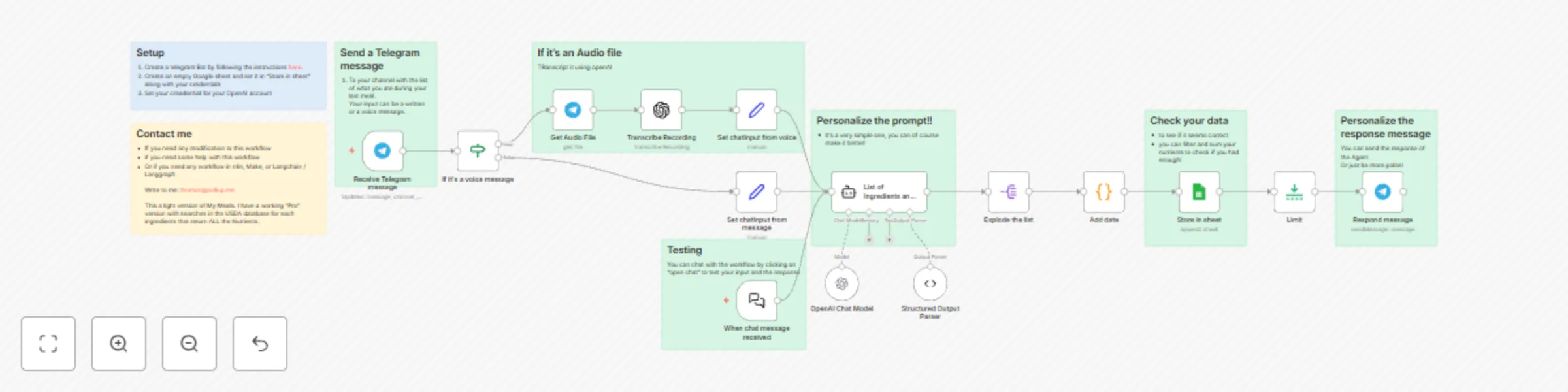
## Who is this for? This workflow is ideal for individuals focused on nutrition tracking, meal planning, or diet optimization—whether you’re a health-conscious individual, fitness coach, or developer working on a healthtech app. It also fits well for anyone who wants to capture their meal data via voice or text, without manually entering everything into a spreadsheet. ## What problem is this workflow solving? Manually logging meals and breaking down their nutritional content is time-consuming and often skipped. This workflow automates that process using Telegram for input, OpenAI for natural language understanding, and Google Sheets for structured tracking. It enables users to record meals by typing or sending voice messages, which are transcribed, analyzed for nutrients, and automatically stored for tracking and review. ## What this workflow does This n8n automation lets users send either a text or voice message to a Telegram bot describing their meal. The workflow then: 1. Receives the Telegram message 2. Checks if it’s a voice message • If yes: Downloads the audio file and transcribes it using OpenAI • If no: Uses the text input directly 3. Sends the meal description to OpenAI to extract a structured list of ingredients and nutritional details 4. Parses and stores the results in Google Sheets 5. Responds via Telegram with a personalized confirmation message A testing interface also allows you to simulate prompts and view structured outputs for development or debugging. ## Setup 1. Create a Telegram bot via BotFather and note the API token. 2. Create an empty Google Sheet and store the sheet ID in the environment. 3. Set up your OpenAI credentials in the n8n credential manager. 4. Customize the “List of Ingredients and Nutrients” node with your prompt if needed. 5. (Optional) Use the “Testing” section to simulate messages and refine outputs before going live. ## How to customize this workflow to your needs • Enhance prompts in the OpenAI node to improve the structure and accuracy of responses. • Add new fields in the Google Sheet and corresponding logic in the parser if you want more detail. • Adjust the Telegram response to provide motivational feedback, dietary tips, or summaries. • Upgrade to the “Pro” version mentioned in the contact section for USDA database integration and complete nutrient breakdowns. This is a lightweight, AI-powered meal logging automation that transforms voice or text into actionable nutrition data—perfect for making healthy eating easier and more data-driven. **See my other workflows [here](https://n8n.io/creators/zeerobug/)**

P
PollupAI
Personal Productivity
18 Apr 2025
3070
0
Workflow preview: Import Google Keep notes to Google Sheets using OpenAI and Google Drive
Free advanced

Import Google Keep notes to Google Sheets using OpenAI and Google Drive

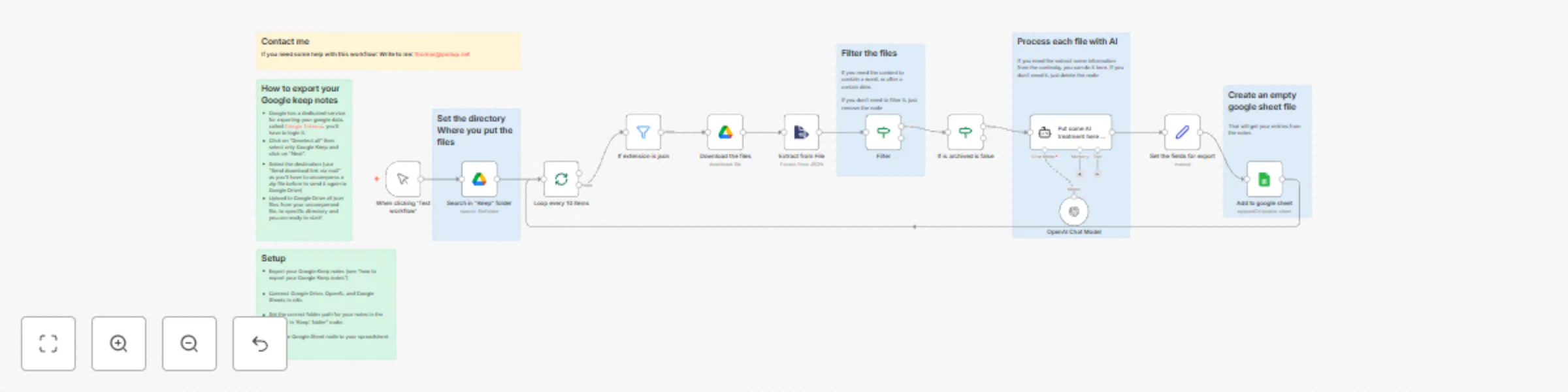
This n8n workflow automates the import of your Google Keep notes into a structured Google Sheet, using Google Drive, OpenAI for AI-powered processing, and JSON file extraction. It's perfect for users who want to turn exported Keep notes into a searchable, filterable spreadsheet – optionally enhanced by AI summarization or transformation. ## Who is this for? - Researchers, knowledge workers, and digital minimalists who rely on Google Keep and want to better organize or analyze their notes. - Anyone who regularly exports Google Keep notes and wants a clean, automated workflow to store them in Google Sheets. - Users looking to apply AI to process, summarize, or extract insights from raw notes. ## What problem is this workflow solving? Exporting Google Keep notes via Google Takeout gives you unstructured .json files that are hard to read and manage. This workflow solves that by: - Filtering relevant .json files - Extracting note content - (Optionally) applying AI to analyze or summarize each note - Writing the result into a structured Google Sheet ## What this workflow does 1. Google Drive Search: Looks for .json files inside a specified "Keep" folder. 2. Loop: Processes files in batches of 10. 3. File Filtering: Filters by .json extension. 4. Download + Extract: Downloads each file and extracts note content from JSON. 5. Optional Filtering: Only keeps non-archived notes or those meeting content criteria. 6. AI Processing (optional): Uses OpenAI to summarize or transform the note content. 7. Prepare for Export: Maps note fields to be written. 8. Google Sheets: Appends or updates the target sheet with the note data. ## Setup - Export your Google Keep notes using Google Takeout: - Deselect all, then choose only Google Keep. - Choose “Send download link via email”. - Unzip the downloaded archive and upload the .json files to your Google Drive. - Connect Google Drive, OpenAI, and Google Sheets in n8n. - Set the correct folder path for your notes in the “Search in ‘Keep’ folder” node. - Point the Google Sheet node to your spreadsheet ## How to customize this workflow to your needs Skip AI processing: If you don't need summaries or transformations, remove or disable the OpenAI Chat Model node. Filter criteria: Customize the Filter node to extract only recent notes, or those containing specific keywords. AI prompts: Edit the Tools Agent or Chat Model node to instruct the AI to summarize, extract tasks, categorize notes, etc. Field mapping: Adjust the “Set fields for export” node to control what gets written to the spreadsheet. Use this template to build a powerful knowledge extraction tool from your Google Keep archive – ideal for backups, audits, or data-driven insights.

P
PollupAI
Document Extraction
11 Apr 2025
1541
0
Workflow preview: Automate LinkedIn requests & icebreaker with Browserflow and Google sheets
Free advanced

Automate LinkedIn requests & icebreaker with Browserflow and Google sheets

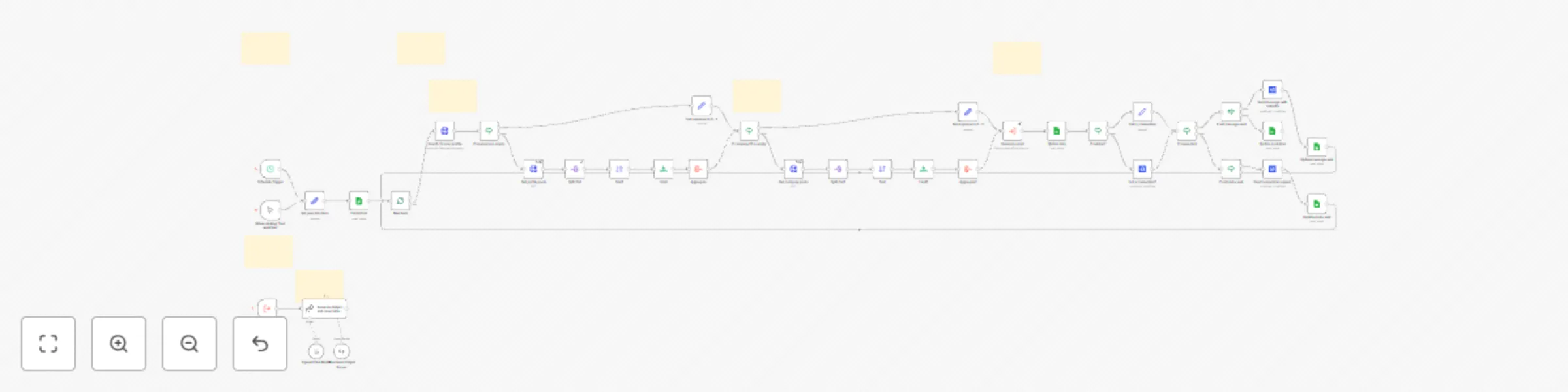
**Disclaimer: As this workflow uses a Community node, it is available only to self-hosted installation of n8n** ## Who is this for? This n8n template is designed for professionals, recruiters, and marketers who need to automate LinkedIn data population and contact request processes. It is particularly useful for those looking to streamline their outreach efforts and manage LinkedIn connections more efficiently. ## What problem is this workflow solving? / Use Case The workflow addresses the challenge of manually managing LinkedIn connections and sending contact requests followed by an AI generated ice-breaker. By automating these tasks, users can save time, reduce errors, and ensure consistent follow-ups with potential clients, partners, or candidates. ## What this workflow does: This template extract LinkedIn adresses from a google sheet, check if they already are connected to you, and send them a contact request if hey are not. Then it sends to them an AI generated Ice breaker messages, which take into account the personal and company posts, and your company description, to find common points of interest. You can contact up to 50 persons for free. ## Setup 1. Copy [this](https://docs.google.com/spreadsheets/d/1-0vwEAPDU4XWYZtlALOv4CIMXh7NPAXaY7Hde-ZAPJ4/edit?usp=sharing) google sheet to your Google account 2. Enter your data in "Set your Data Here": - Google sheet URL: Paste here the URL of your google sheet - Your activity: Define here what your company is about (used to match your activity with the users activity) - Your name: Enter your name (used to sign your mail) - Your company: Enter here your company name - Your email: Used to send your email - Maxitems: The number of maximum posts to download from LinkedIn 3. Set an account on Rapid API, you are allowed for free to 50 credits (5$ for 500) and most of the calls cost 1 credit. 4. Setup an account at Browserflow You will benefit from a 7 days free trial. And then you will have to pay $17.95. With this account you'll be able to send 1920 connection invites and 3204 messages. 5. Install n8n-nodes-browserflow from your n8n Settings > Community Nodes. (it means for now that you'll need a self-hosted installation of n8n). and paste the API key you copied earlier as a credential. 6. Execute it regularly to check if your connections have accepted your connection request. ## How to customize this workflow to your needs - **Customize Contact Messages**: Personalize the AI agent prompt that generates the icebreaker - **Integrate with Other Tools**: Add additional nodes to integrate with CRM systems or other marketing tools for enhanced functionality. - **Monitor and Optimize**: Regularly review the workflow's performance and make adjustments to improve efficiency and effectiveness. By following this setup and customization guide, users can leverage this n8n template to enhance their LinkedIn outreach and connection management processes.

P
PollupAI
Lead Nurturing
28 Mar 2025
645
0
Workflow preview: Automate LinkedIn contact requests & icebreaker with Unipile and Google sheets
Free advanced

Automate LinkedIn contact requests & icebreaker with Unipile and Google sheets

### Automate your LinkedIn Contact Requests and send them an Icebreaker **Disclaimer: this workflow only works on self-hosted instances due to the file system usage.** ## Who is this for? This n8n template is designed for professionals, recruiters, and marketers who must automate LinkedIn data population and contact request processes. It is particularly useful for those looking to streamline their outreach efforts and manage LinkedIn connections more efficiently. ## What problem is this workflow solving? / Use Case The workflow addresses the challenge of manually managing LinkedIn connections and sending contact requests. By automating these tasks, users can save time, reduce errors, and ensure consistent follow-ups with potential clients, partners, or candidates. ## What this workflow does This template automates the process of populating LinkedIn data and sending contact requests. After the connection request has been accepted, it sends a predefined "icebreaker". **Please note that you are limited to 150 invitations per week from a free LinkedIn account, but you can set up to 10 accounts for $55 / month**. ## Setup 1. **You will have to create an account at Unipile**. You can use this link to create it: [Create your account](https://www.unipile.com/?utm_source=partner&utm_campaign=pollup_data) 2. **Import the Template**: Import the provided template into your n8n instance. 3. **Make a copy of the Google sheet into your Google account**. you can find a template [here](https://docs.google.com/spreadsheets/d/17D1Y-S-4C6iVHZAzlfe-rRvR1prezeLkfCgTfheBxUA/edit?gid=0#gid=0) 4. **Set Up**: Follow the instructions inside the workflow to create and configure the Workflow as needed. 5. **Test the Workflow**: Create a LinkedIn user and run the workflow to ensure it populates data and sends contact requests correctly. ## How to customize this workflow to your needs - **Customize Contact Messages**: Personalize the contact request or Icebreaker messages to increase engagement. - **Integrate with Other Tools**: Add additional nodes to integrate with CRM systems or other marketing tools for enhanced functionality. - **Monitor and Optimize**: Regularly review the workflow's performance and make adjustments to improve efficiency and effectiveness. By following this setup and customization guide, users can leverage this n8n template to enhance their LinkedIn outreach and connection management processes.

P
PollupAI
Lead Nurturing
21 Mar 2025
986
0
Workflow preview: Social media analysis and automated email generation
Free advanced

Social media analysis and automated email generation

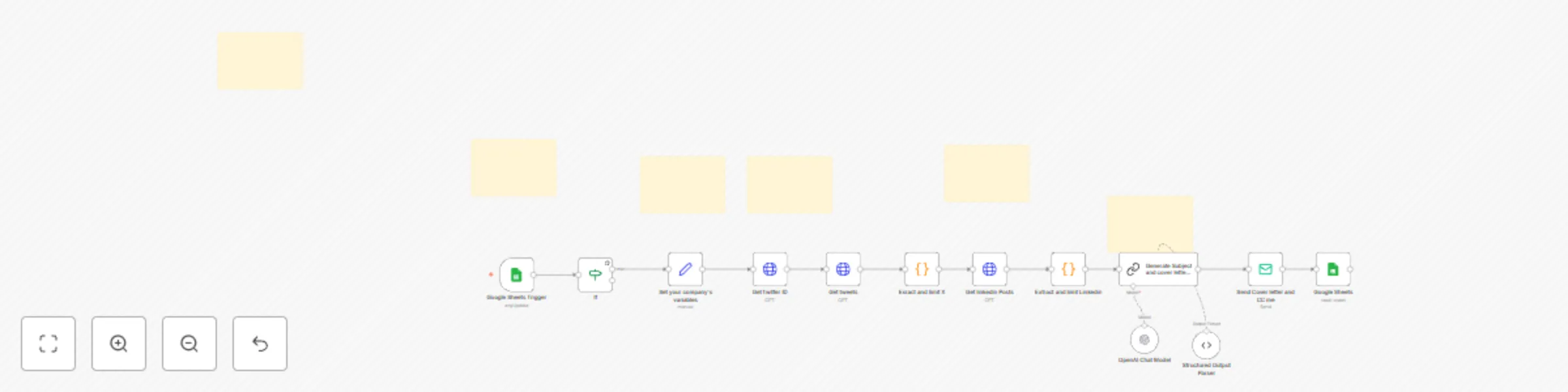
## Social Media Analysis and Automated Email Generation > by Thomas Vie [[email protected]](mailto:thomas\@pollup.net) ### **Who is this for?** This template is ideal for marketers, lead generation specialists, and business professionals seeking to analyze social media profiles of potential leads and automate personalized email outreach efficiently. ### **What problem is this workflow solving?** Manually analyzing social media profiles and crafting personalized emails can be time-consuming and prone to errors. This workflow streamlines the process by integrating social media APIs with AI to generate tailored communication, saving time and increasing outreach effectiveness. ### **What this workflow does:** 1. **Google Sheets Integration:** Start with a Google Sheet containing lead information such as LinkedIn URL, Twitter handle, name, and email. 2. **Social Media Data Extraction:** Automatically fetch profile and activity data from Twitter and LinkedIn using RapidAPI integrations. 3. **AI-Powered Content Generation:** Use OpenAI's Chat Model to analyze the extracted data and generate personalized email subject lines and cover letters. 4. **Automated Email Dispatch:** Send the generated email directly to the lead, with a copy sent to yourself for tracking purposes. 5. **Progress Tracking:** Update the Google Sheet to indicate completed actions. #### **Setup:** 1. **Google Sheets:** - Create a sheet with the columns: LinkedIn URL, name, Twitter handle, email, and a "done" column for tracking. - Populate the sheet with your leads. 2. **RapidAPI Accounts:** - Sign up for RapidAPI and subscribe to the Twitter and LinkedIn API plans. - Configure API authentication keys in the workflow. 3. **AI Configuration:** - Connect OpenAI Chat Model with your API key for text generation. 4. **Email Integration:** - Add your email credentials or service (SMTP or third-party service like Gmail) for sending automated emails. #### **How to customize this workflow to your needs:** - **Modify the AI Prompt:** Adapt the prompt in the AI node to better align with your tone, style, or specific messaging framework. - **Expand Data Fields:** Add additional data fields in Google Sheets if you require further personalization. - **API Limits:** Adjust API configurations to fit your usage limits or upgrade to higher tiers for increased data scraping capabilities. - **Personalize Email Templates:** Tweak email formats to suit different audiences or use cases. - **Extend Functionality:** Integrate additional social media platforms or CRM tools as needed. By implementing this workflow, you’ll save time on repetitive tasks and create more effective lead generation strategies.

P
PollupAI
Lead Nurturing
31 Jan 2025
29014
0
Workflow preview: Enrich Linkedin profiles from Google Sheets via RapidAPI
Free intermediate

Enrich Linkedin profiles from Google Sheets via RapidAPI

### LinkedIn Profile Enrichment Workflow #### Who is this for? This workflow is ideal for recruiters, sales professionals, and marketing teams who need to enrich LinkedIn profiles with additional data for lead generation, talent sourcing, or market research. #### What problem is this workflow solving? Manually gathering detailed LinkedIn profile information can be time-consuming and prone to errors. This workflow automates the process of enriching profile data from LinkedIn, saving time and ensuring accuracy. #### What this workflow does 1. **Input**: Reads LinkedIn profile URLs from a Google Sheet. 2. **Validation**: Filters out already enriched profiles to avoid redundant processing. 3. **Data Enrichment**: Uses RapidAPI's Fresh LinkedIn Profile Data API to retrieve detailed profile information. 4. **Output**: Updates the Google Sheet with enriched profile data, appending new information efficiently. #### Setup 1. **Google Sheet**: Create a sheet with a column named `linkedin_url` and populate it with the profile URLs to enrich. 2. **RapidAPI Account**: Sign up at [RapidAPI](https://rapidapi.com) and subscribe to the Real-Time Data Enrichment API. 3. **API Integration**: Replace the `x-rapidapi-key` and `x-rapidapi-host` values with your credentials from RapidAPI. 4. **Run the Workflow**: Trigger the workflow and monitor the updates to your Google Sheet. #### How to customize this workflow * **Filter Criteria**: Modify the filter step to include additional conditions for processing profiles. * **API Configuration**: Adjust API parameters to retrieve specific fields or extend usage. * **Output Format**: Customize how the enriched data is appended to the Google Sheet (e.g., format, column mappings). * **Error Handling**: Add steps to handle API rate limits or missing data for smoother automation. This workflow streamlines LinkedIn profile enrichment, making it faster and more effective for data-driven decision-making.

P
PollupAI
Lead Generation
27 Jan 2025
11957
0
Workflow preview: Rss feed news processing and distribution workflow
Free advanced

Rss feed news processing and distribution workflow

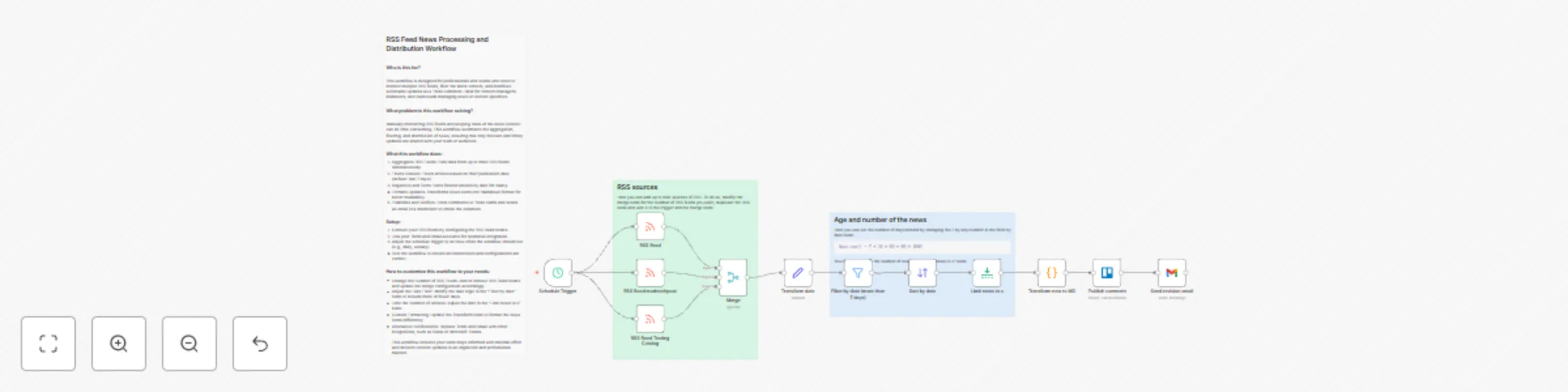
### Who is this for? This workflow is designed for professionals and teams who need to monitor multiple RSS feeds, filter the latest content, and distribute actionable updates as a Trello comment. Ideal for content managers, marketers, and team leads managing news or content pipelines. ### What problem is this workflow solving? Manually monitoring RSS feeds and keeping track of the latest content can be time-consuming. This workflow automates the aggregation, filtering, and distribution of news, ensuring that only relevant and timely updates are shared with your team or audience. ### What this workflow does: 1. Aggregates RSS Feeds: Pulls data from up to three RSS feeds simultaneously. 2. Filters Content: Filters articles based on their publication date (default: last 7 days). 3. Organizes and Sorts: Sorts filtered articles by date for clarity. 4. Formats Updates: Transforms news items into Markdown format for better readability. 5. Publishes and Notifies: Posts comments to Trello cards and sends an email to a moderator to check the comment. ### Setup: 1. Connect your RSS feeds by configuring the RSS Read nodes. 2. Link your Trello and Gmail accounts for seamless integration. 3. Adjust the schedule trigger to set how often the workflow should run (e.g., daily, weekly). 4. Test the workflow to ensure all connections and configurations are correct. ### How to customize this workflow to your needs: - Change the Number of RSS Feeds: Add or remove RSS Read nodes and update the merge configuration accordingly. - Adjust the Date Filter: Modify the date logic in the “Filter by date” node to include more or fewer days. - Limit the Number of Articles: Adjust the limit in the “Limit news to x” node. - Custom Formatting: Update the Transform node to format the news items differently. - Alternative Notifications: Replace Trello and Gmail with other integrations, such as Slack or Microsoft Teams. This workflow ensures your team stays informed with minimal effort and delivers content updates in an organized and professional manner.

P
PollupAI
Project Management
24 Jan 2025
13655
0