Block 1 - Fetch All Pending Queries for Messaging
- Type / Role
- n8n-nodes-base.googleSheets - googleSheets
- Config choices
- Version 4.6


 Early Deal
This workflow is provided as-is. Please review and test before using in production.
WhatsApp Bulk Message Broadcast via Google Sheets (n8n Workflow) Use Case This workflow enables automated bulk WhatsApp message broadcasting using the WhatsApp Business Cloud API. It pulls recipien...
n8n-nodes-base.googlesheets, n8n-nodes-base.limit, n8n-nodes-base.splitinbatches, n8n-nodes-base.whatsapp, n8n-nodes-base.code, n8n-nodes-base.stickynote, n8n-nodes-base.scheduletrigger
This workflow is cataloged by N8N Workflows and links back to its original n8n.io source page by SpaGreen Creative.
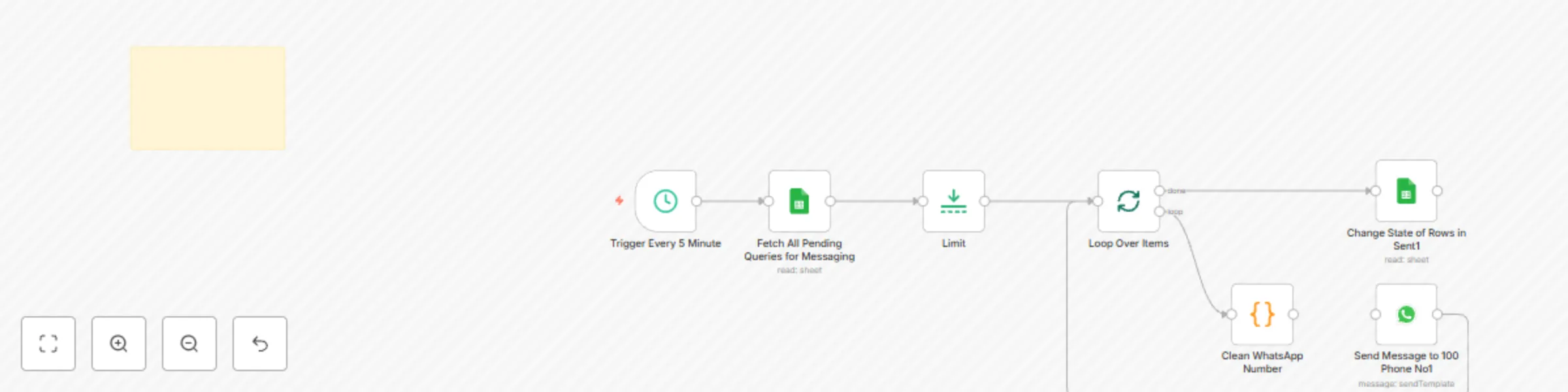
Original n8n.io sourceThis workflow enables automated bulk WhatsApp message broadcasting using the WhatsApp Business Cloud API. It pulls recipient and message data from a Google Sheet, sends templated messages (optionally with image headers), and updates the sheet with the message status. It is ideal for marketing teams, support agents, and businesses handling high-volume outreach.
Initiates the workflow every minute using a scheduled trigger to continuously monitor pending rows.
Reads rows from a Google Sheet where the Status column is empty, indicating they haven’t been processed yet.
Restricts processing to 2 rows per execution to manage API throughput.
Uses SplitInBatches to iterate through each row individually.
A code node that strips non-numeric characters from the WhatsApp No field, ensuring the format is valid for the API.
Sends a WhatsApp message using the WhatsApp Cloud API and a pre-approved template.
Template includes:
Image URL column (as header, optional) Name and Message fieldsTemplate variables must be pre-defined and approved in the Meta Developer Portal, such as {{1}}, {{2}}.
Updates the Status column to Sent for each successfully processed row using the row number as a reference.
Structure your Google Sheet as shown below:
| WhatsApp No | Name | Message | Image URL | Status |
|---|---|---|---|---|
| +8801XXXXXXX | John Doe | Hello, your order shipped | https://.../img.jpg |
Leave the Status column empty for rows that need to be processed.
googleSheetsOAuth2ApiwhatsAppApiLimit node to control how many rows are processed in each run IF or Try/Catch nodes) to log failures or set Status = FailedNeed help setting up or customizing the workflow?
This catalog entry is organized from the workflow JSON. The node-level section below shows the executable blocks available for review before importing the template.
| Workflow | Send WhatsApp bulk messages from Google Sheets |
|---|---|
| Complexity | intermediate |
| Nodes | 8 |
| Categories | Social Media |
| Author | SpaGreen Creative |
| Published | 21 Jul 2025 |
Use the JSON export at /data/workflows/6237/6237.json as the source template for this automation.
Open n8n, import the downloaded JSON, and review each node before activating the workflow.
Replace placeholder credentials, API keys, webhook URLs, account IDs, and environment-specific values with your own settings.
Run the workflow manually or in a staging workspace, inspect node output, and confirm downstream systems receive the expected data.
Enable the workflow only after testing, then monitor executions, errors, and rate limits during the first production runs.
Review imported nodes carefully before activation. This catalog entry is intended to help you inspect the workflow structure, understand required services, and find related templates faster.
Node names, credentials, schedules, webhook paths, and external service limits may need adjustment for your workspace.
WhatsApp Bulk Message Broadcast via Google Sheets (n8n Workflow) Use Case This workflow enables automated bulk WhatsApp message broadcasting using the WhatsApp Business Cloud API. It pulls recipien...
Review the workflow JSON, configure any required credentials in n8n, and test the automation in a safe workspace before using it in production.
Yes. Use the block-by-block analysis and the downloadable JSON to inspect each node, then adjust credentials, prompts, schedules, filters, or destinations for your Social Media use case.