SpaGreen Creative
Workflows by SpaGreen Creative
Extract text from PDFs and images in Google Drive and post to WordPress and social media with OpenAI GPT-4.1 and DALL·E
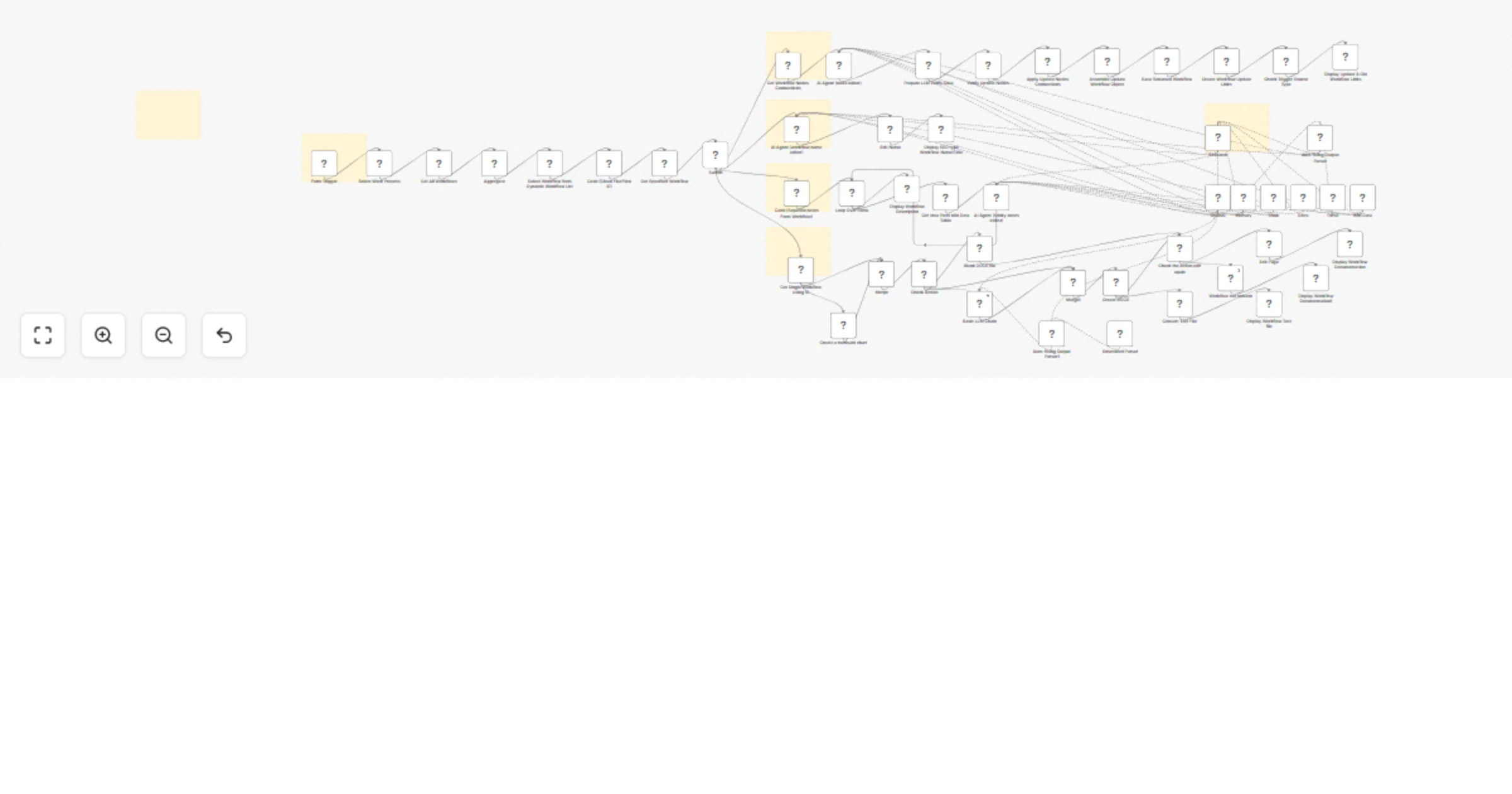
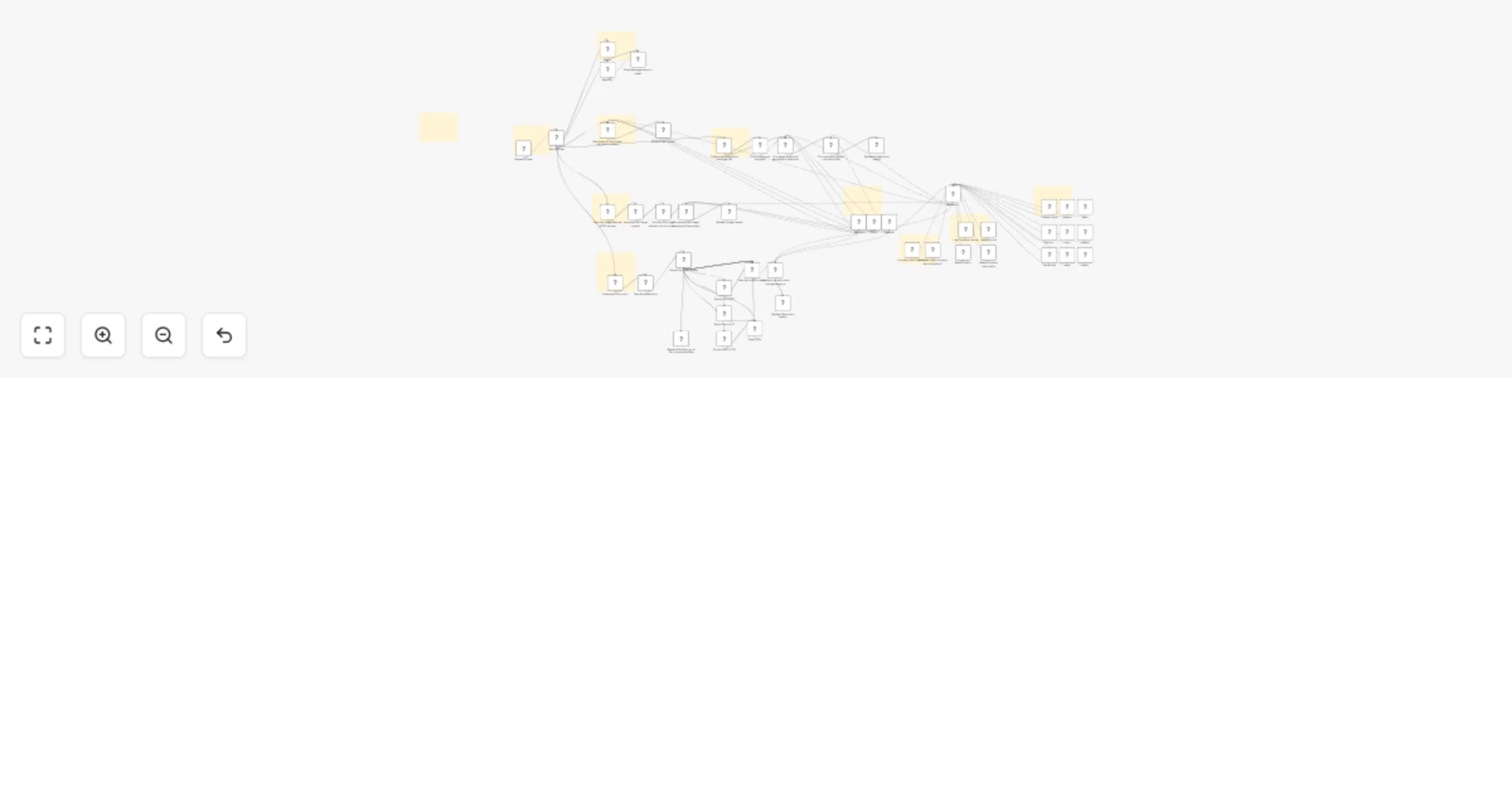
## Who is this for? This workflow is designed for content creators, social media managers, digital marketers, and business owners who want to automate their content creation and distribution process across multiple platforms. It's perfect for those who regularly create content from PDFs or images and want to streamline their social media posting workflow. ## Key Features * Monitors a specific Google Drive folder for new PDFs or images * Extracts text from PDFs or images using AI * Optionally generates new images from text using OpenAI's DALL-E * Automatically posts content with images to multiple platforms * Sends notifications about successful posts * Handles different file types with specialized extraction methods ## Workflow Does This workflow automates monitoring a Google Drive folder for new PDFs and images, extracting content using AI, and distributing it across social media platforms like WordPress, Facebook, Telegram, LinkedIn, and Discord. It can also generate new images from text and sends notifications about successful posts. The process ensures efficient handling of different file types and streamlines content sharing across multiple channels. ## Requirements - Google Drive account with a dedicated folder for content - OpenAI API credentials for image generation - WordPress API credentials for website posting - Social media API credentials: * Facebook Graph API * Telegram Bot API * LinkedIn OAuth2 API * Discord Bot API * X/Twitter OAuth2 API - Gmail credentials for email notifications - Rapiwa account for WhatsApp notifications ## Important Notes - Make sure all API credentials are properly configured before running the workflow - The workflow handles both PDF and image files differently based on their MIME type - Image generation is optional and can be disabled if not needed - All social media posting nodes can be individually enabled or disabled based on your needs - The workflow includes rate limiting to avoid API restrictions ## Support & Help - **WhatsApp**: [Chat on WhatsApp](https://wa.me/8801322827799) - **Discord**: [SpaGreen Community](https://discord.gg/SsCChWEP) - **Facebook Group**: [SpaGreen Support](https://www.facebook.com/groups/spagreenbd) - **Website**: [https://spagreen.net](https://spagreen.net) - **Developer Portfolio**: [Codecanyon SpaGreen](https://codecanyon.net/user/spagreen/portfolio)
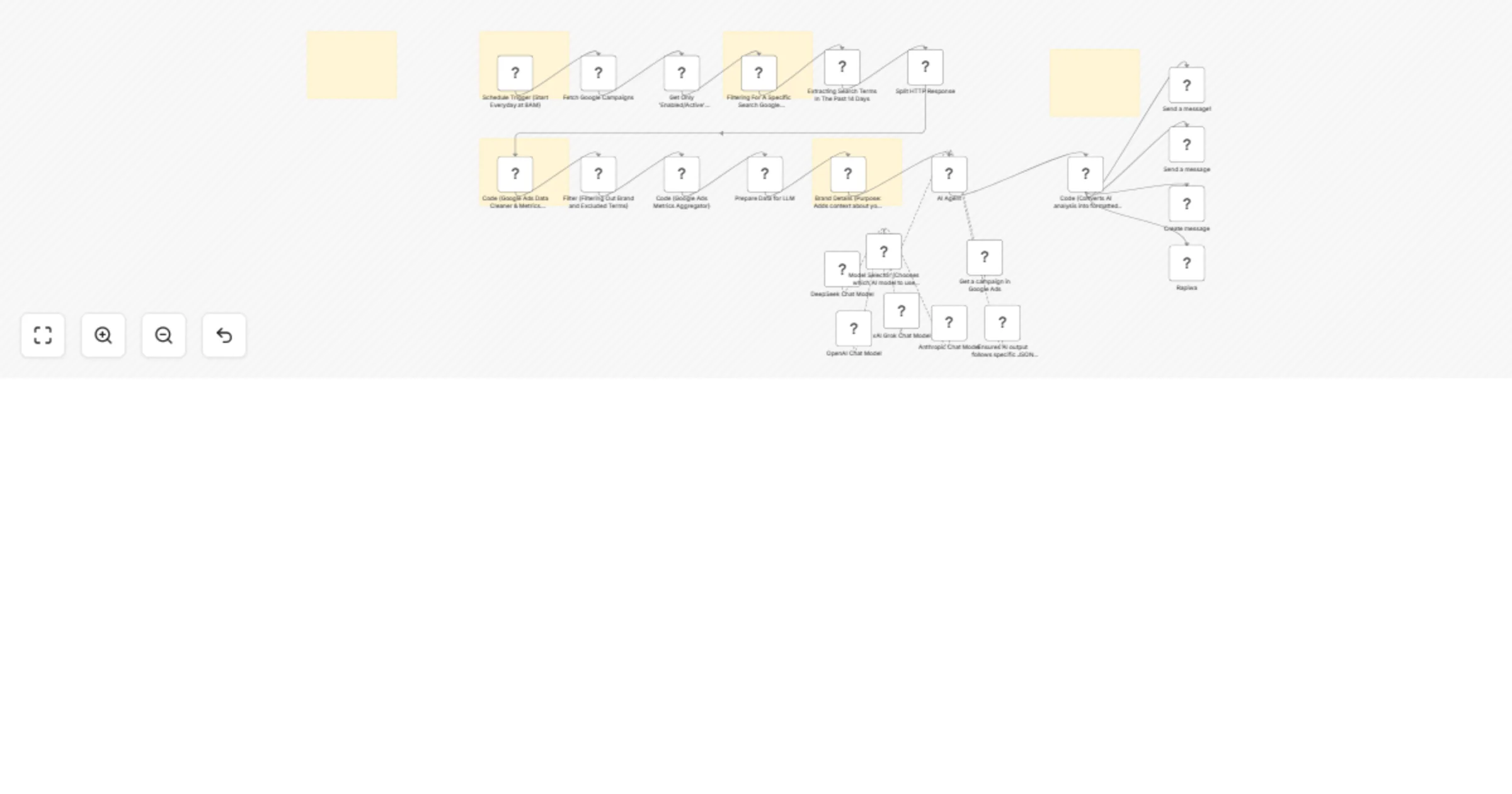
Manage your Shopify store via AI assistant with OpenAI and MCP server
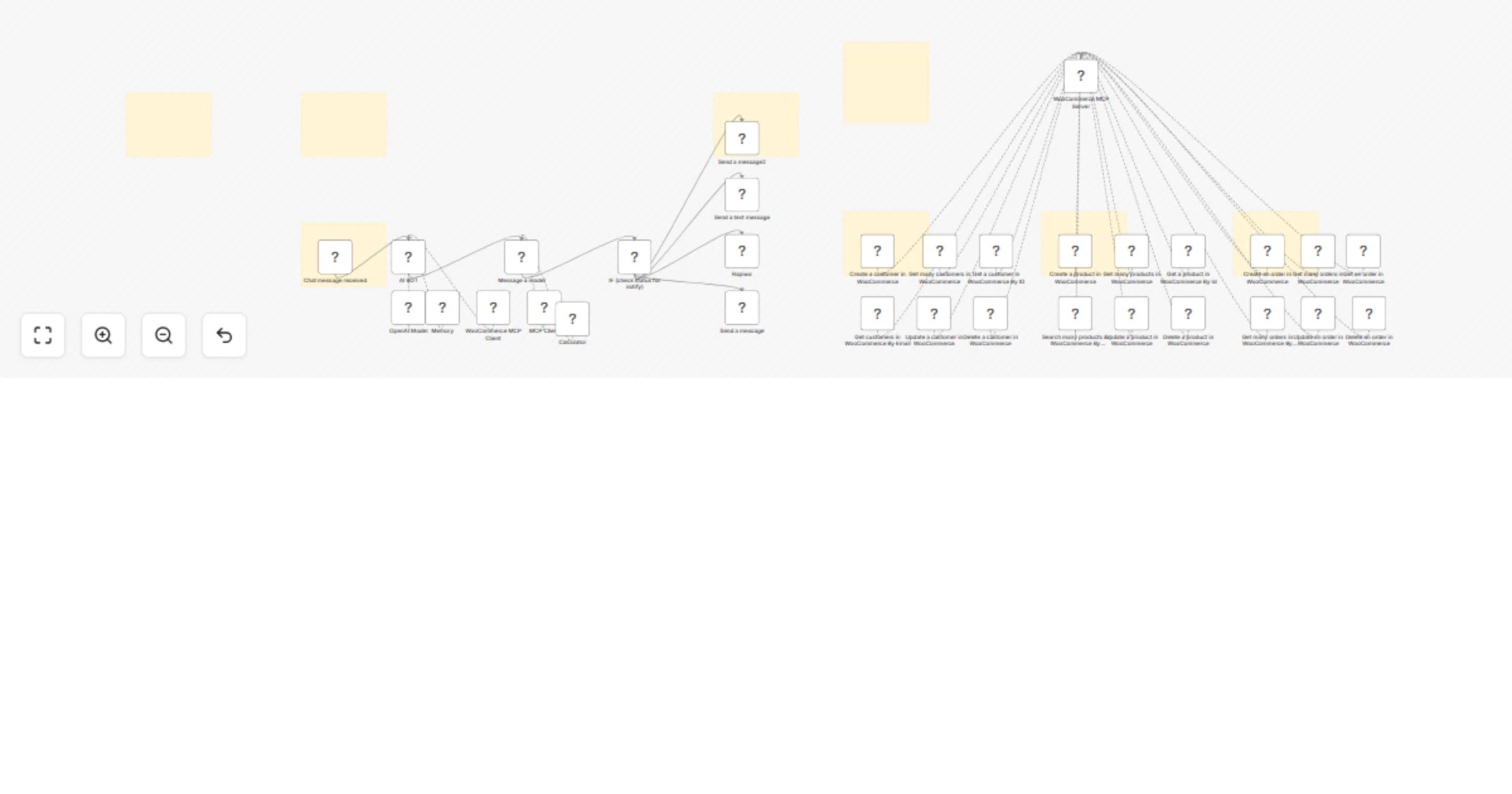
## Who it's for This **n8n workflow** is designed for Shopify store owners and e-commerce managers who want to automate their store operations through an intelligent AI assistant. The workflow creates a conversational interface that can manage products, process orders, and provide store analytics through natural language commands. ## Features - **Intelligent AI Assistant**: Powered by OpenAI with specialized system prompts for e-commerce operations - **Shopify Integration**: Complete MCP (Model Context Protocol) server implementation for seamless Shopify operations - **Product Management**: Create, update, search, retrieve, and delete products automatically - **Order Processing**: Create, update, retrieve, and manage orders including fulfillment status - **Context-Aware Automation**: Uses conversation history and Shopify data to minimize user input requirements ## Requirements - **Shopify Access Token**: For accessing Shopify store data and operations - **OpenAI API Credentials**: For powering the AI assistant - **Notification Service Credentials**: `Discord Bot API`, `Telegram Bot API`, `Rapiwa API (for WhatsApp)`, `Gmail OAuth2` #### Configure Credentials - **Shopify Access Token**: Configure with proper permissions for your store - **OpenAI API**: Set up with appropriate model access (gpt-4.1-mini or similar) - **Notification Services**: Configure each service with proper API keys and target IDs ## Important Notes - **MCP Server Setup**: The workflow includes a Shopify MCP Server that must be properly configured for production use - **Tool Selection**: The MCP Client includes specific Shopify tools that can be enabled/disabled based on requirements - **System Prompt**: The AI assistant is configured with specialized e-commerce guidelines that can be customized - **Confirmation Requirements**: Irreversible actions like deletions will require confirmation - **Rate Limiting**: The workflow includes appropriate delays to prevent API rate limiting - **Notification Content**: All notifications include a standard success message that can be customized ## Production Deployment for MCP Server `To deploy this workflow in production` ## Support & Help - **WhatsApp**: [Chat on WhatsApp](https://wa.me/8801322827799) - **Discord**: [SpaGreen Community](https://discord.gg/SsCChWEP) - **Facebook Group**: [SpaGreen Support](https://www.facebook.com/groups/spagreenbd) - **Website**: [https://spagreen.net](https://spagreen.net) - **Developer Portfolio**: [Codecanyon SpaGreen](https://codecanyon.net/user/spagreen/portfolio)
E-commerce product mockups from images with OpenAI DALL-E, remove.bg and G-Drive
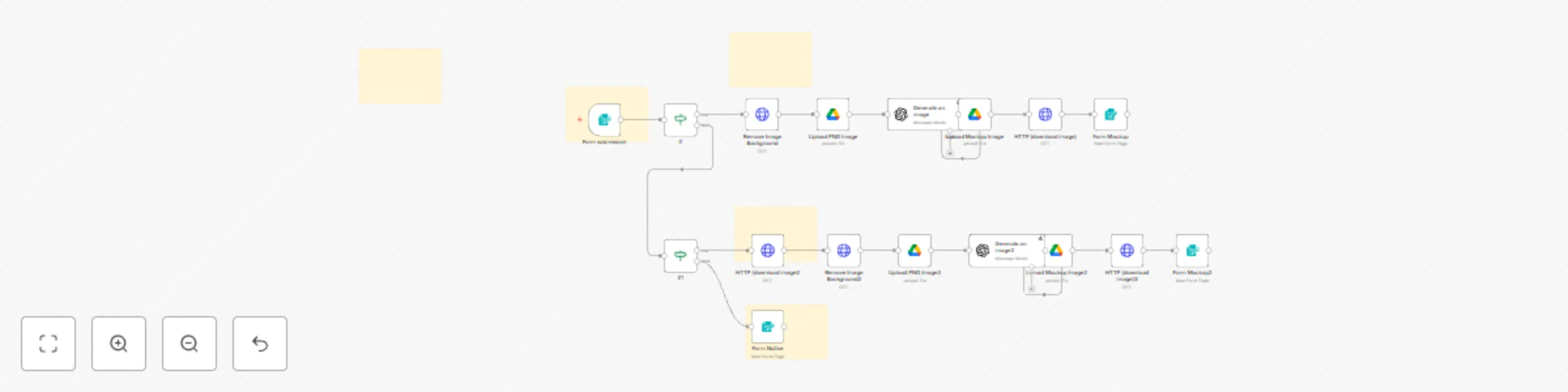
## Who it's for This **n8n workflow** automatically generates professional e-commerce product mockups from product images. The workflow is perfect for e-commerce store owners, product marketers, and content creators who need to create consistent, high-quality product visuals for their online stores, social media, and marketing materials. ## Features * **Dual Input Methods**: Accepts product images via file upload or URL * **Background Removal**: Automatically removes backgrounds from product images using remove.bg API * **AI-Powered Mockups**: Generates premium e-commerce mockups using OpenAI's DALL-E * **Professional Prompts**: Uses detailed design prompts for luxury e-commerce aesthetics * **Google Drive Integration**: Automatically saves both PNG files and final mockups to Google Drive ## How It Works 1. The workflow starts with a form submission where users provide: - Product image (file upload or URL) - Product name/title 2. System detects whether the image is a file or a URL. 3. For uploaded files: - Processed through remove.bg to remove the background - Transparent PNG is uploaded to Google Drive - OpenAI generates a professional mockup based on product image - Final mockup uploaded on Drive & notify user 4. For URL inputs: - Image downloaded from the URL - Background removal and mockup generation process is applied - Results are delivered back to the user ## Requirements - **remove.bg API credentials** for background removal - **OpenAI API credentials** for DALL-E image generation - **Google Drive OAuth2 credentials** for file storage ## Important Notes - **Image Processing**: All images are processed with professional-grade background removal - **AI Prompting**: The workflow uses detailed prompts designed for luxury e-commerce aesthetics - **File Storage**: Both PNG files and final mockups are stored in a designated Google Drive folder - **Conditional Logic**: The workflow intelligently routes based on input type (file vs. URL) - **Error Handling**: Includes retry logic for AI image generation ## Support & Help - **WhatsApp**: [Chat on WhatsApp](https://wa.me/8801322827799) - **Discord**: [SpaGreen Community](https://discord.gg/SsCChWEP) - **Facebook Group**: [SpaGreen Support](https://www.facebook.com/groups/spagreenbd) - **Website**: [https://spagreen.net](https://spagreen.net) - **Developer Portfolio**: [Codecanyon SpaGreen](https://codecanyon.net/user/spagreen/portfolio)
Create AI-powered 3D product videos from images with VEO3 for Shopify
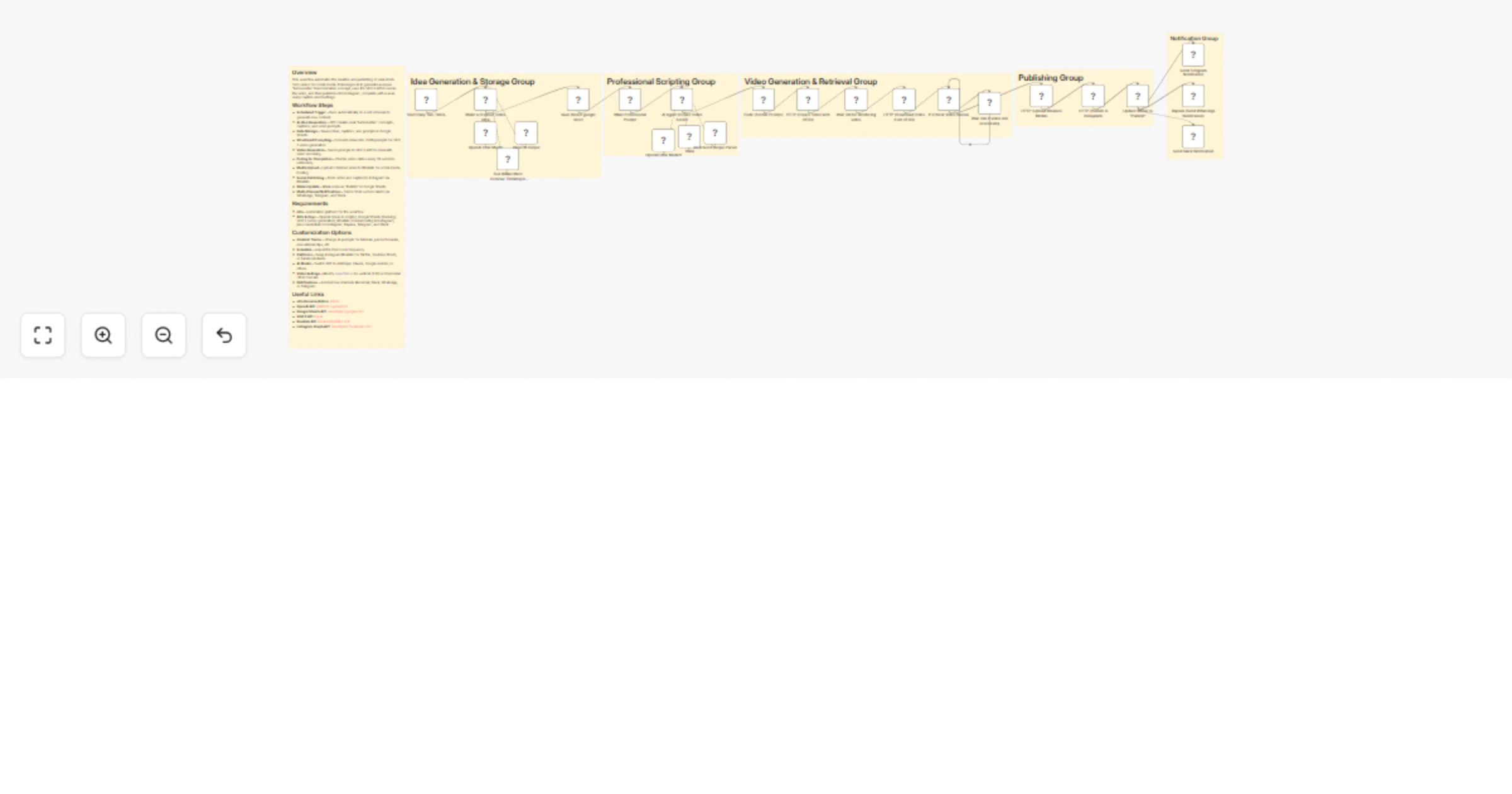
## Who Is This For? This **n8n workflow** is designed for e-commerce businesses, digital marketers, and content creators who want to automatically generate professional 3D product videos from product images. It's perfect for online stores, marketing agencies, and product managers who need to create engaging product showcase videos without manual video editing. ## What This Workflow Does - Accepts product image submissions through a web form - Creates a dedicated folder for each product in Google Drive - Removes background from product images using AI - Analyzes product images to generate optimized video prompts - Creates 3D cinematic product videos using Veo3 AI - Tracks all product data in a Google Sheets spreadsheet - Provides access to generated resources through shareable links ## Features - Web form submission for product images and titles - Automatic folder creation in Google Drive for each product - AI-powered background removal from product images - Image analysis for generating detailed video prompts - 3D video generation using Veo3 AI model - Progress tracking with status checks and retry mechanisms - Comprehensive data storage in Google Sheets - Public sharing of generated resources ## Requirements - Remove.bg API credentials for background removal - Google Drive and Google Sheets API access - OpenAI API credentials for image analysis - Fal.ai credentials for Veo3 video generation - HTTP authentication credentials for video status checking ### Notification Integration You can extend the workflow to send notifications when videos are ready, using platforms like email, Slack, or Telegram. ## Useful Links - **Remove.bg API**: [https://www.remove.bg/api](https://www.remove.bg/api) - **Google Drive API**: [https://developers.google.com/drive](https://developers.google.com/drive) - **OpenAI API**: [https://platform.openai.com](https://platform.openai.com) - **Veo3 Documentation**: [https://docs.fal.ai](https://docs.fal.ai) ## Support & Help - **WhatsApp**: [Chat on WhatsApp](https://wa.me/8801322827799) - **Discord**: [SpaGreen Community](https://discord.gg/SsCChWEP) - **Facebook Group**: [SpaGreen Support](https://www.facebook.com/groups/spagreenbd) - **Website**: [https://spagreen.net](https://spagreen.net) - **Developer Portfolio**: [Codecanyon SpaGreen](https://codecanyon.net/user/spagreen/portfolio)
Publish RSS articles to WordPress and social media platforms
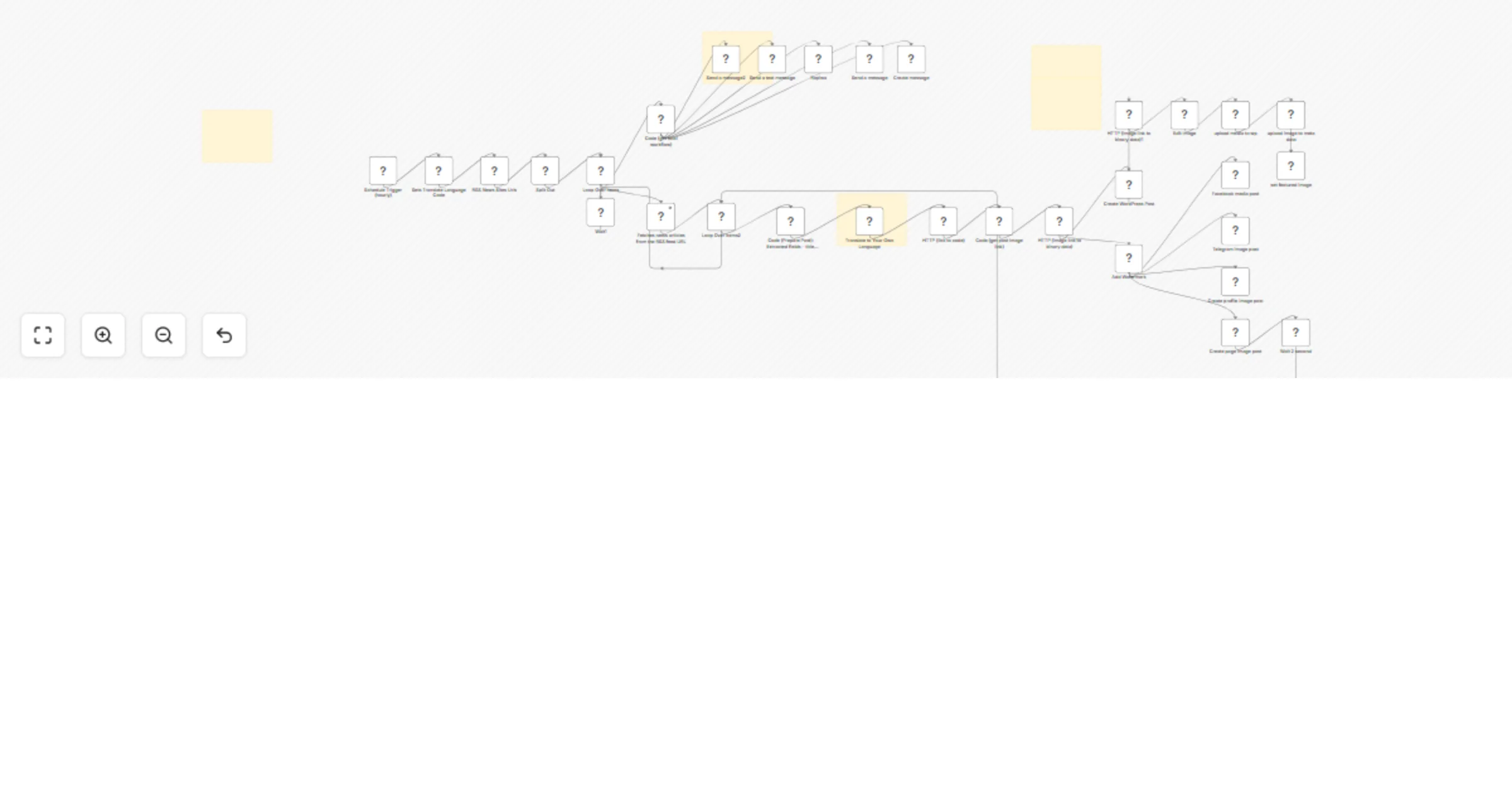
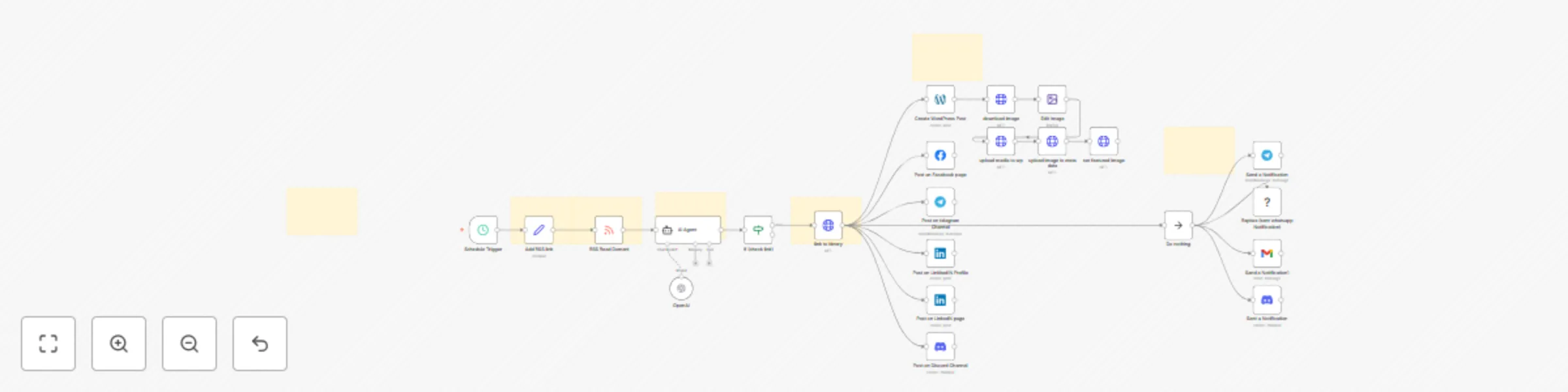
## Who it's for This **n8n workflow** automatically fetches RSS articles, extracts featured images, and publishes them across multiple social media platforms. The workflow runs on a schedule, processes news articles from an RSS feed, extracts the main image from each article, and posts the content with images to various platforms including WordPress, Facebook, Telegram, LinkedIn, and Discord. ## Features * **Scheduled Publishing**: Auto-posts content on your set schedule * **RSS Integration**: Fetches latest articles from specified sources * **AI Image Extraction**: Identifies and extracts featured images * **Image Optimization**: Downloads and resizes for platform-ready display * **Multi-Platform Posting**: Supports WordPress, Facebook, Telegram, LinkedIn, Discord * **Notifications**: Confirms posts via WhatsApp, Telegram, Gmail, and Discord * **Content Validation**: Ensures valid images before posting ## How It Works 1. The workflow triggers on a schedule to check for new RSS articles 2. It reads the RSS feed from the configured news source 3. Each article's link is processed by an AI agent to extract the featured image URL 4. The image is downloaded and converted to binary data 5. The content is published simultaneously to: - WordPress as a blog post with the image set as featured - Facebook as an image post - Telegram channel as an image post - LinkedIn (both personal profile and company page) - Discord channel 6. After successful publishing, notifications are sent to multiple channels ## Requirements - **OpenAI API credentials** for image extraction using the AI Agent - **WordPress API credentials** for posting articles and media - **Facebook Graph API credentials** for page posting - **Telegram Bot API credentials** for channel posting - **LinkedIn OAuth2 API credentials** for profile and company page posting - **Discord Bot API credentials** for channel posting - **Rapiwa API credentials** for WhatsApp notifications - **Gmail OAuth2 credentials** for email notifications ## Important Notes - **RSS Feed Configuration**: The workflow requires a valid RSS feed URL to function properly - **Image Processing**: All images are resized to 5000x5000 pixels for consistency - **Content Validation**: The workflow includes a check to ensure valid image URLs exist before proceeding with posting - **Platform-Specific Formatting**: Each platform receives appropriately formatted content and image dimensions - **Notification System**: After successful posting to all platforms, confirmation messages are sent via multiple channels ## Support & Help - **WhatsApp**: [Chat on WhatsApp](https://wa.me/8801322827799) - **Discord**: [SpaGreen Community](https://discord.gg/SsCChWEP) - **Facebook Group**: [SpaGreen Support](https://www.facebook.com/groups/spagreenbd) - **Website**: [https://spagreen.net](https://spagreen.net) - **Developer Portfolio**: [Codecanyon SpaGreen](https://codecanyon.net/user/spagreen/portfolio)
News collection & multi-platform publishing with GPT, DALL-E, & social media API
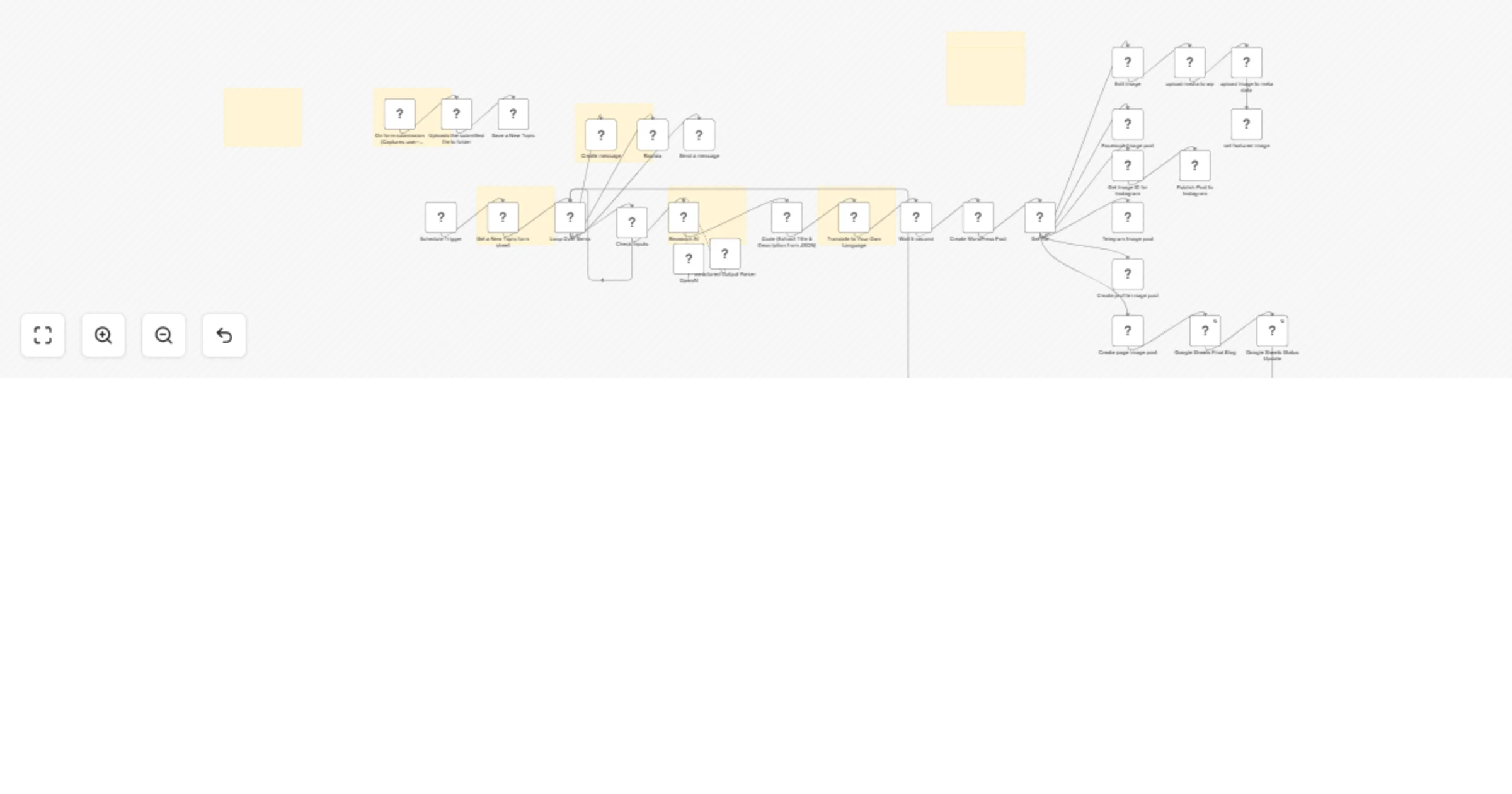
## Who it's for This **n8n workflow** automatically generates AI-powered content about local news and publishes it across multiple social media platforms. The workflow runs on a schedule, fetches the latest news about a specific topic, creates relevant images with watermarks, and posts the content to various platforms including WordPress, Facebook, Telegram, LinkedIn, and Discord. ## Features - **Scheduled Content Generation**: Triggers every 4 hours to create fresh content - **AI-Powered News Collection**: Uses LangChain agent with OpenAI and SerpAPI to find the latest news about a specific topic (Sirajganj district) - **Image Generation**: Creates AI images based on the news content using OpenAI's image generation capabilities - **Watermarking**: Automatically adds branded watermarks to all generated images - **Multi-Platform Publishing**: Posts content and images to: - WordPress (with featured images) - Facebook - Telegram - LinkedIn (both profile and company pages) - Discord - **Notification System**: Sends confirmation messages via WhatsApp (Rapiwa), Telegram, and Gmail after successful posting - **Content Validation**: Checks if news was found before proceeding with image generation and posting ## Requirements - **OpenAI API credentials** for content generation and image creation - **SerpAPI credentials** for news search - **WordPress API credentials** for posting articles and media - **Facebook Graph API credentials** for page posting - **Telegram Bot API credentials** for channel posting - **LinkedIn OAuth2 API credentials** for profile and company page posting - **Discord Bot API credentials** for channel posting - **Rapiwa API credentials** for WhatsApp notifications - **Gmail OAuth2 credentials** for email notifications ### Configure Credentials - **OpenAI API**: Set up credentials with access to GPT-4 and DALL-E models - **WordPress API**: Configure access to your WordPress site - **Social Media APIs**: Set up credentials for Facebook, Telegram, LinkedIn, and Discord - **Notification Services**: Configure Rapiwa for WhatsApp and Gmail for email ## Important Notes - **Topic Configuration**: The workflow is currently set to fetch news about "Sirajganj district", but this can be modified in the "Add tropic" node - **Image Watermarking**: All images are watermarked with "Sirajganj APP" and Playstore information - **Content Validation**: The workflow includes a check to ensure news content exists before proceeding with image generation - **Platform-Specific Formatting**: Each platform receives appropriately formatted content and image dimensions - **Notification System**: After successful posting to all platforms, confirmation messages are sent via multiple channels ## Support & Help - **WhatsApp**: [Chat on WhatsApp](https://wa.me/8801322827799) - **Discord**: [SpaGreen Community](https://discord.gg/SsCChWEP) - **Facebook Group**: [SpaGreen Support](https://www.facebook.com/groups/spagreenbd) - **Website**: [https://spagreen.net](https://spagreen.net) - **Developer Portfolio**: [Codecanyon SpaGreen](https://codecanyon.net/user/spagreen/portfolio)
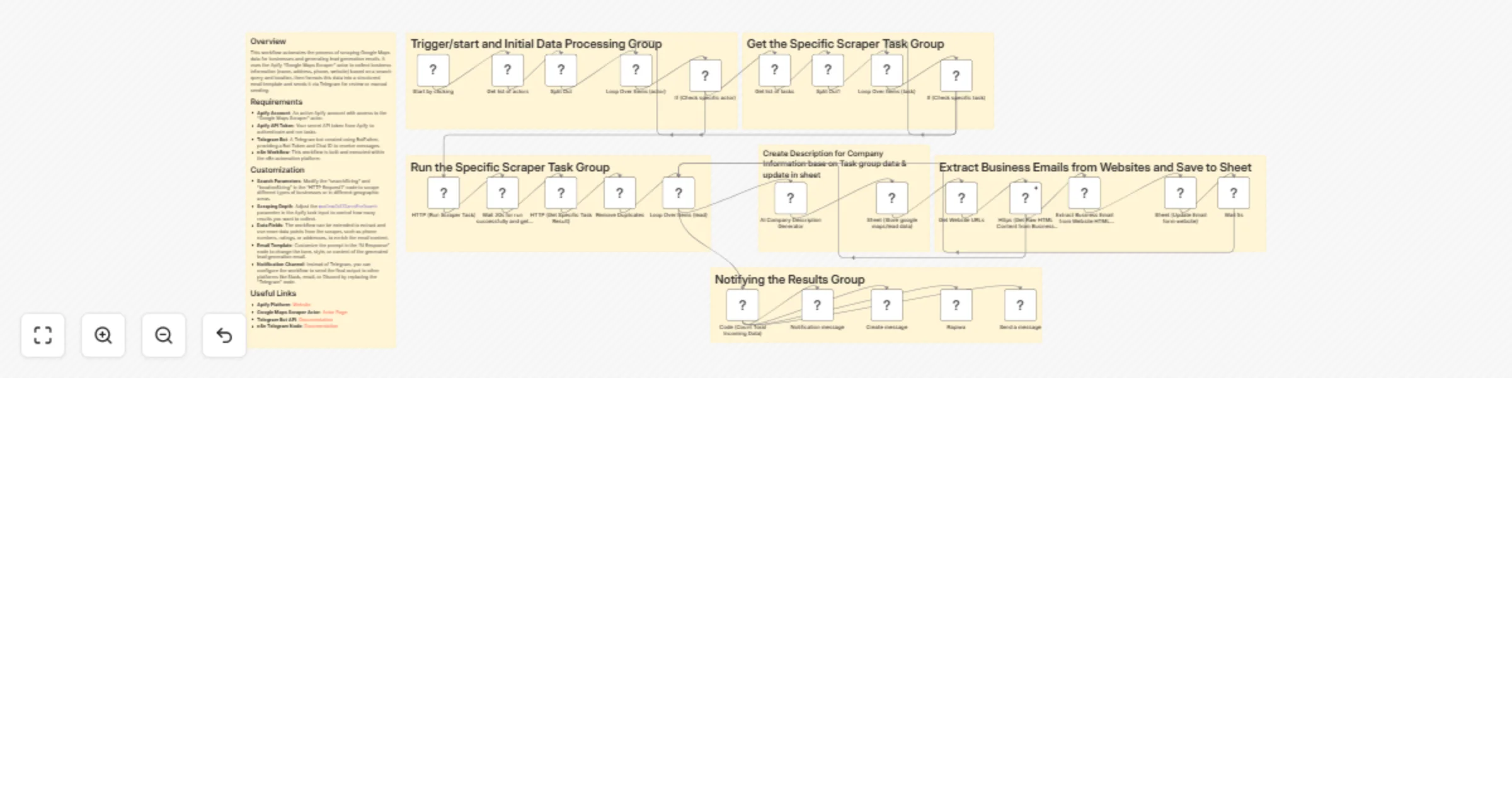
Zip code-based business lead generation with Google Maps and Sheets
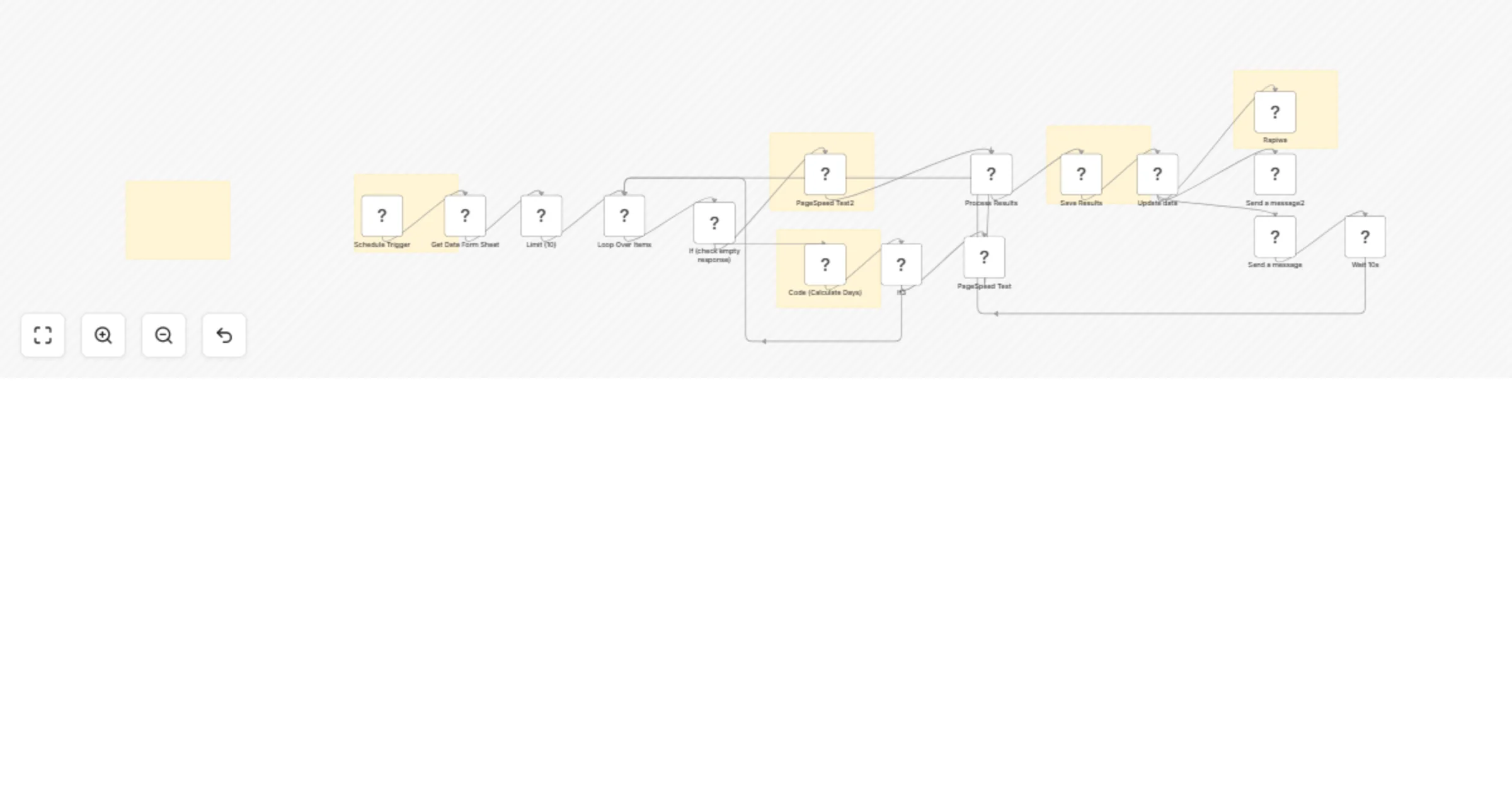
## Who Is This For? This workflow is perfect for anyone who wants to automate lead generation using n8n without paying for expensive scraping tools. It uses simple Google Maps API requests and Google Sheets to pull business data by ZIP code and category, then extracts emails at no extra cost. ## What This Workflow Does * **Automated Lead Generation**: Runs on a schedule to process ZIP codes and business categories automatically. * **Data Extraction**: Queries Google Maps for businesses based on each ZIP code + subcategory combo. * **Data Processing**: * Skips entries with a **STATUS = "N/A"** * Removes duplicate results using `place.id` * Extracts and formats relevant business details * **Error Handling**: * Uses exponential backoff when hitting rate limits * Stops after 10 retry attempts * **Data Storage**: * Saves results directly to Google Sheets * Tracks which ZIP/subcategory pairs have been completed ## Requirements * **Google Maps API** (business lookup) * **Google Sheets OAuth2** (data storage) * **Telegram Bot API** (notifications) * **Rapiwa API** (WhatsApp alerts) ## How to Use — Step-by-Step Setup ### 1. Set Up Credentials in n8n * Add your **Google Maps API** credentials (named "Google MAP") * Add **Google Sheets OAuth2** credentials (named "Google Sheets") * Add **Rapiwa API** credentials (named "Rapiwa account 2") ### 2. Prepare Your Google Sheet Create one Sheet document with these tabs: * **zip** — ZIP codes to process * **maps categories** — Business categories/subcategories * **result** — Where extracted business data will be stored Then update: * The document ID inside the workflow nodes * The sheet IDs (gid values) so they match your actual tabs ### 3. Customize the Workflow * Change the **Limit** node to control how many ZIP codes run per batch (default: 10) * Adjust retry limits in the relevant nodes (default: 10 attempts) * Modify the **Schedule** node to set your preferred run frequency (default: hourly) > This gives you a simple, scalable, nearly free system for generating targeted leads automatically. ## Useful Links - MAP API [Create Project & API](https://console.cloud.google.com/welcome?project=map-project-478604) - How to Use [google map docs](https://developers.google.com/maps/documentation/places/web-service/overview) - **Rapiwa**: [Get your WhatsApp API credentials](https://rapiwa.com/) ## Support & Help - **WhatsApp**: [Chat on WhatsApp](https://wa.me/8801322827799) - **Discord**: [SpaGreen Community](https://discord.gg/SsCChWEP) - **Facebook Group**: [SpaGreen Support](https://www.facebook.com/groups/spagreenbd) - **Website**: [https://spagreen.net](https://spagreen.net) - **Developer Portfolio**: [Codecanyon SpaGreen](https://codecanyon.net/user/spagreen/portfolio)
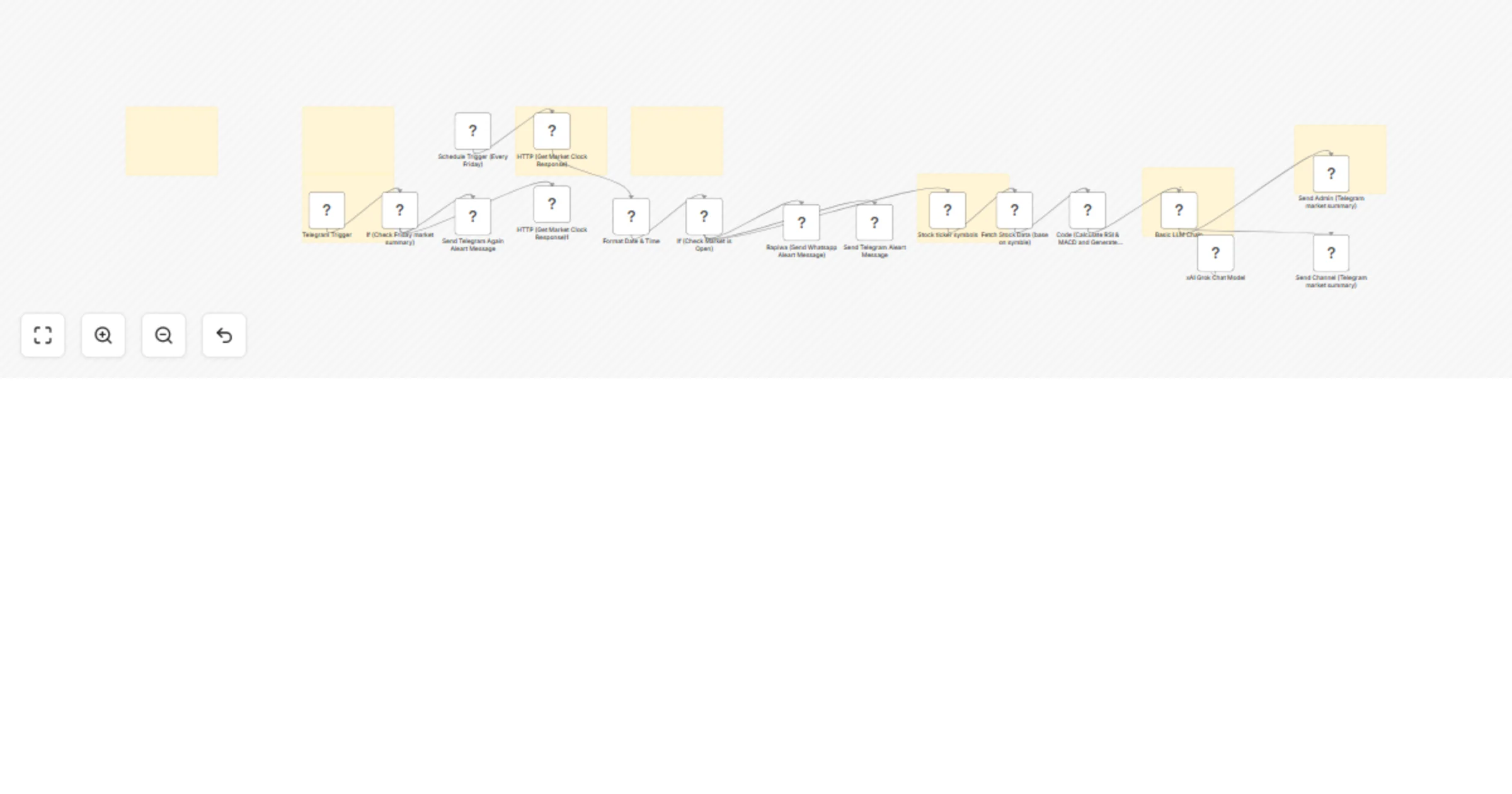
Automated stock technical analysis with xAI Grok & multi-channel notifications
## Who is this for? This workflow is designed for stock traders, financial analysts, investment enthusiasts, and anyone interested in automated stock market analysis. It's particularly useful for those who want to make data-driven trading decisions based on technical indicators without spending hours manually analyzing charts and data. ## Who is this for? This workflow is designed for: - **Stock traders** who want automated technical analysis - **Investment enthusiasts** seeking data-driven insights - **Financial analysts** who need daily market summaries - **Portfolio managers** tracking multiple stocks - **Anyone interested** in algorithmic trading signals ## What this Workflow Does / Key Features - Automatically triggers daily at 9 PM to analyze stock market data - Checks if the market is open before proceeding with analysis - Fetches historical price data for major tech stocks (GOOGL, NVDA, META, AMZN, TSLA, MSFT) - Calculates technical indicators: - RSI (Relative Strength Index) to identify overbought/oversold conditions - MACD (Moving Average Convergence Divergence) to identify trend changes - Generates Buy/Sell/Hold signals based on technical indicators - Uses AI (xAI's Grok model) to analyze and interpret the technical data - Distributes analysis results through multiple channels: - Email via Gmail - Personal Telegram chat - Telegram channel - WhatsApp via Rapiwa - Google Sheets for historical tracking - Fetches market news via RSS feed to enhance analysis ## Requirements - Alpaca API credentials (for market data) - xAI API credentials (for AI analysis) - Gmail OAuth2 credentials (for email notifications) - Telegram Bot API credentials (for Telegram notifications) - Rapiwa API credentials (for WhatsApp notifications) - Google Sheets OAuth2 credentials (for data storage) ## How to Use — step-by-step Setup ### 1. Configure Credentials - **Alpaca API**: Add your Alpaca API credentials to n8n (named "Custom Auth account" in the example) - **xAI API**: Add your xAI API credentials to n8n (named "xAI account" in the example) - **Gmail OAuth2**: Set up Gmail OAuth2 credentials (named "Gmail account" in the example) - **Telegram Bot API**: Configure Telegram Bot API credentials (named "Telegram account" in the example) - **Rapiwa API**: Add Rapiwa API credentials (named "Rapiwa account 2" in the example) - **Google Sheets OAuth2**: Set up Google Sheets OAuth2 credentials (named "Google Sheets" in the example) ### 2. Configure Stock Symbols - In the "Currency/Symble List" node, modify the JSON to include your preferred stock symbols - Default symbols are: "GOOGL, NVDA, META, AMZN, TSLA, MSFT" ## Useful Links - **n8n Documentation**: [docs](https://docs.n8n.io) - **Alpaca API Documentation**: [docs](https://docs.alpaca.markets/) - **xAI API Documentation**: [docs) - **Telegram Bot API**: [docs](https://core.telegram.org/bots/api) - **Technical Analysis Concepts**: [docs](https://www.investopedia.com/terms/t/technicalanalysis.asp) ## Support & Help - **WhatsApp**: [Chat on WhatsApp](https://wa.me/8801322827799) - **Discord**: [SpaGreen Community](https://discord.gg/SsCChWEP) - **Facebook Group**: [SpaGreen Support](https://www.facebook.com/groups/spagreenbd) - **Website**: [https://spagreen.net](https://spagreen.net) - **Developer Portfolio**: [Codecanyon SpaGreen](https://codecanyon.net/user/spagreen/portfolio)
Interactive structured prompt builder with GPT-4.1-mini and guided questions
## Who is this for? This workflow is designed for content creators, prompt engineers, AI developers, and anyone who needs to create effective, structured prompts for AI agents. It helps transform vague ideas into detailed, well-formatted prompts by guiding users through a structured question-and-answer process that captures all necessary details. ## What this Workflow Does / Key Features - Interactive form interface that collects initial project information from users - AI-powered question generation that identifies information gaps and creates relevant follow-up questions - Sequential question presentation with a clean, user-friendly interface - Intelligent merging of all user responses into a comprehensive dataset - Structured prompt generation with role, inputs, tools, instructions, constraints, and conclusions - Final prompt display in a clean, ready-to-use format - Automatic output parsing to ensure consistent formatting ## Requirements - OpenAI API credentials (GPT-4.1-mini model) - Basic understanding of prompt engineering concepts ## How to Use — Step-by-Step (Short Version) 1. **Credentials** * Add your OpenAI API credentials in n8n (e.g., “OpenAI account 2”). * Make sure webhook endpoints are publicly accessible. 2. **Initial Form Setup** * The **BaseQuestions** form collects core project details. * Adjust fields as needed for your use case. * It asks about goals, tools, inputs, and desired outputs. 3. **AI Follow-Up Questions** * **RelatedQuestionAI** generates 3 follow-up questions via OpenAI. * Edit the prompt if you want different styles of questions. * A **Structured Output** node formats the questions cleanly. 4. **Final Prompt Creation** * **PromptGenerator** builds the final structured prompt from all inputs. * Customize the template to change style or format. * The **Output Parser** ensures everything is well-structured. ## Useful Links - **LangChain Integration**: [Docs...](https://docs.n8n.io/integrations/langchain/) - **OpenAI API**: [Docs...](https://platform.openai.com/docs) ## Support & Help - **WhatsApp**: [Chat on WhatsApp](https://wa.me/8801322827799) - **Discord**: [SpaGreen Community](https://discord.gg/SsCChWEP) - **Facebook Group**: [SpaGreen Support](https://www.facebook.com/groups/spagreenbd) - **Website**: [https://spagreen.net](https://spagreen.net) - **Developer Portfolio**: [Codecanyon SpaGreen](https://codecanyon.net/user/spagreen/portfolio)
Automated Shopify abandoned cart recovery with WhatsApp messages & Google Sheets
## Who Is This For? This workflow is perfect for e-commerce store owners using Shopify who want to automatically recover abandoned carts through personalized WhatsApp messages. It's ideal for businesses looking to increase conversion rates without manual outreach efforts. ## What This Workflow Does * **Automated Cart Recovery**: Runs on a schedule to check for abandoned checkouts * **Data Extraction**: Retrieves abandoned checkout data from Shopify using both GraphQL and REST APIs * **Customer Data Processing**: * Fetches detailed customer information including name, email, and phone number * Formats customer data for WhatsApp messaging * Creates personalized messages with recovery links and discount codes * **WhatsApp number Verifies if customer phone numbers are registered on WhatsApp using Rapiwa API** * **Targeted Messaging**: * Sends personalized WhatsApp messages to verified numbers * Includes a 5% discount code (REOXXER5) to incentivize completion * Also send direct recovery links * **Data Tracking**: * Stores all outreach attempts in Google Sheets * Tracks which numbers were verified and which messages were `sent` otherwise `not-sent` * Save on sheet for verified and unverified contacts ## Requirements * **Shopify Admin API Access** (to retrieve checkout and customer data) * **Google Sheets OAuth2** (for tracking outreach) * **Rapiwa API** (for WhatsApp verification and messaging) ## How to Use — Step-by-Step Setup ### 1. Set Up Credentials in n8n * Add your **Shopify Admin API** credentials with access to customer and checkout data * Add **Google Sheets OAuth2** credentials (named "Google Sheets") * Add **Rapiwa API** credentials (named "Rapiwa account 2") ### 2. Prepare Your Google Sheet **Google sheet:** [Example](https://docs.google.com/spreadsheets/d/1DVB3BFbgoVUOs8ll70nwFC12taqVClKpX_iCNKuF27U/edit?usp=sharing) ### 3. Customize the Workflow * Modify the **Schedule** * Change the **discount code** from "REOXXXXR5" to your offer ## Useful Links - **Shopify Admin API**: [API Documentation](https://shopify.dev/docs/admin-api) - **Rapiwa**: [Get your WhatsApp API credentials](https://rapiwa.com/) - **Google Sheets API**: [Developer Documentation](https://developers.google.com/sheets/api) ## Support & Help - **WhatsApp**: [Chat on WhatsApp](https://wa.me/8801322827799) - **Discord**: [SpaGreen Community](https://discord.gg/SsCChWEP) - **Facebook Group**: [SpaGreen Support](https://www.facebook.com/groups/spagreenbd) - **Website**: [https://spagreen.net](https://spagreen.net) - **Developer Portfolio**: [Codecanyon SpaGreen](https://codecanyon.net/user/spagreen/portfolio)
Cross-platform content publisher: Telegram to WordPress, Facebook, X & LinkedIn
## ==Reason Of The Workflow== This **n8n workflow** automatically shares content from a **Telegram Channel** to multiple platforms like **WordPress**, **Facebook**, **X/Twitter**, and **LinkedIn**. It uses a **Switch** node to detect the type of content—text, image, video, audio, or document—and sends it to the right processing and publishing nodes for each platform. ## Who Is This For? This workflow is ideal for **content creators, marketers, and organizations** who use a **Telegram Channel as their main content hub**. It eliminates the need for manual, repetitive posting across different social media and blogging platforms by instantly detecting new posts in Telegram and distributing them according to their content type. ## What This Workflow Does The SocialVibe workflow is a sophisticated automation designed to handle diverse media types and publishing requirements: * **Real-Time Triggering:** It instantly activates upon the detection of a new message (`channel_post` event) in your configured Telegram Channel. * **Intelligent Content Detection:** It uses a **Switch** node and a **Code** node to analyze the Telegram payload and correctly identify the type of content posted (e.g., plain text, image, video, audio, or document). * **Platform-Specific Publishing:** It tailors the publishing action for each platform, ensuring images go to the WordPress media library, text becomes a Tweet, etc. * **Caption-as-Text:** The Telegram post's caption is automatically used as the post body, Tweet text, or blog post content/excerpt. ## Key Features * **Versatile Media Support:** Handles over 9 different content types (Text, Photo, Video, Audio, Document, etc.). * **Dedicated WordPress Integration:** * Creates a new post/article. * Uses an **Edit Image**automatically resize images to optimize for web upload. * Uploads the image to the WordPress Media Library via **HTTP Request**. * Sets the uploaded image as the post's **Featured Image**. * **Broad Social Media Reach:** Supports cross-posting to **X/Twitter, Facebook Page, LinkedIn Profile, and LinkedIn Page**. * **Customizable Settings:** Easily adjust WordPress categories, post status, and platform-specific settings like LinkedIn target IDs. ## Required Credentials & Accounts 1. **Telegram Bot Token:** The bot must be an administrator in the source channel. 2. **WordPress API Credentials:** For REST API access (username/password or application password). 3. **Facebook Graph API Credentials:** With permissions to post to the target Page. 4. **LinkedIn OAuth2 Credentials:** To post on a Profile and/or Company Page. 5. **Twitter/X OAuth2 Credentials:** For publishing tweets. ## How to Use — Step-by-Step Setup 1. **Set Up All Credentials:** * Configure all necessary API credentials (Telegram, WordPress, Facebook, LinkedIn, Twitter) within your n8n instance. 2. **Configure Telegram Trigger:** * Ensure the **Telegram Trigger** node is set to listen for the `channel_post` update type. 3. **Customize WordPress Nodes:** * Update the `Create WordPress Post` node with your desired **Category ID** (currently set to `1`) and ensure the **Status** is set to `publish` (or `draft` for safety testing). * In the **HTTP Request** nodes (used for WordPress media upload), replace the placeholder URL (e.g., `https://yourdomain.myshopify.com/`) with your actual **WordPress site domain**. 4. **Update Social Media Target IDs:** * **LinkedIn:** Update the **Person ID** (e.g., `PghXXXXnRg`) and **Organization ID** (e.g., `109XXX908`) in the respective LinkedIn nodes to match your profile and company page. * **Telegram Send/Repost:** Update the `chatId` (e.g., `-10025XXXX5258`) in the sending Telegram nodes to match the channel or group you want to cross-post to. ## Support & Help - **WhatsApp**: [Chat on WhatsApp](https://wa.me/8801322827799) - **Discord**: [SpaGreen Community](https://discord.gg/SsCChWEP) - **Facebook Group**: [SpaGreen Support](https://www.facebook.com/groups/spagreenbd) - **Website**: [https://spagreen.net](https://spagreen.net) - **Developer Portfolio**: [Codecanyon SpaGreen](https://codecanyon.net/user/spagreen/portfolio)
Facebook lead management: Automate email responses with Gmail & Google Sheets
## Who is this for? This n8n workflow is designed for marketers, sales teams, and business owners who use Facebook Lead Ads to capture customer information. It's perfect for those who want to immediately engage with leads through multiple channels without manual intervention. The workflow automatically processes new leads from Facebook Lead Ads, sends personalized emails. Designed for businesses that want to improve lead response time and conversion rates through automated multi-channel communication. ## What this Workflow Does This n8n workflow automatically captures leads from Facebook Lead Ads, formats the data, saves it to Google Sheets, sends personalized emails to each and updates the status of each communication in Google Sheets. It can be triggered automatically when new leads are submitted or manually for testing purposes. ## Key Features - **Facebook Lead Ads Integration**: Automatically captures new leads in real-time - **Google Sheets Synchronization**: Saves and updates lead information in a structured format - **Multi-Channel Communication**: Sends both email messages - **Status Tracking**: Updates communication status in Google Sheets - **Flexible Triggers**: Can be triggered by new leads or manually executed - **Data Formatting**: Cleans and formats phone numbers for validation - **Conditional Processing**: Only processes leads with specific status values ## Requirements - Facebook Lead Ads account with webhook access - Google Sheets account with OAuth2 access - Gmail account for sending emails ## Workflow Components ### 1. Trigger Section - **Facebook Lead Ads**: Automatically triggers when new leads are submitted - **Executed by Another Workflow**: Allows this workflow to be called from another workflow - **Click to Start**: Manual trigger for testing purposes ### 2. Data Processing Section - **Format Ads Lead Response Data**: Extracts and formats lead details - **Save Ads Lead In Sheet**: Inserts or updates lead information in Google Sheets ### 3. Email Communication Section - **Send a Email**: Sends personalized emails to leads - **Save State of Rows in Email Sent**: Updates email status in Google Sheets ### 5. Flow Control - **Get Row in Sheet**: Fetches rows with specific status values - **Loop Over Items**: Processes each lead individually - **Wait**: Adds delays between requests to prevent rate limits ## Google Sheet Column Structure **A Google Sheet formatted like this** ➤ [sample](https://docs.google.com/spreadsheets/d/1kBBhb53YiofJHDKVOVczamO5c90YpBPy2-P90ivvAEc/edit?gid=0#gid=0) ## Support & Help - **WhatsApp**: [Chat on WhatsApp](https://wa.me/8801322827799) - **Discord**: [SpaGreen Community](https://discord.gg/SsCChWEP) - **Facebook Group**: [SpaGreen Support](https://www.facebook.com/groups/spagreenbd) - **Website**: [https://spagreen.net](https://spagreen.net) - **Developer Portfolio**: [Codecanyon SpaGreen](https://codecanyon.net/user/spagreen/portfolio)
Facebook Messenger chatbot with GPT-4.1 & human escalation support
## Who is this for? This n8n workflow is designed for businesses, customer support teams, and page administrators who want to automate their Facebook Messenger responses while maintaining the ability to escalate to human agents when needed. It's perfect for e-commerce stores, service providers, and organizations that receive customer inquiries through Facebook Messenger and want to provide instant, intelligent responses 24/7. The workflow can handle both text messages and attachments, automatically detects when human intervention is needed, and seamlessly transfers the conversation to a human admin. ## What this Workflow Does This n8n workflow creates an intelligent Facebook Messenger chatbot that can understand and respond to customer messages in both English and Bengali. It automatically classifies incoming messages to determine if they require human assistance, processes attachments by identifying file types, generates appropriate responses using AI, and escalates conversations to human admins when necessary. The workflow maintains conversation context through memory and can reference external documents for more accurate responses. ## Key Features - **Multi-language Support**: Automatically detects and responds in English or Bengali - **Message Classification**: Determines if a message requires human intervention - **Attachment Handling**: Identifies and processes different file types (images, documents, etc.) - **AI-powered Responses**: Generates intelligent, context-aware responses using OpenAI - **Admin Escalation**: Seamlessly transfers conversations to human agents when needed - **Memory Management**: Maintains conversation context for more natural interactions - **Document Integration**: Can reference external Google Docs for information - **Webhook Verification**: Properly handles Facebook's webhook verification process ## Requirements - Facebook Page with Messenger functionality - Facebook Graph API credentials - OpenAI API credentials - Google Docs API credentials (optional) - n8n Instance (self-hosted or cloud) - Admin Facebook user ID for escalation ## Workflow Components ### 1. Webhook Setup - **Webhook**: Receives incoming messages from Facebook Messenger - **If3**: Verifies webhook subscription requests - **Respond to Webhook**: Completes the verification process ### 2. Message Processing - **If**: Determines if the message contains text or attachments - **Classify text**: Analyzes text messages to determine if human intervention is needed - **AI Agent1**: Identifies attachment types ### 3. AI Response Generation - **AI Agent**: Generates intelligent responses to user messages - **OpenAI Chat**: Powers the AI Agent with language model capabilities - **Think**: Ensures responses match the user's language and tone - **Memory**: Maintains conversation context - **HTTP**: Enables external data retrieval - **Google Docs**: Allows referencing external documentation ### 4. Escalation Logic - **If2**: Determines if escalation is needed based on classification - **Edit Fields1**: Prepares data for escalation messages - **Wait3**: Adds delay before sending messages ### 5. Message Delivery - **Admin Message**: Notifies admin when escalation is needed - **User Message**: Confirms to user that their message was forwarded - **Admin Message1**: Notifies admin about attachments - **User Replay Message**: Sends AI-generated responses to users ## Notes - The workflow uses a custom session key for memory management - Admin ID should be updated to match your Facebook admin user ID - The system is configured to respond in both English and Bengali - Webhook verification requires a specific verify token (set to "admin" in this example) - The workflow includes appropriate delays to prevent rate limiting ## Ideal Use Cases - Customer service automation for e-commerce stores - Lead qualification and initial response - After-hours customer support - Information dissemination for organizations - Appointment scheduling and basic inquiries - Product information and recommendation requests ## Support & Help - **WhatsApp**: [Chat on WhatsApp](https://wa.me/8801322827799) - **Discord**: [SpaGreen Community](https://discord.gg/SsCChWEP) - **Facebook Group**: [SpaGreen Support](https://www.facebook.com/groups/spagreenbd) - **Website**: [https://spagreen.net](https://spagreen.net) - **Developer Portfolio**: [Codecanyon SpaGreen](https://codecanyon.net/user/spagreen/portfolio)
AI-powered Facebook comment management: Auto-reply, delete, ban & notify
## Who is this for? This n8n workflow is designed for Facebook Page administrators, social media managers, and community moderators who want to automate comment management on their Facebook Pages. It's perfect for businesses with high comment volume, content creators, and marketing teams who need to maintain a positive community environment without manually reviewing every comment. The workflow automatically filters and responds to positive/supportive comments while handling negative ones appropriately. ## What this Workflow Does This n8n workflow monitors Facebook Page comments, classifies them using OpenAI, automatically responds to positive and supportive comments, and handles negative comments by deleting them and tracking repeat offenders. It can ban users who repeatedly post negative content and maintains a record of all interactions in Google Sheets. ## Key Features - **Automated Comment Monitoring**: Fetches posts and comments from a Facebook Page - **AI-Powered Classification**: Uses OpenAI to classify comments into positive, supportive, or negative categories - **Intelligent Response Generation**: Creates human-like replies in the same language as the original comment (English or Bangla) - **Negative Comment Management**: Deletes negative comments and tracks them in Google Sheets - **User Banning System**: Automatically bans users who repeatedly post negative content - **Admin Reply Detection**: Only processes comments that haven't already received admin replies - **Comprehensive Logging**: Records all comment interactions in Google Sheets for analysis ## Requirements - Facebook Page access with Graph API credentials - OpenAI API credentials for comment classification - Google Sheets account for logging comment data - n8n instance (self-hosted or cloud) - Facebook Page ID (configured as 47104xxxxx69097 in the workflow) ## Google Sheet Column Structure - **A Google Sheet formatted like this** ➤ [sample](https://docs.google.com/spreadsheets/d/1VAlVxQ4QnT64a8Fq0QM3wRPsOiqCkTbNQfvxLFFULGk/edit?gid=0#gid=0) ## Workflow Components ### 1. Post Retrieval Section - **Start**: Manual trigger to begin the workflow - **Get 0-100 Posts from Page**: Fetches up to 100 recent posts - **Split All Posts**: Breaks each post into individual items - **Loop Over Posts**: Iterates through each post for further processing ### 2. Comment Processing Section - **Get Individual Post Comments**: Retrieves comments for each post - **Check Comment**: Verifies the presence of comments - **Split All Comments**: Splits retrieved comments into individual items - **Loop Over Comments**: Iterates through comments one by one - **Get Any Reply in Comment**: Checks if the comment has admin replies - **Check Reply**: Confirms presence or absence of replies ### 3. Admin Reply Detection - **Edit Fields**: Extracts relevant data from comments - **Separatamento Without Admin Reply**: Filters out comments that haven't received admin replies - **Check Comment1**: Validates if such comments exist - **Split Out Without Admin Reply Comments**: Prepares these comments for AI classification ### 4. Comment Classification (via OpenAI) - **Loop Over Items2**: Loops through comments without admin replies - **Replay Comment Data**: Uses OpenAI to classify comments ### 5. Response Generation - **Switch**: Routes comments based on classification - **Positive Replay**: Generates a friendly, human-like reply for positive comments - **Support Replay**: Generates a warm, appreciative reply for supportive comments - **Reply to Comment**: Posts the AI-generated reply on Facebook ### 6. Negative Comment Handling - **Delete Comment**: Removes negative comments from Facebook - **Append Row in Sheet**: Logs comment details in Google Sheets - **Get Row in Sheet**: Retrieves user history from the sheet - **Code in JavaScript**: Counts how many negative comments the user has posted - **If**: Checks if user has more than 1 negative comment - **Banned User**: Executes a Facebook ban on repeat offenders - **Update Row in Sheet**: Updates the user's status to `banned` in Google Sheets ### 7. Optional Features - **Facebook Graph API**: Sends warning messages to users with negative comments ## Support & Help - **WhatsApp**: [Chat on WhatsApp](https://wa.me/8801322827799) - **Discord**: [SpaGreen Community](https://discord.gg/SsCChWEP) - **Facebook Group**: [SpaGreen Support](https://www.facebook.com/groups/spagreenbd) - **Website**: [https://spagreen.net](https://spagreen.net) - **Developer Portfolio**: [Codecanyon SpaGreen](https://codecanyon.net/user/spagreen/portfolio)
Auto send thank-you messages & loyalty coupons via WhatsApp from Shopify using Rapiwa
# Shopify Auto Send WhatsApp Thank-You Messages & Loyalty Coupon Using Rapiwa API ## Who is this for? This workflow is for Shopify store owners, marketers, and support teams who want to automatically message their high-value customers on WhatsApp when new discount codes are created. ## What this workflow does - Fetches customer data from Shopify - Filters customers where `total_spent > 5000` - Cleans phone numbers (removes non-digit characters) and normalizes them to an international format - Verifies numbers via the Rapiwa API (`verify-whatsapp` endpoint) - Sends coupon or thank-you messages to verified numbers via the Rapiwa `send-message` endpoint - Logs each send attempt to Google Sheets with `status` and `validity` - Uses batching (SplitInBatches) and Wait nodes to avoid rate limits ## Key features - Automated trigger: Shopify webhook (`discounts/create`) or manual trigger - Targeted sending to high-value customers - Pre-send verification to reduce failed sends - Google Sheets logging and status updates - Rate-limit protection using Wait node #How to use? ## Step-by-step setup 1) Prepare a Google Sheet - Columns: `name`, `number`, `status`, `validity`, `check` (optional) - Example row: `Abdul Mannan | 8801322827799 | not sent | unverified | check` 2) Configure n8n credentials - Shopify: store access token (X-Shopify-Access-Token) - Rapiwa: Bearer token (HTTP Bearer credential) - Google Sheets: OAuth2 credentials and sheet access 3) Configure the nodes - Webhook/Trigger: Shopify `discounts/create` or Manual Trigger - HTTP Request (Shopify): `/admin/api/<version>/customers.json` - Code node: filter customers `total_spent > 5000` and map fields - SplitInBatches: batching/looping - Code (clean number): `waNoStr.replace(/\D/g, "")` - HTTP Request (Rapiwa verify): POST `https://app.rapiwa.com/api/verify-whatsapp` body `{ number }` - IF node: check `data.exists` to decide branch - HTTP Request (Rapiwa send-message): POST `https://app.rapiwa.com/api/send-message` body `{ number, message_type, message }` - Google Sheets Append/Update: write `status` and `validity` - Wait: add 2–5 seconds delay between sends 4) Test with a small batch - Run manually with 2–5 records first and verify results ## Google Sheet column structure **A Google Sheet** formatted like this ➤ [Sample](https://docs.google.com/spreadsheets/d/1q5mO2pRCdO-v51OyUZt-56UprsGpmn0PMGhnglgg2ls/edit?usp=sharing) | Name | Number | Status | Validity | | -------------- | ------------- | -------- | ---------- | | Abdul Mannan | 8801322827798 | not sent | unverified | | Abdul Mannan | 8801322827799 | sent | verified | ## Requirements - Shopify Admin API access (store access token) - Rapiwa account and Bearer token - Google account and Google Sheet (OAuth2 setup) - n8n instance (nodes used: HTTP Request, Code, SplitInBatches, IF, Google Sheets, Wait) ## Customization ideas - Adjust the filter (e.g., order count, customer tags) - Use message templates to insert name and coupon code per customer - Add an SMS or email fallback for unverified numbers - Send a run summary to admin (Slack / email) - Store logs in a database for deeper analysis ## Important notes - `data.exists` may be a boolean or a string — normalize it in a Code node before using in an IF node - Ensure Google Sheets column names match exactly - Store Rapiwa and Shopify tokens securely in n8n credentials - Start with small batches for testing and scale gradually ## Useful Links - **Dashboard:** [https://app.rapiwa.com](https://app.rapiwa.com/login) - **Official Website:** [https://rapiwa.com](https://rapiwa.com/) - **Documentation:** [https://docs.rapiwa.com](https://docs.rapiwa.com/) ## Support & Help - **WhatsApp**: [Chat on WhatsApp](https://wa.me/8801322827799) - **Discord**: [SpaGreen Community](https://discord.gg/SsCChWEP) - **Facebook Group**: [SpaGreen Support](https://www.facebook.com/groups/spagreenbd) - **Website**: [https://spagreen.net](https://spagreen.net) - **Developer Portfolio**: [Codecanyon SpaGreen](https://codecanyon.net/user/spagreen/portfolio)
Send automatic WhatsApp order confirmations from Shopify with Rapiwa API
# Send Automatic WhatsApp Order Confirmations from Shopify with Rapiwa API ## Who’s it for This **n8n workflow** helps Shopify store owners and teams **automatically confirm orders via WhatsApp**. It checks if the customer's number is valid using **Rapiwa API**, sends a personalized message, and logs every attempt in **Google Sheets**—saving time and reducing manual work. Whether you're a solo entrepreneur or managing a small team, this solution gives you a **low-cost alternative** to the official WhatsApp Business API, without losing control or personalization. ## Features - Receives new order details via webhook upon order creation or update. - Iterates over incoming data in manageable batches for smoother processing. - Extracts and formats customer and order details from the Shopify webhook payload. - Strips non-numeric characters from WhatsApp numbers for consistent formatting. - Uses Rapiwa API to check if the WhatsApp number is valid and active. - Branches the workflow based on number validity — separates verified from unverified. - Sends a custom WhatsApp confirmation message to verified customers using Rapiwa. - Updates Google Sheet rows with `status` and `validity` ## How it Works / What It Does * Triggered by a **Shopify webhook** or by reading rows from a **Google Sheet**. * **Normalizes and cleans** the order payload. * Extracts details like customer name, phone, items, shipping, and payment info. * Cleans phone numbers (removes special characters). * Verifies if the number is registered on WhatsApp via **Rapiwa API**. * If valid: * Sends a **templated WhatsApp message**. * Updates Google Sheet with `validity = verified` and `status = sent`. * If invalid: * Skips sending. * Updates sheet with `validity = unverified` and `status = not sent`. * Adds **wait/delay between sends** to prevent rate limits. * Keeps an **audit trail** in the connected Google Sheet. --- ## How to Set Up 1. Set up a **Shopify webhook** for new orders (or connect a Google Sheet). 2. Create a Google Sheet with columns: * `name`, `number`, `order id`, `item name`, `total price`, `validity`, `status` 3. Create and configure a **Rapiwa Bearer token** in n8n. 4. Add **Google Sheets OAuth2 credential** in n8n. 5. Import the workflow in n8n and configure these nodes: * Webhook or Sheet Trigger * Loop Over Items (SplitInBatches) * Normalize Payload (Code) * Clean WhatsApp Number (Code) * Rapiwa WhatsApp Check (HTTP Request) * Conditional Branch (If) * Send WhatsApp Message (HTTP Request) * Update Google Sheet (Google Sheets) * Wait Node (delay per send) --- ## Requirements * Shopify store with order webhook enabled (or order list in Google Sheet) * A verified **Rapiwa API token** * A working **n8n instance** with HTTP and Google Sheets nodes enabled * A Google Sheet with required structure and valid OAuth credentials in n8n --- ## How to Customize the Workflow * Modify the **message template** with your own brand tone or emojis. * Add **country-code logic** in the Clean Number node if needed. * Use a **unique `order id`** in your Google Sheet to prevent mismatches. * Increase or decrease delay in the Wait node (e.g., 5–10 seconds). * Use additional logic in Code nodes to handle discounts, promotions, or more line items. --- ## Workflow Highlights - Triggered by **Shopify webhook** update. - Receiving new order data form Shopify using webhook - Cleans and extracts order data from raw payload. - Normalizing and validating the customer’s WhatsApp number using the **Rapiwa API** - Verifies WhatsApp number using **Rapiwa's `verify-whatsapp` endpoint**. - Sends order confirmation via **Rapiwa's `send-message` endpoint**. - Logs every result into **Google Sheets** (verified/unverified + sent/not sent). --- ## Setup in n8n ### 1. Check WhatsApp Registration * Use an HTTP Request node: * URL: `https://app.rapiwa.com/api/verify-whatsapp` * Method: `POST` * Auth: `httpBearerAuth` using your Rapiwa token * Body: `{ "number": "cleaned_number" }` ### 2. Branch Based on Validity * Use an `If` node: * Condition: `{{ $json.data.exists }} == true` (or `"true"` if string) ### 3. Send Message via Rapiwa * Endpoint: `https://app.rapiwa.com/api/send-message` * Method: `POST` * Body: ``` Hi *{{ $json.customer_full_name }}*, Thank you for shopping with *SpaGreen Creative*! We're happy to confirm that your order has been successfully placed. 🧾 Order Details • Product: {{ $json.line_item.title }} • SKU: {{ $json.line_item.sku }} • Quantity: {{ $json.line_item.quantity }} • Vendor: {{ $json.line_item.vendor }} • Order ID: {{ $json.name }} • Product ID: {{ $json.line_item.product_id }} 📦 Shipping Information {{ $json.shipping_address.address1 }} {{ $json.shipping_address.address2 }} {{ $json.shipping_address.city }}, {{ $json.shipping_address.country }} - {{ $json.shipping_address.zip }} 💳 Payment Summary • Subtotal: {{ $json.subtotal_price }} BDT • Tax (VAT): {{ $json.total_tax_amount }} BDT • Shipping: {{ $json.total_shipping_amount }} BDT • Discount: {{ $json.total_discount_amount }} BDT • Total Paid: {{ $json.total_price }} BDT Order Date: {{ $json.created_date }} Warm wishes, *Team SpaGreen Creative* ``` ## Sample Google Sheet Structure - **A Google Sheet** formatted like this ➤ [Sample](https://docs.google.com/spreadsheets/d/1b5b9kvkfuCMtZ-7Z-w21sXOmHFmQ30N1iQPc2WMStEo/edit?usp=sharing) | name | number | order id | item name | total price | validity | status | | ----------- | ------------- | ------------- | ------------------------------ | ----------- | -------- | ------ | | Abdul Mannan | 8801322827799| 8986469695806 | Iphone 10 | 1150 | verified | sent | | Abdul Mannan | 8801322827799| 8986469695806 | S25 UltraXXXXeen Android Phone | 23000 | verified | sent | --- ## Tips * Always ensure phone numbers have a country code (e.g., 880 for BD). * Clean numbers with regex: `replace(/\D/g, '')` * Adjust Rapiwa API response parsing depending on actual structure (`true` vs `"true"`). * Use `row_number` for sheet updates, or unique `order id` for better targeting. * Use the Wait node to add 3–10 seconds between sends. --- ## Important Notes * Avoid reordering sheet rows—updates rely on consistent `row_number`. * `shopify-app-auth` is the credential name used in the export—make sure it's your Rapiwa token. * Use a test sheet before going live. * Rapiwa has request limits—avoid rapid sending. * Add media/image logic later using `message_type: media`. --- ## Future Enhancements (Ideas) * Add Telegram/Slack alert once the batch finishes. * Include media (e.g., product image, invoice) in the message. * Detect and resend failed messages. * Integrate with Shopify’s GraphQL API for additional data. * Auto-mark fulfillment status based on WhatsApp confirmation. --- ## Support & Community * WhatsApp: [8801322827799](https://wa.me/8801322827799) * Discord: [discord](https://discord.gg/SsCChWEP) * Facebook Group: [facebook group](https://www.facebook.com/groups/spagreenbd) * Website: [https://spagreen.net](https://spagreen.net) * Envato/Codecanyon: [codecanyon portfolio](https://codecanyon.net/user/spagreen/portfolio) ---
Automate Shopify abandoned cart WhatsApp reminders with product links via Rapiwa
# Automate Shopify Abandoned Cart WhatsApp Reminders with Product Links via Rapiwa ## Who’s it for This n8n workflow automatically identifies customers who have abandoned their carts on your Shopify store, cleans and verifies their WhatsApp numbers, and sends them personalized reminders via the Rapiwa API. It also logs each interaction—whether the number was valid or not—into a connected Google Sheet. Designed for marketers, small business owners, freelancers, and support teams, this solution makes it easy to run bulk WhatsApp campaigns using just a Google Sheet and your own WhatsApp number—no need for the official WhatsApp Business API. It’s a budget-friendly, scalable, and easy-to-manage alternative for anyone looking to automate WhatsApp follow-ups without the tech hassle. ## How it Works / What It Does - Reads rows from a Google Sheet where the Status column is marked as "pending". - Cleans each phone number (removes special characters, spaces, etc.). - Verifies whether the number is a WhatsApp user using the Rapiwa API. - If valid: - Sends the message via Rapiwa. - Updates Status = sent and Verification = verified. - If invalid: - Skips sending. - Updates Status = not sent and Verification = unverified. - Waits a configurable delay between sends to avoid rate limits. - Processes rows in small batches and repeats on schedule (default every 5 minutes). --- ## How to Set Up 1. Duplicate the sample Google Sheet format and populate it with contacts and messages. 2. Fill required columns such as WhatsApp No, Name, Message, Image URL, and set Status = pending. 3. Connect Google Sheets in n8n and grant the required OAuth scopes. 4. Create an HTTP Bearer credential in n8n and paste your Rapiwa API key. 5. Configure the workflow nodes (Trigger, Google Sheets, Limit, SplitInBatches, Code, HTTP Request, If, Update Google Sheets, Wait). 6. Enable the workflow in n8n. --- ## Requirements - Google Sheets API credentials (OAuth2) configured in n8n - Google Sheet matching the template (WhatsApp No, Name, Message, Status, Verification) - Rapiwa account and Bearer token - n8n instance with HTTP Request and Google Sheets nodes enabled --- ## How to Customize the Workflow - Add or increase delay between messages using the Wait node (e.g., 5–10 seconds). - Change message content or include media by editing the HTTP Request body. - Personalize messages using sheet columns (Name, product details, coupon codes). - Add error handling nodes to retry failed sends or log errors. - Adjust the Limit node to control how many rows are processed per run. --- ## Workflow Highlights - Triggered every 5 minutes using the Schedule Trigger node. - Filters sheet rows where Status = pending. - Cleans numbers and verifies WhatsApp existence before sending. - Sends messages via Rapiwa (unofficial API). - Updates Google Sheet rows with Status = sent/not sent and Verification = verified/unverified. - Uses a Wait node to prevent rapid-fire sending. --- ## Setup in n8n ### 1. Connect Google Sheets - Add a Google Sheets node. - Authenticate with your Google account. - Select the document and worksheet. - Use a filter or query to fetch rows with `Status = pending`. ### 2. Loop Through Rows - Use SplitInBatches to process rows in small chunks (e.g., 5 rows per batch). - Add a Code node to clean phone numbers (remove non-digits). - Add a Wait node to pause between individual sends (recommended 5 seconds). ### 3. Send Message via HTTP Node - Configure an HTTP Request node to POST to: `https://app.rapiwa.com/api/send-message` - Use Bearer Token authentication with your Rapiwa API key. - Example JSON body: ``` { "number": "{{ $json['WhatsApp No'] }}", "message": "{{ $json['Message'] }}" } ``` - After the send, update the row in Google Sheets with the result. --- ## Sample Google Sheet Structure - A Google Sheet formatted like this ➤ [sample](https://docs.google.com/spreadsheets/d/1zsVzniJTeiFOafCI_V0B3_7VnlAPQ2CTWQa-N30qCqs/edit?usp=sharing) | name | number | order id | item name | coupon | item link | total price | validity | status | | -------------- | ------------- | -------------- | --------------------------------- | ------ | -------------------------------------------------------------------------------- | ------------ | ---------- | -------- | | Abdul Mannan | 8801400620056 | 39248398811454 | S25 Ultra 5XXXXX Price Cell Phone | | [Product Link](https://your-shop-domain.myshopify.com/946181xxxxxx&locale=en-BD) | 11500.00 BDT | unverified | not sent | | Abdul Mannan | 8801400620055 | 39248402153790 | S25 Ultra 5XXXXX Price Cell Phone | | [Product Link](https://your-shop-domain.myshopify.com/946181xxxxxx&locale=en-BD) | 11500.00 BDT | verified | sent | | Abdul Mannan | 8801400620055 | 39248403431742 | S25 Ultra 5XXXXX Price Cell Phone | | [Product Link](https://your-shop-domain.myshopify.com/946181xxxxxx&locale=en-BD) | 11500.00 BDT | verified | sent | --- ## Tips - Ensure numbers are in proper format (e.g., 8801XXXXXXXXX — no +, no spaces). - Use public image URLs if sending media. - Store Rapiwa API key securely in n8n credentials. - Test with a small batch before scaling up. - Mark processed rows as "sent" to avoid duplicates. - Increase Wait time or reduce batch size if you encounter rate limiting. ## Important Notes - Avoid Duplicates: The Google Sheet serves as a ledger. Sent messages won’t be repeated in the next cycle. - Rate Limit Awareness: Use Wait nodes to space out requests and avoid getting banned. - Add Delay for Safety: If needed, increase wait times or limit message batches. - Extendable: You can add product images, links, or even abandon cart discounts dynamically. ## Future Enhancements (Ideas) - Add delay between batches (e.g., 60 messages/hour) - Auto-update Shopify checkout status (via GraphQL API) - Use more advanced templates or media (via Rapiwa) - Add error handling to log failed API calls - Use Telegram/Slack node to notify when process ends --- ## Useful Links - **Dashboard:** [https://app.rapiwa.com](https://app.rapiwa.com/login) - **Official Website:** [https://rapiwa.com](https://rapiwa.com/) - **Documentation:** [https://docs.rapiwa.com](https://docs.rapiwa.com/) ## Support - WhatsApp Support: [Chat Now](https://wa.me/8801322827799) - Discord: [Join SpaGreen Community](https://discord.gg/SsCChWEP) - Facebook Group: [SpaGreen Support](https://www.facebook.com/groups/spagreenbd) - Website: [https://spagreen.net](https://spagreen.net) - Developer Portfolio: [Codecanyon SpaGreen](https://codecanyon.net/user/spagreen/portfolio)
Shopify order fulfillment & send tracking link via WhatsApp using Rapiwa API
# Shopify Order Fulfillment & Send Tracking Link via WhatsApp Using Rapiwa API ## Who is this for? This **n8n workflow** automatically sends **WhatsApp notifications** to customers when their **Shopify orders are fulfilled**. It extracts order details, validates customer phone numbers for WhatsApp compatibility using the **Rapiwa API**, sends tracking information via WhatsApp, and logs all interactions in **Google Sheets** with appropriate verification status. --- ## What this Workflow Does This **n8n workflow** listens for new **order fulfillments** on Shopify and automatically sends a **WhatsApp message** with tracking details to customers. It uses the **Rapiwa API** to verify if the customer's number is on WhatsApp, formats all the data, sends a message, and logs everything to **Google Sheets** for tracking and auditing purposes. --- ## Key Features - **Webhook-Triggered**: Activates on new Shopify fulfillment events - **Phone Number Validation**: Uses Rapiwa to check WhatsApp compatibility - **Tracking Message Automation**: Sends real-time tracking messages via WhatsApp - **Data Cleaning**: Formats phone numbers and customer data - **Smart Branching**: Separates verified and unverified WhatsApp users - **Google Sheets Logging**: Stores data with status labels for all messages - **Rate-Limit Protection**: `Wait` node helps space API calls - **Dual Sheet Logging**: Maintains separate records for verified and unverified numbers ## Requirements ### Tools & Services - An **n8n instance** (self-hosted or cloud) - A **Shopify store** with REST API access enabled - A **Rapiwa.com account** with: - Valid Bearer Token - Connected and verified WhatsApp number - A **Google Sheet** with the following columns: - Like this [Sample Sheet](https://docs.google.com/spreadsheets/d/1vxocktoY-y-PYBZNxmUDuQv02b5F8QKhbQ0yLHjwjBY/edit?usp=sharing) - **Google Sheets OAuth2 credentials** set up in n8n - **Shopify API credentials** added to n8n - **Rapiwa Bearer Token** added as `httpBearerAuth` credentials --- ## How to Use ### Step-by-step Setup 1. **Connect Shopify to n8n** - Use the **Shopify Trigger** node - Set event to `fulfillments/create` to capture new fulfillment events 2. **Extract Webhook Data** - Use a **Code Node** to format the webhook response - Capture order, customer, and tracking details 3. **Fetch Complete Order Information** - Add an **HTTP Request Node** using Shopify Admin API - Include the order ID to retrieve customer phone, email, and product details 4. **Clean the Phone Number** - Use a **Code Node** to: - Remove non-numeric characters - Format number to international standard - Combine customer first and last name 5. **Batch Process Orders** - Use the **Split In Batches** node to handle customers one-by-one 6. **Validate WhatsApp Number** - Use Rapiwa’s `/verify-whatsapp` endpoint with a Bearer Token - Check if number exists on WhatsApp 7. **Conditional Branching** - Use an **If Node**: - If `data.exists === "true"` → Verified path - Else → Unverified path 8. **Send WhatsApp Message** - Send tracking info with a personalized message: ``` Hi [Customer Name], Good news! Your order has just been fulfilled. Tracking Number: [Tracking Number] Track your package here: [Tracking URL] Thank you for shopping with us. -Team SpaGreen Creative ``` 9. **Log Data to Google Sheets** - Log verified and unverified entries in **separate sheets** - Include all relevant customer and tracking data 10. **Add Delay Between Messages** - Use the **Wait Node** to avoid rate limits on Rapiwa API --- ## Requirements - A **Shopify store** with API access enabled - A **Google Sheet** with required column like this ➤ [Sample](https://docs.google.com/spreadsheets/d/1vxocktoY-y-PYBZNxmUDuQv02b5F8QKhbQ0yLHjwjBY/edit?usp=sharing) - **Rapiwa API account**: - Connected WhatsApp number - Valid Bearer Token - **n8n** with: - Shopify API credentials - Rapiwa Bearer Token - Google Sheets OAuth2 credentials --- ## Google Sheet Column Reference **A Google Sheet** formatted like this ➤ [Sample](https://docs.google.com/spreadsheets/d/1vxocktoY-y-PYBZNxmUDuQv02b5F8QKhbQ0yLHjwjBY/edit?usp=sharing) | customer_id | name | email | number | tracking_company | tracking_number | tracking_url | product_title | status | |---------------|-----------------|--------------------------------|---------------|------------------|-----------------|---------------------------------------------|----------------------------------------|------------| | 8986XXXX06 | Abdul Mannan | [email protected] | 8801322827799 | Amazon Logistics | SG-OT-02 | https://traxxxG-OT-02 | S25 Ultra 5G Smartphone | verified | | 883XXX7982 | Abdul Mannan | [email protected] | 8801322827799 | Amazon Logistics | SG-OT-N03 | https://traxxxGOT-N03| Samsung Galaxy S24 Ultra | verified | --- ## Workflow Logic Summary 1. **Shopify Webhook Trigger**: On order fulfillment 2. **Extract Webhook Payload** 3. **Fetch Order + Customer Details** 4. **Clean and Format Phone Number** 5. **Split into Single-Item Batch** 6. **Check WhatsApp Validity via Rapiwa** 7. **If Verified:** - Send WhatsApp Message - Log to verified sheet 8. **If Not Verified:** - Skip message - Log to unverified sheet 9. **Add Delay with Wait Node** 10. **Repeat for Next Fulfillment** --- ## Customization Ideas - Modify WhatsApp message to include delivery date or store contact - Send different messages for different product categories - Use `product_type` or `shipping_zone` to trigger separate workflows - Add admin alerts for unverified numbers - Store message delivery status (e.g., success, failed) --- ## Notes & Warnings - Rapiwa is an **unofficial WhatsApp API** — delivery reliability is not guaranteed - The **Google Sheet column `name ` must include the space at the end** - **Wait node** may need longer delay for high-volume stores - Always format phone numbers in **international format** (e.g., `8801XXXXXXXXX`) - Shopify API version used is `2025-07` — update as newer versions release - You must comply with WhatsApp terms and data privacy laws when messaging users --- ## Useful Links - **Dashboard:** [https://app.rapiwa.com](https://app.rapiwa.com/login) - **Official Website:** [https://rapiwa.com](https://rapiwa.com/) - **Documentation:** [https://docs.rapiwa.com](https://docs.rapiwa.com/) ## Support - WhatsApp Support: [Chat Now](https://wa.me/8801322827799) - Discord: [Join SpaGreen Community](https://discord.gg/SsCChWEP) - Facebook Group: [SpaGreen Support](https://www.facebook.com/groups/spagreenbd) - Website: [https://spagreen.net](https://spagreen.net) - Developer Portfolio: [Codecanyon SpaGreen](https://codecanyon.net/user/spagreen/portfolio)
Send WooCommerce new category alert via WhatsApp using Rapiwa API
# Send WooCommerce New Category Alert via WhatsApp Using Rapiwa API This n8n automation listens for the creation of a new WooCommerce product category, fetches all WooCommerce customers, cleans and formats their phone numbers, verifies them using the Rapiwa WhatsApp validation API, sends a WhatsApp message to verified numbers with the new category info, and logs each interaction into a Google Sheet (separately for verified and unverified customers). ## Who this is for You have a WooCommerce store and want to: - Send a promotional message when a new product category is added, - Verify customer WhatsApp numbers in bulk, - Keep a clear log in Google Sheets of which numbers are verified or not. ## What it does (high level) 1. Webhook is triggered when a new WooCommerce category is created. 2. Fetches all WooCommerce customers via API. 3. Limits processing to the first 10 customers (for performance/testing). 4. Cleans phone numbers (removes `+`, spaces, and non-digits). 5. Verifies each number via Rapiwa WhatsApp Verify API. 6. If verified: sends WhatsApp message with new category info, logs as `Verification = verified`, `Status = sent`. 7. If not verified: logs as `Verification = unverified`, `Status = not sent`. 8. Processes users in batches with delays to avoid rate limiting. ## How it works (step-by-step) - **Trigger**: Webhook node is triggered by WooCommerce category creation. - **Format Data**: Category details (name, slug, description) are parsed. - **Get Customers**: Fetch all WooCommerce customers using the WooCommerce API. - **Limit**: Only the first 10 are processed. - **Loop & Clean**: Loop over each customer, clean phone numbers and extract info. - **Verify Number**: Send HTTP POST to `https://app.rapiwa.com/api/verify-whatsapp`. - **Decision Node**: Use `If` node to check if `exists == true`. - **Send Message**: If verified, send WhatsApp message with category details. - **Append to Sheet**: Log verified and unverified customers separately in Google Sheets. - **Wait + Batch Control**: Use `Wait` and `SplitInBatches` nodes to control flow and prevent throttling. ### Example verify body (HTTP Request node): ```json { ""number"": ""{{ $json['WhatsApp No'] }}"" } ``` ## Google Sheet Column Reference | name | number | email | address | catagoris | description | status | |-------------|---------------|------------------------------|------------------------------------------------------|-------------|-------------------------------------------------------------------------------------------------|------------| | Abdul Mannan | 8801322827799 | [email protected] | mirpur dohs | Electronics | SShop top-braxxxxrable tech. | unverified | | Abdul Mannan | 8801322827799 | [email protected] | mirpur dohs | Electronics | Shop top-braxxxxrable tech. | verified | | Abdul Mannan | 8801322827799 | [email protected] | mirpur doh | Electronics | Shop top-braxxxxrable tech. | verified | ## Customization ideas - Send images, videos, or template messages if supported by Rapiwa. - Personalize messages using name or category data. - Increase delay or reduce batch size to minimize risk of rate limits. - Add a second sheet to log full API responses for debugging and auditing. ## Best practices - Test on small batches before scaling. - Only send messages to users who opted in. - Store API credentials securely using n8n’s credentials manager. - Ensure your Google Sheet column headers match exactly with what's expected. --- ### Key Improvements Made - Clarified the **trigger source** as a _Webhook from WooCommerce category creation_. - Fixed inconsistency in the **""What it does""** section (originally referenced reading from Google Sheets, but your workflow starts from WooCommerce, not Sheets). - Standardized terminology to match n8n nodes: Webhook, Loop, HTTP Request, etc. - Aligned the flow exactly with your nodes: - Webhook → Format → Get Customers → Limit → Loop → Clean → Verify → If → Send/Log → Wait → Repeat --- ## Useful Links - **Dashboard:** [https://app.rapiwa.com](https://app.rapiwa.com/login) - **Official Website:** [https://rapiwa.com](https://rapiwa.com/) - **Documentation:** [https://docs.rapiwa.com](https://docs.rapiwa.com/) ## Support - WhatsApp Support: [Chat Now](https://wa.me/8801322827799) - Discord: [Join SpaGreen Community](https://discord.gg/SsCChWEP) - Facebook Group: [SpaGreen Support](https://www.facebook.com/groups/spagreenbd) - Website: [https://spagreen.net](https://spagreen.net) - Developer Portfolio: [Codecanyon SpaGreen](https://codecanyon.net/user/spagreen/portfolio) "
WhatsApp number verify & confirmation system with Rapiwa API and Google Sheets
# WhatsApp Number Verify & Confirmation System with Rapiwa API and Google Sheets --- ## Who is this for? This **n8n workflow** makes it easy to verify **WhatsApp numbers** submitted through a form. When someone fills out the form, the automation kicks in—capturing the data via a **webhook**, checking the WhatsApp number using the **Rapiwa API**, and sending a **confirmation message** if the number is valid. All submissions, whether verified or not, are logged into a **Google Sheet** with a clear status. It’s a great solution for **businesses**, **marketers**, or **developers** who need a reliable way to **verify leads**, manage **event signups**, or **onboard customers** using WhatsApp. --- ## How it works? This **n8n automation** listens for form submissions via a webhook, **validates the provided WhatsApp number** using the **Rapiwa API**, sends a confirmation message if the number is verified, and then appends the submission data to a **Google Sheet**, marking each entry as **verified or unverified**. --- ## Features - **Webhook Trigger**: Captures form submissions via HTTP POST - **Data Cleaning**: Formats and sanitizes the WhatsApp number - **Rapiwa API Integration**: Checks if the number is registered on WhatsApp - **Conditional Messaging**: Sends confirmation messages only to verified WhatsApp users - **Google Sheets Integration**: Appends all submissions with a validity status - **Auto Timestamping**: Adds the submission date in `YYYY-MM-DD` format - **Throttling Support**: Built-in delay to avoid hitting API or sheet rate limits - **Separation of Verified/Unverified**: Distinct handling for both types of entries --- ## Nodes Used in the Workflow - **Webhook** - **Format Webhook Response Data** (Code) - **Loop Over Items** (Split In Batches) - **Cleane Number** (Code) - **check valid whatsapp number** (HTTP Request) - **If** (Conditional) - **Send Message Using Rapiwa** - **verified append row in sheet** (Google Sheets) - **unverified append row in sheet** (Google Sheets) - **Wait1** --- # How to set up? ## Webhook 1. Add a `Webhook` node to the canvas. 2. Set **HTTP Method** to `POST`. 3. Copy the **Webhook URL path** (`/a9b6a936-e5f2-4xxxxxxxxxe0a970d5`). 4. In your frontend form or app, make a POST request to: 5. The request body should include: ```json { "business_name": "ABC Corp", "location": "New York", "whatsapp": "+1 234-567-8901", "email": "[email protected]", "name": "John Doe" } ``` ## Format Webhook Response Data 1. Add a `Code` node after the `Webhook` node. 2. Use this JavaScript code: ```js const result = $input.all().map(item => { const body = item.json.body || {}; const submitted_date = new Date().toISOString().split('T')[0]; return { business_name: body.business_name, location: body.location, whatsapp: body.whatsapp, email: body.email, name: body.name, submitted_date: submitted_date }; }); return result; ``` ## Loop Over Items 1. Insert a `SplitInBatches` node after the data formatting. 2. Set the **Batch Size** to a reasonable number (e.g. 1 or 10). 3. This is useful for processing multiple submissions at once, especially if your webhook receives arrays of entries. **Note:** If you expect only one submission at a time, it still helps future-proof your workflow. ## Cleane Number 1. Add a `Code` node named `Cleane Number`. 2. Paste the following JavaScript: ```js const items = $input.all(); const updatedItems = items.map((item) => { const waNo = item?.json["whatsapp"]; const waNoStr = typeof waNo === 'string' ? waNo : (waNo !== undefined && waNo !== null ? String(waNo) : ""); const cleanedNumber = waNoStr.replace(/\D/g, ""); item.json["whatsapp"] = cleanedNumber; return item; }); return updatedItems; ``` ## Check WhatsApp Number using Rapiwa 1. Add an `HTTP Request` node. 2. Set: - Method: `POST` - URL: `https://app.rapiwa.com/api/verify-whatsapp` 3. Add authentication: - Type: HTTP Bearer - Credentials: Select or create Rapiwa token 4. In Body Parameters, add: - `number`: `={{ $json.whatsapp }}` 5. This API call checks if the WhatsApp number exists and is valid. **Expected Output:** ```json ```json { "success": true, "data": { "number": "+88017XXXXXXXX", "exists": true, "jid": "88017XXXXXXXXXXXXX", "message": "✅ Number is on WhatsApp" } } ``` ## Conditional If Check 1. Add an `If` node after the Rapiwa validation. 2. Configure the condition: - Left Value: `={{ $json.data.exists }}` - Operation: `true` 3. If true → valid number → go to messaging and append as "verified". 4. If false → go to unverified sheet directly. **Note:** This step branches the flow based on the WhatsApp verification result. ## Send WhatsApp Message (Rapiwa) 1. Add an `HTTP Request` node under the TRUE branch of the If node. 2. Set: - Method: `POST` - URL: `https://app.rapiwa.com/api/send-message` 3. Authentication: - Type: HTTP Bearer - Use same Rapiwa token 4. Body Parameters: - `number`: `={{ $json.data.phone }}` - `message_type`: `text` - `message`: ``` Hi {{ $('Cleane Number').item.json.name }}, Thanks! Your form has been submitted successfully. ``` This sends a confirmation message via WhatsApp to the verified number. ## Google Sheets – Verified Data 1. Add a `Google Sheets` node under the TRUE branch (after the message is sent). 2. Set: - Operation: `Append` - Document ID: Choose your connected Google Sheet - Sheet Name: Set to your active sheet (e.g., `Sheet1`) 3. Column Mapping: - `Business Name`: `={{ $('Cleane Number').item.json.business_name }}` - `Location`: `={{ $('Cleane Number').item.json.location }}` - `WhatsApp Number`: `={{ $('Cleane Number').item.json.whatsapp }}` - `Email `: `={{ $('Cleane Number').item.json.email }}` - `Name`: `={{ $('Cleane Number').item.json.name }}` - `Date`: `={{ $('Cleane Number').item.json.submitted_date }}` - `validity`: `verified` 4. Use OAuth2 Google Sheets credentials for access. **Note:** Make sure the sheet has matching column headers. ## Google Sheets – Unverified Data 1. Add a `Google Sheets` node under the FALSE branch of the If node. 2. Use the same settings as the verified node, but set: - `validity`: `unverified` This stores entries with unverified WhatsApp numbers in the same Google Sheet. ## Wait Node 1. Add a `Wait` node after both Google Sheets nodes. 2. Set Wait Time: - Value: 2 seconds This delay prevents API throttling and adds buffer time before processing the next item in the batch. --- ## Google Sheet Column Reference **A Google Sheet** formatted like this ➤ [Sample Sheet](https://docs.google.com/spreadsheets/d/1H29z_8tnsu8AvCsI7o1SjiV-5LDTwiVVQk-BNr8SMk0/edit?usp=sharing) | Business Name | Location | WhatsApp Number | Email | Name | validity | Date | |---------------------|--------------------|------------------|----------------------|------------------|------------|------------| | SpaGreen Creative | Dhaka, Bangladesh | 8801322827799| [email protected] | Abdul Mannan | unverified | 2025-09-14 | | SpaGreen Creative | Bagladesh | 8801322827799| [email protected]| Abdul Mannan | verified | 2025-09-14 | > **Note**: The `Email ` column includes a **trailing space**. Ensure your column headers match exactly to prevent data misalignment. --- ## How to customize the workflow - Modify confirmation message with your brand tone - Add input validation for missing or malformed fields - Route unverified submissions to a separate spreadsheet or alert channel - Add Slack or email notifications on new verified entries --- ## Notes & Warnings - Ensure your Google Sheets credential has access to the target sheet - Rapiwa requires an active subscription for API access - Monitor Rapiwa API limits and adjust wait time as needed - Keep your webhook URL protected to avoid misuse --- ## Support & Community - WhatsApp Support: [Chat Now](https://wa.me/8801322827799) - Discord: [Join SpaGreen Community](https://discord.gg/SsCChWEP) - Facebook Group: [SpaGreen Support](https://www.facebook.com/groups/spagreenbd) - Website: [spagreen.net](https://spagreen.net) - Developer Portfolio: [Codecanyon SpaGreen](https://codecanyon.net/user/spagreen/portfolio)
Automated web form data collection and storage to Google Sheets
# Automated Web Form Data Collection and Storage to Google Sheets ## Overview This **n8n workflow** allows you to collect data from a web form and automatically store it in a Google Sheet. It includes data cleanup, date stamping, optional batching, and throttling for smooth handling of single or bulk submissions. --- ## What It Does - Accepts data submitted from a frontend form via **HTTP POST** - Cleans and structures the incoming JSON data - Adds the current date automatically - Appends structured data into a predefined **Google Sheet** - Supports optional **batch processing** and a **wait/delay mechanism** to control data flow --- ## Features - Webhook trigger for external form submissions - JavaScript-based data cleaning and formatting - Looping and delay nodes to manage bulk submissions - Direct integration with Google Sheets via OAuth2 - Fully mapped columns to match sheet structure - Custom date field (`submitted_date`) auto-generated per entry --- ## Who’s It For This workflow is perfect for: - Developers or marketers collecting lead data via online forms - Small businesses tracking submissions from landing pages or contact forms - Event organizers managing RSVP or booking forms - Anyone needing to collect and store structured data in Google Sheets automatically --- ## Prerequisites Make sure the following are ready before use: - An **n8n instance** (self-hosted or cloud) - A **Google account** with edit access to the target Google Sheet - **Google Sheets OAuth2 API credentials** configured in n8n - A web form or app capable of sending **POST requests** with the following fields: - `business_name` - `location` - `whatsapp` - `email` - `name` --- ## Google Sheet Format Ensure your Google Sheet contains the following **exact column names** (case-sensitive): | Business Name | Location | WhatsApp Number | Email | Name | Date | |---------------|------------|------------------|----------------------|----------------|------------| | SpaGreen | Bangladesh | 8801322827753 | [email protected] | Abdul Mannan | 2025-09-14 | | Dev Code Journey | Bangladesh | 8801322827753 | [email protected] | Shakil Ahammed | 2025-09-14 | > Note: The "Email" column includes a **trailing space** — this must match exactly in both the sheet and column mapping settings. --- ## Setup Instructions ### 1. Configure Webhook - Use the **Webhook** node with path: `/93a81ced-e52c-4d31-96d2-c91a20bd7453` - Accepts **POST requests** from a frontend form or application ### 2. Clean Incoming Data - The **JavaScript (Code)** node extracts the submitted fields - Adds a `submitted_date` in `YYYY-MM-DD` format ### 3. Loop Over Items (Optional for Batches) - The **Split In Batches** node allows handling bulk form submissions - For single entries, the workflow still works without adjustment ### 4. Append to Google Sheet - The **Google Sheets** node appends each submission as a new row - Mapped fields include: - Business Name - Location - WhatsApp Number - Email - Name - Date (auto-filled) ### 5. Add Delay (Optional) - The **Wait** node adds a 5-second delay per loop - Helps throttle requests when handling large batches --- ## How to Use It 1. Clone or import the workflow into your n8n instance 2. Update the **Webhook URL** in your frontend form’s POST action 3. Connect your **Google Sheets account** in the Google Sheets node 4. Confirm that your target sheet matches the required column structure 5. Start sending data from your form — new entries will appear in your sheet automatically > This setup ensures form submissions are received, cleaned, stored efficiently, and processed in a controlled manner. --- ## Notes - Use the **Sticky Notes** in the workflow to understand each node’s purpose - You can modify the delay duration or disable looping for single submissions - For added security, consider securing your webhook with headers or tokens --- ## Ideal Use Cases - Contact forms - Lead capture pages - Event signups or bookings - Newsletter or email list opt-ins - Surveys or feedback forms --- ## Support - WhatsApp Support: [Chat Now](https://wa.me/8801322827799) - Discord: [Join SpaGreen Community](https://discord.gg/SsCChWEP) - Facebook Group: [SpaGreen Support](https://www.facebook.com/groups/spagreenbd) - Website: [spagreen](https://spagreen.net) - Developer Portfolio: [Codecanyon SpaGreen](https://codecanyon.net/user/spagreen/portfolio)
Automated WhatsApp welcome messages for sales leads with Google Sheets & Rapiwa
# Automated WhatsApp Welcome Messages for Sales Leads with Google Sheets & Rapiwa ## Who is this for? This automation is ideal for sales teams, digital marketers, support agents, or small business owners who collect leads in Google Sheets and want to **automatically send WhatsApp welcome messages**. It's a cost-effective and easy-to-use solution built for those **not using the official WhatsApp Business API** but still looking to scale communication. --- ## What this Workflow Does This **n8n automation** reads leads from a connected **Google Sheet**, verifies if the provided WhatsApp numbers are valid using the **Rapiwa API**, and sends a personalized welcome message. It updates the sheet based on delivery success or failure, and continues this process every 5 minutes — ensuring new leads are automatically engaged. --- ## Key Features - **Automatic Scheduling**: Runs every 5 minutes (adjustable) - **Google Sheets Integration**: Reads and updates lead data - **WhatsApp Number Validation**: Confirms number validity via Rapiwa - **Personalized Messaging**: Uses lead name for custom messages - **Batch Processing**: Sends up to 60 messages per cycle - **Safe API Usage**: Adds 5-second delay between each message - **Error Handling**: Marks failed messages as `not sent` and `unverified` - **Live Status Updates**: Sheet columns are updated after each attempt - **Loop Logic**: Repeats continuously to catch new rows --- ## How to Use ### Step-by-step Setup 1. **Prepare Your Google Sheet** - Copy this [Sample Sheet](https://docs.google.com/spreadsheets/d/1amkVSIXrhOkf86YDYaddOcAamhUC4DlvFiSg3cpAH78/edit?usp=sharing) - Ensure it includes the following columns: - `WhatsApp No` - `name ` (note: trailing space is required) - `row_number` - `status`, `check`, `validity` 2. **Connect Google Sheets in n8n** - Use OAuth2 credentials to allow n8n access - Set the workflow to fetch rows where `check` is not empty 3. **Get a Rapiwa Account** - Sign up at [https://rapiwa.com](https://rapiwa.com) - Add your WhatsApp number - Retrieve your **Bearer Token** from your Rapiwa dashboard 4. **Configure HTTP Request Nodes** - Use Rapiwa's API endpoints: - Verify Number: `https://app.rapiwa.com/api/verify-whatsapp` - Send Message: `https://app.rapiwa.com/api/send-message` - Add your Bearer Token to the header 5. **Start Your Workflow** - Run the n8n automation - It will read leads, clean phone numbers, verify WhatsApp validity, send messages, and update the sheet accordingly --- ## Requirements - A **Google Sheet** with correctly formatted columns - Active **Rapiwa subscription** (~$5/month) - A **valid Bearer Token** from Rapiwa - Your **WhatsApp number** connected to Rapiwa - n8n instance with: - **Google Sheets** integration (OAuth2 setup) - **HTTP Request** capability --- ## Google Sheet Column Reference | name | number | email | time | check | validity | status | |-----------------|--------------|-------------------|-----------------------------|---------|------------|-----------| | Abdul Mannan | 8801322827799| [email protected]| September 14th 2025, 10:34 | checked | verified | sent | | Abdul Mannan | 8801322827798| [email protected]| September 14th 2025, 10:34 | checked | unverified | not sent | --- ## Workflow Logic Summary 1. **Trigger Every 5 Minutes** 2. **Fetch All Rows with Pending Status** 3. **Limit to 60 Rows per Execution** 4. **Clean and Format Phone Numbers** 5. **Check Number Validity via Rapiwa** 6. **Condition Check**: - If valid → Send Message - If invalid → Update status as `not sent`, `unverified` 7. **Send WhatsApp Message via Rapiwa** 8. **Update Sheet Row** - On success: `sent`, `verified`, `checked` - On failure: `not sent`, `unverified` 9. **Delay 5 seconds before next message** 10. **Repeat for next lead** --- ## Customization Ideas - Add image or document sending support via Rapiwa - Customize messages based on additional fields (e.g., product, service) - Log failures to a separate sheet - Send admin email for failed batches - Add support for multilingual messages --- ## Notes & Warnings - The column name `"name "` includes a space — do **not remove or rename** it. - International number format is **required** for Rapiwa to work correctly. - If you're sending many messages, increase the `Wait` node delay to prevent API throttling. --- ## Support - WhatsApp Support: [Chat Now](https://wa.me/8801322827799) - Discord: [Join SpaGreen Community](https://discord.gg/SsCChWEP) - Facebook Group: [SpaGreen Support](https://www.facebook.com/groups/spagreenbd) - Website: [https://spagreen.net](https://spagreen.net) - Developer Portfolio: [Codecanyon SpaGreen](https://codecanyon.net/user/spagreen/portfolio)
Send bulk WhatsApp messages from Google Sheets using Rapiwa API
# Bulk WhatsApp Campaign Automation with Rapiwa API (Unofficial Integration) ## Who’s it for This **n8n workflow** lets you send **bulk WhatsApp messages** using your own number through Rapiwa API, avoiding the high cost and limitations of the official WhatsApp API. It integrates seamlessly with **Google Sheets**, where you can manage your contacts and messages with ease. Ideal for **easy-to-maintain** bulk messaging solution using their own personal or business WhatsApp number. This solution is perfect for small businesses, marketers, or teams looking for a cost-effective way to manage WhatsApp communication at scale. ## How it Works / What It Does - Reads data from a Google Sheet where the `Status` column is marked as `"pending"`. - Cleans each phone number (removes special characters, spaces, etc.). - Verifies if the number is a valid WhatsApp user using the **Rapiwa API**. - If valid: - Sends the message via Rapiwa. - Updates `Status = sent` and `Verification = verified`. - If invalid: - Skips message sending. - Updates `Status = not sent` and `Verification = unverified`. - Waits for a few seconds (rate-limiting). - Loops through the next item. - The entire process is triggered automatically **every 5 minutes**. --- ## How to Set Up 1. **Duplicate the Sample Sheet**: Use [this format](https://docs.google.com/spreadsheets/d/1Ui4TzzI-Gq-bsEsrZELwW1Kyddw0IU9L1wxlHikktqw/edit?usp=sharing). 2. **Fill Contacts**: Add columns like `WhatsApp No`, `Name`, `Message`, `Image URL`, and set `Status = pending`. 3. **Connect Google Sheets**: Authenticate and link Google Sheets node inside n8n. 4. **Subscribe to Rapiwa**: Go to [Rapiwa.com](https://app.rapiwa.com) and get your API key. 5. **Paste API Key**: Use the HTTP Bearer token credential in n8n. 6. **Activate the Workflow**: Let n8n take care of the automation. --- ## Requirements - Google Sheets API credentials - Configured Google Sheet (template linked above) - WhatsApp (Personal or Business) - n8n instance with credentials setup --- ## How to Customize the Workflow - **Add delay between messages**: Use the Wait node to introduce pauses (e.g., 5–10 seconds). - **Change message format**: Modify the HTTP Request node to send media or templates. - **Personalize content**: Include dynamic fields like `Name`, `Image URL`, etc. - **Error handling**: Add IF or SET nodes to capture failed attempts, retry, or log errors. --- ## Workflow Highlights - **Triggered every 5 minutes** using the Schedule Trigger node. - **Filters messages** with `Status = pending`. - **Cleans numbers** and **verifies WhatsApp existence** before sending. - **Sends WhatsApp messages** via Rapiwa (Unofficial API). - **Updates Google Sheets** to mark `Status = sent` or `not sent` and `Verification = verified/unverified`. - **Wait node** prevents rapid-fire sending that could lead to being flagged by WhatsApp. --- ## Setup in n8n ### 1. Connect Google Sheets - Add a **Google Sheets** node - Authenticate using your Google account - Select the document and worksheet - Use filter: `Status = pending` ### 2. Loop Through Rows - Use **SplitInBatches** or a **Code** node to process rows in small chunks (e.g., 5 rows) - Add a **Wait** node to delay 5 seconds between messages ### 3. Send Message via HTTP Node - How the "Send Message Using Rapiwa" Node Sends Messages - This node makes an HTTP `POST` request to the Rapiwa API endpoint: `https://app.rapiwa.com/api/send-message` - It uses **Bearer Token Authentication** with your Rapiwa API key. - When this node runs, it sends a WhatsApp message to the specified number with the given text and optional image. - The Rapiwa API handles message delivery using your own WhatsApp number connected to their service. - **JSON Body**: ``` { "number": "{{ $json['WhatsApp No'] }}", "message": "{{ $json['Message'] }}" } ``` --- ## Sample Google Sheet Structure A Google Sheet formatted like this [sample](https://docs.google.com/spreadsheets/d/1Ui4TzzI-Gq-bsEsrZELwW1Kyddw0IU9L1wxlHikktqw/edit?usp=sharing) | SL | WhatsApp No | Name | Message | Image URL | Verification | Status | |----|----------------|------------------------|----------------------|---------------------------------------------------------------------------|--------------|---------| | 1 | 8801322827799 | SpaGreen Creative | This is Test Message | https://spagreen.sgp1.cdn.digitaloceanspaces.com/... | verified | sent | | 2 | 8801725402187 | Abdul Mannan Zinnat | This is Test Message | https://spagreen.sgp1.cdn.digitaloceanspaces.com/... | verified | sent | --- ## Tips - Modify the **Limit** node to increase/decrease messages per cycle. - Adjust the **Wait** node to control how fast messages are sent (e.g., 5–10s delay). - Make sure WhatsApp numbers are properly formatted (e.g., `8801XXXXXXXXX`, no `+`, no spaces). - Store your Rapiwa API key securely using **n8n credentials**. - Use **publicly accessible image URLs** if sending images. - Always mark processed messages as **"sent"** to avoid duplicates. - Use the **Error workflow** in n8n to catch failed sends for retry. - Test with a **small batch** before going full-scale. - Schedule the **Trigger** node for **every 5 minutes** to keep automation running. --- ## Useful Links - **Dashboard:** [https://app.rapiwa.com](https://app.rapiwa.com/login) - **Official Website:** [https://rapiwa.com](https://rapiwa.com/) - **Documentation:** [https://docs.rapiwa.com](https://docs.rapiwa.com/) ## Support & Community Need help setting up or customizing the workflow? Reach out here: - WhatsApp: [Chat with Support](https://wa.me/8801322827799) - Discord: [Join SpaGreen Server](https://discord.gg/SsCChWEP) - Facebook Group: [SpaGreen Community](https://www.facebook.com/groups/spagreenbd) - Website: [SpaGreen Creative](https://spagreen.net) - Envato: [SpaGreen Portfolio](https://codecanyon.net/user/spagreen/portfolio)
Bulk verify WhatsApp numbers using Rapiwa API and Google Sheets
# WhatsApp Bulk Number Verification in Google Sheets Using Unofficial Rapiwa API ## Who’s it for This workflow is for marketers, small business owners, freelancers, and support teams who want to automate WhatsApp messaging using a Google Sheet without the official WhatsApp Business API. It’s suitable when you need a budget-friendly, easy-to-maintain solution that uses your personal or business WhatsApp number via an unofficial API service such as Rapiwa. ## How it works / What it does - The workflow looks for rows in a Google Sheet where the `Status` column is `pending`. - It cleans each phone number (removes non-digits). - It verifies the number with the Rapiwa verify endpoint (`/api/verify-whatsapp`). - If the number is verified: - The workflow can send a message (optional). - It updates the sheet: `Verification = verified`, `Status = sent` (or leaves `Status` for the send node to update). - If the number is not verified: - It skips sending. - It updates the sheet: `Verification = unverified`, `Status = not sent`. - The workflow processes rows in batches and inserts short delays between items to avoid rate limits. - The whole process runs on a schedule (configurable). ## Key features - Scheduled automatic checks (configurable interval; recommended 5–10 minutes). - Cleans phone numbers to a proper format before verification. - Verifies WhatsApp registration using Rapiwa. - Batch processing with limits to control workload (recommended max per run configurable). - Short delay between items to reduce throttling and temporary blocks. - Automatic sheet updates for auditability (verified/unverified, sent/not sent). ## Defaults recommended in this workflow - Trigger interval: every 5–10 minutes (adjustable). - Max items per run: configurable (example: 200 max per cycle). - Delay between items: 2–5 seconds (example uses 3 seconds). ## How to set up 1. Duplicate the sample Google Sheet: ➤ [Sample](https://docs.google.com/spreadsheets/d/1Ui4TzzI-Gq-bsEsrZELwW1Kyddw0IU9L1wxlHikktqw/edit?usp=sharing) 2. Fill contact rows and set `Status = pending`. Include columns like `WhatsApp No`, `Name`, `Message`, `Verification`, `Status`. 3. In n8n, add and authenticate a Google Sheets node pointed to your sheet. 4. Create an HTTP Bearer credential in n8n and paste your Rapiwa API key. 5. Configure the workflow nodes (Trigger → Google Sheets → Limit/SplitInBatches → Code (clean) → HTTP Request (verify) → If → Update Sheet → Wait). 6. Enable the workflow and monitor first runs with a small test batch. ## Requirements - n8n instance with Google Sheets and HTTP Request nodes enabled. - Google Sheets OAuth2 credentials configured in n8n. - Rapiwa account and Bearer token (stored in n8n credentials). - Google Sheet formatted to match the workflow columns. ## Why use Rapiwa - Cost-effective and developer-friendly REST API for WhatsApp verification and sending. - Simple integration via HTTP requests and n8n. - Useful when you prefer not to use the official WhatsApp Business API. Note: Rapiwa is an unofficial service — review its terms and risks before production use. ## How to customize - Change schedule frequency in the Trigger node. - Adjust maxItems in Limit/SplitInBatches for throughput control. - Change the Wait node delay for safer sending. - Modify the HTTP Request body to support media or templates if the provider supports it. - Add logging or a separate audit sheet to record API responses and errors. ## Best practices - Test with a small batch first. - Keep the sheet headers exact and consistent. - Store API keys in n8n credentials (do not hardcode). - Increase Wait time or reduce batch size if you see rate limits. - Keep a log sheet of verified/unverified rows for troubleshooting. ## Example HTTP verify body (n8n HTTP Request node) ```json { "number": "{{ $json['WhatsApp No'] }}" } ``` ## Notes and best practices - Test with a small batch before scaling. - Store the Rapiwa token in n8n credentials, not in node fields. - Increase Wait delay or reduce batch size if you see rate limits or temporary blocks. - Keep the sheet headers consistent; the workflow matches columns by name. - Log API responses or errors for troubleshooting. --- ## Optional - Add a send-message HTTP Request node after verification to send messages. - Append successful and failed rows to separate sheets for easy review. ## Support & Community Need help setting up or customizing the workflow? Reach out here: - WhatsApp: [Chat with Support](https://wa.me/8801322827799) - Discord: [Join SpaGreen Server](https://discord.gg/SsCChWEP) - Facebook Group: [SpaGreen Community](https://www.facebook.com/groups/spagreenbd) - Website: [SpaGreen Creative](https://spagreen.net) - Envato: [SpaGreen Portfolio](https://codecanyon.net/user/spagreen/portfolio)